Quiz
Set up multiple-choice or typed-answer questions, their order and rules, and a prize ranked by score and speed.
A quiz asks players a set of questions and scores their answers. The best scores win a leaderboard prize, declared when the game closes. Here, Lindenhall's Winter Quiz asks three winter questions, and the three best scores win a skating pass.
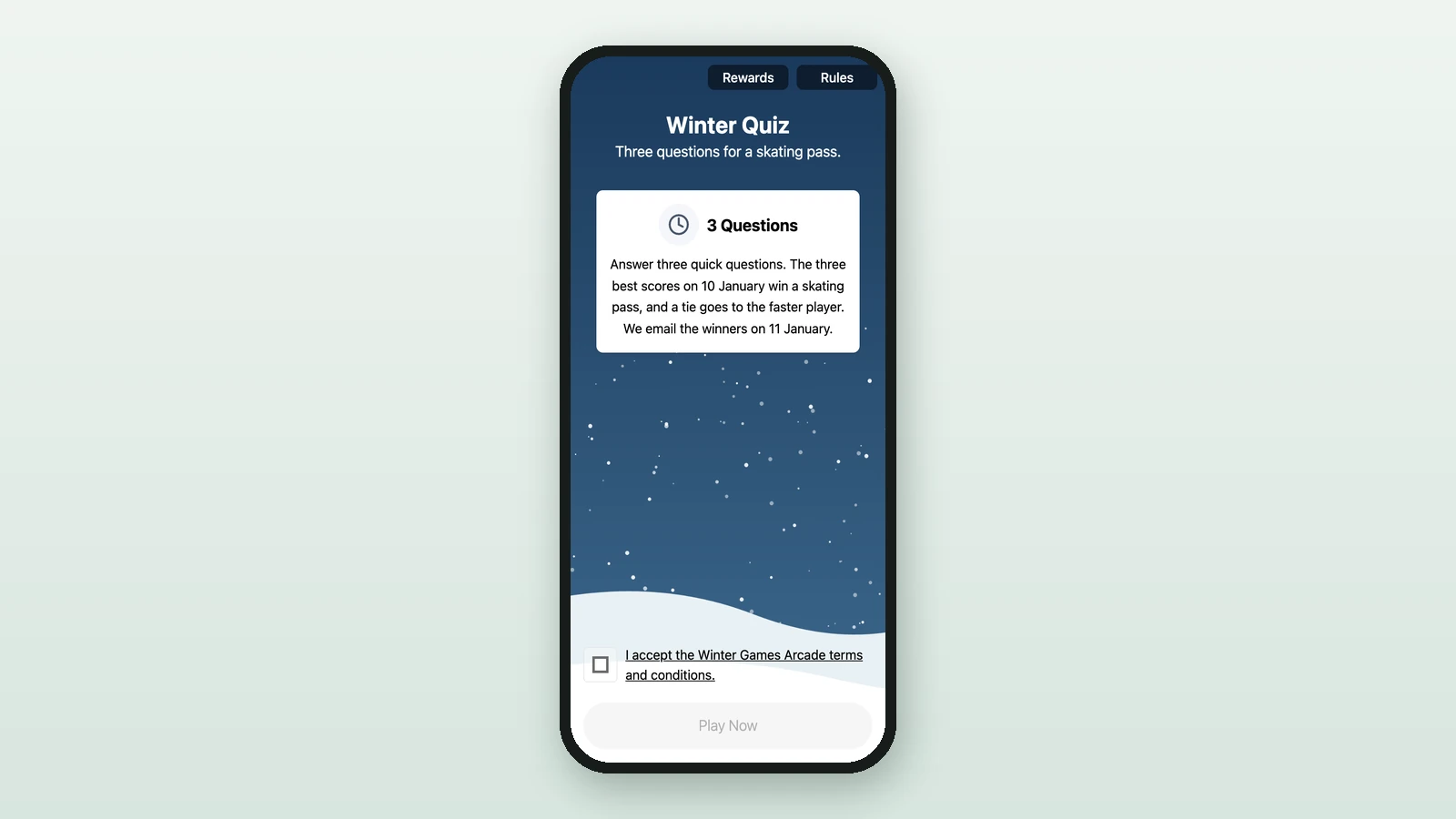
Before you begin
- A campaign open in Build: see Your first campaign.
- A Performance Based Reward for the prize: see Leaderboard rewards.
- Your questions, their answers, and your images:
Background Image
RequiredThe full-screen visual behind any game (wheel, scratch, reveal, quiz, and more).
- Requiredexcept for instant reward and sign-up games
- Size1536 × 2048 px
- Aspect ratio3:4
- FormatsJPEG / WEBP / PNG
It fills the screen from the top centre, with the title, the game and the button on top, and phones crop about a fifth off each side: keep text and faces in the middle.
Header Image
OptionalAn optional banner shown above the quiz questions.
- Optional
- Size1200 × 800 px
- Aspect ratio3:2
- FormatsJPEG / WEBP / PNG
On phones it is cropped to at most 30% of the screen height: keep the subject in the middle.
Thumbnail Image
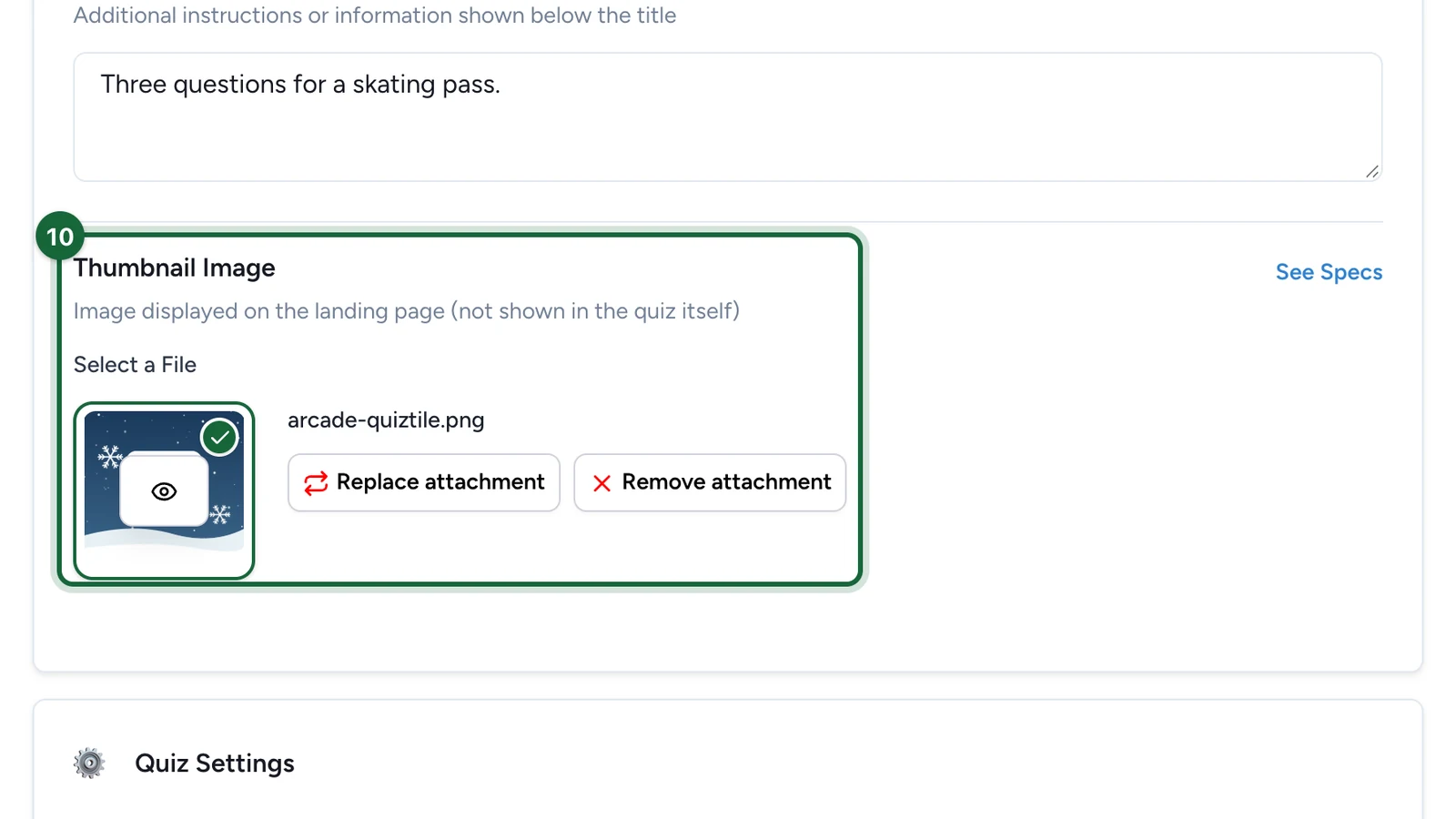
RequiredThe square tile shown in carousels and campaign listings — not on the play screen. Offer passes and interactive totems use it as their image too.
- Requiredwhen the campaign has a landing page
- Size800 × 800 px
- Aspect ratio1:1
- FormatsJPEG / WEBP / PNG
Add the quiz
-
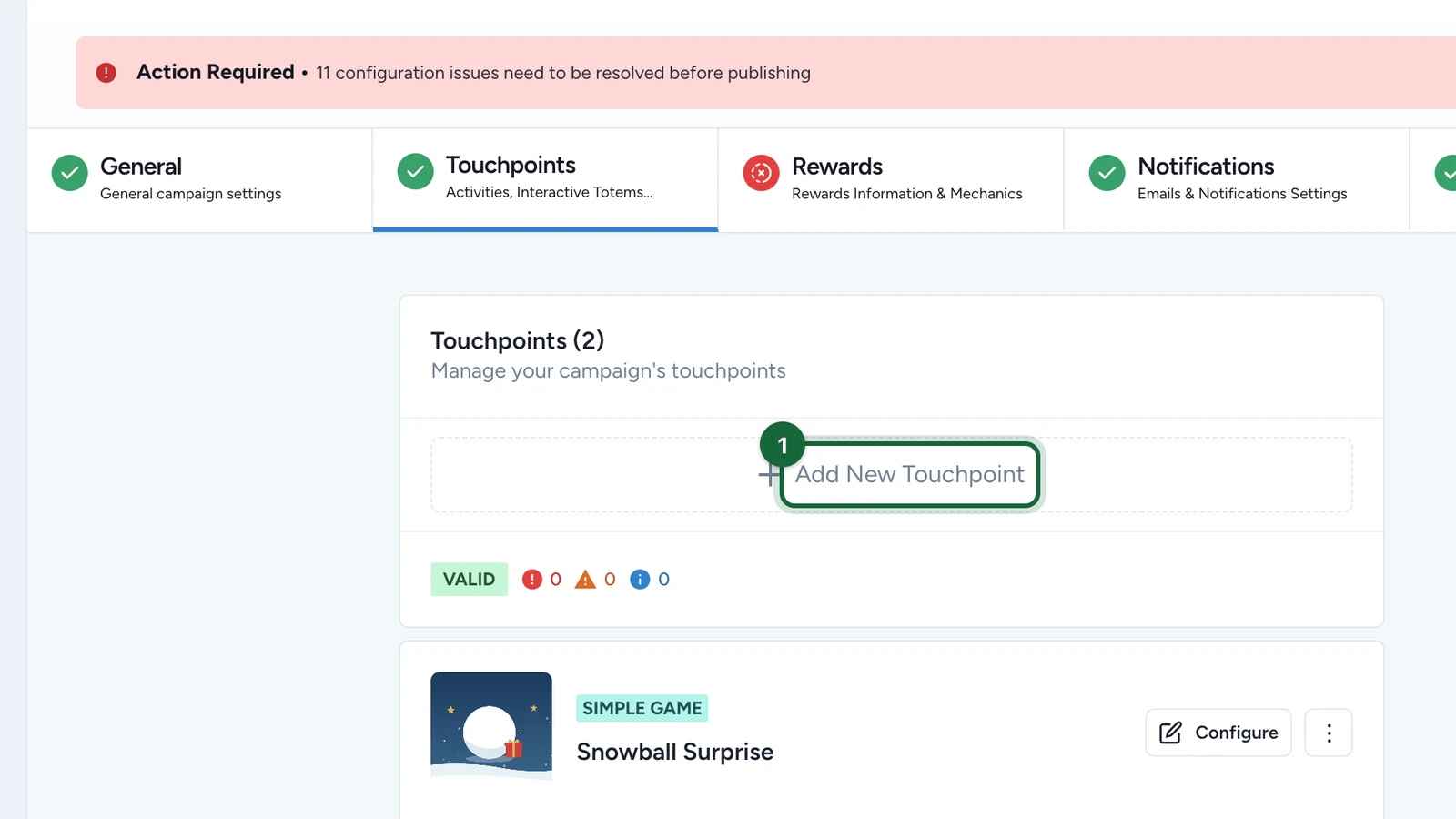
In Build > Touchpoints, select Add New Touchpoint.
-
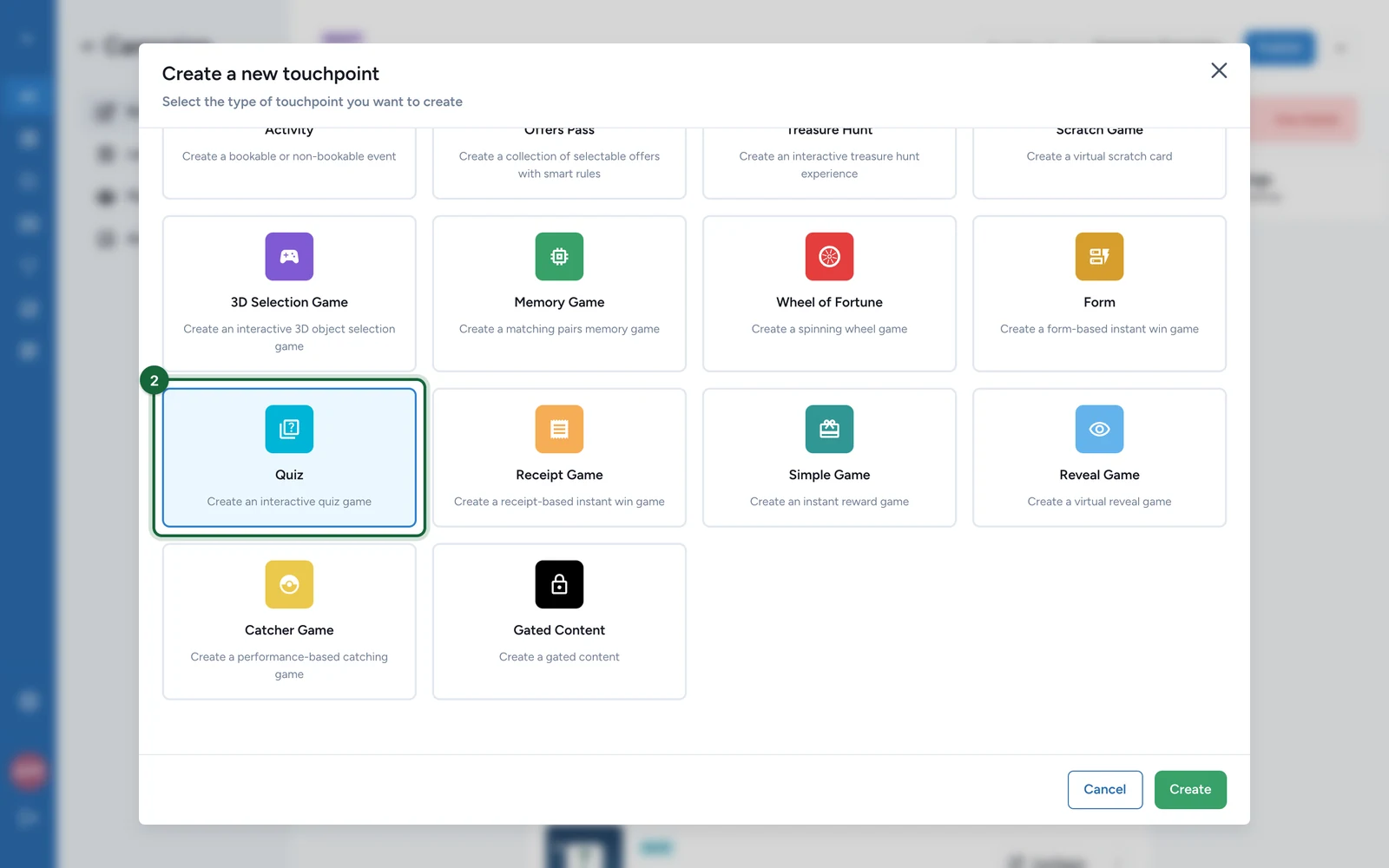
Select Quiz.
-
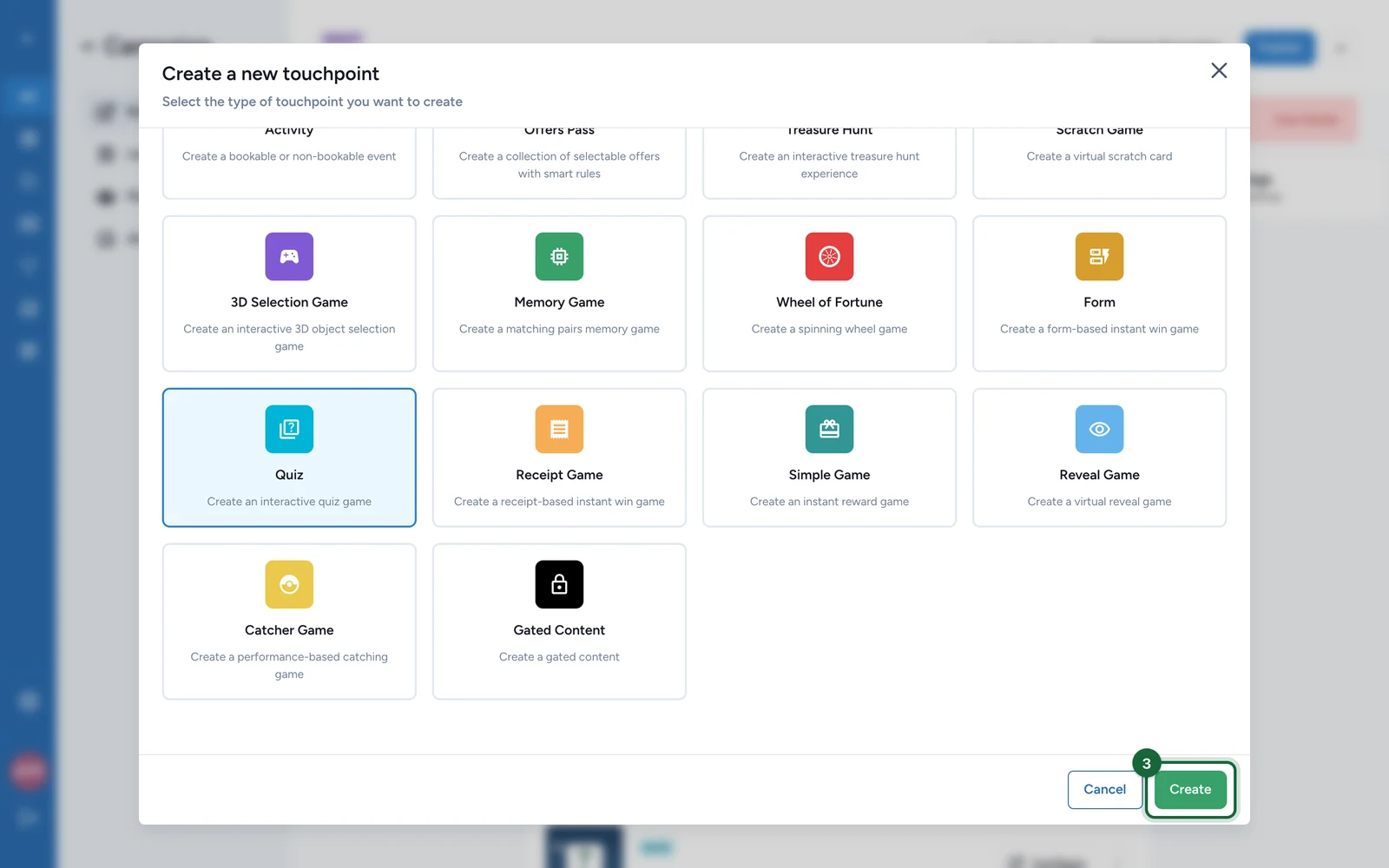
Select Create.
-
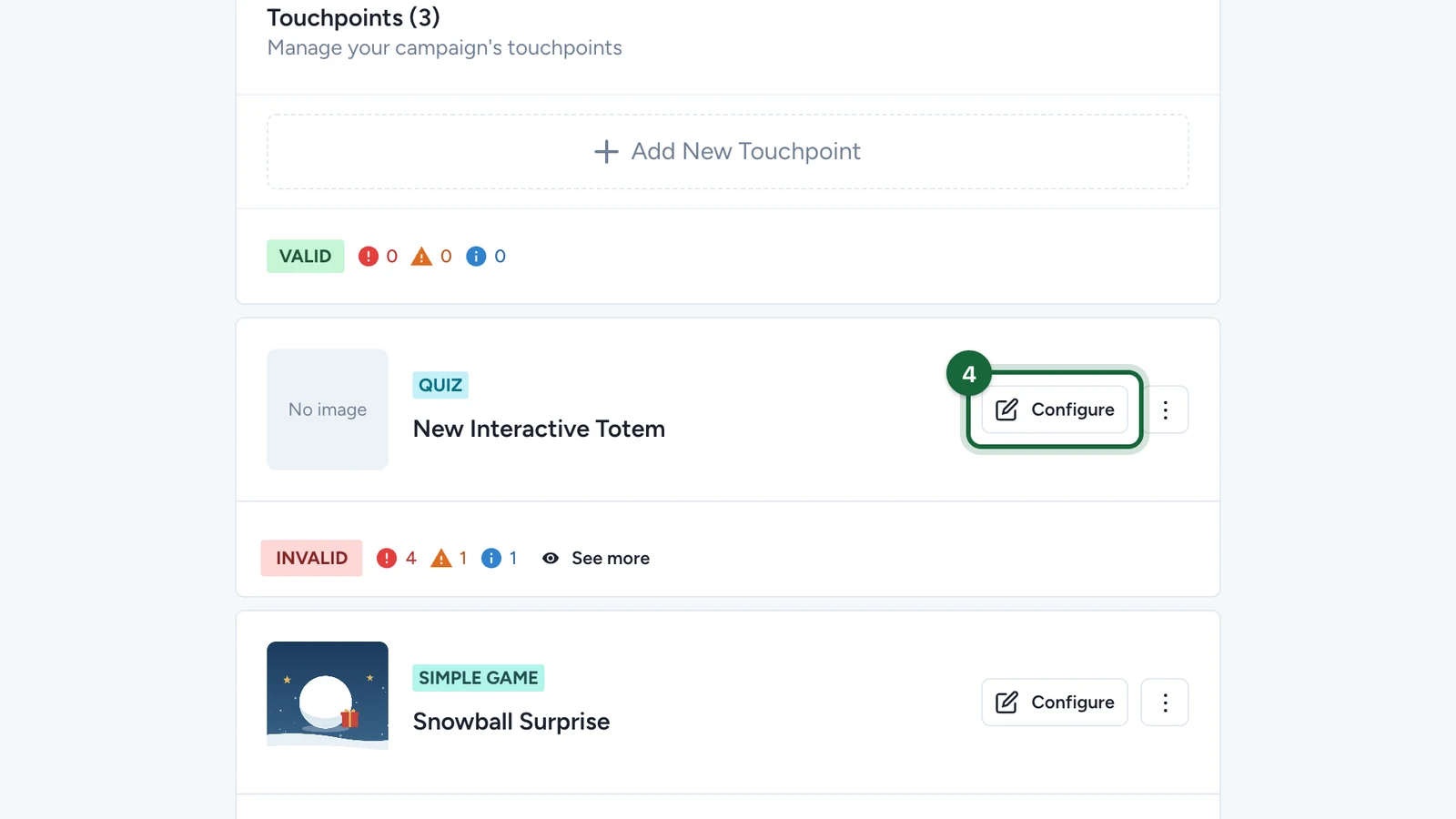
On the new quiz, named New Interactive Totem, select Configure.
-
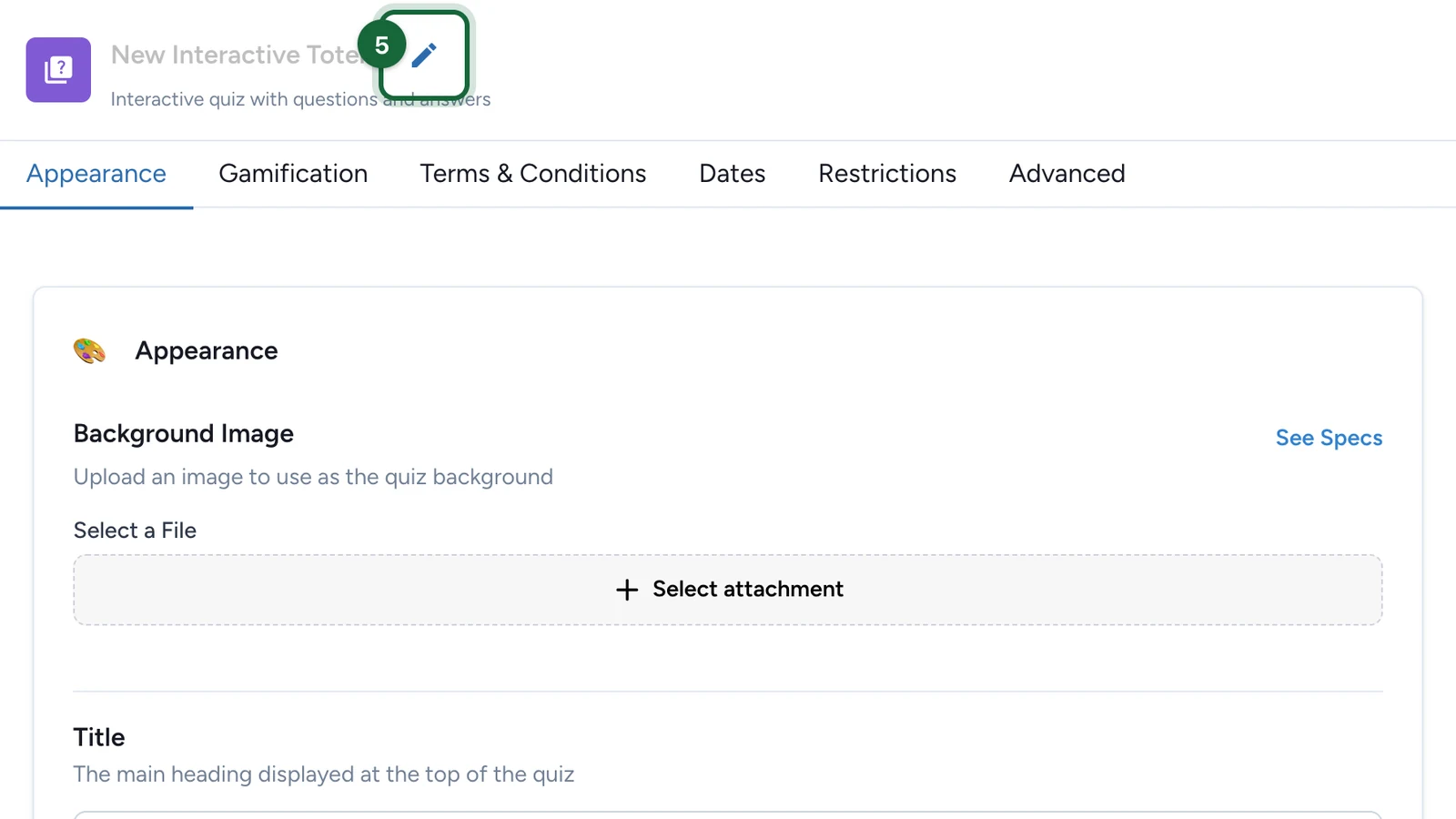
Select the pencil next to the name.
-
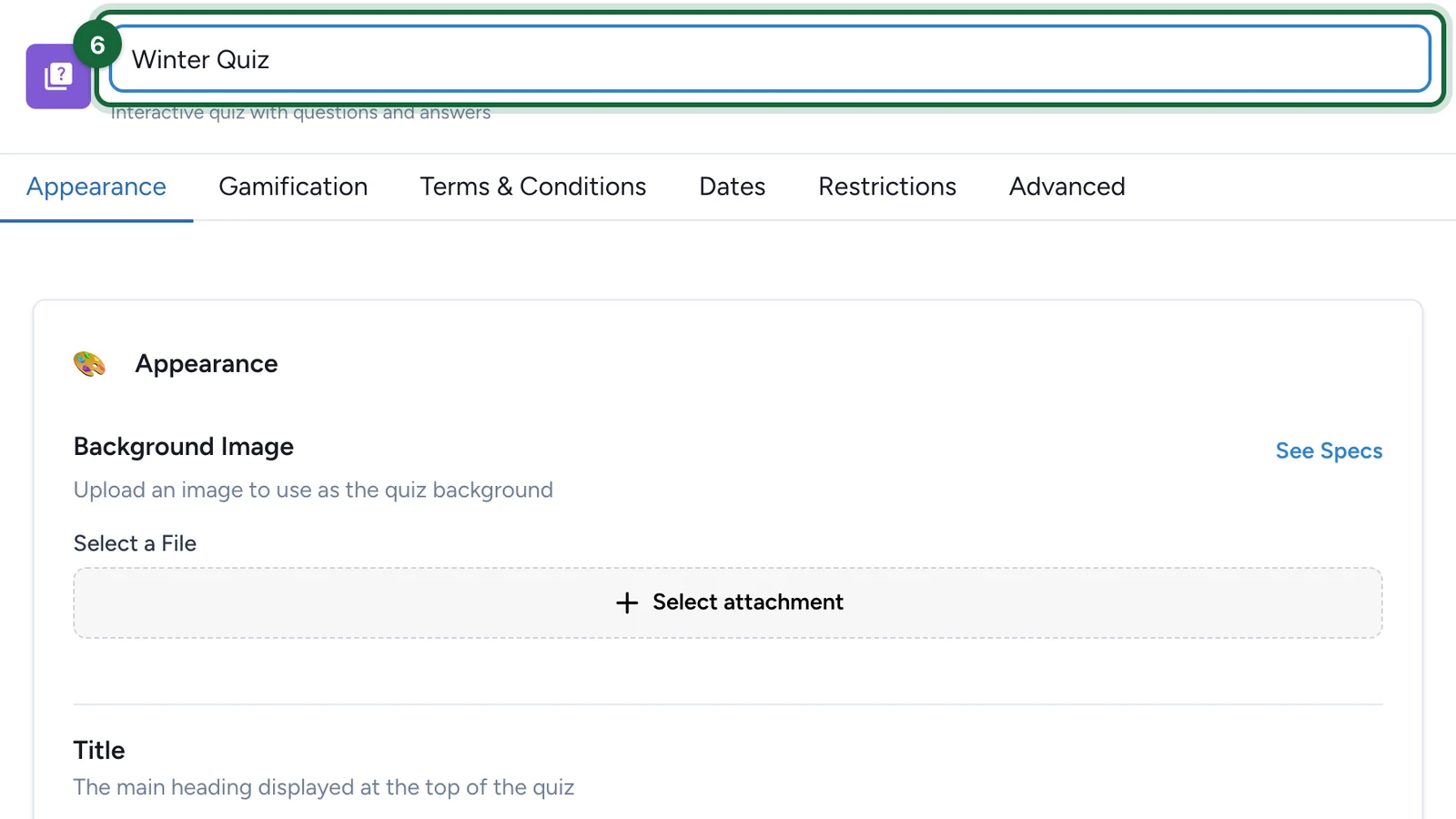
Enter the quiz's name, then press Enter.
Set the look
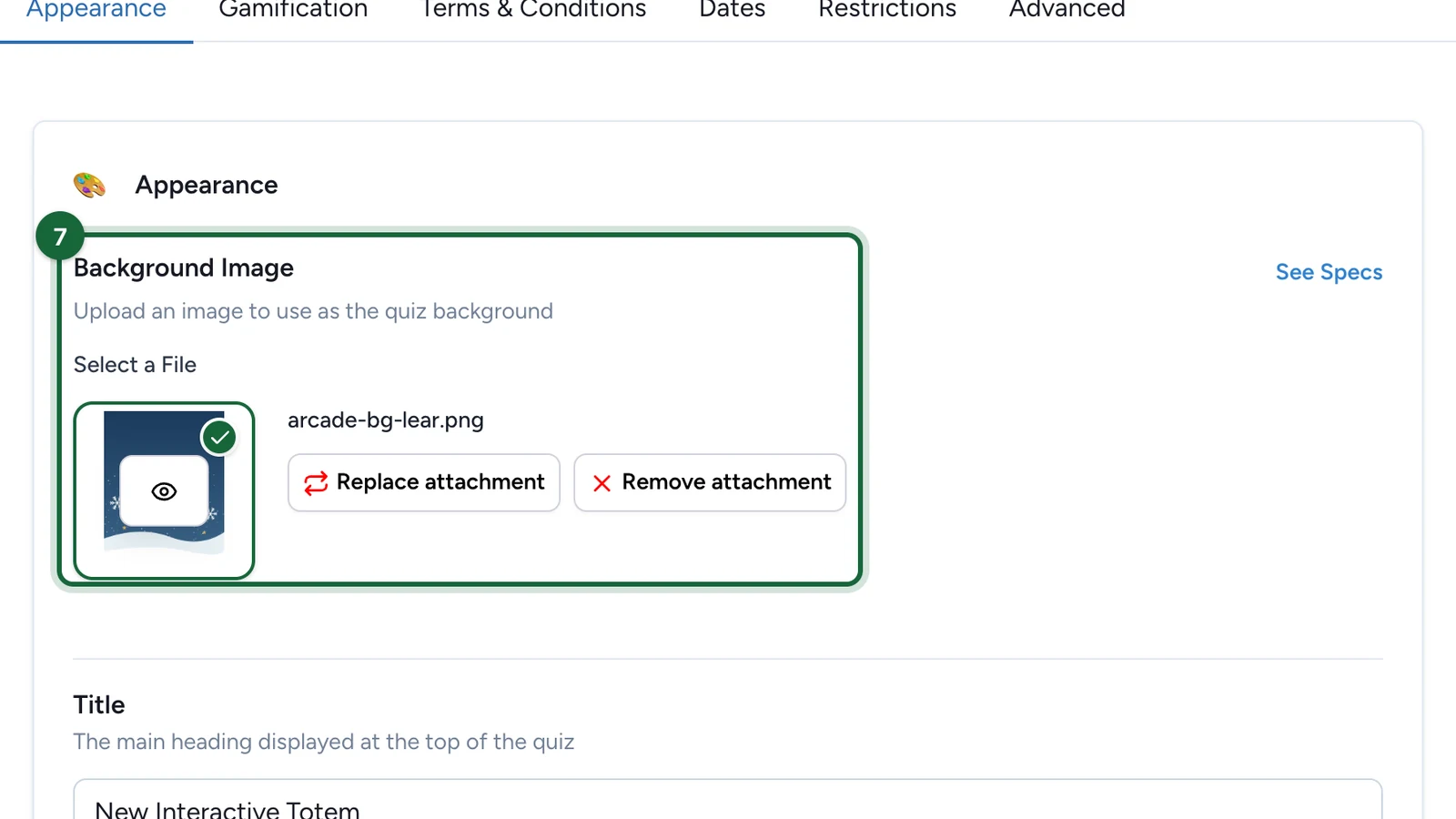
These steps are on the Appearance tab. To choose a picture, select Select attachment, point at the file, select Select File, then Save.
-
Under Background Image, choose the image behind the quiz.
-
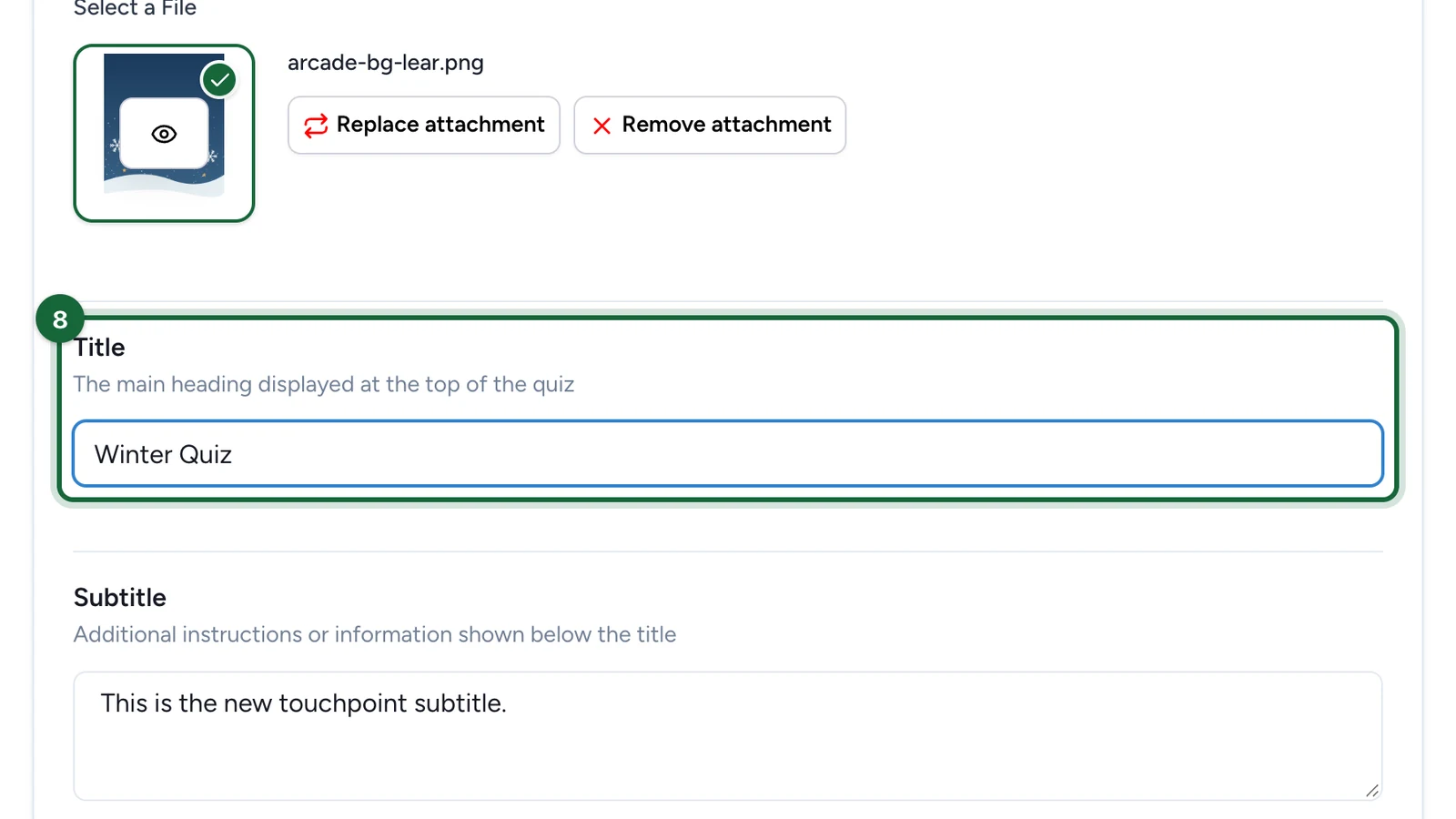
Replace the Title with the quiz's name.
-
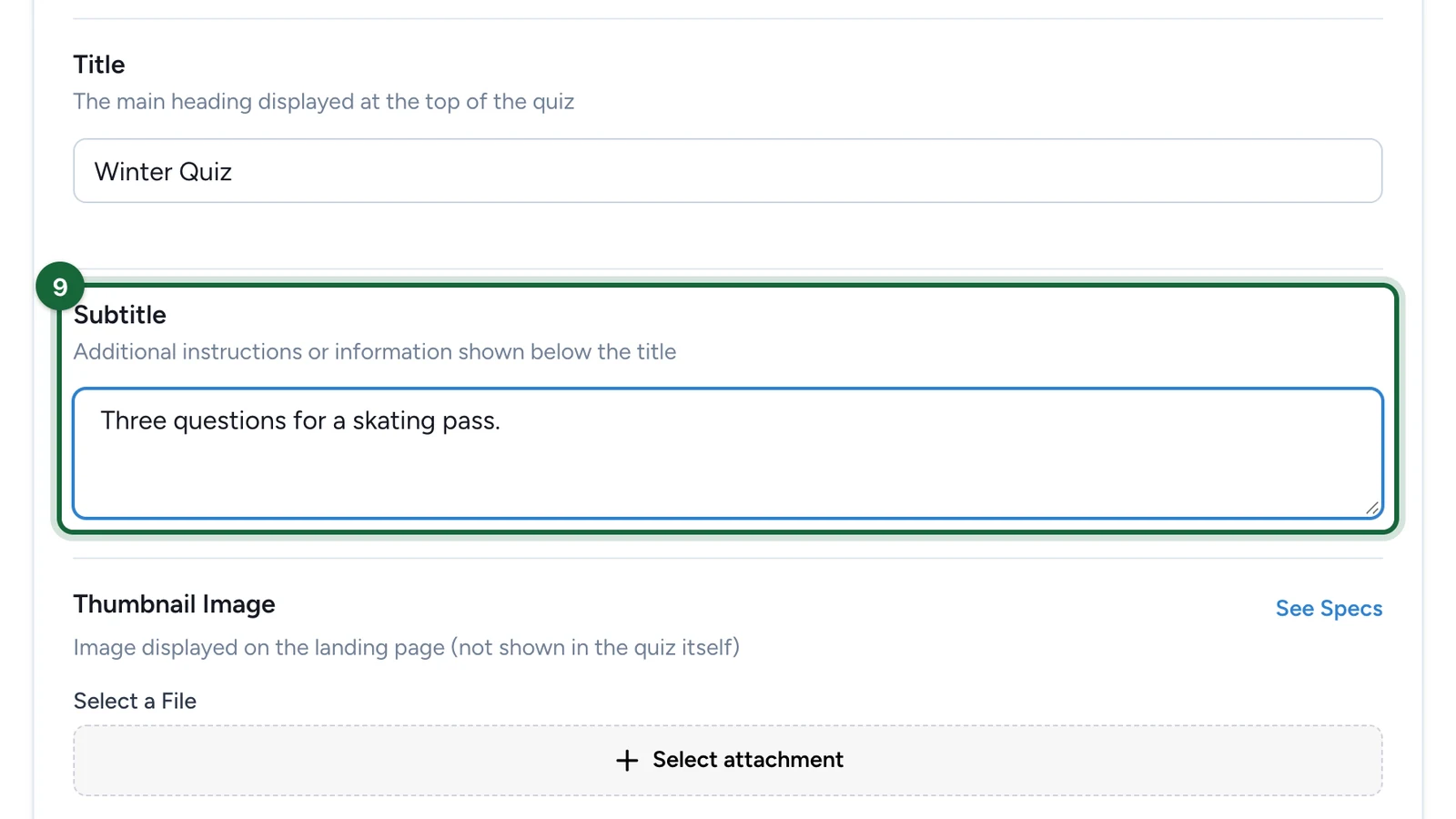
Replace the Subtitle: say what's at stake.
-
Under Thumbnail Image, choose the quiz's picture for the landing page, if the campaign has one.
Set the rules
-
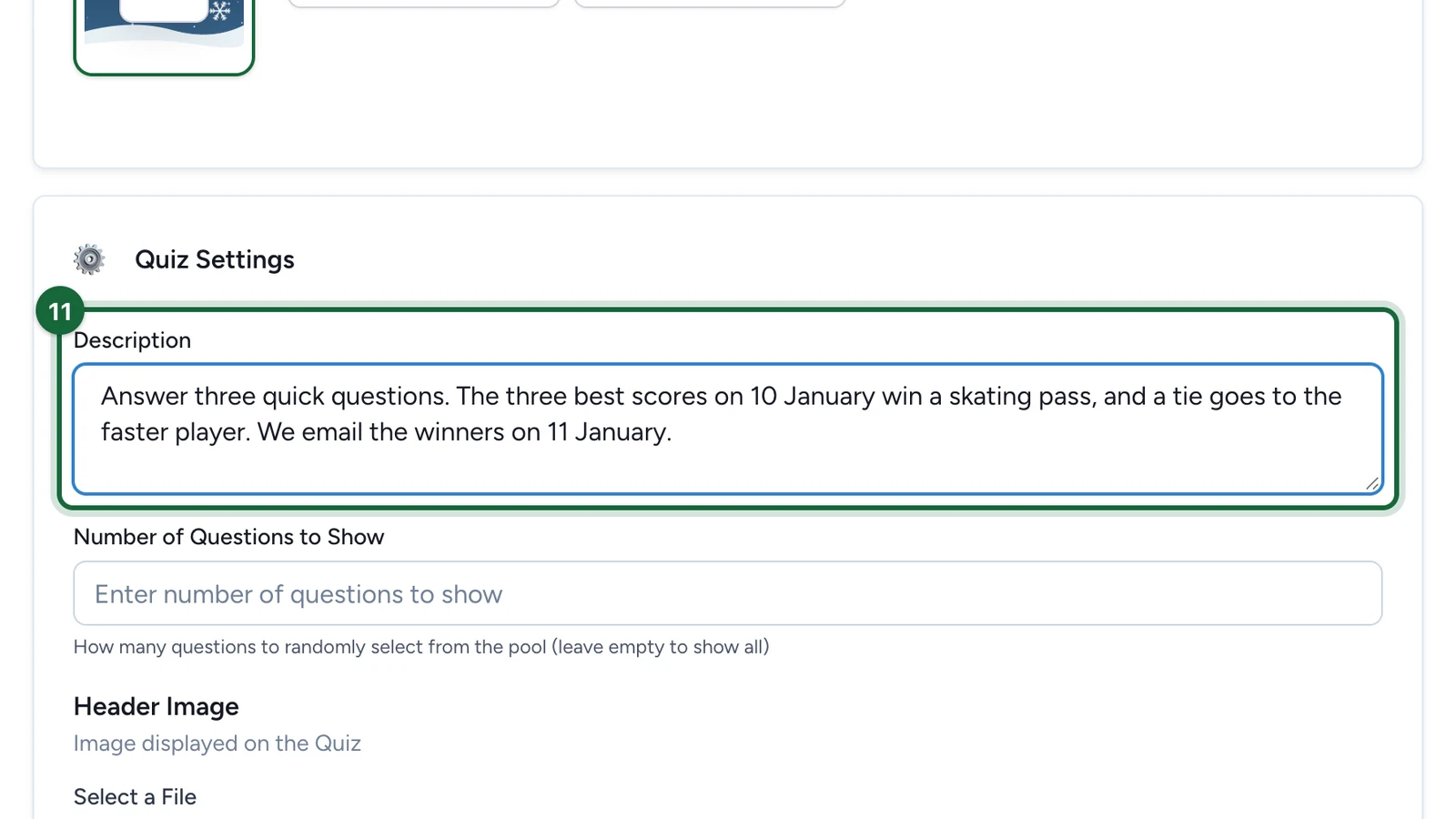
Write the Description: the rules players read before they start.
-
Enter the Number of Questions to Show.
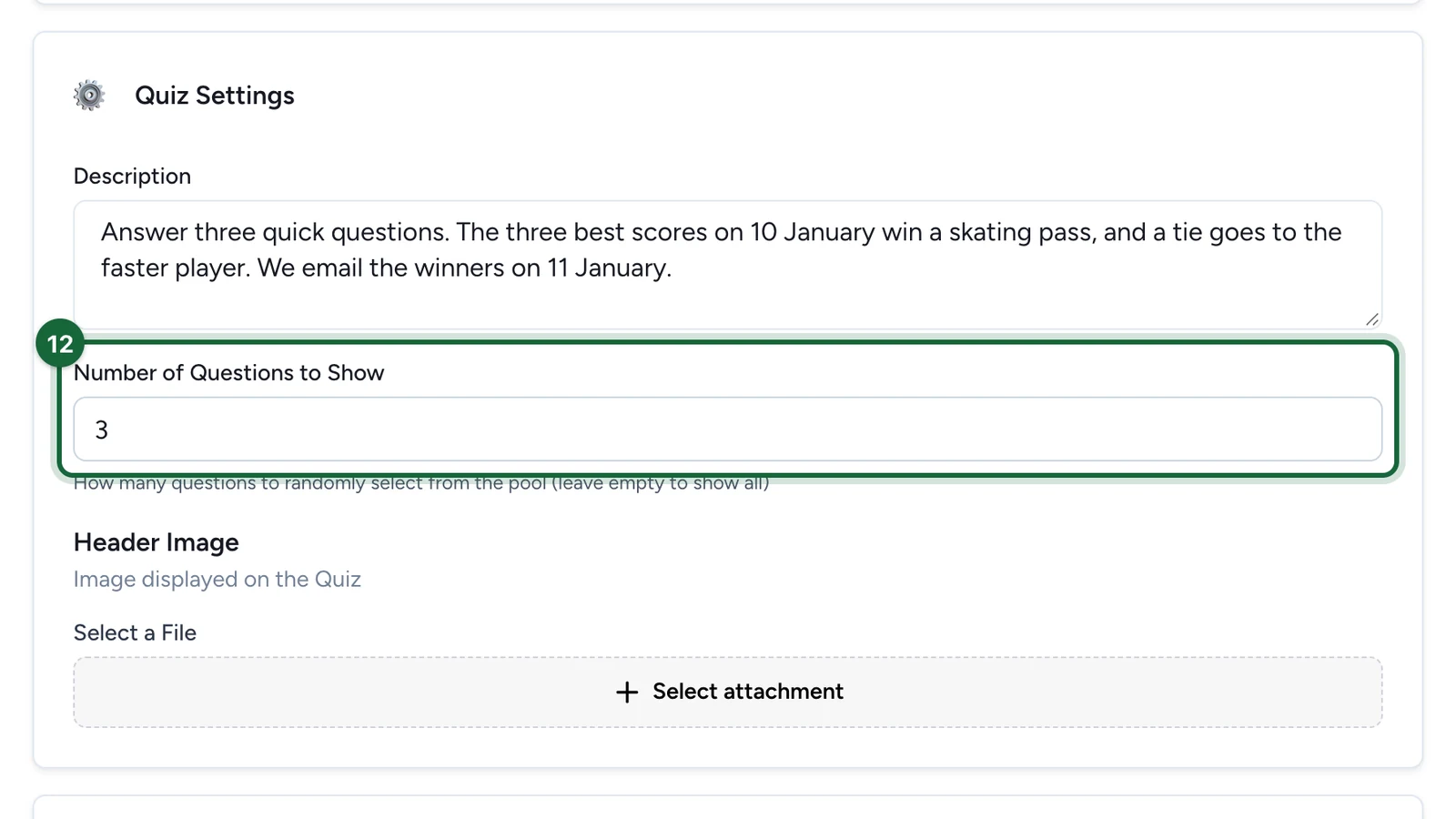
With more questions than that, each player gets a random selection.
-
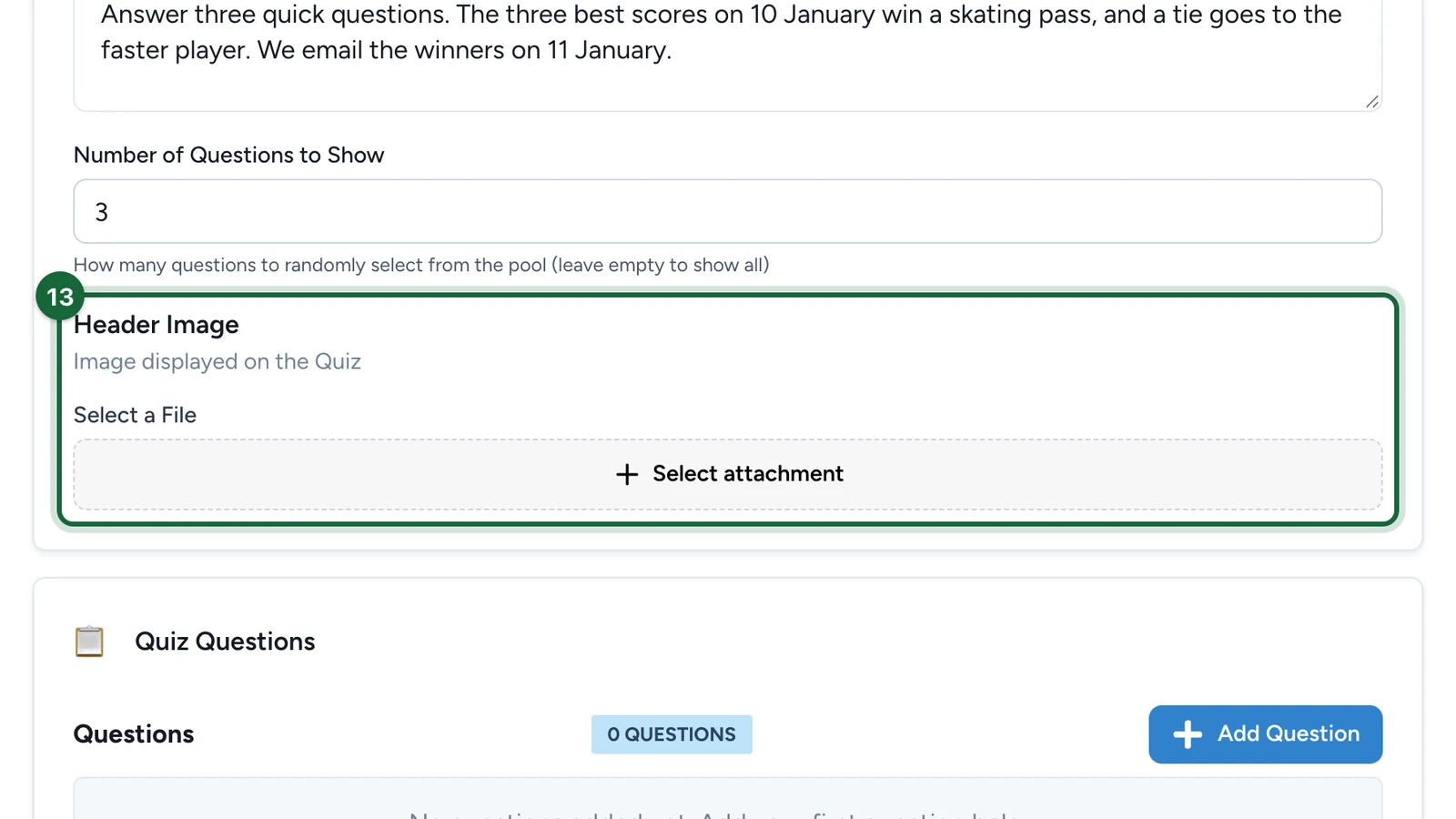
(Optional) Under Header Image, choose an image for the top of the quiz.
Write the questions
-
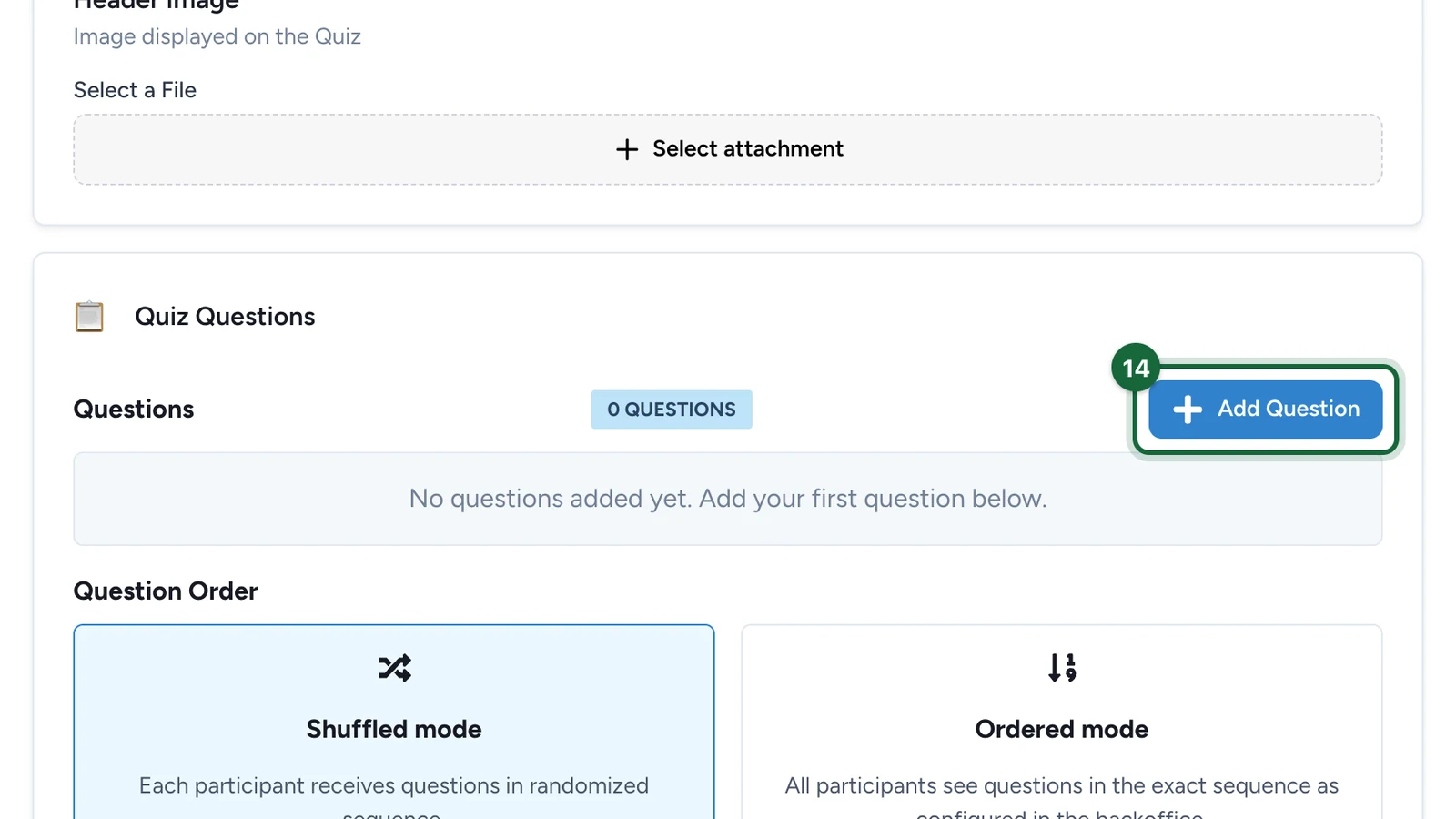
Under Quiz Questions, select Add Question.
-
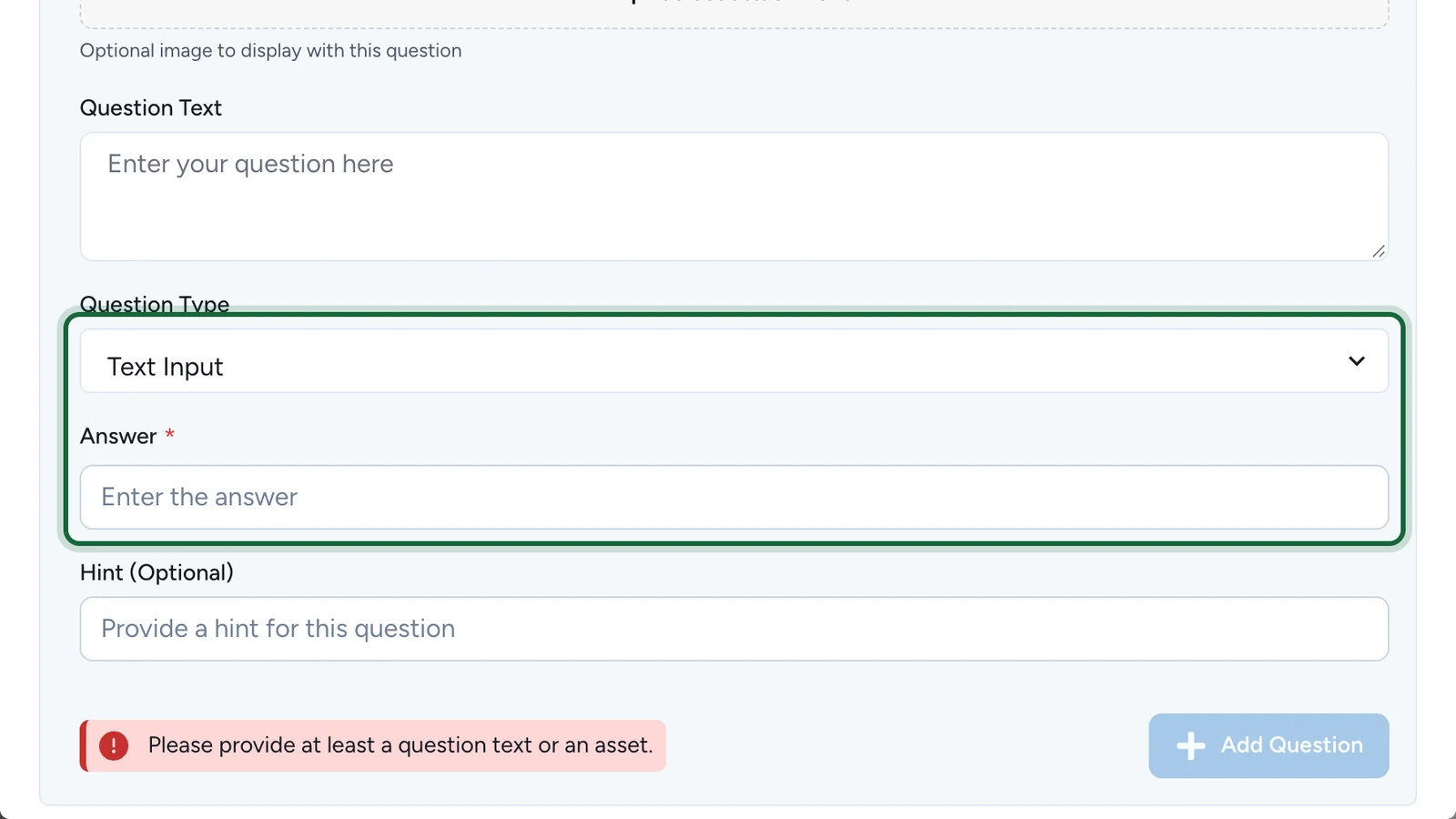
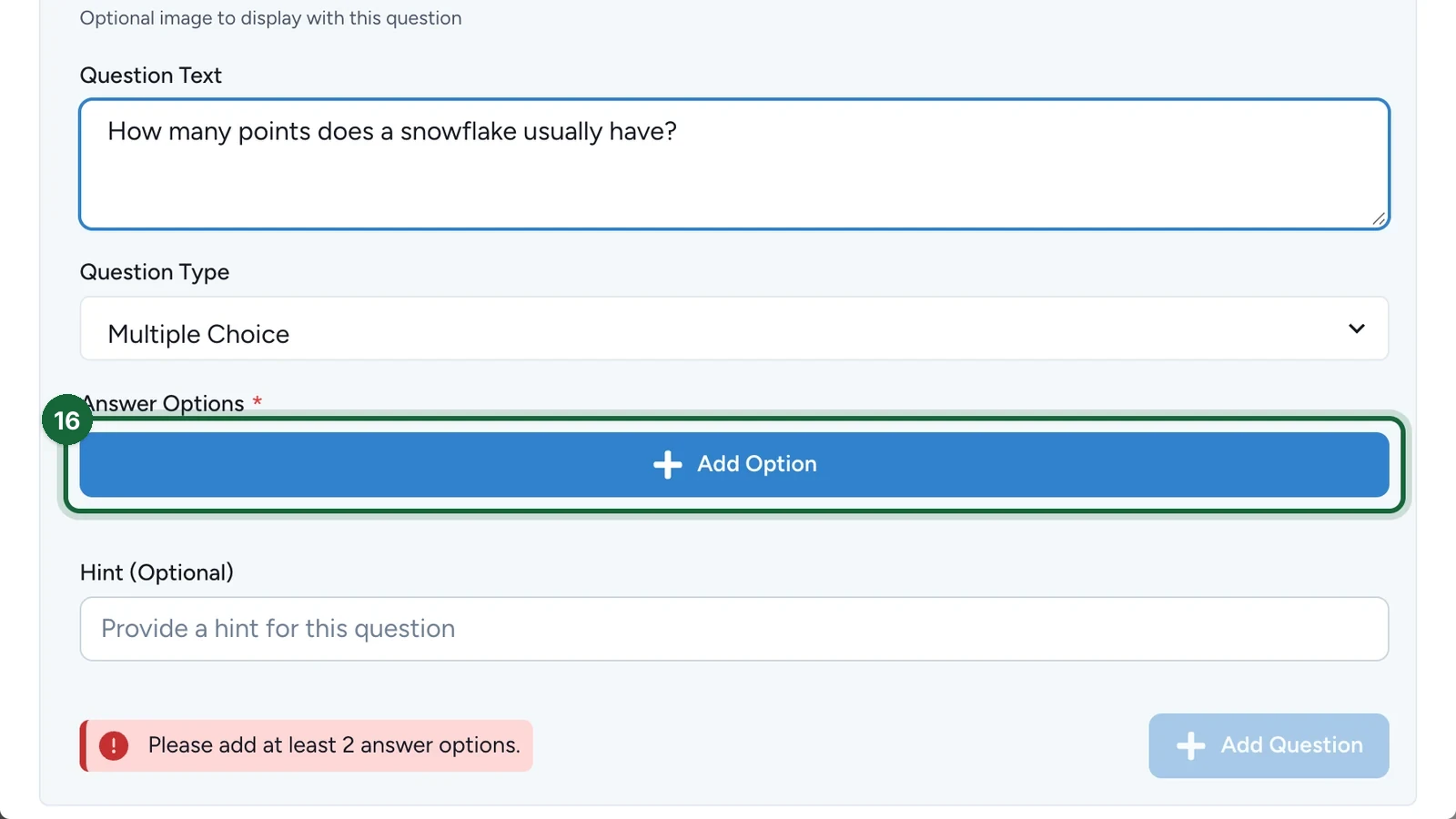
Enter the Question Text.
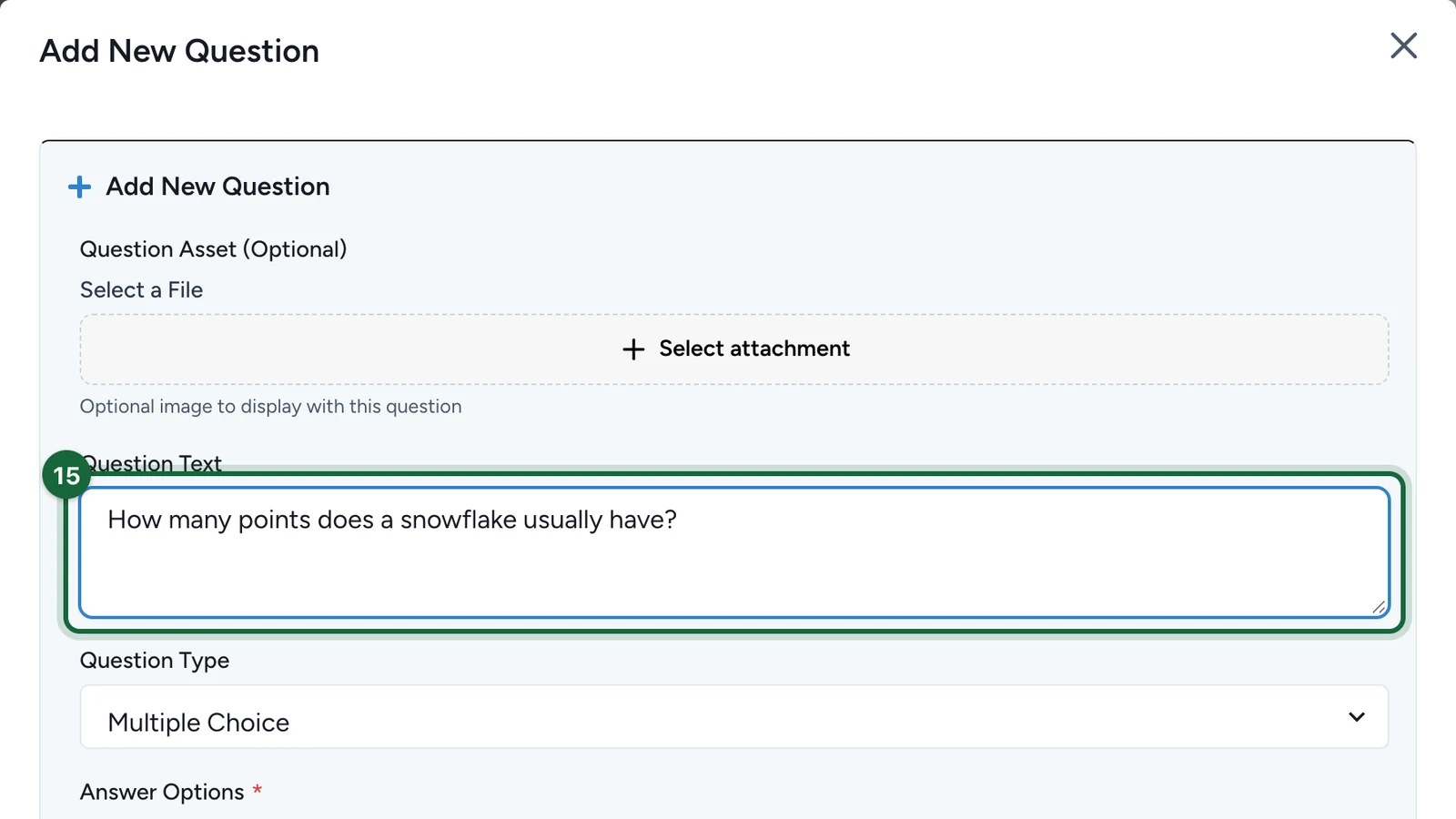
Question Type stays on Multiple Choice. For a typed answer, choose Text Input and enter the expected Answer. Keep it short, so a right answer isn't marked wrong.
-
Select Add Option.
-
Type the answer in Option Text.
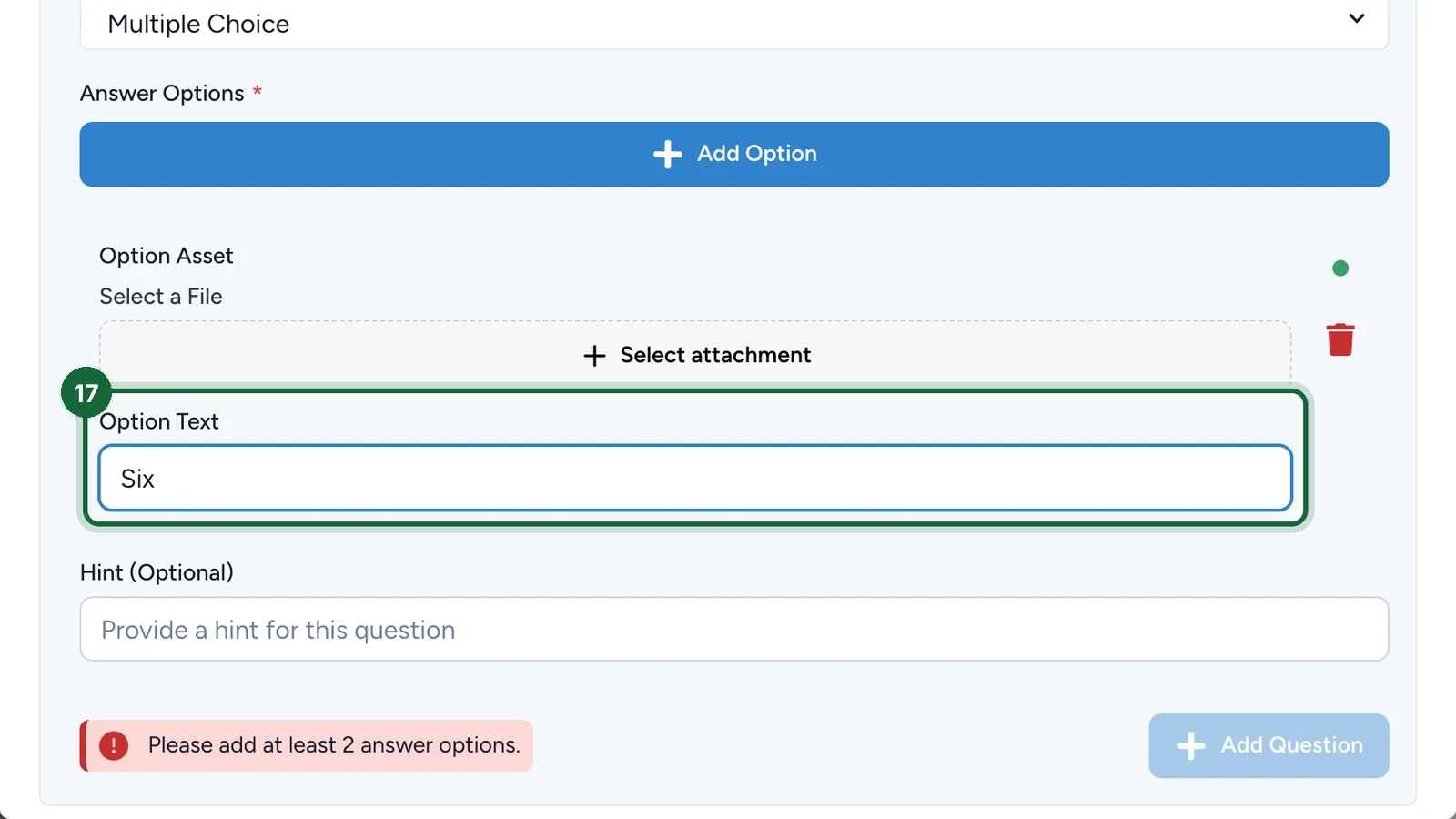
Repeat steps 16 and 17 for each answer.
-
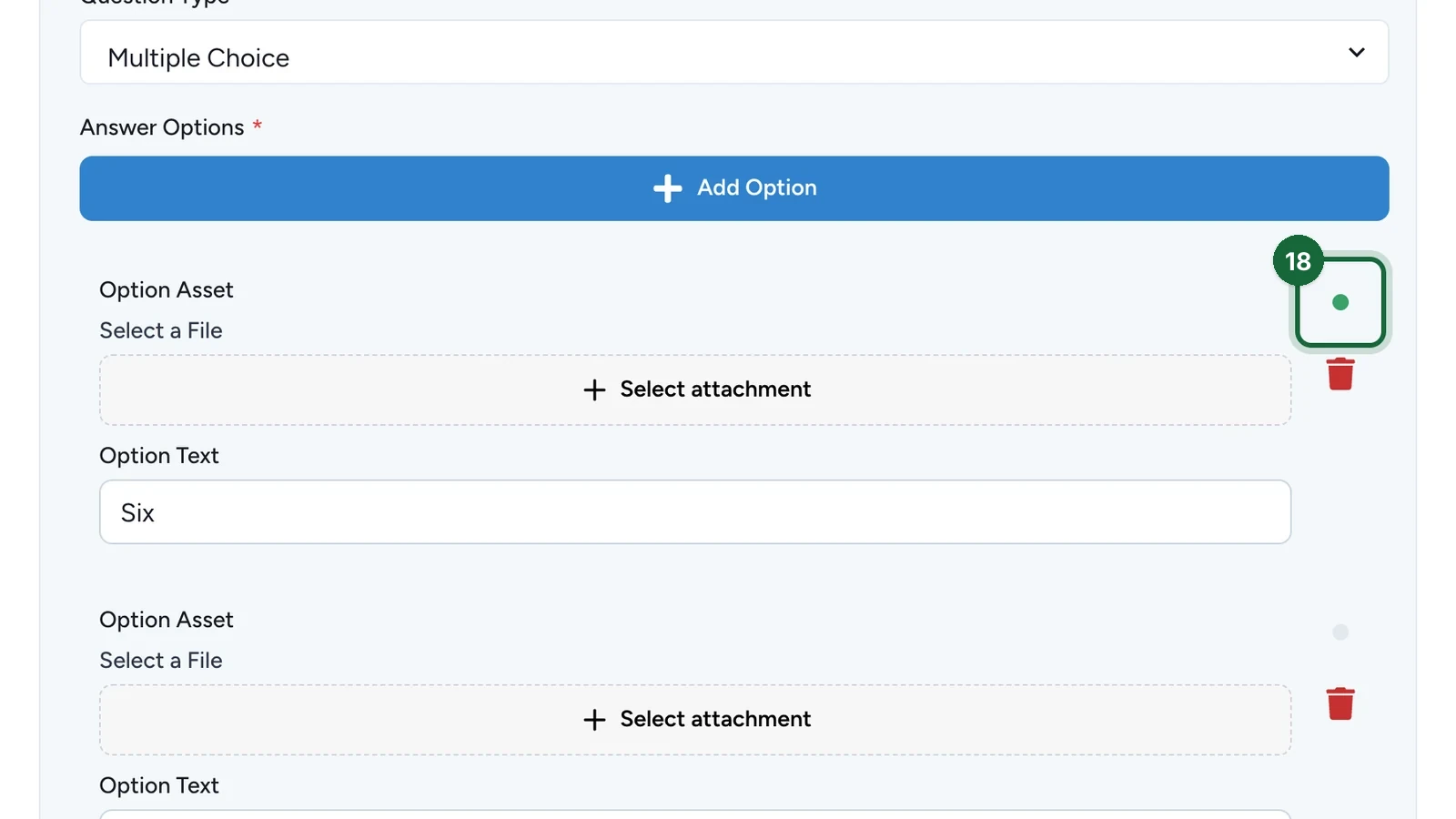
Select the dot beside the right answer.
-
Select Add Question.
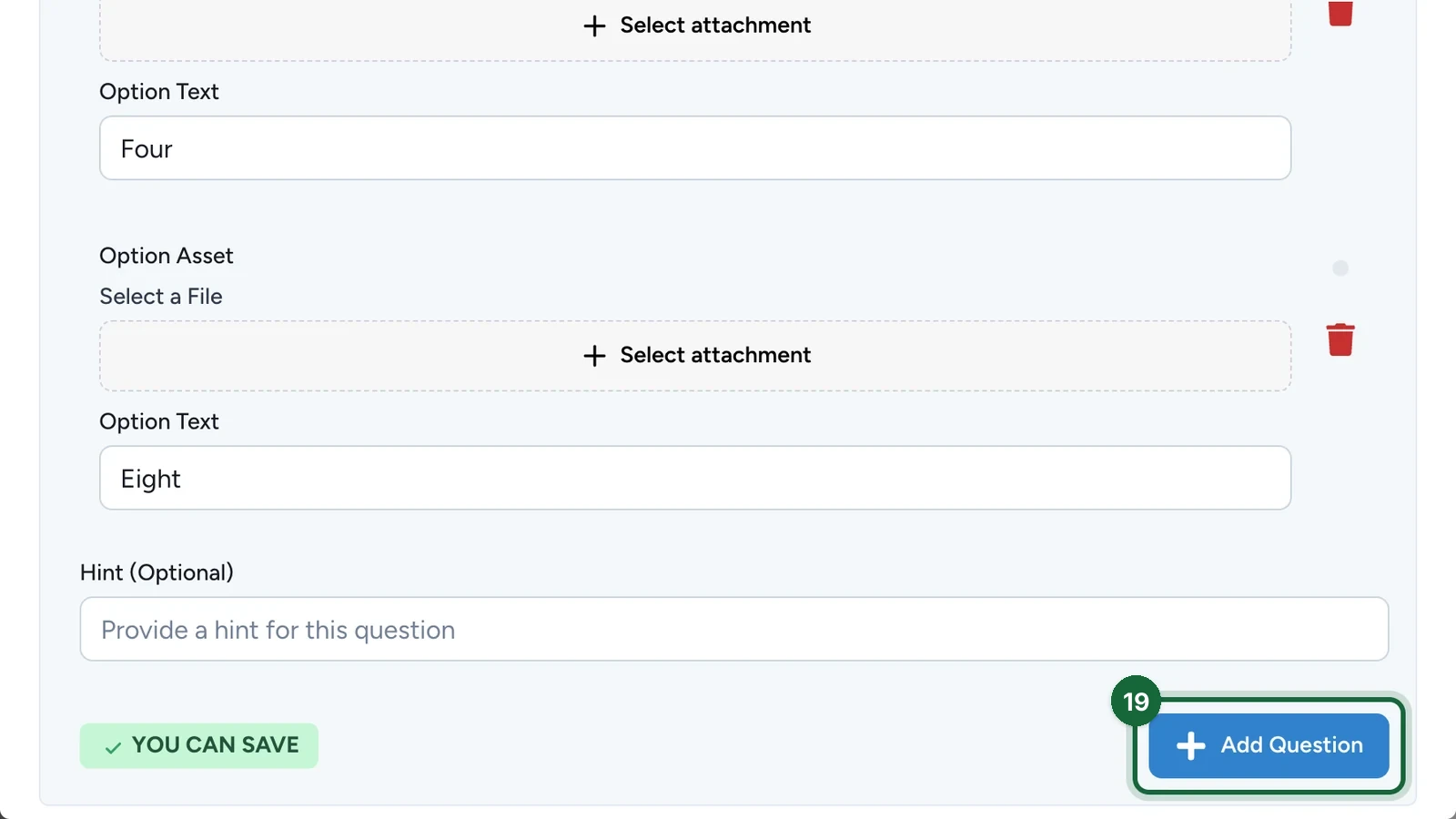
Add the other questions the same way. To change one later, select its edit button: the window then ends with Update Question.
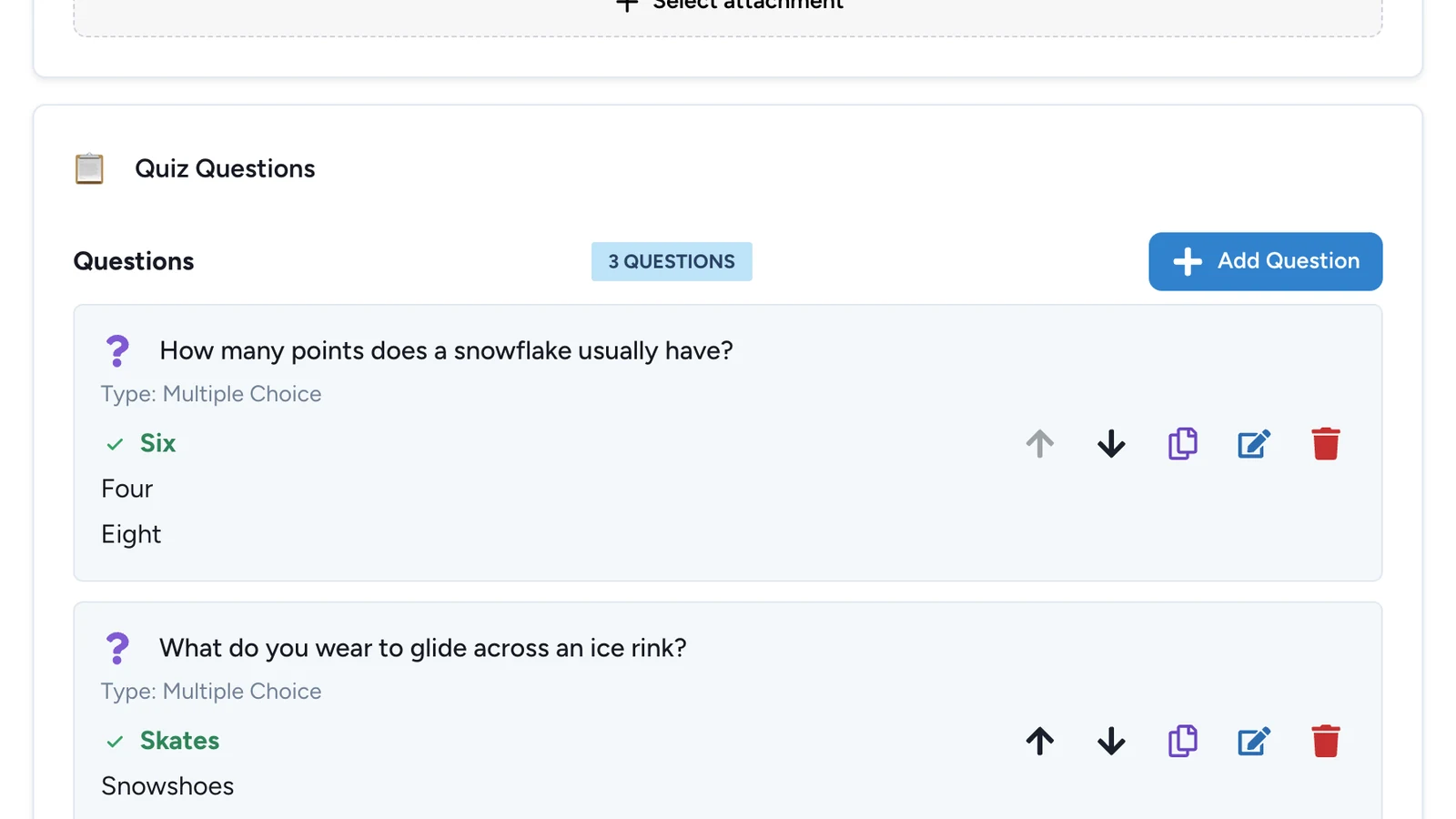
-
Under Question Order, choose Shuffled mode or Ordered mode.
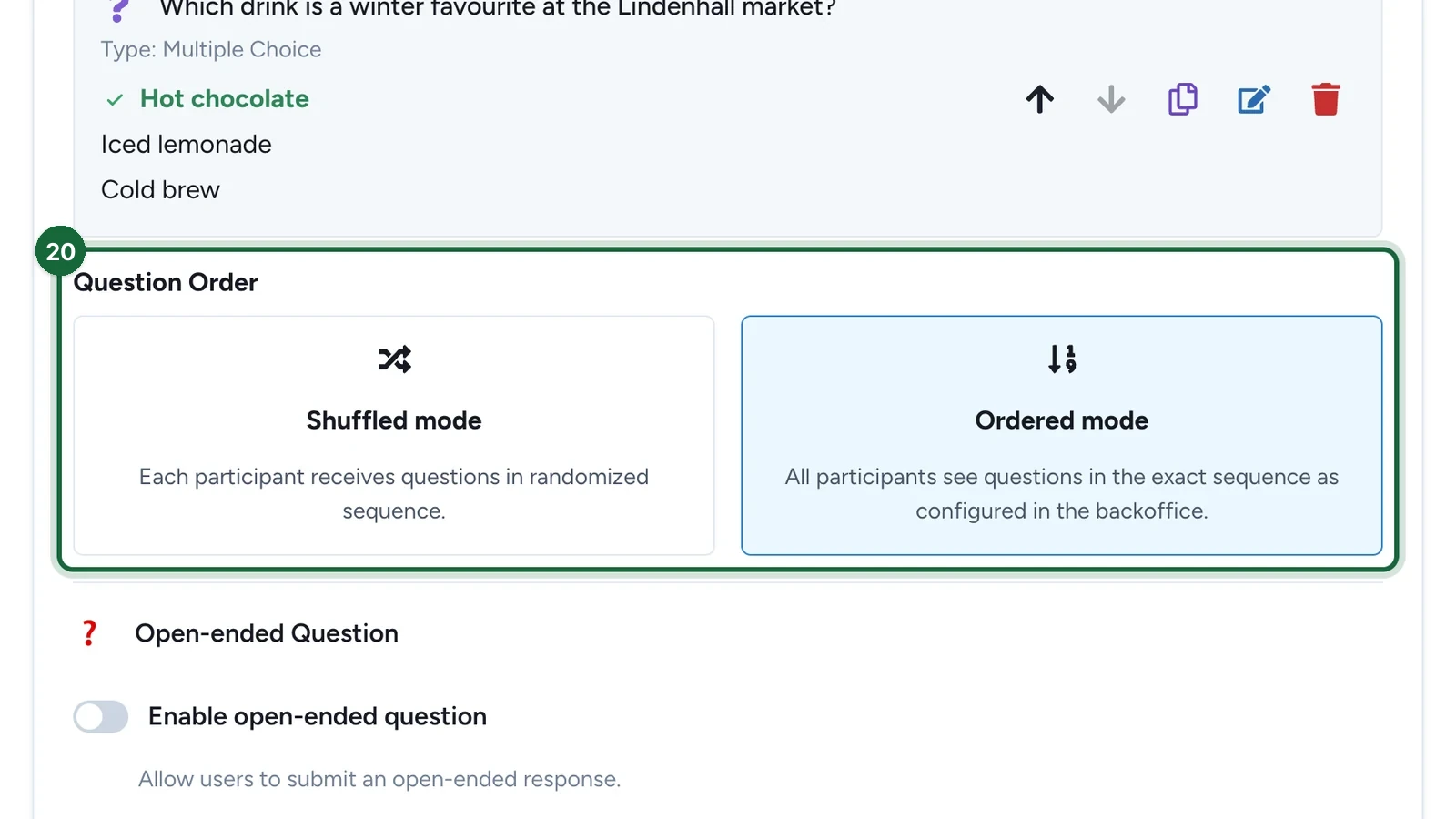
-
(Optional) Turn on Enable open-ended question to ask one last question that isn't scored.
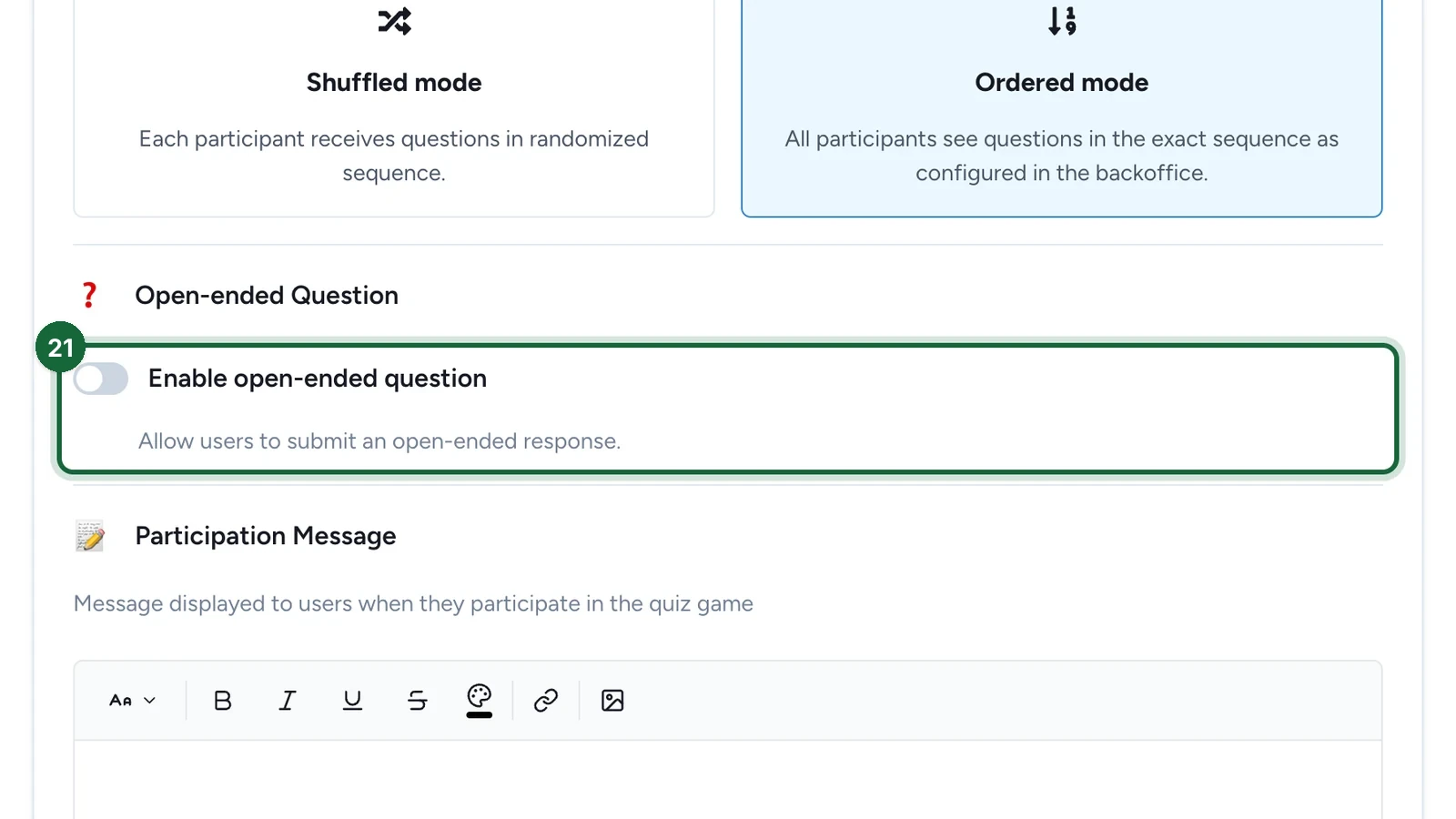
-
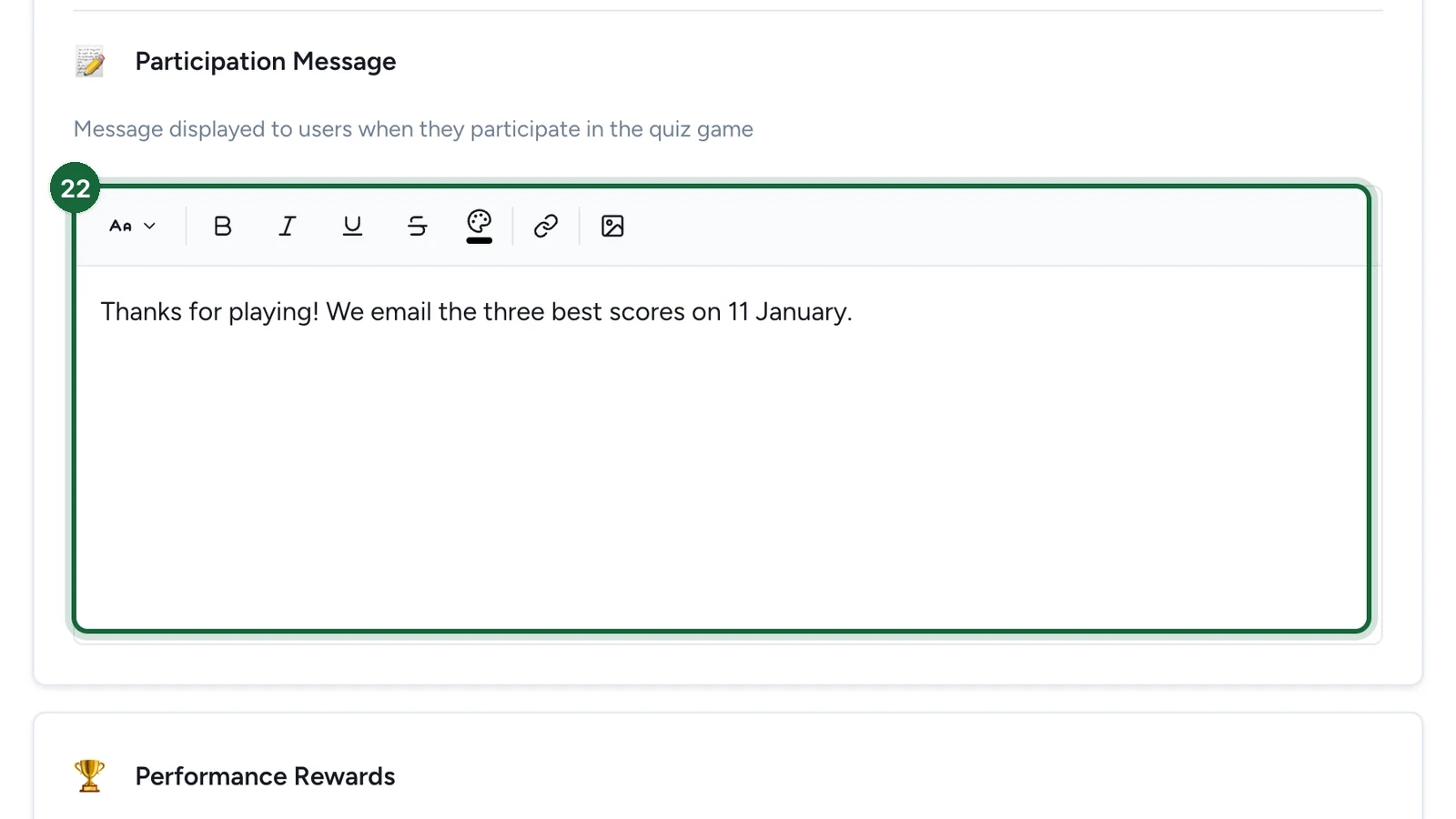
Write the Participation Message, shown with the score at the end.
Add the prize
-
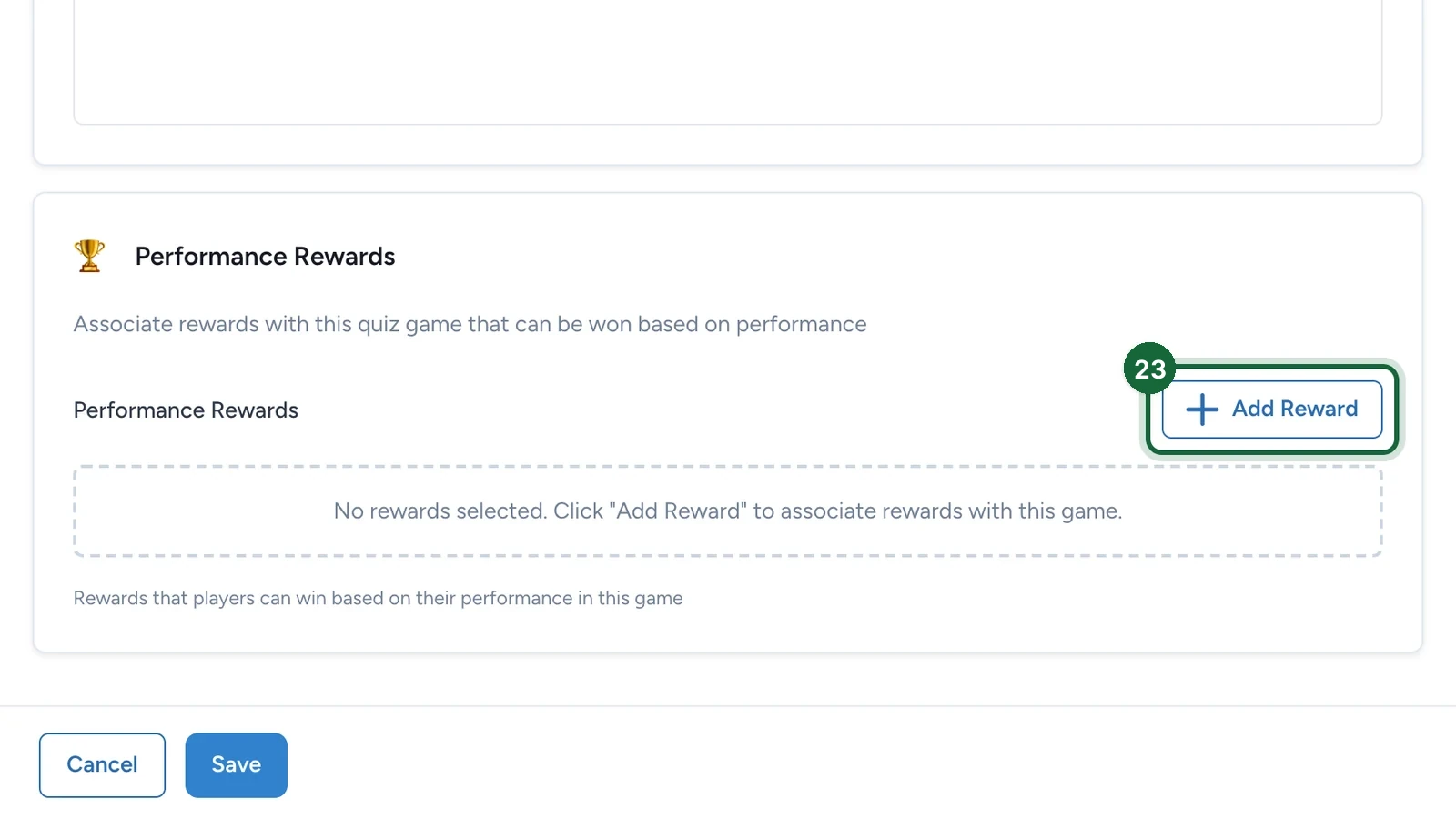
Under Performance Rewards, select Add Reward.
-
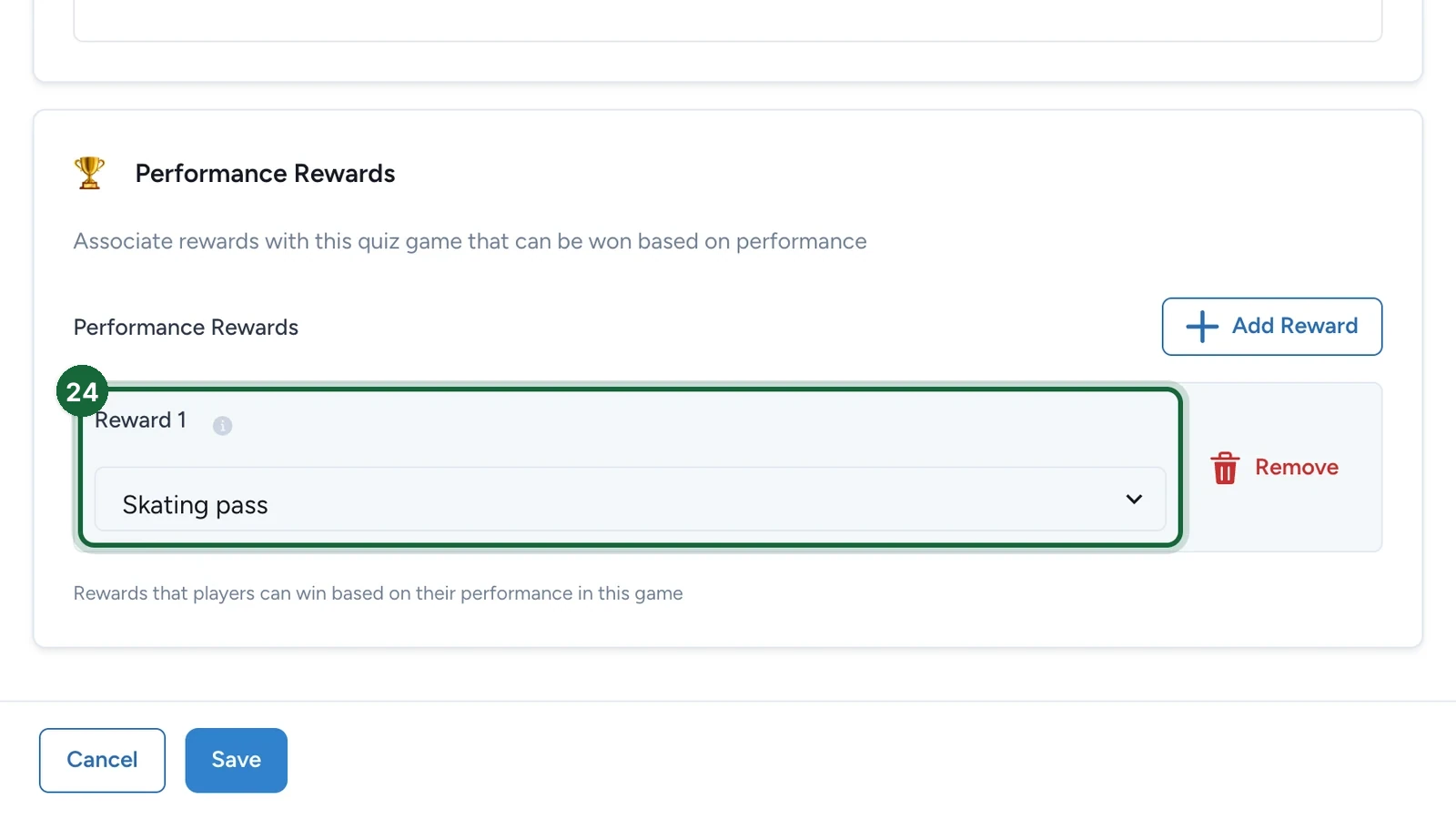
Under Reward 1, choose the prize.
-
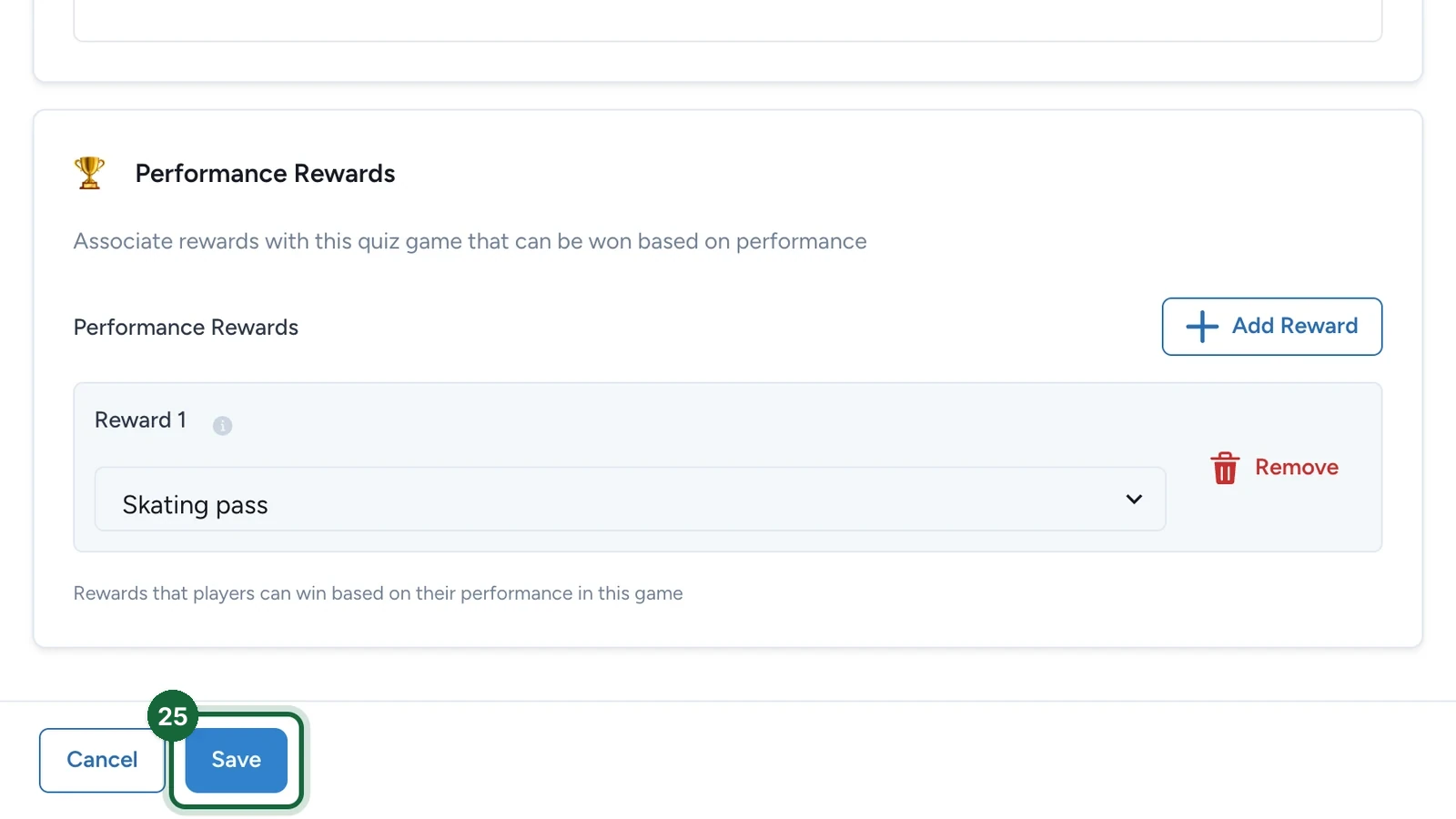
Select Save.
The quiz's card now reads VALID.
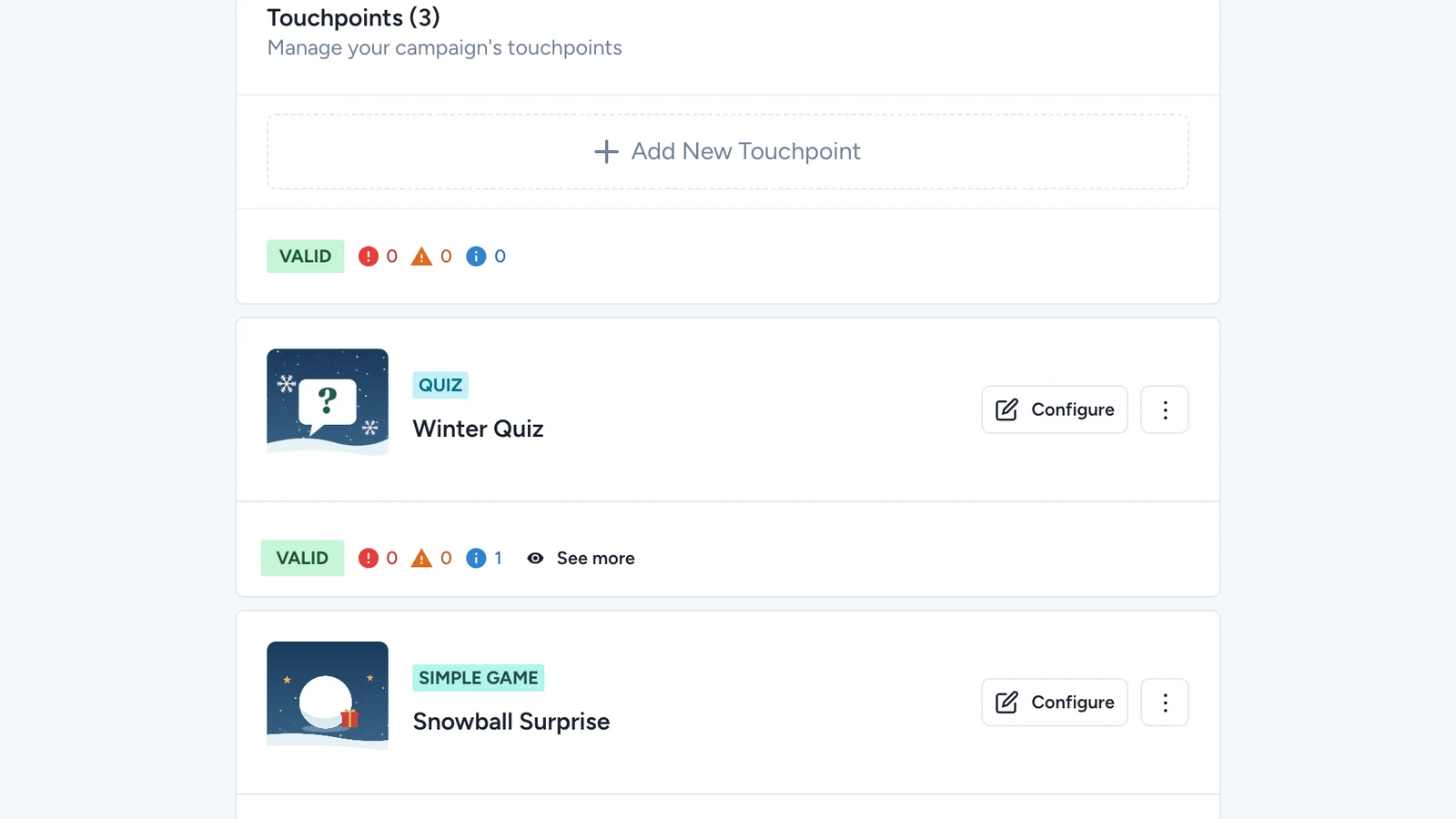
Publish the campaign again for players to see the quiz: see Publish a game.
If publishing is blocked
- No background image, or no thumbnail while the landing page is on: choose them on the Appearance tab.
- A question has no text or image, fewer than two options, or no correct answer: finish it.
- A text question has no answer: fill in Answer.
- More questions to show than you wrote: lower Number of Questions to Show.
- No participation message, or a prize with no winner message: add them.
See also Game validation errors.