Create a reward
Build a prize step by step in Build > Rewards: its type, name, icon, quantity, winner message and how winners claim it.
Every prize in a campaign is a reward. You create it once, then link it to the game, offer or rule that hands it out. Here, Lindenhall creates a free hot chocolate that its Winter Wheel will give away. The steps are the same for every type; the other reward pages add what's specific to each.
Create the reward
Open the campaign in Studio. It opens on Build.
-
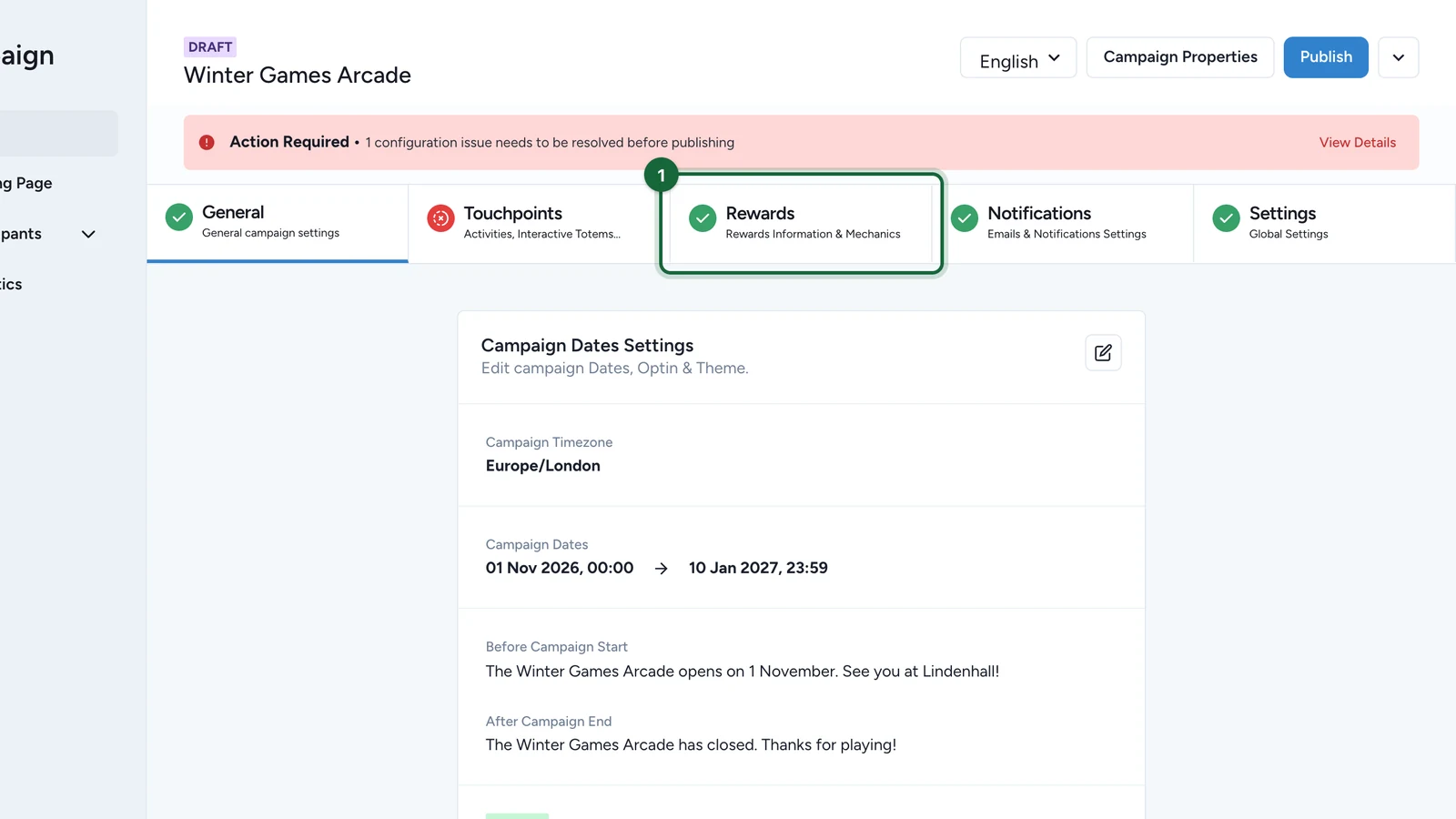
Select the Rewards tab.
-
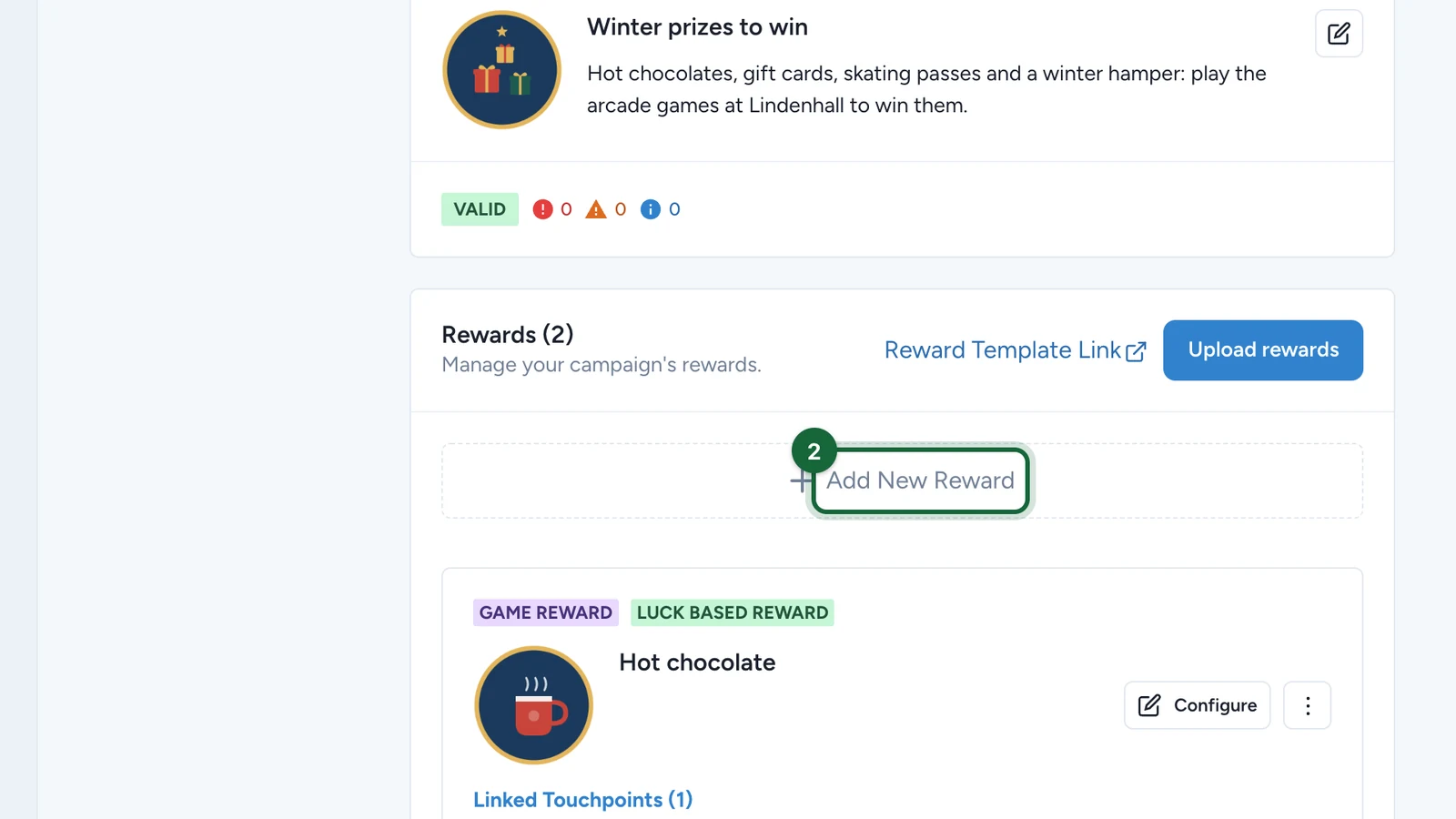
Select Add New Reward.
-
Choose what the reward belongs to, here Create a Game Reward.
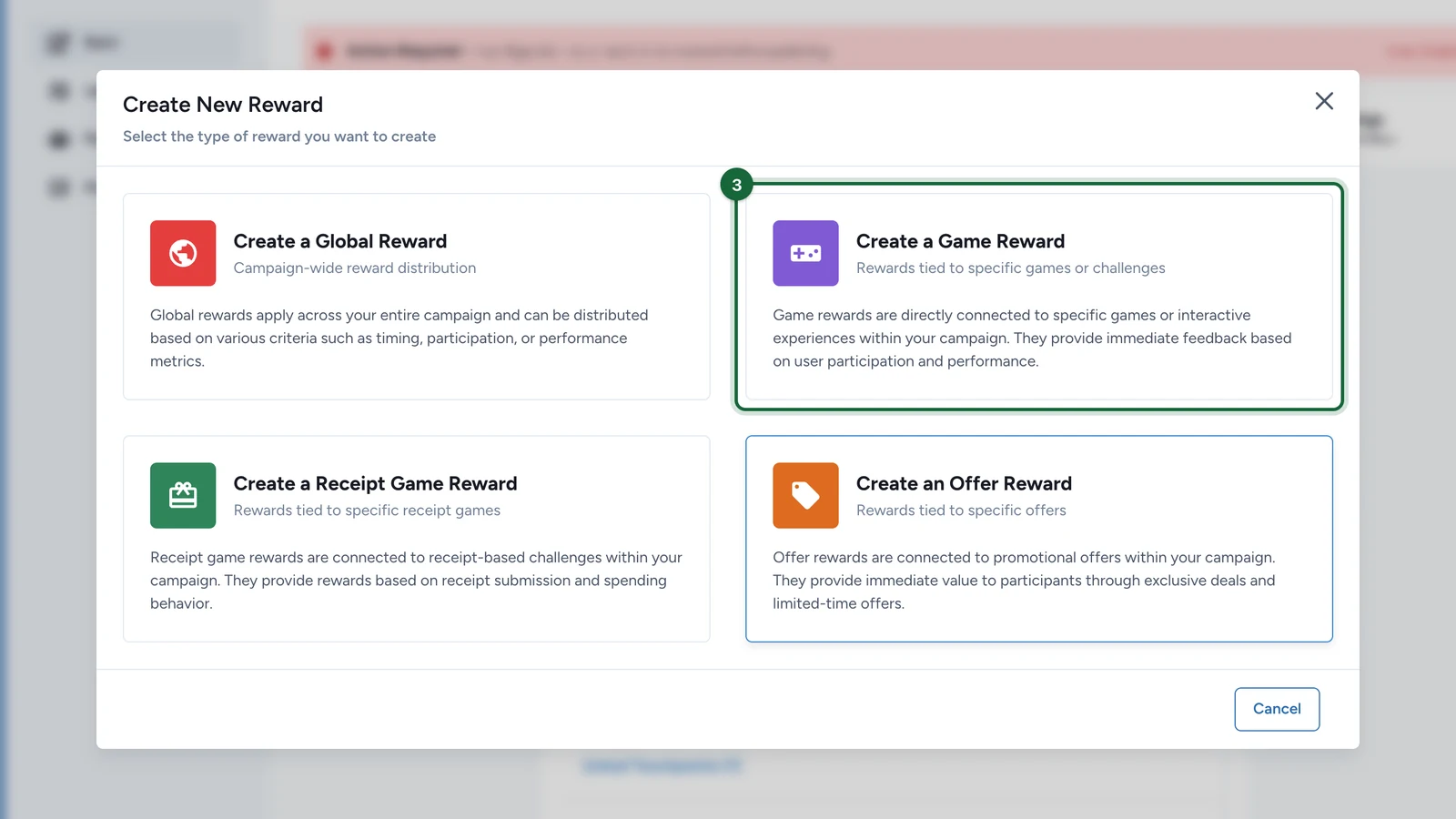
Not sure which? See About rewards.
-
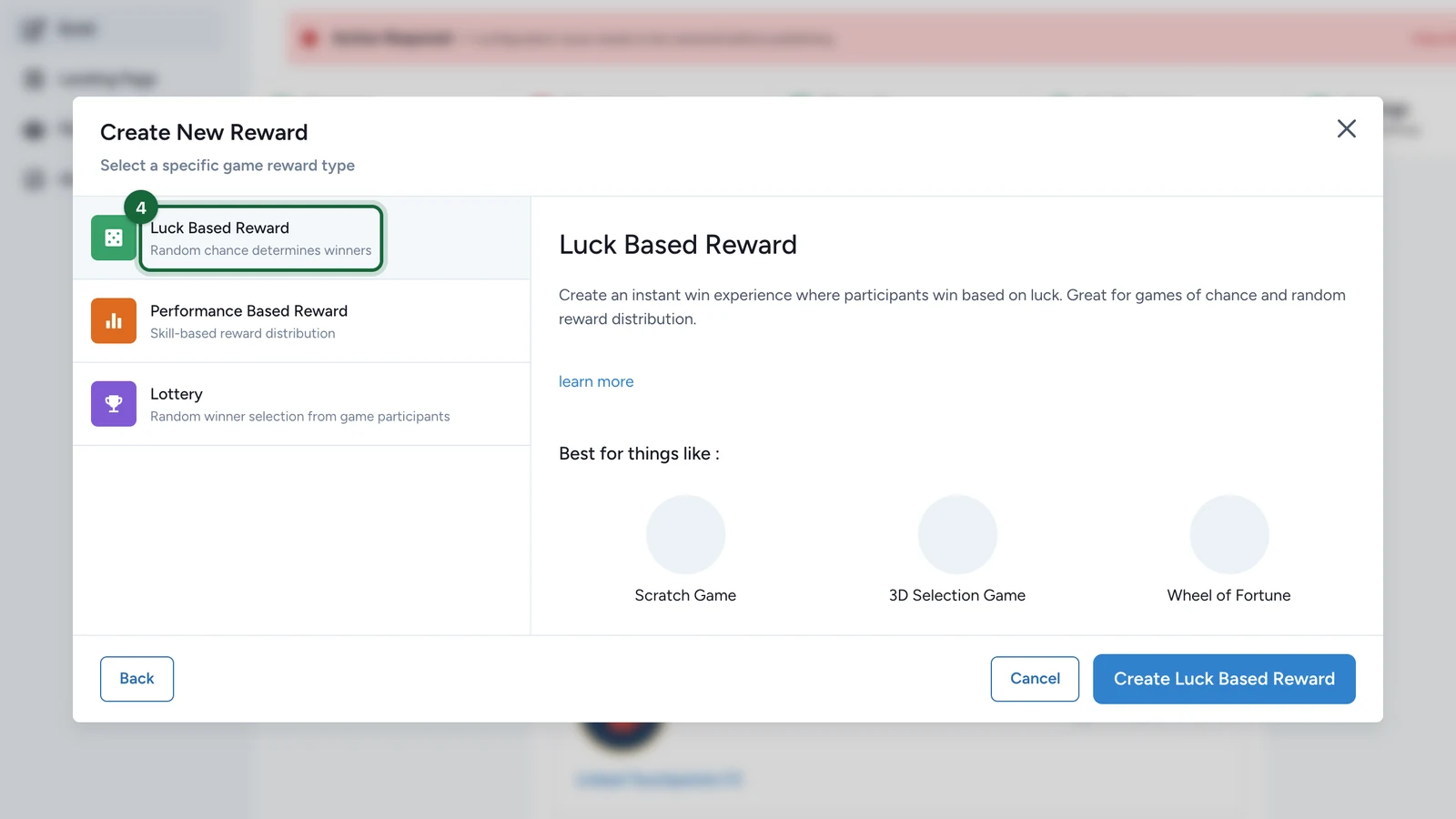
Choose how it's won, here Luck Based Reward.
-
Select Create Luck Based Reward.
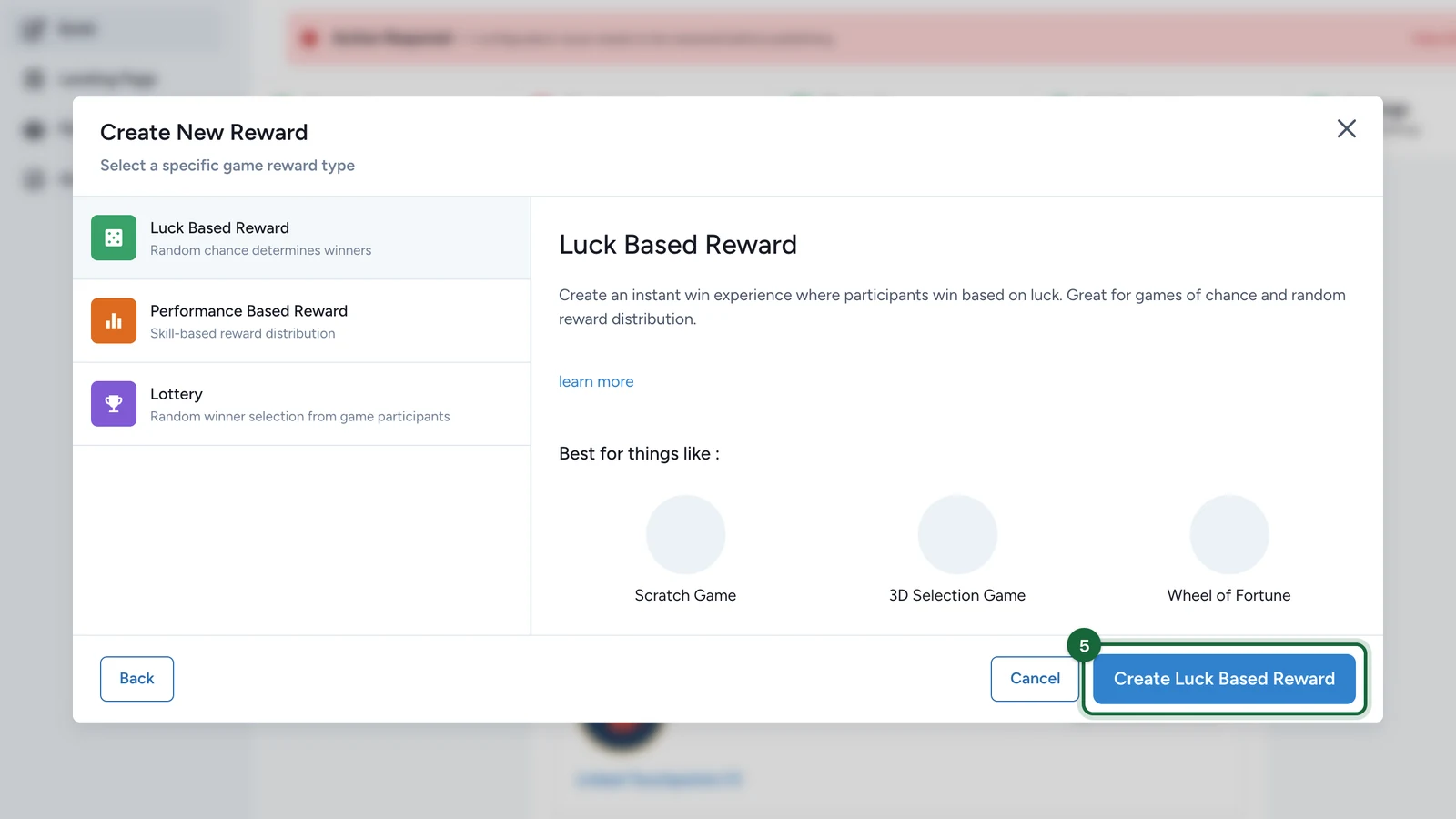
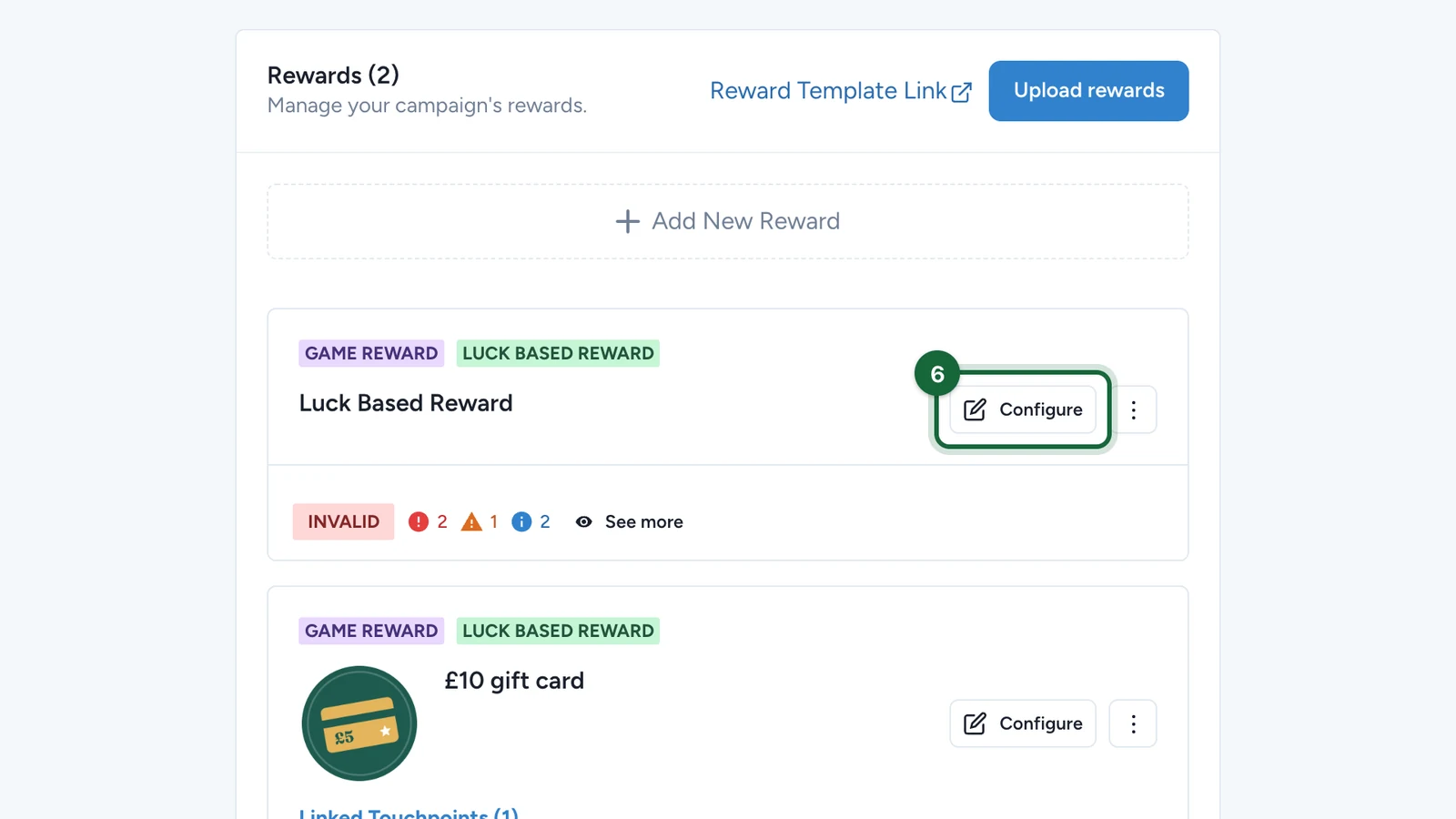
The reward is created at once, named after its type.
-
On the new card, select Configure.
Name it
-
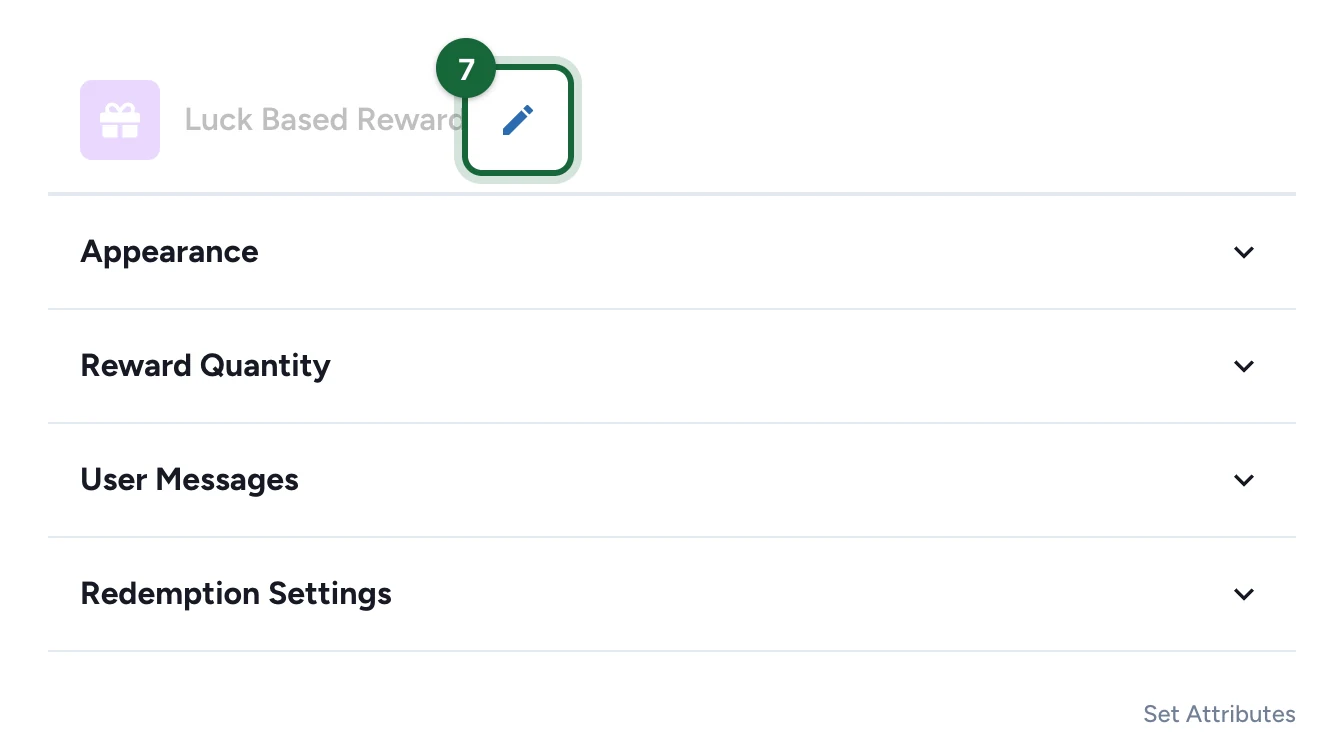
Select the pencil next to the name.
-
Enter a name you'll recognise, here Hot chocolate.
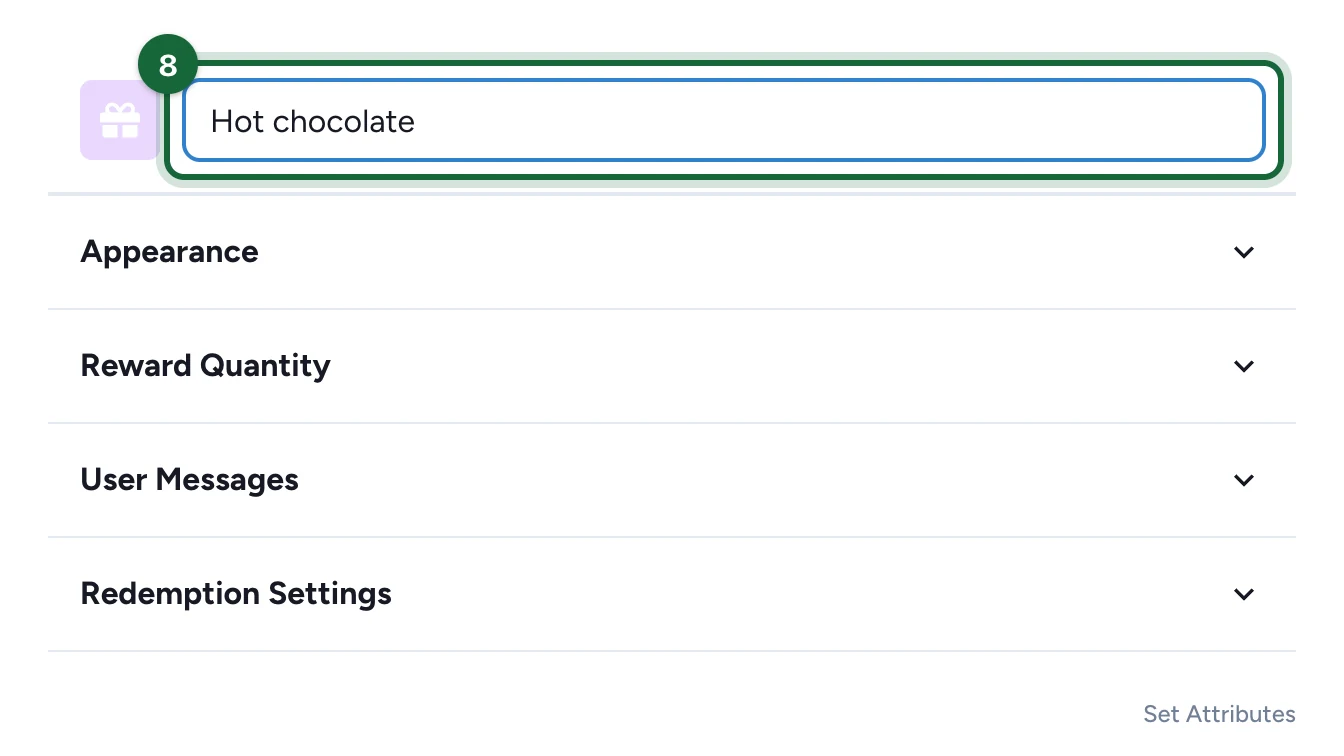
This name is for your team. It's the one Studio shows when you link the reward.
Set what participants see
-
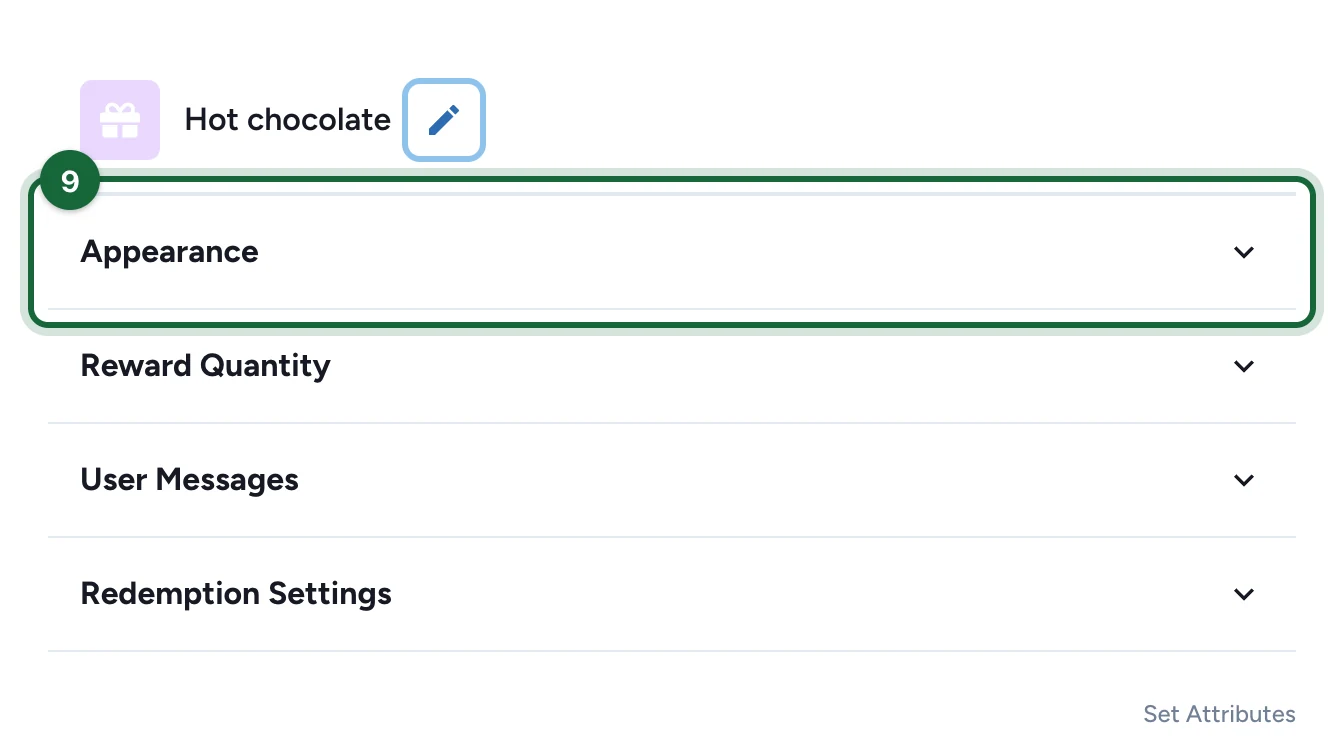
Open Appearance.
-
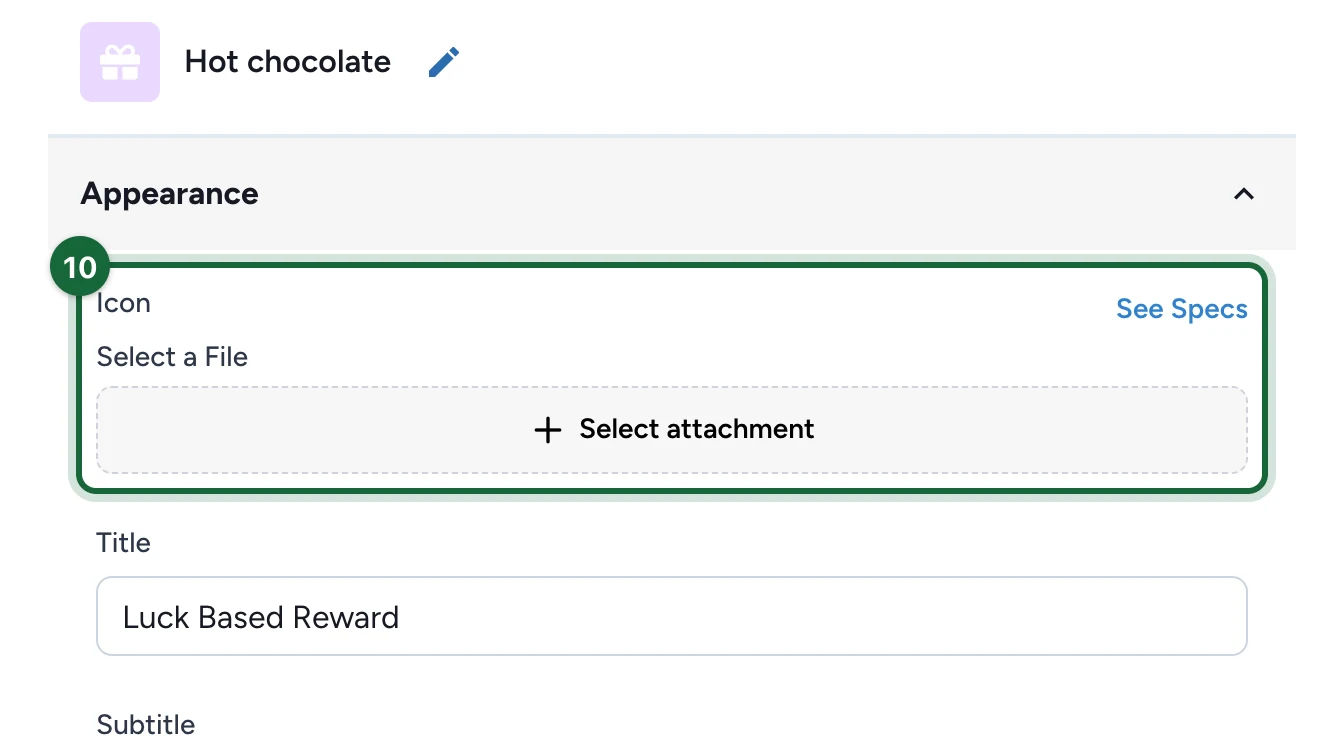
Under Icon, select Select attachment.
-
Choose the icon: point at it, then select Select File.
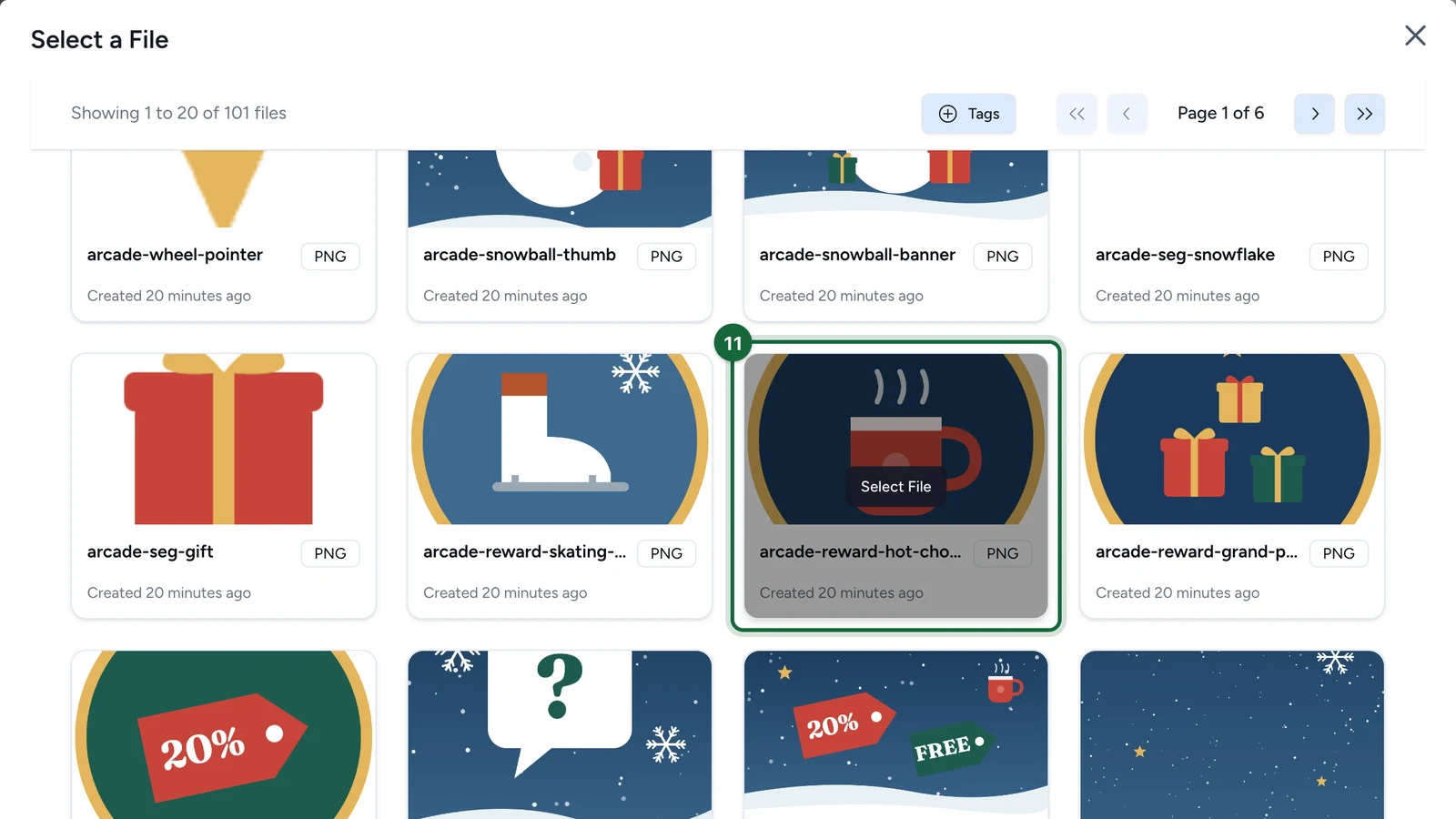
A square 800 × 800 image with a transparent background works best. See Image & asset specs.
-
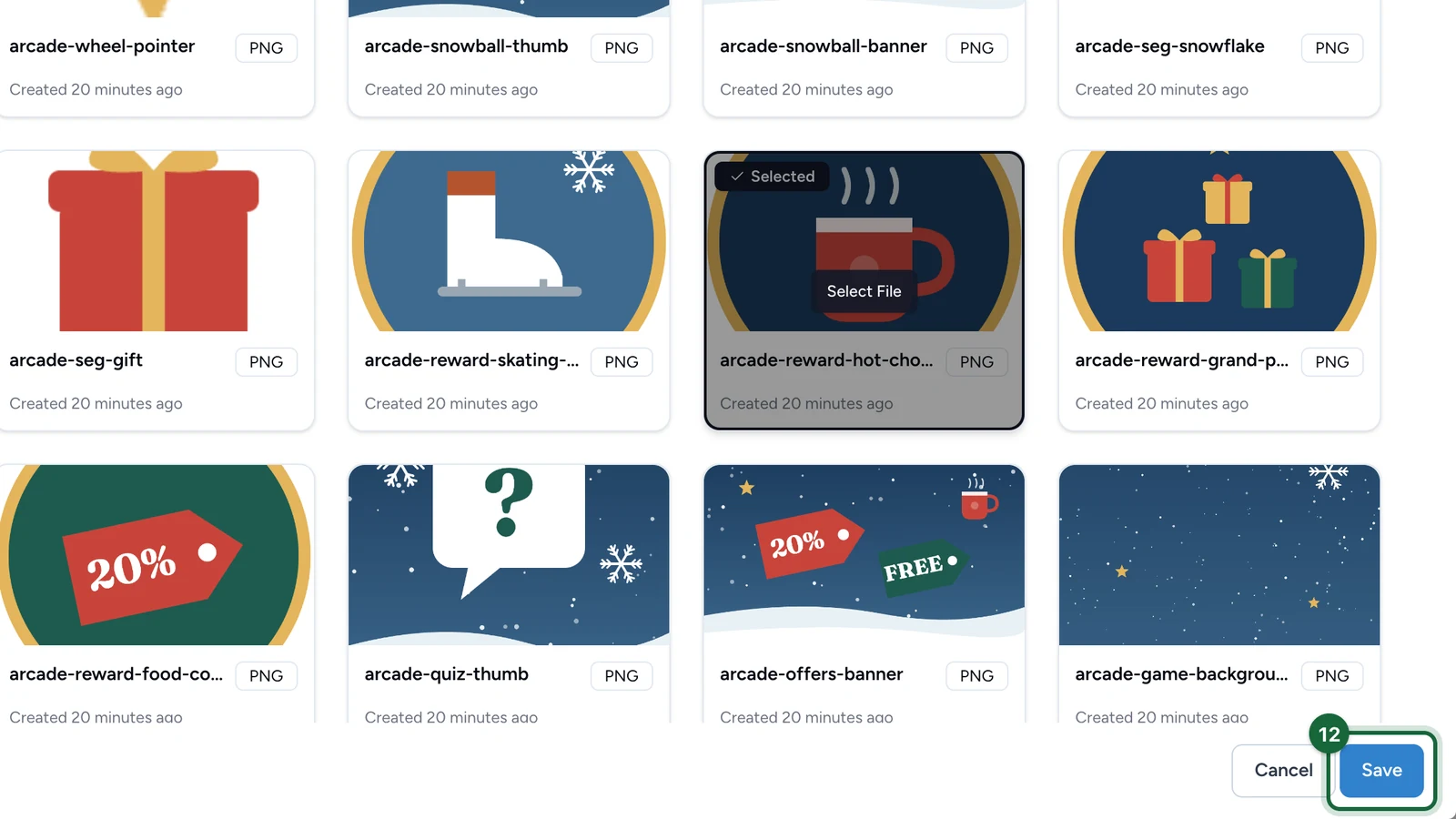
Select Save.
-
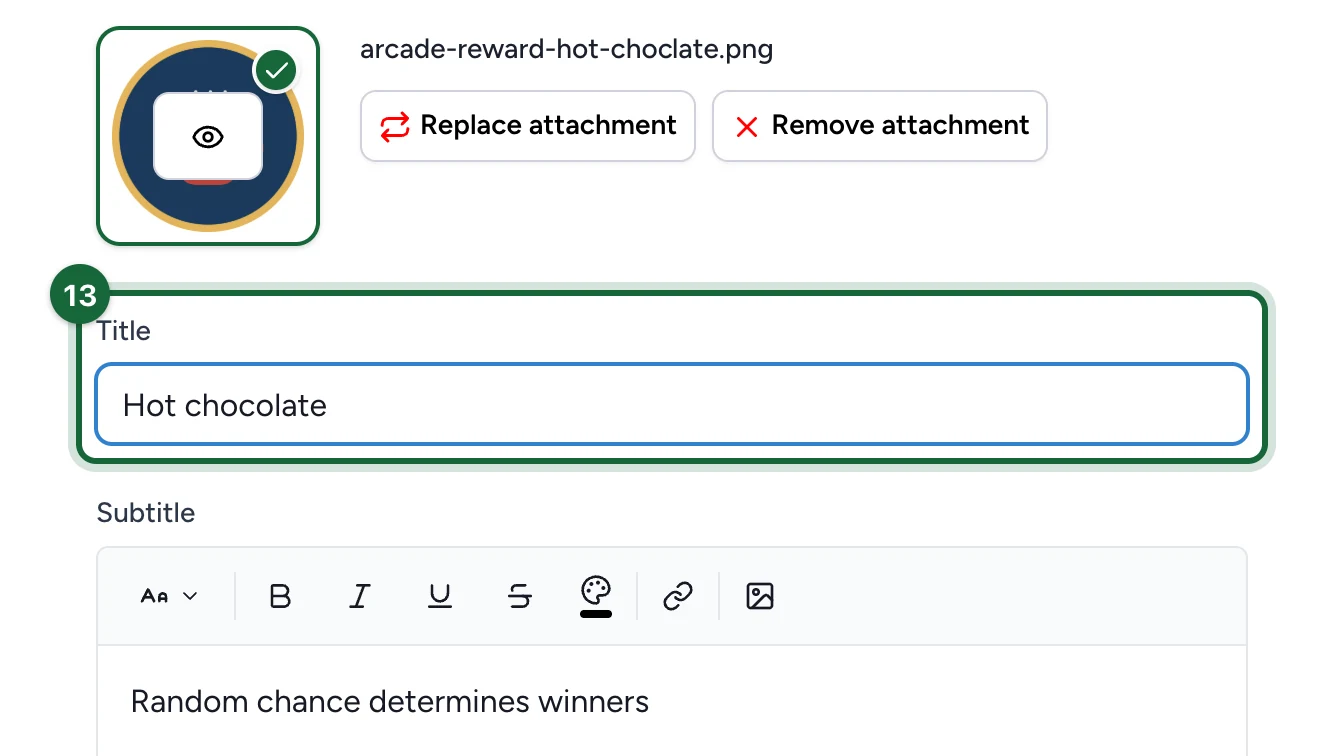
Enter the Title participants see.
-
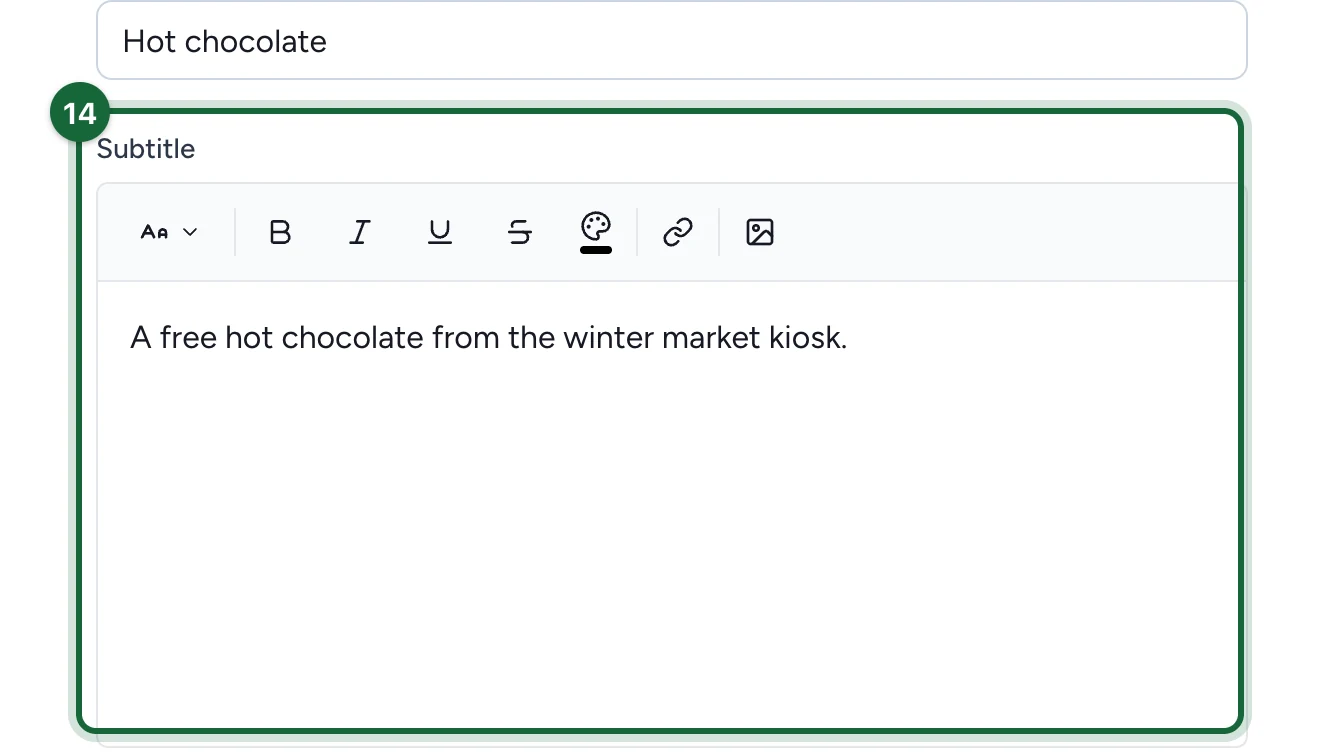
Replace the sample Subtitle with a short description.
Set how many
-
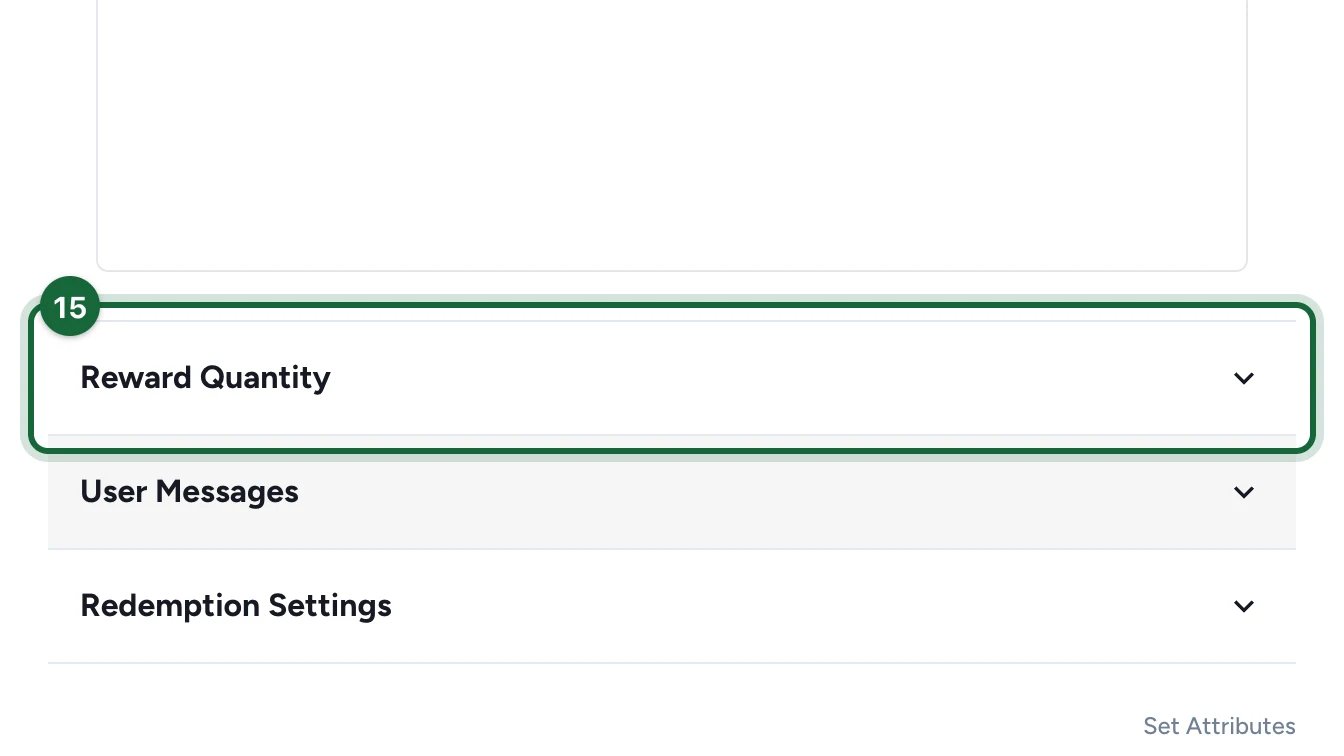
Open Reward Quantity.
-
Enter the Quantity, here 200.
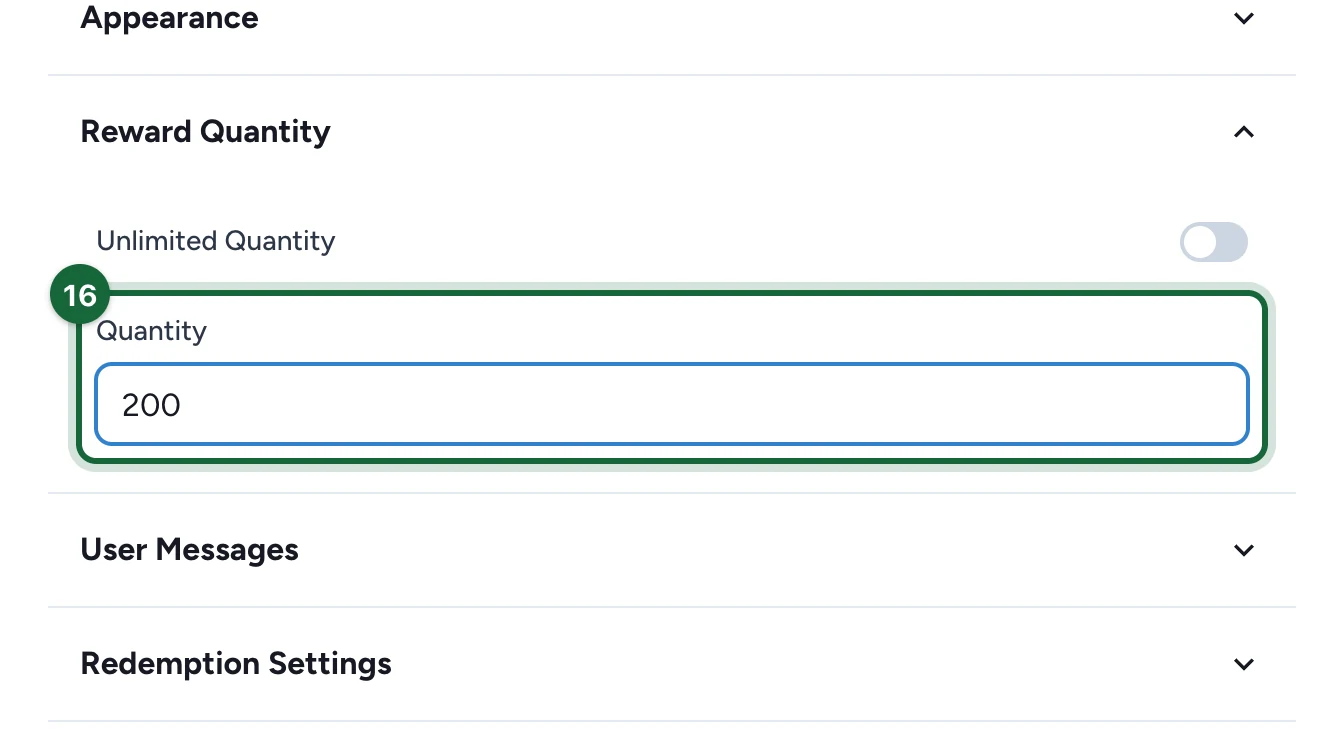
Once 200 hot chocolates have been won, nobody else can win one.
Write the winner message
-
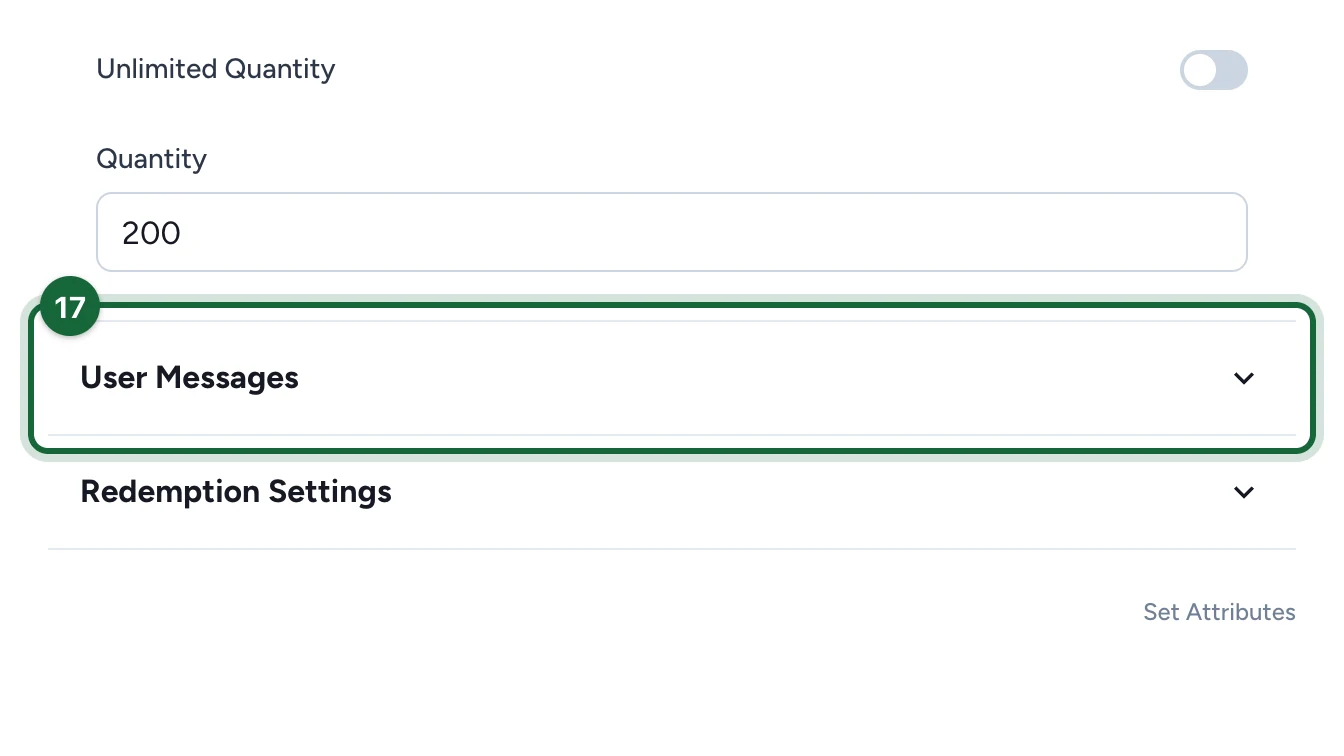
Open User Messages.
-
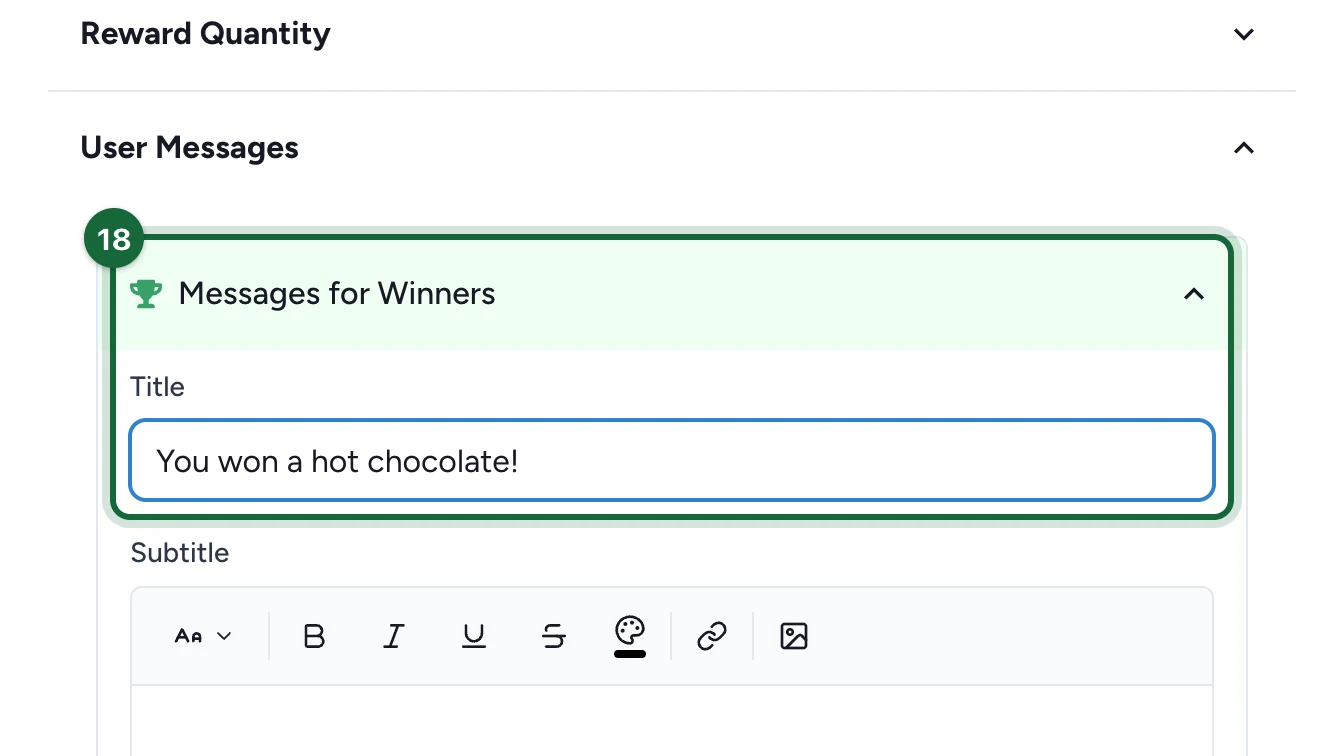
Under Messages for Winners, enter the Title.
-
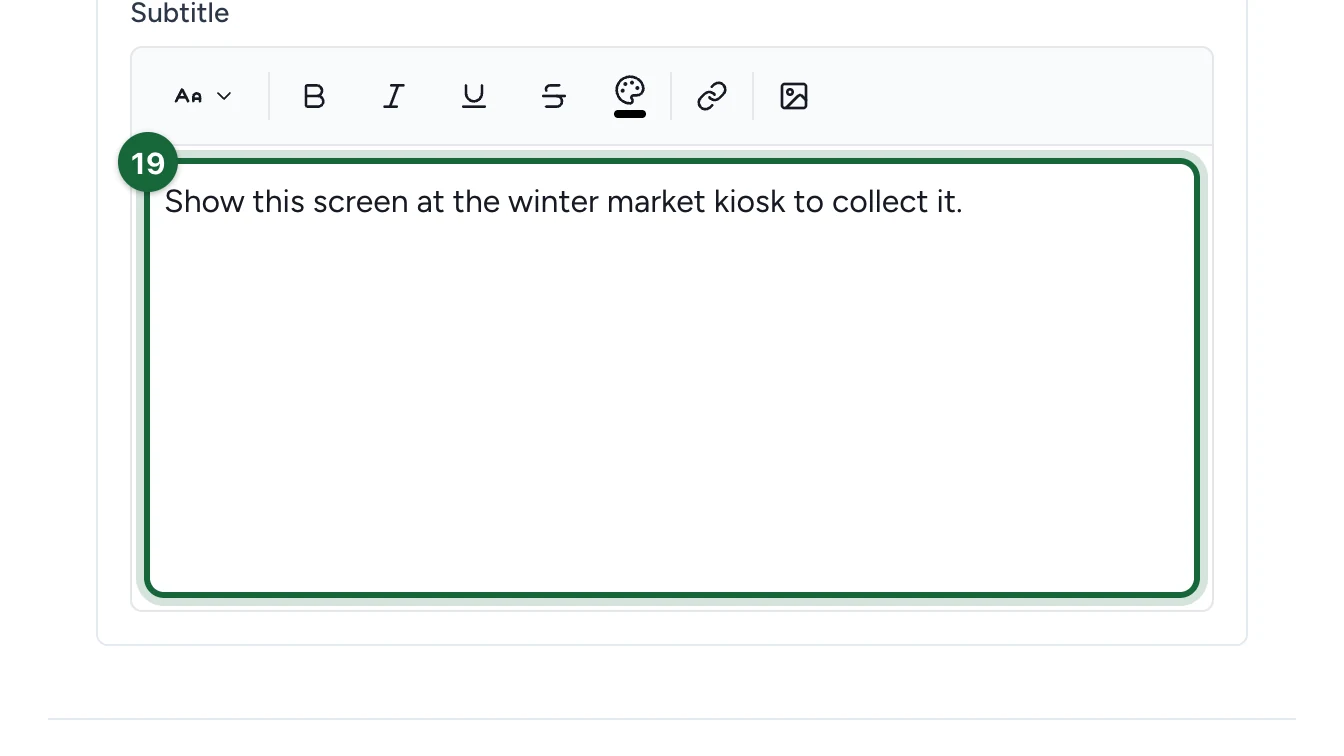
Enter the Subtitle: tell winners how to collect their prize.
Draw rewards also have messages for people who are eligible and for people who don't win: see Lottery rewards.
Choose how winners claim it
-
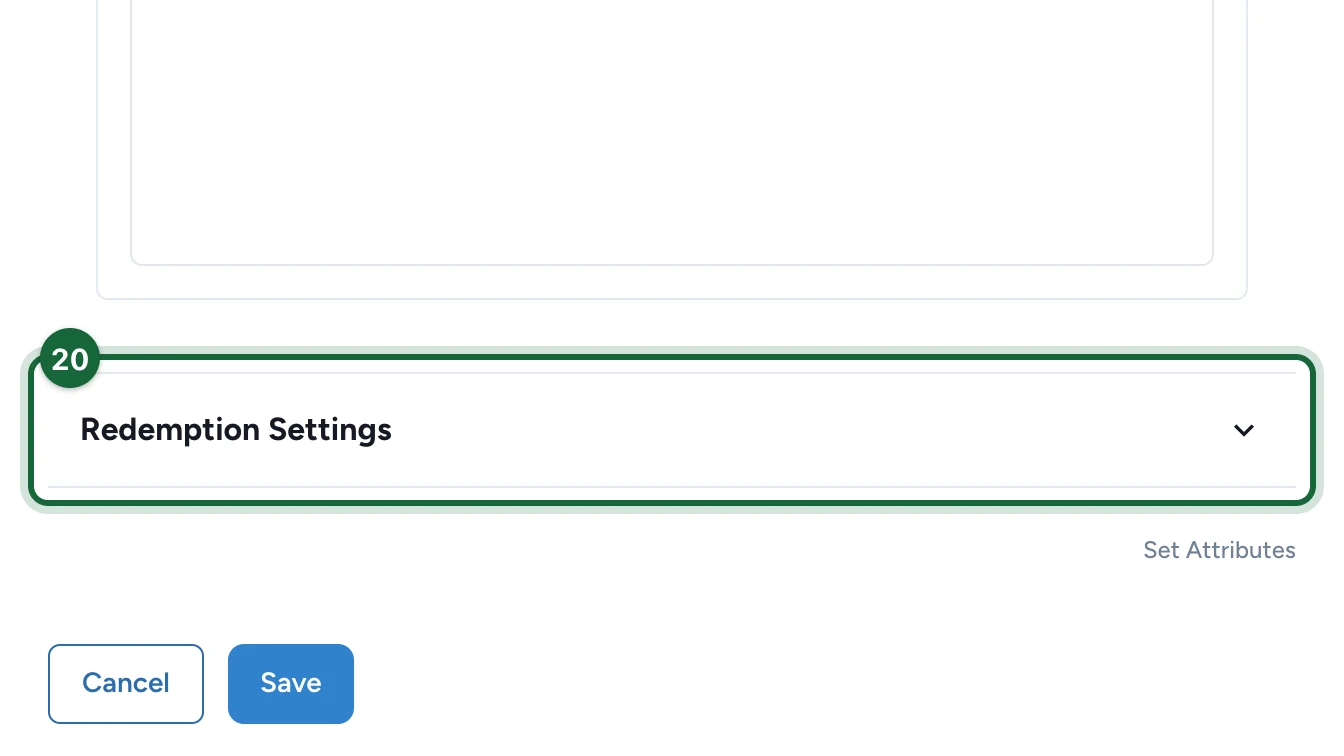
Open Redemption Settings.
-
Under Redemption Display Mode, choose Simple Mode.
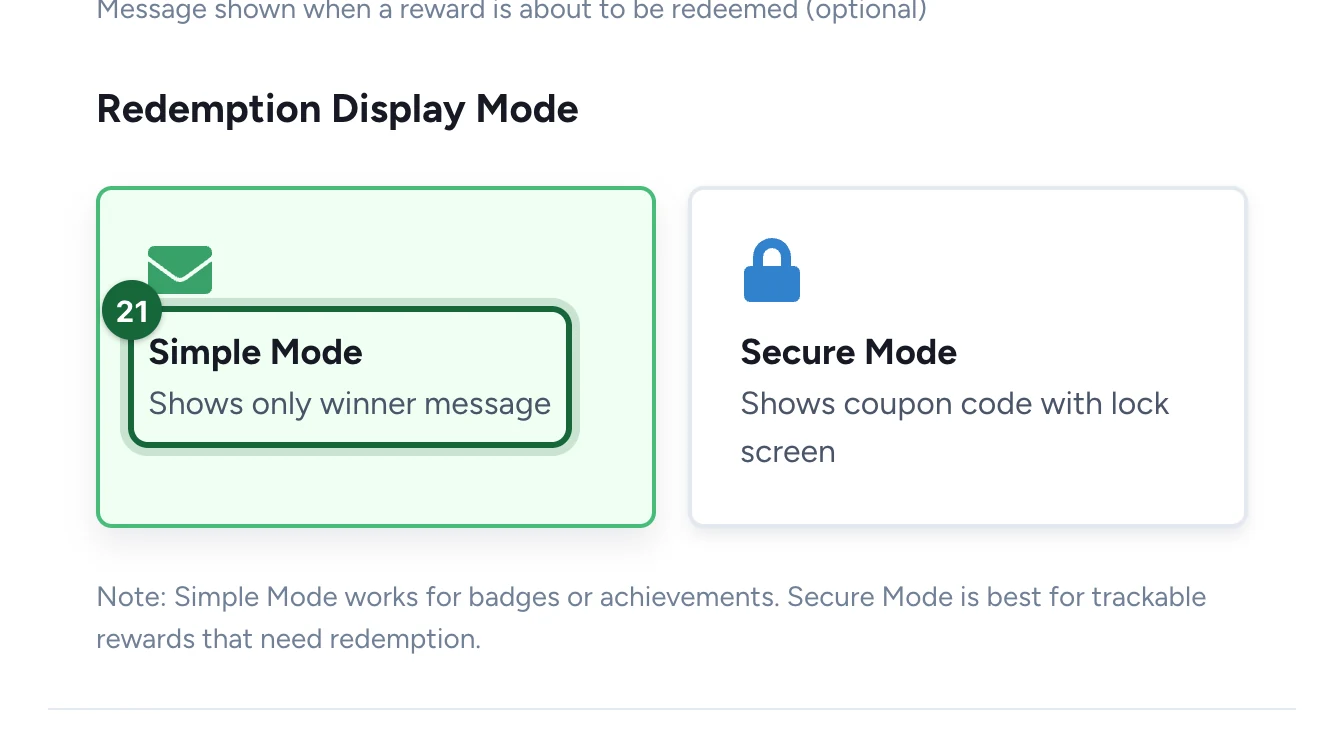
Simple Mode shows the winner message only. Secure Mode also shows a unique code: see Coupons and redemption.
-
Select Save.
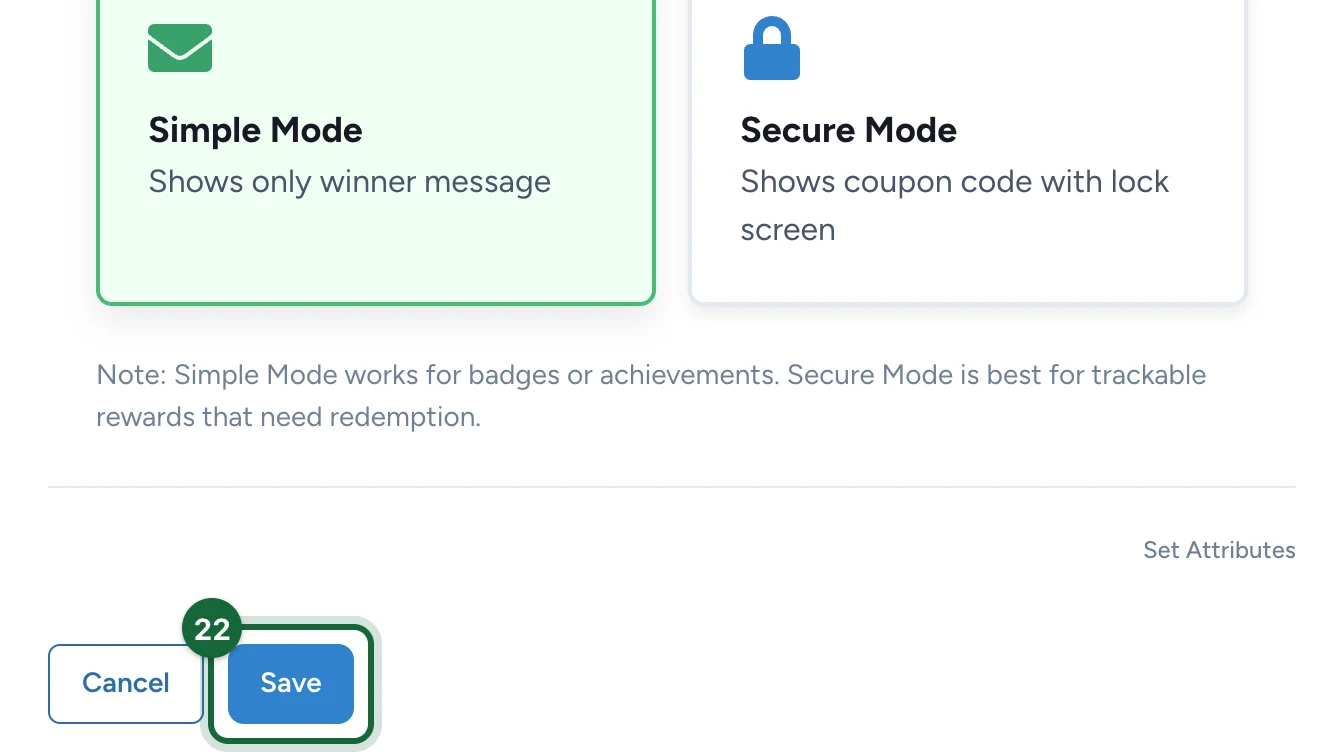
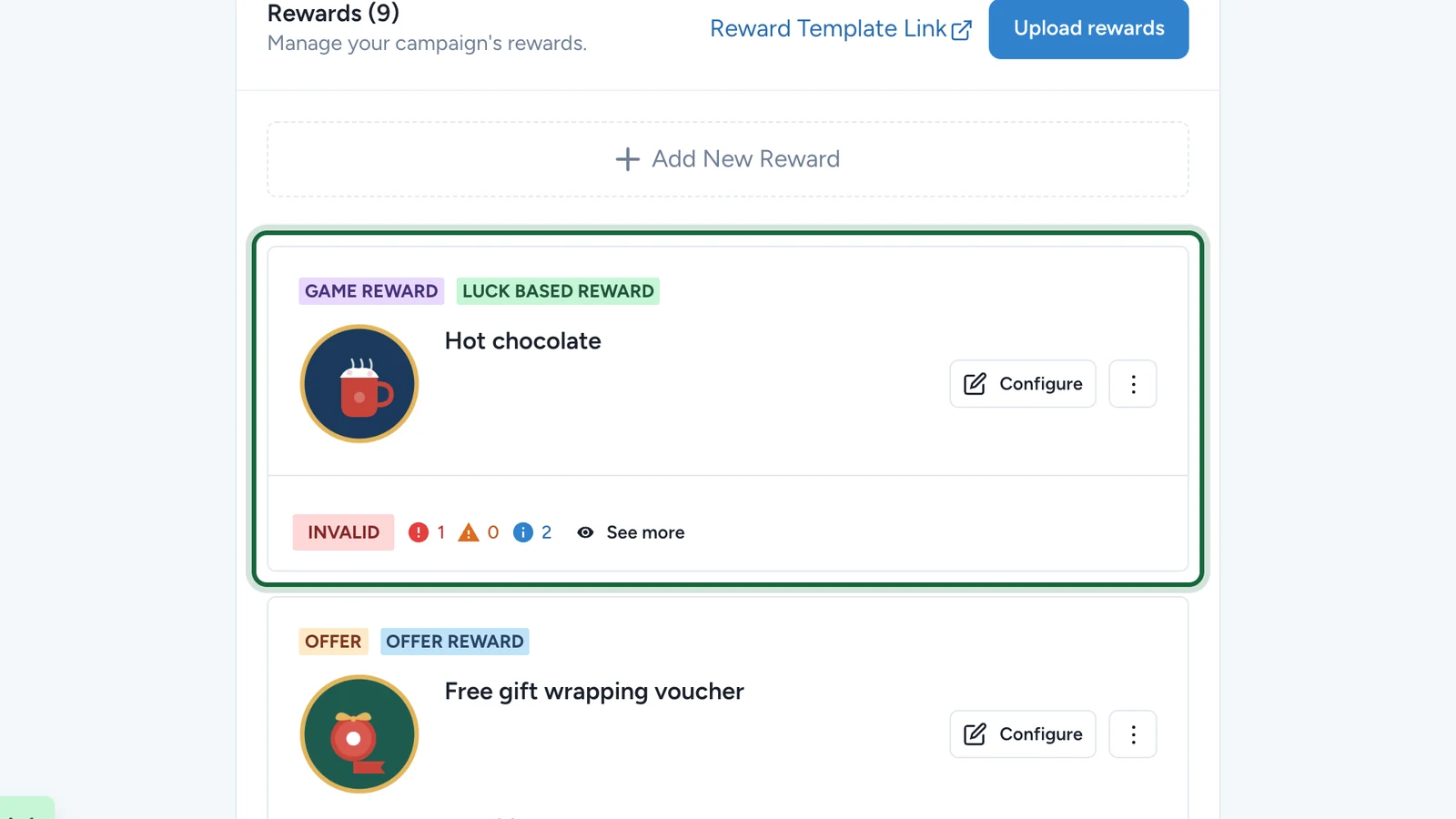
The reward stays INVALID until something can hand it out. Link it next.
If publishing is blocked
- The reward has no title: fill it in under Appearance. A missing icon only warns.
- The quantity is 0: enter 1 or more under Reward Quantity.
- The winner message has no title: fill it in under Messages for Winners. A missing subtitle only warns.
- Nothing hands the reward out: link it to a game or offer, or give a global reward its trigger. See Link rewards to touchpoints.