Simple Game (instant win)
Put a prize behind a single tap: a banner, a few lines of copy, and the chance of winning or a draw entry.
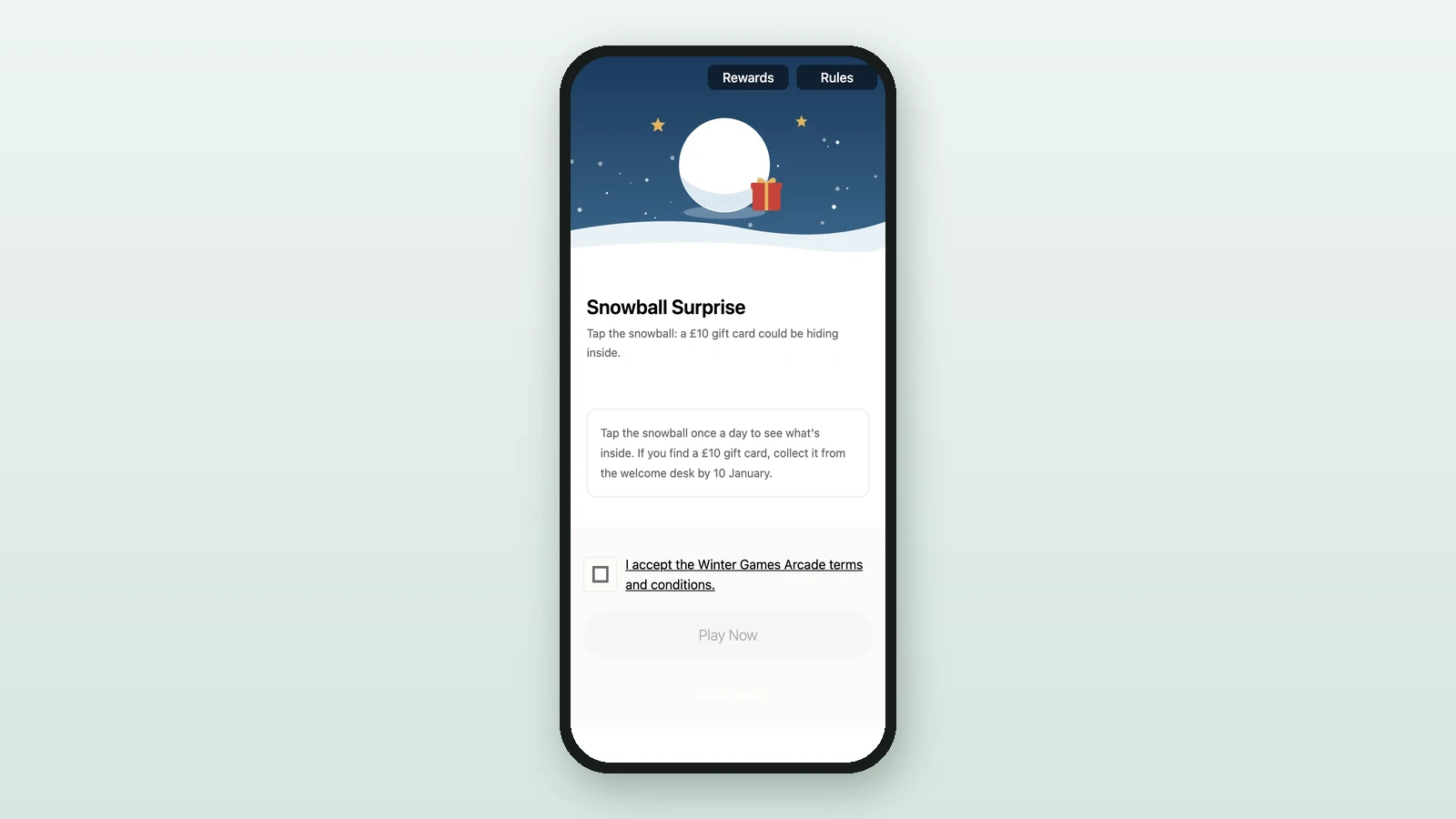
A Simple Game has no wheel or card: players tap once and see straight away whether they've won. Studio lists it as Simple Game. Here, Lindenhall's Snowball Surprise hides a £10 gift card, with a one-in-five chance.
Before you begin
- A campaign open in Build: see Your first campaign.
- A Luck Based Reward for each prize: see Create a reward.
- Your images:
Banner Image
RequiredThe header image for an activity, Receipt Game or treasure hunt.
- Required
- Size1200 × 800 px
- Aspect ratio3:2
- FormatsJPEG / WEBP / PNG
Reward Icon
OptionalThe icon that represents a reward.
- Optional
- Size800 × 800 px
- Aspect ratio1:1
- FormatsJPEG / WEBP / PNG
Circular design and a transparent background work best.
Add the game
-
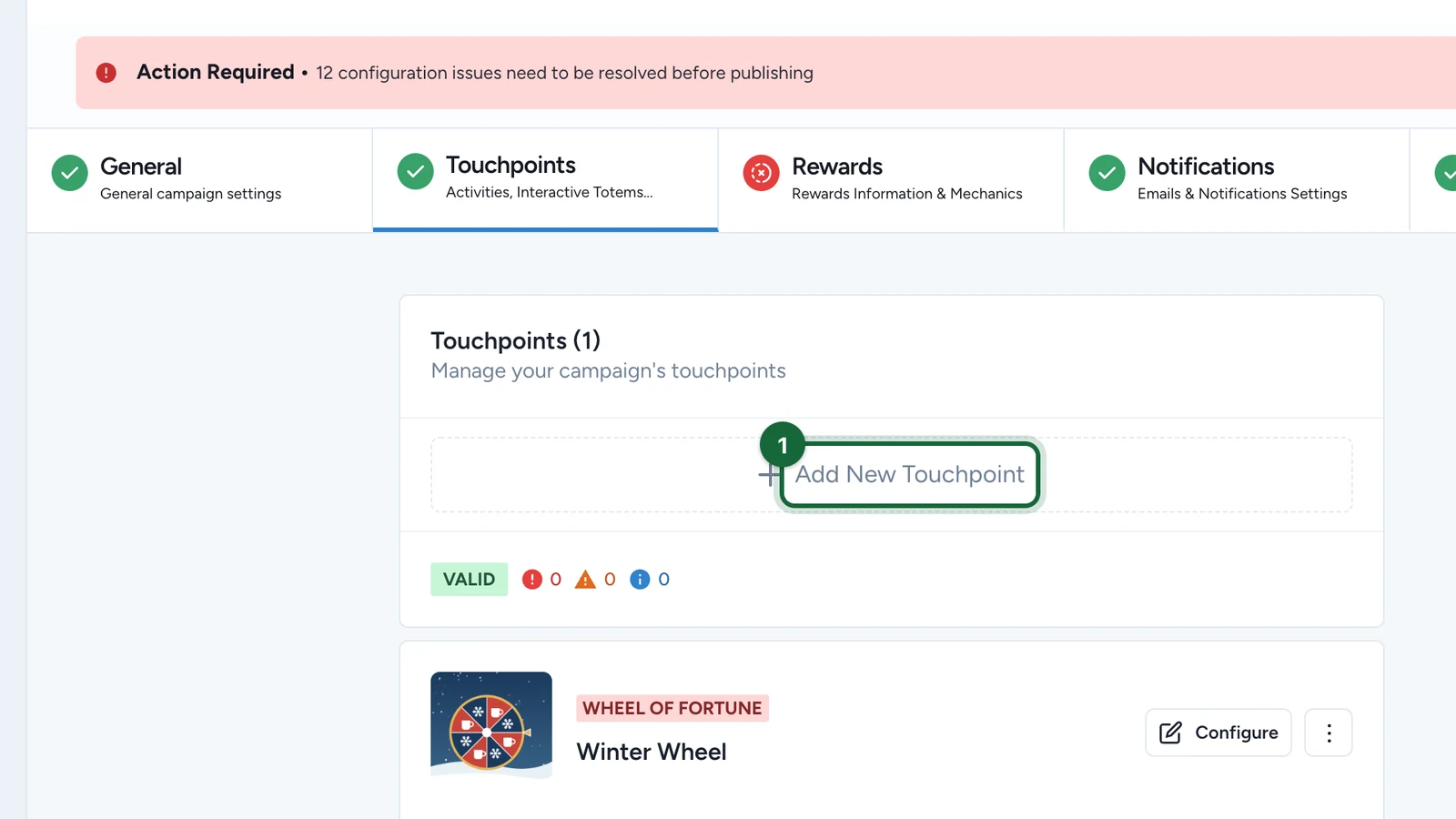
In Build > Touchpoints, select Add New Touchpoint.
-
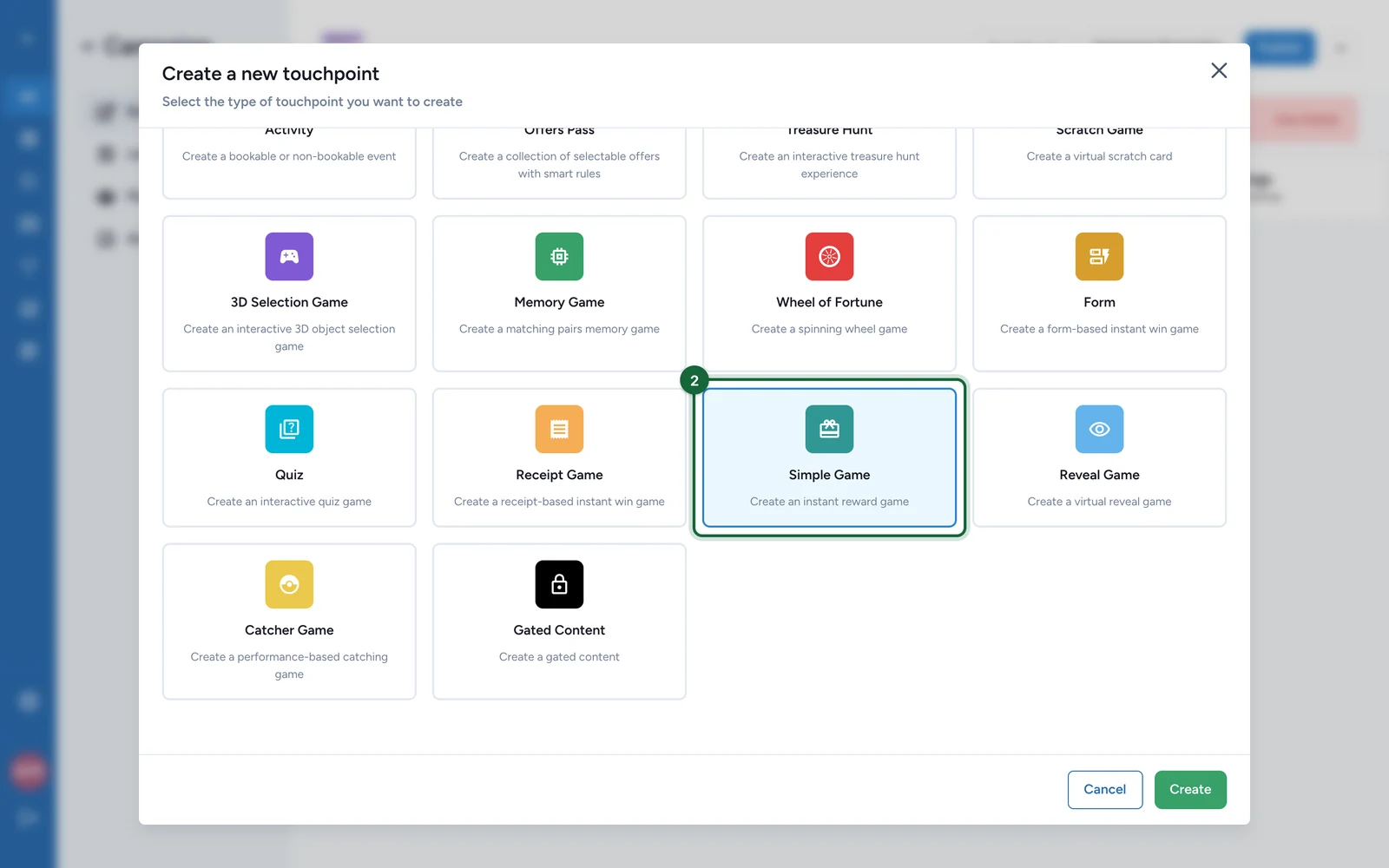
Select Simple Game.
-
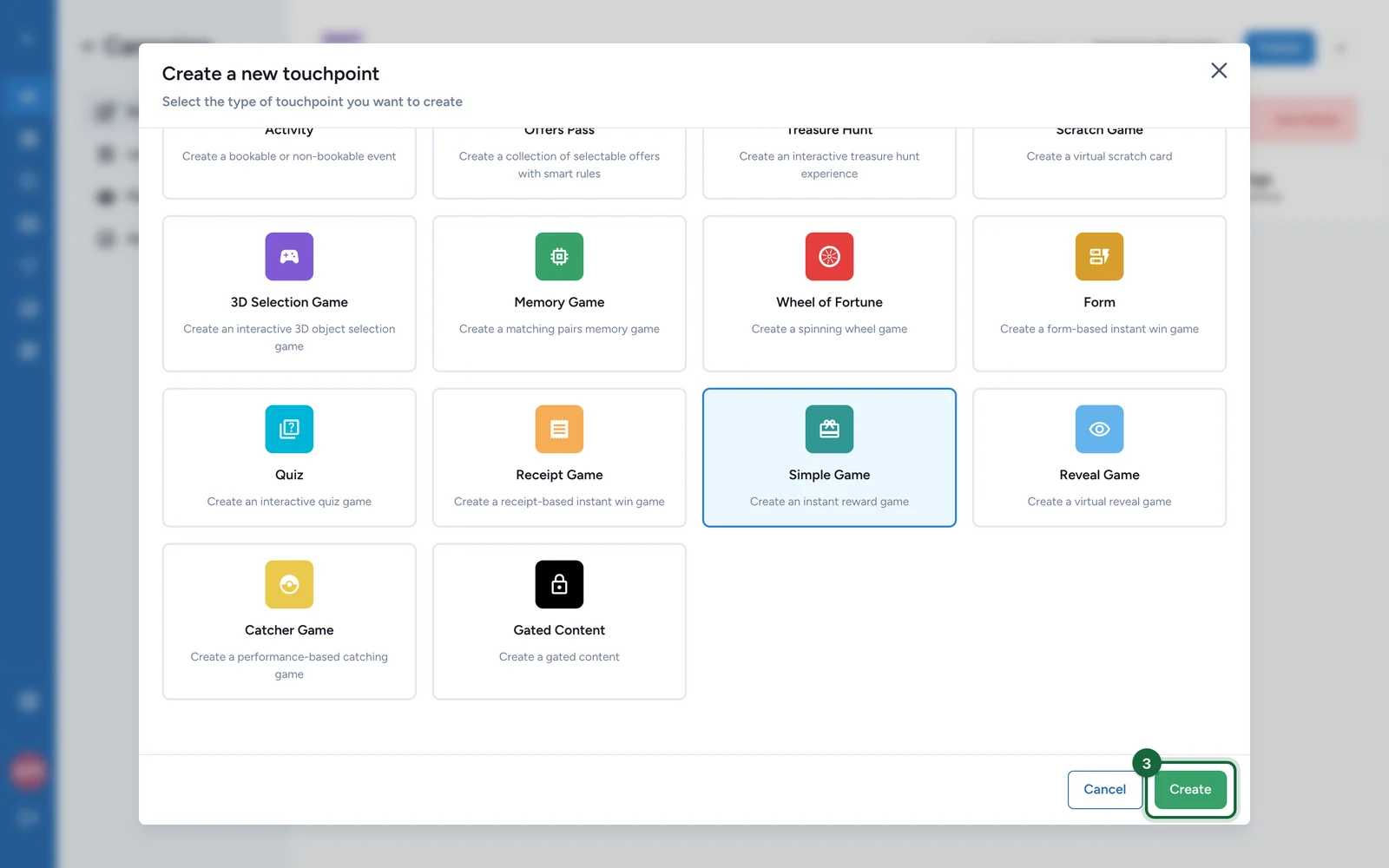
Select Create.
-
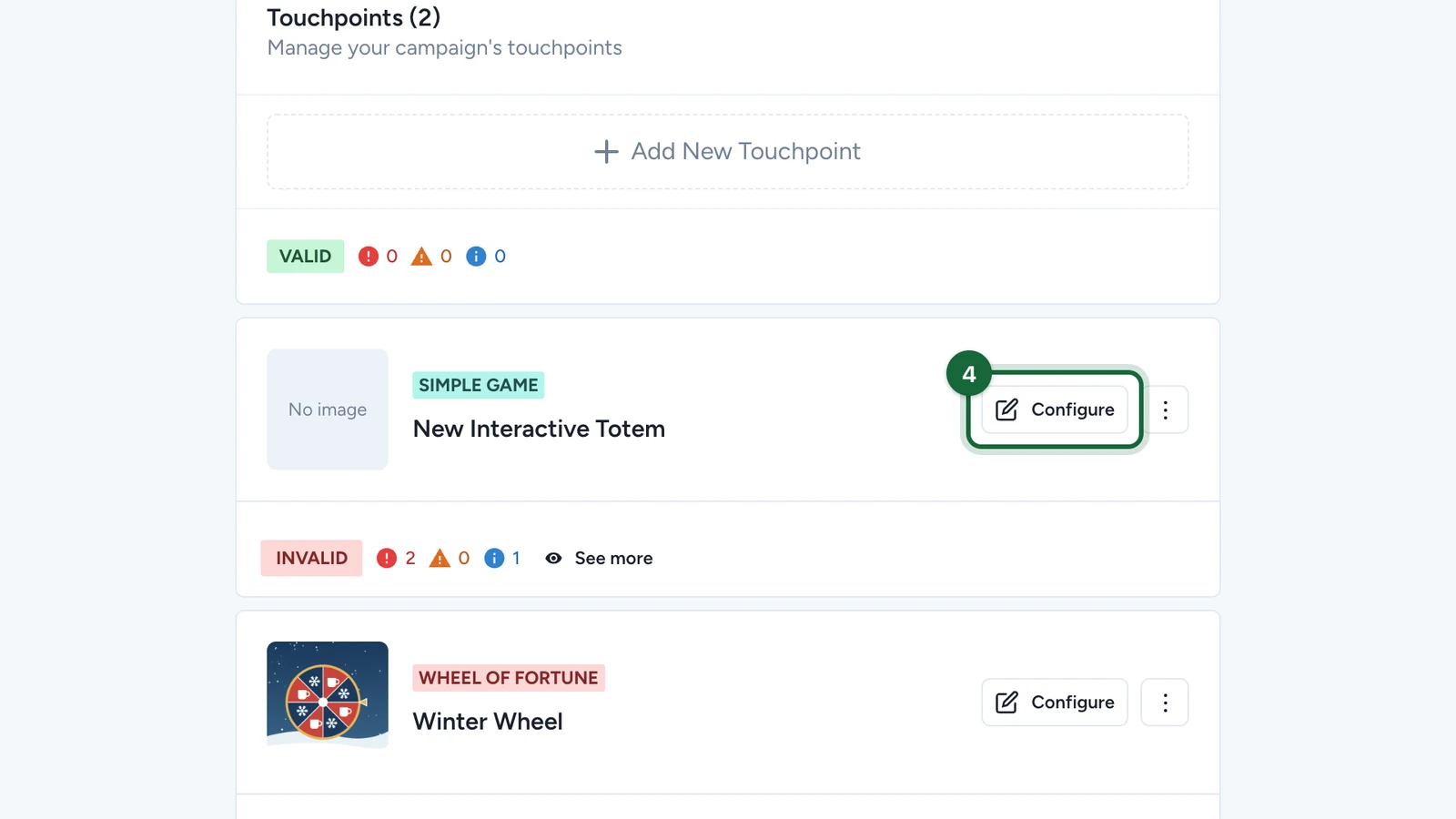
On the new game, named New Interactive Totem, select Configure.
-
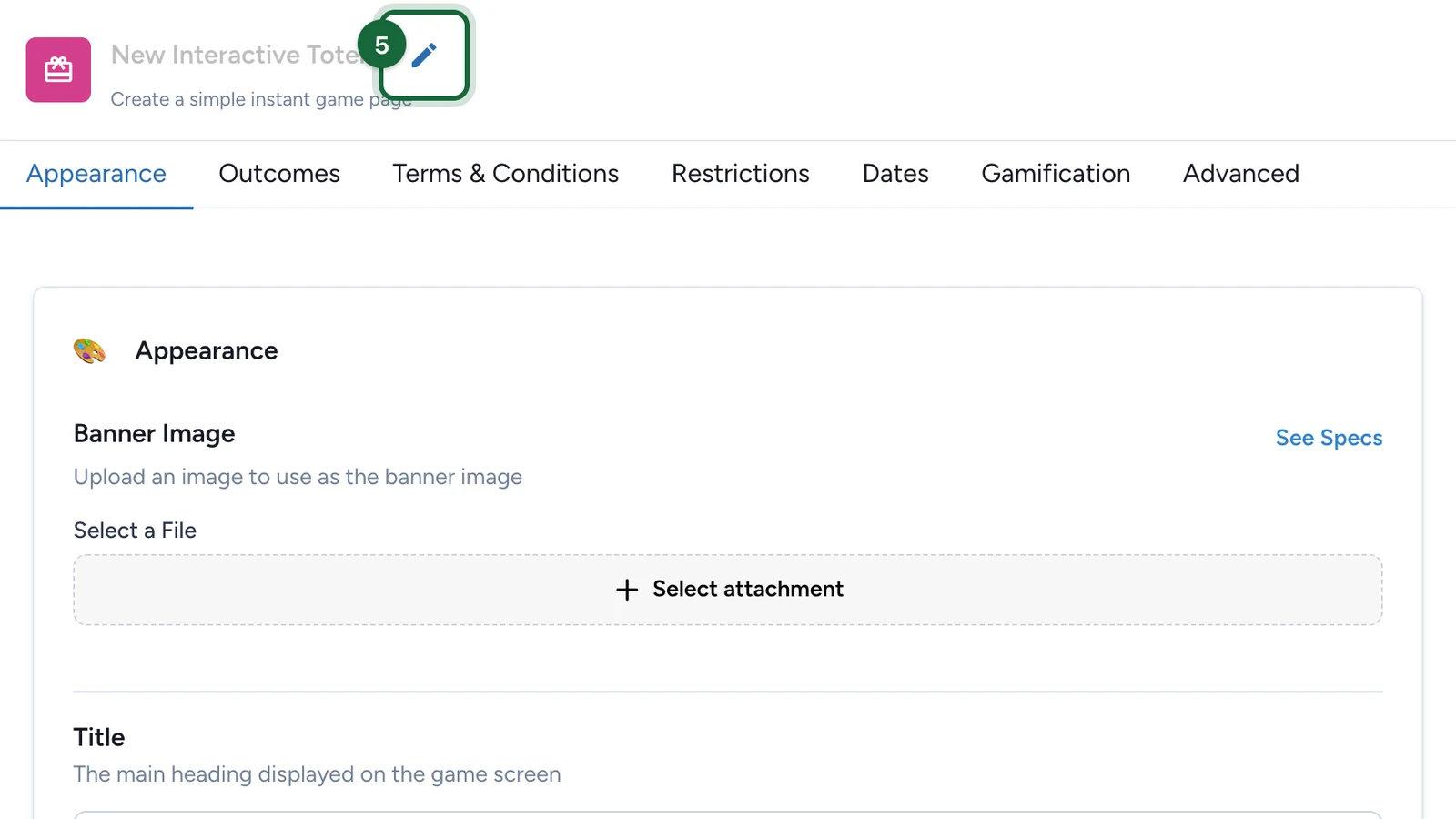
Select the pencil next to the name.
-
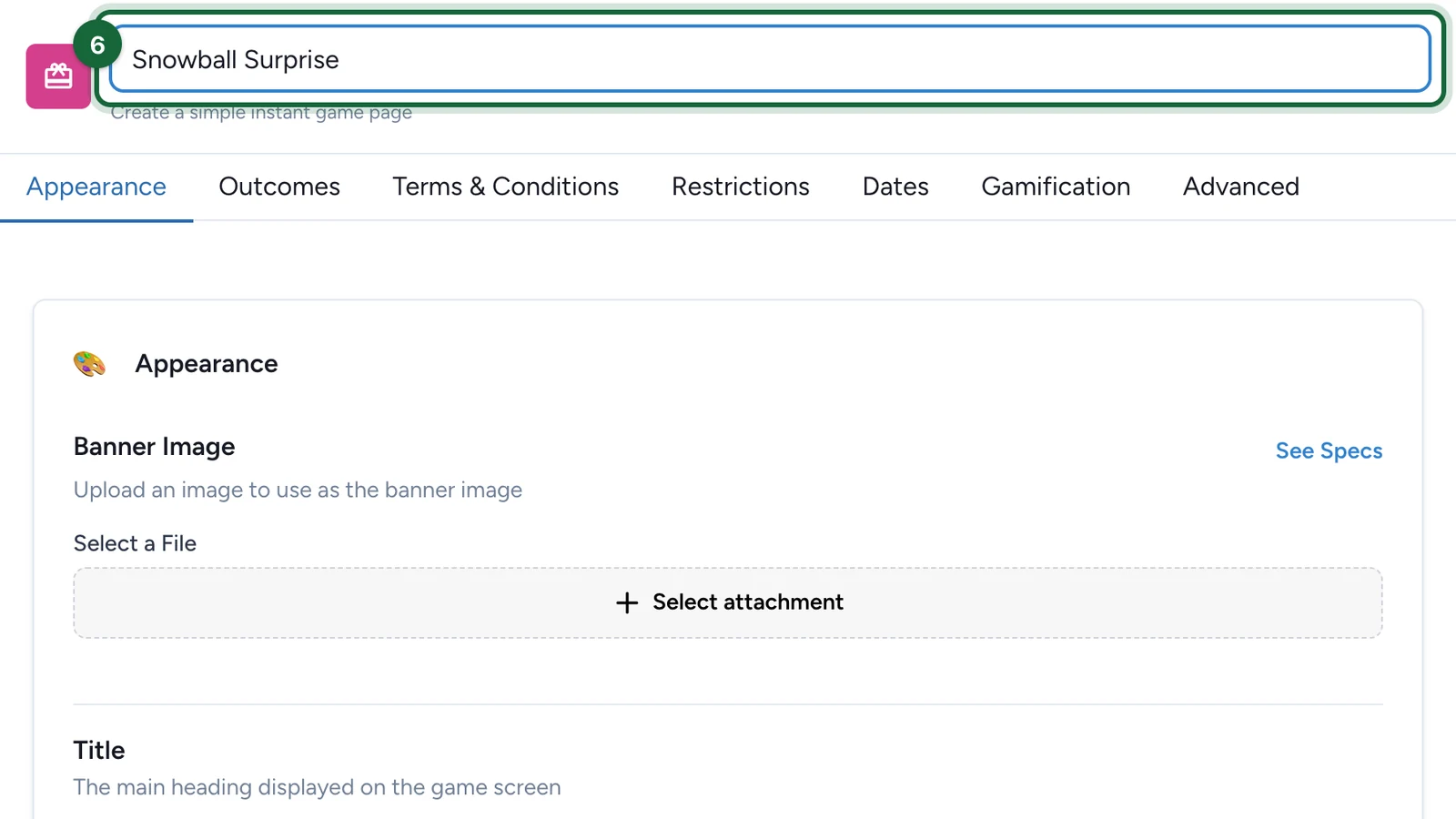
Enter the game's name, then press Enter.
Set the page
These steps are on the Appearance tab. To choose a picture, select Select attachment, point at the file, select Select File, then Save.
-
Under Banner Image, choose the picture at the top of the game.
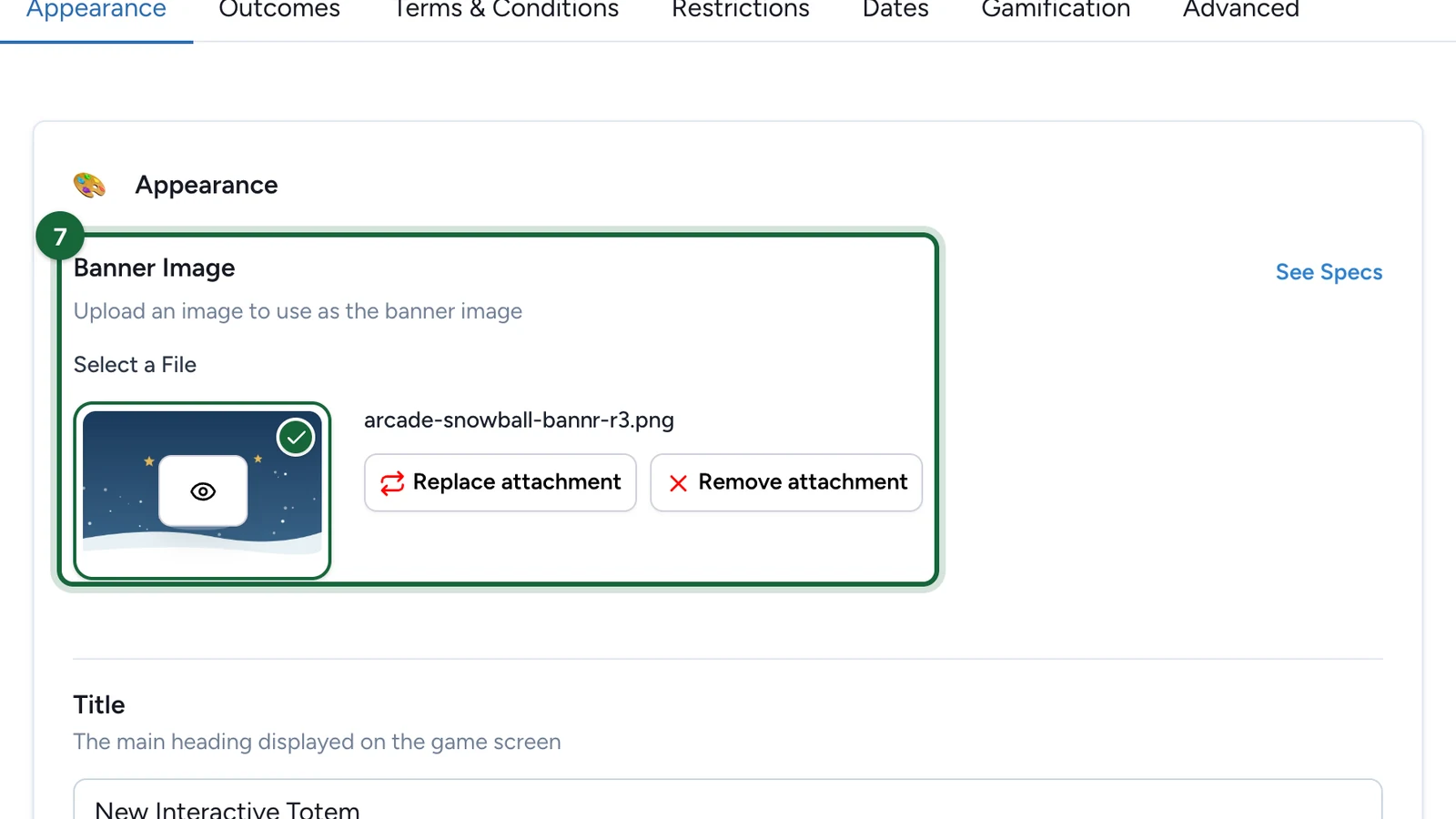
If the campaign has a landing page, the banner is also the game's picture there.
-
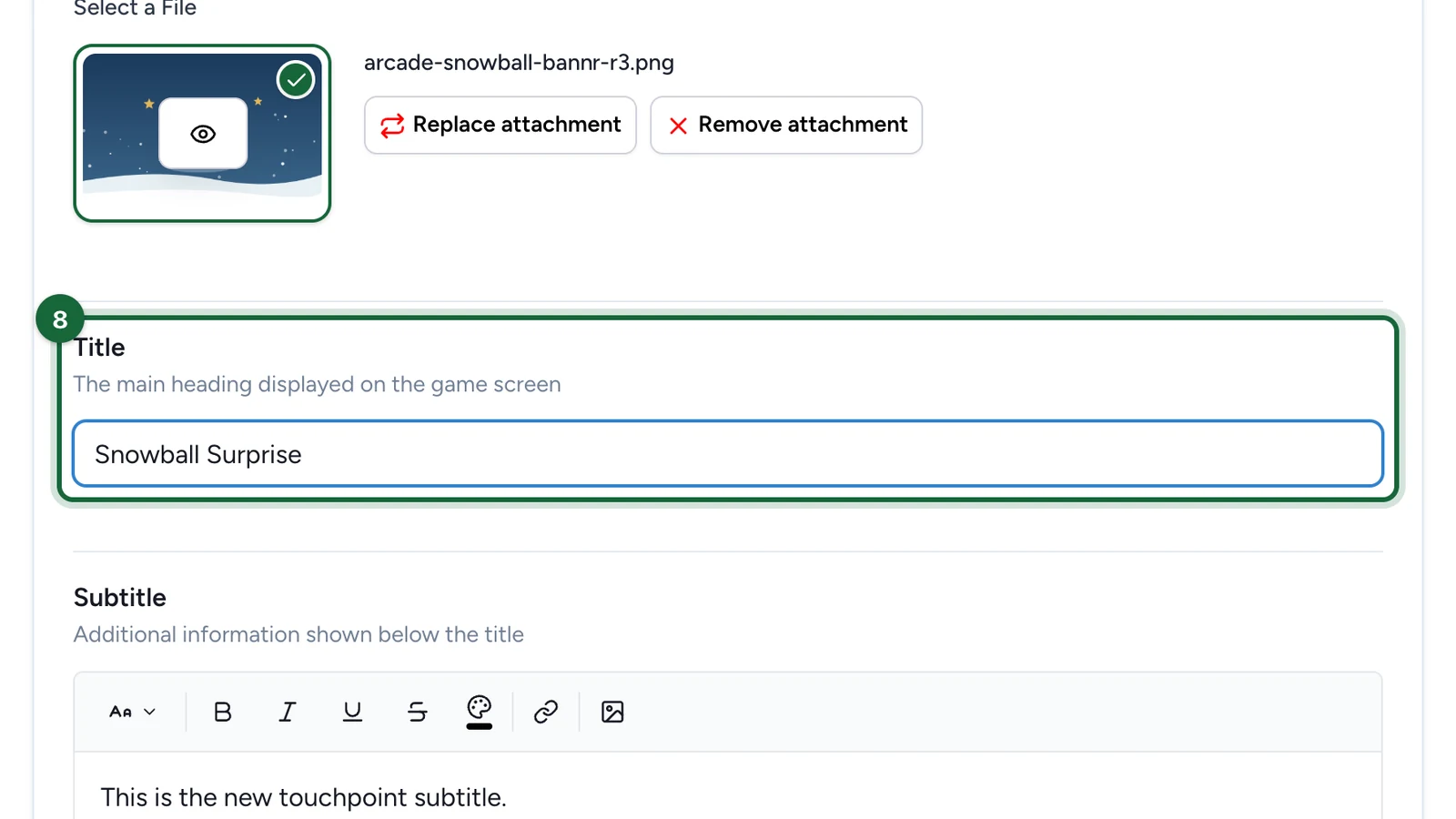
Replace the Title with the game's name.
-
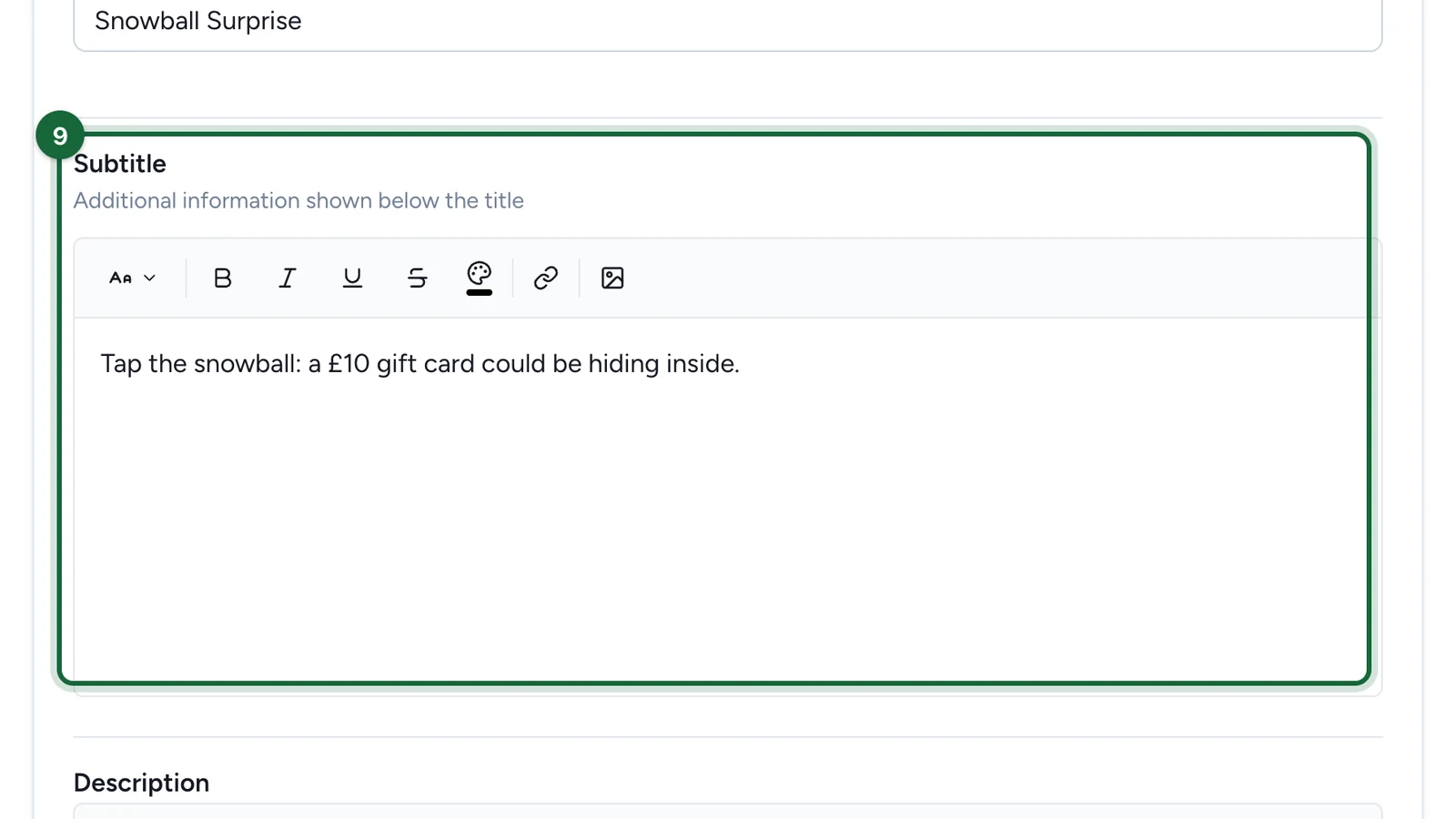
Replace the Subtitle: say what players can win.
-
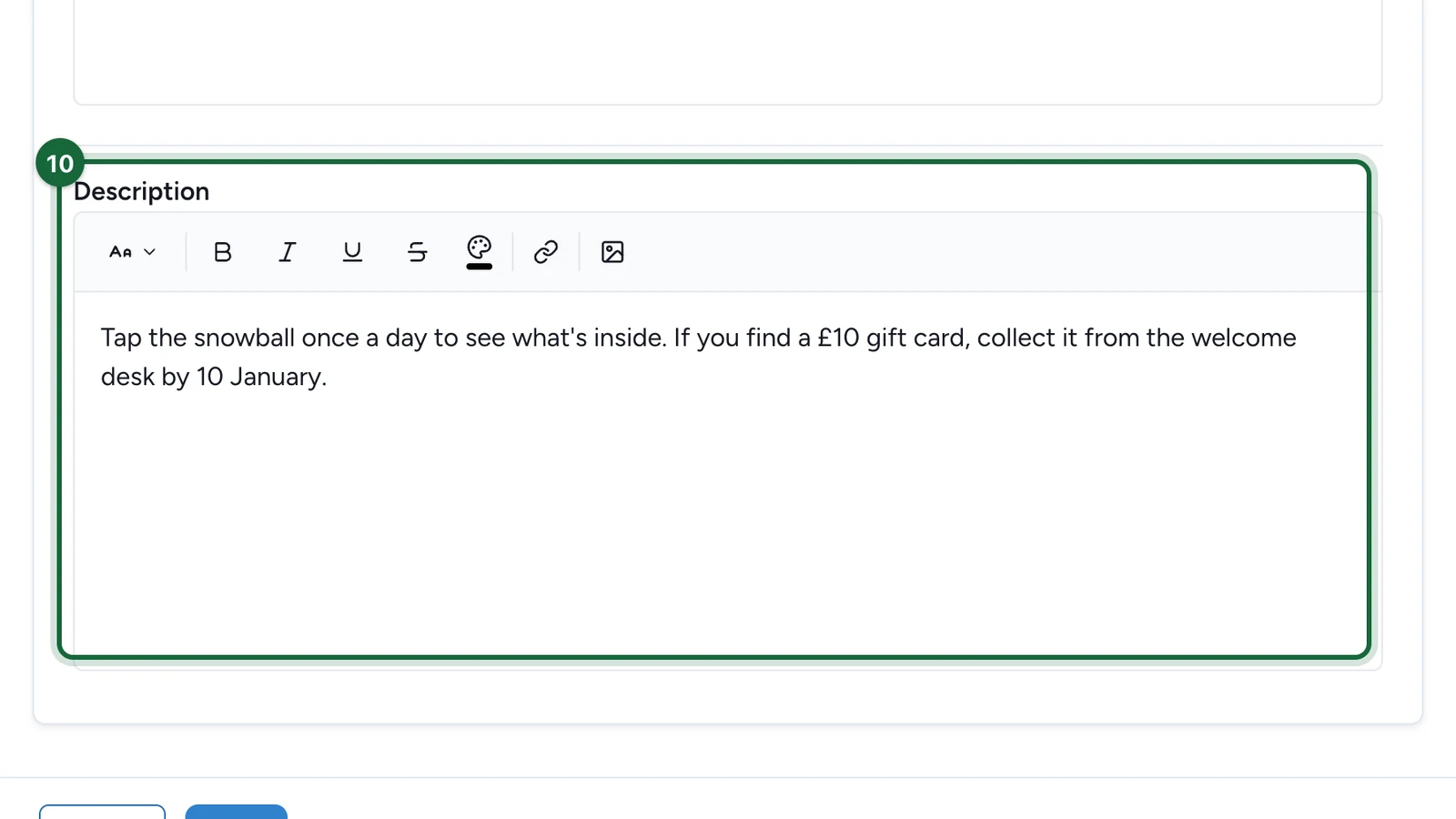
Under Description, say how often players can try, and where and when to collect the prize.
Decide who wins
-
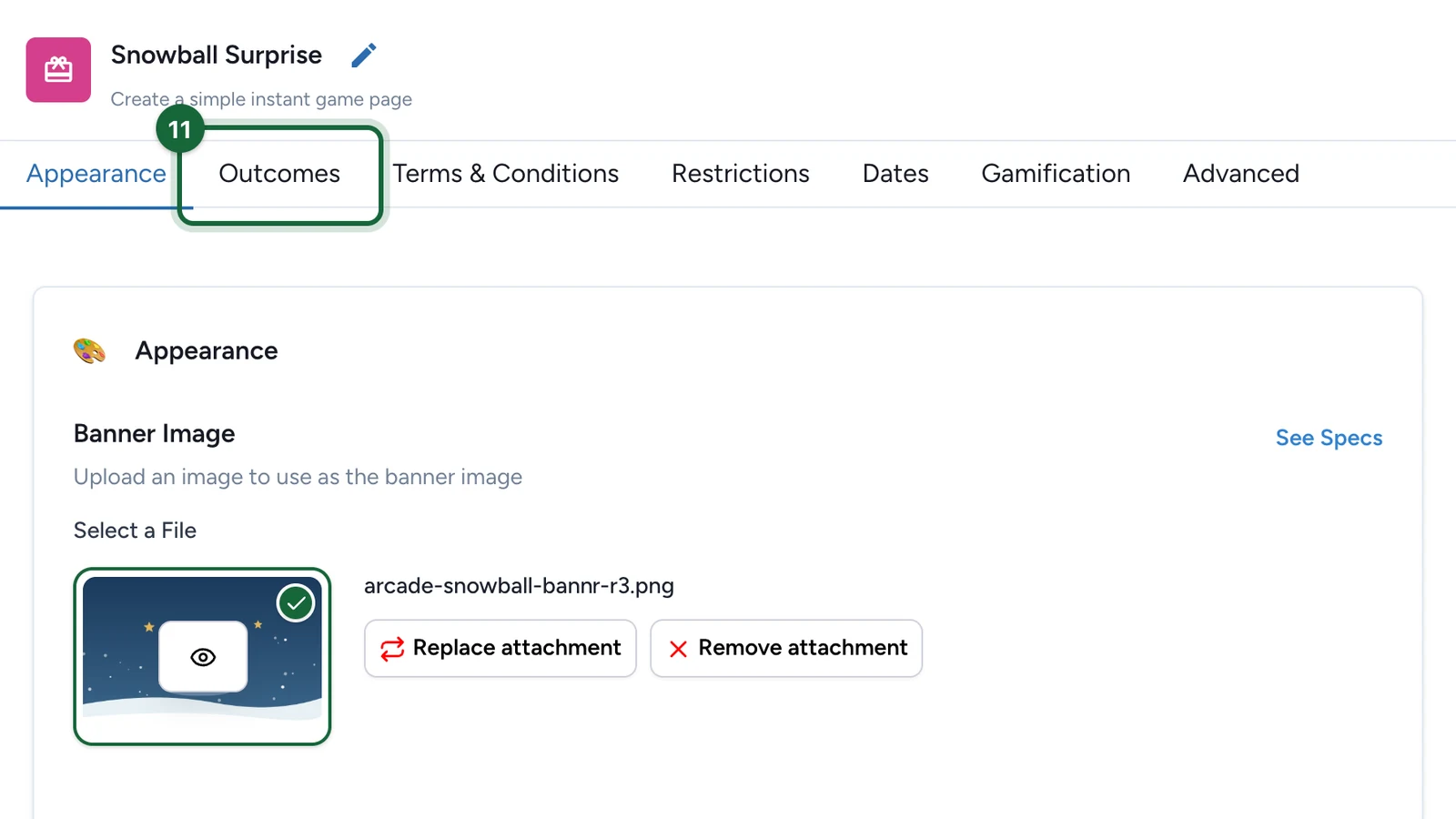
Select the Outcomes tab.
-
Under How Winners Are Determined, select Random Chance.
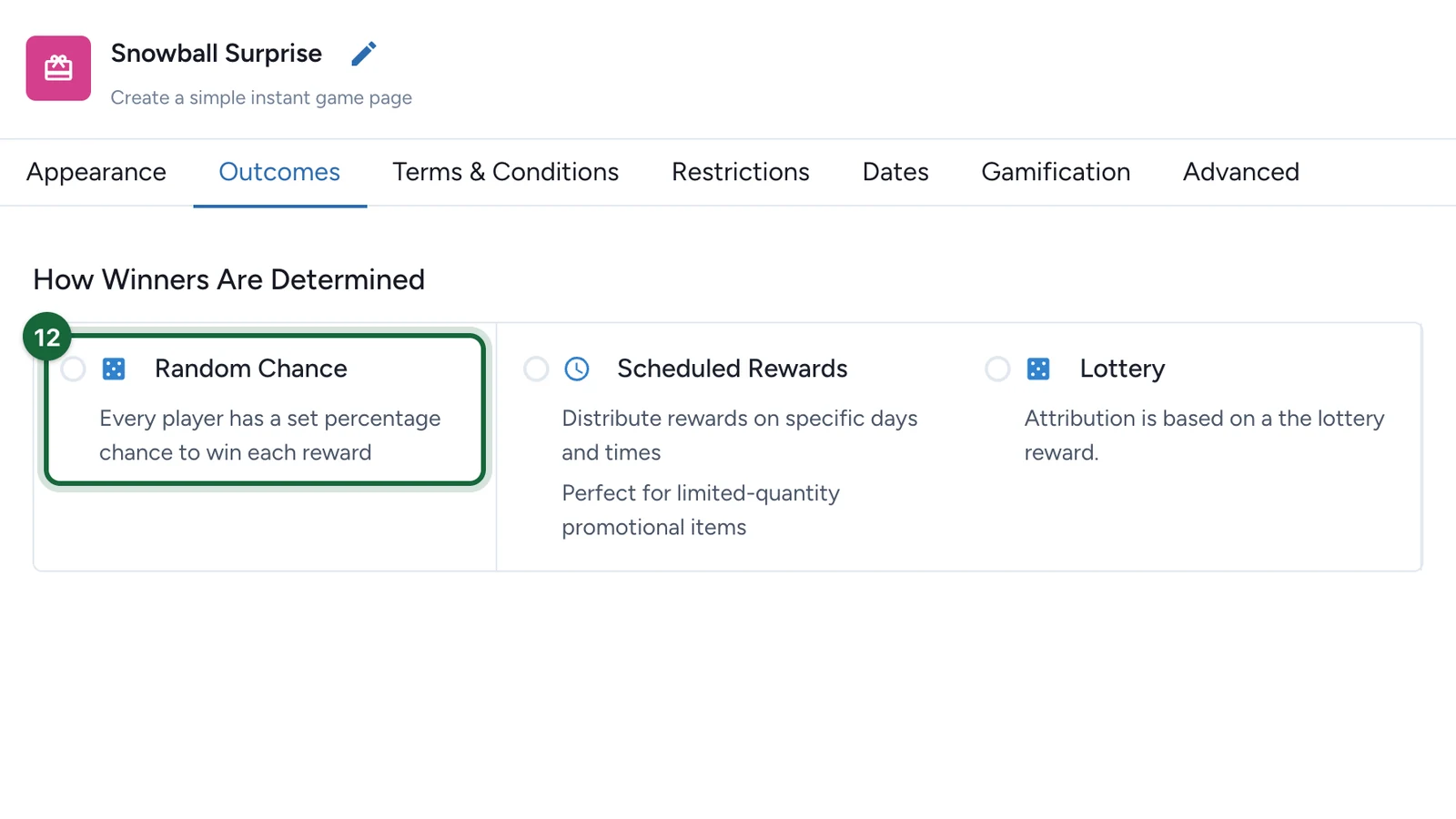
The other two modes are at the end of this page.
-
On Winning Option 1, set the Probability.
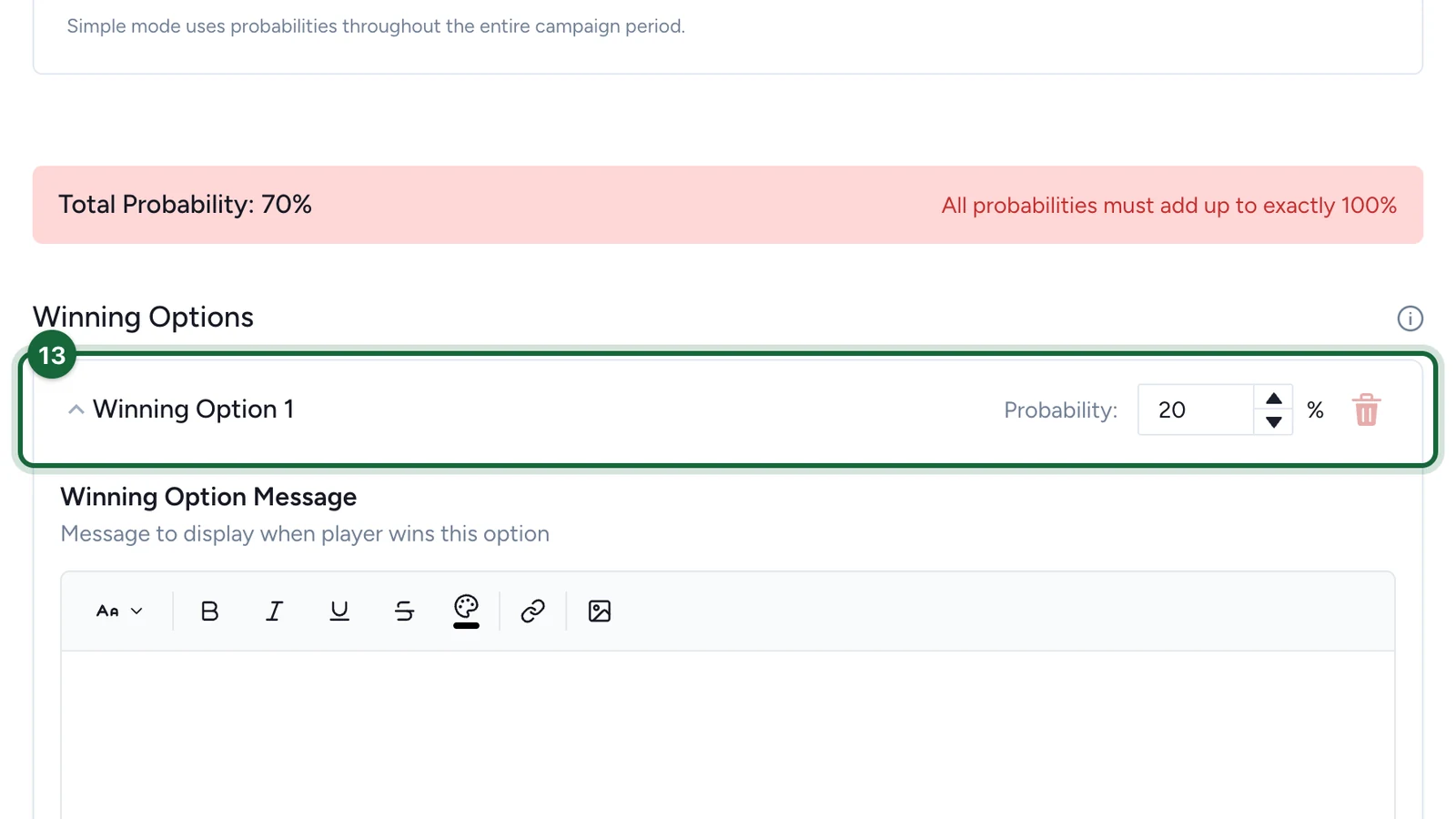
Total Probability turns red until the options add up to 100%.
-
Write the Winning Option Message.
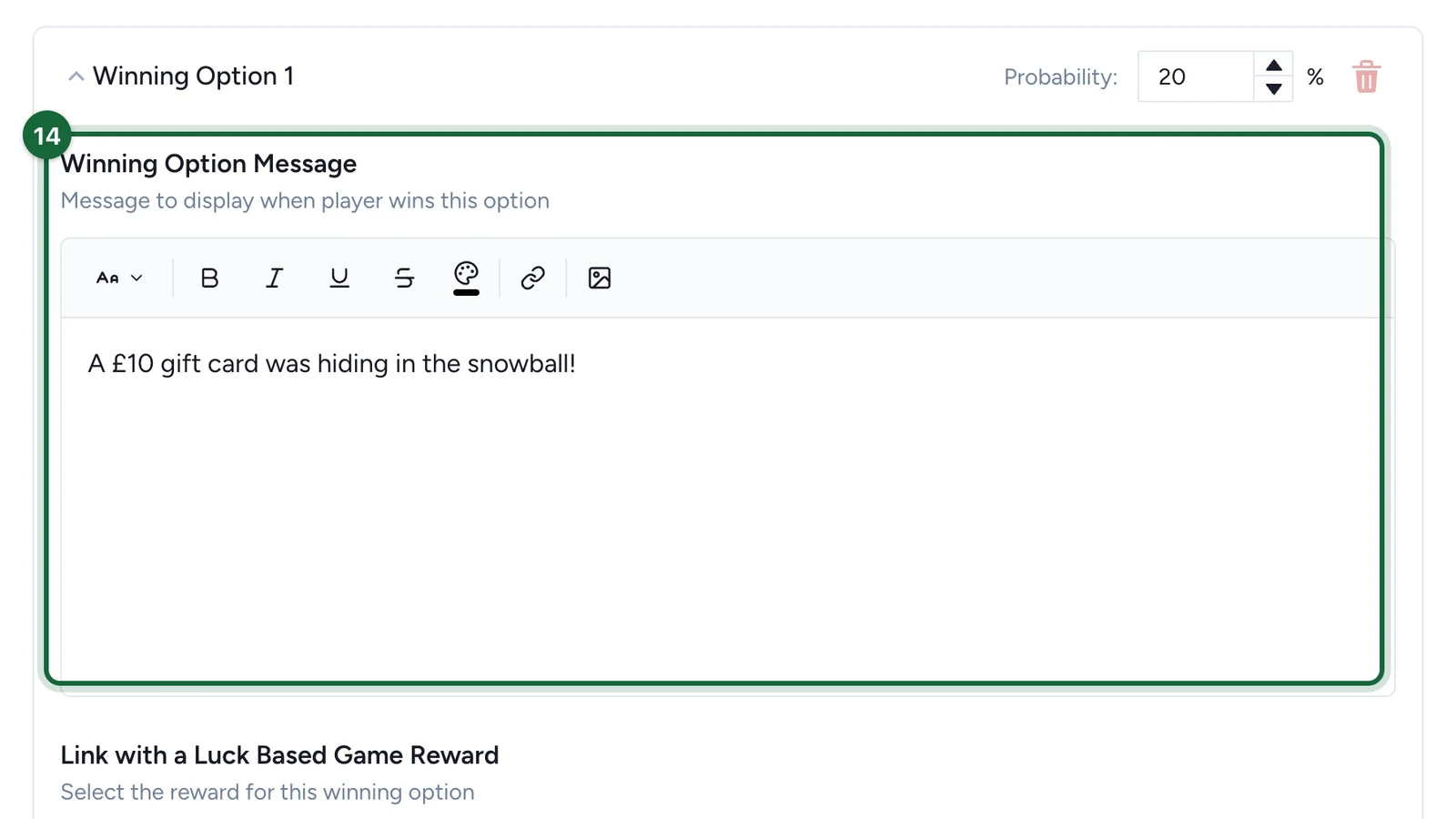
-
Under Link with a Luck Based Game Reward, choose the prize.
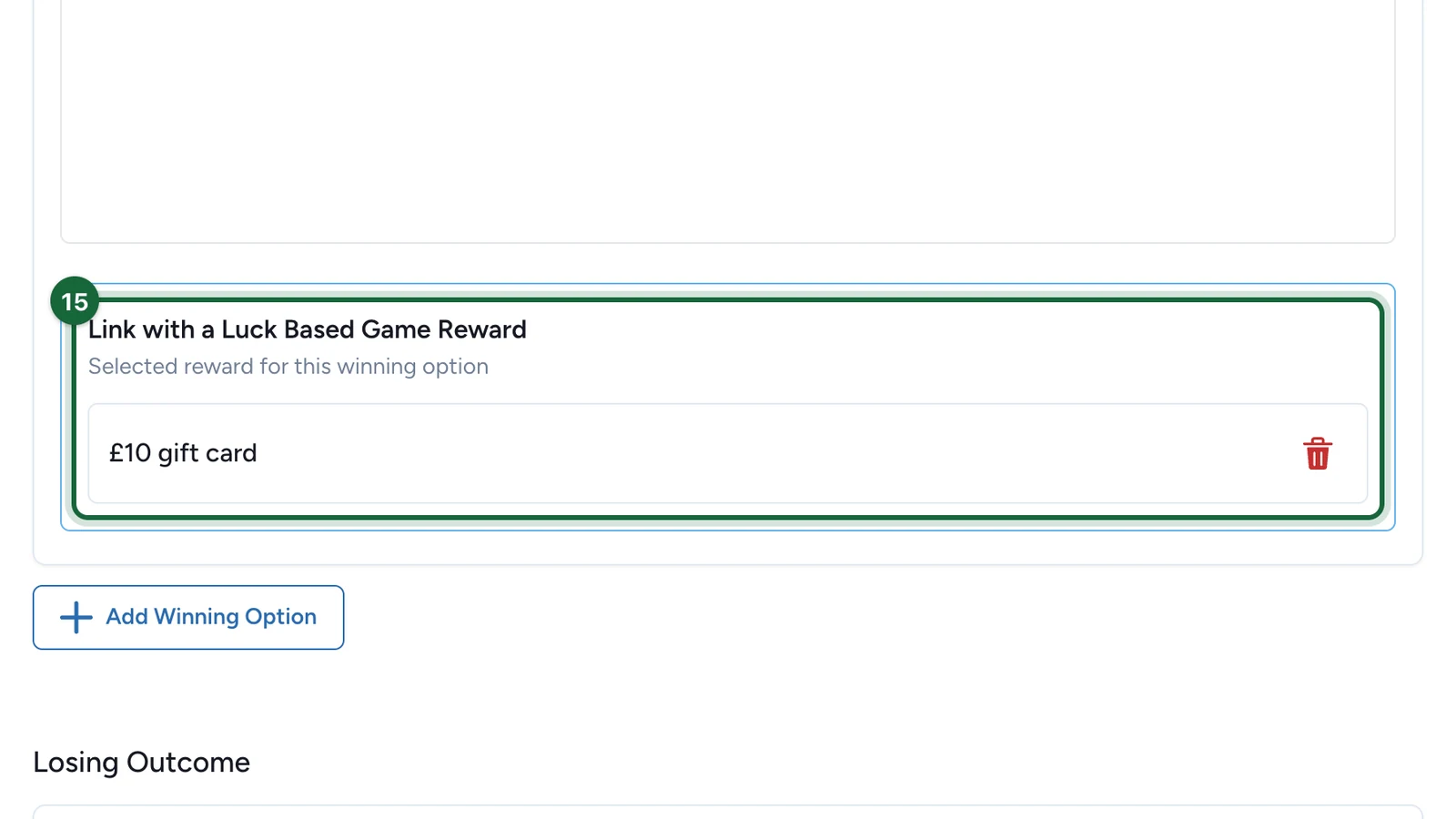
-
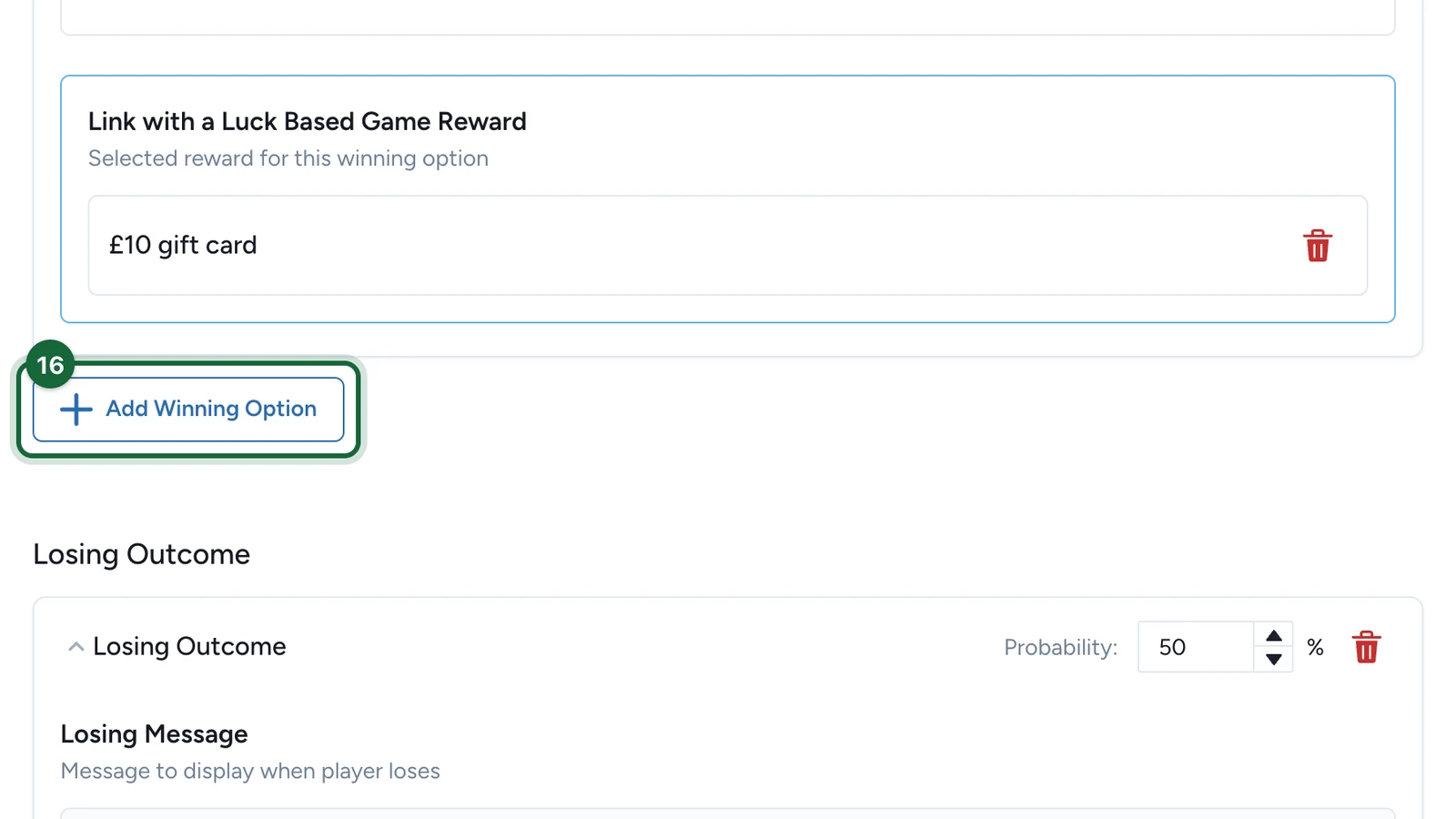
(Optional) Select Add Winning Option for another prize, and set it up the same way.
-
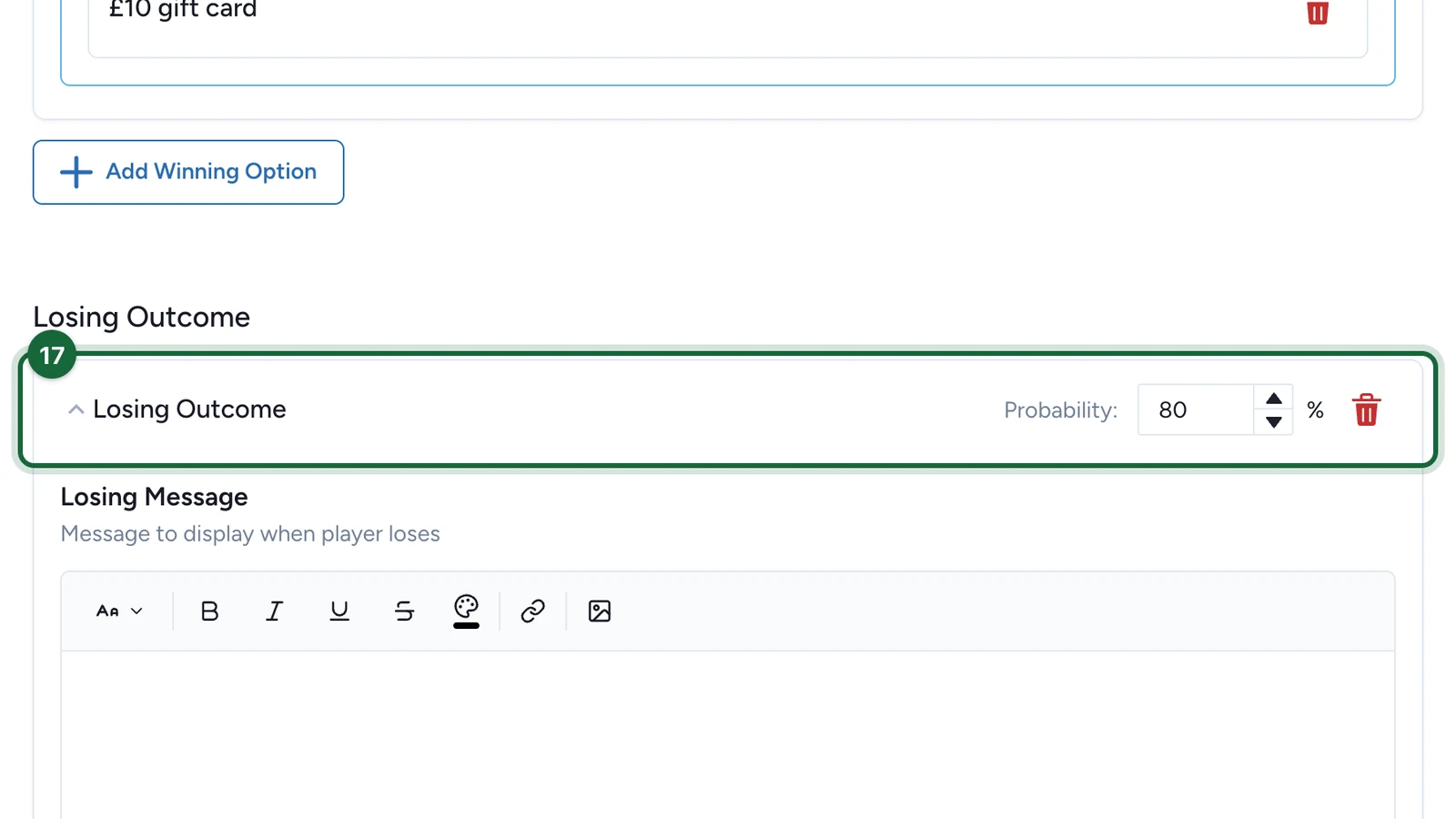
Under Losing Outcome, set the Probability, so the total reaches 100%.
-
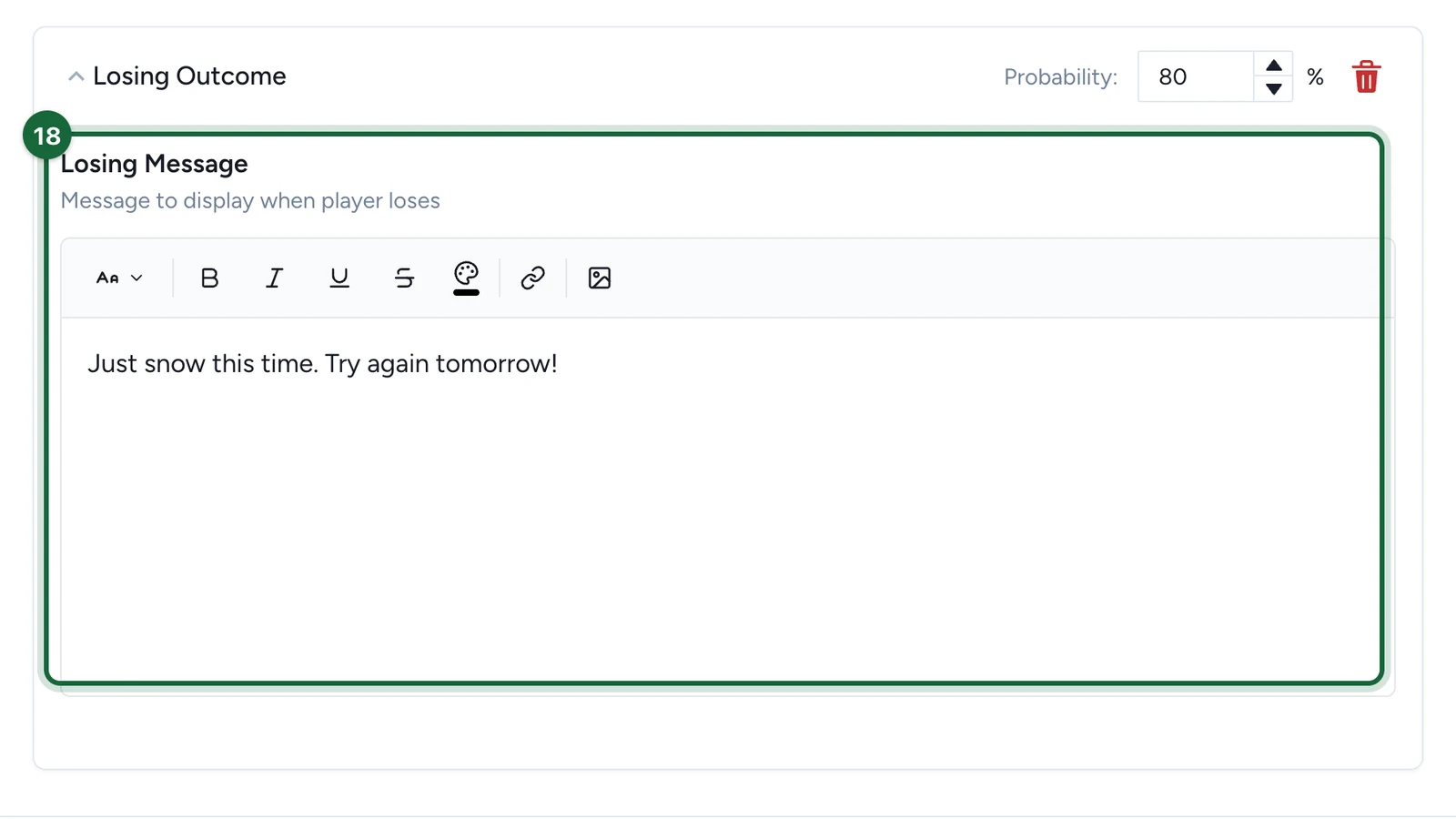
Write the Losing Message.
A new game allows one play per player in all. For one a day, also turn on Daily Limit on the Restrictions tab: see Set restrictions for a game.
-
Select Save.
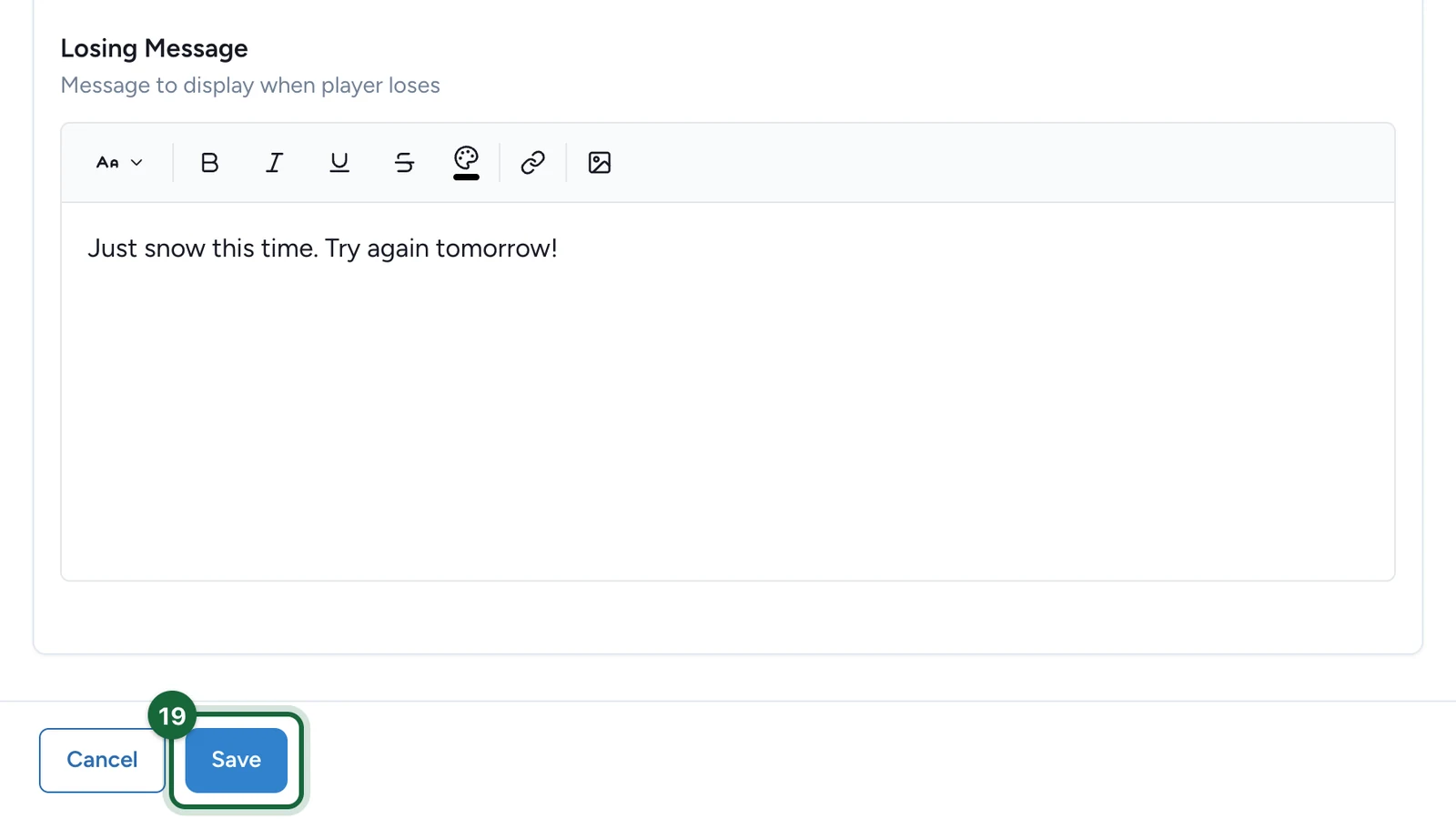
The game's card now reads VALID.
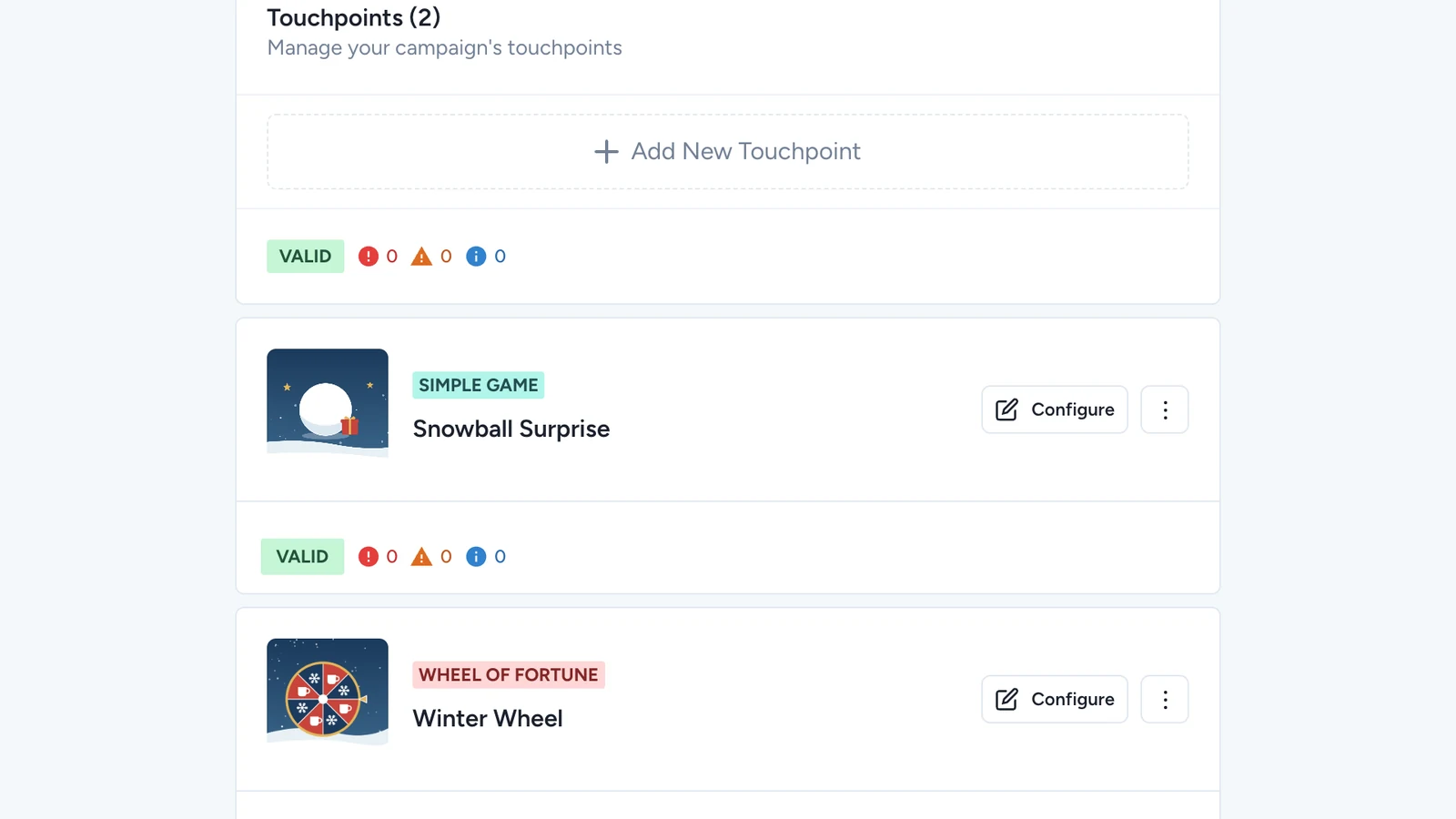
Publish the campaign again for players to see the game: see Publish a game.
The other two modes
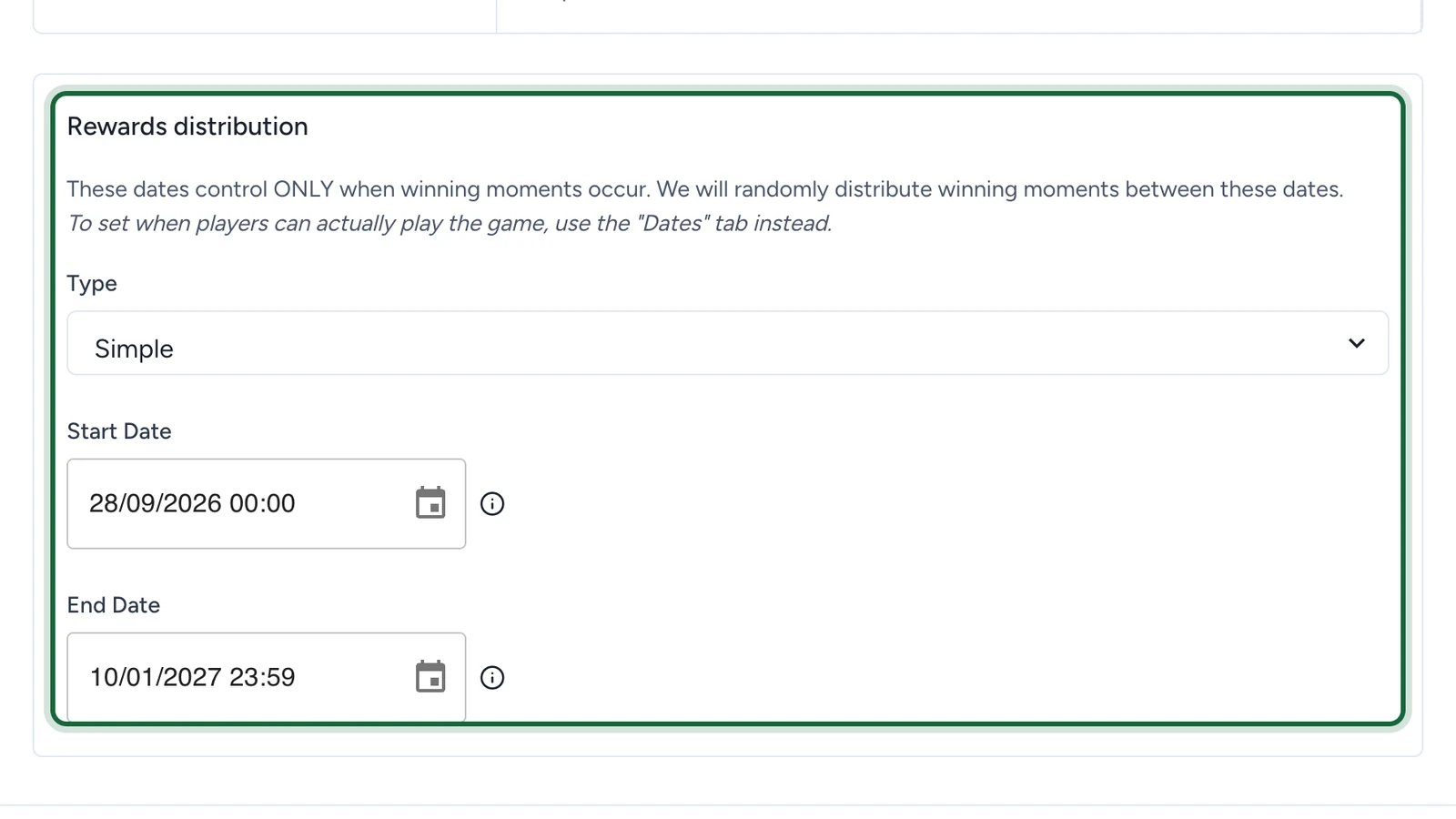
Scheduled Rewards releases the prizes at moments spread between two dates, whatever the odds. Set its Type, Start Date and End Date under Rewards distribution: see Configure outcomes. Those dates only decide when prizes are won: the Dates tab decides when the game is open.
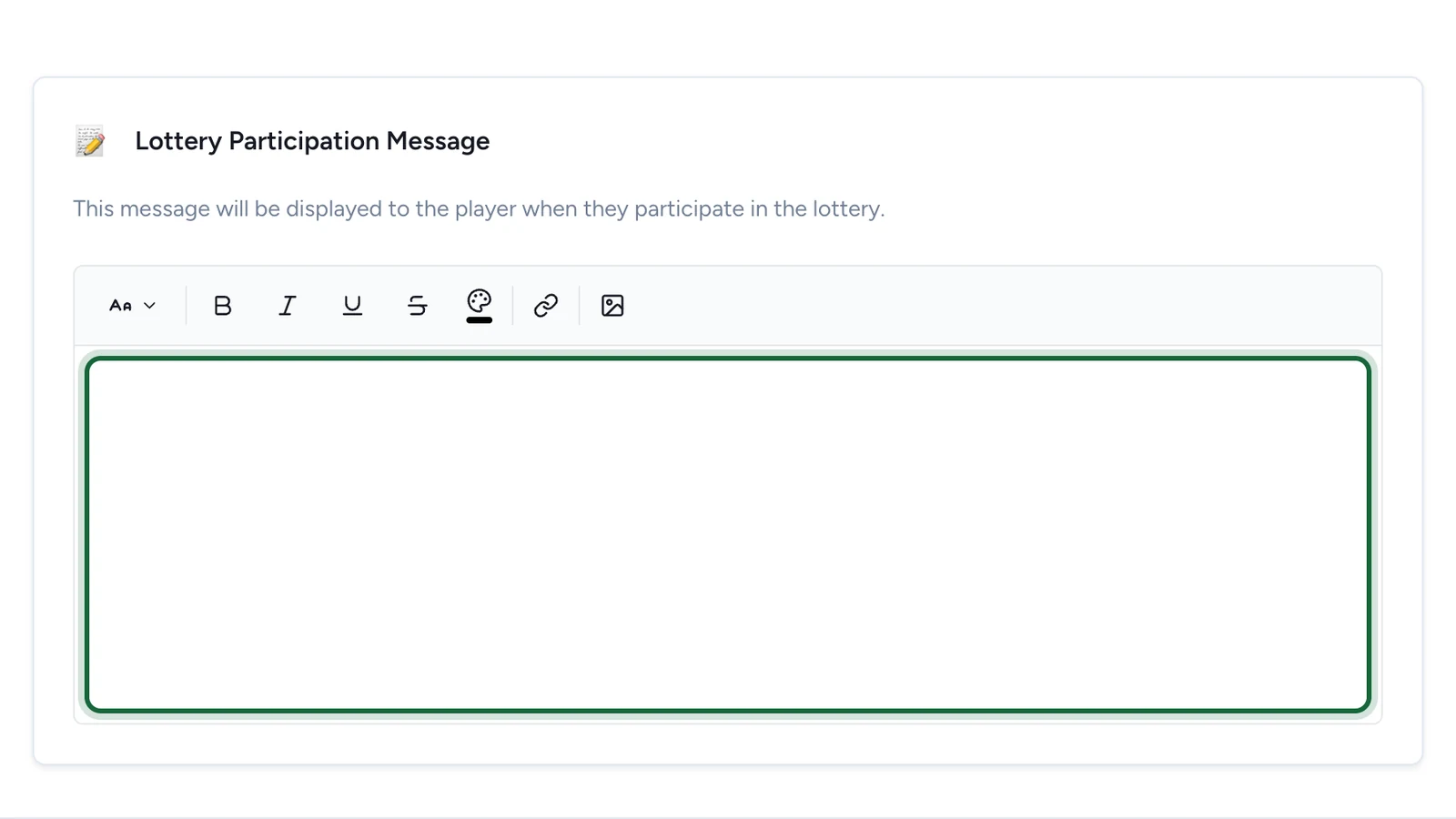
Lottery turns each tap into a draw entry, and the winners are drawn later from a linked lottery. Write the Lottery Participation Message that tells players they're entered. See Lottery rewards.
If publishing is blocked
- No banner image: choose one on the Appearance tab.
- A winning option has no prize or no message: fill in Winning Option Message and Link with a Luck Based Game Reward.
- The probabilities don't total 100%: adjust them under Outcomes.
- Lottery mode has no lottery reward, or no participation message: link the lottery and write the message.
See also Game validation errors.