Publish a game
Put a game live by publishing its campaign, and see what changes for visitors once it's live.
1 min read
You publish the campaign, not one game: every game in it goes live together. The same goes for changes: they reach players only when you publish again.
Publish the campaign
-
In the campaign, select Publish.
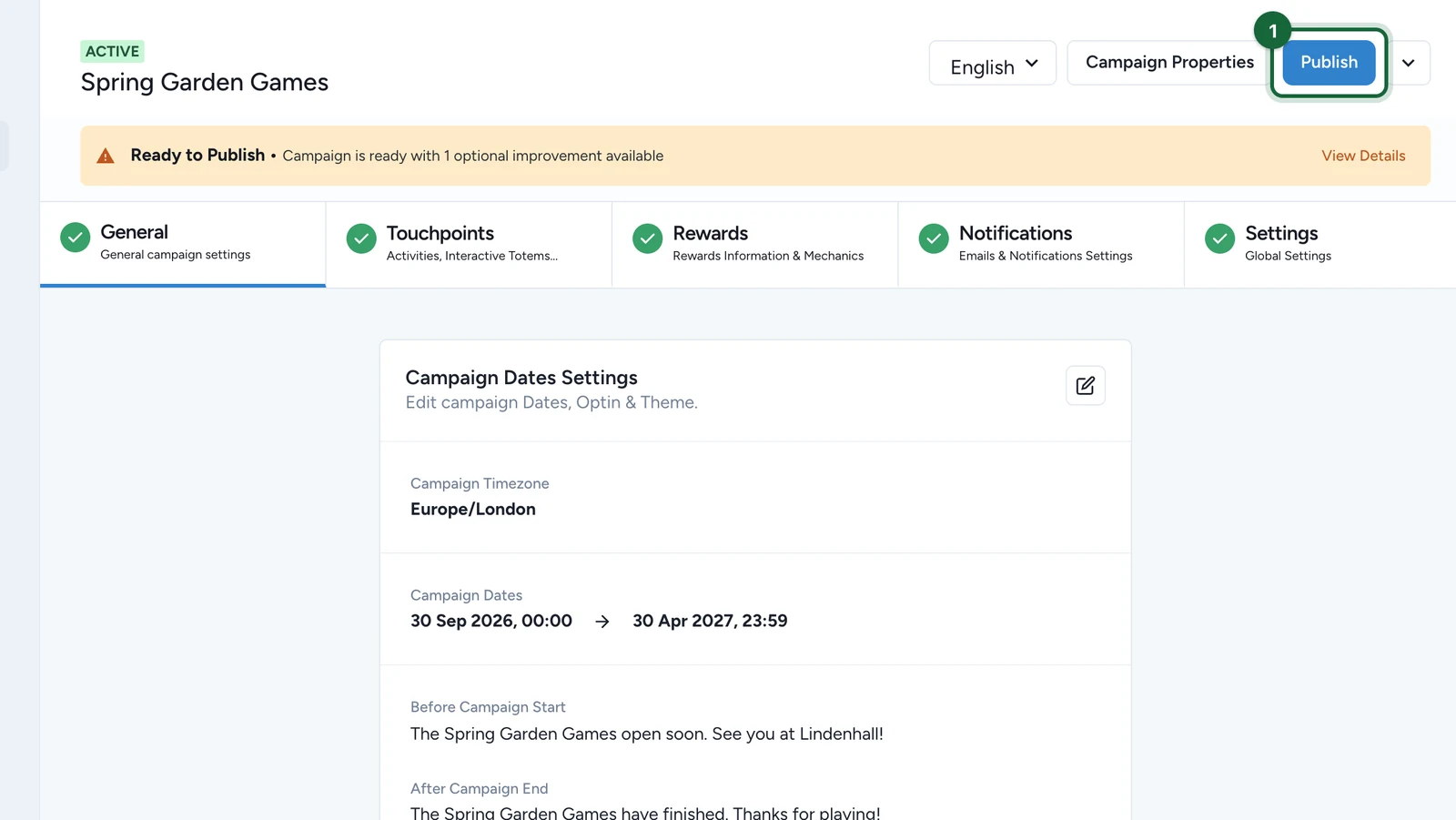
-
In the window that reads Campaign is ready to publish!, select Publish.
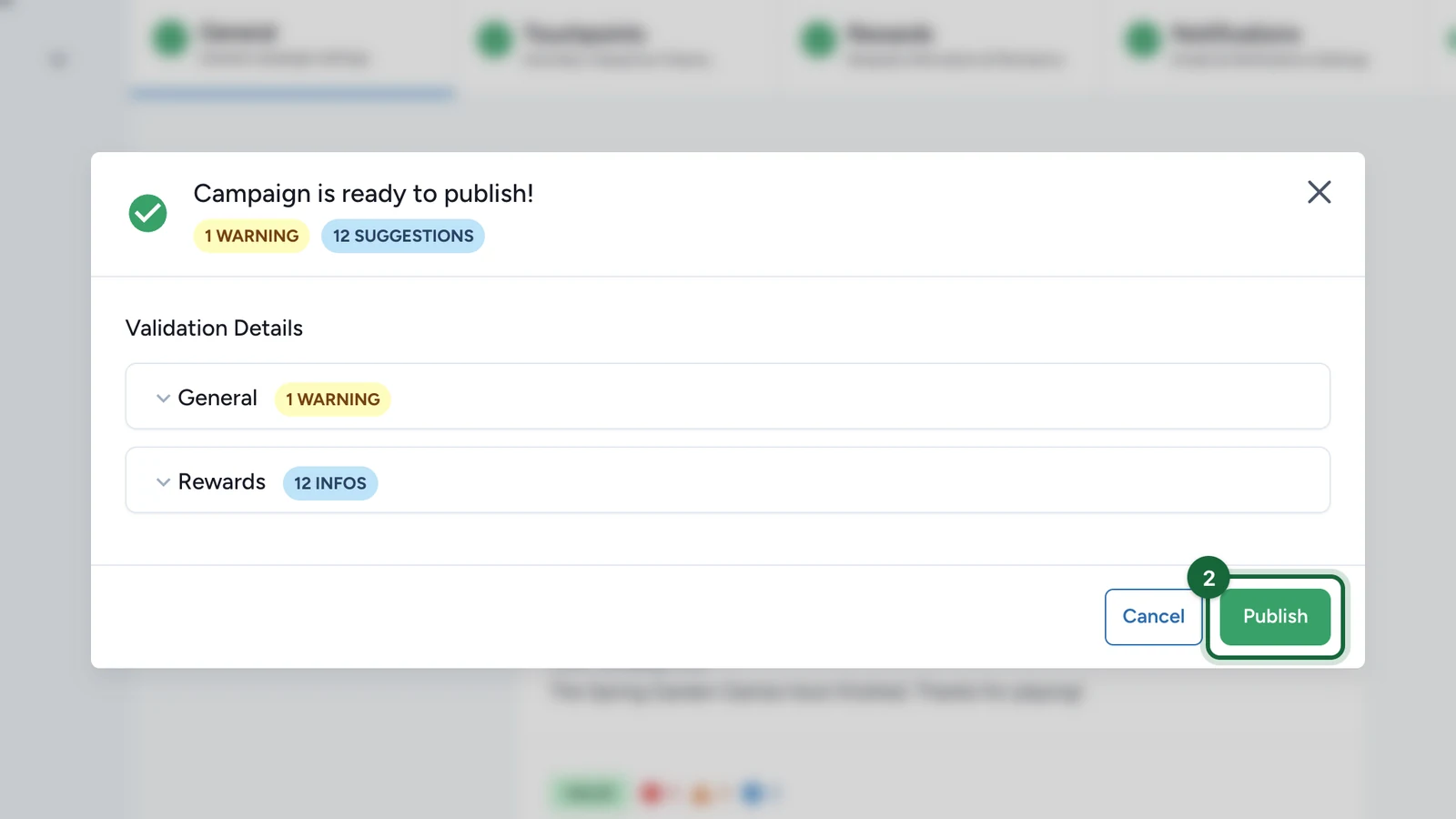
Campaign is ready to publish! means nothing blocks it. Warnings and suggestions don't block publishing. An error does: fix it first, see Validation & publishing.
Once it's live
- Visitors open each game from its link or QR code, or from the landing page if the campaign has one: see Find the game URL.
- Until the campaign's start date, each game shows the Text Displayed Before Start Date instead of Play Now.
- A game you turn off with Disable Touchpoint, in its card's menu, leaves the campaign the next time you publish.
To take the whole campaign offline, use Unpublish Campaign: see Campaign lifecycle.