Your first campaign
Build a small campaign from start to finish: create it, add a sign-up page, set its dates, publish and try it.
You'll build "Winter Wonderland": a page where shoppers sign up to unlock Lindenhall's winter programme. It takes about 20 minutes, and every campaign you build later follows the same path. Have a banner image ready, uploaded to your images.
Create the campaign
-
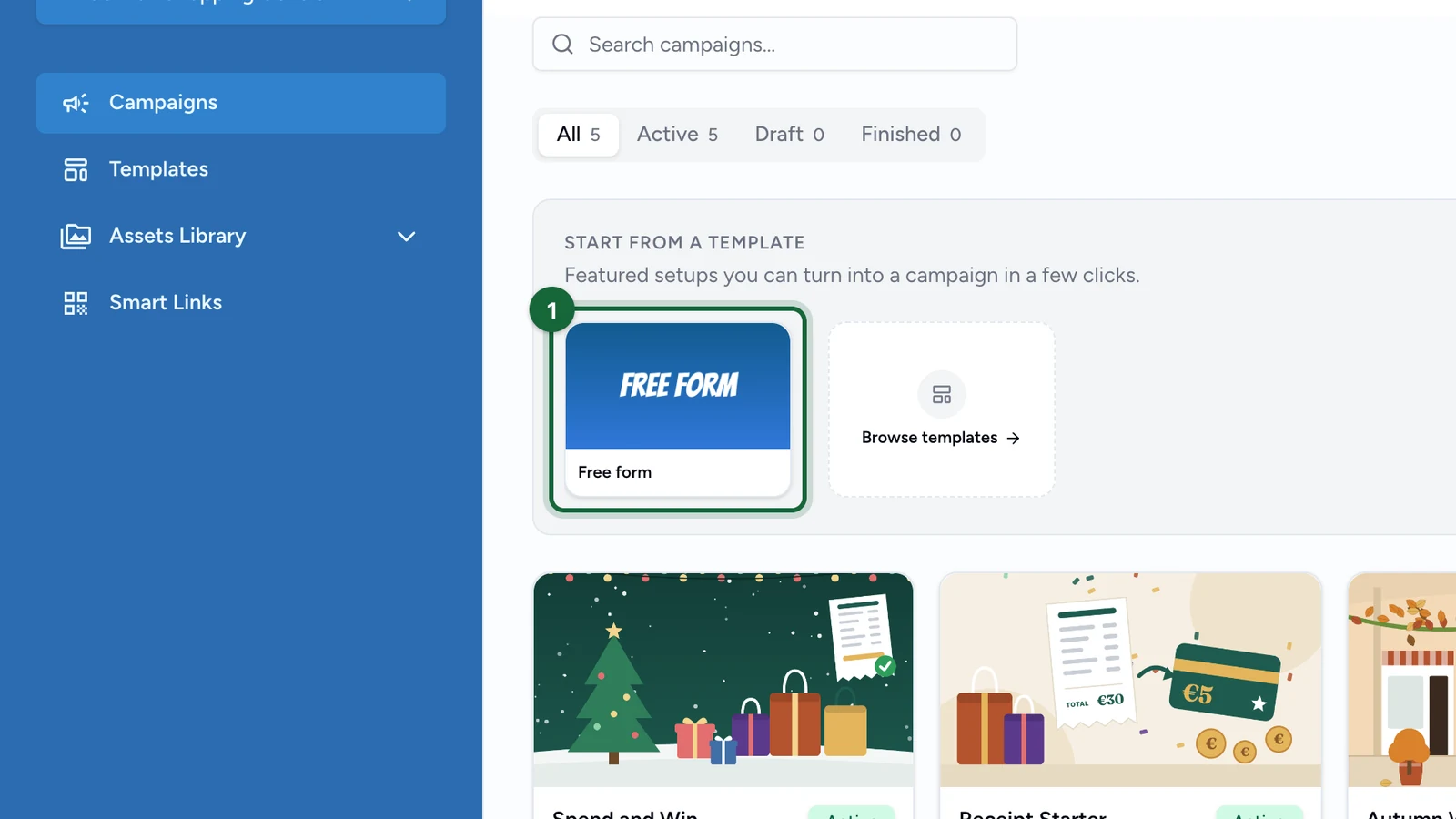
In Campaigns, under Start from a template, choose Free form.
-
Select Create Campaign.
-
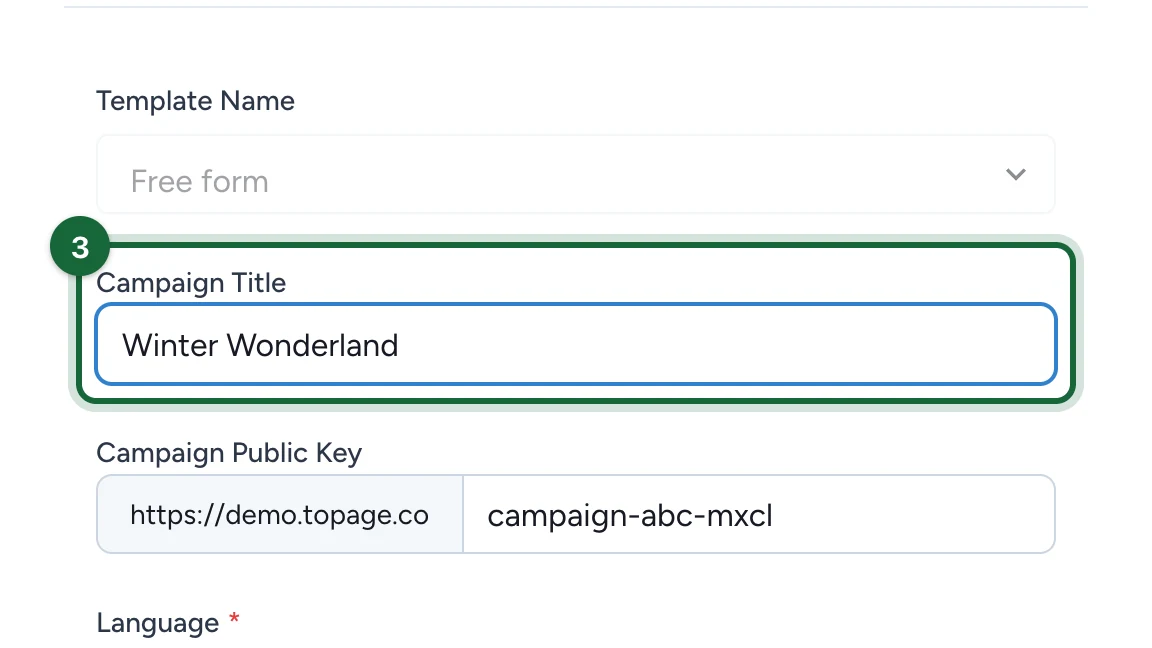
Enter the Campaign Title, "Winter Wonderland".
-
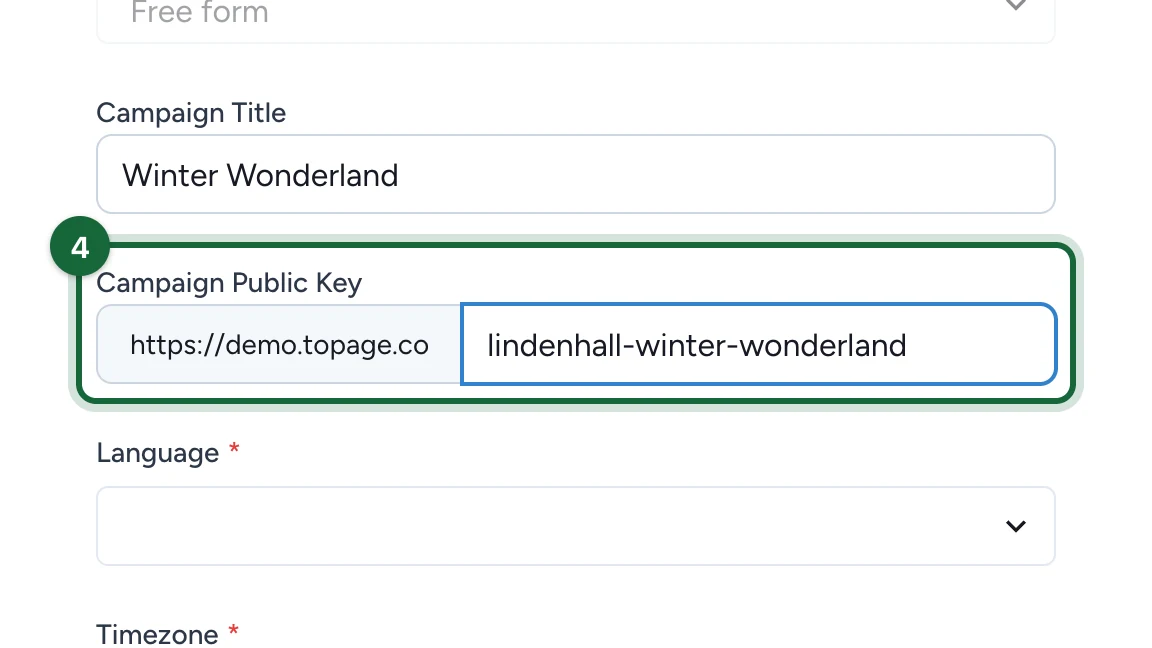
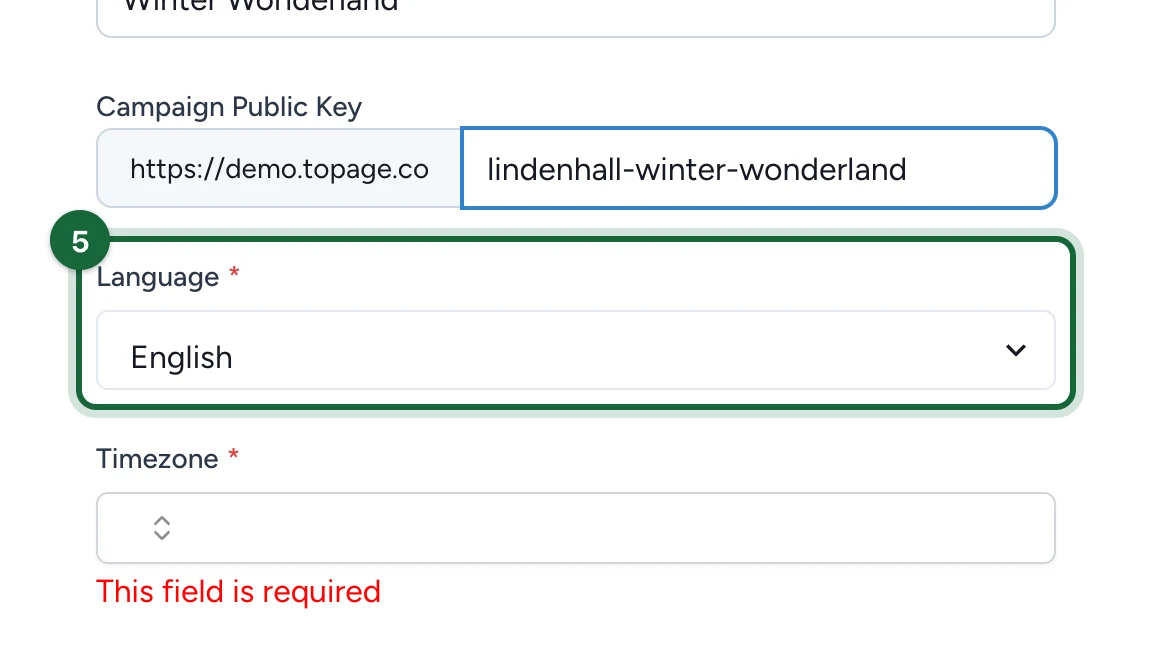
Enter the Campaign Public Key, the end of the campaign's address. Campaign Properties later calls it Campaign Public Link.
-
Choose the Language.
-
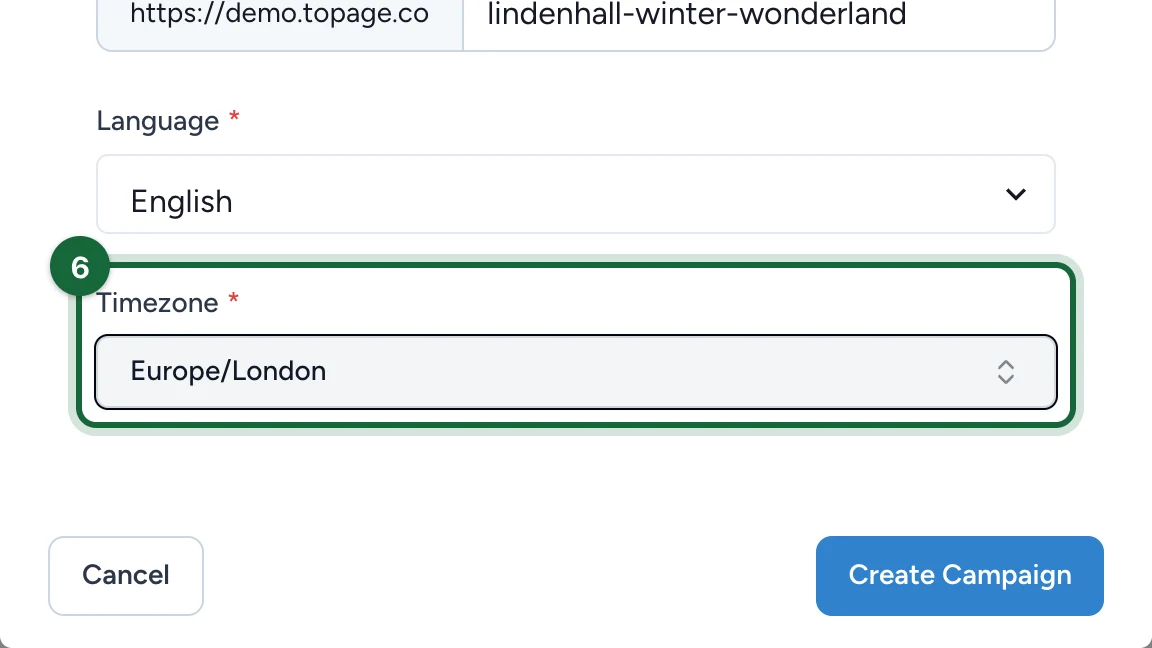
Choose the Timezone of the people taking part.
-
Select Create Campaign.
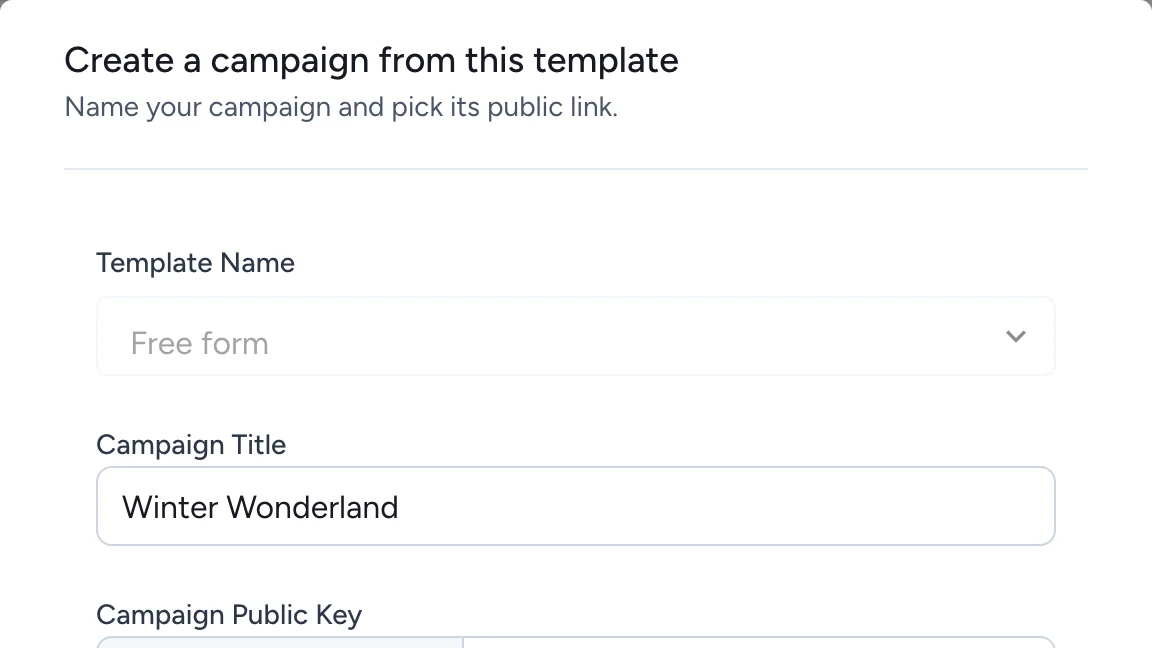
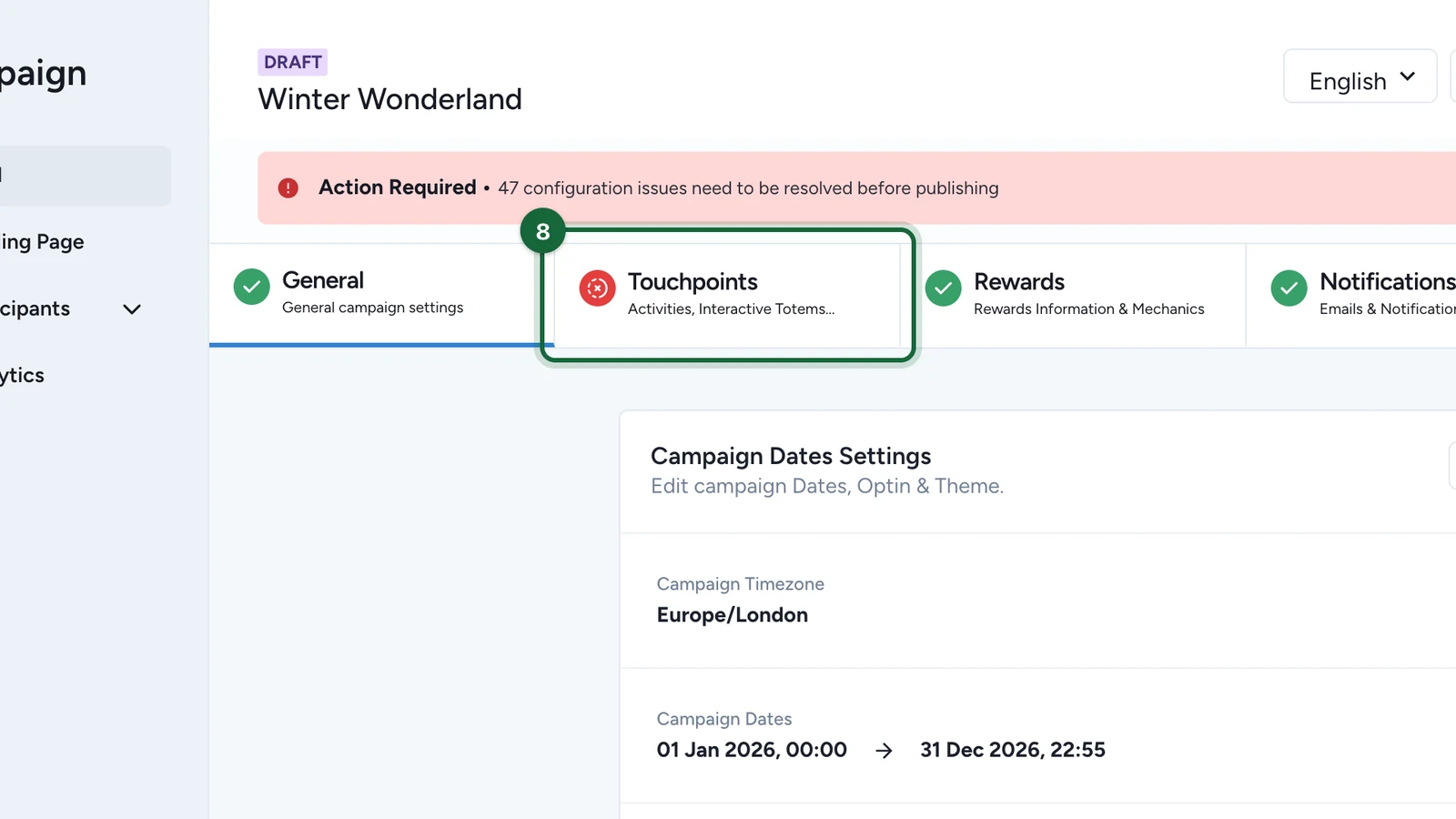
The campaign opens as a draft, with an Action Required banner: you'll clear it as you go.
Keep one touchpoint
Free form comes with a sample of every kind of touchpoint. You only need Gated Content: a page that opens once people sign up.
-
Select the Touchpoints tab.
-
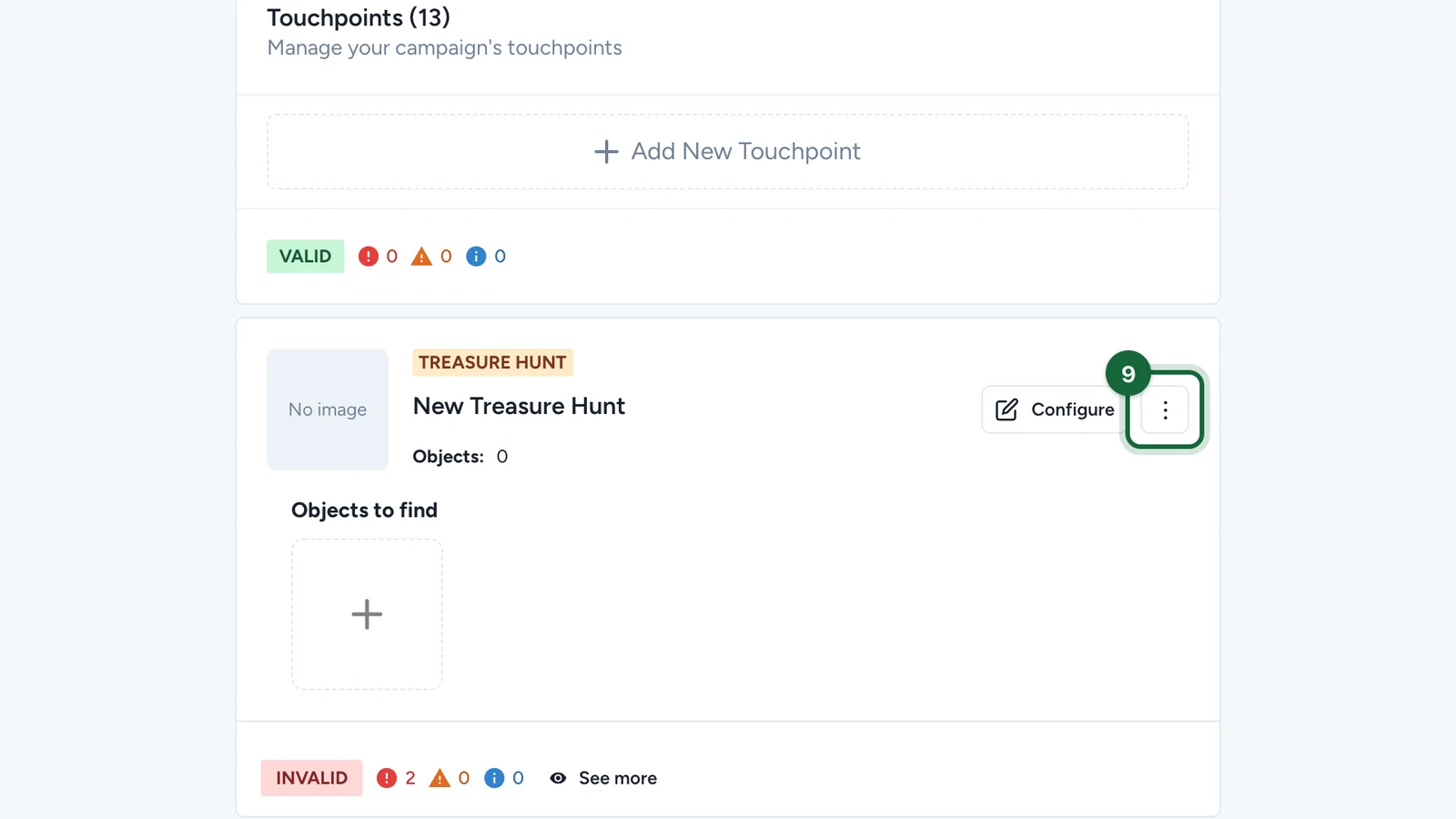
On a sample you don't need, select the three-dot menu.
-
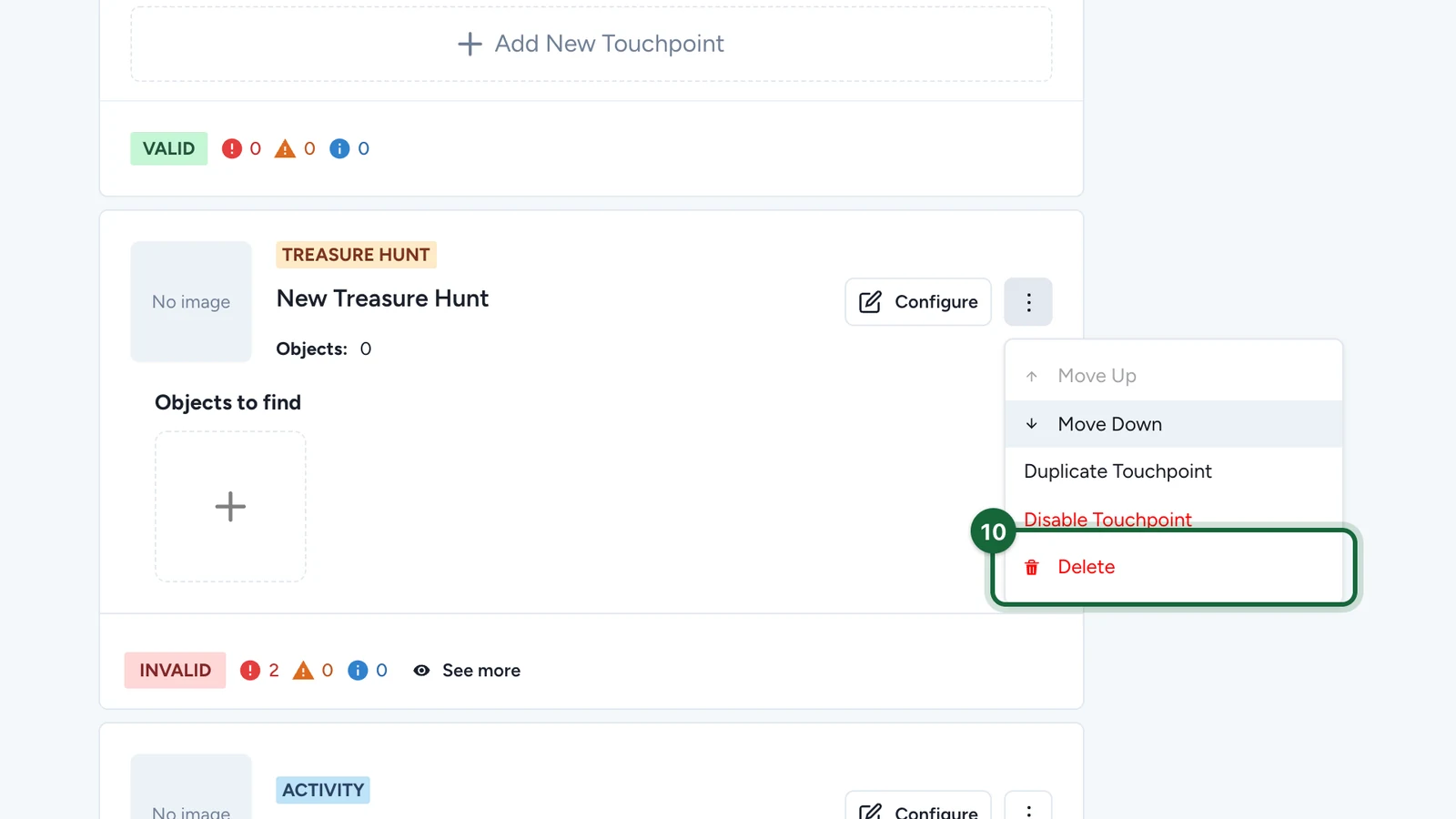
Select Delete.
-
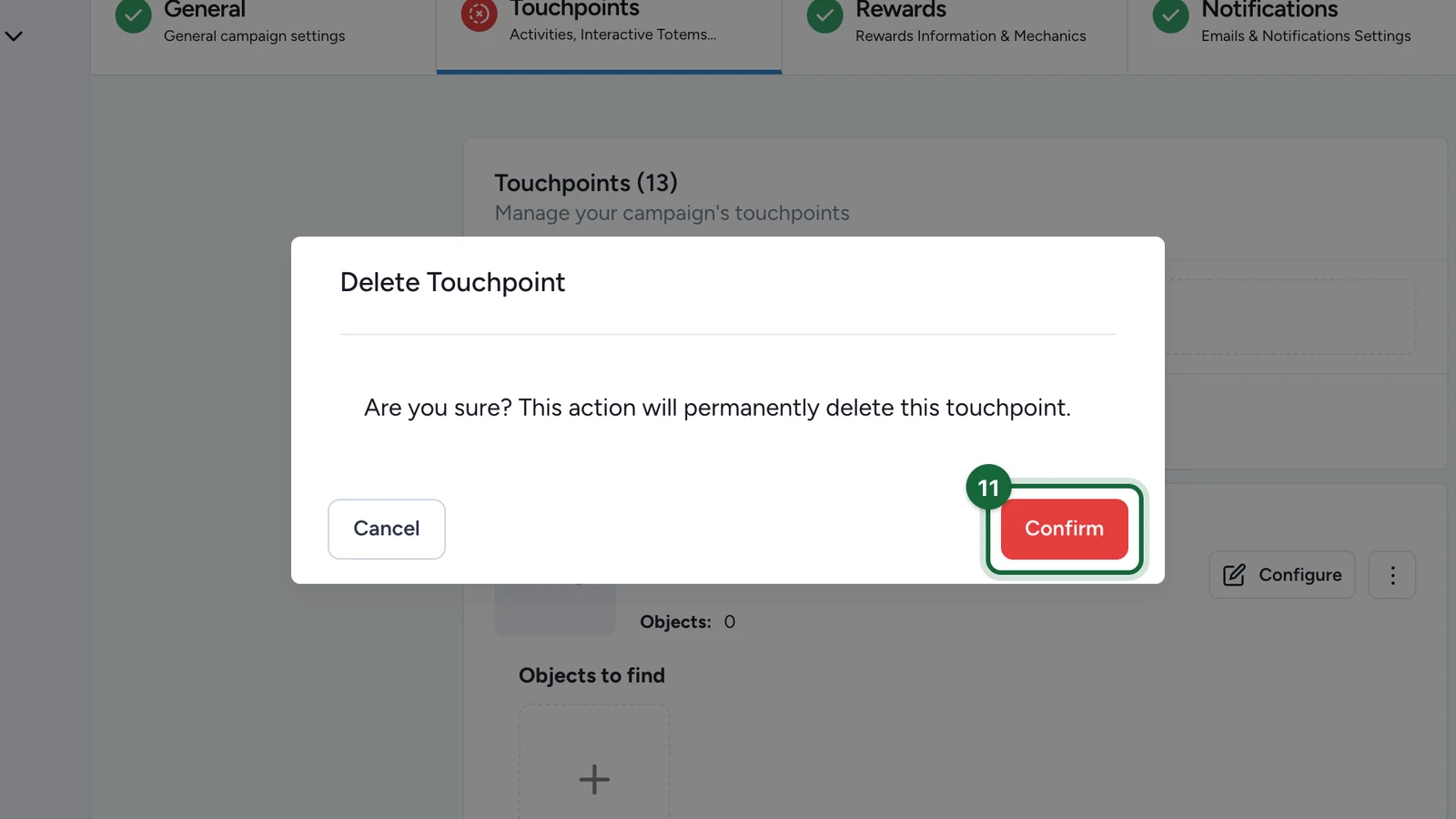
In Delete Touchpoint, select Confirm.
Repeat steps 9 to 11 for every sample except Gated Content.
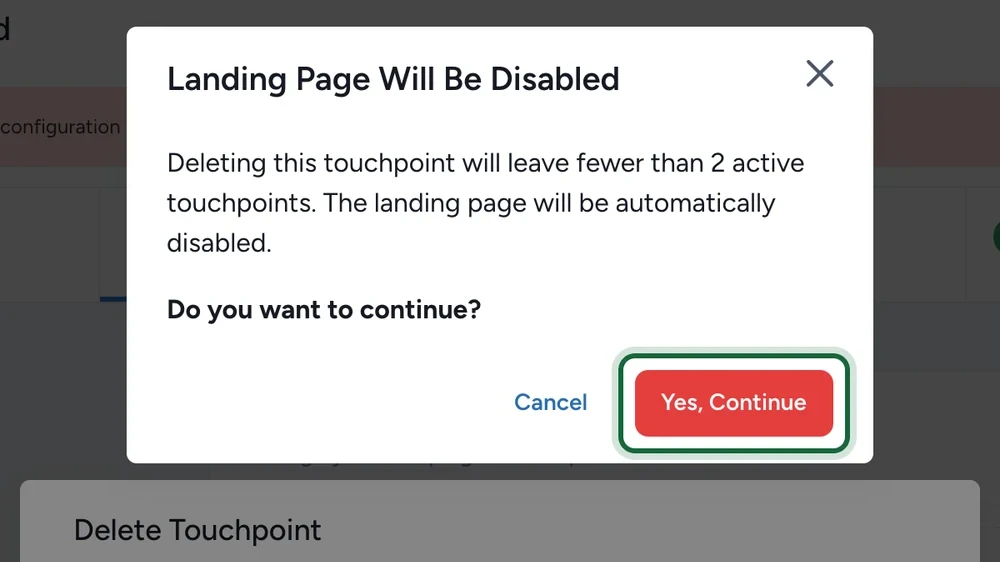
When you delete the second-to-last sample, Landing Page Will Be Disabled opens: a landing page needs two touchpoints. Select Yes, Continue. Participants then open the page from its own link.
Set up the page
-
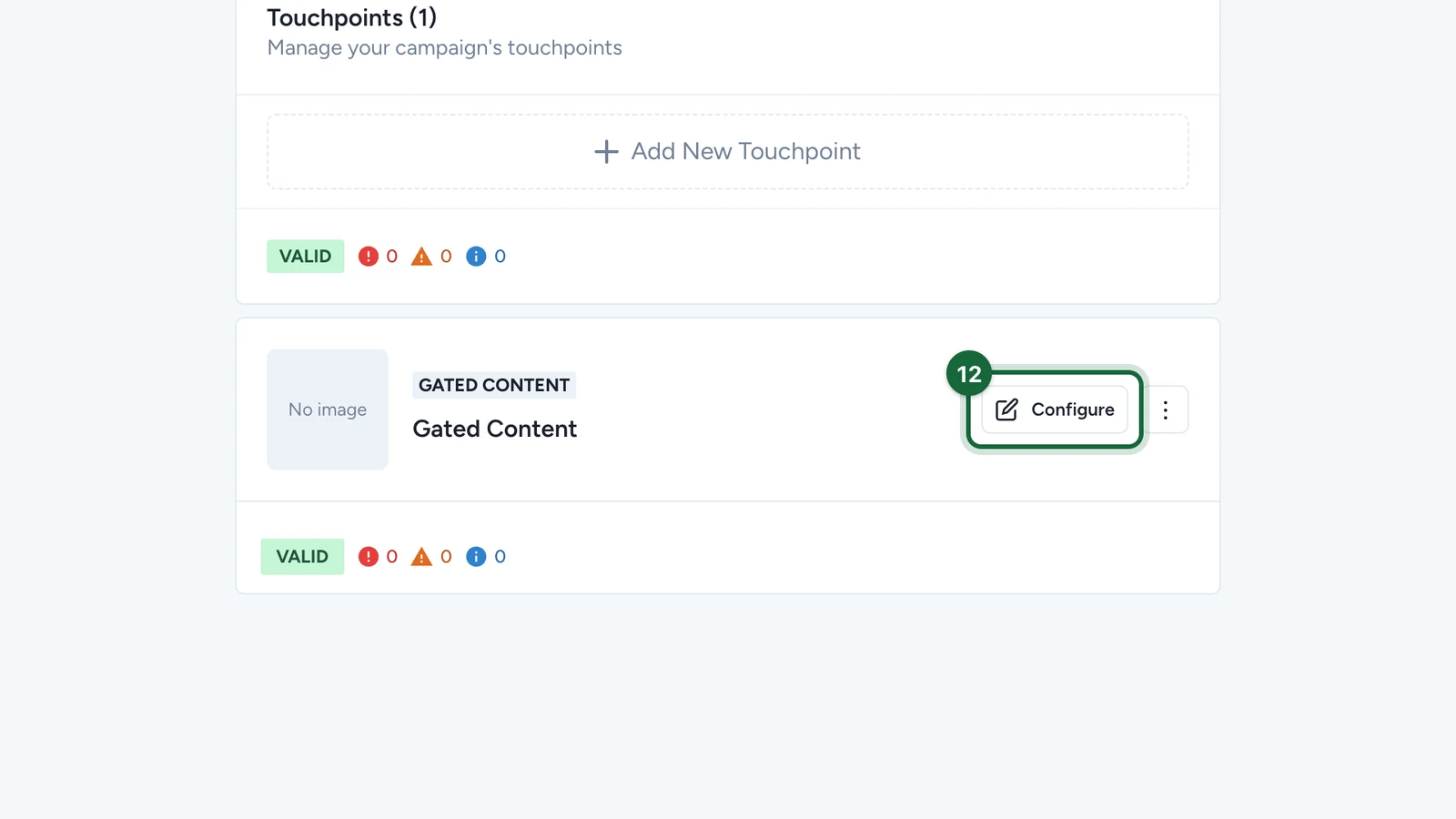
On Gated Content, select Configure.
-
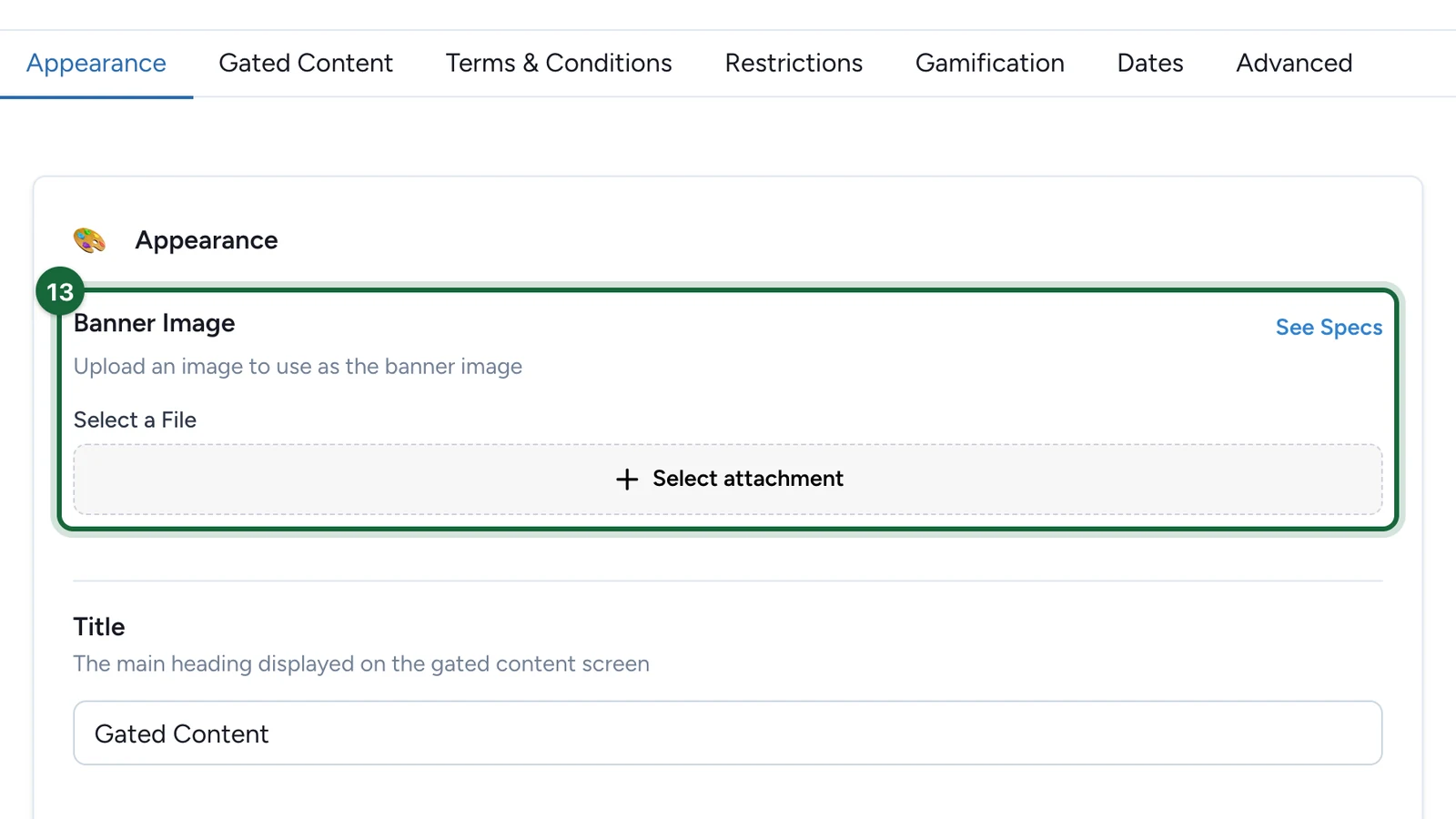
Under Banner Image, choose Select attachment.
-
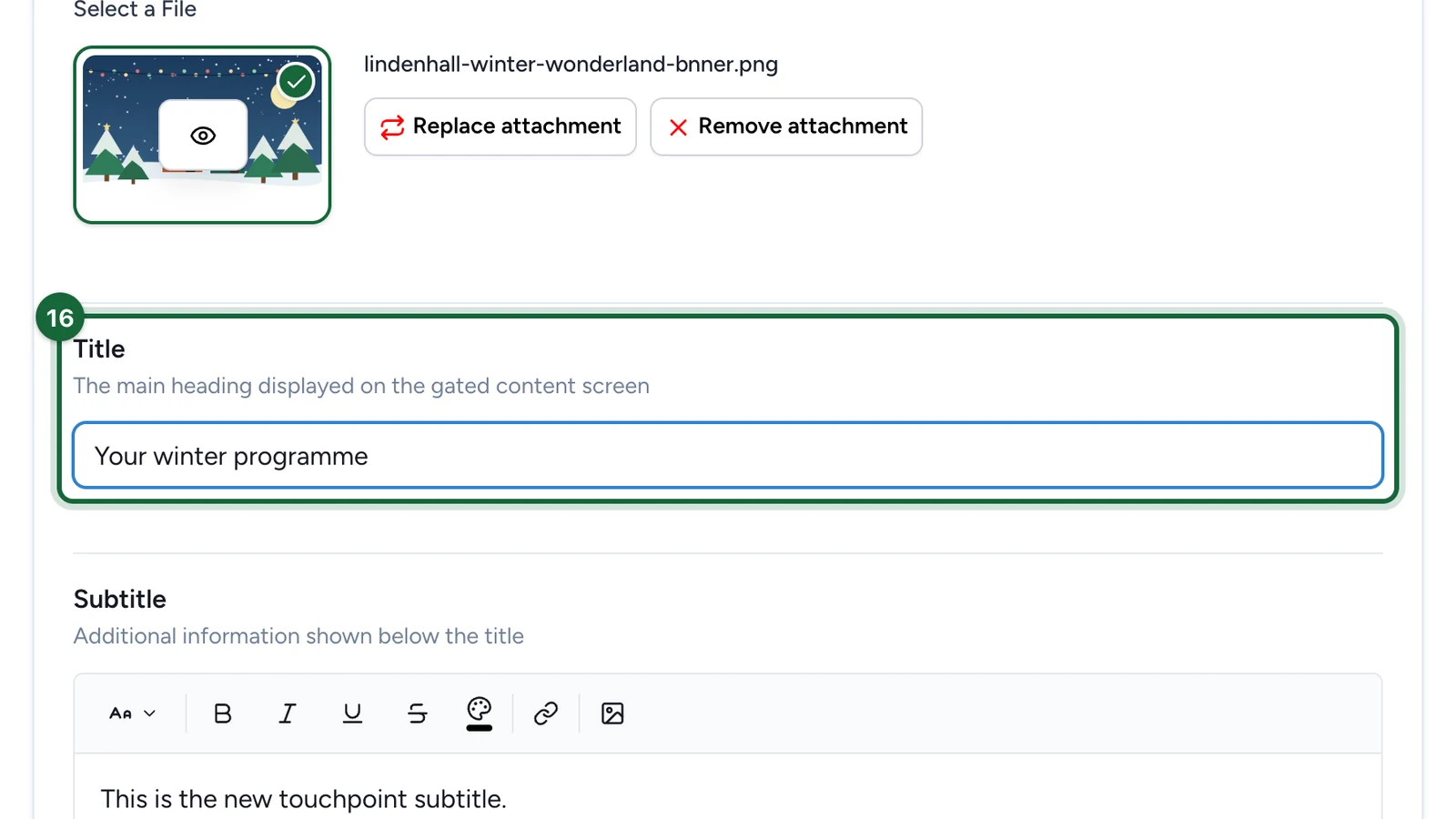
On your banner, choose Select File.
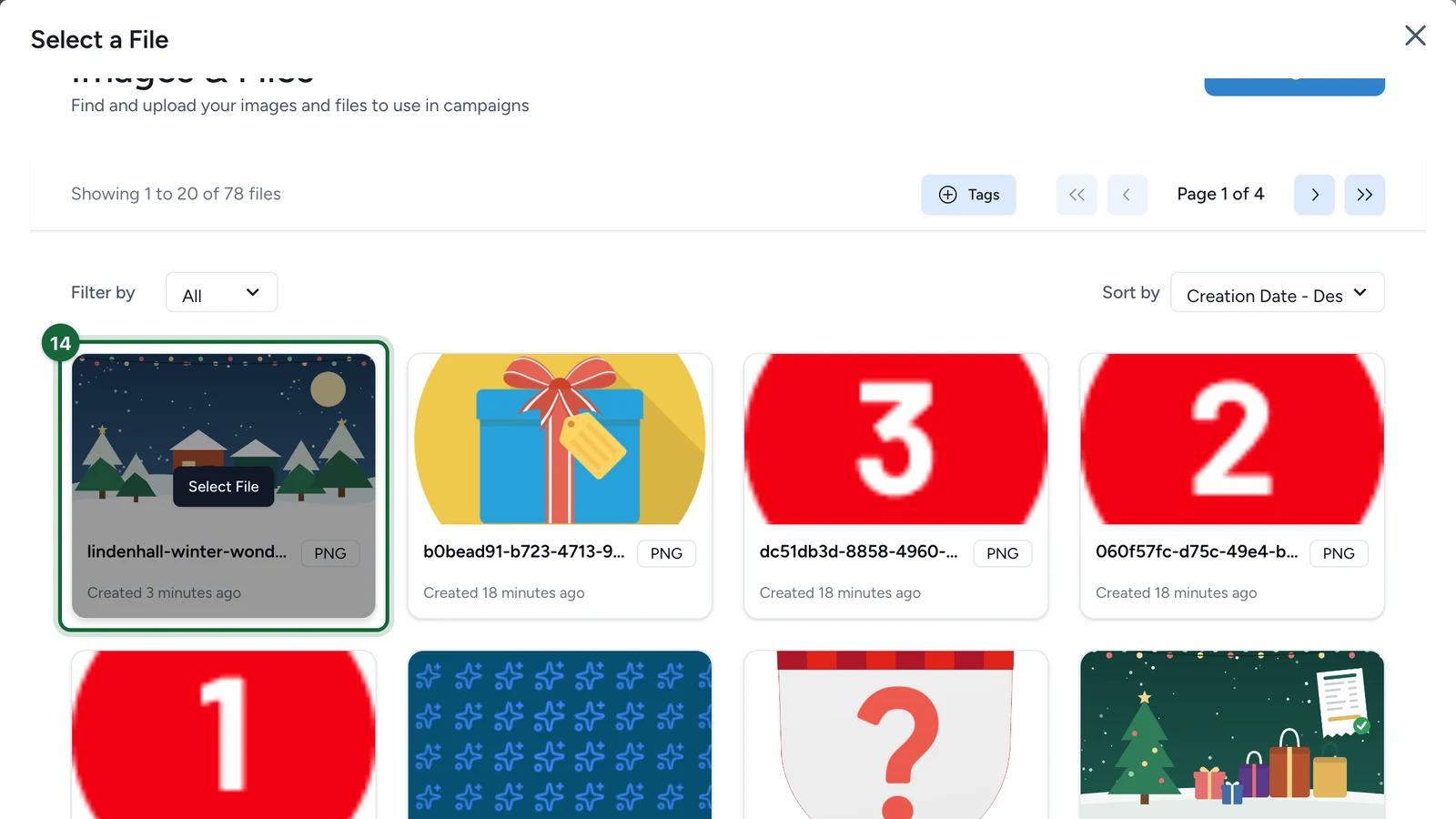
Not in the list? Select Add Image or File to upload it.
-
Select Save.
-
Replace the Title, such as "Your winter programme".
-
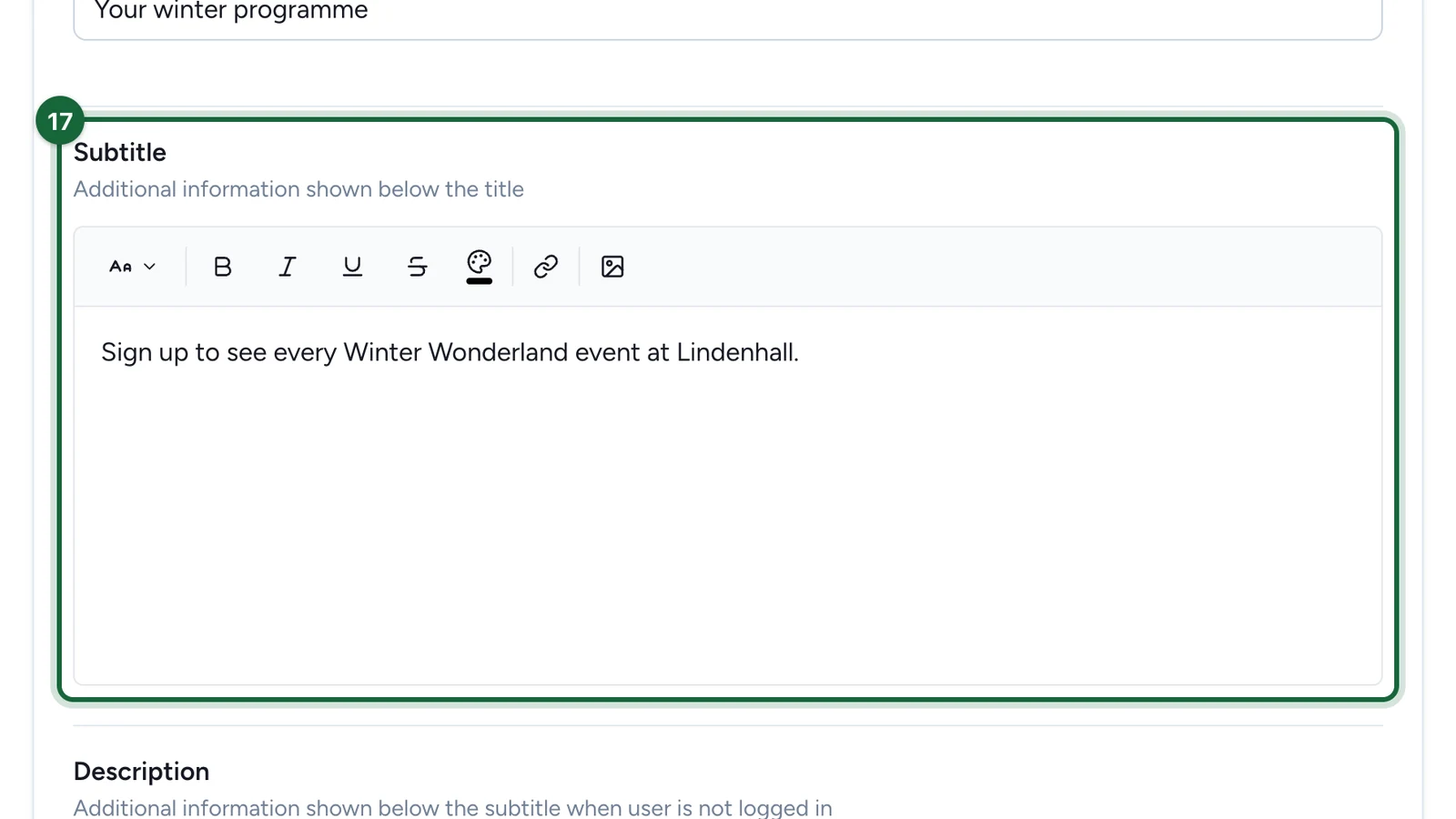
In Subtitle, say what signing up gives.
-
In Description, add a line about what's inside.
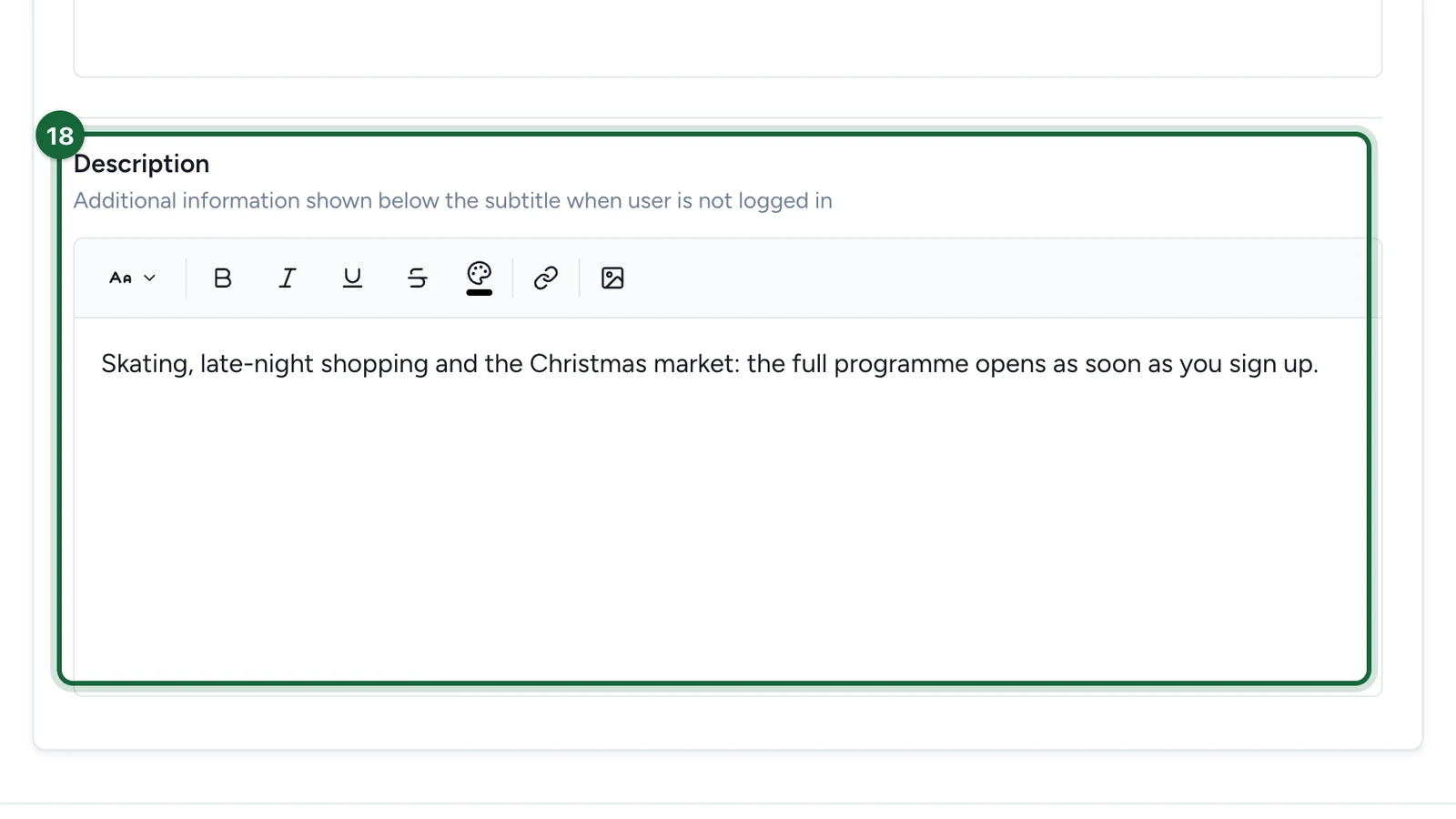
It shows under Rules, before people sign up.
-
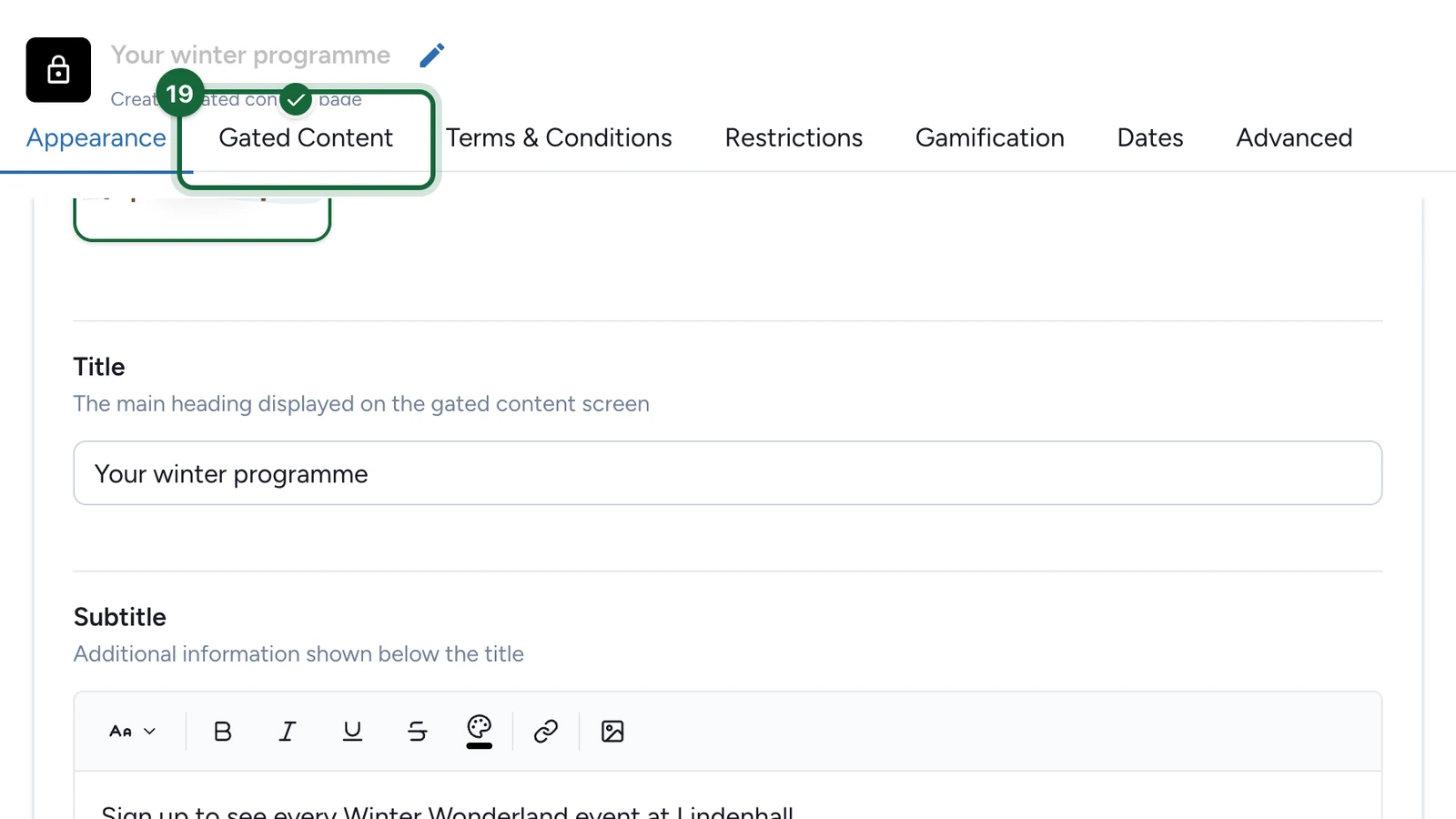
Select the Gated Content tab.
-
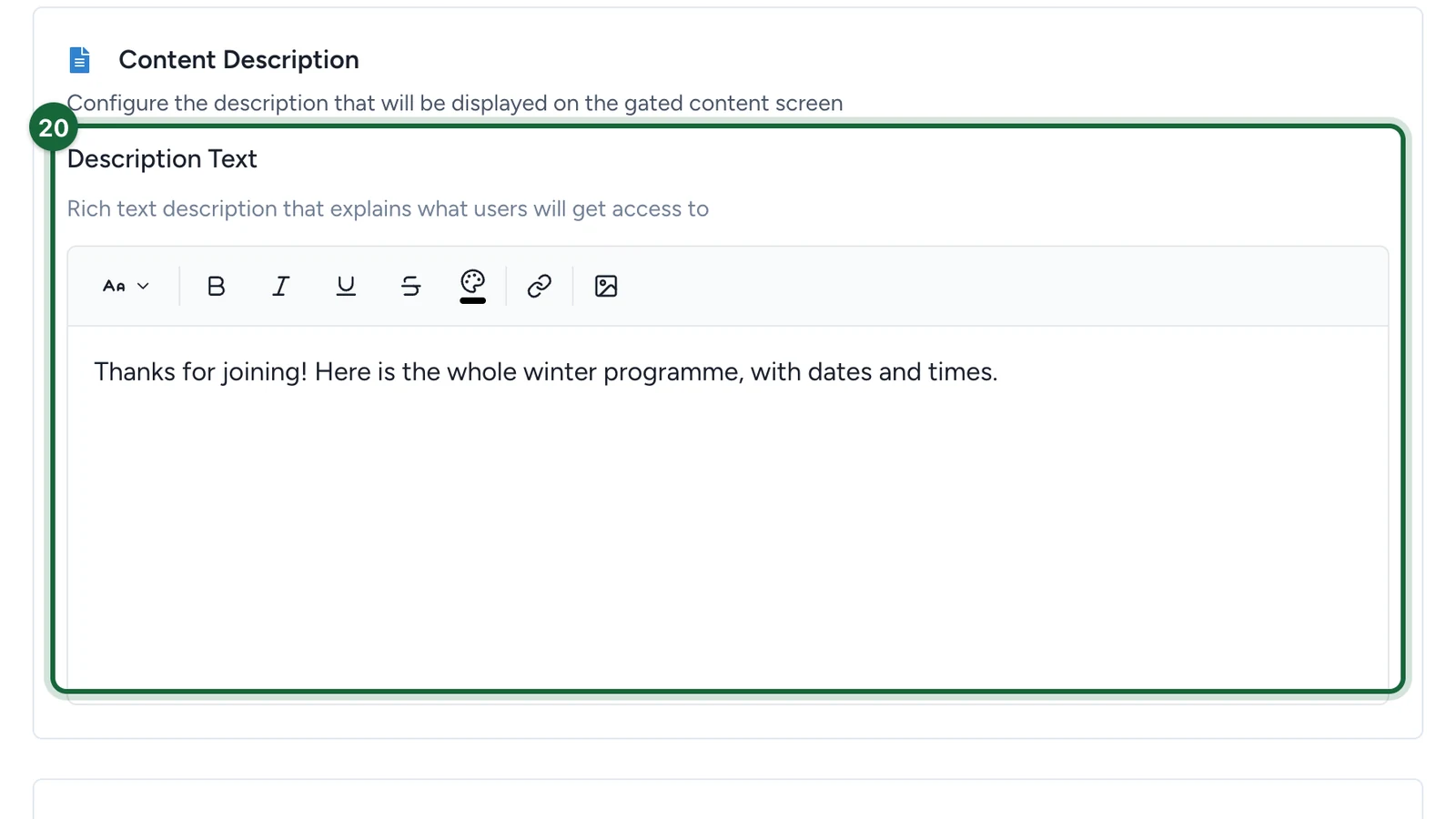
In Description Text, write what people see once they've signed up.
-
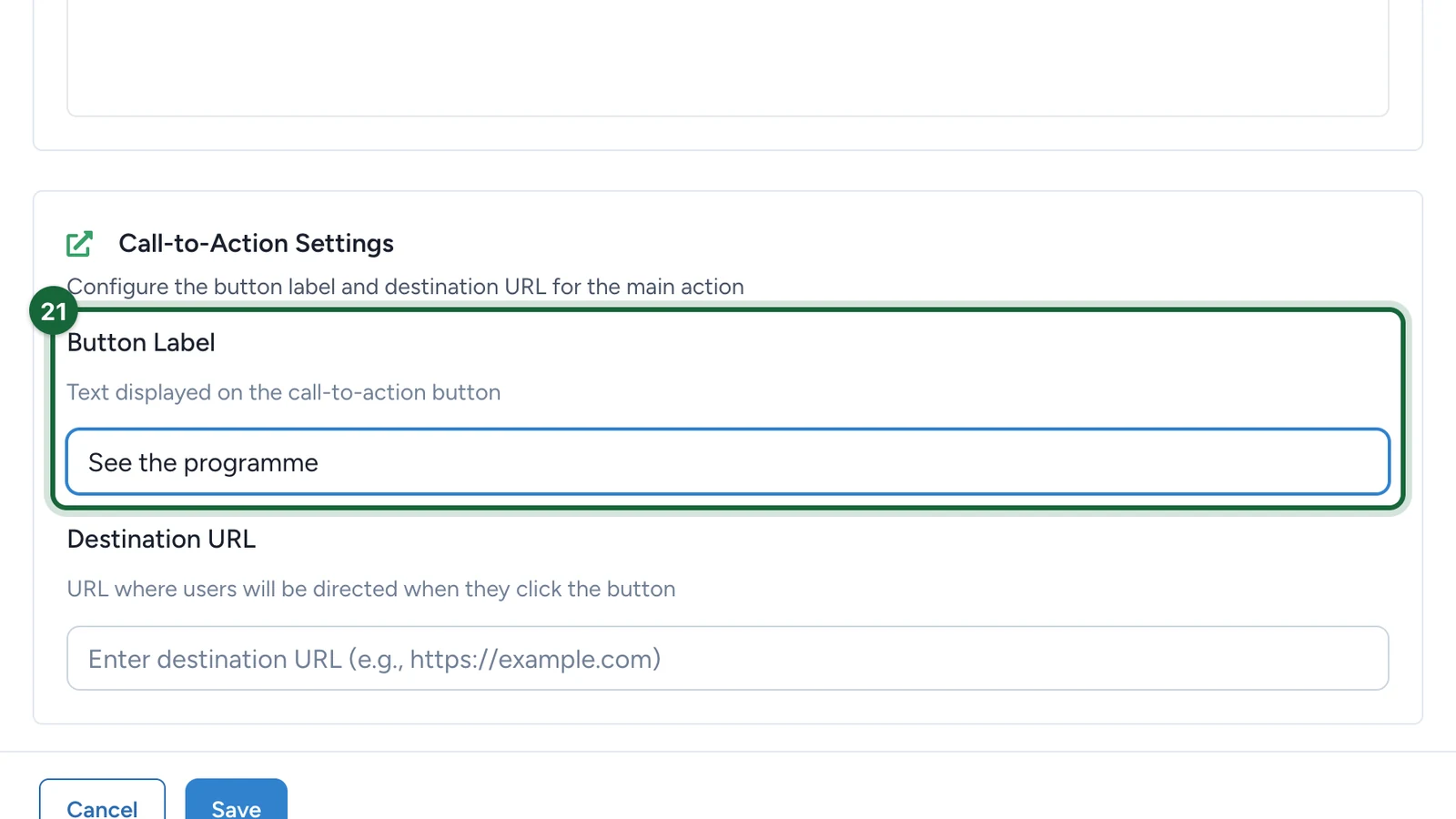
Enter the Button Label, such as "See the programme".
-
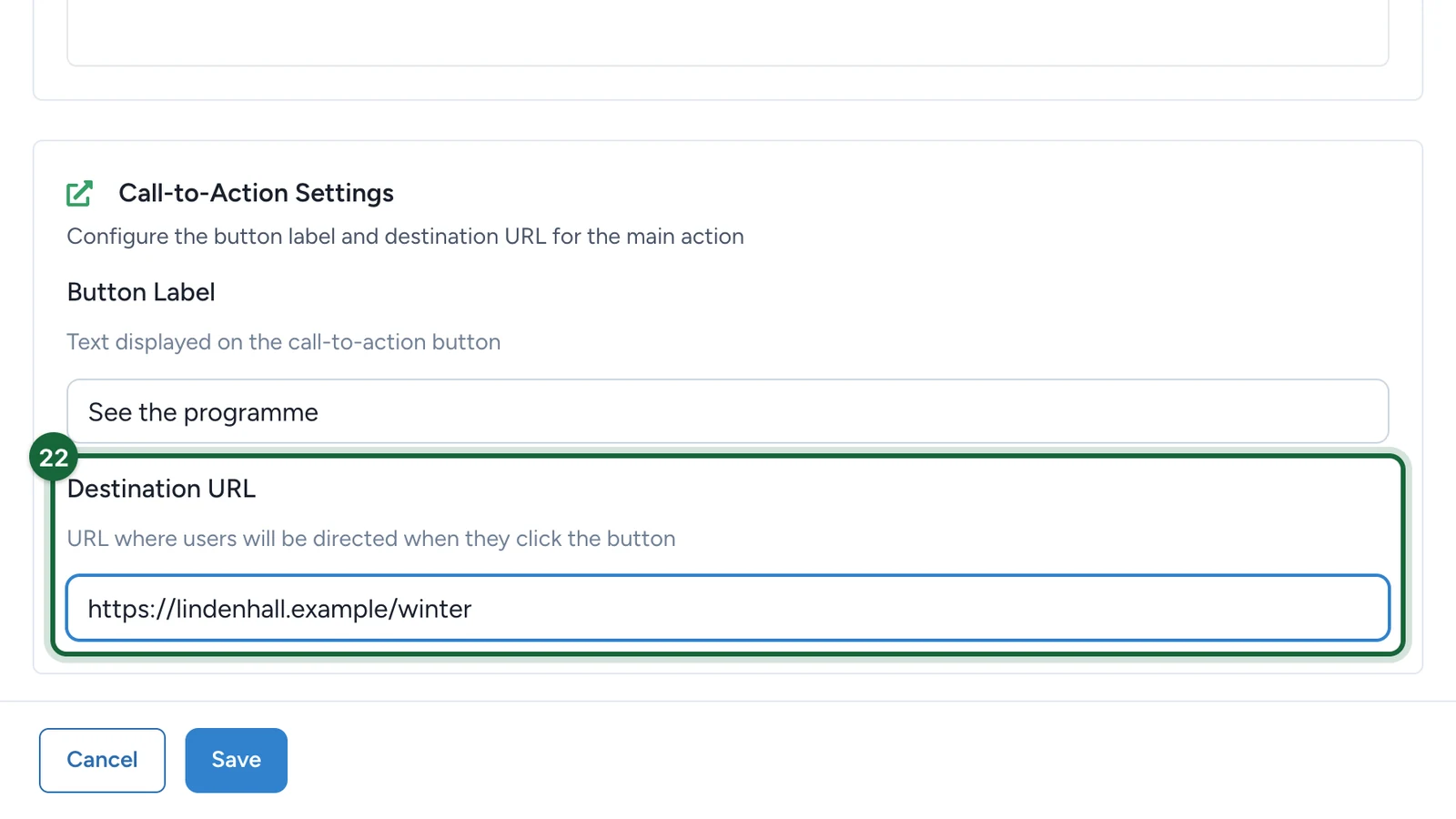
Enter the Destination URL the button opens.
-
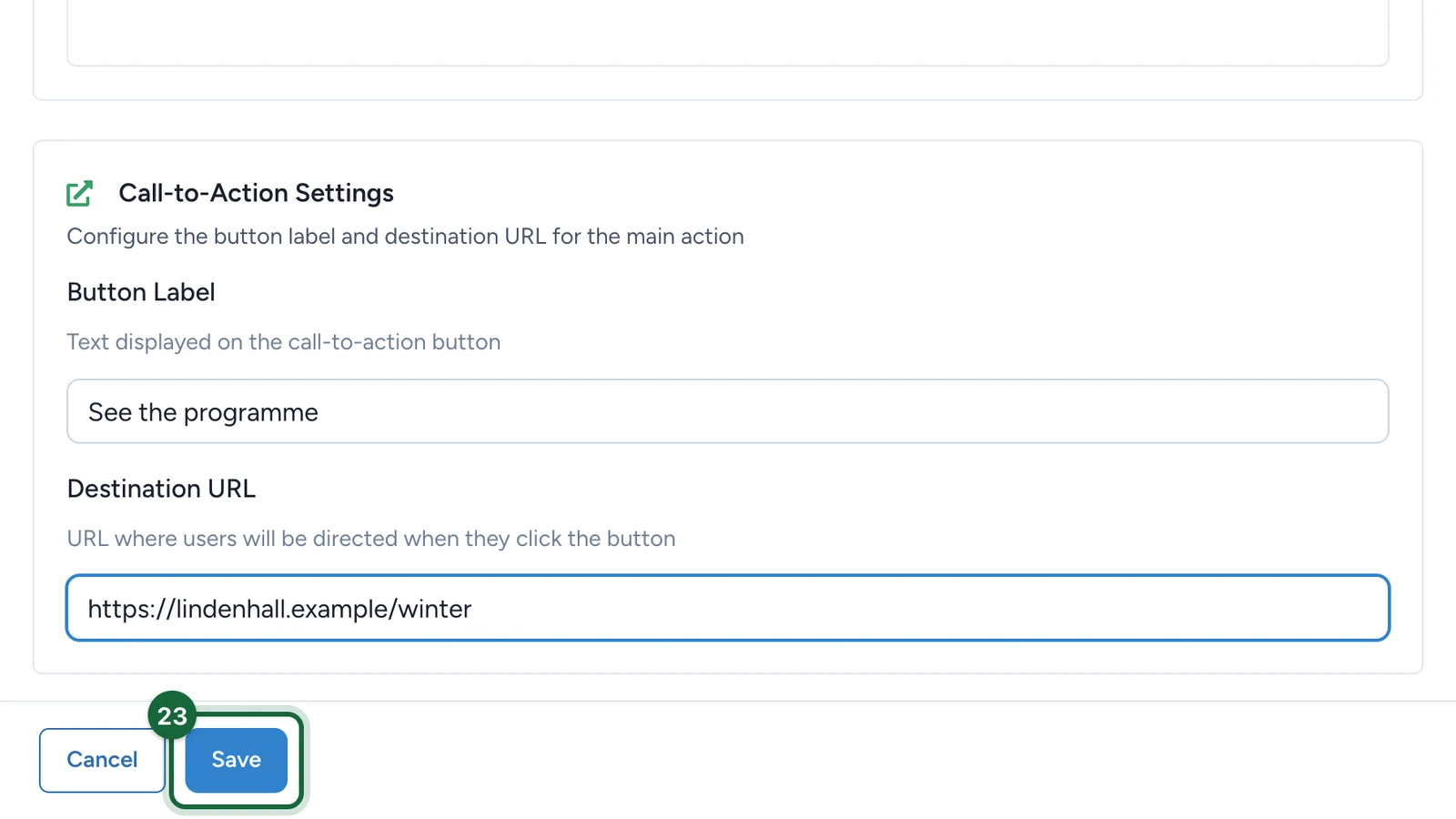
Select Save.
Set the dates
-
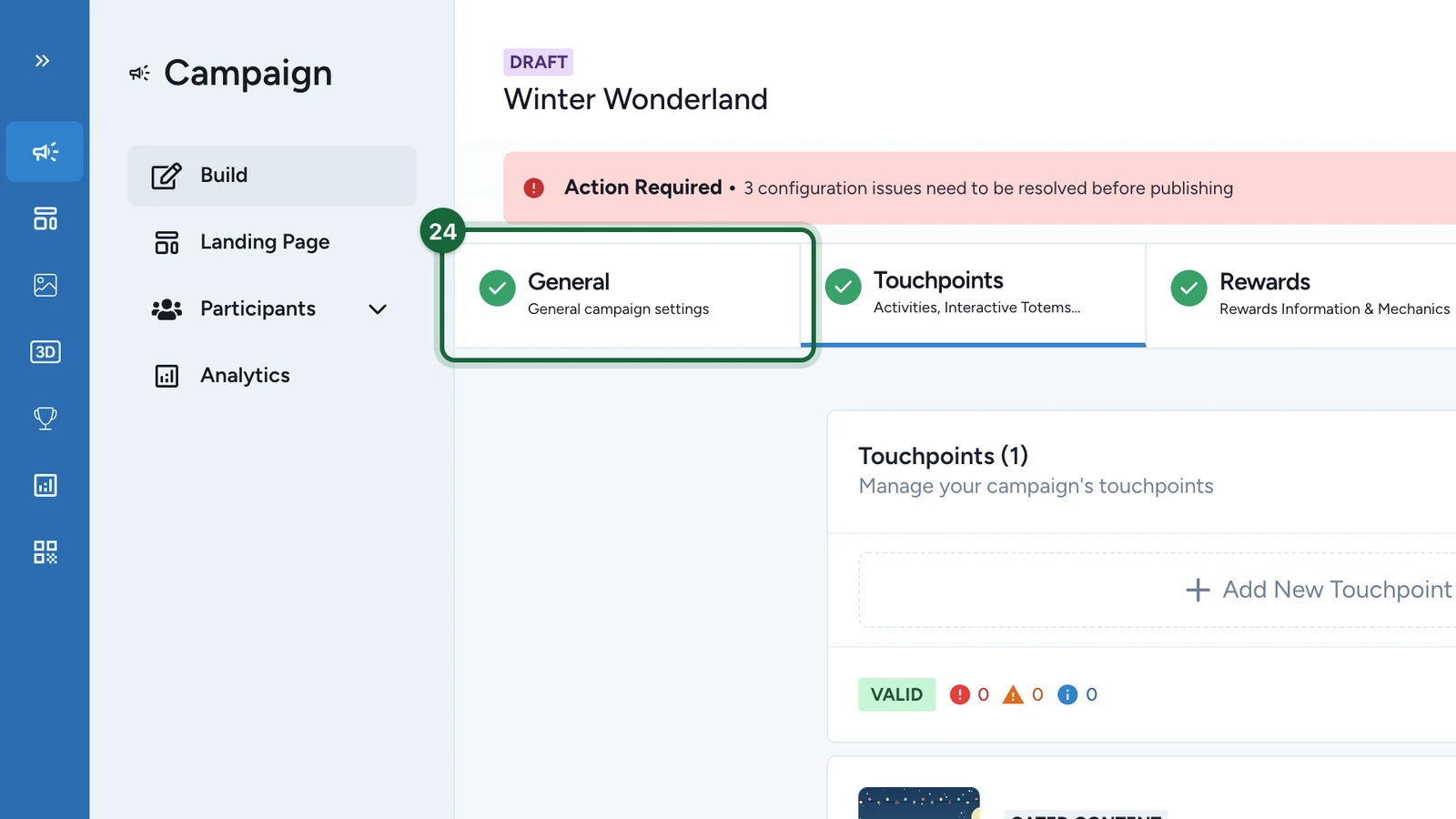
Select the General tab.
-
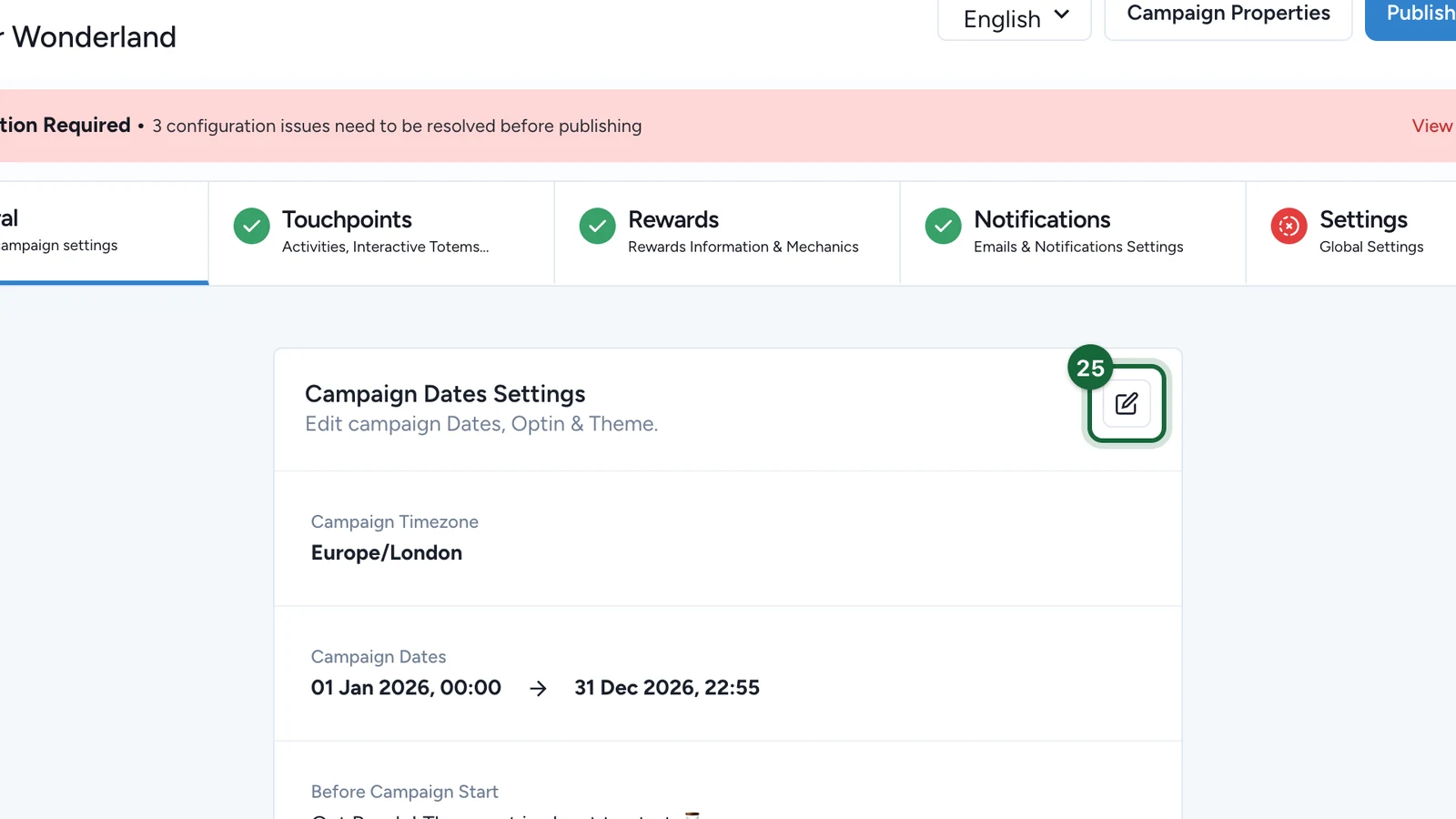
On Campaign Dates Settings, select the edit button.
-
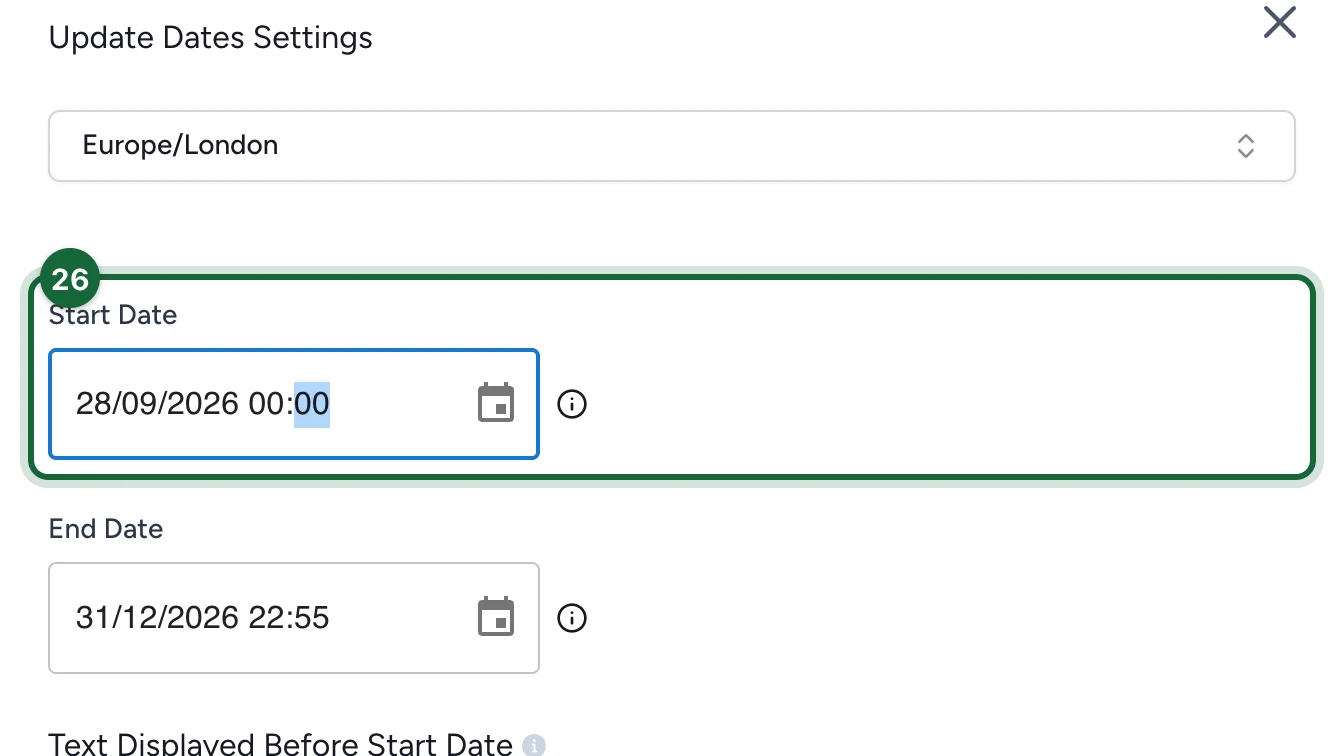
Set the Start Date.
-
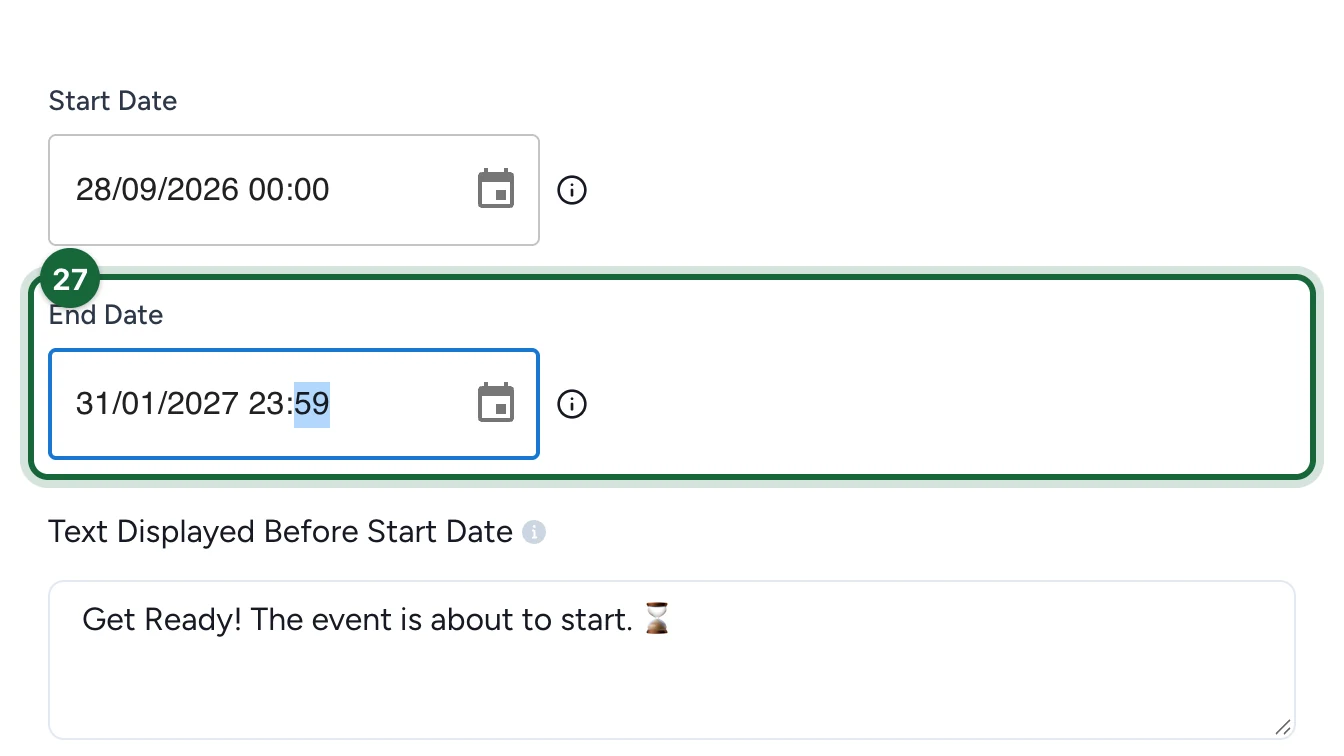
Set the End Date.
-
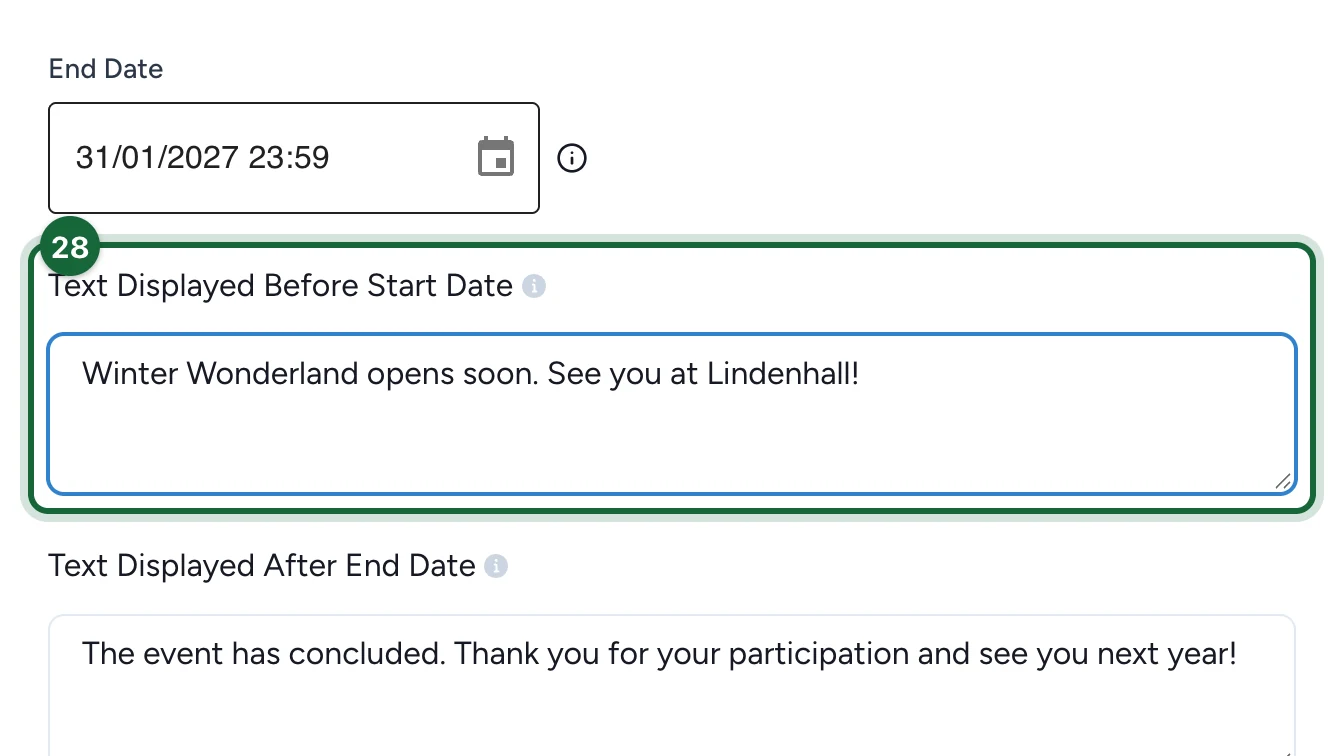
In Text Displayed Before Start Date, write what early visitors see.
-
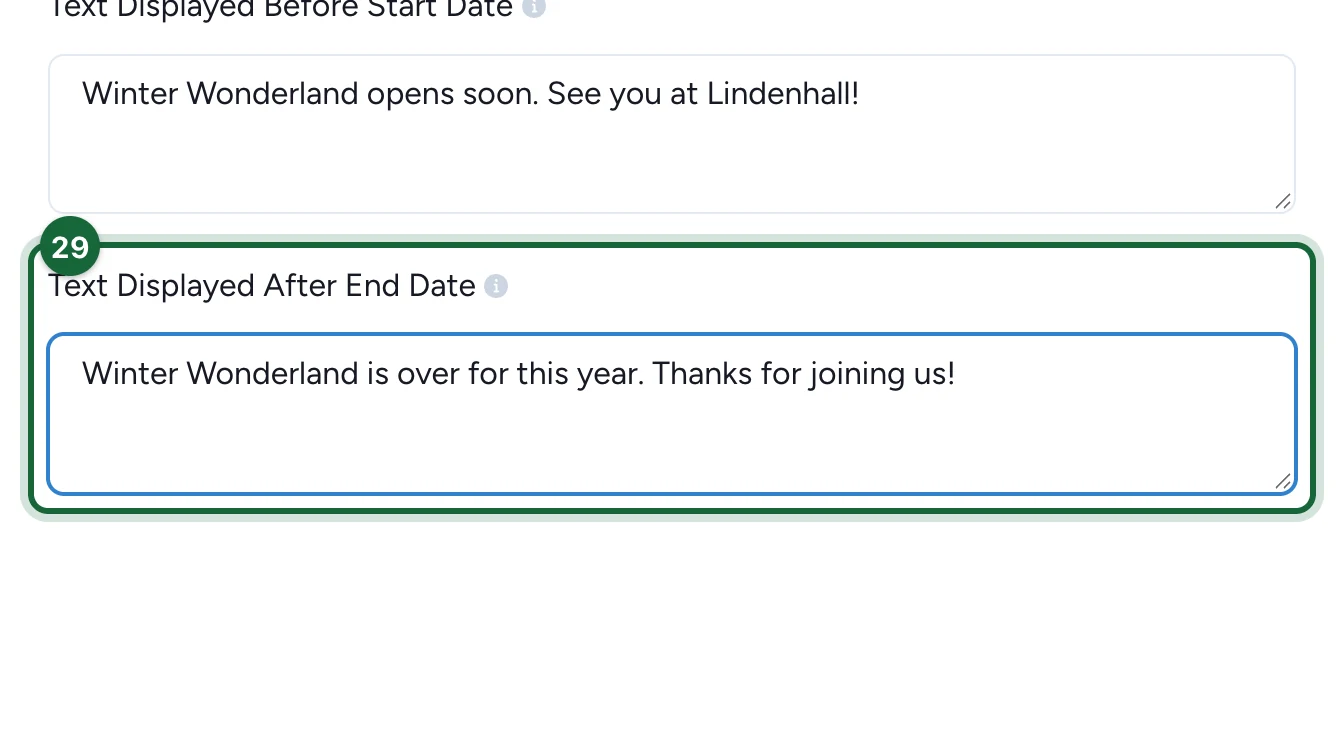
In Text Displayed After End Date, write what late visitors see.
-
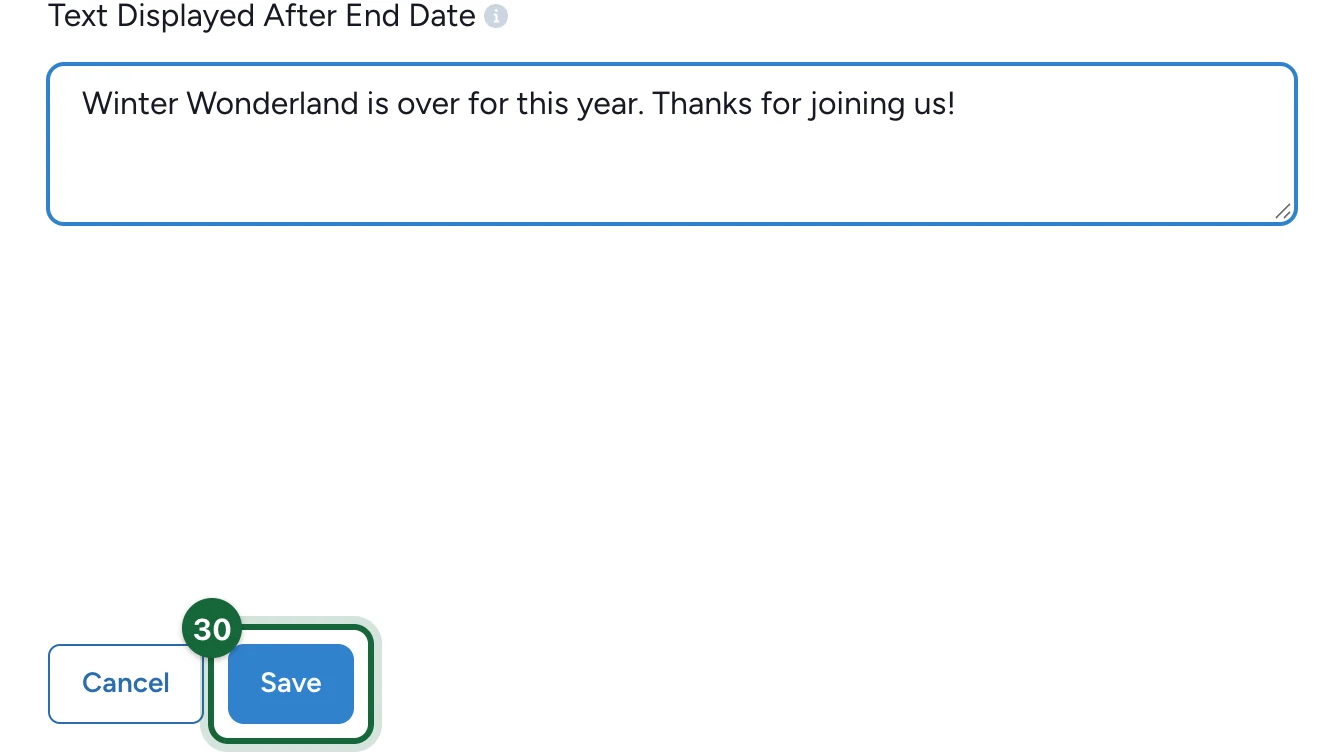
Select Save.
Match the add-ons to your organisation
Free form carries add-on codes set to global. Publishing needs your organisation's key instead: the Action Required details name it.
-
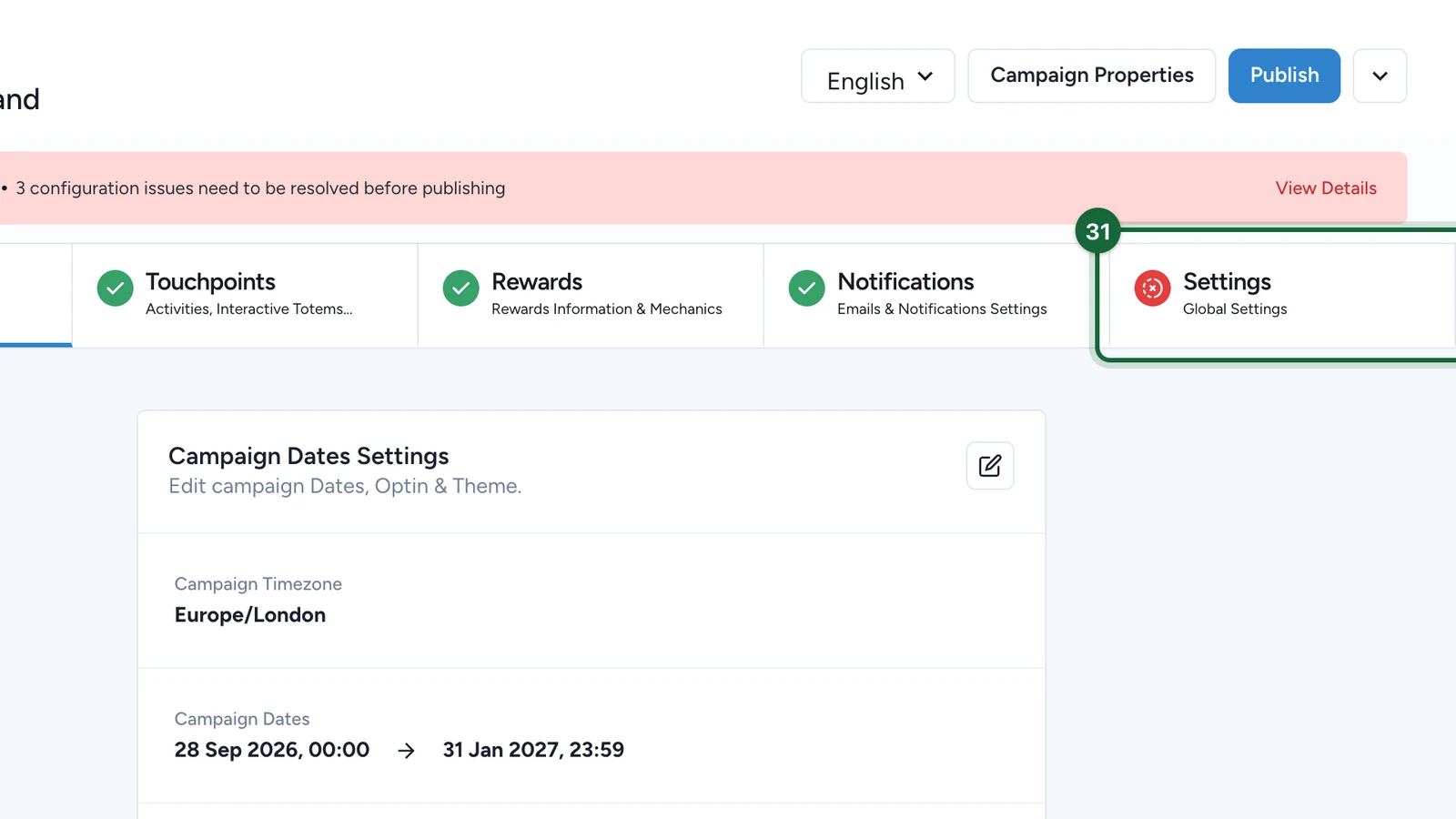
Select the Settings tab.
-
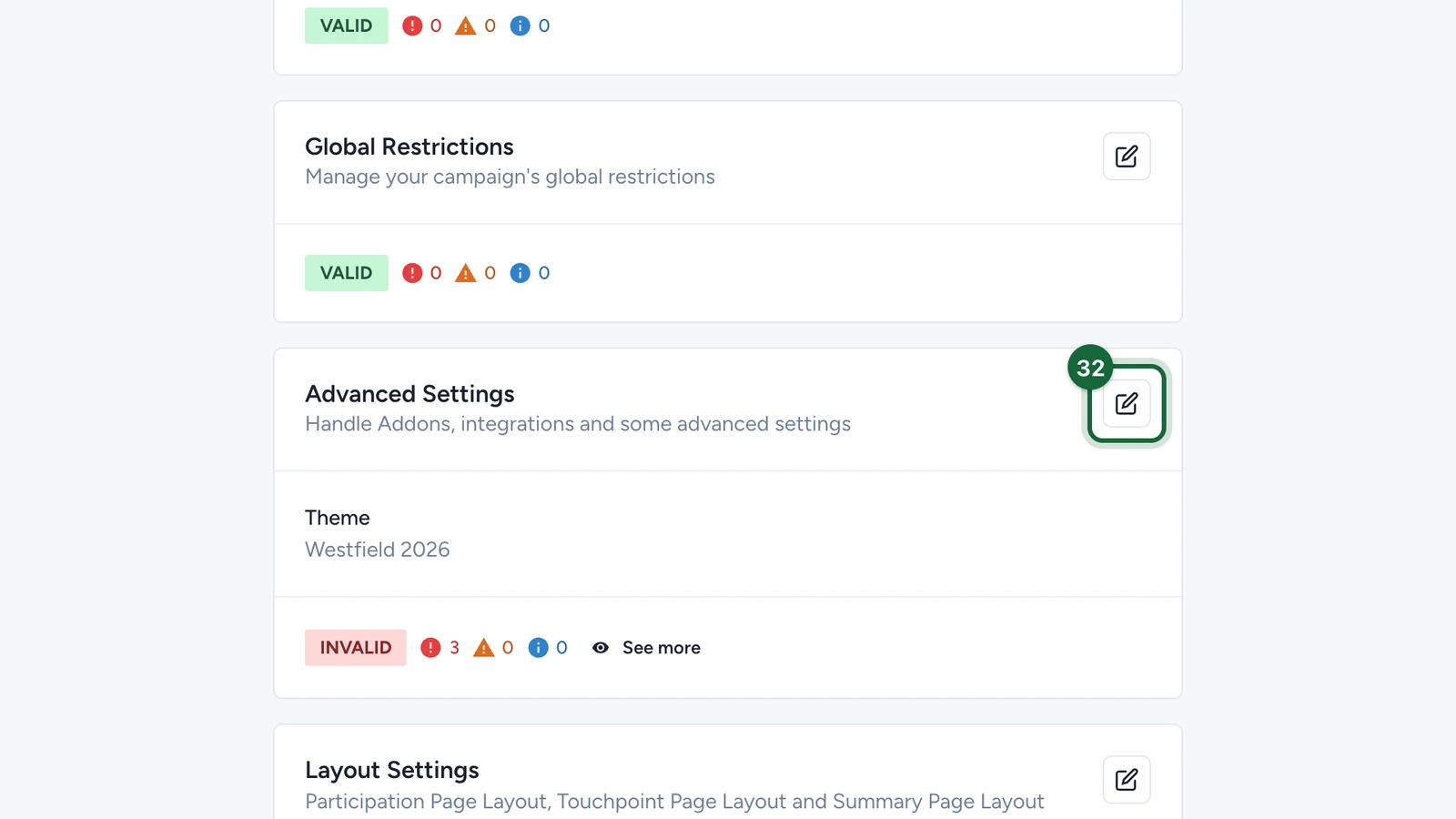
On Advanced Settings, select the edit button.
-
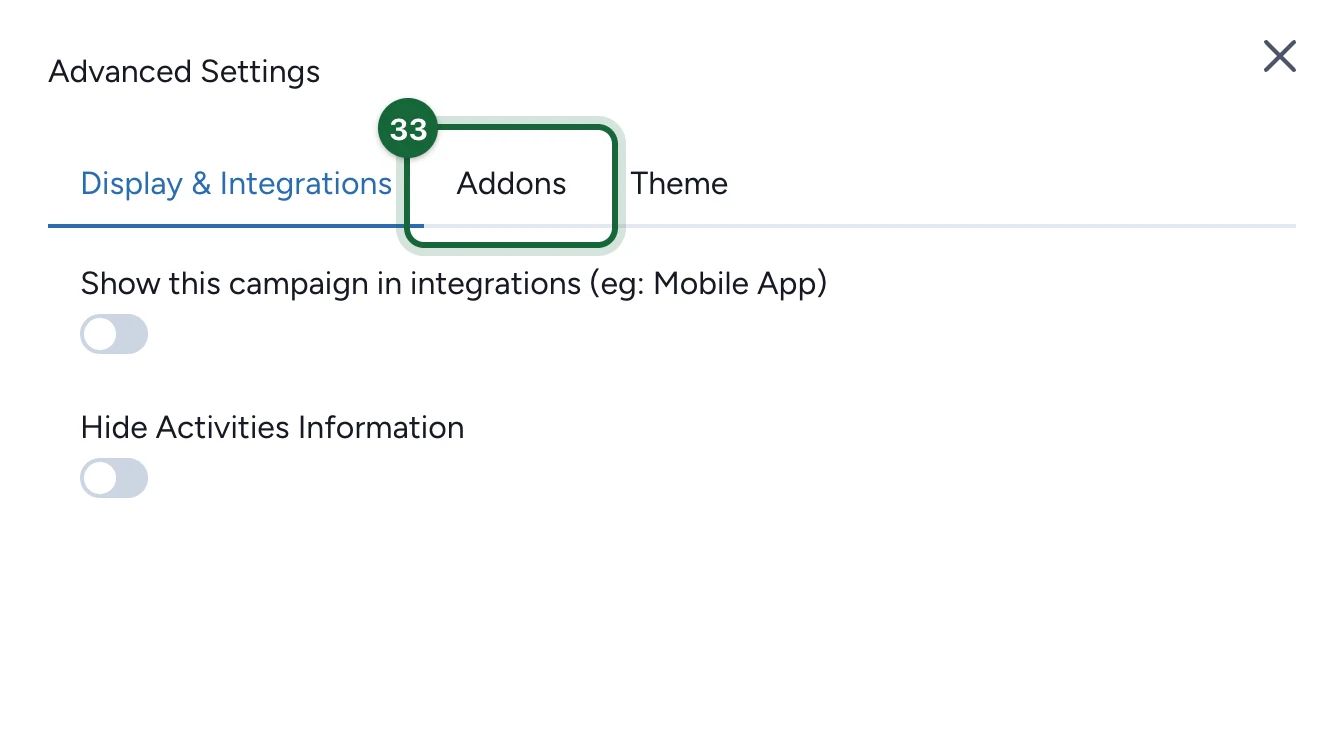
Select the Addons tab.
-
In each add-on's pcCode, replace
globalwith your organisation's key.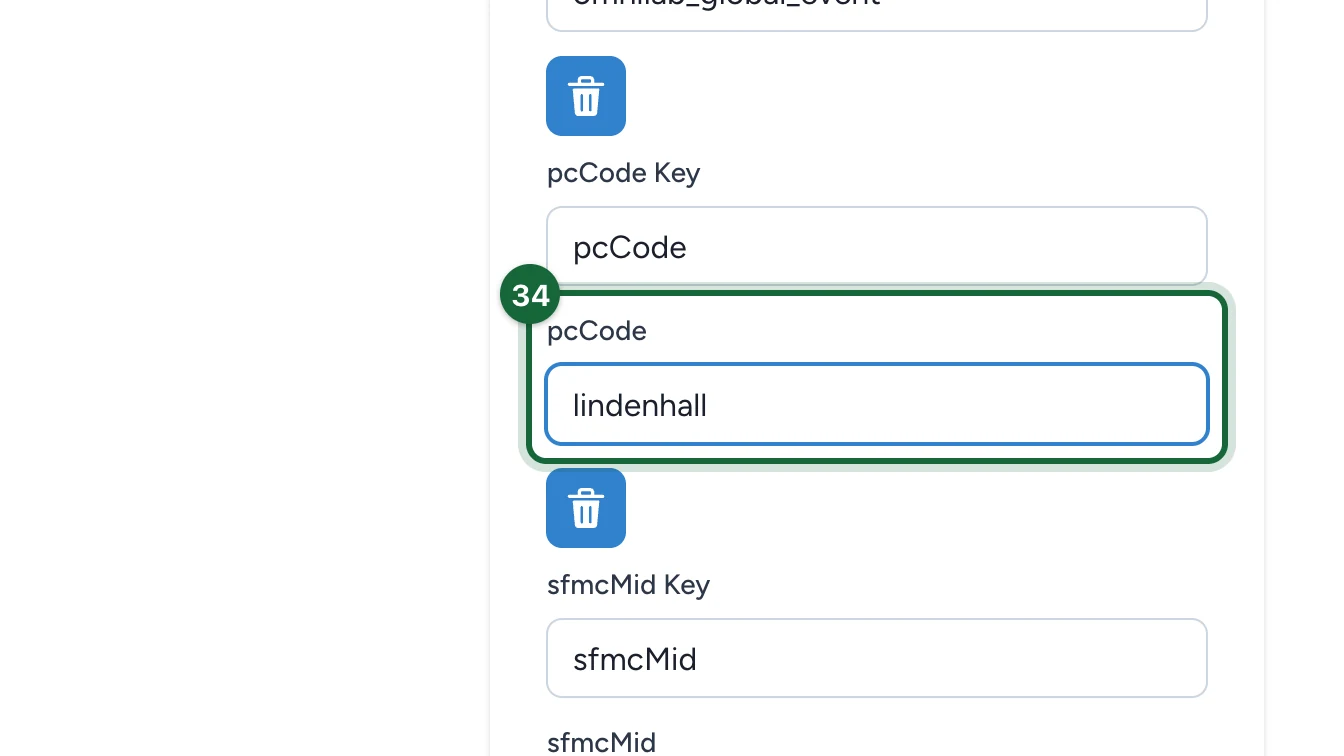
-
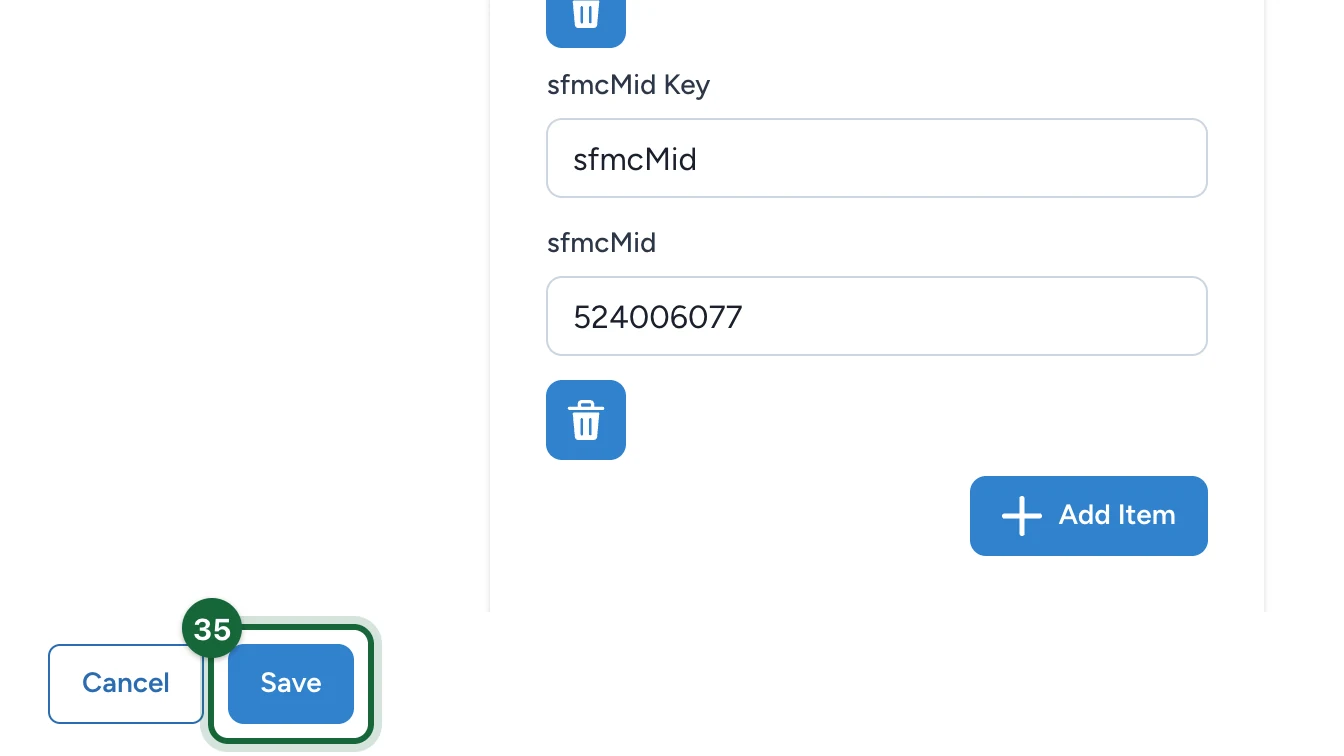
Select Save.
Publish and try it
-
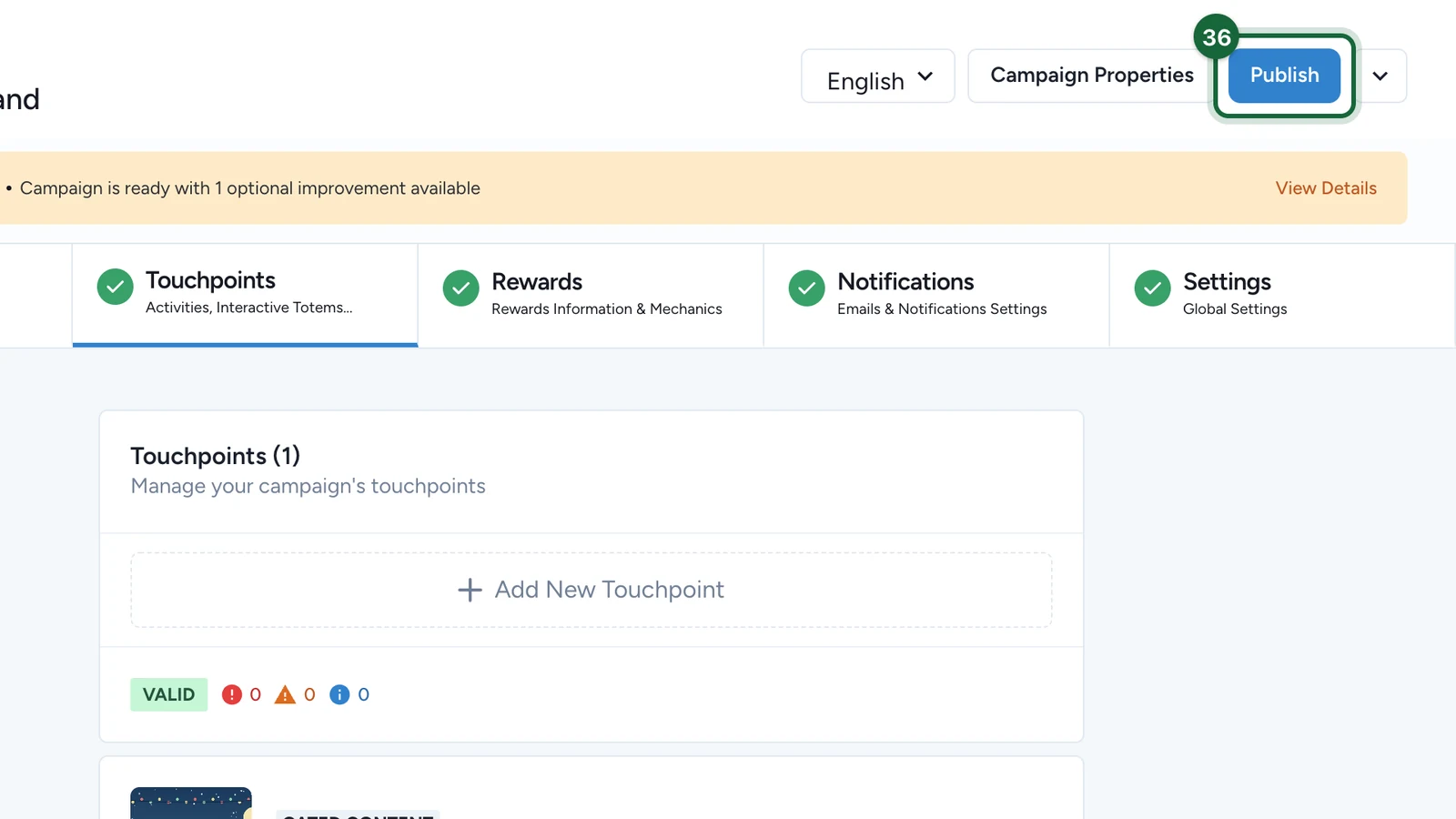
At the top of the campaign, select Publish.
-
When the window says Campaign is ready to publish!, select Publish.
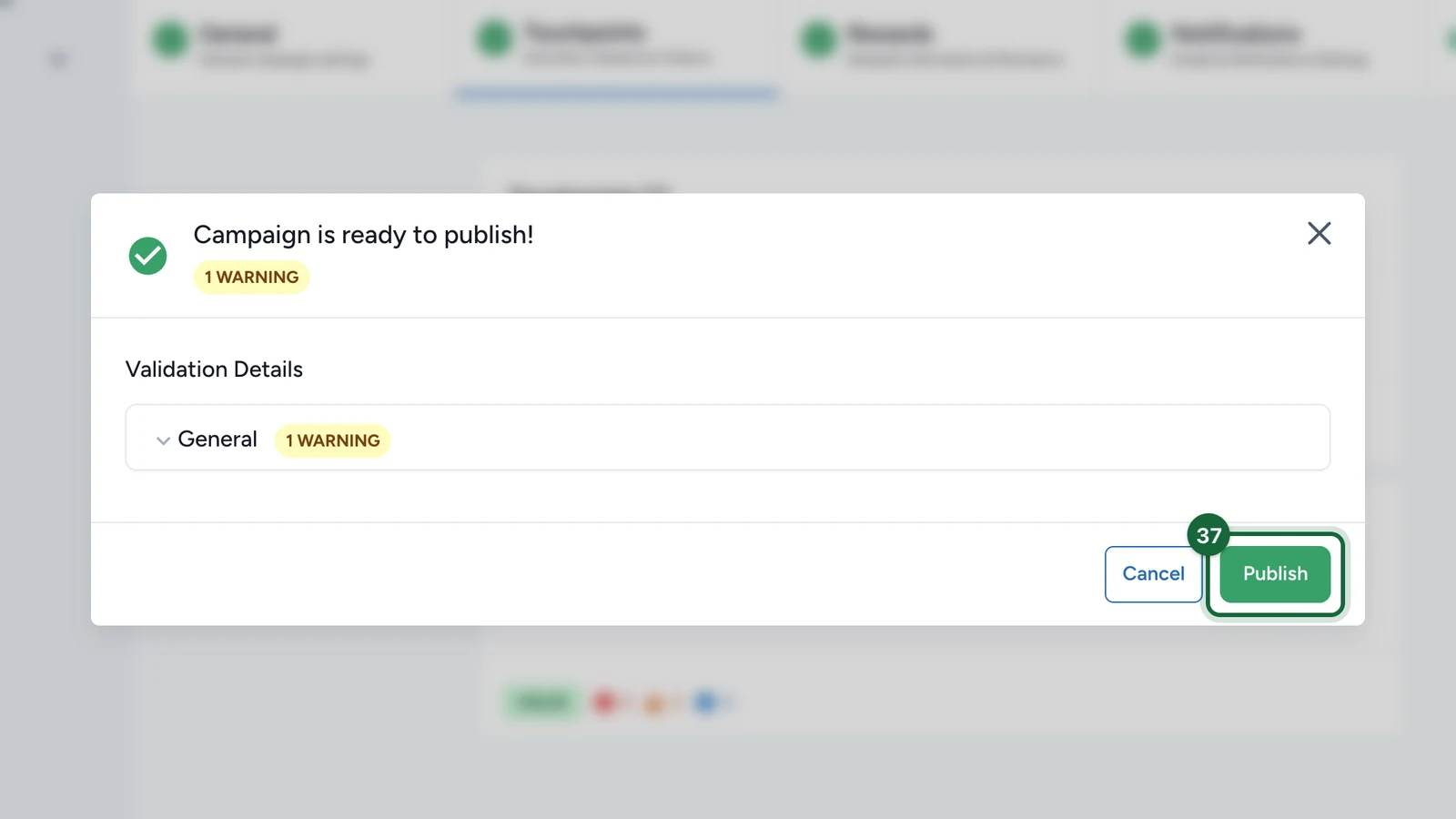
Warnings don't block publishing: read them, then decide. See Validation and publishing.
-
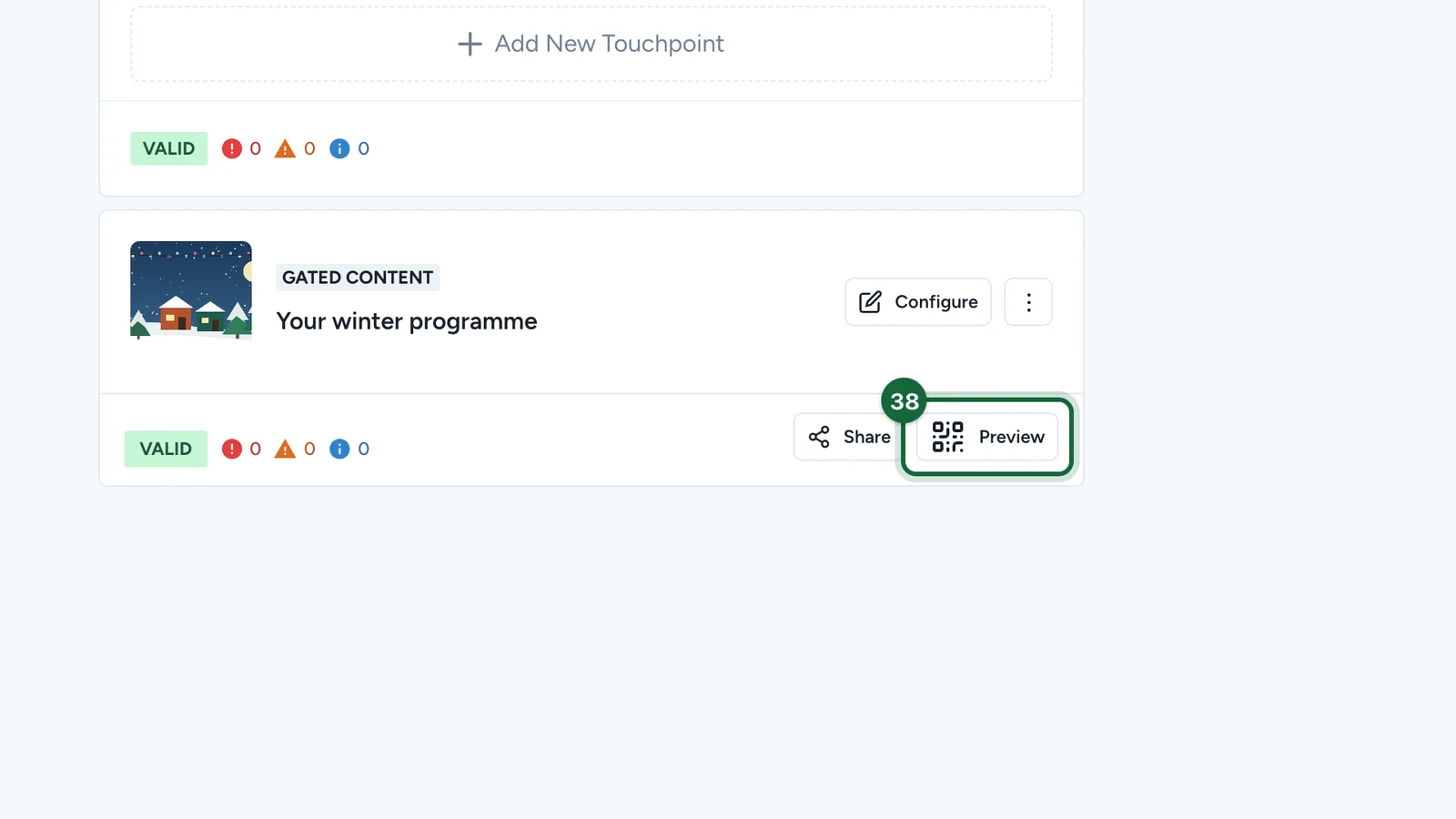
On the touchpoint's card, now called "Your winter programme", select Preview.
-
Scan the QR code with your phone.
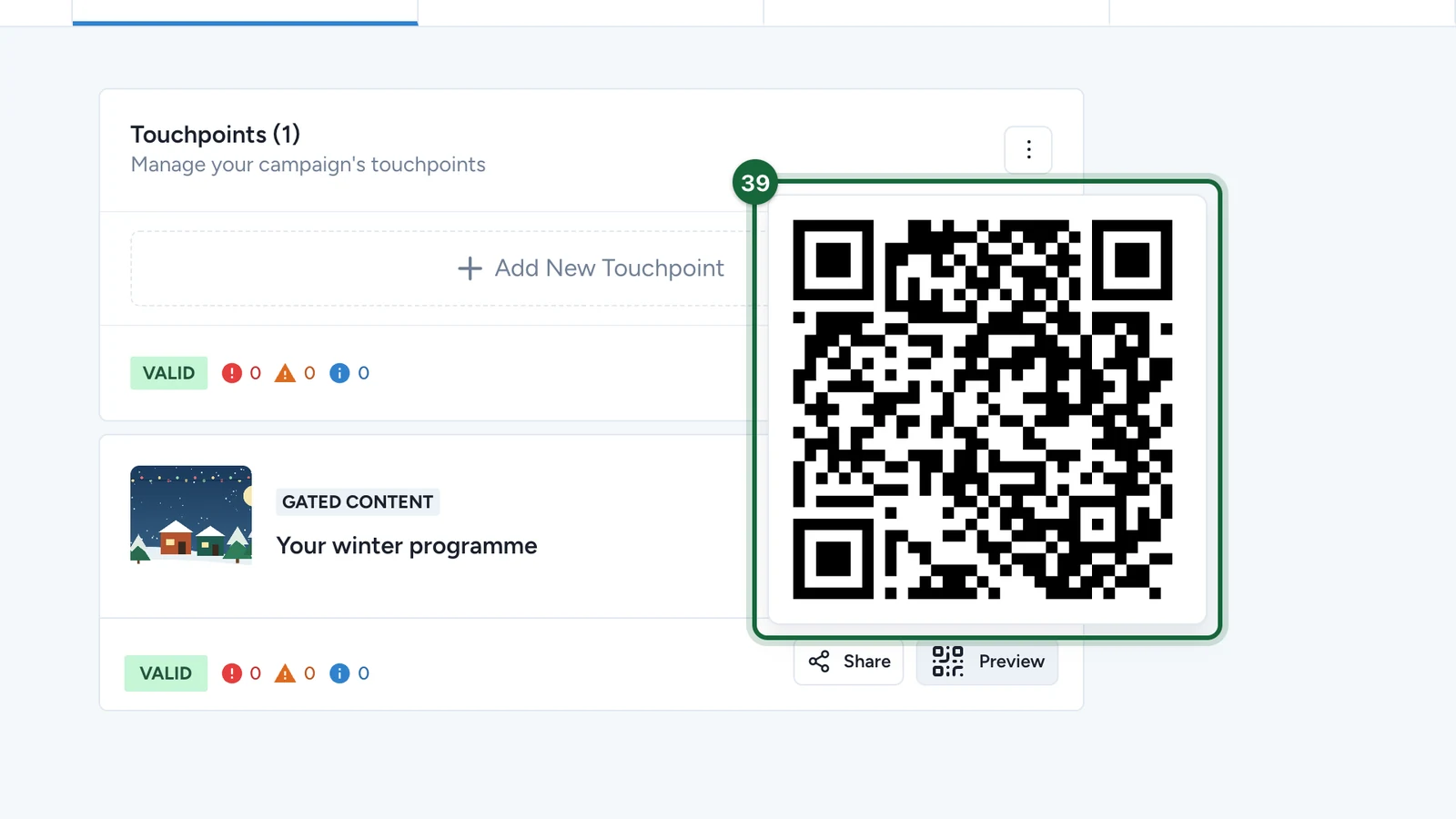
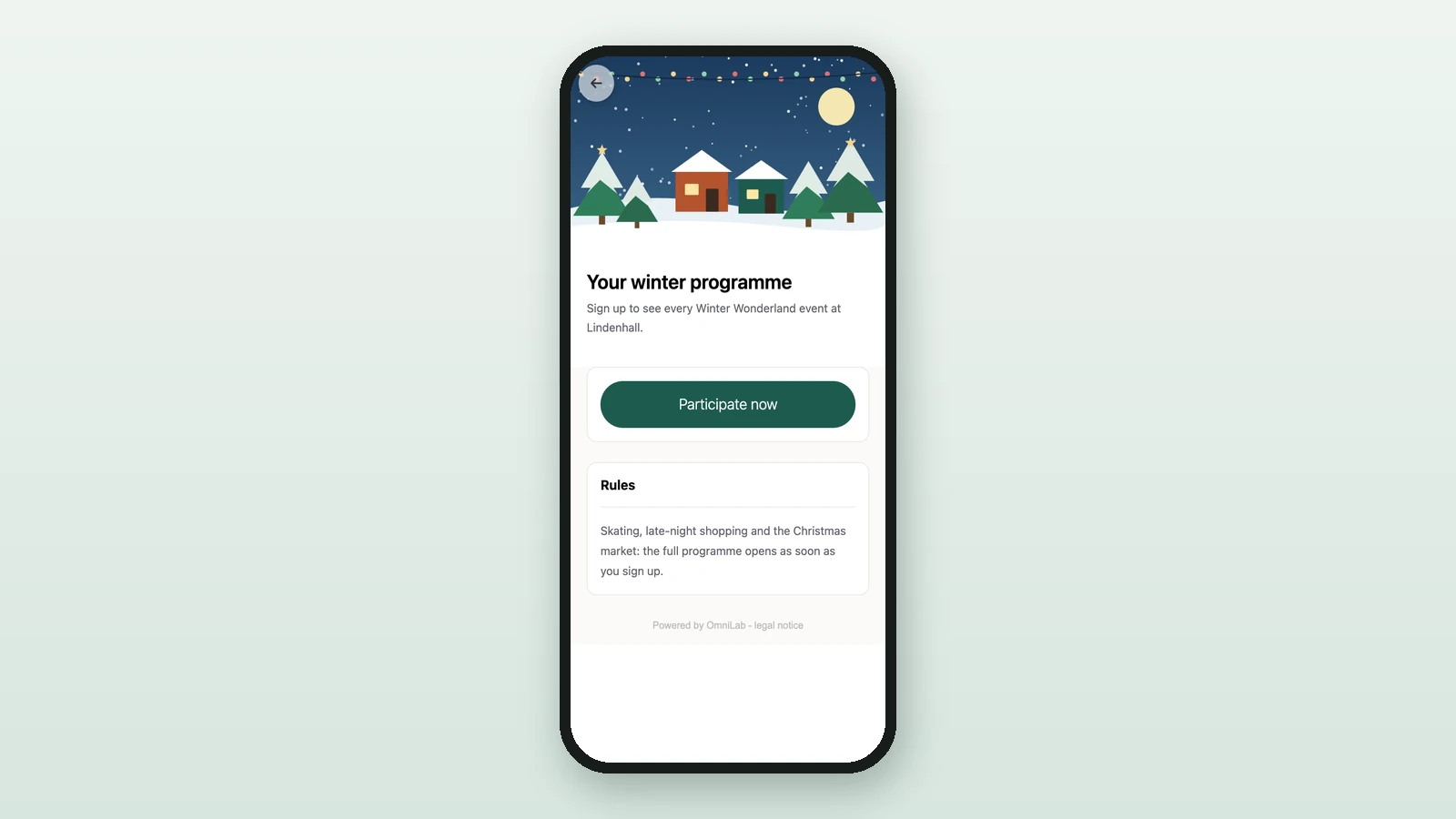
On your phone, the page opens with the banner, the title and Participate Now. Once visitors sign up, the programme text and its button appear.
Next steps
- Add a touchpoint: a game, an event or a treasure hunt.
- Rewards: give prizes.
- Opt-in: ask participants to accept your terms.