Advent Calendar layout
Build a countdown calendar on your landing page, where a new game unlocks every day.
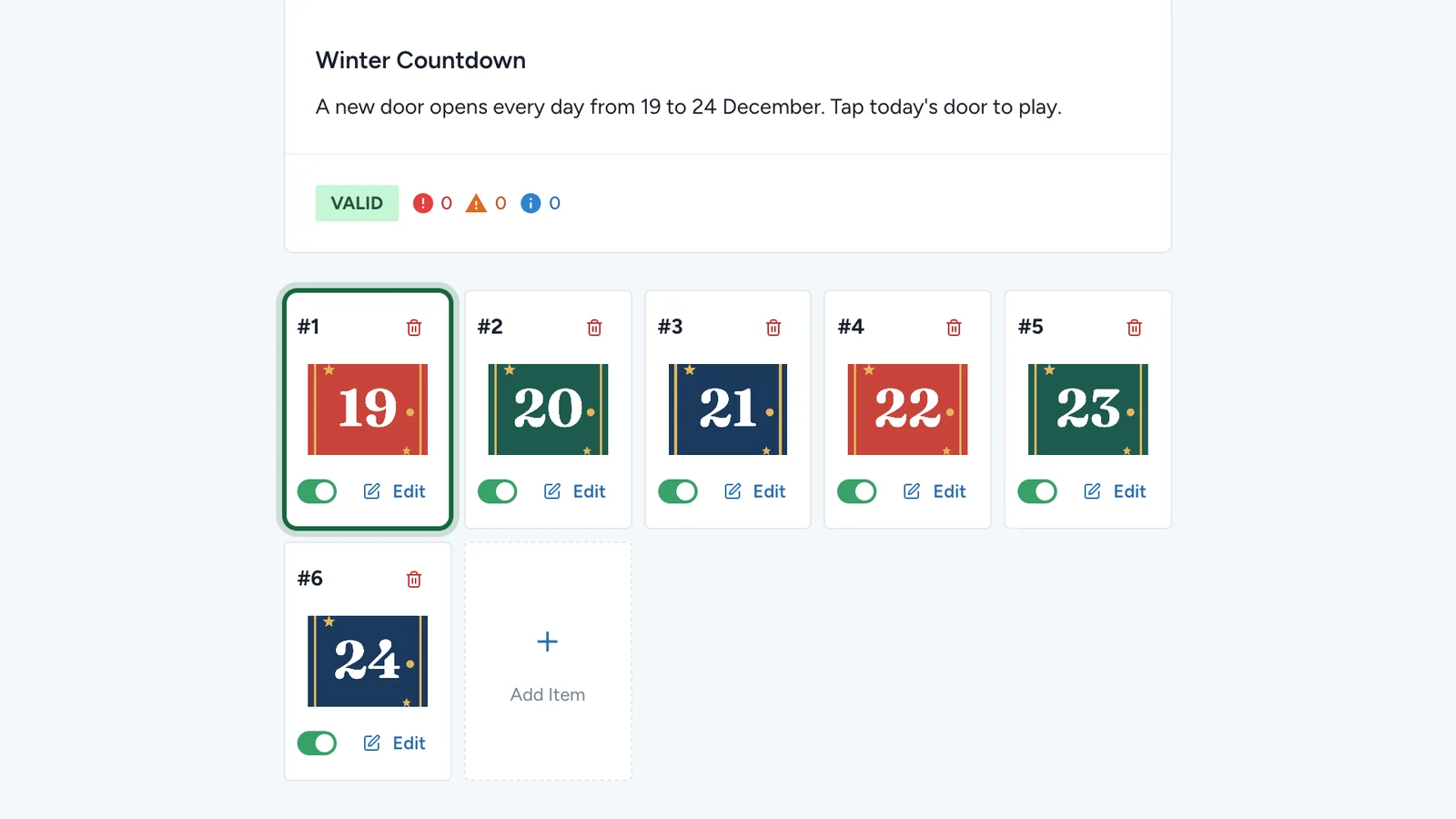
The Advent Calendar layout turns the landing page into a grid of doors. Each door opens on its day and leads to a game. Here, Lindenhall's Winter Countdown has six doors, from 19 to 24 December, and each one is a Simple Game with a small prize.
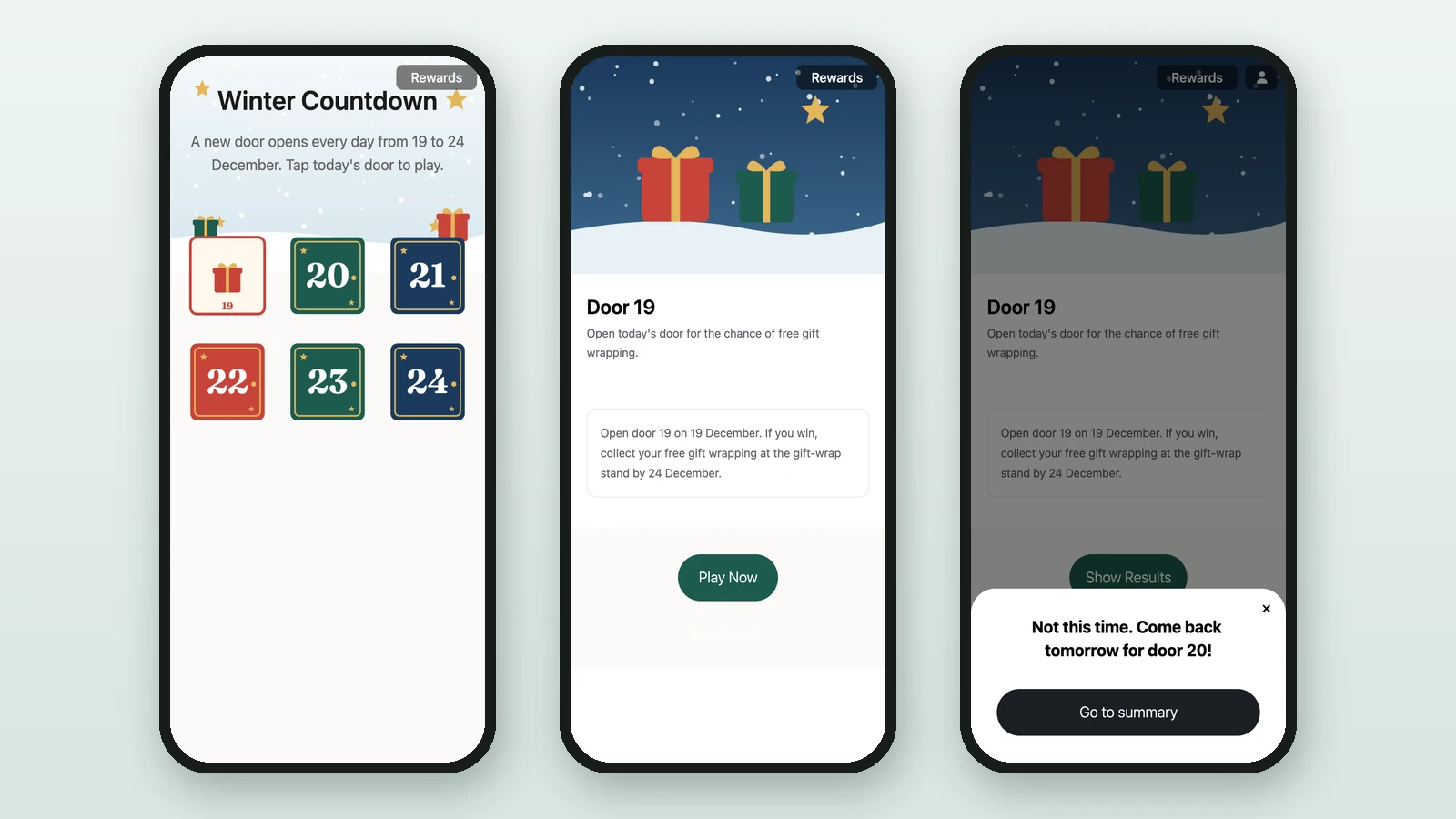
Before you begin
- A campaign with its landing page on: see About landing pages.
- One instant game per door, such as a Simple Game, dated to its door's day: see Set up an Advent Calendar game.
- Two pictures per door:
Door — Closed
RequiredThe door players see before its day starts: include the day number in the image.
- Required
- Size1024 × 1024 px
- Aspect ratio1:1
- FormatsJPEG / WEBP / PNG
The calendar shows the image alone, so the number must be part of it. Use the same size and style for every door, so the calendar reads as one grid.
Door — Open
RequiredThe door players see from its day on. Players tap it to play that day’s game.
- Required
- Size1024 × 1024 px
- Aspect ratio1:1
- FormatsJPEG / WEBP / PNG
It stays on the calendar after the day ends, but can no longer be tapped.
Switch to the calendar
In Landing Page:
-
Select Page Layout.
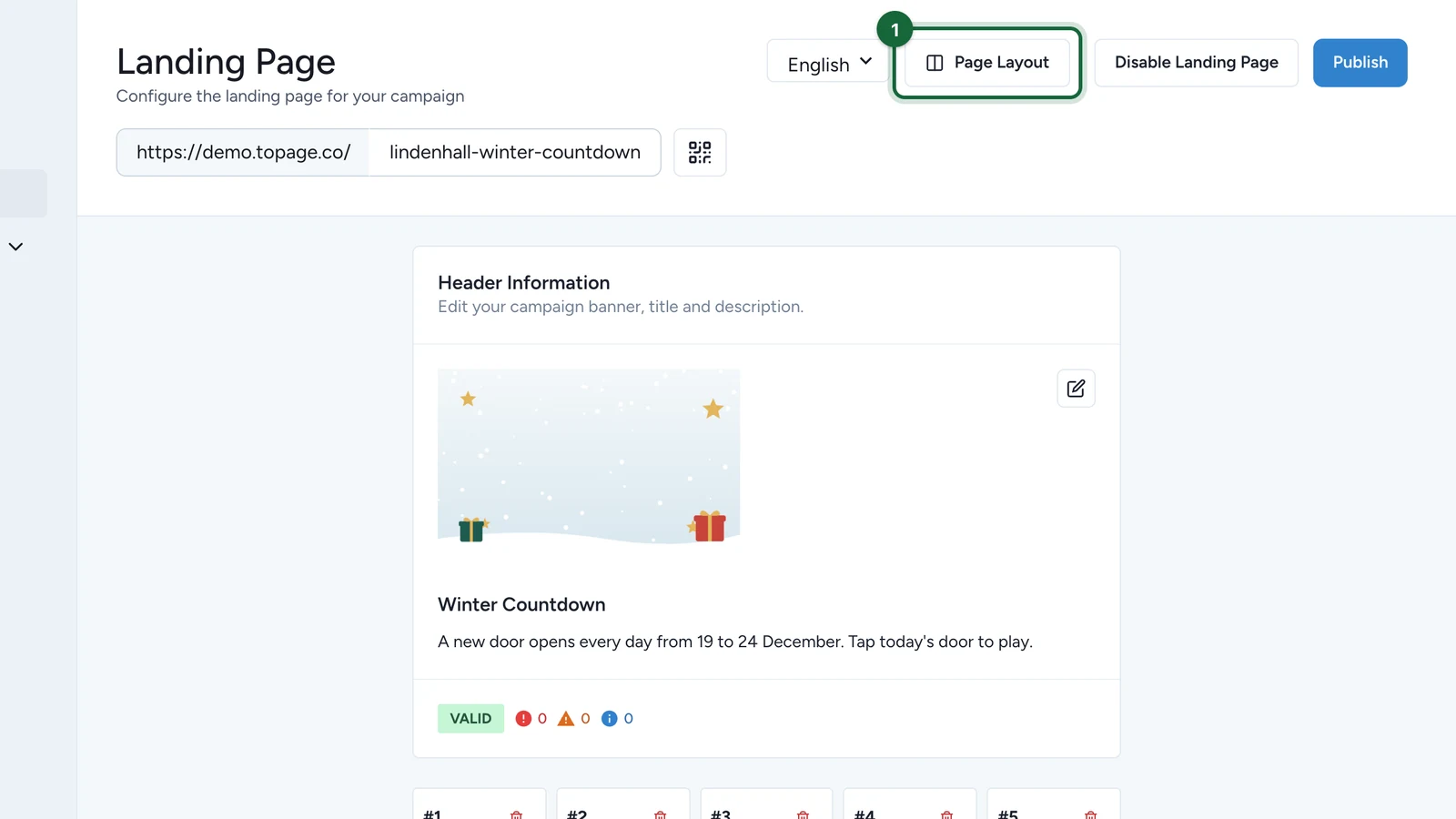
-
Under Page layout, choose Advent Calendar.
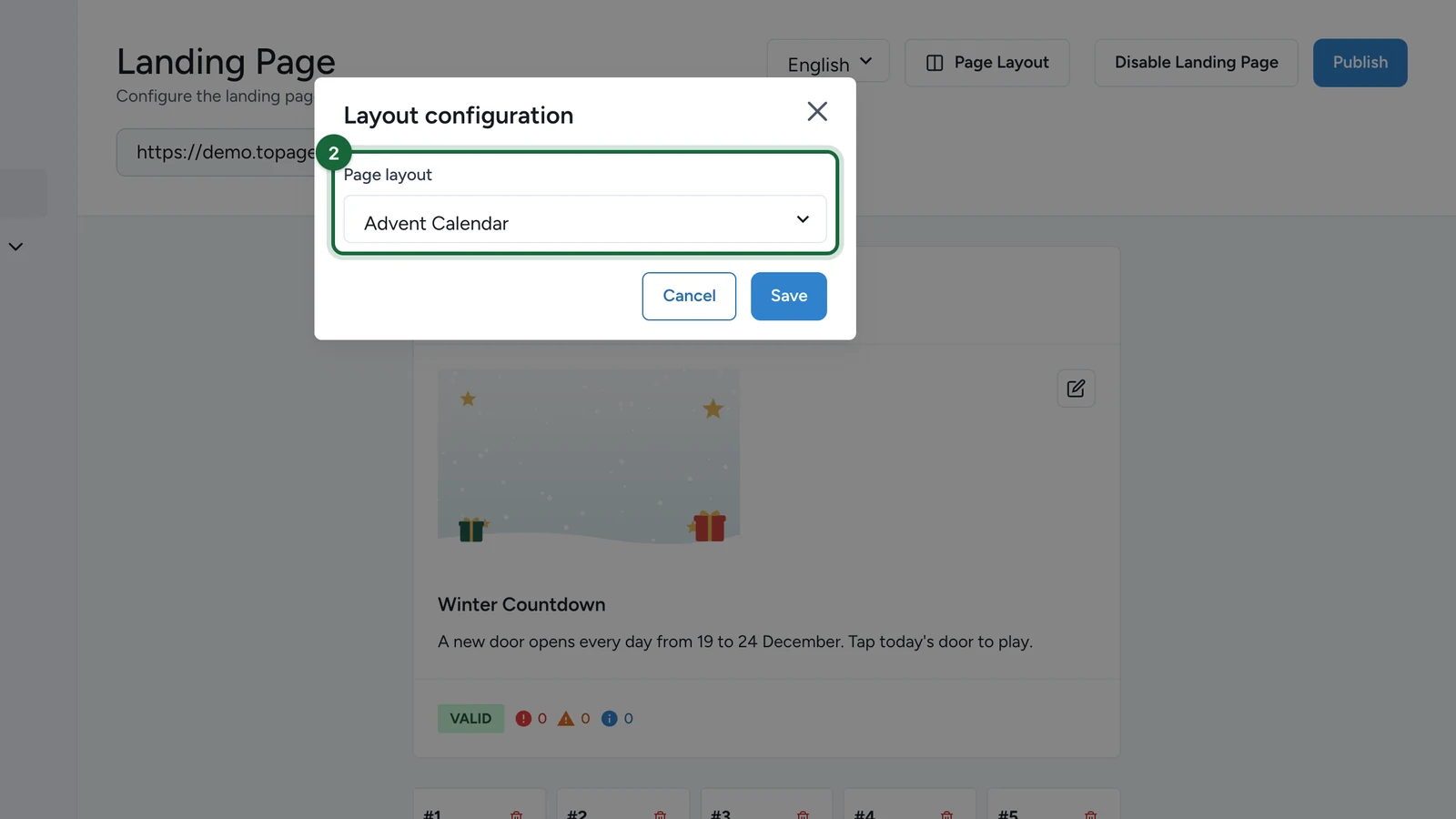
-
Select Save.
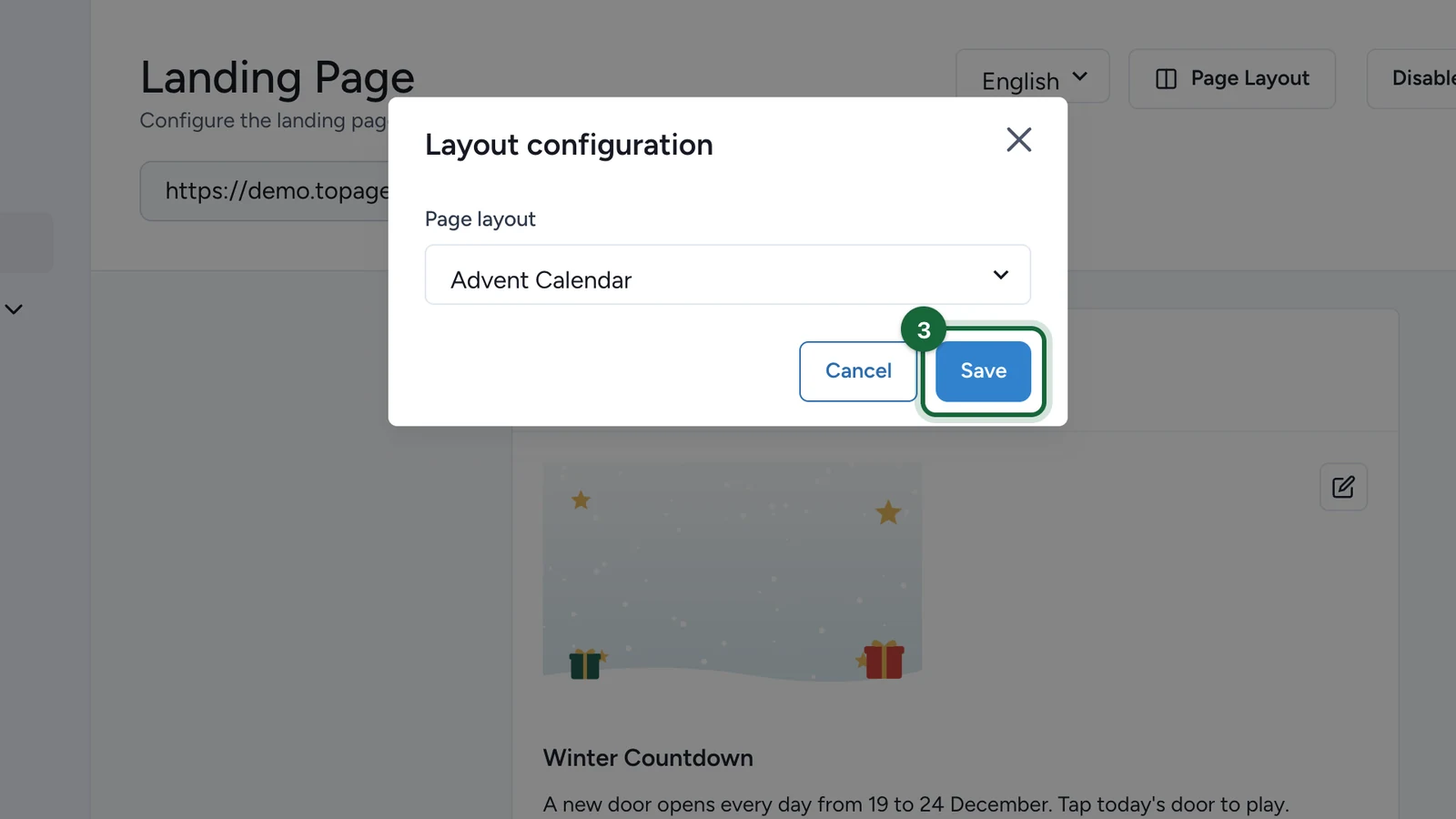
The header's title and subtitle sit on top of its banner, above the doors. Choose a plain banner so they stay readable: see Configure the header.
Add the doors
-
Select Add Item.
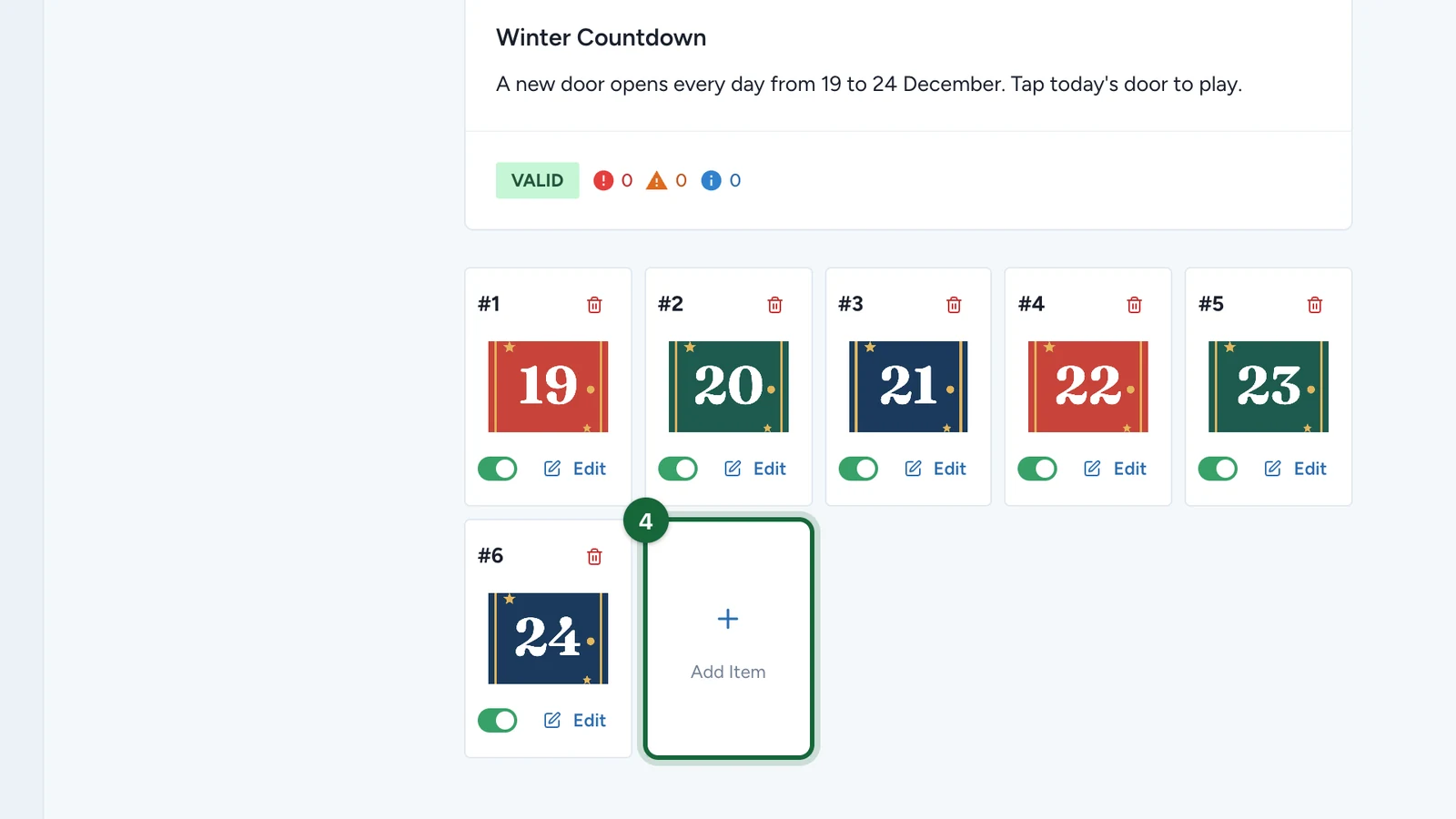
Each item is one door, numbered in the order you add them. Here, the calendar already has its six. The new door's settings open in Edit Item, with its number.
-
Under Associated Touchpoint (Instant Game), choose the door's game.
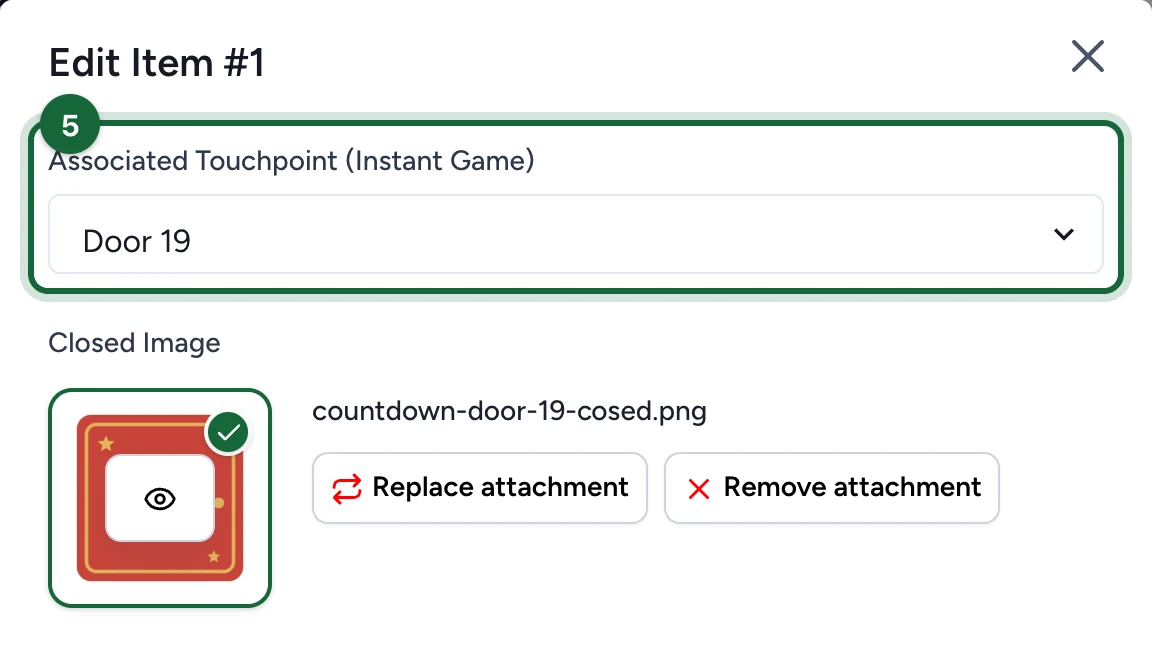
The list only shows instant games that aren't on another door yet.
-
Under Closed Image, choose the picture players see before the door's day.
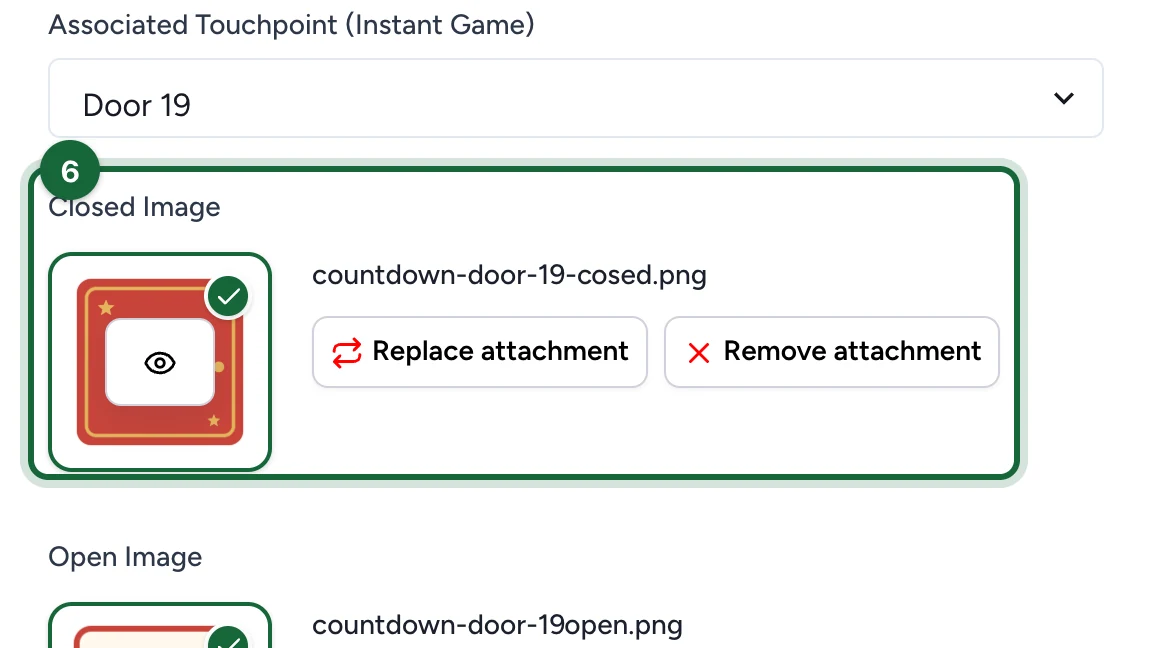
-
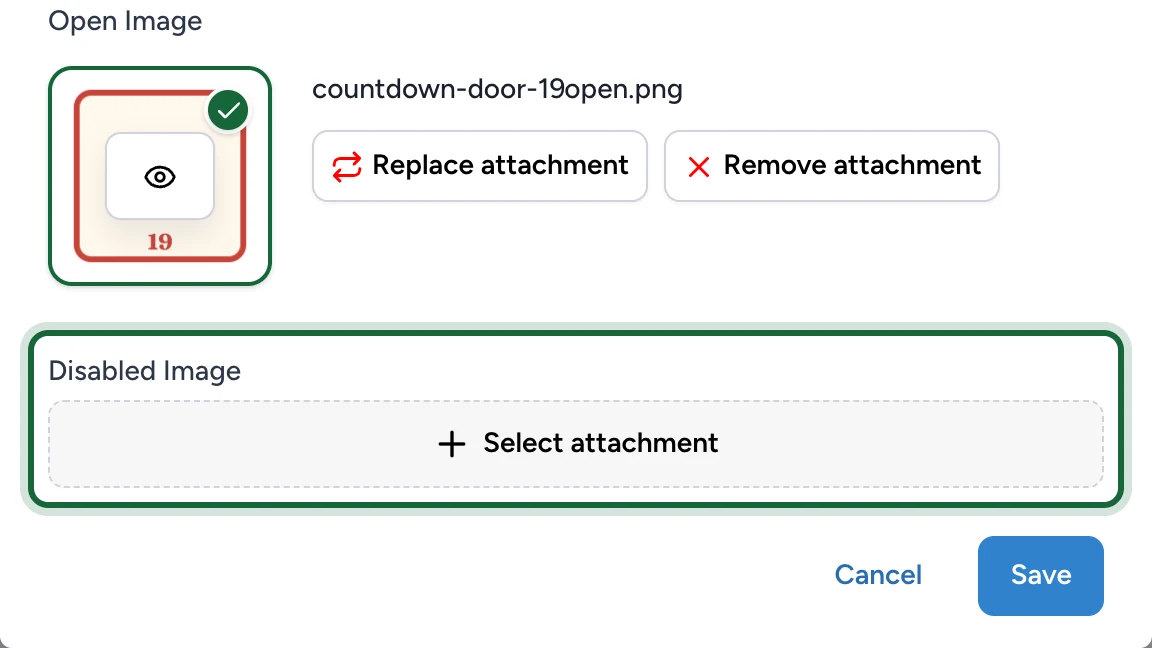
Under Open Image, choose the picture players see from the door's day on.
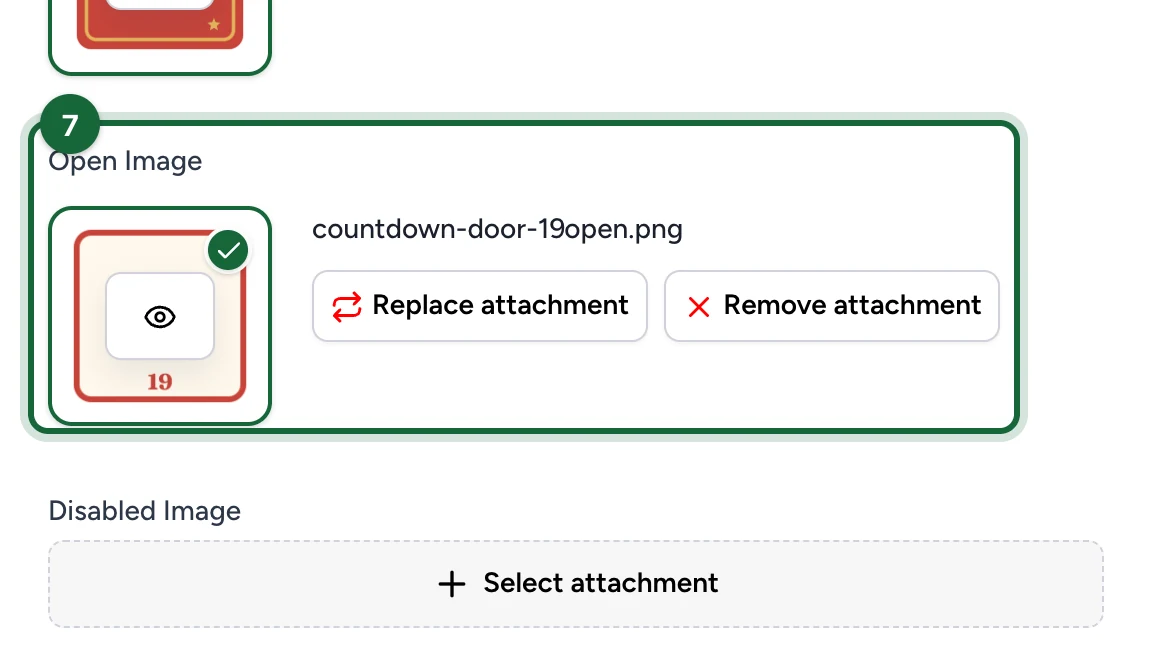
Leave Disabled Image, below it, empty. Players never see it, and on an active door it blocks publishing.
-
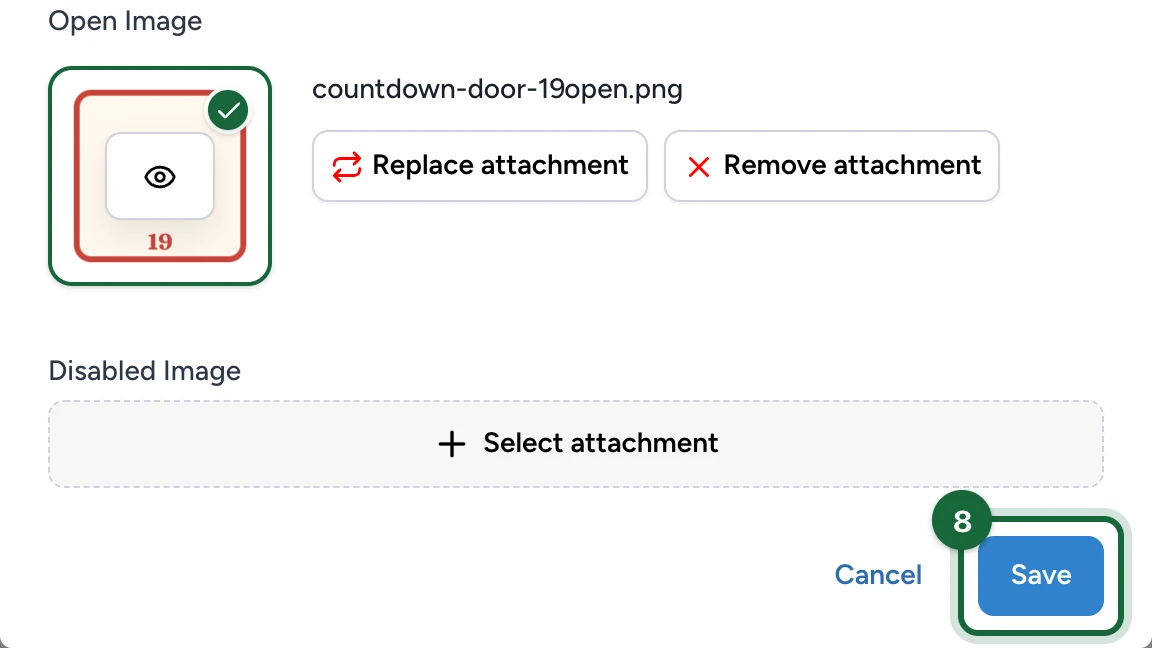
Select Save.
Add the other doors the same way. On each door, the switch turns it on or off, Edit reopens it and the bin deletes it.
Publish the campaign again for players to see the calendar: see Validation & publishing.
What participants see
Each door follows the dates of its game, in the campaign's time zone.
| When | The door shows | Can players tap it? |
|---|---|---|
| Before its day | The Closed Image | No |
| On its day | The Open Image | Yes: it opens the game |
| After its day | The Open Image | No |
Doors that are switched off, or have no game, don't appear.
The calendar shows only the header, the doors and the Rewards button. The landing page's other sections, such as instructions, don't appear, so say how to play in the header's subtitle.
If publishing is blocked
- The calendar has no doors, or every door is switched off: add a door, or switch one on.
- A door has no Closed Image or no Open Image: choose both, steps 6 and 7.
- A door has a Disabled Image: remove it.
- A door has no game, or its game was deleted or switched off: choose an active game, step 5.
- A door's game has no dates of its own, or two doors' dates overlap: give each game its own day, as in Set up an Advent Calendar game.