Exports & reports
Download dashboard snapshots and operational datasets from analytics, participants, bookings, rankings and Smart Links.
1 min read
A PDF shares a picture of the numbers. A CSV gives you the rows behind them, for a spreadsheet. Here, Lindenhall exports its Spring Garden Games.
Choose the export
| Where | What you get | File |
|---|---|---|
| The campaign's Analytics | The dashboard for the dates you ran | |
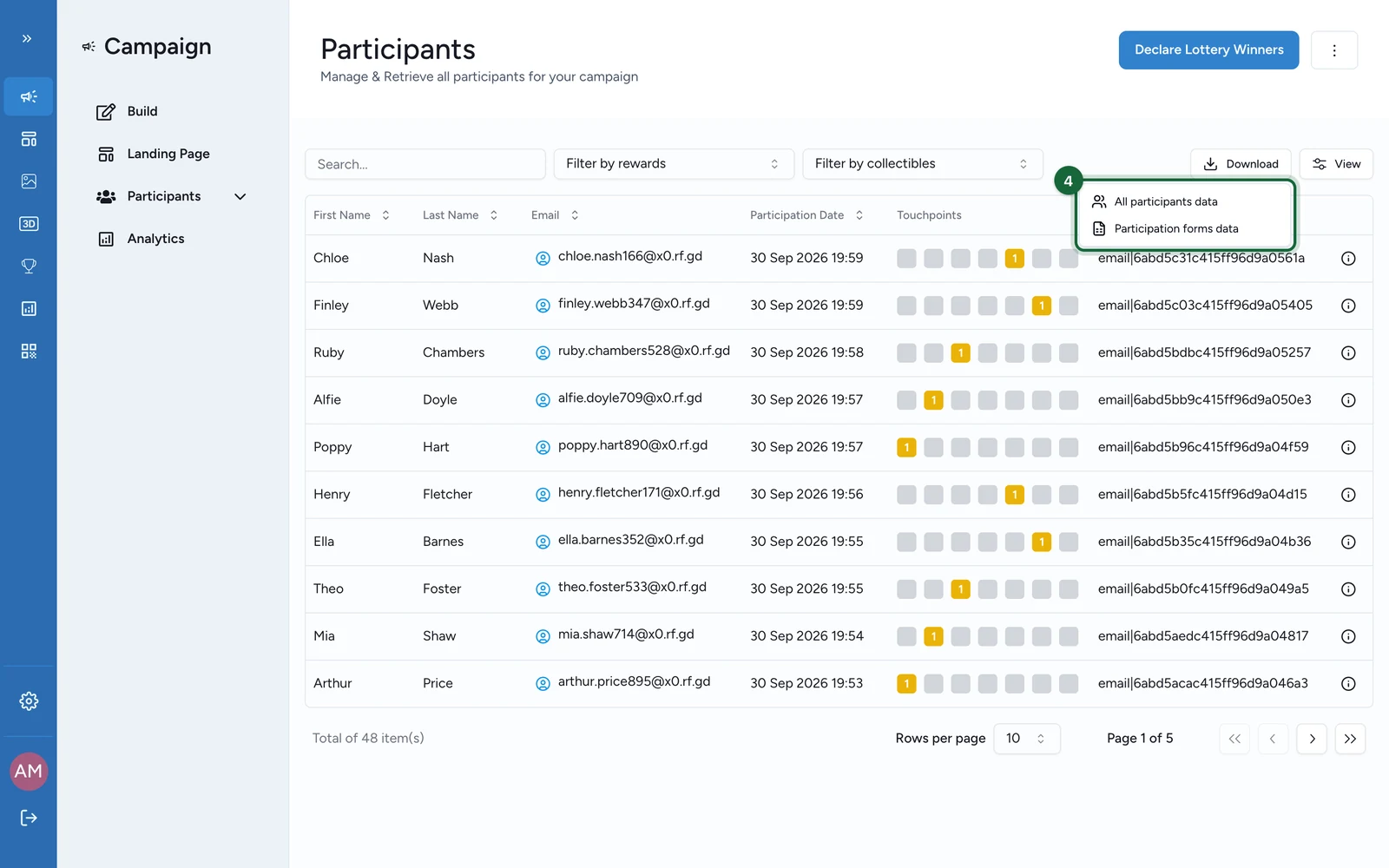
| Participants > All Participants > Download | Every participant, with contact details, prizes and touchpoints played | CSV |
| The same Download, Participation forms data | The answers to participation forms | CSV, or a ZIP with one CSV per touchpoint |
| Participants > Bookings > Download | One row per ticket: see Download the bookings CSV | CSV |
| Participants > Bookings > Performance > Download CSV | Places per session, day, week or month: see Booking analytics | CSV |
| Participants > Leaderboard, then the game | The ranking of a skill game: see Game participation metrics | CSV |
| A Smart Link's Analytics | That link's dashboard: see Analytics exports |
Export a dashboard snapshot
Run the dashboard for the dates you want: see Campaign dashboard. Then:
-
Select Export PDF.
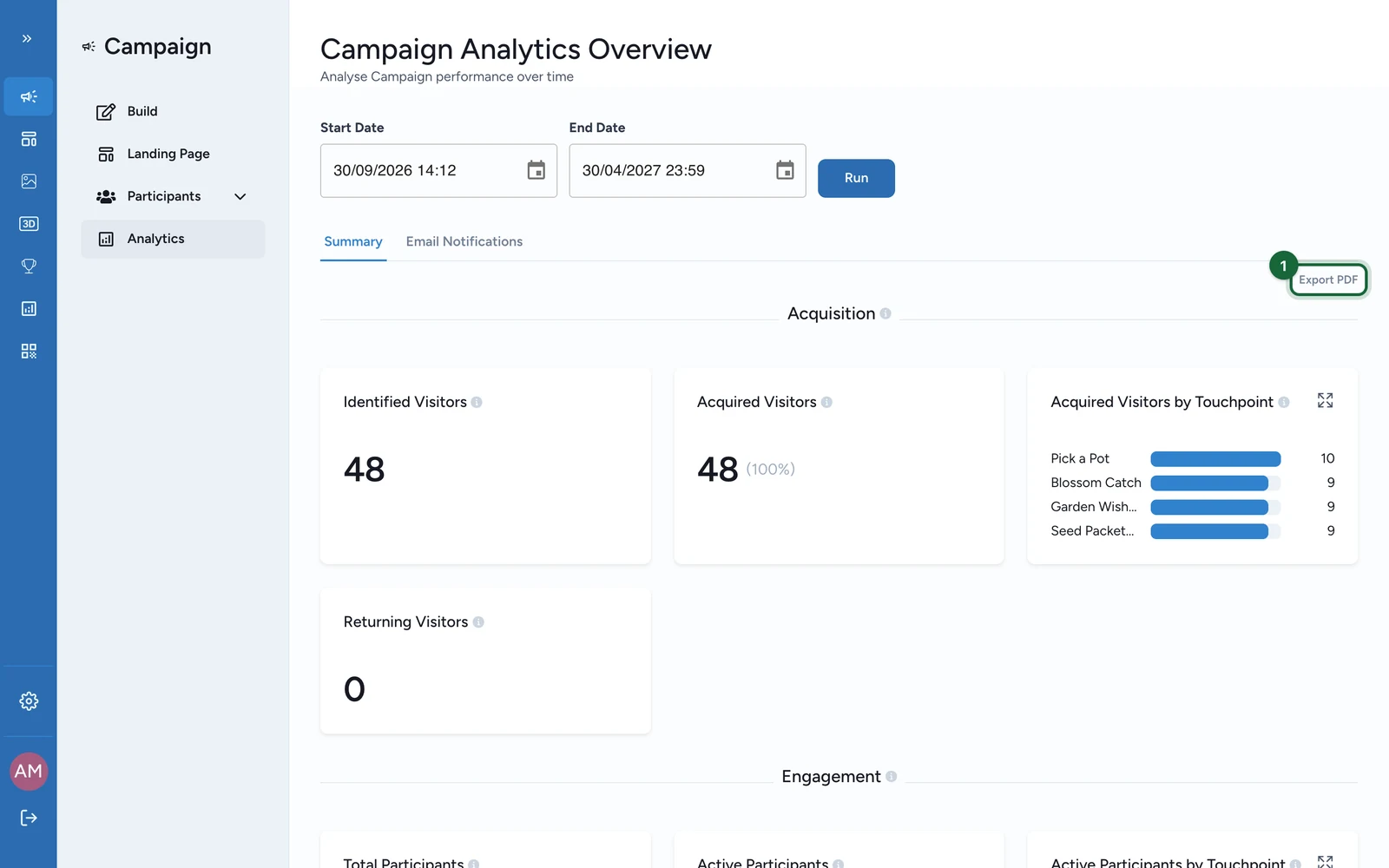
The PDF downloads when it's ready.
Export participants
-
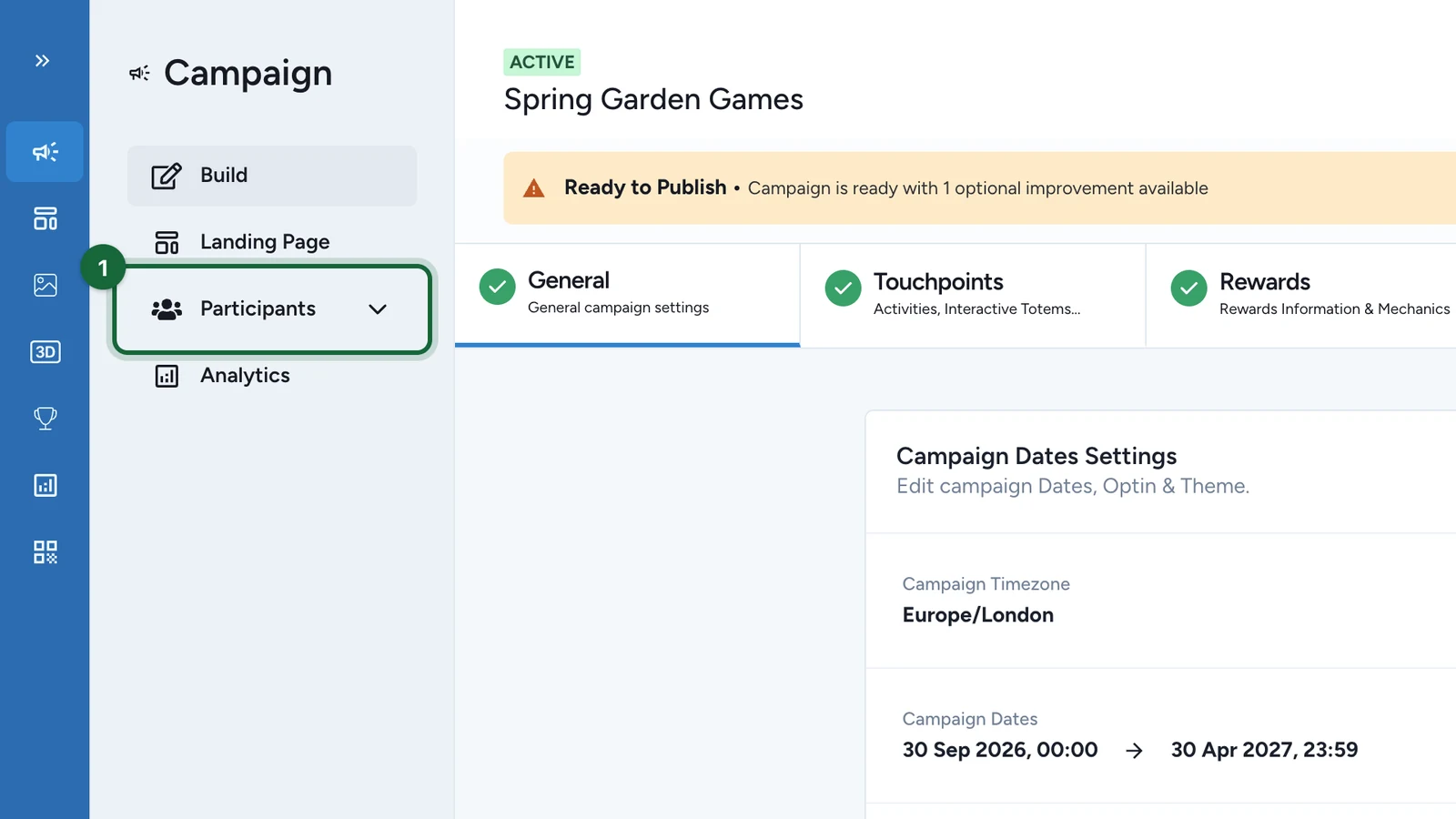
In the campaign, select Participants.
-
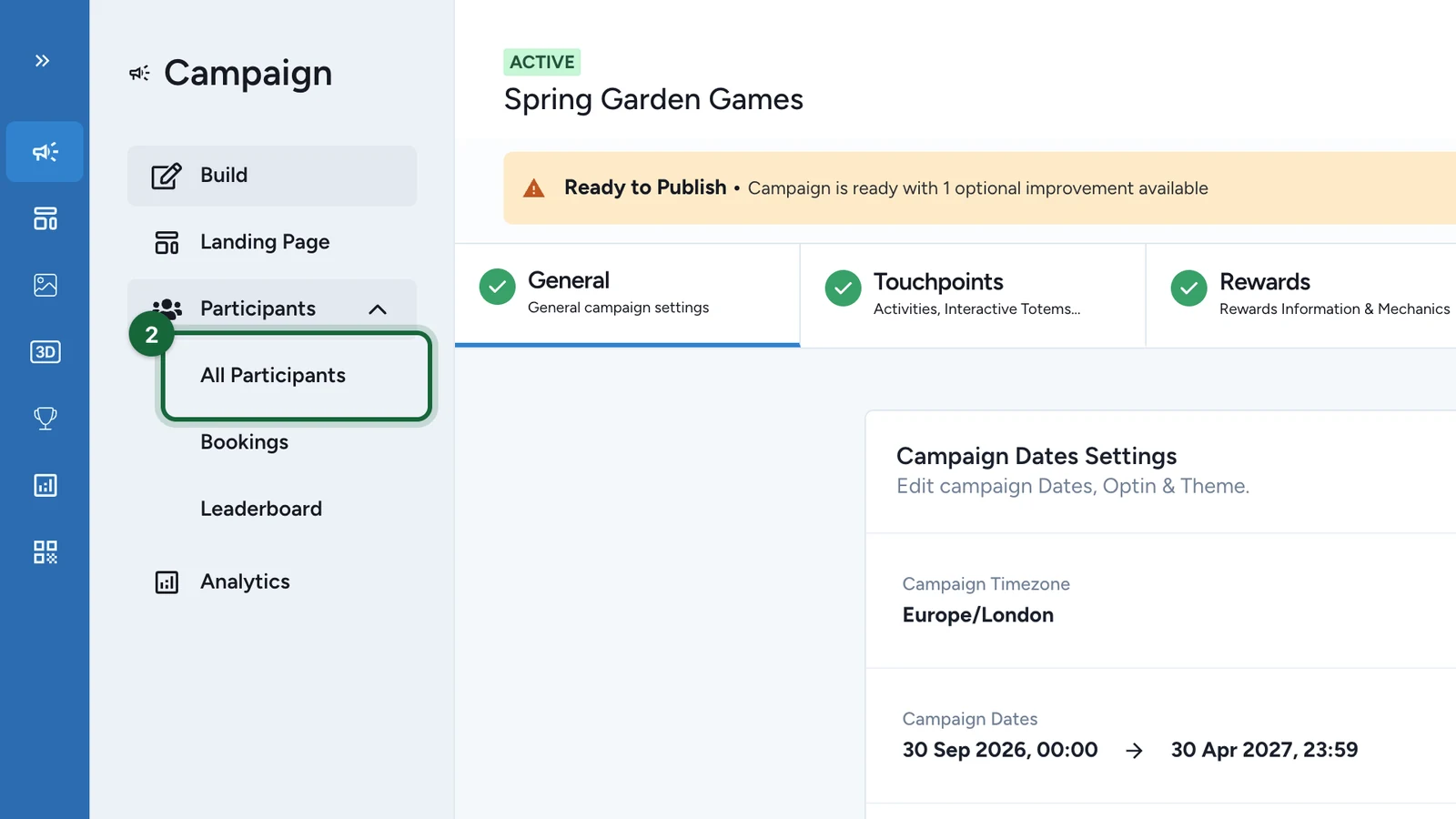
Select All Participants.
-
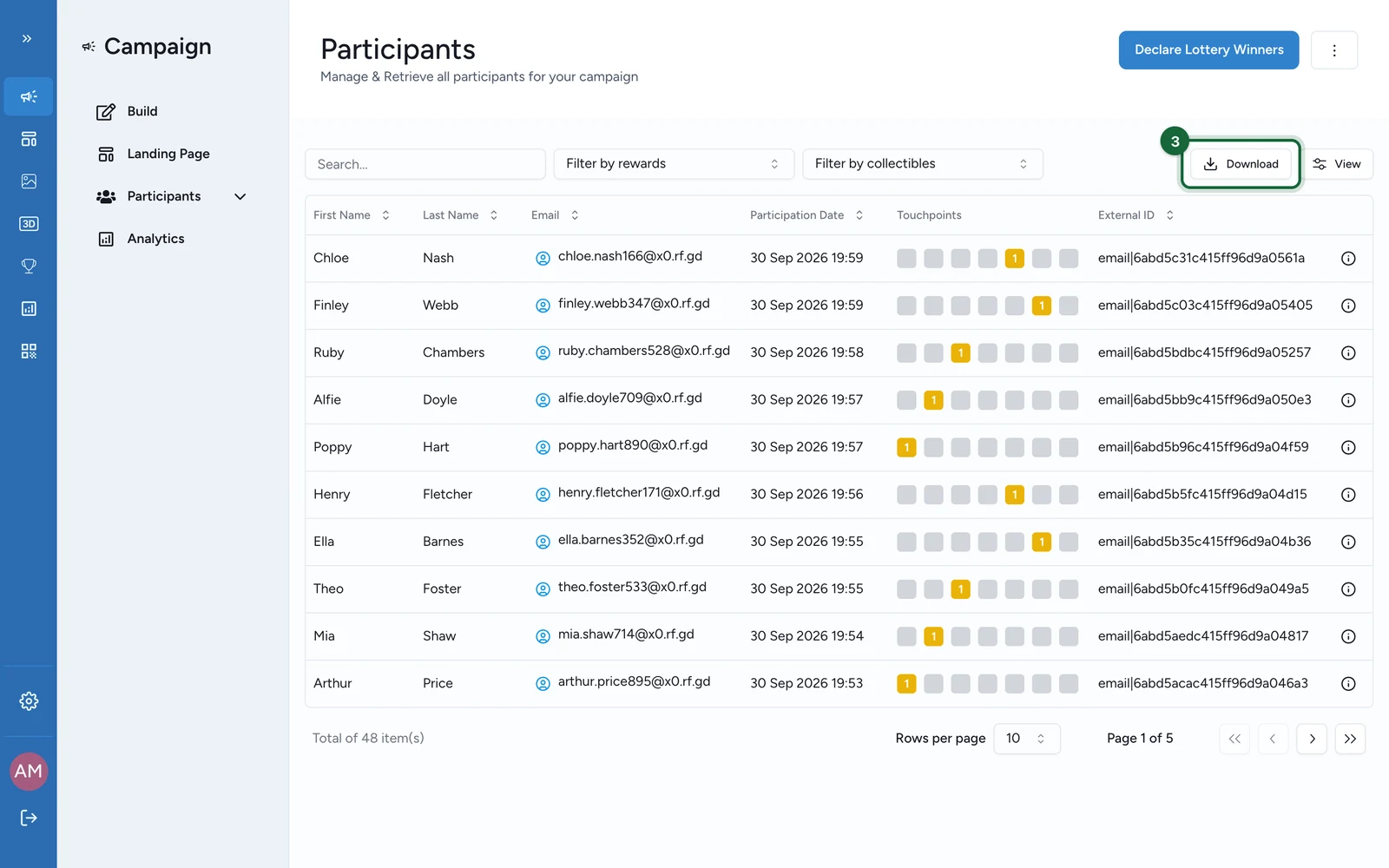
Select Download.
-
Choose All participants data or Participation forms data.
Get the data out continuously
Exports are one-off files. To send activity to a CRM or a data warehouse as it happens, use webhooks instead: hand About webhooks to your developer.