Real-time dashboards
Run the campaign dashboard, read each block, and use the current date-range view to monitor live activity.
In this article, you'll open the campaign analytics area, run the current dashboard for a date range, and understand what each tab is for.
Before you begin
- The campaign is published or has already collected activity.
- You can open the campaign in Studio.
The dashboard is run on demand
The current analytics view refreshes when you choose Start Date and End Date and click Run.
Use the dashboard
Open the campaign analytics area
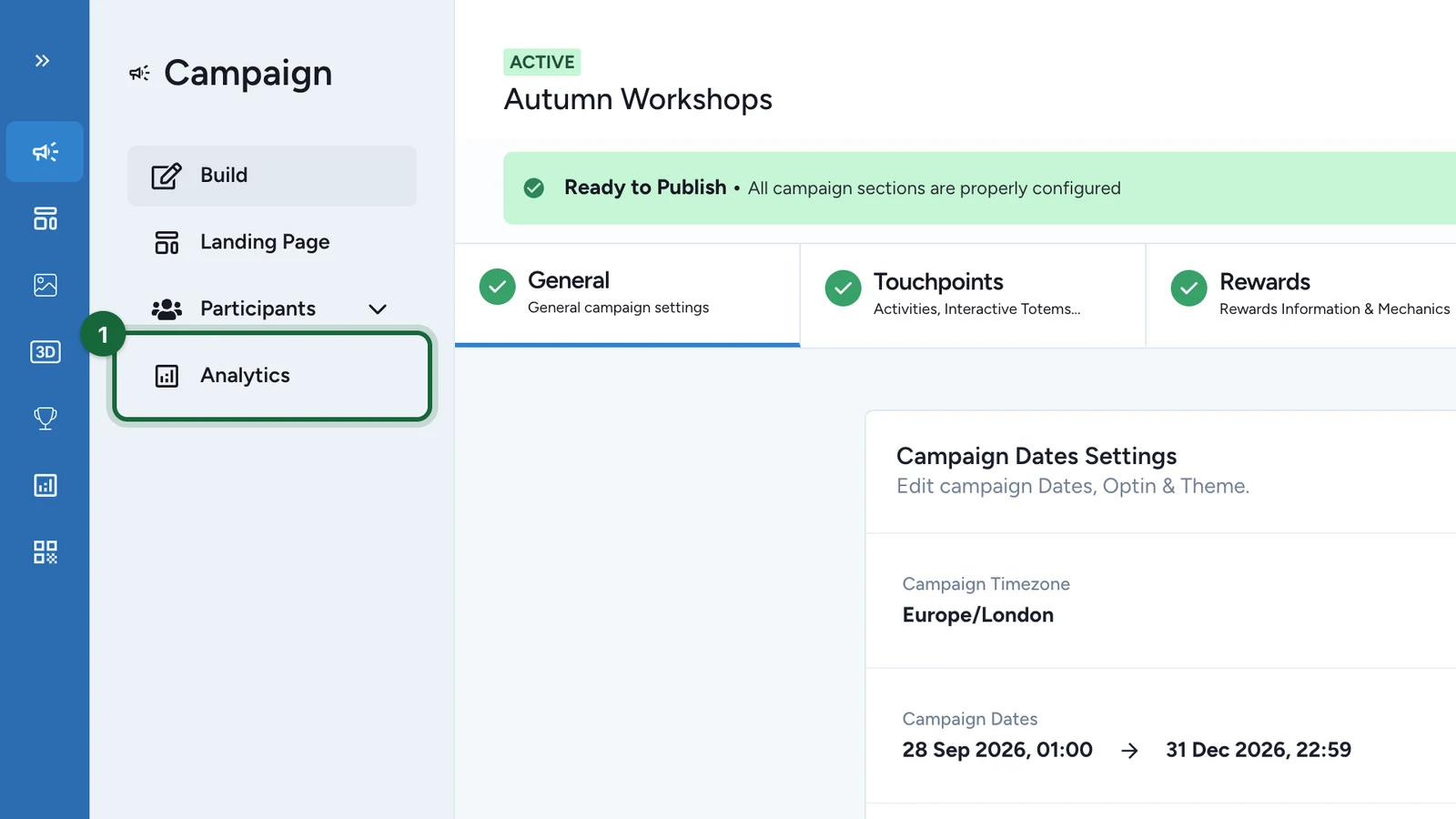
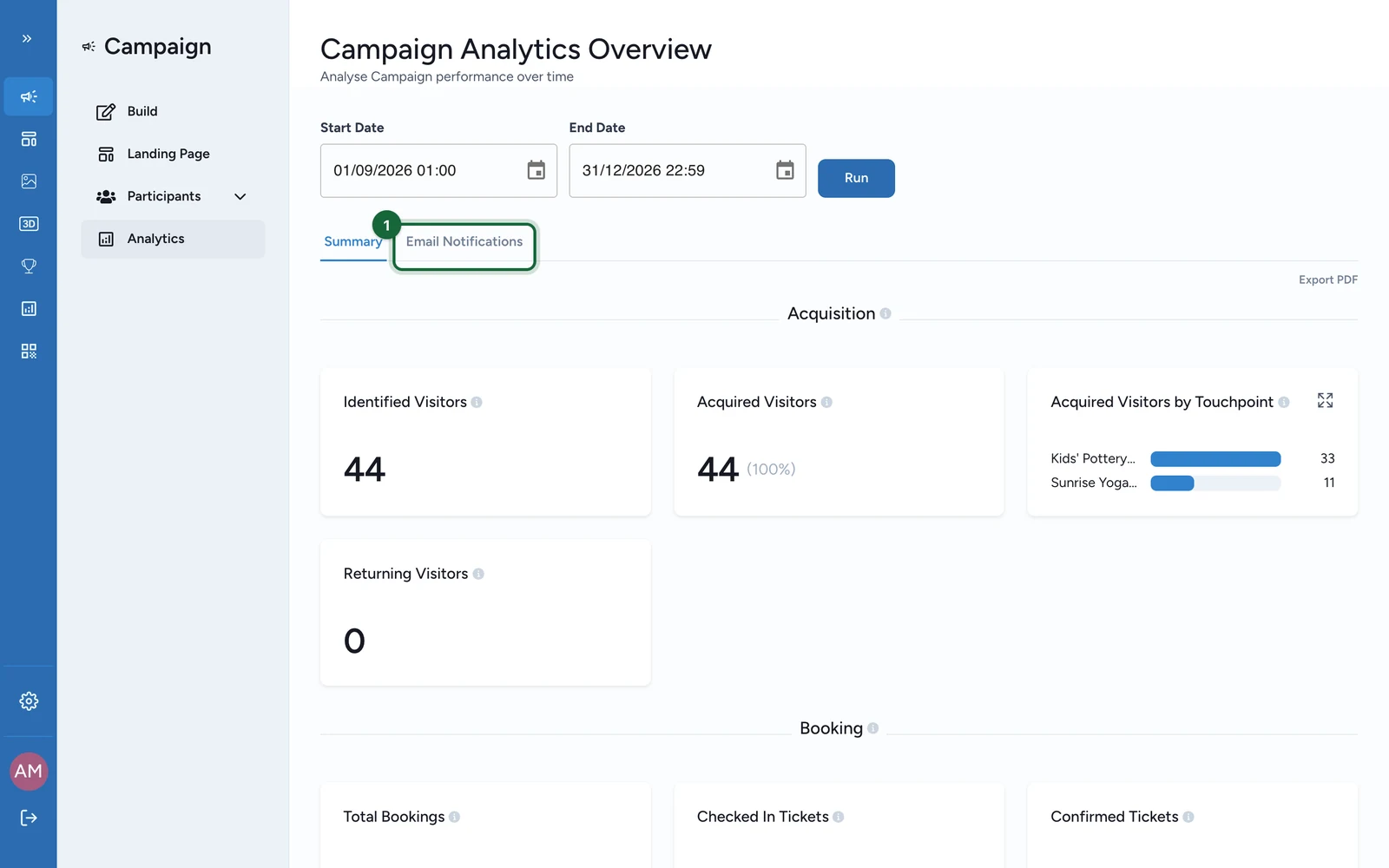
In Studio, open the campaign and select Analytics in the campaign sidebar.
Choose the reporting window
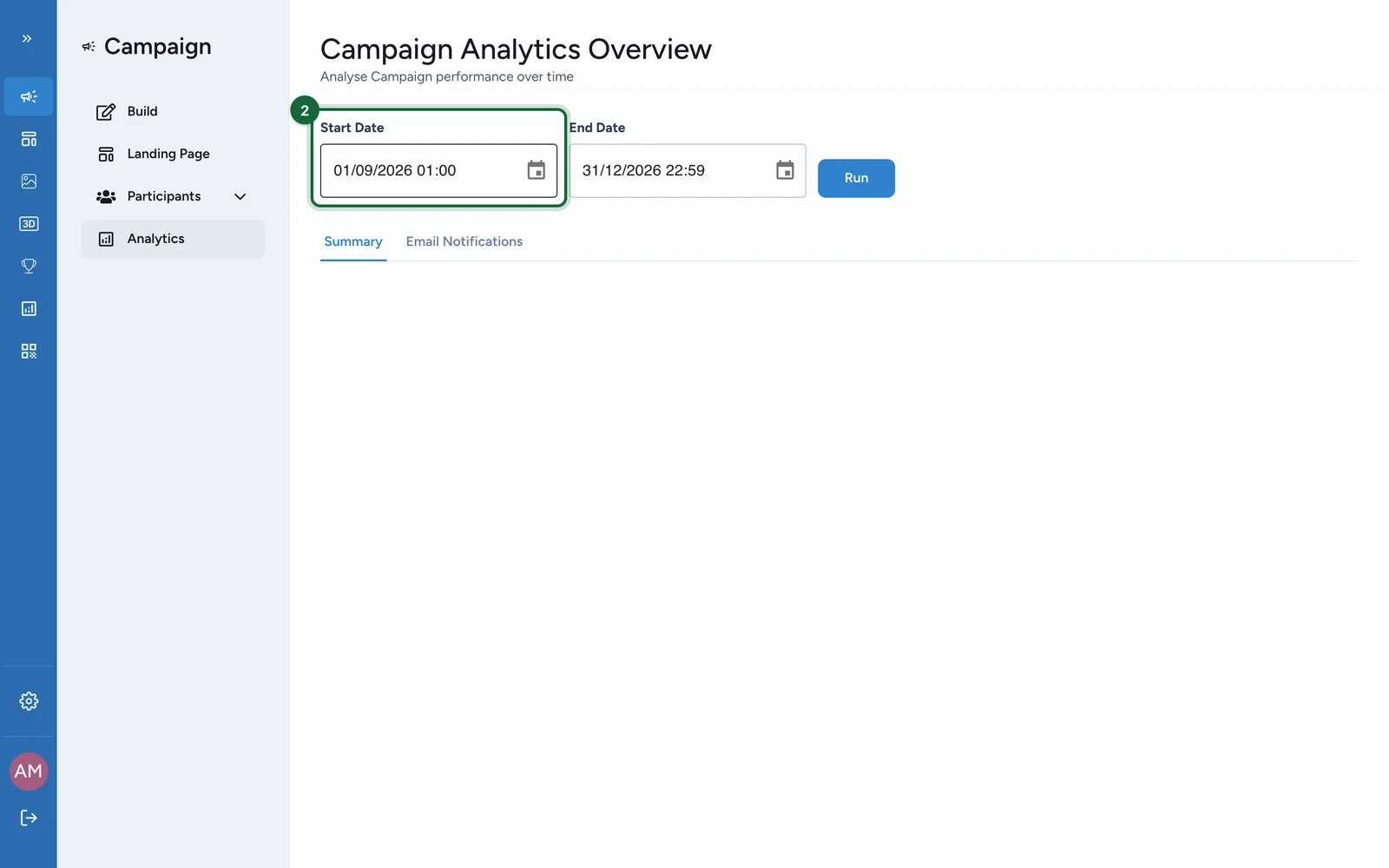
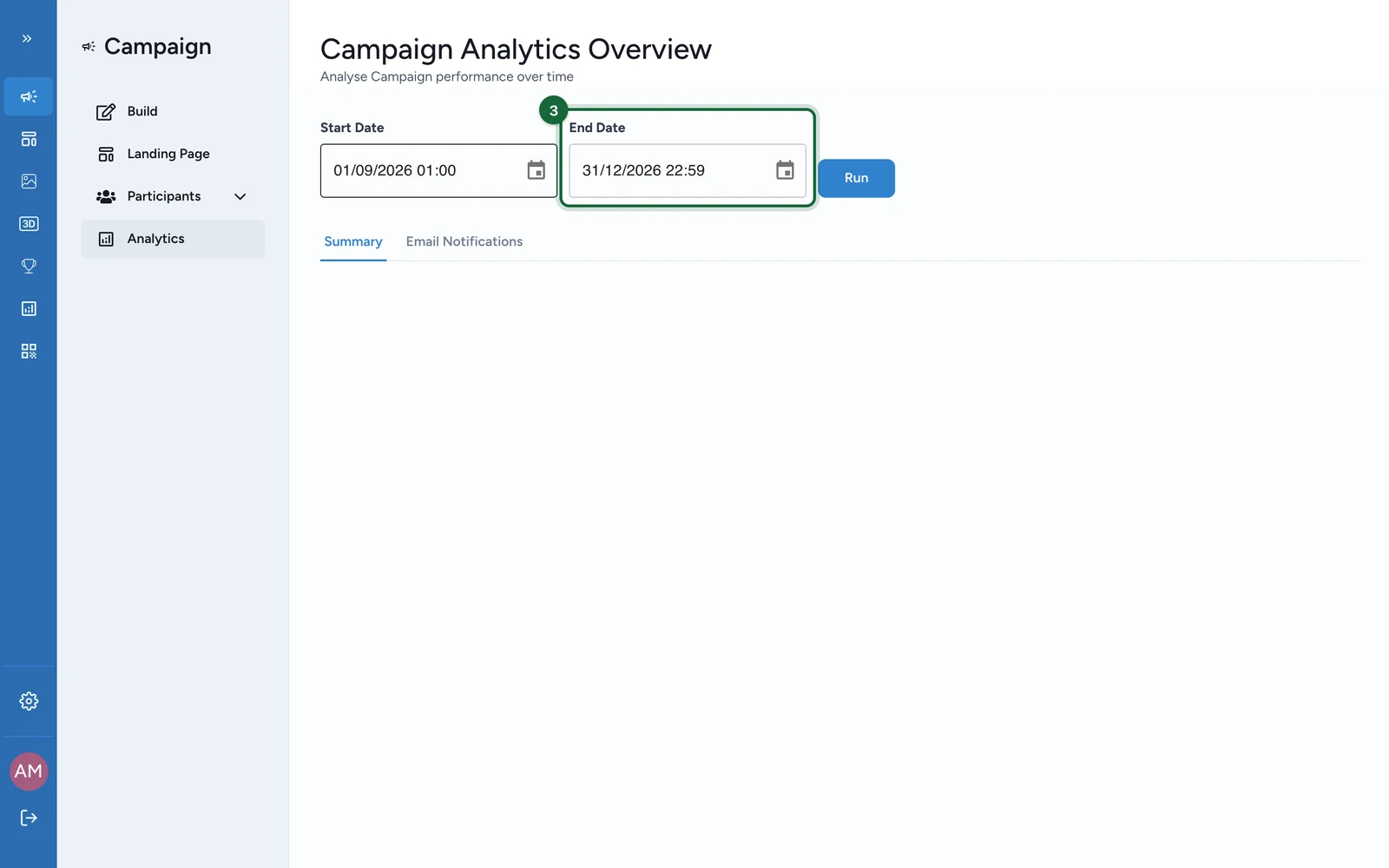
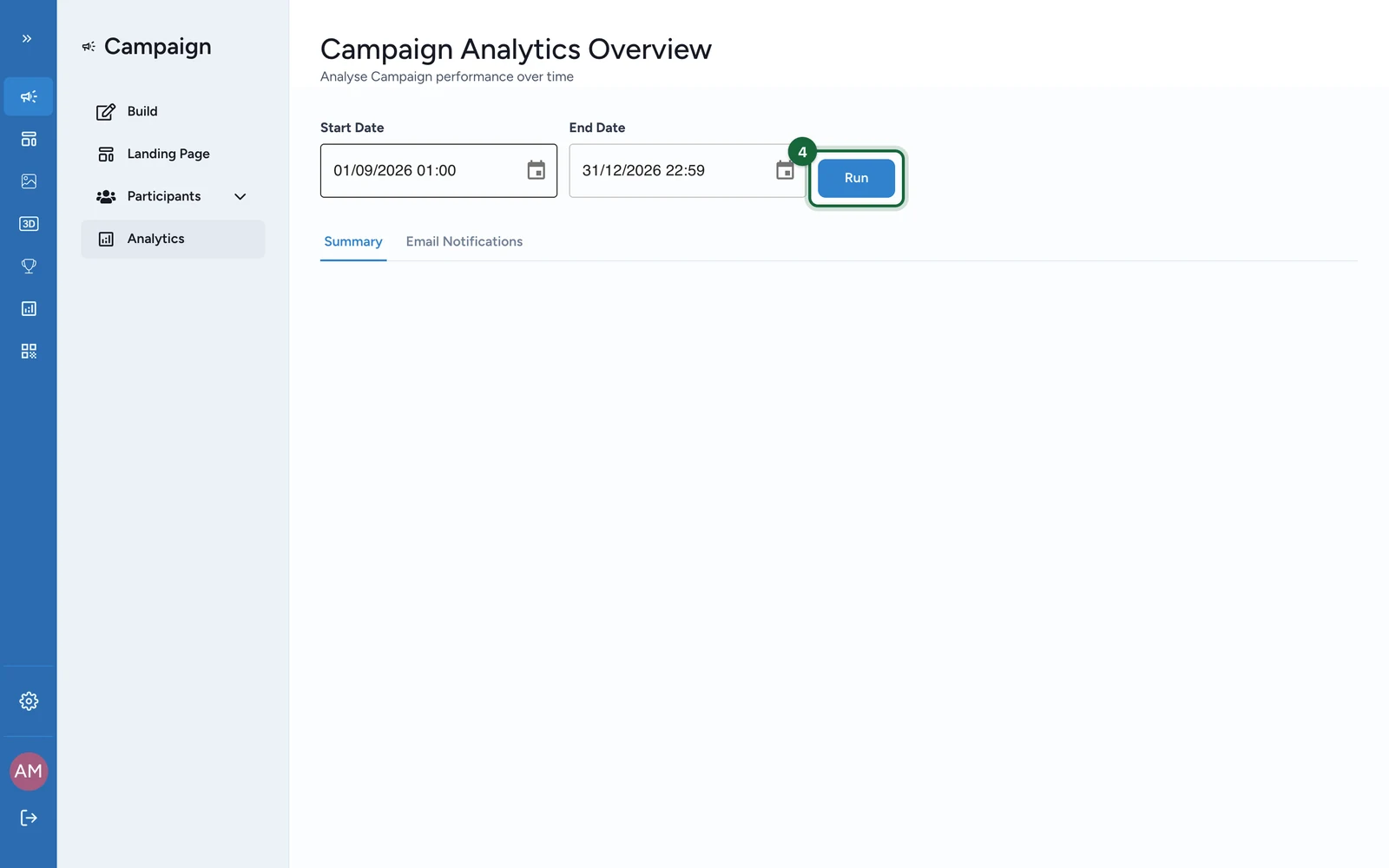
Set Start Date and End Date, then click Run.
Use the same action again whenever you want to refresh the dashboard for a different time range.
Start with Summary
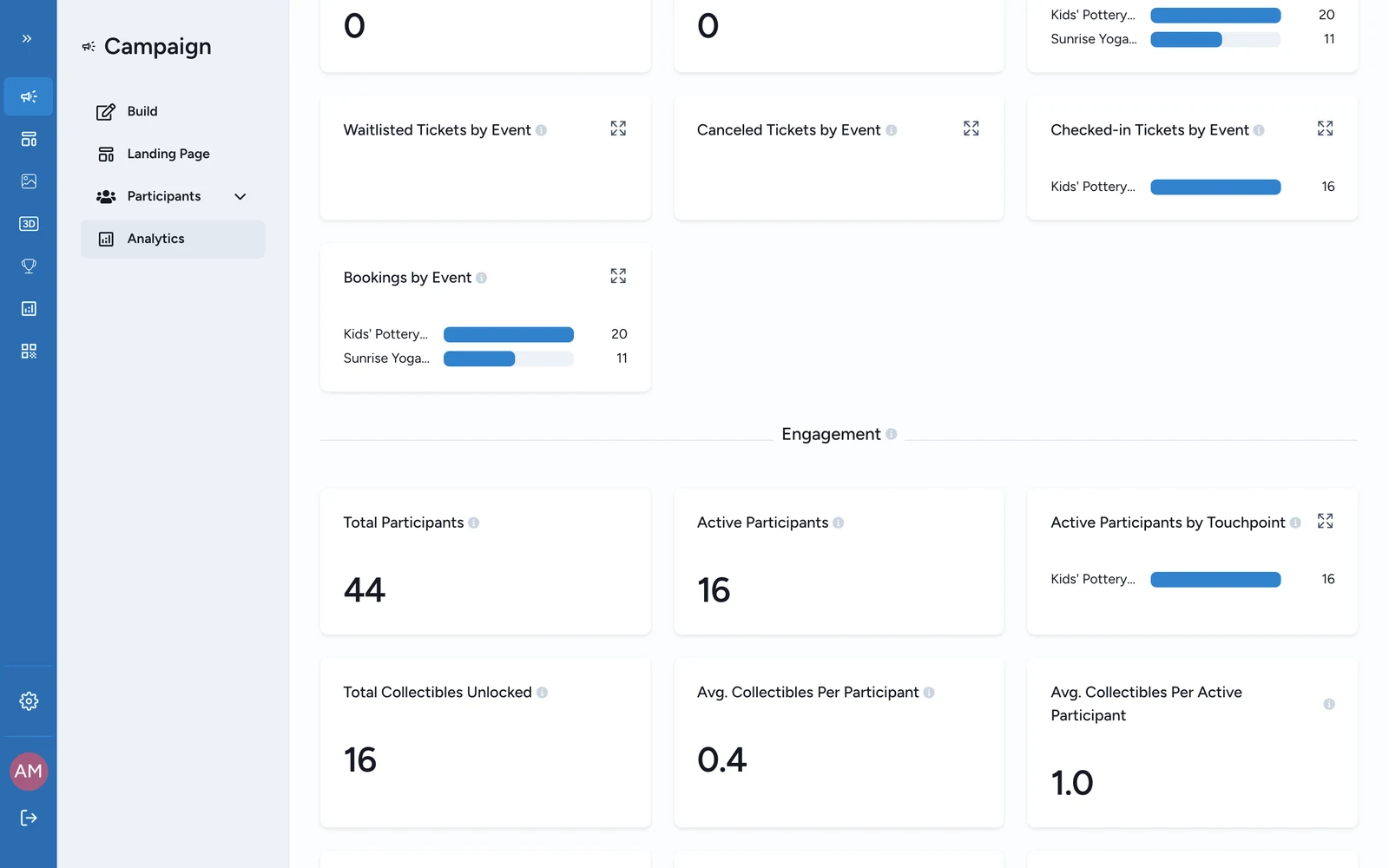
Review Summary first. This is where OmniLab groups the main monitoring blocks such as Acquisition, Engagement, UTM Tracking, and Device Tracking.
If the campaign includes bookable activities, a Booking block also appears.
Check Email Notifications
Open Email Notifications when you need sent counts for participate emails, touchpoint unlock emails, winner or non-winner emails, eligible emails, reward redeemed emails, and booking confirmation or cancellation emails.
Export a shareable snapshot
After the dashboard finishes loading, use Export PDF and then download the generated file.
What each block tells you
| Block | What it helps you answer | Typical metrics |
|---|---|---|
Acquisition | How much reach and account growth did the campaign create? | Identified Visitors, Acquired Visitors, Acquired Visitors by Touchpoint, Returning Visitors |
Engagement | How far did participants move through the experience? | Total Participants, Active Participants, Active Participants by Touchpoint, Total Collectibles Unlocked, Avg. Collectibles Per Participant, Avg. Collectibles Per Active Participant, Clicks by CTA Label, Feedbacks |
Booking | How are bookable touchpoints performing? | Total Bookings, Checked In Tickets, Confirmed Tickets, Waitlisted Tickets, Canceled Tickets, plus per-event breakdowns |
UTM Tracking | Which campaign sources are bringing participants? | Participants Per UTM Source, Participants Per UTM Medium, Participants Per UTM Campaign |
Device Tracking | Which devices are people using? | Participants Per OS, Participants Per Platform |
Email Notifications | Which campaign emails were sent, and for which rewards or touchpoints? | Participate, touchpoint unlock, winner, non-winner, eligible, reward redeemed, booking confirmed, and booking canceled counts |
When to leave the dashboard
Use the dashboard for fast monitoring and trend checks. Move to more operational surfaces when you need working data:
- open
Participantsfor participant-level records and participation-form downloads - open
Bookingsfor attendee lists and booking KPI reporting - open
Leaderboardfor ranking tables and ranking exports - open Exports & reports when you are choosing the right file output
Related
What OmniLab measures
See the main data families OmniLab tracks across campaigns, Smart Links, and exports.
Exports & reports
Download PDF snapshots and CSV exports from the right reporting surface.
Games
Use the Games section for deeper analysis of participation, rankings, and reward outcomes.
Events
Use the Events section for booking, check-in, and no-show reporting.
Smart Links
Use the Smart Links section for scan, variant, and referrer reporting.