Download the bookings CSV
Export every booking to a CSV file that opens in Excel, Google Sheets or Numbers.
1 min read
The file has one row per ticket, with each guest's booking form answers. Here, Lindenhall downloads the Autumn Workshops list to print a door list.
Download the file
-
In the campaign, select Participants > Bookings.
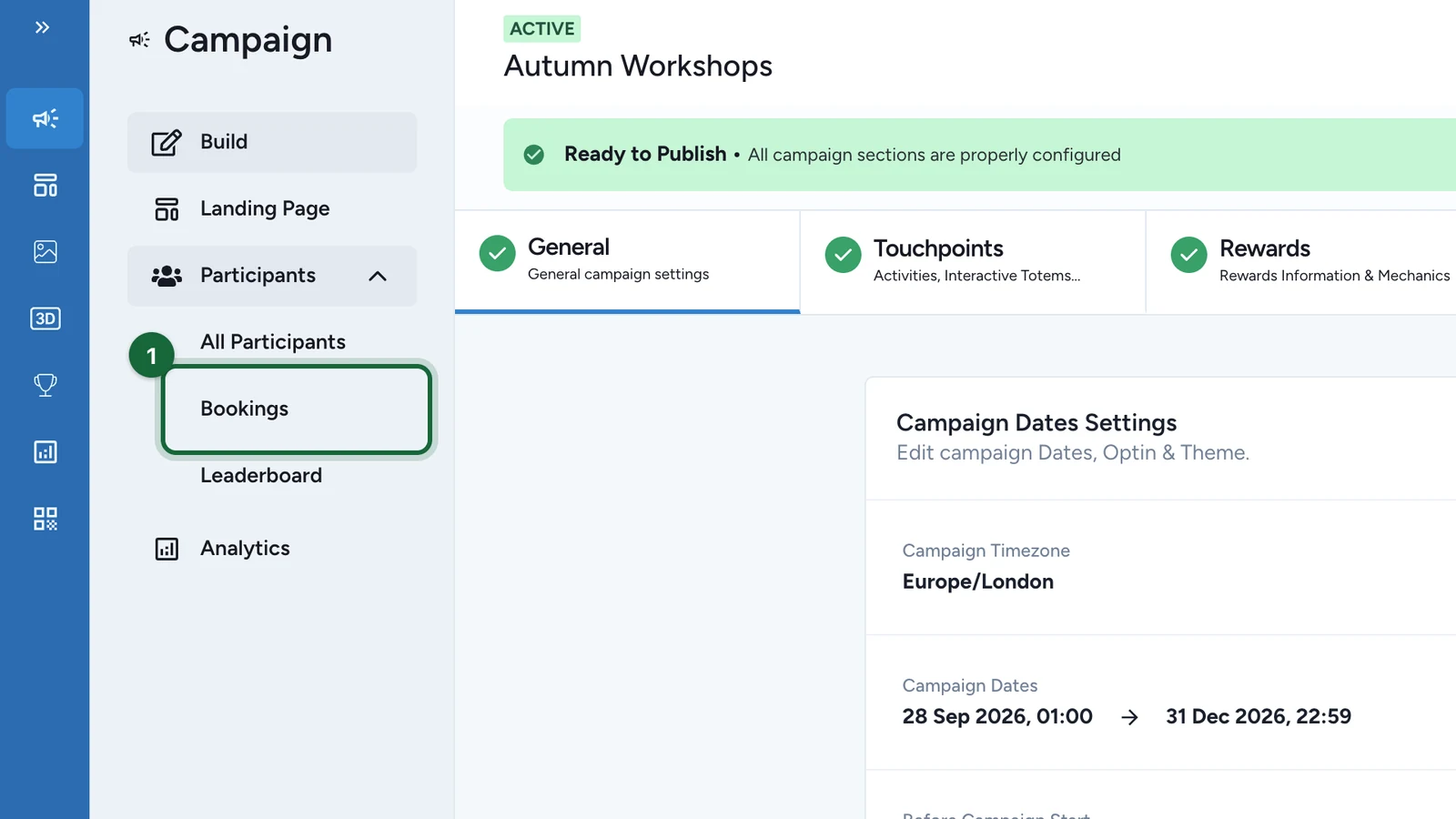
-
Select Download.
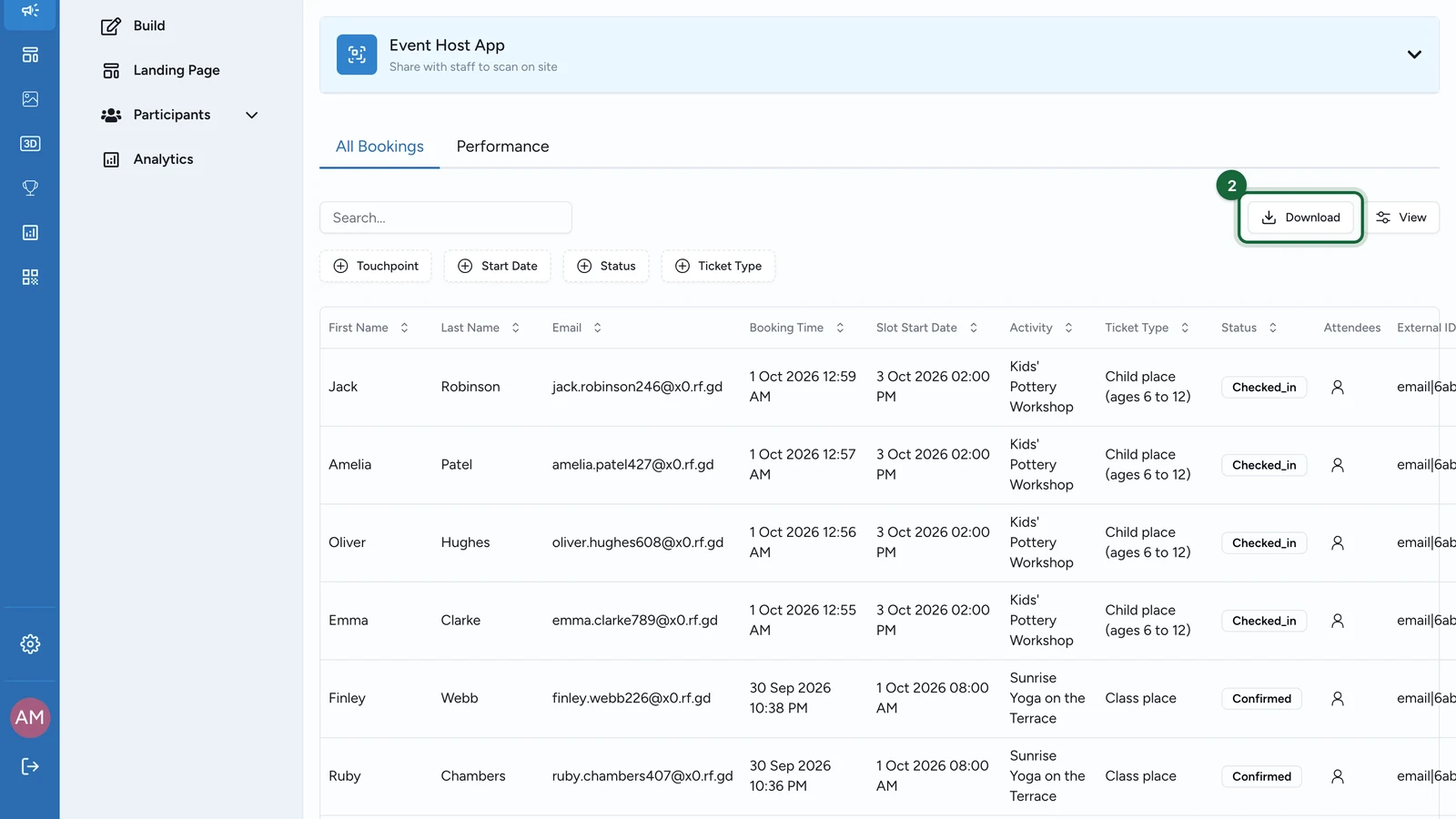
The file is named after the campaign's public link, such as
lindenhall-autumn-workshops.csv.
What's in the file
| Columns | What they hold |
|---|---|
| First Name, Last Name, Email, phone and opt-in | Who booked |
| Booking time, Slot Start Date, Activity | When they booked, and for which session |
| Ticket Type, ticket number, Status | The ticket and whether it's confirmed, cancelled or checked in |
| External ID | The guest's ID in your own systems, if you send one |
| One column per booking form question | Each attendee's answers. Uploaded files aren't included. |
The file always holds every booking, whatever filters are on screen. For totals per session or per day, use Performance instead: see Booking analytics.