The customer activation platform.Every interaction becomes a qualified contact. Book a demo

Booking analytics

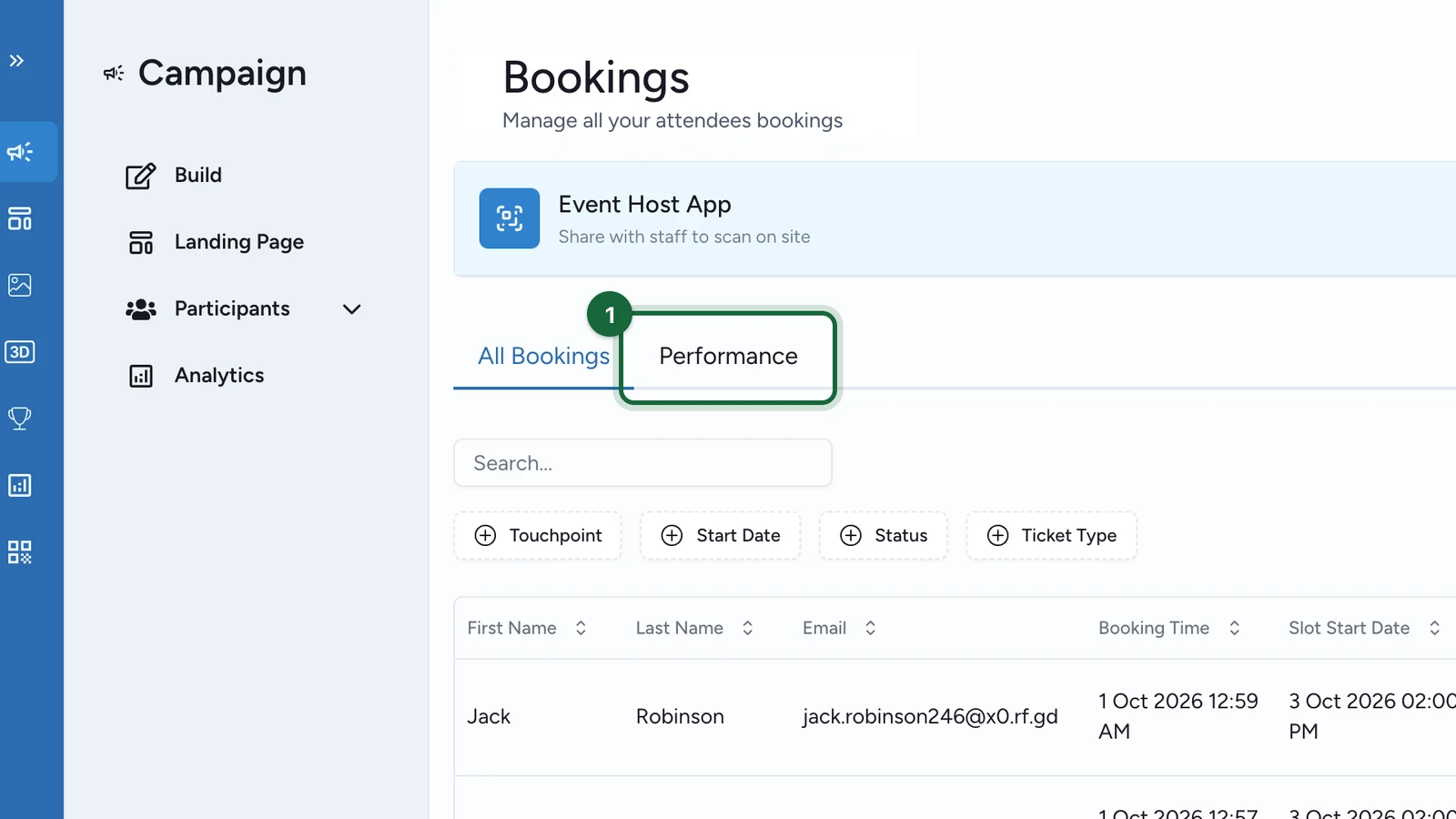
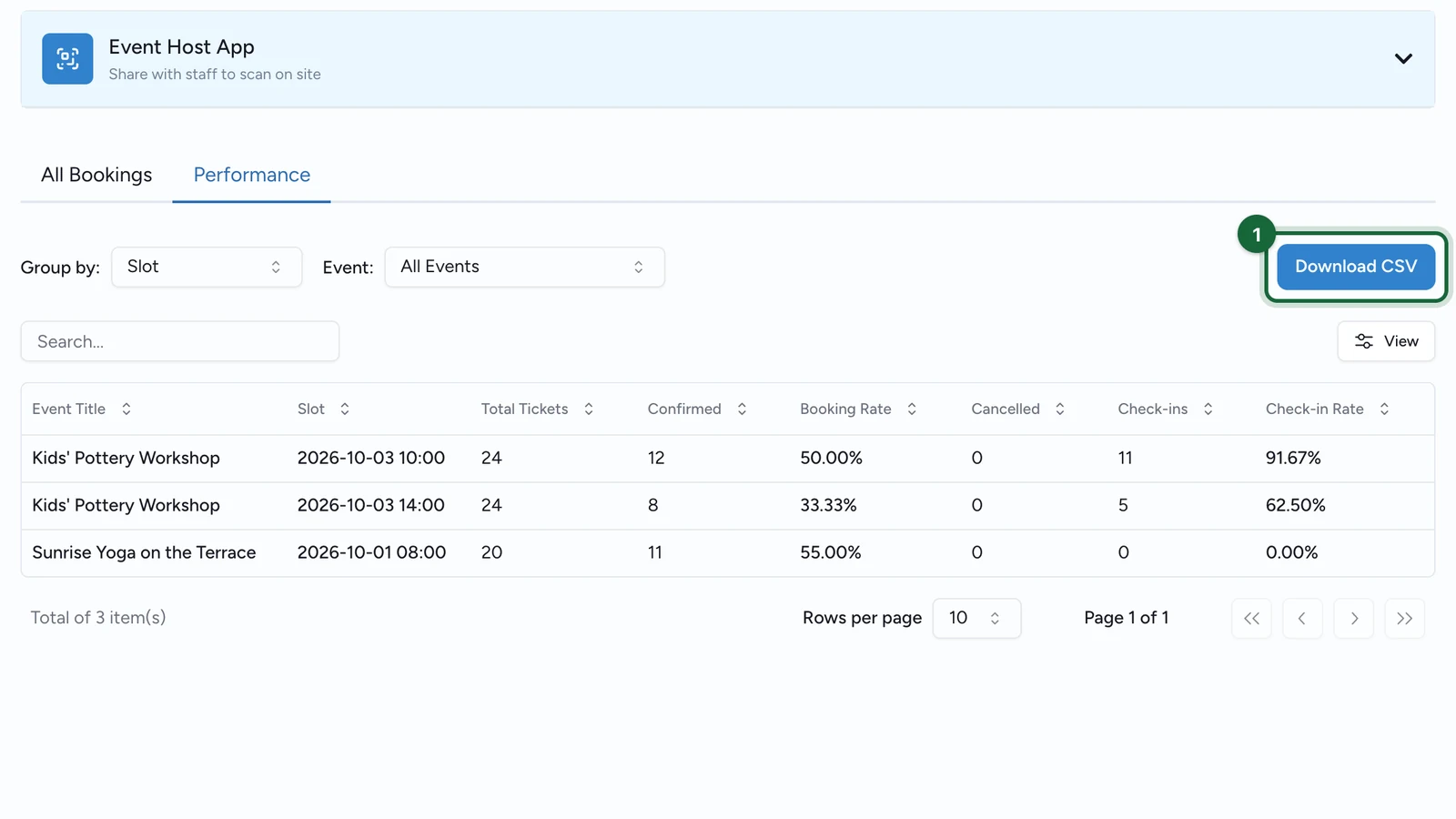
Use Bookings -> Performance to understand demand, capacity, fill, and attendance for bookable events.

This article explains how to read the Bookings -> Performance KPI view for bookable events, and which question each metric helps you answer.

What this view is good for

Use Booking KPI Analytics when you need to answer questions such as:

  • Which slots are filling fastest?
  • Which slots are sold out and which still have room?
  • Which event is creating the most confirmed demand?
  • Which ticket type is selling out first?
  • Where are cancellations concentrated?
  • Are check-ins following the same pattern as bookings?

Where to open it

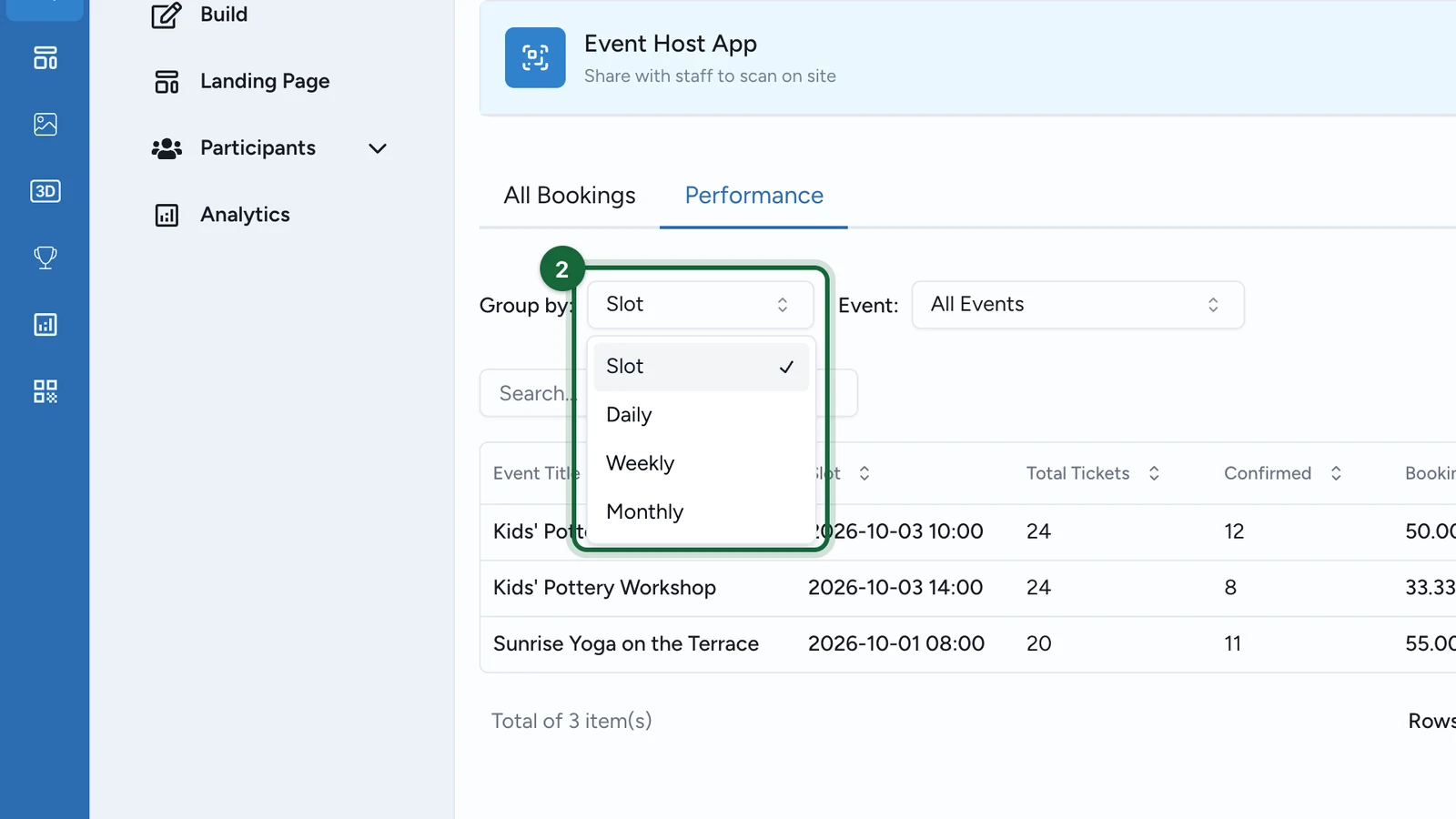
Open Bookings, then select Performance. The table can be grouped by Slot, Daily, Weekly, or Monthly.

Use Analytics for visit-to-booking conversion

If you want to estimate conversion from activity-page visits to bookings, pair this table with campaign Analytics. Use Analytics for the visit volume, then compare that with Confirmed bookings in Bookings -> Performance for the same event and time period.

Choose the right grouping

Group byBest forExample
SlotOperational fill, sell-out, and staffing decisions"Saturday 11:00 pottery workshop is 90% full."
DailyOverall demand by day"Saturday brings twice as many confirmed bookings as Friday."
WeeklyRecurring patterns across a longer run"Week 3 had more cancellations than Week 2."
MonthlyExecutive reporting and campaign summaries"November generated the most confirmed event demand."

What each metric tells you

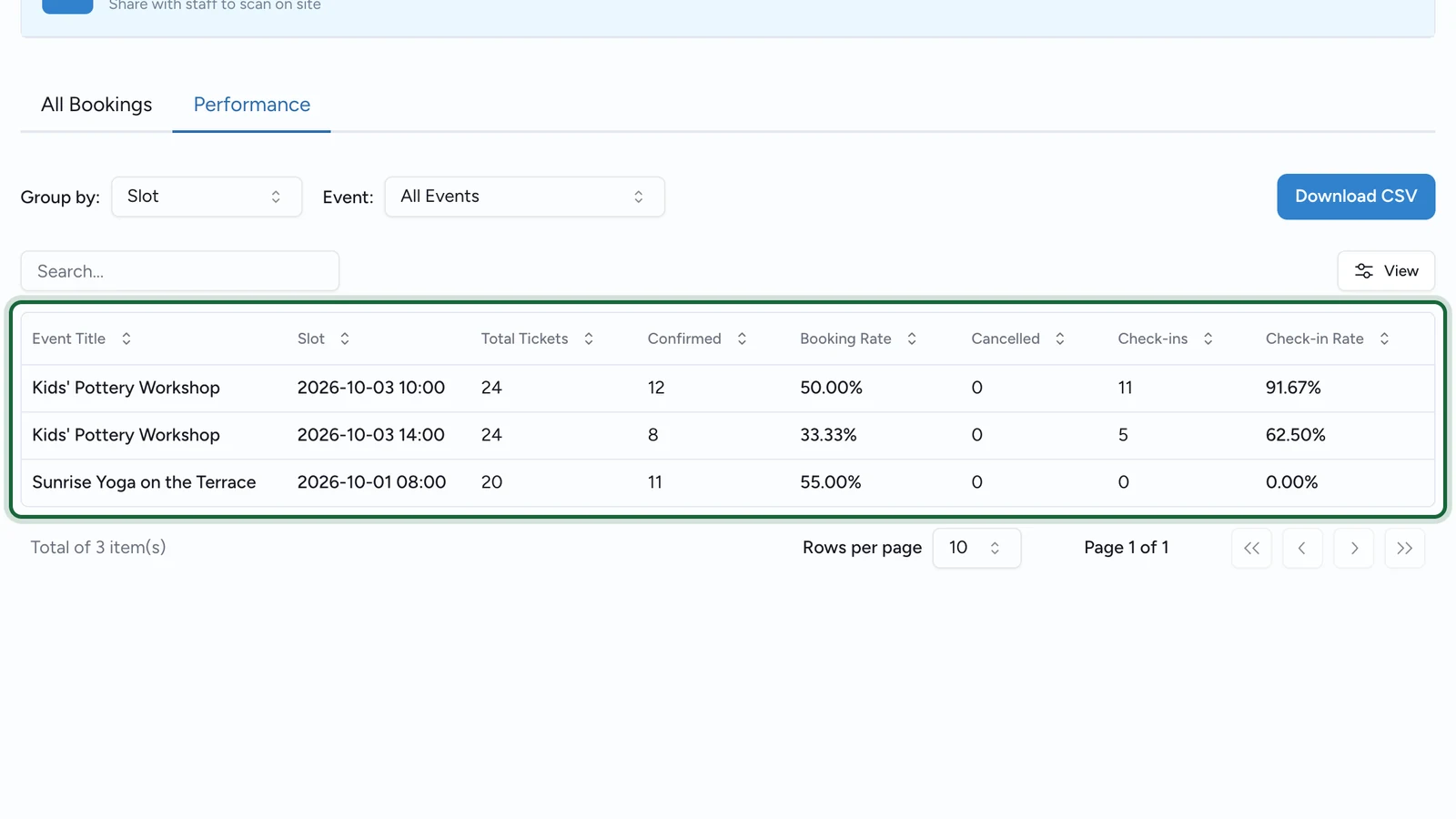
ColumnWhat it answersHow to read it
Event TitleWhich event is this row about?Use it when one campaign contains several events.
Slot / DateWhich period is being measured?Slot shows the scheduled session. Other groupings roll the same data up by day, week, or month.
Total TicketsHow much capacity was available?Shown in Slot view only. +oo means the slot has unlimited capacity.
ConfirmedHow many tickets were successfully booked?Use this as your main demand number.
CancelledHow many confirmed tickets were later cancelled?High numbers can point to weak reminders, poor timing, or participant uncertainty.
Check-insHow many tickets were actually checked in?Best read after the event starts or finishes.
Booking RateHow full was the slot?Shown in Slot view only. If capacity is fixed, 100% usually means the slot is sold out. If capacity is unlimited, OmniLab shows - instead of a percentage.
Check-in RateHow much confirmed demand turned into arrivals?Use it to compare bookings with real attendance.

Use filters to narrow the answer

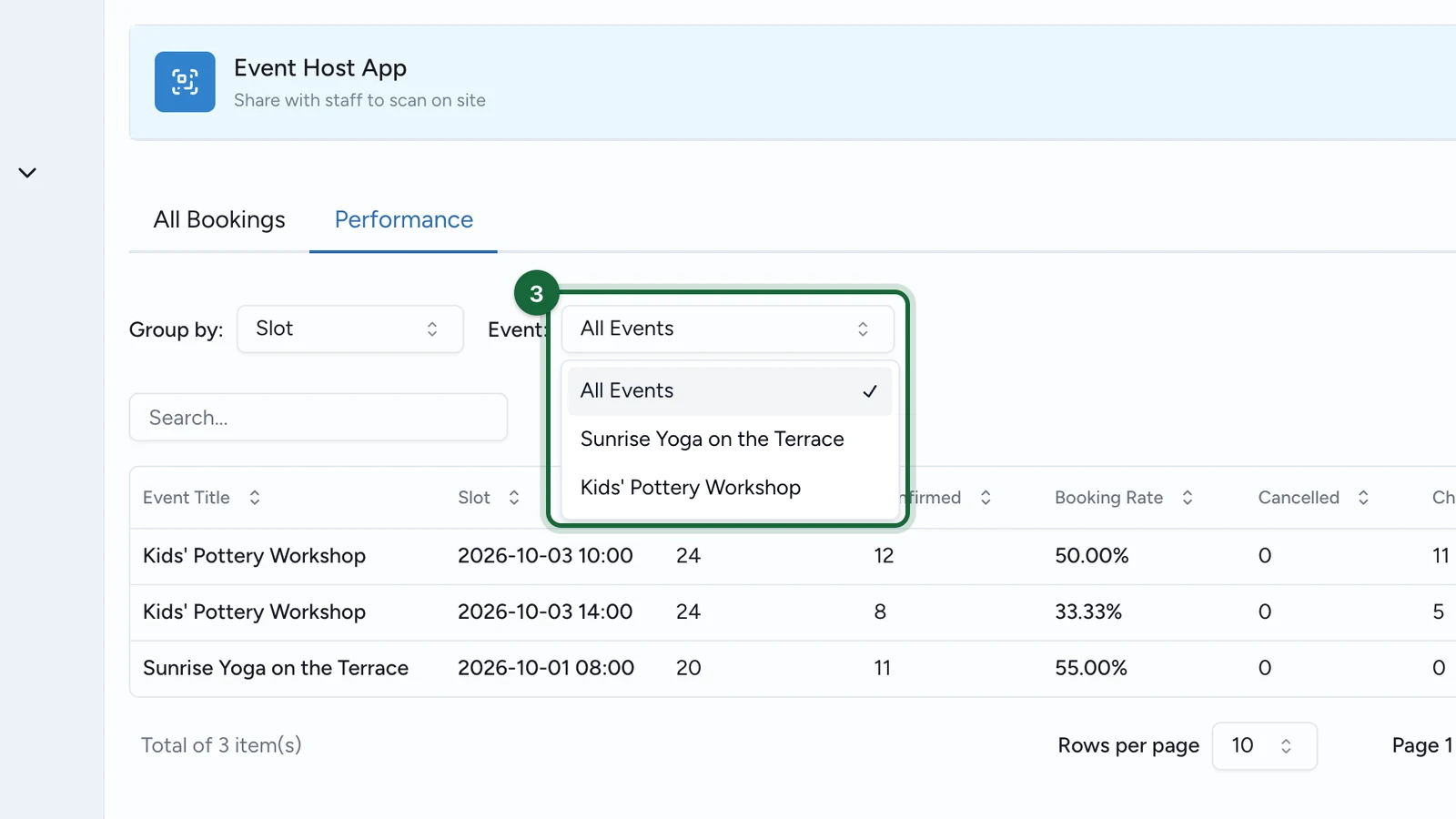
  • The Event filter appears when the campaign contains more than one event.
  • After you choose a single event, the Ticket Type filter lets you compare adult/child, VIP/general admission, or any other ticket mix inside that event.
  • Download CSV exports the view exactly as filtered and grouped, which is useful when operations, venue staff, and reporting teams all need the same cut of data.

Example: reading a busy weekend

A Saturday slot shows:

  • Total Tickets: 20
  • Confirmed: 18
  • Cancelled: 3
  • Check-ins: 15
  • Booking Rate: 90%
  • Check-in Rate: 83.33%

This tells you the slot sold well, but not every confirmed booking turned into an arrival. If the same pattern repeats across similar slots, review reminder timing, arrival instructions, or slot choice before the next event.

Was this helpful?

Optional comments help us improve this page for future authors and readers.

On this page