Configure hunt objects — AR mode

Set an object to AR First mode, prepare the mobile asset formats, and test the participant experience.

Add an object that participants place into their real surroundings through their phone camera using augmented reality (AR), then prepare the right file formats so it works on the phones they actually carry. AR makes the object feel like it's there in the venue, which suits camera-led discovery moments.

Prerequisites

  • The parent Treasure Hunt already exists.
  • You have the object's GLB file ready (a 3D model file your design team provides; required for AR).
  • You have a USDZ version ready for iPhone and iPad if you want the best AR experience on Apple devices.
  • You can test on the mobile devices your participants are most likely to use.

AR availability depends on the device

When a phone or browser does not support augmented reality, participants can still open the object as an on-screen 3D model, but they will not see the AR button.

Assets you'll need

An AR hunt object is a 3D model from your library, viewed in the player's own space.

3D Model

Required

The 3D object for a catcher, 3D selection, or treasure hunt — chosen from your 3D library.

  • Required
  • FormatsGLB · USDZ

GLB powers 3D and Android AR; add USDZ for the best experience on iPhone and iPad. Keep models low-poly and under ~5 MB so they load fast on phones.

Examples

Use a 3D badge as a hunt object

The object can be any 3D model — including a 3D badge. See the available shapes and front/back artwork in Design a 3D badge.

For every image spec in one place, see Image & asset specs.

Configure the object

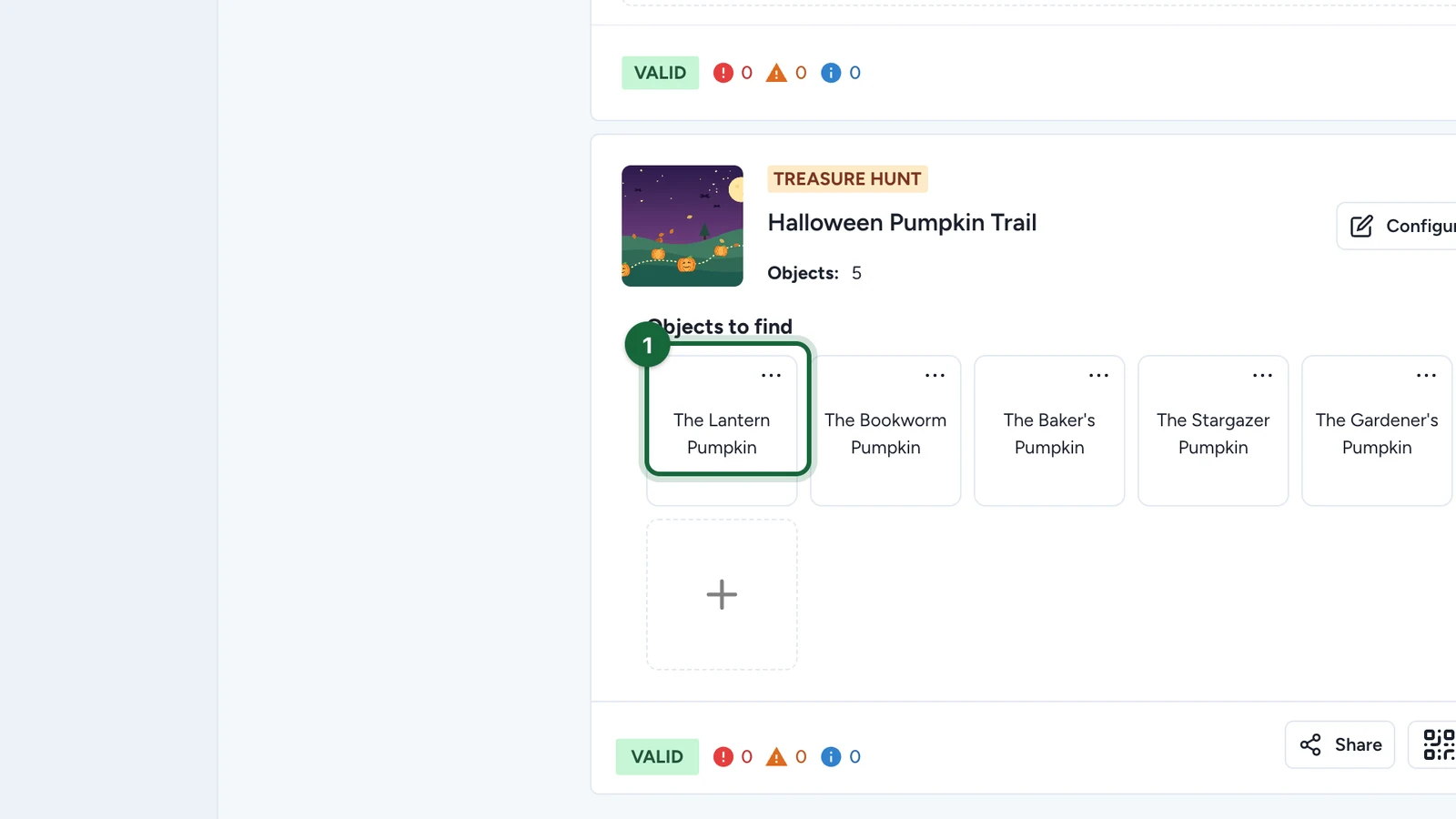
Open the object from Objects to find

Open the parent hunt, then go to Objects to find.

Create a new object or open the object you want to change.

Fill the object basics

Complete the information participants see first:

  • Title
  • Subtitle
  • Description
  • Location Hint

If the hunt uses a map, also set the object's map location.

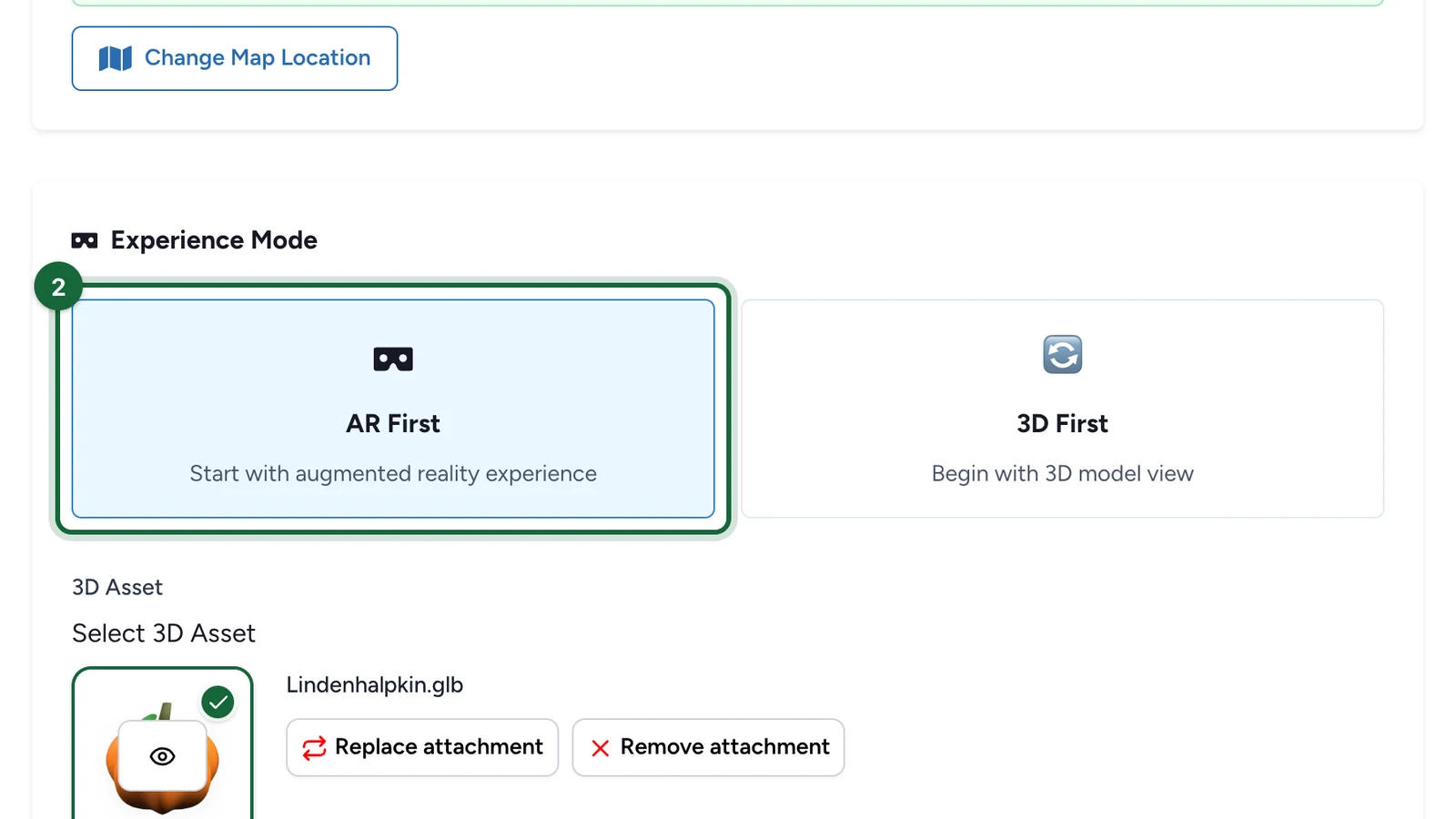
Set Experience Mode to AR First

Set Experience Mode to AR First so participants are guided toward the augmented-reality view first. Use this when the object should feel placed into the real venue rather than only shown on screen.

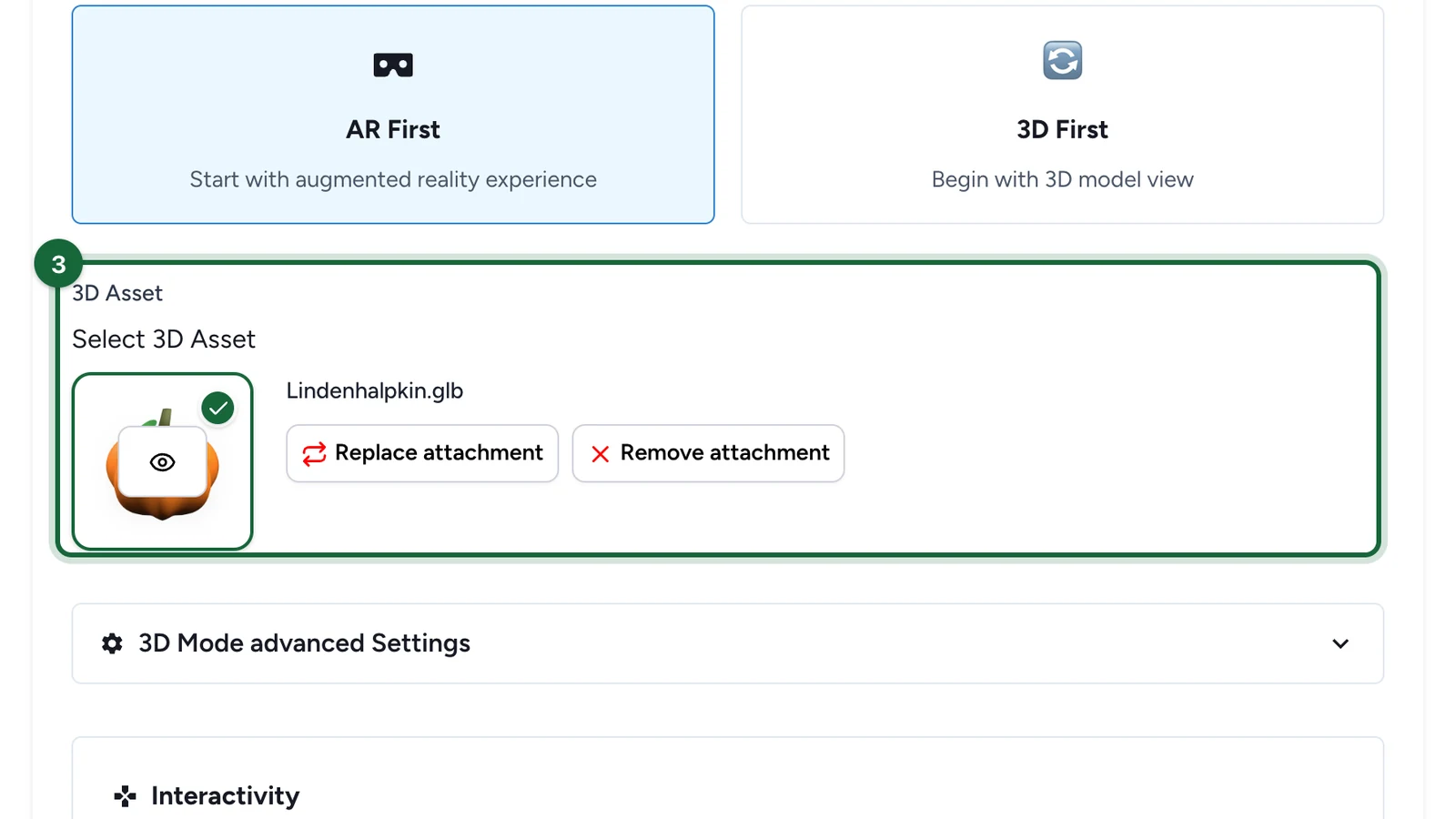
Attach the 3D model files

Select the object's model files and make sure both mobile formats are ready:

  • GLB is required for augmented reality to work.
  • USDZ is strongly recommended for iPhone and iPad.

If you are launching on both Android and iPhone or iPad, prepare both formats before final testing.

Configure the interaction

Choose the interaction that follows the AR view:

  • Direct when participants should collect the object immediately.
  • Multi Choice when they should answer from three choices.
  • Text Answer when they should type the expected answer.

The same interaction rules apply here as for 3D-first objects, so check the question setup before launch.

Test on real devices

Test the object on the actual phones you expect participants to use.

Check:

  • whether the AR button appears on supported phones
  • whether the object still opens as an on-screen 3D model on unsupported phones
  • whether the interaction works after the AR or on-screen view

What participants see

Phone stateWhat participants see
AR supported and files readyThe object opens with augmented reality available.
AR not supportedThe participant can still open the object as an on-screen 3D model, but the AR button is not shown.
Files incompleteThe object may fail validation or not be ready for launch.

If something's blocked

A few common reasons and how to fix them:

  • The object has no 3D model file — augmented reality cannot start without a model. Add the model file before testing or publishing.
  • The GLB file is missing — the GLB is required for augmented reality to work. Upload the GLB version of the object.
  • The USDZ file is missing — the USDZ gives a good AR experience on iPhone and iPad. Upload the USDZ version when you want to support Apple devices.
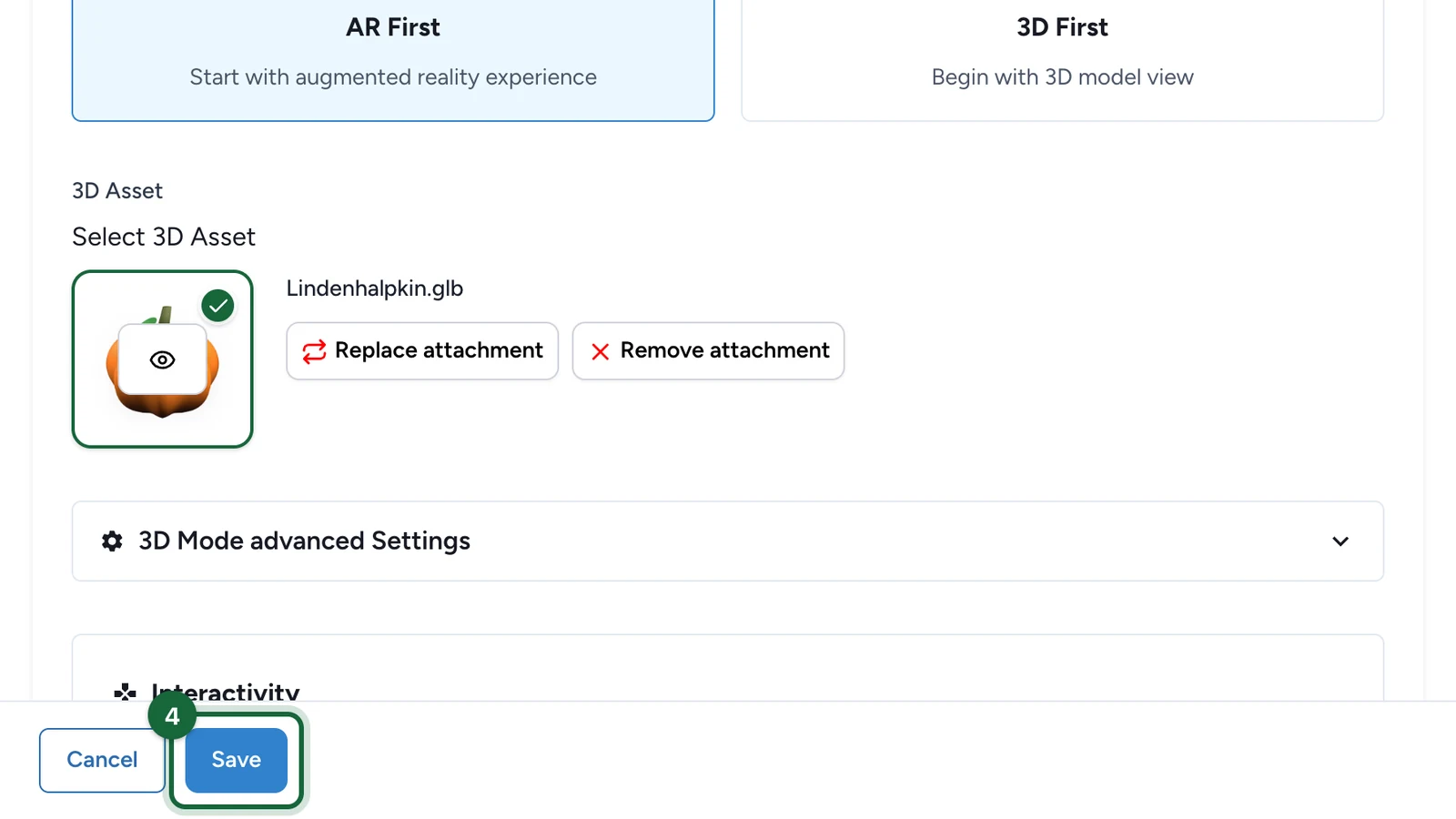
  • No interaction is set — the object does not know what happens after it opens. Choose Direct, Multi Choice, or Text Answer in the Interactivity section.

Was this helpful?

Optional comments help us improve this page for future authors and readers.

On this page