Configure hunt objects — 3D mode
Create a Treasure Hunt Object in 3D First mode, add its asset, and prepare it for collection.
In this article, you'll create a Treasure Hunt Object in 3D First mode, fill the core object details, and prepare the object for participant interaction.
Prerequisites
- The parent Treasure Hunt already exists.
- You have a 3D asset ready for this object.
- You know the physical location and the participant hint you want to use.
When to use 3D First
3D First is the safest starting point when you want the object to open directly in the in-page 3D viewer without depending on device AR support first.
It works especially well when:
- the object should be easy to preview on most devices
- you are still validating the model and interaction flow
- the physical route matters more than AR placement in the camera view
Configure the object
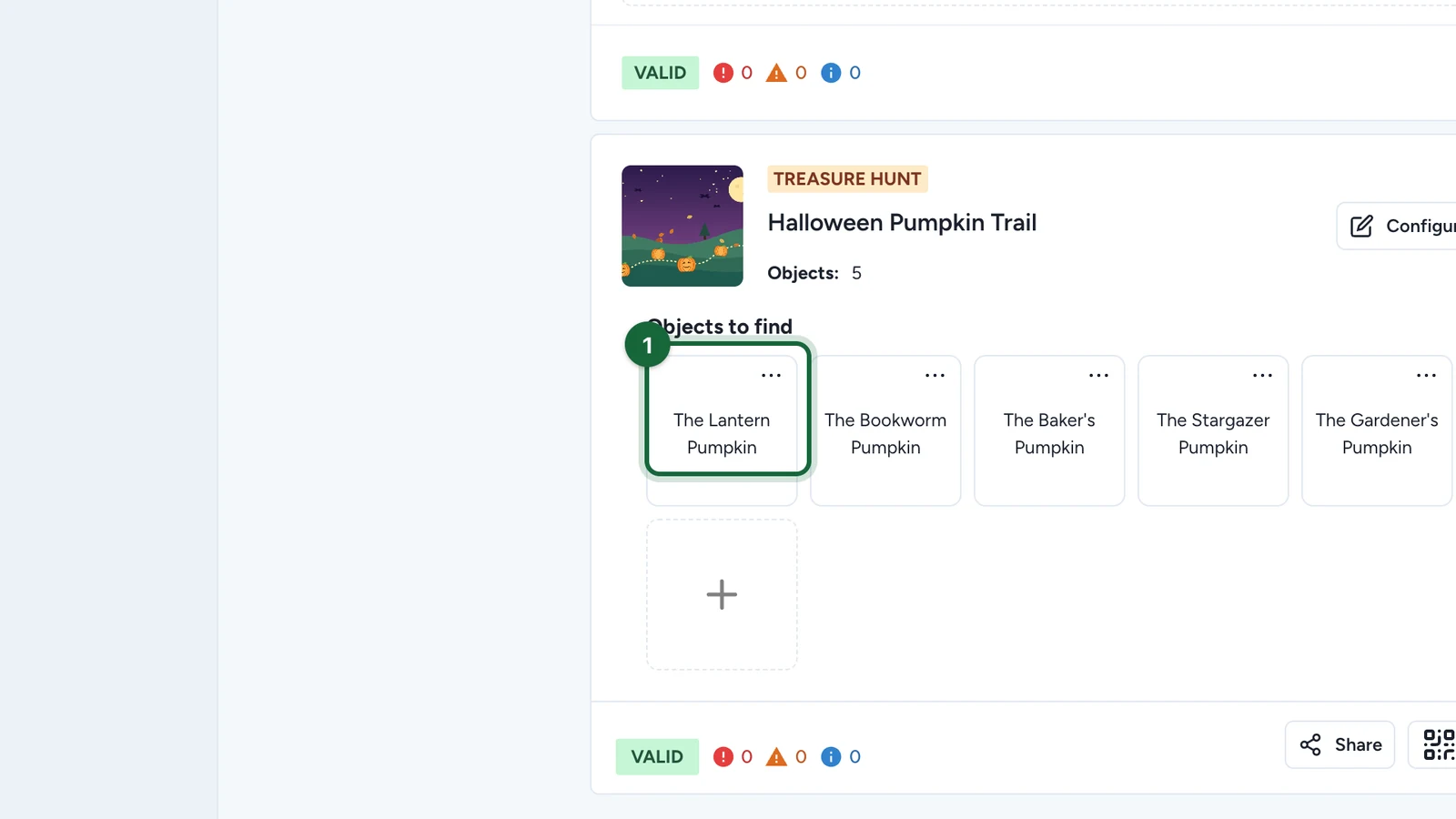
Open Objects to find
Open the parent hunt, then go to Objects to find.
Create a new object or open an existing draft object to continue editing it.
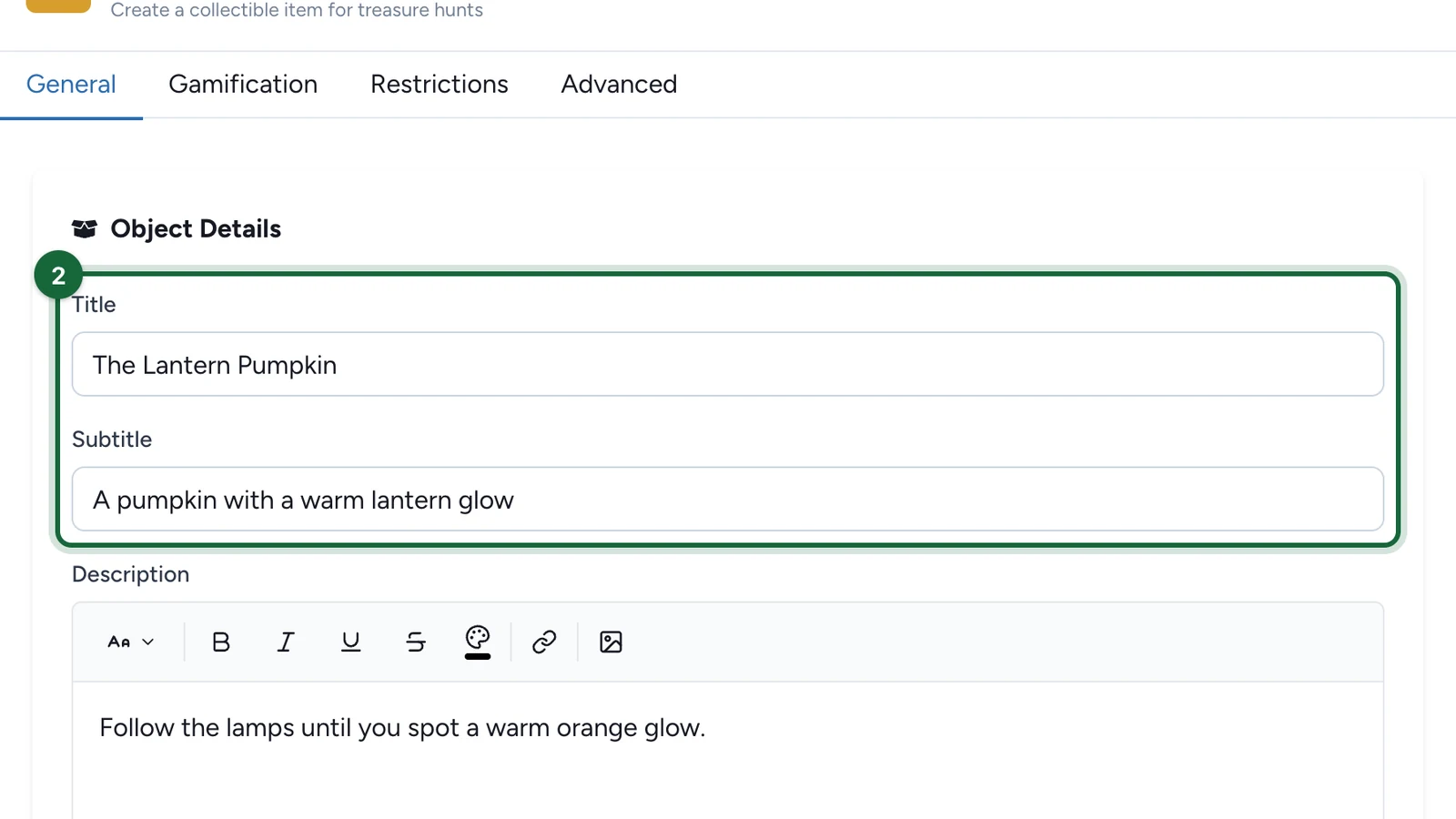
Fill the object details
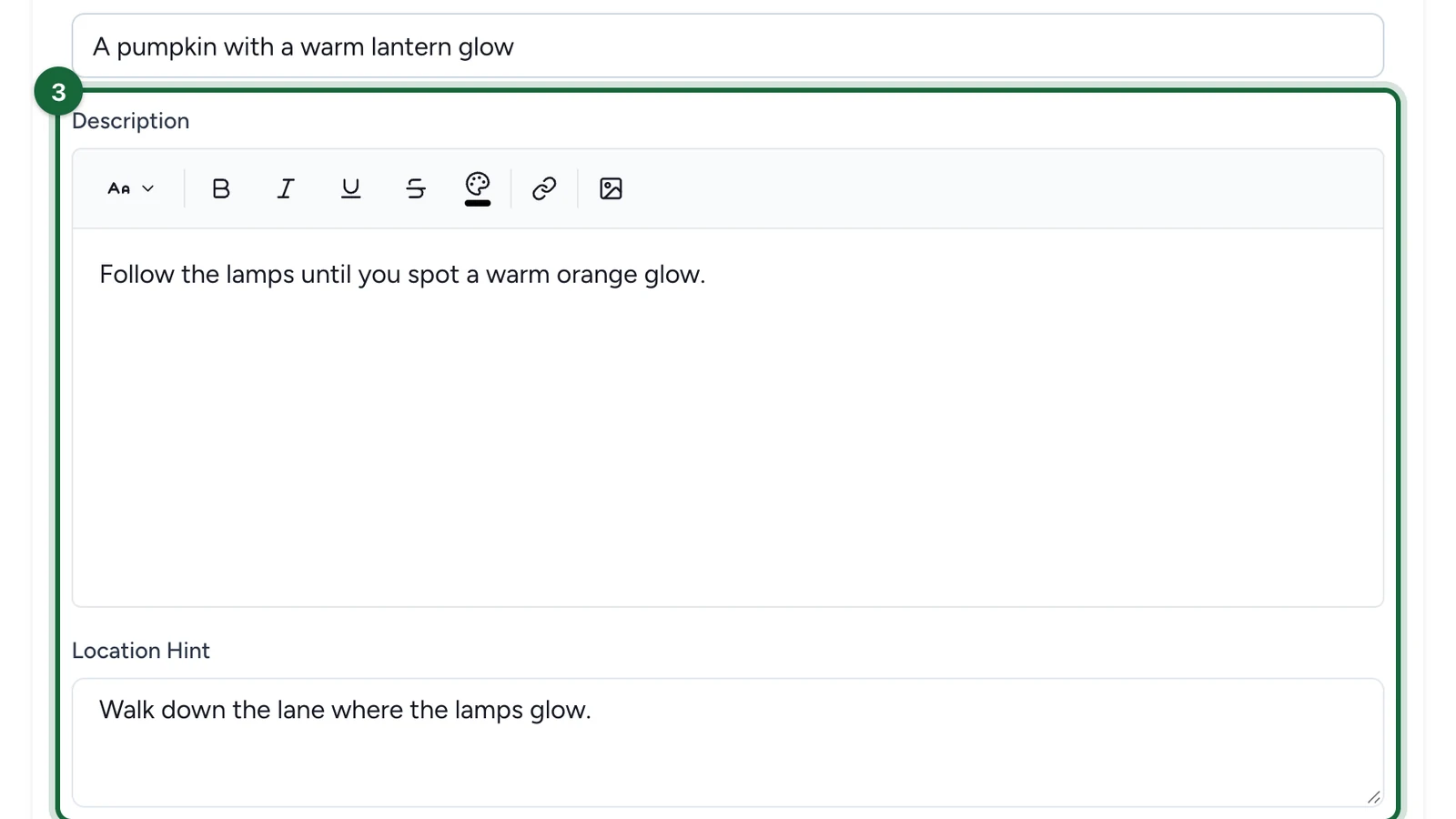
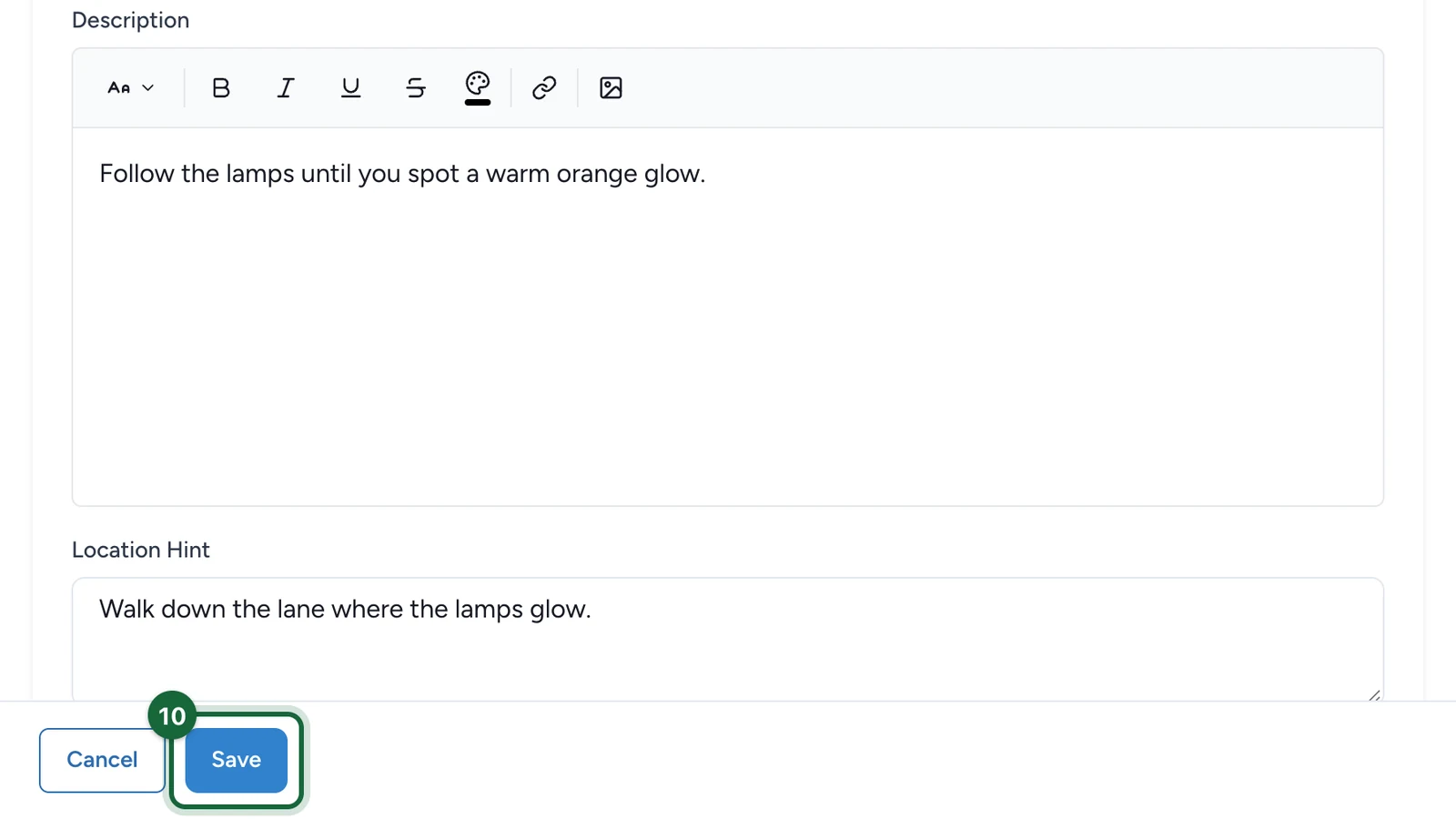
Add the participant-facing information for the object:
TitleSubtitleDescriptionLocation Hint
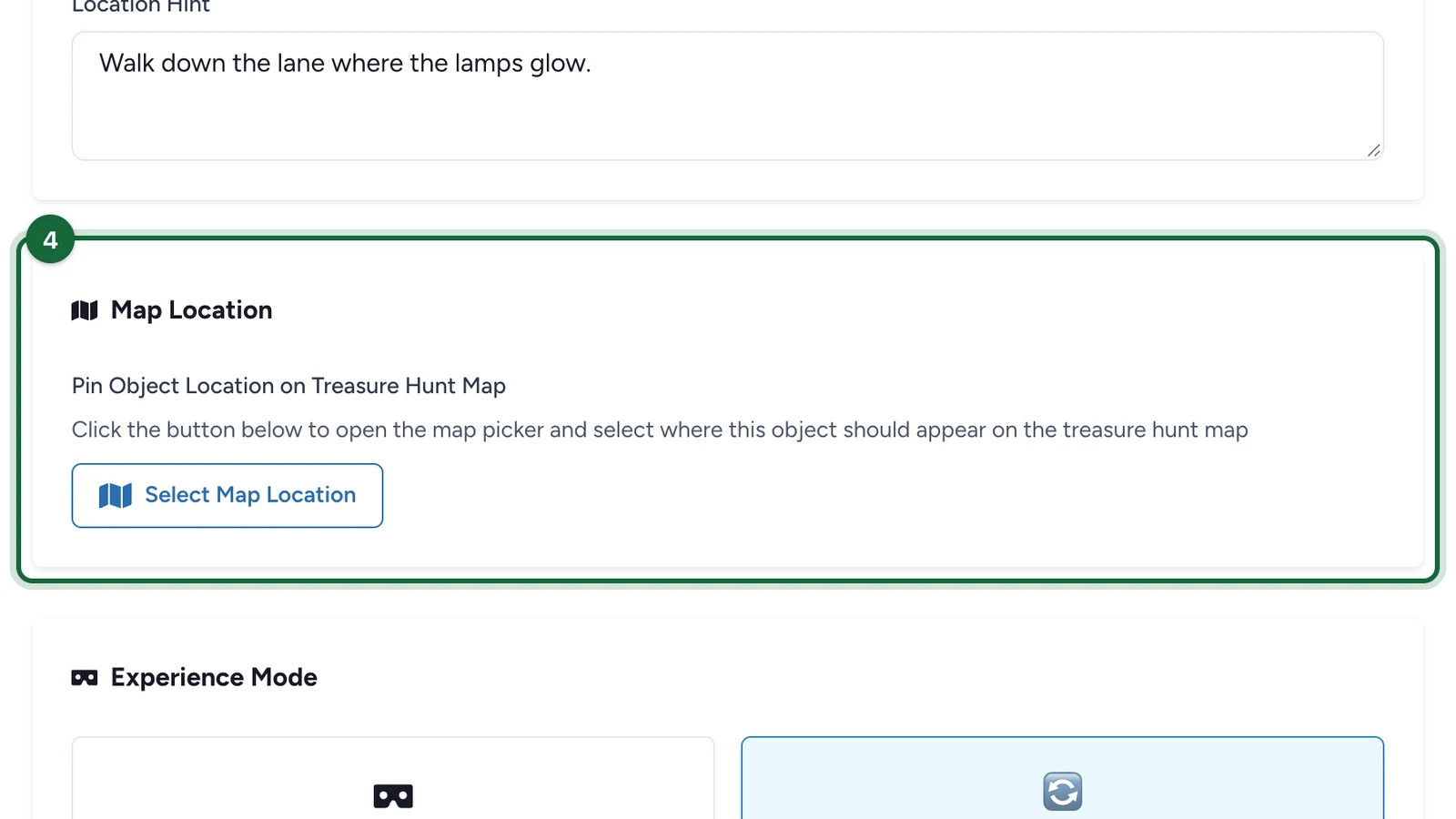
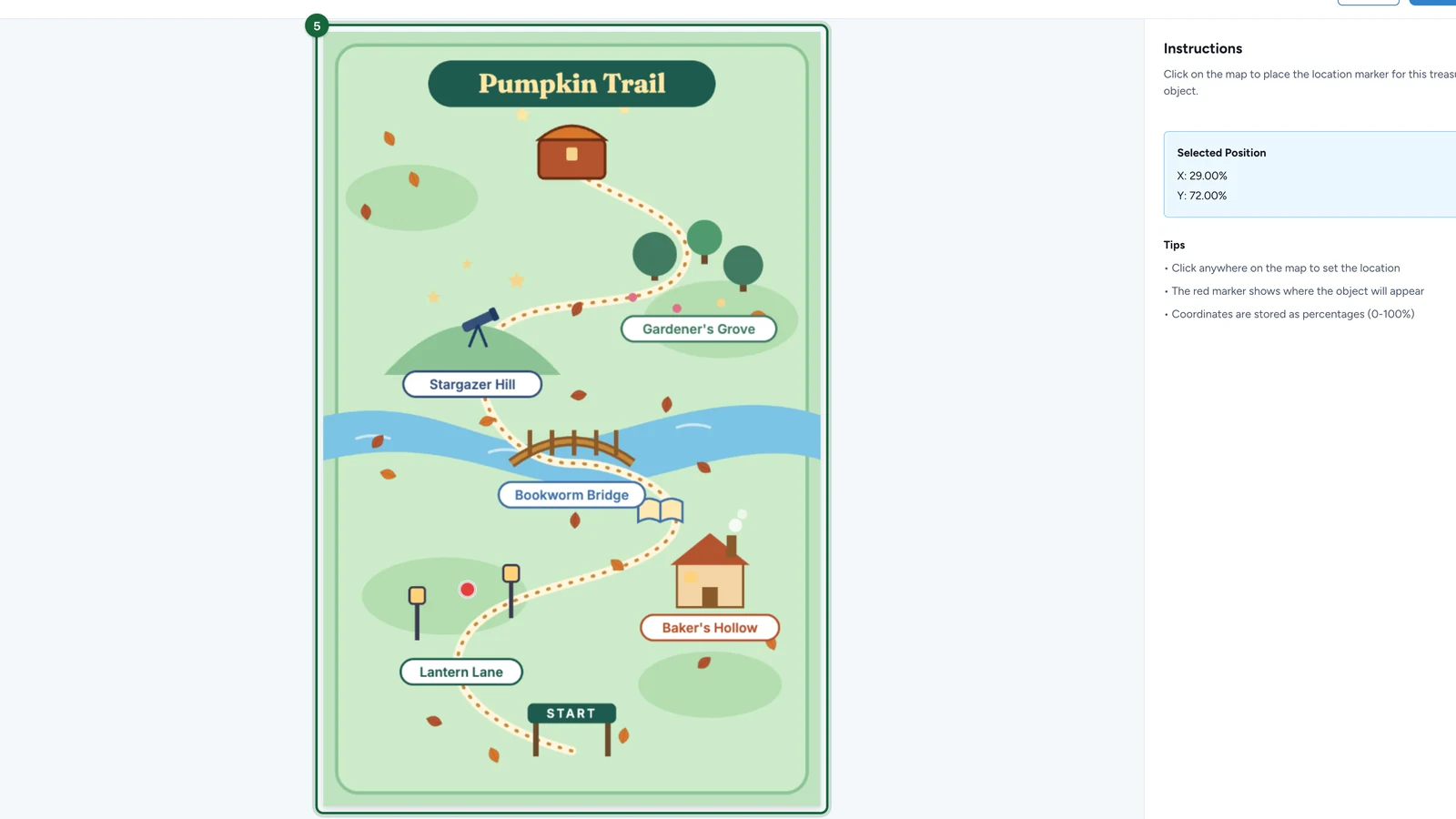
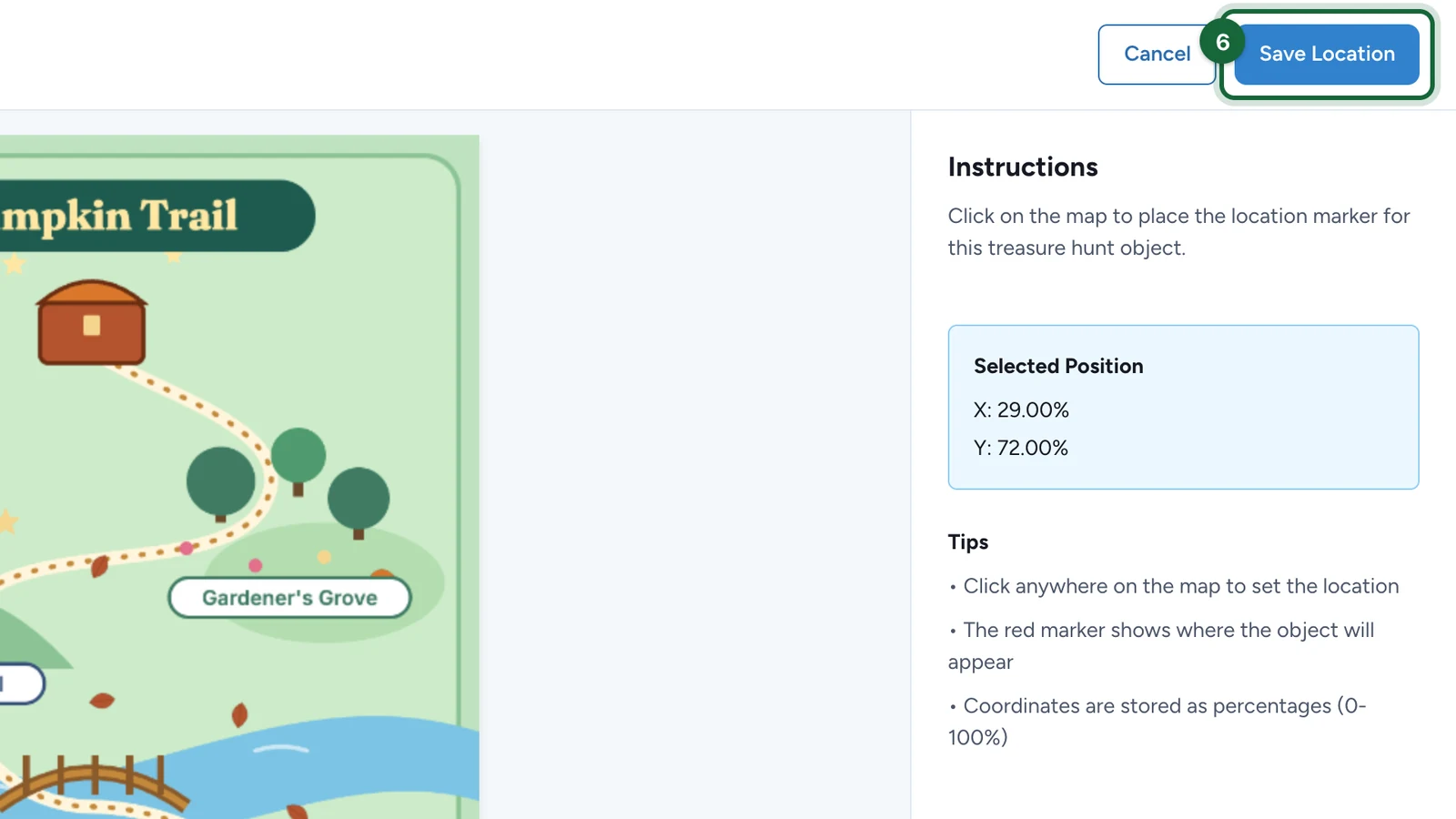
If the hunt uses a map, also set the object's map location so the marker matches its real position in the venue.
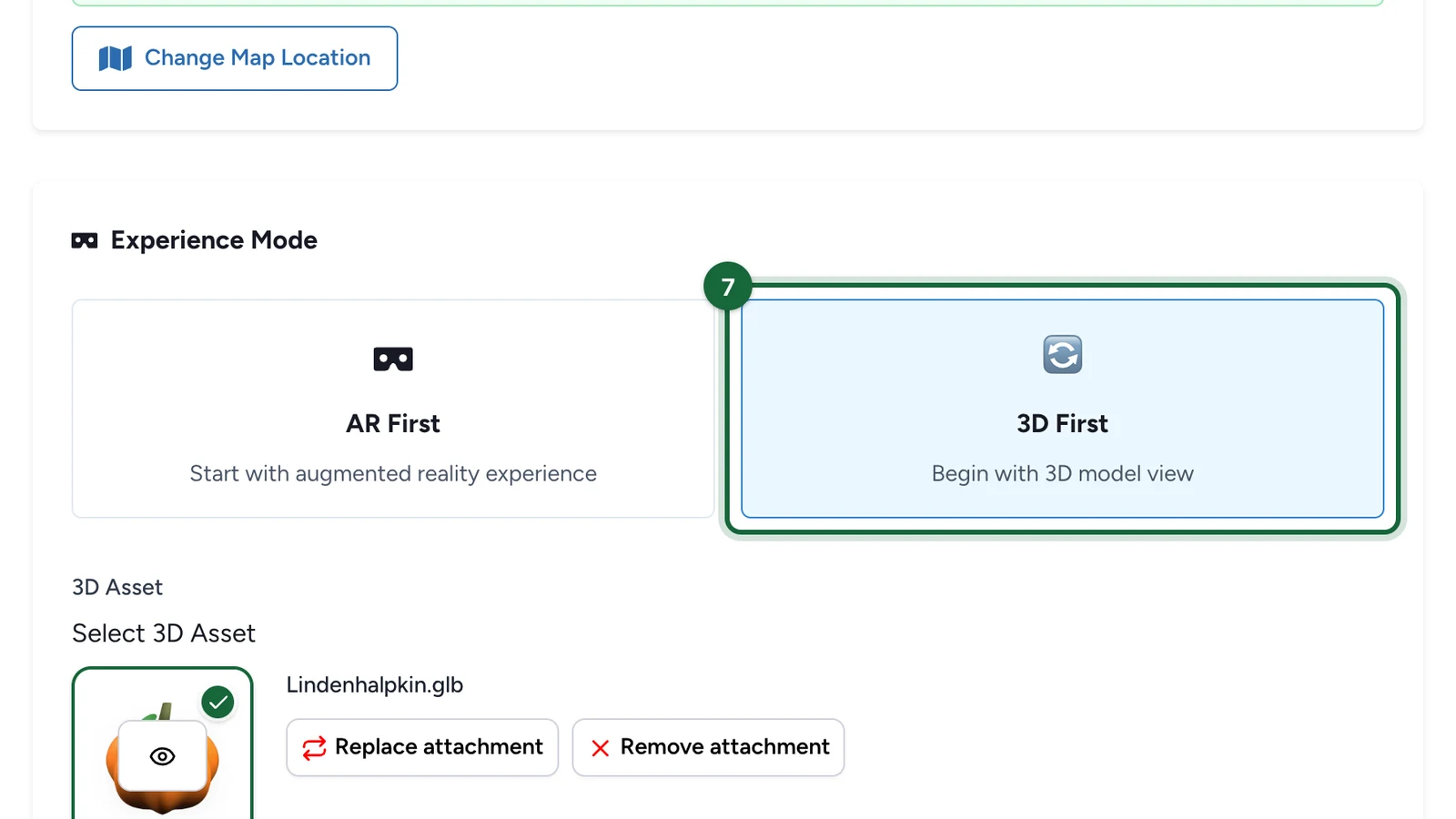
Set Experience Mode to 3D First
Choose 3D First when you want the object to open in the viewer before any AR handoff.
This is the main choice that tells OmniLab how the object should be presented when participants open it.
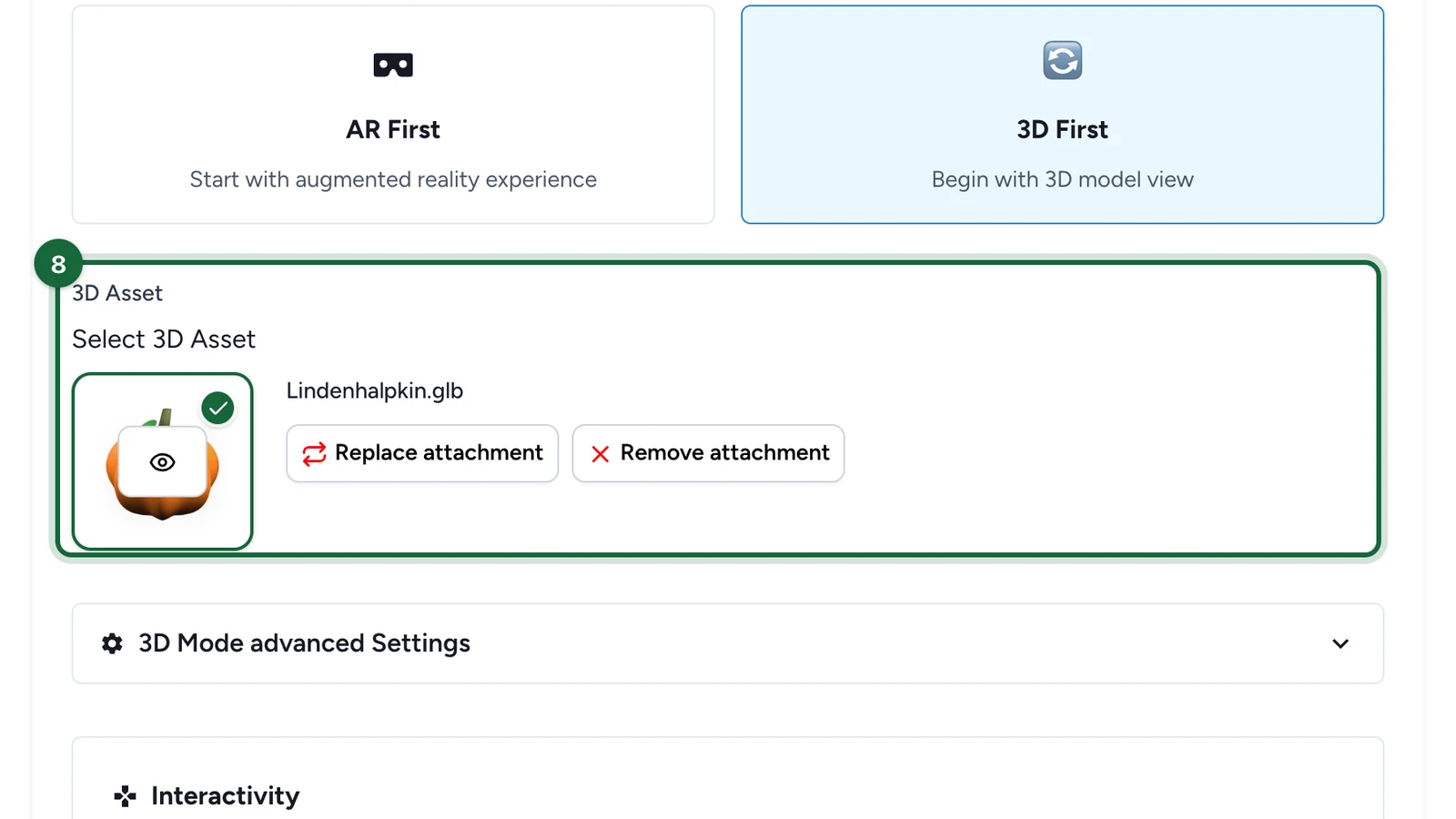
Select the 3D asset
Add the object's 3D asset in the asset field.
This asset is required. Without it, participants have nothing to view when the object opens.
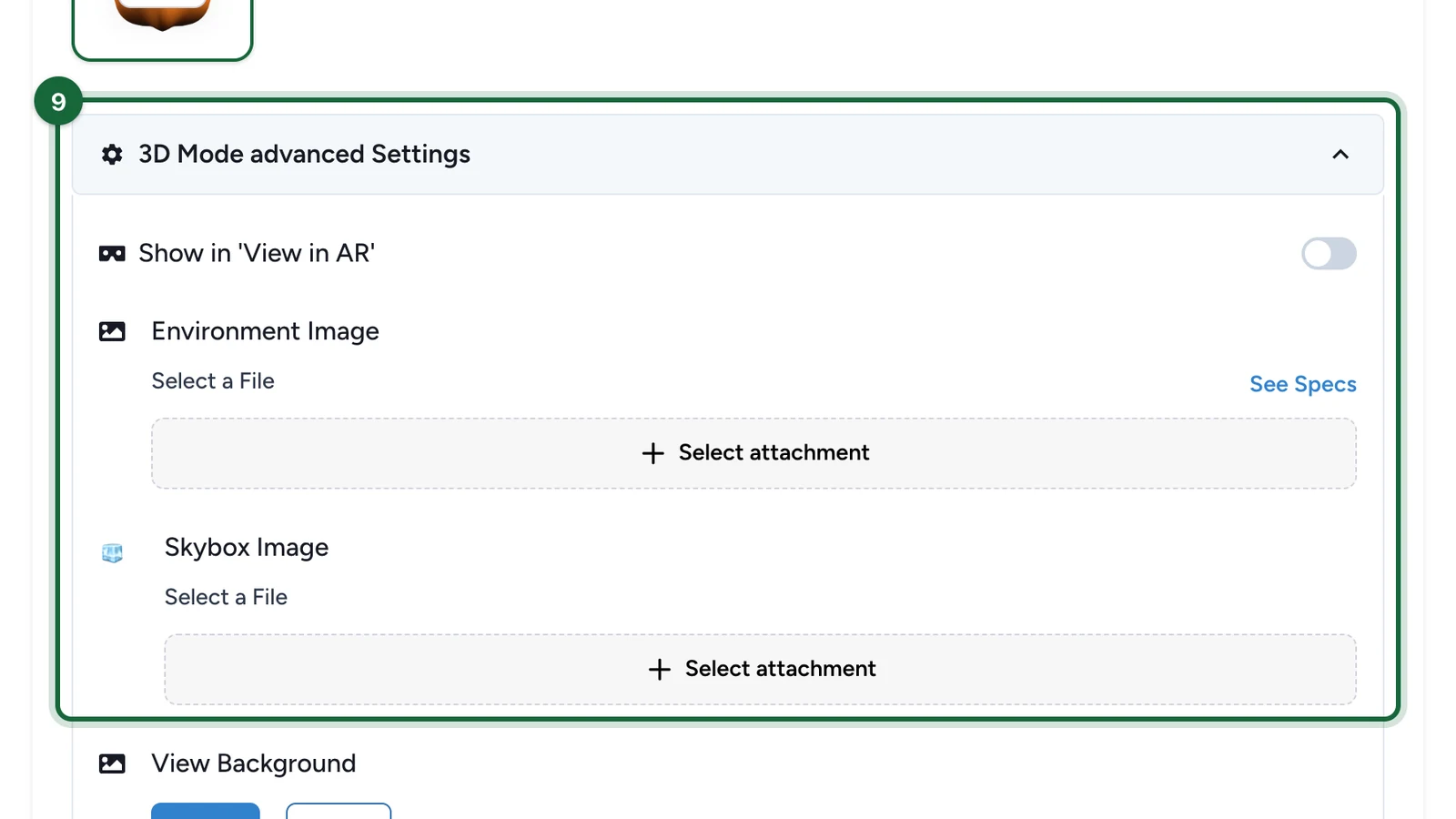
Review the optional 3D settings
If your experience needs more visual context, review the optional advanced 3D settings for the object.
Typical optional additions include environment or skybox settings. Only use them after the base object and asset already work in preview.
Add the interaction and save
Choose the interaction model that fits the object:
Directif participants should collect the object immediatelyMulti Choiceif they should answer from three choicesText Answerif they should type the expected answer
Save the object, then test it from a shared object link or preview route.
What a good 3D object includes
Before you move on, make sure each object has:
- a clear title and subtitle
- a location hint that helps without giving everything away
- a working 3D asset
- an interaction that matches the intended difficulty
For example, a family hunt might use a short visual clue such as Look near the giant yellow display with a simple Direct collect flow, while a branded story hunt might use a richer clue and a question.
Common validation issues
| Validation message | What it means | Fix |
|---|---|---|
Treasure hunt object is missing a title | The object has no participant-facing title. | Add the title in the object's appearance settings. |
Treasure hunt object '{{treasure_hunt_object_name}}' is missing a subtitle | The object needs supporting copy. | Add the subtitle in the object's appearance settings. |
Treasure hunt object '{{treasure_hunt_object_name}}' is missing a visualization mode | No experience mode is selected. | Choose the object's experience mode. |
Treasure hunt object '{{treasure_hunt_object_name}}' has an invalid visualization mode: {{current_mode}} | The current visualization mode is not supported. | Change it to a supported mode. |
Treasure hunt object '{{treasure_hunt_object_name}}' in {{visualization_mode}} mode requires an asset | The object has no 3D asset attached. | Select the asset before you test or publish. |
Treasure hunt object '{{treasure_hunt_object_name}}' has a skybox image but no skybox height defined | A skybox was added without its scale value. | Enter a valid skybox height such as 100m, 50cm, or 1500mm. |
Treasure hunt object '{{treasure_hunt_object_name}}' has invalid skybox height format: '{{skybox_height}}' | The skybox height format is invalid. | Use a number followed by m, cm, or mm. |
Related
Configure hunt objects — AR mode
Switch to an AR-first experience when camera-based placement is part of the concept.
Asset management for hunts
Prepare the banner, 3D files, and optional map or skybox assets before launch.
Configure interactivity (questions and answers)
Apply the exact rules for Direct, Multi Choice, and Text Answer interactions.
Object placement — QR codes in the venue
Match the digital object setup to the physical route participants will follow.