Asset management for hunts
Prepare the banner, map and 3D models a hunt needs, and add the models to your library.
| File | Used by | Needed |
|---|---|---|
| Banner image | The hunt's General tab | Yes |
| Map | The hunt's Treasure Hunt Configuration | Optional |
| 3D model, GLB | Each object, in 3D and AR | Yes |
| 3D model, USDZ | Each object, for AR on iPhone and iPad | Recommended |
| Skybox or environment image | An object's 3D Mode advanced Settings | Optional |
Keep models low-poly and under about 5 MB, so objects open quickly on phones.
Check the sizes
Banner Image
RequiredThe header image for an activity, Receipt Game or treasure hunt.
- Required
- Size1200 × 800 px
- Aspect ratio3:2
- FormatsJPEG / WEBP / PNG
Map Image
OptionalA custom map players read to find hunt objects — it acts as a background layer, with the objects dropped on top.
- Optional
- Aspect ratioFree — vertical recommended
- FormatsJPEG / PNG / SVG / WEBP
Keep it clean and uncluttered so the objects read clearly. Any aspect ratio works, but a vertical (portrait) map fills phone screens best.
3D Model
RequiredThe 3D object for a catcher, 3D selection, or treasure hunt — chosen from your 3D library.
- Required
- FormatsGLB · USDZ
GLB powers 3D and Android AR; add USDZ for the best experience on iPhone and iPad. Keep models low-poly and under ~5 MB so they load fast on phones.
Skybox Image
OptionalThe 360° surround that wraps the scene in a 3D hunt object.
- Optional
- Aspect ratio2:1
- FormatsJPEG / PNG / HDR
An object can also be a 3D badge. See Design a 3D badge.
Add a 3D model to your library
-
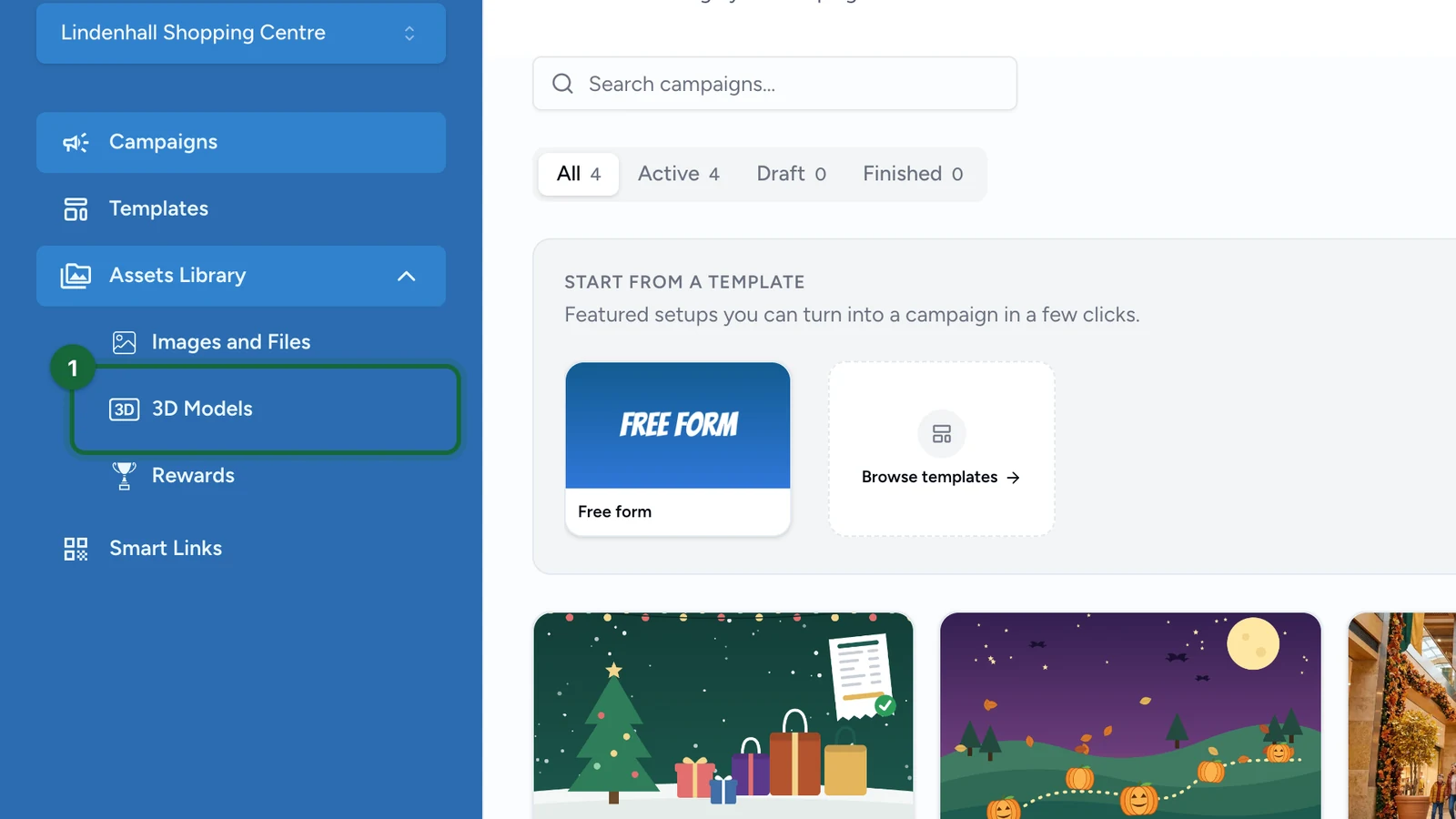
In Assets Library, select 3D Models.
-
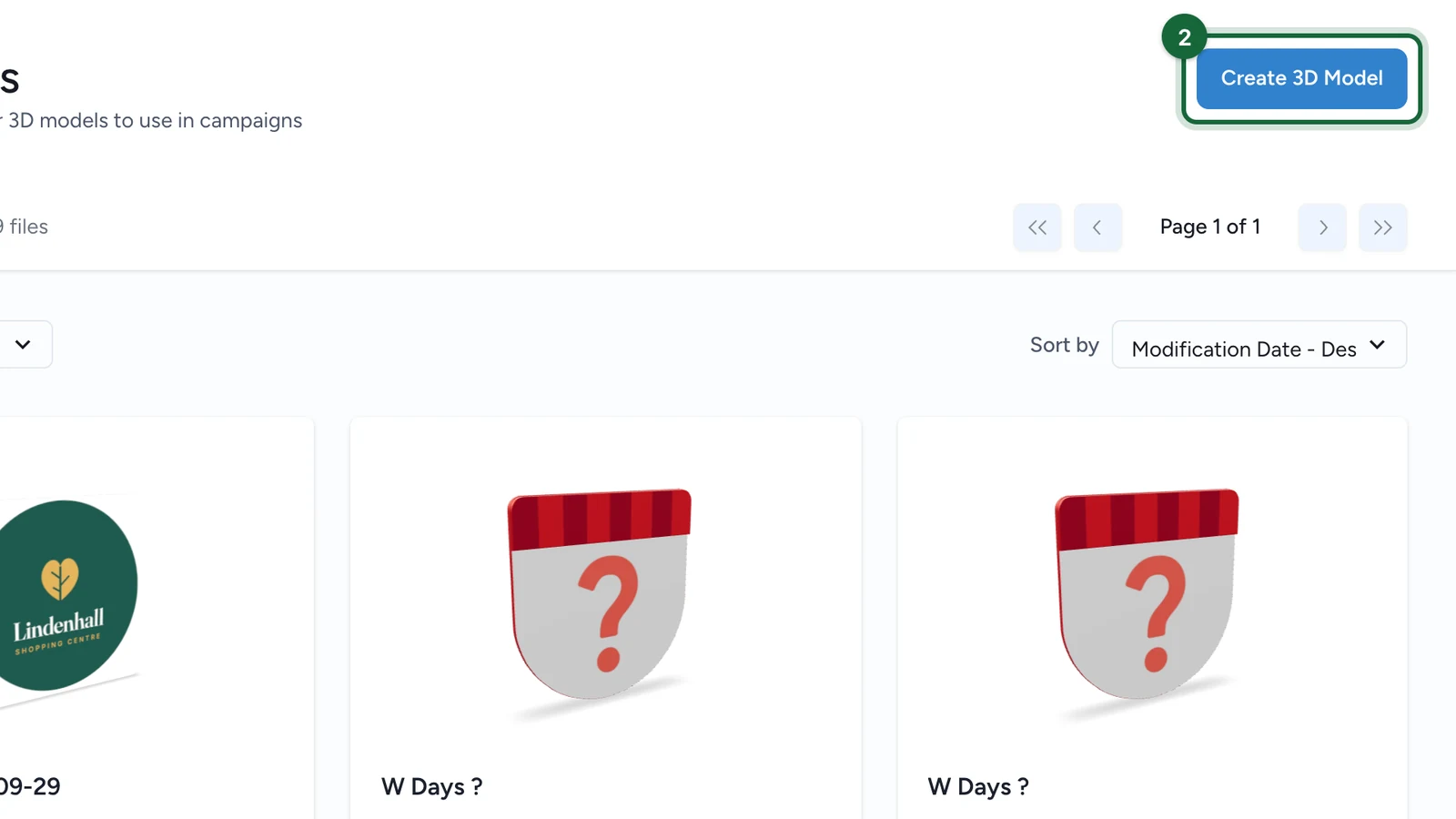
Select Create 3D Model.
-
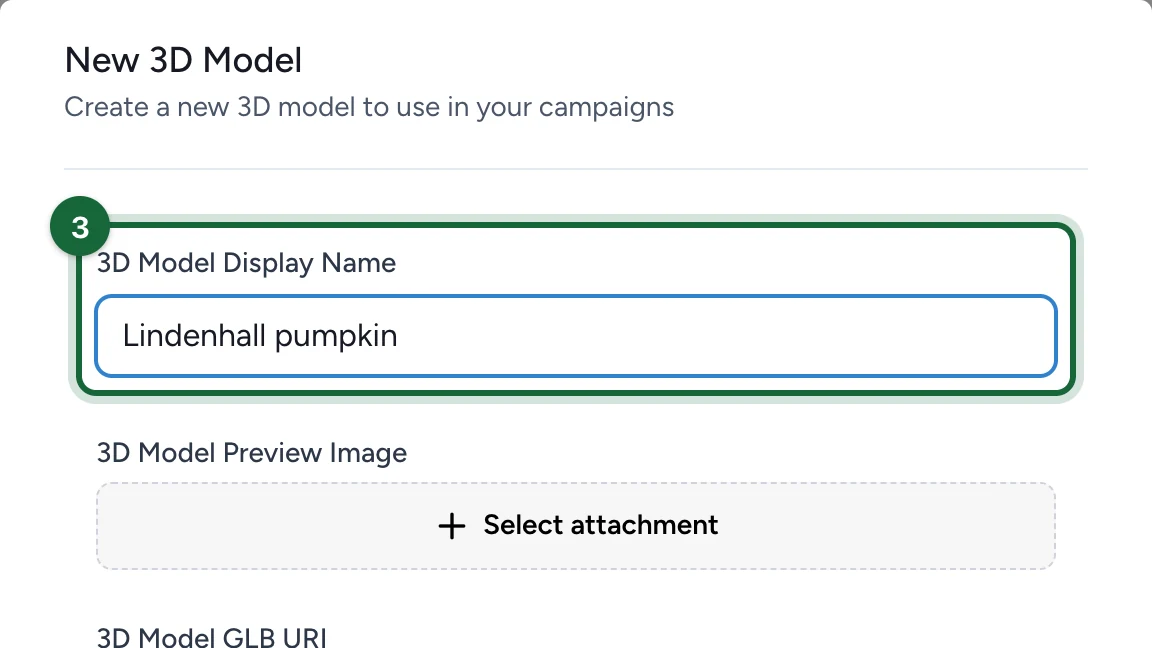
Enter the 3D Model Display Name.
-
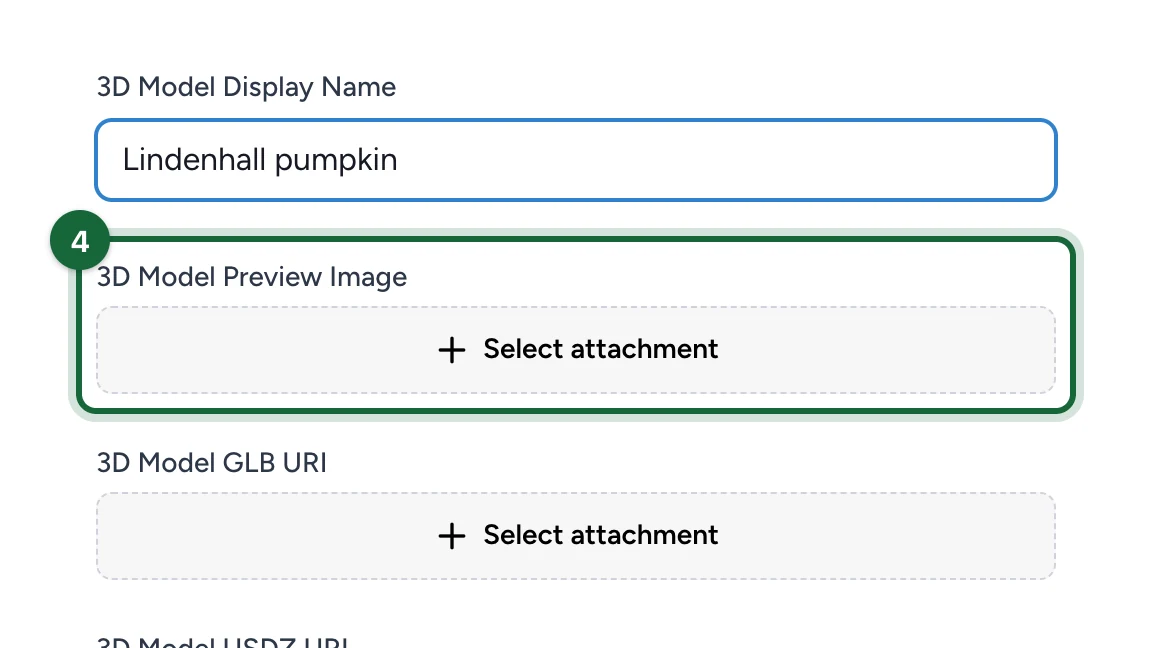
Under 3D Model Preview Image, select Select attachment and upload a picture of the model.
-
Under 3D Model GLB URI, upload the GLB file.
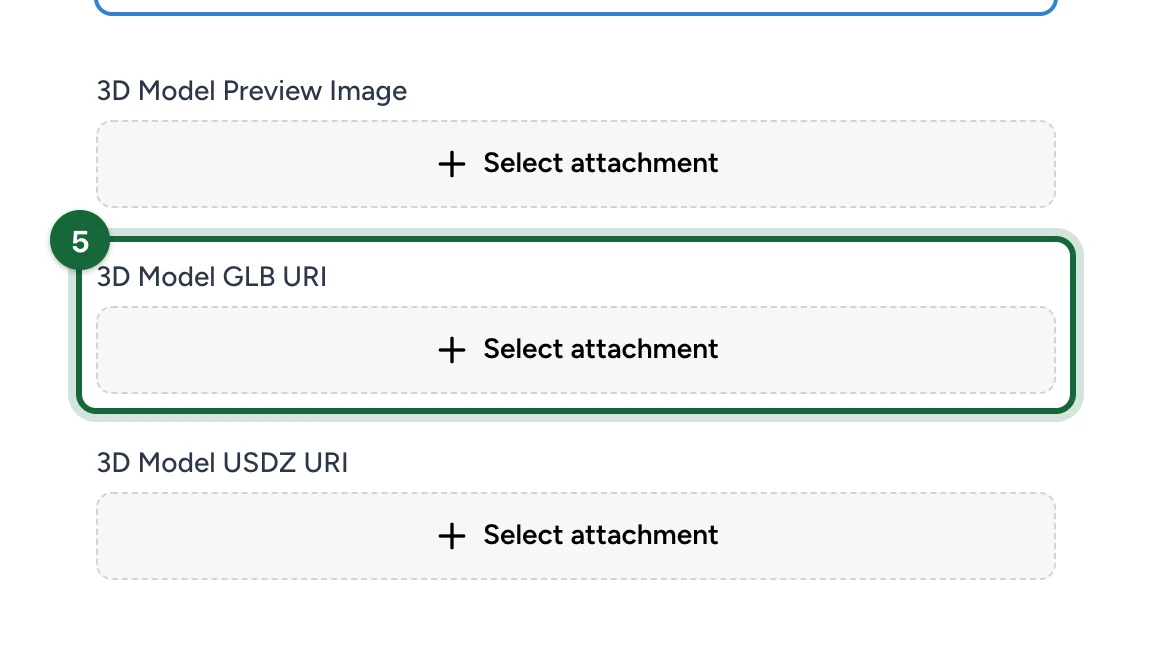
Every object needs it, in 3D and in AR.
-
Under 3D Model USDZ URI, upload the USDZ file.
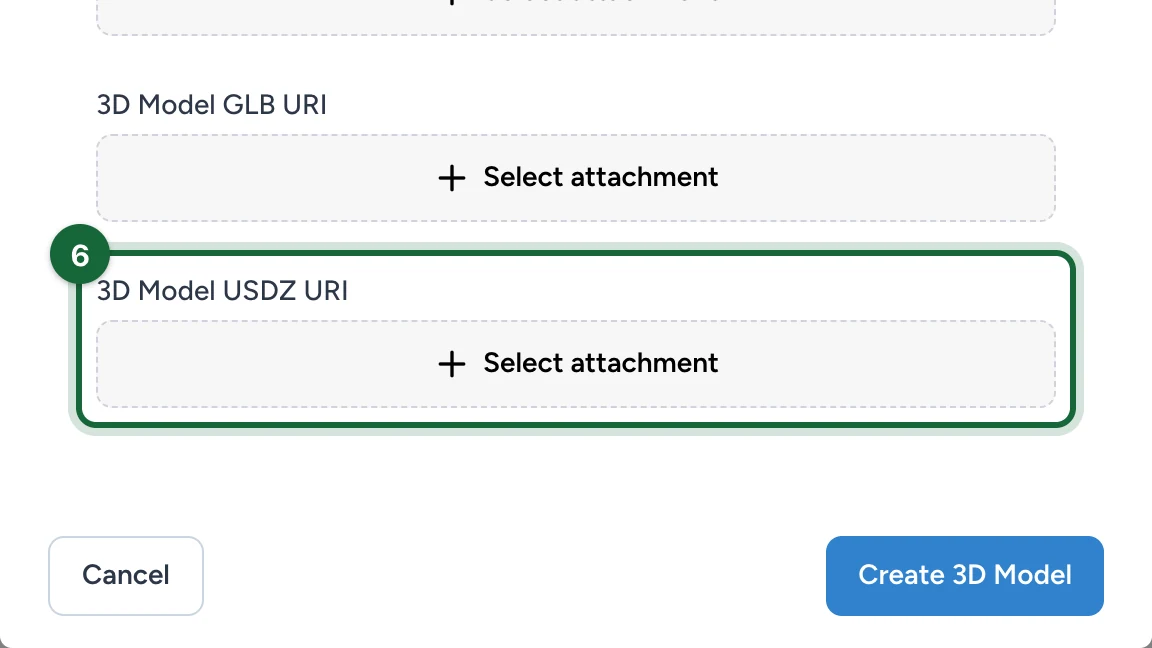
iPhone and iPad need it for AR.
-
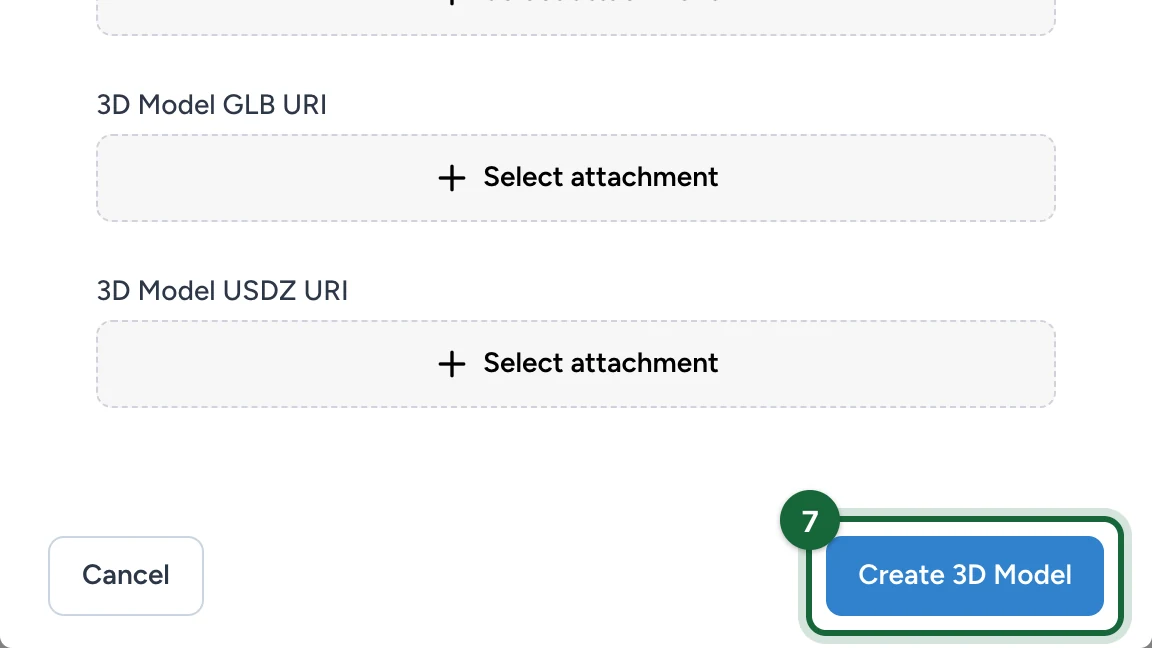
Select Create 3D Model. The model is now in every object's 3D Asset picker.
Before launch
- Open every object once from Preview on a phone.
- Test AR objects on an iPhone and an Android phone.