The customer activation platform.Every interaction becomes a qualified contact. Book a demo

Add a touchpoint to a campaign

Add a touchpoint from the campaign builder, choose the right campaign experience, and continue in the matching app guide.

In this article, you'll add a touchpoint to a campaign, choose the right campaign experience from the picker, and understand what to do next once the touchpoint opens.

Prerequisites

  • The campaign already exists in Studio.
  • You can edit the campaign.

Add the touchpoint

Open the touchpoints area

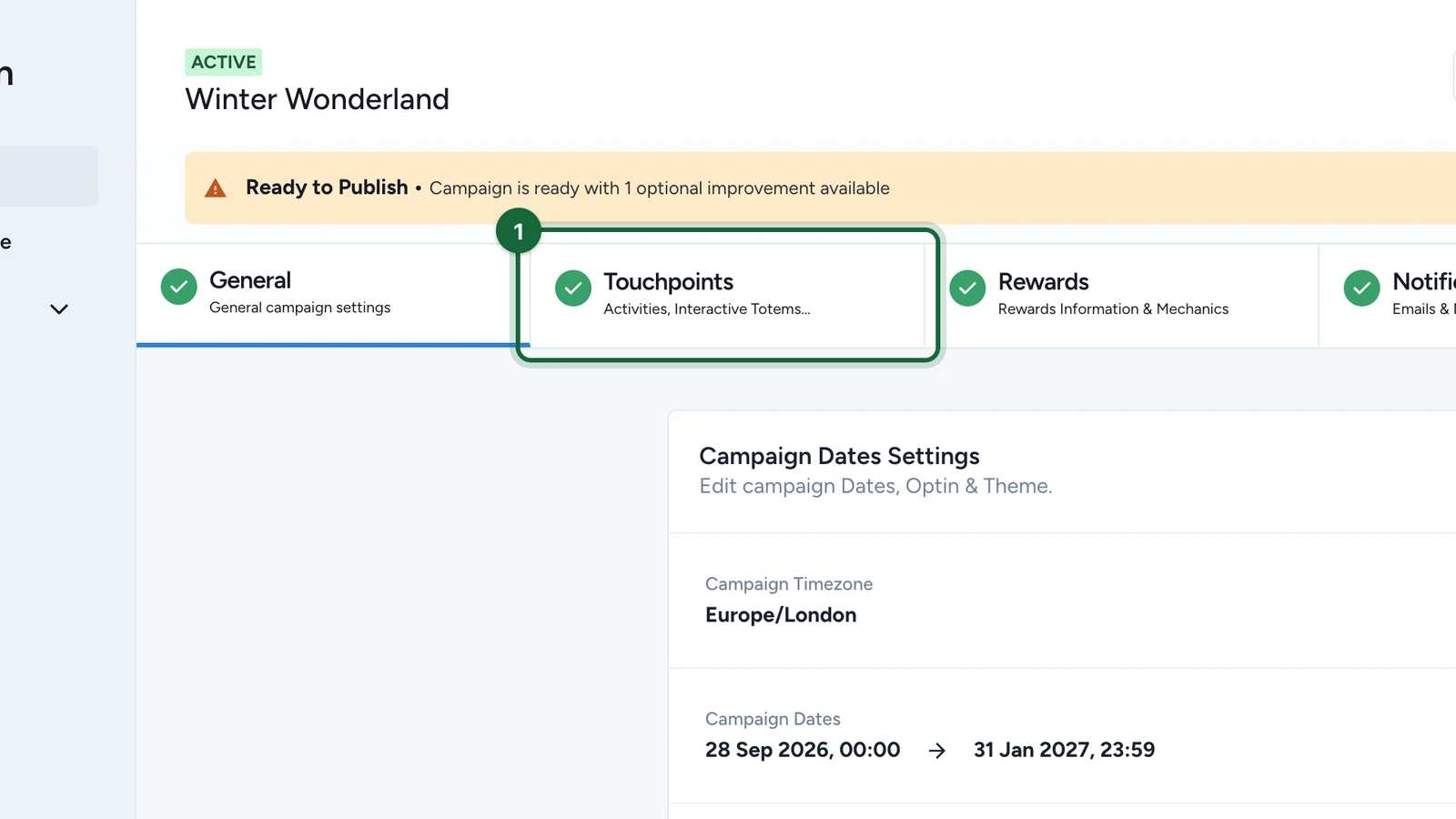
Open the campaign in Studio, then go to Build -> Touchpoints.

This is where you review the campaign's touchpoints, open their configuration, and manage their order.

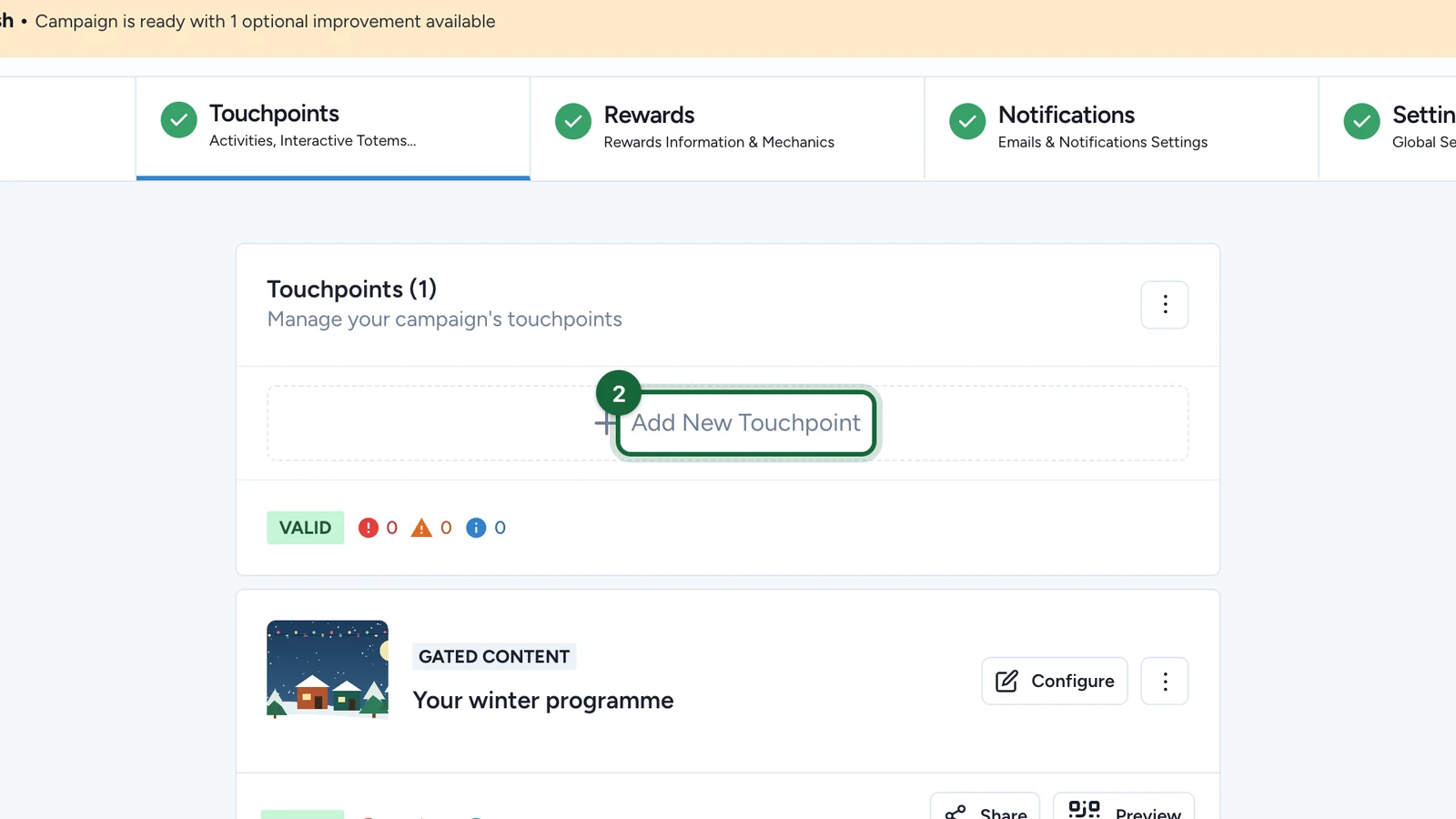
Click Add New Touchpoint

Use Add New Touchpoint to open the picker.

OmniLab creates touchpoints inside the current campaign, so you do not need to leave the campaign builder to start the flow.

Choose the right touchpoint

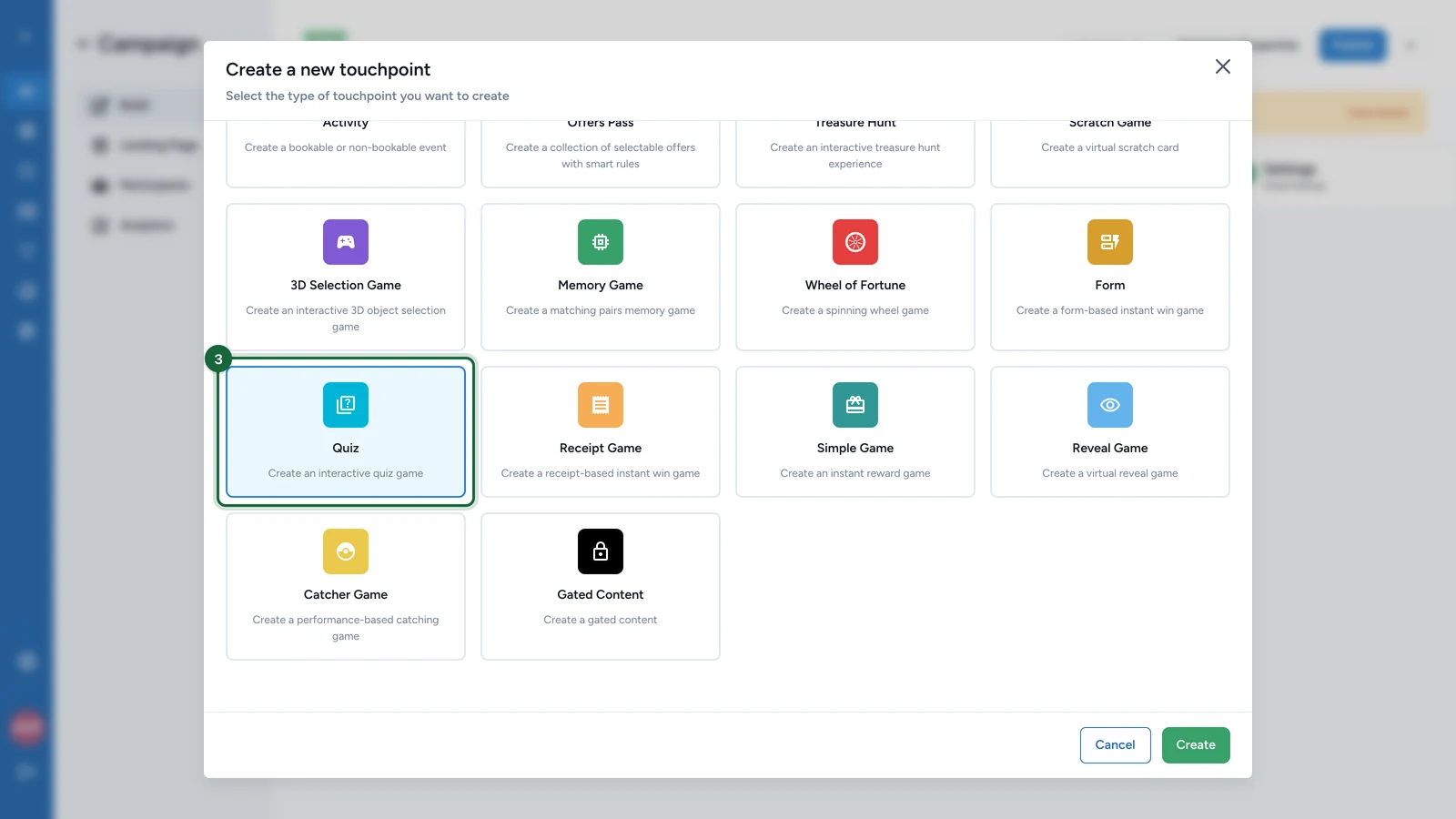
Pick the touchpoint that matches the participant experience you want to launch.

The current picker can show individual game formats directly, such as Wheel of Fortune, Scratch Game, Memory Game, Quiz, Form, 3D Selection Game, Reveal Game, Catcher Game, and Simple Game, alongside other campaign experiences such as Activity, Treasure Hunt, Offer Pass, and Receipt Game.

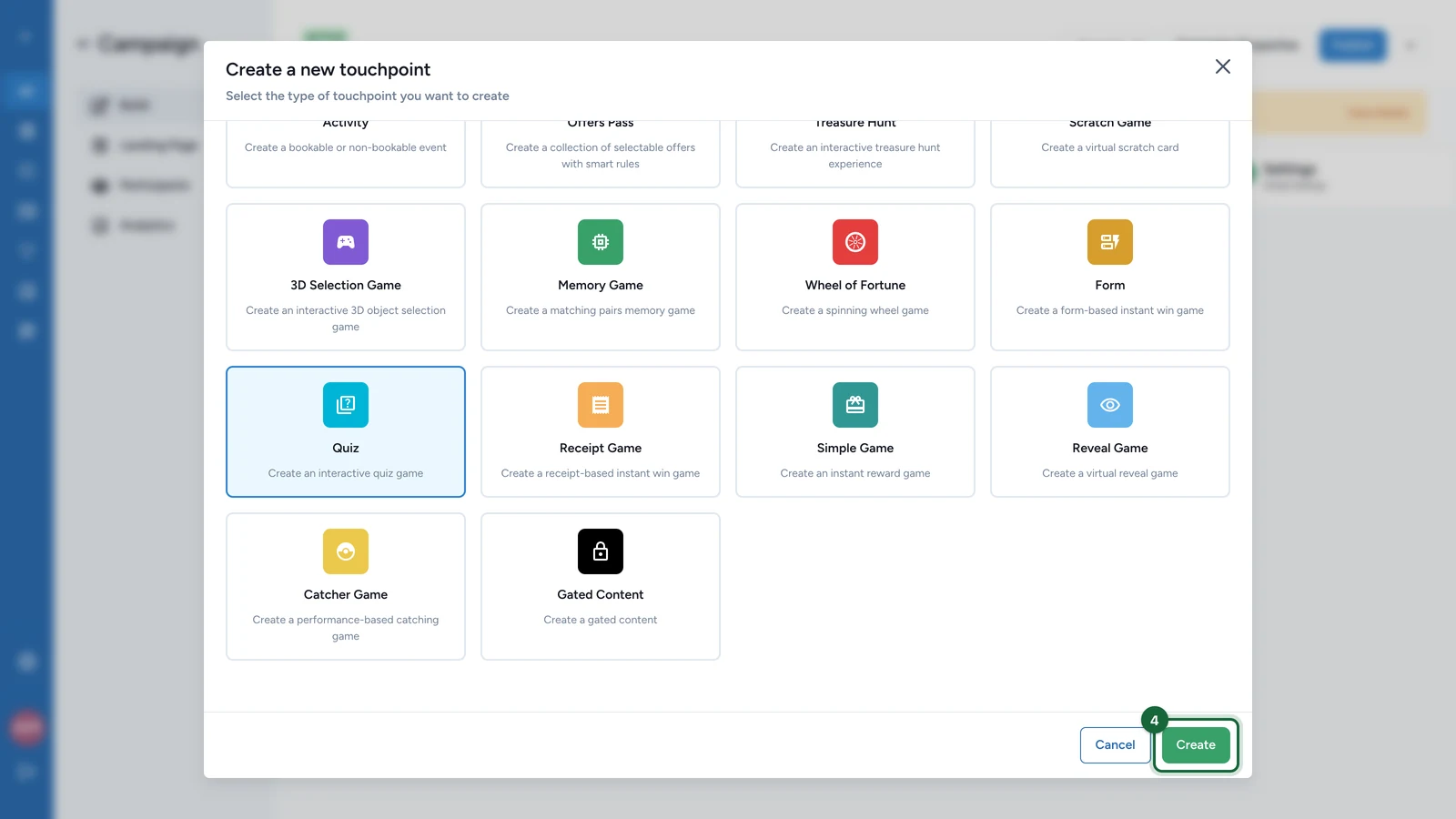
Click Create

Click Create to add the touchpoint to the campaign.

The touchpoint opens immediately in its own configuration view so you can continue with the detailed setup.

Continue in the matching app guide

Finish the detailed configuration in the right app section:

  • Games for online games, Offer Pass, Offers, and related game-side experiences
  • Events for activities
  • Treasure Hunts for treasure hunts and treasure hunt objects
  • Transactions for receipt games

What the picker does and does not show

The top-level picker is for the main touchpoints participants enter from a campaign. Child items are usually managed from their parent workflow:

  • Offer items live inside an Offer Pass
  • Treasure Hunt Object items live inside a Treasure Hunt

That is why some campaign items are configured from inside a parent experience rather than created as standalone top-level touchpoints.

Disabled is useful for staging

Use Disable Touchpoint when you want to keep a touchpoint in the campaign but hide it from participants while testing, scheduling, or preparing a later phase of the experience.

Manage the touchpoint list

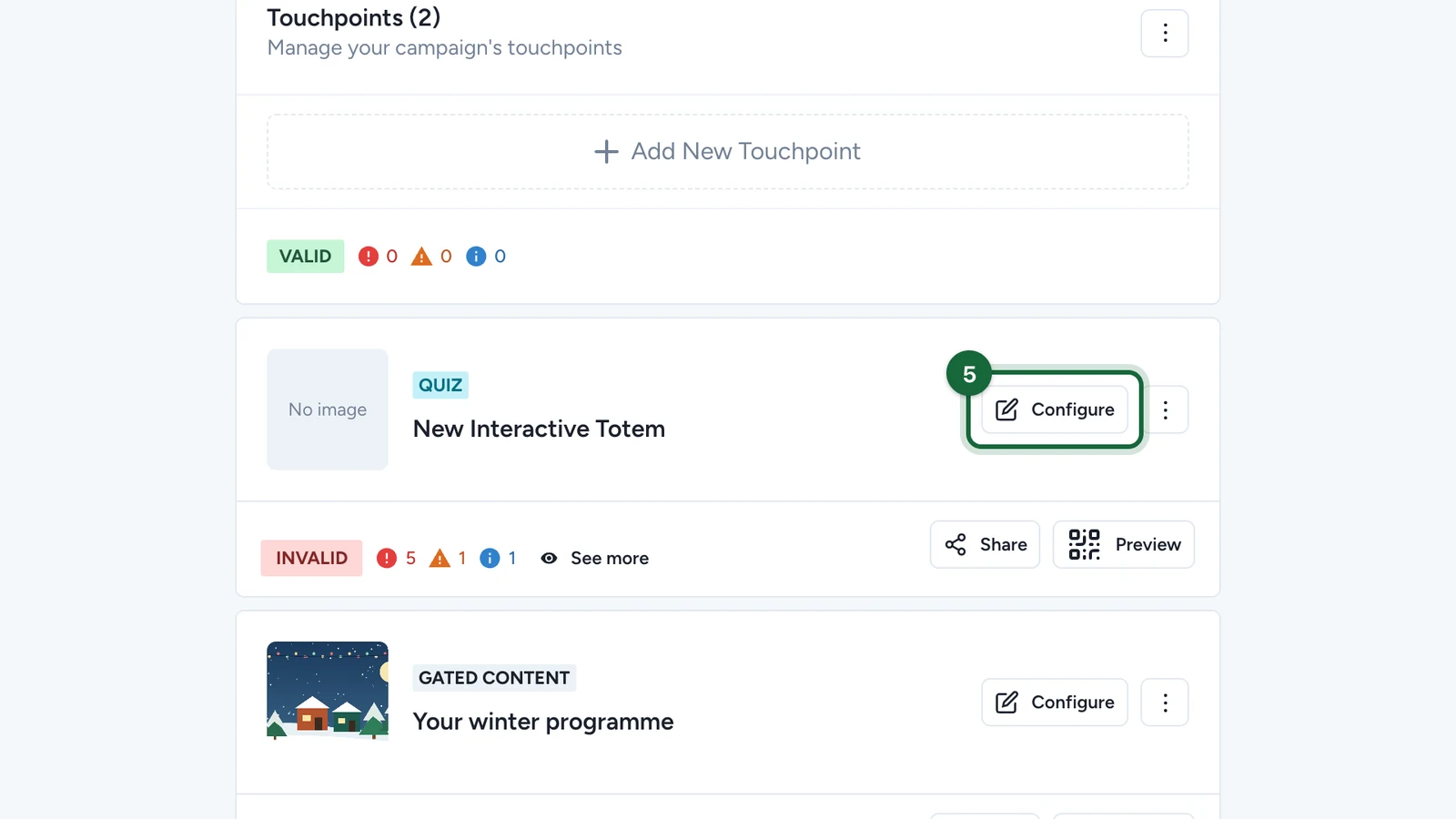
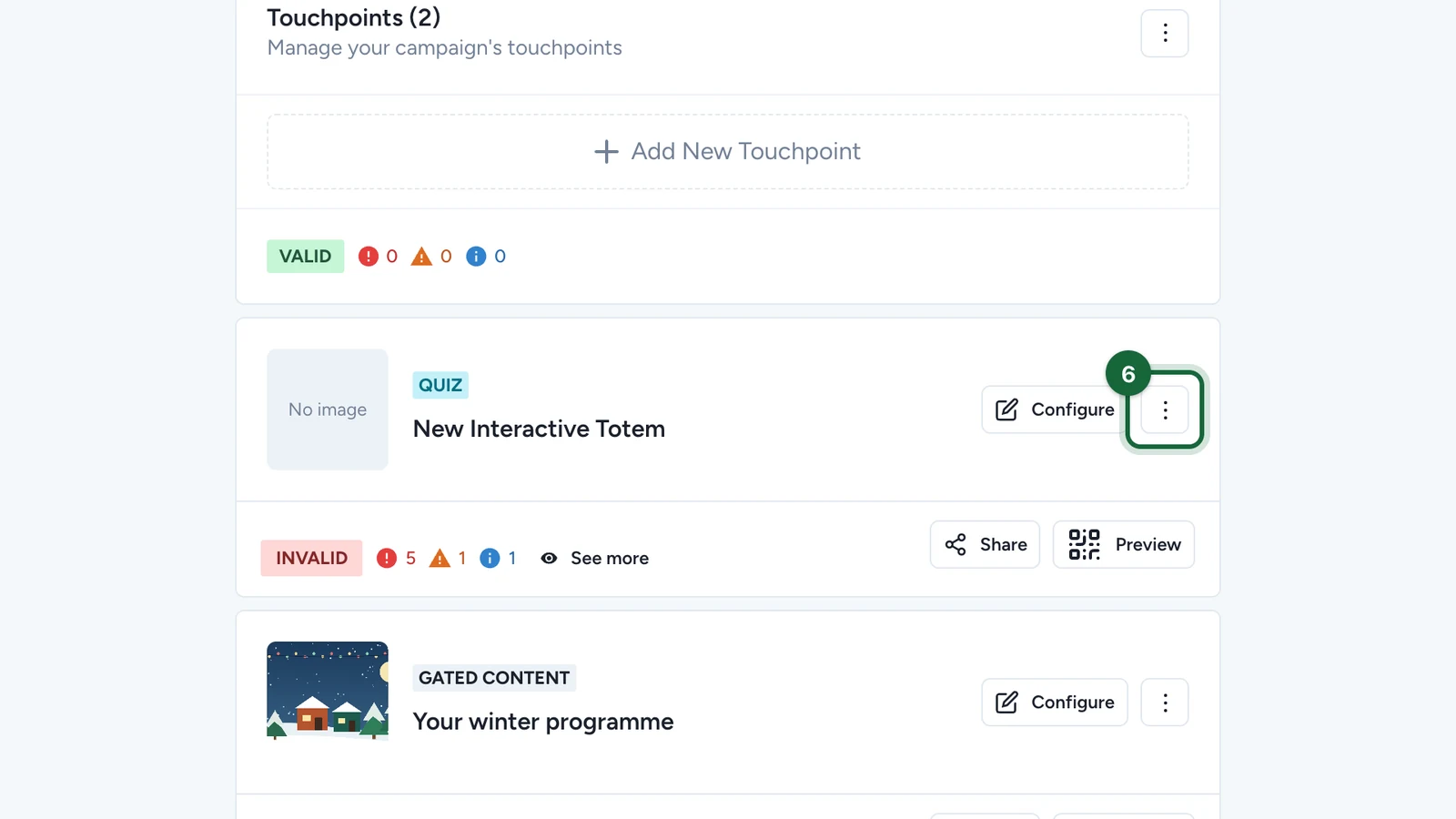
From the touchpoint list, you can:

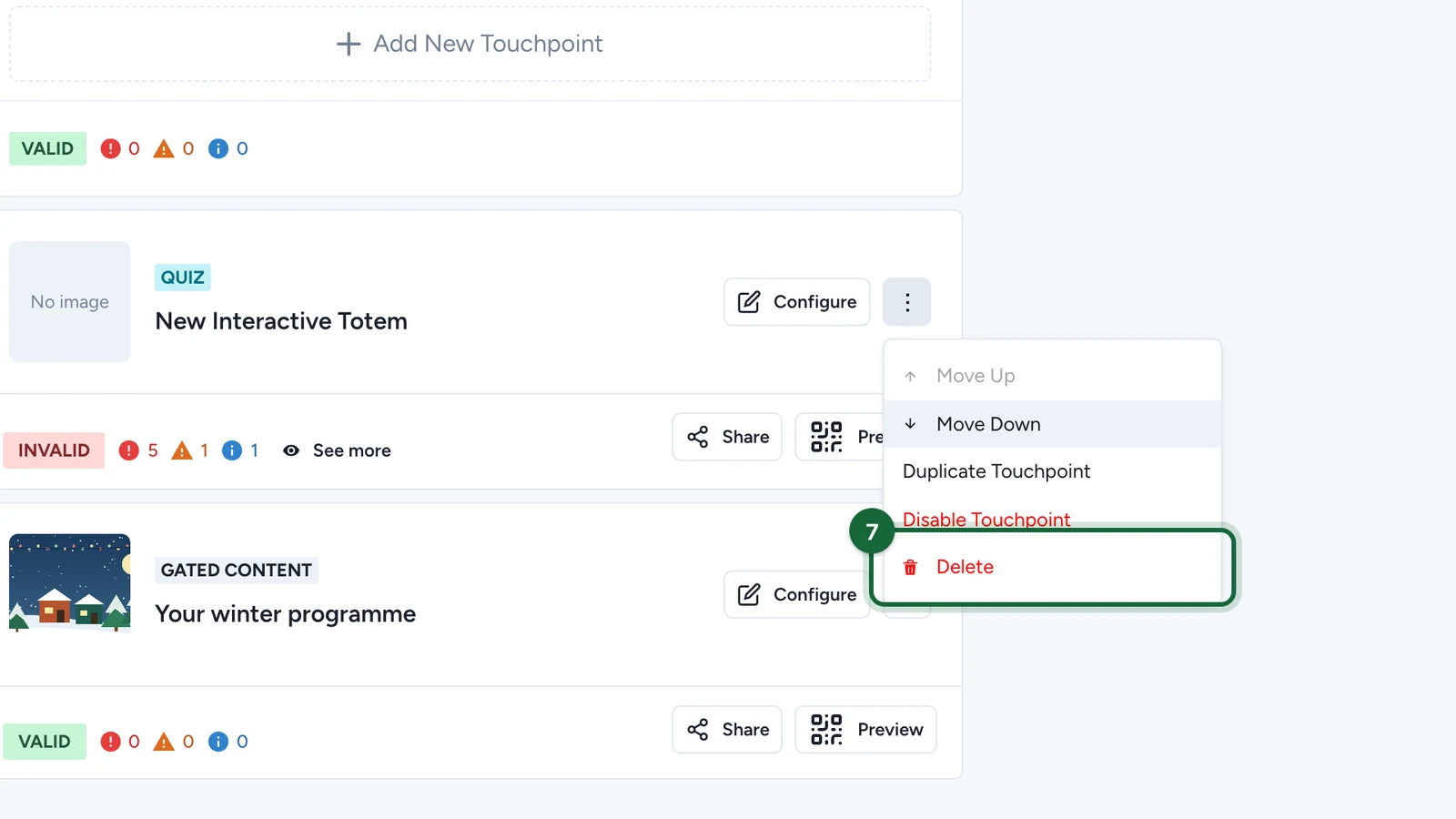
  • move a touchpoint up or down to change campaign order
  • use Duplicate Touchpoint to clone a similar setup
  • use Disable Touchpoint or Enable Touchpoint to control availability without deleting it
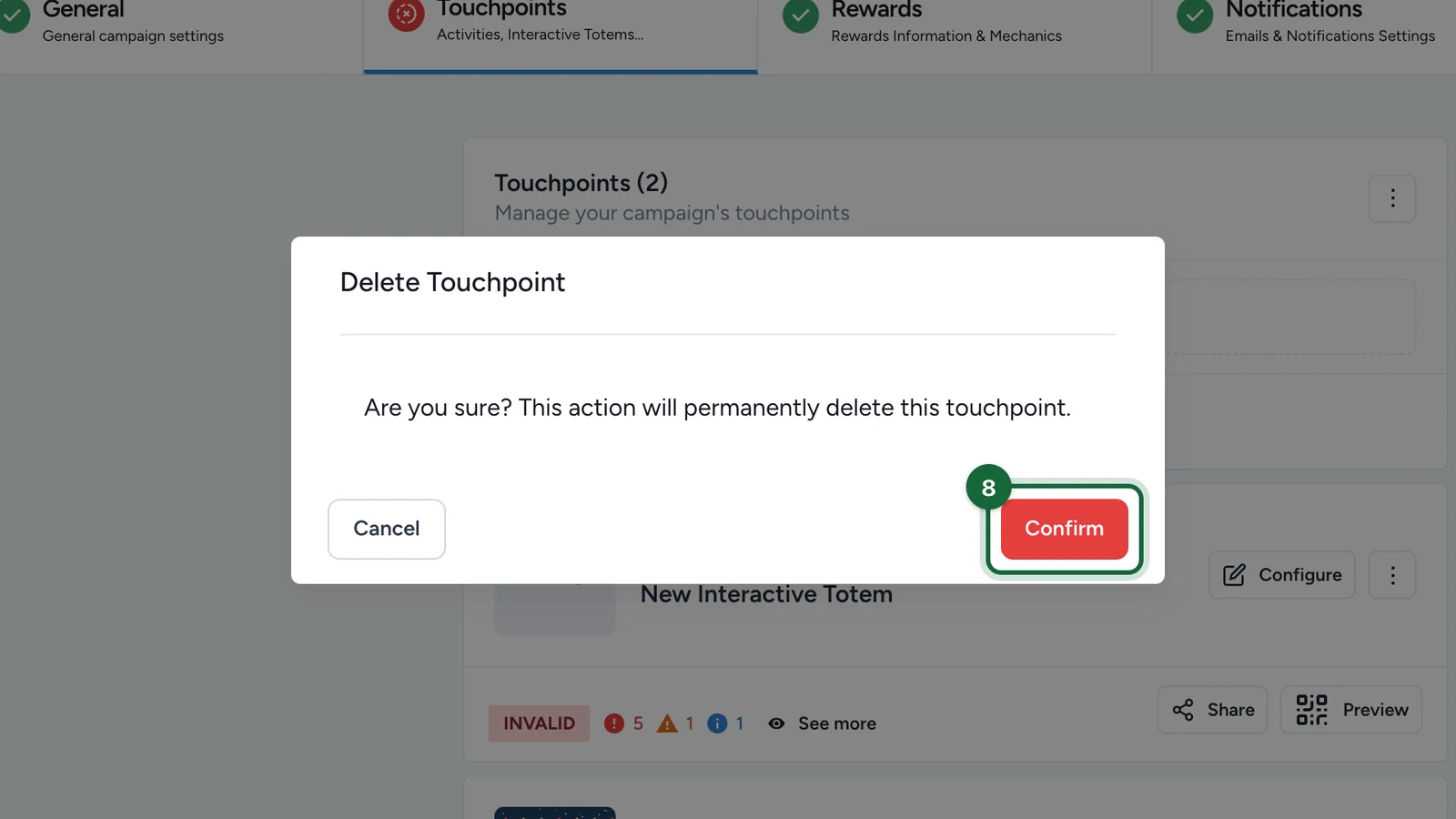
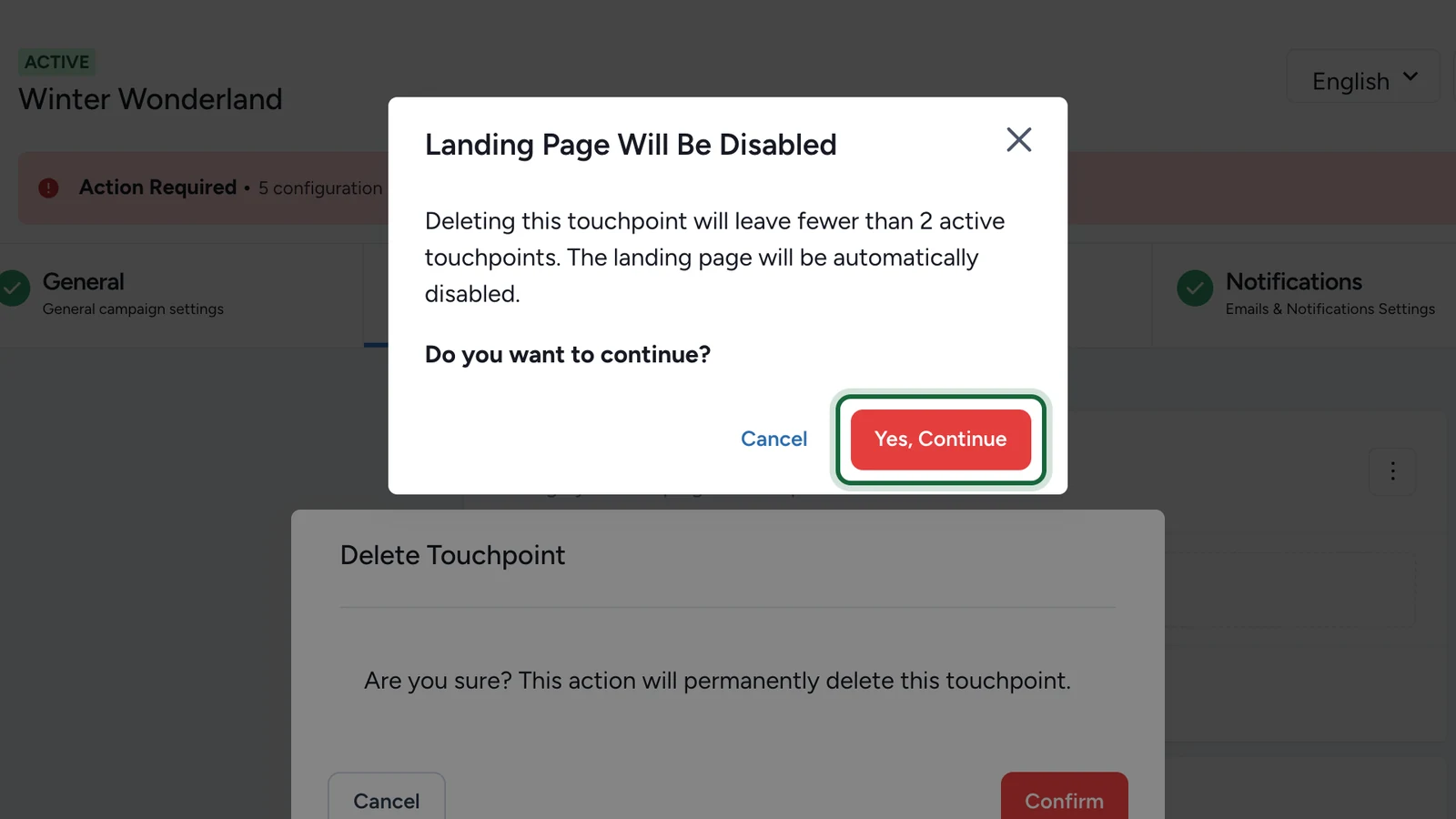
  • use Delete Touchpoint to remove it completely

Validation to know early

Every campaign needs at least one touchpoint before it can be published.

Validation messageWhat it meansFix
Campaign has no touchpoints configuredThe campaign does not contain a usable touchpoint for participants.Go to Build -> Touchpoints and add at least one touchpoint.

If the picker does not show the touchpoint you expected, check the app(s) enabled for your workspace and then continue with the campaign experiences currently available to your organisation.

Was this helpful?

Optional comments help us improve this page for future authors and readers.

On this page