About landing pages
Learn what a landing page is, when to enable it, and how the three layouts differ.
In this article, you'll learn what the campaign landing page is, when it adds value, and how OmniLab handles the shared structure across layouts.
What a landing page is
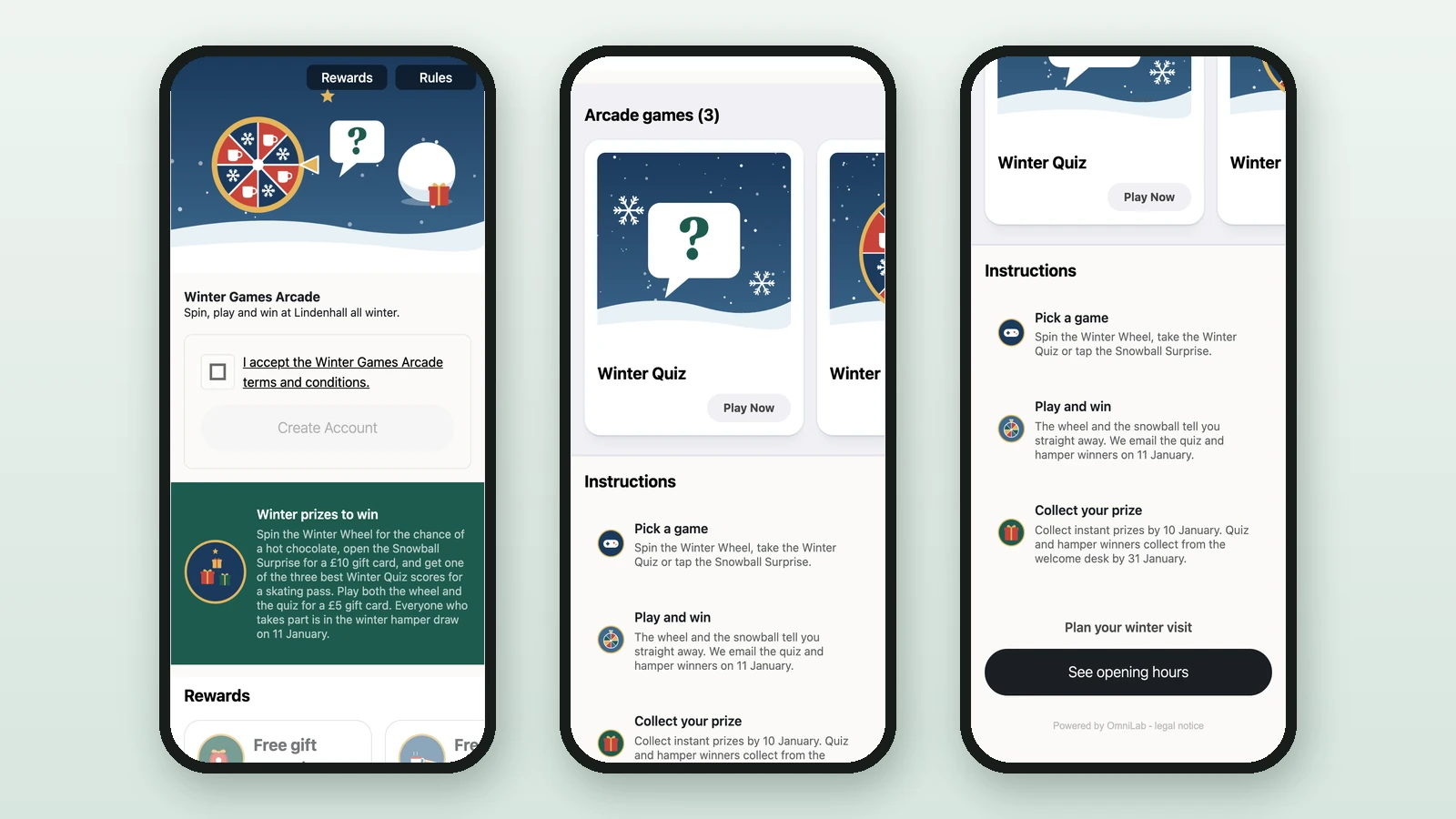
A landing page is the campaign-level entry screen OmniLab can show when someone opens a campaign link in Pages. It helps introduce the experience, set expectations, and route people to the right Touchpoint before they continue.
It appears before a Touchpoint only when the shared link targets the campaign entry rather than a specific Touchpoint.
Landing pages are optional
What participants see depends on the link you share:
- a campaign link can open the landing page when it is enabled
- a direct Touchpoint link opens that Touchpoint immediately, even if the campaign also has a landing page
- when the landing page is disabled, a campaign link without a Touchpoint parameter does not open a Touchpoint automatically and instead shows an error page
When to enable it
Use a landing page when you need one or more of the following:
- a campaign-level introduction before people choose a Touchpoint
- branding, context, or seasonal storytelling around the experience
- a short list of instructions before participation starts
- a clear way to surface several participant-facing sections in the same campaign
Activation rule
Landing page activation is intended for campaigns with at least two active Touchpoints. If the campaign does not have enough participant-facing Touchpoints, the enable action stays unavailable in Studio.
How entry depends on the shared link
Example link formats
| Shared link type | Example | Result |
|---|---|---|
| Campaign entry link | https://pages.example.com/summer-launch-2026 | Opens the landing page when it is enabled. If the landing page is disabled, this link shows an error page because no specific Touchpoint is provided. |
| Direct Touchpoint link | https://pages.example.com/summer-launch-2026?c=touchpoint-abc | Opens the Touchpoint identified by ?c=touchpoint-abc directly, even if the campaign also has a landing page. |
The three layouts
One Column layout
A single vertical stack that keeps the whole entry experience in one flow.
Two Columns layout
A split desktop layout with entry content on one side and campaign sections on the other.
Advent Calendar layout
A day-by-day grid where each unlocked day opens its linked Touchpoint.
What stays shared across layouts
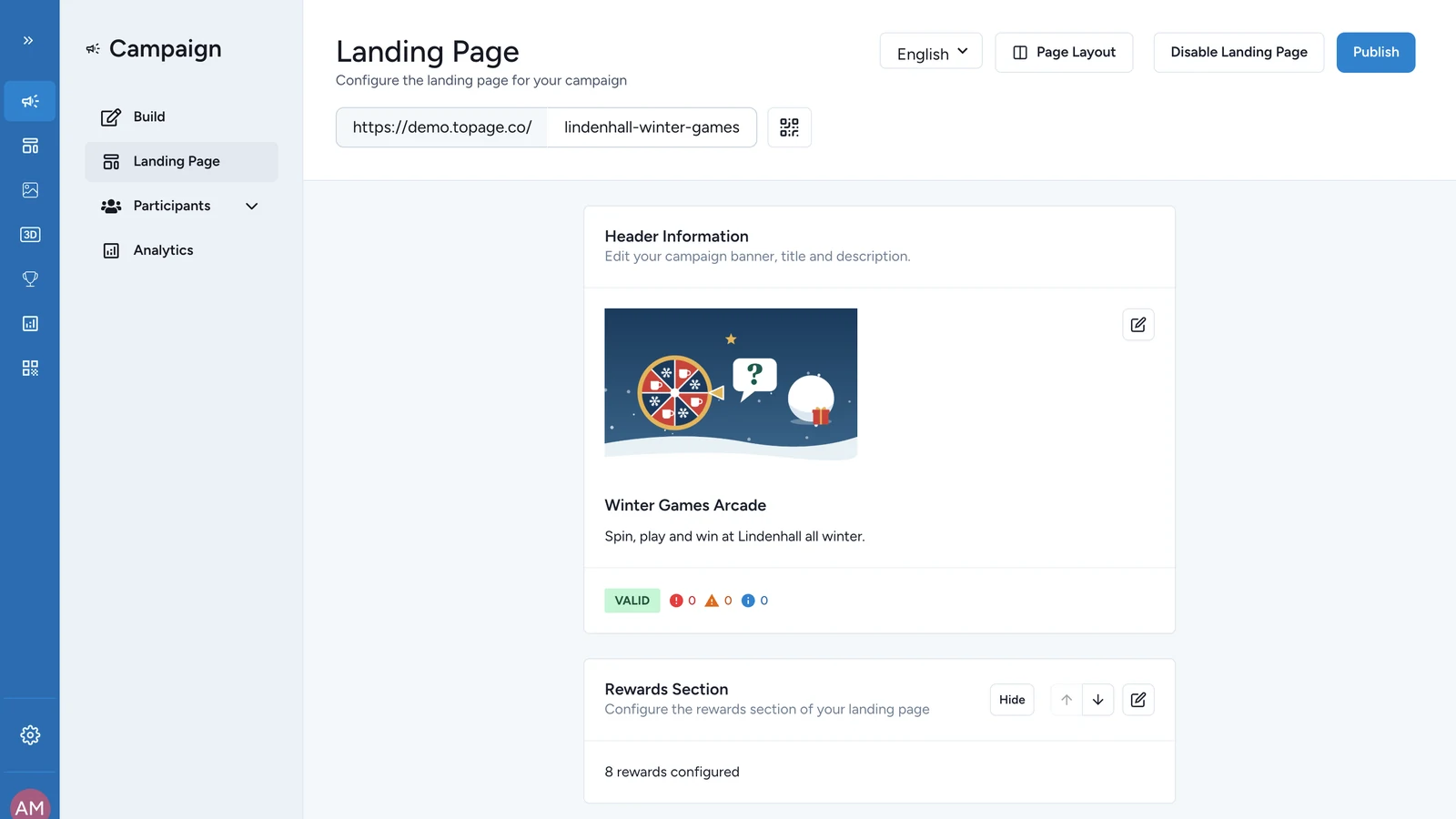
Every landing page starts from the same core building blocks:
- a
Header Sectionwith banner, title, and subtitle - an
Instructions Sectionwith itemized steps - an optional
CTA Sectionwith a title, button label, and external URL
On standard landing pages, OmniLab can also surface participant-facing sections such as rewards, activities, games, and interactive totems. These sections can be reordered between the header and the footer blocks.
When each layout fits best
| Layout | Best for | What to expect |
|---|---|---|
| One Column | Simple campaigns or mobile-first traffic | The full page stays in one vertical stack. |
| Two Columns | Campaigns that need a stronger desktop split between intro content and listings | The split view appears on larger screens and collapses to one column on smaller screens. |
| Advent Calendar | Seasonal or multi-day campaigns with scheduled day-by-day access | Each day uses its own linked Touchpoint and unlock timing. |
Related
Choose a layout
Compare the three layouts and switch between them in Studio.
One Column layout
See how the single-stack layout behaves across devices.
Two Columns layout
Understand the split desktop view and its mobile fallback.
Advent Calendar layout
Configure the seasonal day-by-day layout.
Touchpoints
Review the participant-facing Touchpoints your landing page can introduce.