3D Selection Game
Players pick one of several 3D objects, and an animation inside the model shows whether they've won.
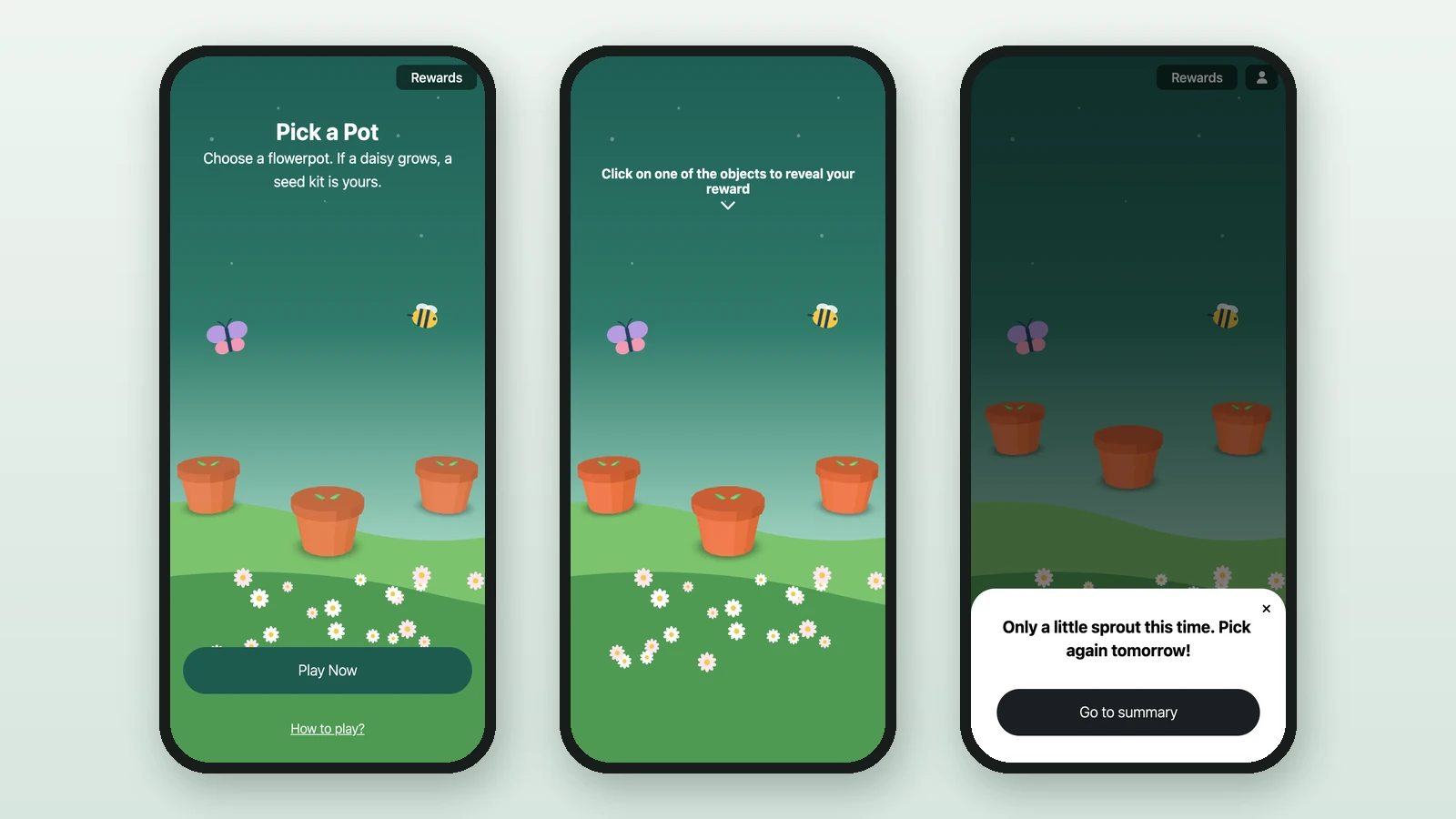
A 3D Selection Game lines up identical 3D objects, and players tap the one they think hides a prize. An animation in the model plays the result. Here, Lindenhall's Pick a Pot shows three flowerpots: if a daisy grows, the player wins a seed kit.
Before you begin
- A campaign open in Build: see Your first campaign.
- A Luck Based Reward for each prize: see Create a reward.
- Your 3D model, with one animation for a win and one for a loss, and your images. Here, the flowerpot has WIN (a daisy grows) and LOSE (the pot wobbles).
Background Image
RequiredThe full-screen visual behind any game (wheel, scratch, reveal, quiz, and more).
- Requiredexcept for instant reward and sign-up games
- Size1536 × 2048 px
- Aspect ratio3:4
- FormatsJPEG / WEBP / PNG
It fills the screen from the top centre, with the title, the game and the button on top, and phones crop about a fifth off each side: keep text and faces in the middle.
3D Model
RequiredThe 3D object for a catcher, 3D selection, or treasure hunt — chosen from your 3D library.
- Required
- FormatsGLB · USDZ
GLB powers 3D and Android AR; add USDZ for the best experience on iPhone and iPad. Keep models low-poly and under ~5 MB so they load fast on phones.
Reward Icon
OptionalThe icon that represents a reward.
- Optional
- Size800 × 800 px
- Aspect ratio1:1
- FormatsJPEG / WEBP / PNG
Circular design and a transparent background work best.
Add the game
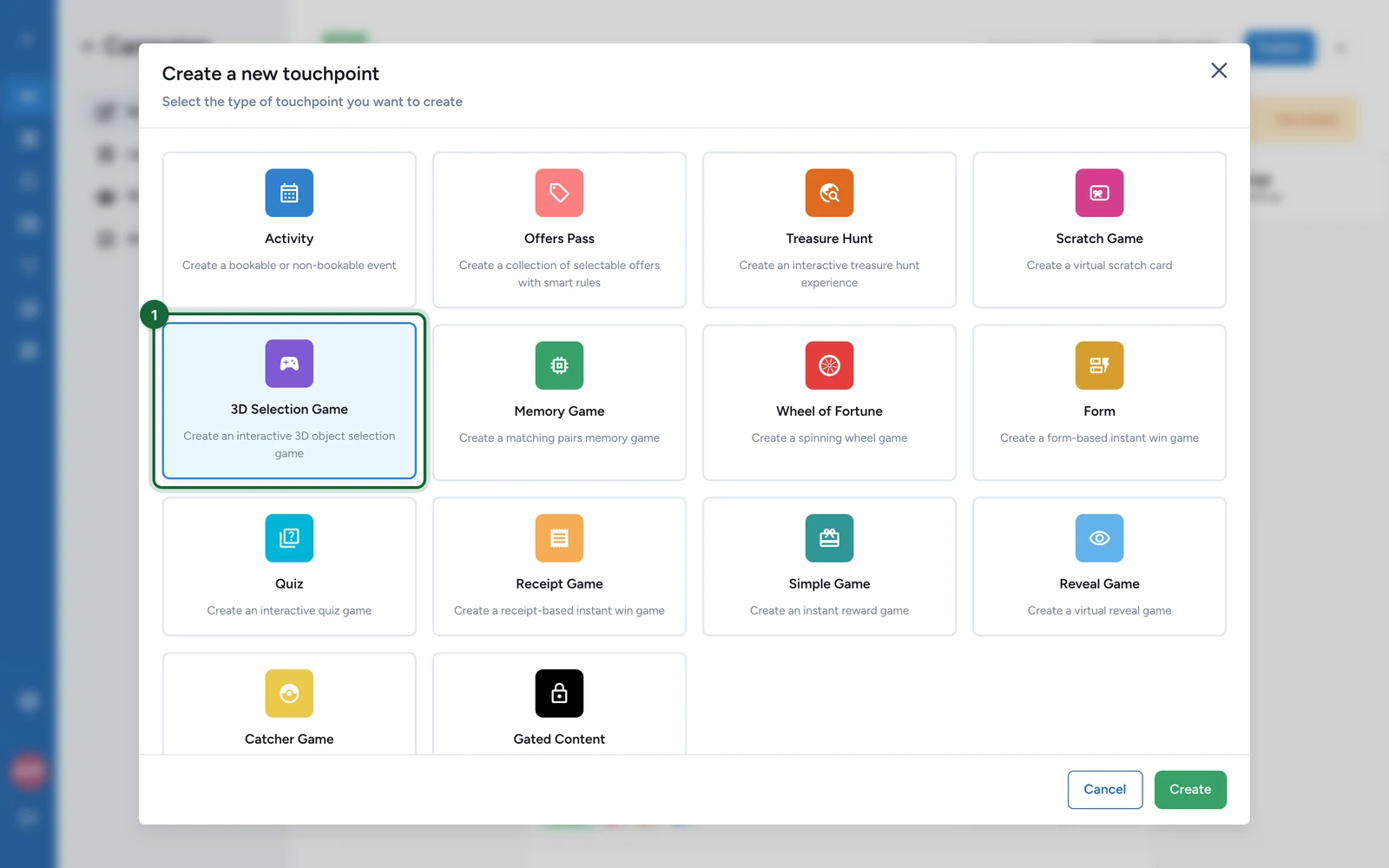
In Build > Touchpoints, select Add New Touchpoint.
-
Select 3D Selection Game, then Create.
-
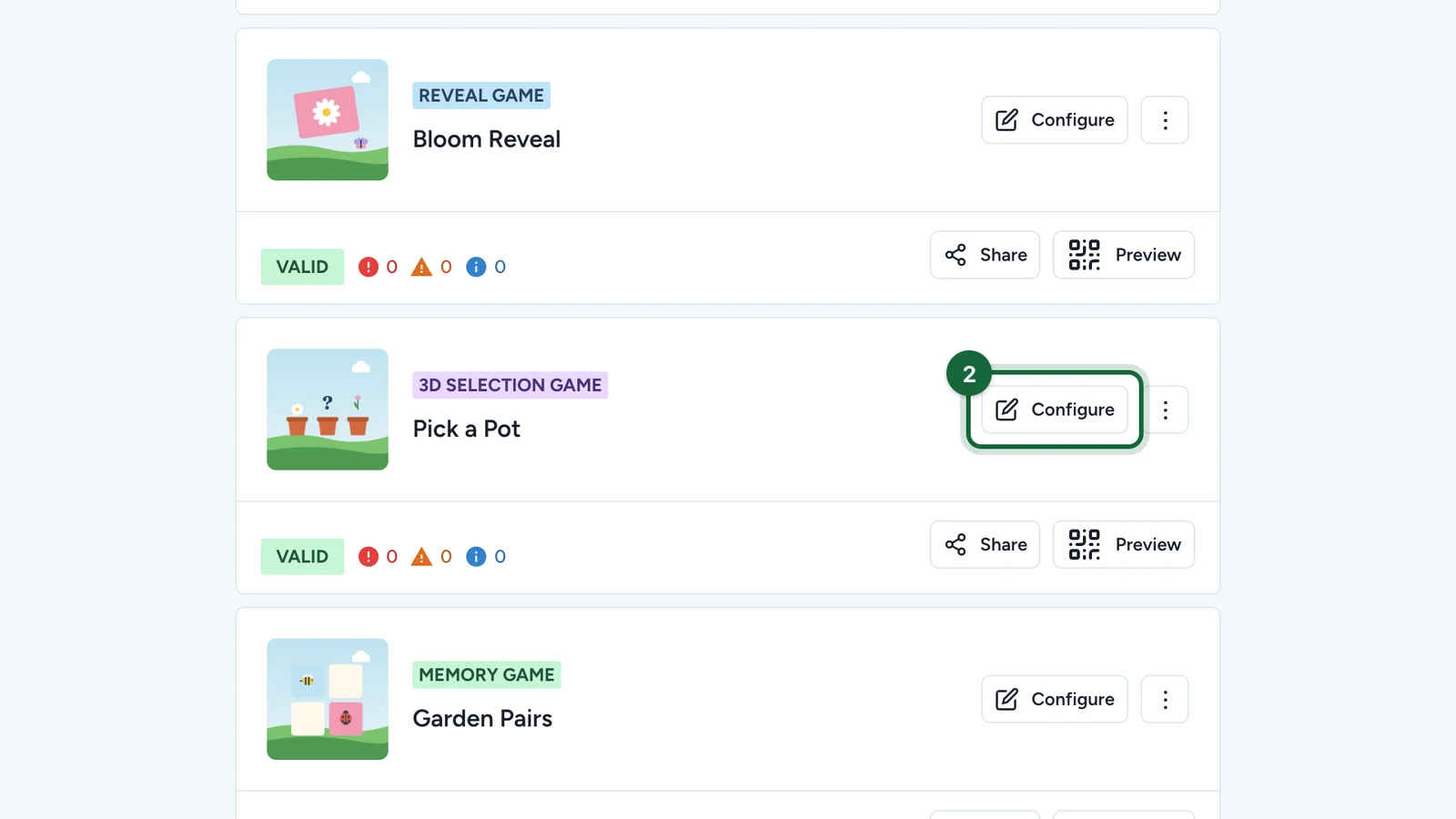
On the new game, select Configure.
Set the page
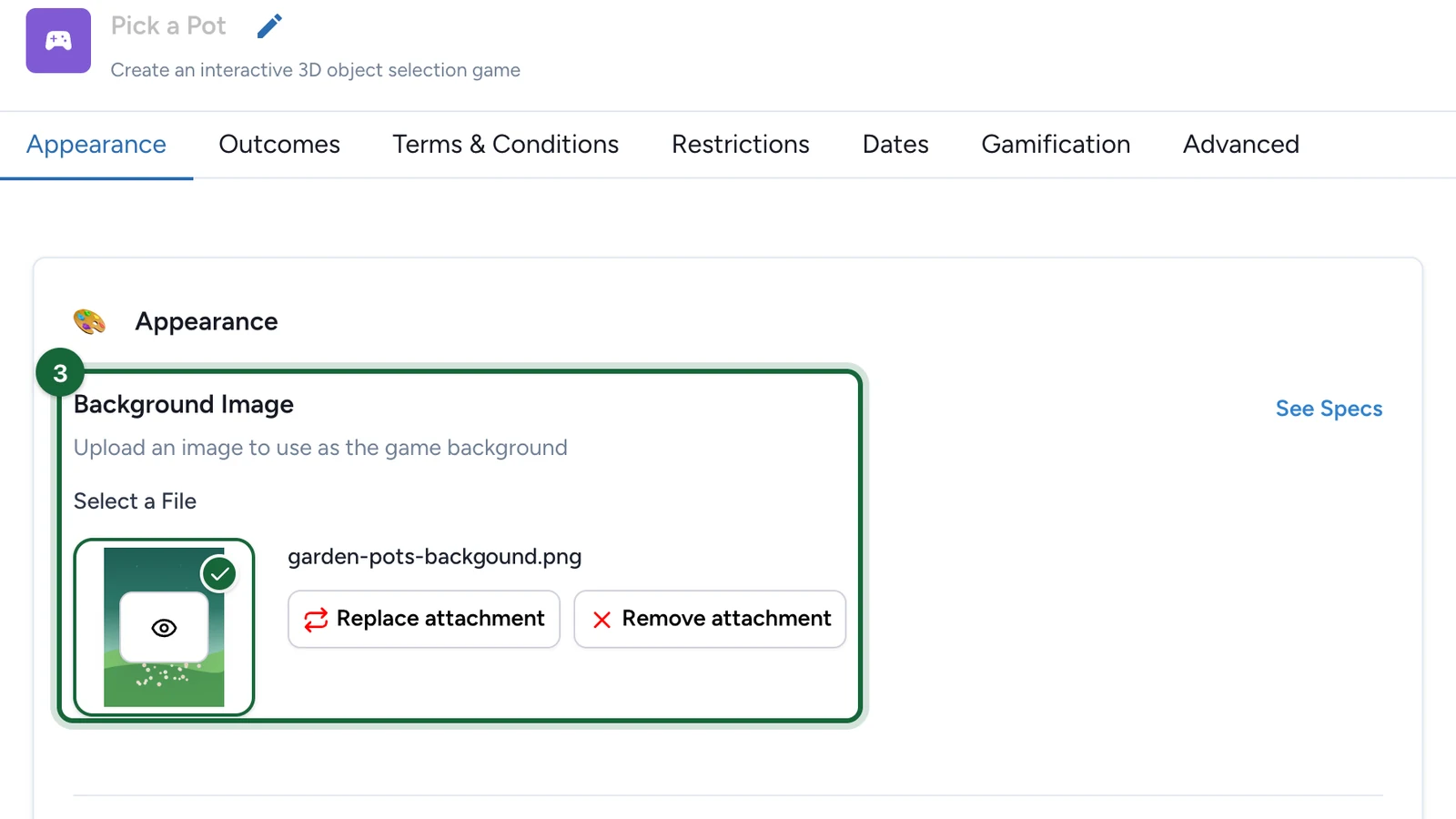
On the Appearance tab:
-
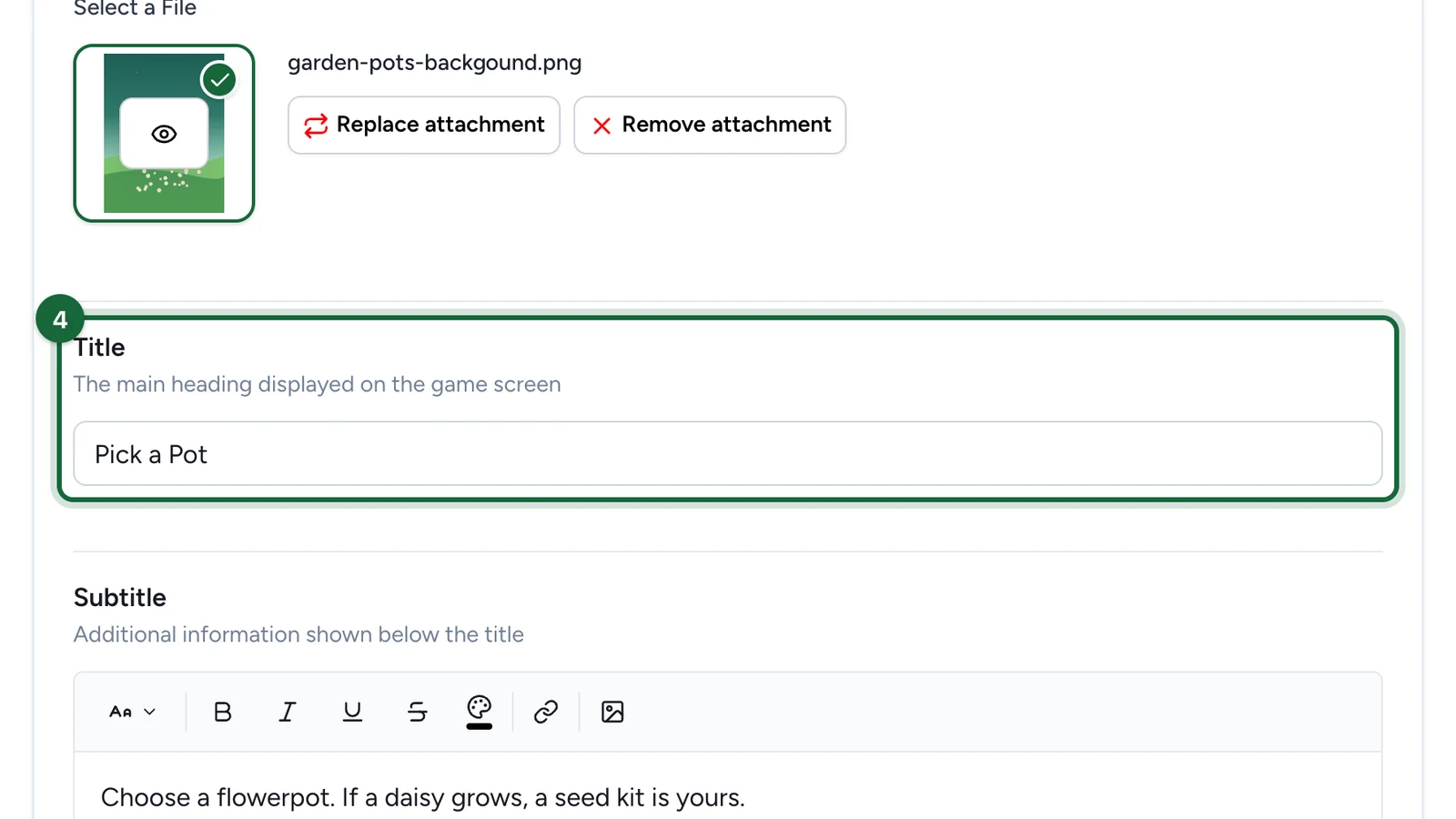
Under Background Image, choose the picture behind the objects.
-
Enter the Title.
-
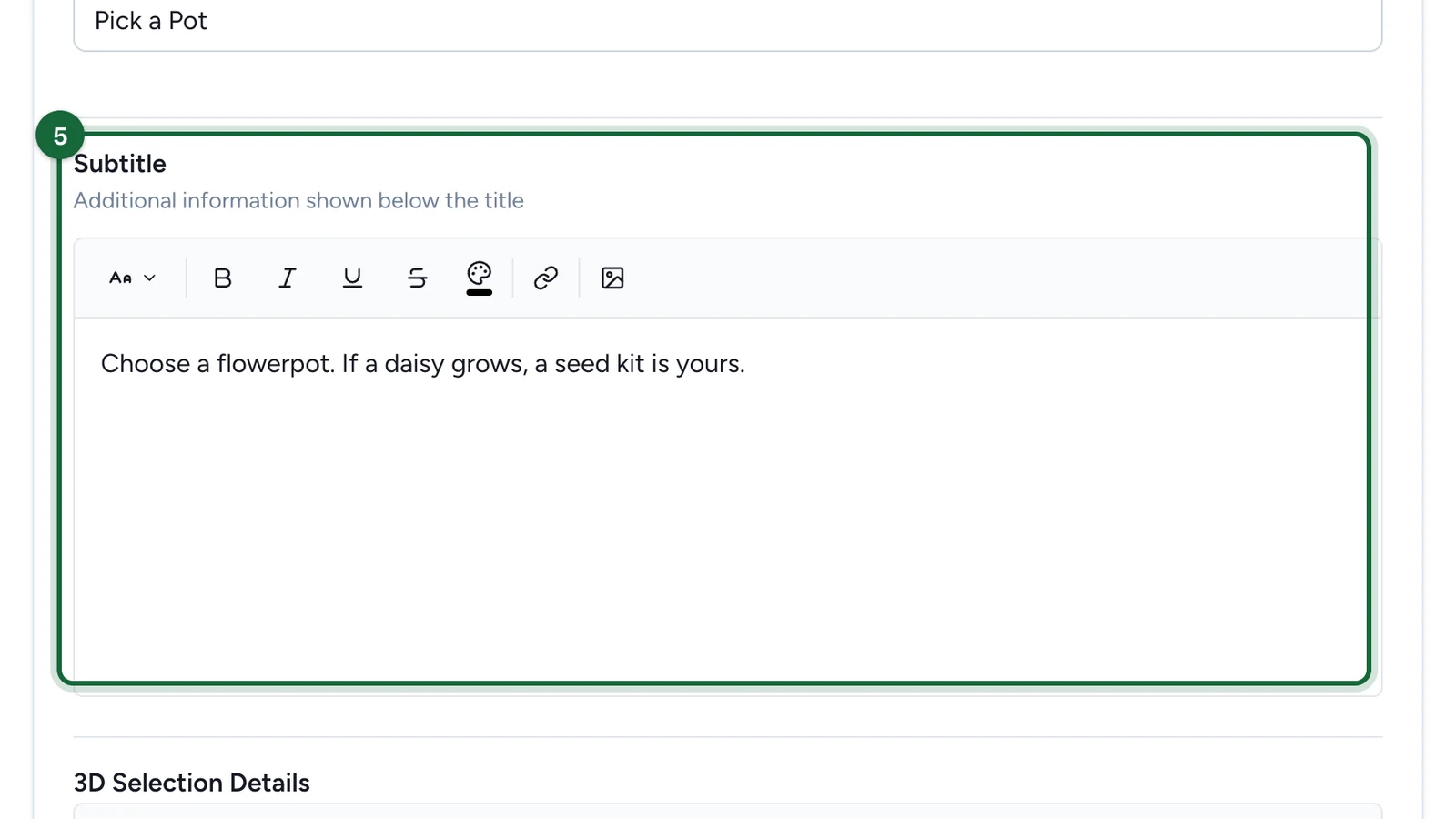
Enter the Subtitle: say what players can win.
-
Under 3D Selection Details, say how often players can try and where to collect the prize.
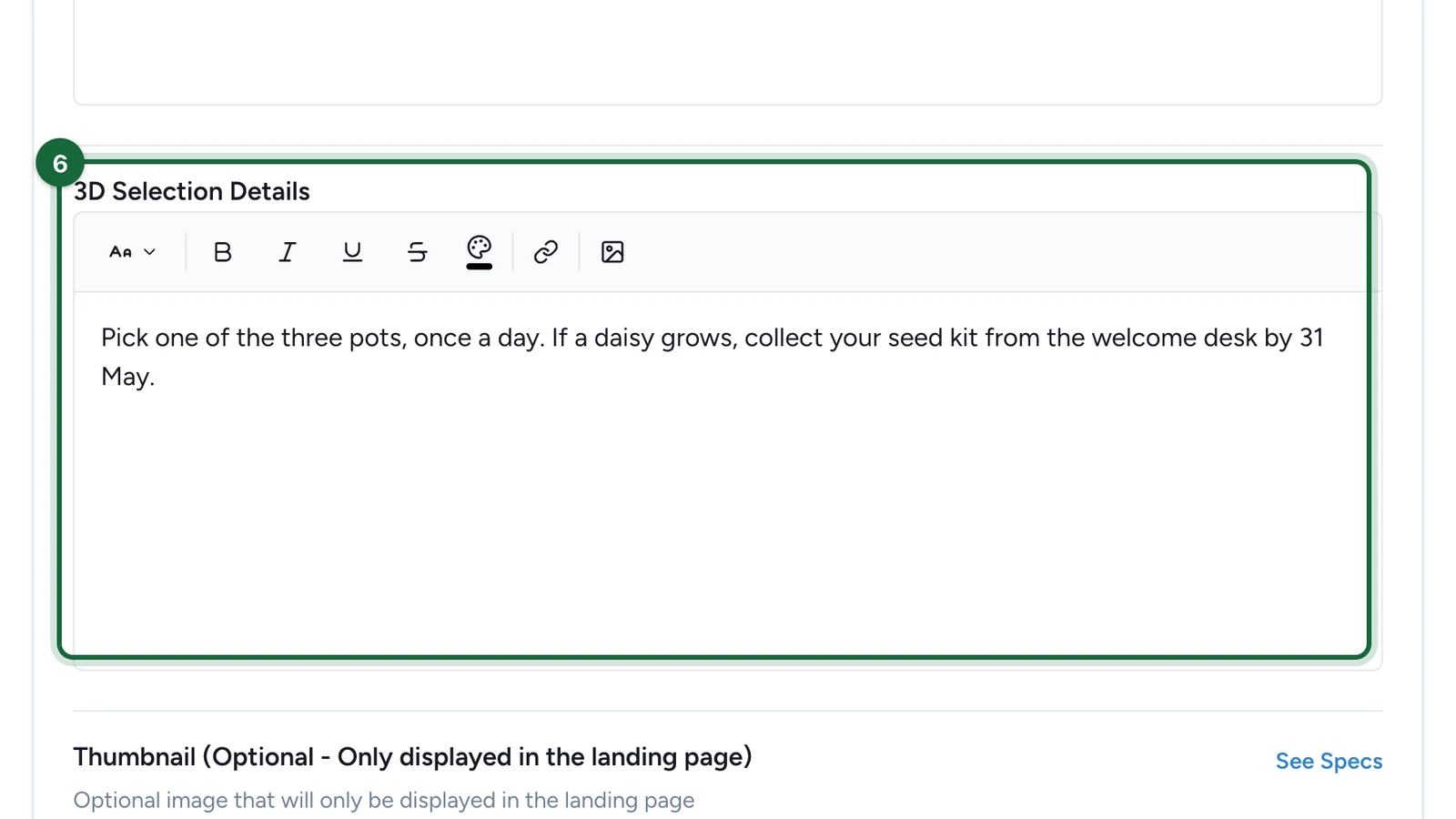
Players read it under How to play?.
-
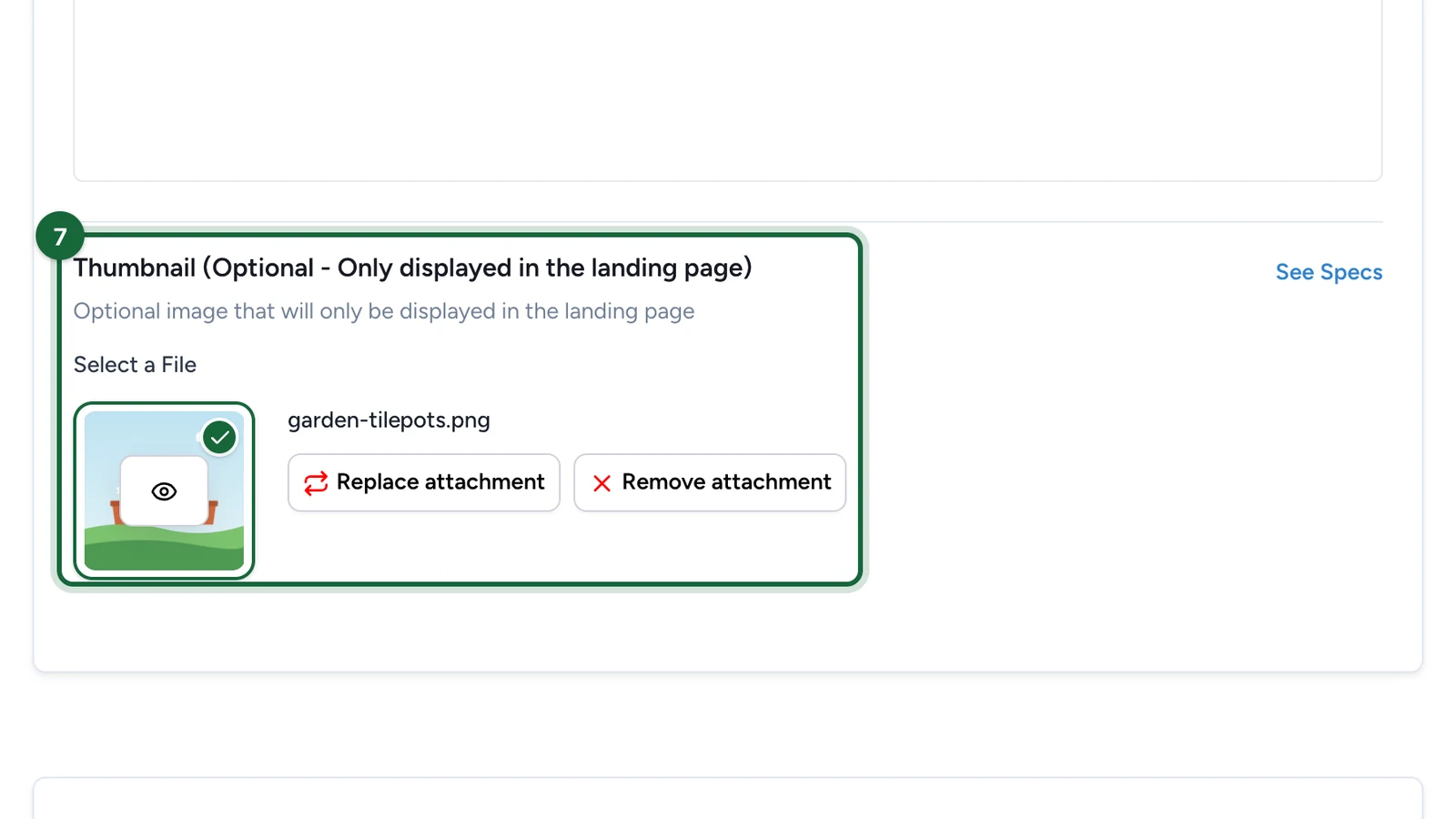
(Optional) Under Thumbnail, choose the game's picture on the landing page, if the campaign has one.
Choose the objects
-
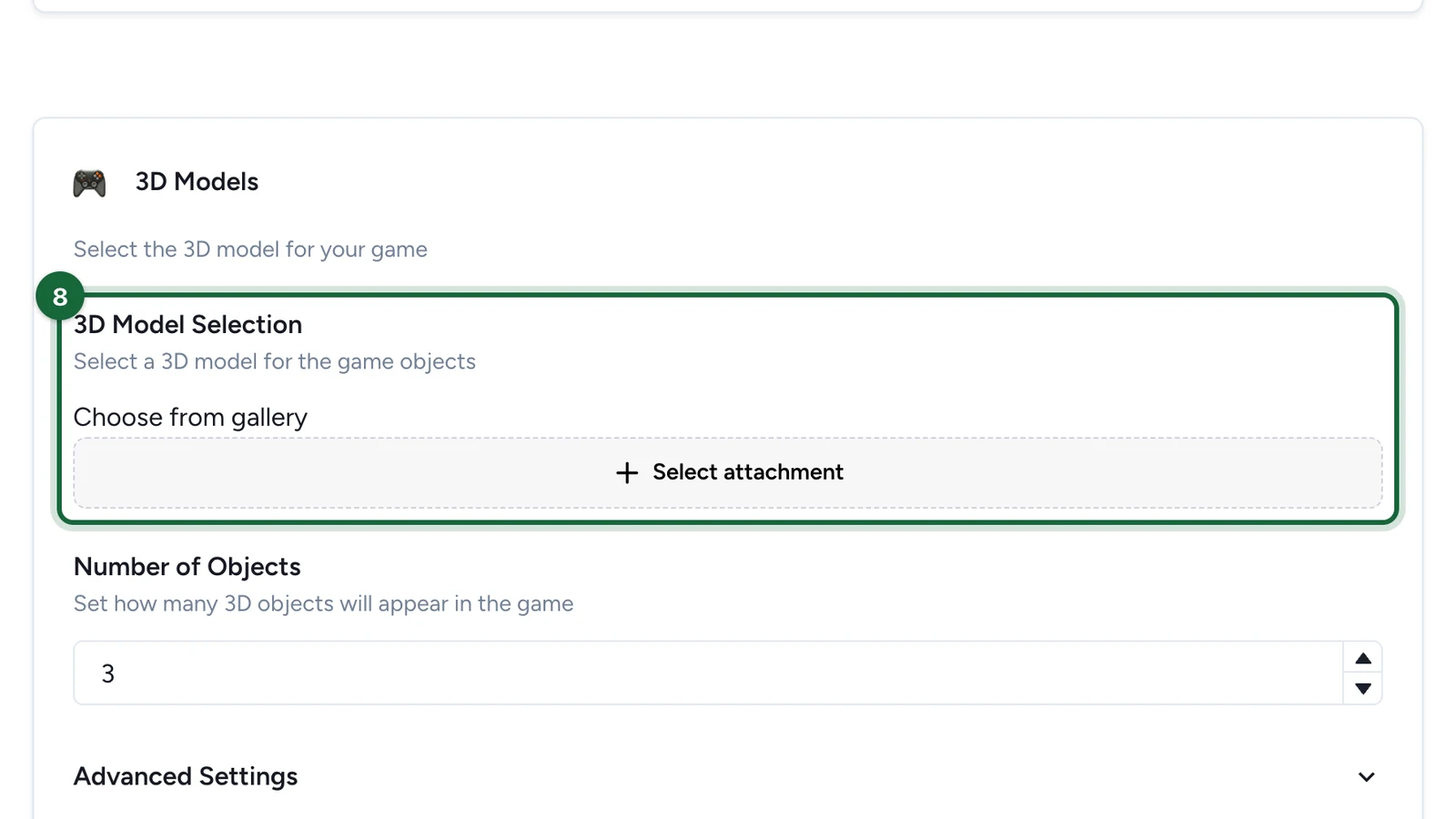
Under 3D Model Selection, select Select attachment.
-
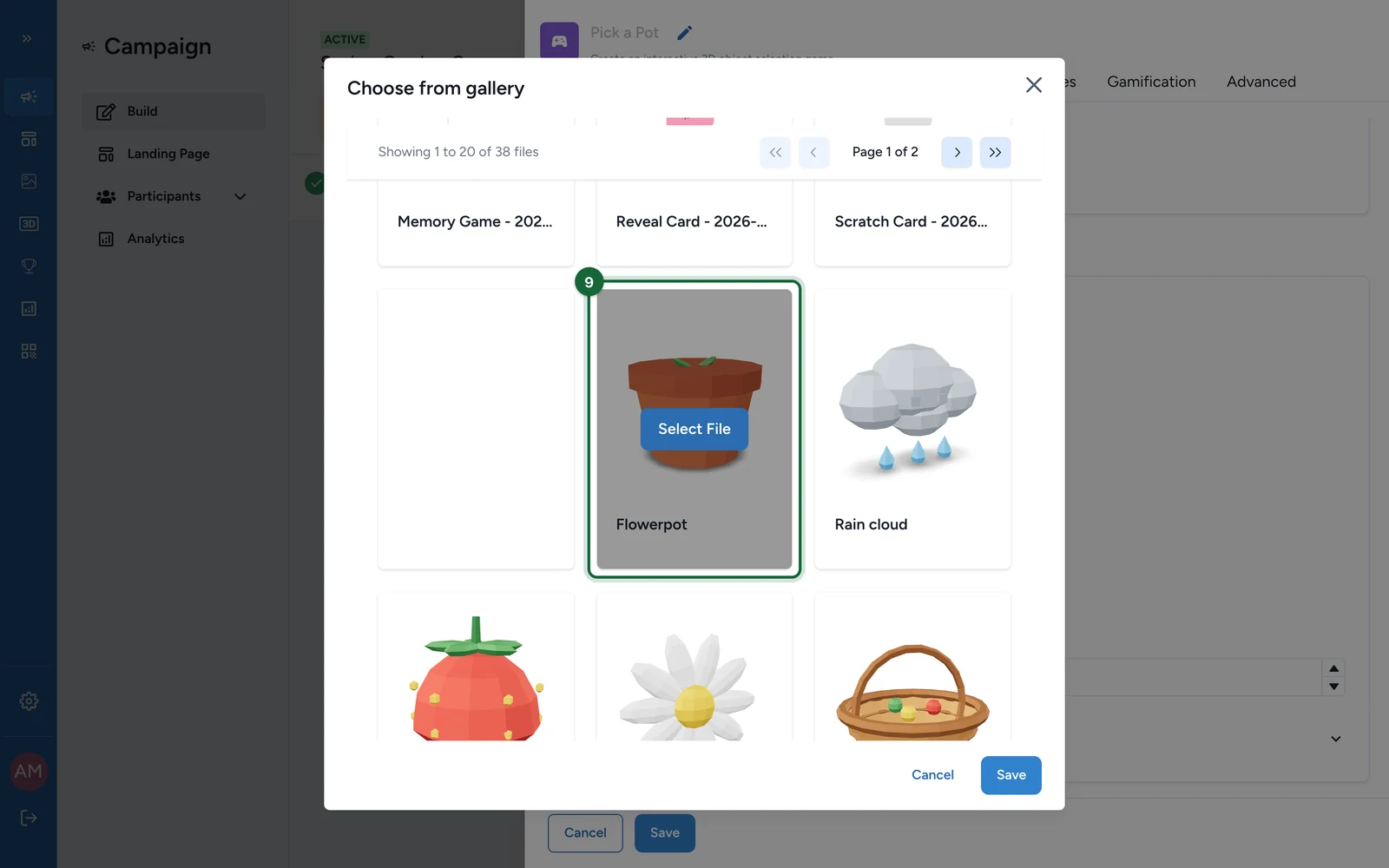
Choose the model: point at it, then select Select File.
-
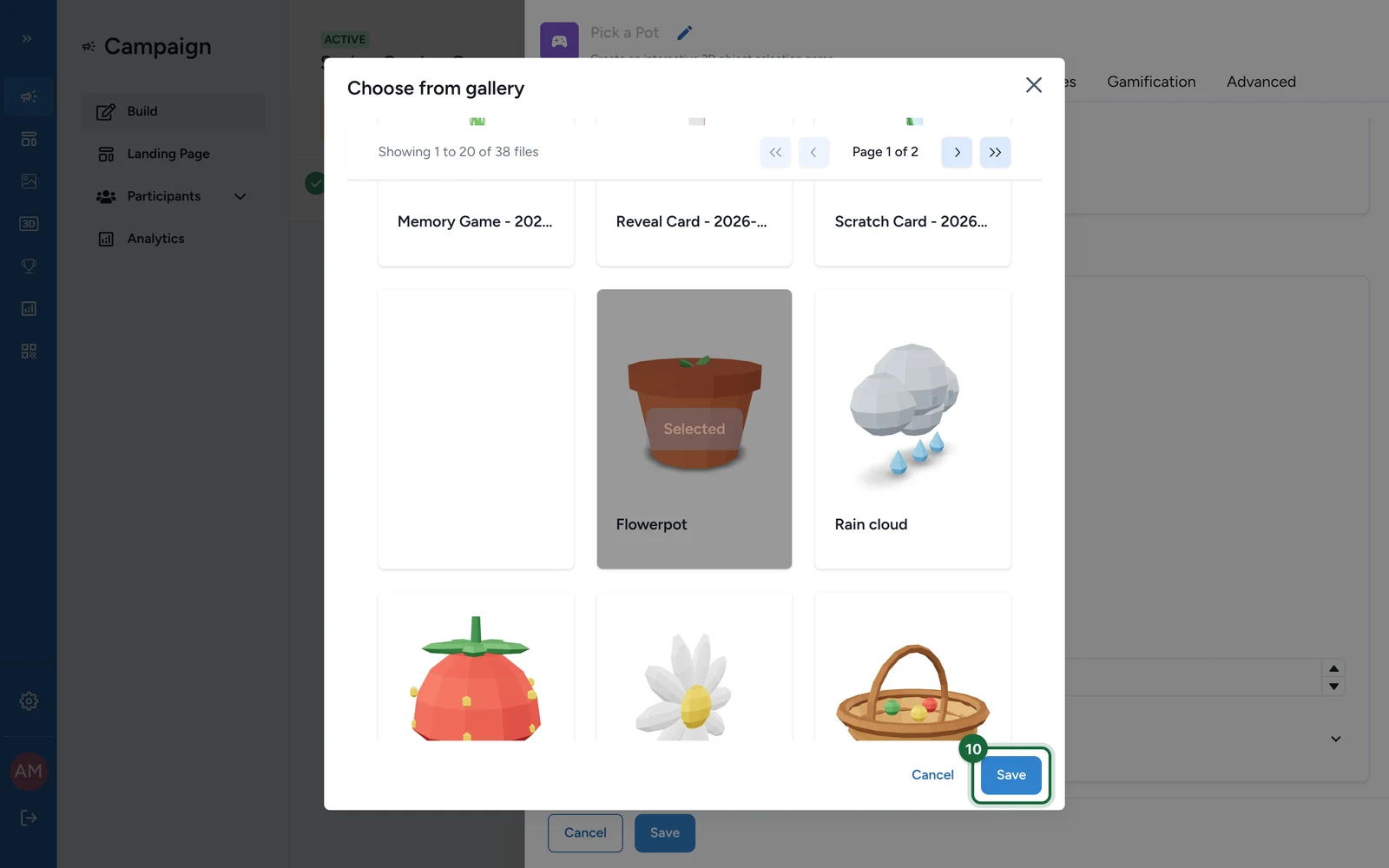
Select Save.
-
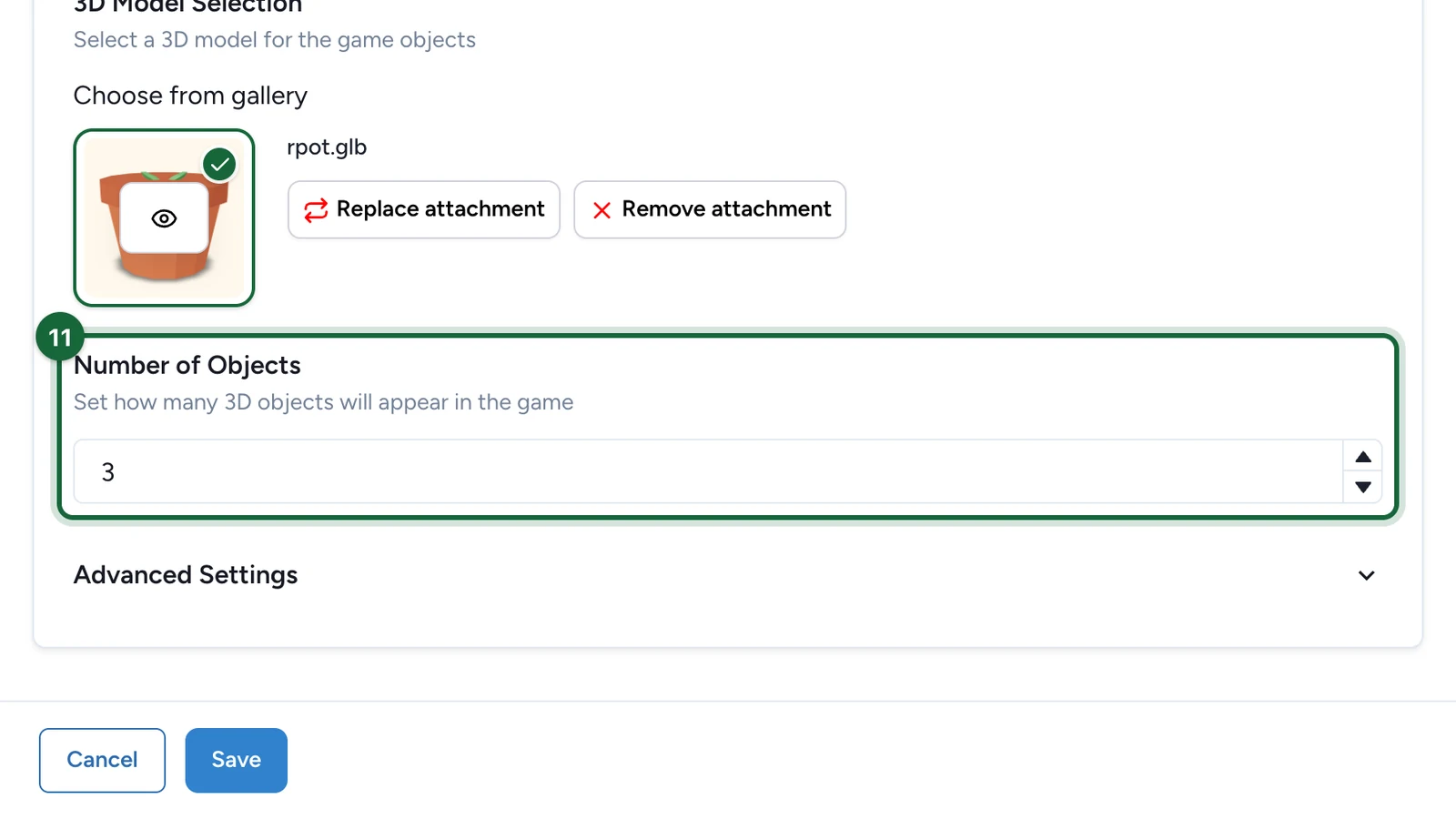
Set the Number of Objects players choose from.
-
(Optional) Open Advanced Settings to change the spacing, height, animation speed or size of the objects.
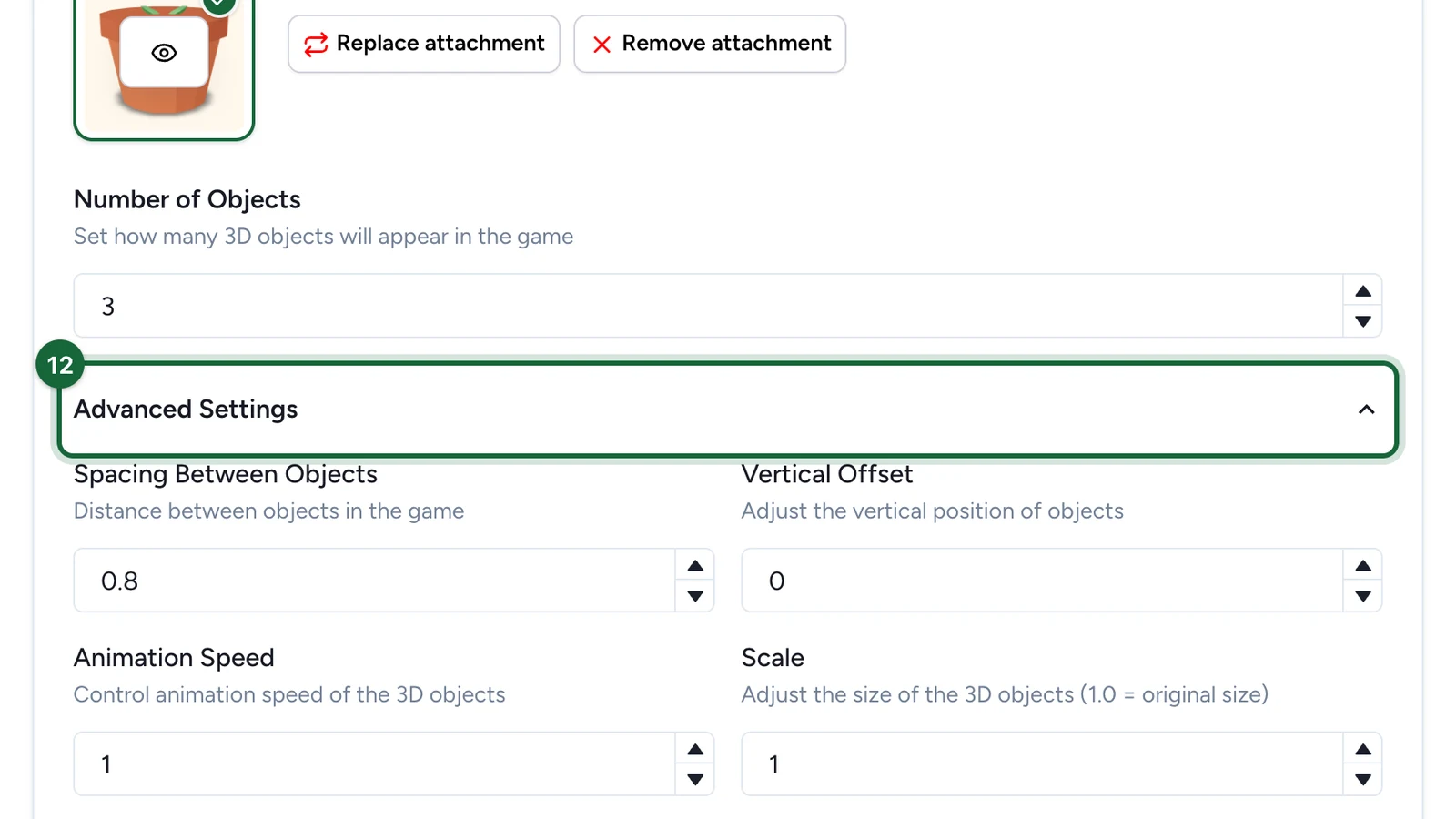
Check the game on a phone: a wide row of objects can be cut off at the sides. Lower Scale or Spacing Between Objects if it is.
Decide who wins
On the Outcomes tab:
-
Under How Winners Are Determined, choose Random Chance, Scheduled Rewards or Lottery.
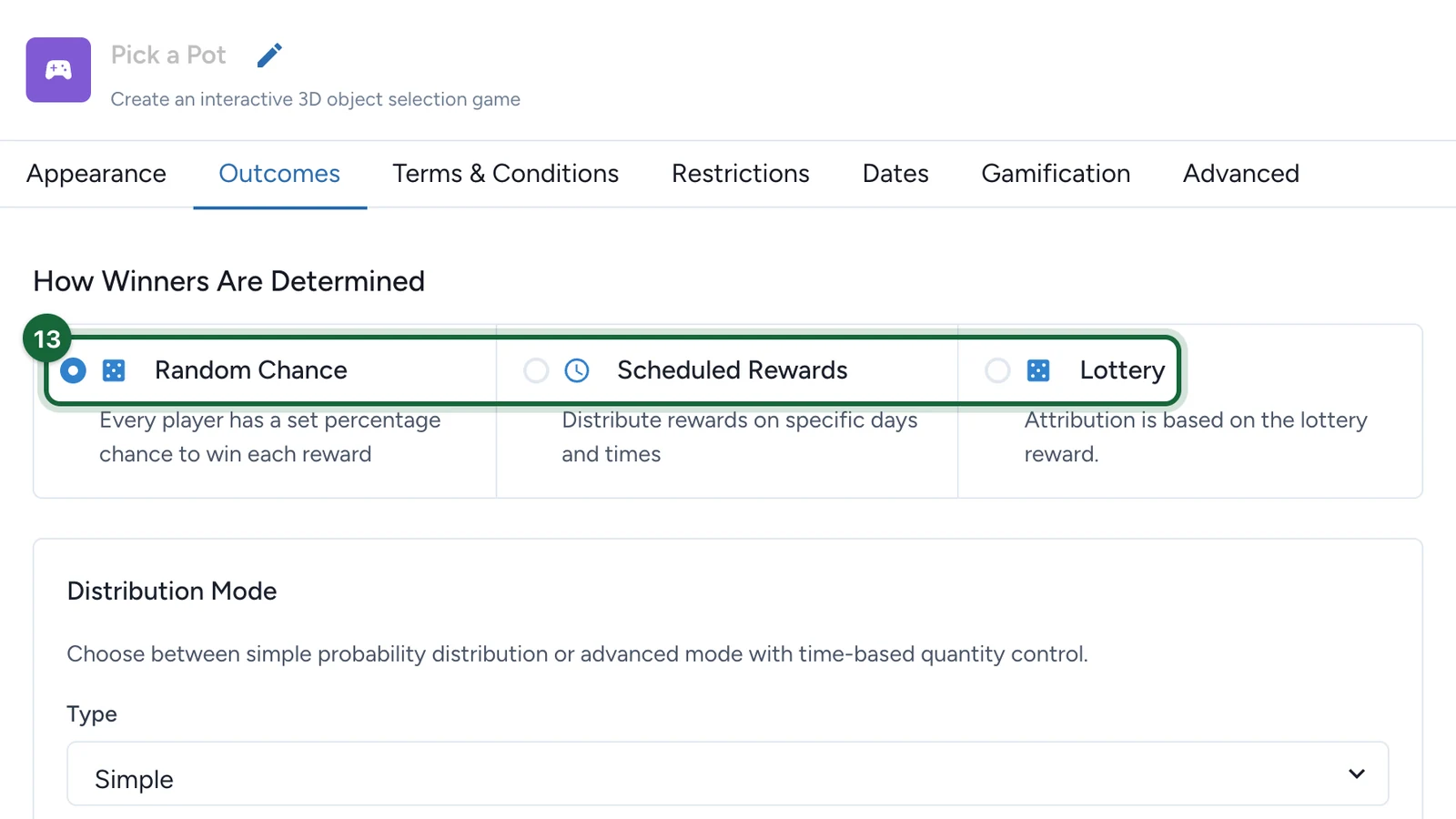
The next steps use Random Chance. The other two are at the end of this page.
-
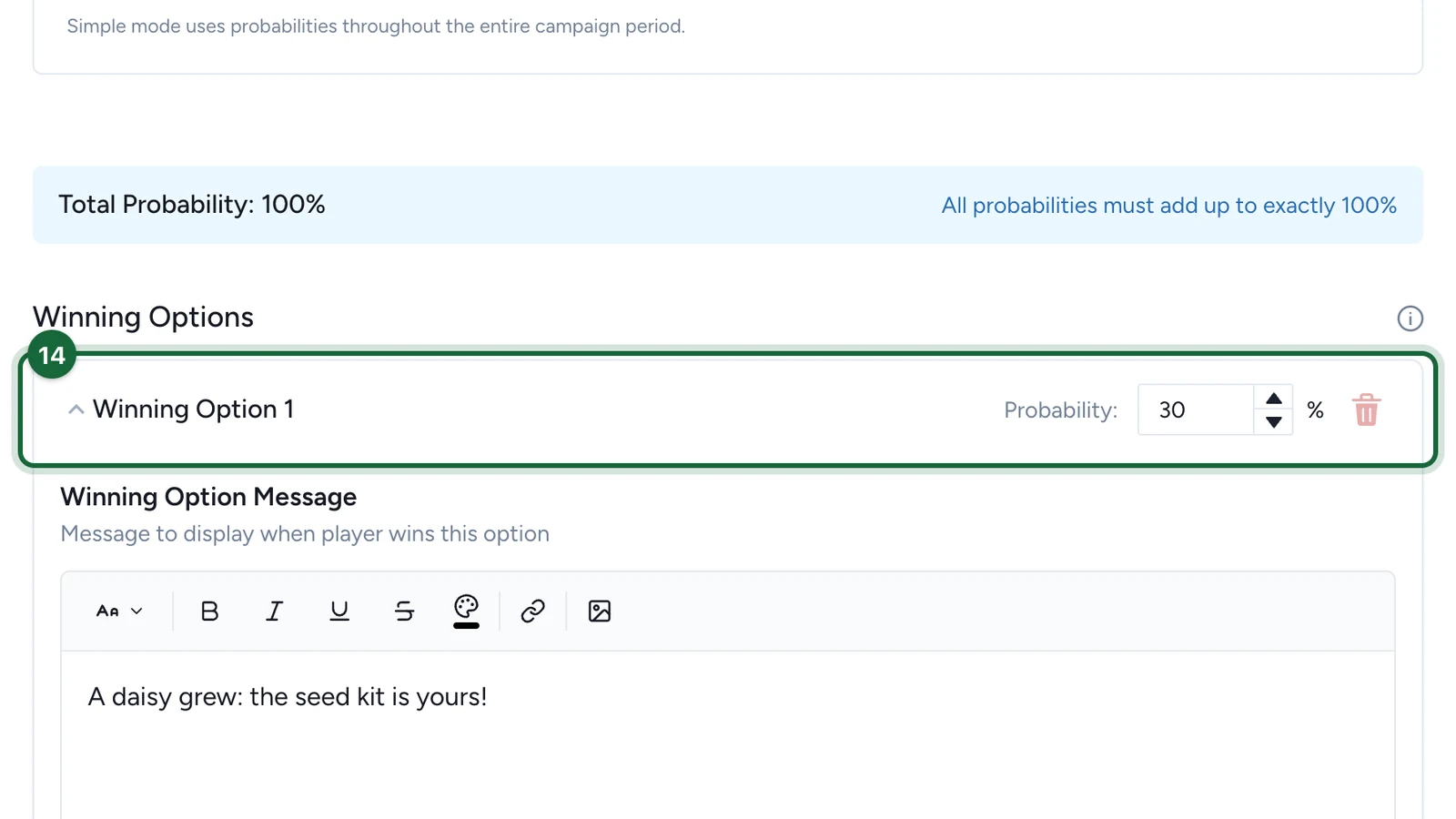
On Winning Option 1, set the Probability.
-
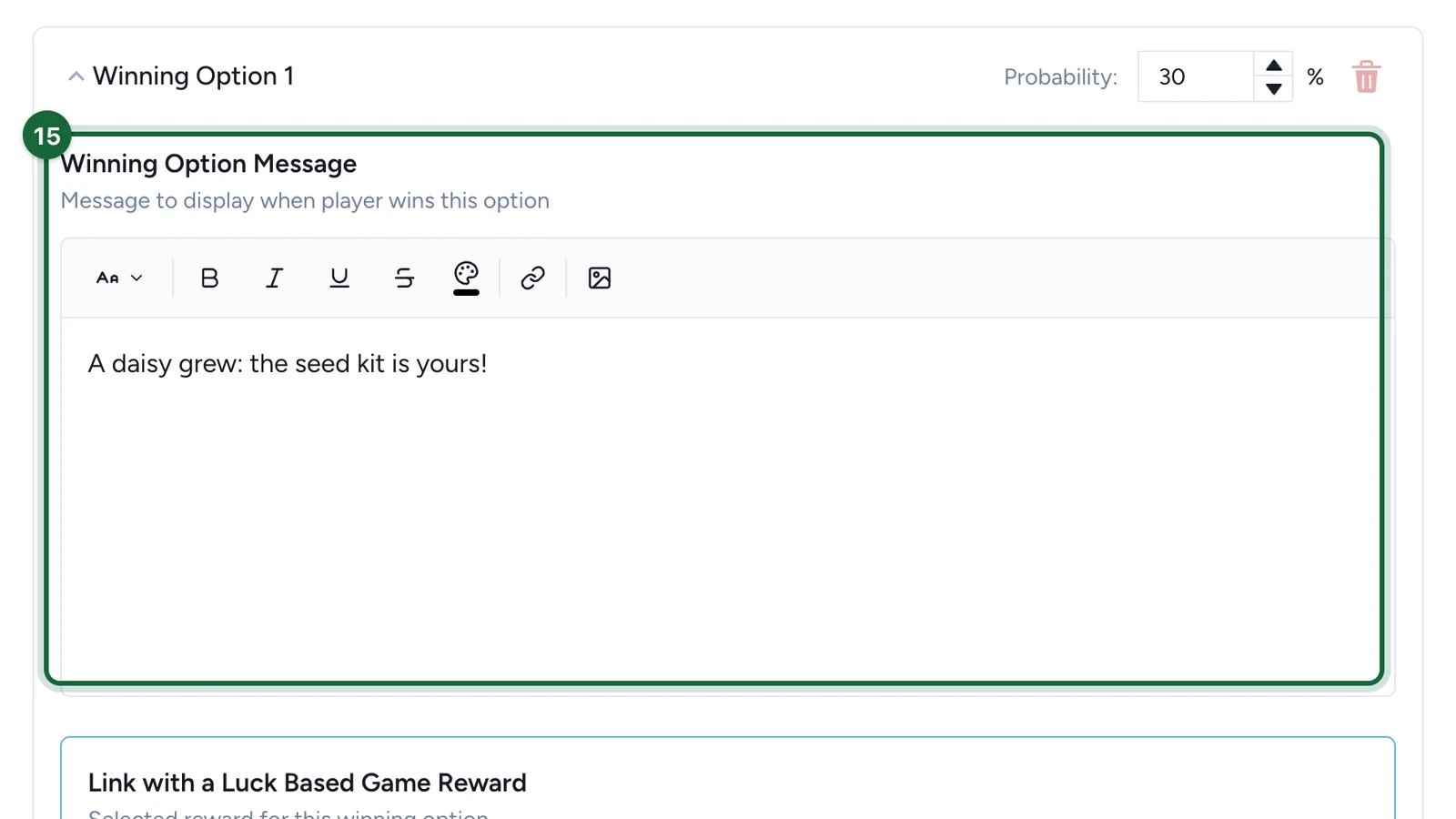
Write the Winning Option Message.
-
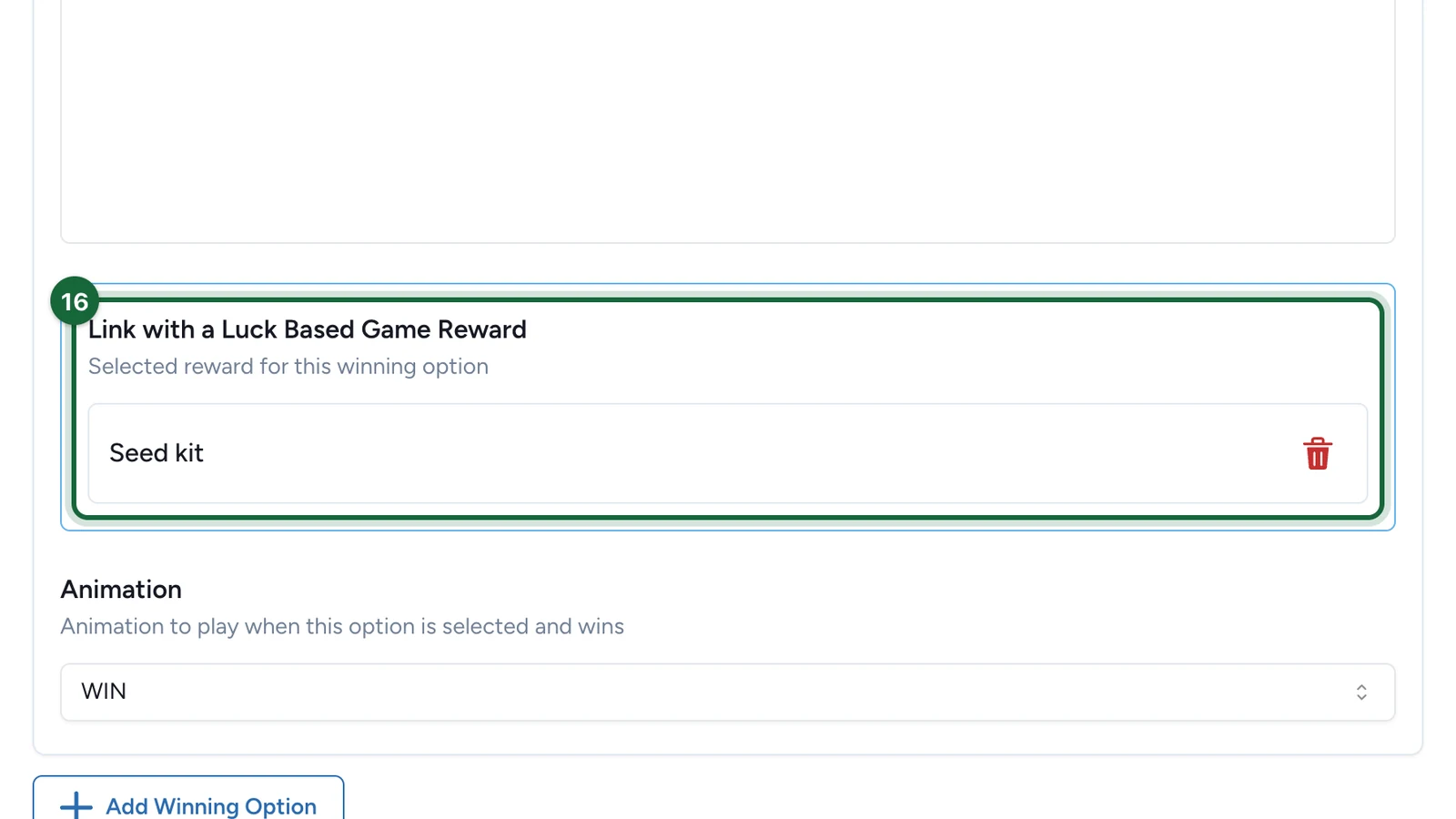
Under Link with a Luck Based Game Reward, choose the prize.
-
Under Animation, choose the animation that plays on a win.
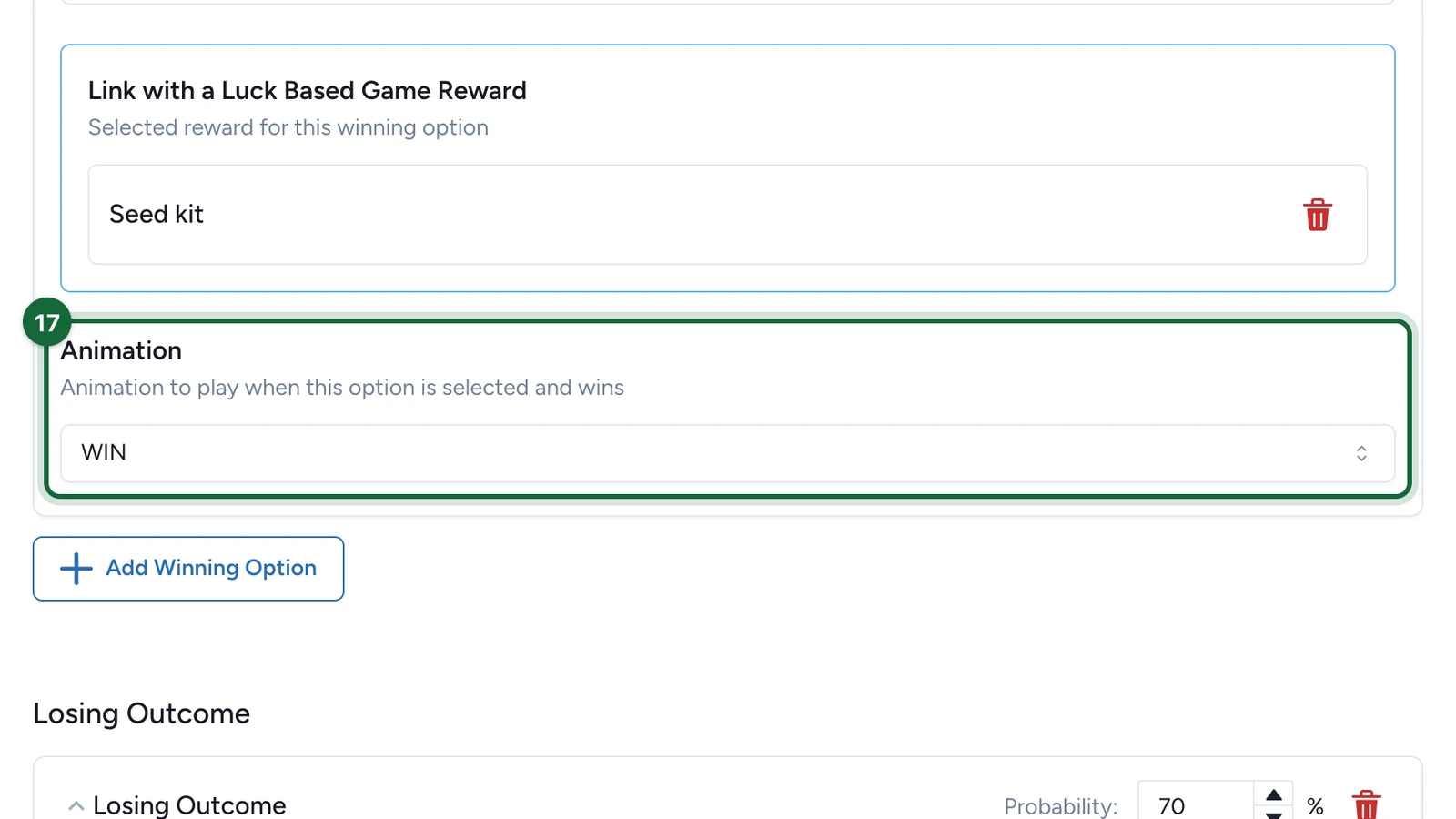
The list shows the animations inside your model. For another prize, select Add Winning Option.
-
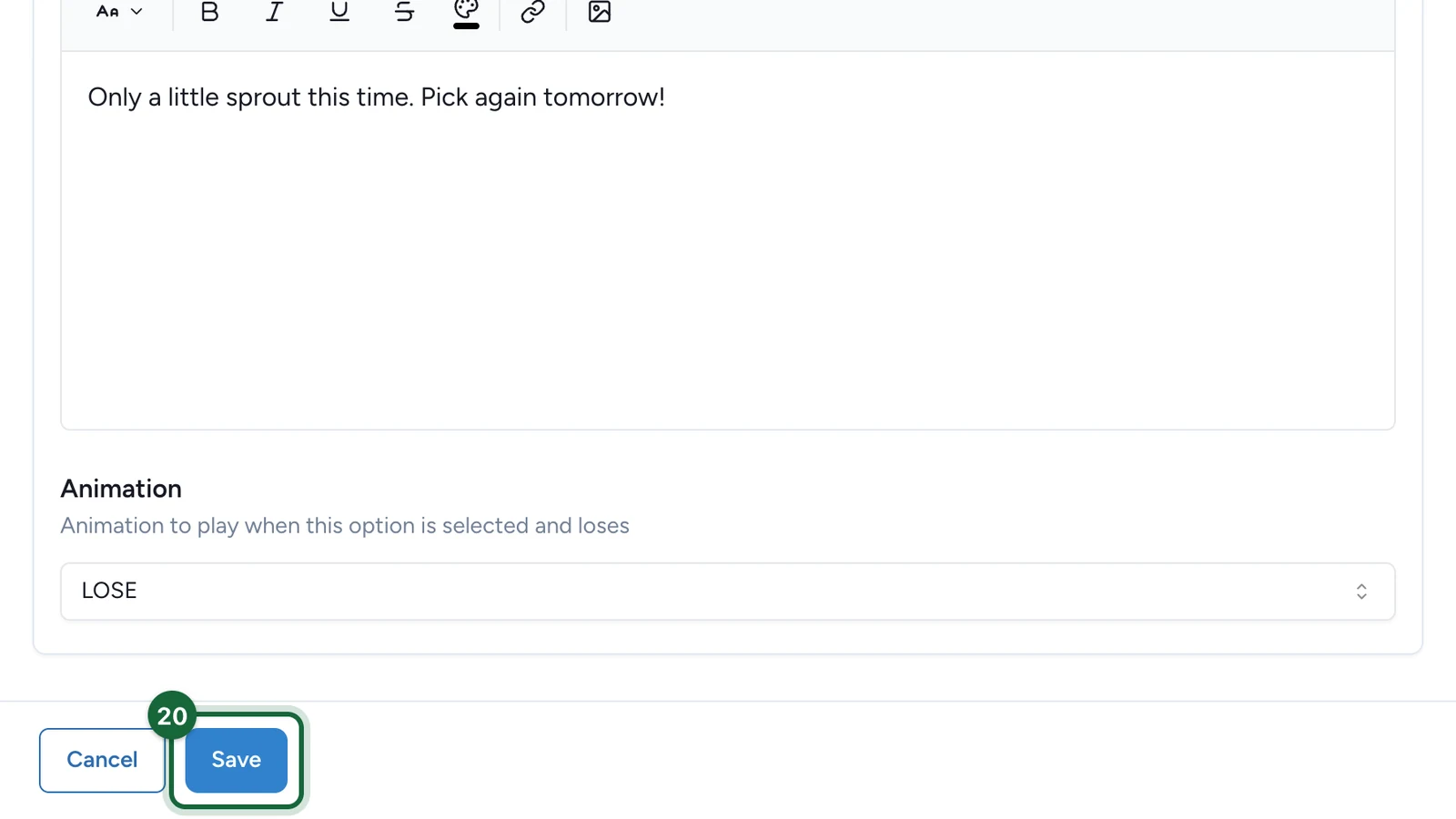
Under Losing Outcome, set the Probability and write the Losing Message.
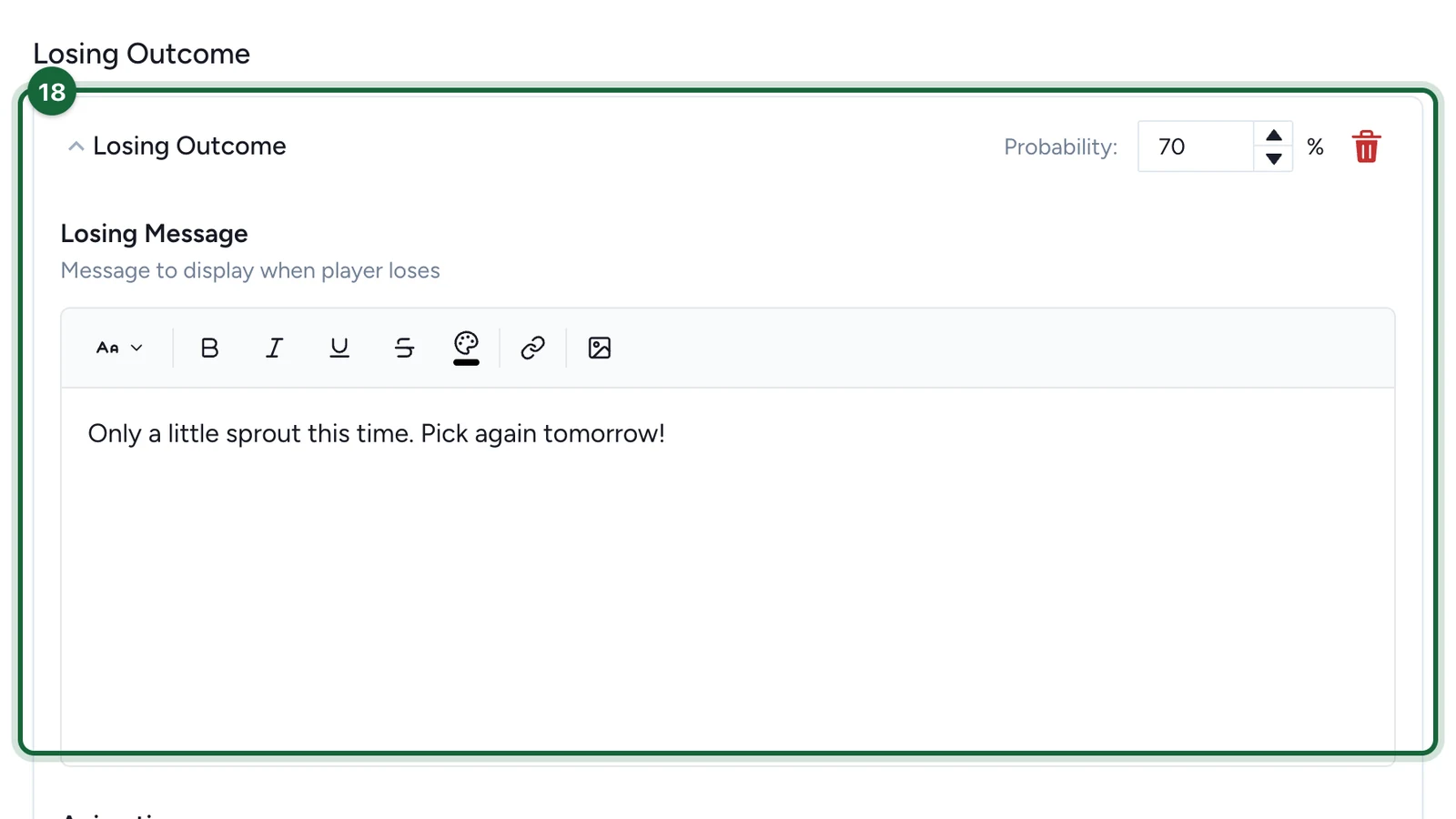
The Total Probability at the top must reach 100%.
-
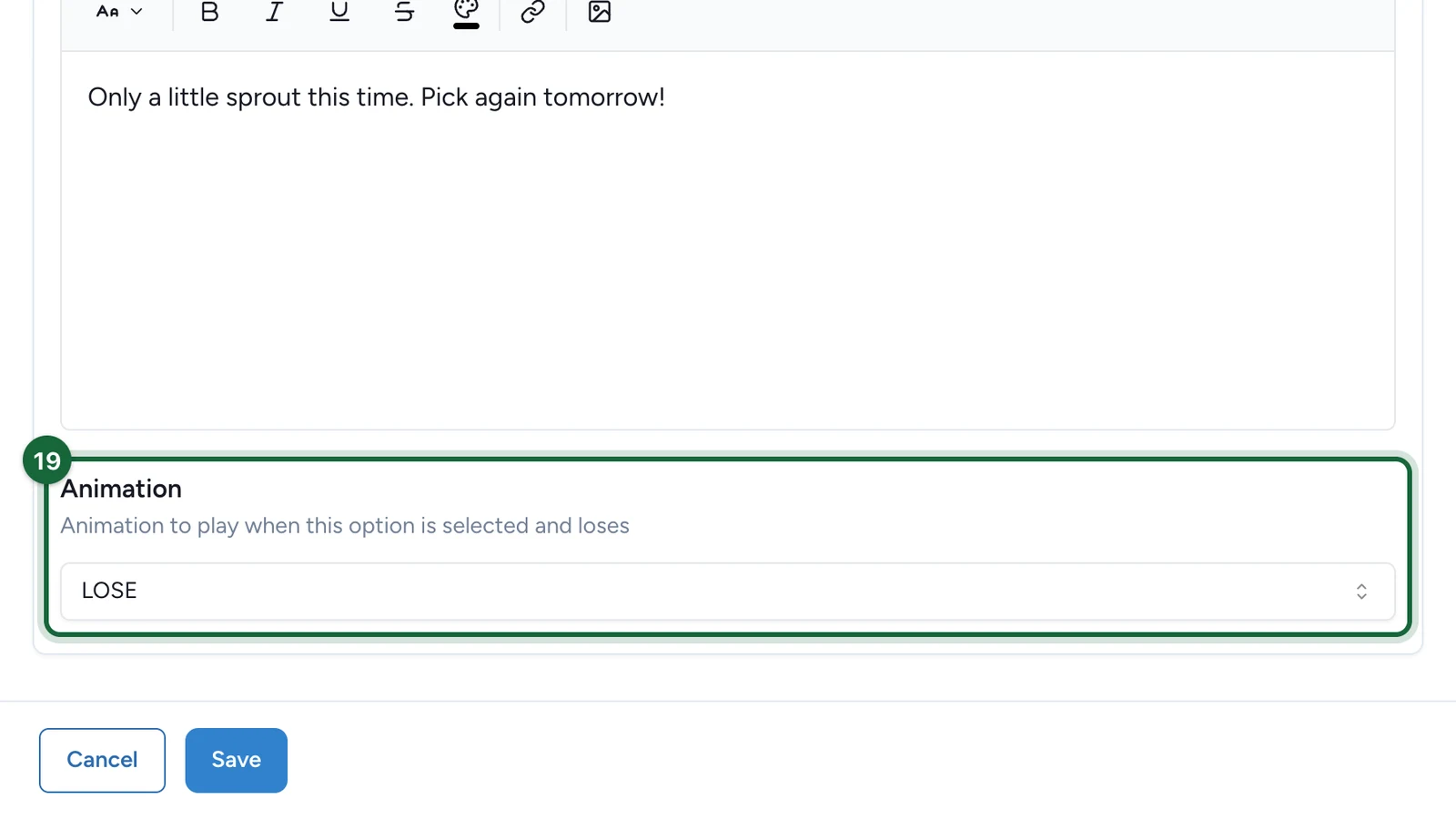
Under its Animation, choose the animation that plays on a loss.
-
Select Save.
Publish the campaign again for players to see the game: see Publish a game.
The other two modes
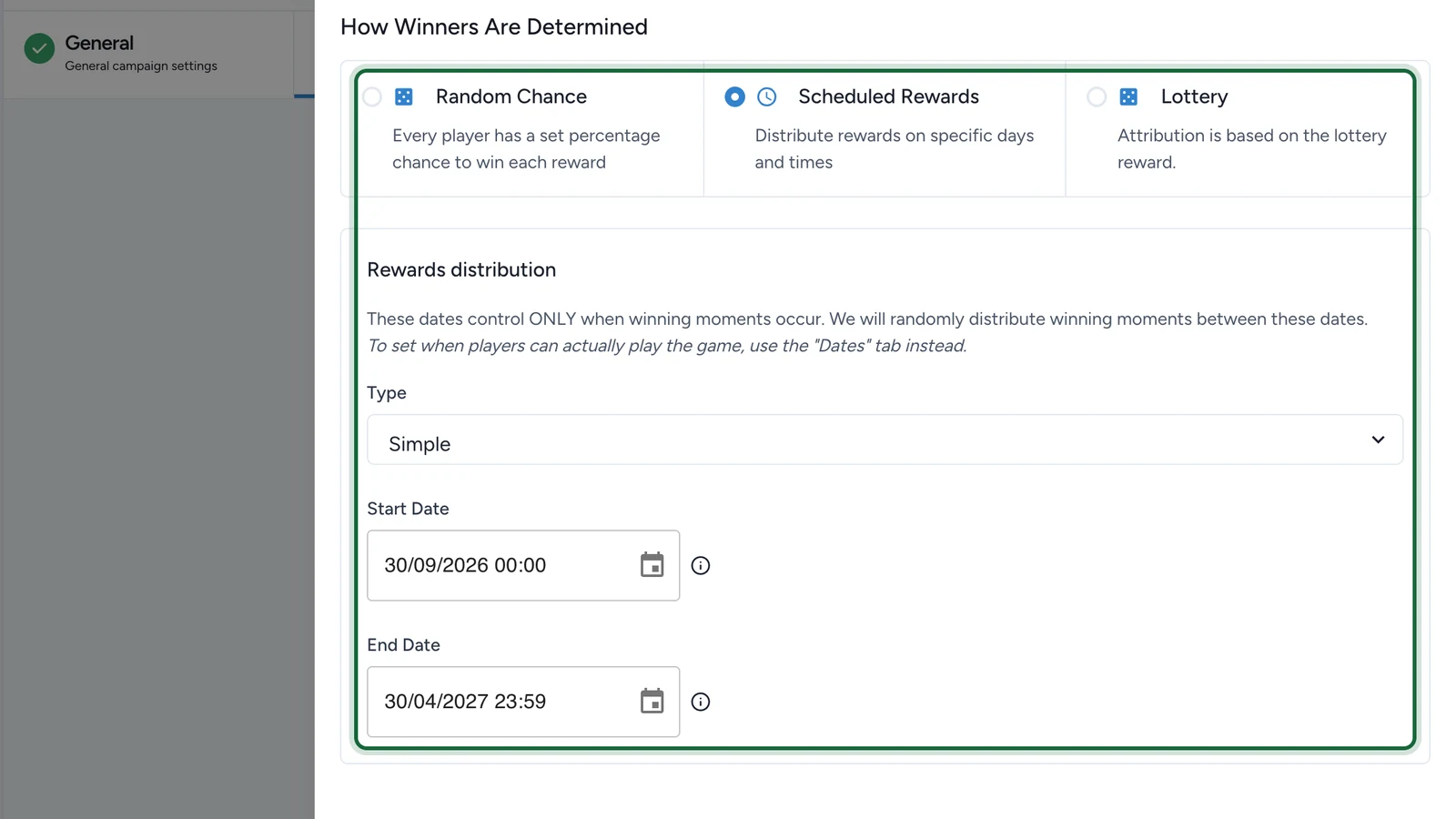
Scheduled Rewards releases the prizes at moments spread between two dates, whatever the odds. Set its Type, Start Date and End Date under Rewards distribution. Those dates only decide when prizes are won: the Dates tab decides when the game is open.
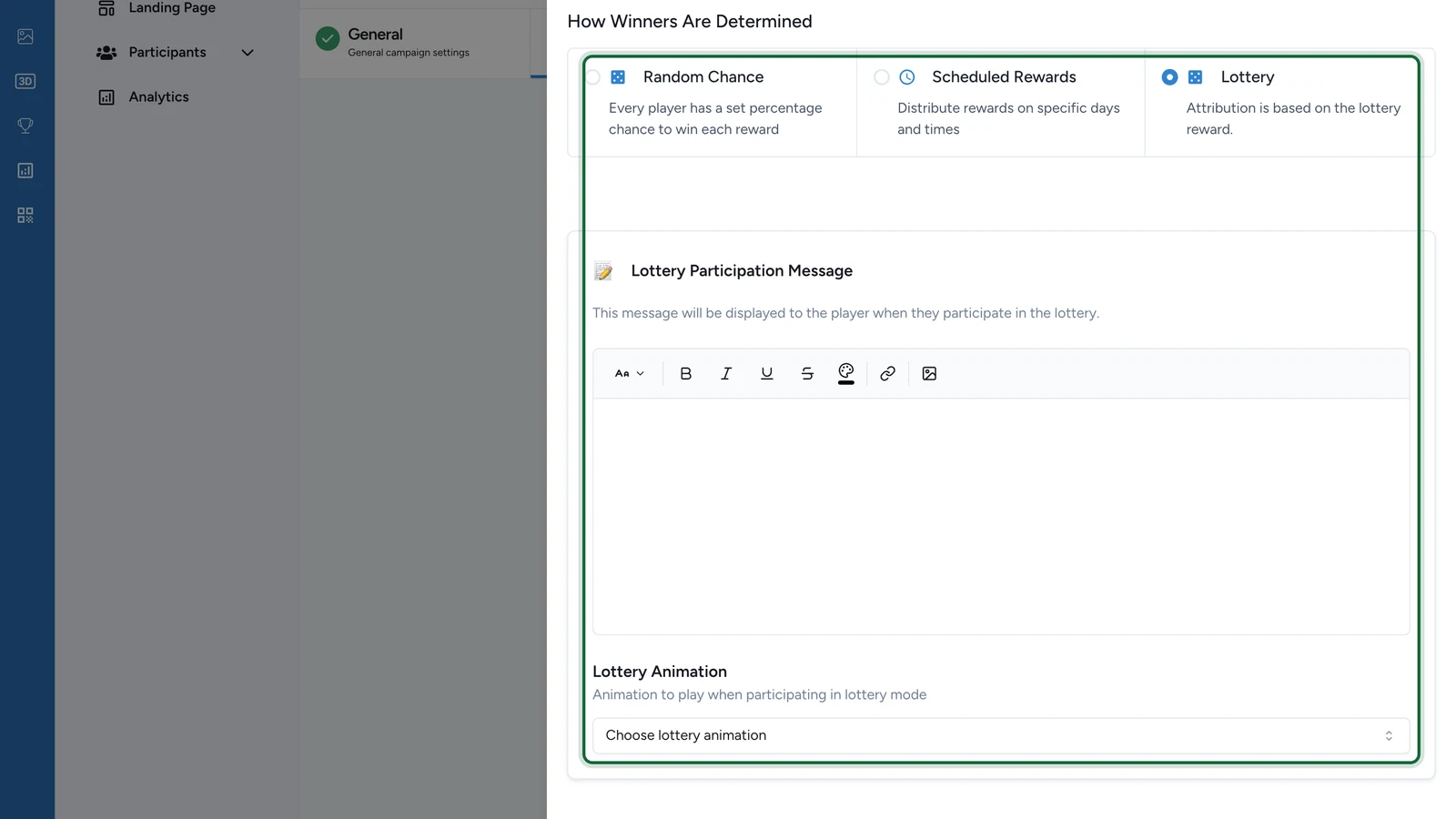
Lottery enters every player in a draw instead: nobody picks an object, the Lottery Animation plays, and the winners are drawn later. Write the Lottery Participation Message, choose the animation, and link a lottery made for this game: see Lottery rewards.
If publishing is blocked
- No background image, or no thumbnail while the landing page is on: choose them on the Appearance tab.
- No 3D model, or no objects: choose the model and set Number of Objects under 3D Models.
- An option has no animation, or one the model doesn't have: choose one of the model's animations for every option.
- An option has no message: fill it in under Outcomes.
- No winning option, no losing outcome, or two losing outcomes: keep one losing outcome and at least one winning option.
- The probabilities don't total 100%: adjust them under Outcomes.
- Lottery mode has no participation message, no animation, or not exactly one lottery: fill in both, and link one lottery.
See also Game validation errors.