Configure tickets (Booking + Check-in events)
Add ticket types, capacities, sale windows, and optional booking-time forms for bookable Activities.
In this article, you'll configure ticket types for Booking and Check-In events, including capacities, per-contact limits, sale windows, and the optional Booking Form used during reservation.
Prerequisites
- The Activity is already set to
Booking and Check-In. If not, see Event types (Booking + Check-in vs. Check-in Only). - The Activity already has dates or slots configured. If not, see Configure slots — weekly vs. specific dates.
Keep the standard v2 ticket flow simple
The current v2 Activity editor focuses on ticket types, capacity, sale windows, and the optional Booking Form. Waitlist and host management are not part of the normal setup flow you should rely on for standard event configuration.
Configuration
Open Tickets inside Slots
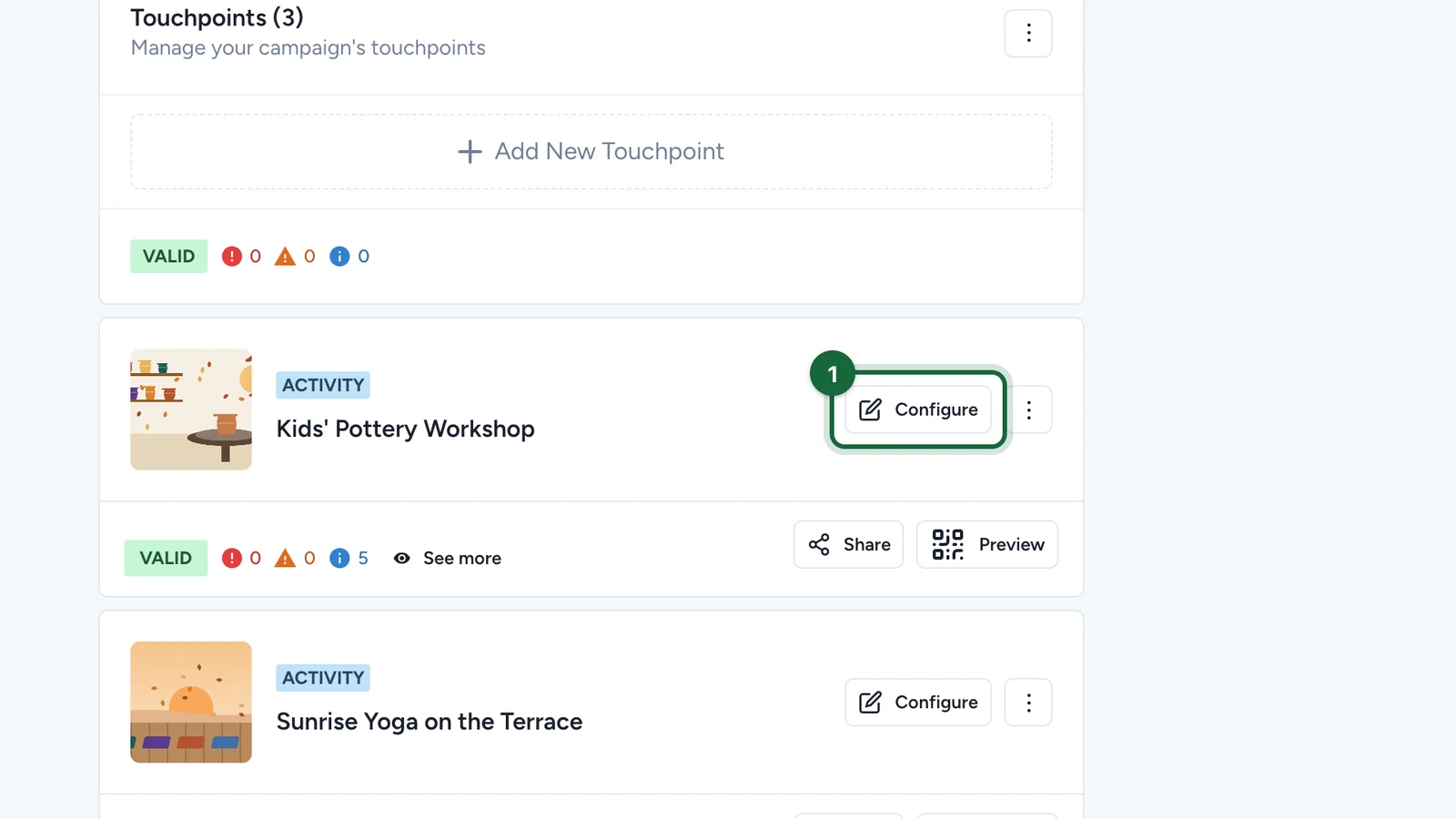
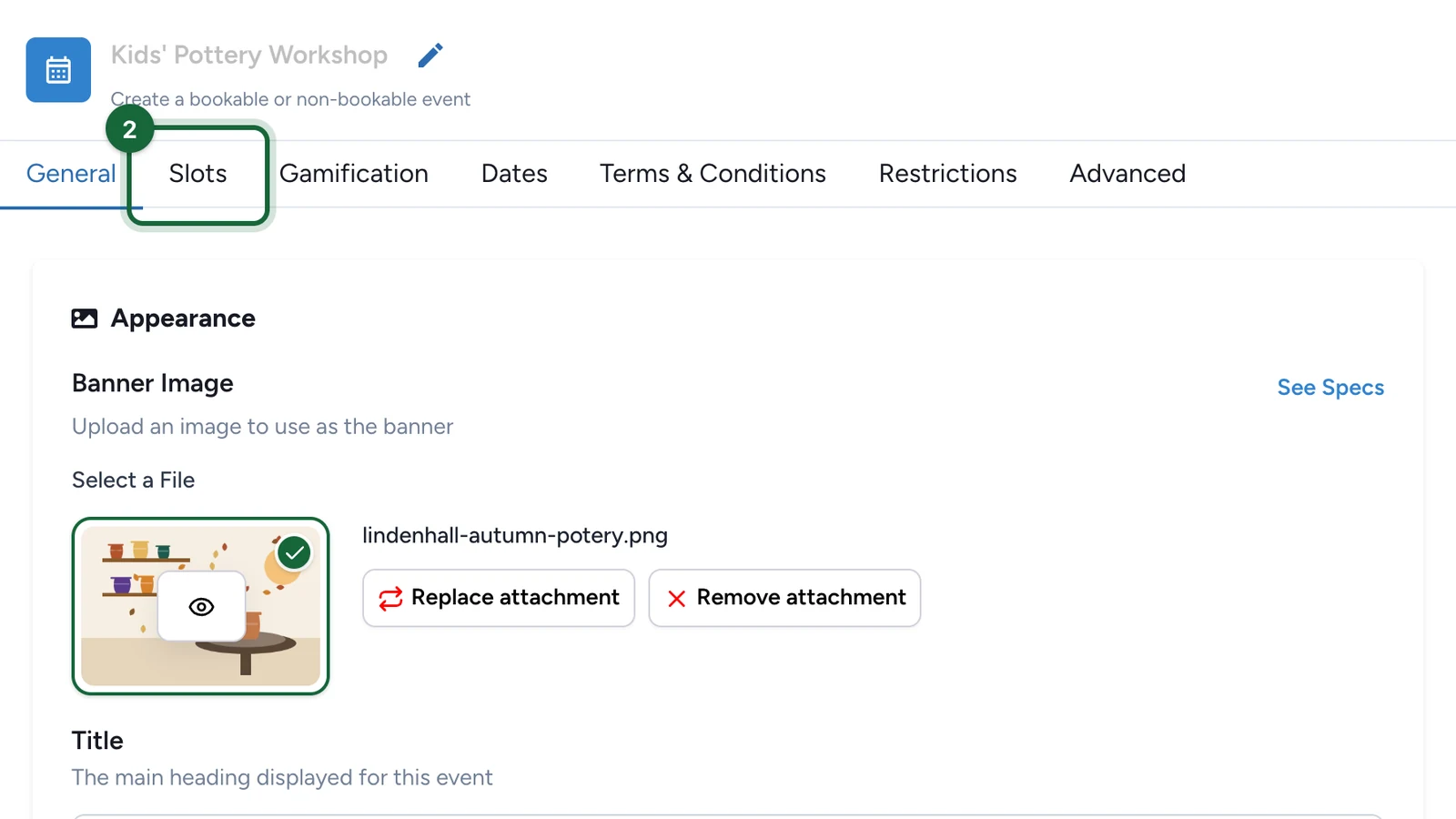
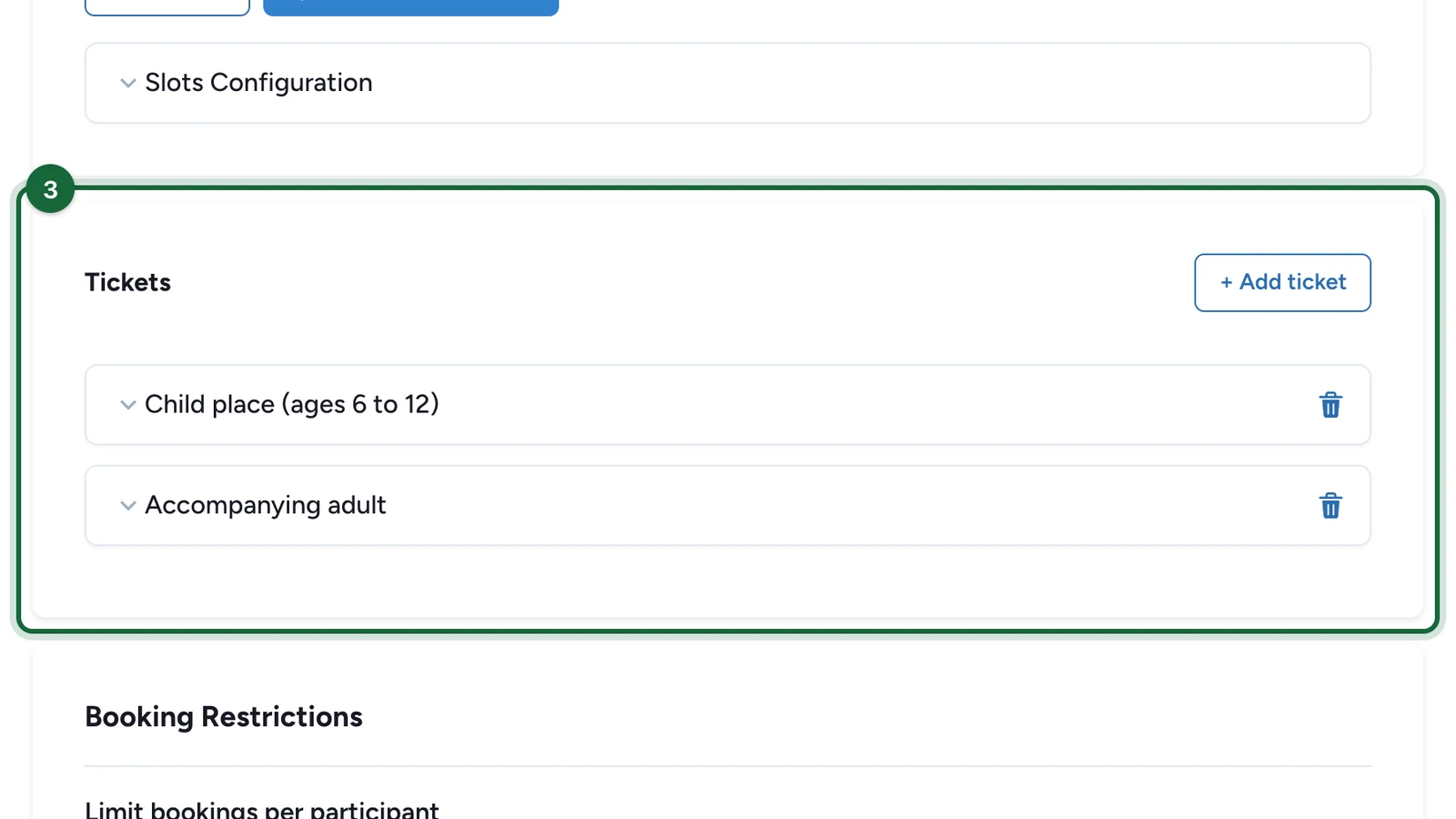
Open the Activity, go to Slots, confirm Booking and Check-In is selected, then work in the Tickets area.
This is where you define the attendee-facing choices for bookable events.
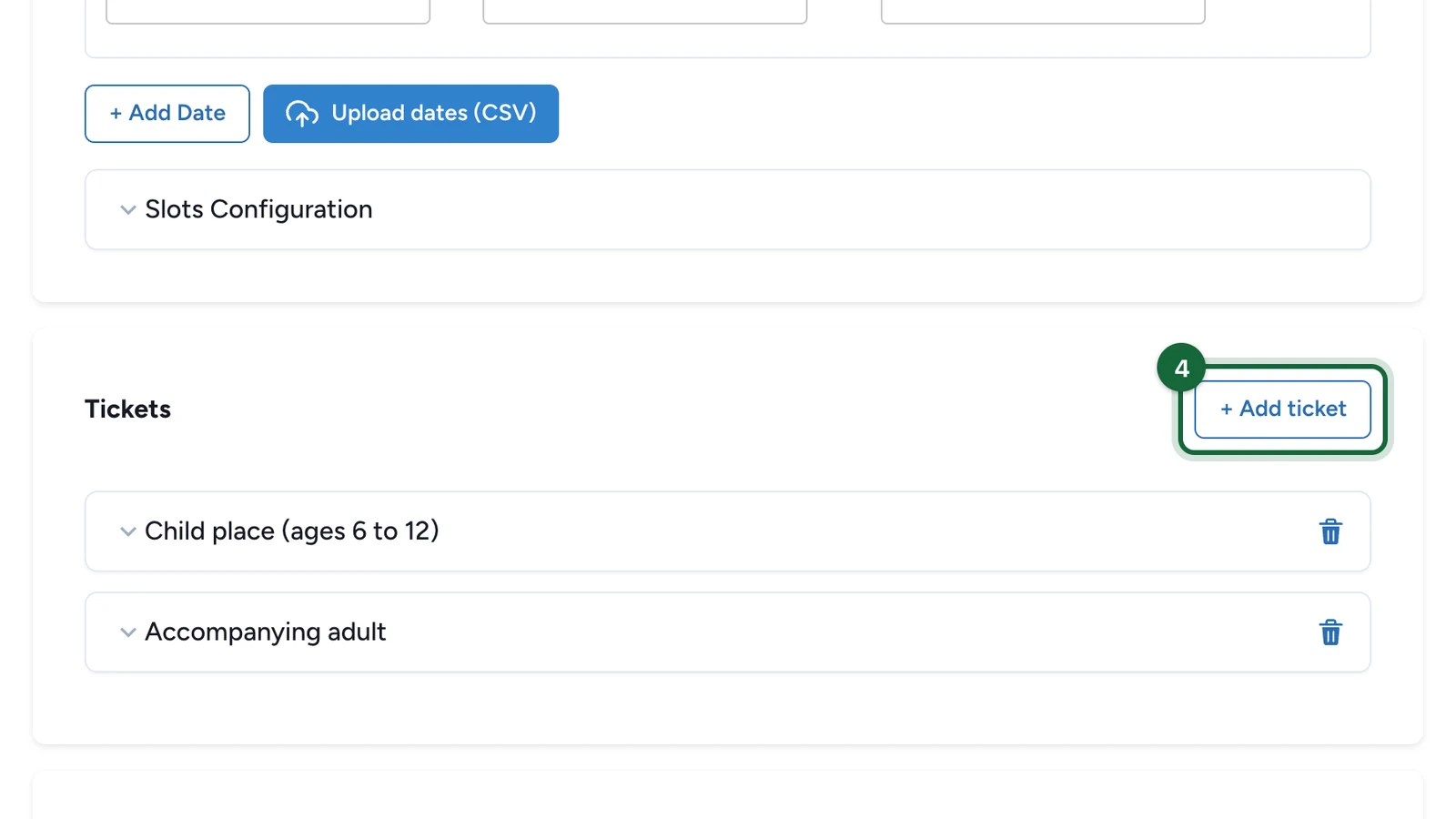
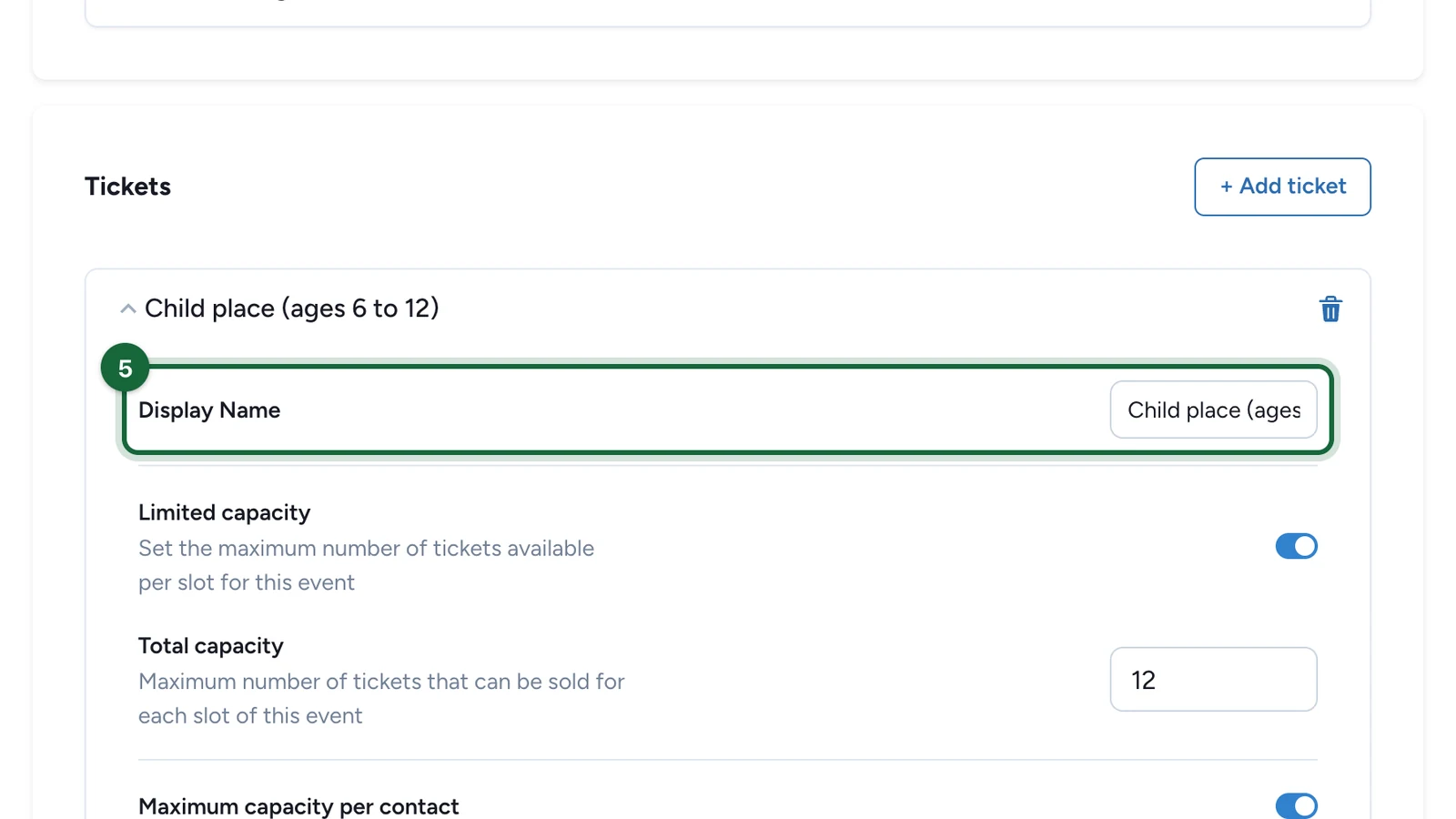
Add one or more ticket types
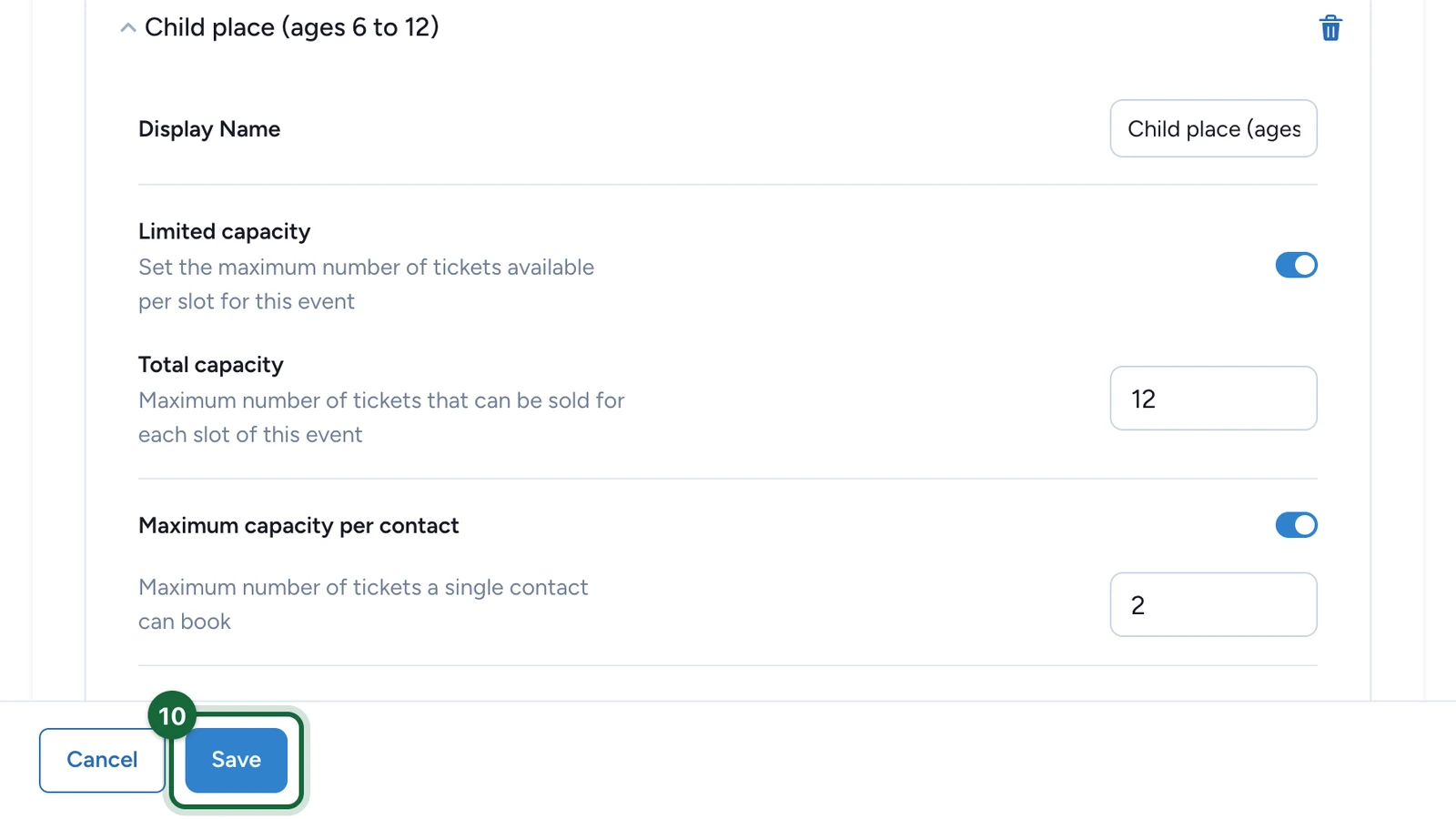
Use + Add ticket to create the options attendees can choose from.
Common examples include General Admission, VIP, Family Pass, or a simple single-ticket event with only one choice.
Set capacity for each ticket
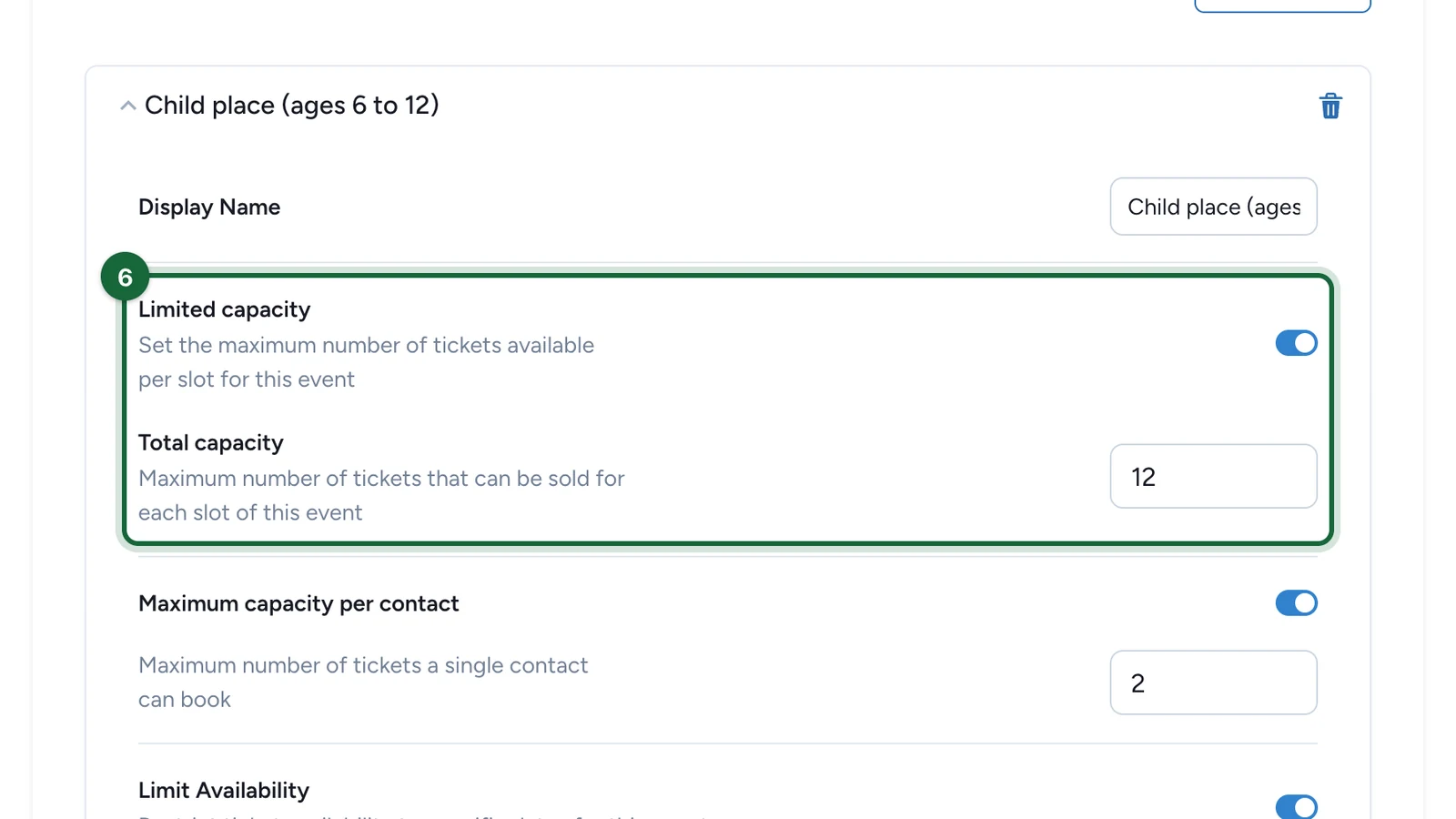
Turn on Limited capacity when a ticket should stop selling after a fixed number of bookings per slot.
Then fill:
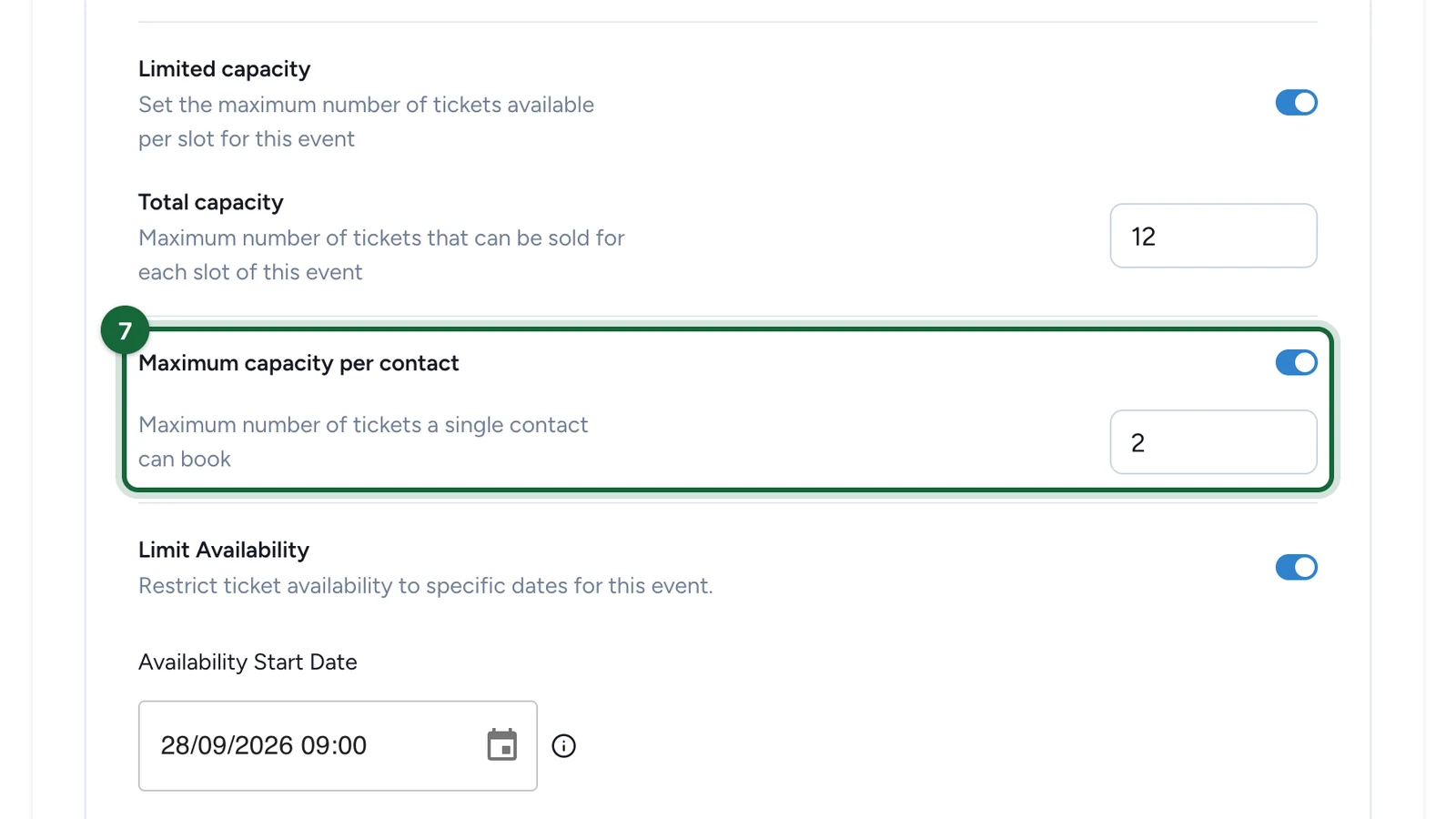
Total capacityfor the maximum number of bookings allowed on that ticket per slotMaximum capacity per contactwhen one participant should not reserve too many seats
Limit the sale window when needed
Turn on Limit Availability if the ticket should be bookable only during a defined window.
Then fill Availability Start Date and Availability End Date.
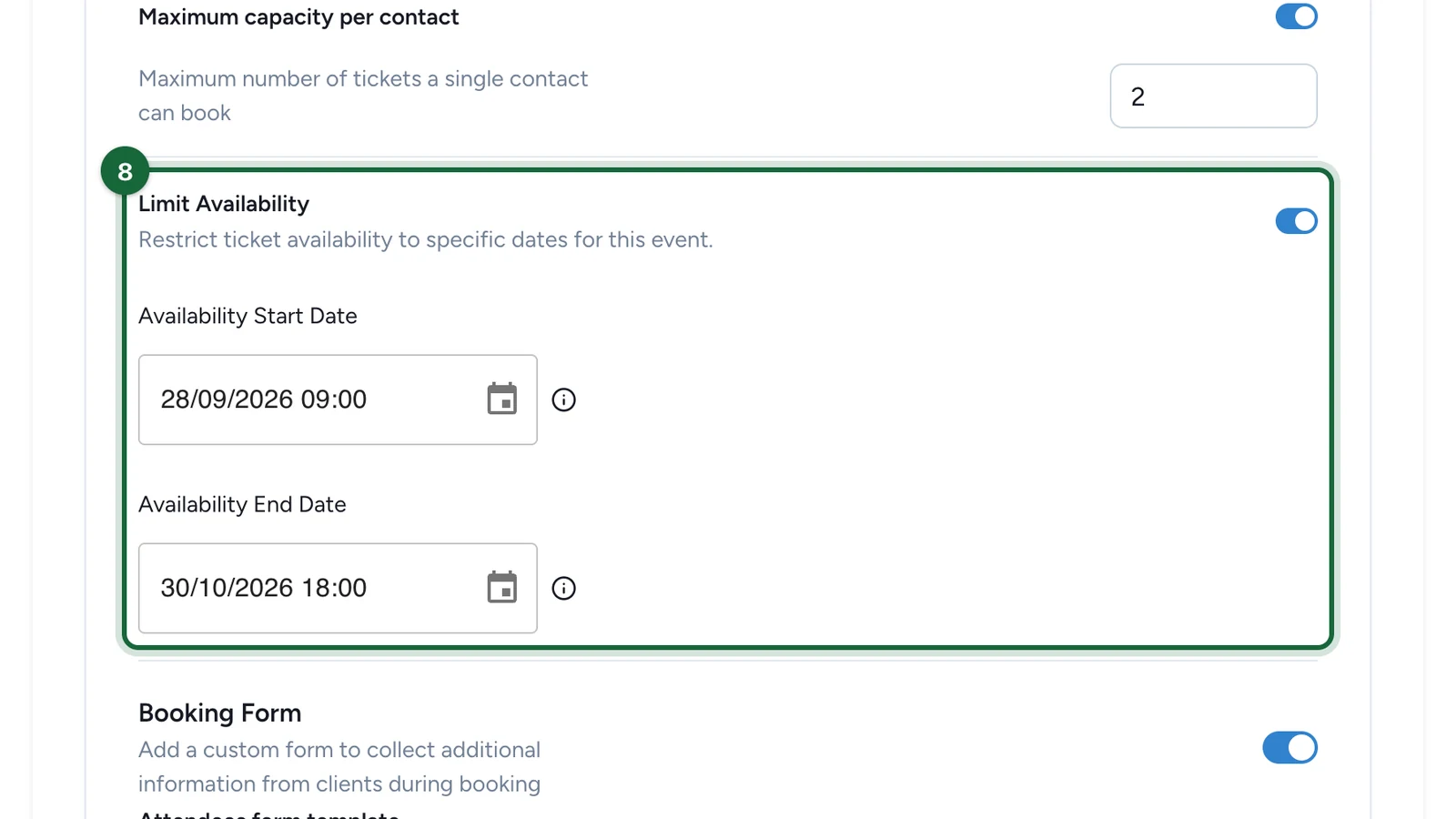
This is useful for cases such as a VIP session that opens booking one week before the event and closes a few hours before doors open.
Add a Booking Form if reservation-time questions are needed
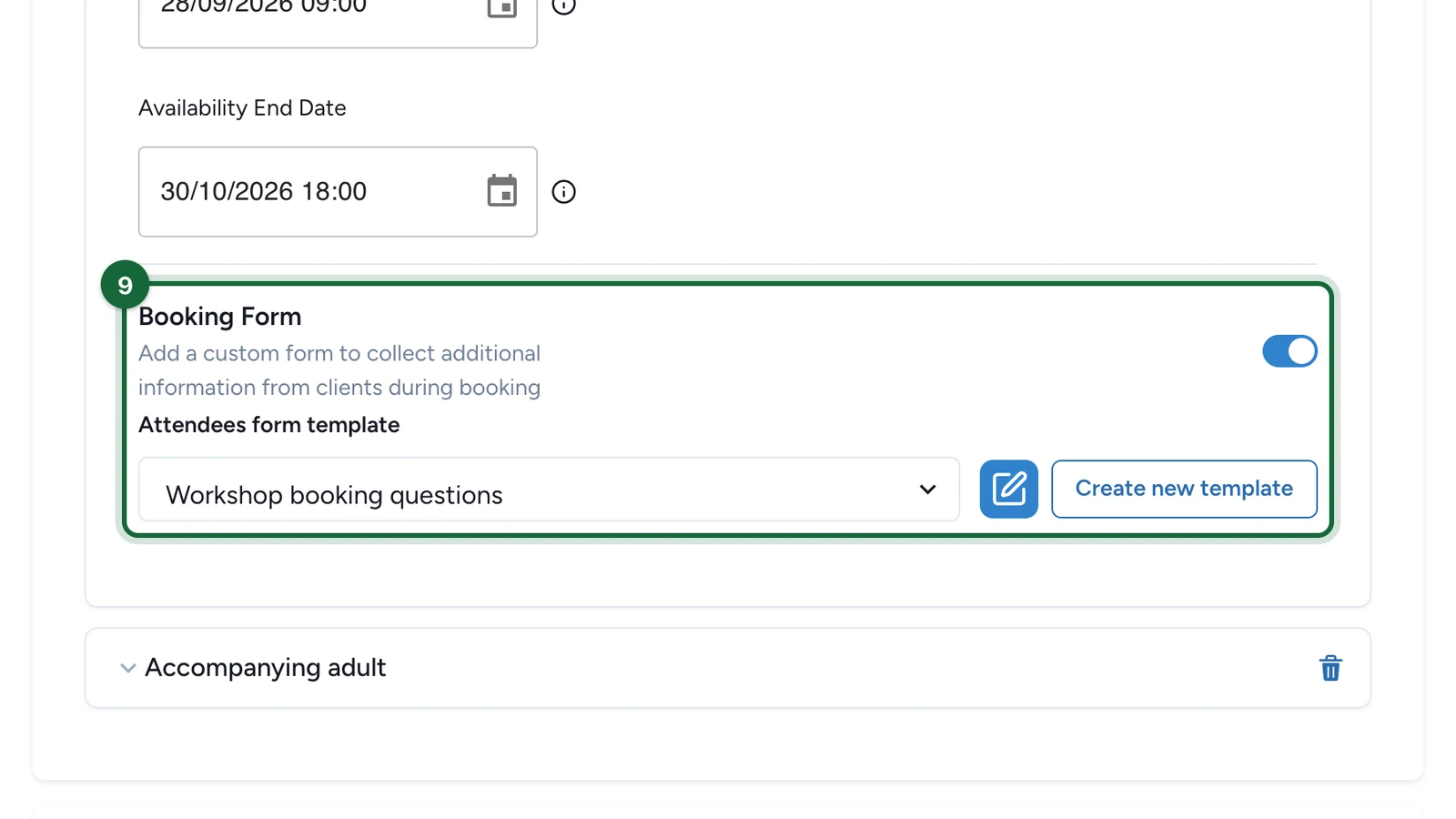
Turn on Booking Form when attendees must answer extra questions during booking, such as guest name, dietary note, or preferred language.
This form is different from a Participation Form and different from the Check-in Form. It appears during reservation, not during the later participation or arrival steps.
Save and test one booking path per ticket type
Run a quick internal booking for each ticket type you plan to publish.
That helps you confirm the capacity logic, sale window, and any booking-time questions before the campaign goes live.
Practical examples
| Event setup | Suggested ticket configuration |
|---|---|
| Workshop with 20 seats | One General Admission ticket, Limited capacity on, Total capacity 20, max 1 per contact |
| VIP session | One VIP ticket, Limited capacity on, small total capacity, sale window closing before the session starts |
| Family workshop | Two ticket types such as Adult and Child, both with clear display names and per-contact limits aligned with group size |
Important planning note
Ticket capacity is per slot, not per whole Activity.
If one ticket has a capacity of 20 and the Activity runs across 5 bookable slots, that ticket can support up to 100 bookings in total as long as each slot remains available.
Validation
If ticket setup is incomplete, validation will surface it before publishing. The most useful messages are:
| Validation key | Message | What to do |
|---|---|---|
activity.tickets.none_configured | Activity '{{activity_name}}' has booking enabled but no ticket types configured | Keep at least one ticket type for every bookable Activity. |
activity.tickets.name_missing | Ticket #{{ticket_index}} in activity '{{activity_name}}' has no display name | Give every attendee-facing option a clear Display Name. |
activity.tickets.capacity_negative | Ticket '{{ticket_name}}' in activity '{{activity_name}}' has negative capacity ({{negative_capacity}}) | Set a positive capacity when Limited capacity is enabled. |
activity.tickets.capacity_zero | Ticket '{{ticket_name}}' in activity '{{activity_name}}' has capacity set to 0 | Raise the capacity above 0 if the ticket should remain bookable. |
activity.tickets.per_contact_negative | Ticket '{{ticket_name}}' in activity '{{activity_name}}' has negative per contact limit ({{negative_per_contact}}) | Set a positive per-contact limit, or turn that limit off. |
activity.tickets.sale_start_date_required | Ticket '{{ticket_name}}' in activity '{{activity_name}}' has limited availability enabled but no sale start date | Fill the sale start date whenever Limit Availability is on. |
activity.tickets.sale_end_date_required | Ticket '{{ticket_name}}' in activity '{{activity_name}}' has limited availability enabled but no sale end date | Fill the sale end date whenever Limit Availability is on. |
activity.tickets.sale_date_range_invalid | Ticket '{{ticket_name}}' in activity '{{activity_name}}' has sale start date ({{sale_start_date}}) after or equal to sale end date ({{sale_end_date}}) | Make sure the start date is earlier than the end date. |
activity.tickets.per_contact_exceeds_total | Ticket '{{ticket_name}}' allows {{per_contact}} tickets per person but total capacity is only {{total_capacity}} | Keep the per-contact cap lower than or equal to the total capacity. |
activity.tickets.multiple_types | Activity '{{activity_name}}' has {{ticket_count}} ticket types configured | Informational message confirming that attendees will see multiple ticket options. |
activity.tickets.total_capacity_info | Activity '{{activity_name}}' has total capacity of {{total_capacity}} across all ticket types per slot | Informational capacity summary across the whole slot. |
activity.tickets.high_per_contact | Ticket '{{ticket_name}}' allows {{per_contact}} tickets per person | Review whether a high group-booking limit is intentional. |
activity.tickets.mixed_capacity_types | Activity '{{activity_name}}' has both limited and unlimited capacity tickets | Decide whether mixing limited and unlimited tickets is really clear for attendees. |
See Validation & publishing for how these messages surface before launch.
Related
Configure slots — weekly vs. specific dates
Set the schedule first so each ticket has a real slot structure to work against.
Configure check-in (Self vs. Scan)
Define how booked attendees are checked in on the day.
Set the participation form for an event
Compare the Booking Form with the Participation Form and Check-in Form.
Configure booking notifications
Finish the bookable flow with confirmation, cancellation, and reminder emails.