Configure check-in
Choose how attendees check in, when check-in opens and closes, and what they answer on arrival.
Check-in settings sit in the Activity's Slots tab. Open the Activity from Build > Touchpoints > Configure first.
Choose how attendees check in
-
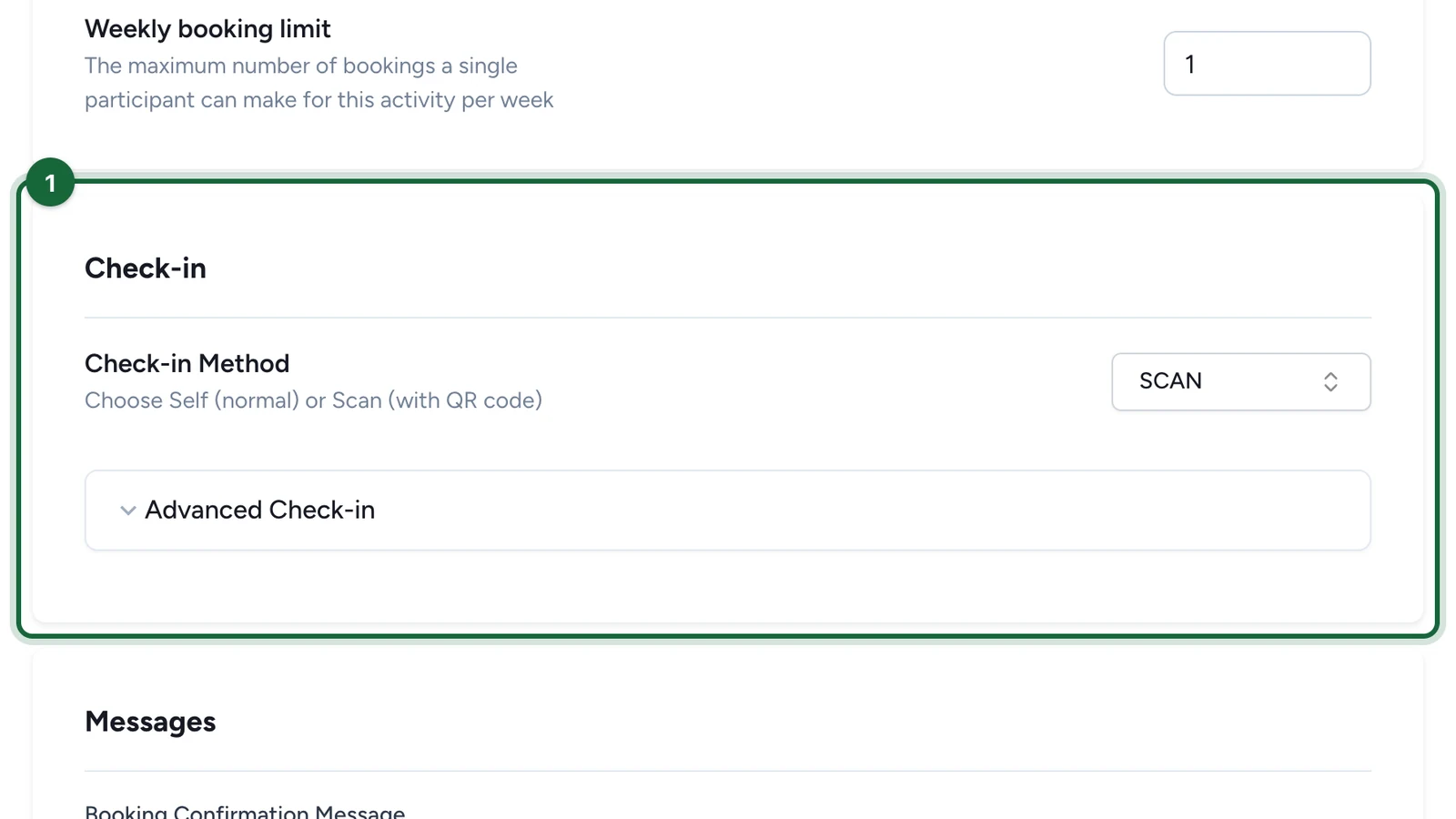
Scroll to the Check-in section.
-
In Check-in Method, choose SELF or SCAN.
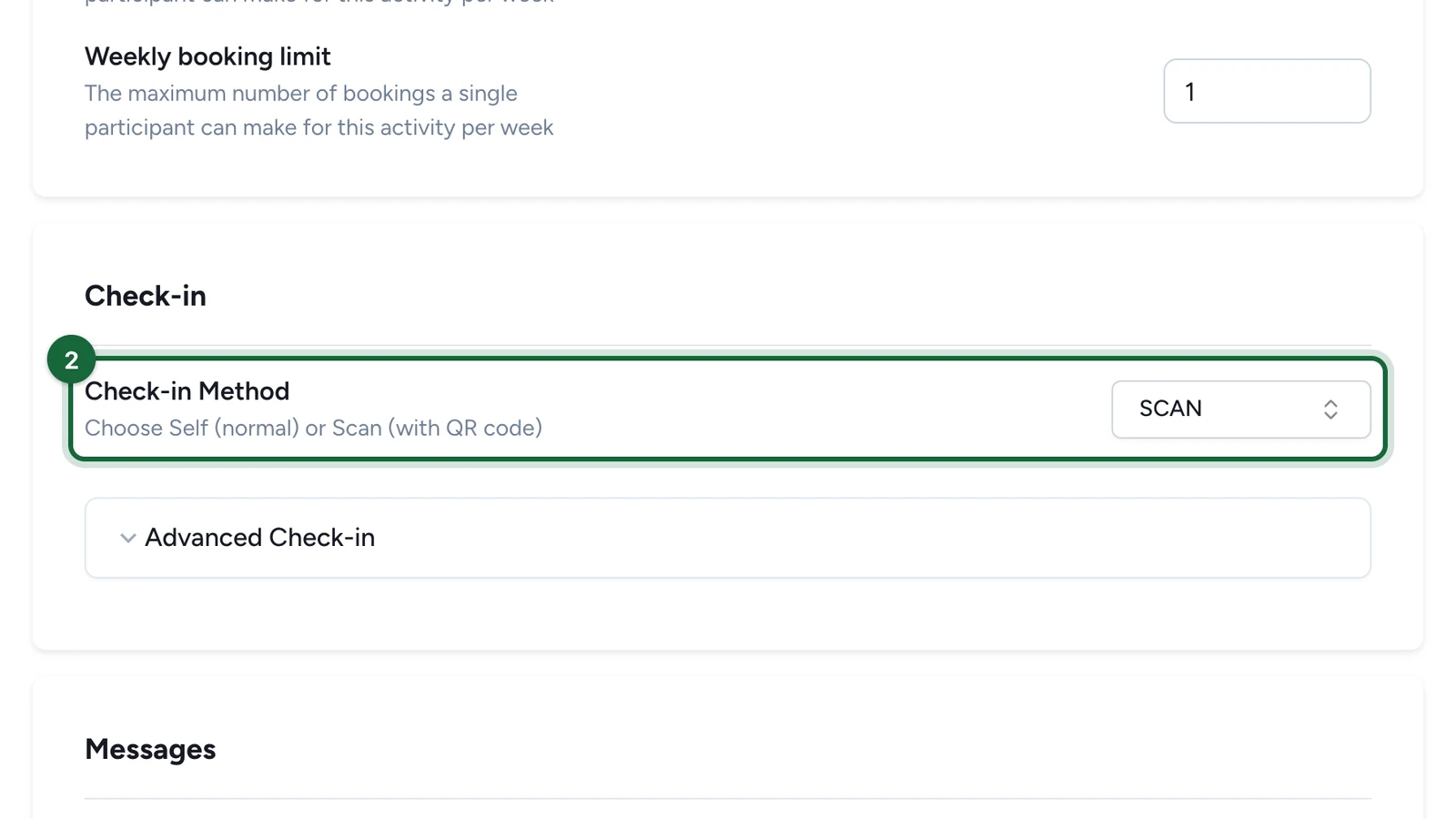
- SELF: attendees check in on their own phone. They open the event page, sign in, then select Start Check In during the event's hours.
- SCAN: staff scan each attendee's ticket QR code with the Event Host App.
Set when check-in opens and closes
-
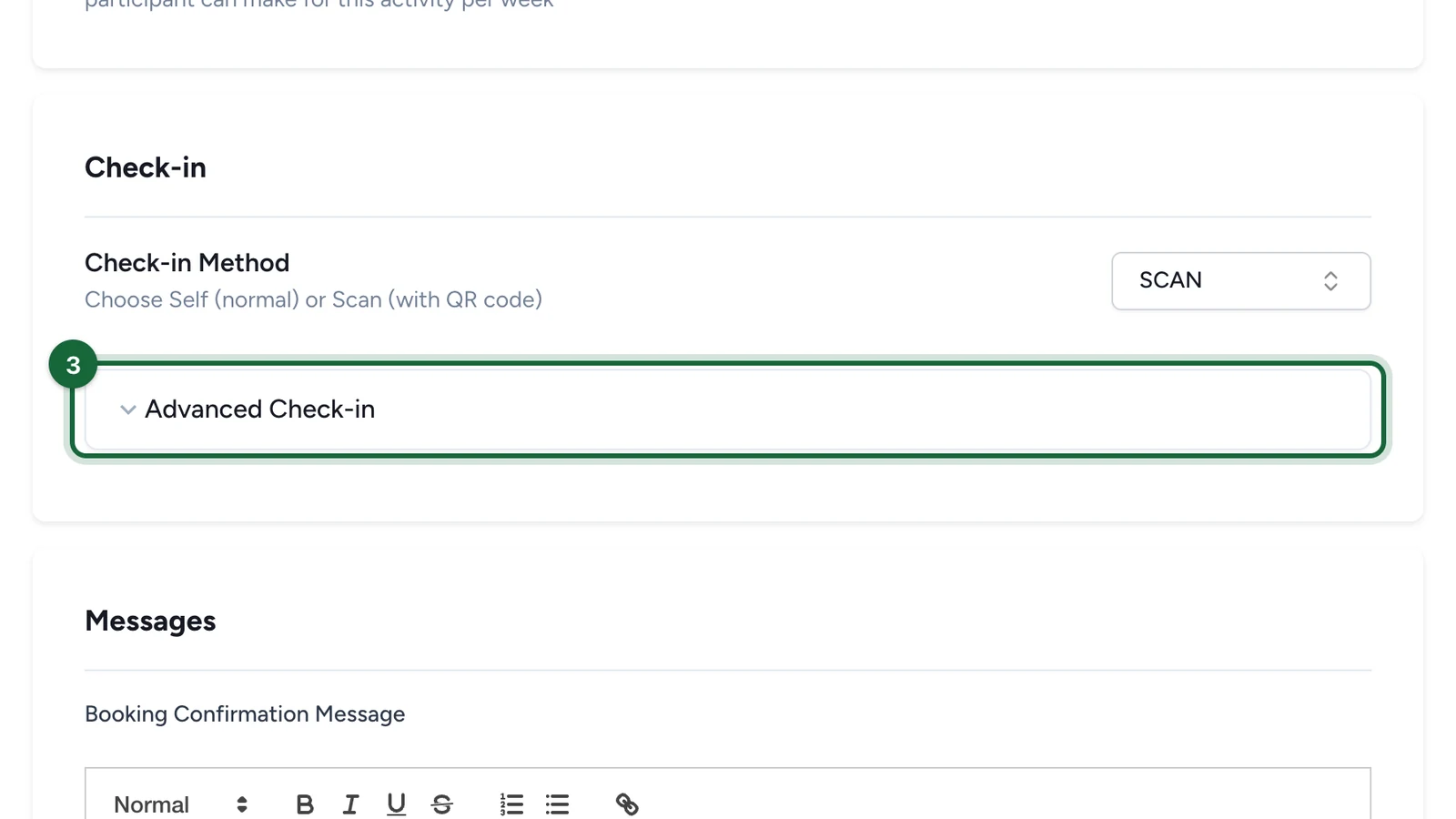
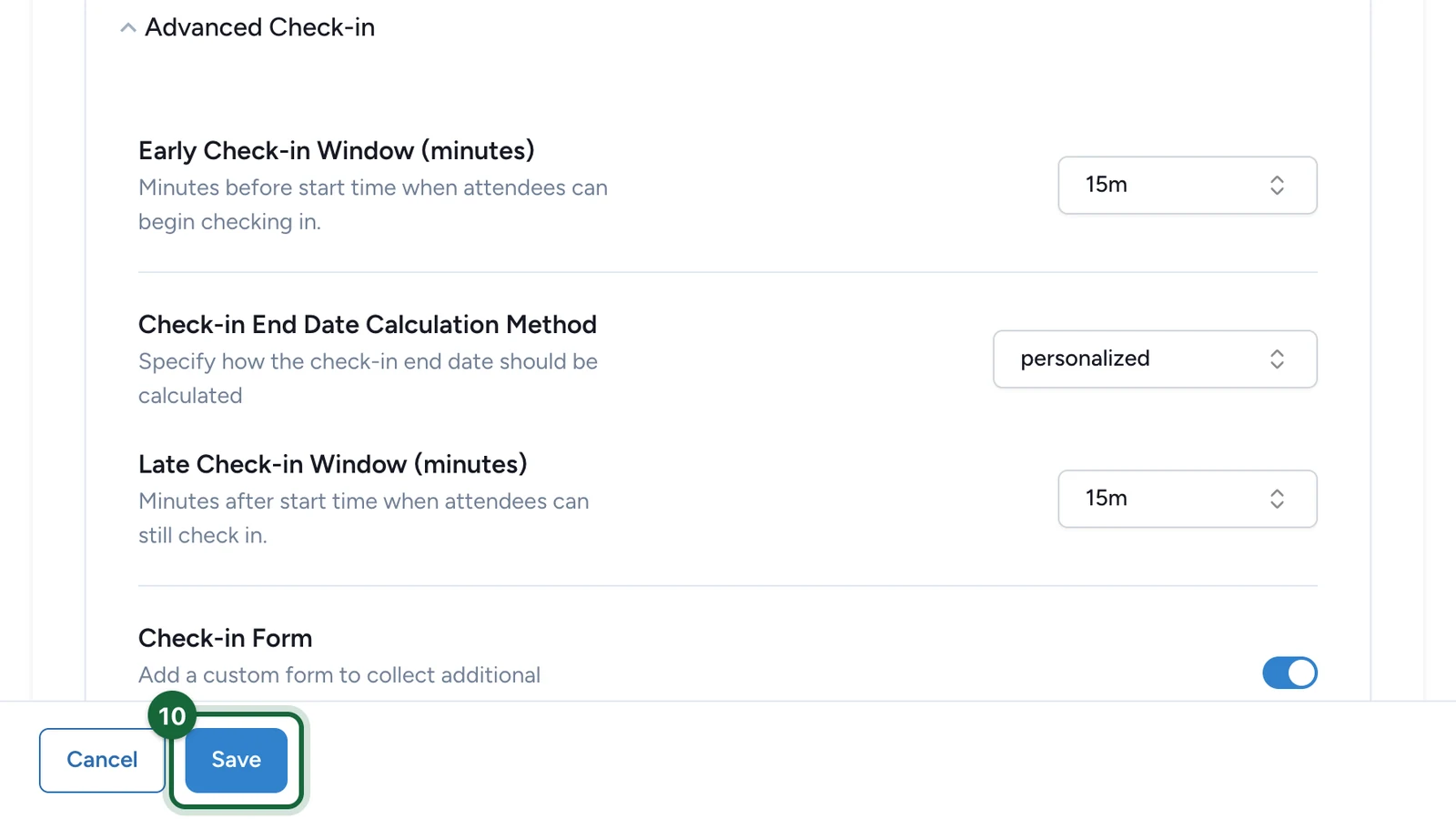
Select Advanced Check-in to open the timing settings.
-
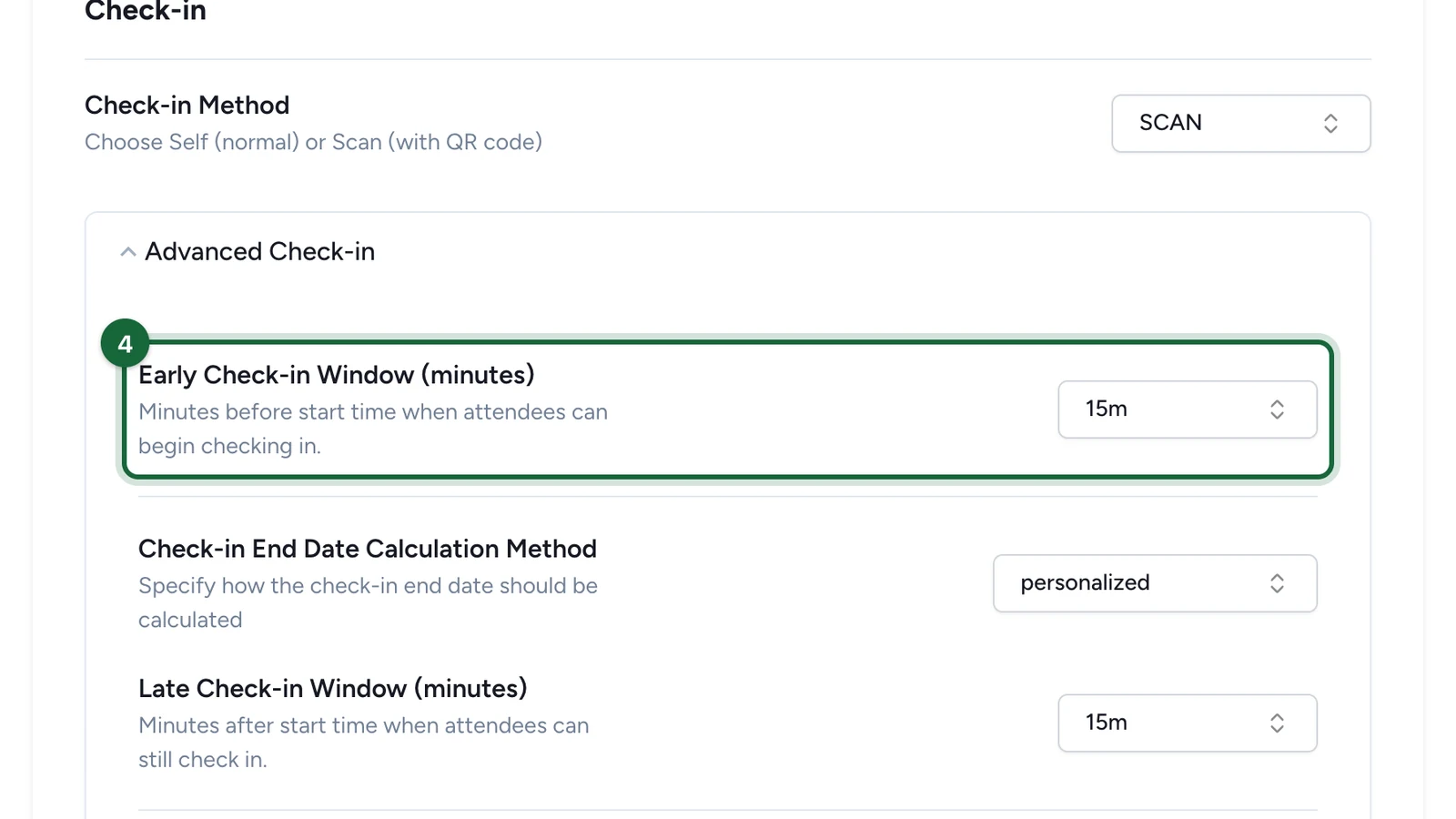
In Early Check-in Window (minutes), choose how early attendees can check in before the start.
-
In Check-in End Date Calculation Method, choose when check-in closes.
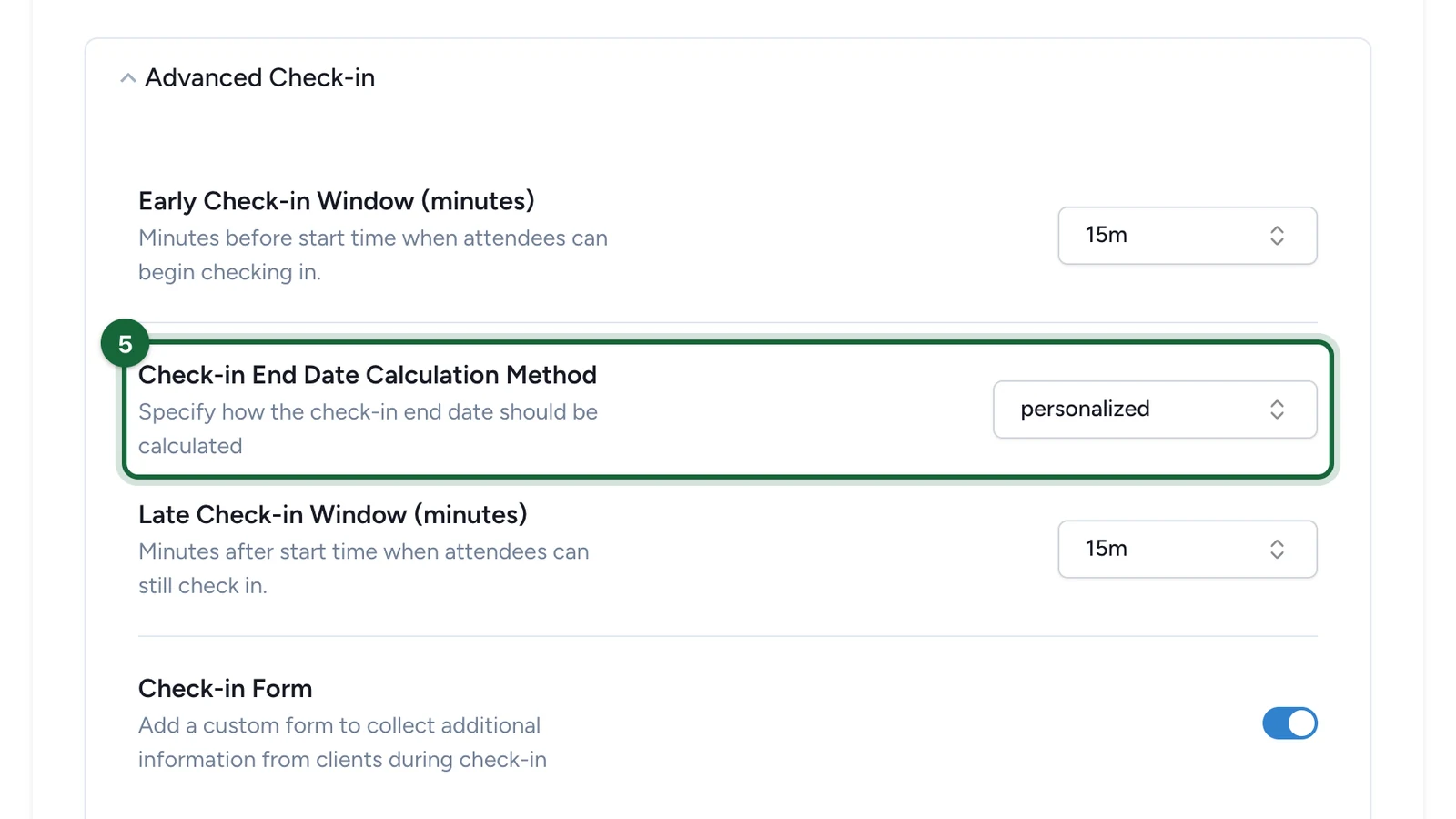
- Slot end date: check-in closes when the slot ends.
- personalized: check-in closes a set time after the start.
-
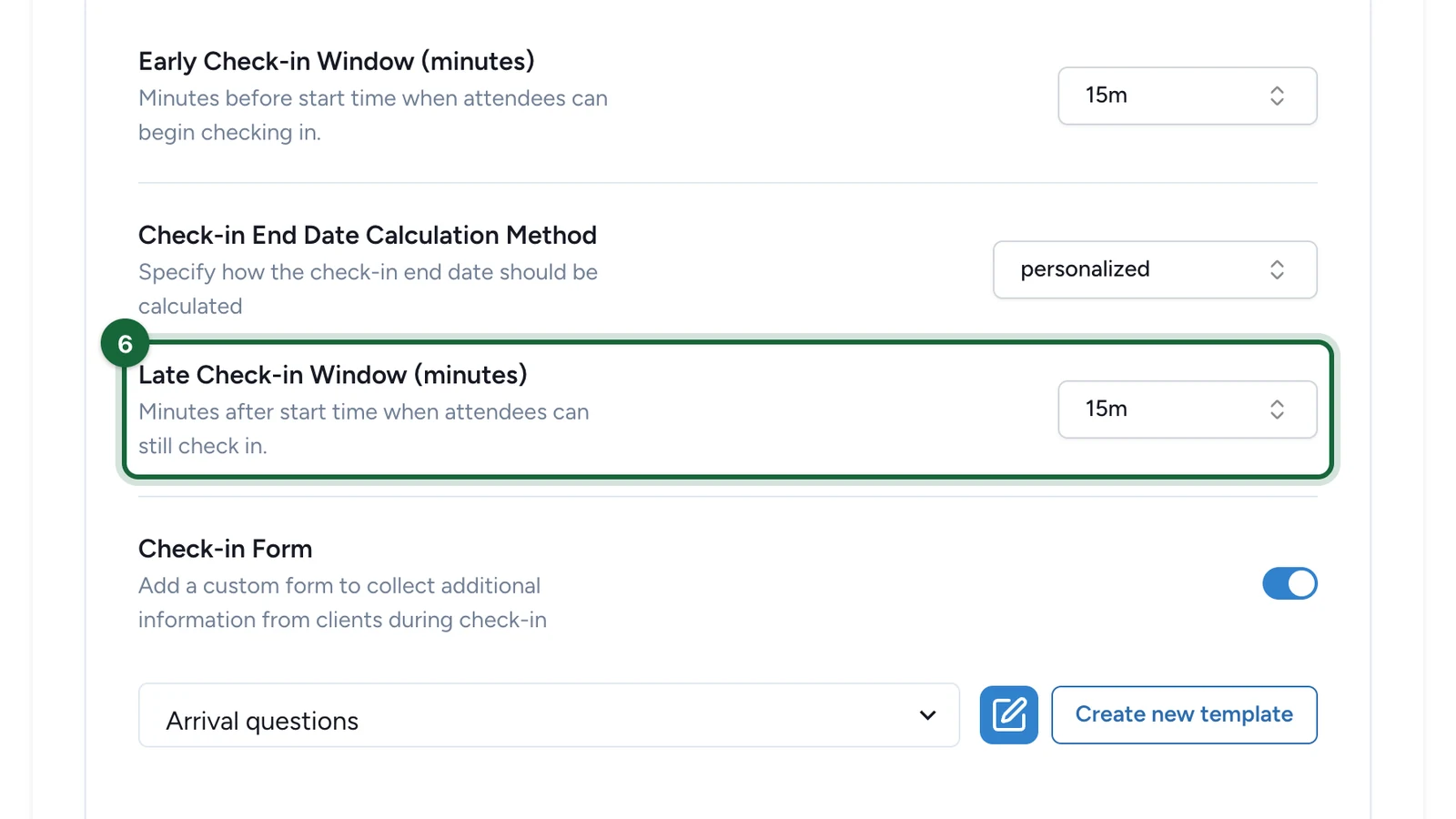
If you chose personalized, set the Late Check-in Window (minutes).
Ask questions on arrival
-
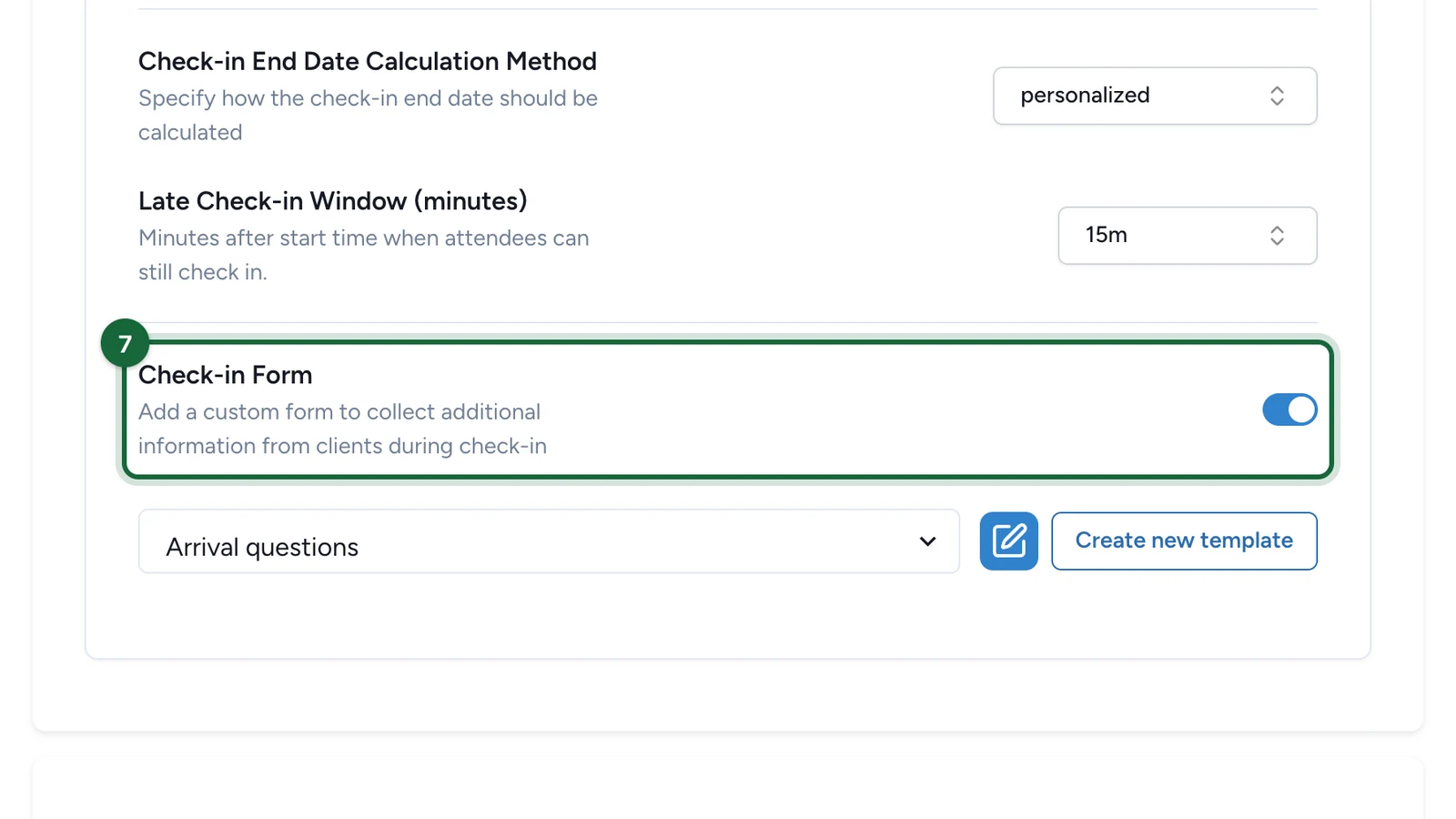
(Optional) Turn on Check-in Form.
-
Choose the form, or select Create new template.
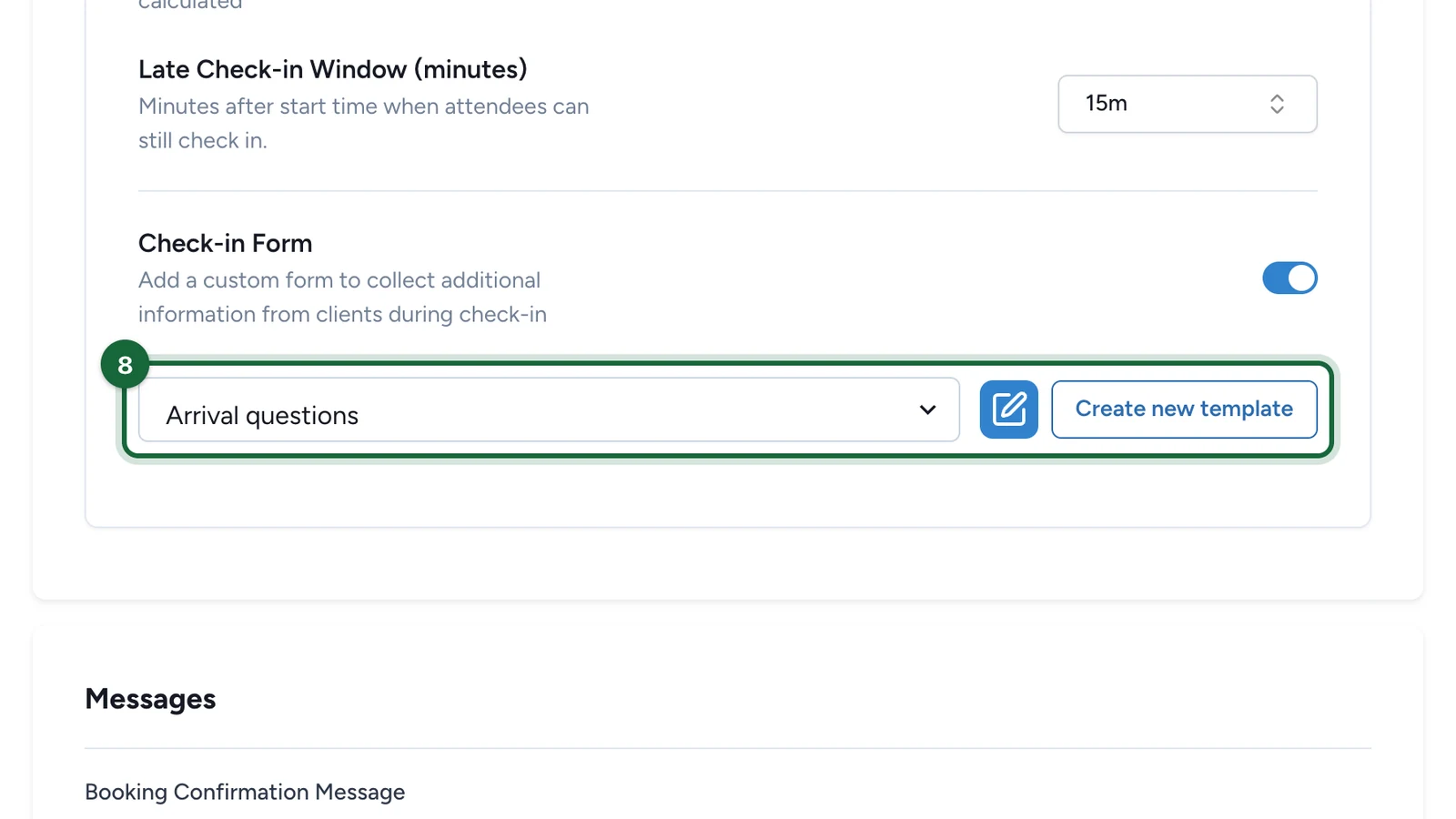
This form appears at check-in only. It's separate from the booking form and the participation form.
Write the confirmation messages
-
(Optional) Under Messages, write the Booking Confirmation Message and the Check-in Confirmation Message.
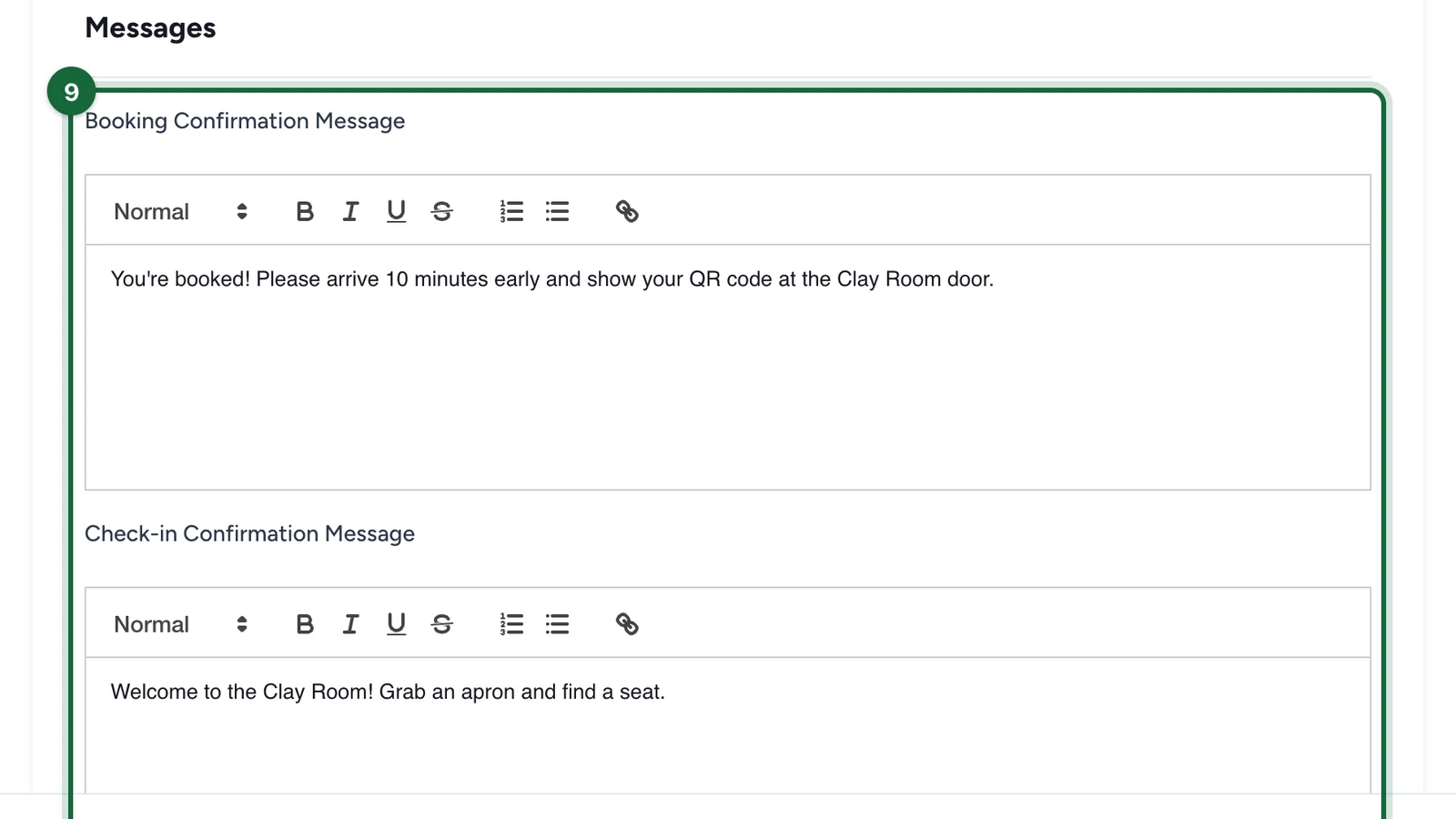
People see the first on the event page after they book, and the second once they're checked in. Use them for practical details, such as where to go.
-
Select Save.
Which method to choose
| Method | Best for | Plan for |
|---|---|---|
| SELF | Drop-in events with no hosts at the door | Clear signs, and a visible QR code that opens the event page |
| SCAN | Workshops, kids' activities, VIP sessions: anywhere staff confirm who arrives | Tablets or phones with the Event Host App, and a rehearsal before doors open |
A workshop might open check-in 15 minutes early and close at the slot end. A kids' activity might also accept latecomers for 15 minutes with personalized.
If publishing is blocked
- Negative early or late window: set it to 0 or more.
- Check-in form on, but no template chosen: choose a form template, or turn off Check-in Form.
- personalized end, but no late window: set a Late Check-in Window (minutes) above 0.
Studio also warns when the early window is 60 minutes or more. Check the value is intended.