Configure slots — weekly vs. specific dates

Choose Weekly or Specific Dates, then turn those ranges into single slots or repeated bookable slots.

Set when your event runs by choosing Weekly or Specific Dates, then decide whether each date range stays whole or splits into bookable slots. The right choice keeps your booking calendar matching how the event actually happens.

If you just want the same weekdays to repeat, pick Weekly. If each session has its own calendar date, pick Specific Dates.

Before you begin

  • Campaign dates are already configured. If not, see Campaign dates.
  • If this Activity uses its own date override, you already know that allowed date range. If needed, see Touchpoint dates override.
  • The Activity Touchpoint already exists.

Booking unlocks only after dates exist

The bookable event mode stays unavailable until you add at least one date. Start with Dates, then return to tickets and booking behavior.

Pick the schedule model

You work in one schedule mode at a time.

ModeBest forTypical example
WeeklyRecurring availability that repeats on the same weekdaysA workshop every Wednesday and Saturday
Specific DatesOne-off or irregular sessions with fixed calendar datesA VIP session on Friday night and another on Sunday afternoon

Steps

Open Slots, then Dates

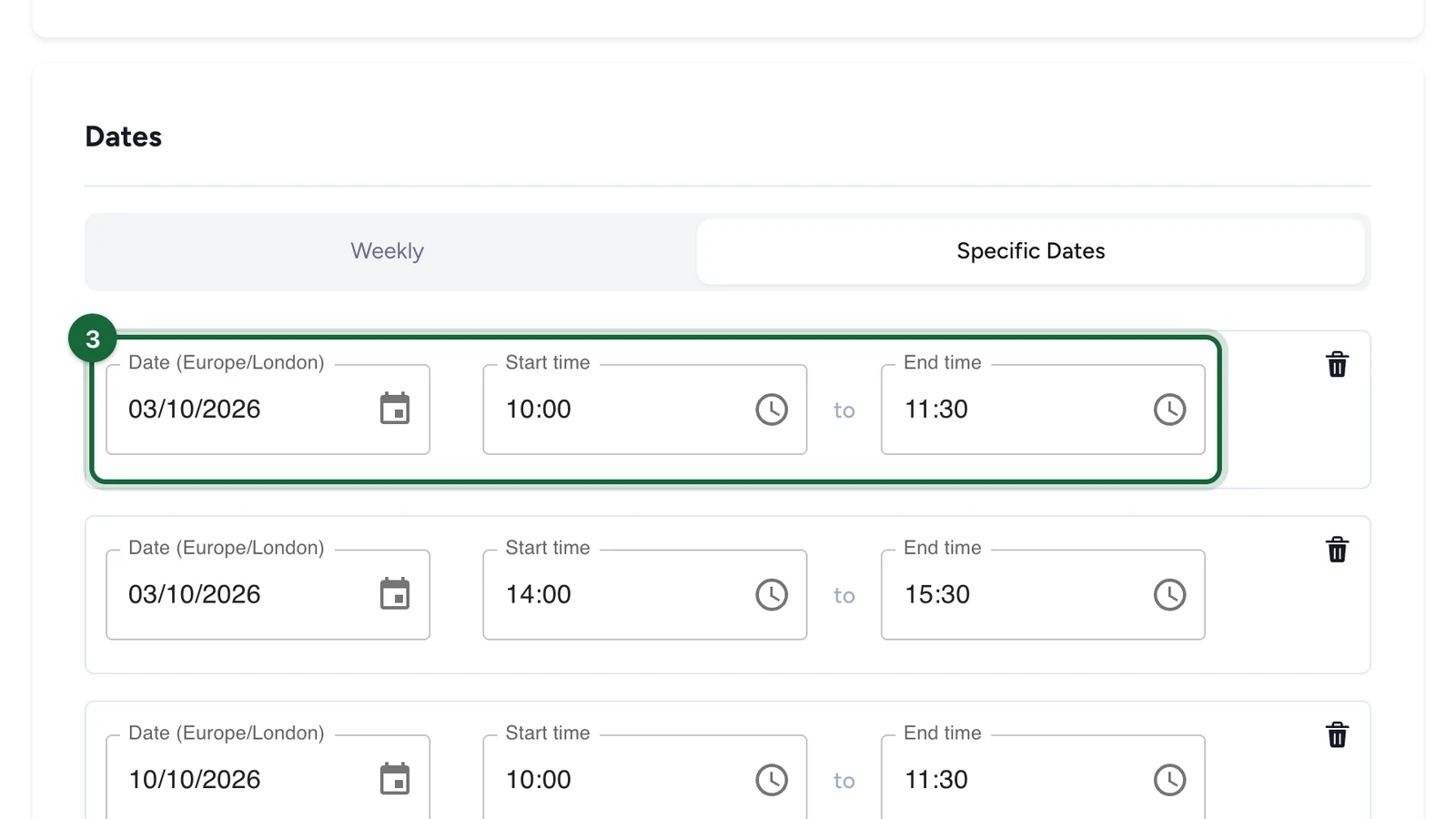
Open the Activity, go to Slots, then start in the Dates section.

This is where you choose the schedule model and add the availability windows before any ticketing or check-in rules apply.

Slots Dates section with the schedule mode selector and a date entry added

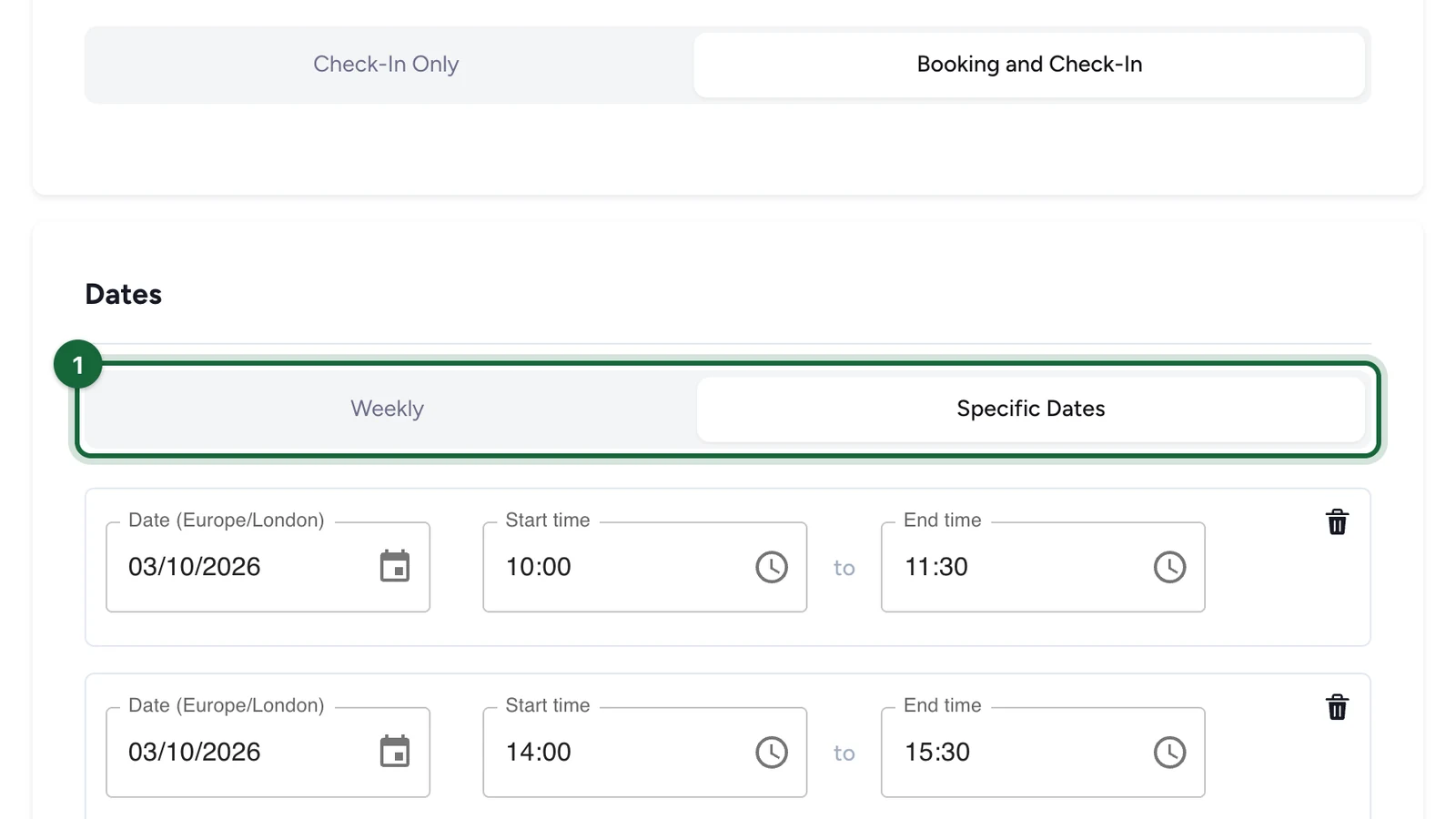
Choose Weekly or Specific Dates

Pick the mode that matches the event:

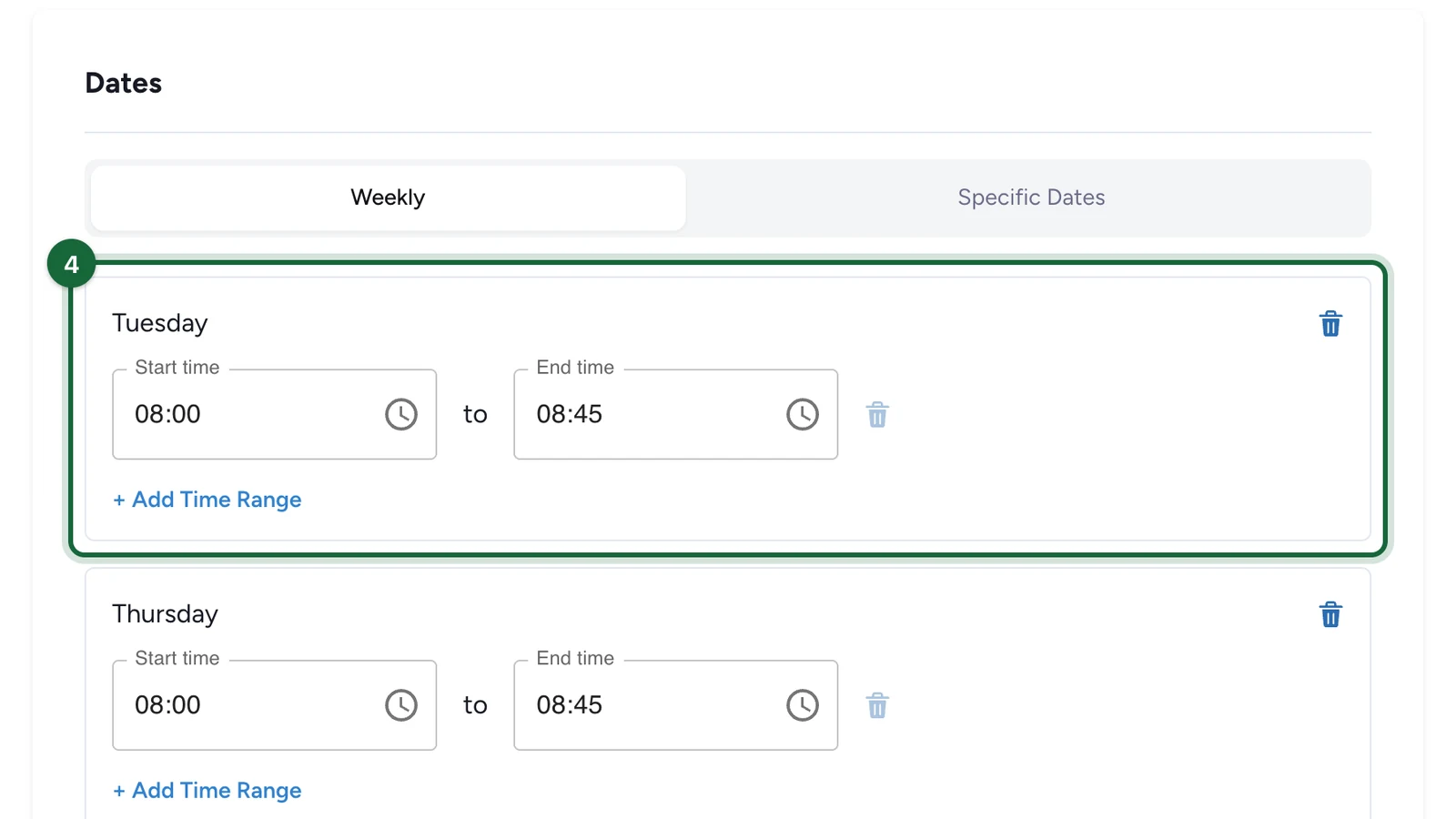
  • Use Weekly when the same weekdays and hours repeat.
  • Use Specific Dates when each session has its own calendar date.

Add the availability windows

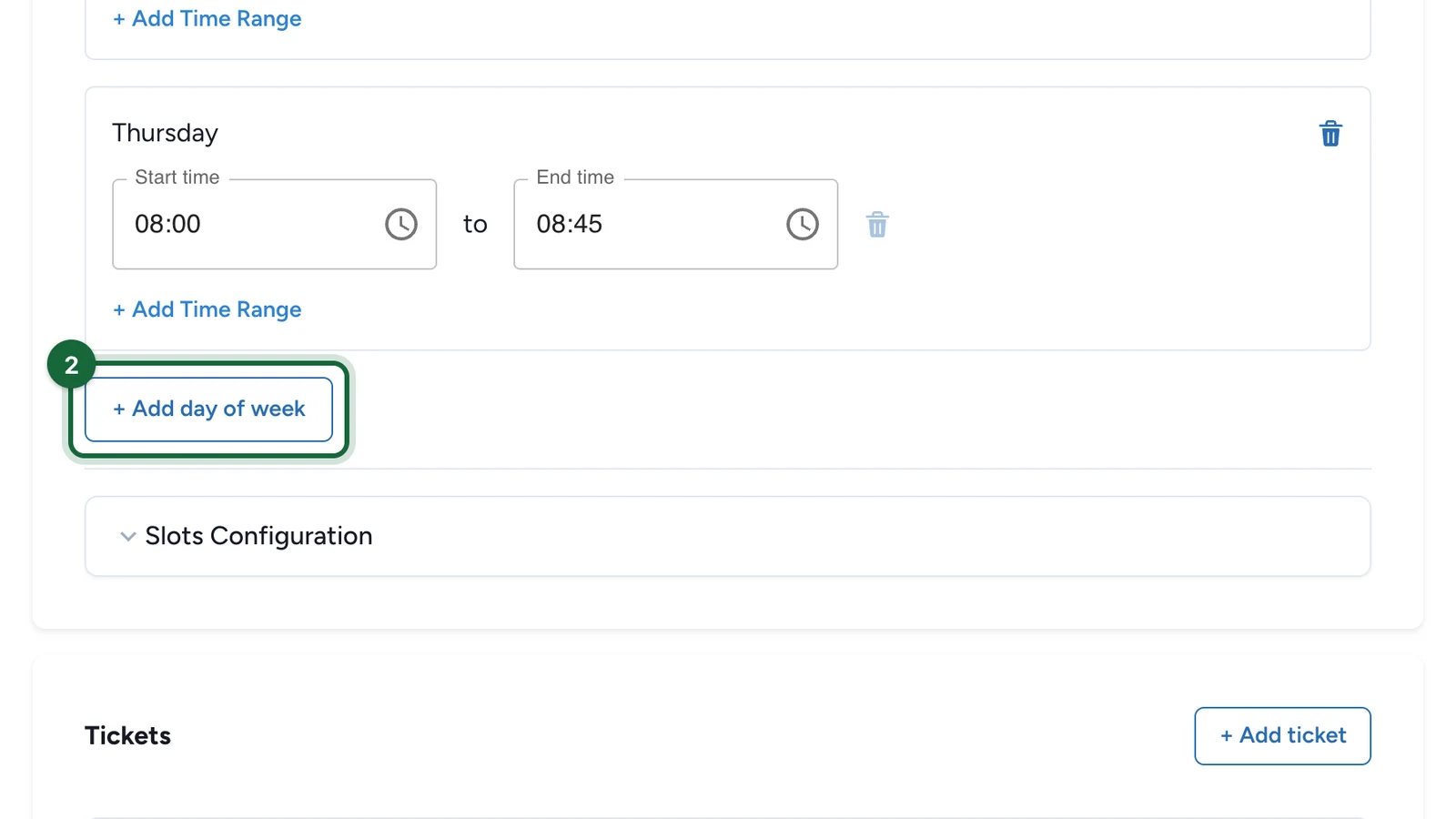
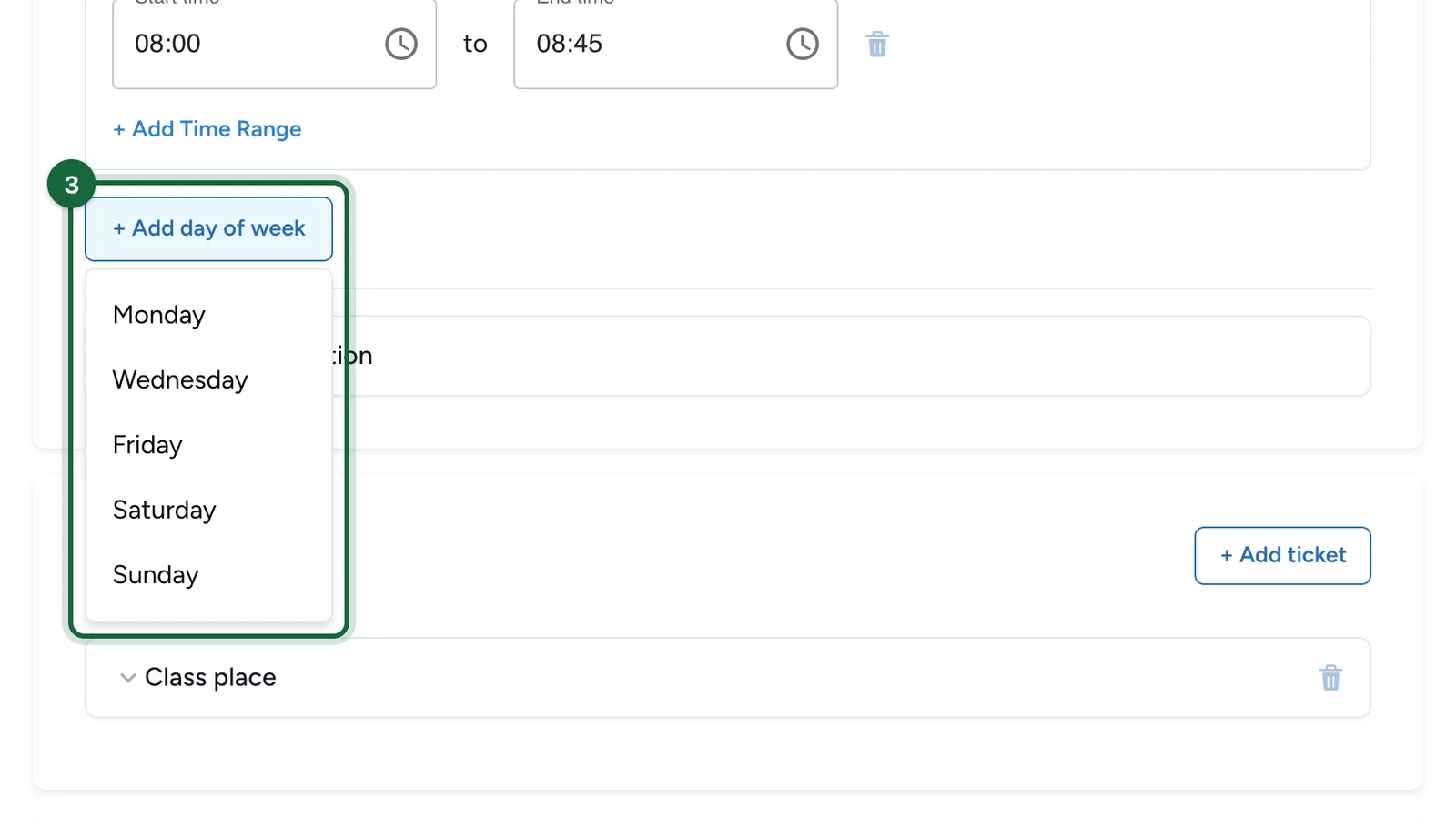
For Weekly, use + Add day of week, then add one or more time ranges for each weekday.

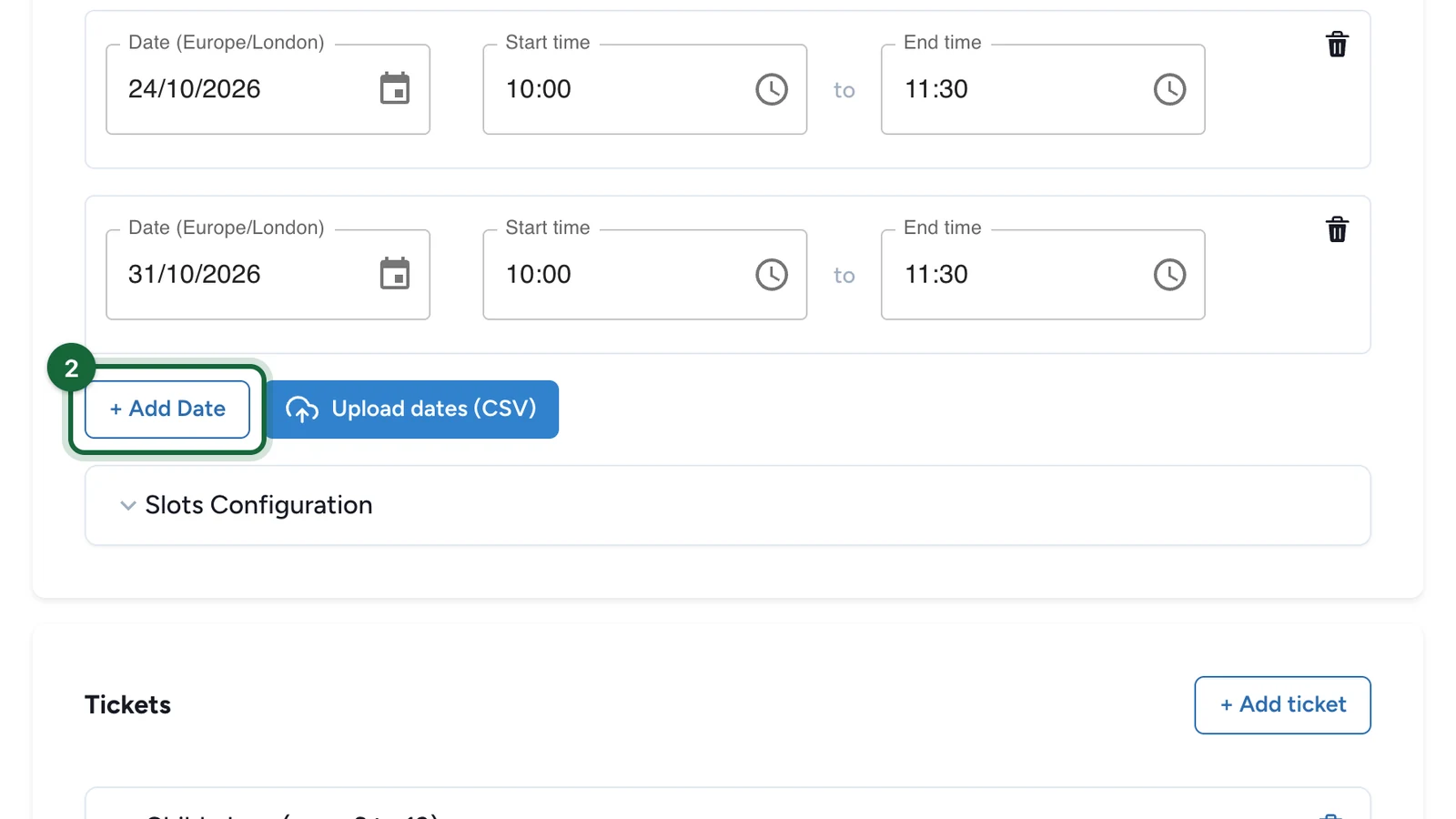
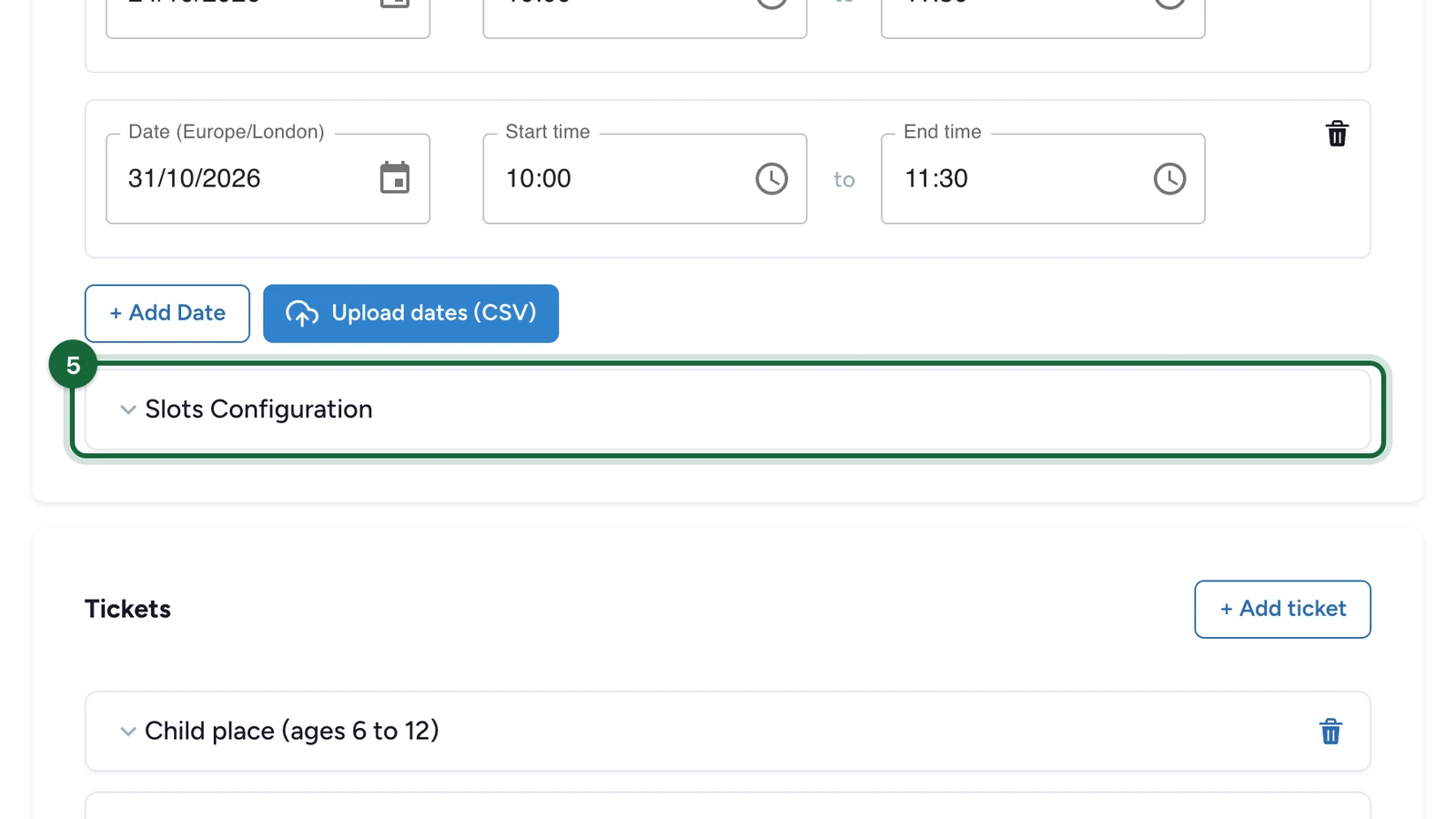
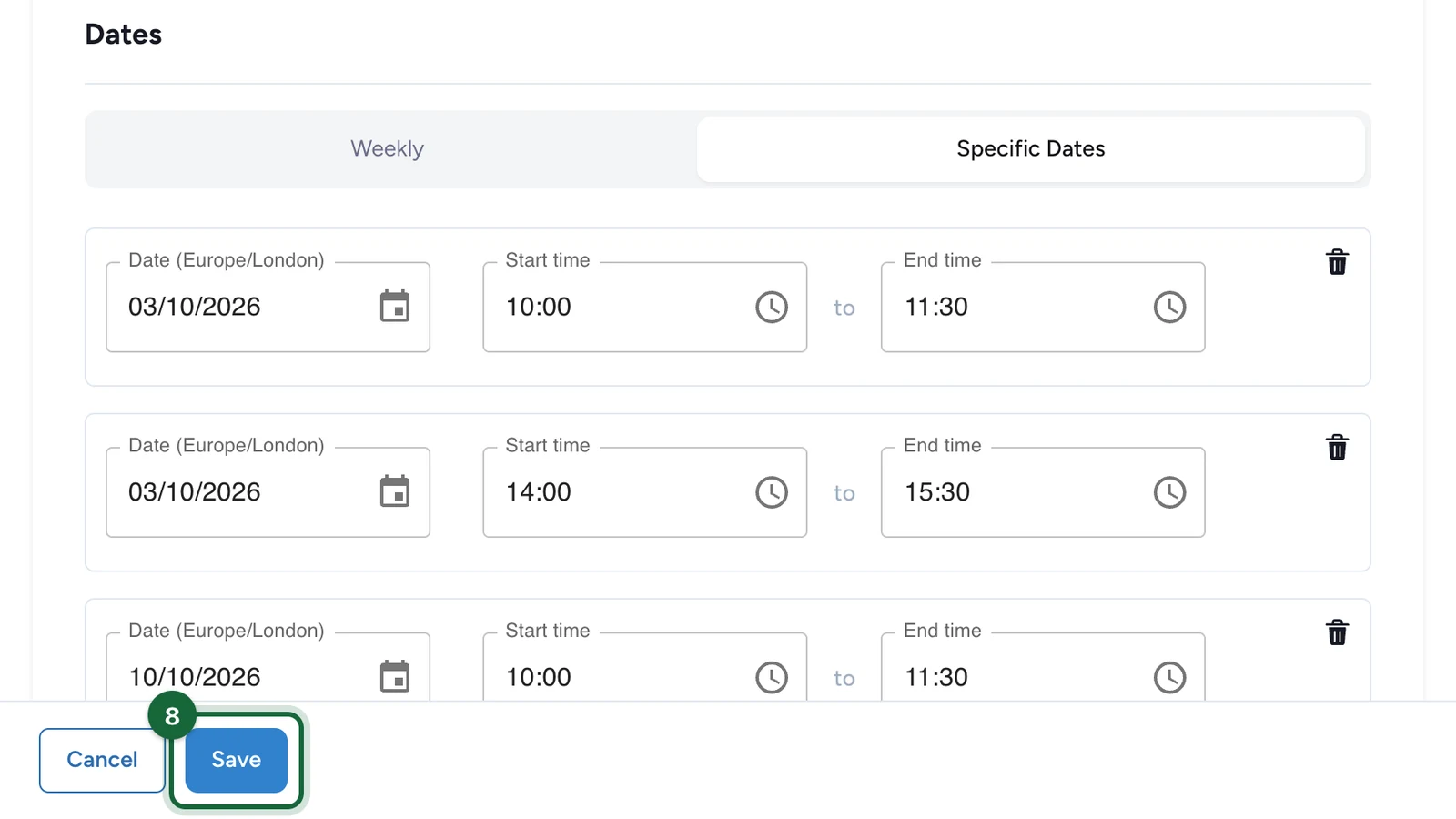
For Specific Dates, use + Add Date and enter the exact start and end date and time for each session.

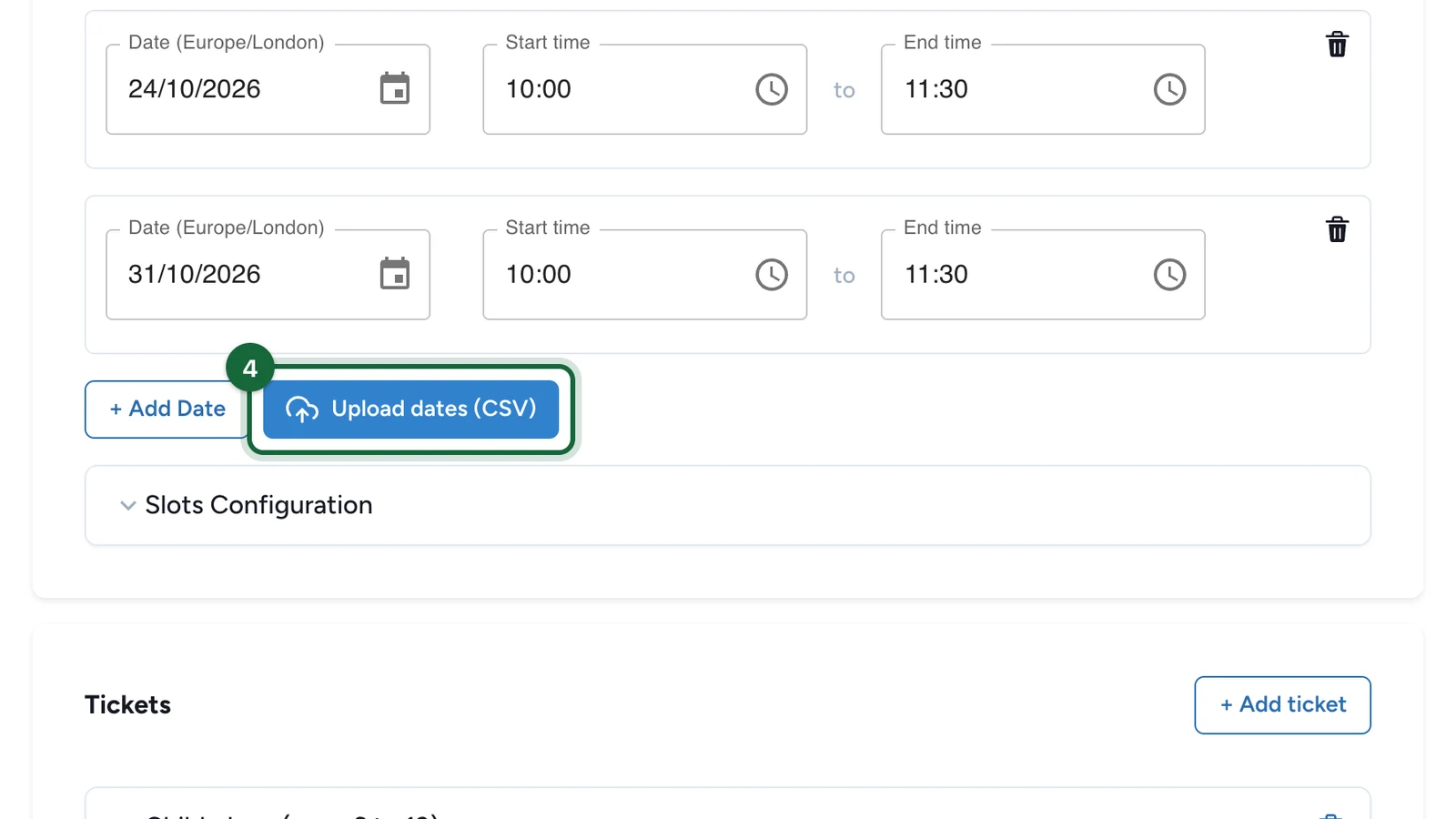
Upload a CSV for many specific dates

Specific Dates also supports CSV import. This helps when you load a long workshop calendar or many irregular VIP sessions at once.

Imported rows are added to the dates already listed in the Activity.

Decide whether to divide ranges into slots

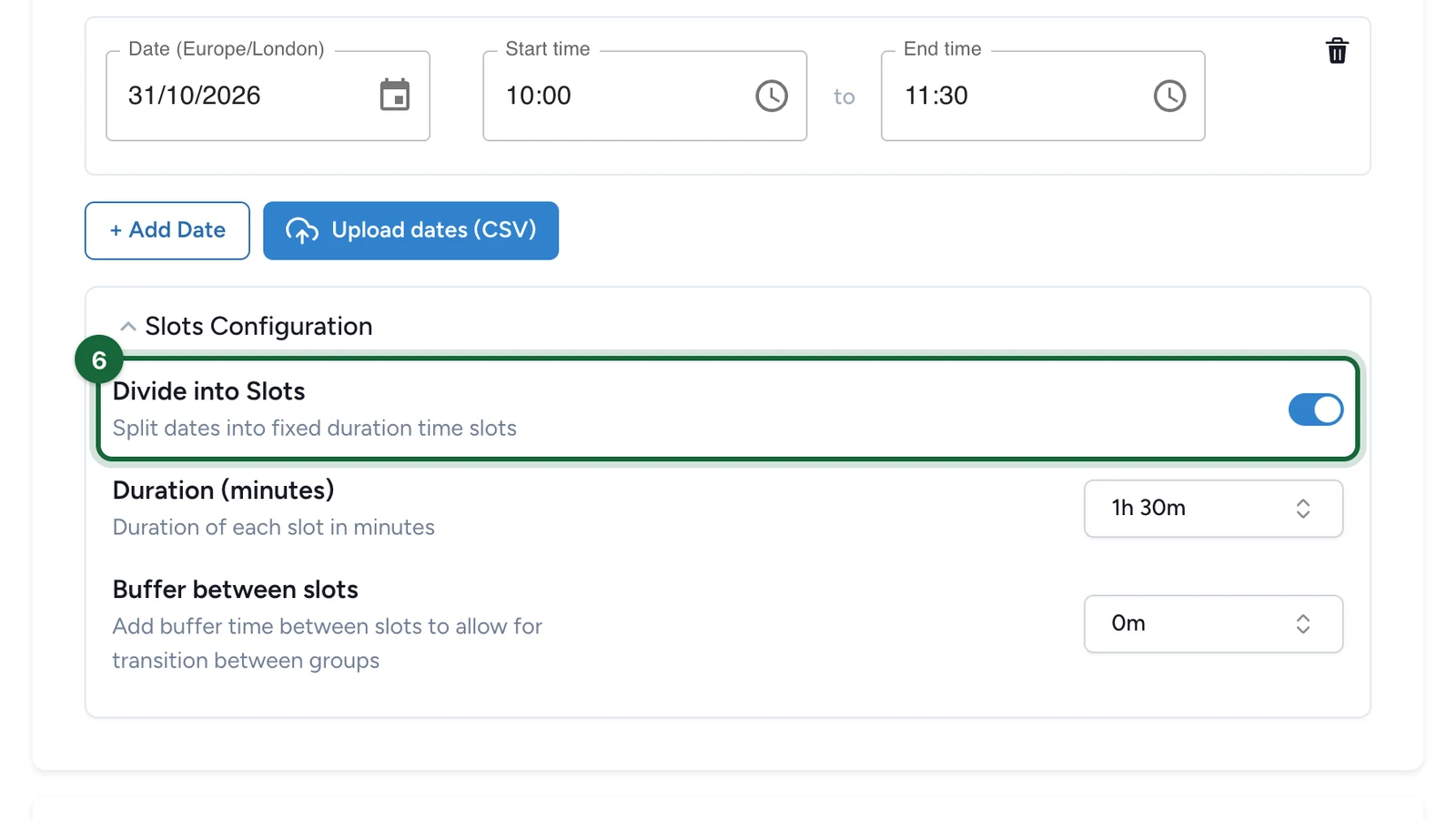
In Slot Configuration, turn on Divide into Slots when attendees should book one slot inside a larger time range.

  • Leave it off to keep each date range as one slot. Use this for an open activity, such as a kids corner from 10:00 to 13:00.
  • Turn it on to create repeated slots from Duration (minutes) and Buffer between slots. Use this for back-to-back bookings, such as a 20-minute consultation.

Set duration and buffer

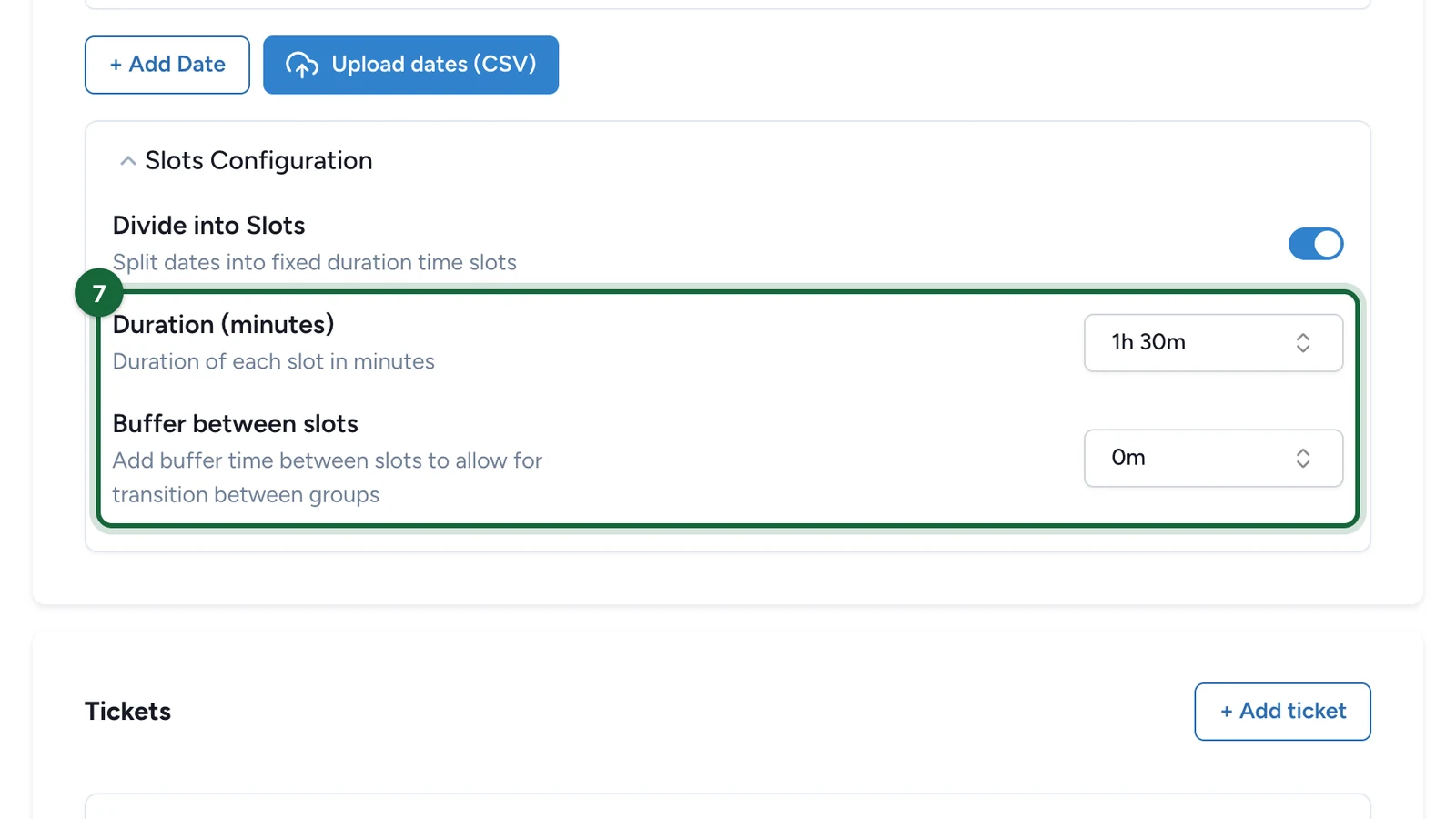
Use Duration (minutes) for the attendee-facing slot length.

Use Buffer between slots for the reset time between groups — for example to clean a booth, guide attendees out, or prepare the next VIP session.

Save and review the attendee result

Save the Activity, then preview how the slots appear in the booking flow.

Check that the dates fall inside the campaign window, that time ranges do not overlap, and that the slot structure matches how the event will run on site.

CSV format for Specific Dates

Use these exact CSV headers:

Activity DateStart timeEnd time
18/11/202610:0012:00

Notes:

  • Activity Date uses dd/mm/yyyy
  • Start time and End time use 24-hour HH:mm
  • all imported times are interpreted in the organisation timezone

If publishing is blocked

A few common reasons and how to fix them:

  • No dates are configured — add at least one weekly day or one specific date before publishing.
  • An end time is before its start time — check each date or weekly range so the end time is later than the start time.
  • Two specific dates overlap — separate the conflicting sessions so each one ends before the next begins.
  • Two weekly ranges on the same day overlap — adjust the time ranges on that weekday so they no longer overlap.
  • A slot falls outside the campaign dates — move the date inside the campaign window, or extend the campaign dates.
  • A slot falls outside the activity override range — keep specific dates inside the activity's own date override window.
  • The slot duration is negative — set Duration (minutes) to zero or a positive number.
  • The buffer is negative — set Buffer between slots to zero or a positive number.
  • Slot division is on but no dates are set — add at least one date, then turn on Divide into Slots.

See Validation & publishing for the full publish flow.

Was this helpful?

Optional comments help us improve this page for future authors and readers.

On this page