Event types (Booking + Check-in vs. Check-in Only)
Choose the right event mode for booking flow, capacity control, and day-of check-in.
In this article, you'll learn how the two current v2 event modes differ, where you choose them in the Activity setup, and which mode fits workshops, VIP sessions, kids activities, and drop-in activations.
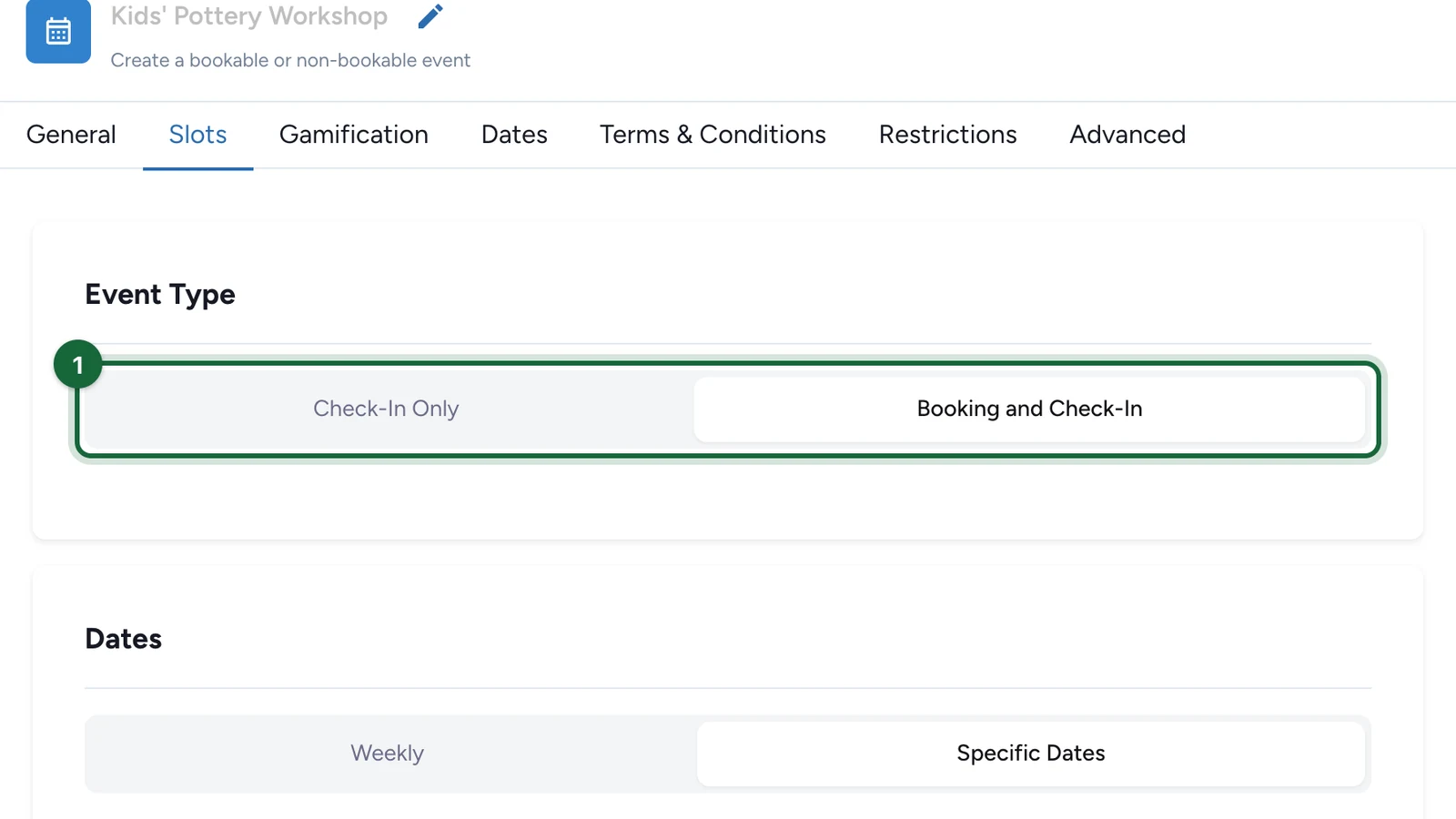
Where the choice happens
In current v2, Activity is the visible Touchpoint type for events. You add an Activity first, then choose the event mode later in Slots -> Event Type.
What each mode is for
| Mode | Best for | Attendee flow | Operational effect |
|---|---|---|---|
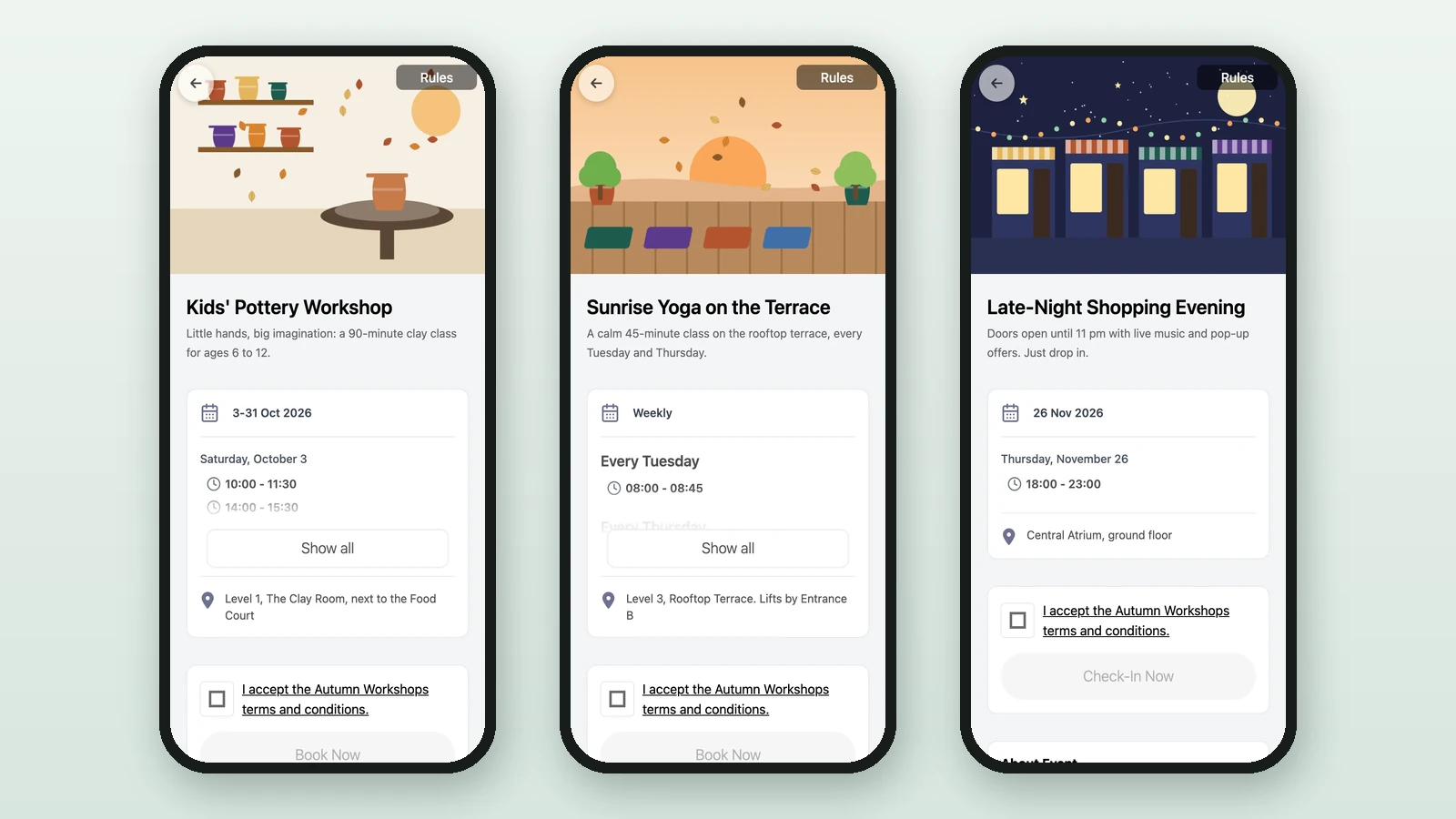
Booking and Check-In | Workshops, VIP sessions, guided visits, or any event with planned attendance | Attendees choose a slot, book in advance, then check in on the day | You configure ticket types, per-slot capacity, booking windows, and booking notifications |
Check-In Only | Drop-in activations, kids corners, photo moments, or ongoing activities without pre-registration | Attendees arrive and check in without an advance booking step | The setup stays lighter, with no attendee-facing ticket choice before arrival |
How to choose
| Decision point | Booking and Check-In | Check-In Only |
|---|---|---|
| Complexity | Higher, because you manage slots, ticket types, sale windows, and attendee reminders | Lower, because the participant mainly checks in on site |
| Capacity control | Strongest option when each slot needs a clear sellable capacity | Good for simple caps or first-come attendance without advance booking |
| Pre-registration value | Best when planning, confirmations, and reserved attendance matter | Best when walk-in convenience matters more than pre-registration |
| Reporting and staffing | Better when you need booked-versus-attended reporting and a planned guest list | Better when you mainly need attendance tracking on the day |
Typical examples
- Use
Booking and Check-Infor a 20-seat workshop, a VIP styling session, or a paid masterclass where attendees need a confirmed slot. - Use
Check-In Onlyfor a mall photo booth, a kids craft corner, or a drop-in brand activation where visitors can join as they arrive.
A note on Check-In Only validation
Technical ticket messages can still appear
Check-In Only keeps a simplified attendee flow, but validation can still mention a technical ticket. If you see that wording, it is expected for this mode and does not mean attendees will choose between visible ticket types.
Validation
If this configuration is incomplete, you'll see validation results before publishing. The most event-specific messages here are:
| Validation key | Message | What it tells you |
|---|---|---|
activity.event_type.booking_checkin_info | Activity '{{activity_name}}' is set to Booking and Check-In mode | Informational confirmation that this Activity is using the bookable event path. |
activity.checkin_only.no_technical_ticket | Check-in only activity '{{activity_name}}' has no technical ticket configured | The Check-In Only setup is incomplete and needs review before publication. |
activity.checkin_only.multiple_technical_tickets | Check-in only activity '{{activity_name}}' has {{ticket_count}} technical tickets configured | The Check-In Only setup needs to be simplified before publication. |
See Validation & publishing for the broader publish flow.
Related
Configure slots — weekly vs. specific dates
Add the schedule first so the chosen event mode has usable dates and slots.
Configure tickets (Booking + Check-in events)
Continue here if you choose the bookable mode.
Configure check-in (Self vs. Scan)
Choose how attendees actually check in on the day.
About touchpoints and types
Revisit how Activity fits inside the campaign Touchpoint model.