Set up a waitlist
Let people queue for a full slot, and choose how a freed place reaches them: booked at once or offered with a time to accept.
A waitlist belongs to one ticket that has Limited capacity. Here, the Kids' Pottery Workshop's Child place (ages 6 to 12) ticket has 12 places per slot, and lets people wait for 12 more.
Turn on the waitlist
In the Activity's Slots tab, scroll to Tickets, then:
-
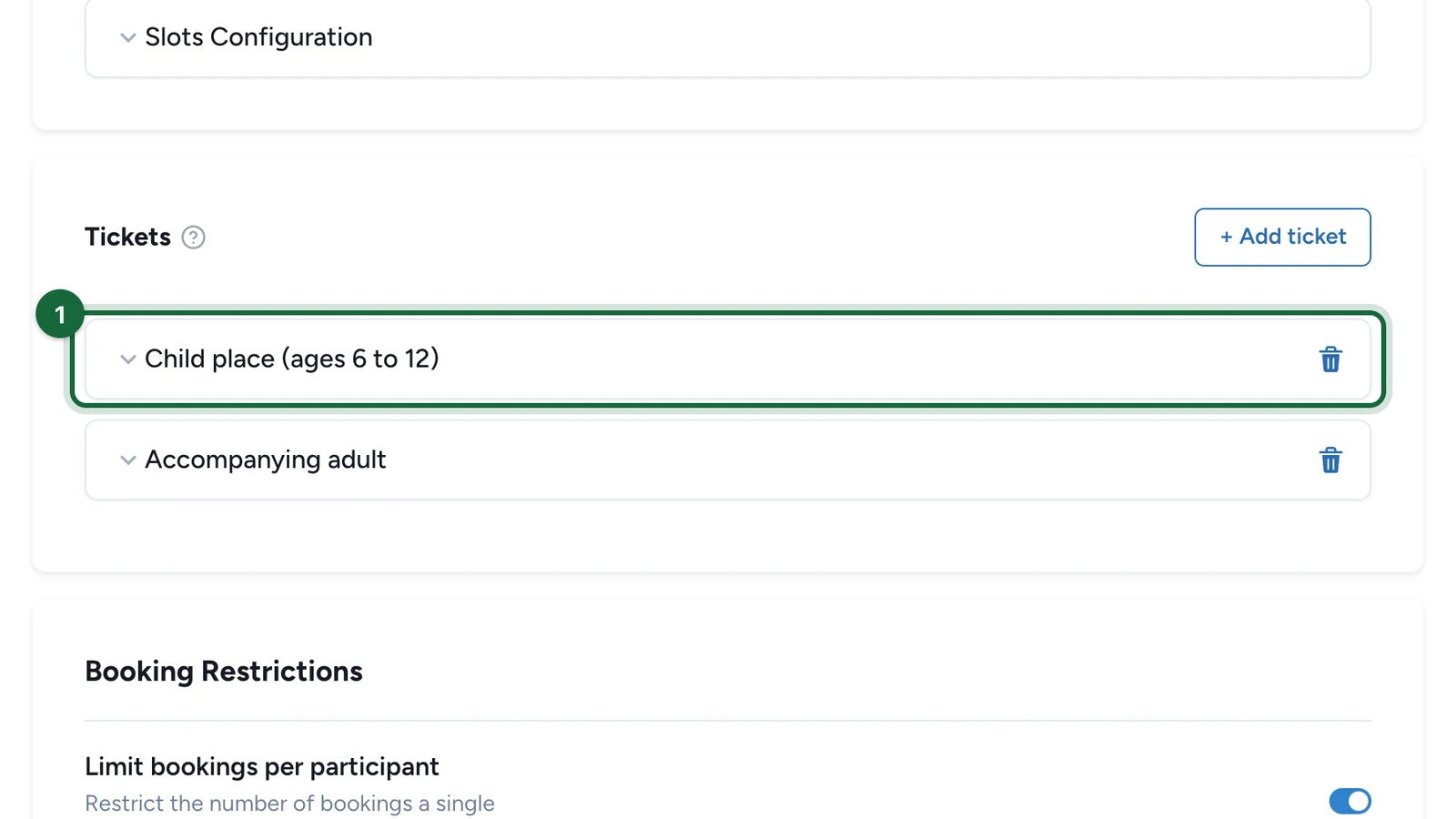
Select the ticket to open it, here Child place (ages 6 to 12).
-
Turn on Waitlist, under Total capacity.
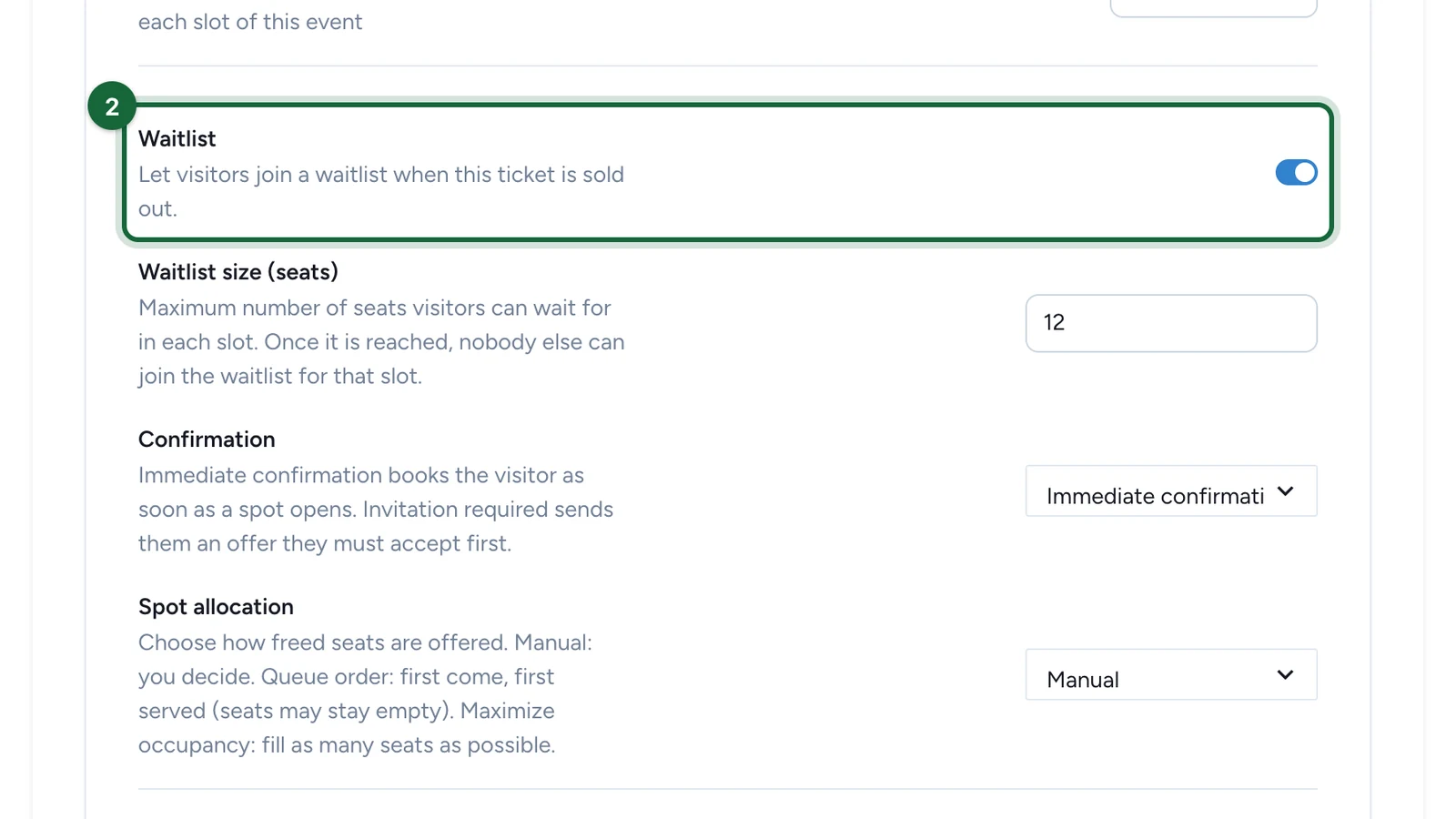
The switch shows only when Limited capacity is on. Turning off Limited capacity also turns off the waitlist, and keeps its settings for later.
-
In Waitlist size (seats), enter how many places people can wait for in each slot, here
12.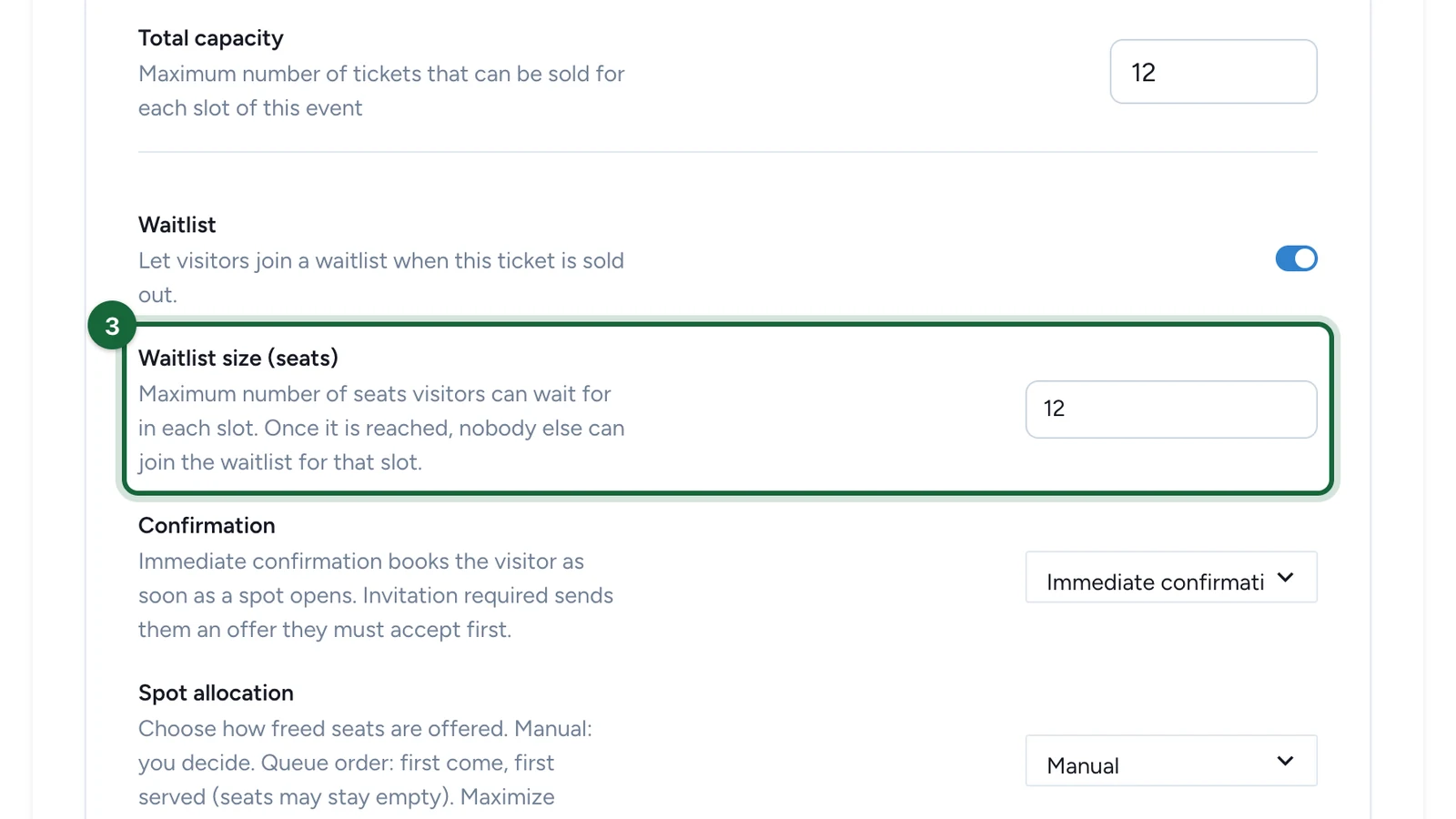
Studio starts it at the Total capacity. A request for 2 places uses 2. The size must cover the most one person can book, and stay at or below twice the Total capacity.
Choose how a freed place is given
-
In Confirmation, choose Immediate confirmation or Invitation required.
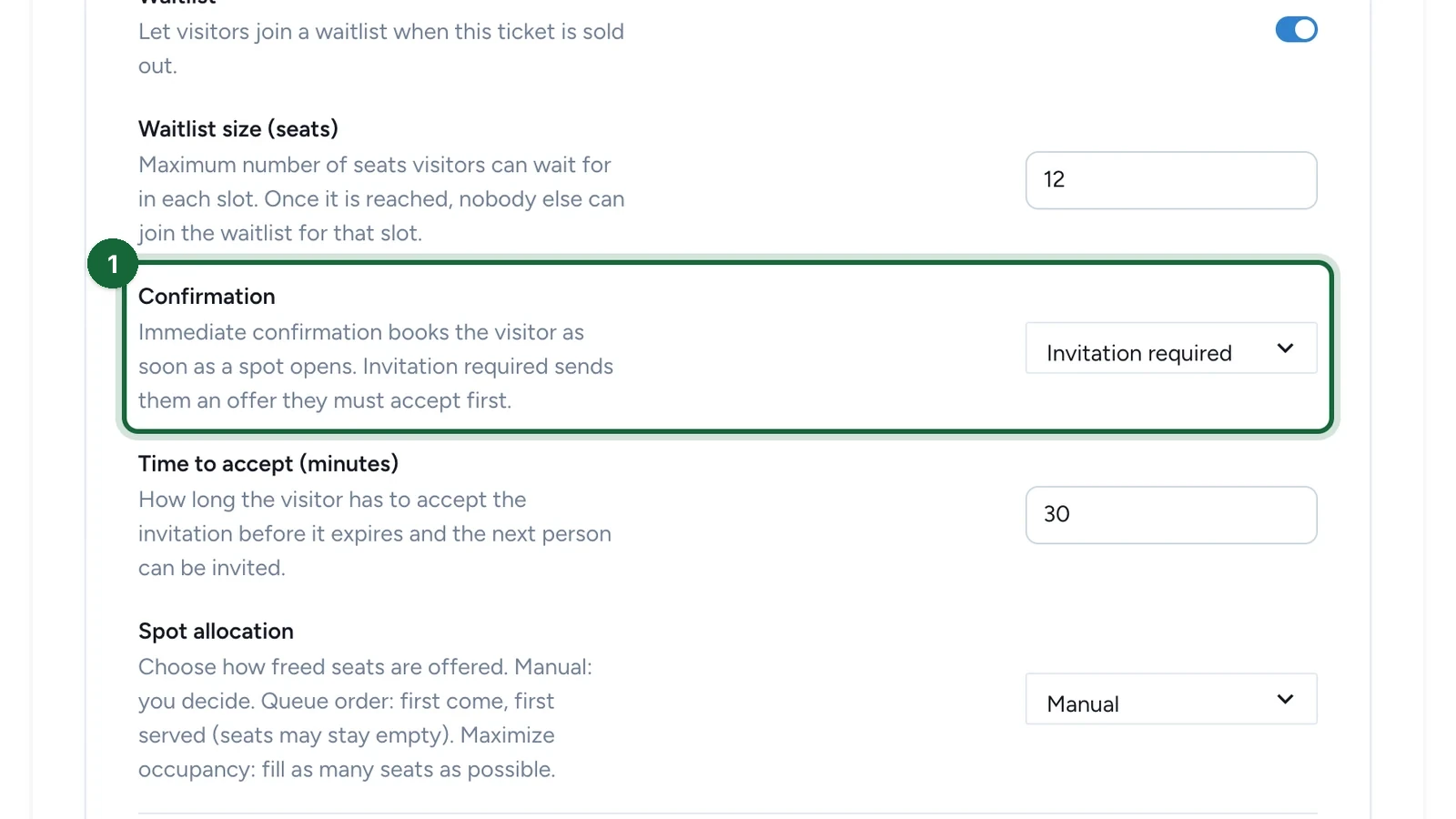
Option When a place frees up Immediate confirmation The next person is booked at once, and gets the Booking Confirmation email. Invitation required The place is kept for the next person, who gets the Waitlist Invitation email. Once they confirm, they're booked and get the Booking Confirmation email. If they refuse or don't answer in time, they leave the waitlist. -
If you chose Invitation required, set Time to accept (minutes), here
60.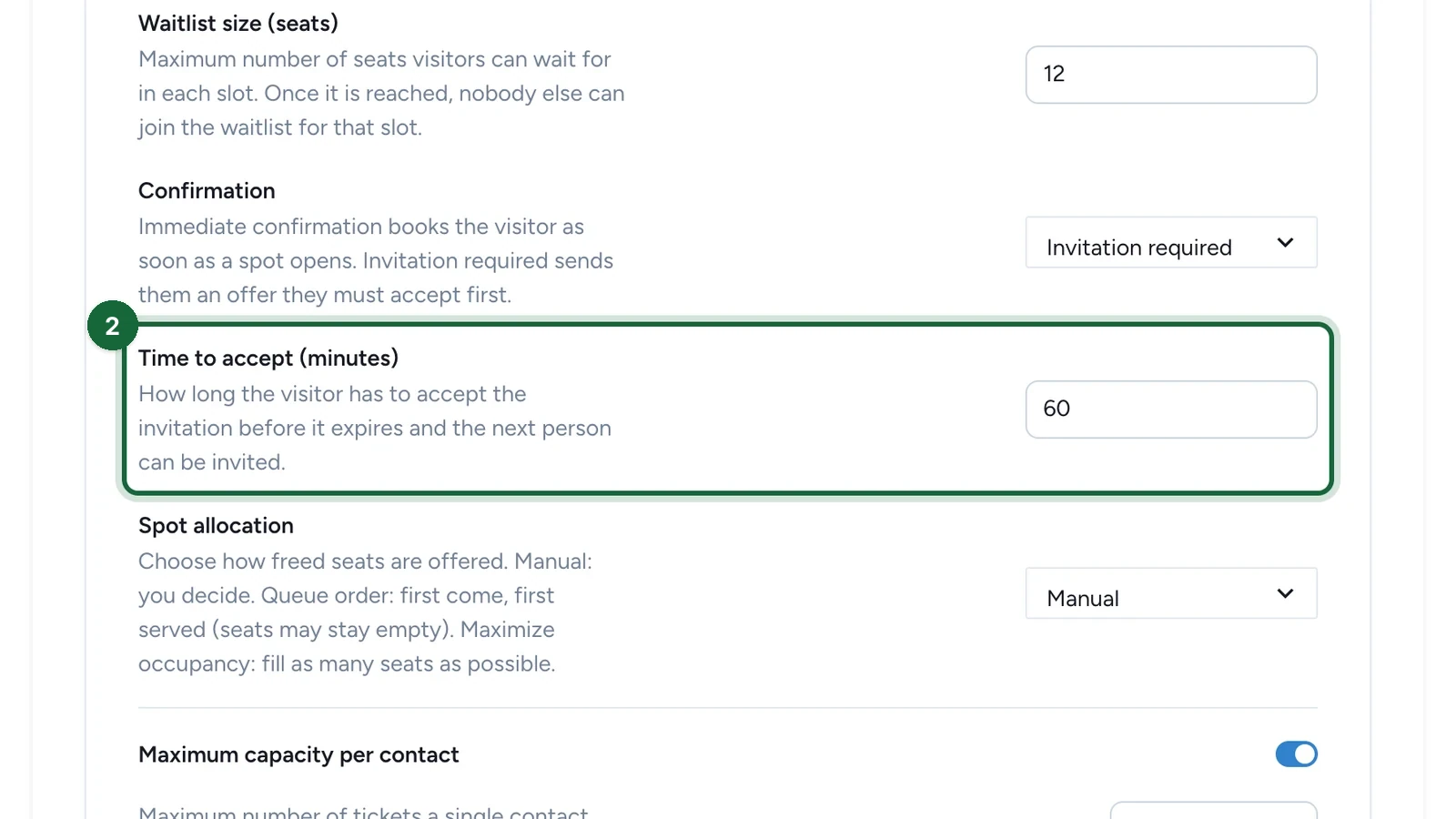
It starts at 30 minutes. An invitation always ends when its slot ends, even if time is left.
-
In Spot allocation, choose who gets a freed place, here Queue order.
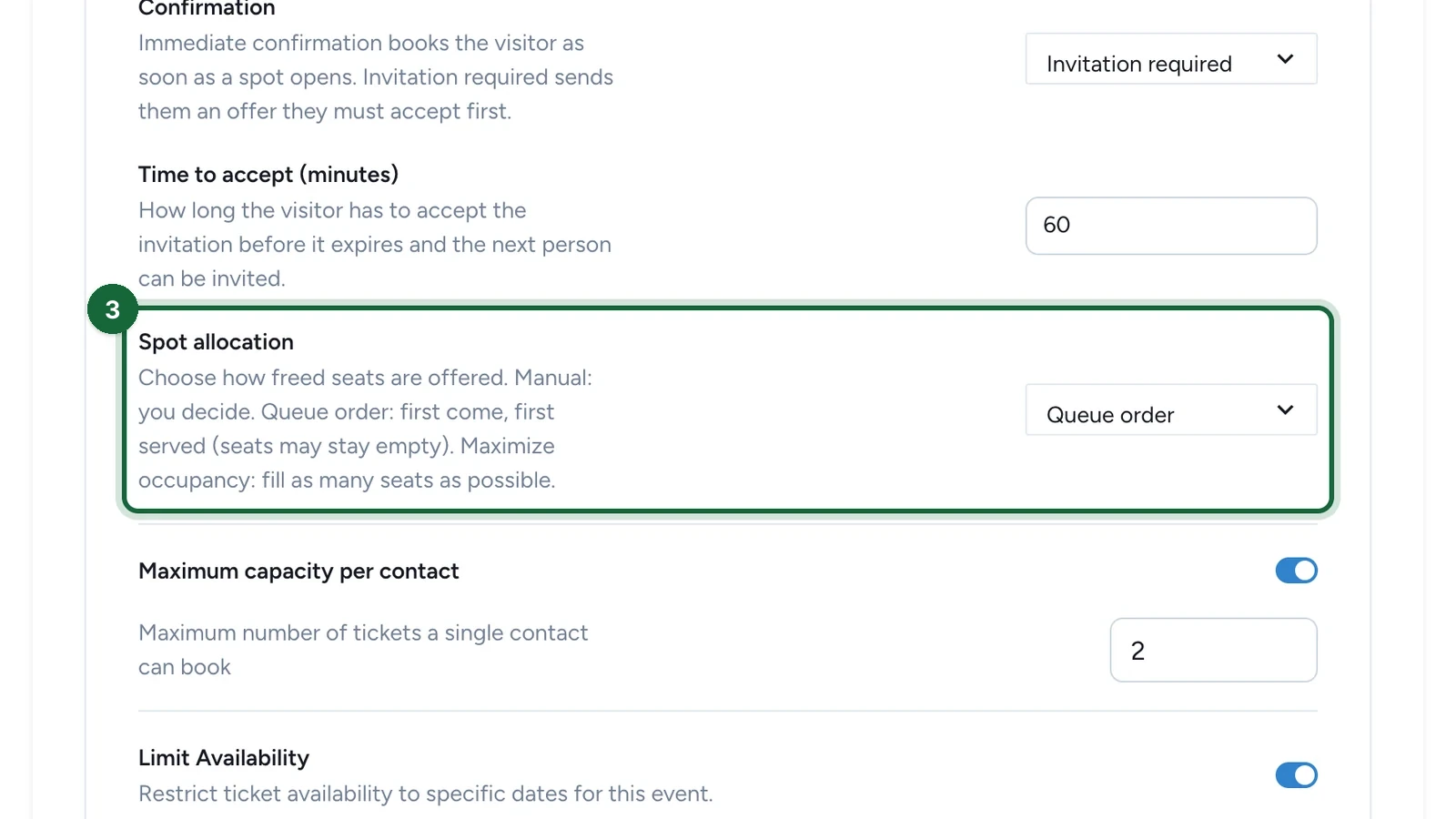
It starts on Manual.
Option Who gets a freed place Manual Nobody, until you promote someone in Participants > Bookings > Waitlist Entries. Queue order People in the order they joined. If the next request doesn't fit, nobody behind it gets the place, so places can stay empty. Maximize occupancy People in the order they joined, skipping any request that doesn't fit. Skipped people keep their place in the queue.
Add the waitlist message and save
-
(Optional) Under Messages, enter the Waitlist Message.
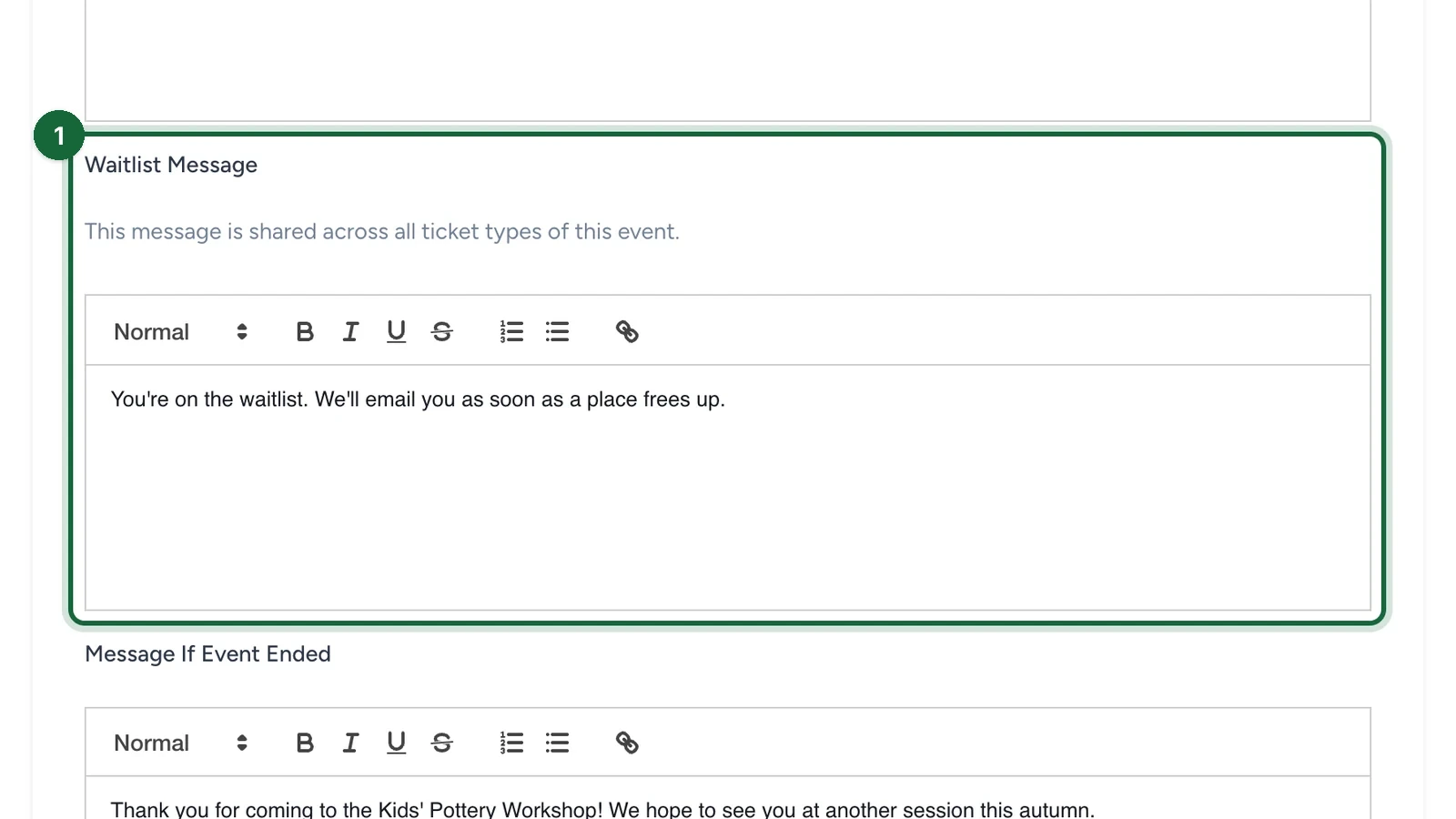
People see it on the event page while they wait. It appears once a ticket has its waitlist on, and every ticket of the Activity shares it.
-
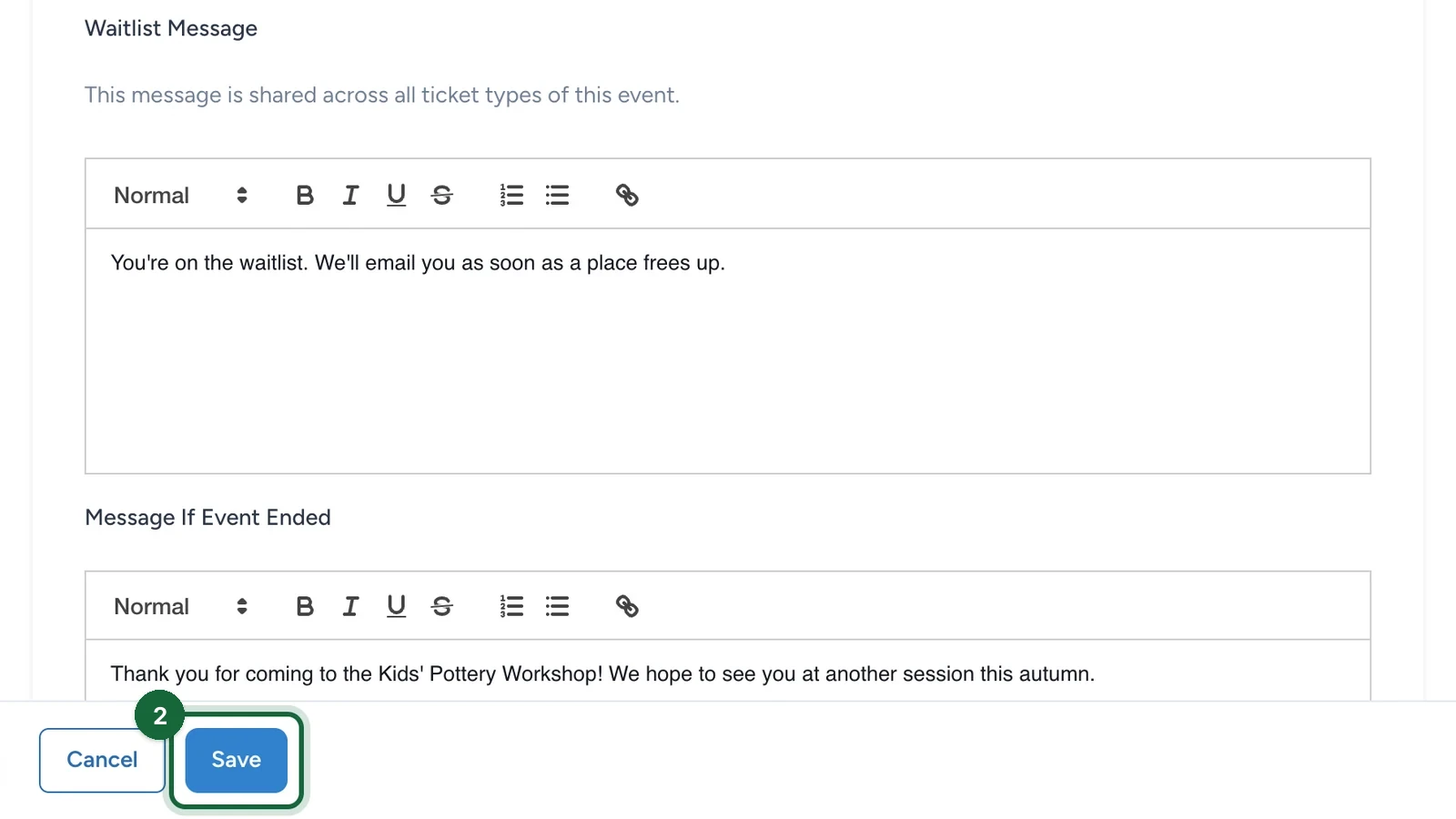
Select Save.
Turn on the waitlist emails
| Sent when | Needed to publish | |
|---|---|---|
| Waitlist Joined | Someone joins the waitlist | Yes, for every Activity with a waitlist |
| Waitlist Invitation | A place is offered to someone waiting | Yes, when a ticket uses Invitation required |
Someone who gets a place receives the Booking Confirmation email. There's no separate email for it.
-
In Build > Notifications, select the edit button on Waitlist Joined.
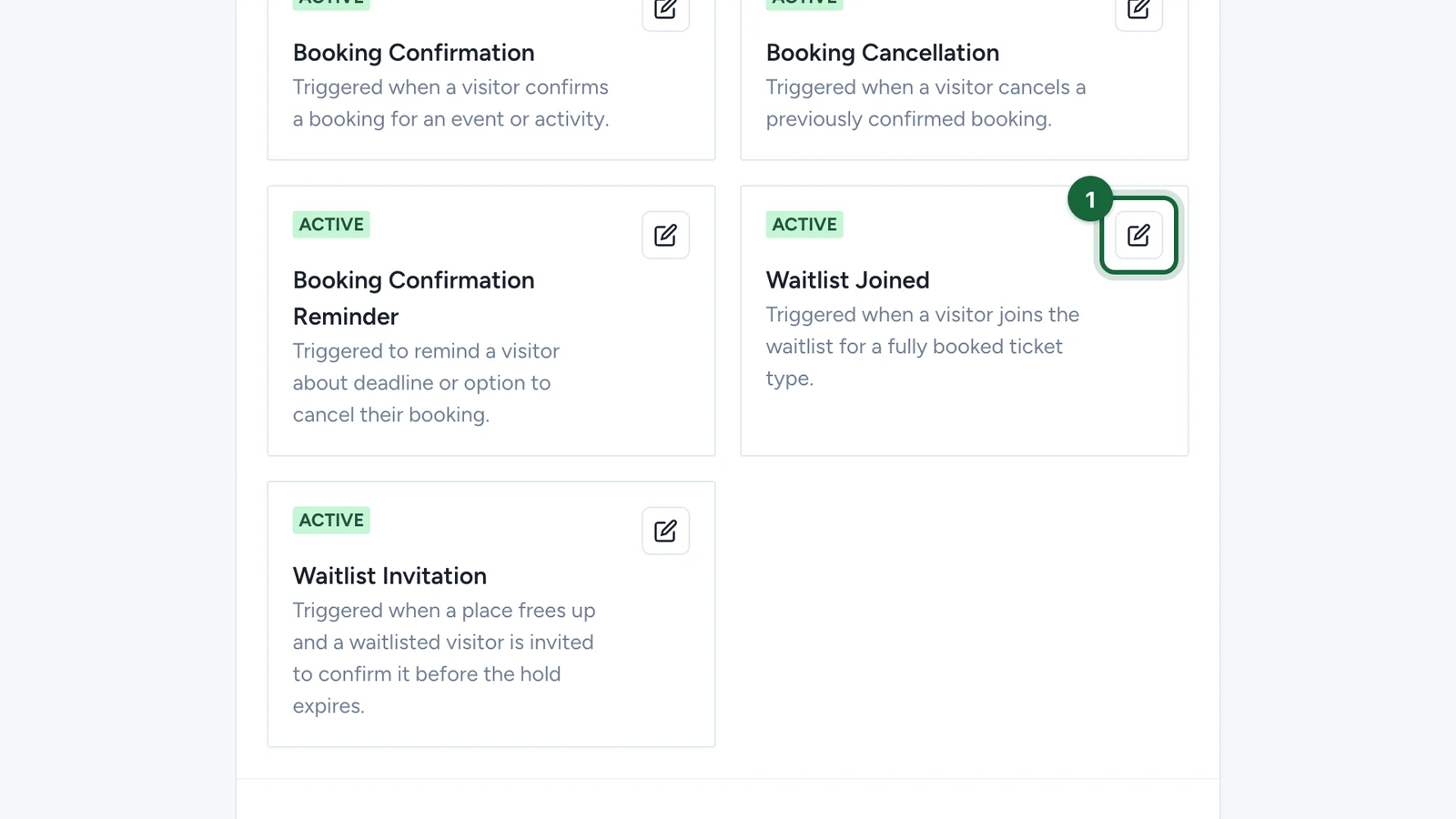
Fill it in and turn it on as in Set up the confirmation email, from step 2. Then do the same for Waitlist Invitation. Its card shows once a ticket uses Invitation required.
Both emails have their own dynamic fields, such as the slot's start time, and can't use the event or booking fields. See the Liquid bindings reference.
With Salesforce Marketing Cloud, your Marketing Cloud team must first add both emails and the invitation's two buttons: see Update your Salesforce Marketing Cloud templates.
Which settings to choose
| You want | Confirmation | Spot allocation |
|---|---|---|
| To fill a freed place fast, with families who can come at short notice | Immediate confirmation | Queue order |
| People to say they can still come before they take the place | Invitation required | Queue order |
| As few empty places as possible when group sizes differ | Immediate confirmation | Maximize occupancy |
| To choose who gets each place yourself | Either | Manual |
What happens when a place frees up
- While anyone waits for a slot, places freed in it are kept for them, up to the places they asked for. New bookers only get what's left, even with Manual.
- A place frees up when a booking is cancelled, or when an invitation is refused, expires or is cancelled.
- With Queue order or Maximize occupancy, people get places shortly after one frees up, until the slot ends. You can also promote someone yourself with any Spot allocation: see Manage the waitlist.
- People on the waitlist have no booking or ticket until they get a place. They're listed in Participants > Bookings > Waitlist Entries, not in All Bookings.
What attendees see
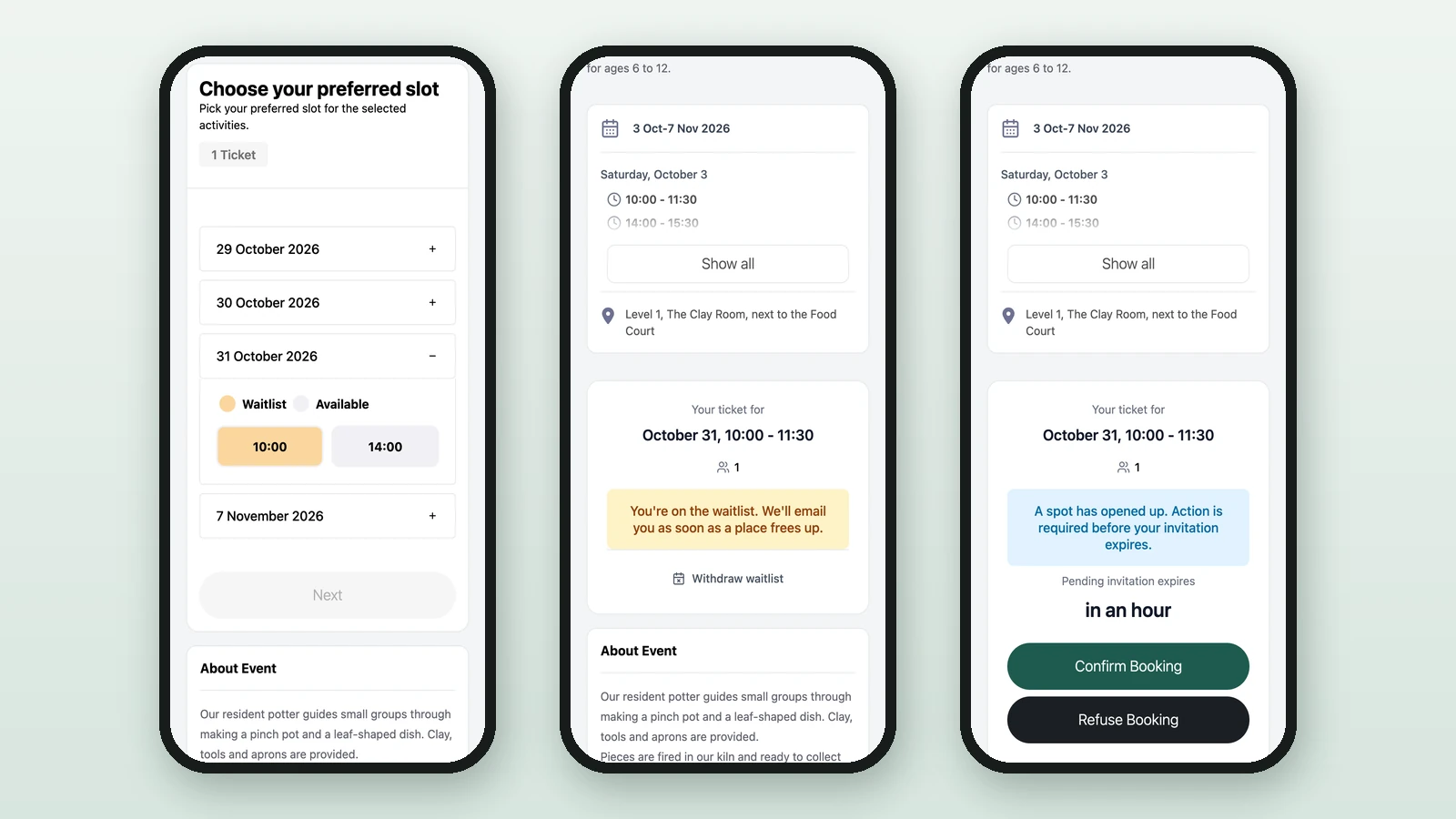
- A full slot that still takes waitlist entries shows in orange, with a Waitlist and Available legend. They choose it and book as usual, with the same form and limits.
- If the waitlist fills up before they finish, a Waitlist Full window asks them to choose another time.
- While they wait, the event page shows their slot, your Waitlist Message and a Withdraw waitlist button.
- With Invitation required, the page shows the offer, a countdown, and Confirm Booking and Refuse Booking.
- Until the slot they wait for ends, they can't book another slot of the same Activity.
Change a live waitlist
When the Activity is already published, Studio warns you about changes that affect people booked or waiting:
- Turning the waitlist off: nobody gets a place from it any more, not even by hand, and people waiting stay listed until they leave or you cancel them. Promote the people you want to keep first. Invitations already sent can still be answered.
- Switching to Immediate confirmation: invitations already sent stay open until they're answered or expire.
- Switching to Queue order or Maximize occupancy: nobody moves until a place next frees up. To fill free places now, promote people yourself.
Lowering the size below the places already waiting in a slot blocks publishing instead.
If publishing is blocked
The Publish window names the ticket and the setting to fix. Find each message and its fix in Event validation errors.