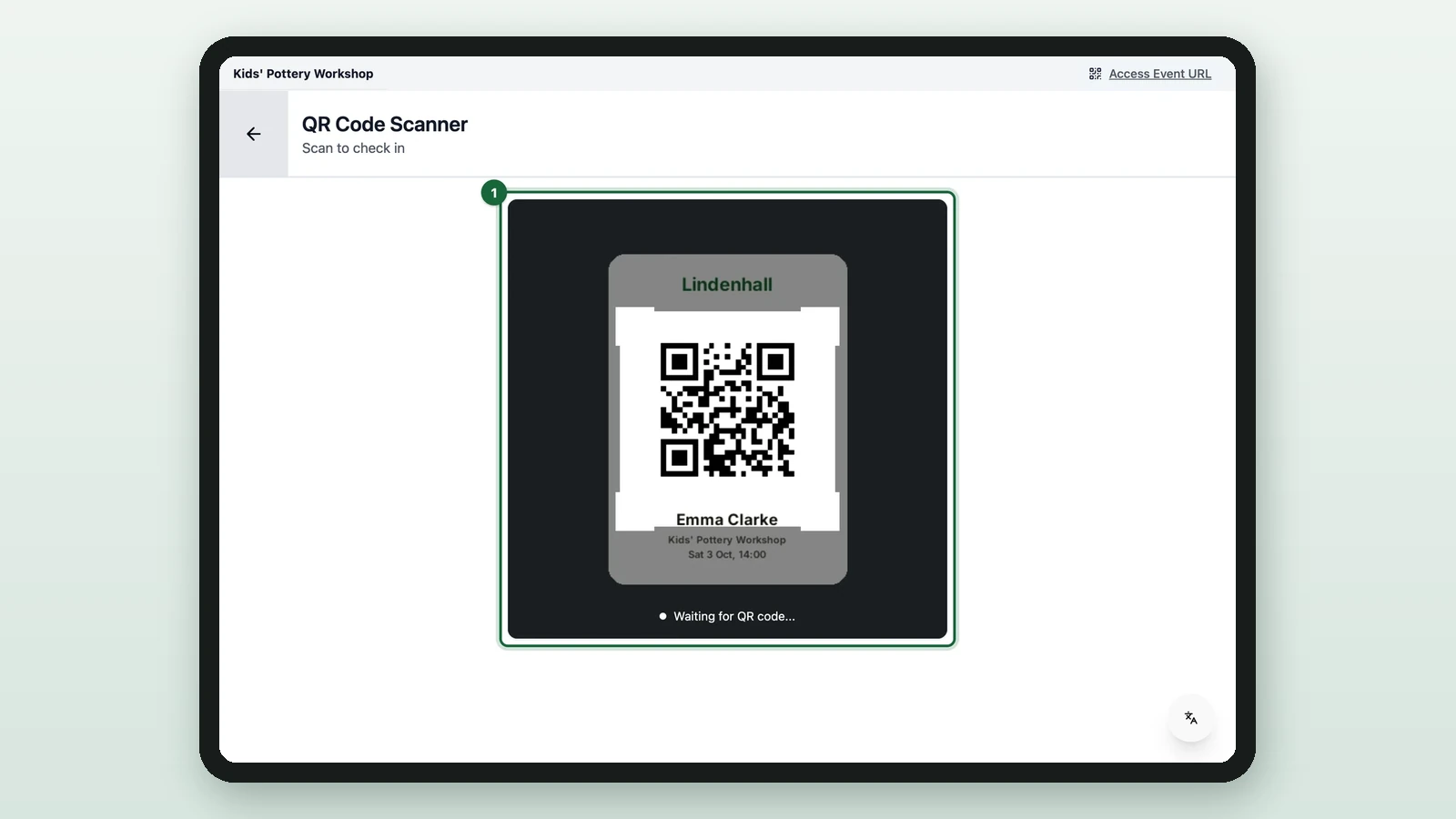
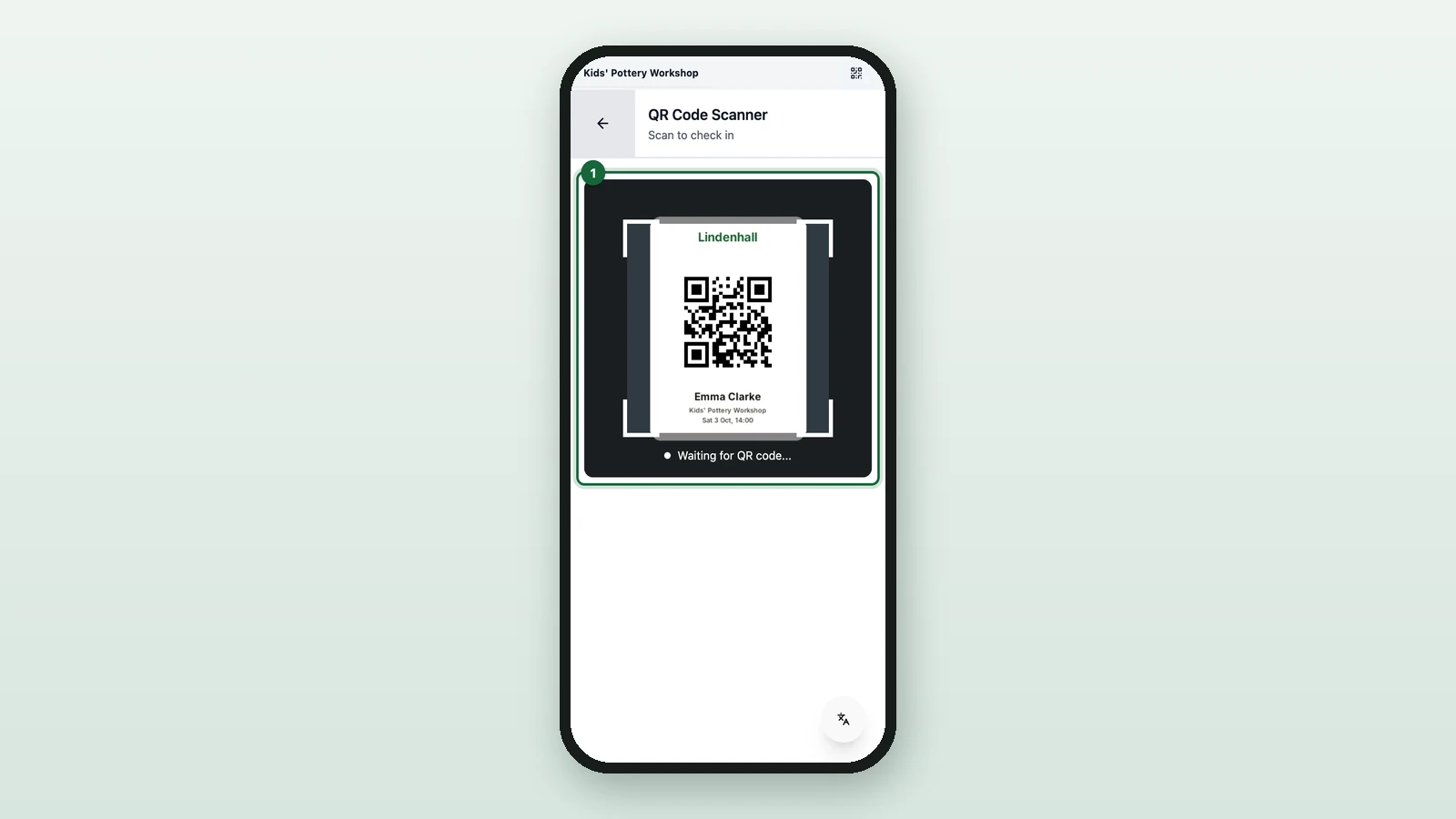
Set up the Event Host App

Prepare the staff check-in web app, protect access, and brief hosts before the event opens.

4 min read

Get your staff ready to scan attendees in and welcome them smoothly on the day. You will open the Event Host App, secure access, and brief the hosts who work the door.

Before you begin

  • Your event uses staff-assisted Scan check-in, or you want staff ready to scan attendee tickets.
  • You have at least one staff device with a camera and an internet connection.
  • You have planned a rehearsal with Test your event.

Still deciding how attendees check in?

See Configure check-in (Self vs. Scan) before you set up the Event Host App.

Steps

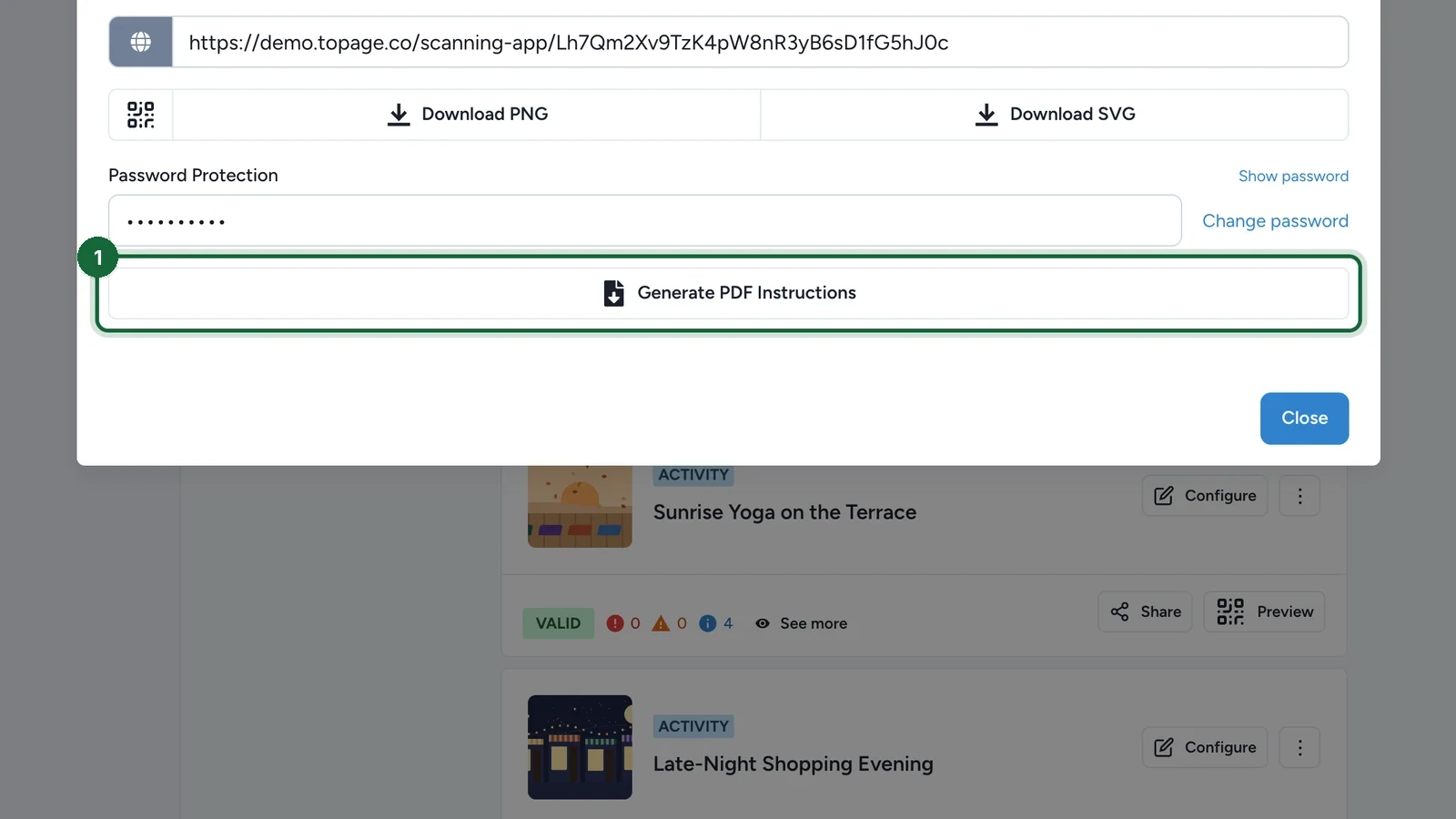
Open the Event Host App panel

You can reach the Event Host App from either of two places, and both show the same thing:

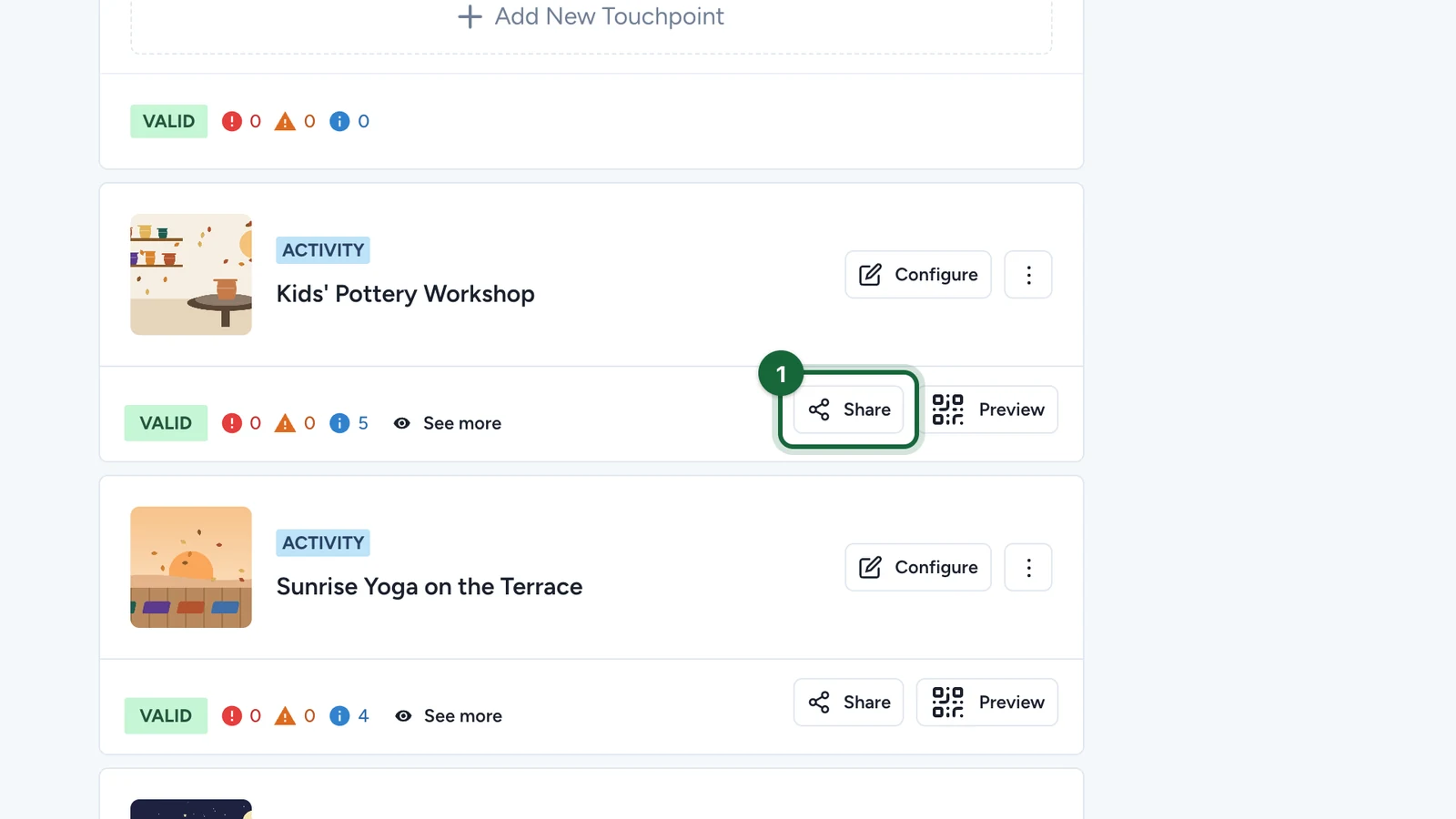
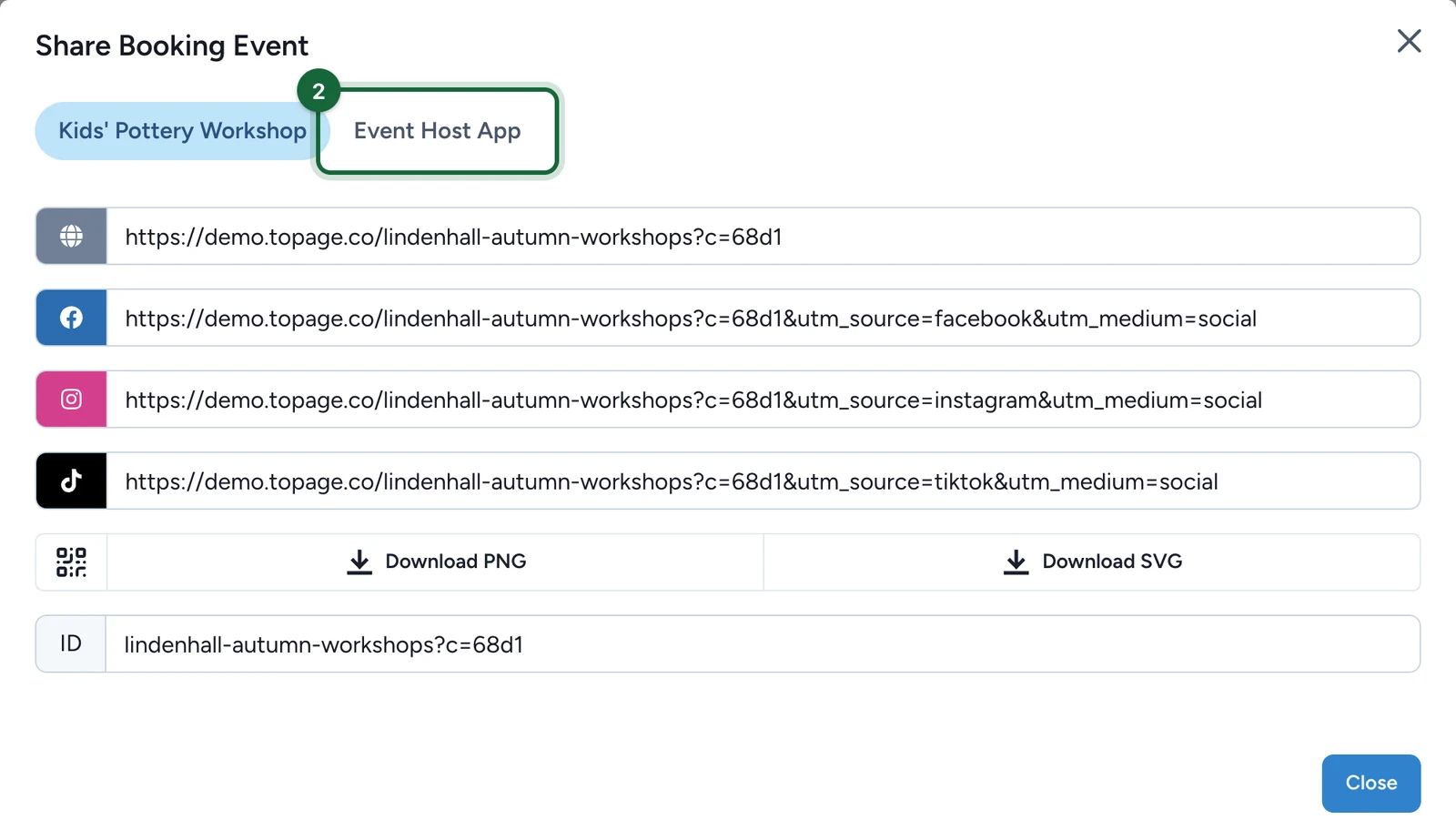
  • From the Activity's share options — open Build, go to Touchpoints, and open the Activity's share options. Event Host App sits there as its own tab, alongside the share link and QR code. This route works for every Activity, whichever check-in method it uses.
  • From the Bookings tab — the Event Host App card sits above the tabs in the Campaign's bookings area, collapsed until you open it.

Either way, this is where OmniLab keeps the shared URL, the password, and the host briefing tools.

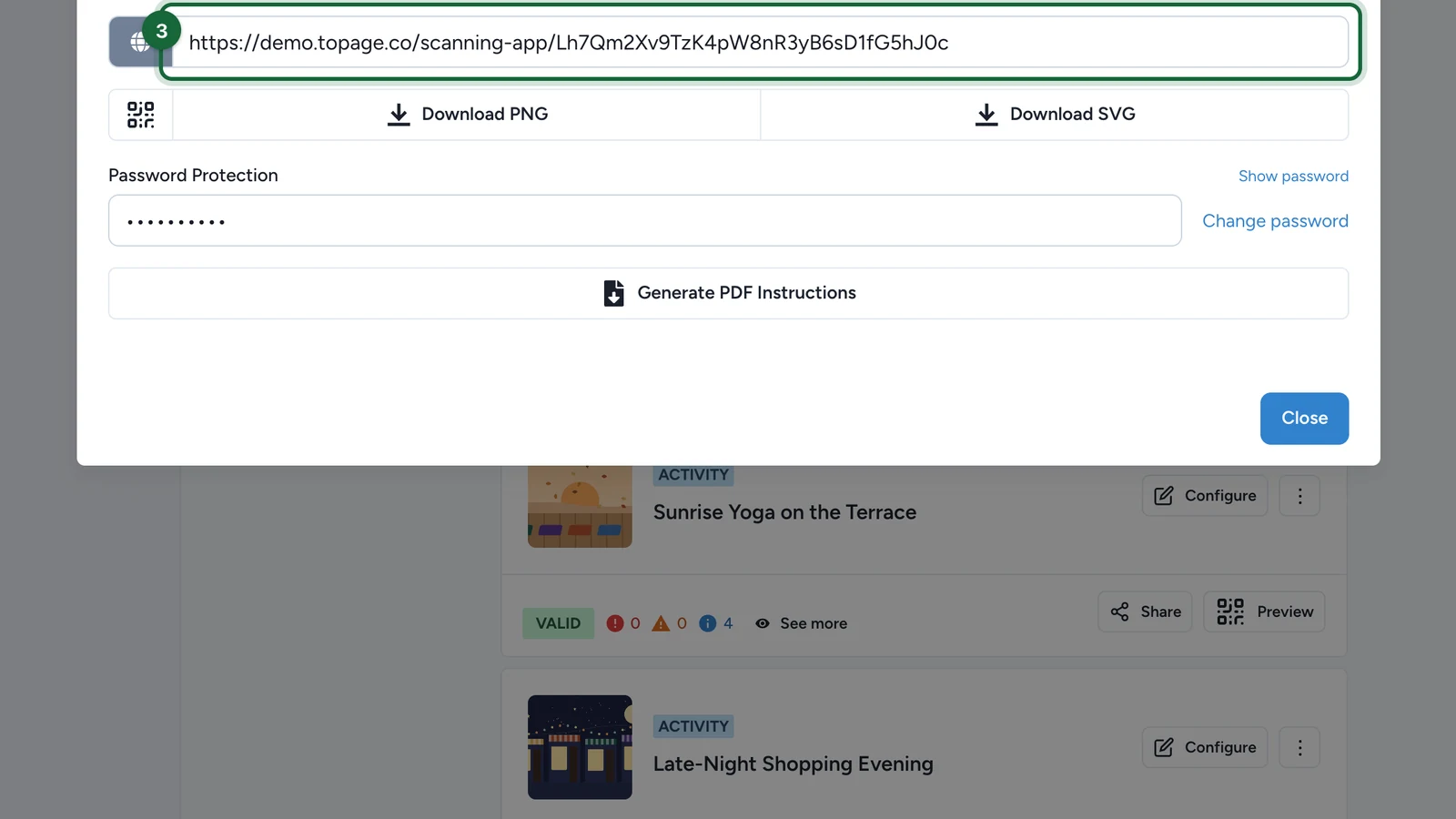
Copy the Scanner URL

Share the Scanner URL with the staff who handle arrivals. The Event Host App runs in a browser, so hosts open the link instead of installing a separate app.

When hosts open the link, they sign in once and then choose the activity they need to manage.

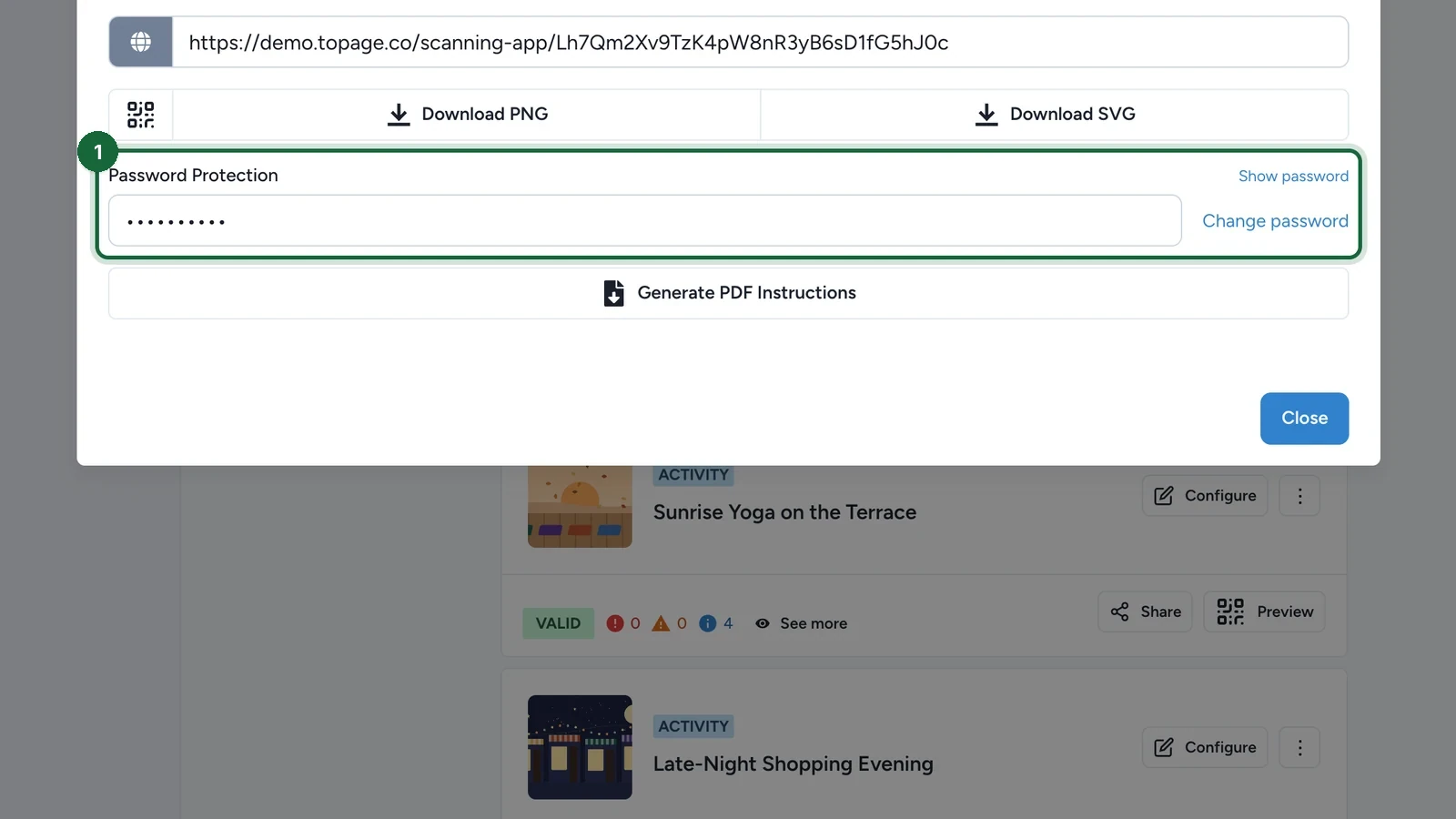
Review or change the password

Under Password Protection, one password protects the shared Scanner URL. Keep access to the people working the event.

  • If the link has already circulated widely during preparation, change the password before launch.

One password covers the whole Campaign

The password belongs to the Campaign, not to a single Activity. Changing it under one Activity changes it for every Activity in that Campaign — and for a Receipt Host App in the same Campaign, if you run one. OmniLab republishes the Campaign when you save the new password, so hosts already signed in on a device are asked for the new one. Change it between shifts rather than mid-rush.

Download the instructions PDF

Select Generate PDF Instructions, then Download Event Host App Instructions PDF. The sheet is built for handing to staff who have never used the app: it names the app at the top, lists the How it works steps, carries the Scanner URL as both text and a QR code to scan, and prints the password with a note that hosts are asked for it the first time they open the app on a device.
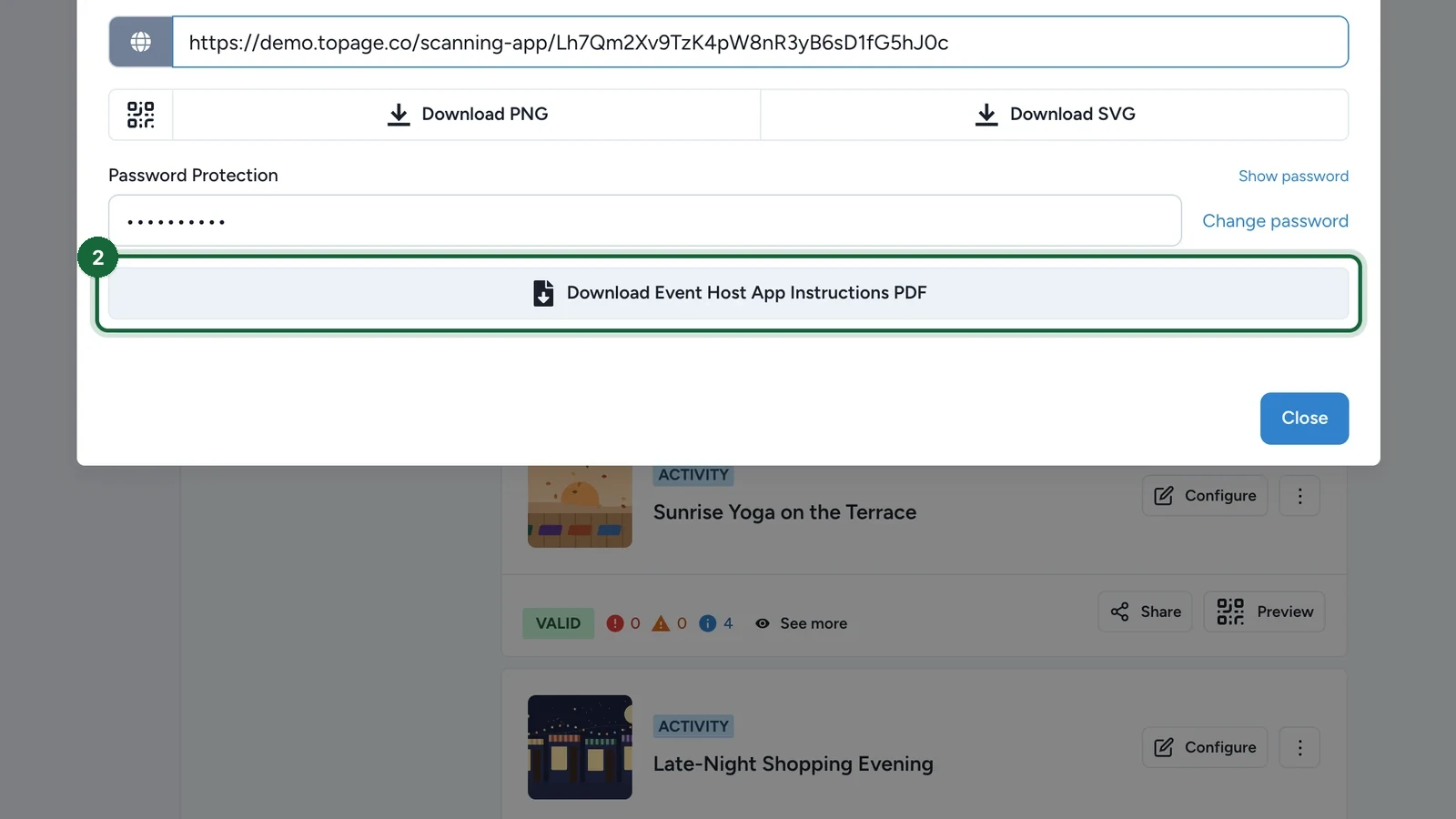
The footer names the app and the Campaign, and carries the Campaign's internal reference — so a printed sheet found in a drawer can be traced back to the event it belongs to. This helps most with shift-based staffing or external host teams.

The sheet covers the Campaign, not one Activity

The PDF names no Activity, because the app doesn't need one: the same URL and password serve every Activity in the Campaign, and hosts choose the Activity after they sign in. One printed sheet is enough for the whole event.

Test each staff device

Open the Event Host App on each smartphone or tablet that will be used on the day, enter the password, and run one real scan during rehearsal. Confirm the device camera works well, the network is stable, and the check-in result returns immediately.

What hosts can do after login

Host flowWhen to use itWhat it helps with
Scan QR CodeStandard arrival flowScan the attendee's ticket and check them in in real time
Find by EmailThe attendee cannot open the ticket QR codeLook up the booking from the attendee's email address
Find by SlotThe queue is organized by session timeBrowse bookings for a selected slot
Slots AvailabilityStaff need a capacity viewCheck which slots still have room for each ticket type

For everyday arrivals, use Scan QR Code and keep the other three for the moments when scanning is not enough.

Pick the right scanning device

The Event Host App works in a browser on smartphones and tablets. For continuous front-desk scanning, most teams prefer recent smartphones, which are faster to position over attendee ticket QR codes.

Example staffing setup

For a Saturday family workshop, brief two hosts the evening before launch. Host A scans arriving ticket QR codes at the entrance. Host B uses Find by Email for attendees who cannot find their ticket and checks Find by Slot when the next session starts boarding. Because check-in updates in real time, both hosts see the latest attendee status immediately.

On this page