Check-in statuses (green / orange / red)
Use this quick reference to interpret Scanner App result screens and decide what to do next.
This quick reference helps on-site staff read the Scanner App result screen and decide what to do next without stopping the queue.
One extra blocked state
Most day-of results are green, orange, or red. Cancelled and waitlist bookings stay blocked because they are not confirmed bookings.
Quick reference
| Result | What it means | Recommended action |
|---|---|---|
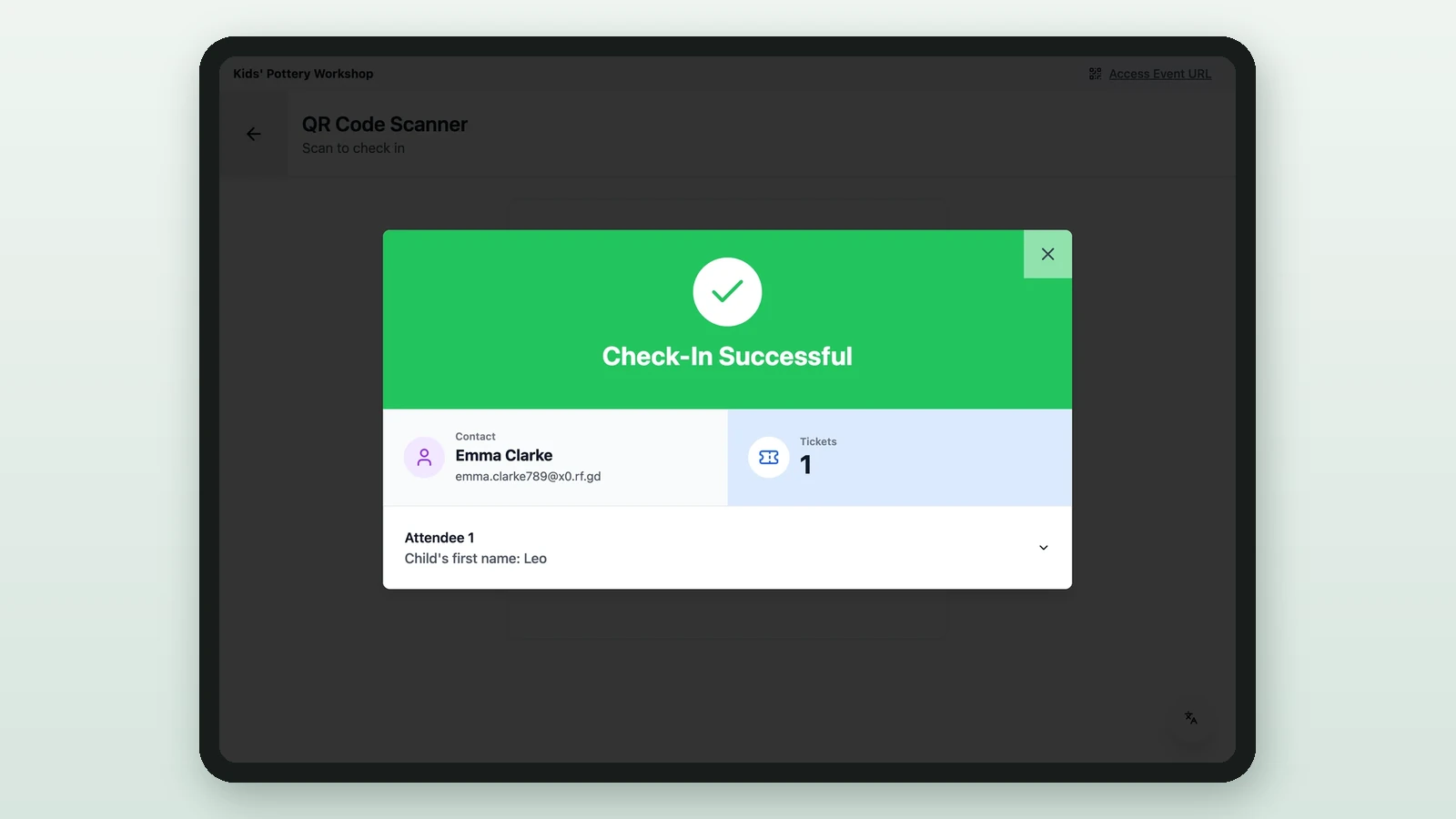
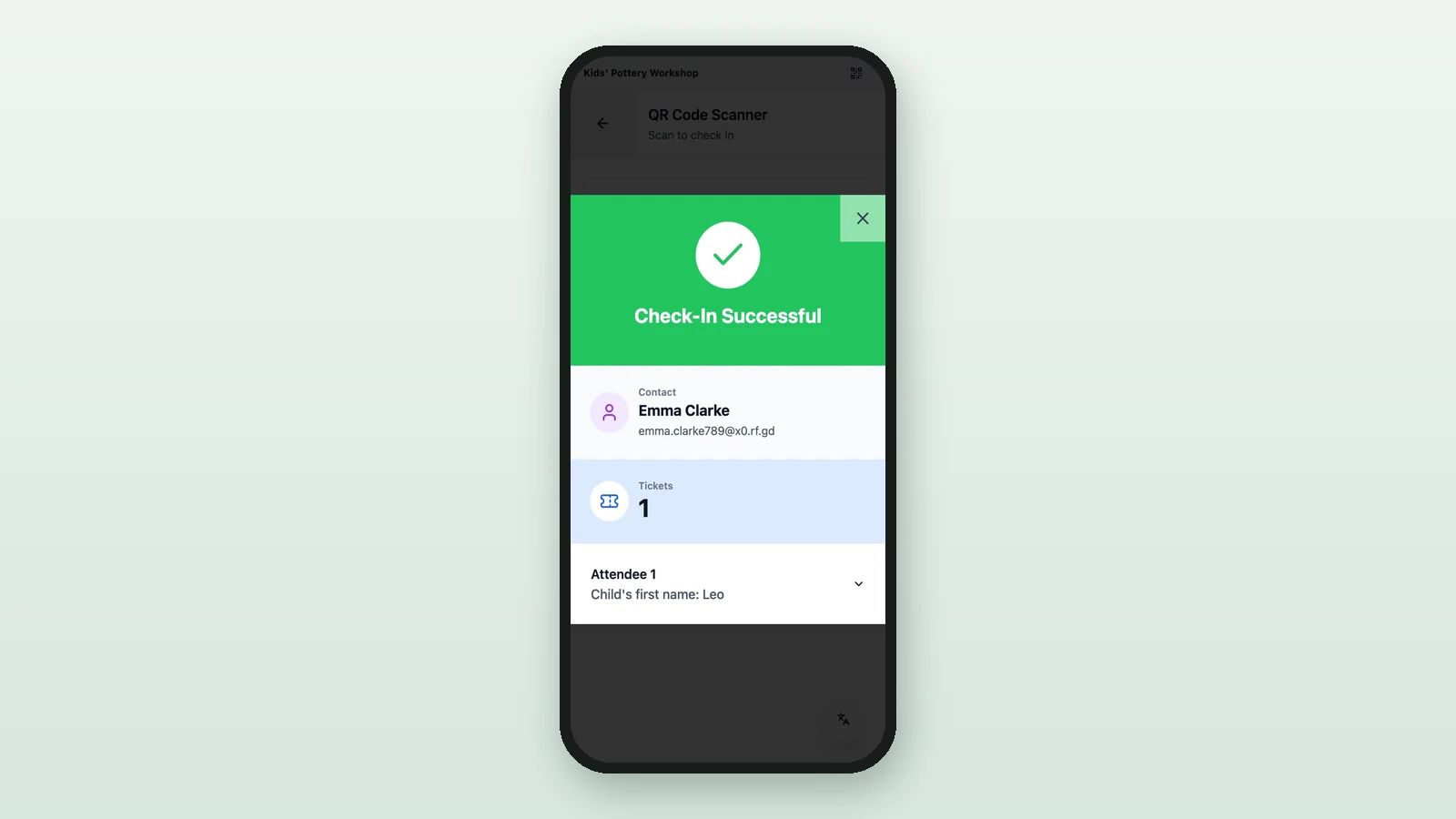
Green - Check-In Successful | The booking is valid and the attendee has been checked in. | Admit the attendee. |
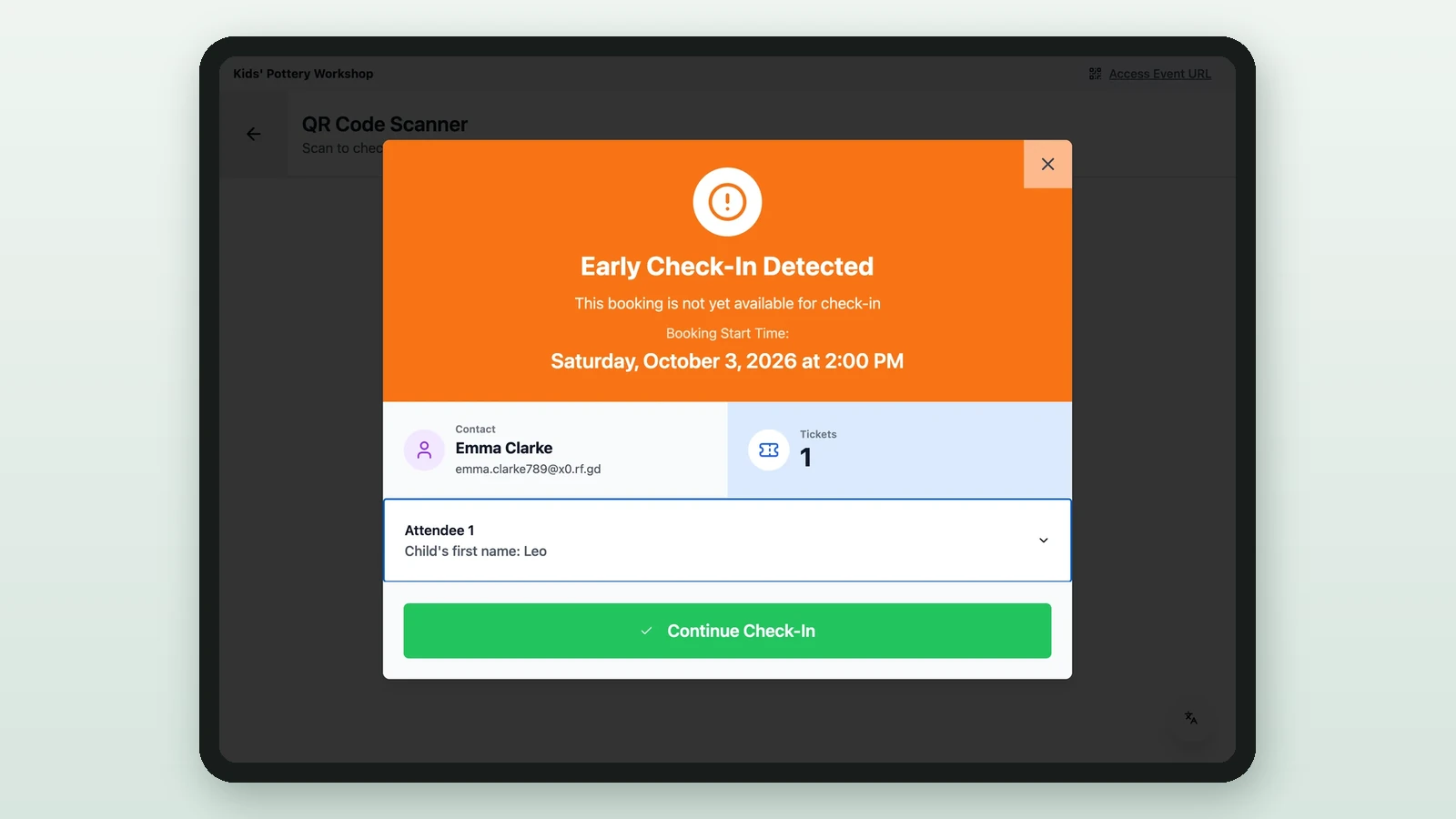
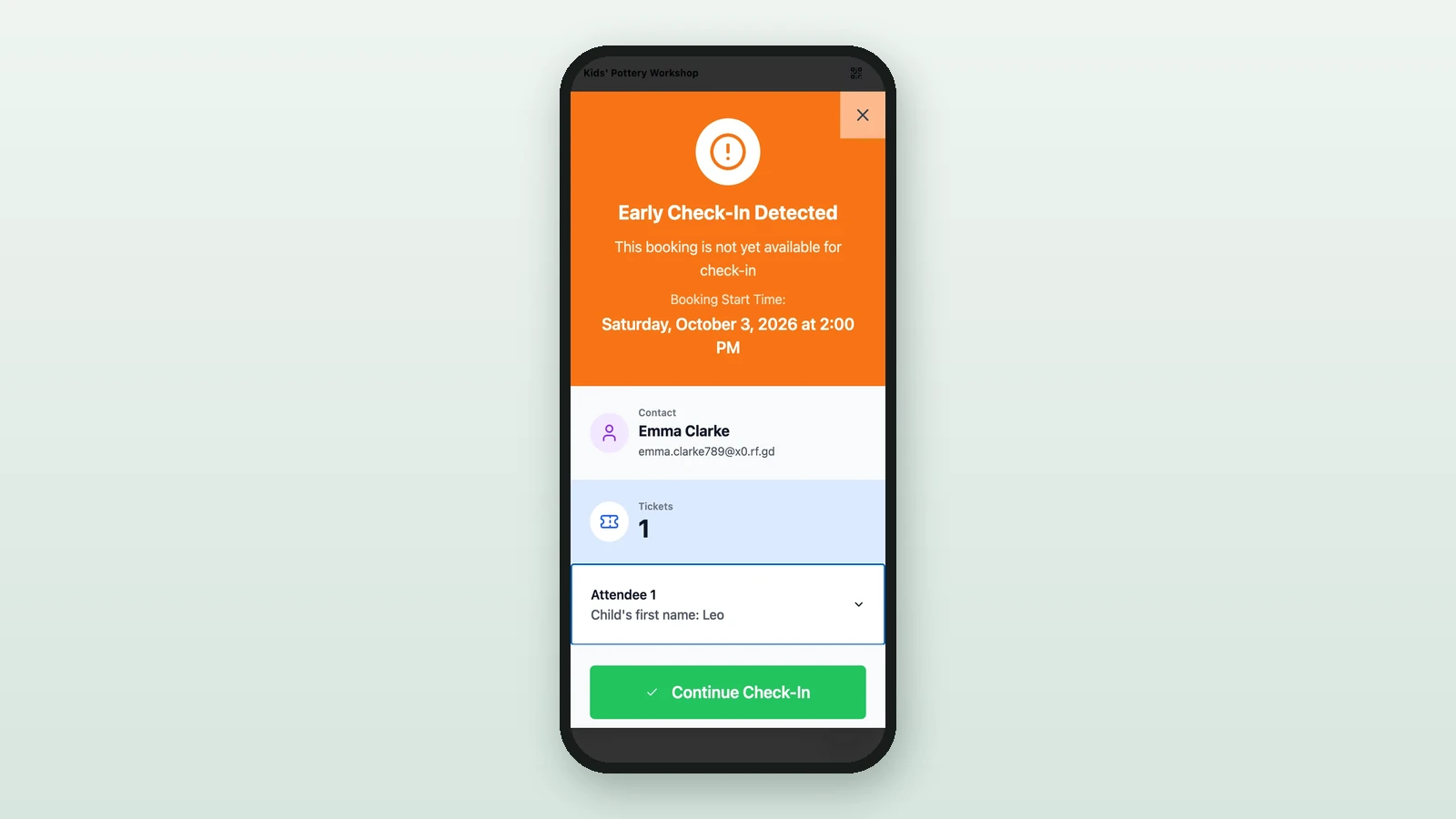
Orange - Early Check-In Detected | The attendee arrived before the configured check-in window. | Verify the slot time. Use Continue Check-In only when your event policy allows early admission. |
Orange - Late Check-In Detected | The attendee arrived after the configured check-in window. | Confirm with a manager before you use Continue Check-In. If late entry is not allowed, do not admit the attendee. |
| Blocked non-confirmed booking | The booking is not Confirmed, typically because it is Cancelled or on the Waitlist. | Do not check in. Send the attendee to a manager or the Bookings dashboard for follow-up. |
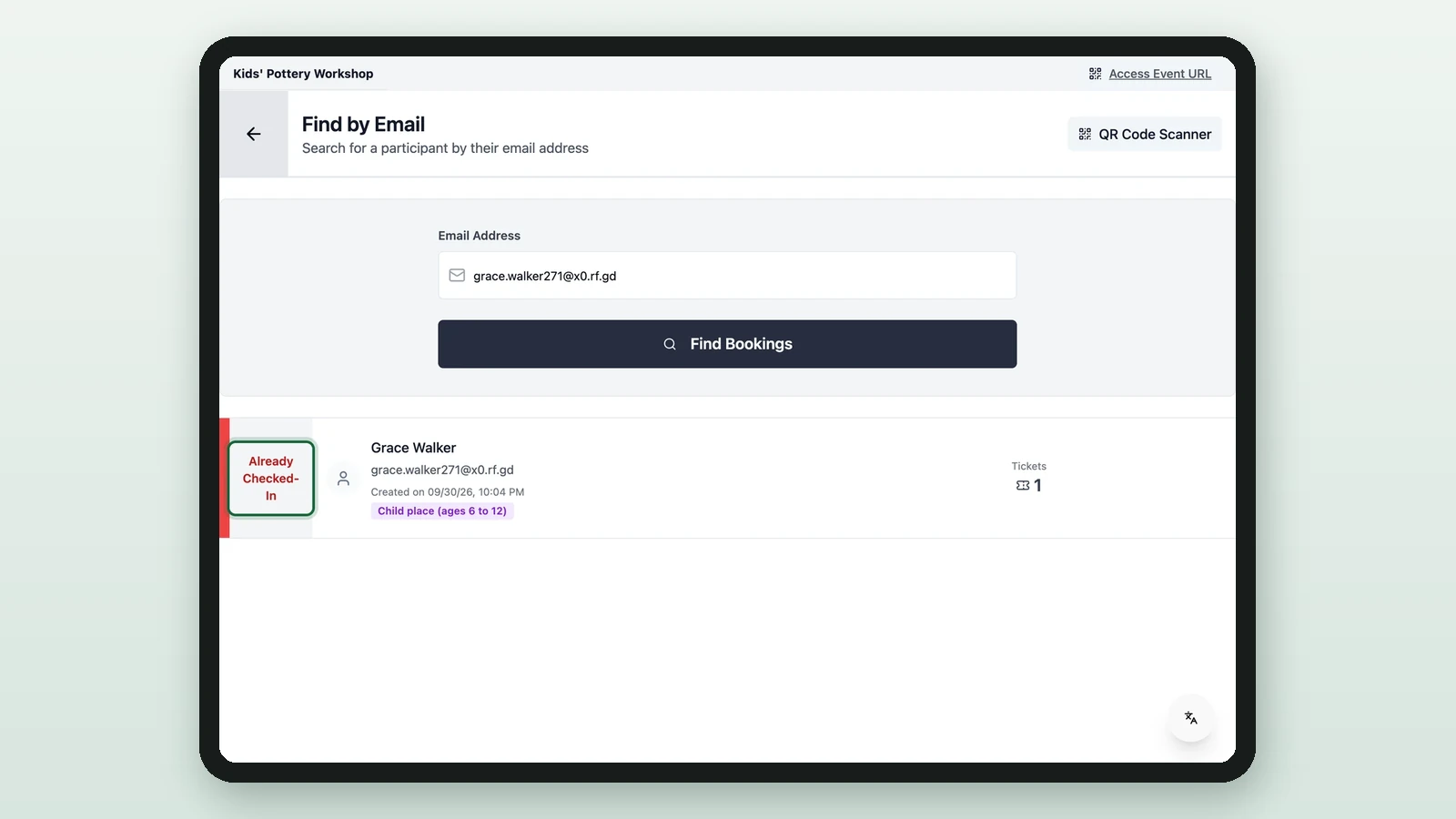
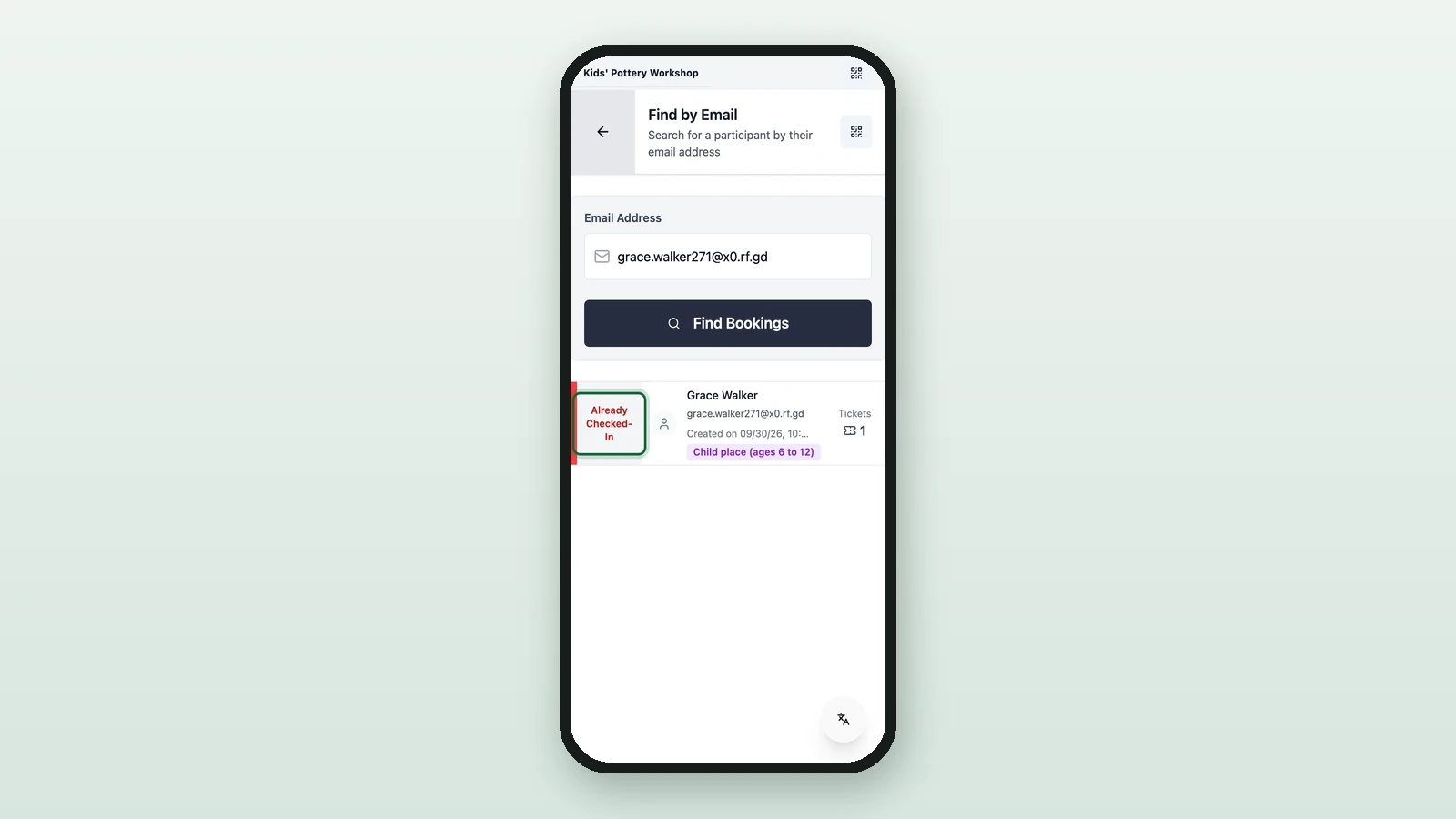
Red - Already Checked-In | The ticket was already used. | Do not check in again. Verify identity and escalate only if you suspect the wrong ticket was used earlier. |
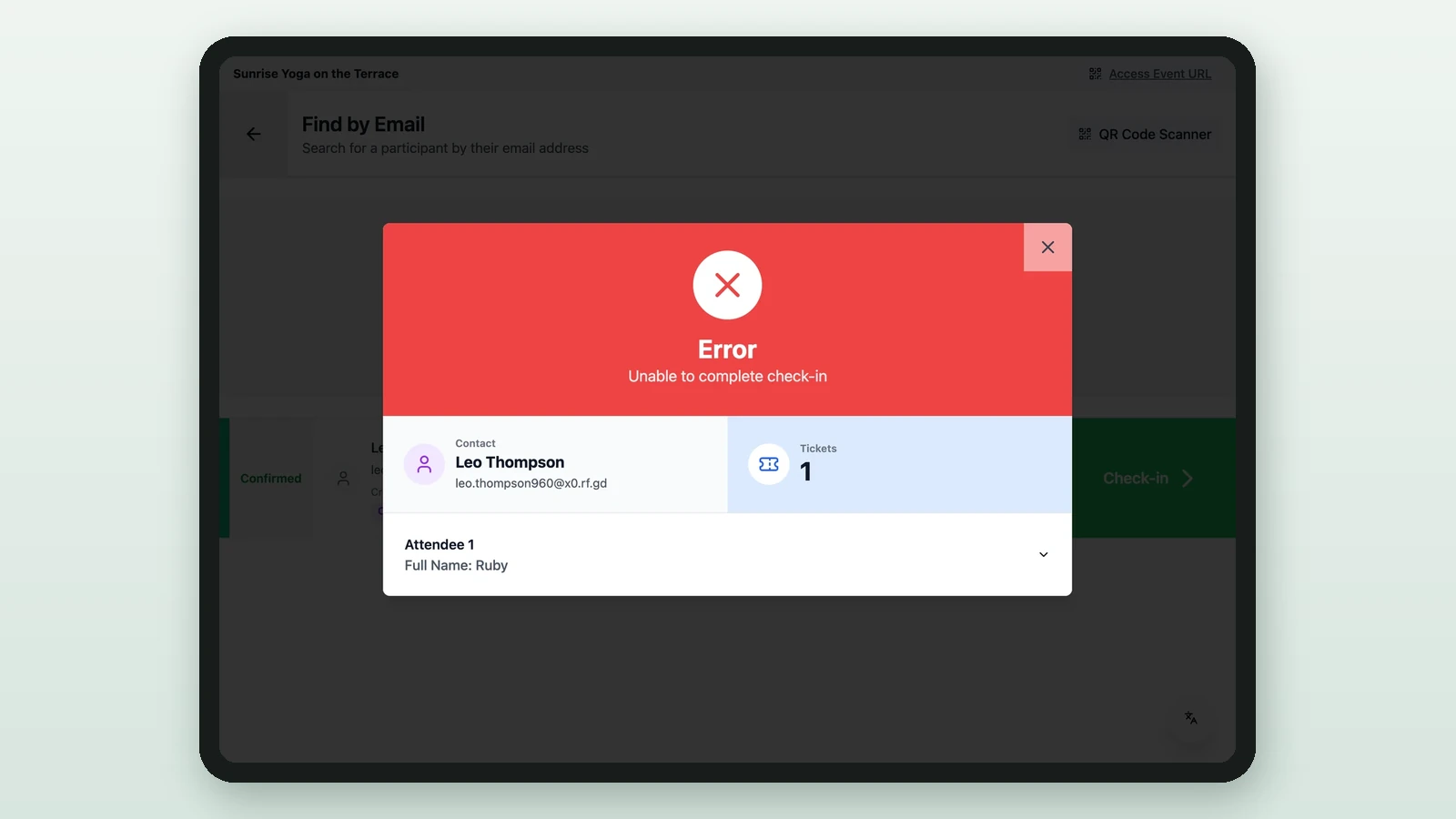
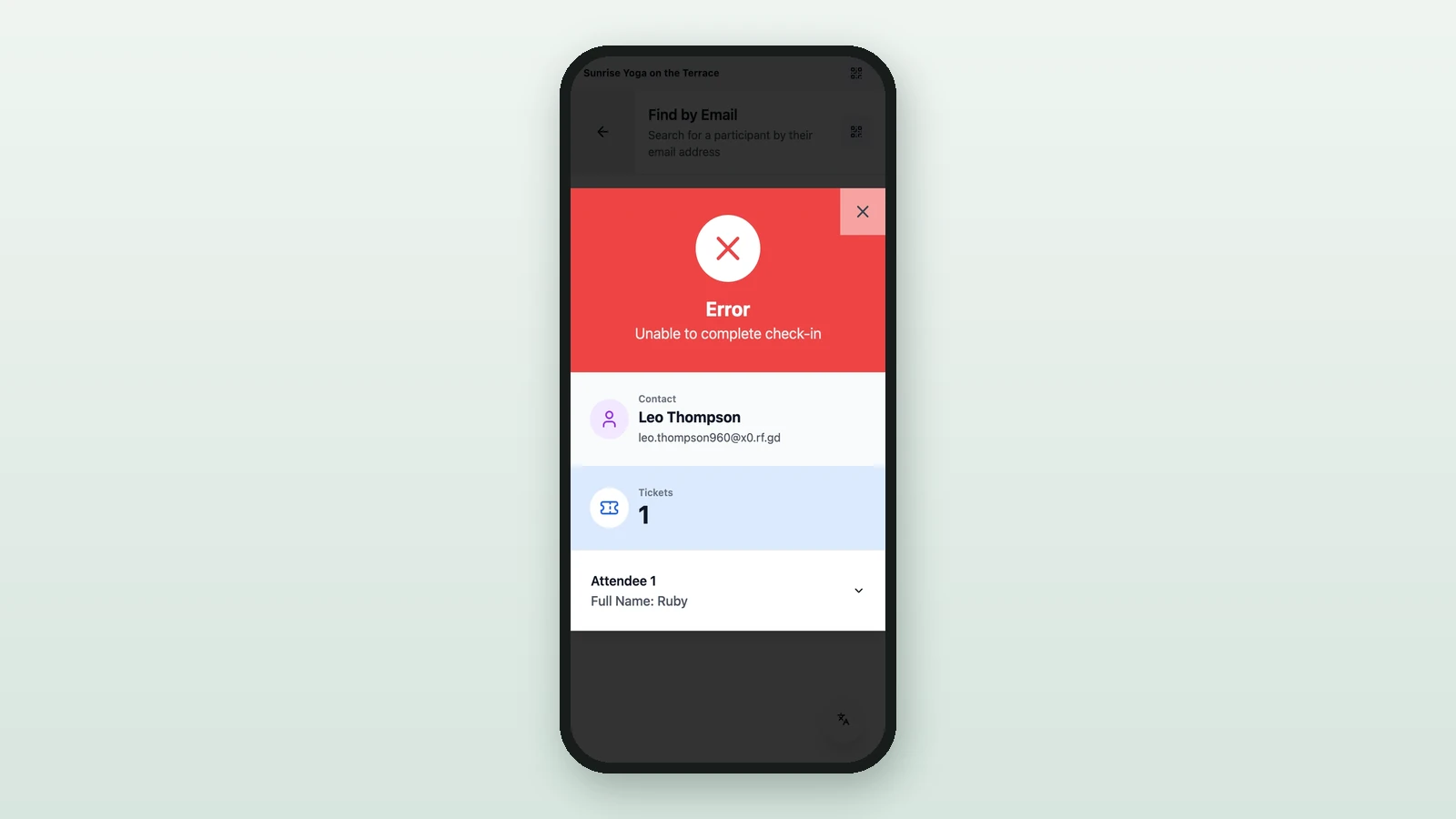
Red - Scan Error or no booking found | The QR code is unreadable, invalid, or for a different Activity. | Ask the attendee to reopen the ticket and raise screen brightness, then switch to Find by Email if needed. |
Before you retry
When the result stays blocked, run through these checks in order:
- Confirm the attendee is at the correct Activity and time.
- Check whether the booking is still
Confirmed. - Ask the attendee to reopen the ticket email or show another ID if the QR code is hard to read.
- Use
Find by Emailinstead of rescanning the same blocked ticket several times. - Call a manager when you need to make an early or late exception.
Related
Use the Scanner App on the day
Follow the standard day-of flow from sign-in through QR scanning and staffed fallbacks.
Manual check-in
Look up an attendee manually when the QR code cannot be scanned.
Access bookings & tickets
Use the Bookings dashboard when a manager needs the full attendee list and row actions.