Configure the CTA
Configure the optional CTA title, button label, and external destination URL.
In this article, you'll configure the optional landing page CTA so participants can continue to an external destination after reading the campaign entry content.
Prerequisites
- The campaign landing page is enabled.
- You have the external destination URL ready.
- You only need the CTA if participants should leave the landing page for another website or external experience.
Configuration
Open CTA Section
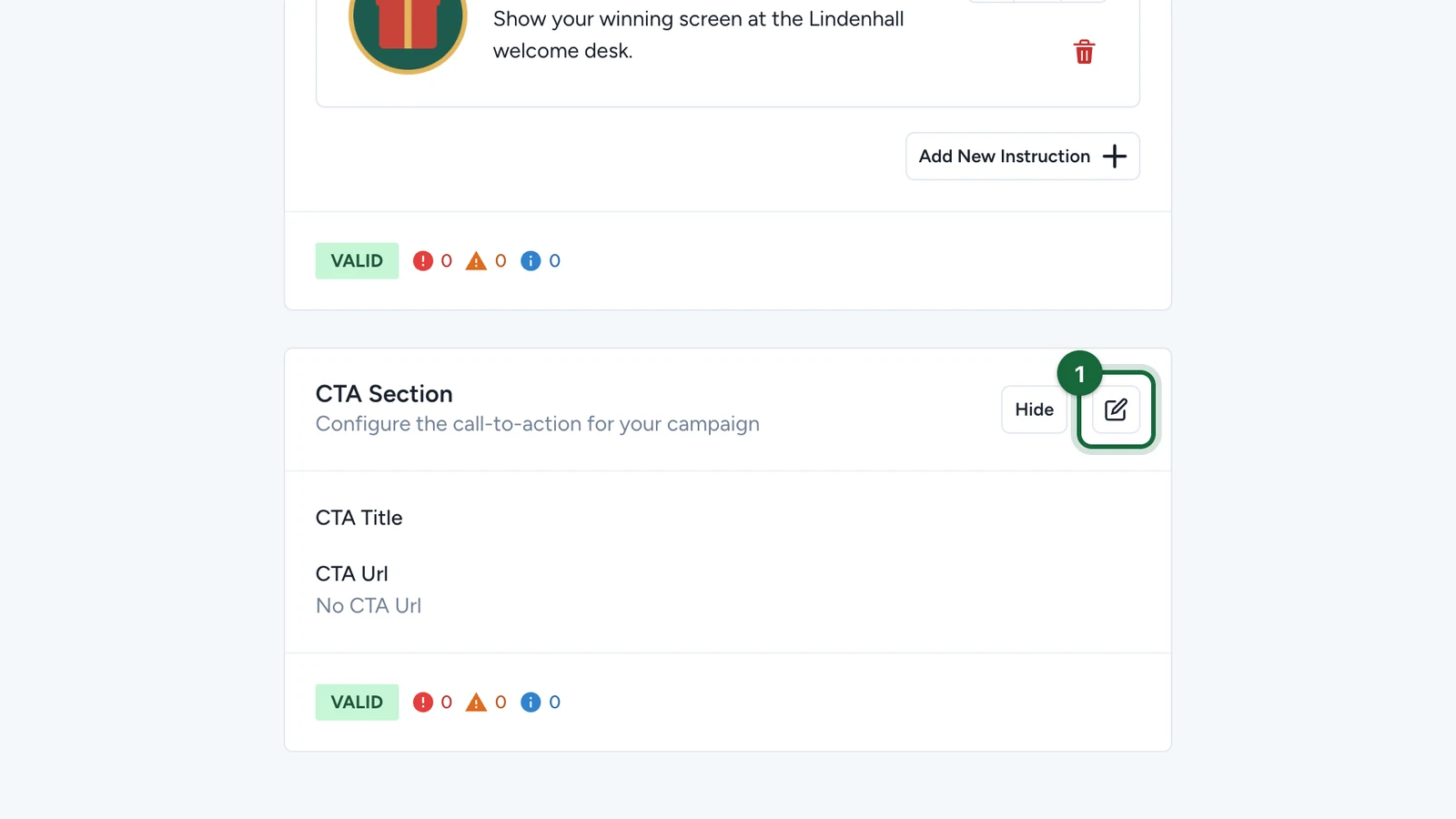
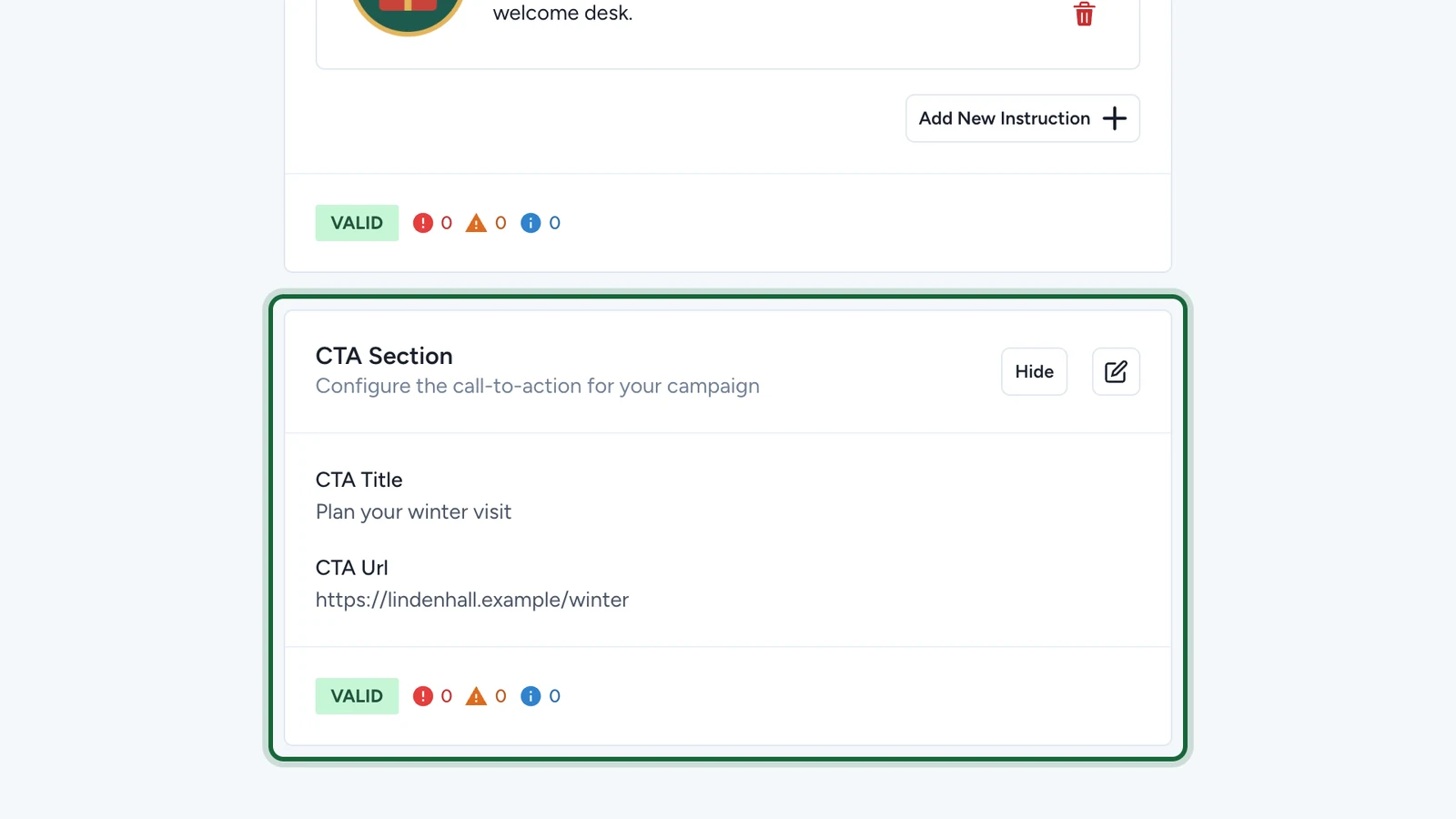
Go to Landing Page, then open the CTA Section card.
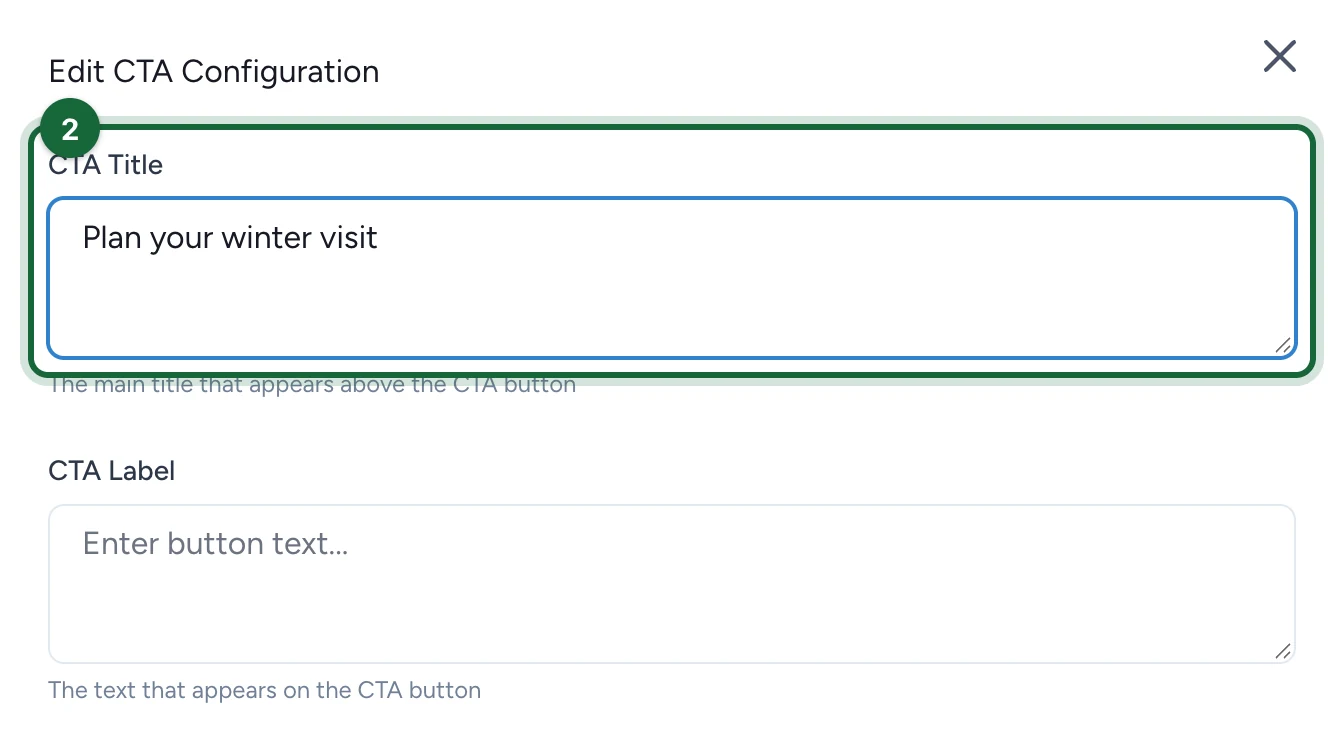
Fill CTA Title
Add CTA Title to explain why the button matters. This title appears above the button and gives the destination context.
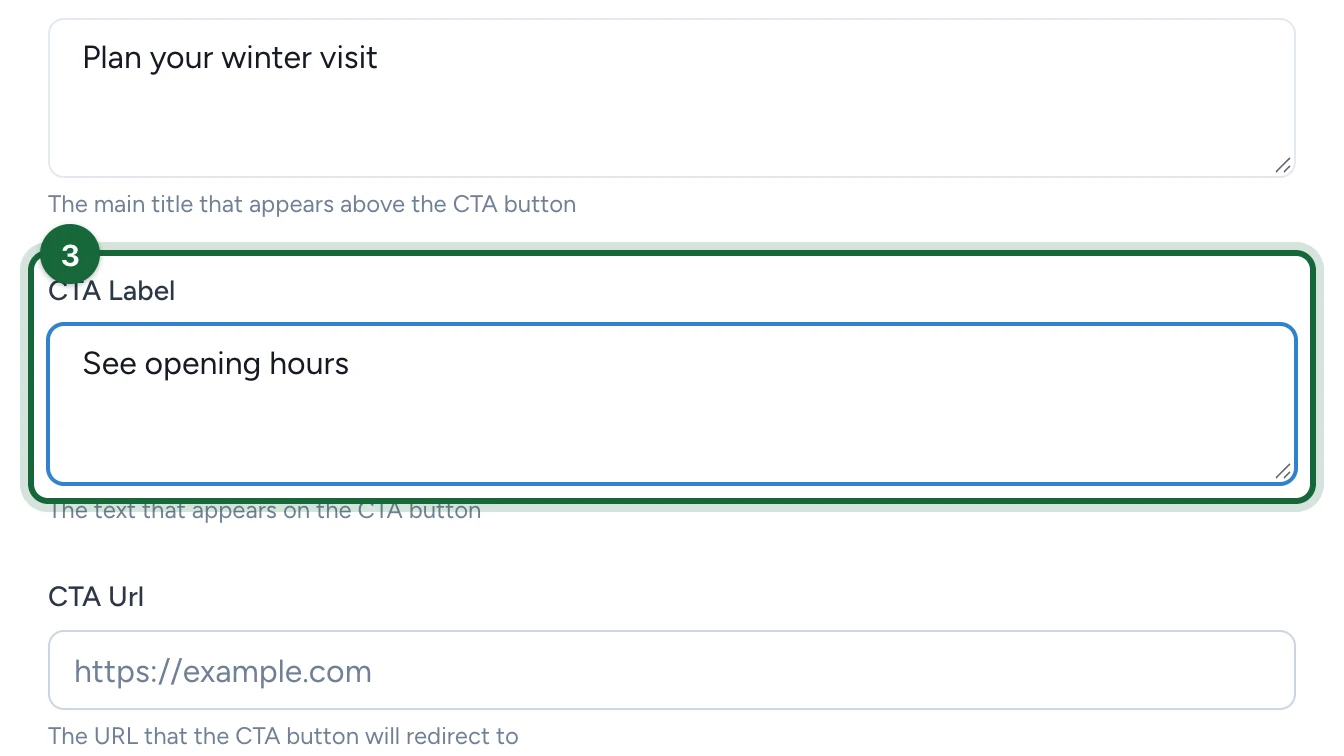
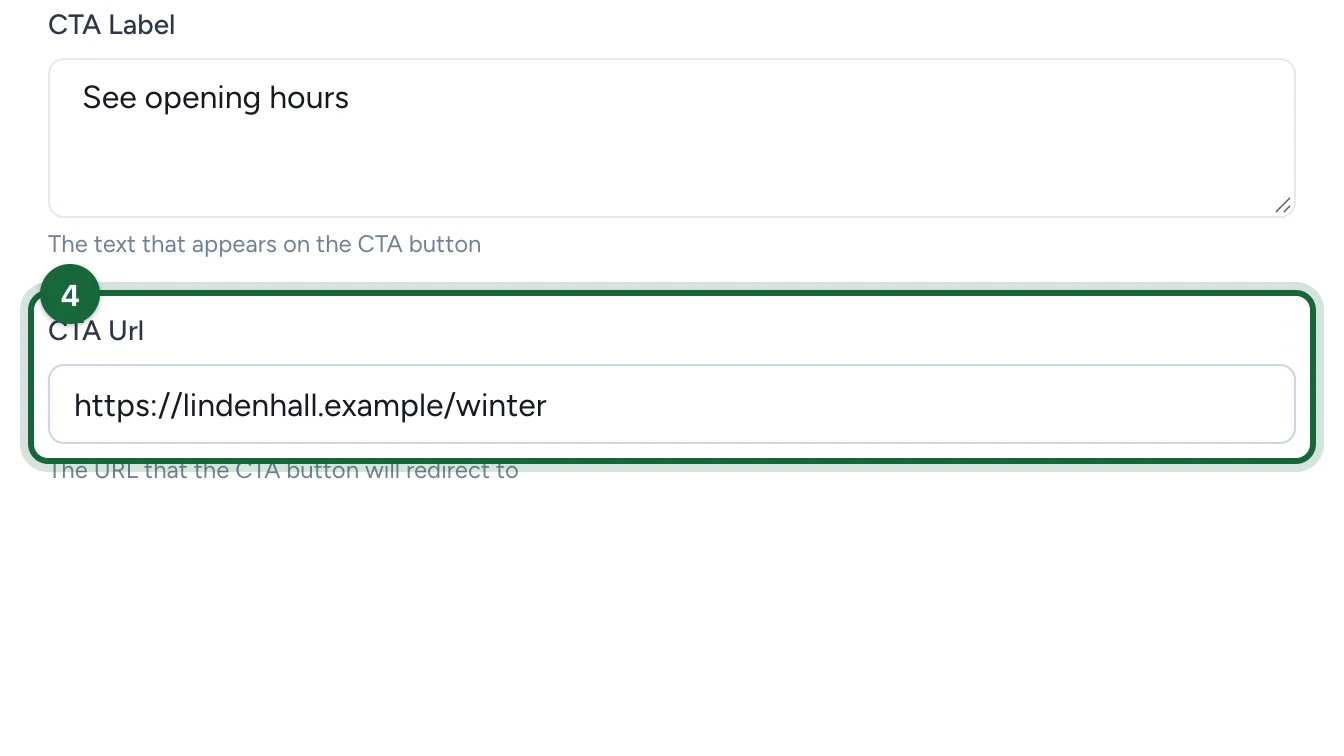
Fill CTA Label and CTA URL together
Add the button text in CTA Label, then enter the destination in CTA URL. The URL must start with http:// or https://.
Save and test the destination
Save the CTA, then test the live page. The button opens the destination in a new browser tab.
When to use the CTA
The landing page CTA works best for an external destination such as:
- a brand website
- a separate information page
- a booking or registration page outside the campaign
Do not use the CTA when participants only need to enter an internal Touchpoint. The landing page already routes people into campaign content directly.
Field rules
- A working CTA should include
CTA Title,CTA Label, andCTA URL. CTA LabelwithoutCTA URLcreates a button that cannot go anywhere.CTA URLwithoutCTA Labelleaves the action unclear.CTA Titleon its own is not functional.- If you do not need a CTA, leave all CTA fields empty or hide the section.
Validation notes
| Validation key | Message | Fix |
|---|---|---|
landing_page.cta_label_without_url | Landing page CTA has no URL configured | Go to Landing Page > CTA Settings and add a URL |
landing_page.cta_url_without_label | Landing page CTA has no label configured | Go to Landing Page > CTA Settings and add a label for the button |
landing_page.cta_url.invalid | Landing page CTA URL is not a valid URL | Go to Landing Page > CTA Settings and enter a valid URL (e.g., https://example.com) |
landing_page.cta_title.missing | Landing page CTA title is not configured | Go to Landing Page > CTA Settings and add a title to provide context for the call-to-action |
landing_page.cta_only_title | Landing page CTA has only title configured without label and URL | Go to Landing Page > CTA Settings and add both label and URL, or remove the title if no CTA is needed |
See Validation & publishing for how these rules surface before publish.
Related
Configure the header
Set the banner and campaign framing that sits above the CTA.
Configure instructions
Add participant guidance that usually appears before the CTA.
Two Columns layout
See how the CTA sits in the split desktop layout.
Landing Page reference
Review the shared CTA rules, section options, and responsive behavior.