Cancel a booking
Cancel a booking from the Bookings dashboard and keep a clear record of the cancelled attendee.
In this article, you'll cancel an attendee's booking from the Bookings dashboard so the place can be released and the booking history stays visible.
Prerequisites
- You can open the campaign's Bookings dashboard in
Studio. - The row still shows
Cancel Booking. Bookings that are alreadyCancelledor alreadychecked-instay visible, but they do not show this action.
Cancel the booking
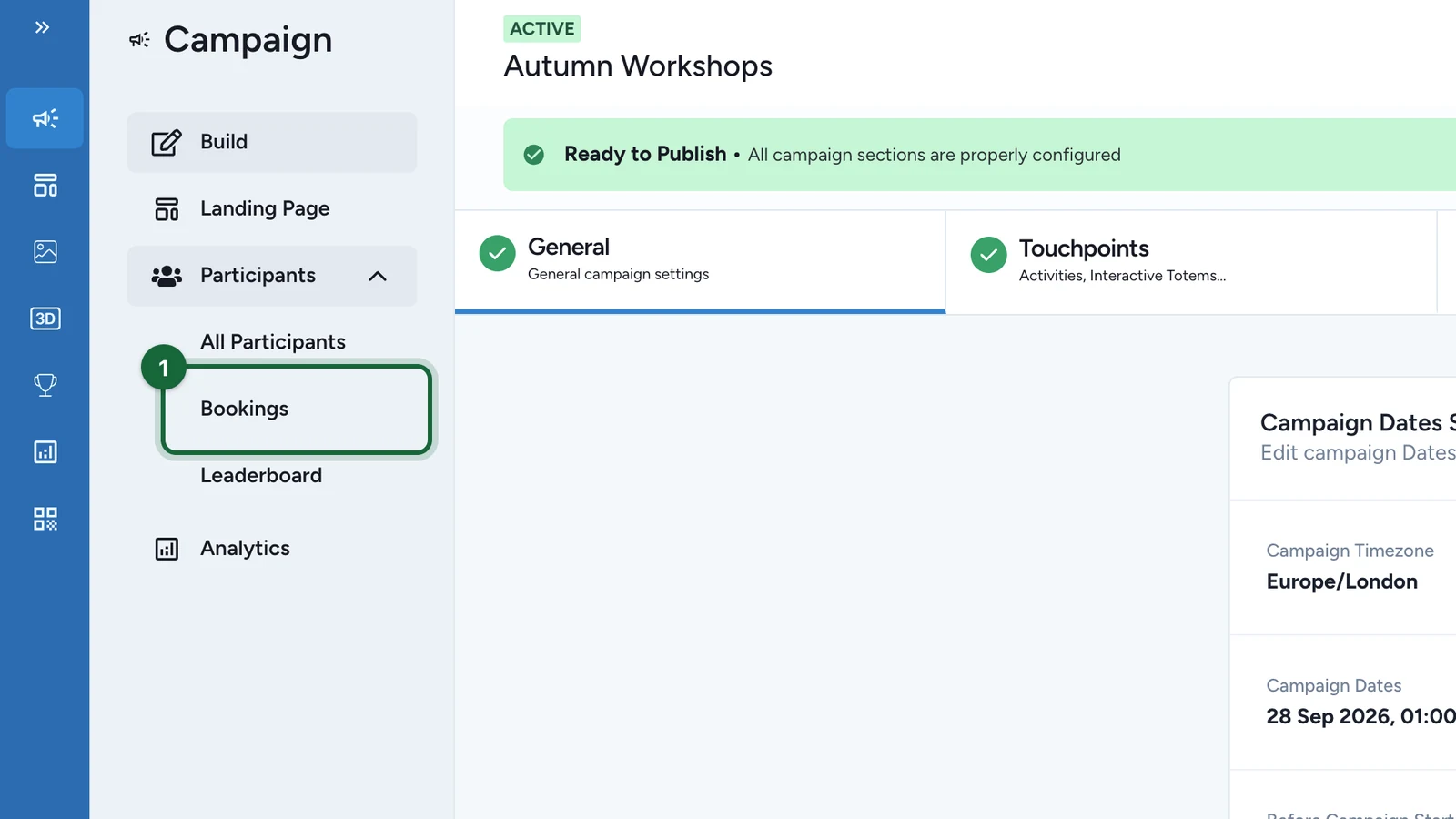
Open Bookings
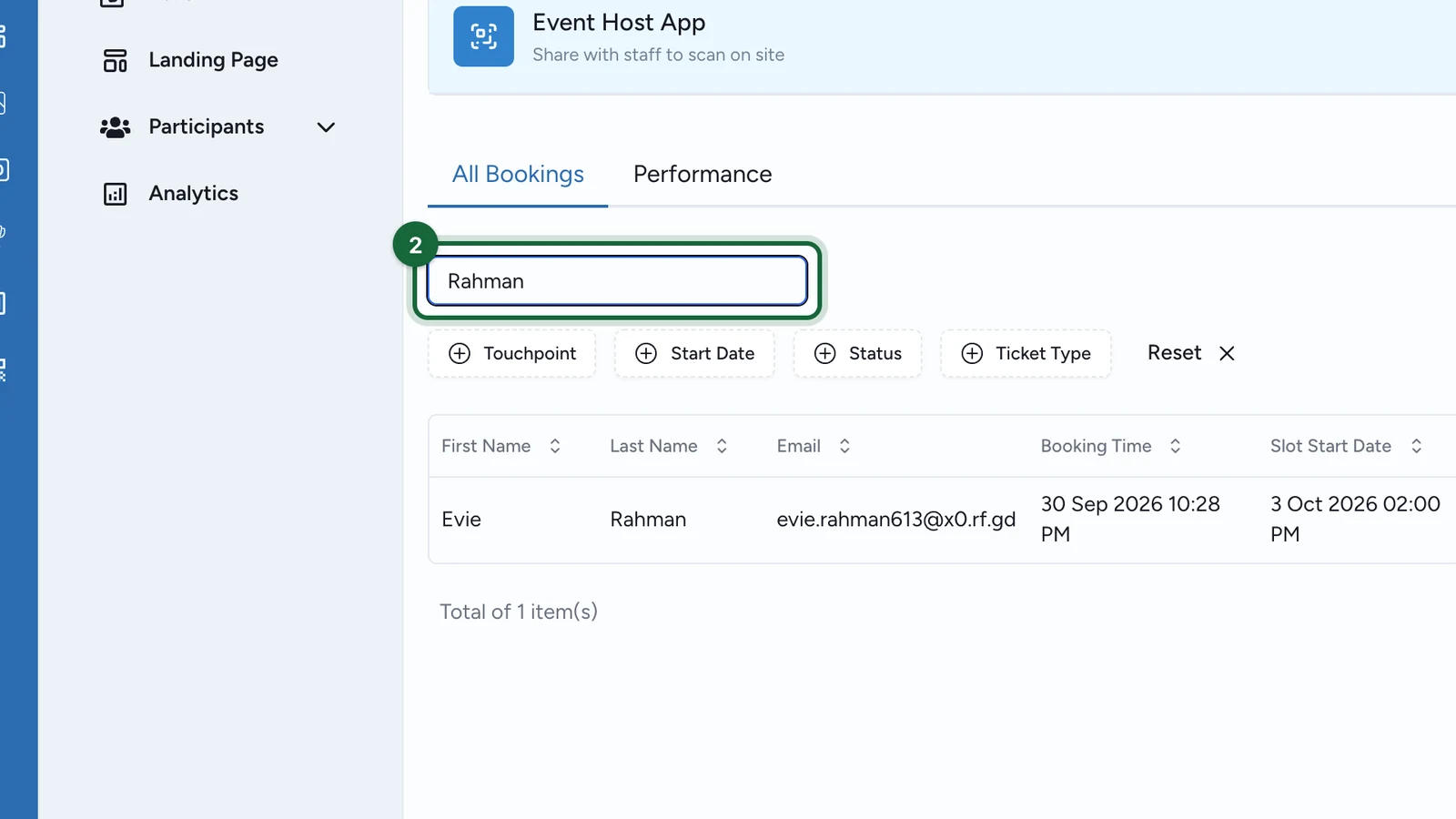
Go to Studio -> [your campaign] -> Bookings and find the attendee with search or filters.
Find the active booking
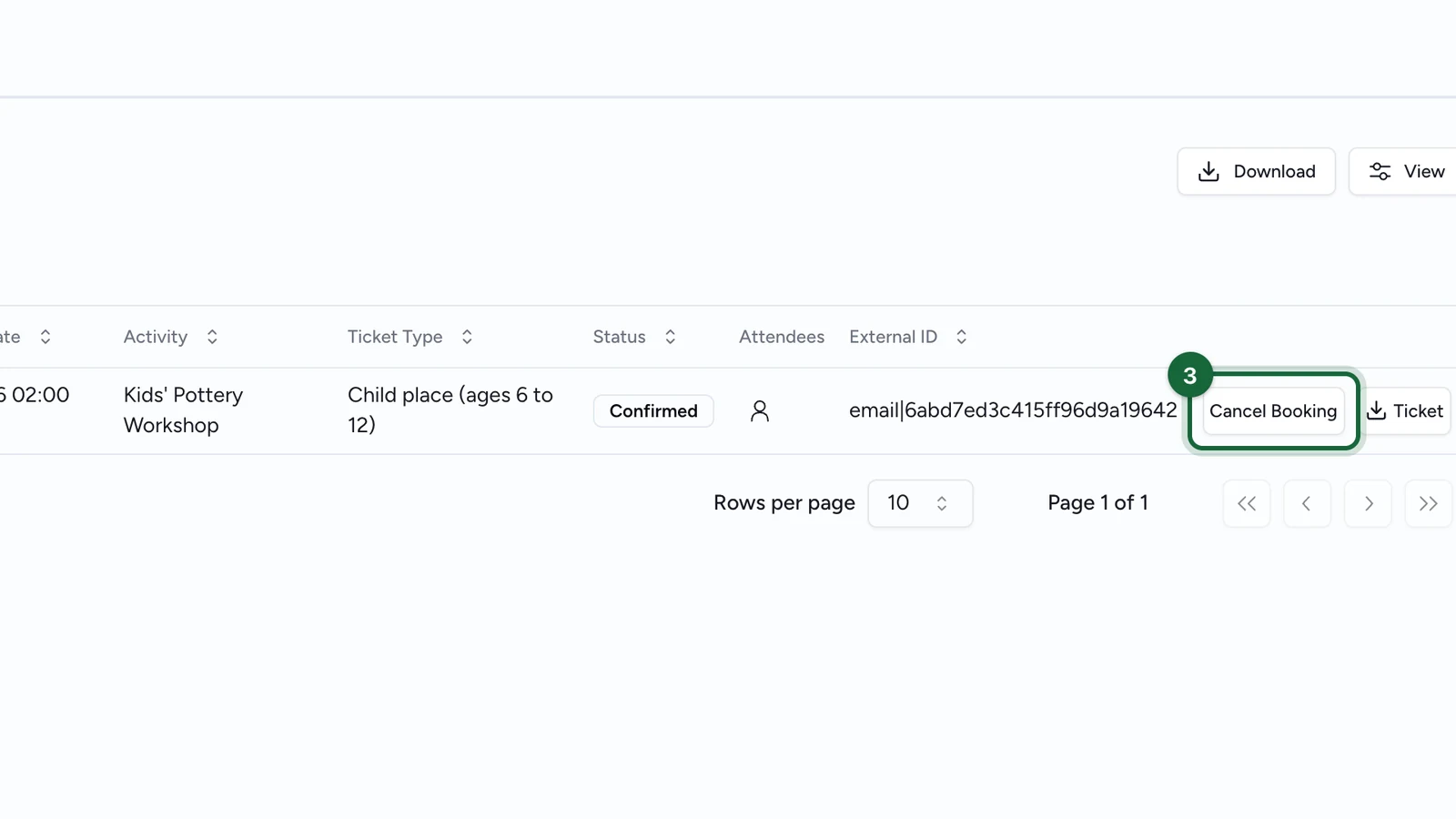
Confirm the Activity, Start Date, and Ticket Type before you cancel. This helps avoid cancelling the wrong booking when one attendee has several reservations.
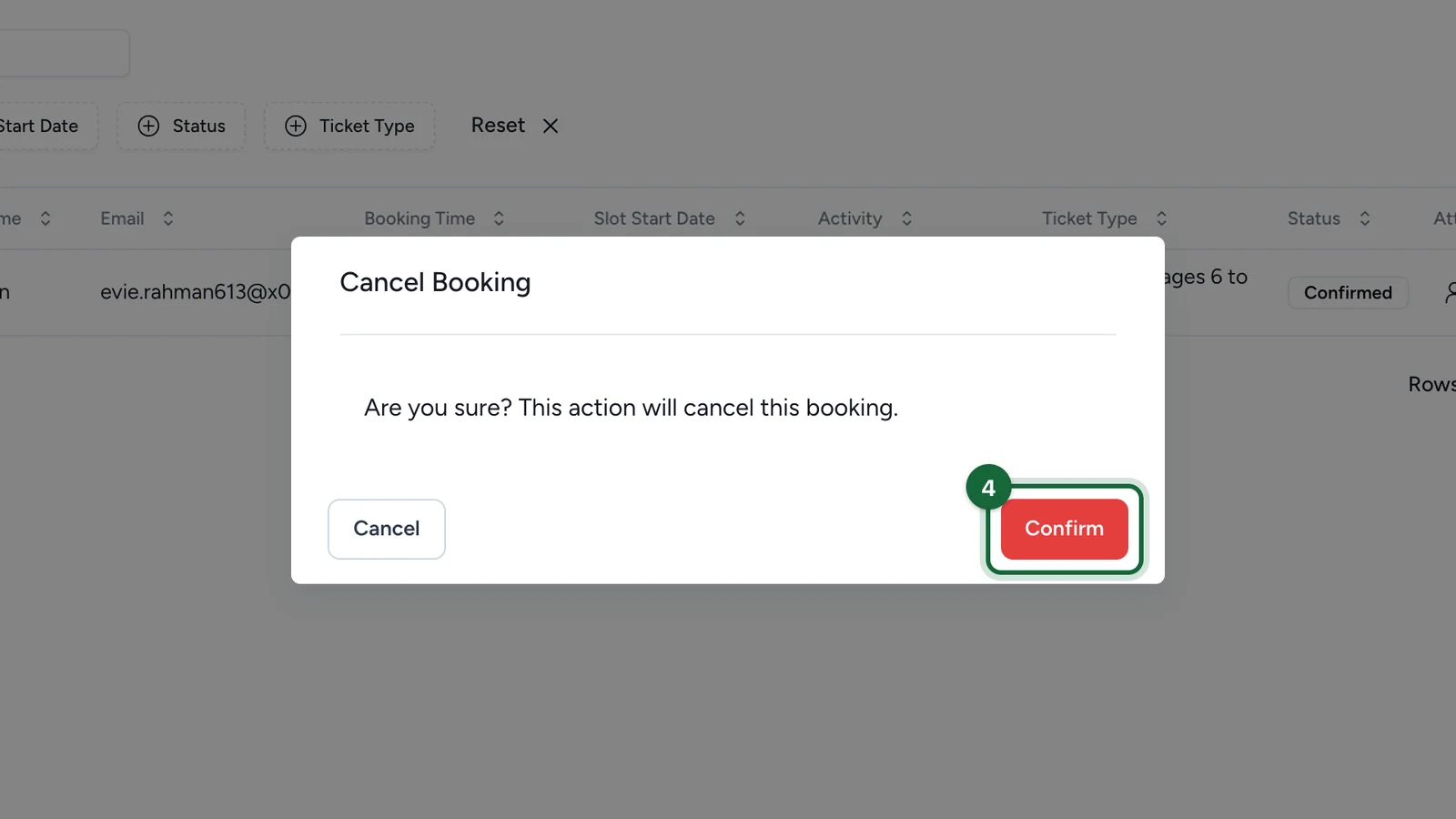
Click Cancel Booking and confirm
Use the Cancel Booking row action, then confirm in the dialog. The booking remains in the table with the status Cancelled so managers keep a clear audit trail.
What happens after cancellation
The place becomes available again for the activity. If the attendee still needs to join later, create a new booking instead of trying to uncancel the old one.
Good to know
- If
Booking Cancellationnotifications are configured and active, OmniLab can send that message as part of this flow. Cancel Bookingis not available on rows that are alreadyCancelledorchecked-in.- Cancelled bookings stay visible in the dashboard and in exports.
- OmniLab does not manage refunds or payment reversals directly, so handle any payment policy outside this step.
Related
Access bookings & tickets
Open the Bookings dashboard, filter the attendee list, and use the row actions available on the day.
Download the bookings Excel
Export the attendee list when a manager needs an offline spreadsheet.
Configure booking notifications
Prepare the confirmation, cancellation, and reminder emails used around event bookings.