Manage the waitlist
See who is waiting for each slot, promote people into freed places or remove them from the waitlist in Studio.
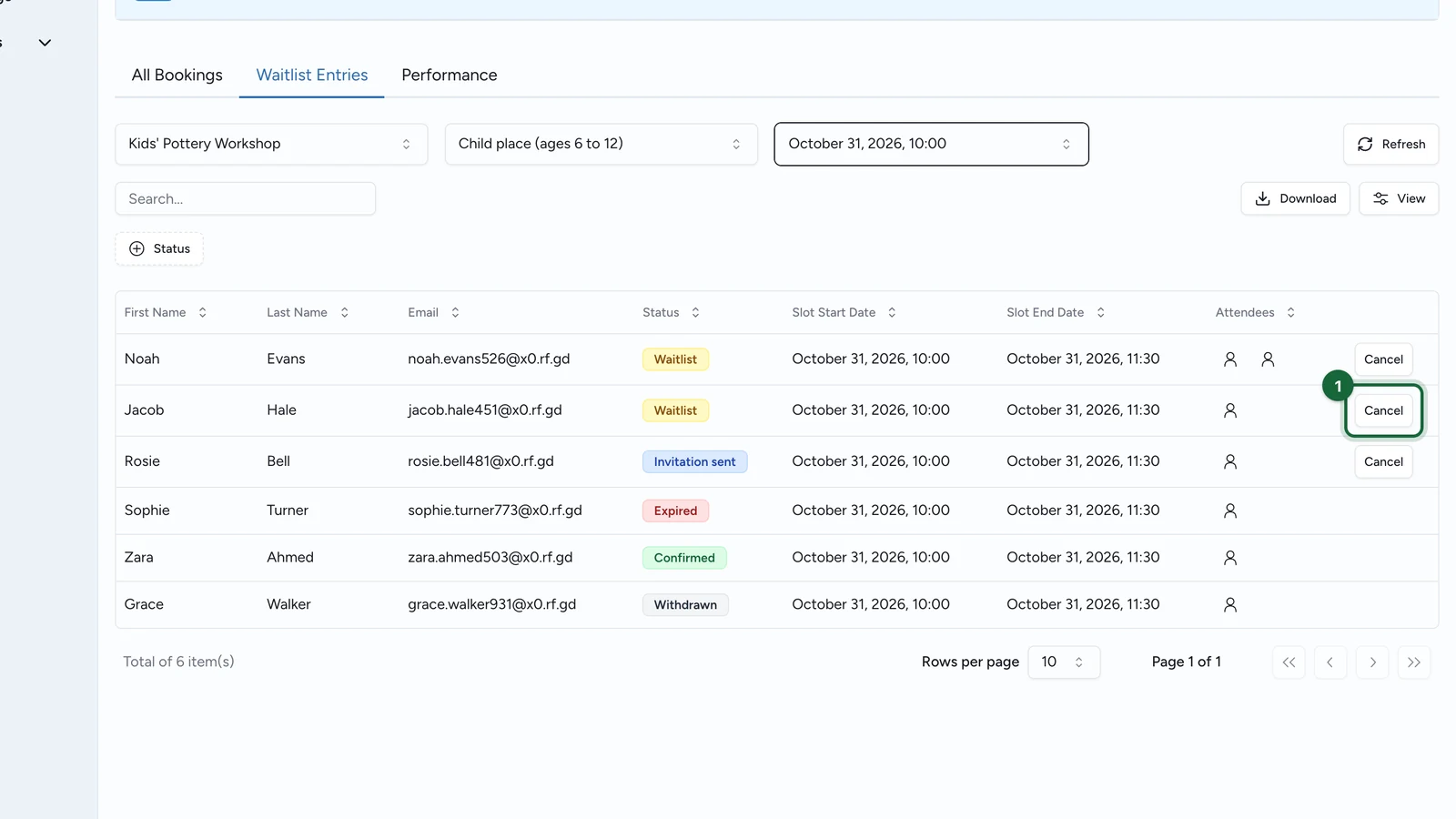
People on a waitlist have no booking yet, so they appear in Waitlist Entries, not in All Bookings. Here, Lindenhall follows the waitlist of a full Saturday slot of the Kids' Pottery Workshop.
To turn a waitlist on and choose its settings, see Set up a waitlist.
Open a slot's waitlist
-
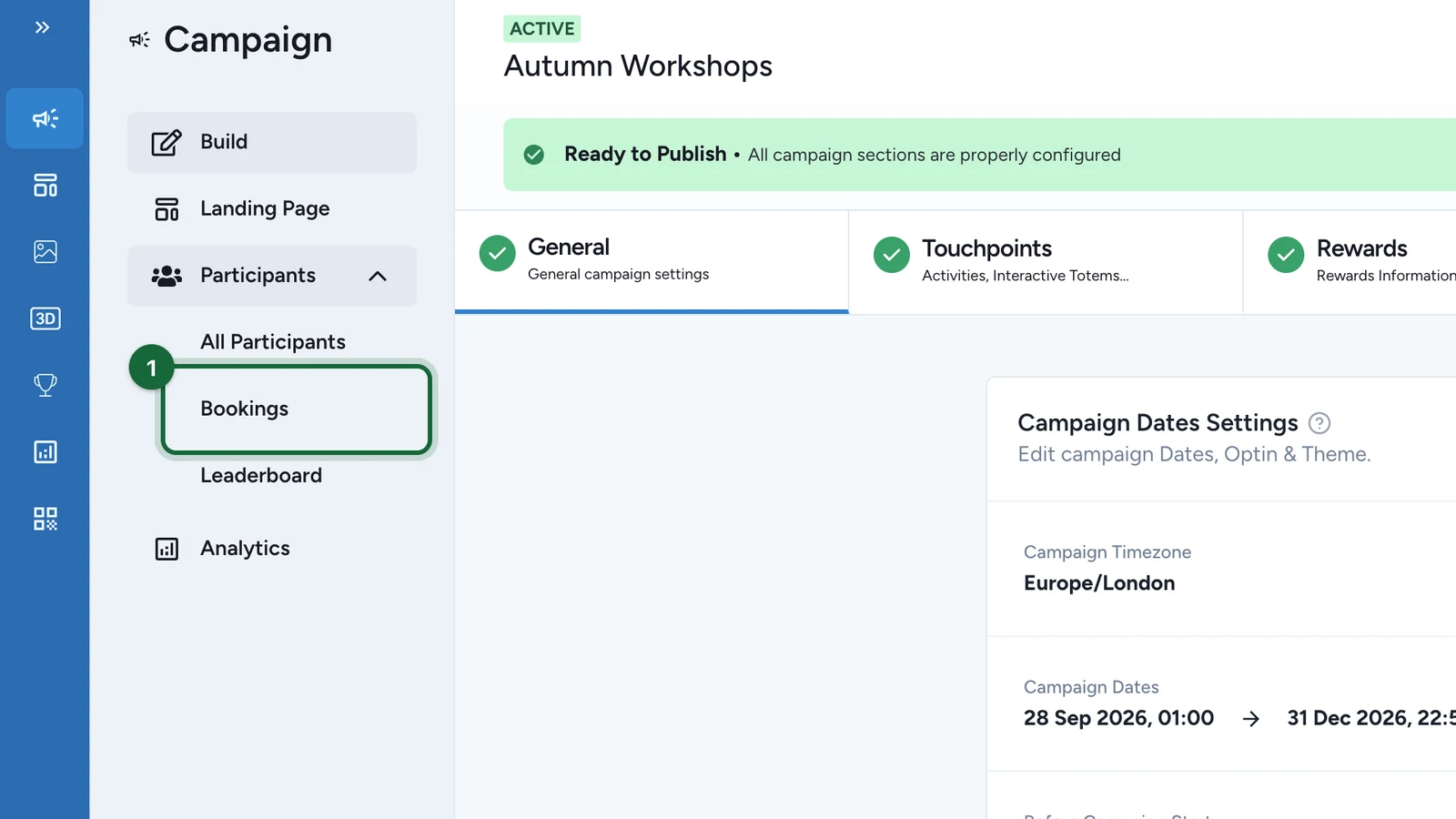
In the campaign, select Participants > Bookings.
-
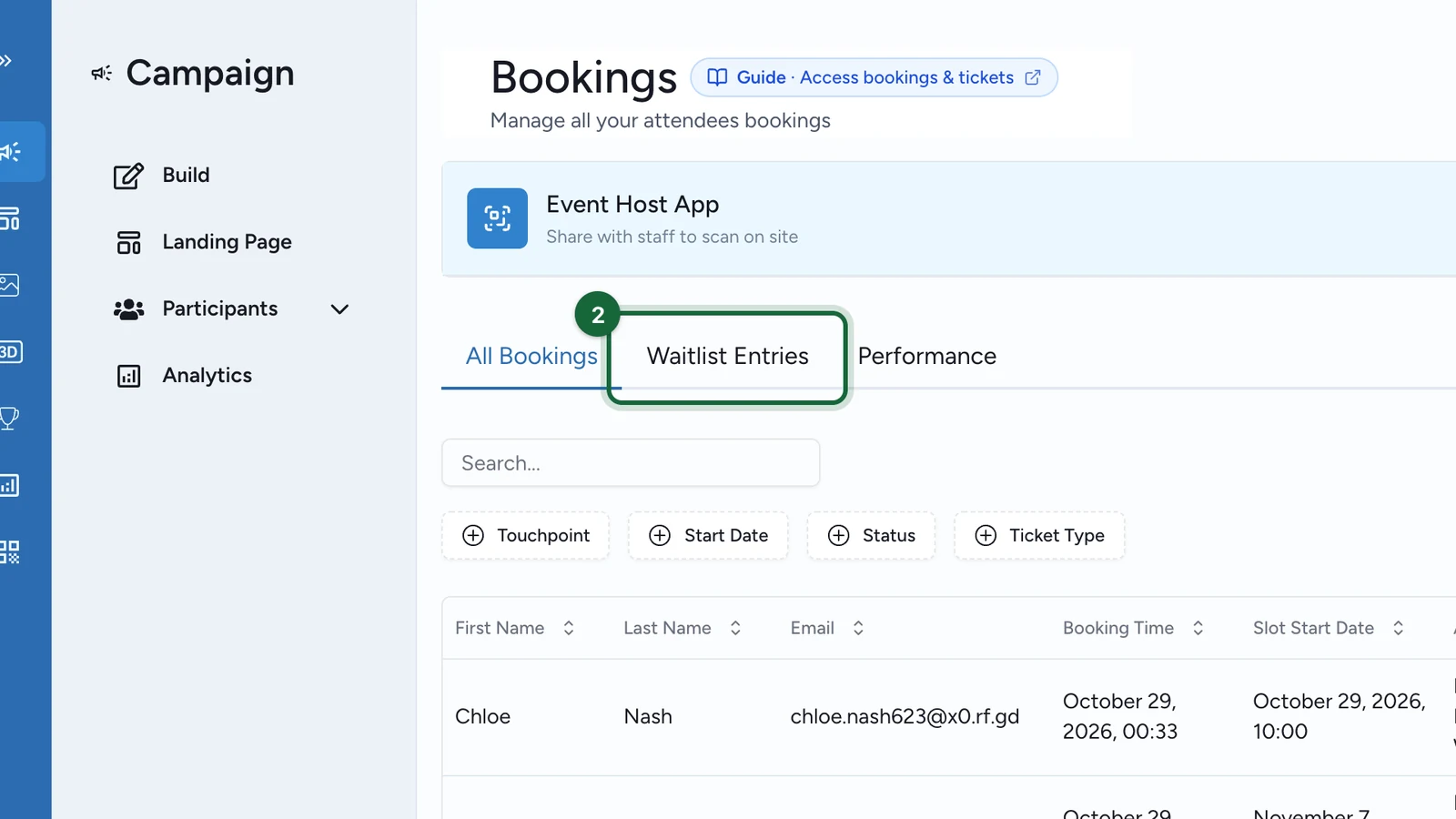
Select the Waitlist Entries tab.
-
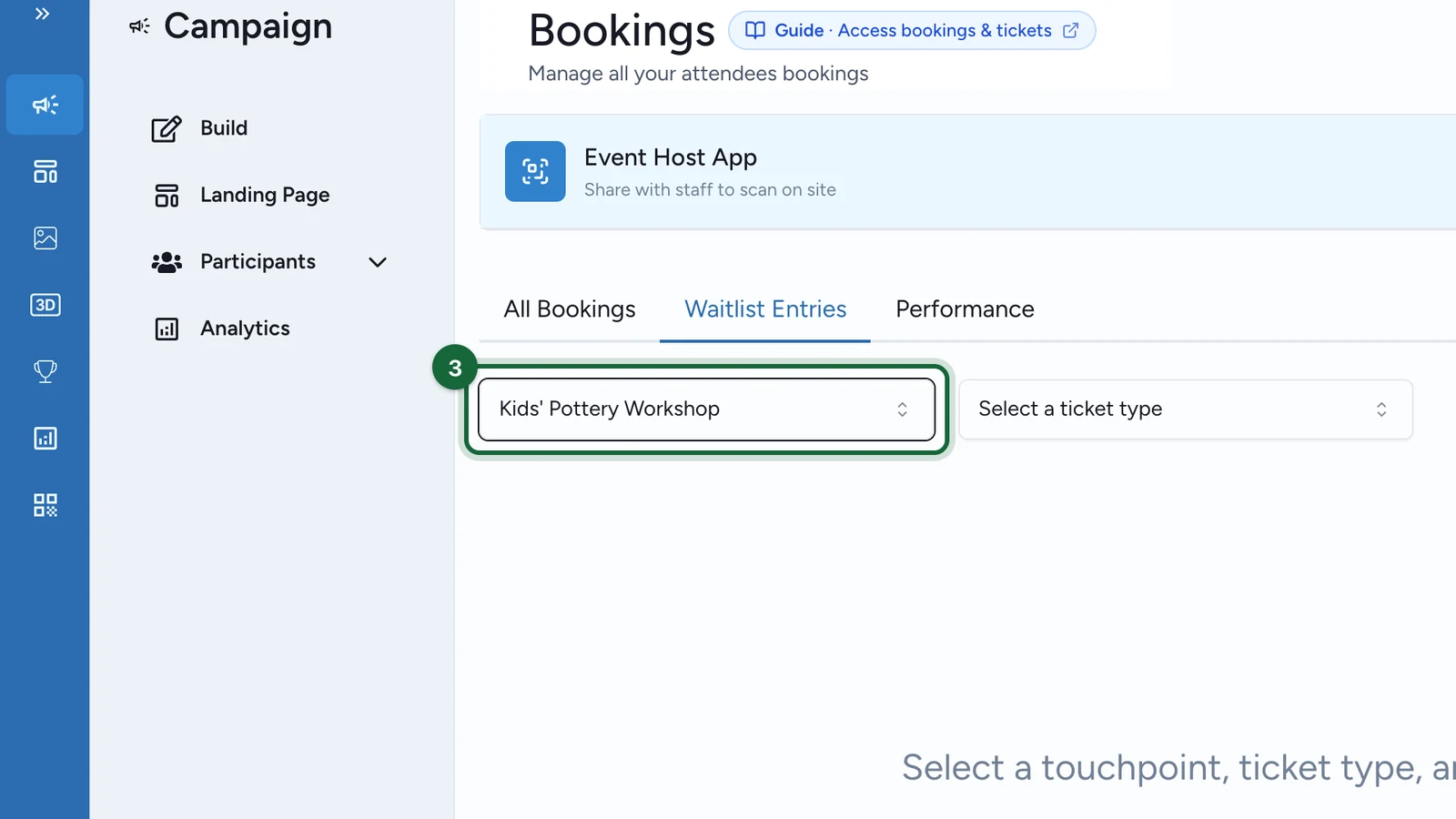
Under Select a touchpoint, choose the Activity, here Kids' Pottery Workshop.
-
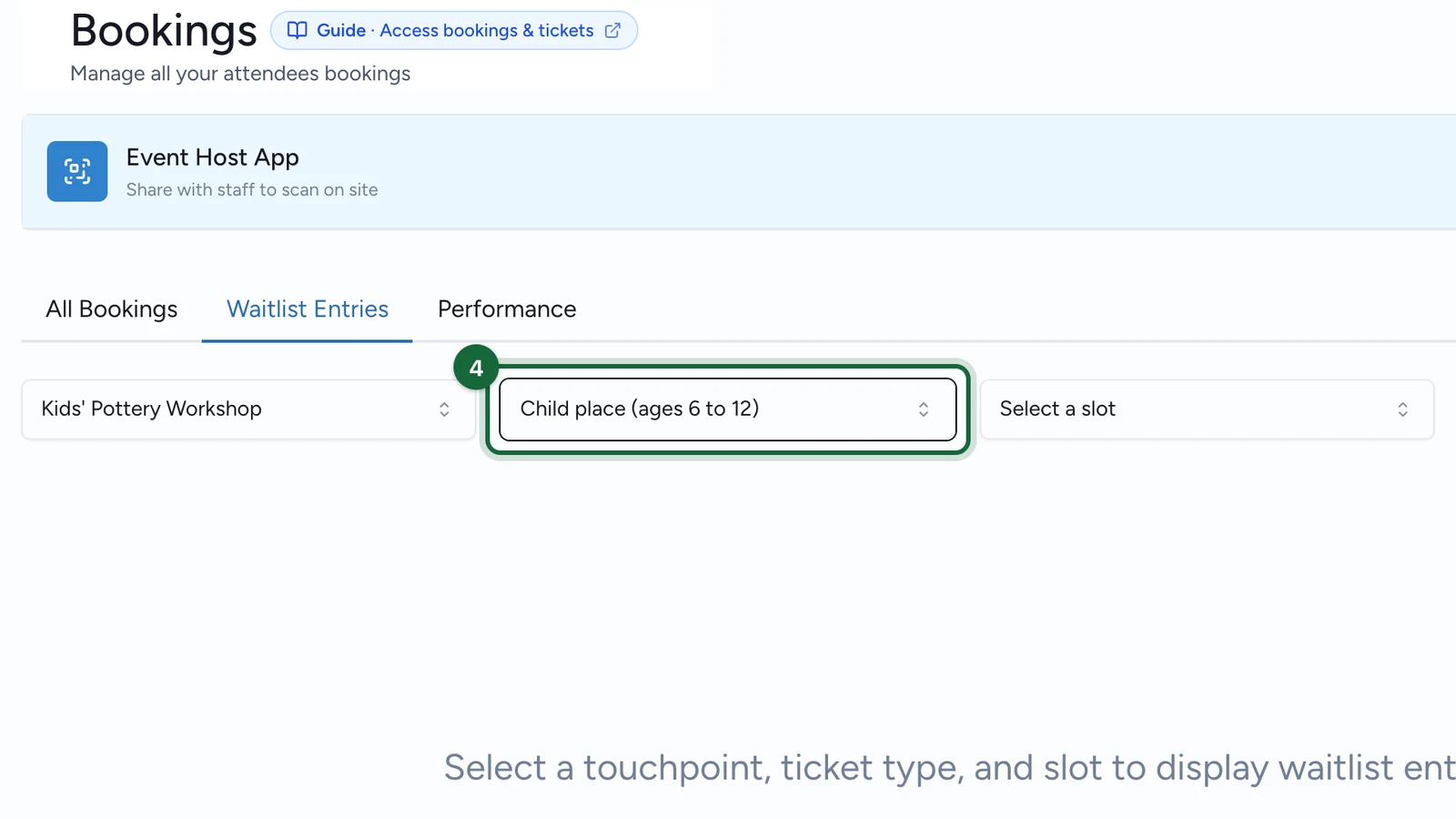
Under Select a ticket type, choose the ticket type, here Child place (ages 6 to 12).
-
Under Select a slot, choose the slot, here Saturday at 10:00.
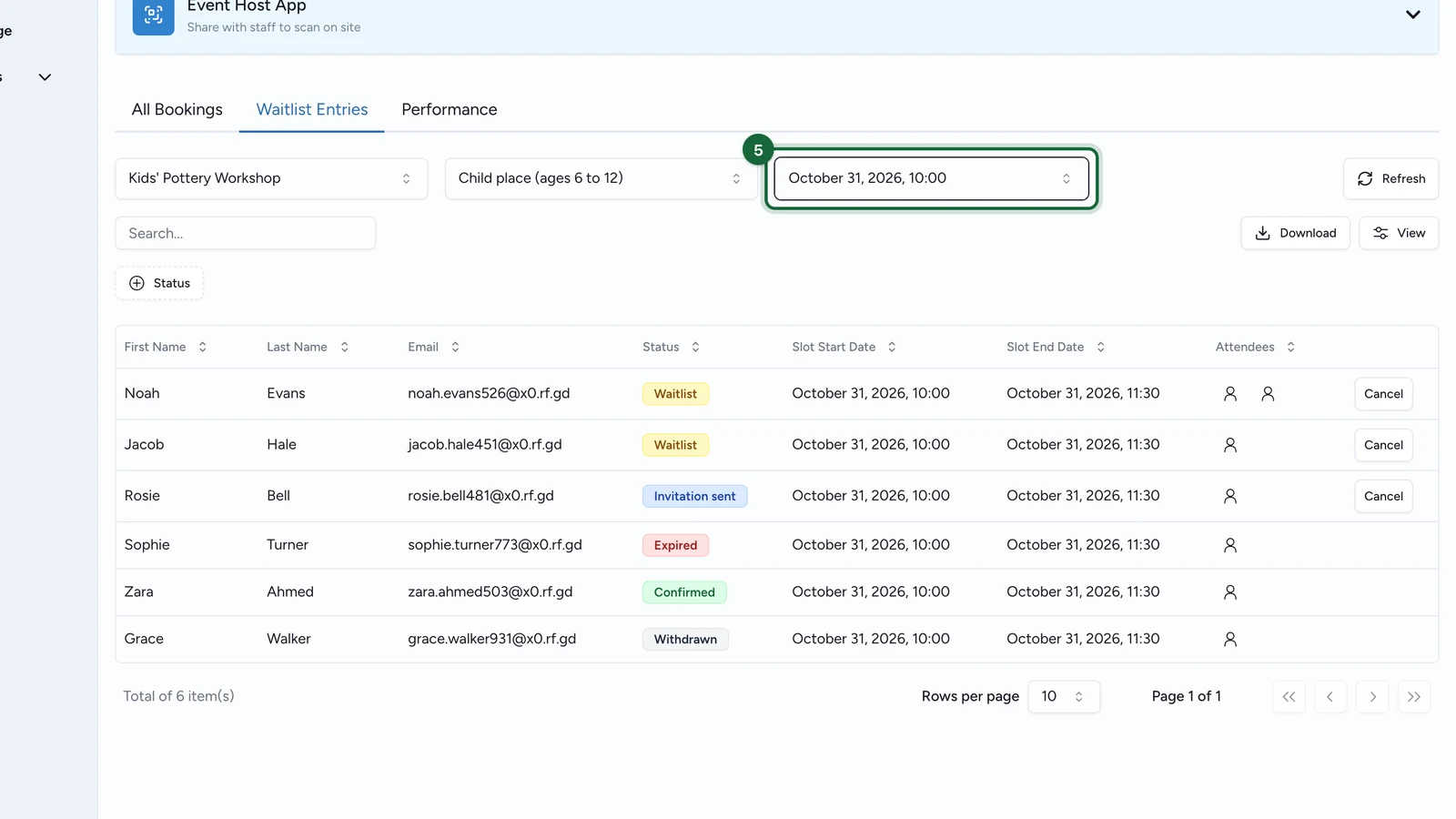
People still waiting come first, oldest first. Select Refresh to load the latest changes.
Read the statuses
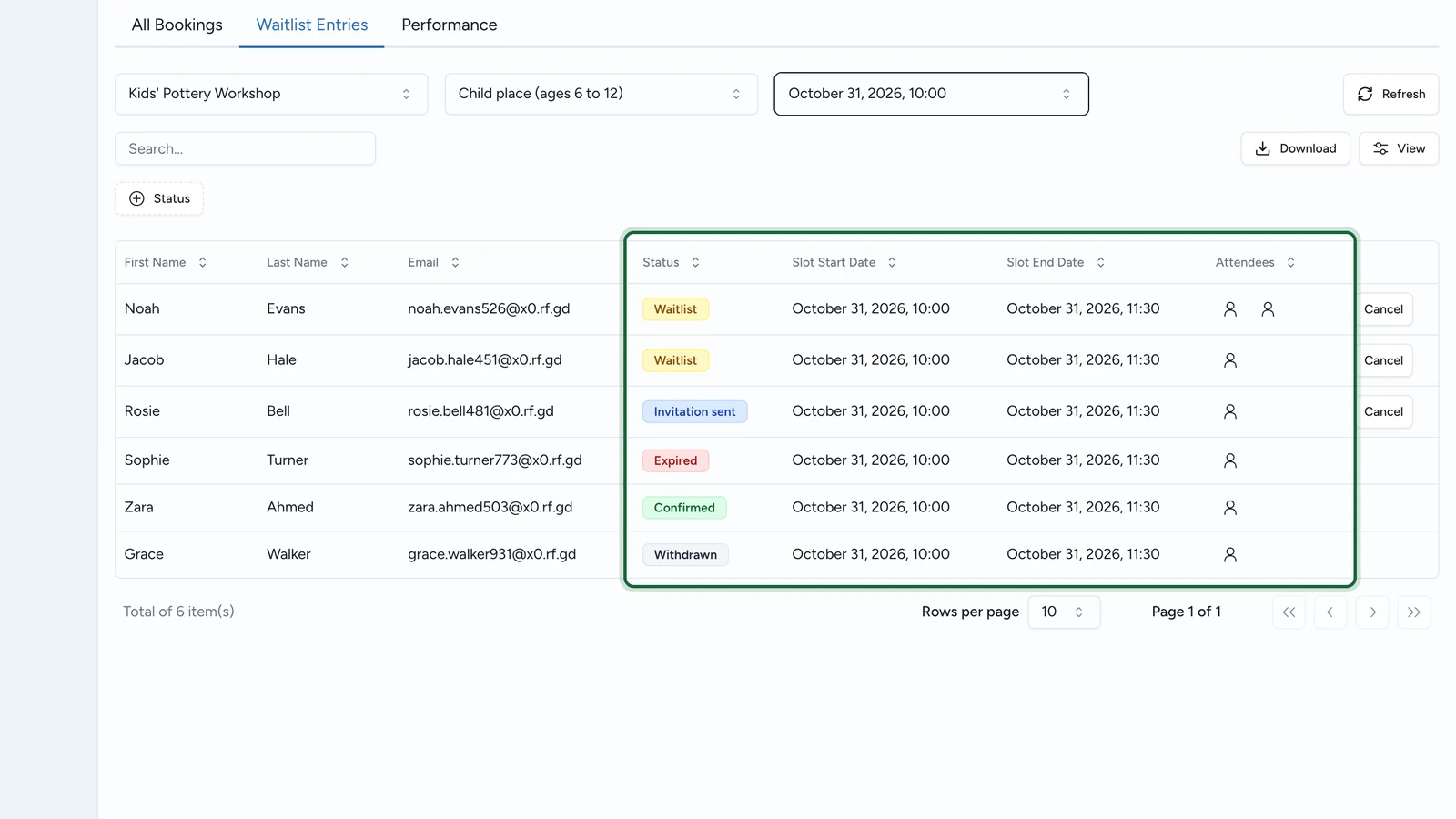
| Status | What it means |
|---|---|
| Waitlist | The person is waiting for a place. |
| Invitation sent | A place is offered. They have until the Expiry date to confirm it. |
| Confirmed | The person got the place, and their booking is now in All Bookings. |
| Expired | The invitation ran out unanswered, and the person left the waitlist. |
| Withdrawn | The person left the waitlist, refused the invitation, or you cancelled them. |
Attendees is the number of places the person asked for. Expiry date, Touchpoint and Ticket Type are hidden columns: show them from View.
How freed places reach people
A place freed in a slot is held for the people waiting, and the ticket type's settings choose who gets it: see What happens when a place frees up. You can promote people yourself whatever the Spot allocation. With Manual, nobody gets a place until you do.
Promote someone
When places are held for the slot's waitlist, a banner above the table counts them, such as "2 reserved tickets available for waitlist promotion".
-
On a Waitlist row, select Promote.
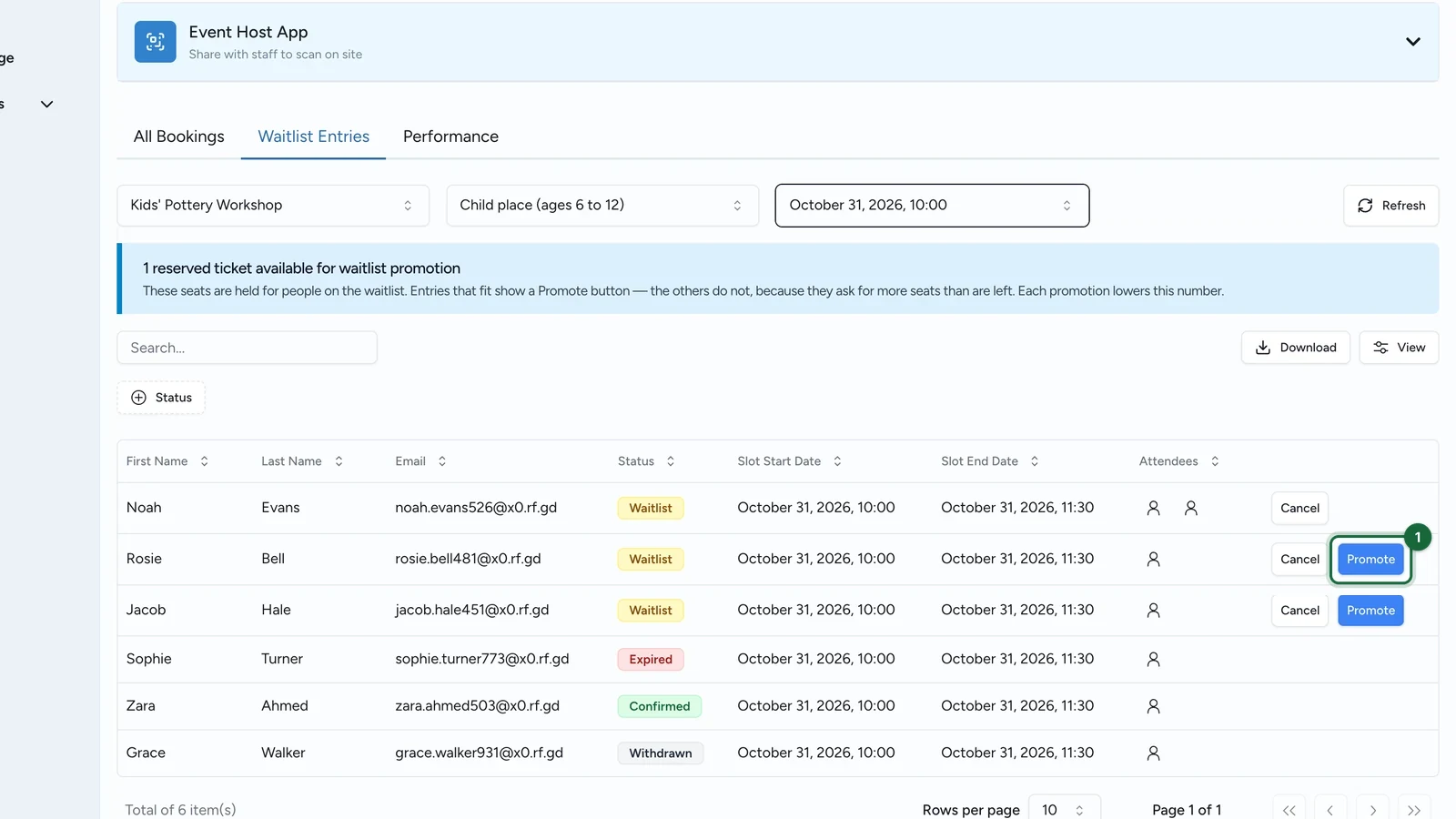
Only requests that fit in the reserved places show the button.
-
In Promote waitlist entry, select Confirm.
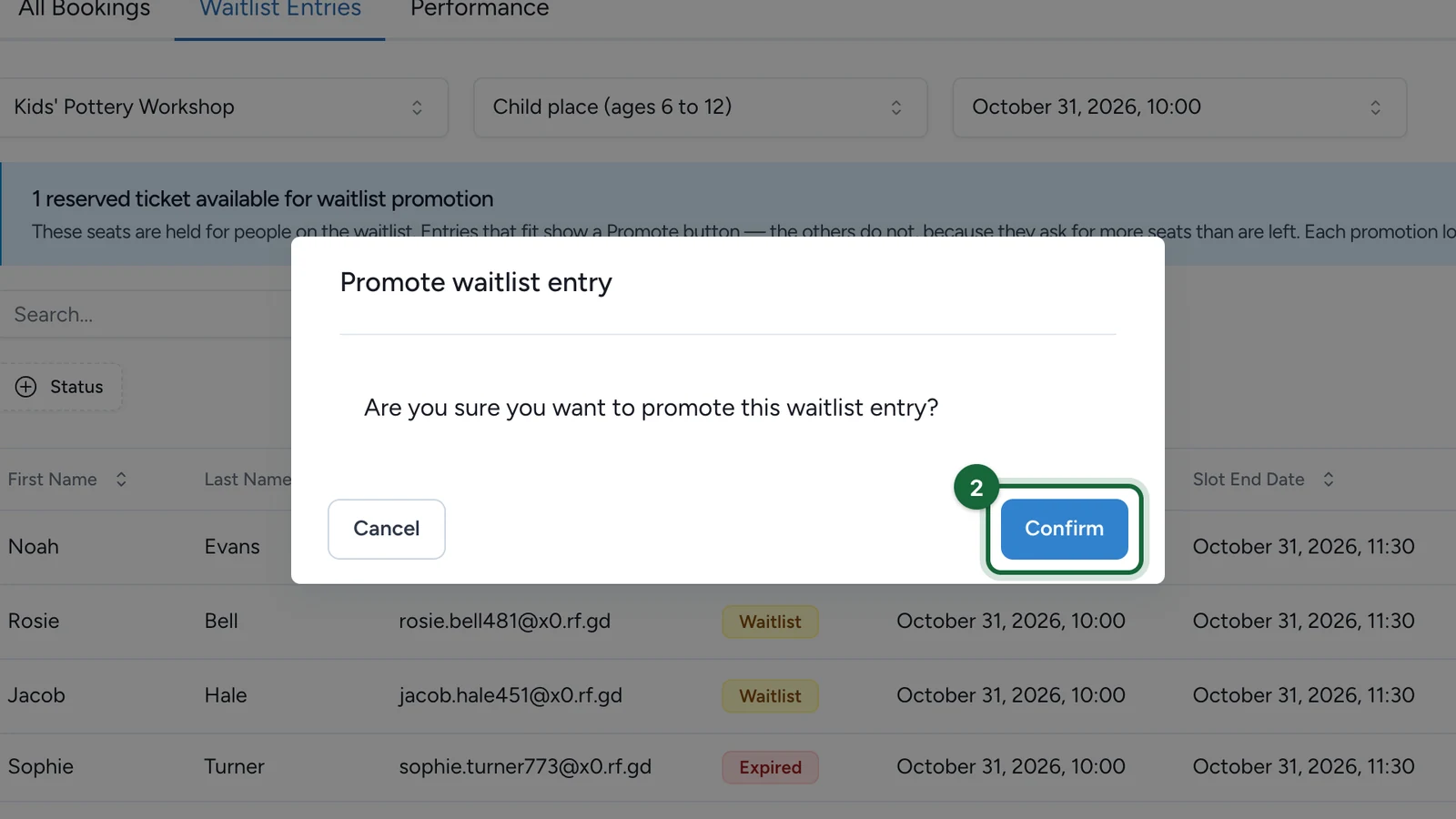
The row reads Confirmed, or Invitation sent with Invitation required, and the banner's count drops.
Remove someone from the waitlist
Removing someone can't be undone
The person isn't emailed. To get a place again, they join the waitlist again.
-
On a Waitlist or Invitation sent row, select Cancel.
-
In Cancel waitlist entry, select Confirm.
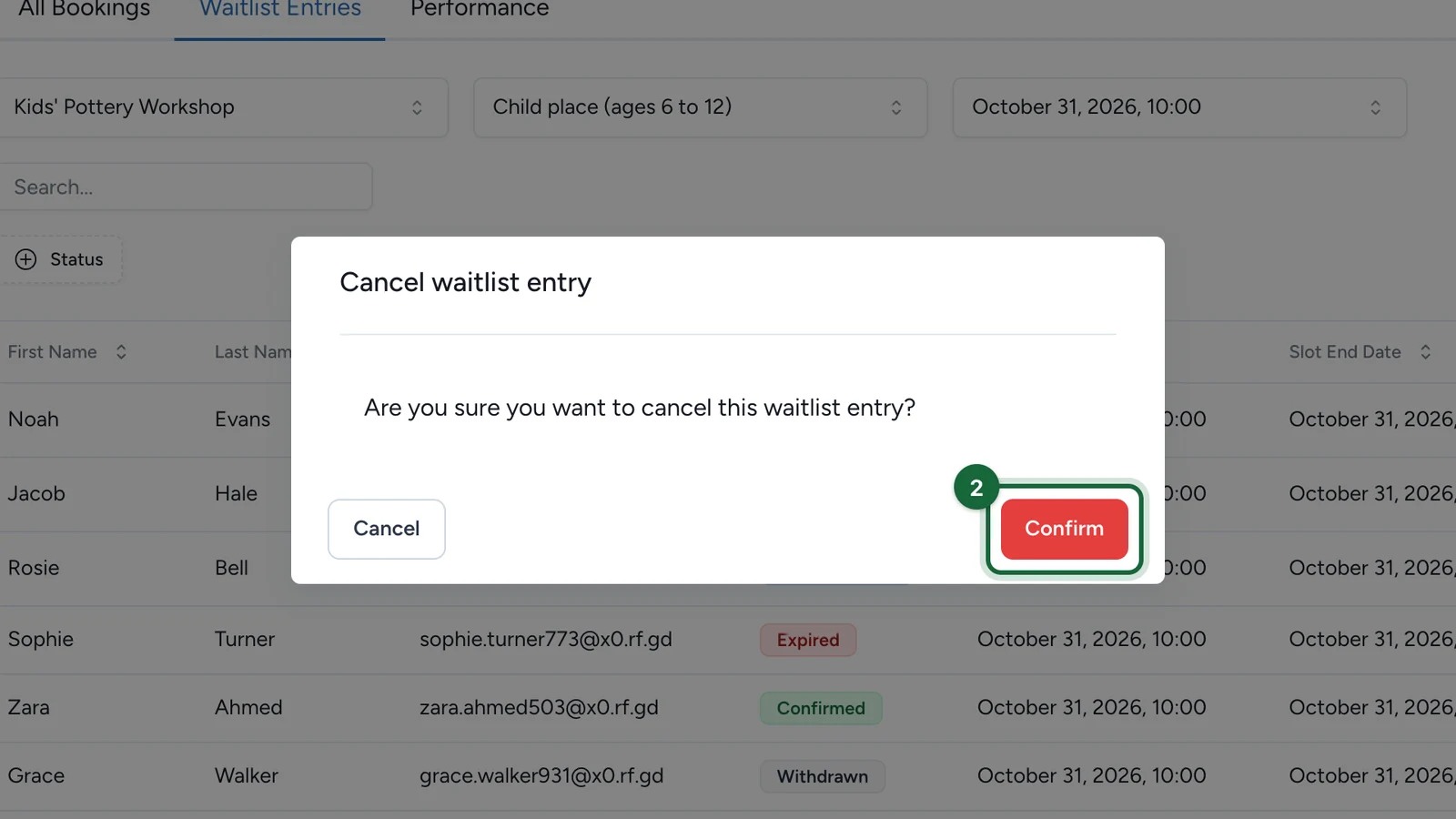
The row reads Withdrawn. Cancelling an open invitation frees its places for the next person.
Download the waitlist
With a slot open in Waitlist Entries:
-
Select Download.
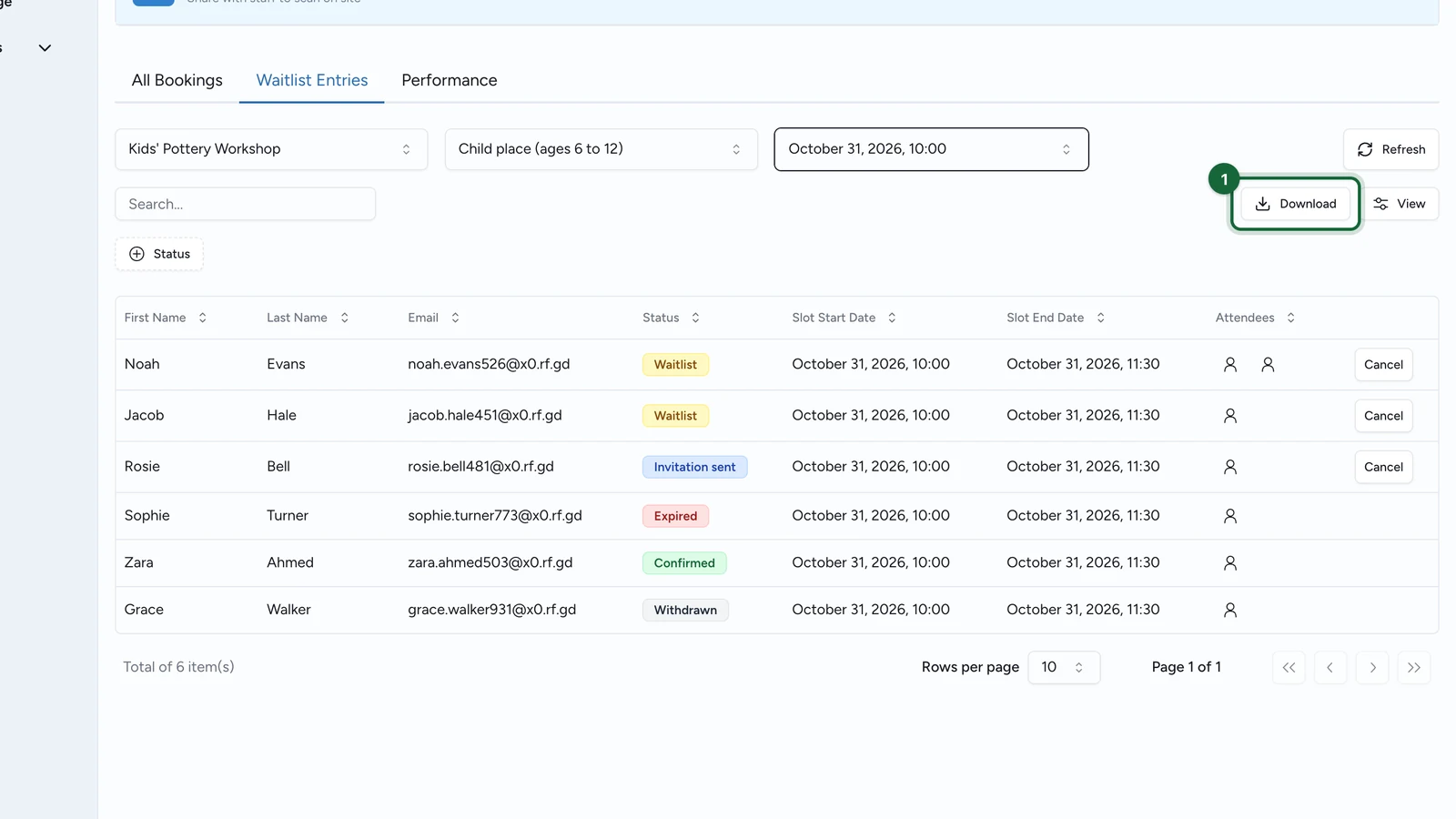
The file holds every waitlist entry of the campaign, whatever slot is on screen. It's named after the campaign's public link, such as
lindenhall-autumn-workshops-waitlist-entries.csv.
Good to know
- Waitlist numbers are only in Waitlist Entries. In Analytics, the Waitlisted Tickets tile stays at 0 for these waitlists, and Performance doesn't count people waiting either.
- A participant who holds a booking, a waitlist place or an invitation for a slot that hasn't ended can't book another slot of the same Activity until it ends.
If something's blocked
A refused promotion or cancellation shows a code after "This waitlist entry could not be promoted." or "This waitlist entry could not be cancelled."
SLOT_ENDED: the slot is over. Nobody can be promoted into it.OFFER_WINDOW_CLOSED: the slot ends too soon for anyone to answer an invitation.NO_GRANTABLE_SEATS: no place is free for this request. Every place is booked or held by an invitation. Select Refresh to see the current count.WAITLIST_DISABLED: the ticket type's waitlist is turned off. The people still waiting can only be cancelled.ENTRY_NOT_WAITING: the person is no longer waiting. They were promoted, invited or left the waitlist meanwhile. Select Refresh.- No Promote button on a Waitlist row: the request asks for more places than the banner shows, or no place is held for the waitlist.
- Another code: select Refresh and try again. If it happens again, contact your Customer Success Manager with the code.