The customer activation platform.Every interaction becomes a qualified contact. Book a demo

Access bookings & tickets

Open the Bookings dashboard, filter attendee rows, and use the current day-of actions.

Placeholders in this article

This article contains placeholder screenshots. Search for placehold.co in this file and replace them before publishing.

In this article, you'll open the Bookings dashboard, focus the attendee list, and use the current actions available on the day of the event.

Prerequisites

  • You can open the campaign in Studio.
  • The Activity already has bookings. If staff only need phone-based check-in, use Use the Scanner App on the day.

Open the Bookings dashboard

Open Bookings

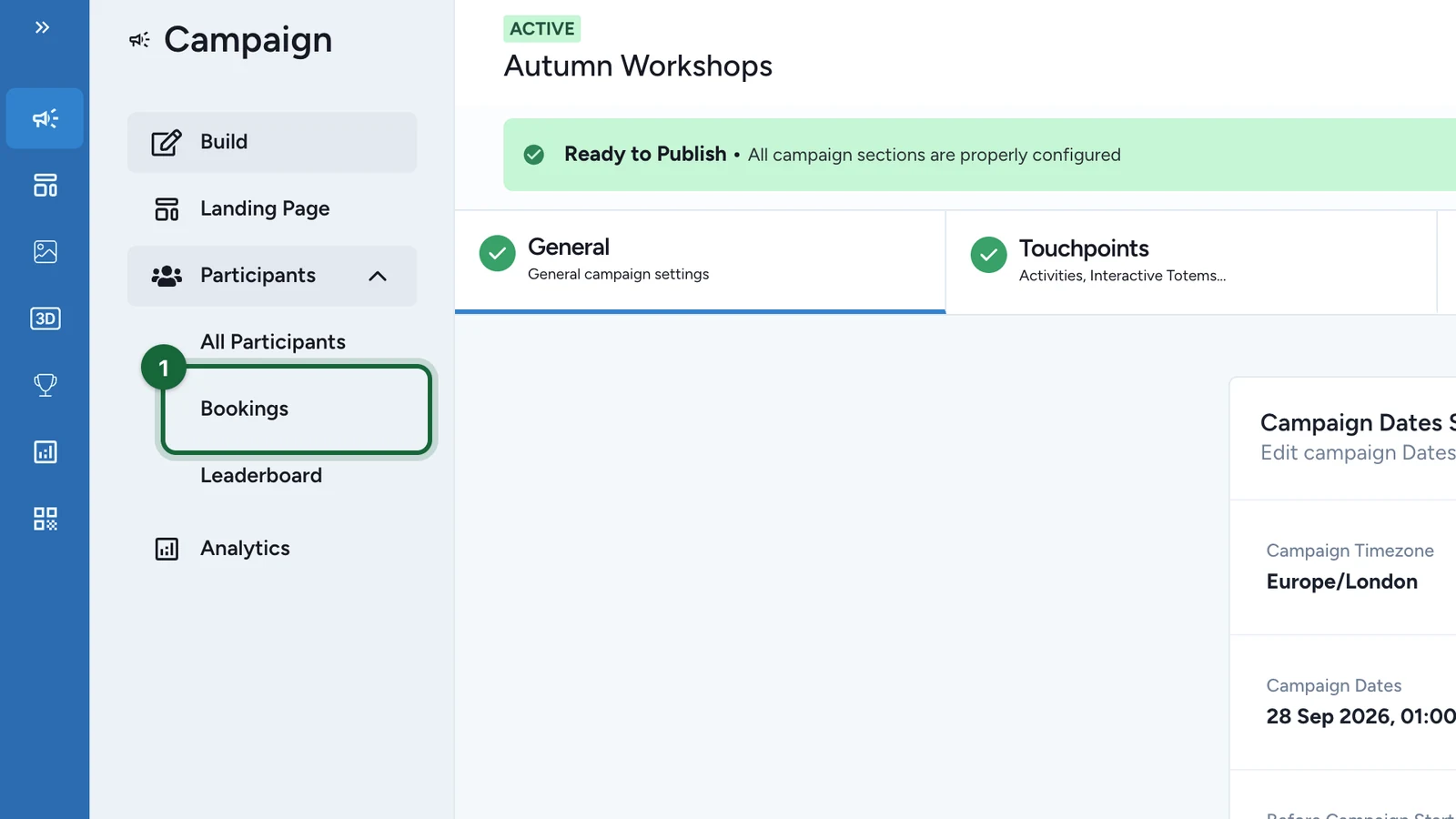
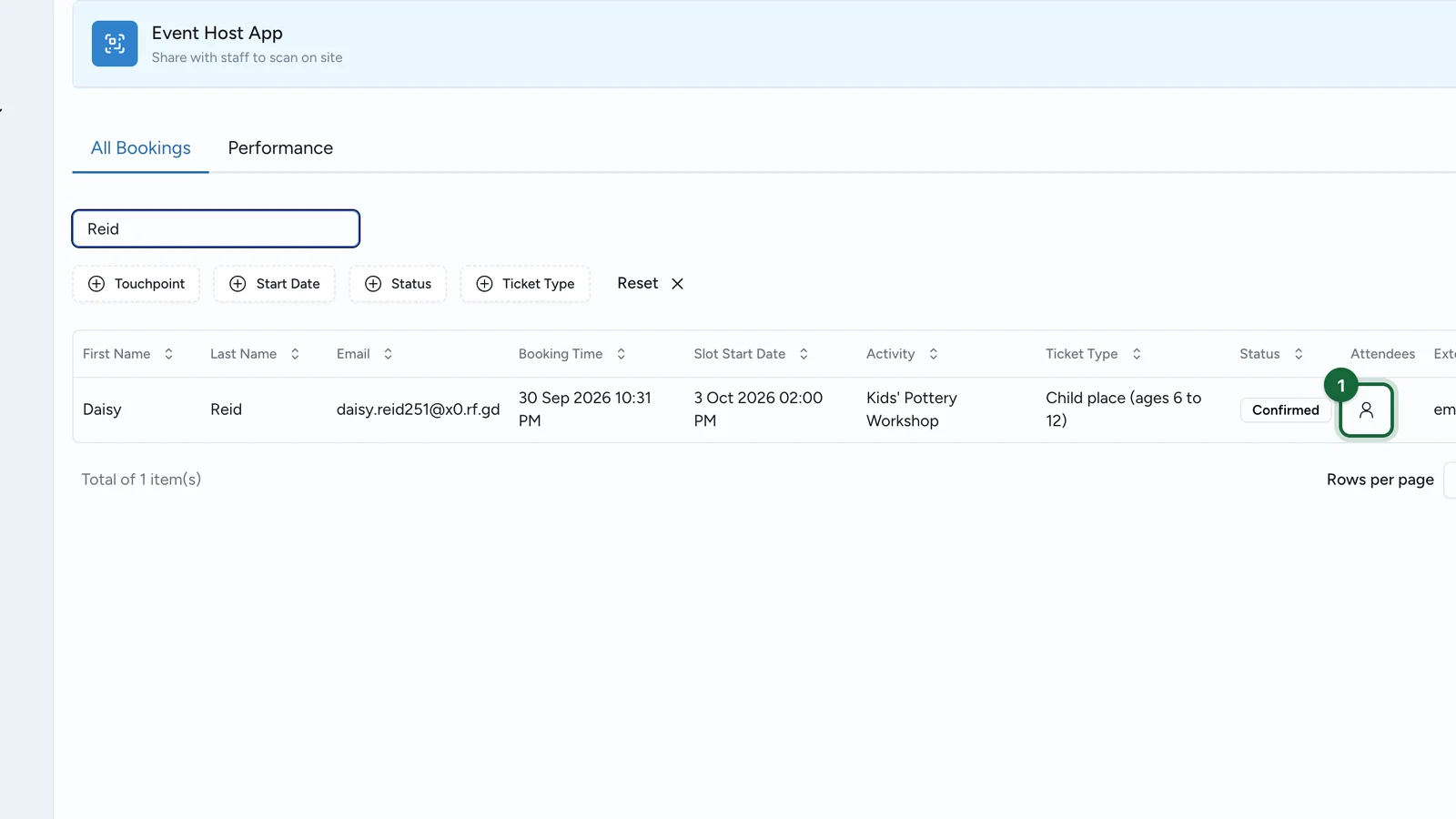
Go to Studio -> [your campaign] -> Bookings, then stay in the All Bookings tab for attendee-level day-of work.

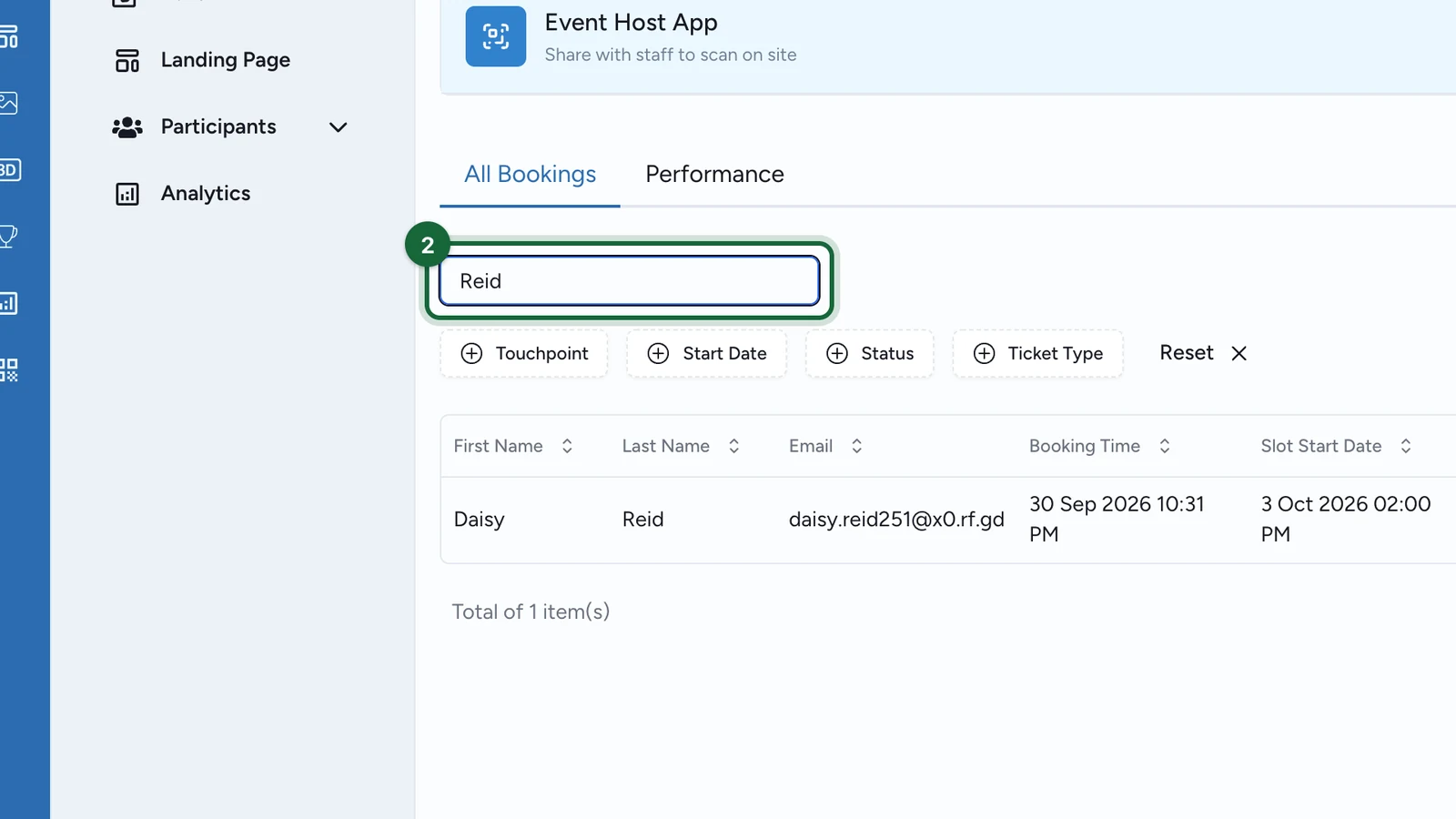
Bookings dashboard with the All Bookings tab, search, filters, and row actions

Use the search box and the available filters

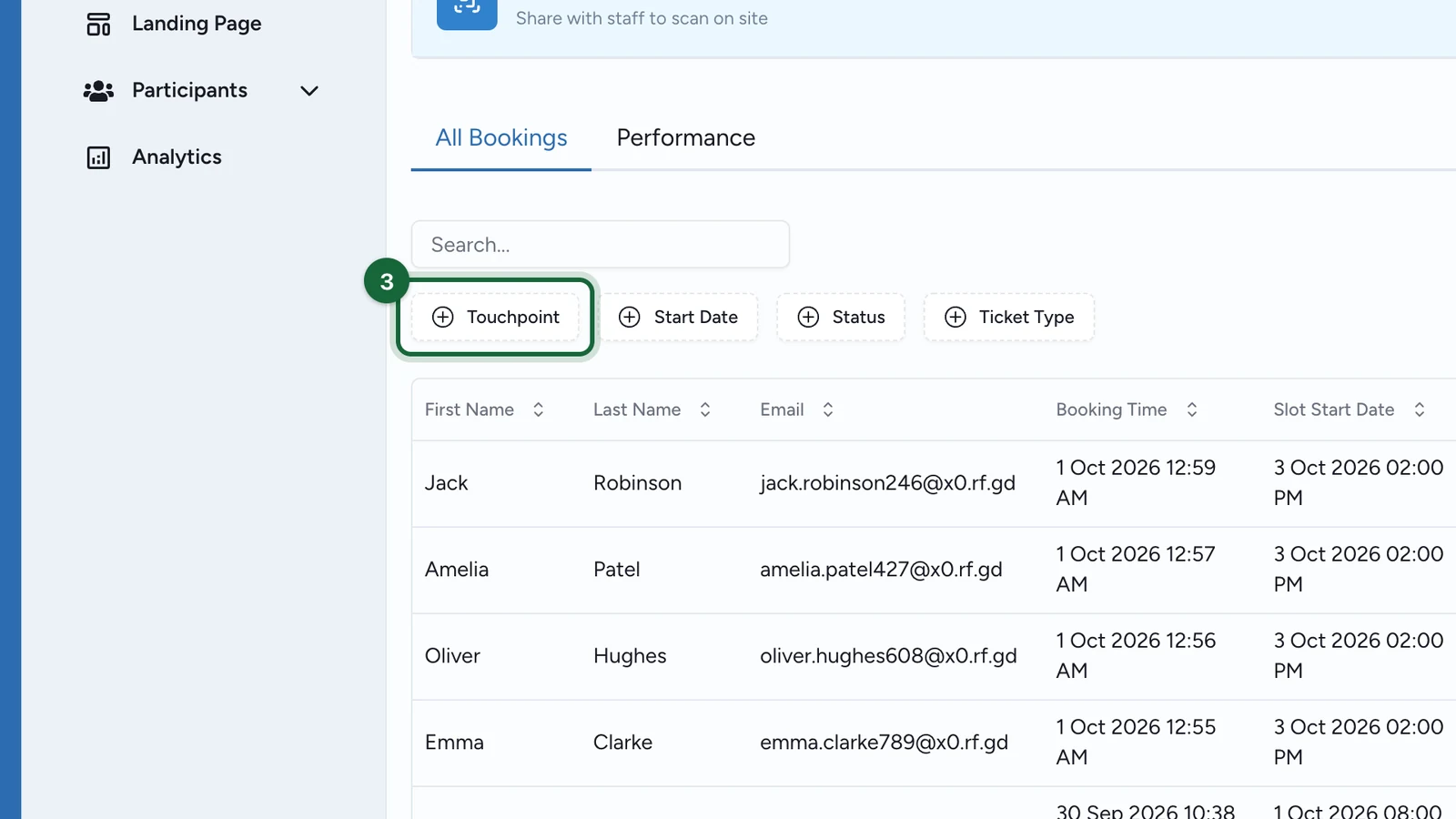
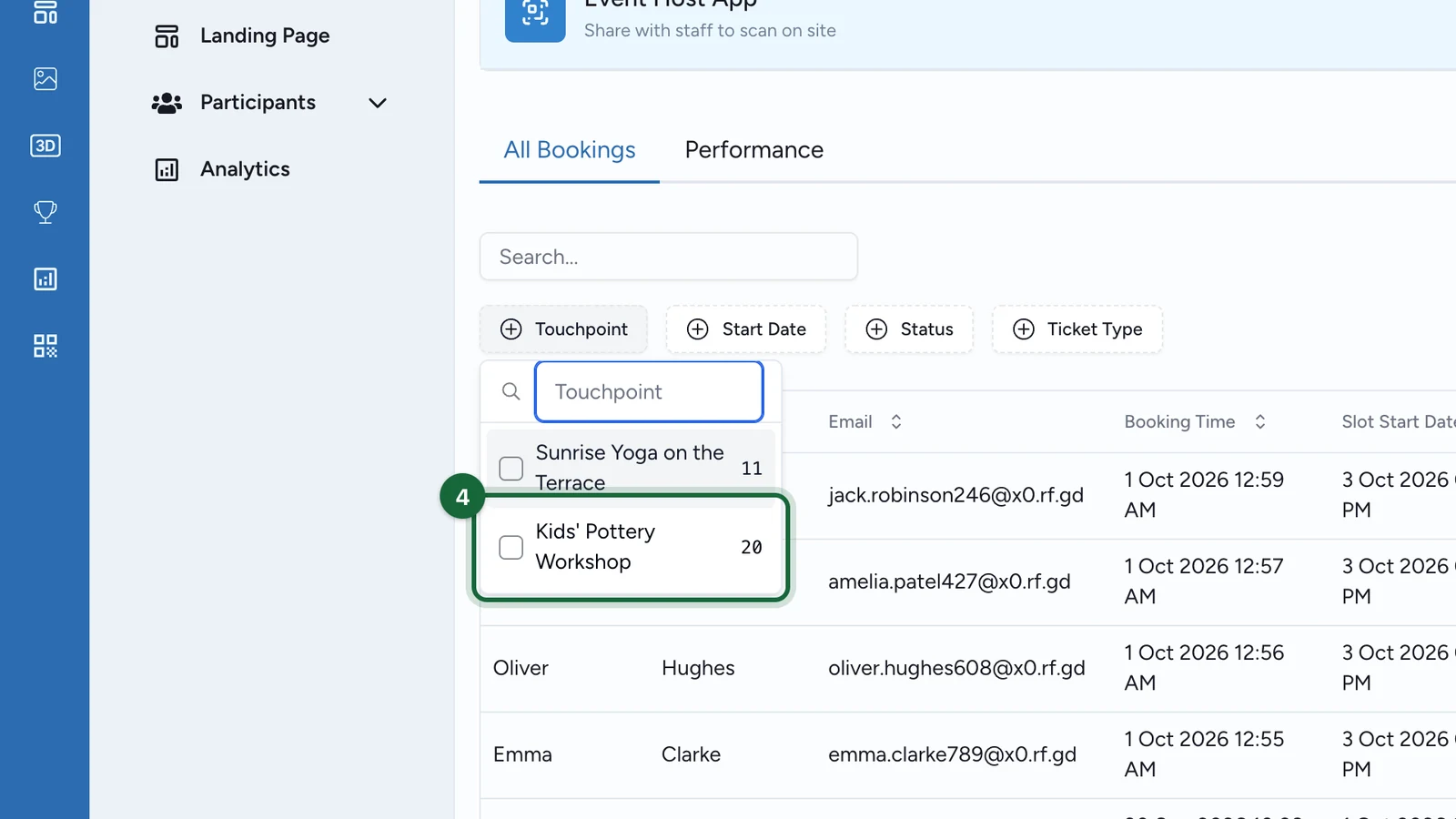
Use the search box to narrow the list quickly, then add filters for Activity, Start Date, Status, and Ticket Type.

A common day-of pattern is to filter one Activity and one Start Date just before doors open, then clear the filters when you need the whole campaign again.

Show the extra columns your team needs

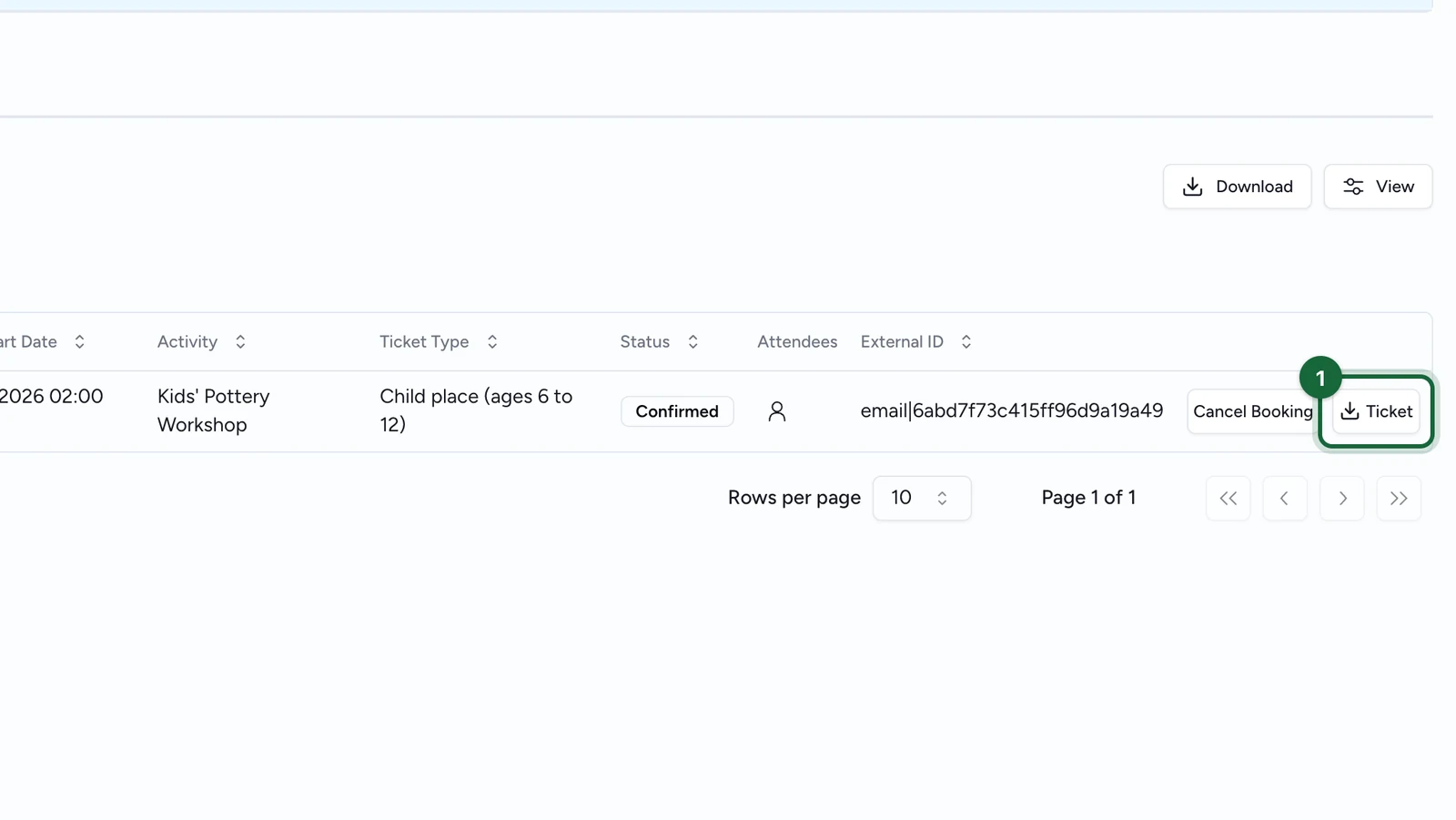
Use View to turn on extra columns such as Host, Ticket Number, Phone Number, Booking ID, and External ID.

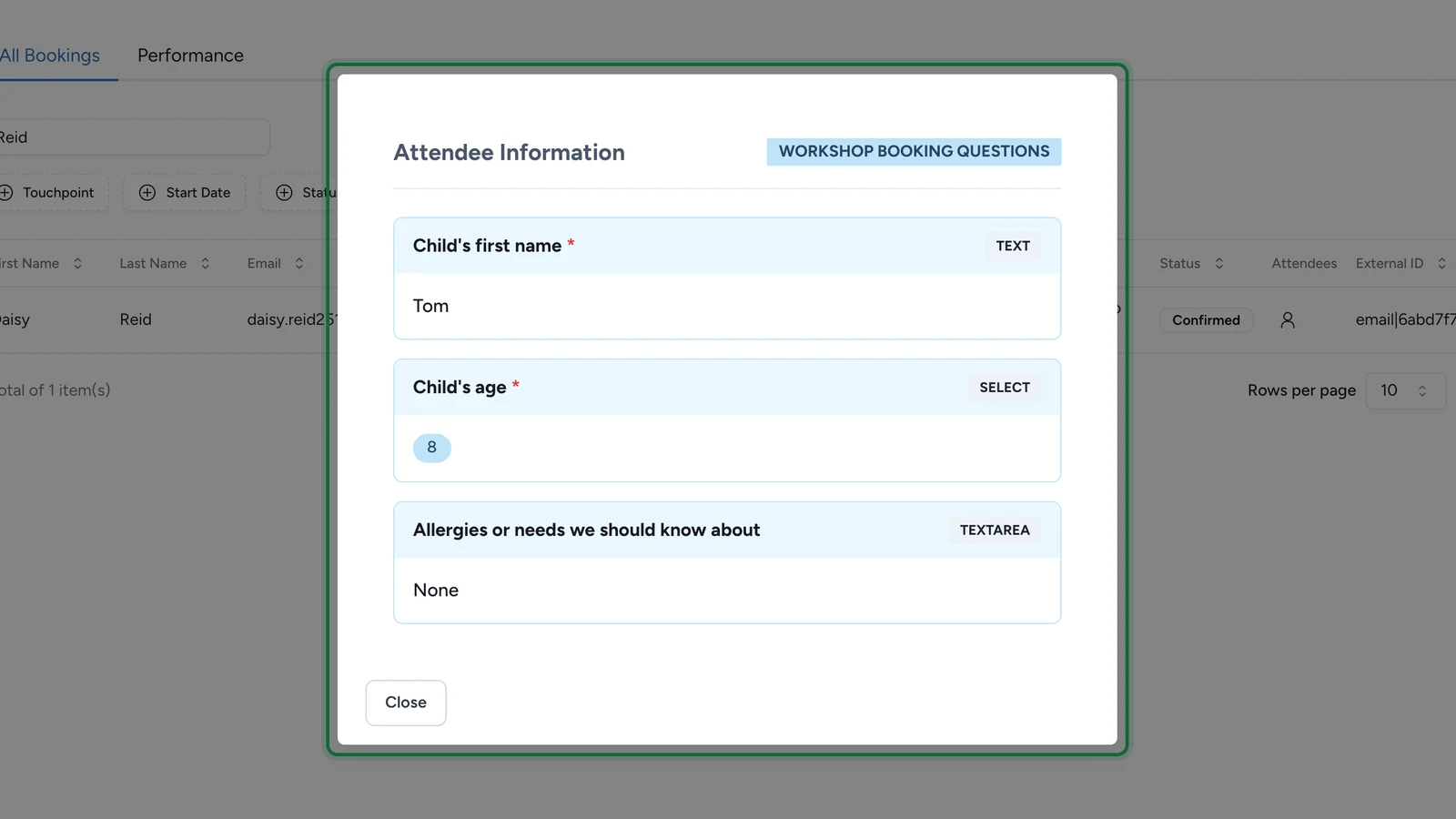
By default, the table already gives you attendee names, Email, Booking Time, Slot Start Date, Activity, Ticket Type, Status, and attendee icons for attendee-level answers.

Use the two tabs for different jobs

TabBest use
All BookingsSearch and filter attendee rows, cancel active bookings, download active tickets, and export the attendee list.
PerformanceReview grouped booking KPIs, compare confirmed vs. cancelled vs. checked-in volumes, and download grouped CSV reporting.

Actions available from this area

ActionWhere it appearsWhat it does
Cancel BookingRow action on active bookingsCancels the booking from the dashboard.
TicketRow action on active bookingsDownloads the attendee ticket PDF.
DownloadToolbar action above All BookingsExports the Bookings dataset as a CSV file you can open in Excel or Google Sheets.

Cancel Booking and Ticket are shown only on bookings that are not already Cancelled or checked-in. Those rows stay visible in the table so managers can still review their status.

Was this helpful?

Optional comments help us improve this page for future authors and readers.

On this page