A participant didn't receive an email
Check whether OmniLab sent a notification, then find why it didn't arrive or didn't go out.
A participant says an email never came. Start from which email it was:
- A sign-in code, or a link to confirm their address: go to Sign-in codes and confirmation links.
- An email your own platform sends from a trigger, through a Function or a webhook: OmniLab keeps no record of it. Check the Function's Executions tab, or your system's logs: see About email triggers.
- Any other email, such as a winner email or a booking confirmation: check whether OmniLab sent it, below.
Check whether it went out
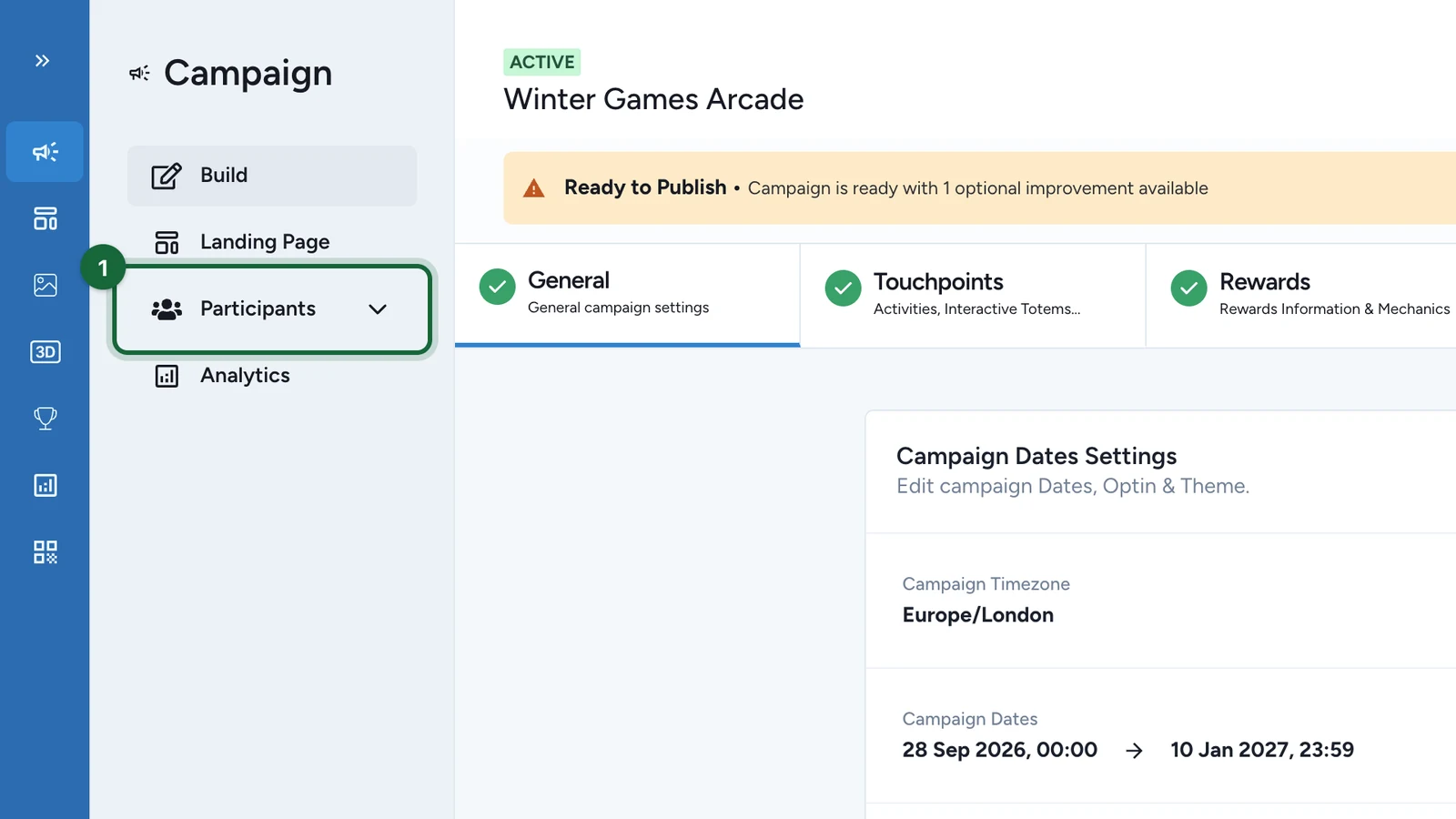
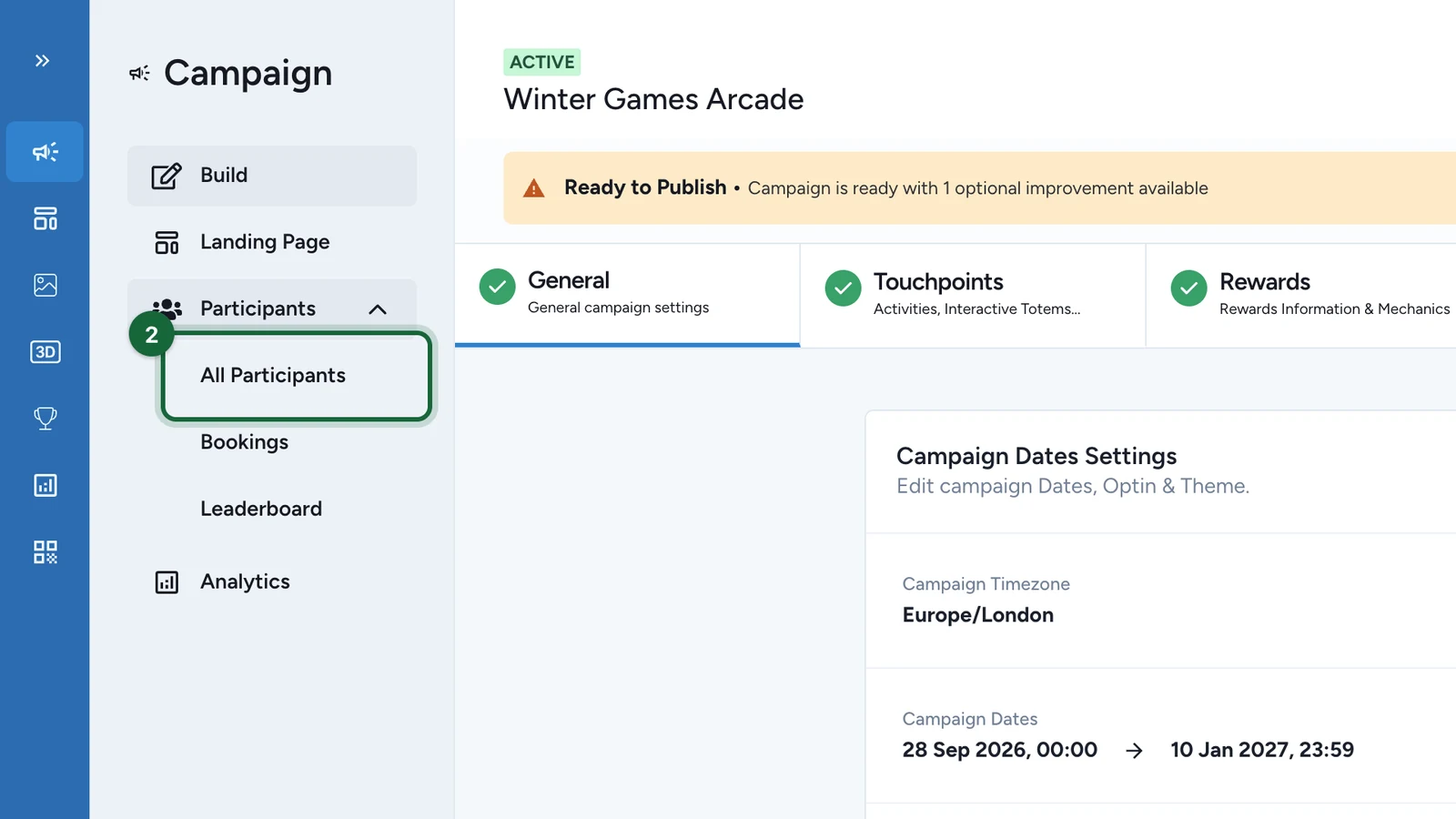
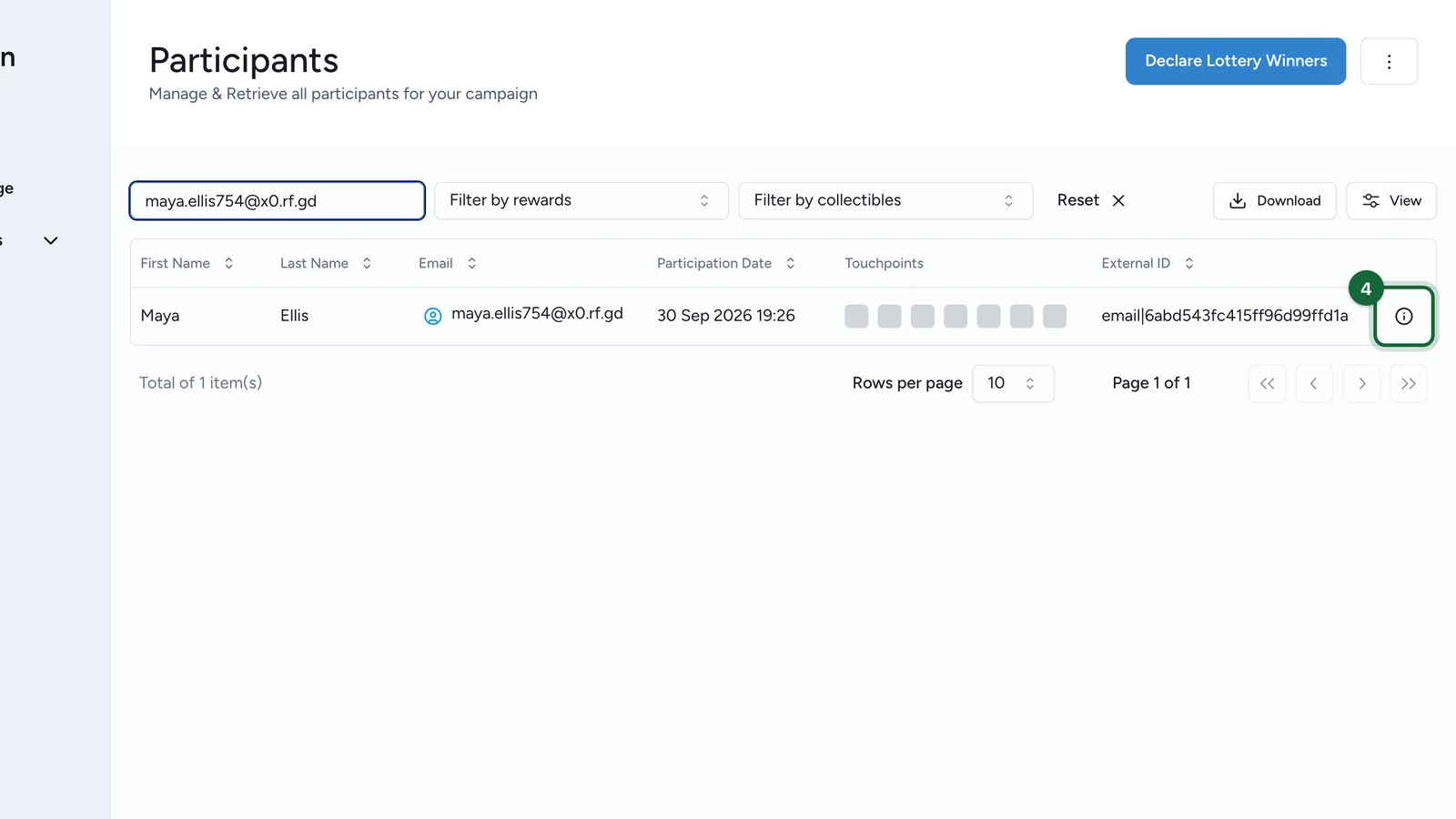
Here, Lindenhall checks Maya Ellis in the Winter Games Arcade.
-
In the campaign, select Participants.
-
Select All Participants.
-
In Search..., enter the participant's email.
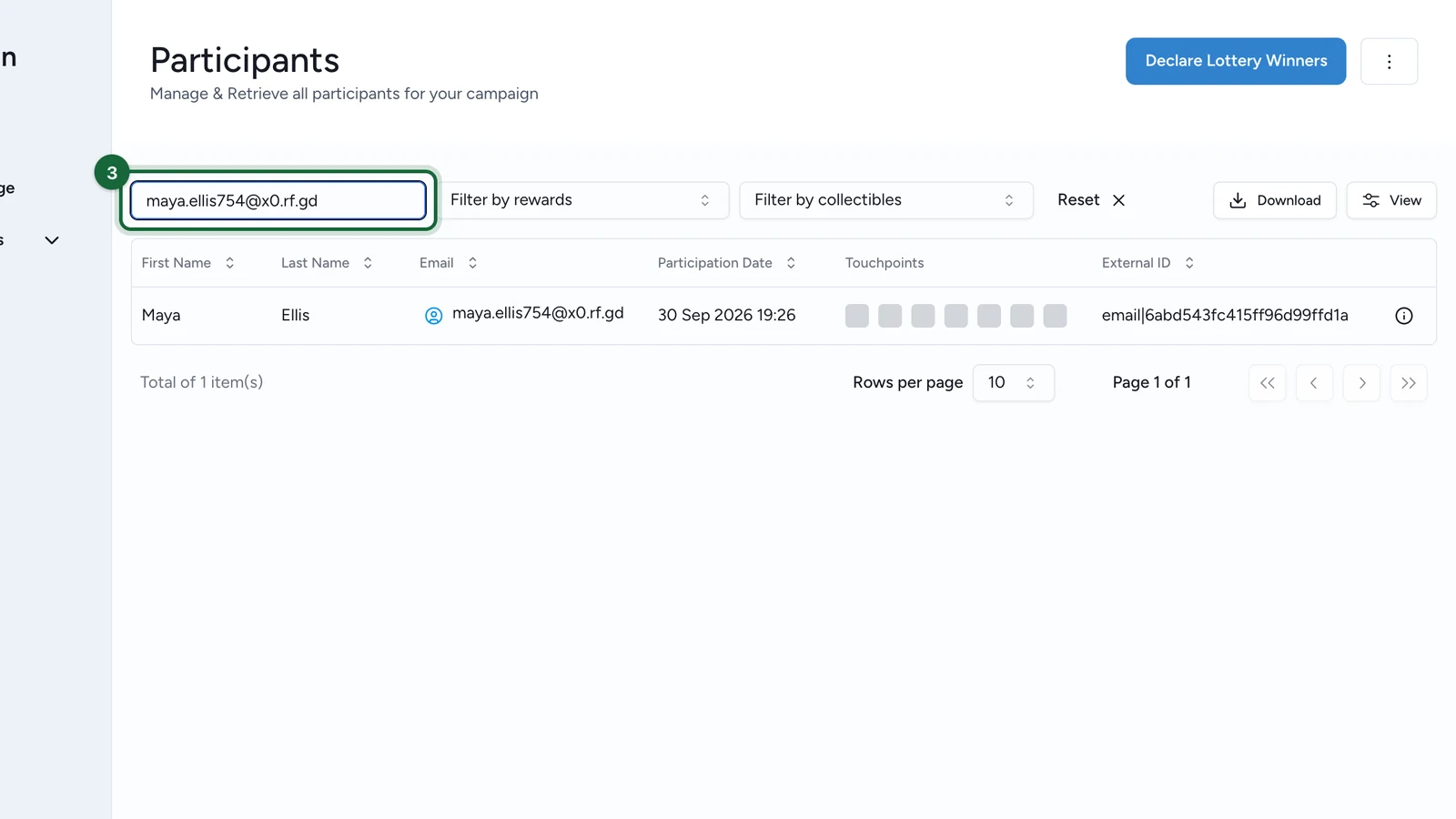
If nobody comes up, see If they aren't in the list.
-
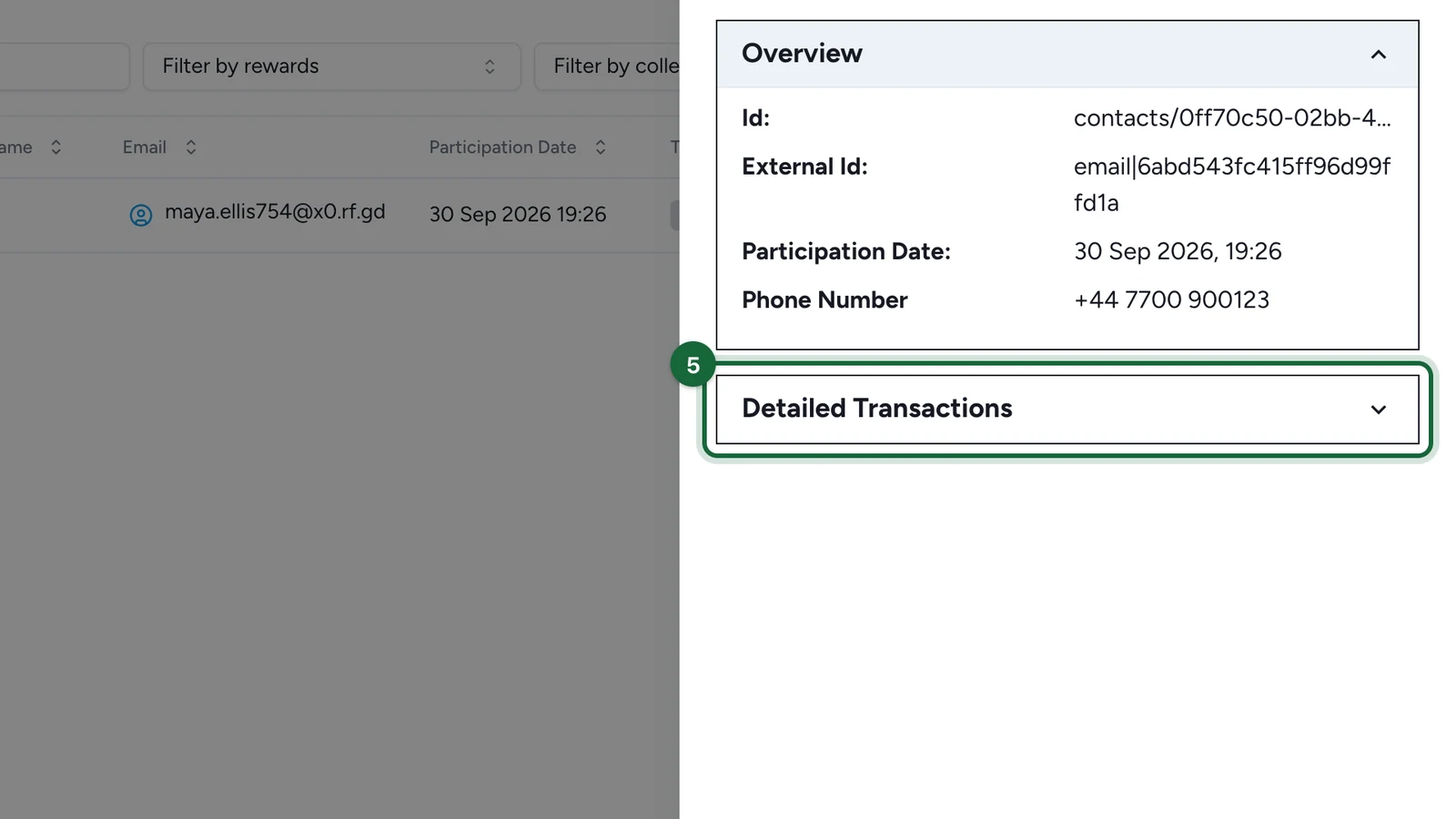
On their row, select the info icon at the end.
-
Open Detailed Transactions.
-
Look for EMAIL_SENT.
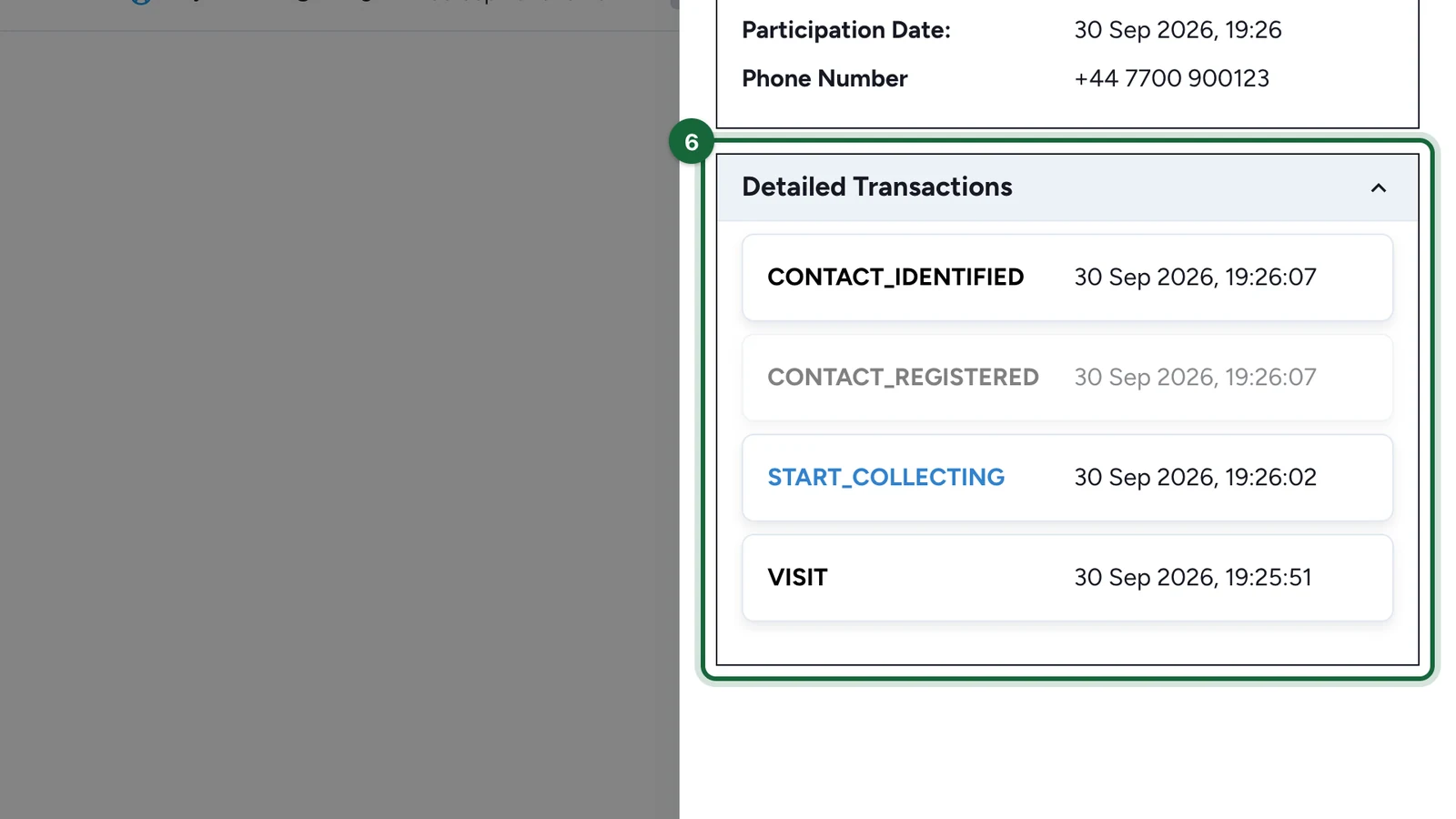
The newest rows are at the top, so EMAIL_SENT sits just above the row that triggered it, such as WINNER or TEMPORARY_WINNER. On Salesforce Marketing Cloud campaigns, select it to see which email went out and to which address. Maya Ellis has no WINNER row and no EMAIL_SENT: no winner email was due yet, the first case below.
On a receipt game, a prize a connected partner delivers shows as a CUSTOM row with a SELP Status, not as EMAIL_SENT. If it failed, contact support: see Read the Transactions history.
EMAIL_SENT means your email platform accepted the email, not that it reached the inbox. Studio has no button to send an email again: if one was missed, contact the participant directly.
If they aren't in the list
- They used another address: ask which one, and search again.
- Their address had a tag, such as
maya+winter@x0.rf.gd: it's saved without the tag, so search formaya@x0.rf.gd. Emails go to that address too, which some mail providers don't treat as the same inbox. - They used a throwaway email domain, or one that can't receive email: sign-up refuses both.
- They took part without signing up: OmniLab only emails participants who signed up with an email address.
- Your organisation uses double opt-in, and they haven't confirmed their address yet: they appear once they open the confirmation link.
If EMAIL_SENT is there
The email left OmniLab, and your email platform, Salesforce Marketing Cloud or Cheetah, handles the rest. Which one your campaign uses is in Before emails can go out.
- Ask the participant to check their spam or junk folder, and the address they used.
- Ask whoever runs your email platform account to look the address up in its sending logs. Bounces, unsubscribes and blocked addresses are recorded there, not in Studio.
If there's no EMAIL_SENT
| Cause | What to do |
|---|---|
| There's no WINNER row: they didn't win, or the prize draw hasn't been run, so they only have ELIGIBLE | Nothing was due yet. For a draw, see Run a lottery draw |
| That email is INACTIVE, for example the Winner card | Turn it on in Build > Notifications, then publish again: see Configure notifications globally |
| The email is set by Reward or by Touchpoint, with nothing active for this prize or touchpoint | Add one for it, or switch to Global. The Global email isn't used as a fallback |
| You changed the email but didn't publish | Publish the campaign again. Participants get the published version |
| Your campaign uses Cheetah, and Sender From Name is empty | Cheetah sends nothing without it. An Admin fills it in under Organization Settings > Notifications > Sender Information. If the organisation inherits from its parent, the Global organisation's value is used |
| A booking reminder, on a campaign that uses Cheetah | Cheetah doesn't send booking reminders |
| Your email platform refused the email, or OmniLab's side of its settings is incomplete | OmniLab doesn't try again. Ask your OmniLab contact to check the email add-on and its sender settings |
Sign-in codes and confirmation links
- A sign-in code comes from OmniLab's sign-in service, and nothing in Studio or your email platform records it.
- Asking for a code again within 5 minutes sends no new email, because the first code still works. The Resend button always sends a new one.
- What to do: ask the participant to check their spam folder, then select Resend. If it still doesn't come, tell your OmniLab contact the address and the time they tried.
- A confirmation link for double opt-in comes from your organisation's double opt-in Function. Open the Function's Executions tab within 24 hours of the sign-up, then check your email platform's delivery log: see Double opt-in email verification. The participant's Resend email button sends it up to 4 more times, a minute apart. Each resend replaces the link, so they must use the newest email, within 24 hours.