Your first treasure hunt
Build a hunt with one object, publish it, and try it on your phone in about 20 minutes.
Open the campaign that will hold the hunt, and check its dates include today: before the start date, everyone sees Get Ready instead of the hunt. You'll also need a banner image and one 3D model in your library: see Asset management for hunts.
Create the hunt
-
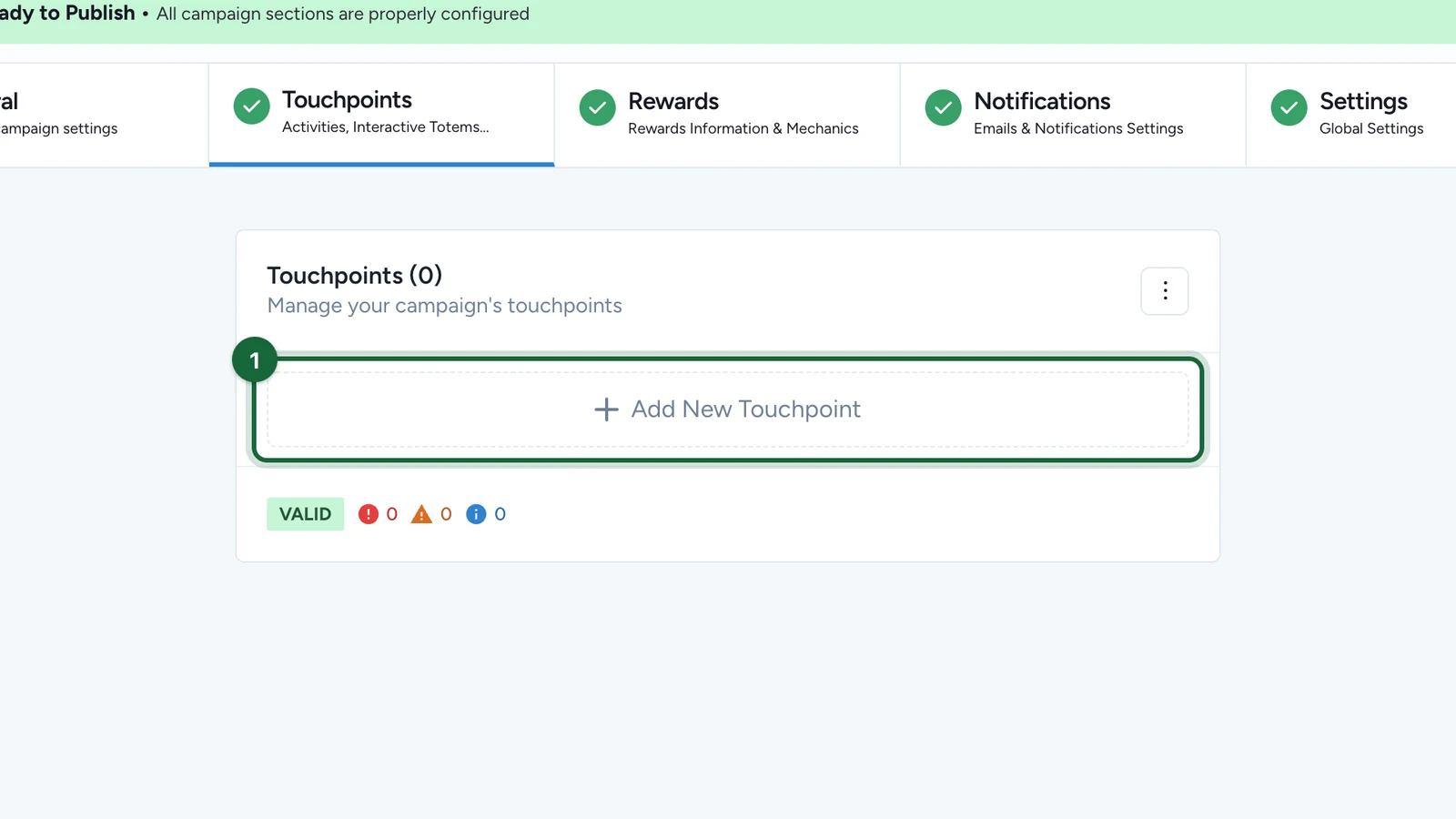
In Build > Touchpoints, select Add New Touchpoint.
-
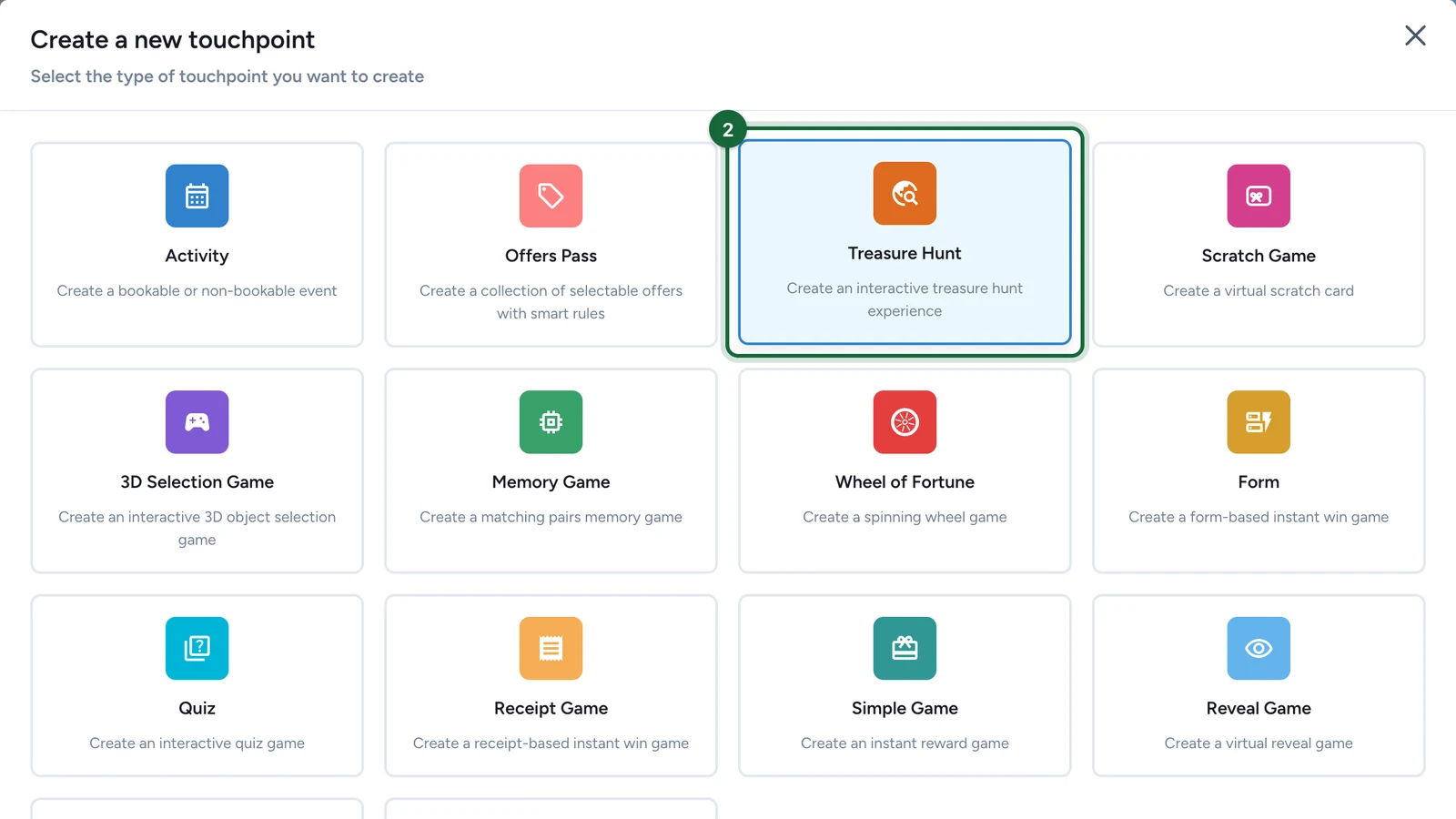
Choose Treasure Hunt.
-
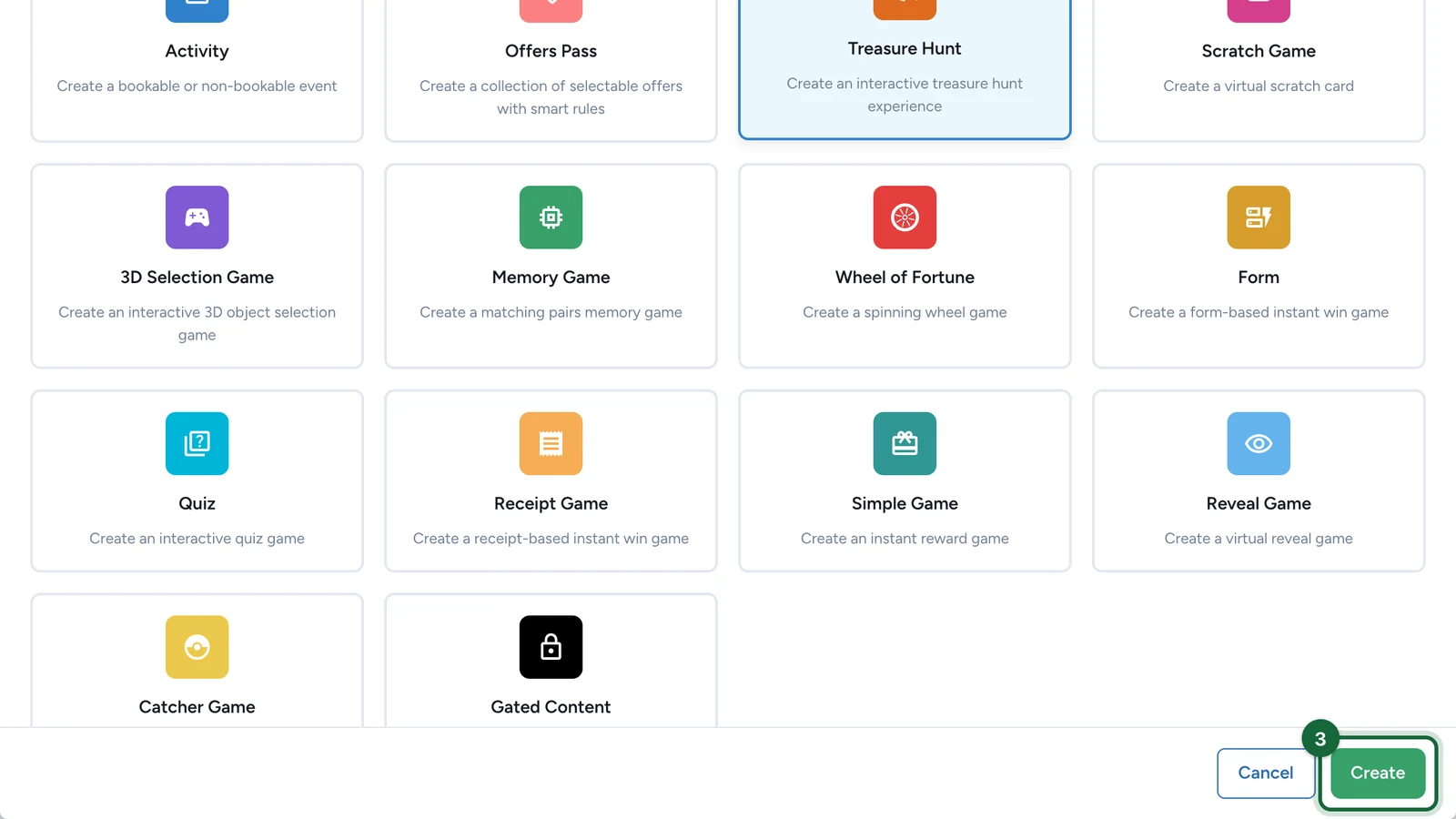
Select Create. The hunt editor opens.
-
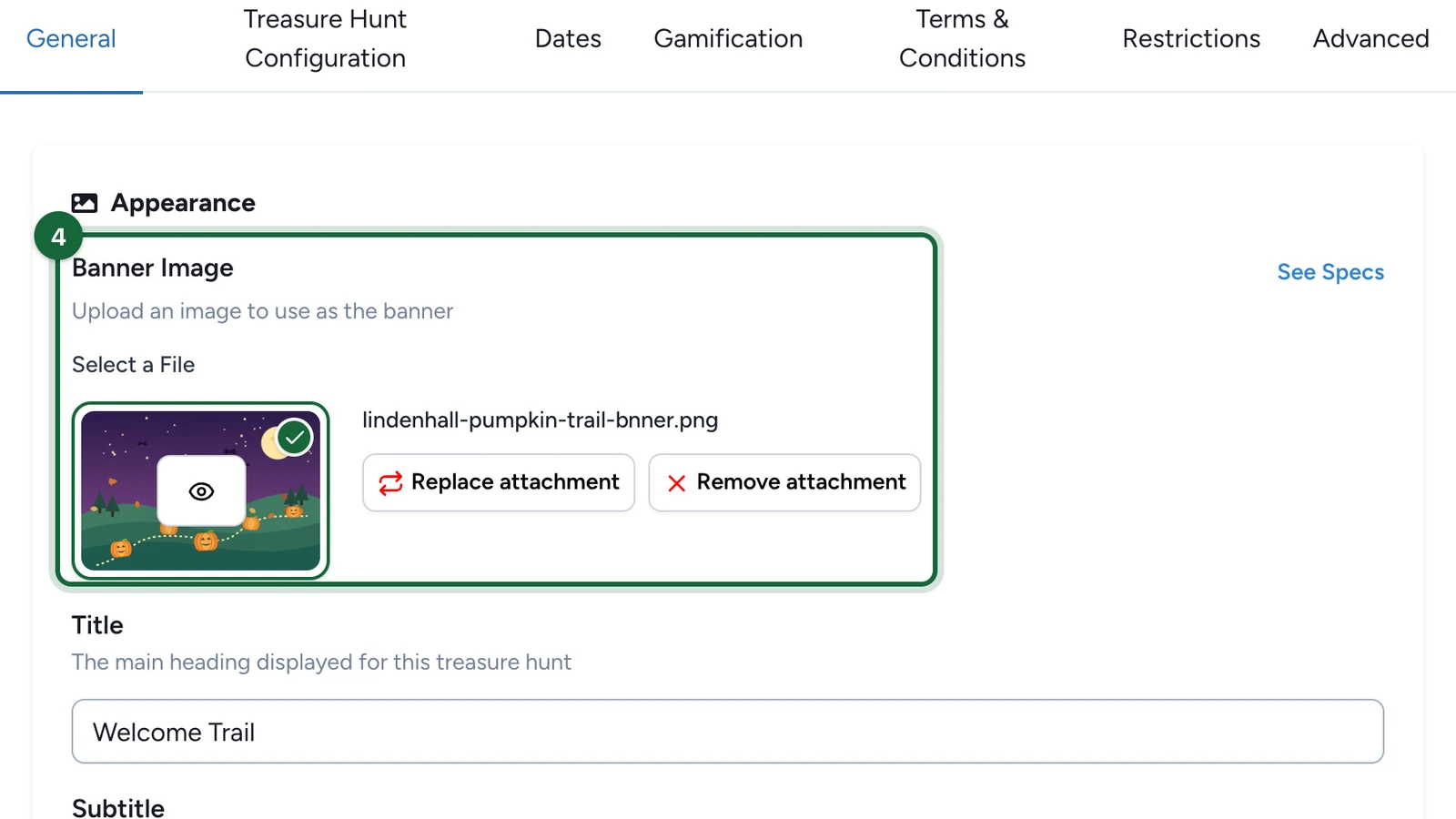
In the General tab, upload the Banner Image.
-
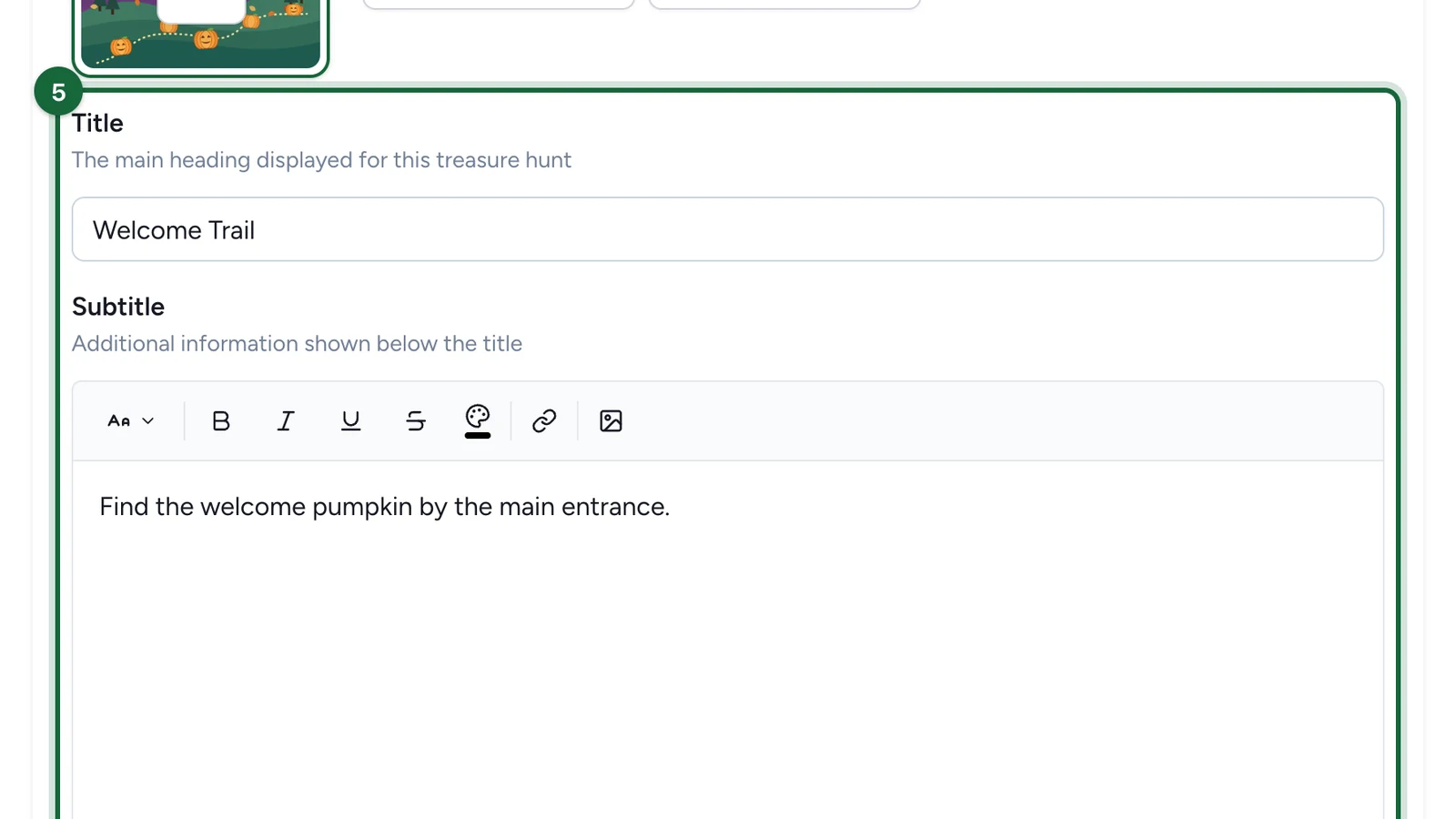
Enter the Title and Subtitle.
-
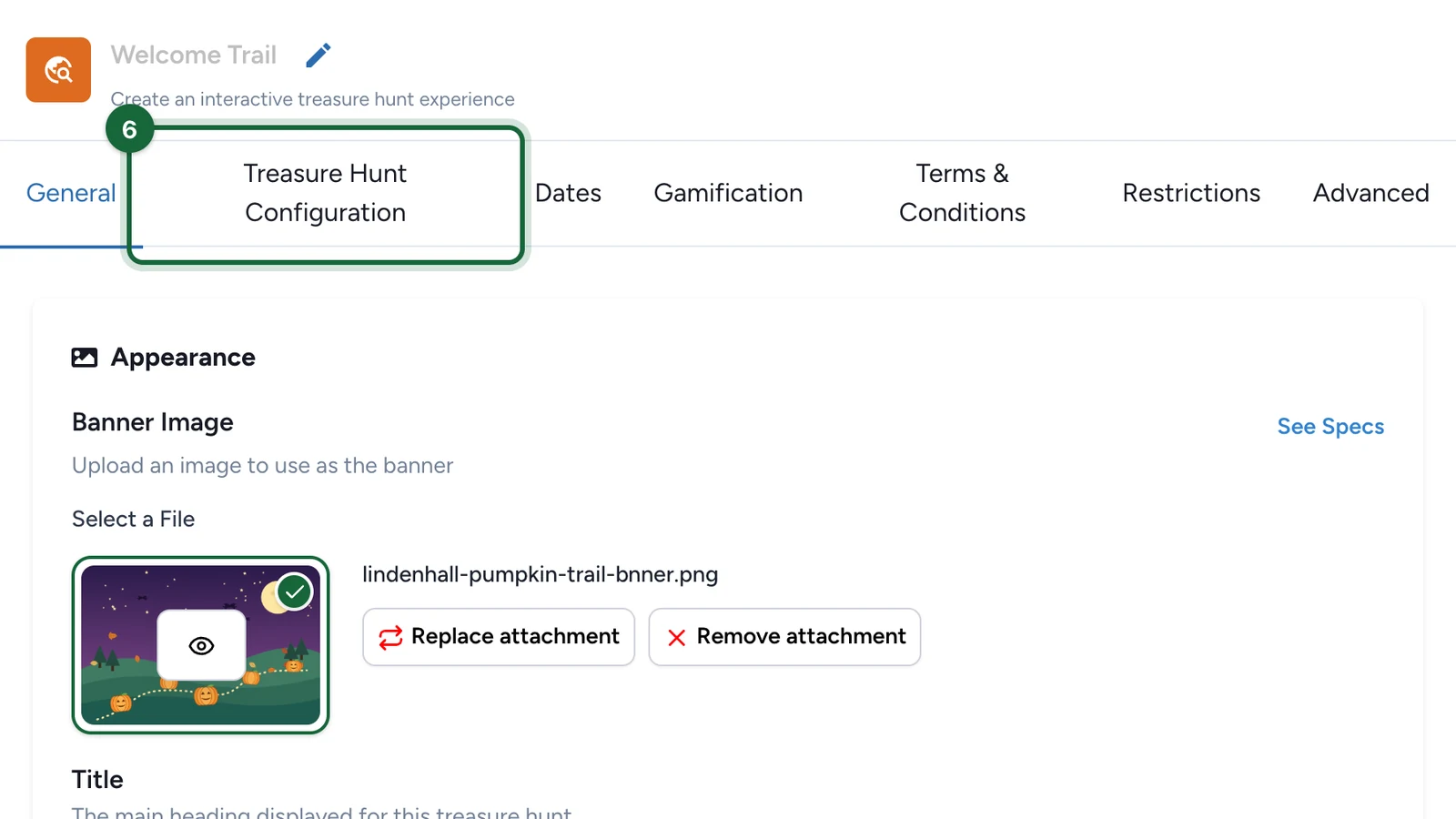
Select the Treasure Hunt Configuration tab. Keep Any Order and All Objects Required.
-
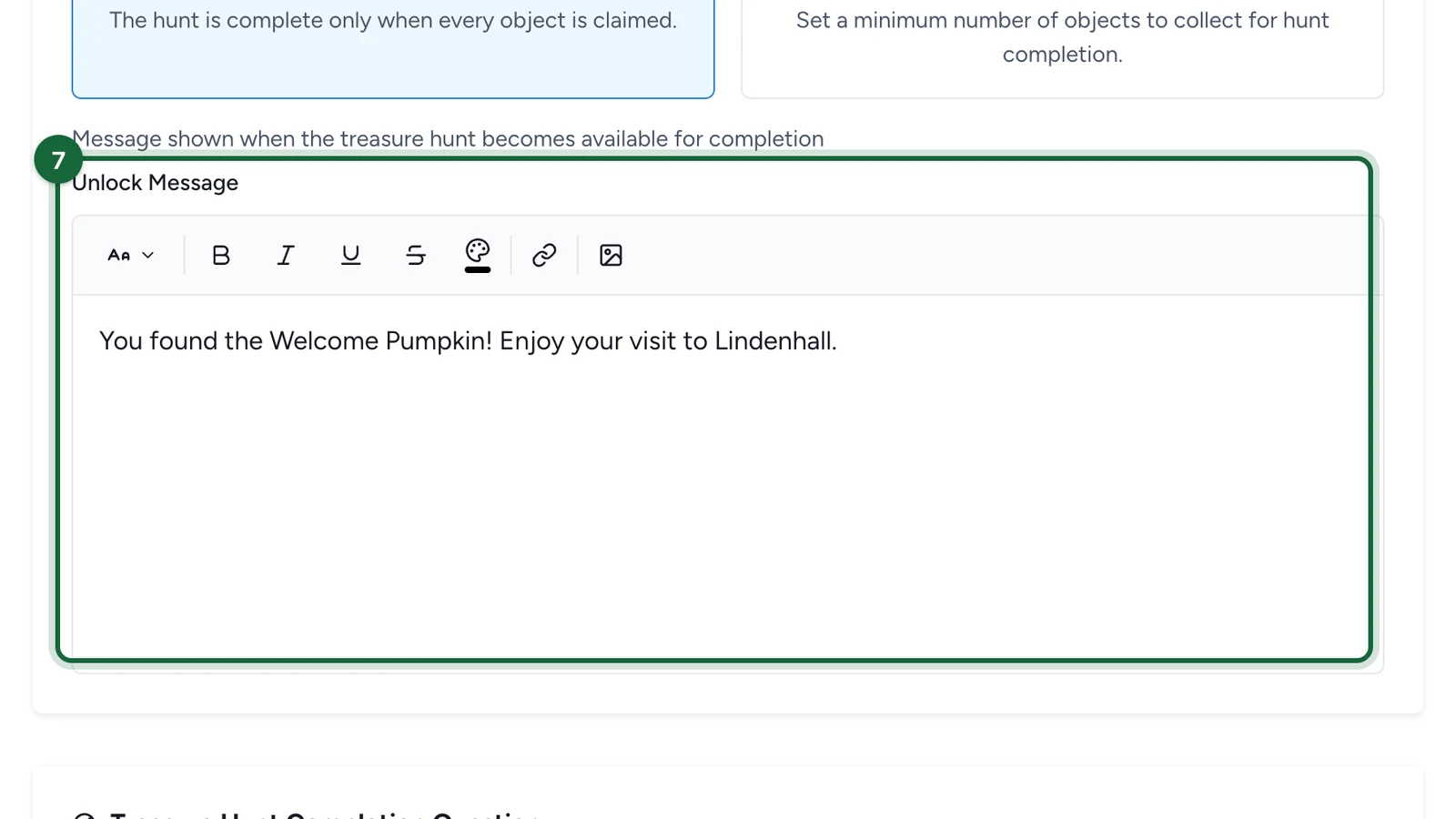
In Unlock Message, write what people see when they finish.
-
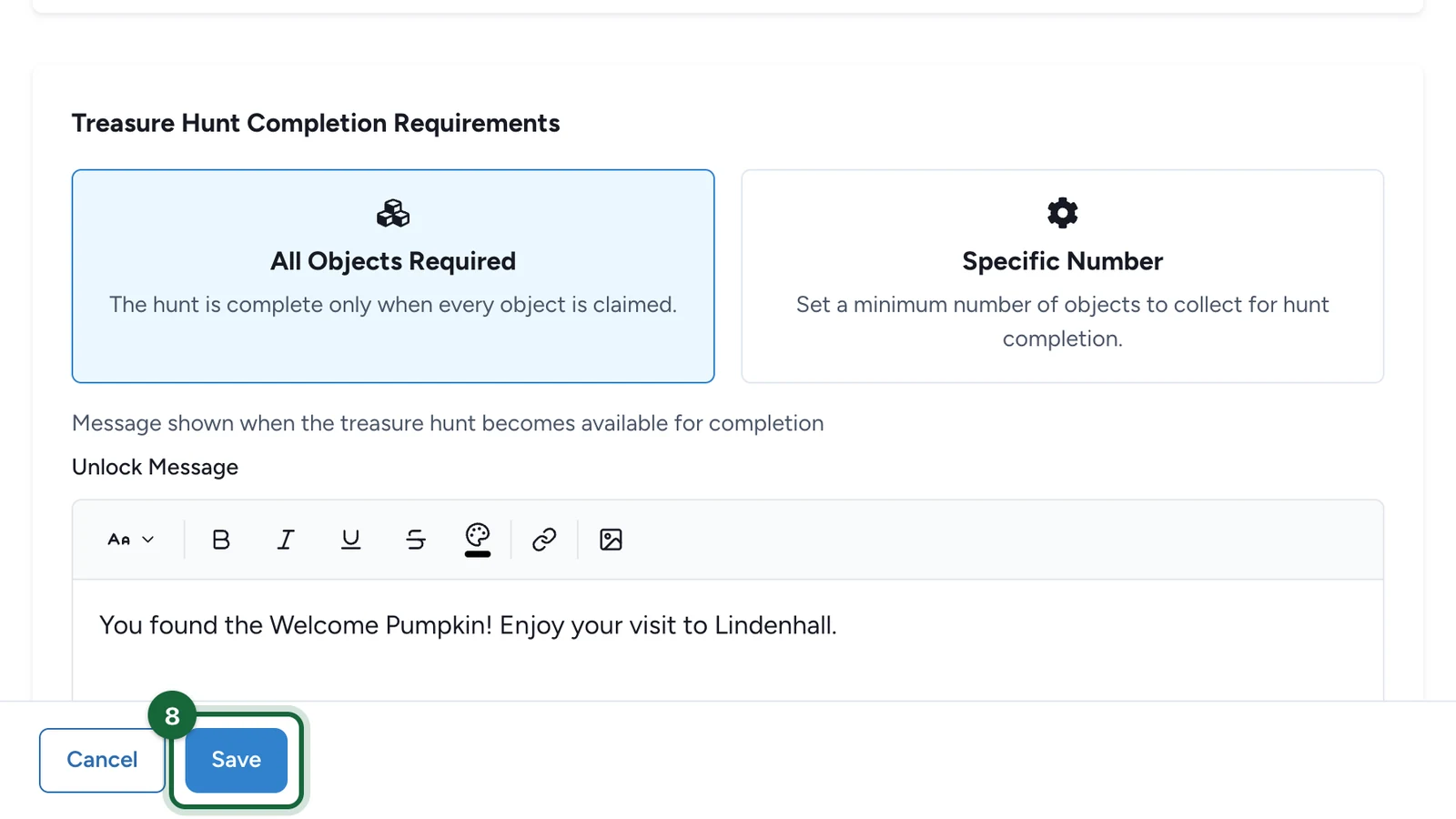
Select Save.
Add one object
-
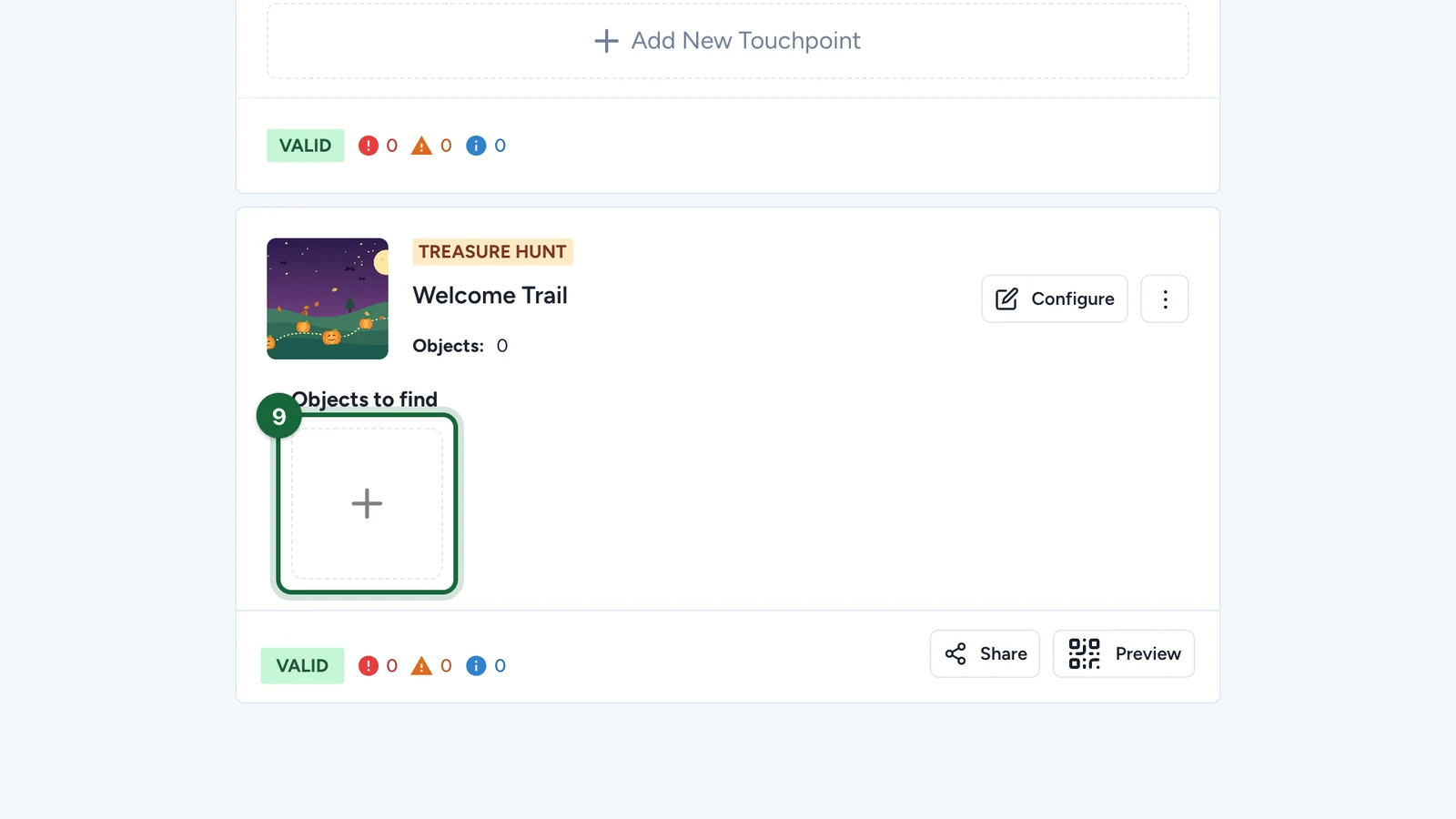
On the hunt's card, under Objects to find, select +.
-
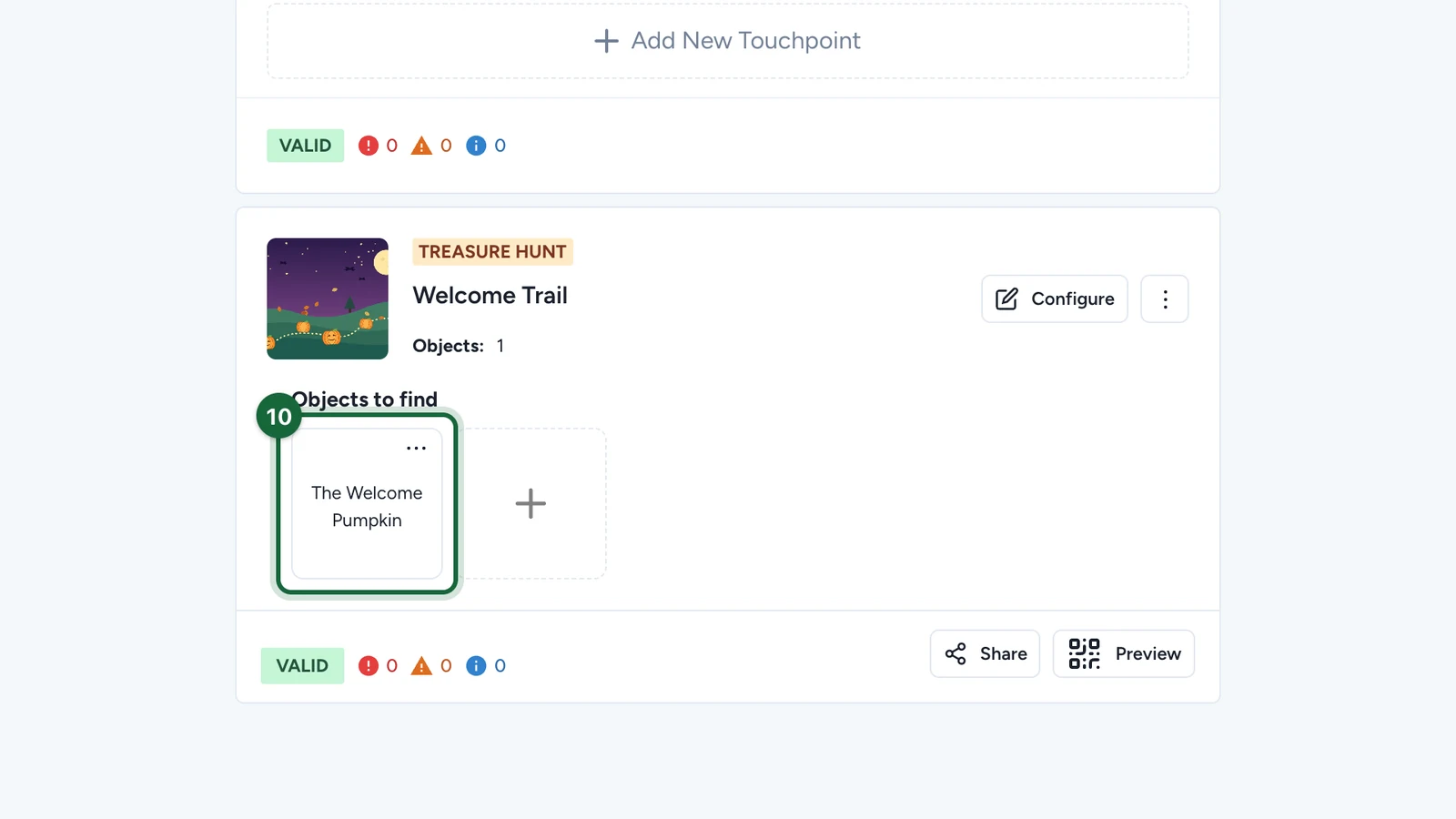
Select the new object's card to open it. You'll rename it in the next step.
-
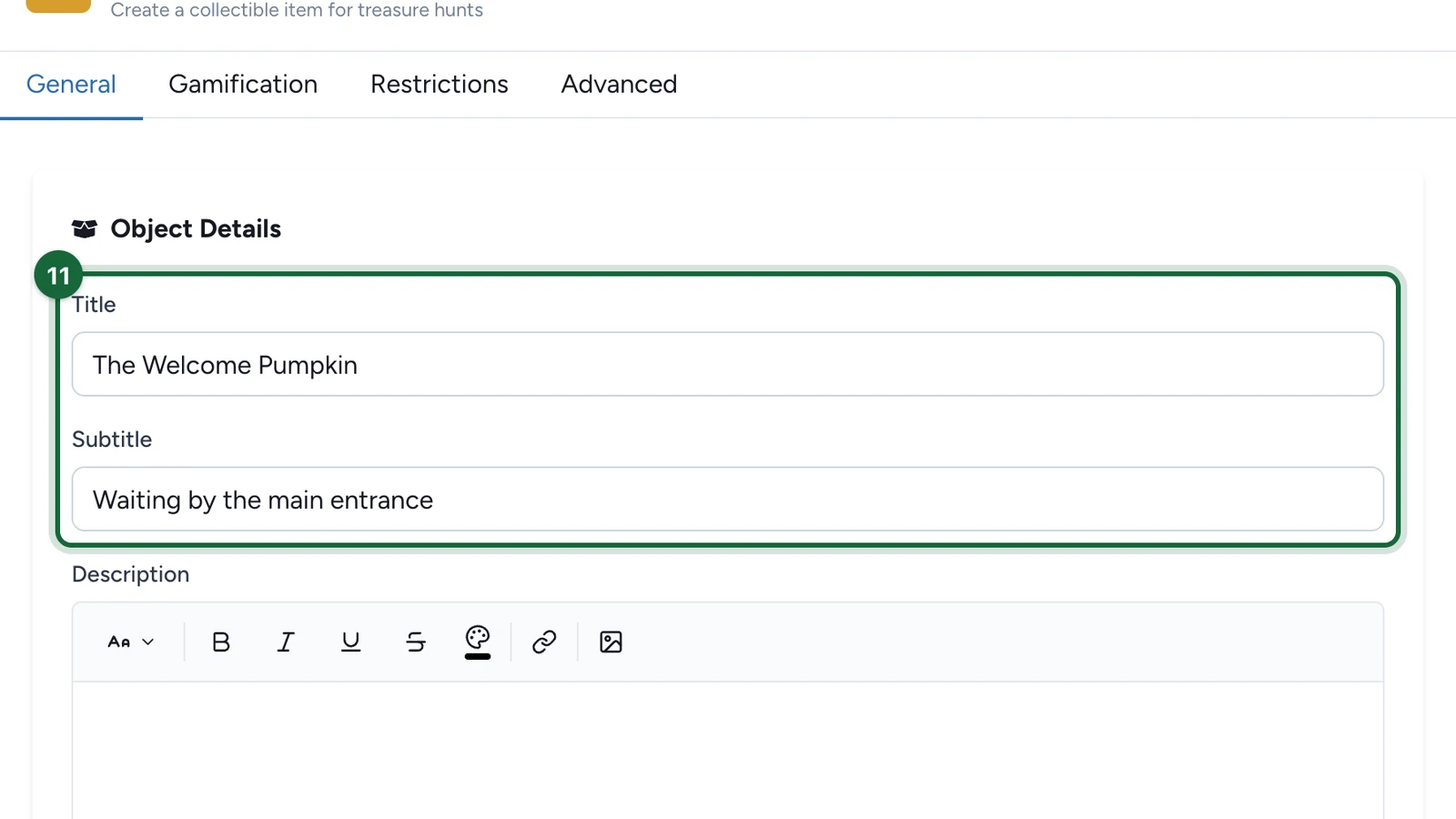
Enter the object's Title and Subtitle.
-
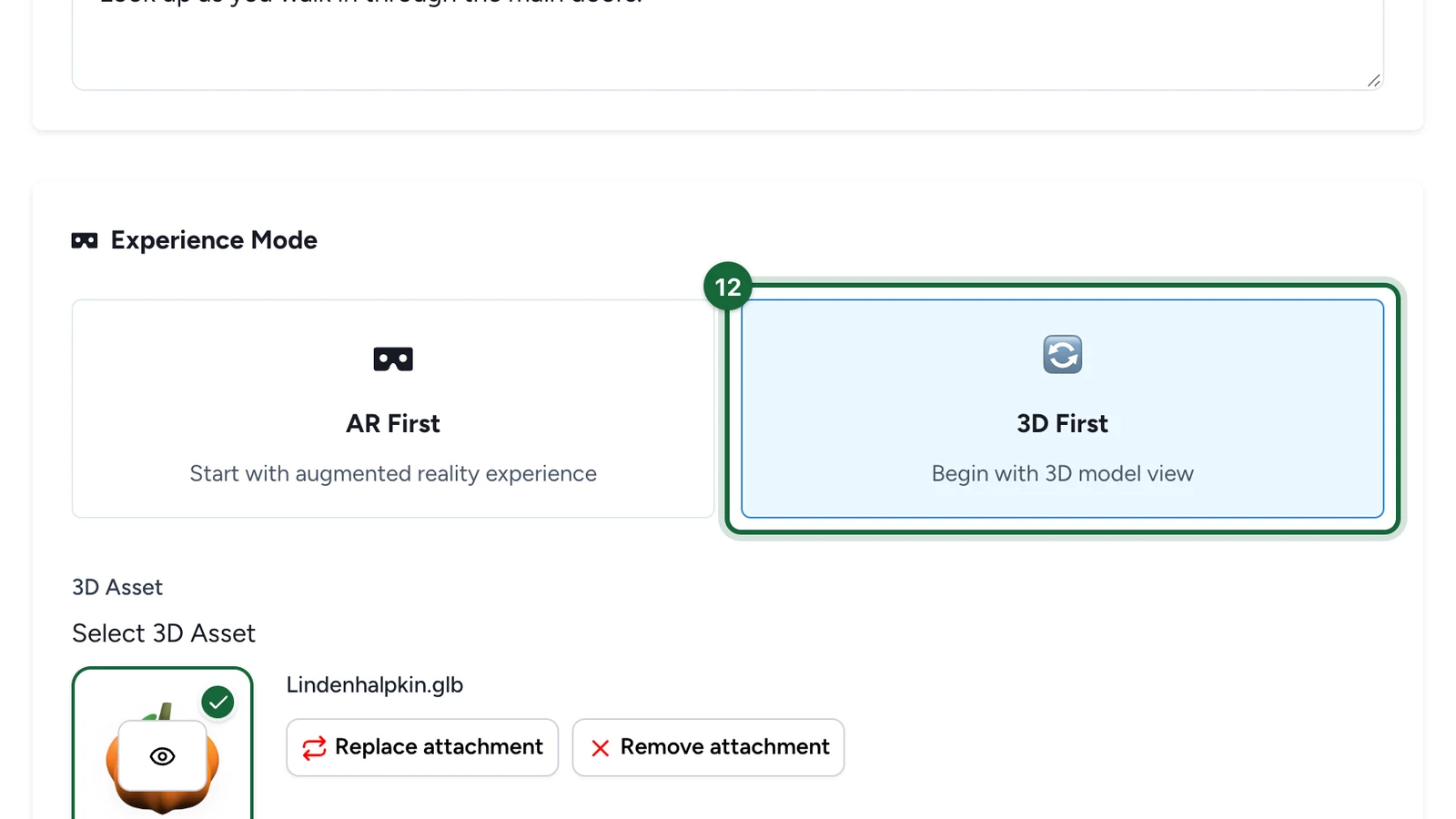
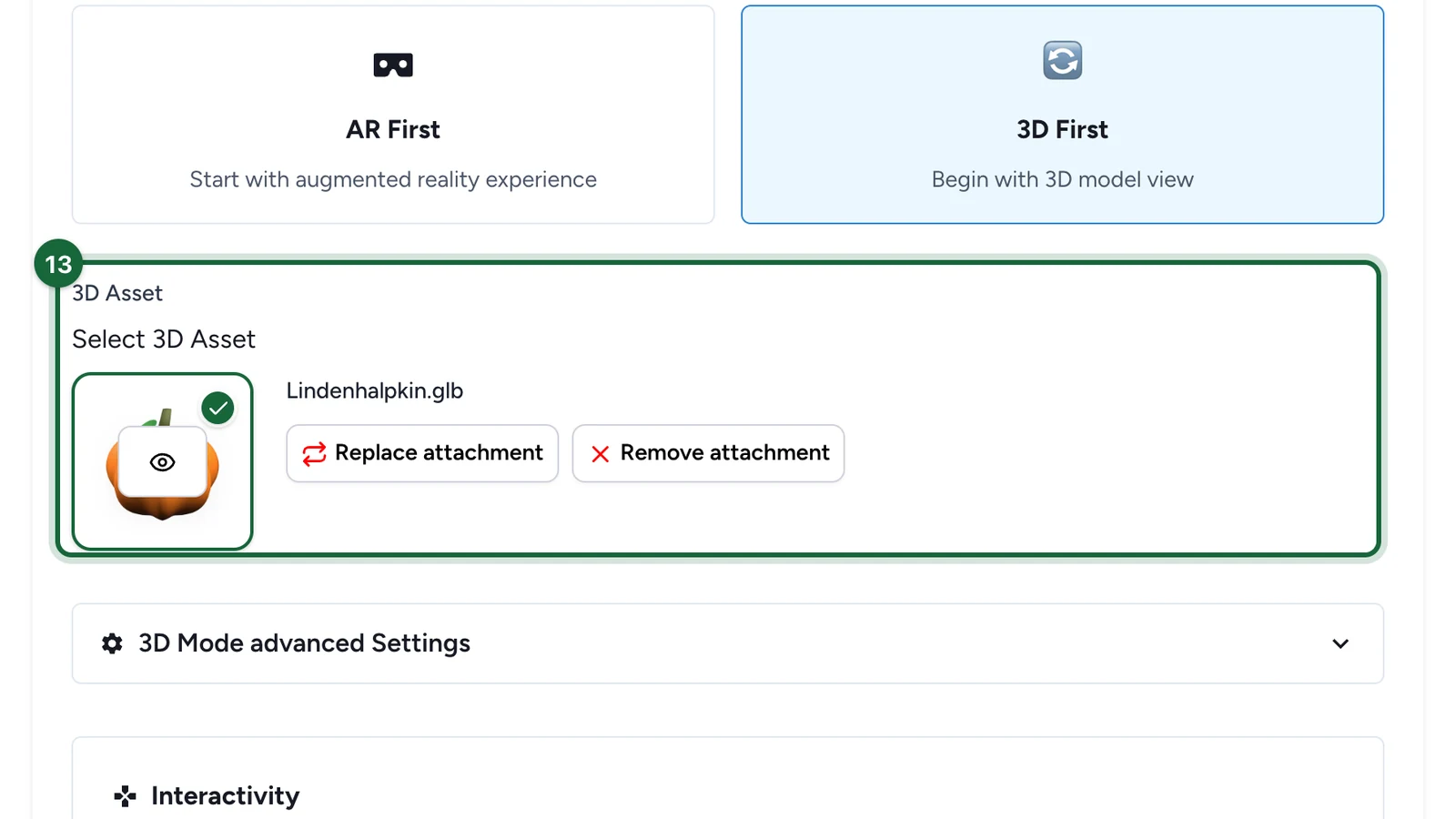
Under Experience Mode, choose 3D First.
-
Under 3D Asset, select the model from your library.
-
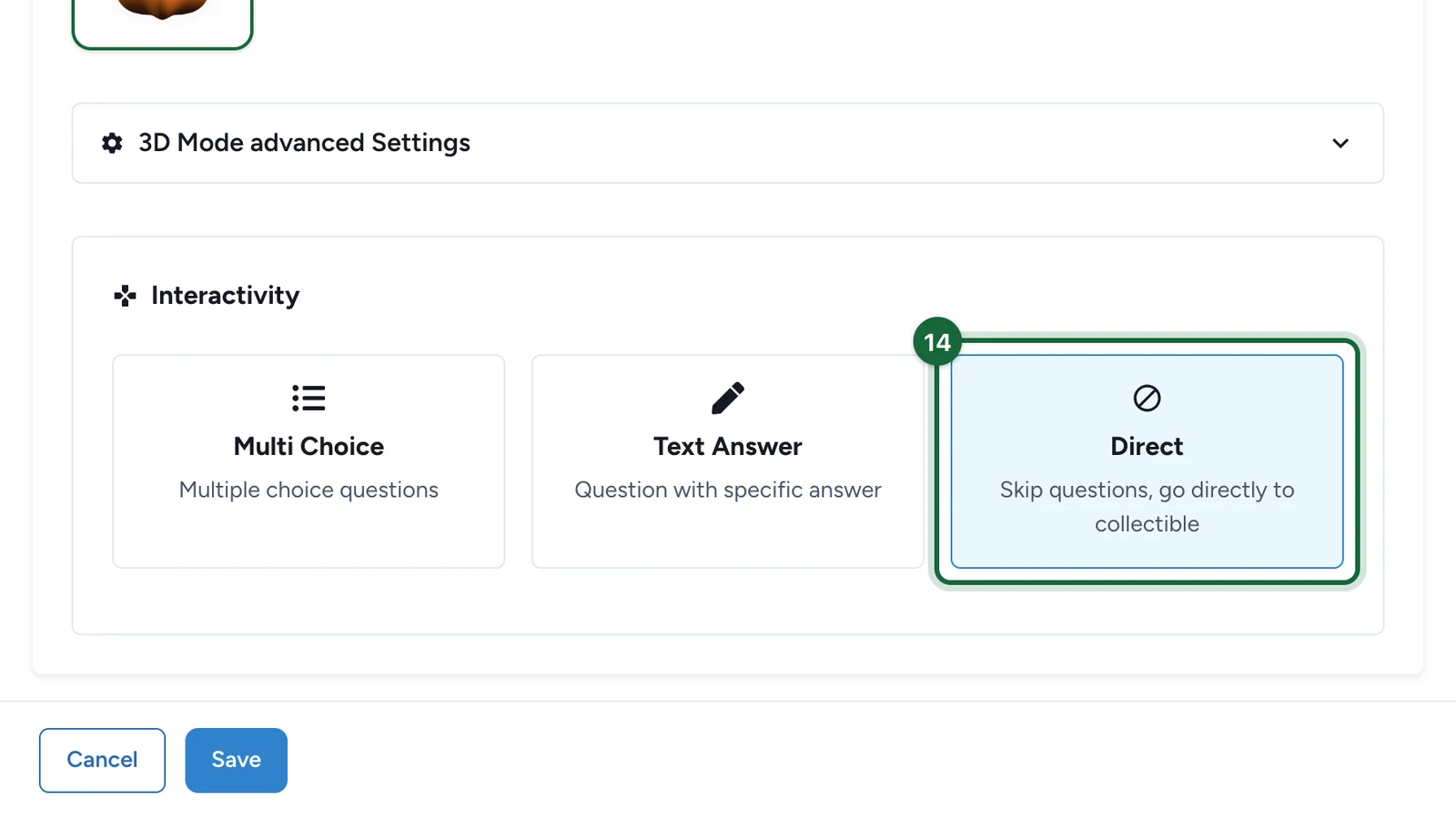
Under Interactivity, choose Direct, so people collect the object straight away.
-
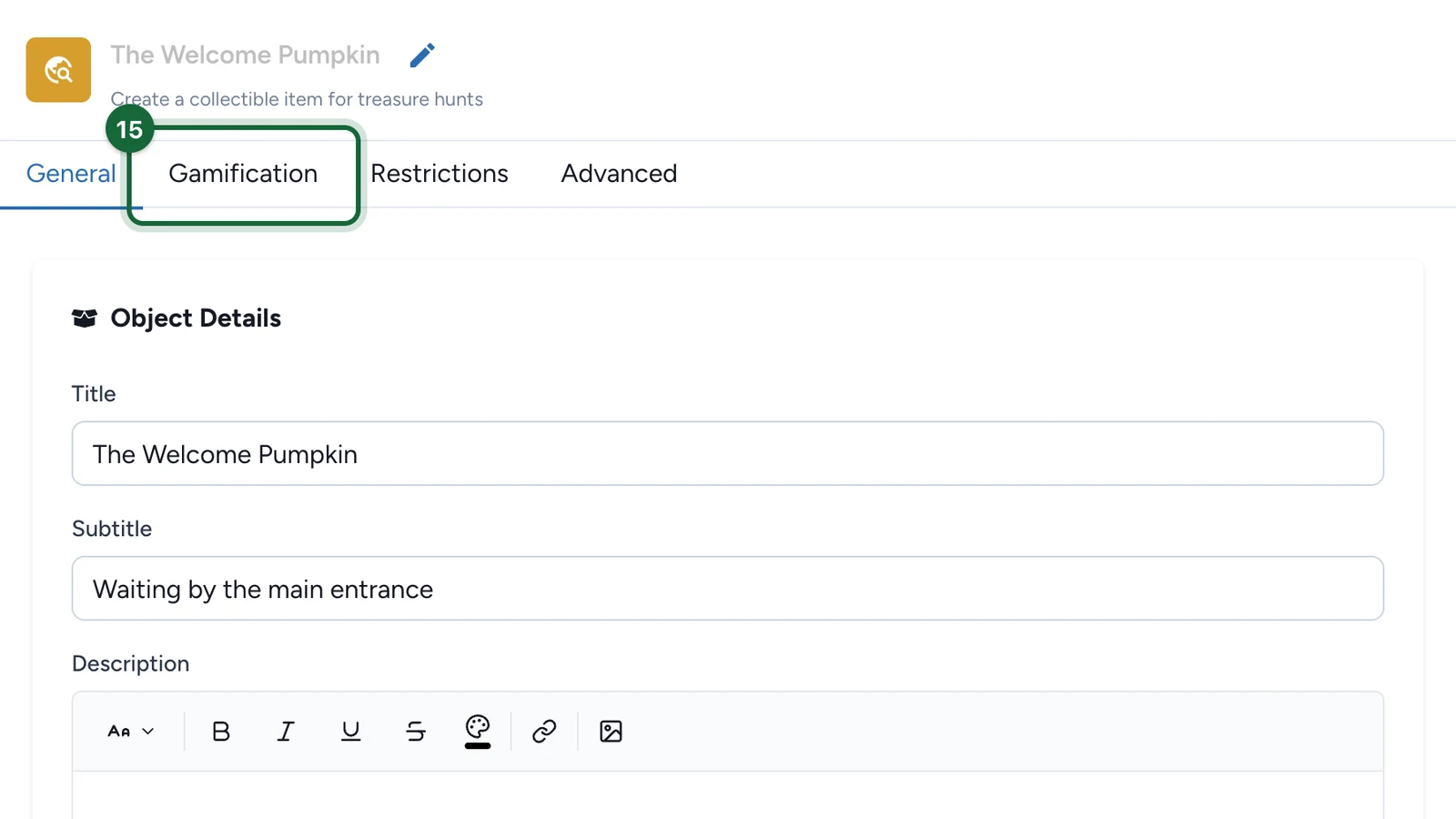
Select the Gamification tab.
-
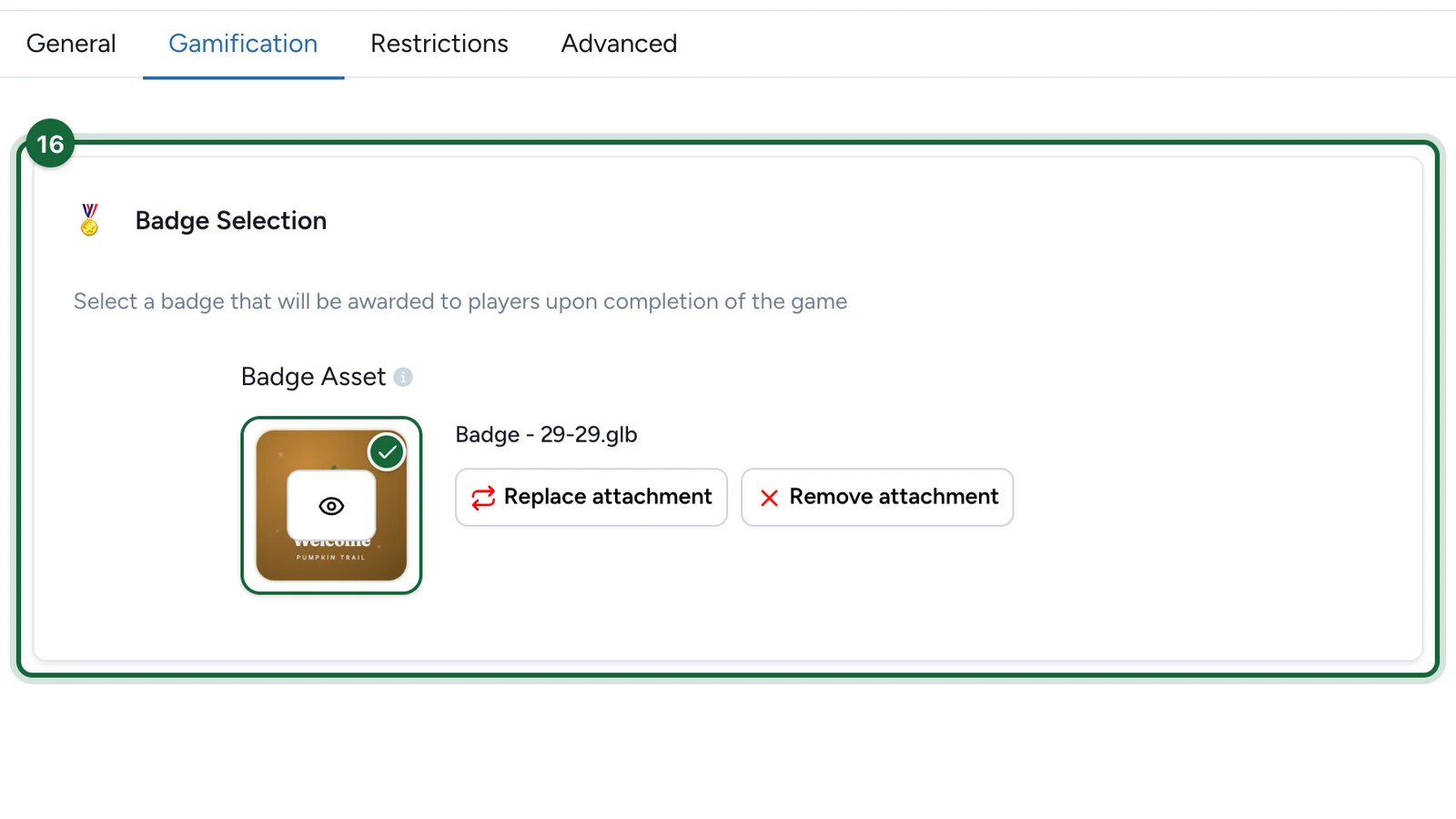
Under Badge Selection, choose the badge.
-
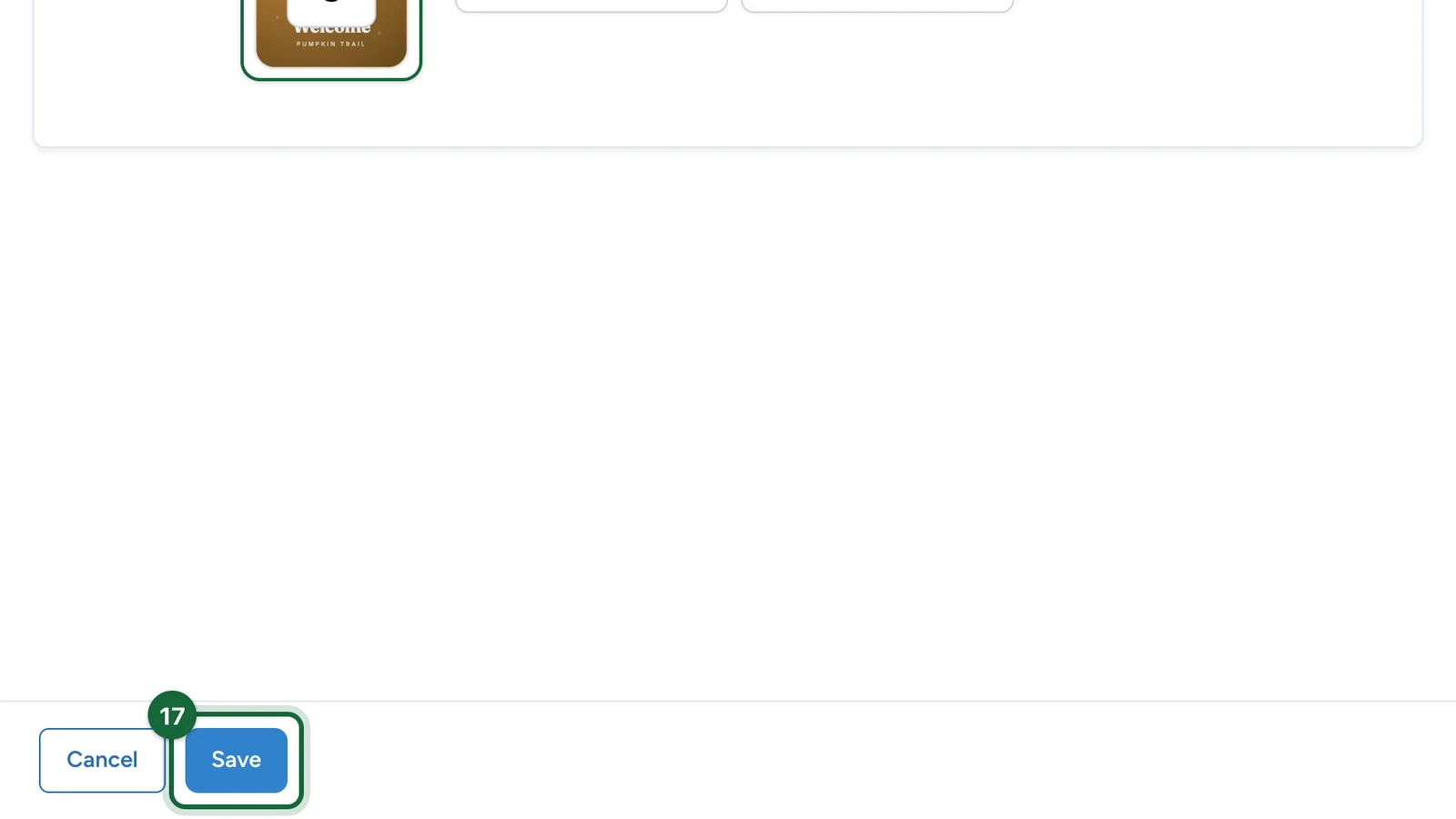
Select Save.
Publish
A draft can't be opened, so publish before you test.
-
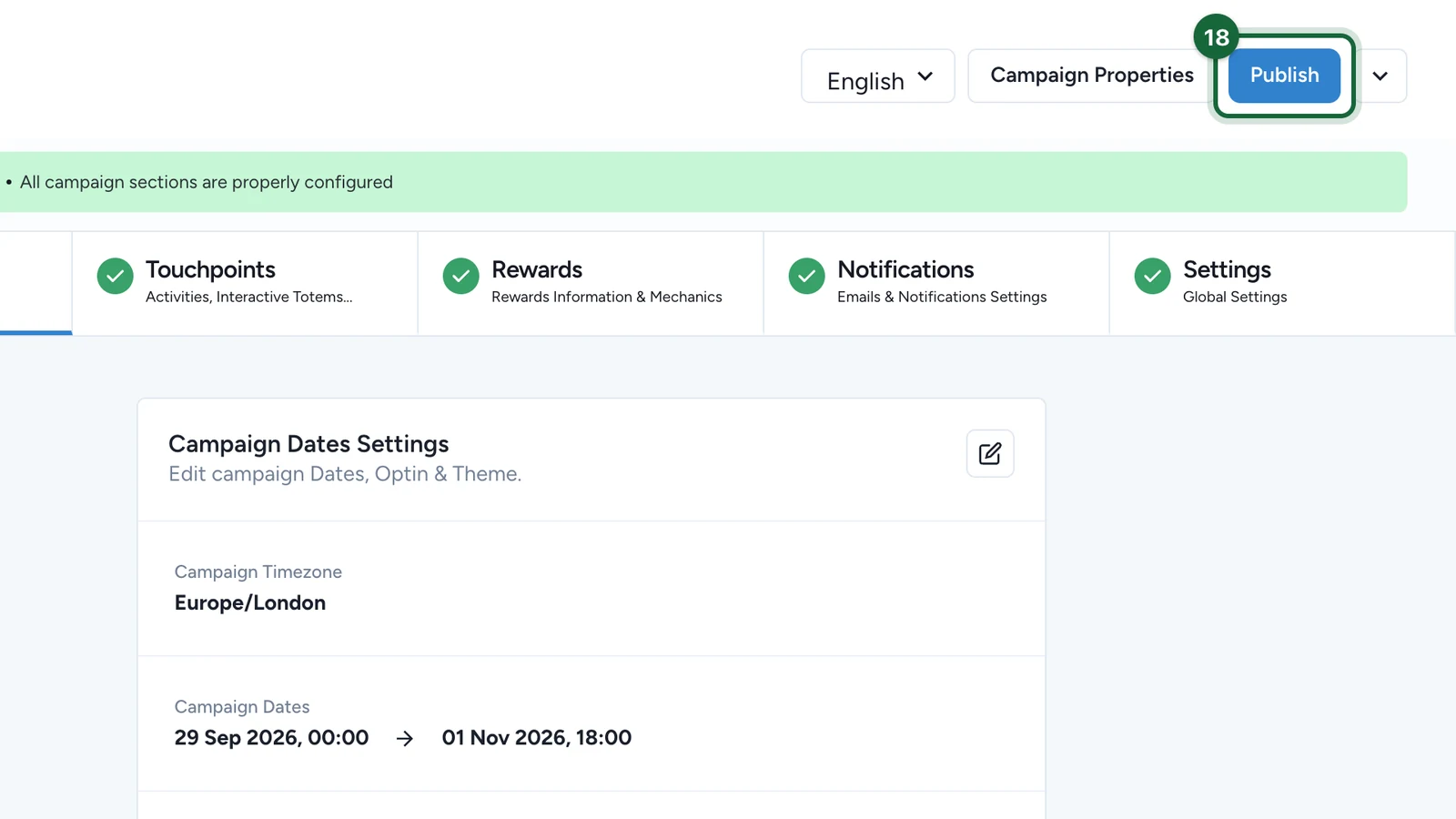
At the top of the campaign, select Publish.
-
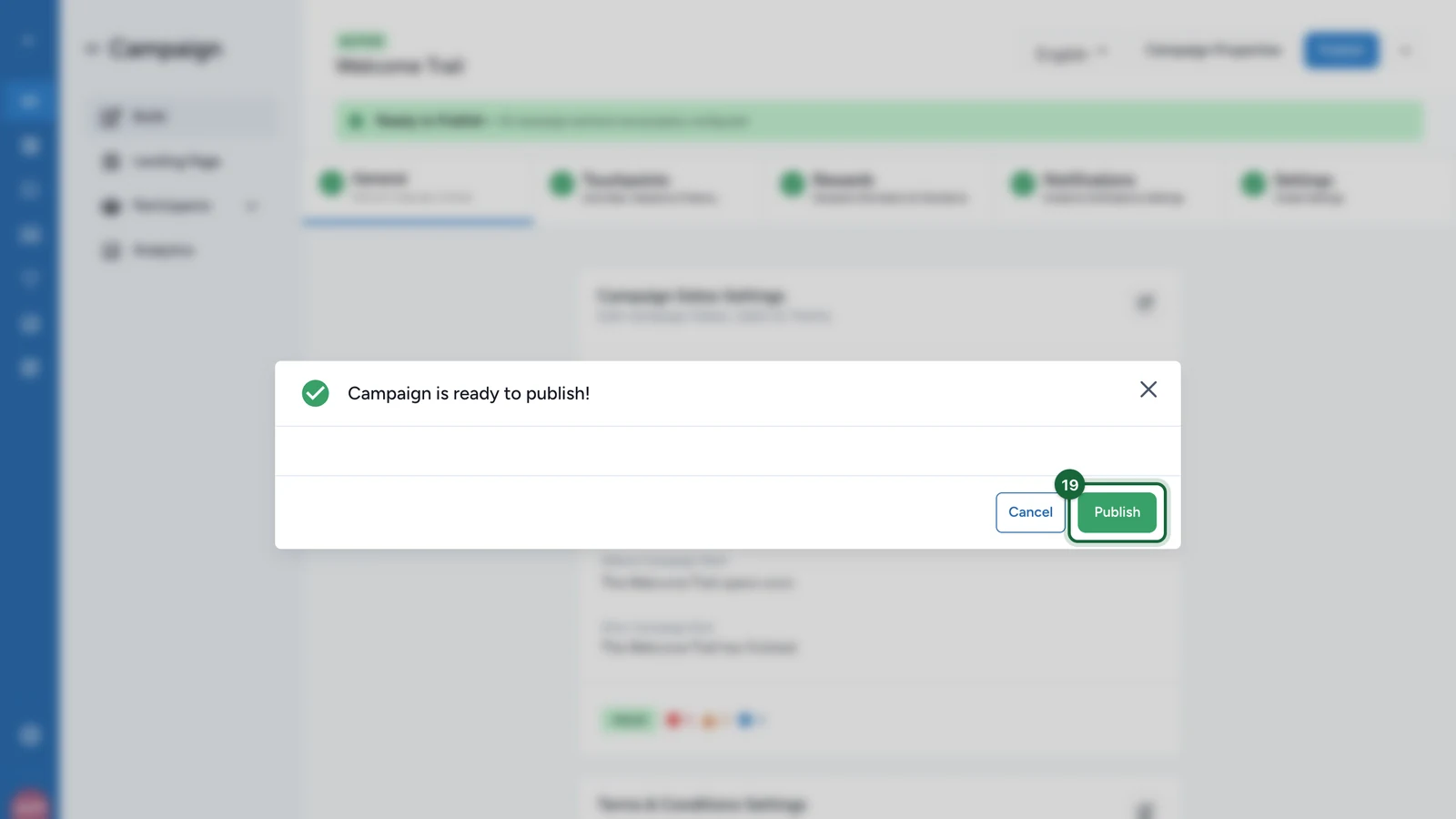
When the window says Campaign is ready to publish!, select Publish.
Play it on your phone
-
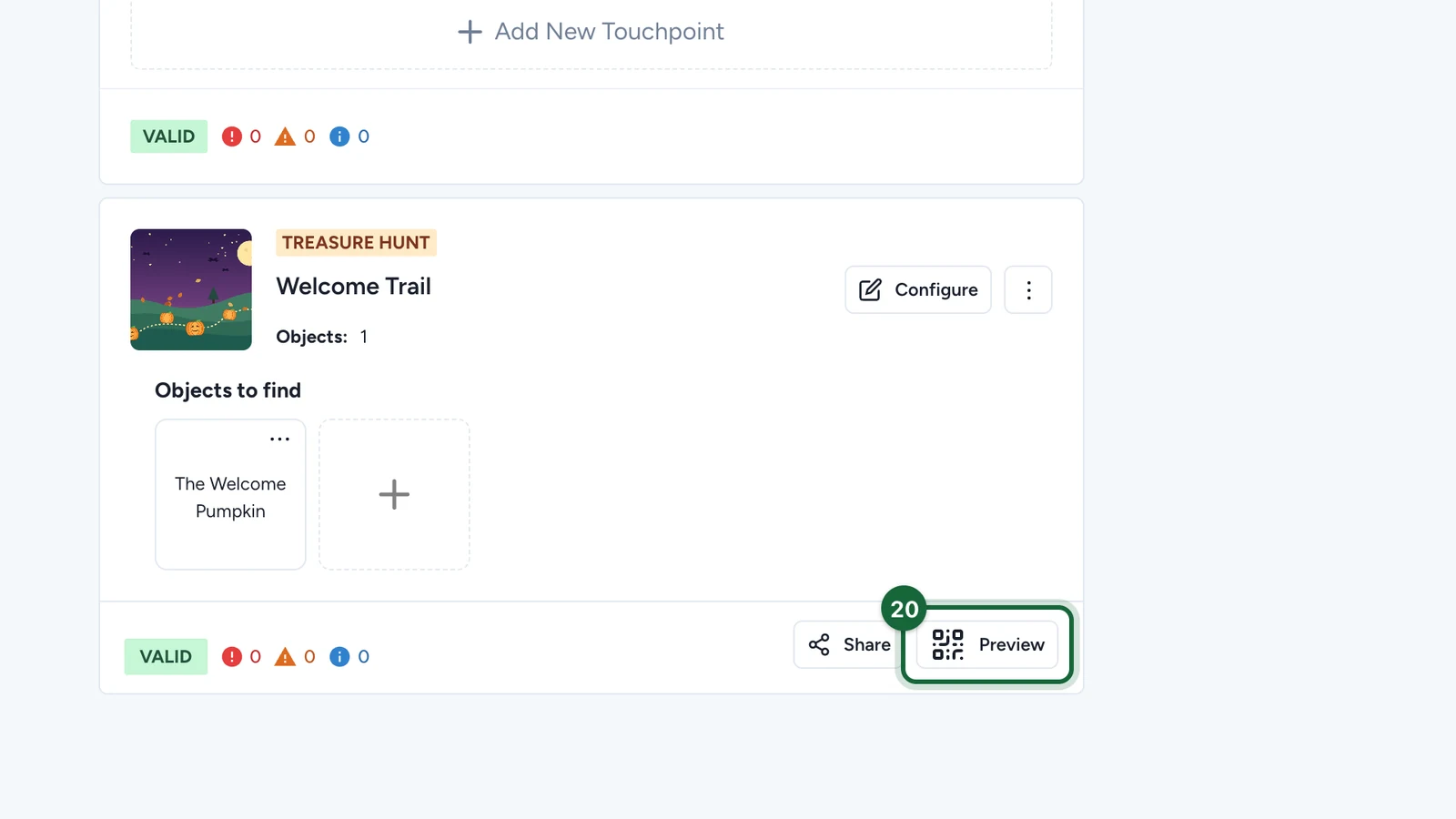
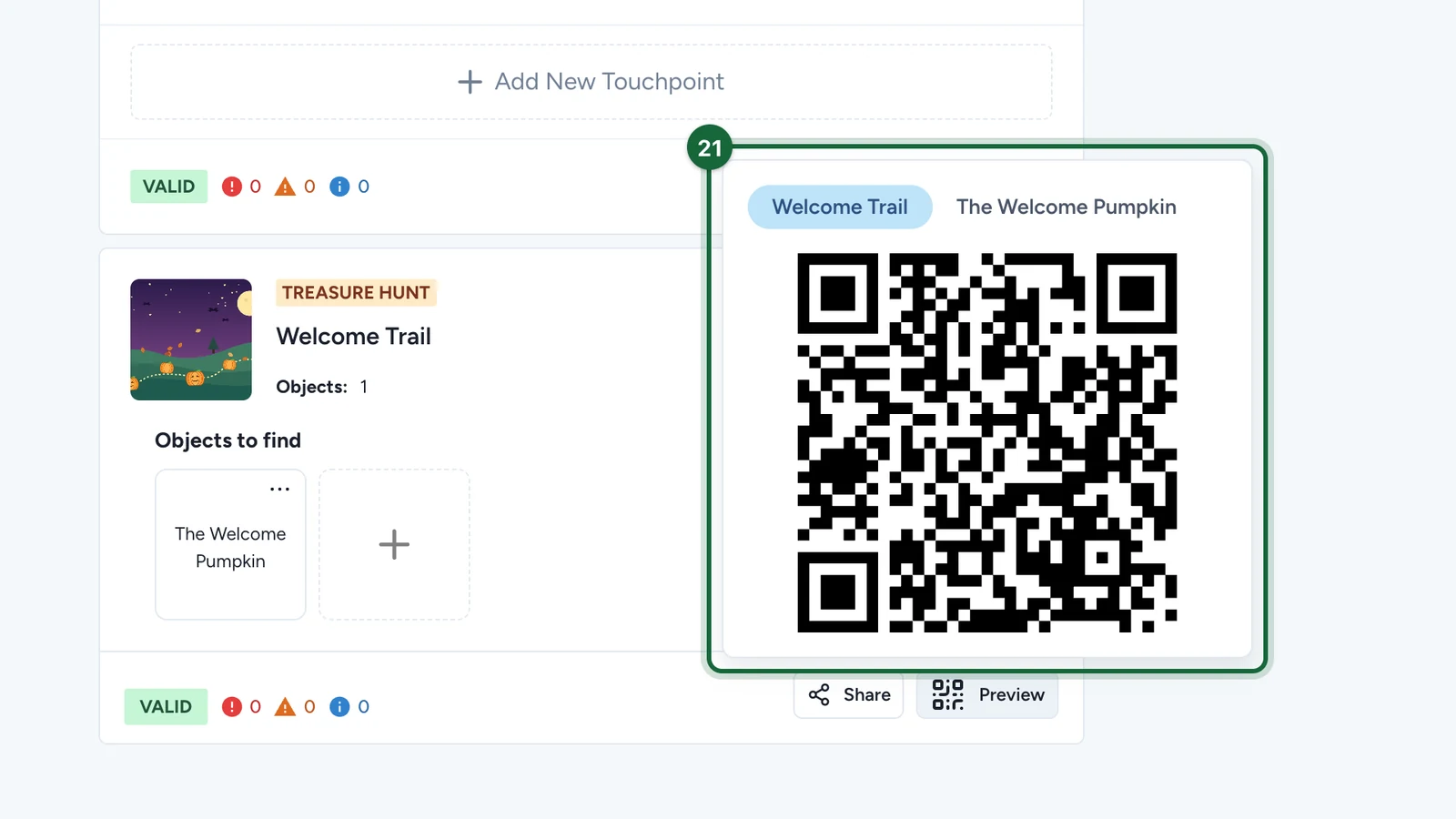
On the hunt's card, select Preview.
-
With the hunt's tab selected, scan the QR code with your phone.
-
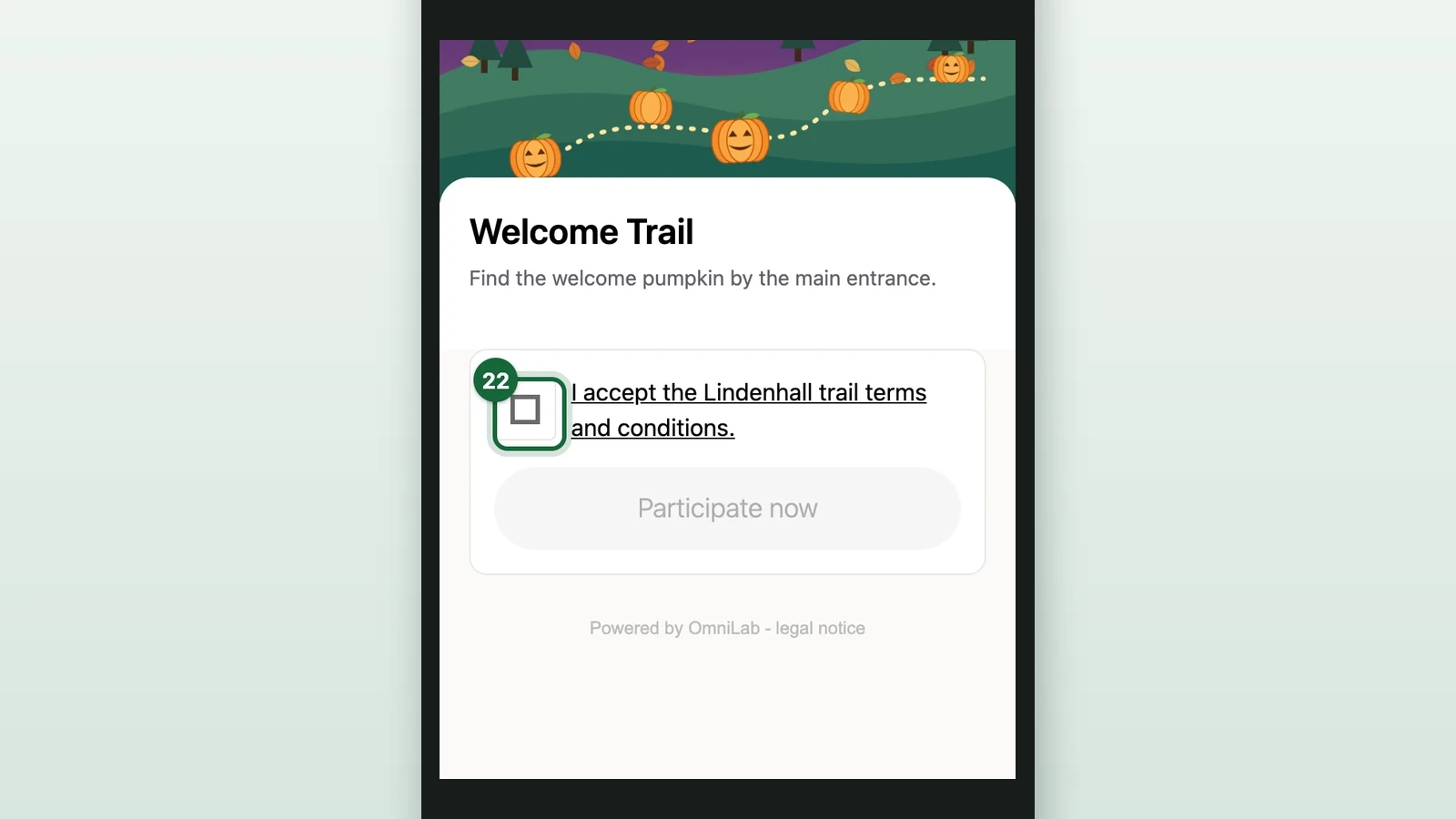
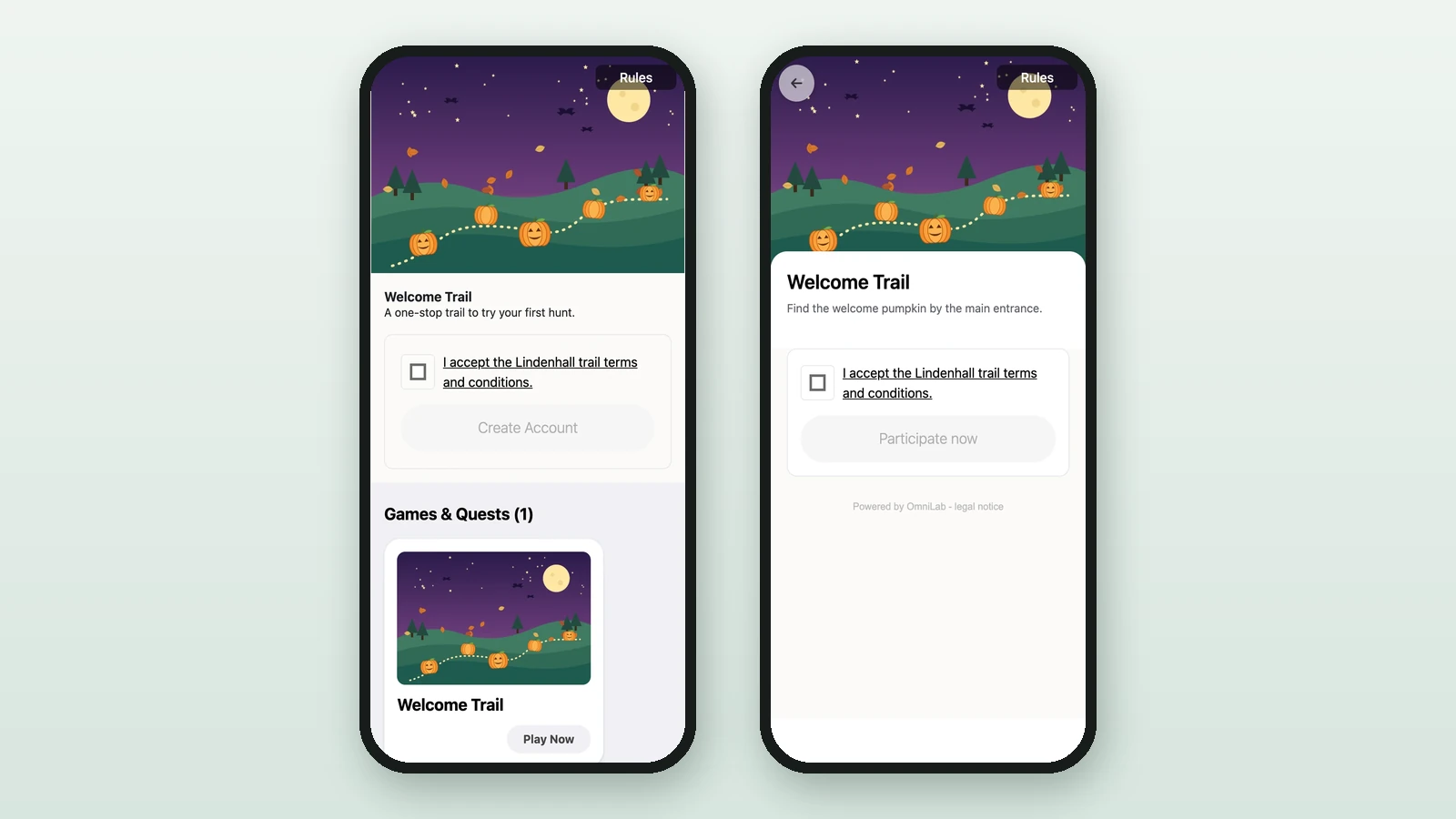
On your phone, tick the terms.
-
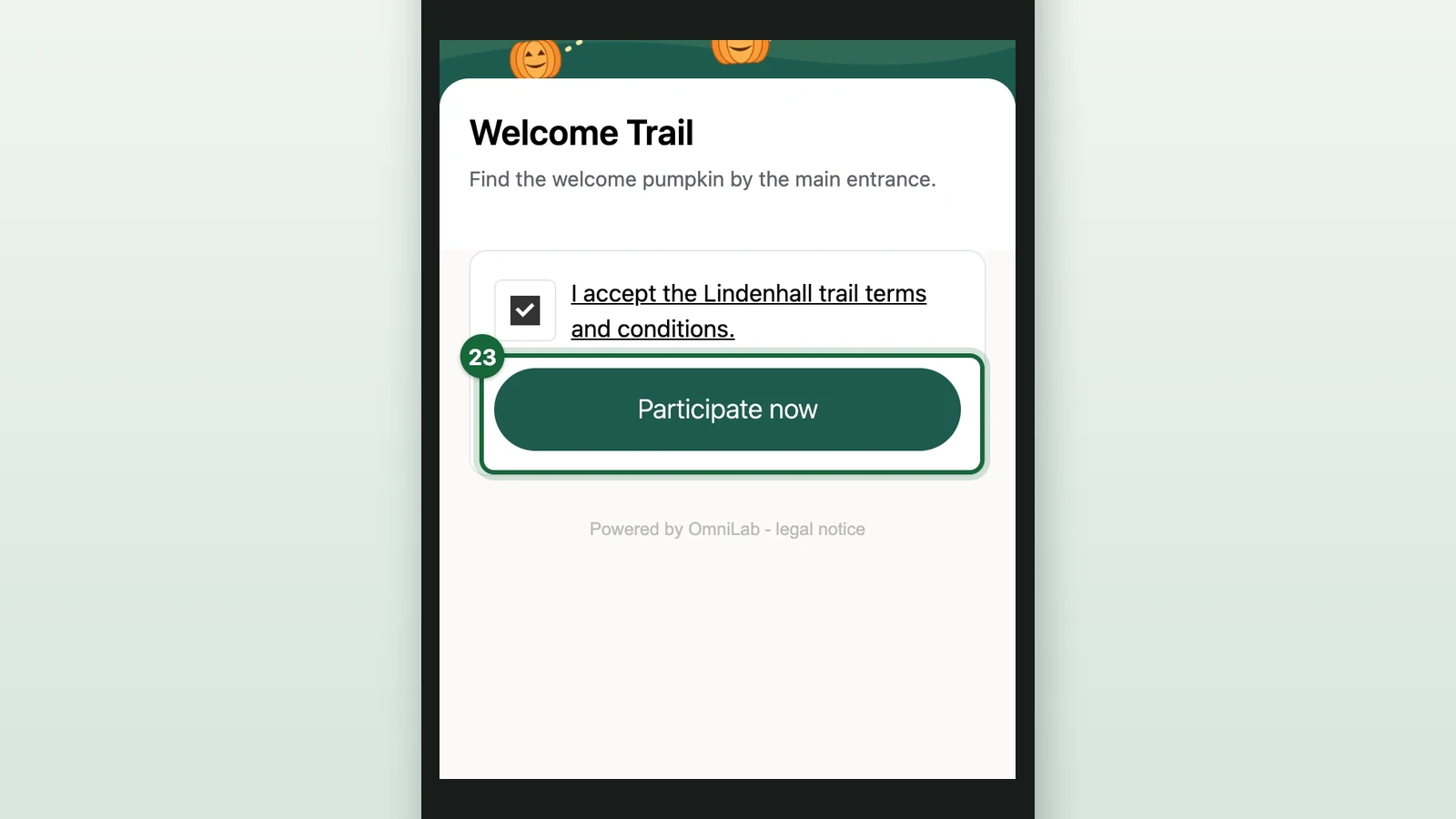
Select Participate now.
-
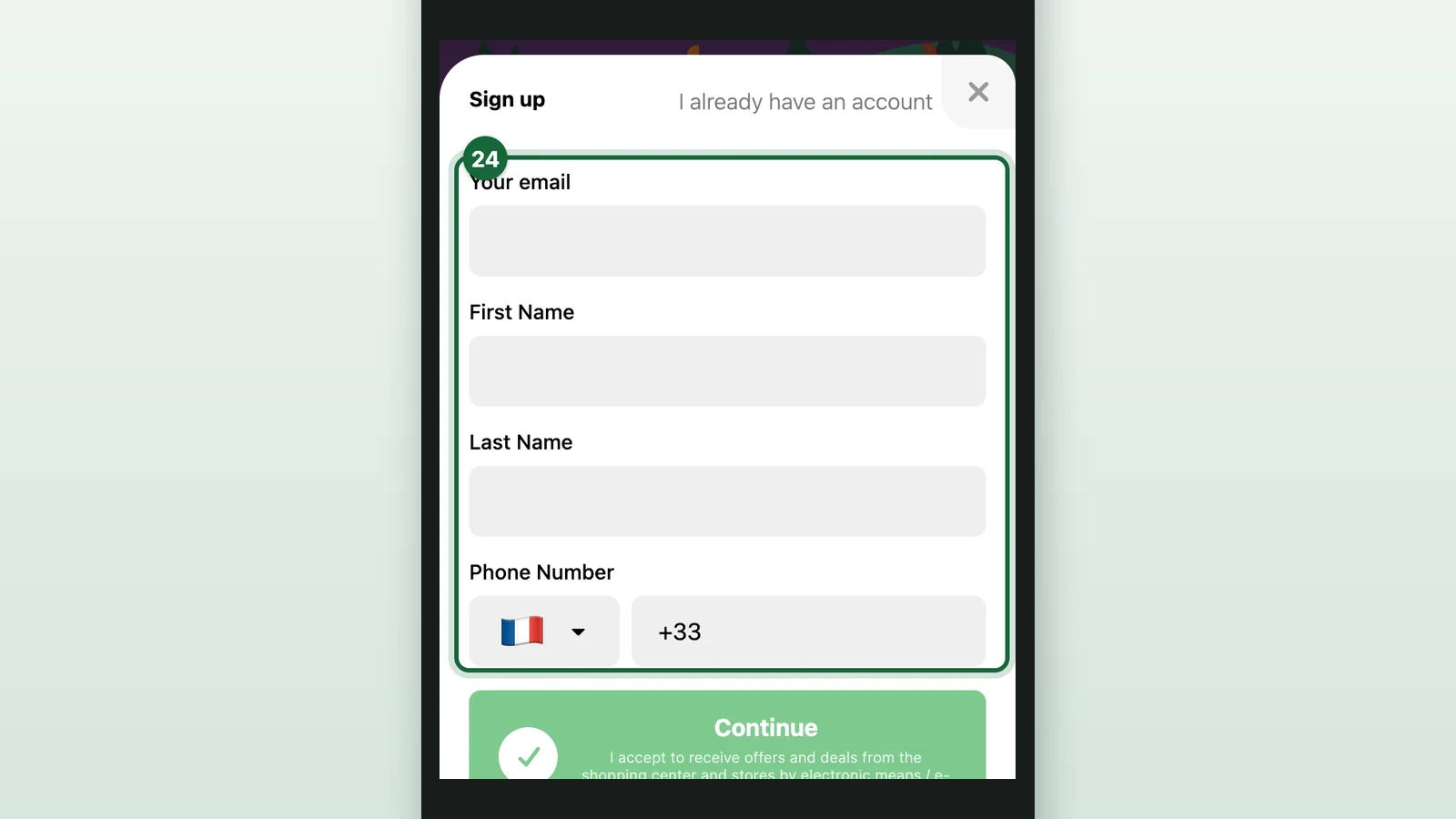
Fill in the sign-up form.
-
Select one of the two Continue buttons, to accept or refuse offers by email.
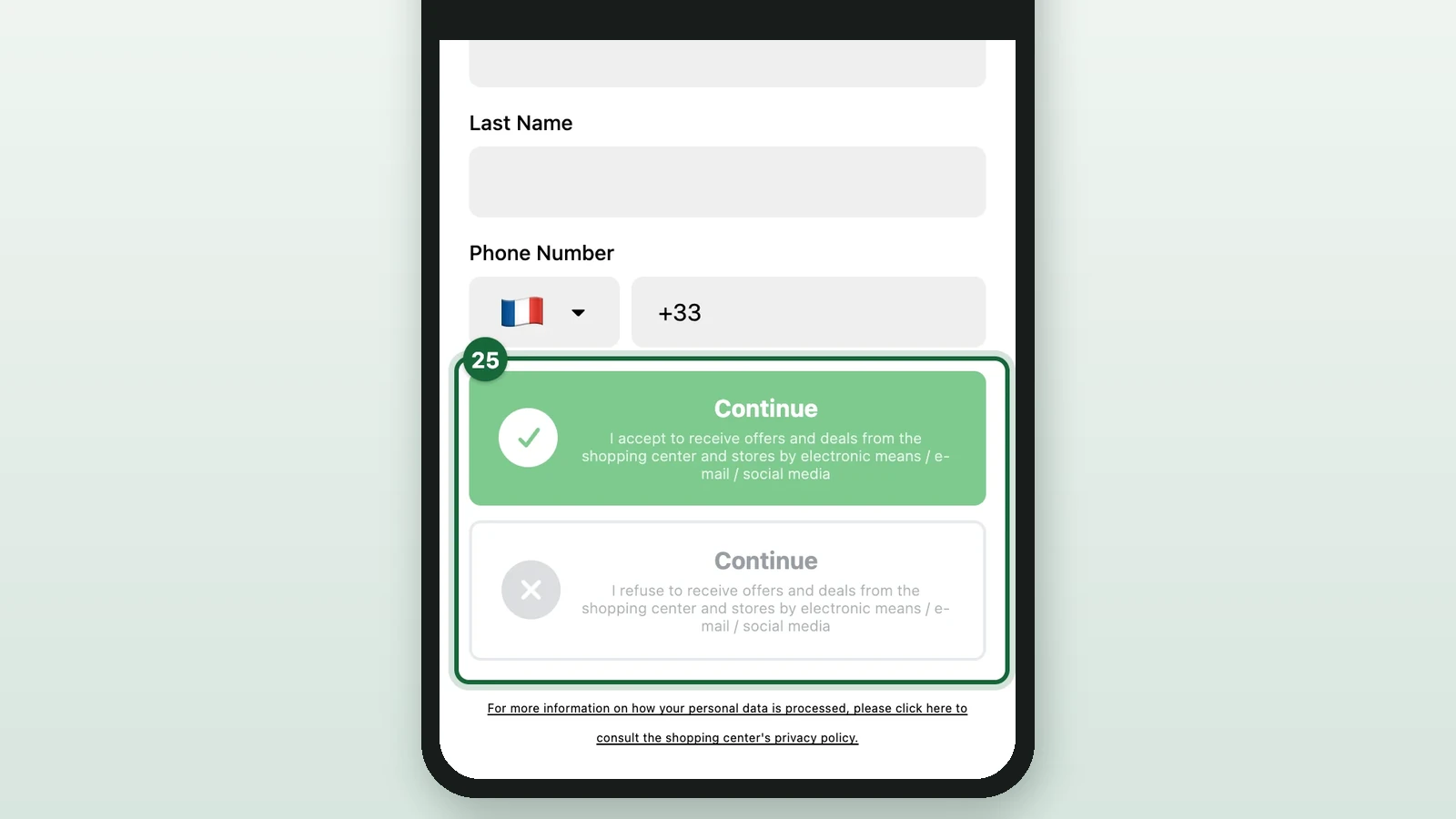
We email you a code: enter it to finish signing in.
-
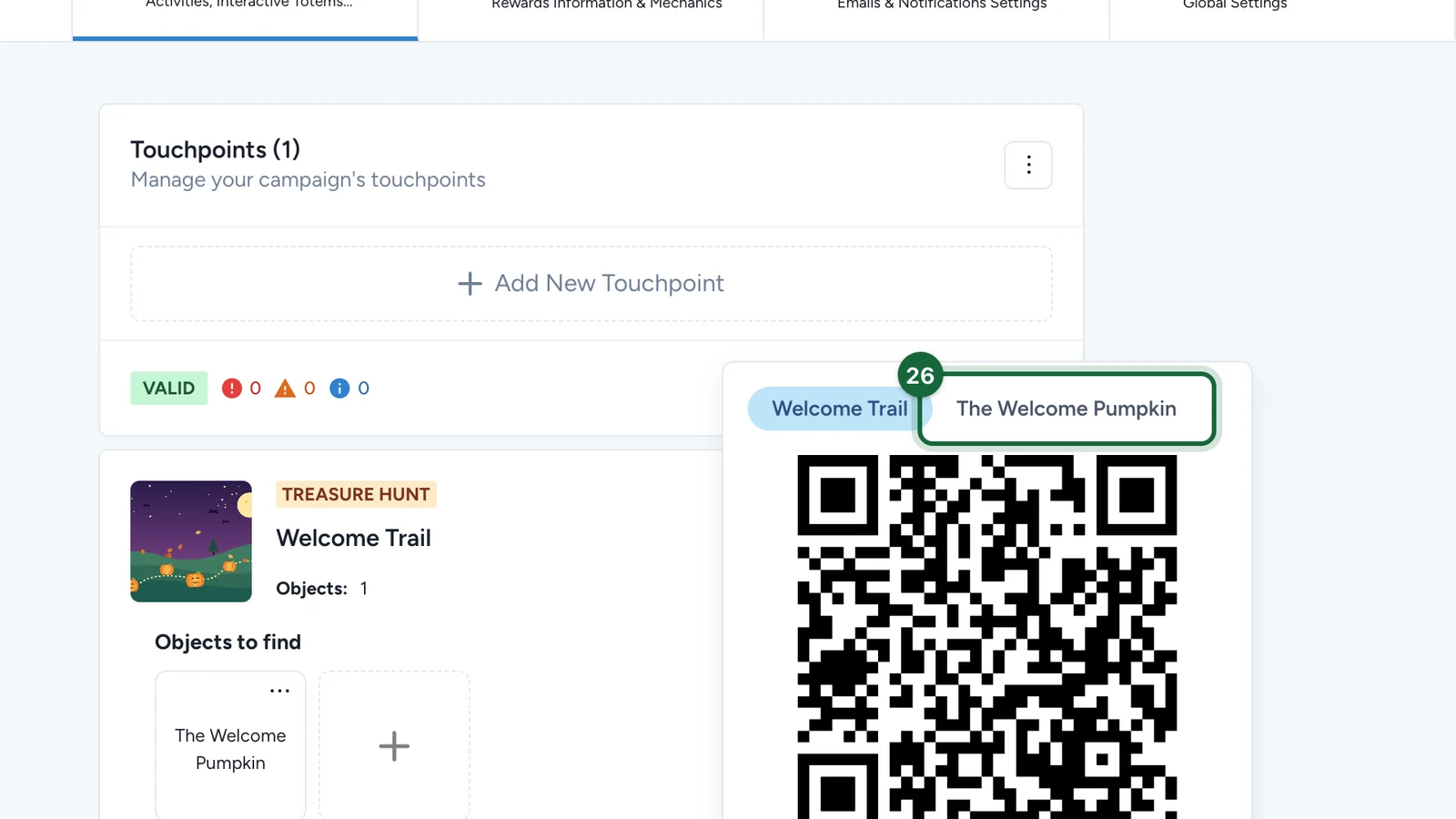
Back in Studio, in the Preview window, select The Welcome Pumpkin tab.
-
Scan the object's QR code with your phone, as visitors will at the object's spot.
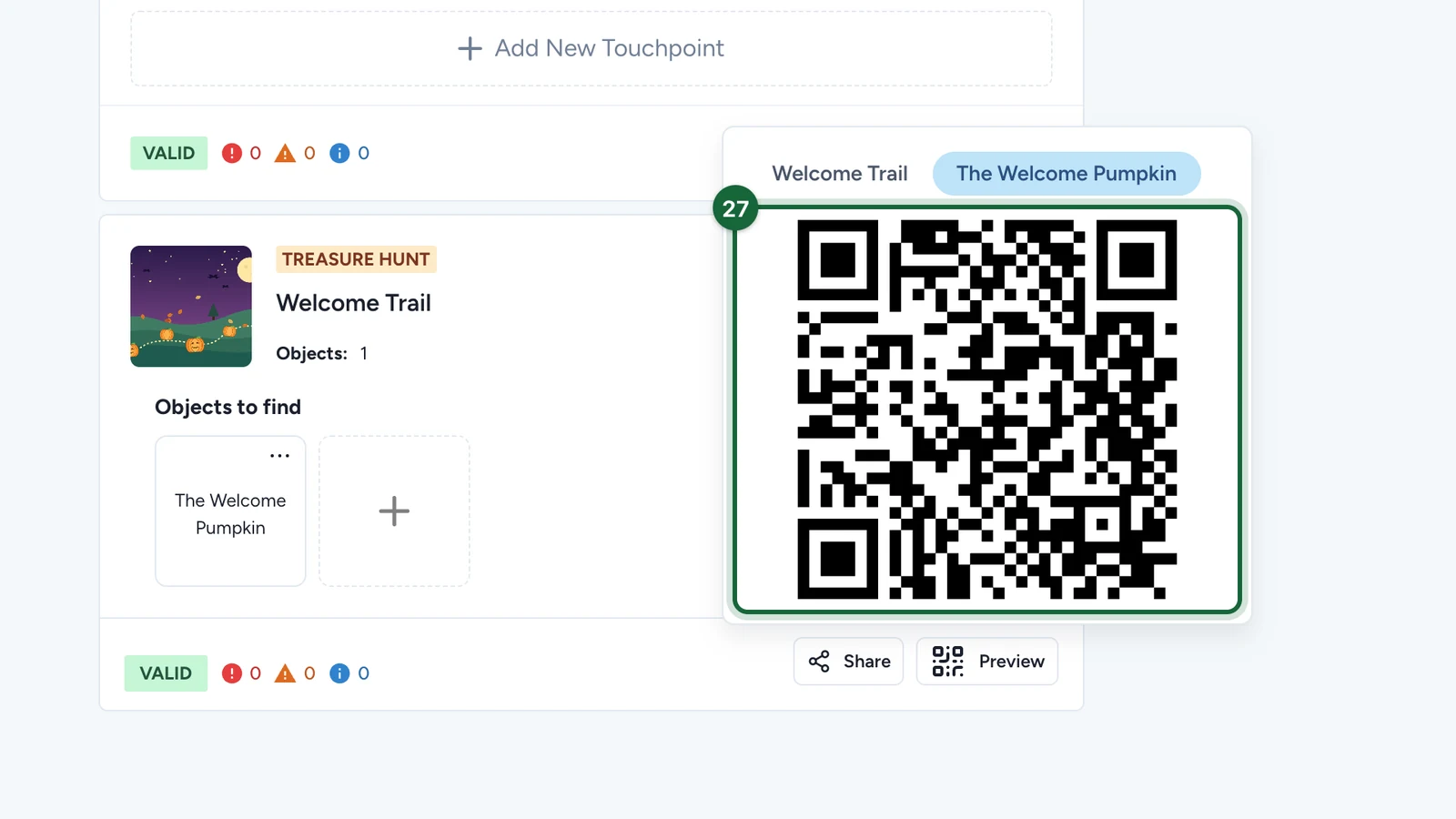
The Welcome Pumpkin opens in 3D. Collect it: with one object, that finishes the hunt, and your unlock message appears.
Next steps
- Configure interactivity: add questions to your objects.
- Link rewards and badges: give a prize for finishing.
- Print and place QR codes