Variant errors
Fix variant scans that count in the wrong place, or send no UTM tags.
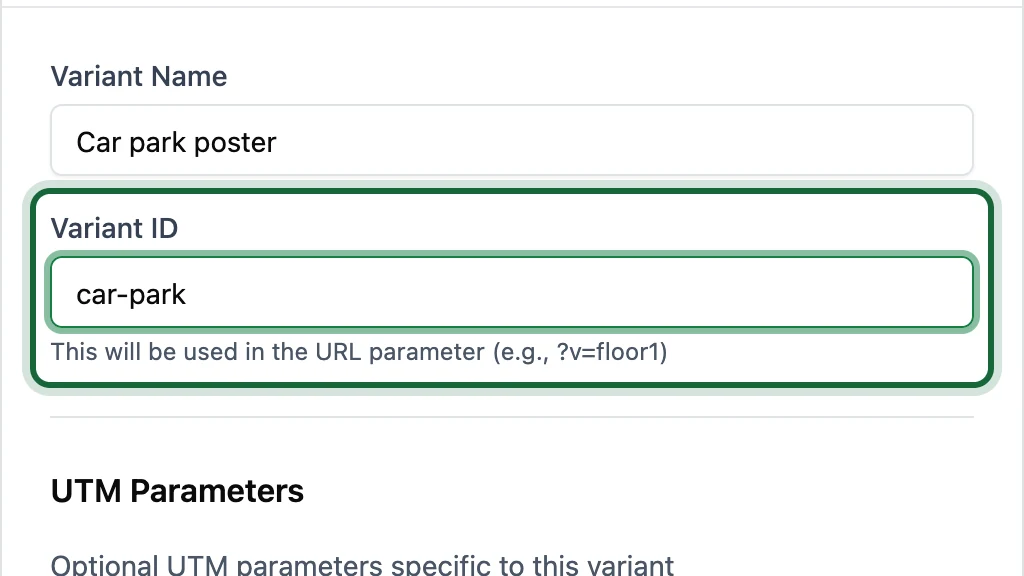
Scans count for the wrong variant
Why this happens: two variants share a Variant ID. Smart Links doesn't stop it, and every scan counts for the first one.
Fix it: open Edit Smart Link and give each variant its own ID. If both codes are already printed, keep the ID of the printed one and change the other before it's printed.
A variant's scans are missing
Why this happens: the printed code or the shared link has a wrong ID after ?v=, such as a typo or an ID you renamed. The scan still opens the page, but counts for no variant.
Fix it: scan the printed code and compare the end of the link with the variant's Variant ID. Put the printed ID back on the variant, or reprint the code from Download QR.
A variant sends no UTM tags
Why this happens: a variant sends only its own UTM Parameters, not the Smart Link's. If they're empty, the visit arrives untagged.
Fix it: fill in the variant's UTM Parameters. See UTM parameters.
The printer used the wrong file
Why this happens: all variant codes look alike.
Fix it: download them again with Show Smartlink label ticked, so each code shows its variant's name. See Download the QR code.