The customer activation platform.Every interaction becomes a qualified contact. Book a demo

UTM parameters & custom variables

Add campaign tracking to Smart Links and placement-specific parameters to variants.

In this article, you'll learn how to add UTM Parameters to a Smart Link, when to use variant-specific tracking, and how Custom Variables help you pass extra context to a destination URL.

Why tracking parameters matter

Smart Links already act as a tracking hub inside OmniLab, but many teams also need the destination URL to carry attribution into tools such as a web analytics suite, CRM, or reporting spreadsheet.

That is where tracking parameters help:

  • base-link UTM Parameters add the same campaign context to every visit from the Smart Link
  • variant-specific UTM Parameters let one placement override or refine that context
  • Custom Variables let a variant append extra named values that are useful for downstream analysis

The five standard UTM parameters

The Edit UTM Parameters section on the Smart Link form supports the usual five marketing parameters:

FieldTypical useExample
UTM SourceWhere the traffic came fromnewsletter, instagram, poster
UTM MediumThe marketing mediumemail, social, print
UTM CampaignThe campaign or activation namespring_launch_2026
UTM TermOptional paid-search or targeting termfamily_offer
UTM ContentOptional creative or placement detailwindow_poster_a

If you set these values on the main Smart Link, OmniLab appends them when users pass through the redirect.

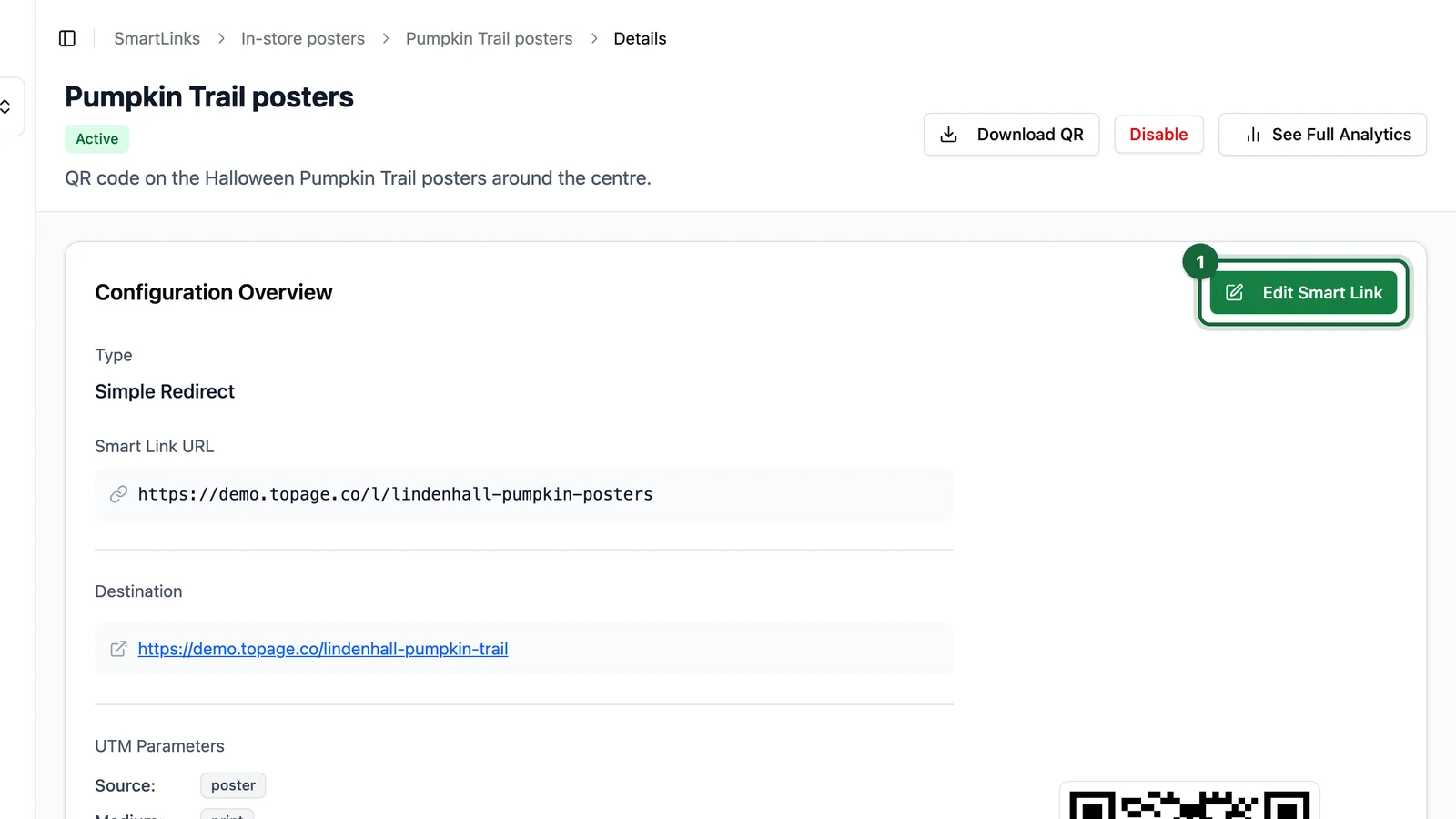
Create a new Smart Link, or open an existing one and choose Edit Smart Link.

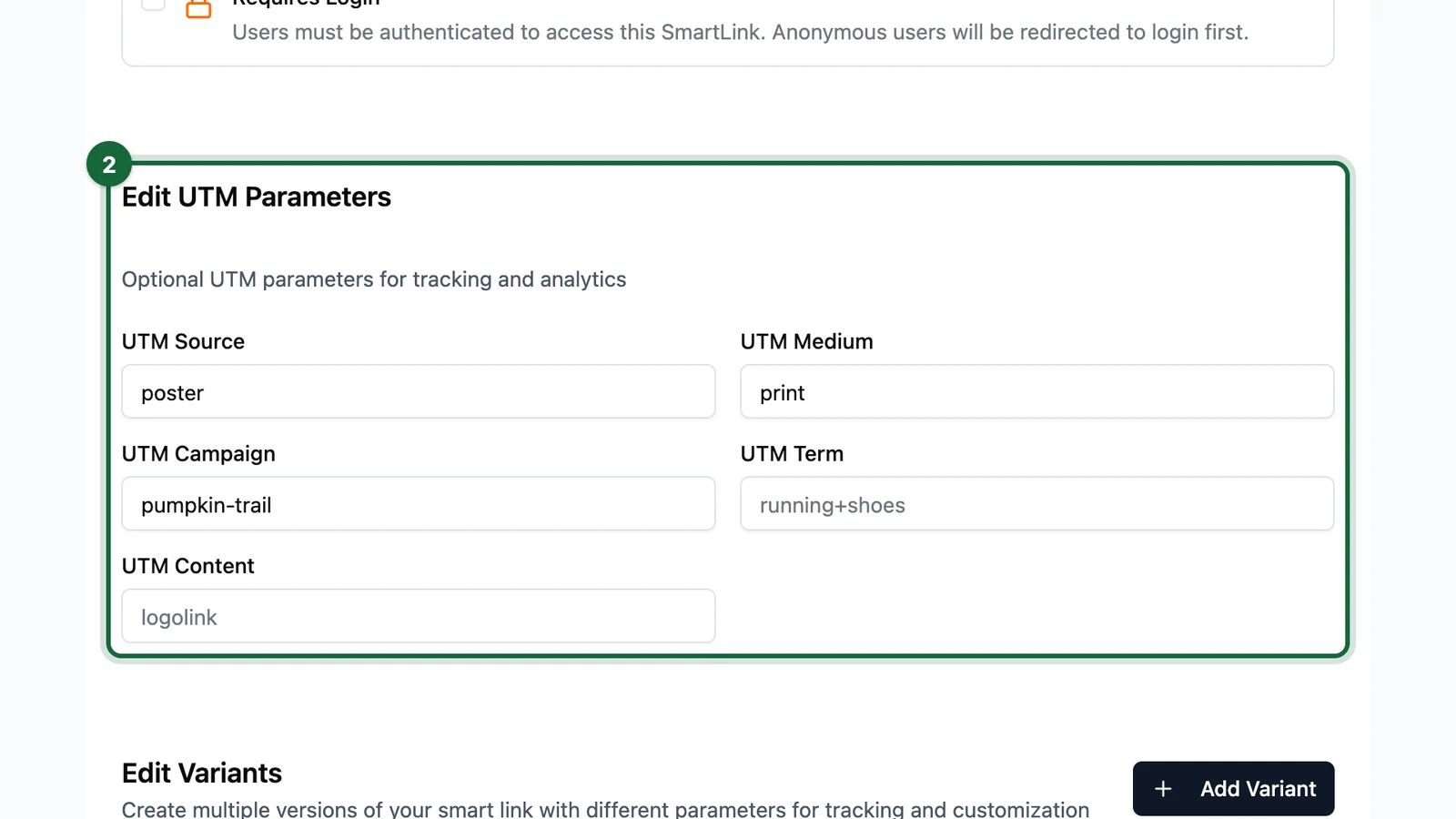
Use the Edit UTM Parameters section

In the Smart Link form, find the Edit UTM Parameters section (optional UTM parameters for tracking and analytics).

Enter any combination of UTM Source, UTM Medium, UTM Campaign, UTM Term, and UTM Content.

Edit Smart Link page showing the Edit UTM Parameters block with the five UTM fields filled for campaign tracking

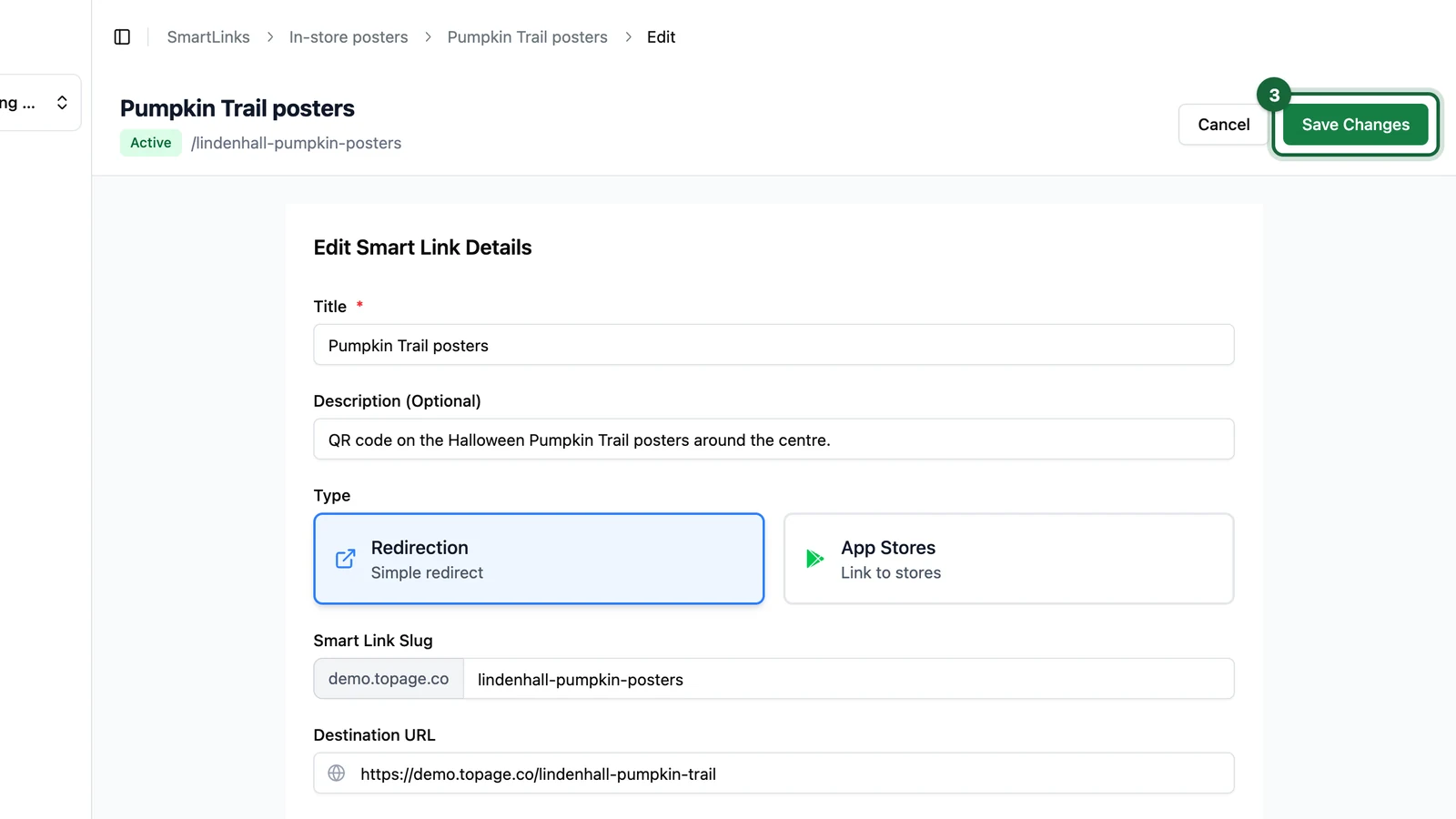
Save the UTM values, then save the Smart Link itself.

Use this approach when every visit from the Smart Link should carry the same attribution values.

When to use variants instead

Use the base Smart Link UTM fields when the same tracked context applies everywhere.

Use variants when the destination stays broadly the same, but each placement should be distinguishable. Common examples:

  • one poster design displayed in several store entrances
  • one campaign link shared in email, print, and partner media
  • one destination reused across multiple regions or venues

In those cases, create variants and give each variant its own Variant Name, Variant ID, and optional tracking details.

Variant-specific UTM parameters

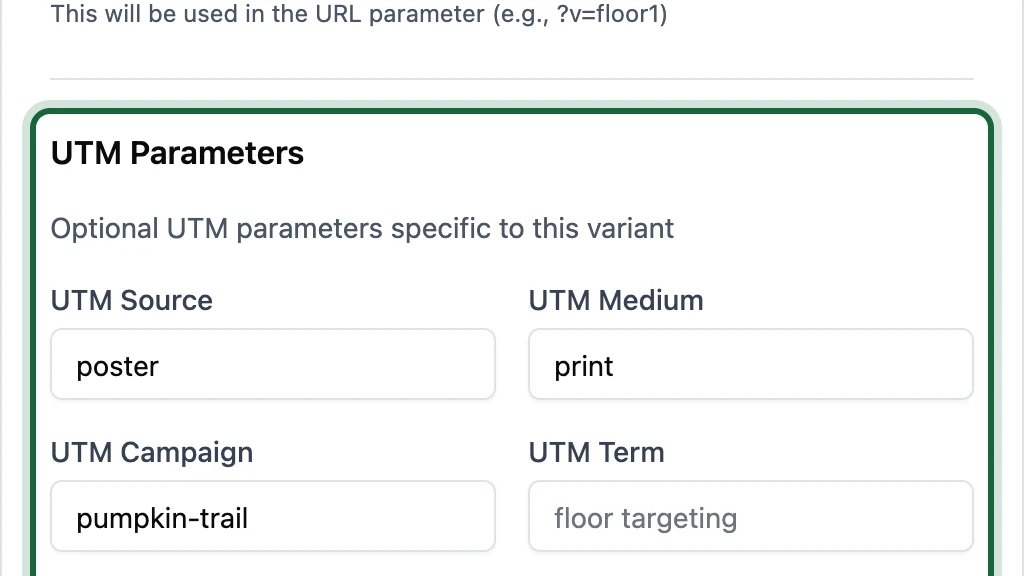
Each variant can carry its own UTM values. This is useful when the main Smart Link represents the shared destination, but each placement still needs its own attribution.

Add or edit a variant to open the form: under Edit Variants, use + Add Variant (or edit an existing variant). The variant form includes UTM Parameters specific to that variant, plus Custom Variables for extra key-value pairs.

Add Variant dialog with variant UTM fields and a Custom Variables row (floor_id example)

Example:

VariantExample URL ideaWhy it helps
window-a.../l/spring-launch?v=window-aTrack the front-window poster separately
newsletter-may.../l/spring-launch?v=newsletter-maySeparate email traffic from print
food-court.../l/spring-launch?v=food-courtCompare one venue placement against another

When you later open Smart Link analytics, the Scans by Variant widget helps you compare those placements directly inside OmniLab.

What custom variables are for

Custom Variables are additional named parameters you add at variant level.

On the add-or-edit variant form, Custom Variables sit below the variant UTM Parameters. Use + Add Variable to add rows, then set each key and value pair. This screenshot is from the Add Variant flow; editing an existing variant uses the same fields.

Add Variant form with the Custom Variables section, two key-value rows, and the Add Variable action

Use them when you need more context than the standard UTM fields provide. For example:

VariableExample valuePossible use
placementwindow-aDistinguish one printed asset from another
store_codeparis-centrePass a venue or store identifier
creativesummer-offer-bSeparate two artwork versions

Choose names your reporting team will understand later. Short, consistent names are easier to reuse across multiple Smart Links.

A practical tracking model

This is a simple pattern that scales well:

LevelWhat to track there
Main Smart LinkThe overall campaign or channel context
VariantThe exact placement, region, venue, or creative version

For example, a Smart Link for a seasonal campaign could use:

  • main Smart Link: utm_campaign=spring_launch_2026
  • variant window-a: placement=window-a
  • variant food-court: placement=food-court

That gives you one clean destination strategy, one set of OmniLab analytics, and enough detail to compare placements later.

Keep your naming taxonomy consistent

If one campaign uses poster, print, and in-store to mean the same thing, your downstream analysis becomes harder. Decide on one naming style before you build a larger Smart Links library.

Was this helpful?

Optional comments help us improve this page for future authors and readers.

On this page