Download QR code
Open the QR designer, choose colors and formats, and export one or more Smart Link QR codes.
In this article, you'll open the Smart Link QR designer, customize the look of the code, and download either one QR code or a ZIP that includes selected variants.
Prerequisites
- The Smart Link is active.
- The destination has already been tested.
- If you plan to export variant QR codes, the variants already exist.
Where to open the QR designer
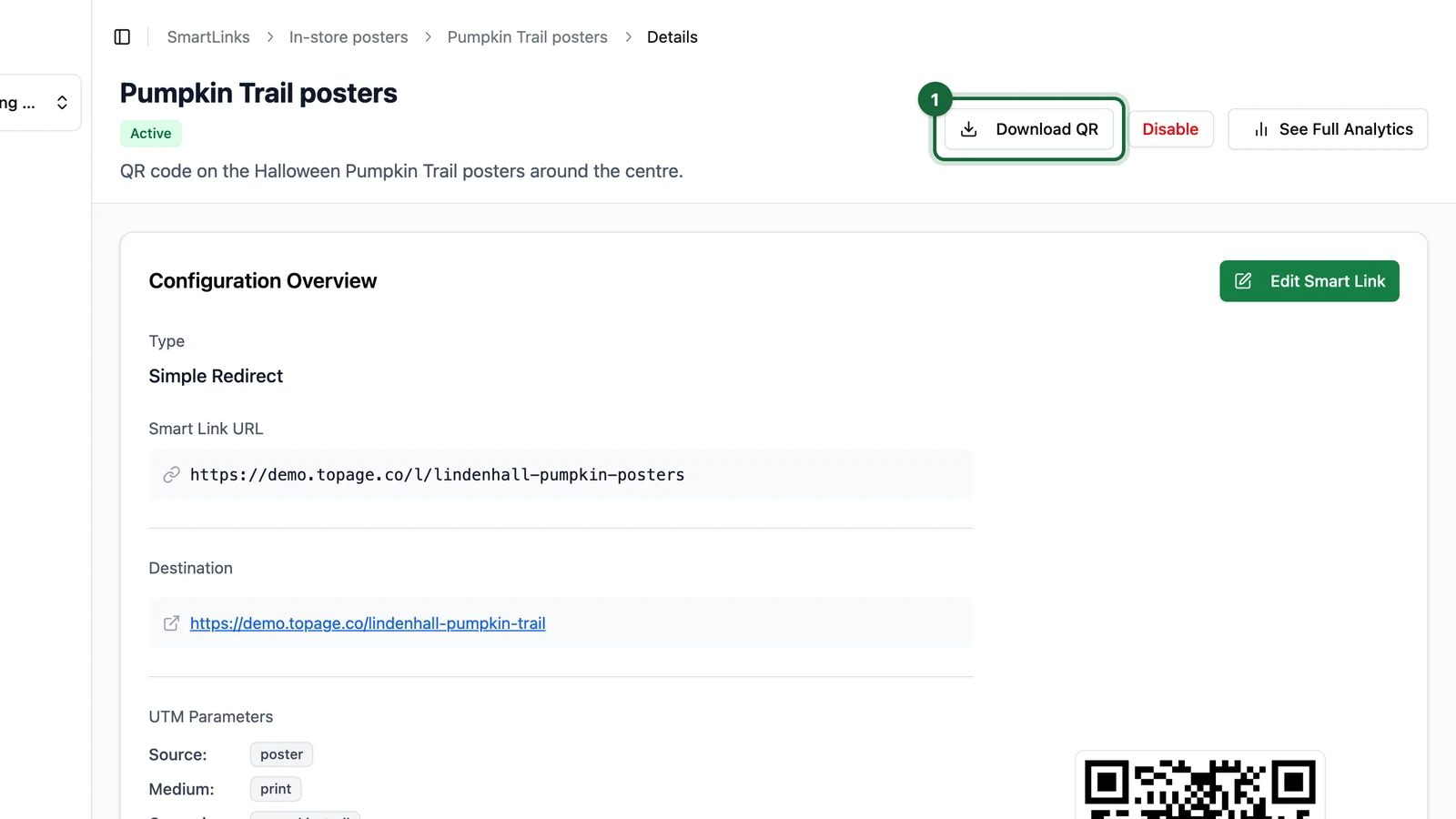
Open the Smart Link detail page, then click Download QR.
That opens the QR designer for the current Smart Link URL.
From the details page, Download QR is in the header next to the main Smart Link actions.

What you can customize today
The current QR designer supports:
| Option | What it does |
|---|---|
Foreground color | Sets the dark parts of the QR code |
Background color | Sets the light parts of the QR code |
Custom Icon | Optional PNG or JPG (up to 2 MB) centered in the QR; the UI shows the asset size and auto-scale (15% of the QR) |
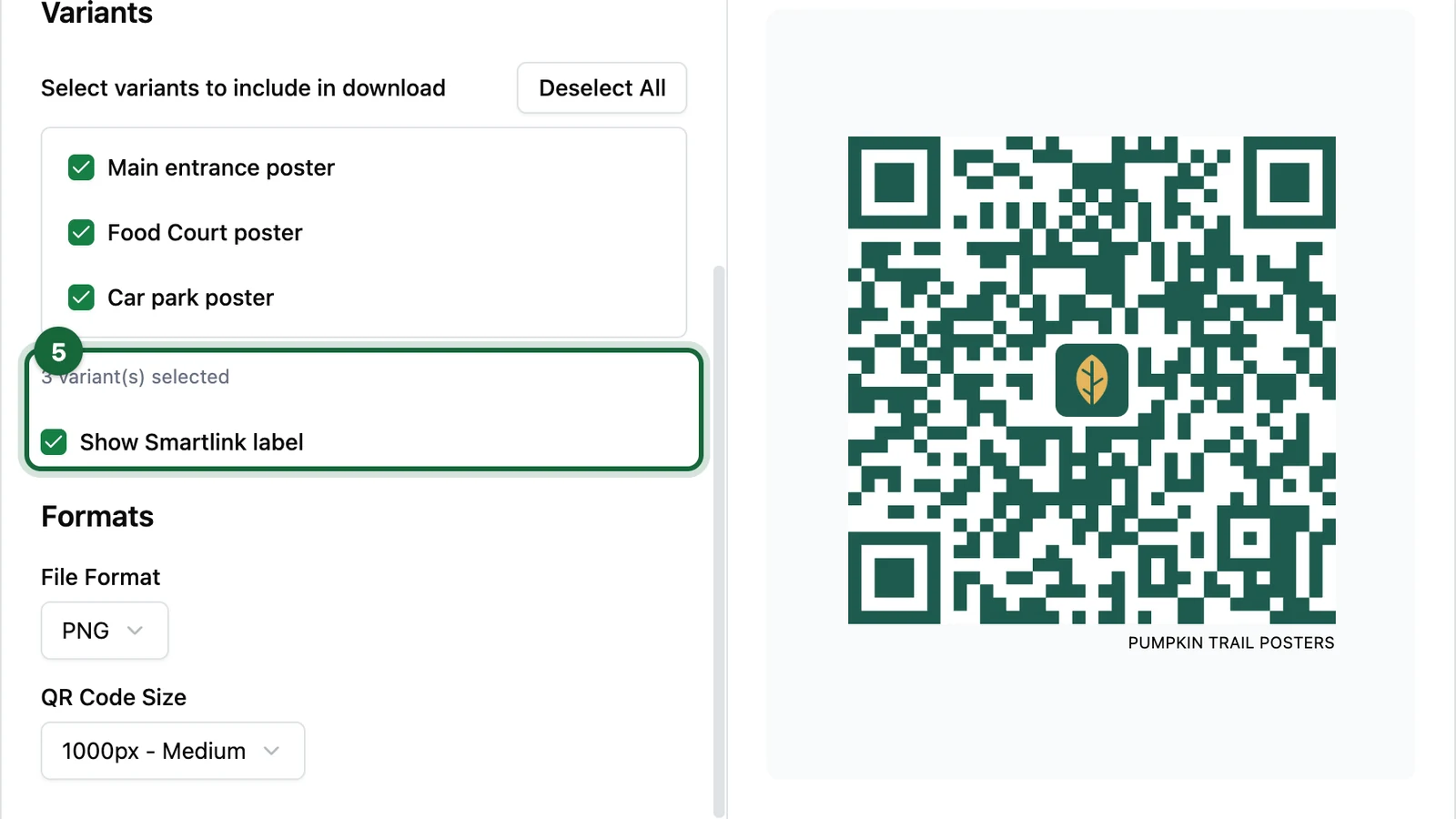
Show Smartlink label | Adds a label under the downloaded QR code |
PNG or SVG | Lets you choose raster or vector output |
| PNG size options | When PNG is selected, choose a preset such as 512px (Small) through 4000px (Maximum) |
| selected variants in one ZIP | Downloads the main QR code together with selected variant QR codes |
Download a QR code
Open the Smart Link detail page
Go to the Smart Link you want to distribute and click Download QR.
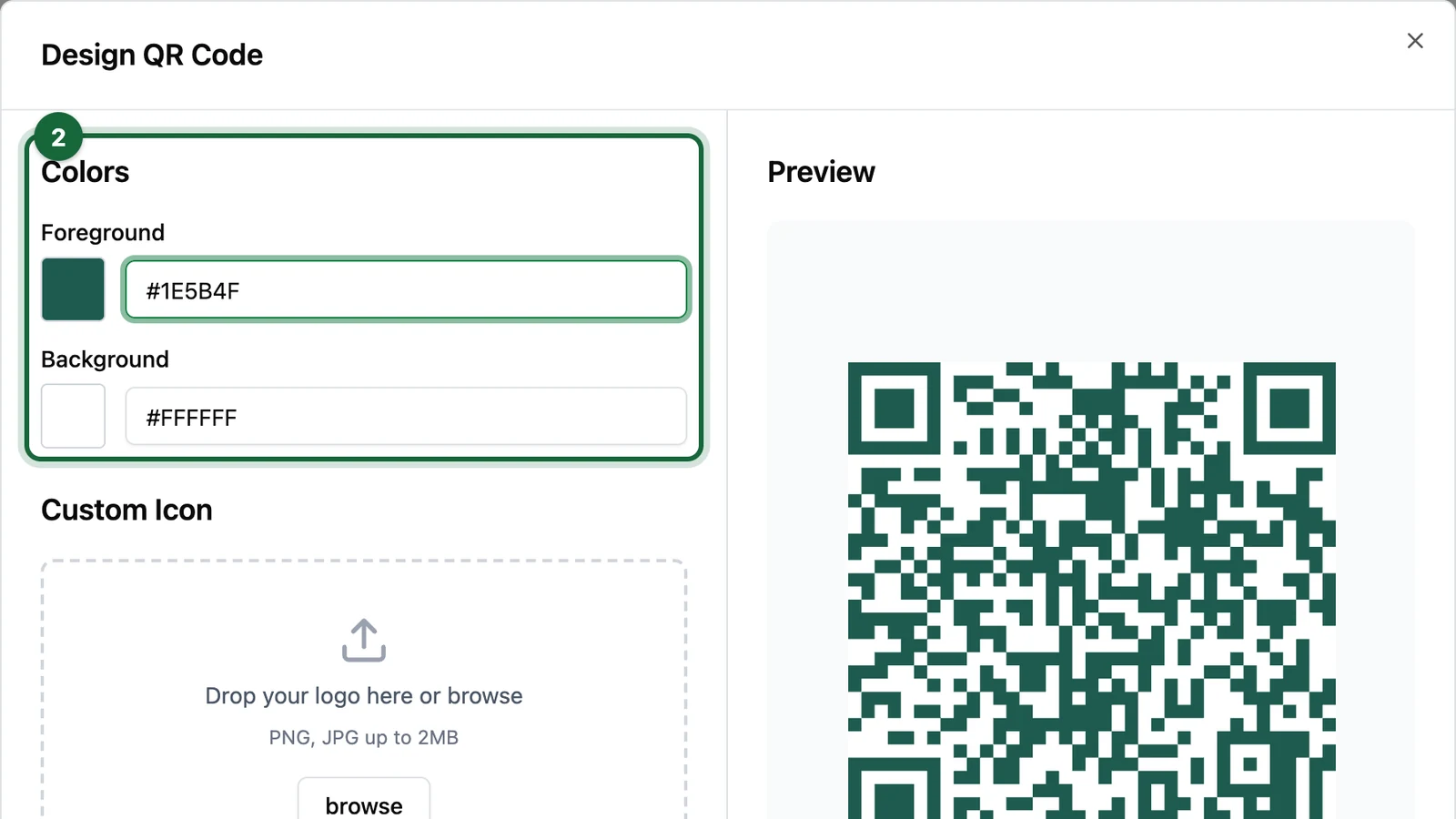
Choose colors
Set the Foreground and Background colors, then check the live preview in the Preview panel.

Add a custom icon or label (optional)
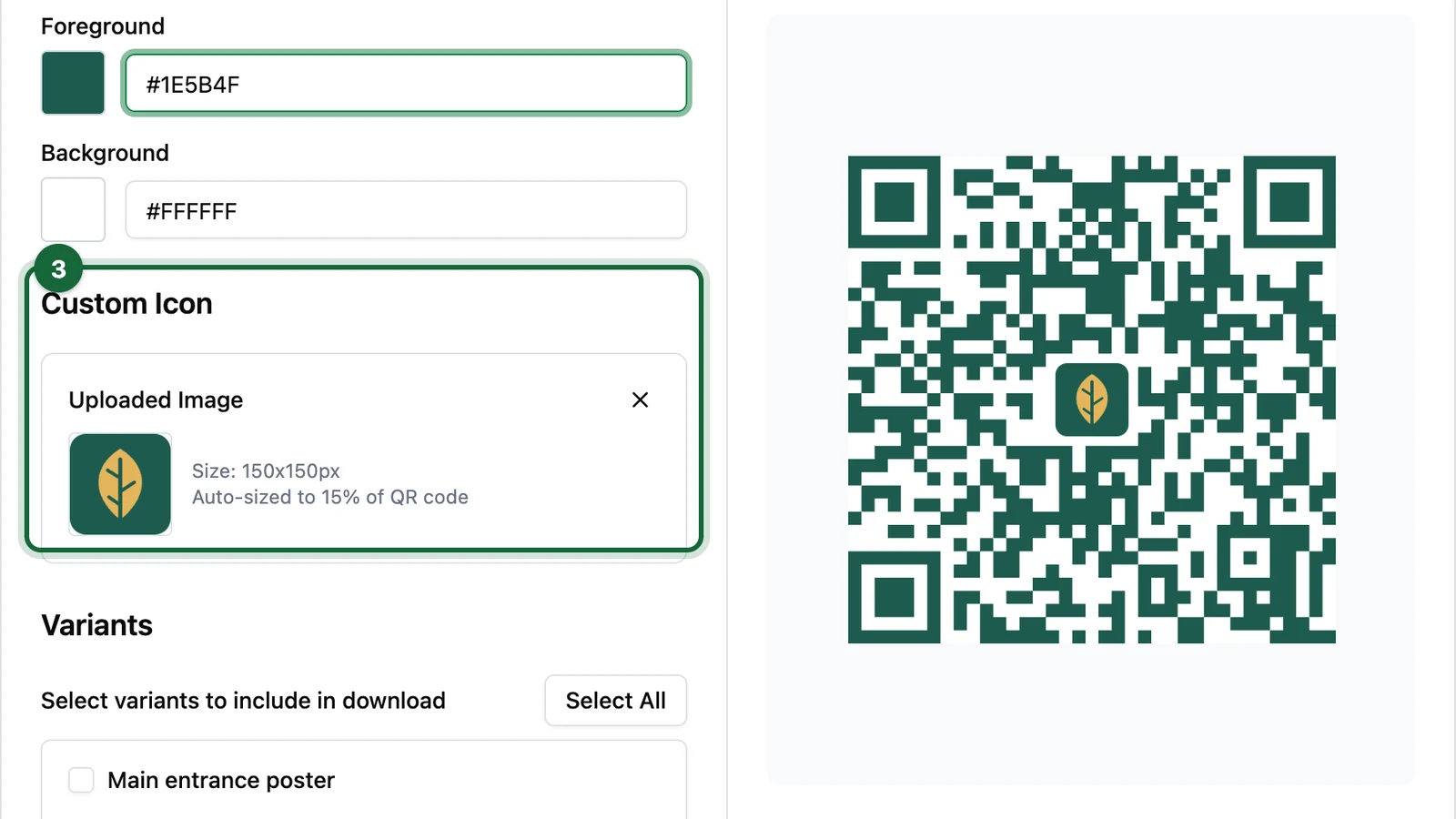
Under Custom Icon, drop a file or click browse. The designer shows the image size and that it is auto-sized to 15% of the QR code; the preview updates so you can see the mark in context.
To include a text label under the code in the downloaded file, turn on Show Smartlink label.
![]()
Choose the file format
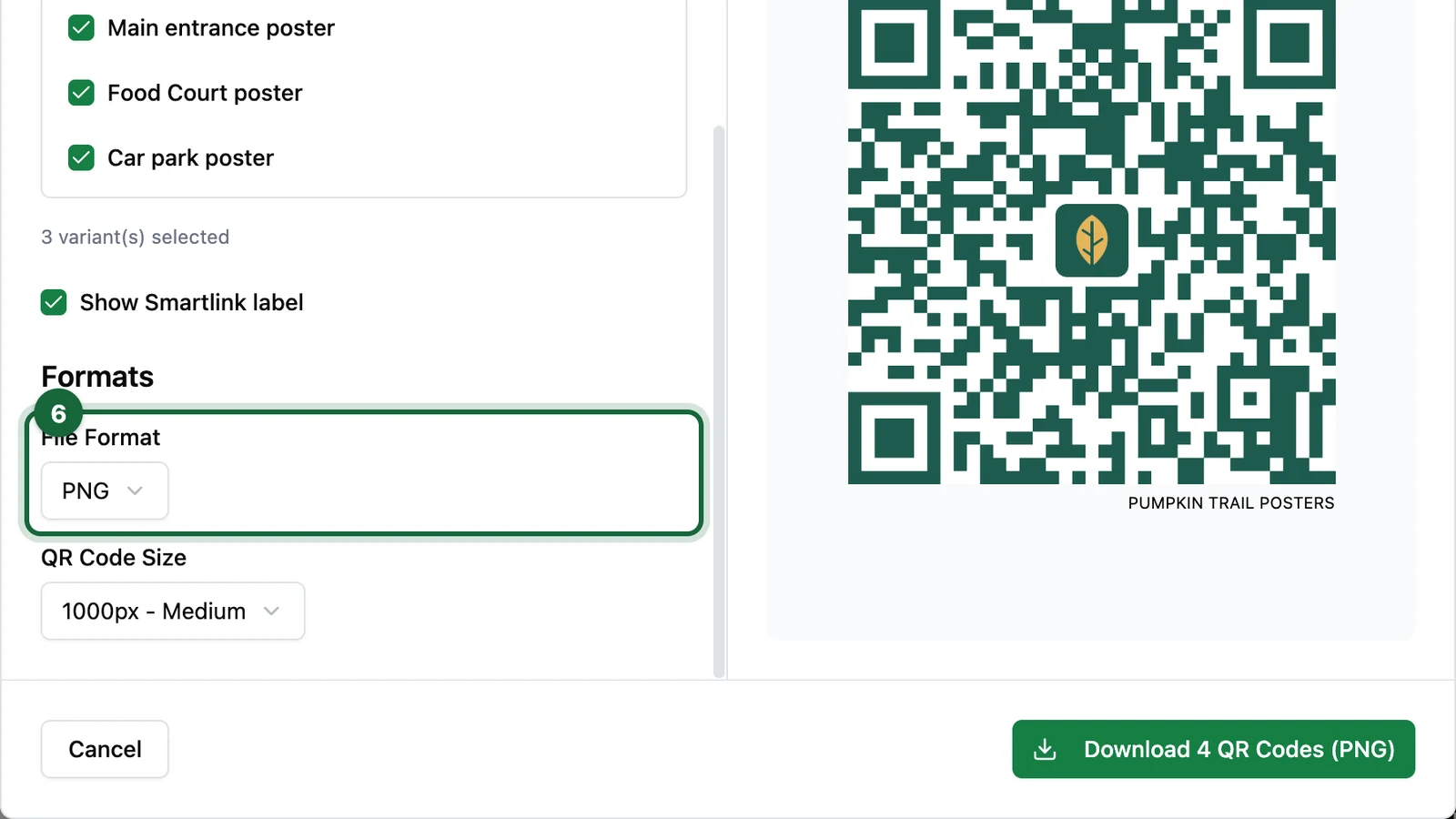
Under Formats, open File Format and pick PNG or SVG.
Pick PNG when you want a standard downloadable image file.
Pick SVG when the artwork may need to scale for larger-format print or design work.

Pick a PNG size if needed
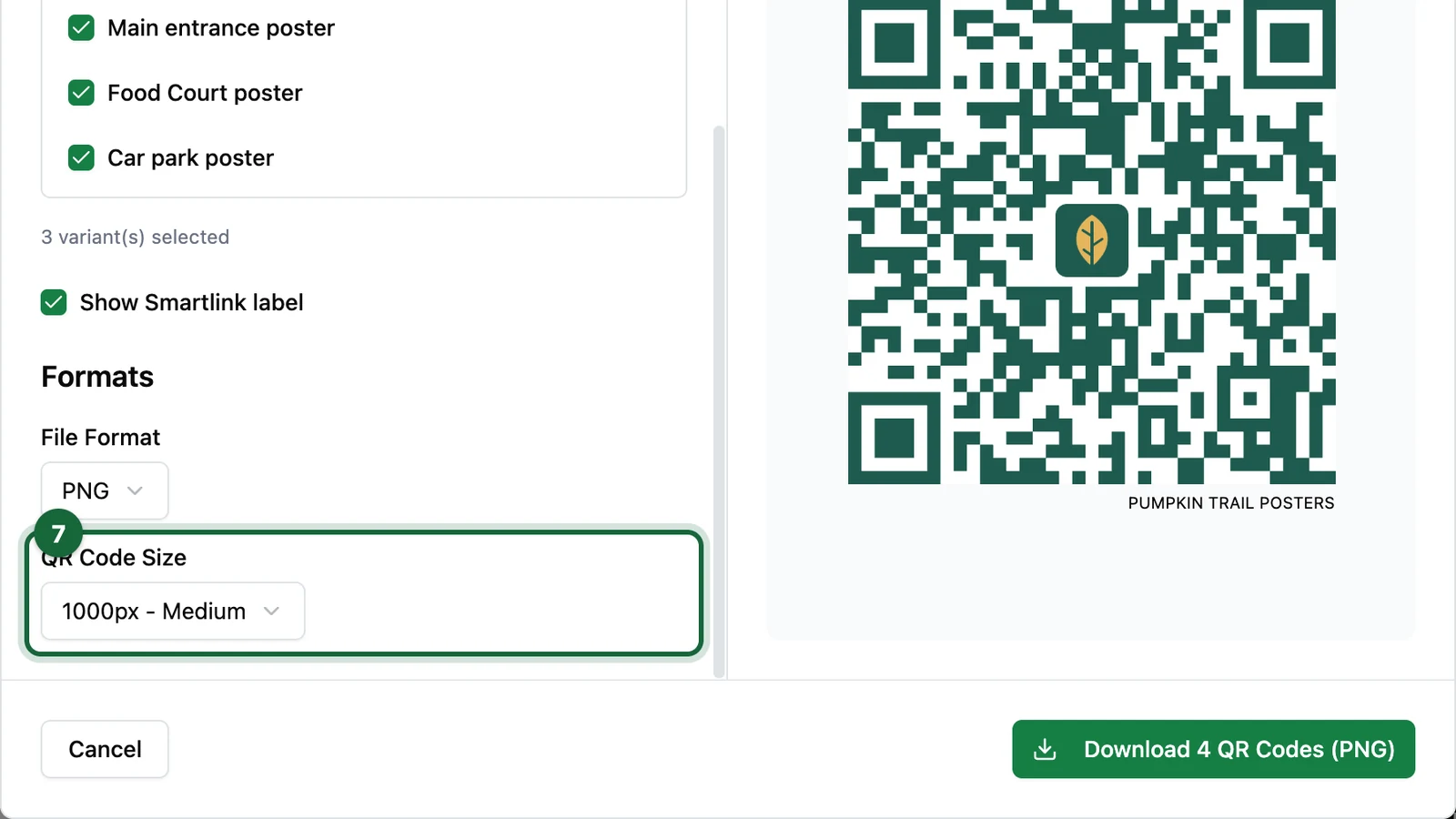
When PNG is selected, open QR Code Size to choose a preset. The list includes sizes from 512px - Small up to 4000px - Maximum, with labels such as Medium, Large, and Extra Large in between.
Choose the smallest size that still matches the final use case, then test the real exported QR code before launch.

Include variants when required
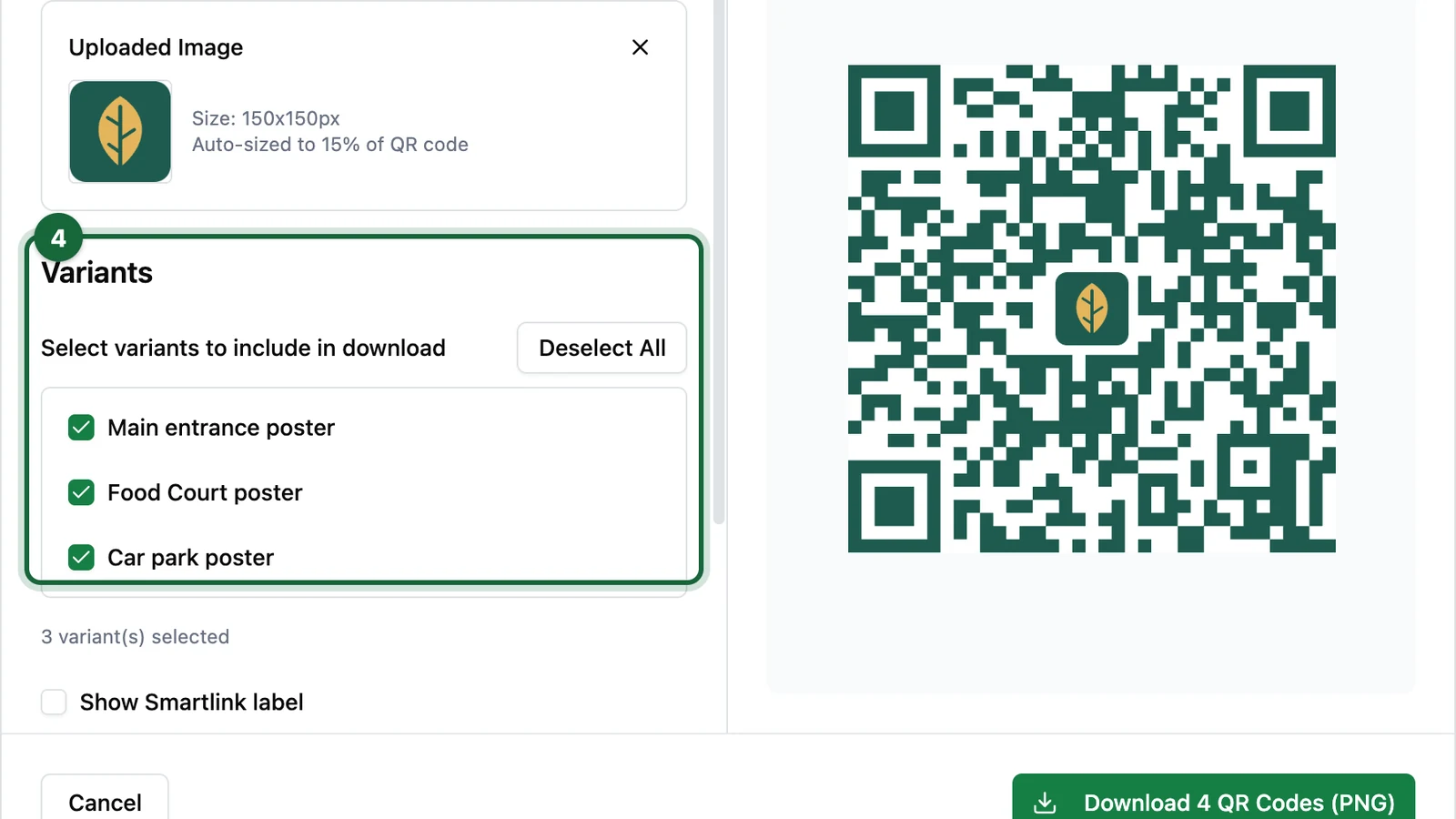
If the Smart Link has variants, select the ones you want to include.
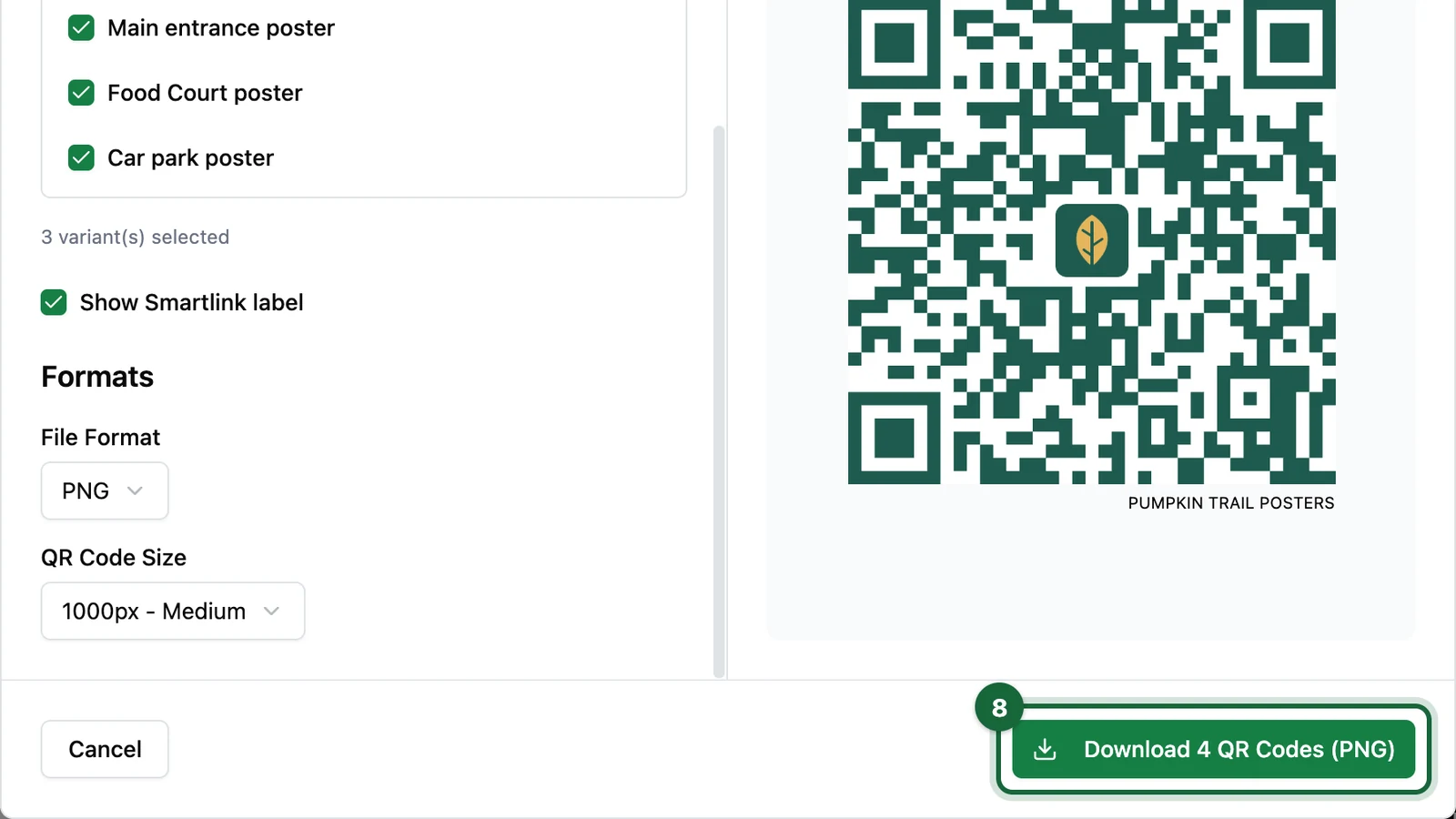
When one or more variants are selected, OmniLab downloads a ZIP containing the main Smart Link QR code plus the selected variant QR codes.
Download and test the final files
Download the QR code or ZIP, then scan the exact exported file from a phone before it goes to print or to another team.
How variant downloads work
The main Smart Link QR code points to the base URL:
https://your-domain.example/l/spring-launchEach selected variant QR code points to its own variant URL:
https://your-domain.example/l/spring-launch?v=food-courtThat is what makes variant-level reporting possible later in Scans by Variant.
Design tips that improve scannability
- keep strong contrast between foreground and background
- test logo versions carefully before printing
- prefer
SVGfor artwork that must scale up - leave enough white space around the QR code in the final layout
- test both the main QR code and any variant QR codes
Start simple, then brand
For a first launch, download a plain black-on-white QR code, test it, and only then add brand colors, a logo, or a label. It is the fastest way to separate design choices from redirect problems.