Variants
Track locations, channels, and placements separately without creating a new Smart Link each time.
In this article, you'll learn what Smart Link variants are, when to use them, and how to configure each one with its own identifier, tracking values, and analytics.
What a variant is
A variant is a named version of one Smart Link. It keeps the same main destination strategy, but gives a specific placement, channel, or location its own URL and its own analytics trail.
The main Smart Link URL looks like this:
https://your-domain.example/l/spring-launchEach variant keeps the same base slug and adds its own ID through the v parameter:
https://your-domain.example/l/spring-launch?v=window-aThat makes variants ideal when you want separate reporting without creating a completely separate Smart Link for every placement.
When to use variants
Variants work best when:
- one campaign is shared in several physical locations
- one destination is reused across multiple channels
- the same QR code design needs separate reporting by placement
- you want one Smart Link to act as the tracking hub for a family of related URLs
Typical examples:
| Scenario | Variant examples |
|---|---|
| One poster artwork across a mall | north-entrance, food-court, cinema-bridge |
| One campaign across channels | newsletter, instagram-bio, window-poster |
| One activation across several stores | paris-centre, lyon-centre, marseille-centre |
The fields in a variant
Each variant includes:
| Field | What it is for |
|---|---|
Variant Name | Human-readable label for operators, such as North Entrance Poster |
Variant ID | URL-safe identifier used in the ?v= parameter |
variant-specific UTM Parameters | Optional placement-level tracking overrides or additions |
Custom Variables | Optional extra query parameters for downstream reporting |
Variants can also be activated, deactivated, edited, and deleted independently from the main Smart Link.
Create a variant
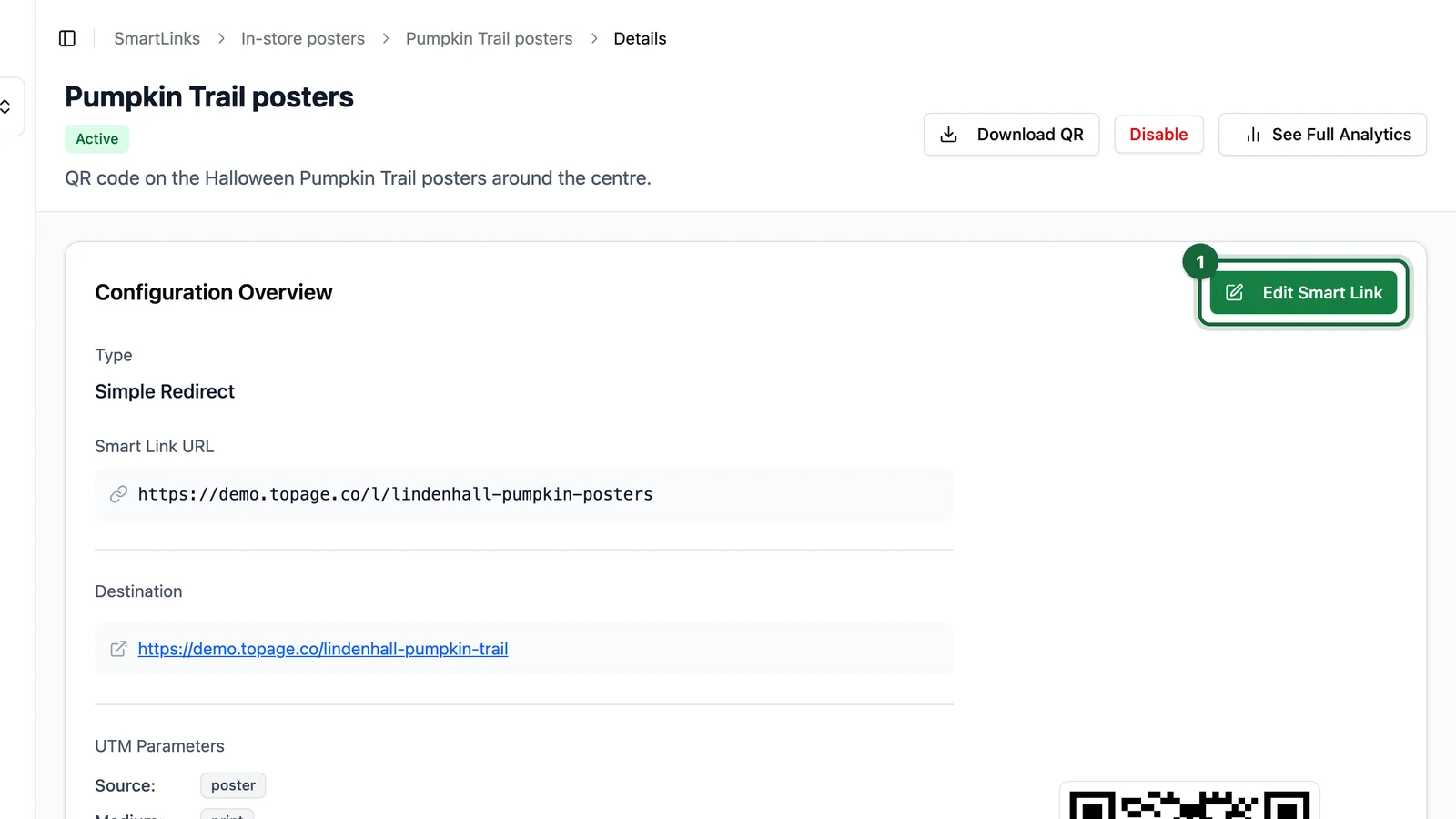
Open the Smart Link form
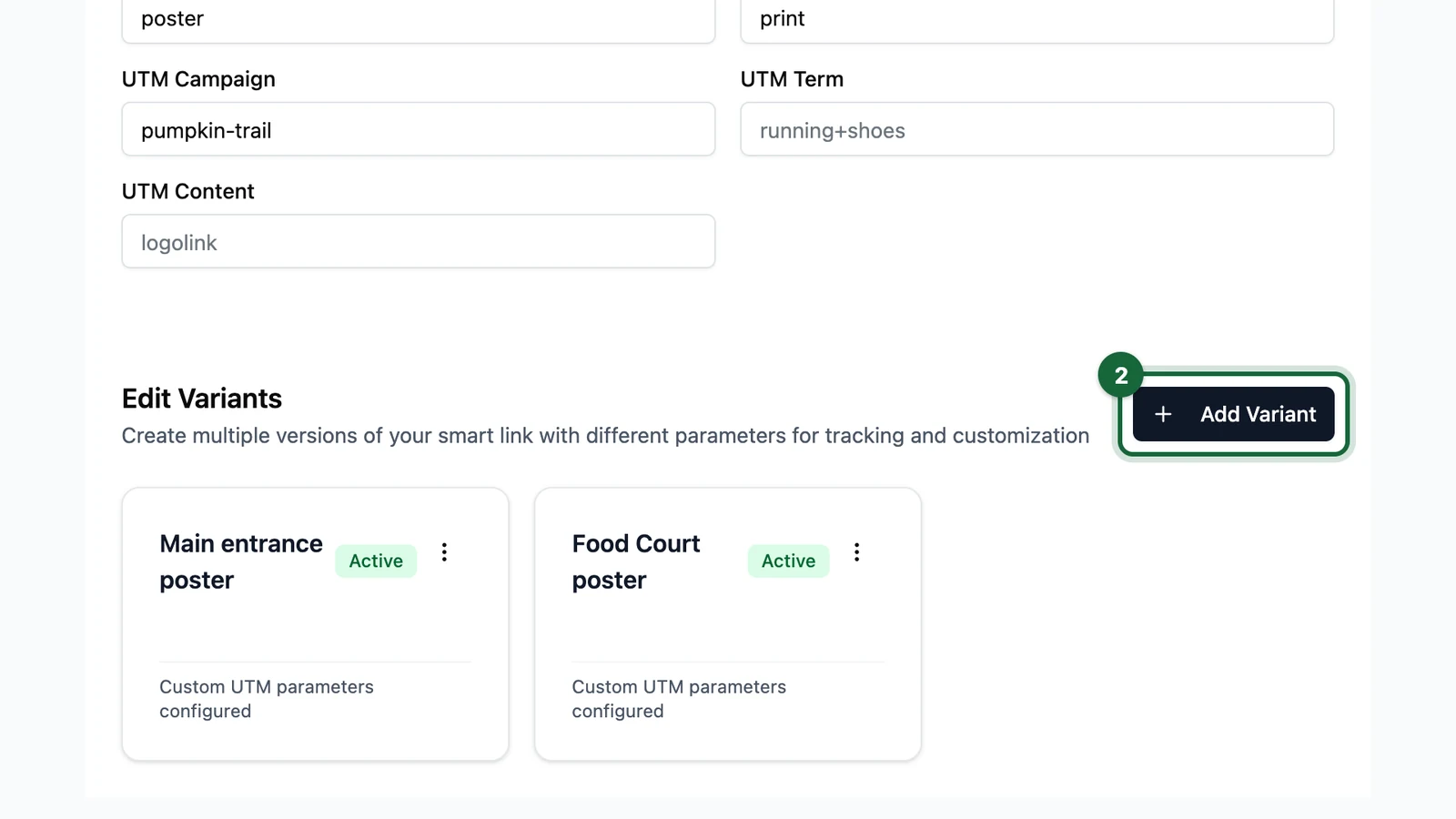
Create a new Smart Link or edit an existing one, then go to the Variants section.

In the example below, the Smart Link is set up for one mall info page shared across three poster placements. Each placement becomes its own variant with a distinct Variant ID (north-entrance, food-court, cinema-bridge).
Add the variant identity
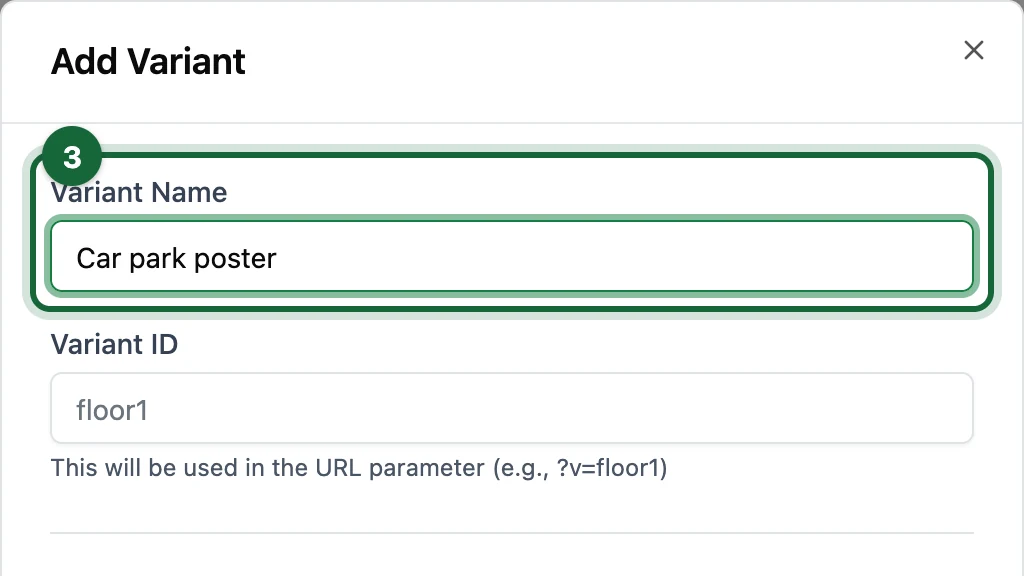
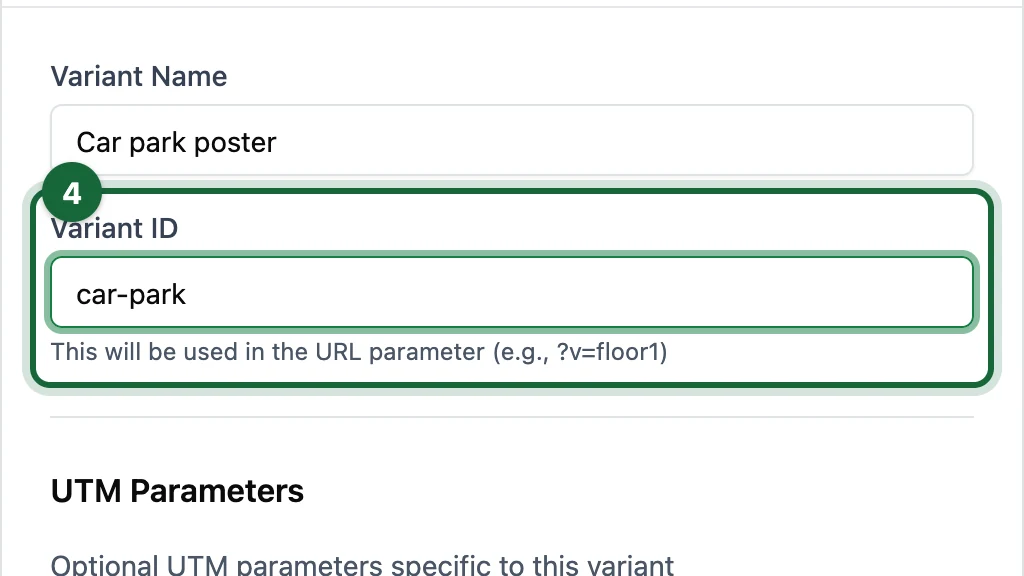
Click Add Variant, then enter:
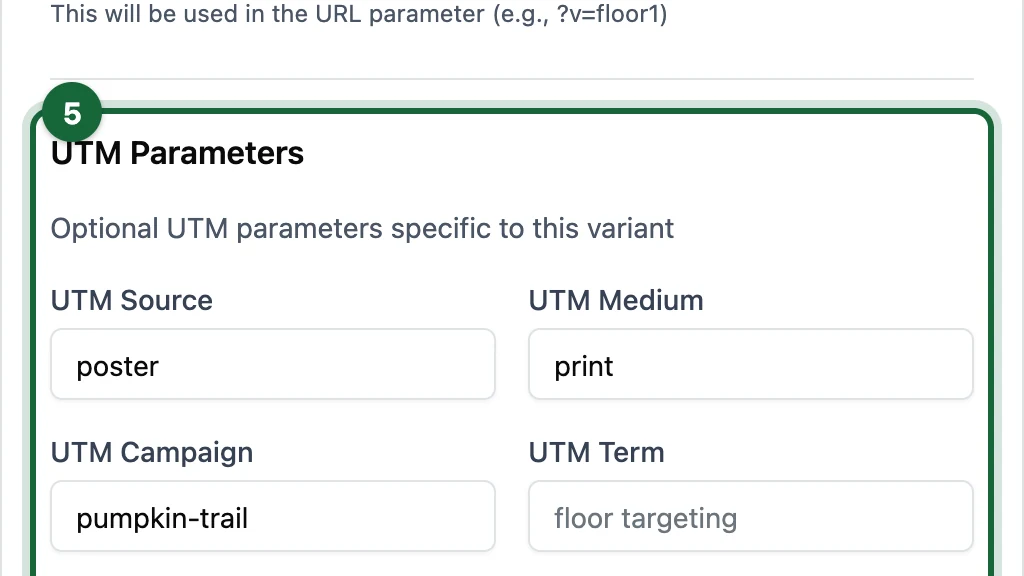
Variant Name, such asFood Court PosterVariant ID, such asfood-court
Choose IDs that stay readable in a URL and make sense in reports later.

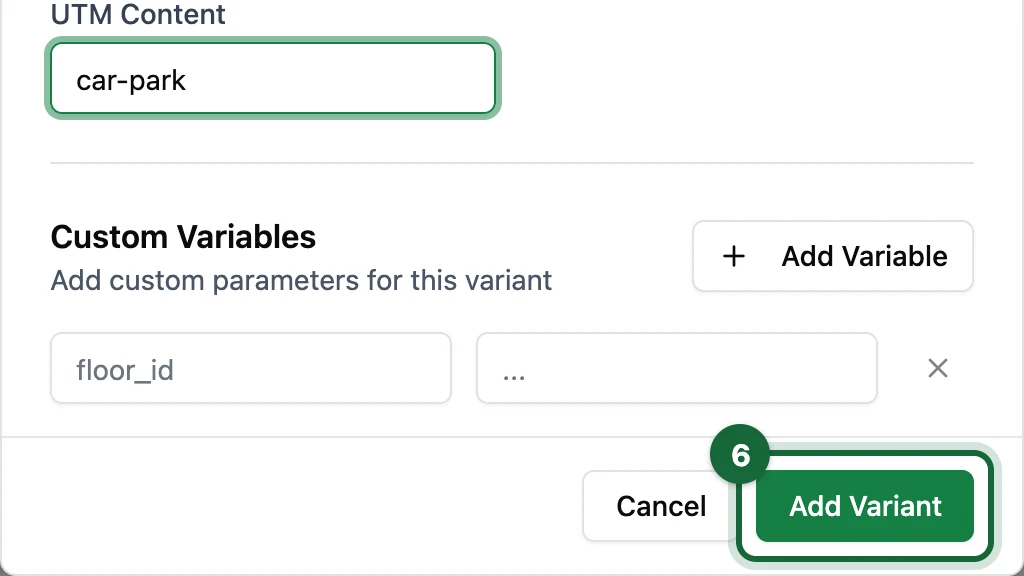
Click Add Variant in the dialog to save that row, then use Add Variant again for each additional placement. For the three-poster example, you would add North Entrance Poster (north-entrance), Food Court Poster (food-court), and Cinema Bridge Poster (cinema-bridge).
Add optional tracking fields
If this placement needs its own attribution, add variant-specific UTM Parameters.
If you need extra context that does not fit standard UTM fields, add Custom Variables such as a placement code, store code, or artwork reference.
Save and test the variant URL
When every variant is listed on the form, the section shows one card per placement (here, three Active variants for the same Smart Link).

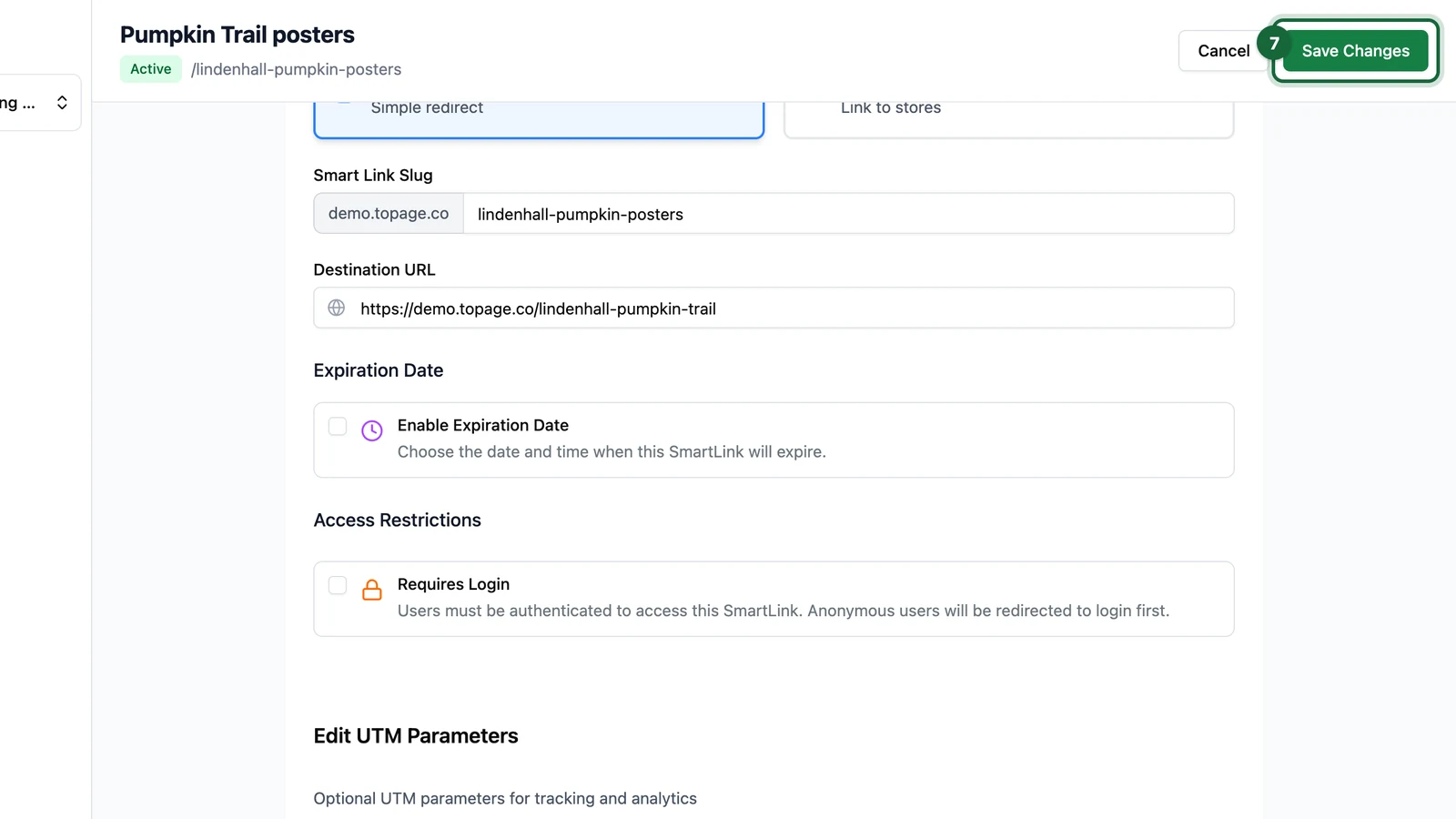
Click Save & Activate on the Smart Link. OmniLab saves the configuration and opens the Details page (you can also open the Smart Link later from the folder list).
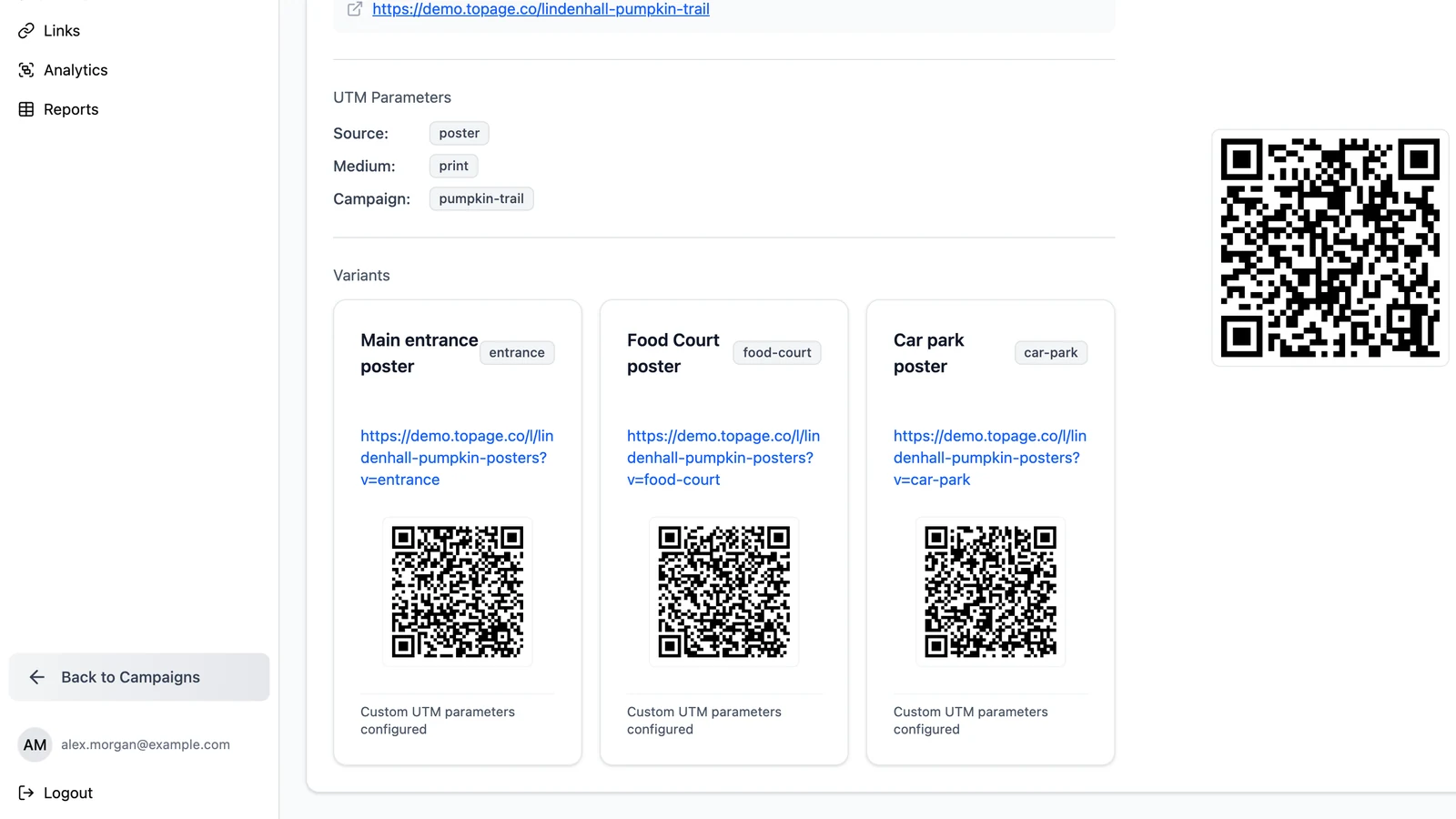
Open or scan a variant URL to confirm it resolves correctly. For a slug such as mall-campaign, a food-court placement looks like this:
https://your-domain.example/l/mall-campaign?v=food-courtAfter you save: overview, edits, and QR exports
See variants on the Details page
On Details, the Configuration Overview summarizes the Smart Link and lists every variant with its own full URL (the base link plus ?v=<variant-id>). That view is the usual place to copy a link for tests, share with a teammate, or confirm which ID belongs to which placement before you print. The screenshots below use a sample Smart Link; your own URLs will show your domain and slug.

Update a variant later
To change tracking, rename a placement, turn a placement off, or remove a variant, click Edit Smart Link. In Edit Variants, open the menu on a variant card to Edit, Deactivate, or Delete.

Prefer not to change Variant ID after you have already distributed URLs, QR codes, or short links that embed the old value. Those assets encode the ID in the query string; changing it starts a “new” placement in reporting and can break existing printed materials. When you only need clearer wording for people, update Variant Name instead. Change Variant ID only when fixing a mistake or when you accept re-issuing replacement assets.
Download several variant QR codes at once
From Details, click Download QR. Under Variants, select which placements to include (Select All selects every variant). When at least one variant is selected, OmniLab downloads a ZIP containing the main Smart Link QR code plus one file per selected variant (the button label shows how many files you are about to export).
Turn on Show Smartlink label to add text under the QR in the exported image, using the Smart Link title so each file is easier to tell apart during handoff to print. Because each variant is still a separate file in the ZIP, you can match files to placements and avoid swapping the wrong code at the printer.

For format choices, sizes, and a full walkthrough, see Download QR code.
Best practices for variant IDs
- keep IDs short and reporting-friendly
- use one naming style across a campaign or organisation
- make the ID describe the placement, not the full campaign
- avoid creating duplicate meanings such as
poster-a,poster-main, andmain-posterfor the same location - avoid renaming
Variant IDafter launch unless you are prepared to update every live URL or printed QR that used the old value
Think of the variant ID as your reporting key
The Variant Name is for people. The Variant ID is what distinguishes the URL and what makes the placement measurable in practice.
How variants appear in analytics
Once traffic starts coming in, Smart Links analytics can separate performance by variant. That helps you answer questions such as:
- Which poster location generated the most scans?
- Which email placement outperformed the others?
- Which store or venue brought in the strongest traffic?
The Scans by Variant widget is usually the fastest way to compare those results.
When to create a new Smart Link instead
Create a new Smart Link instead of a variant when:
- the base destination strategy is meaningfully different
- the audience or objective is different enough to deserve its own reporting hub
- the link should live in a different folder, team workflow, or lifecycle
Use variants when the overall Smart Link is still one family of related share assets.
Related
Create a Redirection Smart Link
Start with the main Smart Link, then add variants when one destination is reused in several places.
UTM parameters & custom variables
Add placement-specific tracking and extra query parameters to each variant when needed.
Scans by variant
Compare variant performance once the Smart Link is live.
Download QR code
Include selected variants in one ZIP and optional labels for print handoff.