The customer activation platform.Every interaction becomes a qualified contact. Book a demo

Print-ready exports

Choose the right QR format, size, and layout rules before Smart Link assets go to print.

In this article, you'll learn how to prepare Smart Link QR exports for posters, flyers, counter cards, packaging, and other printed assets.

Why print needs its own check

A QR code that works on screen does not automatically work well in print. Final scan quality depends on contrast, size, surrounding layout, material, and the exact file you hand to your designer or printer.

Smart Links helps by giving you:

  • PNG and SVG output
  • multiple PNG sizes
  • optional brand colors
  • optional logo insertion
  • optional label under the QR code

Choose the right format

FormatBest forNotes
PNGEveryday artwork, office print, simple handoff filesChoose an export size that matches the final use
SVGLarger print, design workflows, artwork that may need scalingBest when the QR code must stay sharp at different sizes

If you are unsure, start with SVG for professional print workflows and PNG for simple digital handoff or light production.

Confirm the destination, slug, and any variants before you prepare print files.

If the campaign is not final yet, keep testing the Smart Link rather than sending QR artwork to print too early.

Open the QR designer

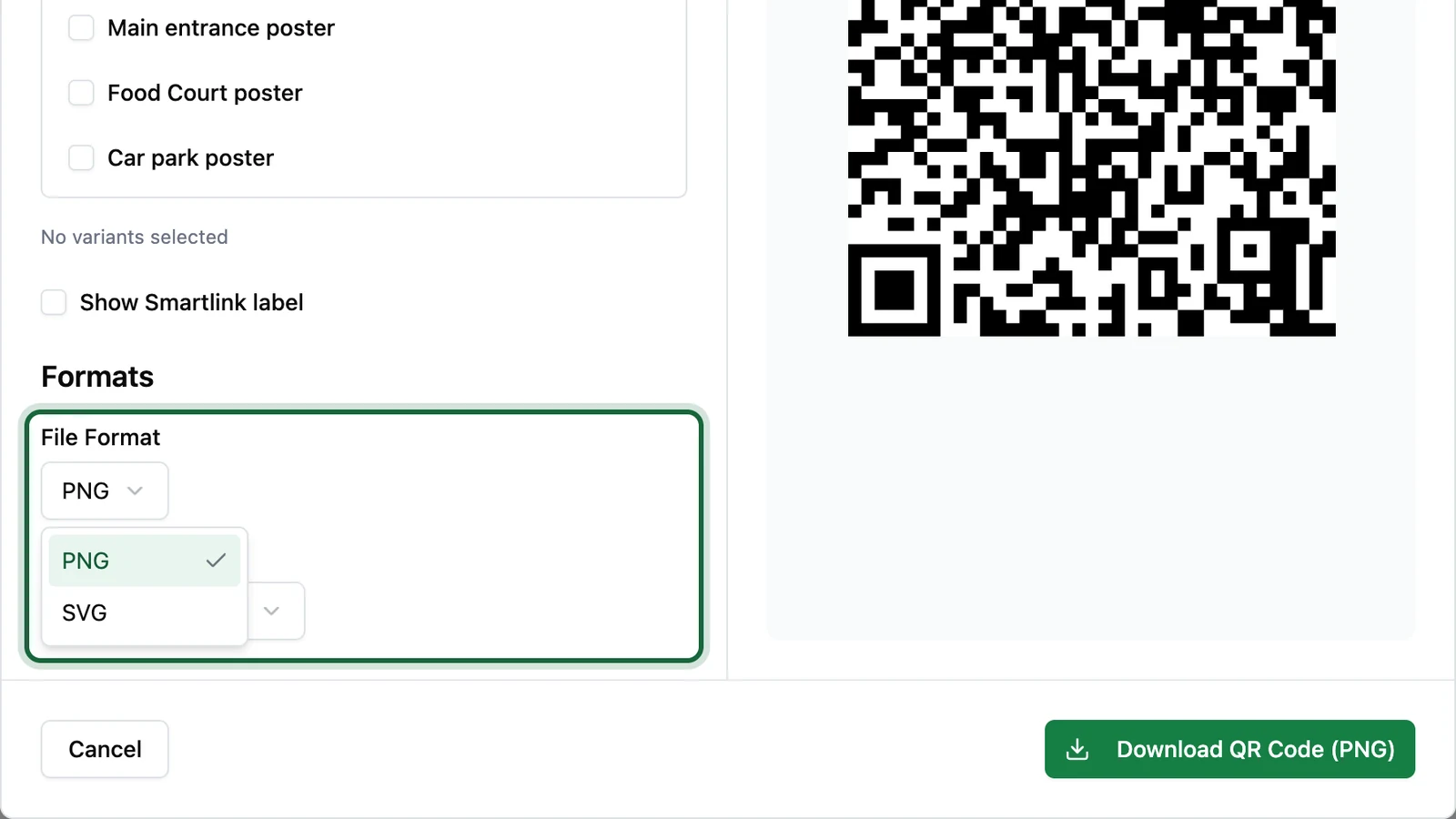
From the Smart Link detail page, click Download QR.

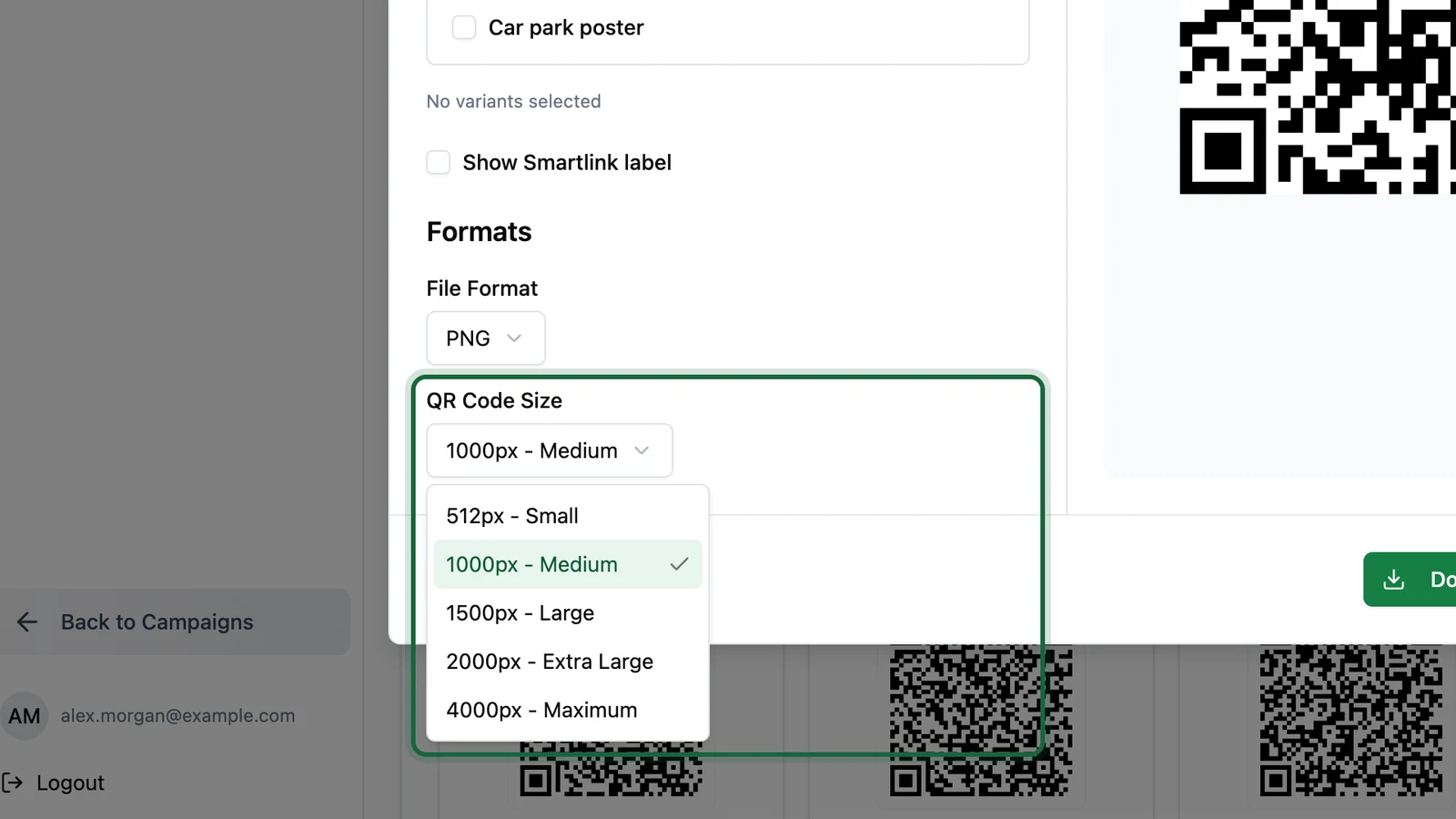
Choose the file format and, if you are exporting PNG, the most suitable size for the final use.

Design QR Code dialog with format and size options for print or design handoff

Keep the QR design easy to scan

Use strong contrast, for example a dark foreground on a light background.

If you add a logo, test the exact final artwork carefully. Branded QR codes can still scan well, but only when the design stays readable.

Export the exact files your team will use

If you need several placement-specific QR codes, select the required variants and download the ZIP.

If you need one shared code only, download the main Smart Link QR file.

Test the final printed size

Before mass print, test the QR code at the size it will really appear in the layout.

Scan it with at least one iPhone and one Android device from a realistic distance.

Practical print guidance

These rules are a safe starting point:

  • avoid printing very small QR codes for public signage
  • leave a clear white margin around the code so scanners can isolate it quickly
  • avoid busy backgrounds behind the QR code
  • do not let another design element overlap the code
  • if you add a label, make sure it does not crowd the QR itself

For close-range print such as flyers, labels, or counter cards, avoid going much smaller than about 2 cm x 2 cm unless you have tested the final result carefully.

Format and size examples

Use caseGood starting point
Flyer or counter cardPNG at a moderate size, or SVG if a designer will place it
Poster or window vinylSVG, or a larger PNG export if vector is not required
Simple office handoutPNG with default or medium sizing
Multi-location print packZIP export with selected variant QR codes

If the asset may stay in use for a while, Smart Links is usually the safer print choice because you can:

  • update the destination later without reprinting
  • track placements with variants
  • use one app to manage QR design and analytics together

Was this helpful?

Optional comments help us improve this page for future authors and readers.

On this page