Test the Smart Link
Verify the redirect, QR code, variants, and tracking before you share or print the Smart Link.
In this article, you'll run a practical QA pass on a Smart Link before launch so you can catch redirect, QR, variant, or tracking problems before they reach real users.
Prerequisites
- The Smart Link has been saved and activated.
- You know the intended destination URL.
- If the Smart Link points to an OmniLab campaign, the campaign is already published.
What to verify
Before you print or distribute a Smart Link, confirm five things:
- the public URL opens
- the redirect lands on the correct destination
- the QR code scans on a real phone
- any variants open the correct
?v=URL - analytics records the test traffic for the right date range
Test checklist
Open the Smart Link URL in a browser
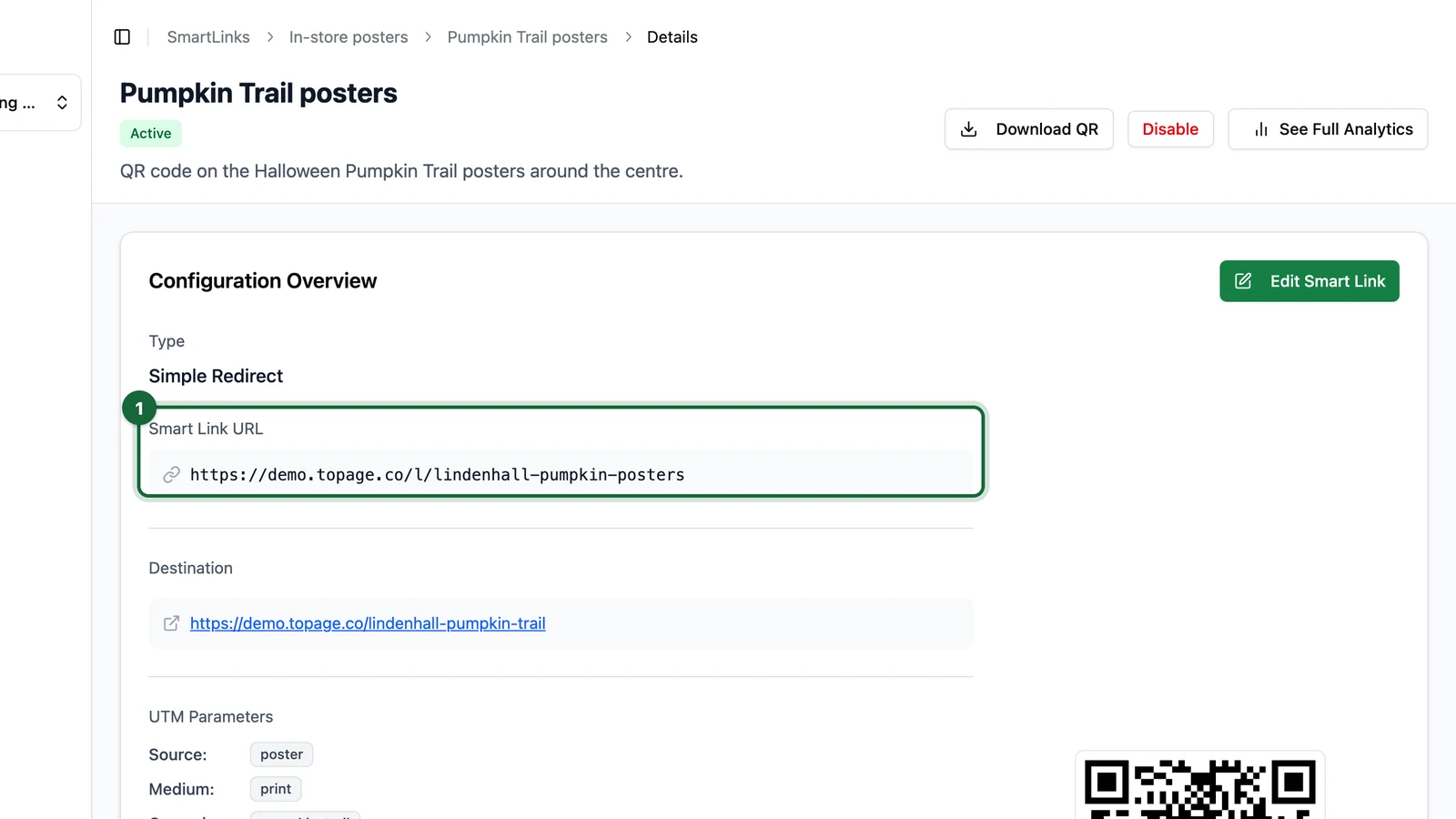
Start with the main Smart Link URL and open it in a desktop browser.
Confirm that it resolves correctly and lands on the page you expect.
The public URL and destination are easy to copy from the Smart Link detail page.

Check any launch conditions
If the Smart Link uses Requires Login, test the unauthenticated and authenticated flows.
If it uses Enable Expiration Date, confirm the date is still correct before launch and that the link has not already moved into an expired state.
Scan the QR code on a phone
Use the QR code you plan to distribute, not just the plain browser URL.
Confirm that the phone scan opens the same destination correctly on mobile. This is especially important if the Smart Link leads to an app-store path, embedded experience, or mobile-first landing page.
Test every variant you plan to distribute
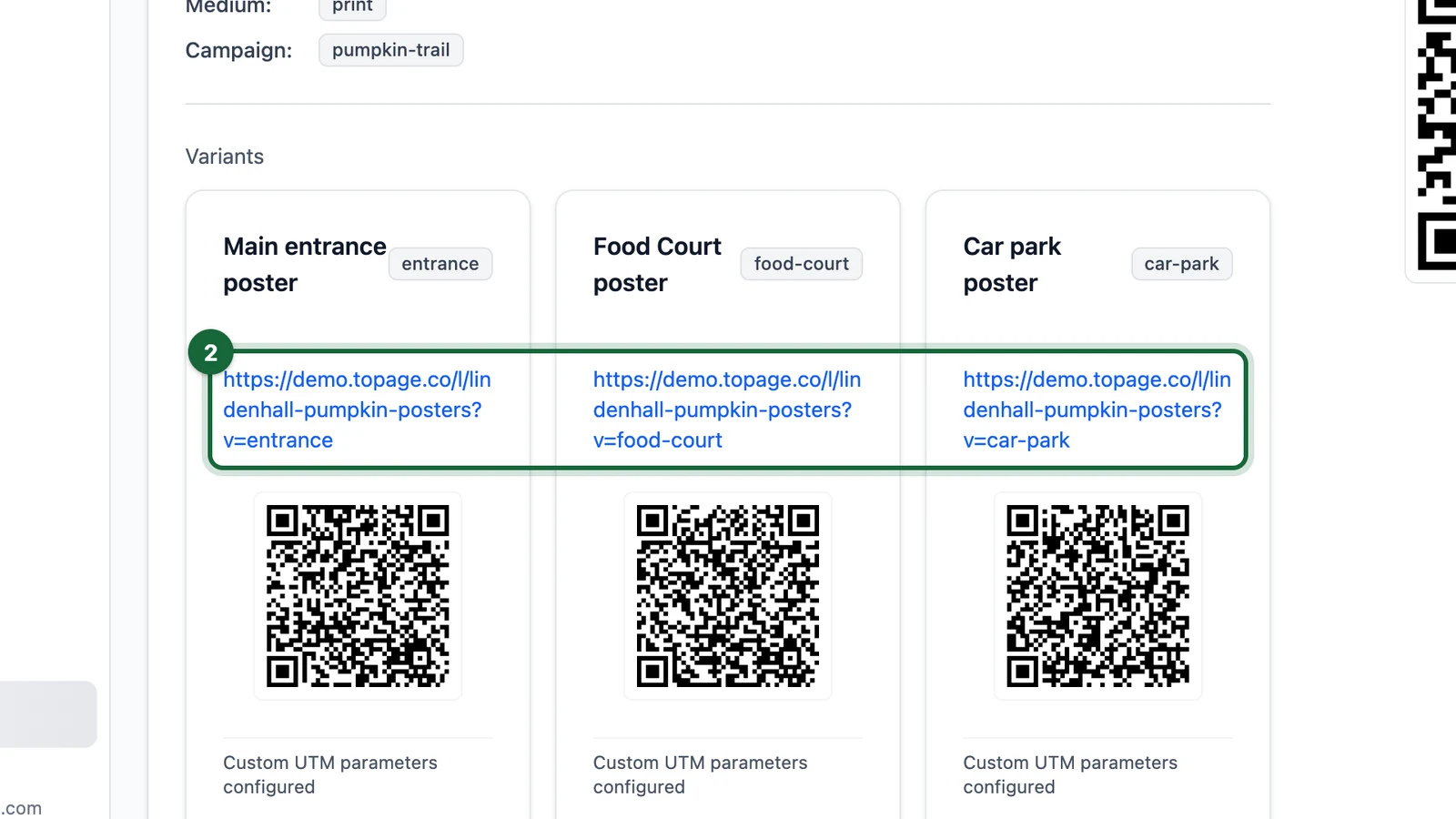
If you created variants, open or scan each variant URL separately.
Each one should keep the same main Smart Link slug and add its own identifier through ?v=<variantId>.
Confirm tracking parameters
If the Smart Link uses UTM Parameters, check that the destination URL receives the expected attribution values.
If variants carry their own UTM values or custom variables, test at least one real variant URL and confirm the placement-specific parameters are present.
Run Smart Link analytics
Open the Smart Link detail page, choose See Full Analytics, set Start Date and End Date, then click Run.
After a successful test, you should start seeing activity such as Number of scans, Unique devices, and Scans Over Time.
What to test for each Smart Link type
| Type | Minimum test |
|---|---|
Redirection | Confirm the redirect lands on the correct OmniLab or external destination |
App Stores | Test on at least one iPhone and one Android device, then confirm the fallback path if you use one |
Common launch mistakes to catch early
- printing a QR code before testing the final destination
- sharing the main Smart Link when a placement should have used a variant URL
- assuming mobile and desktop behave the same
- forgetting to run analytics for the relevant date range after testing
- testing the destination directly instead of going through the Smart Link
Test the exact asset you plan to distribute
If you add custom colors, a logo, a label, or variant-specific QR codes, test that exact final export before it goes to print or to another team.