Create a Redirection Smart Link
Create the standard Smart Link used for campaigns, websites, and other web destinations.
In this article, you'll create a Redirection Smart Link, understand each field in the form, and learn when to use it for OmniLab and non-OmniLab destinations.
Prerequisites
- You can access the
Smart Linksapp. - You know which folder should contain the Smart Link.
- You have the final destination URL ready.
When to use a Redirection Smart Link
Redirection is the main Smart Link type. Use it when one shared URL or QR code should open:
- an OmniLab landing page
- an OmniLab touchpoint URL
- a booking or registration page
- a website, PDF, or help page outside OmniLab
- any other web destination that may need tracking, variants, or future redirect changes
If you need one shared link that routes users to different app stores depending on device, use Create an App Stores Smart Link instead.
The fields you'll set
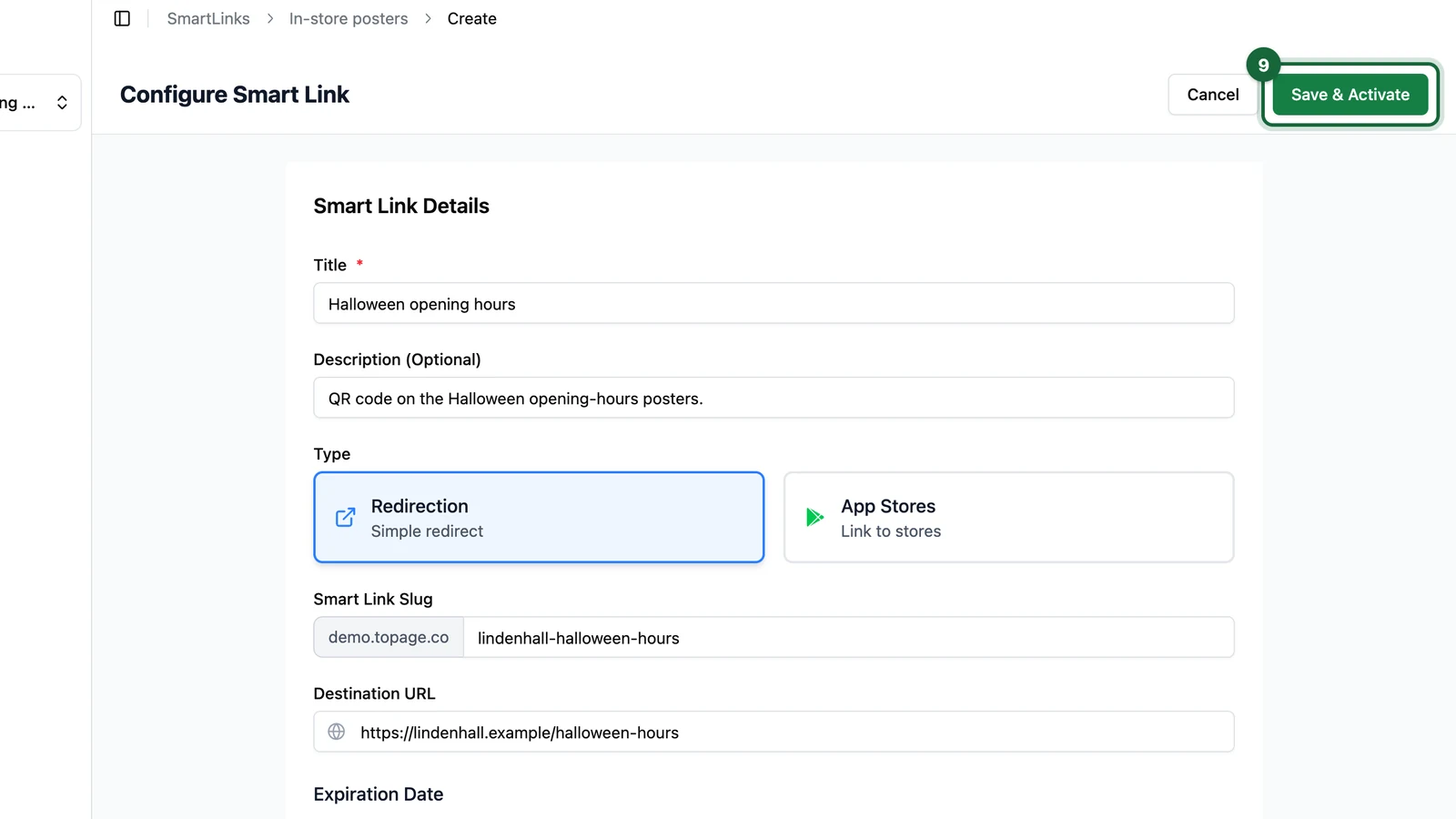
In the create form, OmniLab groups the setup into Smart Link Details, UTM Parameters, and Variants.
| Field | What to enter | Why it matters |
|---|---|---|
Title | A clear internal name | Helps your team find the link later |
Description (Optional) | Extra context, campaign note, or placement detail | Useful when similar links exist |
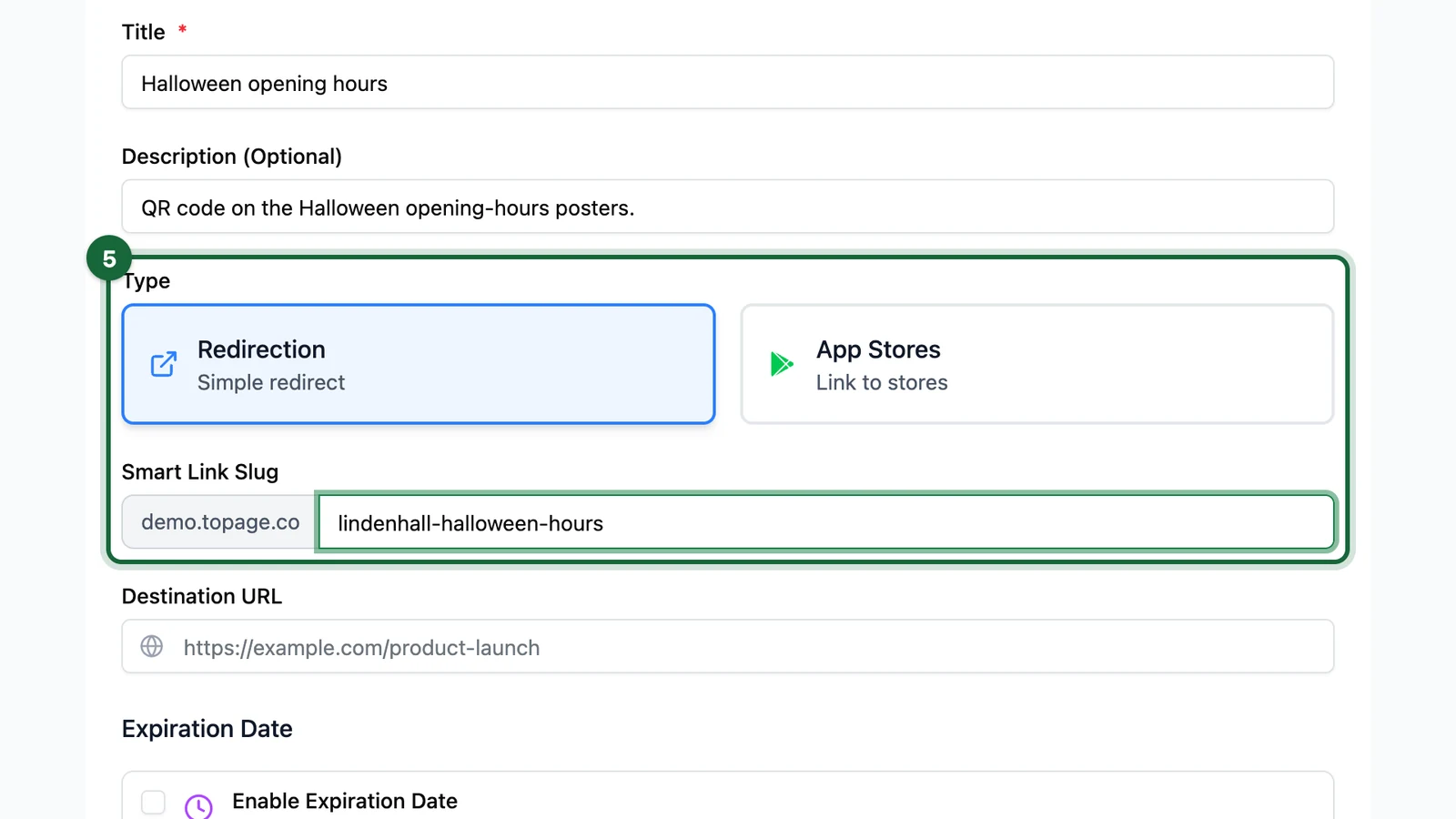
Type | Redirection | Tells OmniLab you are creating a standard redirect |
Smart Link Slug | A short public slug such as summer-sale-poster | Becomes the public /l/<slug> URL |
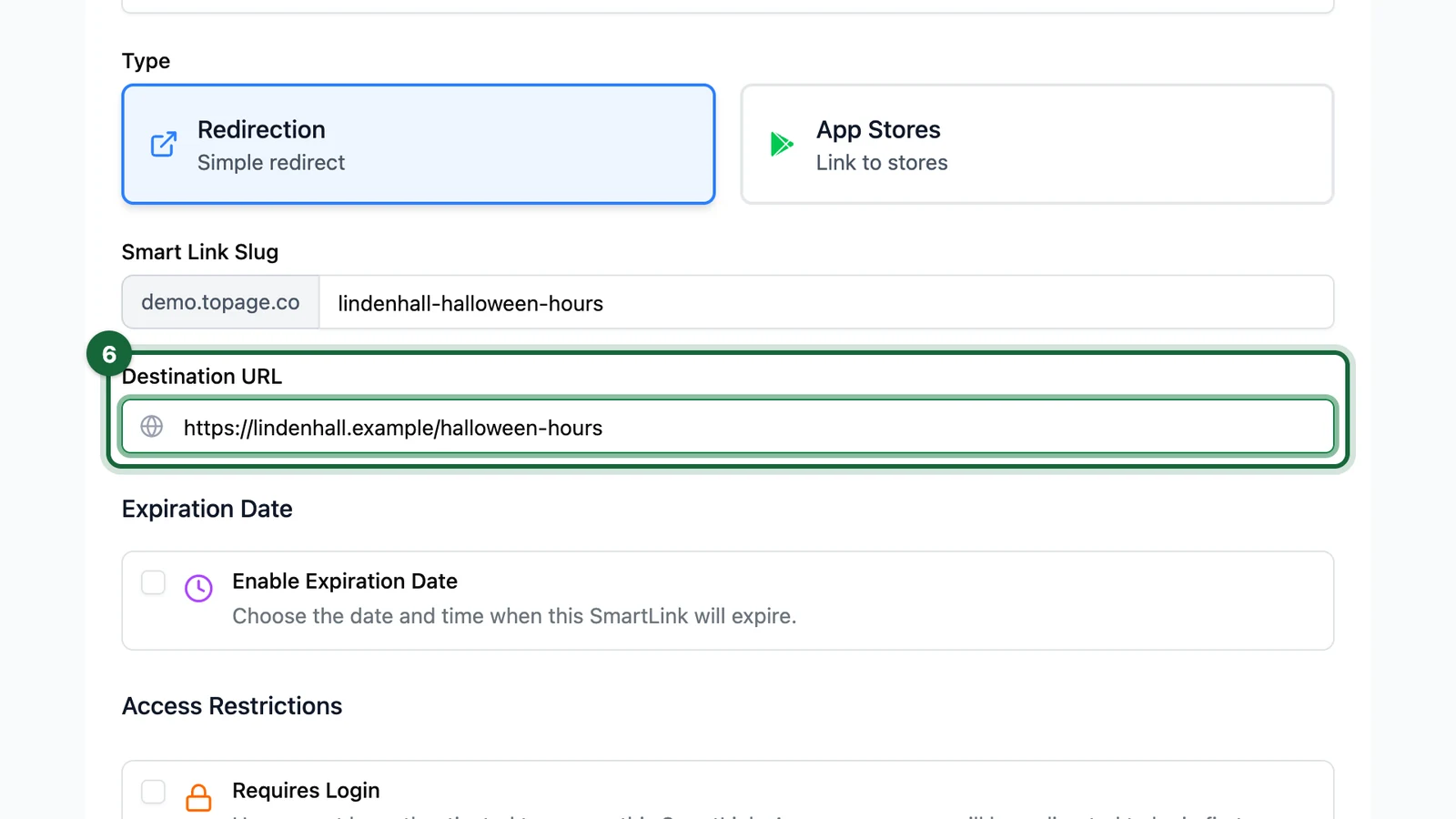
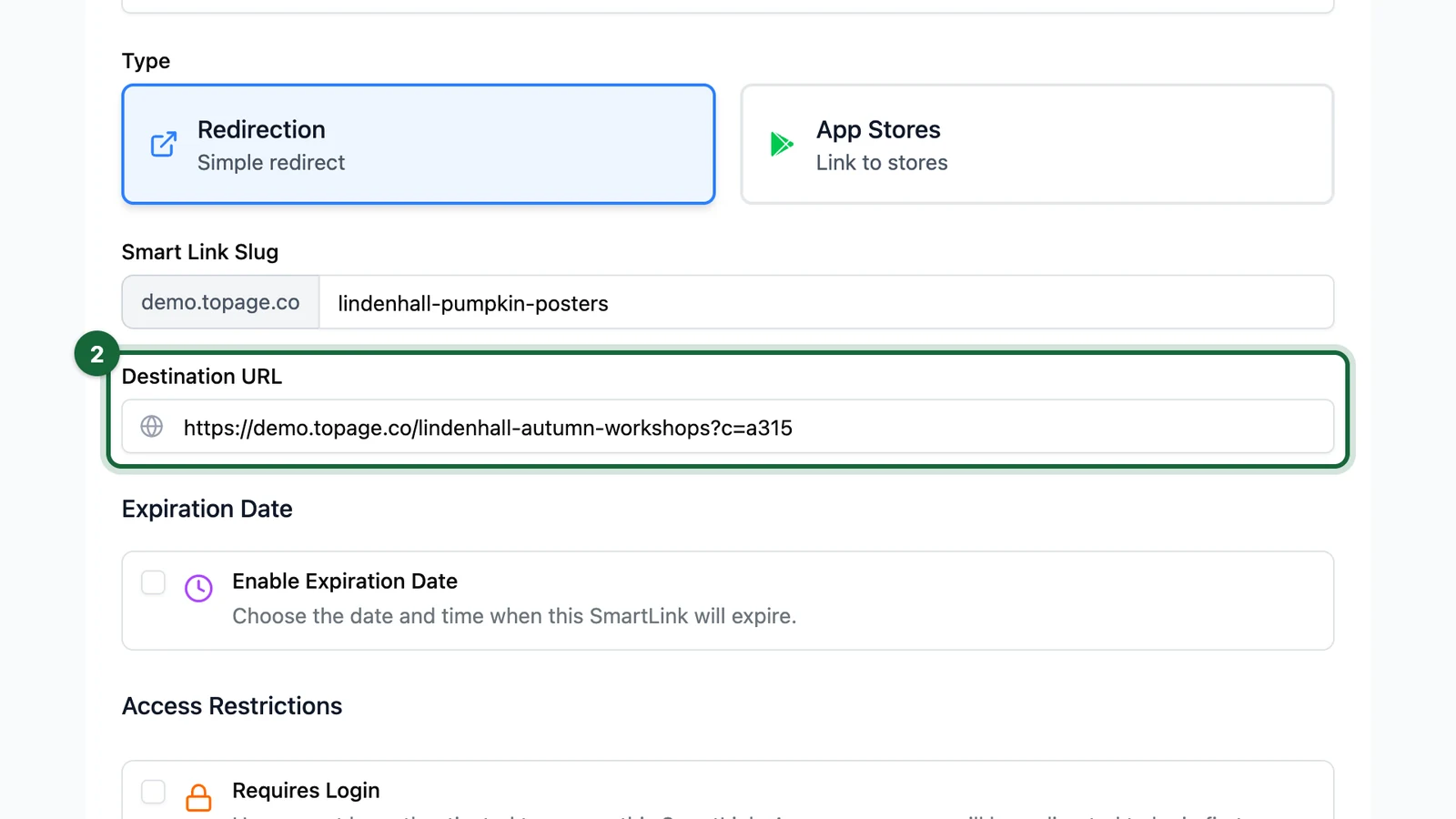
Destination URL | The page users should reach after the redirect | The actual target of the Smart Link |
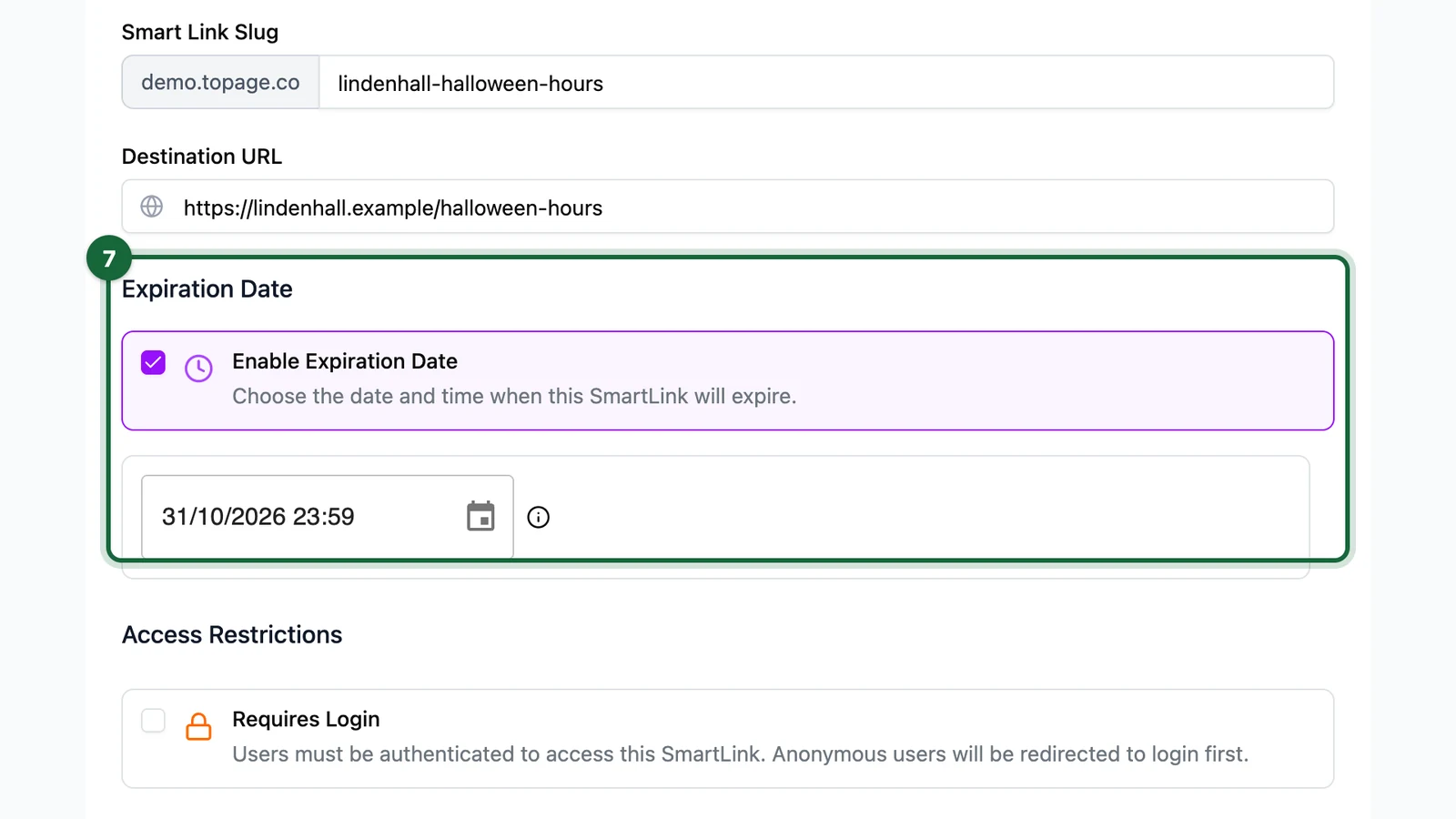
Enable Expiration Date | Optional on/off control | Stops the Smart Link after a chosen date and time |
Requires Login | Optional on/off control | Forces users to sign in before continuing |
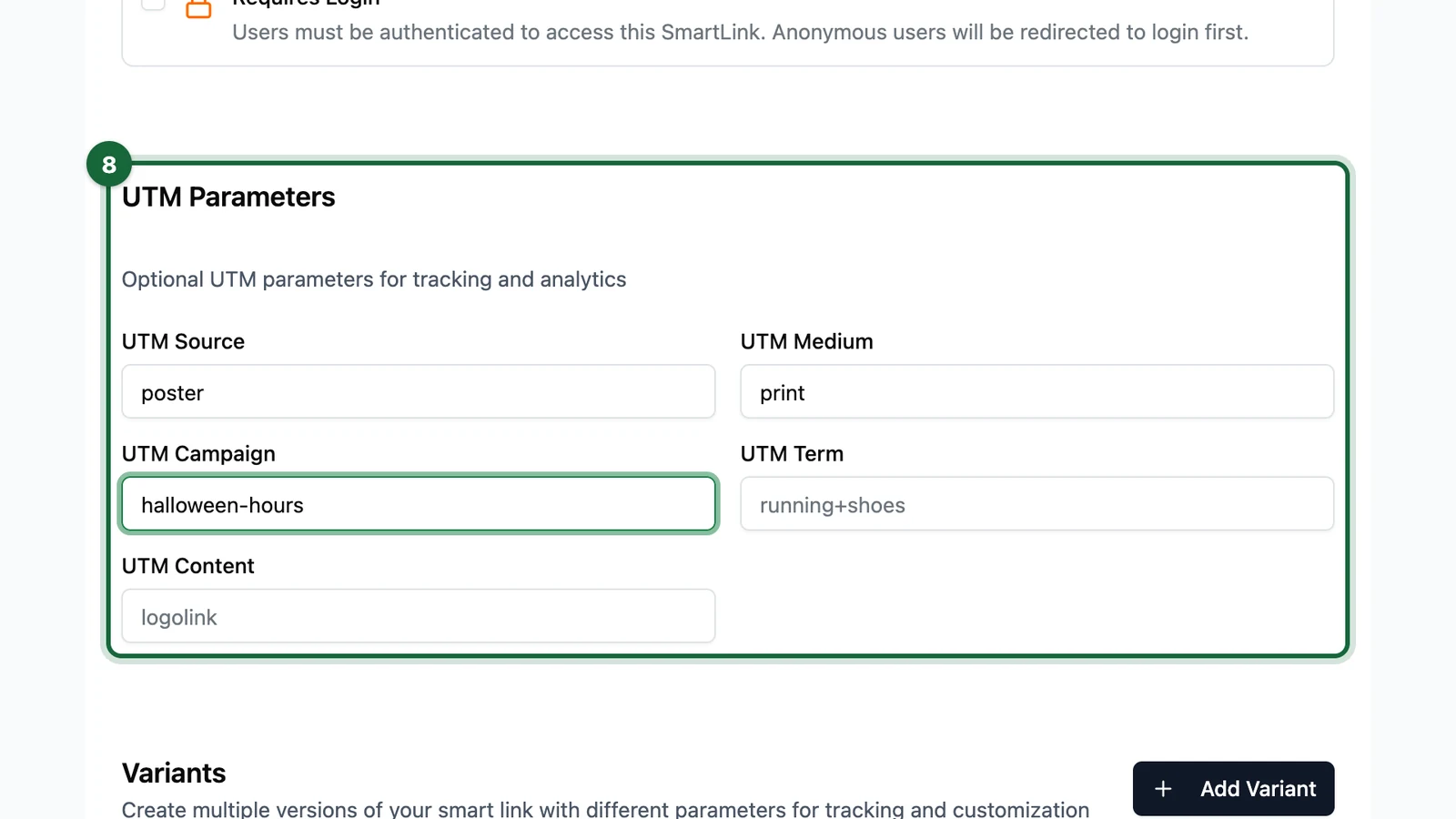
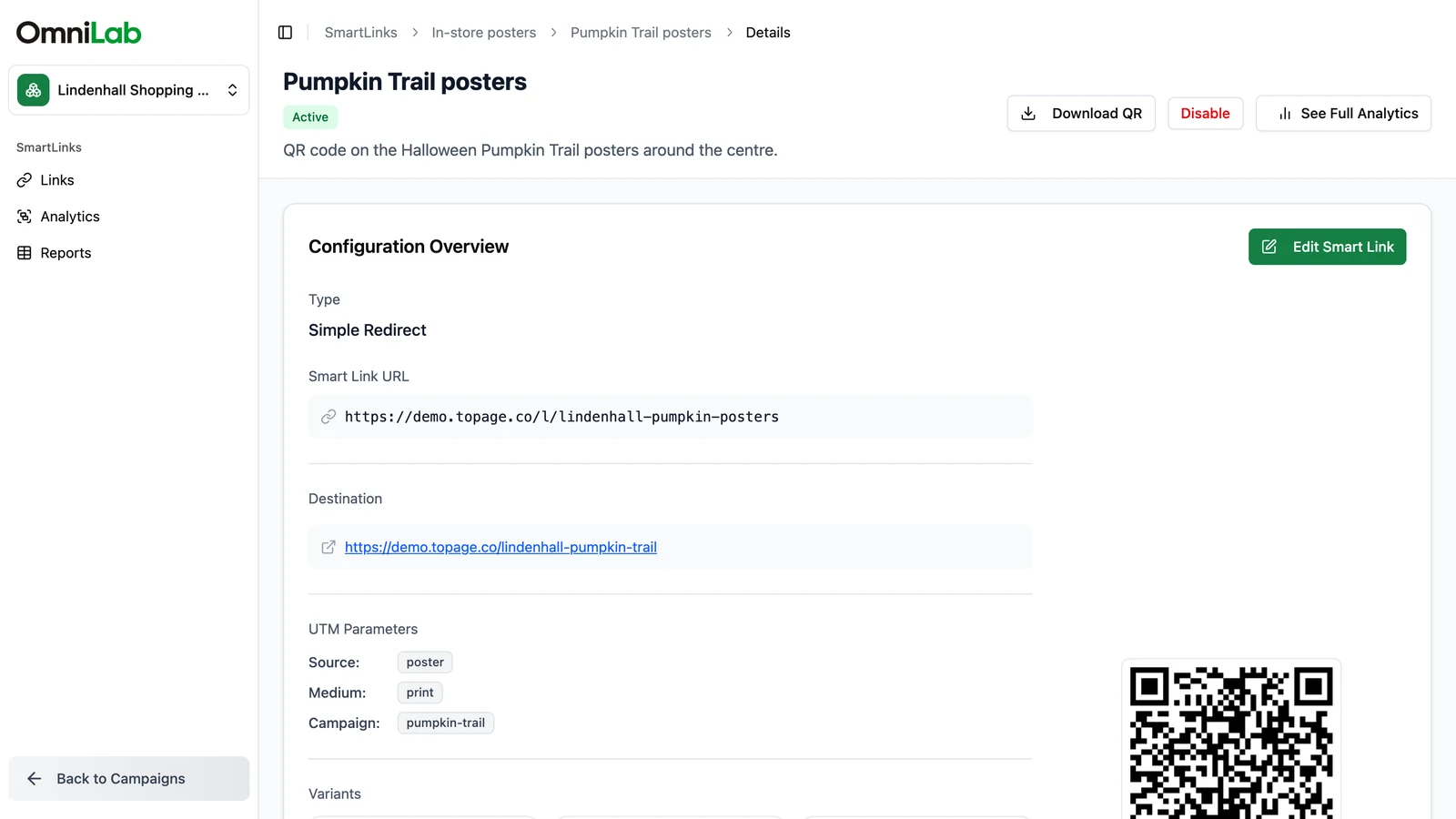
UTM Parameters | Optional tracking values for source, medium, campaign, term, and content | Adds shared attribution to visits coming through the Smart Link |
Variants | Optional placement-specific URLs under the same Smart Link | Lets you track locations, channels, or creative versions separately |
Create the Smart Link
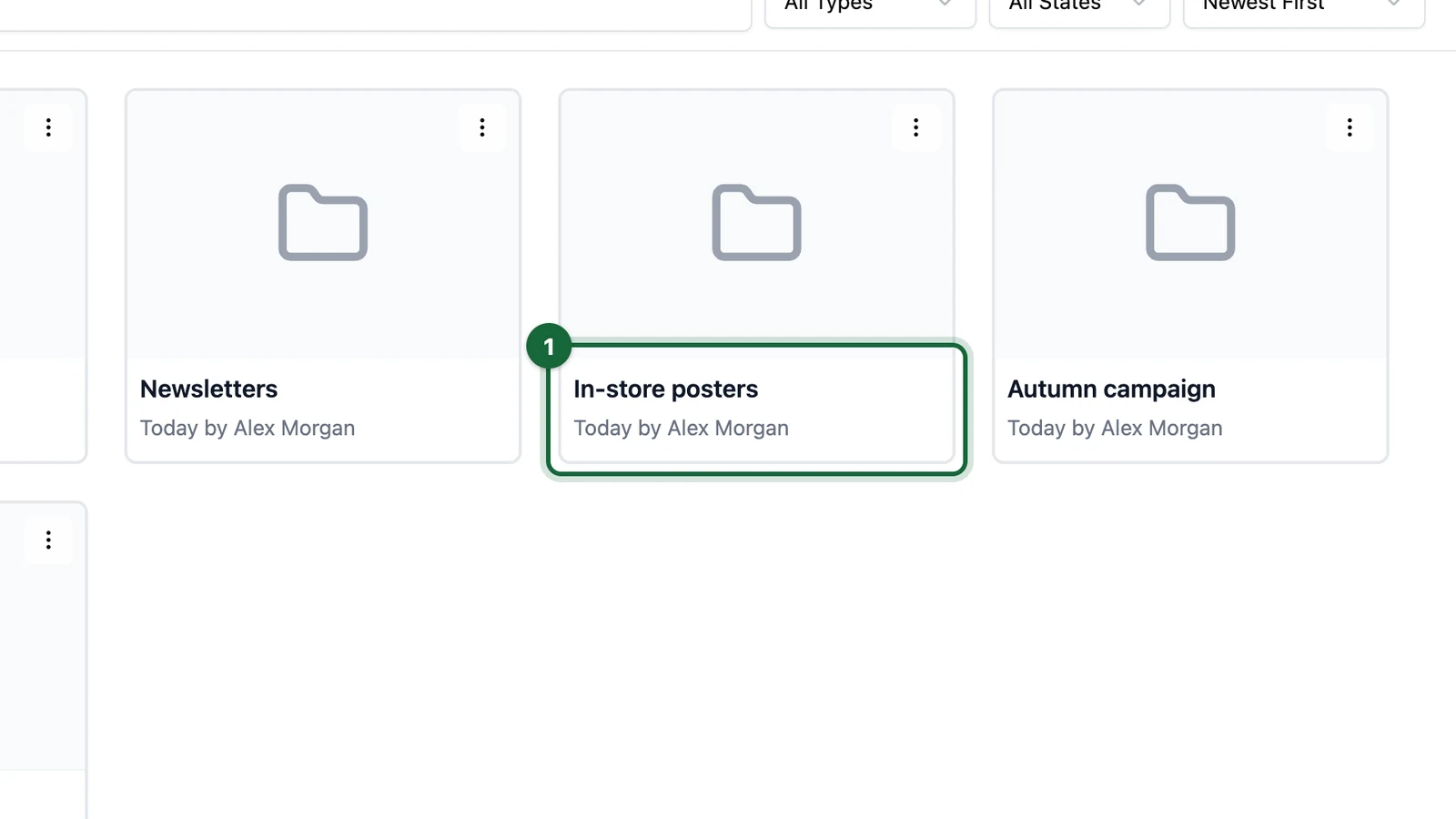
Open the correct folder
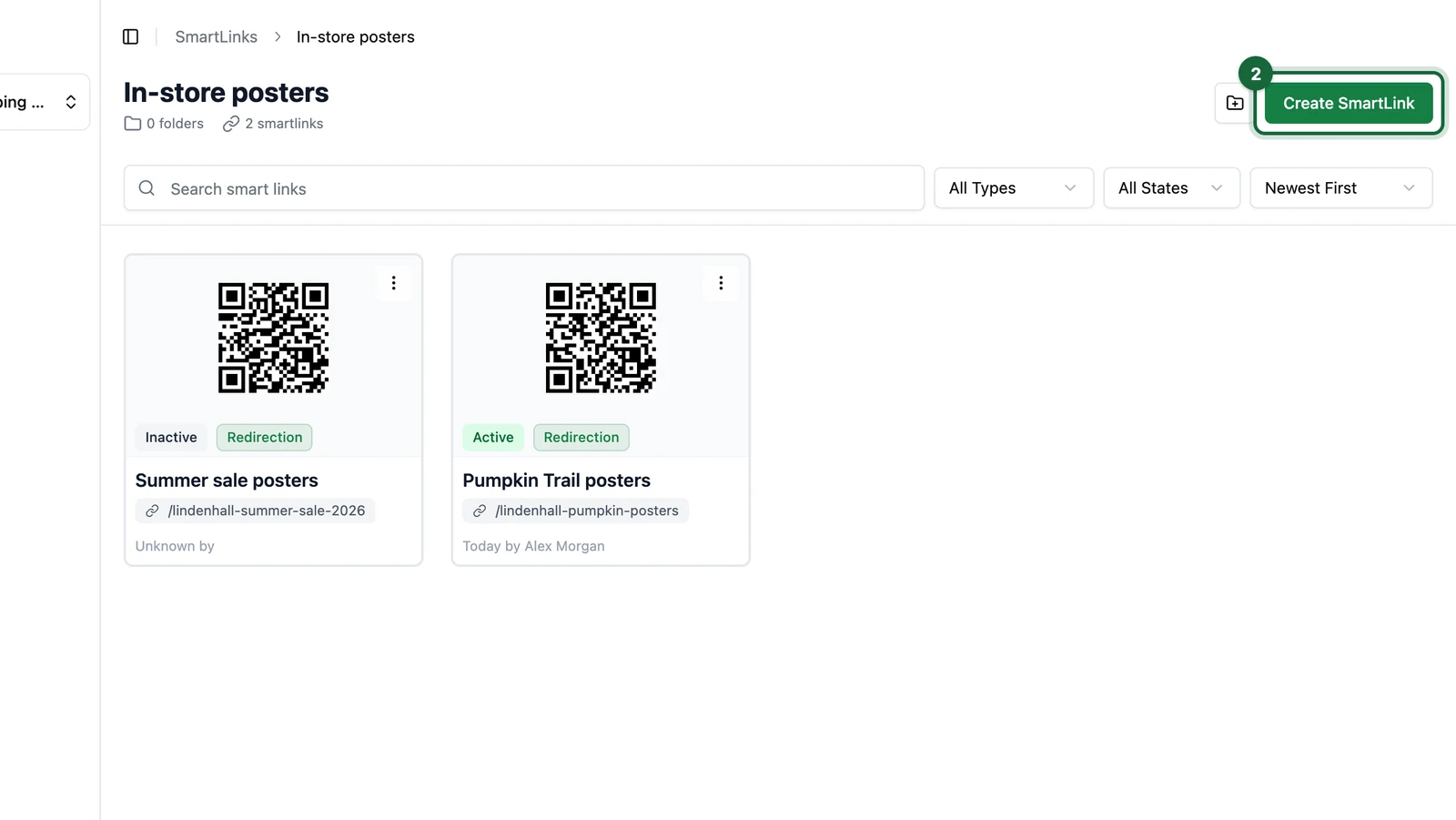
Go to the folder where the Smart Link should live, then click Create Smart Link.

Complete Smart Link Details
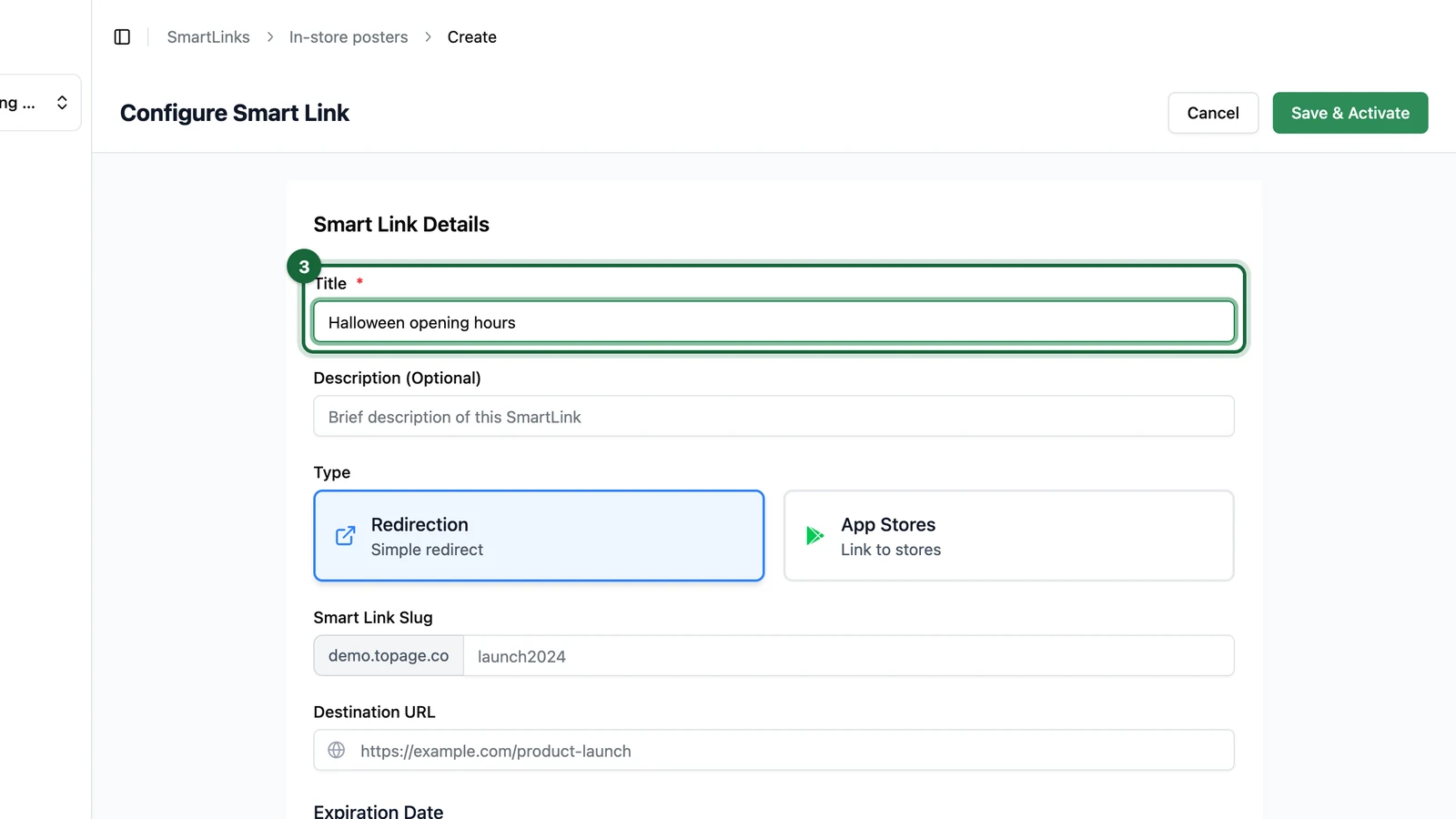
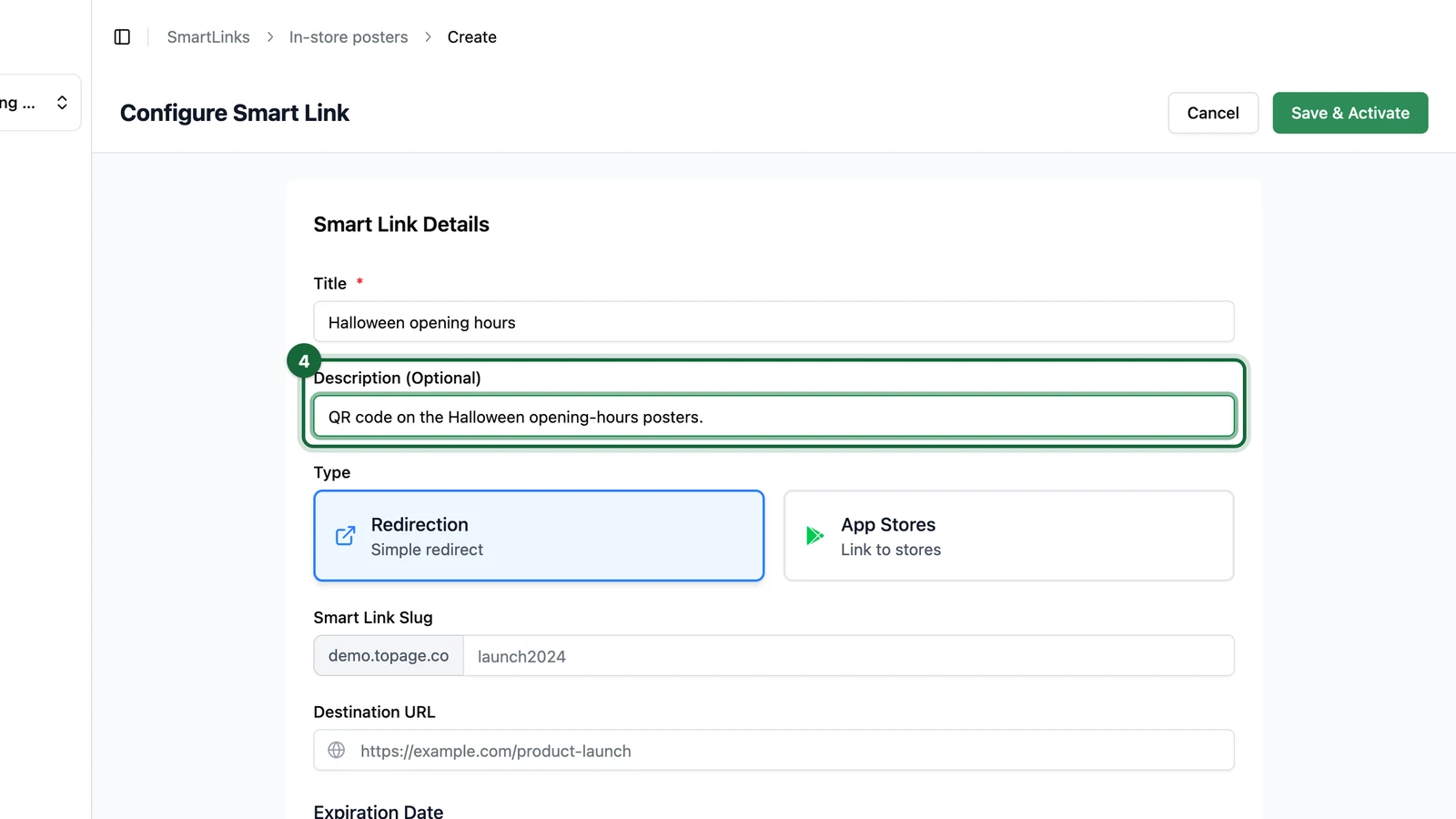
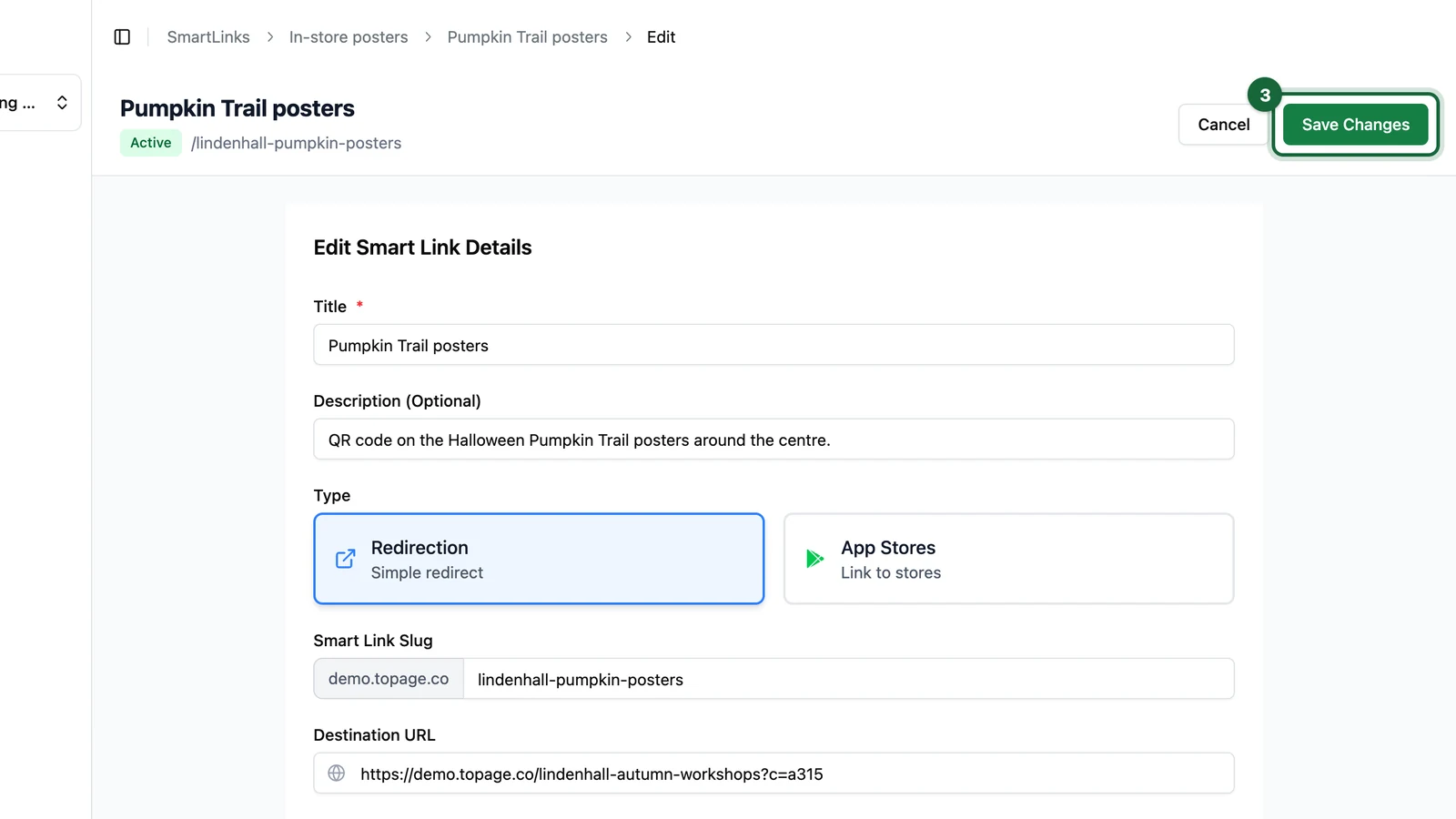
Set Title, optional Description, choose Redirection, and enter a Smart Link Slug.
For a published printed asset, treat the slug as a stable public address. If you later change the slug, the public URL changes too.

Paste the destination URL
In Destination URL, paste the exact page users should open after the redirect.
That destination can be inside OmniLab or outside OmniLab. For example:
- a campaign landing page
- a touchpoint URL
- a retailer campaign page
- a ticketing or booking flow
- a product help page
Add optional rules and tracking
Turn on Enable Expiration Date if the link should stop working automatically after a campaign, event, or promotion ends.
Turn on Requires Login if only authenticated users should continue through the Smart Link.
Then use UTM Parameters if every visit from this Smart Link should carry source, medium, campaign, term, or content values.
If you know that different placements need separate reporting, add Variants before you save. Each variant gets its own Variant Name, Variant ID, optional placement-specific tracking values, and its own analytics trail.
Save the Smart Link
Click Save & Activate.
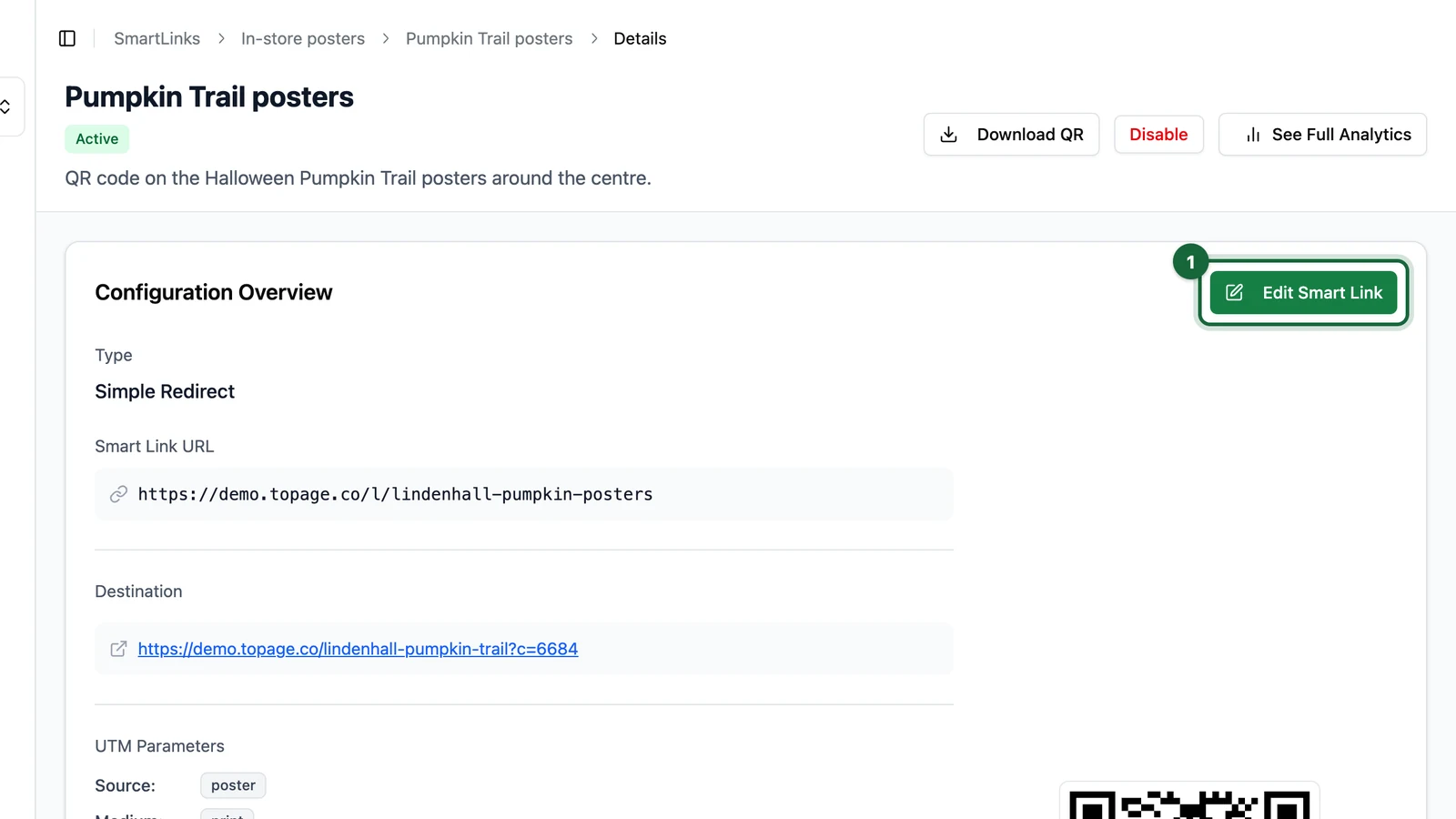
If you return later to edit the Smart Link, the action changes to Save Changes.
Practical examples
OmniLab destination
You publish a prize game landing page and create a Smart Link called back-to-school-window. The window poster prints the Smart Link QR code, not the landing page URL directly. If the final entry page changes later, you update the Smart Link destination without reprinting the poster.
External destination
You run a packaging campaign that should open a retailer's product page. A Redirection Smart Link still gives you a short URL, QR designer, optional variants, and scan analytics even though the destination is outside OmniLab.
Tips for a cleaner setup
- Keep the slug short and readable.
- Use one Smart Link per real distribution objective, not per tiny edit.
- Add variants instead of creating many almost-identical Smart Links.
- Test the redirect on desktop and mobile before printing.
Default recommendation
When in doubt, start with Redirection. It is the most flexible option for campaign URLs, landing pages, touchpoints, and external destinations.
Related
Create an App Stores Smart Link
Use the alternative type when one link should route users to the right app store.
UTM parameters & custom variables
Add tracking context to the base Smart Link and to any variants you create later.
Variants
Track locations, formats, or placements separately without duplicating the full Smart Link.
Slug rules
Keep your public URLs short, stable, and easy to scan.