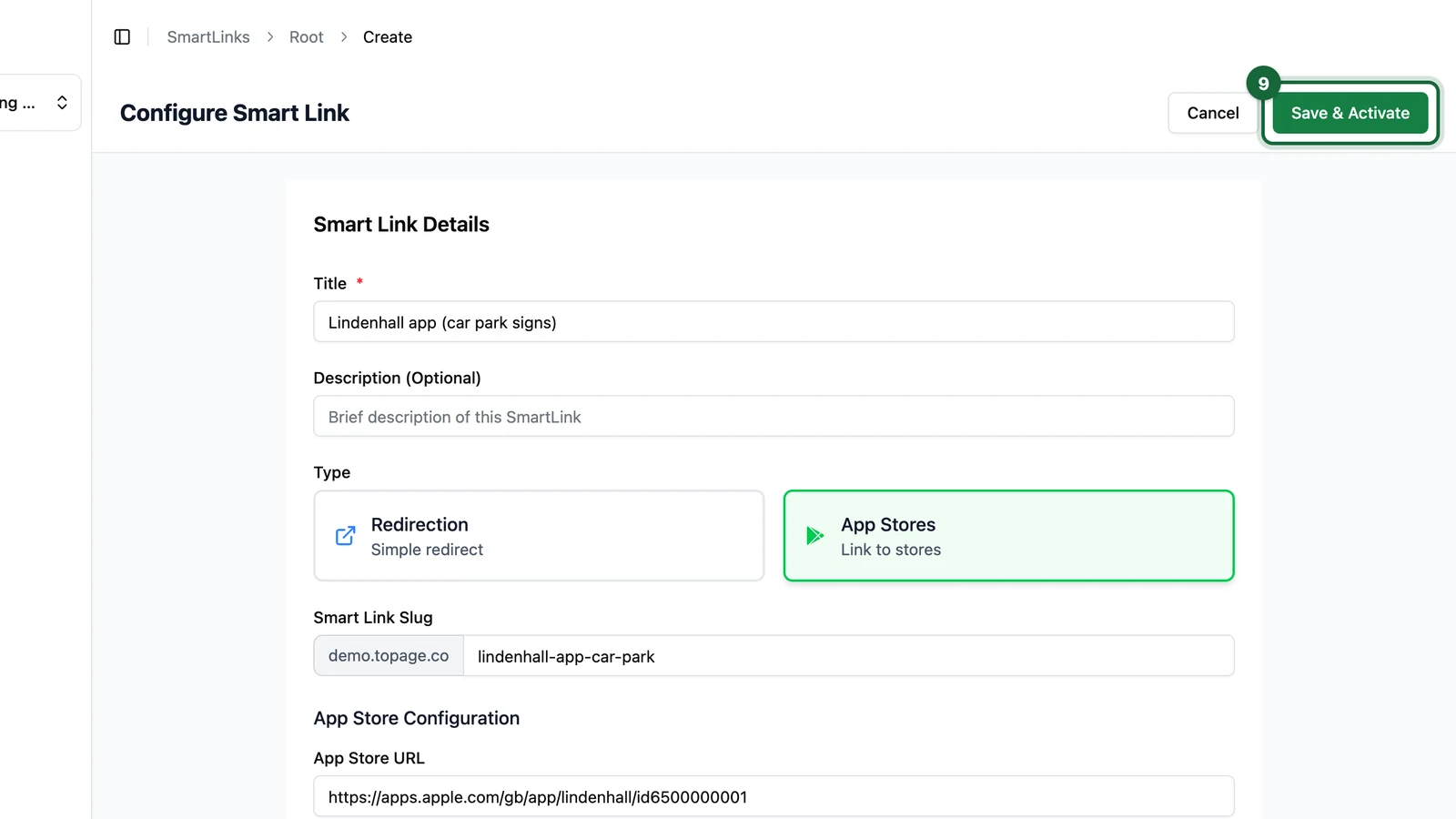
Create an App Stores Smart Link
Create one Smart Link that routes users to the correct app store based on device.
In this article, you'll learn when to use the App Stores Smart Link type, which fields it includes, and how to test store routing before distribution.
The walkthrough uses Duolingo only as a familiar example: the same fields apply to any app once you paste that app’s Apple App Store and Google Play listing URLs (and optional fallback and icon URLs).
Prerequisites
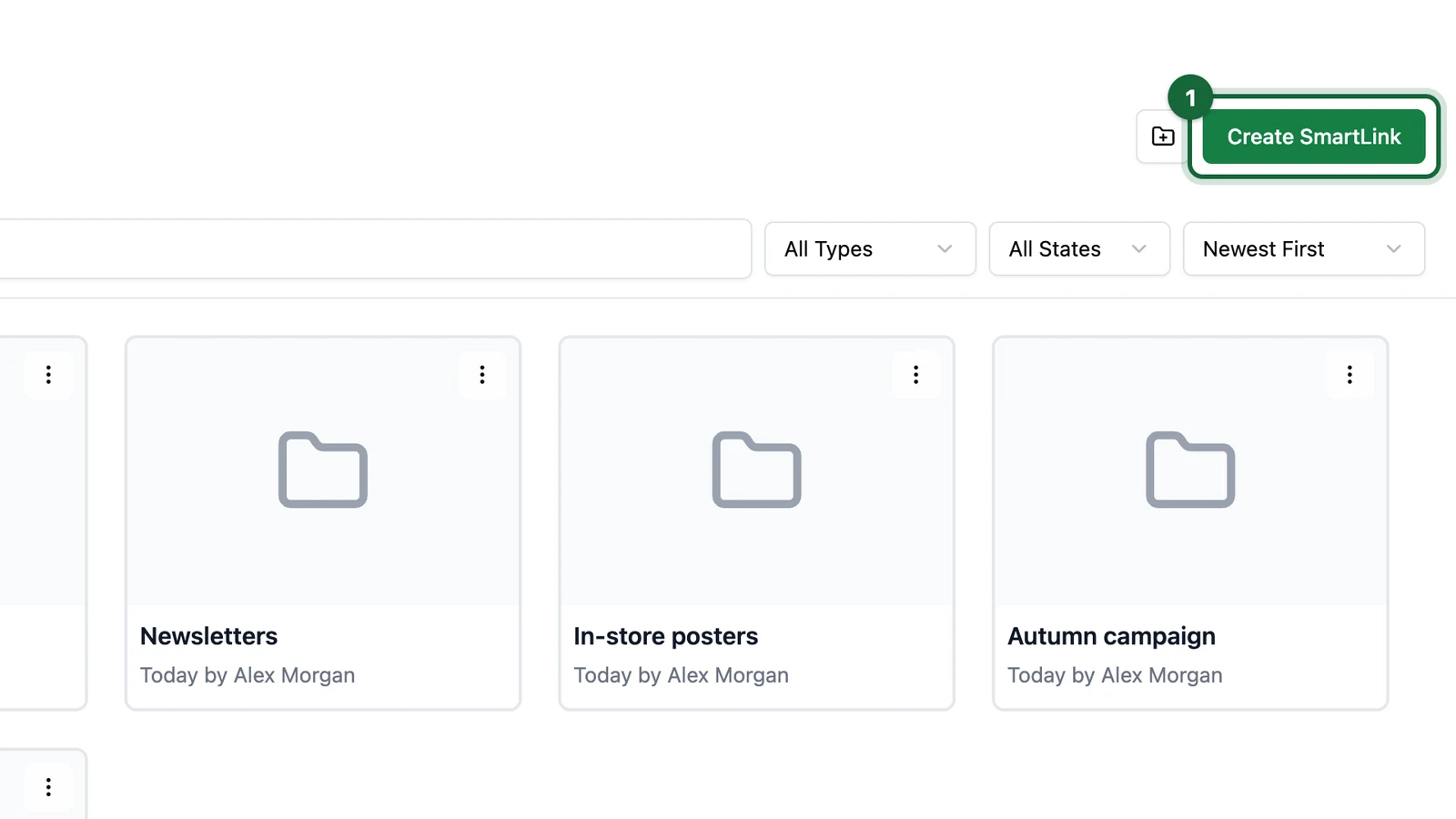
- You can access the
Smart Linksapp. - You know which folder should contain the link.
- You have the correct store listing URLs for your app (for example from the Apple App Store and Google Play).
When to use App Stores
Use App Stores when one QR code or shared link should send people to different app store destinations depending on their device.
Typical example:
- iPhone users go to the Apple App Store
- Android users go to Google Play
- everyone else can fall back to a website or store page you define
For most campaign sharing use cases, Create a Redirection Smart Link is still the better choice. App Stores is mainly for app download journeys.
What you can configure
The exact fields may vary slightly by workspace, but an App Stores Smart Link typically includes:
| Field | What it does |
|---|---|
Title | Internal name for the Smart Link |
Description (Optional) | Extra context for your team |
Type | Set this to App Stores |
Smart Link Slug | Public /l/<slug> URL |
App Store URL | Apple App Store destination for iPhone users |
Google Play URL | Google Play destination for Android users |
Default URL (Fallback) | Used when the device does not match a configured store route |
App Icon URL (Optional) | Optional app icon shown in the store-routing experience |
| Optional additional store URLs | Some workspaces may also show extra Android store fields |
Enable Expiration Date | Optional end date for the Smart Link |
Requires Login | Optional login gate before the user continues |
Create the Smart Link
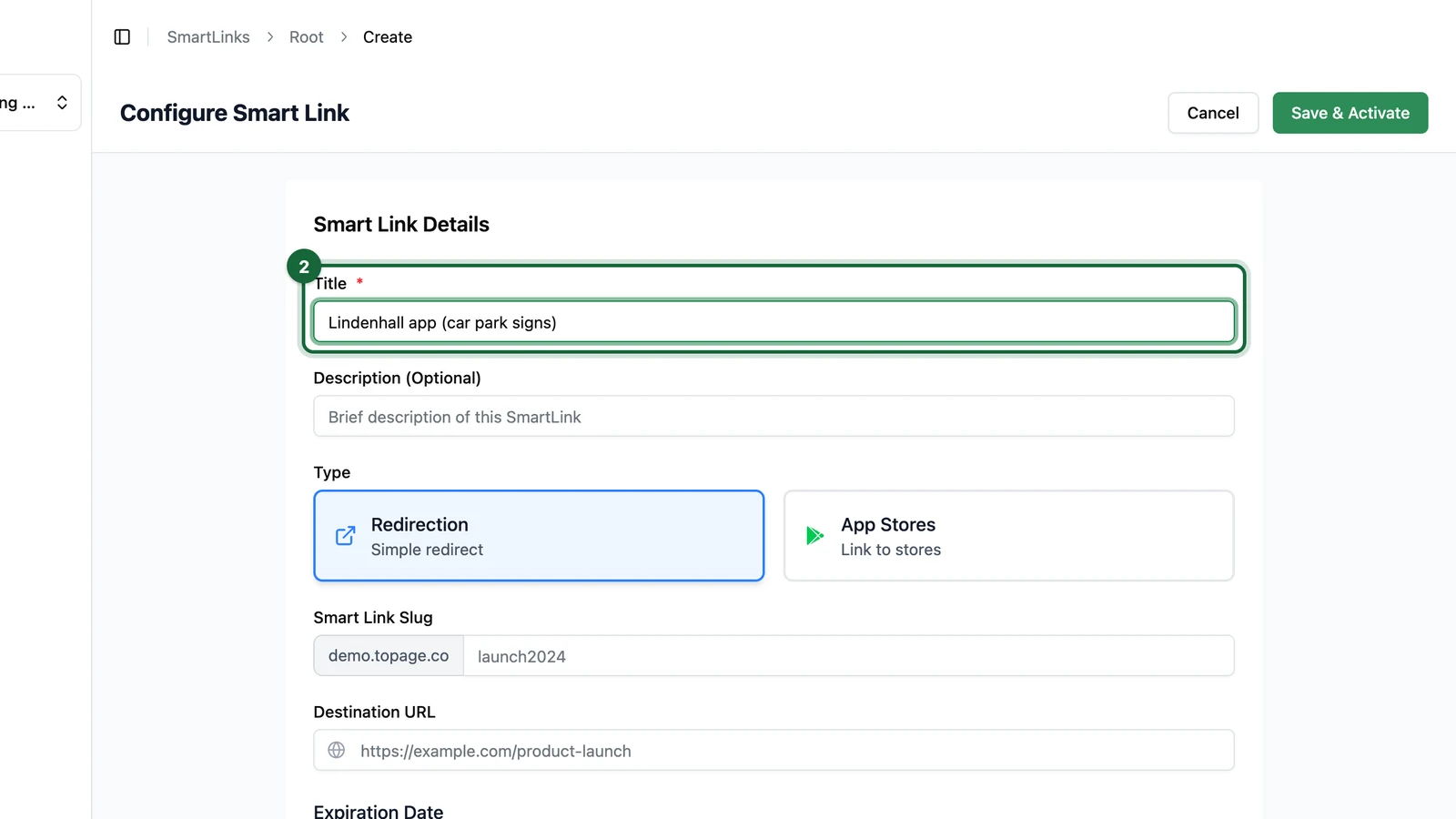
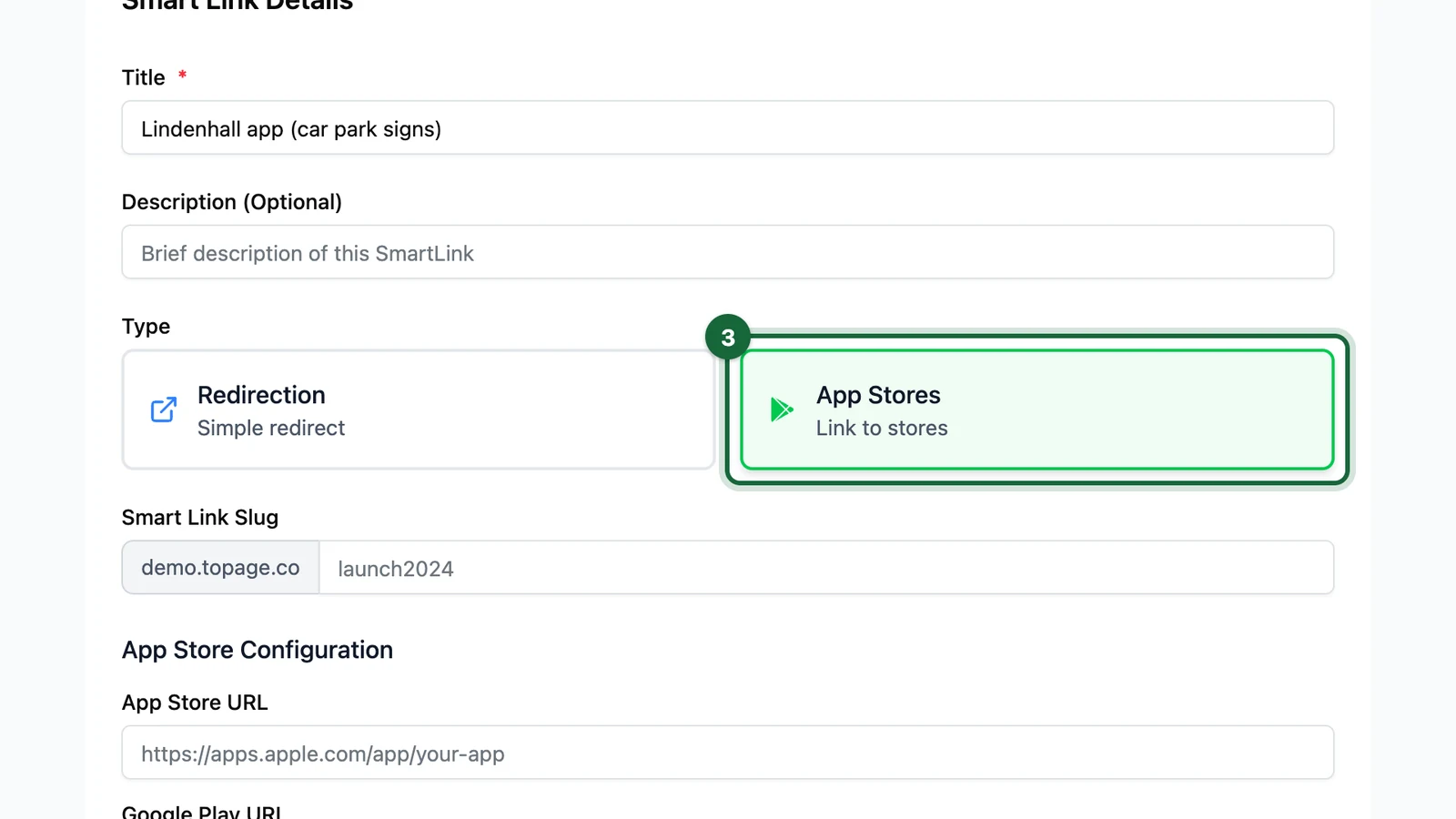
Choose App Stores in Smart Link Details
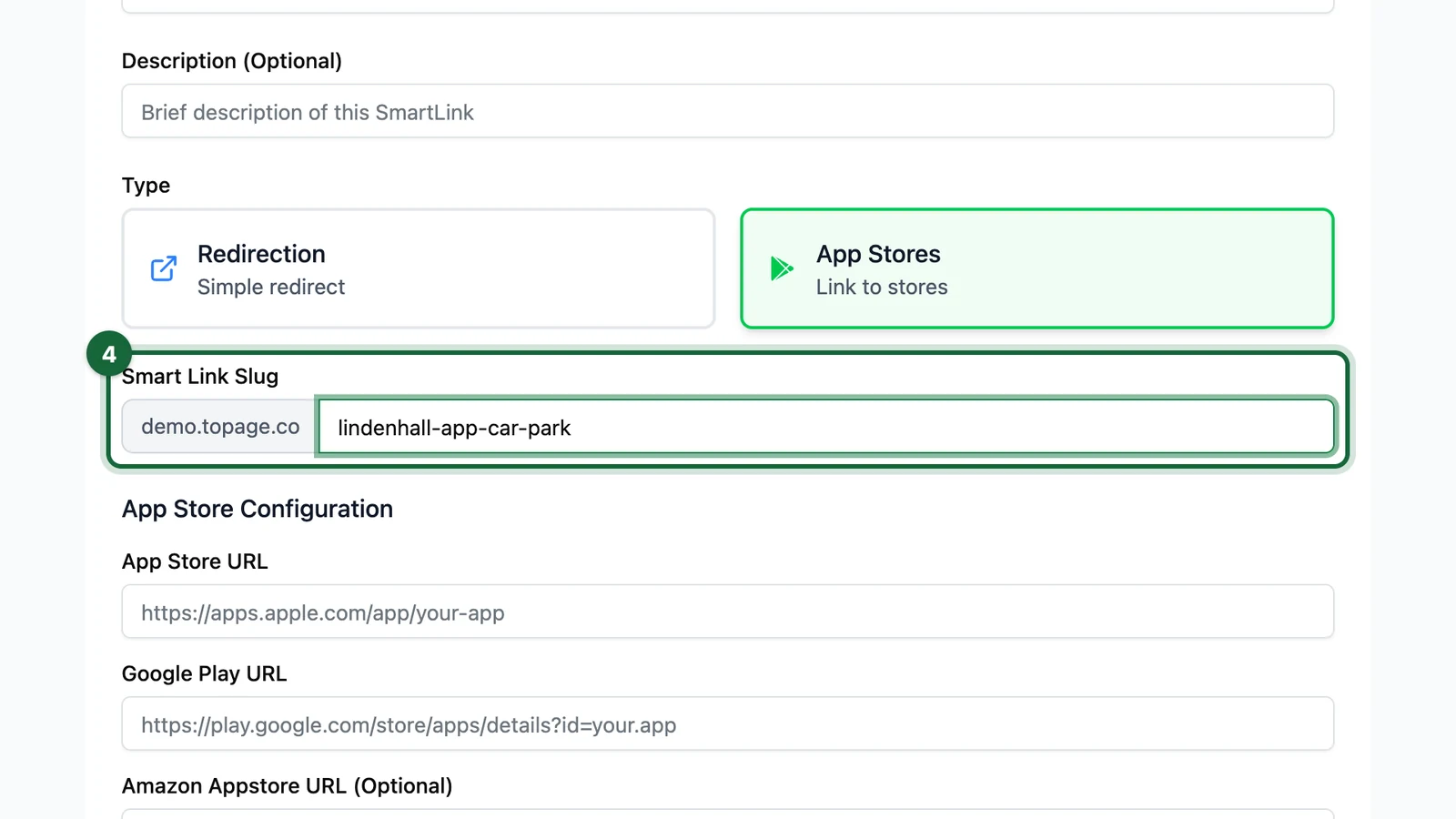
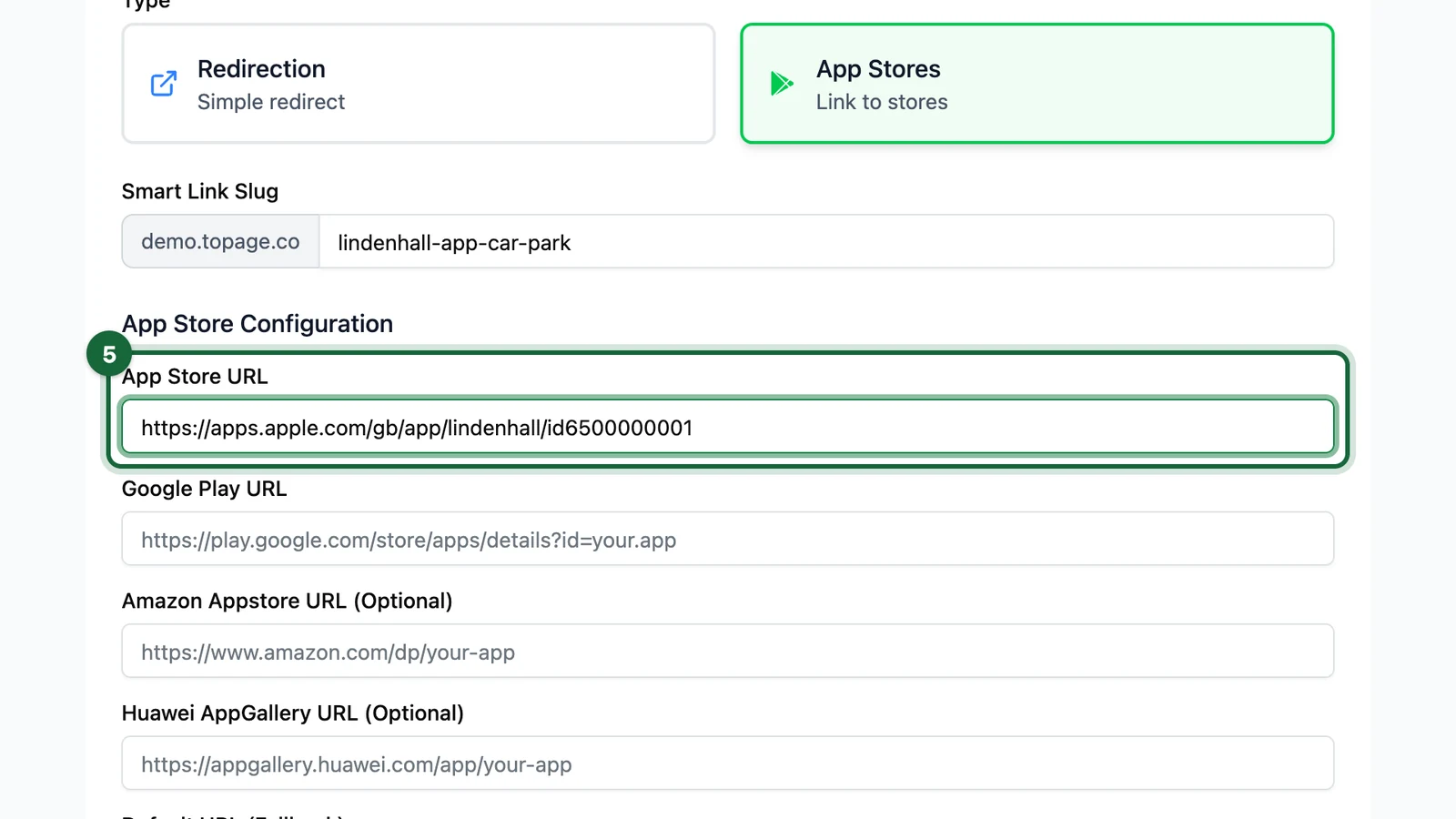
Set Type to App Stores, then enter a clear Title, optional Description, and a short Smart Link Slug.
For this guide, the title is a Duolingo download example, the description notes Apple, Google Play, and web fallback, and the slug is duolingo-app. Use your own app name and slug in production, and pick a slug that is stable enough for print or QR if needed.

Add your store URLs
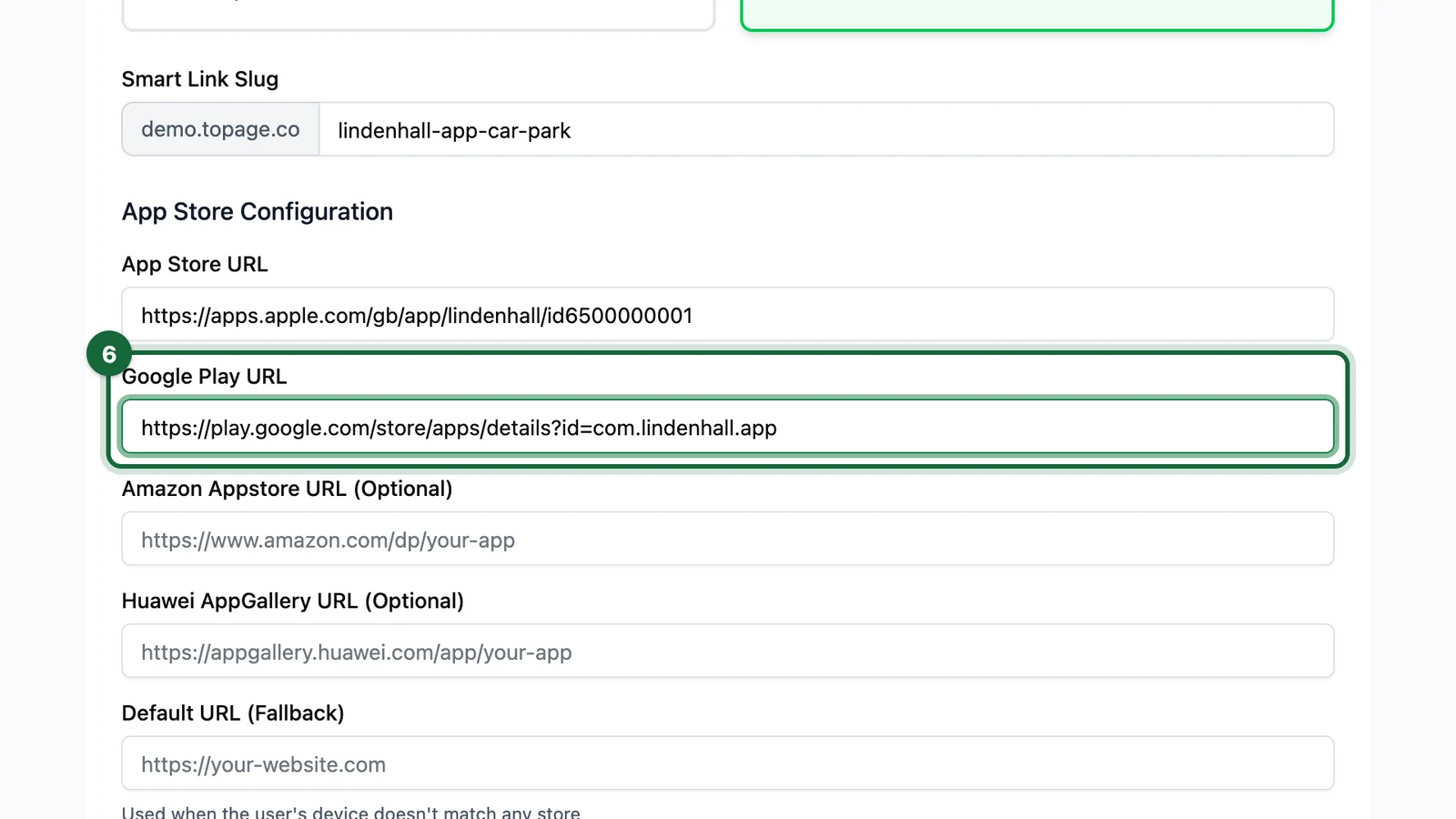
Paste the store URLs for the platforms you support, starting with App Store URL and Google Play URL.
Example (Duolingo public listings):
App Store URL:https://apps.apple.com/app/duolingo/id570060128Google Play URL:https://play.google.com/store/apps/details?id=com.duolingo
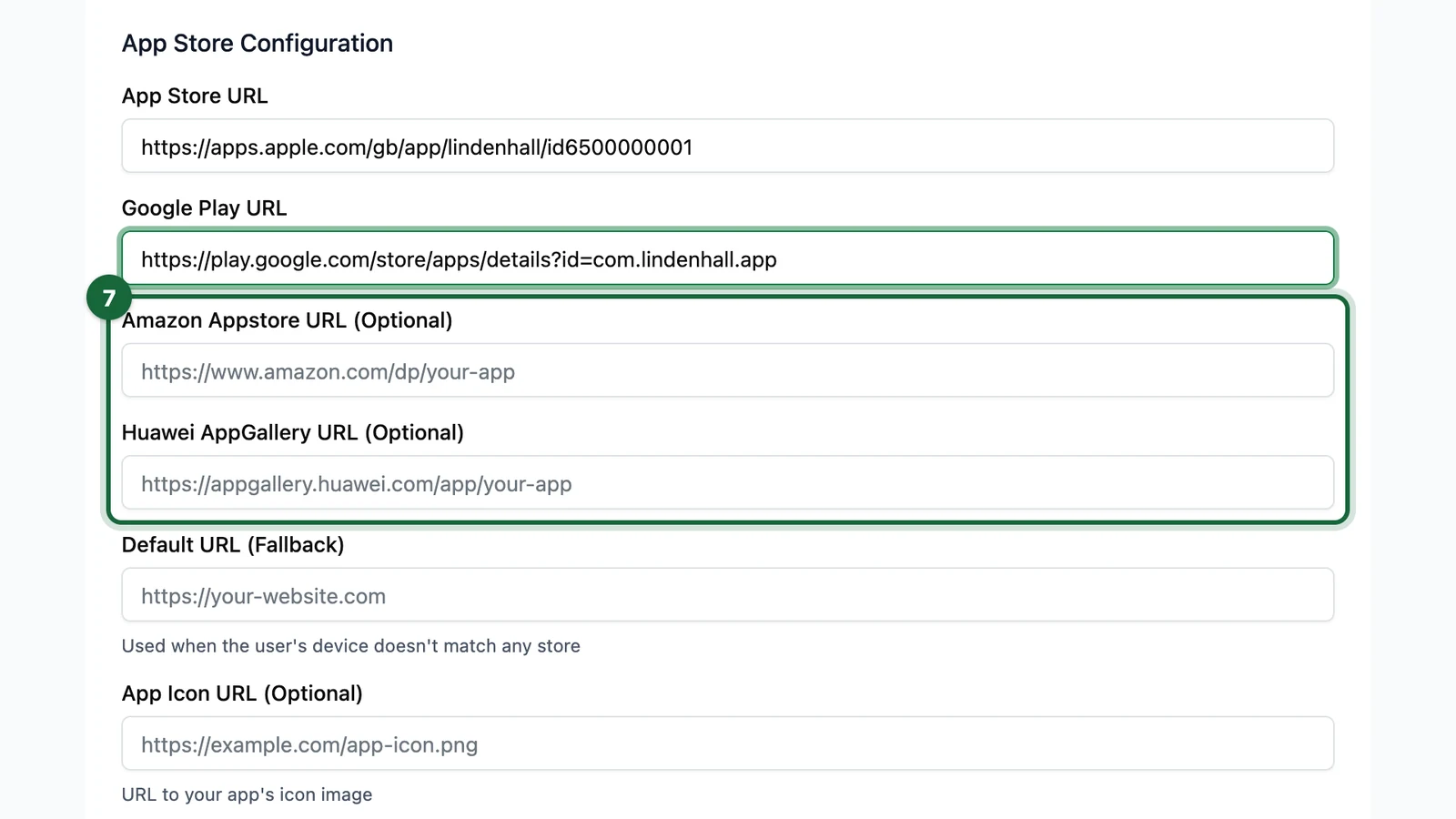
If your workspace shows Amazon Appstore URL (Optional) or Huawei AppGallery URL (Optional), complete them when those stores are part of your plan.

Add fallback and optional presentation details
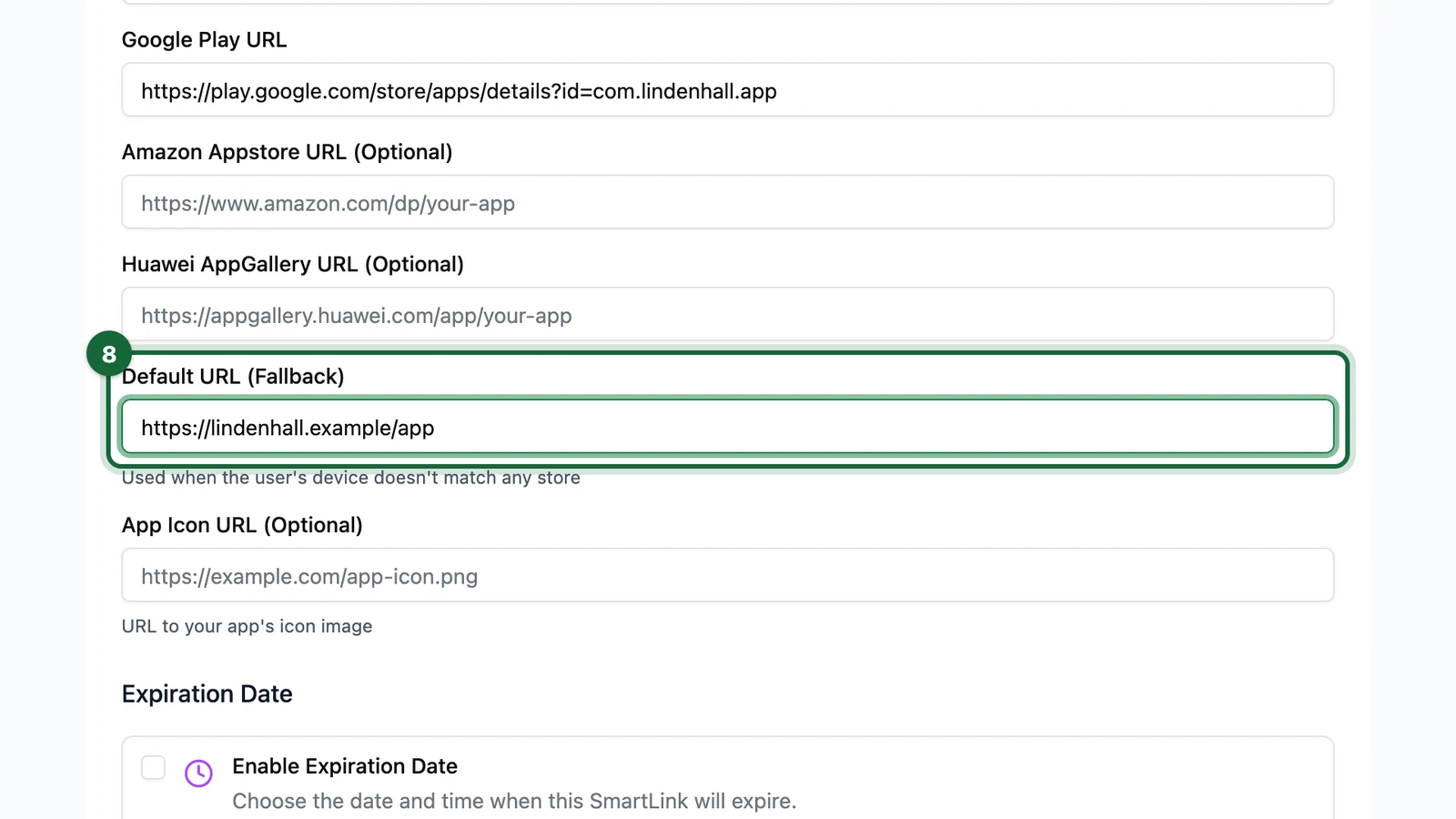
Set Default URL (Fallback) so people still reach a useful page if their device does not match a configured store route. For the Duolingo example, the fallback is the public website https://www.duolingo.com.
If you have a suitable image URL, add App Icon URL (Optional) so the store-routing experience can show your app icon. The example uses Duolingo’s public icon asset.
![]()
Add any optional limits or tracking
Turn on Enable Expiration Date if the app promotion has a fixed end date.
Turn on Requires Login only if the app-download journey should be restricted to signed-in users.
Add UTM Parameters if you want attribution data passed through consistently from the Smart Link (for example UTM Source qr, UTM Medium poster, and a campaign name that matches your reporting).

Save and test on real devices
When the form is complete, click Save & Activate, then test the Smart Link on at least one iPhone and one Android device before launch.
If you use a fallback URL, test that path as well.

Testing checklist
- iPhone opens the Apple App Store destination
- Android opens the Google Play destination
- fallback works when expected
- slug looks clean in the public URL
- QR code scans reliably on mobile
Use real device tests
An App Stores Smart Link is only complete once you have tested it on the device families you expect real users to scan with.
Related
Create a Redirection Smart Link
Use Redirection for campaigns, websites, PDFs, and most standard web destinations.
Test the Smart Link
Run a fuller QA pass before the Smart Link is distributed at scale.
Print-ready exports
Choose the right QR output for app download posters, flyers, and other printed assets.