Enable opt-in and choose scope
Decide whether one set of terms covers the whole campaign or each touchpoint has its own, before you write any consent text.
Before you write the consent text, choose where it lives. The choice is the Terms & Conditions Scope, in Build > General > Terms & Conditions Settings.
- Campaign Level: one checkbox text and one set of terms for every touchpoint. The fields stay in this window.
- Touchpoint Level: each touchpoint gets its own. The fields leave this window and move to each touchpoint's Terms & Conditions tab.
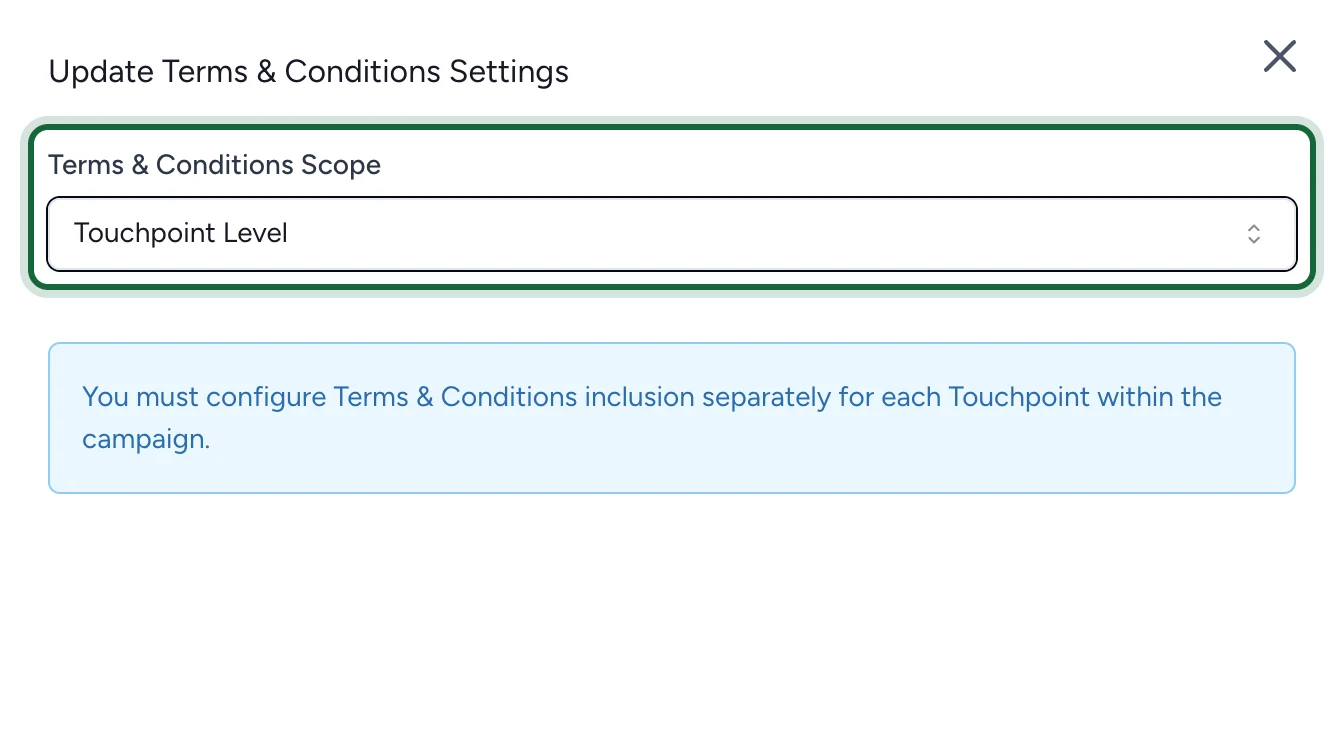
Start with Campaign Level unless a touchpoint really needs different terms, such as a quiz with its own rules.
Change the scope
In the campaign, open Build > General.
-
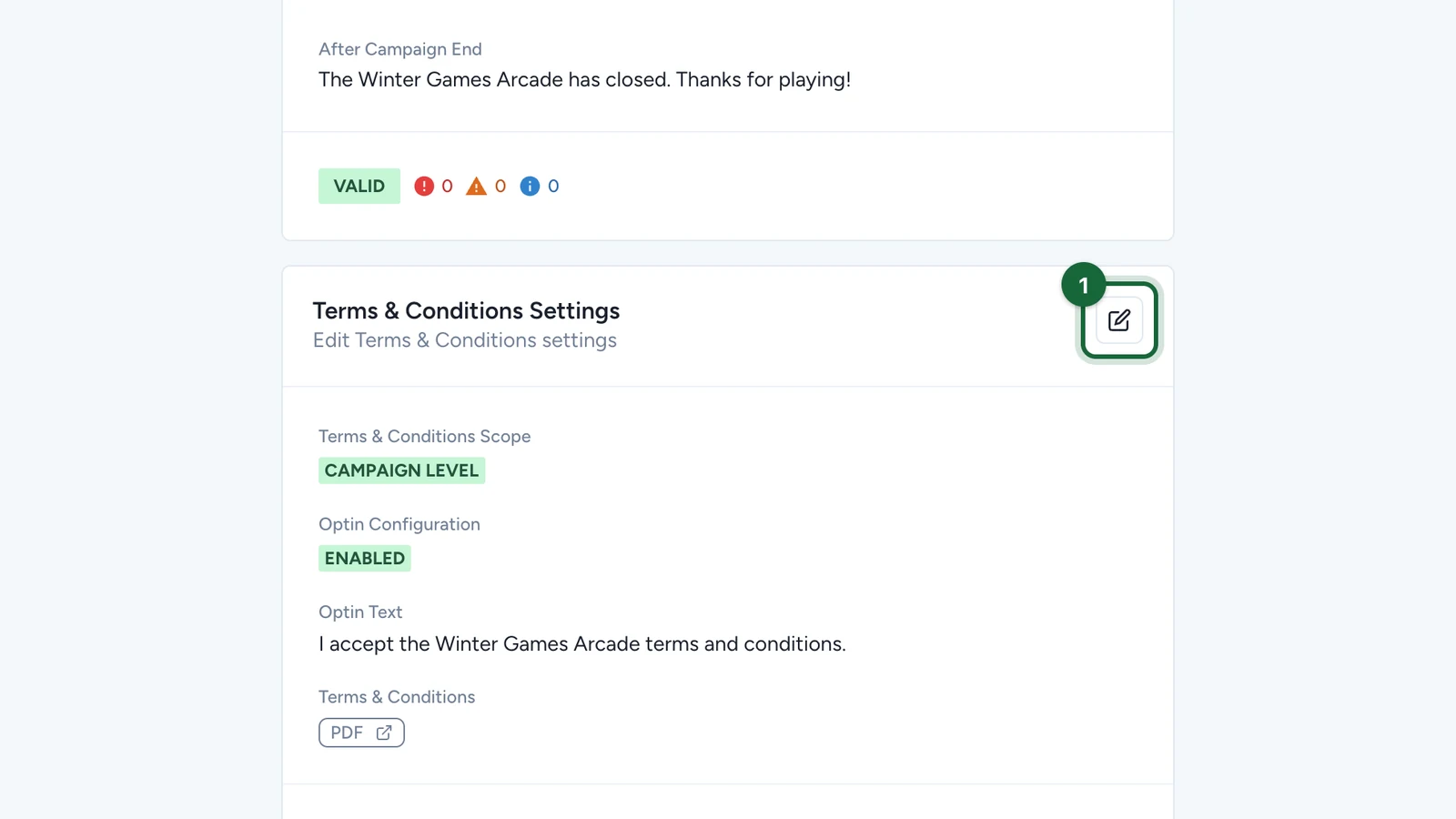
On Terms & Conditions Settings, select the edit button.
-
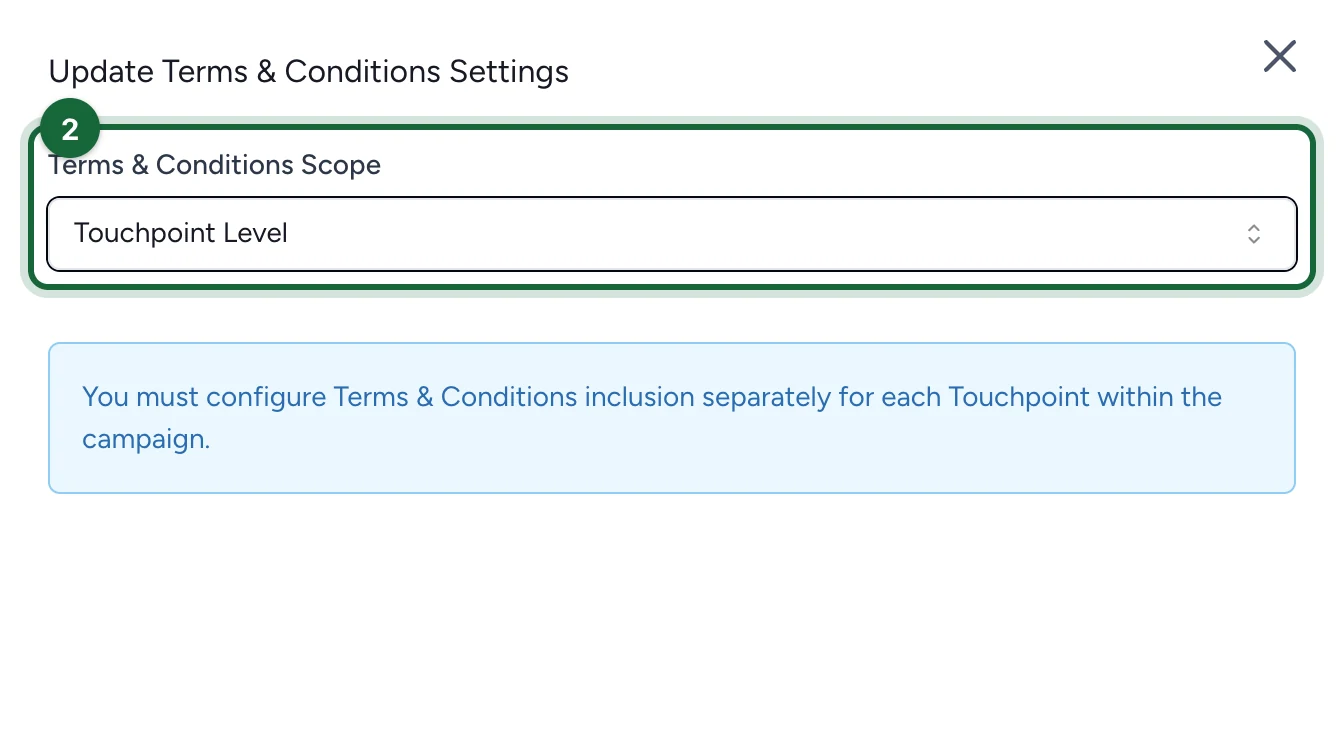
Under Terms & Conditions Scope, choose Campaign Level or Touchpoint Level.
-
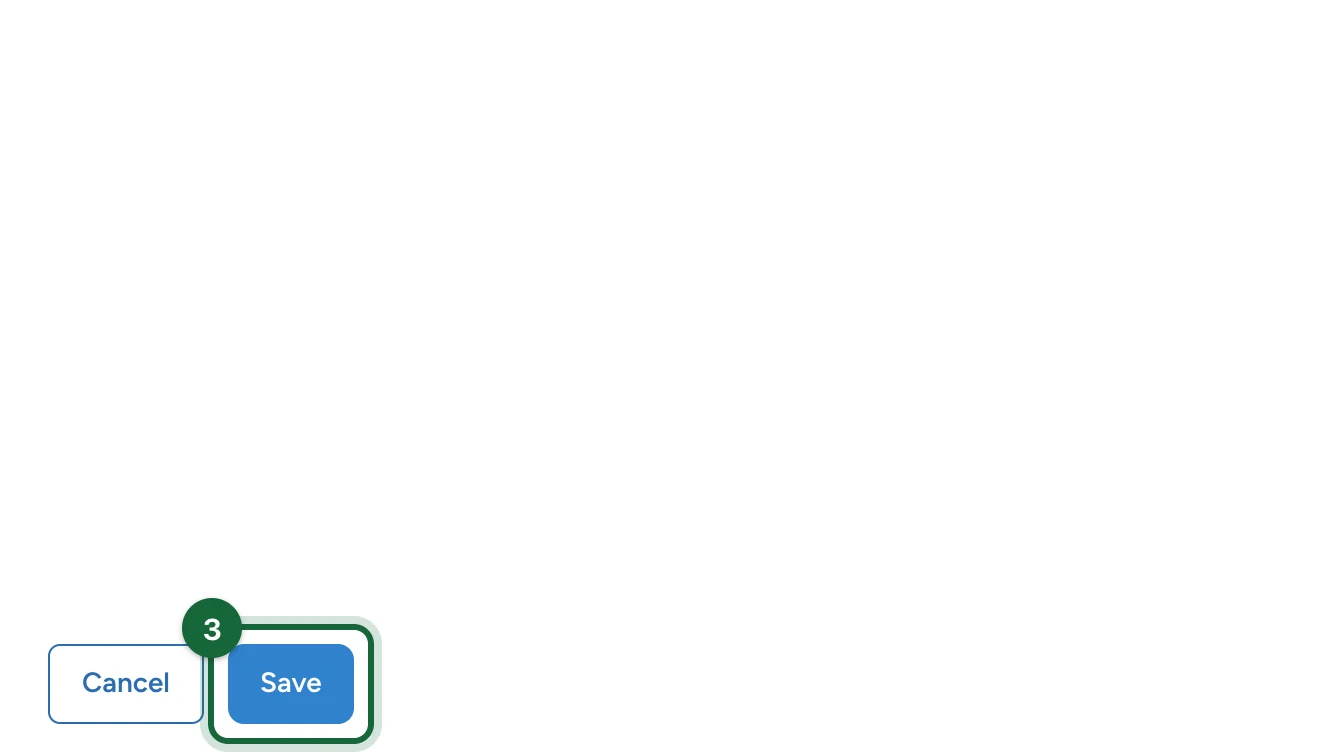
Select Save.
Then switch it on
- At Campaign Level: turn on Is Opt-In Required? in the same window. See Configure opt-in at campaign level.
- At Touchpoint Level: turn it on in each touchpoint. See Configure opt-in at touchpoint level.
Switching scope later
Each scope keeps its own settings. Switching back to Campaign Level brings back the campaign's text and terms, and touchpoint settings wait unused until you switch again. Check the active scope before you publish.