The customer activation platform.Every interaction becomes a qualified contact. Book a demo

About opt-in in OmniLab

Learn how Opt-in combines consent text, terms content, and scope so you can choose the right setup for each campaign.

Placeholders in this article

This article contains placeholder screenshots. Search for placehold.co in this file and replace them before publishing.

In this article, you'll learn what Opt-in includes in OmniLab, how the three-state model works, and when to choose campaign-level or Touchpoint-level consent.

What Opt-in includes

Opt-in in OmniLab bundles three things:

  1. A required toggle: should participants accept terms before they continue?
  2. The Opt-In Text: the consent statement shown next to the checkbox.
  3. The terms content itself: either a PDF file or an External URI.

For participants, those pieces appear as one consent step. They see the checkbox text and can open the linked terms before they continue.

How the three-state model works

Pattern A: three-state

Opt-in, like Notifications and Participation Form, is a three-state feature: Disabled, Campaign Level, or Touchpoint Level.

New to this? Read How settings work across campaigns and touchpoints.

Off On Is Opt-In Required? Disabled Terms & Conditions Scope Campaign Level Touchpoint Level One Opt-in configuration applies to every Touchpoint Each Touchpoint has its own Terms & Conditions setup

The three states are:

StateWhen to use itWhat it means
DisabledThe campaign does not collect participant consent at this step.Opt-in is off. This is valid, but usually rare for production campaigns that collect personal data.
Campaign LevelThe same legal framing applies everywhere in the campaign.One Opt-in configuration applies to every Touchpoint.
Touchpoint LevelDifferent Touchpoints need different terms or consent wording.Each Touchpoint must be configured separately. There is no fallback to the campaign setting.

Where you control it in Studio

Open Build -> General -> Terms & Conditions Settings.

This screen combines two separate controls:

  • Is Opt-In Required? decides whether participants must accept terms.
  • Terms & Conditions Scope decides whether the configuration lives at campaign level or per Touchpoint.

Terms & Conditions Settings showing the Opt-in toggle and scope controls

What participants see

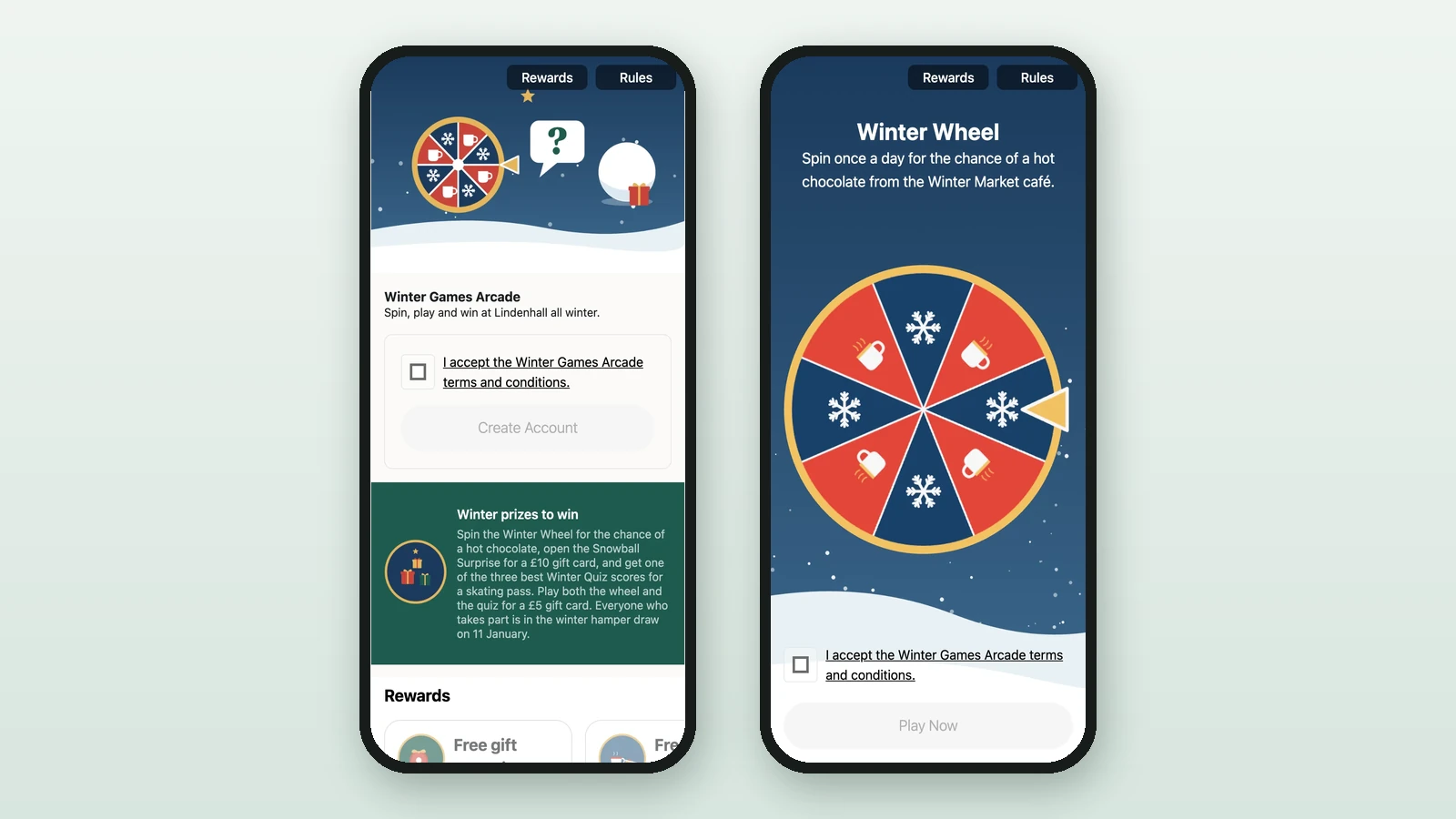
When Opt-in is enabled, participants see your Opt-In Text next to a checkbox. The terms open from the same step as either a PDF or an external page, depending on the type you selected.

GDPR-aware, not legal advice

OmniLab helps you present consent text and terms, but your organisation remains responsible for making sure the wording and the linked terms are appropriate for the jurisdictions where the campaign runs.

Running a campaign with Opt-in disabled is technically possible, but validation surfaces Terms and conditions are disabled for this campaign as a warning so you can review the legal setup before publishing.

Was this helpful?

Optional comments help us improve this page for future authors and readers.

On this page