The customer activation platform.Every interaction becomes a qualified contact. Book a demo

Configure opt-in at touchpoint level

Set a different consent text or terms source per Touchpoint when your campaign uses Touchpoint Level scope.

In this article, you'll configure Opt-in separately inside each Touchpoint when the campaign uses Touchpoint Level scope.

Prerequisites

  • Terms & Conditions Scope is set to Touchpoint Level. If it is not, see Enable opt-in and choose scope.
  • Is Opt-In Required? is turned on.
  • The campaign already contains the Touchpoints you want to configure.

Configuration

Are you sure Touchpoint Level is necessary?

Campaign Level is simpler and right for most campaigns. Choose Touchpoint Level only when Touchpoints genuinely need different terms or different consent wording.

Set the campaign scope to Touchpoint Level

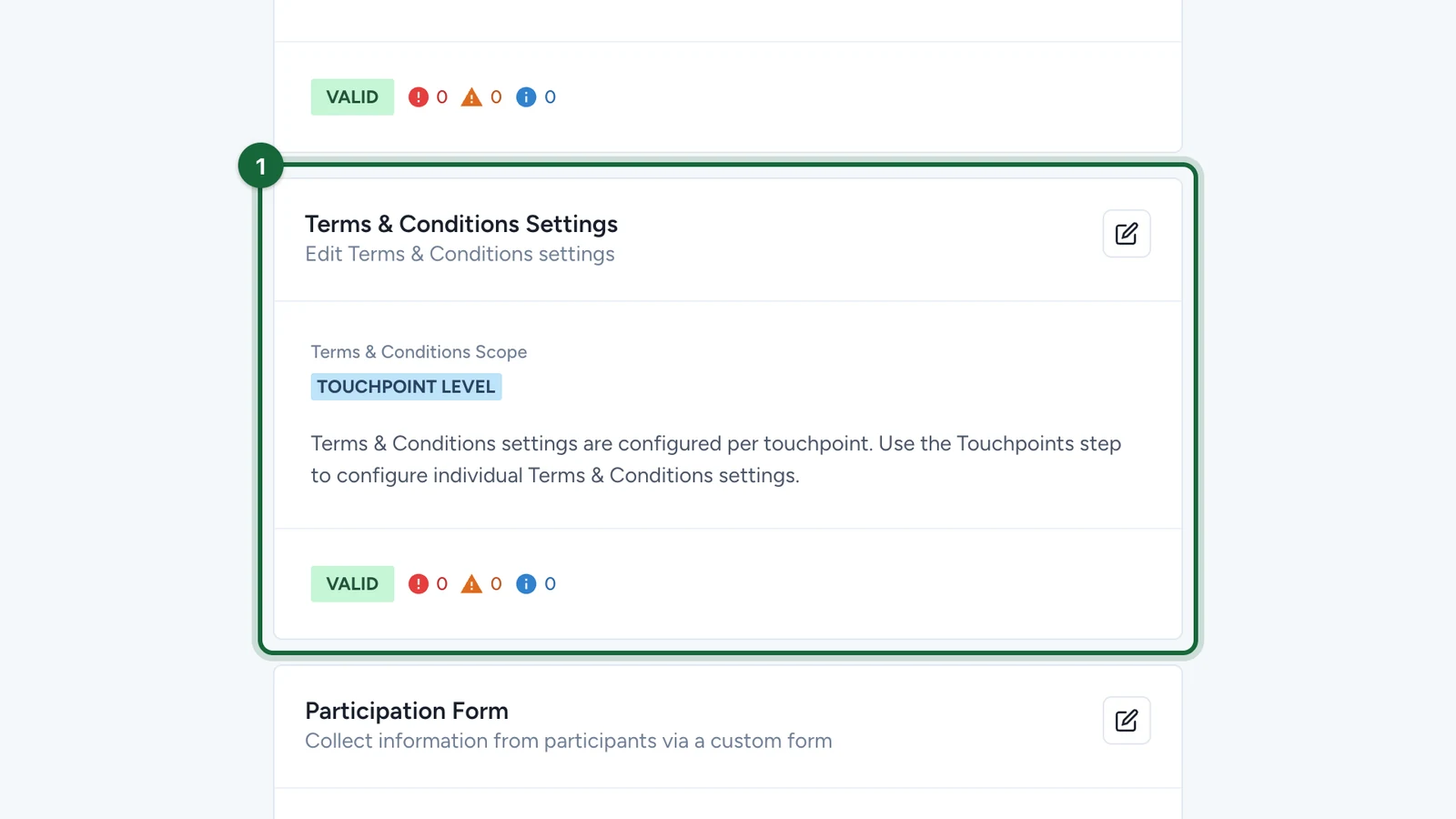
Open Build -> General -> Terms & Conditions Settings, then set Terms & Conditions Scope to Touchpoint Level.

Open the Touchpoint you want to edit

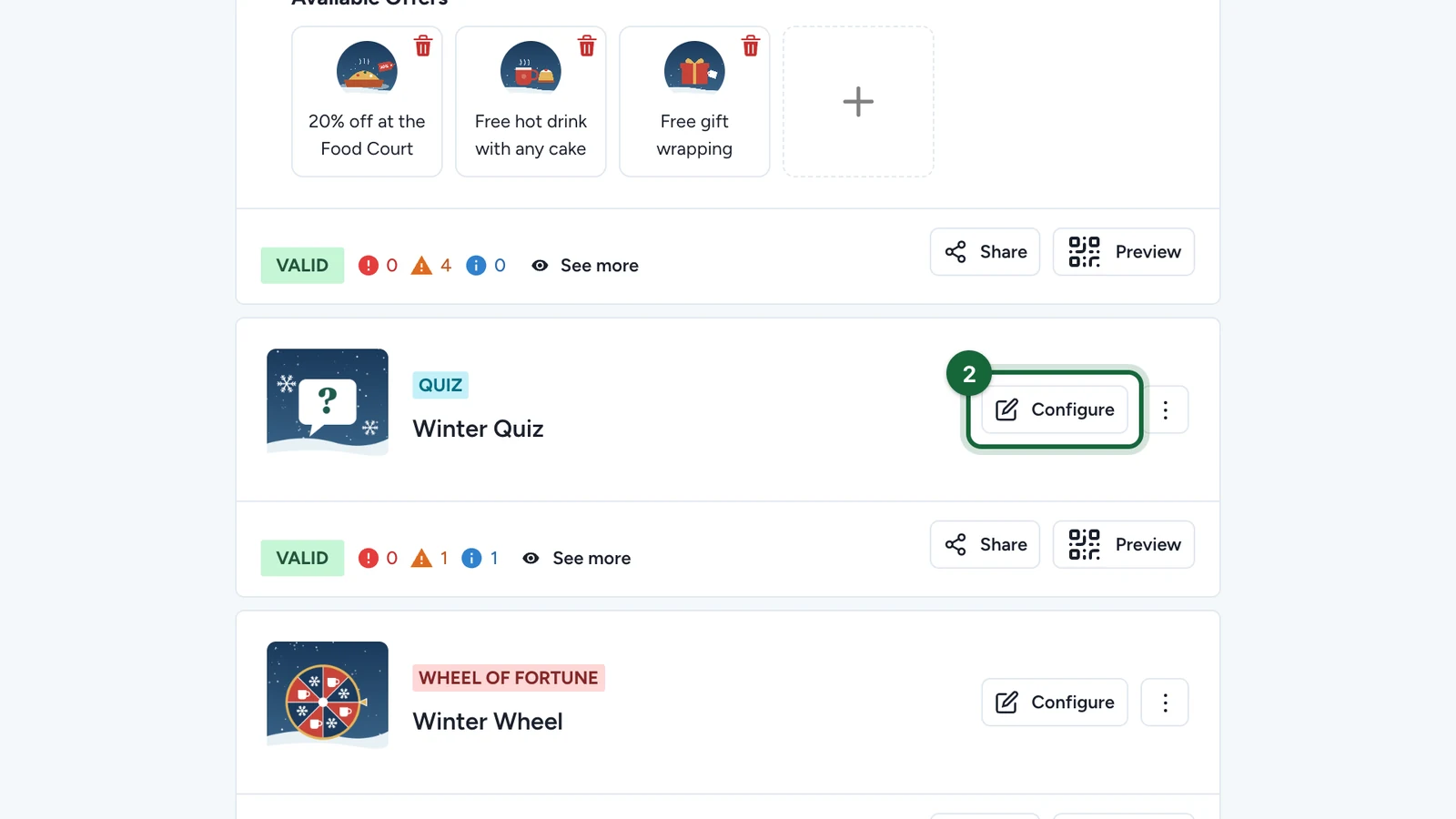
Go to Build -> Touchpoints, then open the Touchpoint that needs its own Opt-in settings.

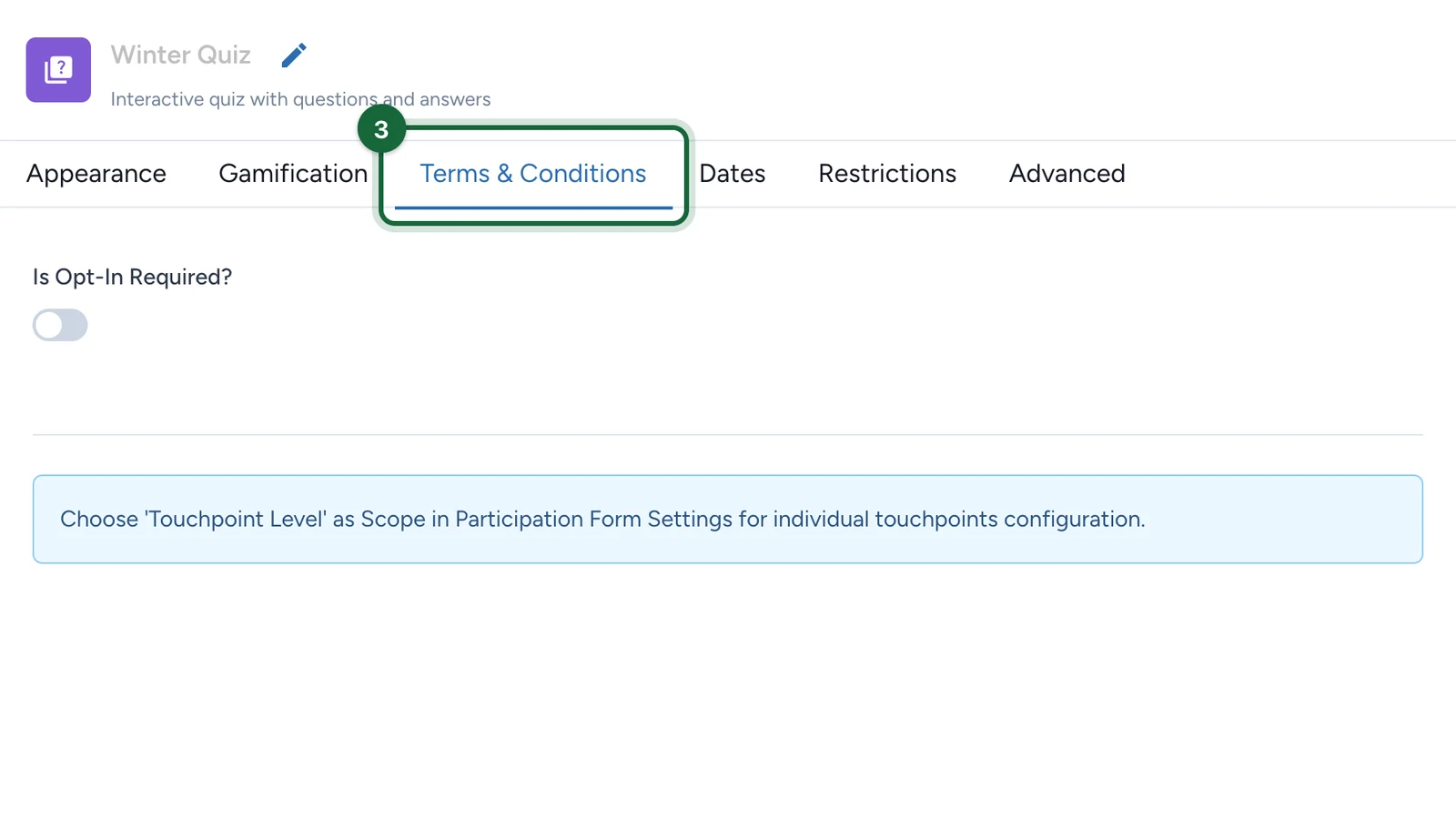
Open the Terms & Conditions tab

Inside the Touchpoint editor, open the Terms & Conditions tab.

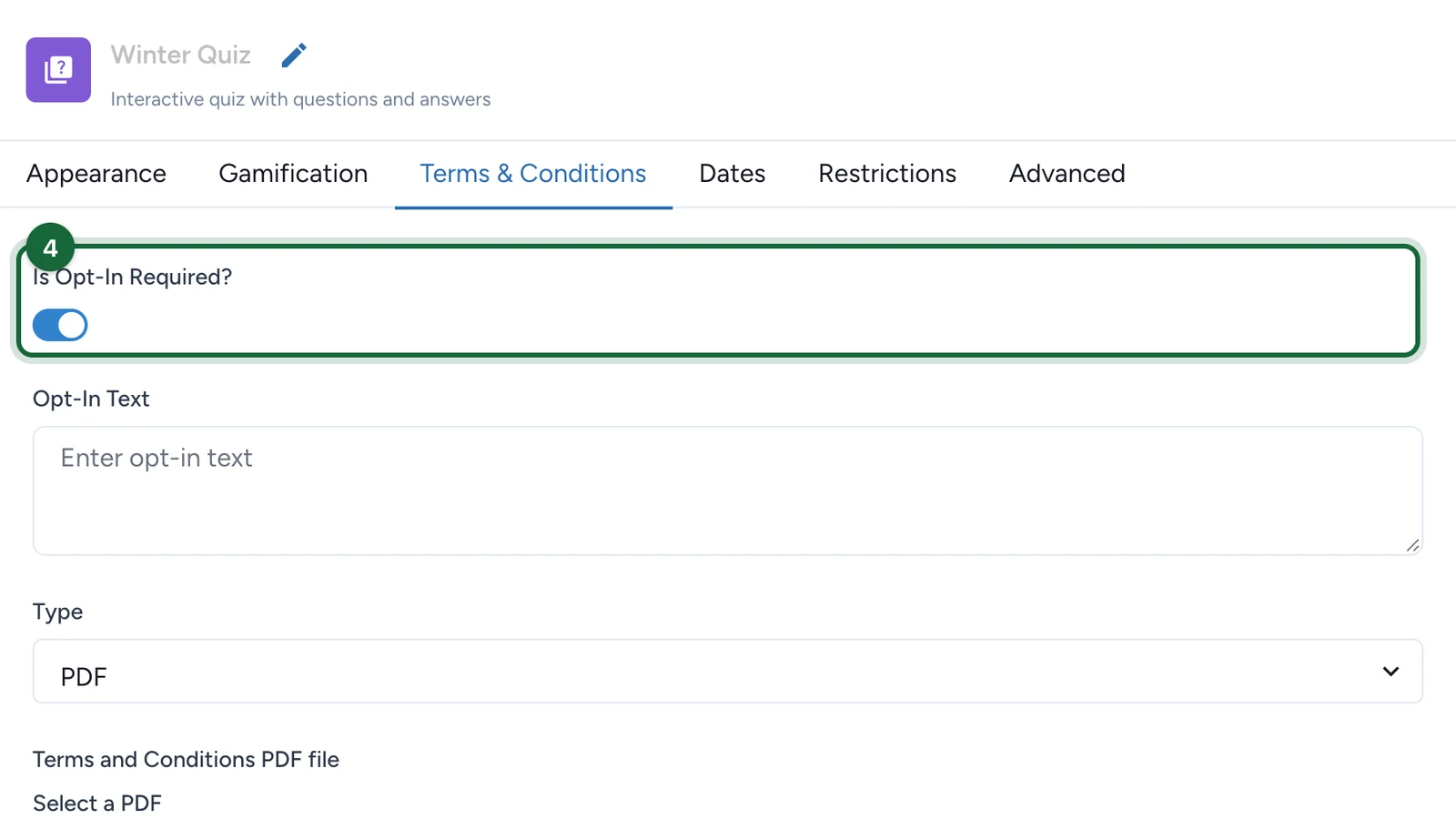
Turn on Is Opt-In Required?

Enable Is Opt-In Required? for this Touchpoint if participants must accept terms before they continue.

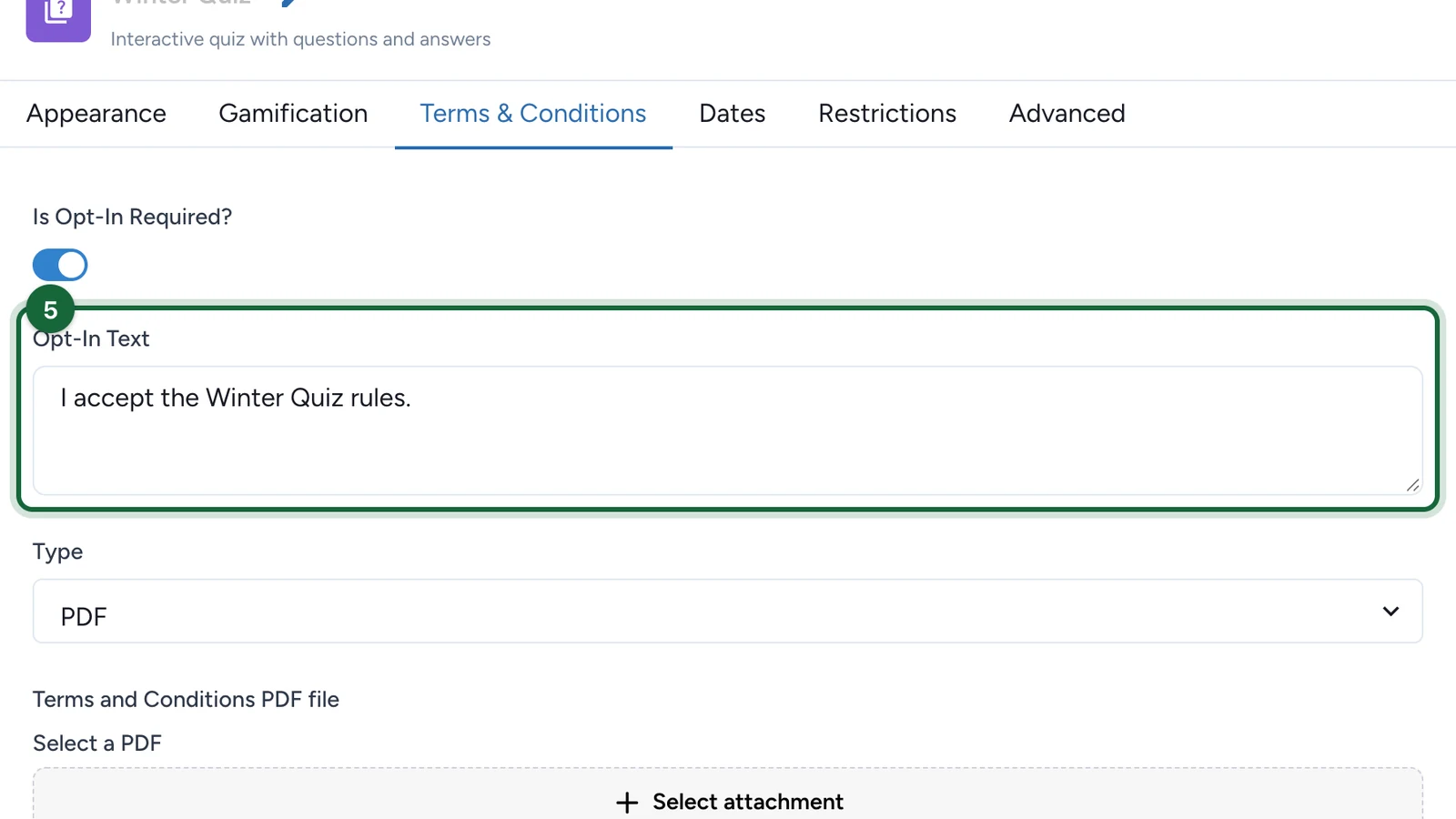
Enter the Opt-In Text

Fill Opt-In Text with the consent statement shown for this Touchpoint.

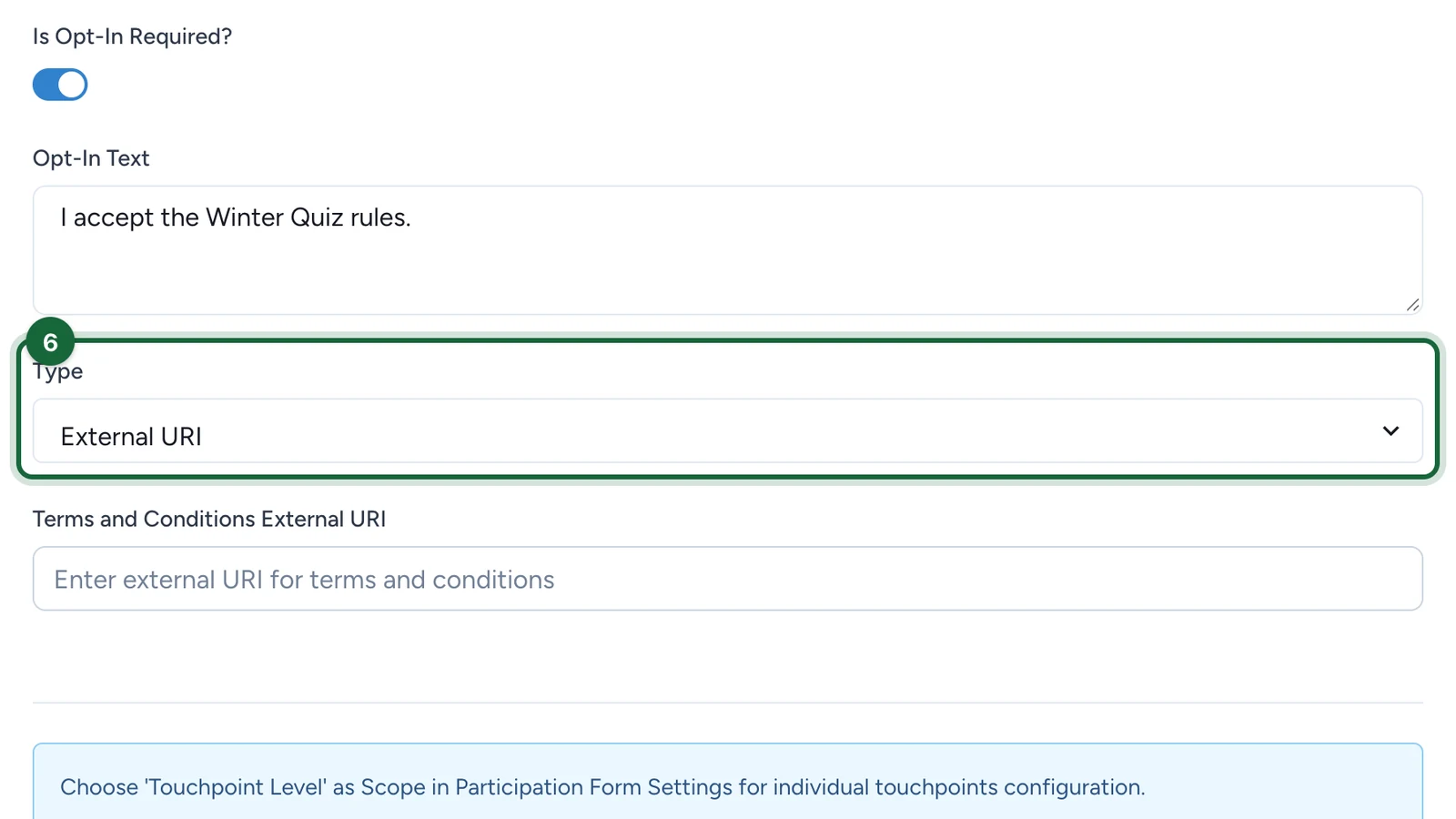
Choose the Type and provide the terms

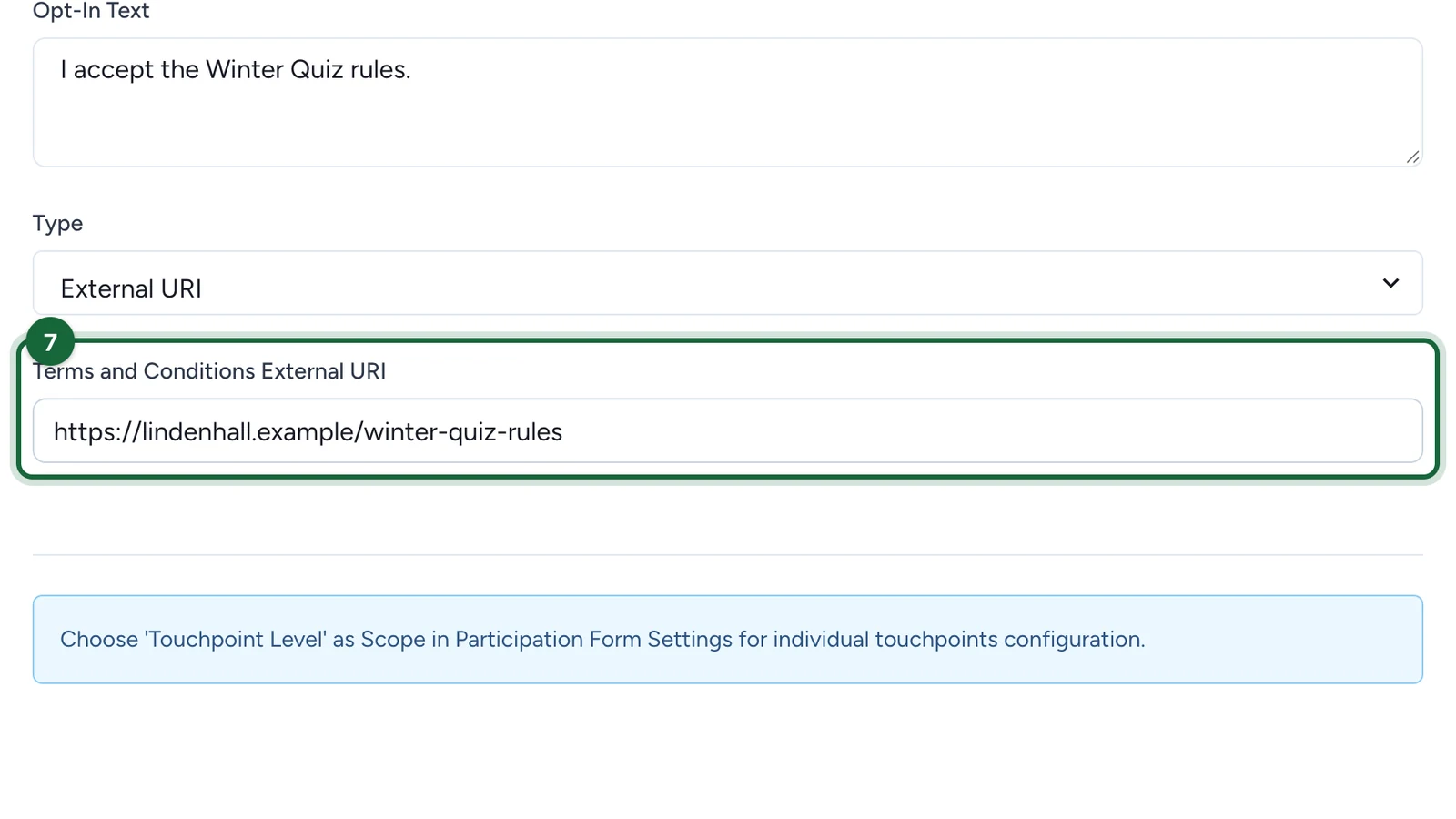
Select PDF or External URI, then complete the matching field for this Touchpoint.

Upload the PDF file that belongs to this Touchpoint.

Enter the full terms link for this Touchpoint. The URL must start with http:// or https://.

Repeat for every Touchpoint

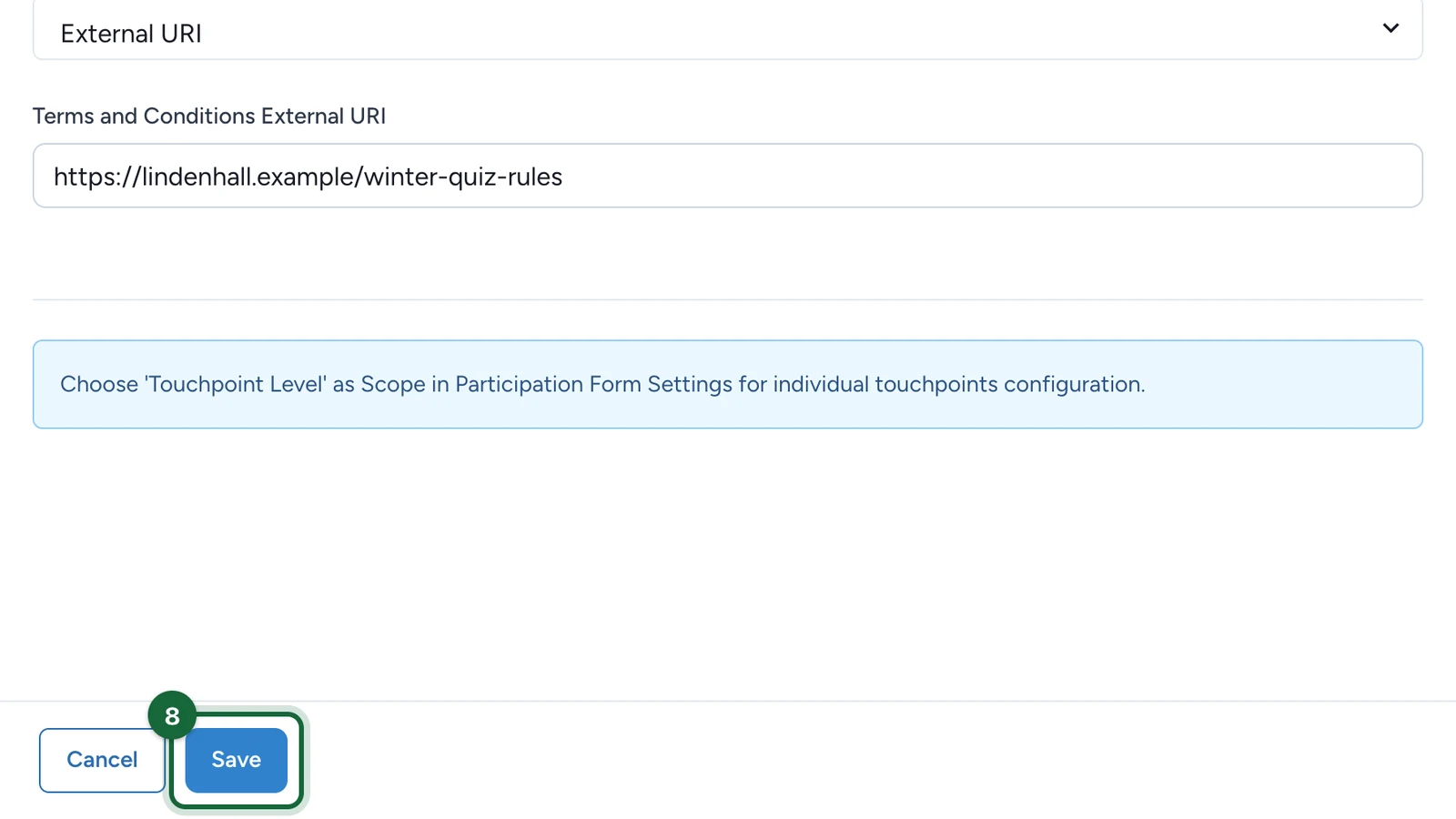
Save the Touchpoint, then repeat the same setup for every other Touchpoint that should collect consent.

What happens if one Touchpoint is incomplete

When the scope is Touchpoint Level, there is no campaign-level fallback. Each Touchpoint is validated separately.

That means a campaign with five Touchpoints and only three completed Opt-in setups still has two incomplete Touchpoints to fix. The missing Touchpoints surface their own Opt-in validation issues until you finish them.

Validation

The same Opt-in validation messages used at campaign level can appear per Touchpoint when the relevant fields are missing:

MessageWhy it happensFix
Opt-in is enabled but consent text is missingThis Touchpoint is missing Opt-In Text.Enter the consent statement for the Touchpoint.
Opt-in is enabled but terms and conditions type is not selectedType is not selected for this Touchpoint.Choose PDF or External URI.
PDF type is selected but no PDF file has been uploadedPDF is selected but no file is attached.Upload the PDF file.
External URI type is selected but no URL has been providedExternal URI is selected but the link field is empty.Enter the URL.
External URL '{{invalid_url}}' is not a valid URLThe link format is invalid.Correct the URL so it starts with http:// or https://.

See Validation & publishing for the broader publish flow.

Was this helpful?

Optional comments help us improve this page for future authors and readers.

On this page