Email content, banners, CTAs
The six fields of a notification email, what each is for, and the rules publishing checks.
Every notification type uses the same six fields, whether it's a winner email or a booking reminder. Only the trigger and the dynamic fields change.
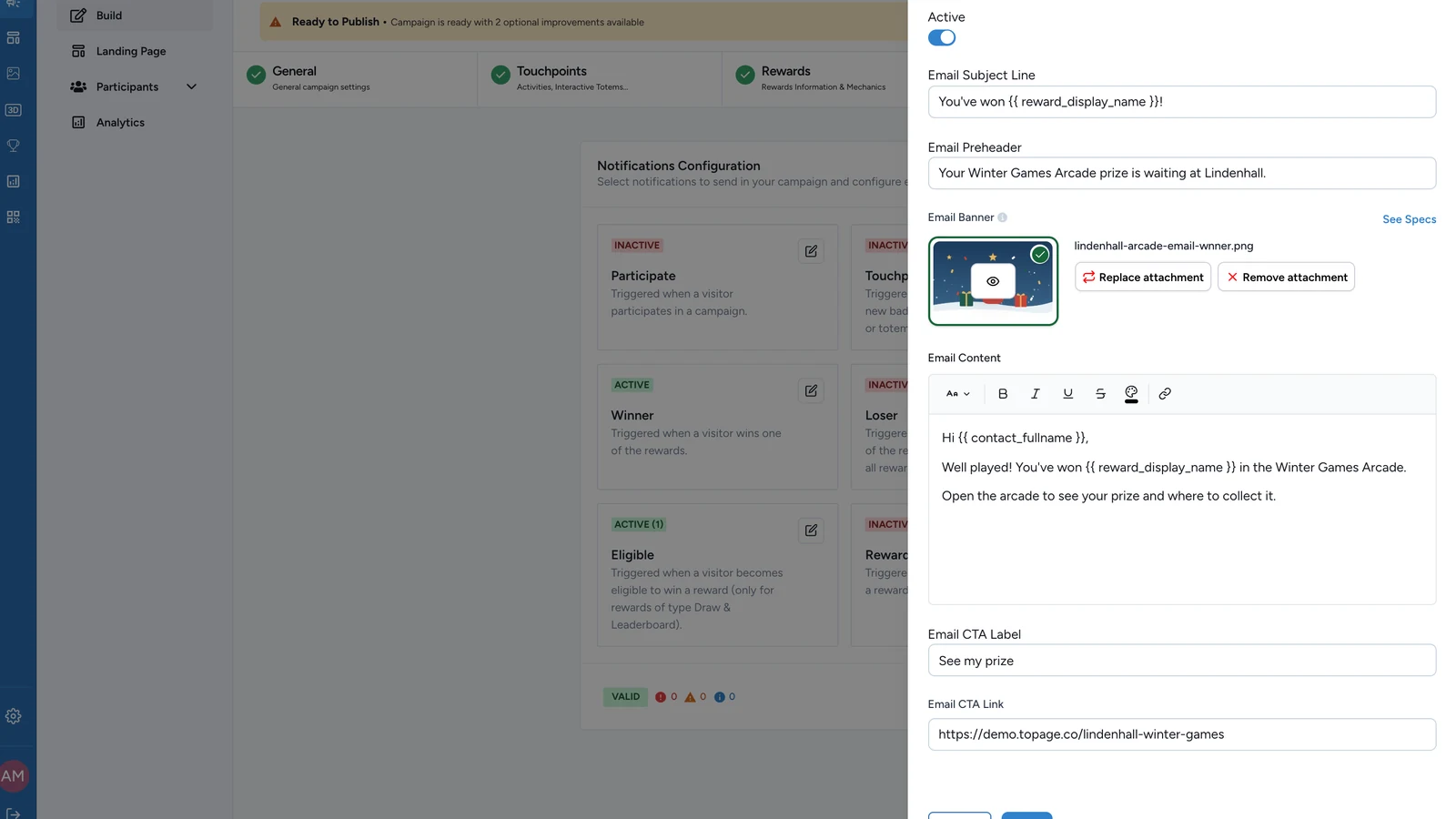
The fields
| Field | What it's for | Needed to publish |
|---|---|---|
| Email Subject Line | What happened, before the email is opened | Yes |
| Email Preheader | The line inboxes show after the subject | No, but recommended |
| Email Banner | The image at the top of the email | Yes |
| Email Content | The message itself | Yes |
| Email CTA Label | The text on the button | No. A label without a link, or the reverse, is flagged |
| Email CTA Link | The page the button opens | No, but it must be a valid address |
Any of them can include the participant's name, the prize or the booking: see Personalise emails with dynamic fields.
Write for the inbox
- Subject line: say the outcome, such as "You've won a hot chocolate!". Keep it short enough for a phone.
- Preheader: add the next useful detail, such as a date or where to collect the prize.
- Content: put the outcome first, then what to do next. Keep paragraphs short. The toolbar has text size, bold, italic, underline, strikethrough, colour and links.
- Button: add one only when there's a next step, such as opening the campaign. Name the action: "See my prize", "View my booking".
Most emails are read on phones: don't put essential information only in the banner image.
The banner
Email Notification Banner
RequiredThe banner shown at the top of notification emails.
- Required
- Size1200 × 800 px
- Aspect ratio3:2
- FormatsJPEG / WEBP / PNG
See Specs, next to the field, shows the same size in Studio.
The button's two fields go together
Fill both Email CTA Label and Email CTA Link, or leave both empty. The link must be a full web address starting with https://. It can include dynamic fields, as long as what's left still reads as an address.
If publishing is blocked
- The subject line, banner or content is empty: fill it in, or switch the notification off.
- The button link isn't a web address: start it with
https://. - The button link is only a dynamic field that isn't an address, such as a coupon code: use a link such as
{{ coupon_url }}, or a full address.