Configure notifications globally
Write one email that goes out for every reward or touchpoint of that notification type.
With the Global tab, one email covers the whole campaign for that type. Here, Lindenhall sends the same Winner email whichever arcade prize someone wins, with the prize's name filled in for them.
Write the email
In the campaign, open Build.
-
Select Notifications.
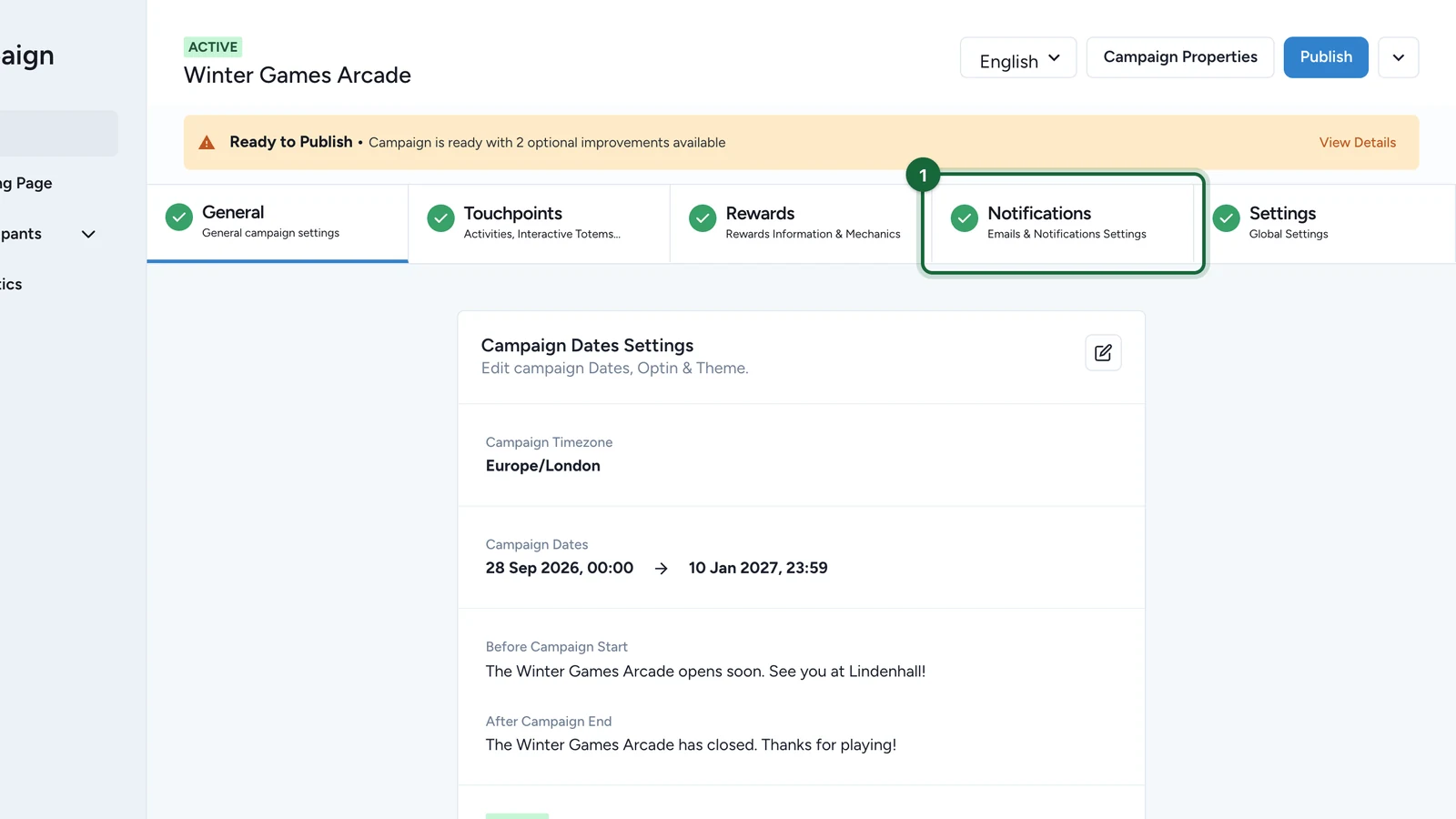
-
On the Winner card, select the edit button.
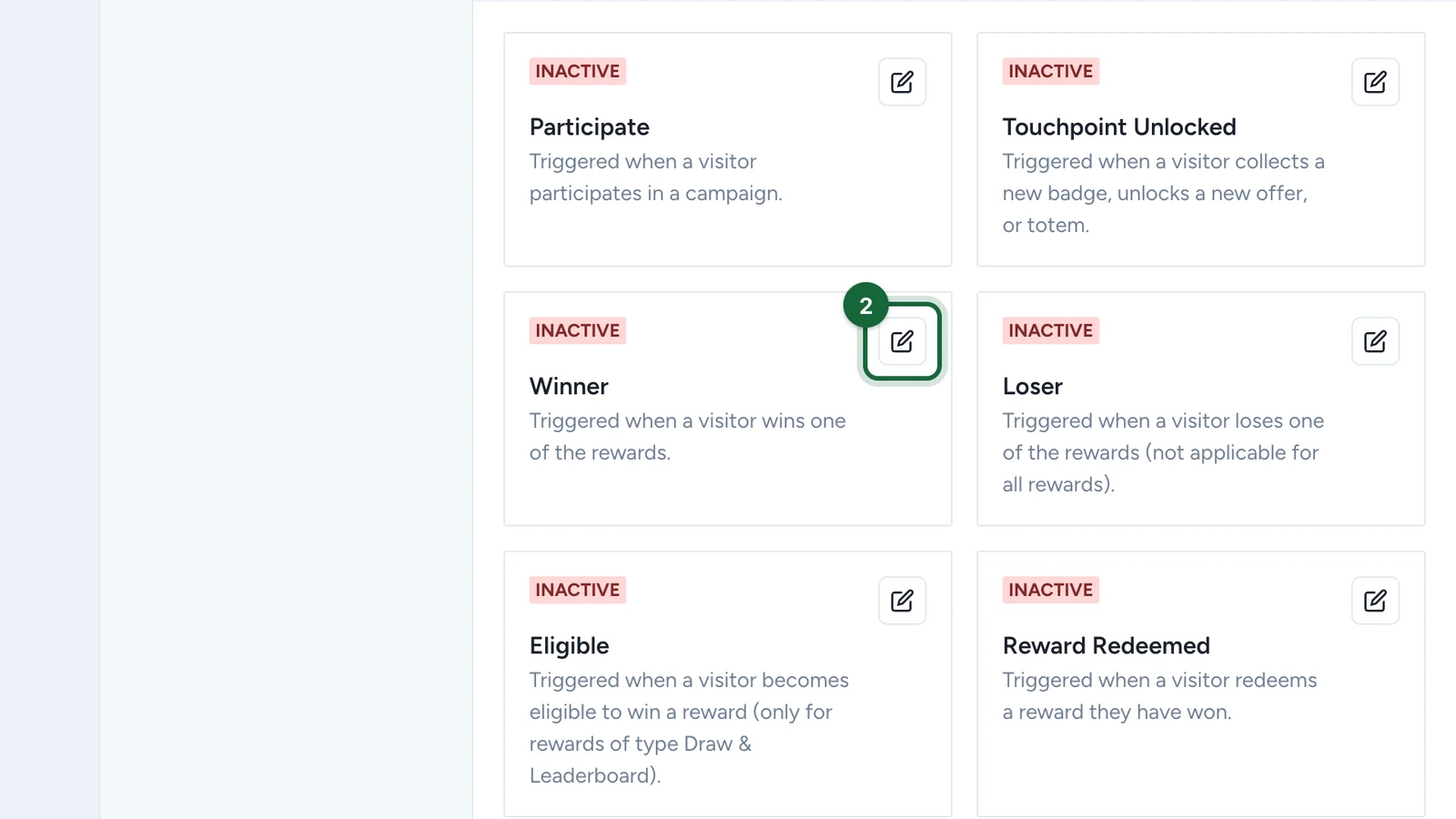
-
Keep the Global tab selected.
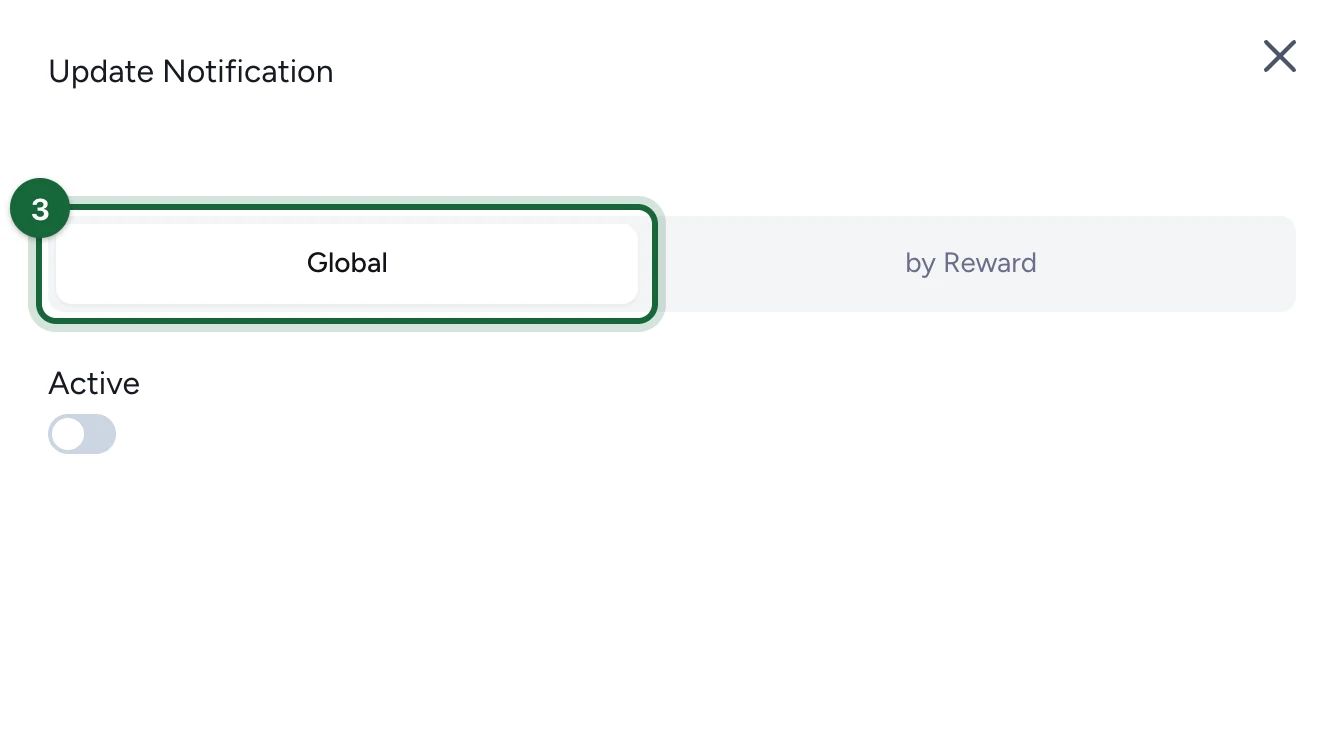
-
Switch Active on.
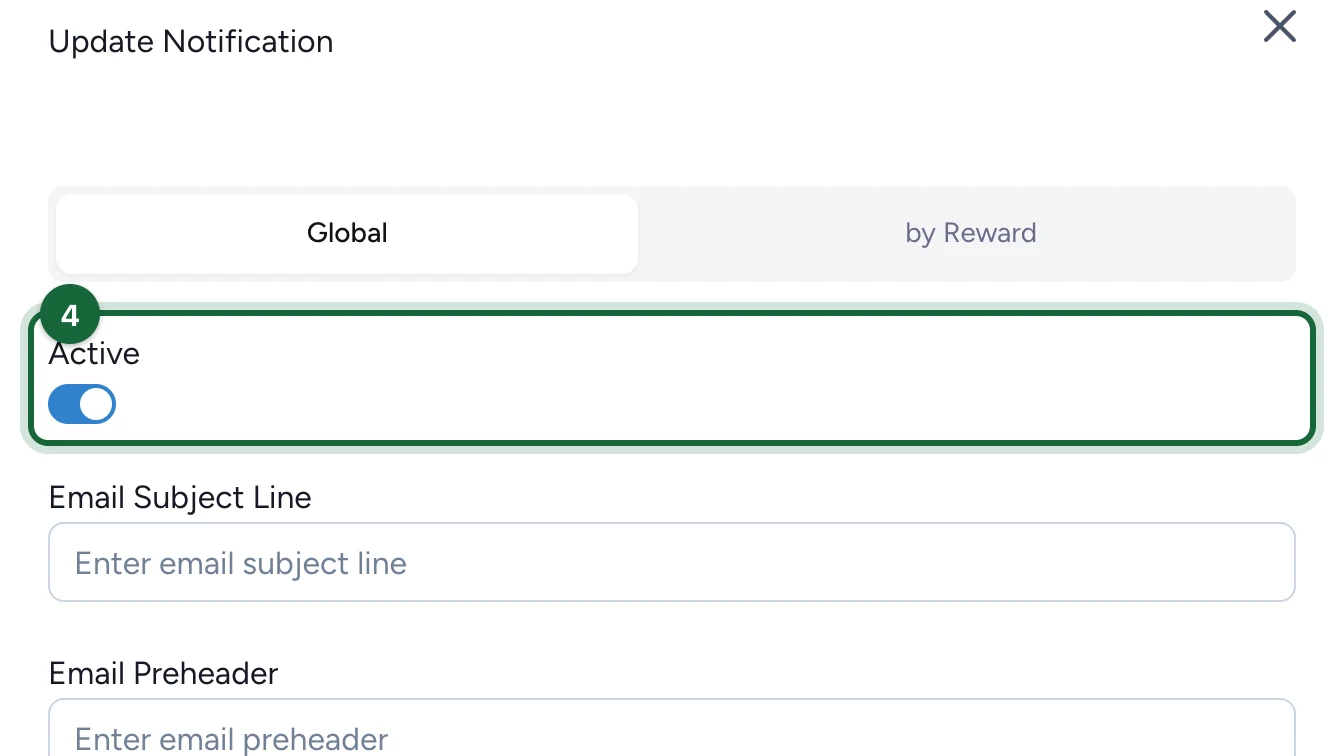
-
Enter the Email Subject Line.
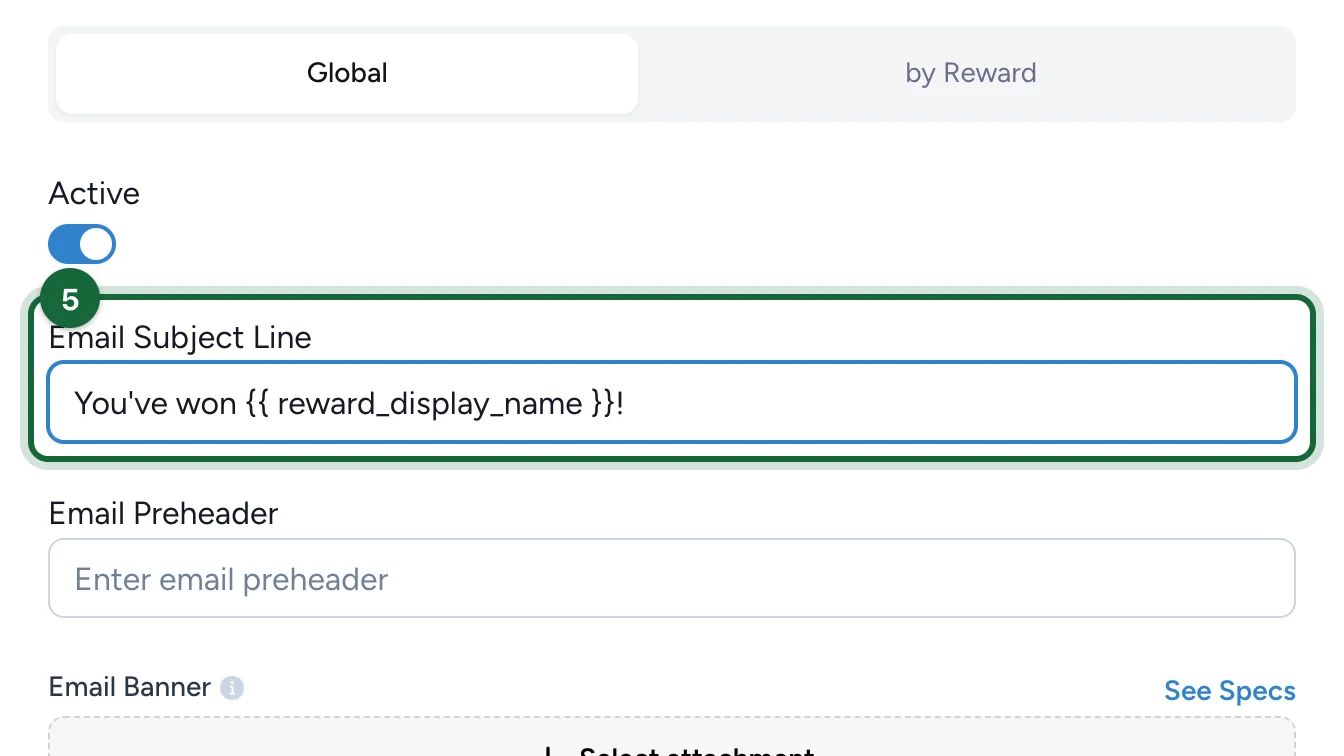
{{ reward_display_name }}becomes the prize's name in each email: see Personalise emails with dynamic fields. -
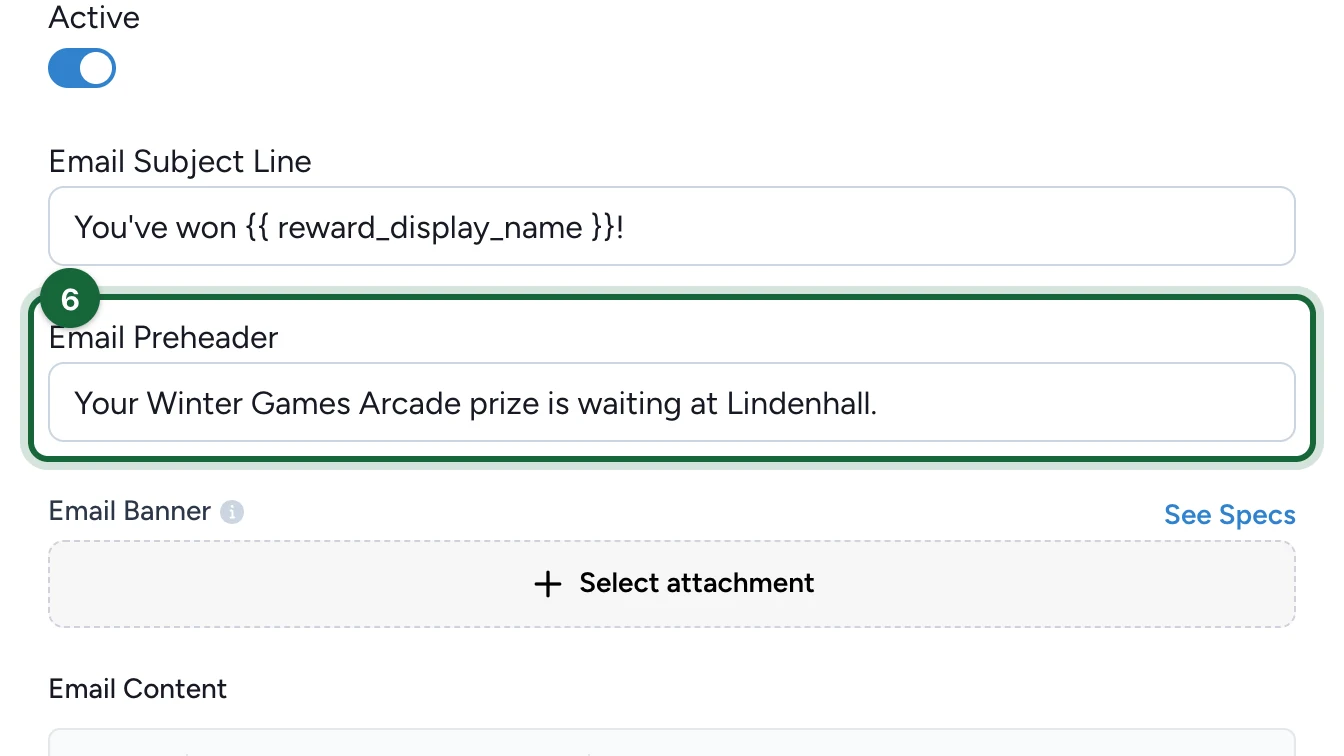
Enter the Email Preheader, the line inboxes show after the subject.
-
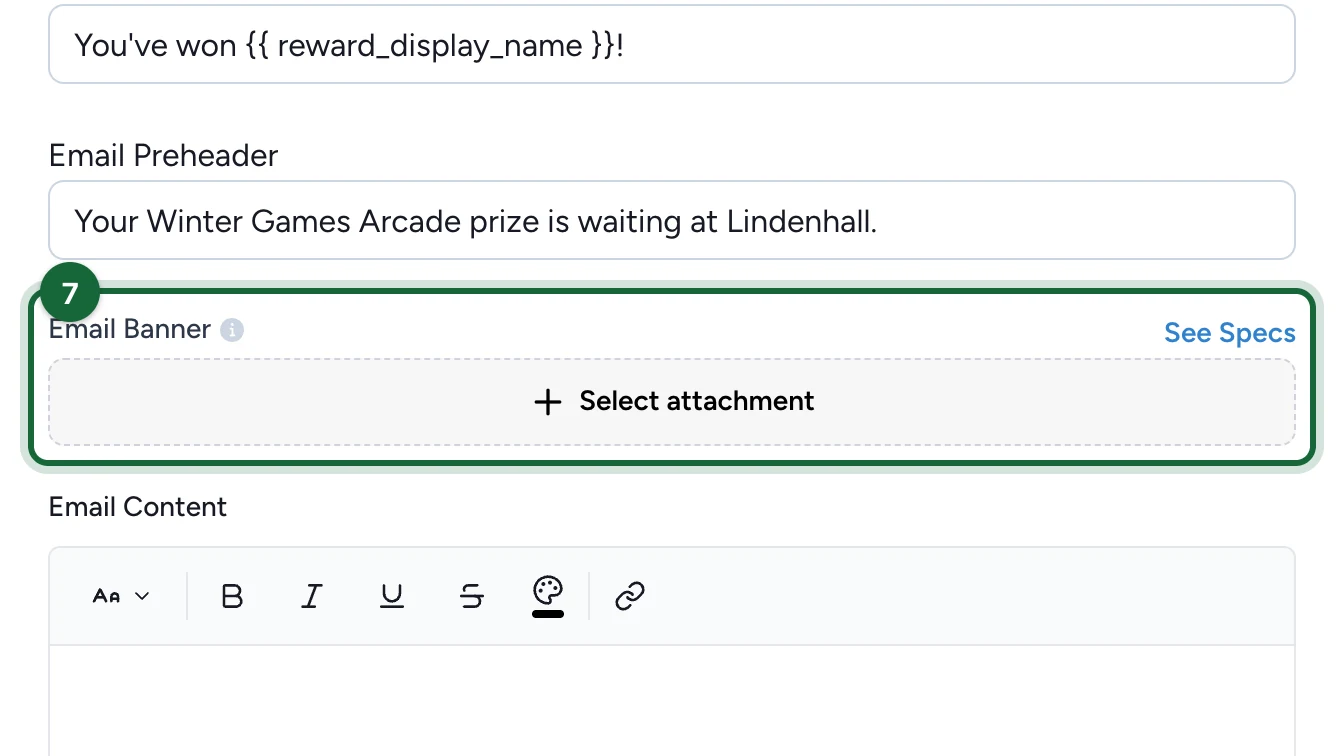
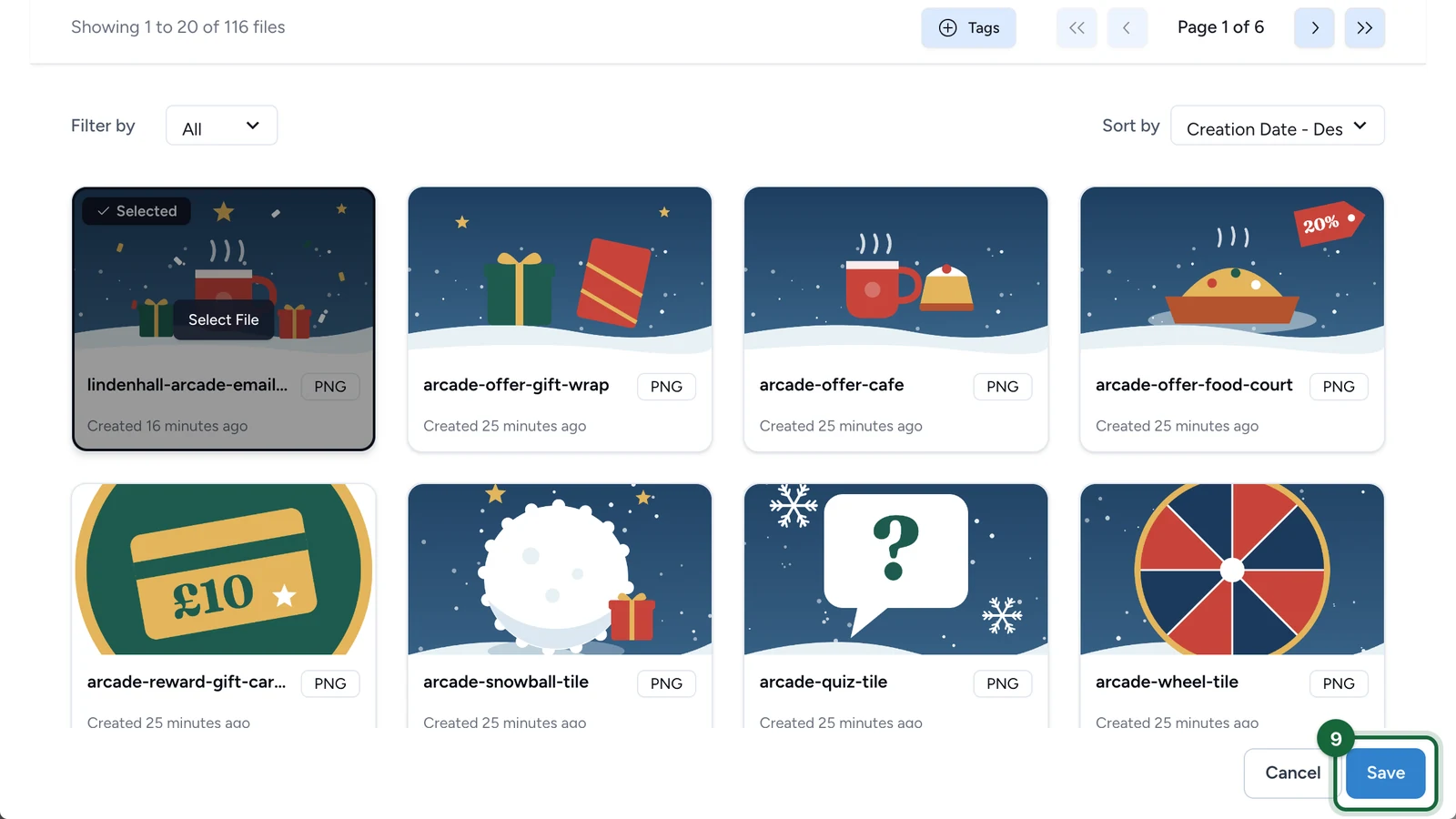
Under Email Banner, select Select attachment.
-
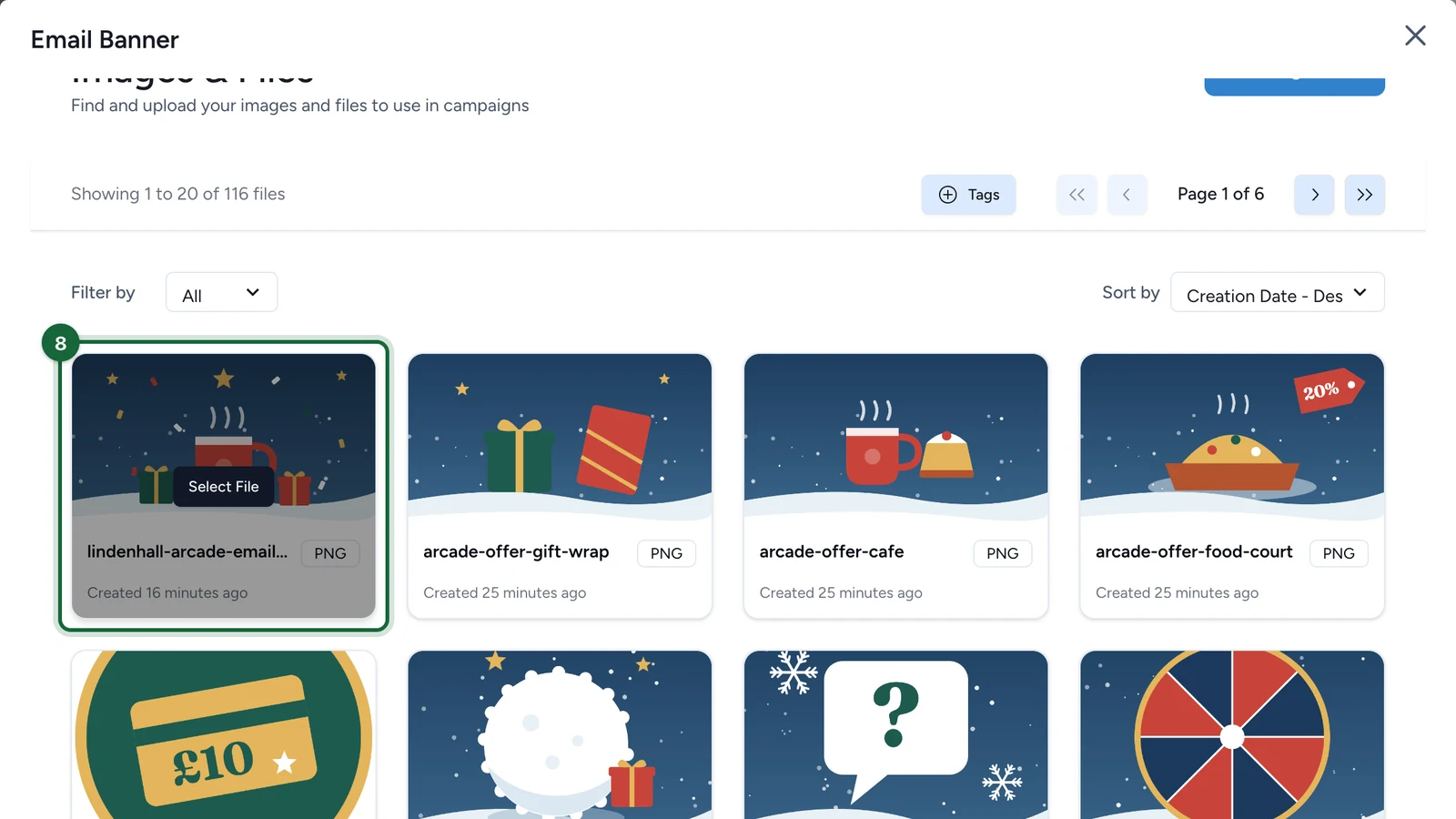
Choose the image: point at it, then select Select File.
Email Notification Banner
RequiredThe banner shown at the top of notification emails.
- Required
- Size1200 × 800 px
- Aspect ratio3:2
- FormatsJPEG / WEBP / PNG
Examples -
Select Save.
-
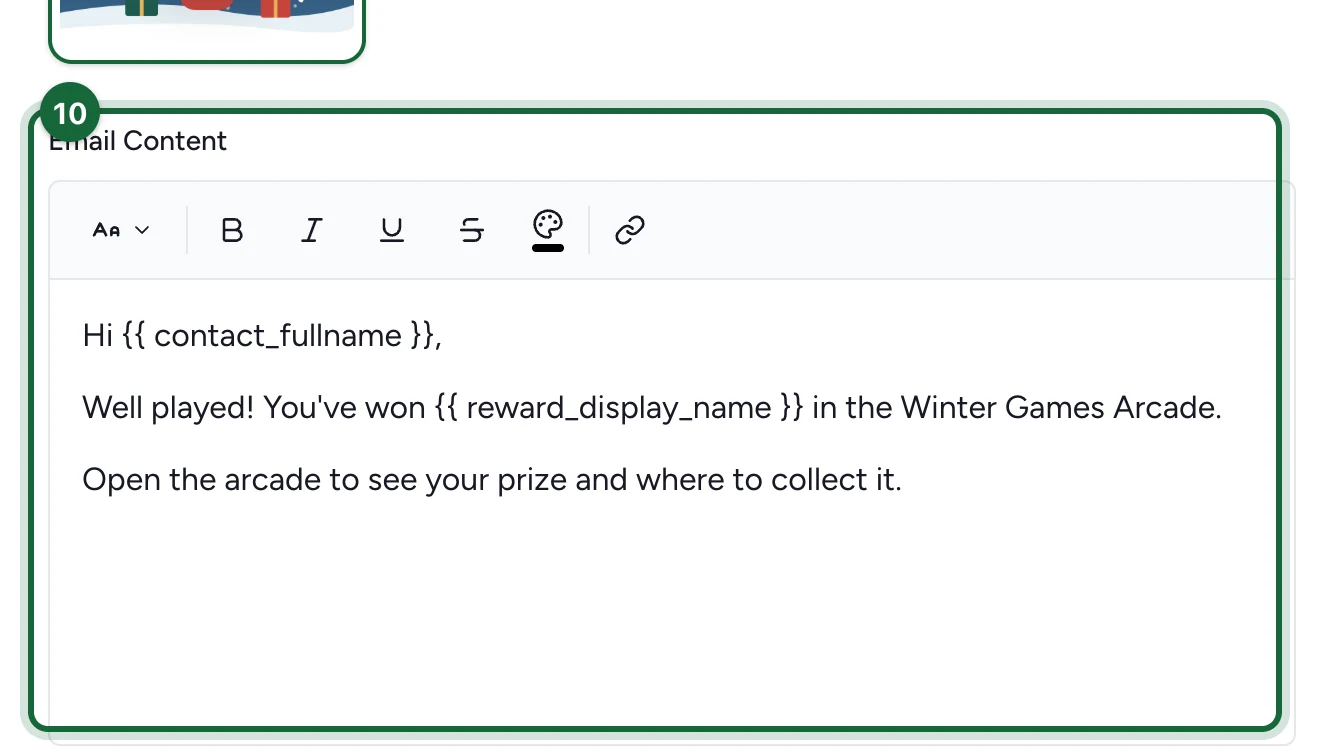
Write the Email Content.
-
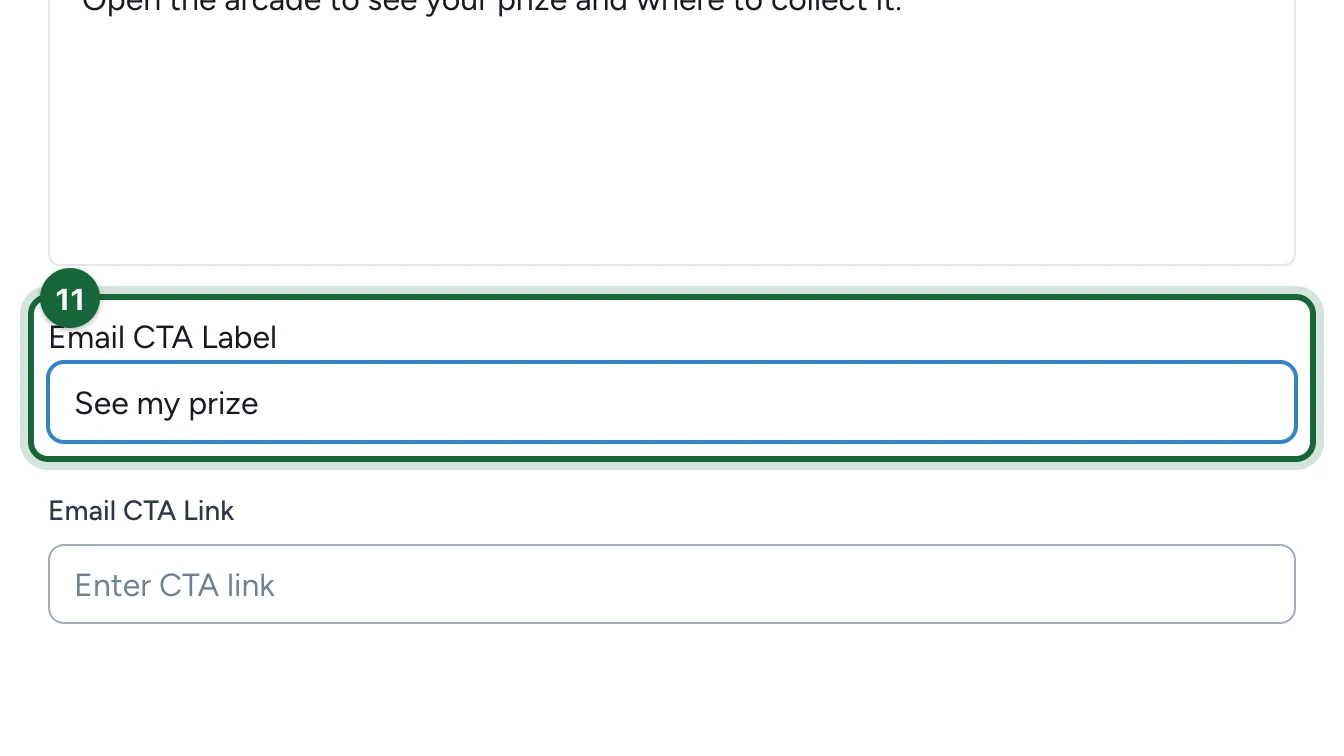
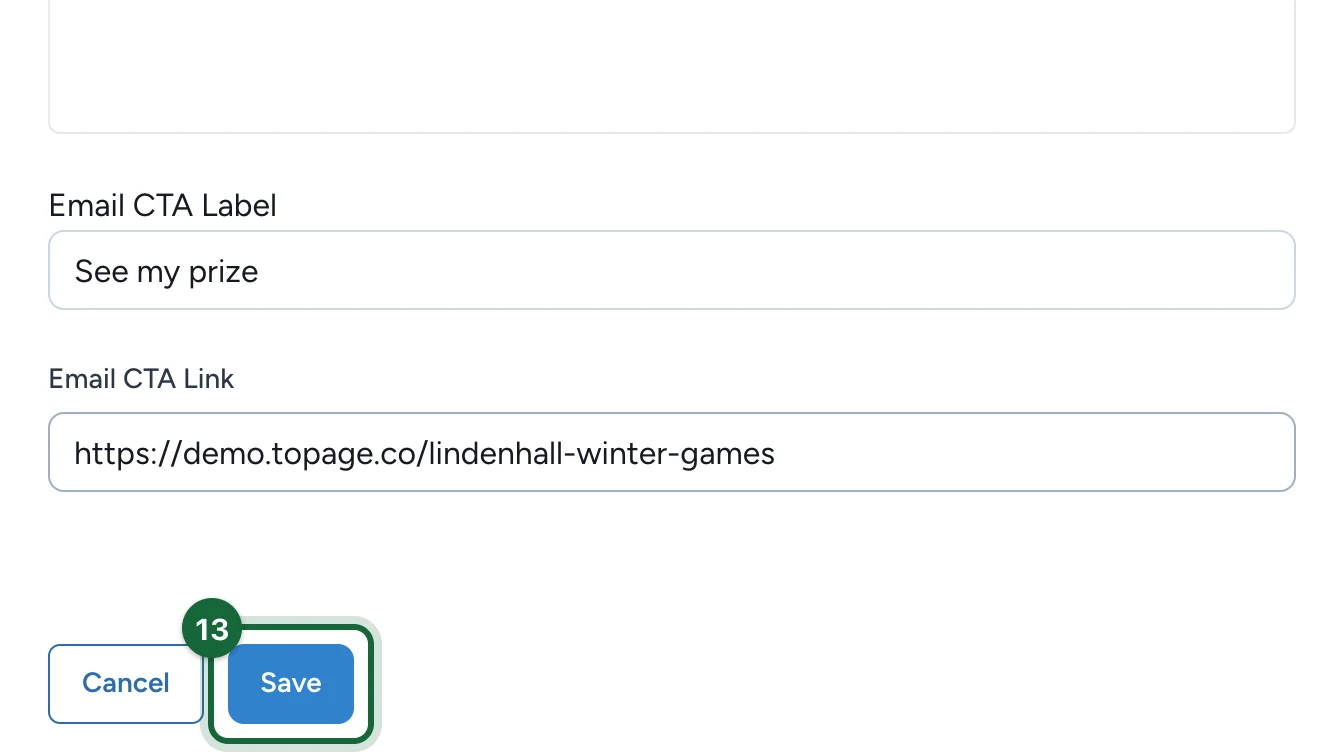
Enter the Email CTA Label, the text on the email's button.
-
Enter the Email CTA Link, the page the button opens.
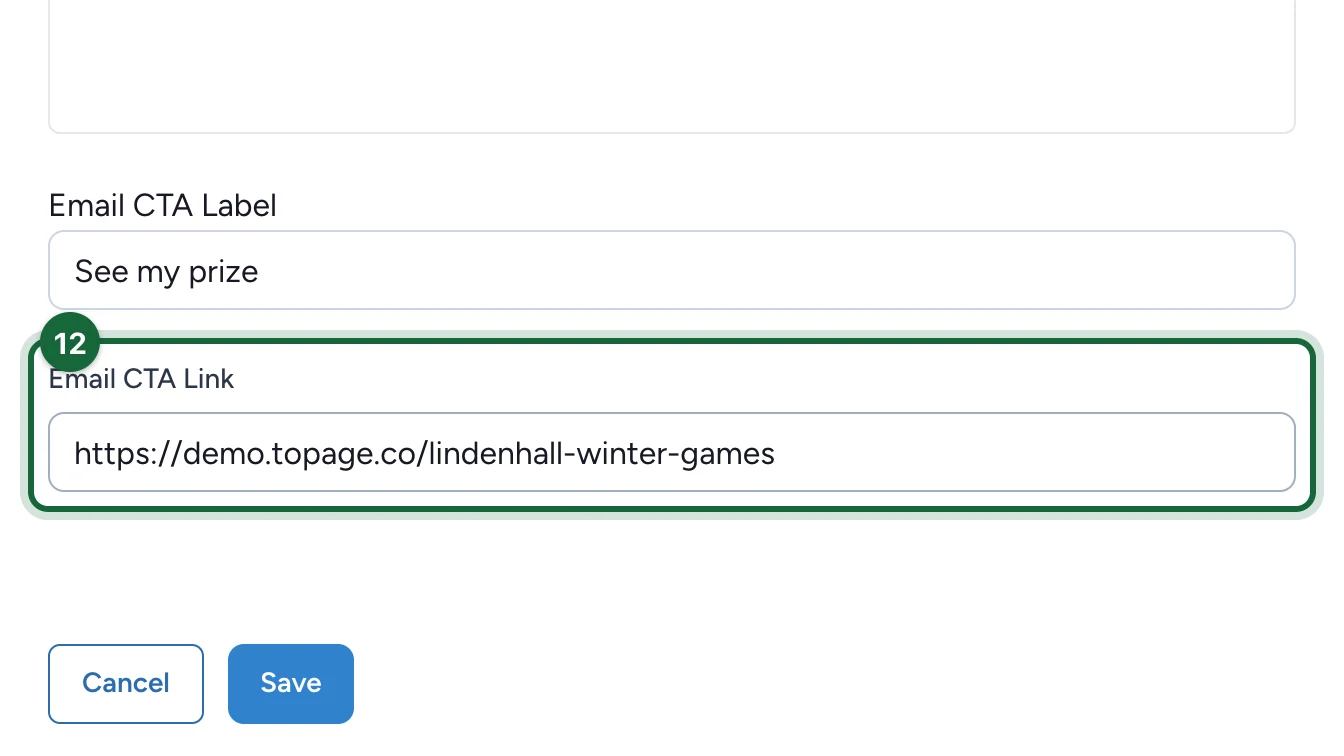
Leave both button fields empty if the email doesn't need a button.
-
Select Save.
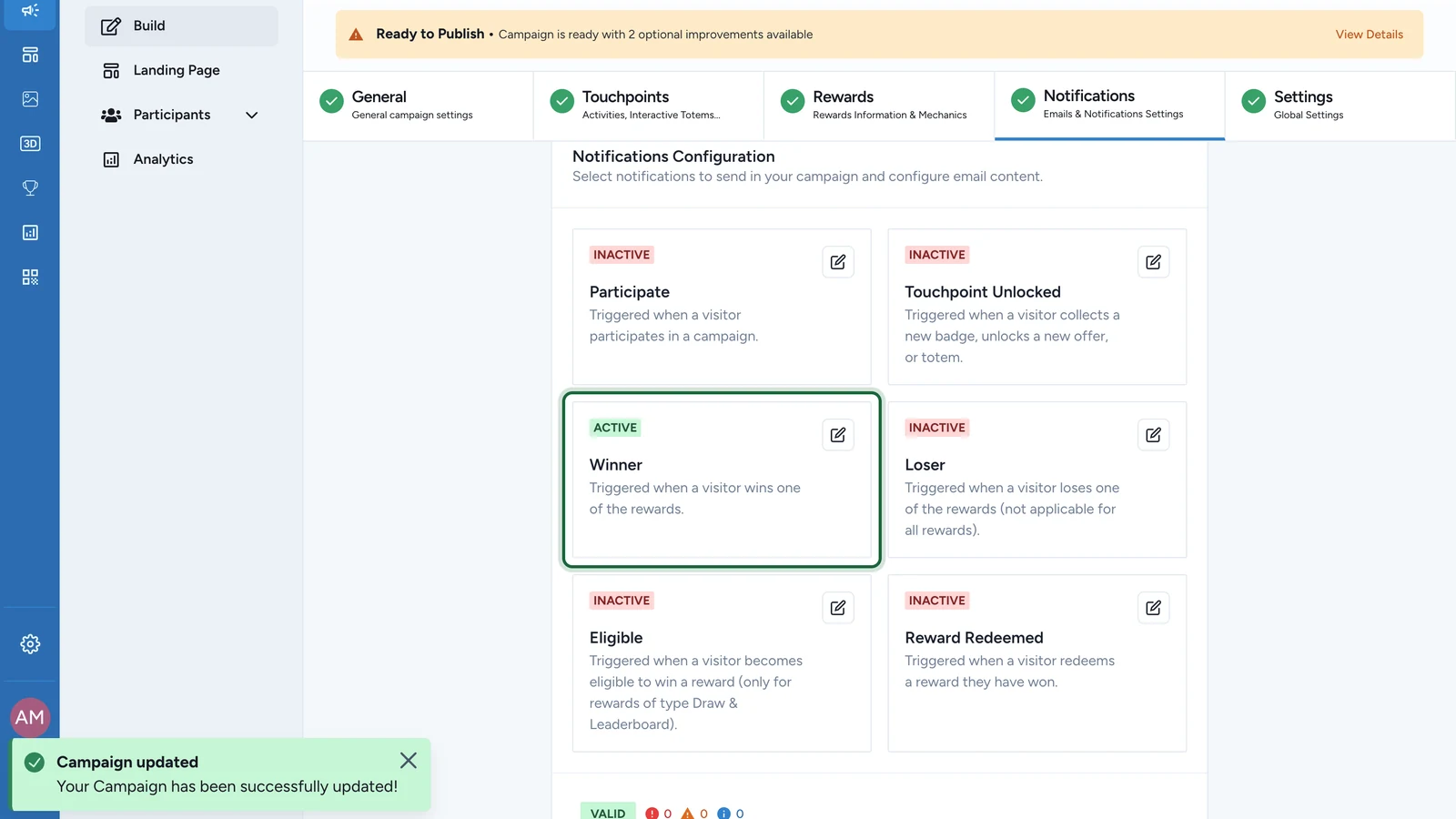
The Winner card now shows ACTIVE. Publish the campaign again for the email to start going out.
Switching a type to by Reward or by Touchpoint later turns its global email off.
If publishing is blocked
- The subject line, banner or content is empty: fill it in, or switch Active off.
- The button link isn't a web address: start it with
https://. - A dynamic field isn't recognised: check its spelling against the Liquid bindings reference.
- No email marketing add-on is active: see About notifications.