Double opt-in email verification
Require participants to confirm their email address before a sign-up counts, using a Function you control.
Double opt-in keeps your contact list clean and gives you a record of consent. OmniLab doesn't send the confirmation email itself. A Function you write sends it through your email service provider (ESP), such as Brevo.
What the participant goes through
The participant fills in the sign-up form
Your Function sends the confirmation email
Through your own email provider.
A waiting screen holds the sign-up
Asks them to confirm, with Resend email and I've verified my email buttons.
They open the email and click the link
A brief confirmation page appears
It confirms the address, then forwards them on by itself.
They land back on the page they signed up from
Recognised, with anything they did before confirming still attached to them.
They continue the experience
Same device: they land back in the experience already recognised. Different device: they return to the waiting screen and sign in with a code instead.
The participant fills in the sign-up form
Your Function sends the confirmation email
Through your own email provider.
A waiting screen holds the sign-up
Asks them to confirm, with Resend email and I've verified my email buttons.
They open the email and click the link
A brief confirmation page appears
It confirms the address, then forwards them on by itself.
They land back on the page they signed up from
Recognised, with anything they did before confirming still attached to them.
They continue the experience
The sign-up is held at step 3 and only completes when the link is opened. Nothing is counted before that.
- The link works once. A second click says it's already been used and sends the participant back to the campaign. There, they sign in with a code sent to their email. Email security scanners and link previews that open the link first don't use it up.
- An expired link shows that it's no longer valid, and asks the participant to sign up again on the campaign page. That sends a new email.
- Opening the email on another device is normal. On the device they signed up on, I've verified my email on the waiting screen moves them on. On another device, they're asked for a code instead. Both end in the same place.
Before you begin
- You need Admin access to bind the Function and turn on the setting.
- The Function shows Ready on the Functions tab: your developer has built it. A binding to a Draft Function passes the publish check, but every sign-up then fails.
- Store your ESP's API key as a secret: see Connect your email platform.
Bind the Function first
Once double opt-in is on for an organisation, publishing any campaign there is blocked until an active binding to contact.verify covers it. That includes campaigns built by colleagues who never touched the setting.
Bind the Function to contact.verify
Your developer first creates a Hook function for contact.verify, here Lindenhall double opt-in: see Hook functions. It sends the single-use link through your ESP, or reports the contact as already verified when your own records prove it.
Then, in the organisation switcher, choose Global, and select General Settings:
-
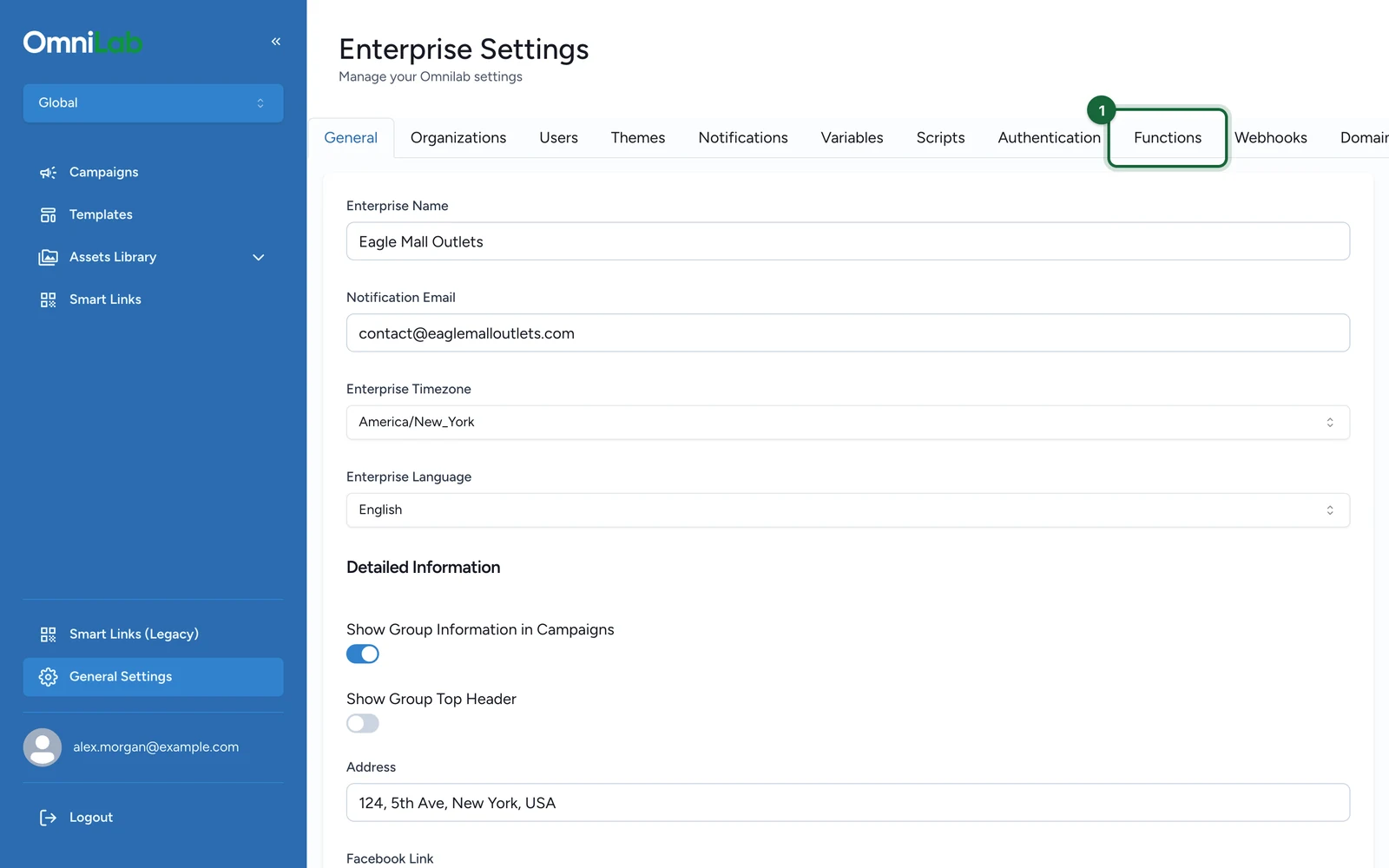
Select the Functions tab.
-
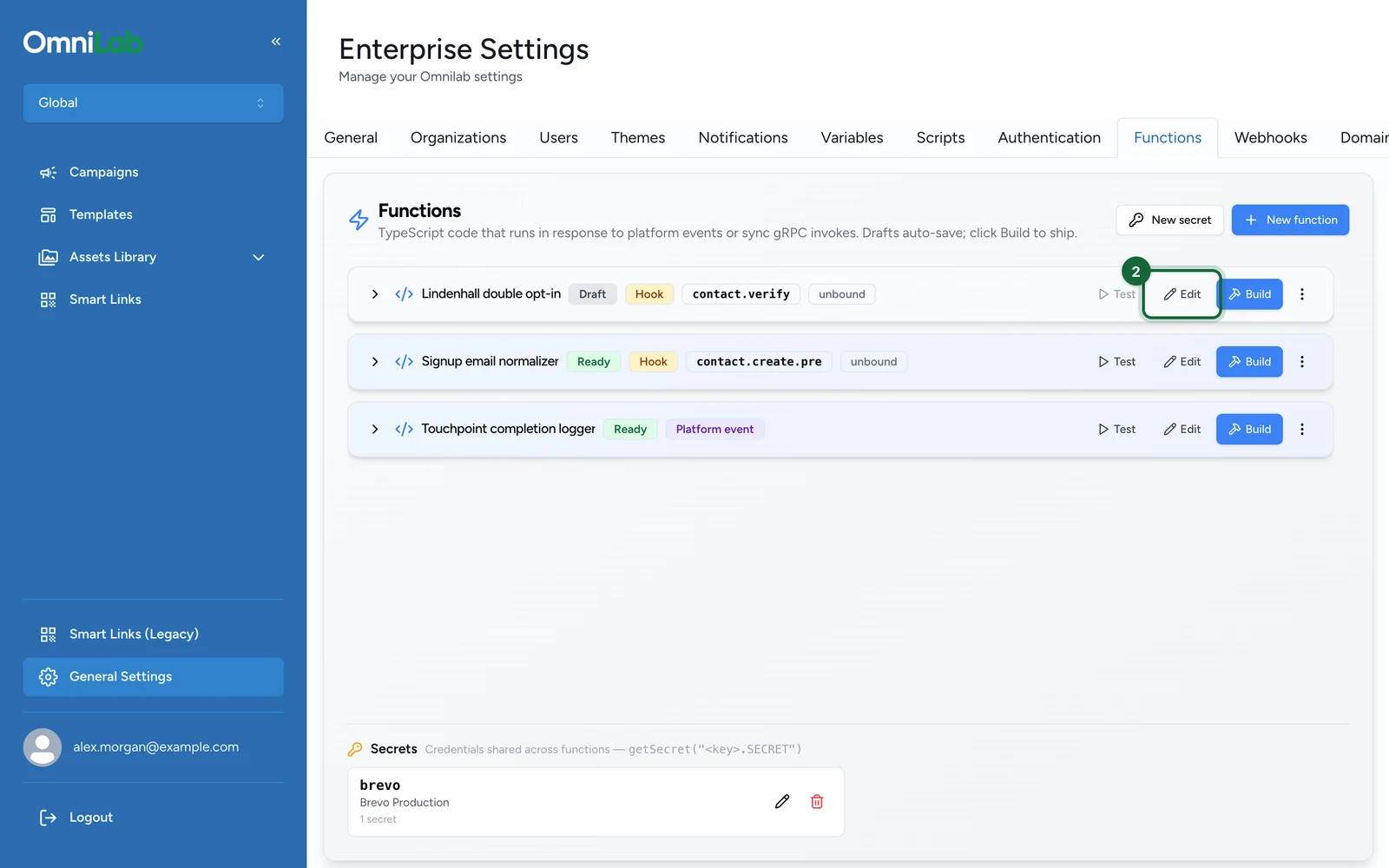
On the Function, select Edit.
-
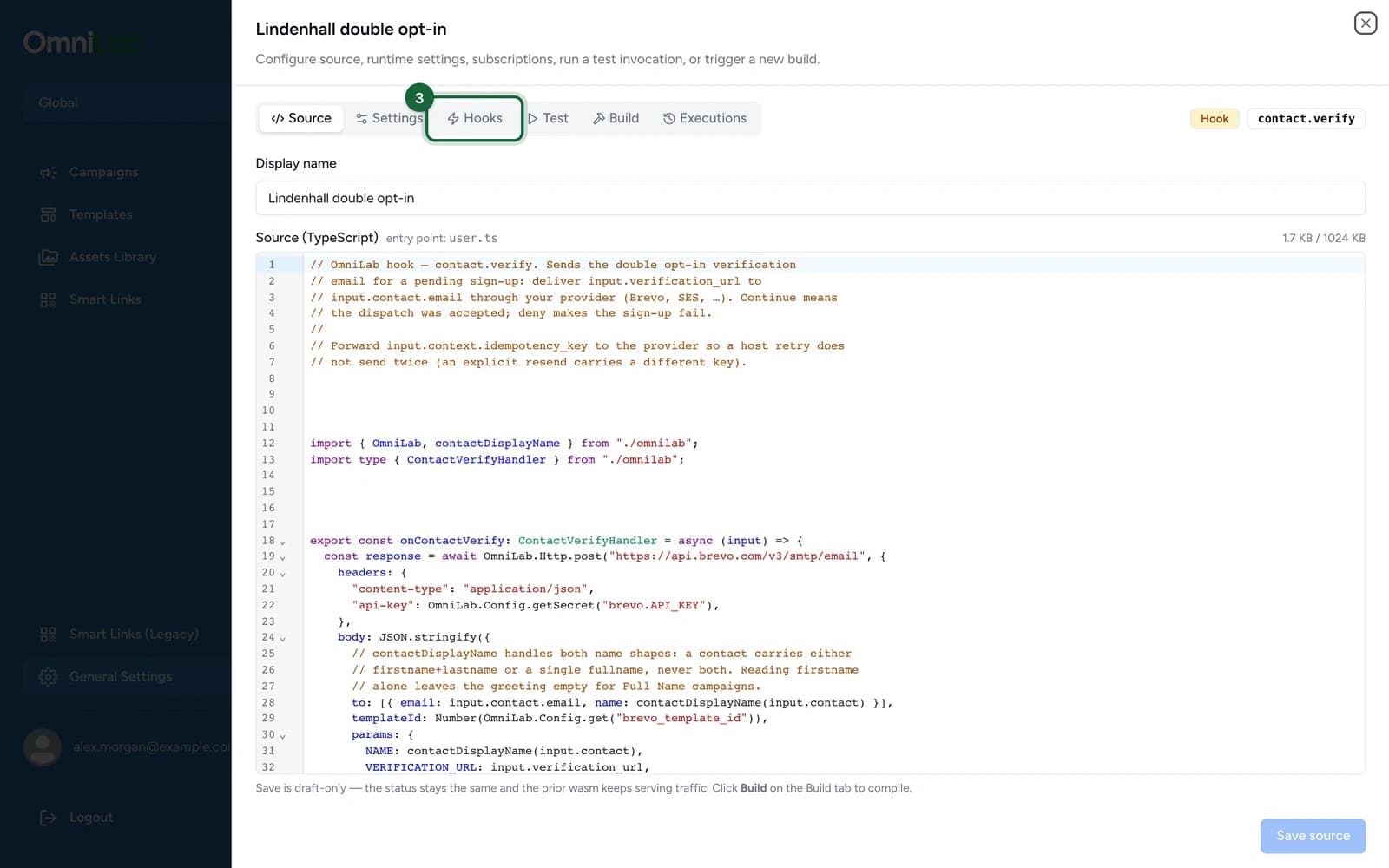
Select the Hooks tab.
-
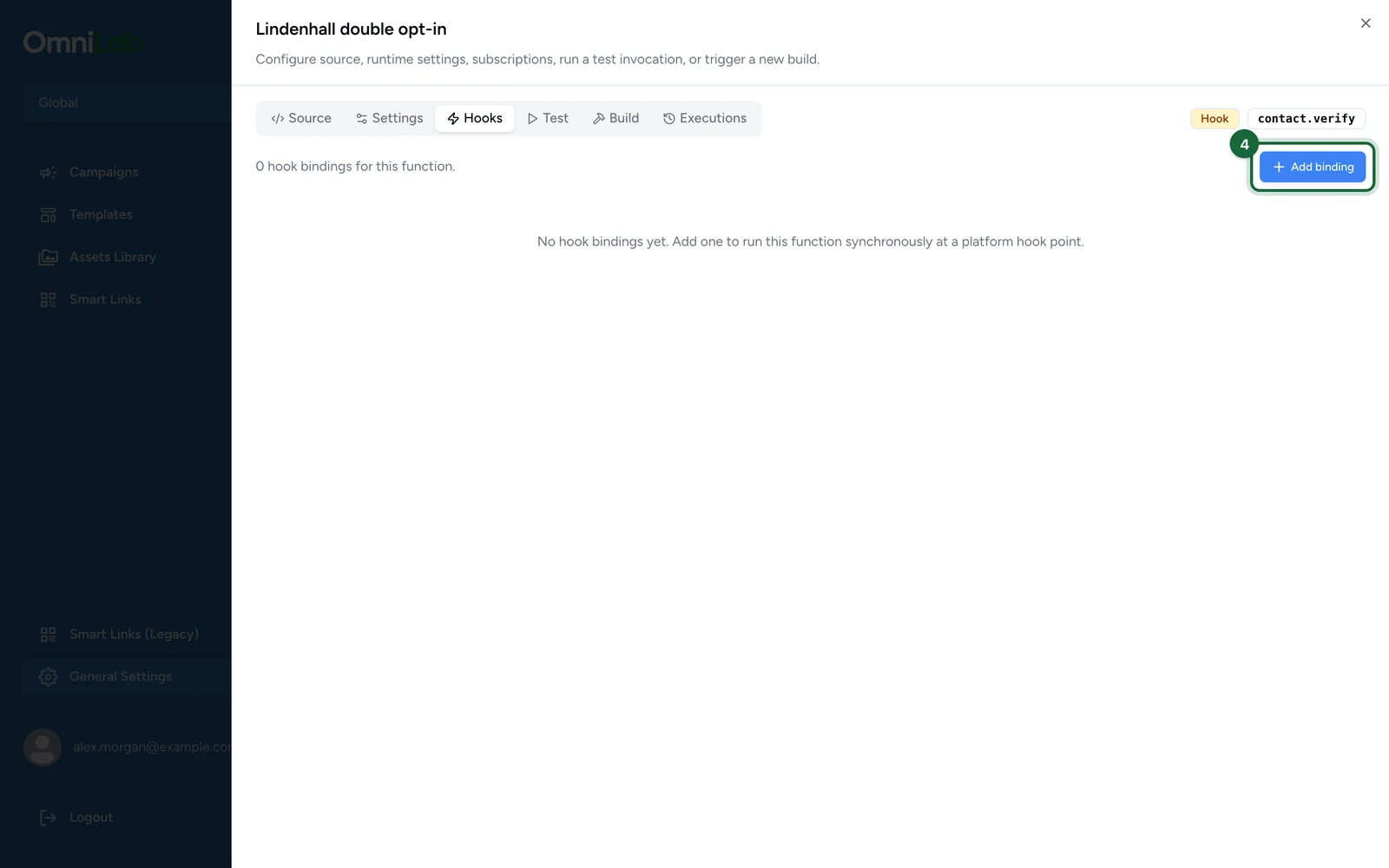
Select Add binding.
-
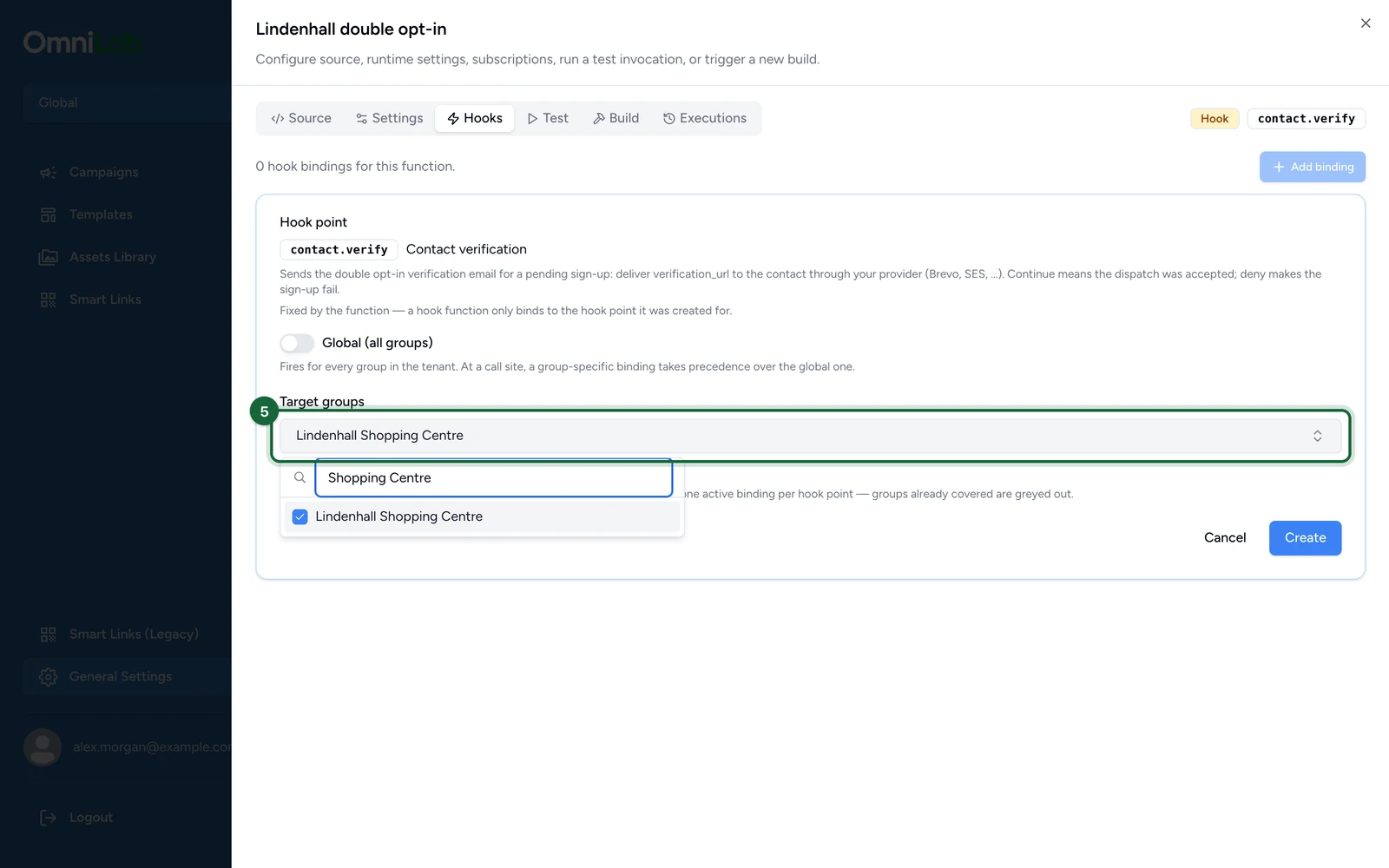
Under Target groups, select Lindenhall Shopping Centre.
-
Select Create.
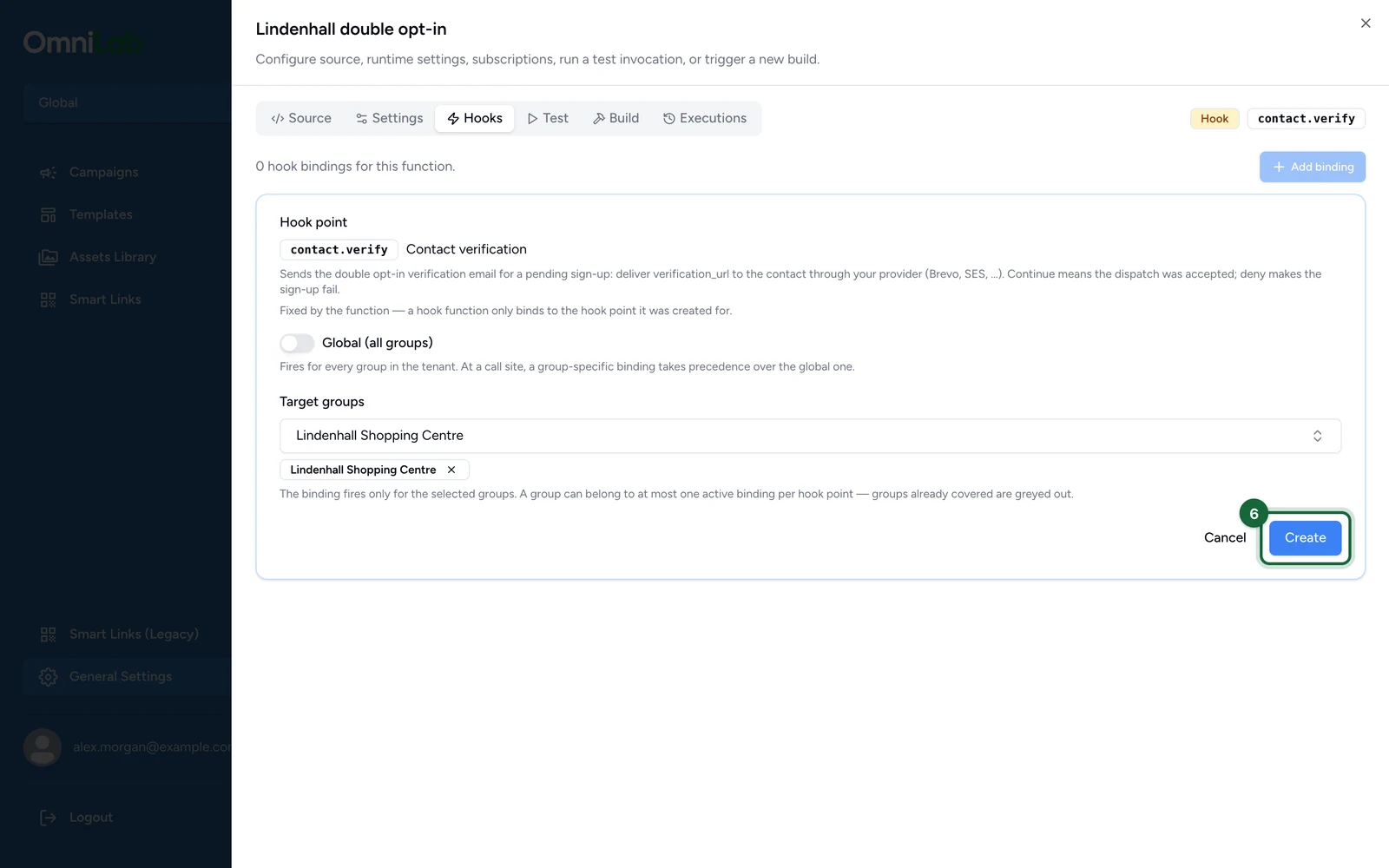
The binding is active straight away. To cover every organisation, turn on Global (all groups) instead of choosing groups. An organisation that no binding covers stays blocked.
Turn on double opt-in
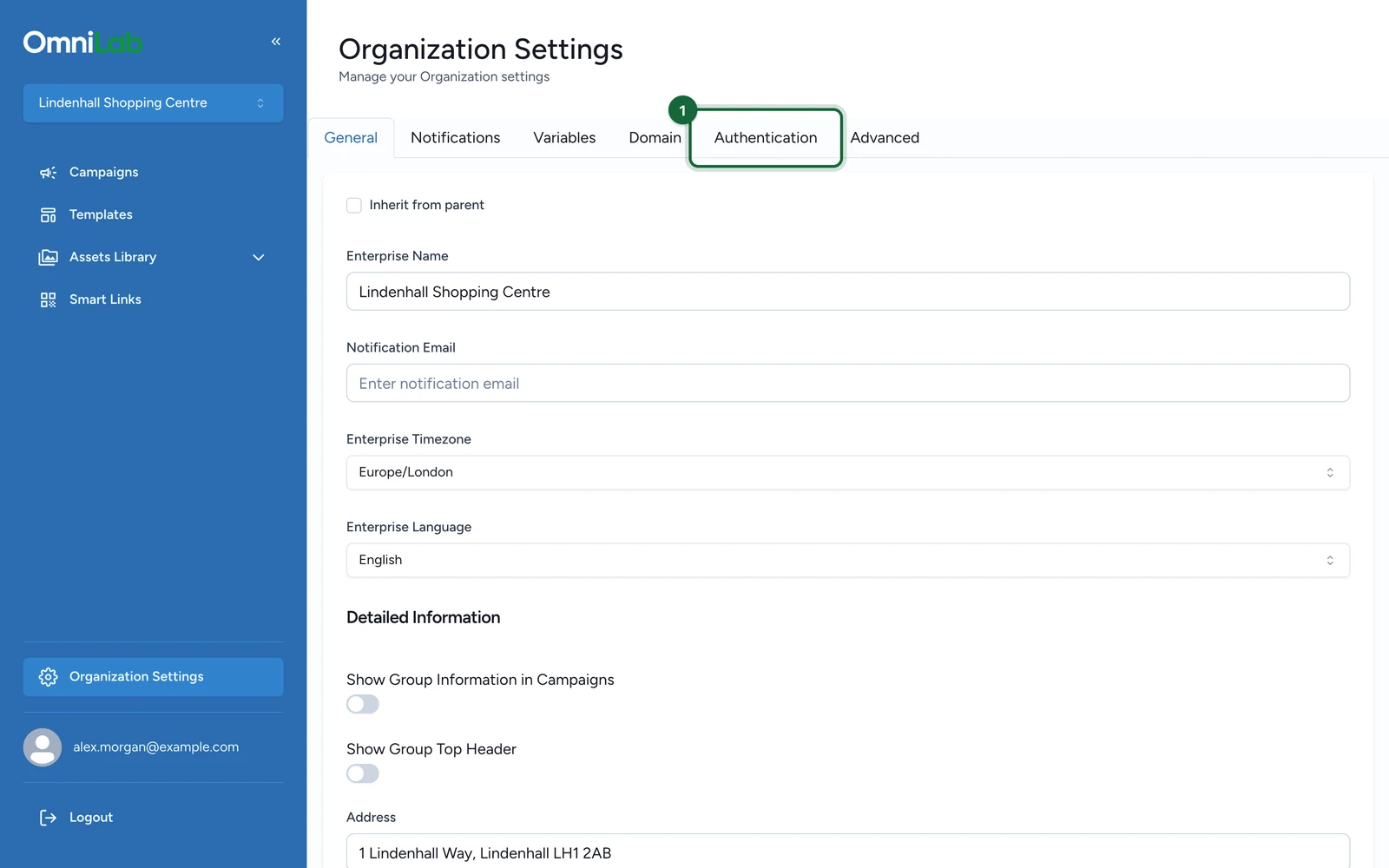
Choose the organisation in the switcher, then select Organization Settings. For the default of every organisation, use Global's General Settings instead. Then:
-
Select the Authentication tab.
-
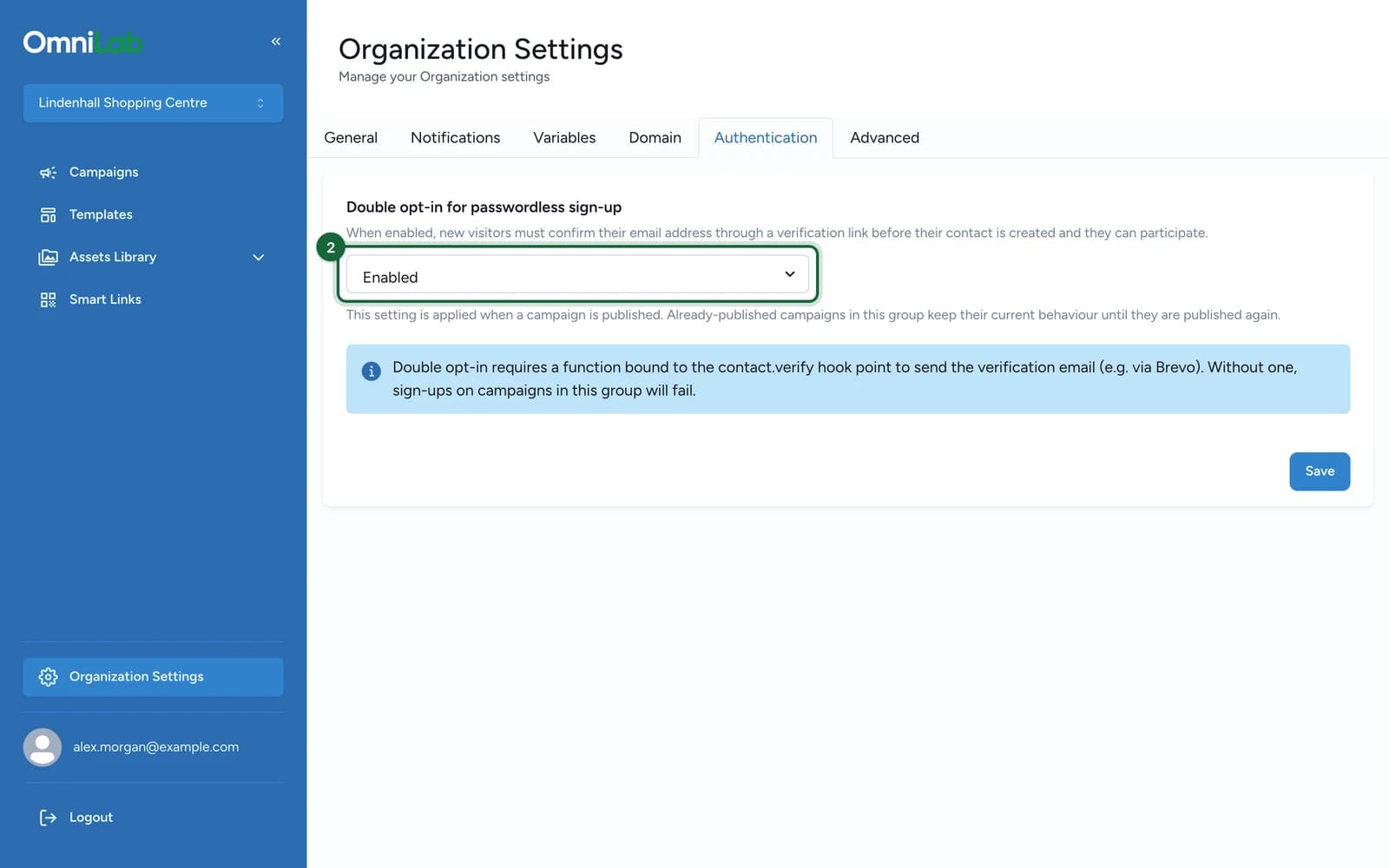
Set Double opt-in for passwordless sign-up to Enabled.
-
Select Save.
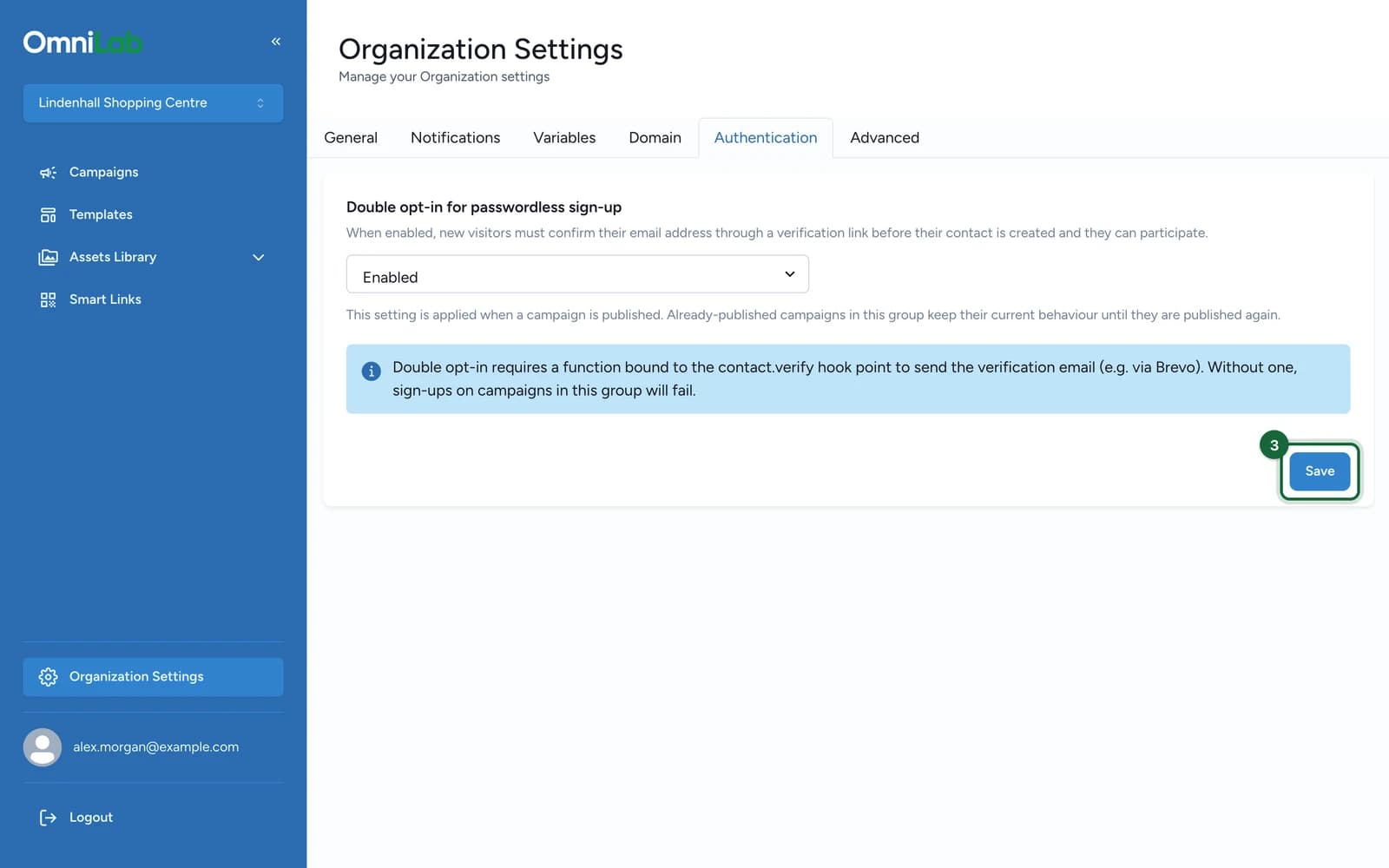
Then publish each campaign in the organisation again. Until then, it keeps its current behaviour.
An organisation set to Inherit follows the General Settings default. Enabled or Disabled on the organisation overrides it.
Check a sign-up is held
- Sign up with a test contact.
- In the campaign, open Participants > All Participants, and check the contact isn't listed.
- Open the link, take part, and check the contact is listed now.
- On the Function's Executions tab, check which of the two paths ran.
Until the link is opened, a held sign-up creates no contact, so the campaign doesn't count it as a participant.
Change the waiting screen wording
The waiting screen is already translated into every language OmniLab supports. To reword it, follow Change the wording and edit the passwordless.verification… keys.
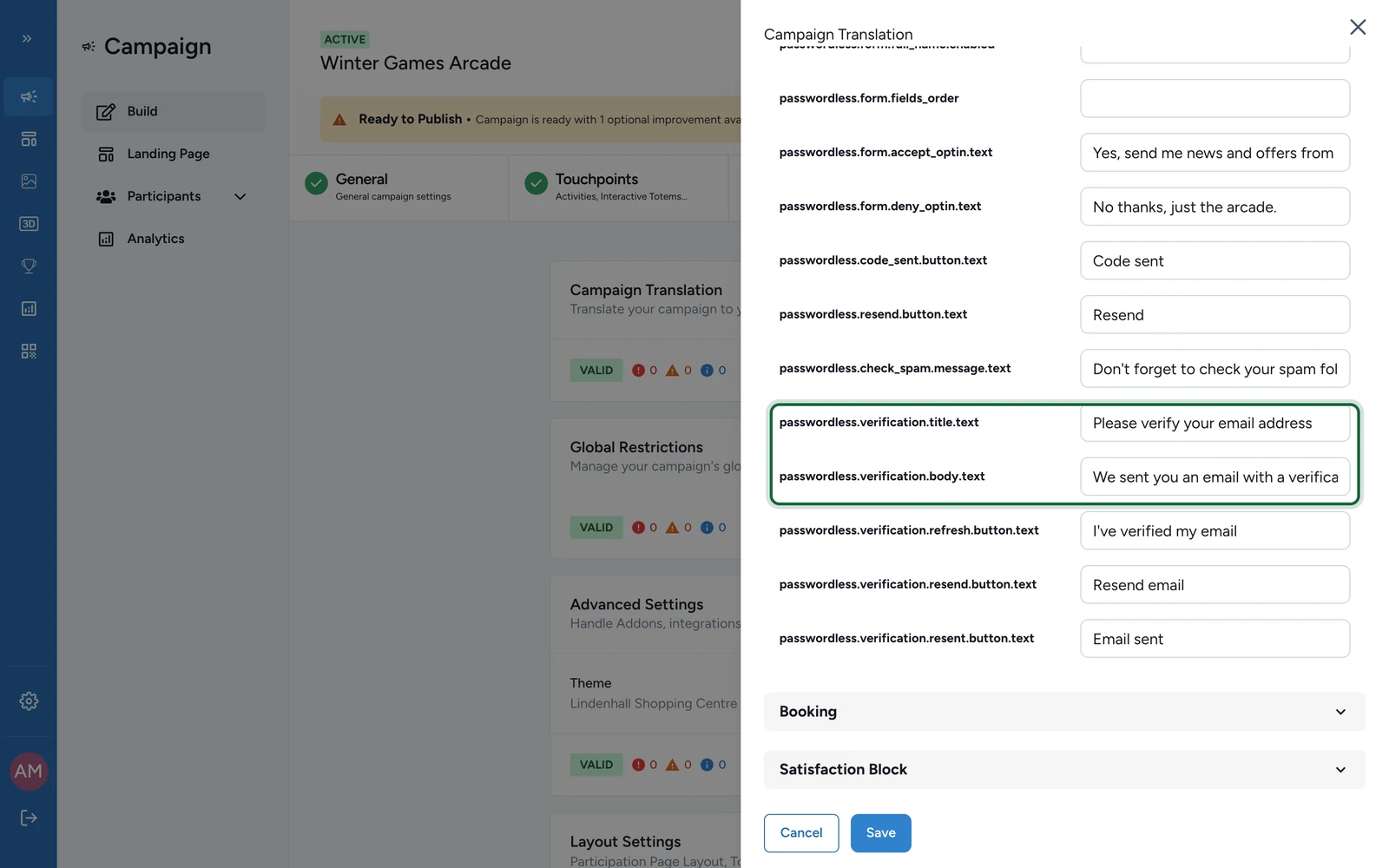
The confirmation page opens in the campaign's default language, or in English if the campaign has none.
If something's blocked
- A campaign won't publish, or sign-ups fail straight away: double opt-in is on for the organisation, but no active contact.verify binding covers it. Bind one, or set double opt-in to Disabled for that organisation. Both need Admin access, so a campaign builder has to ask an Admin. See Validation & publishing.
- The validation error says the binding couldn't be checked: the check didn't complete this time, which isn't the same as a missing binding. Run validation again, and contact support if it keeps happening.
- A participant says the email never arrived: open the Function's Executions tab within 24 hours of the sign-up, before its record expires. A successful run only means your ESP accepted the request. Check the ESP's delivery log next.
- Sign-ups succeed at once for everyone, with no email sent: your Function returns already verified on every run, not only when your records support it. Check its logic.