Create and build a function
Create a function in Studio, write its handler, save a draft, and compile it to a running WebAssembly version.
At the end, the function is Ready but not yet triggered by anything. You wire it up on the page for its kind: platform event or hook.
Before you begin
- Your user role must be Admin. Contributors cannot see the Functions surface.
- You must be working in the Global organisation. The Functions tab only appears there.
- Decide the function's kind first. It is permanent.
- If your handler will call an external API, have the hostnames ready. You will need to allow-list them before any outbound call works.
Open the Functions tab
-
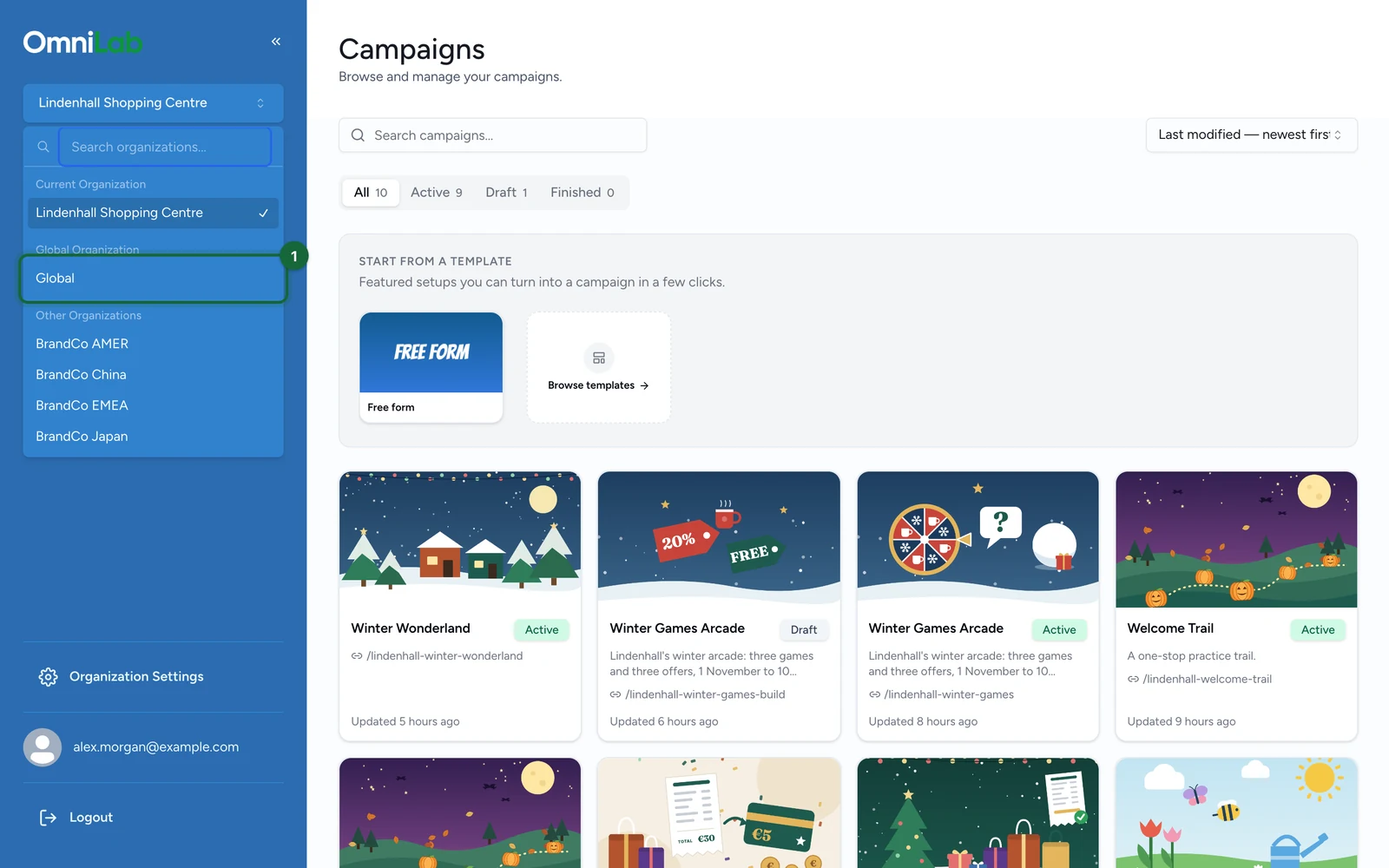
In the organisation switcher at the top of the sidebar, choose Global.
-
In the sidebar, select General Settings.
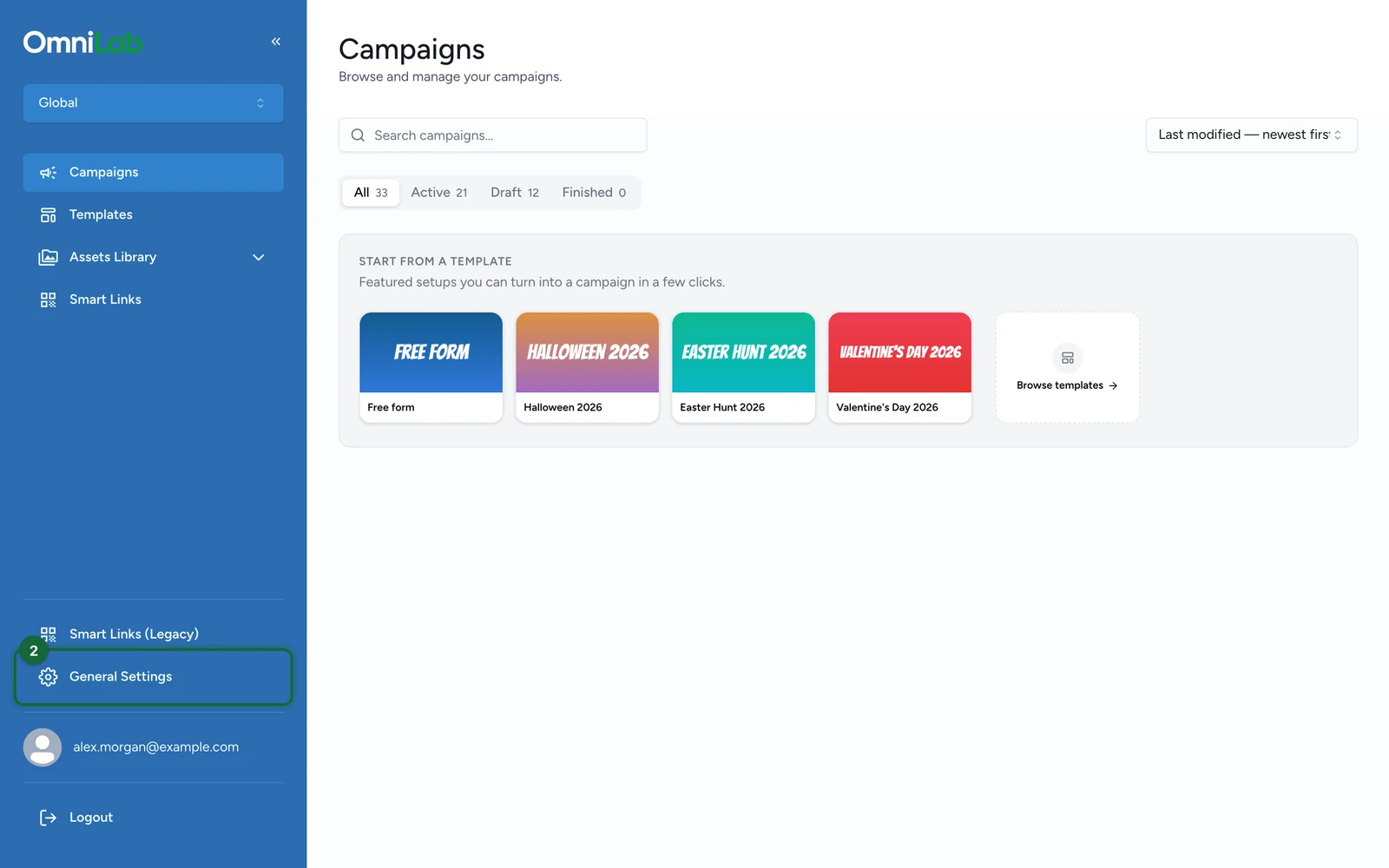
The Enterprise Settings page opens.
-
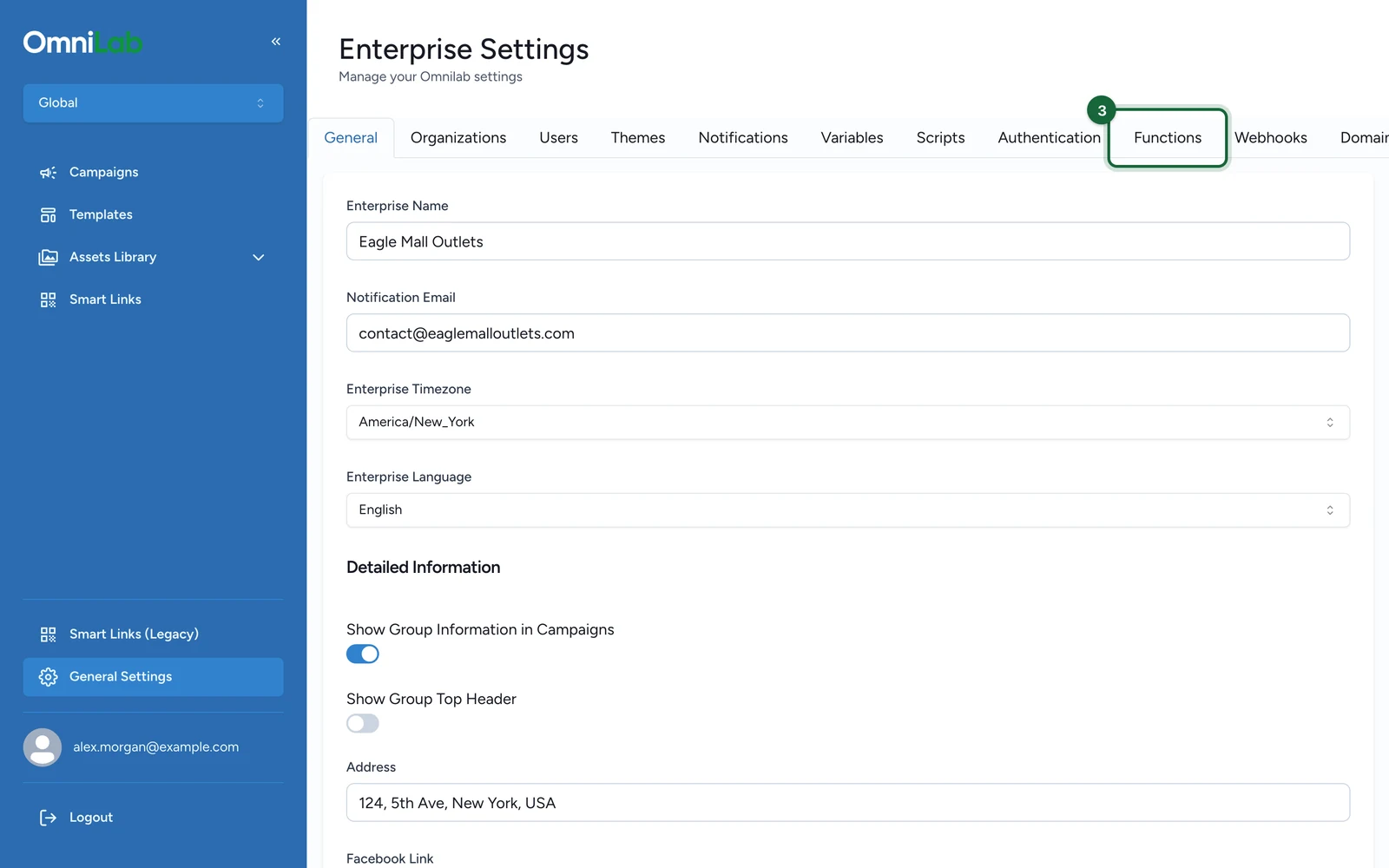
Select the Functions tab.
Create the function
On the Functions tab:
-
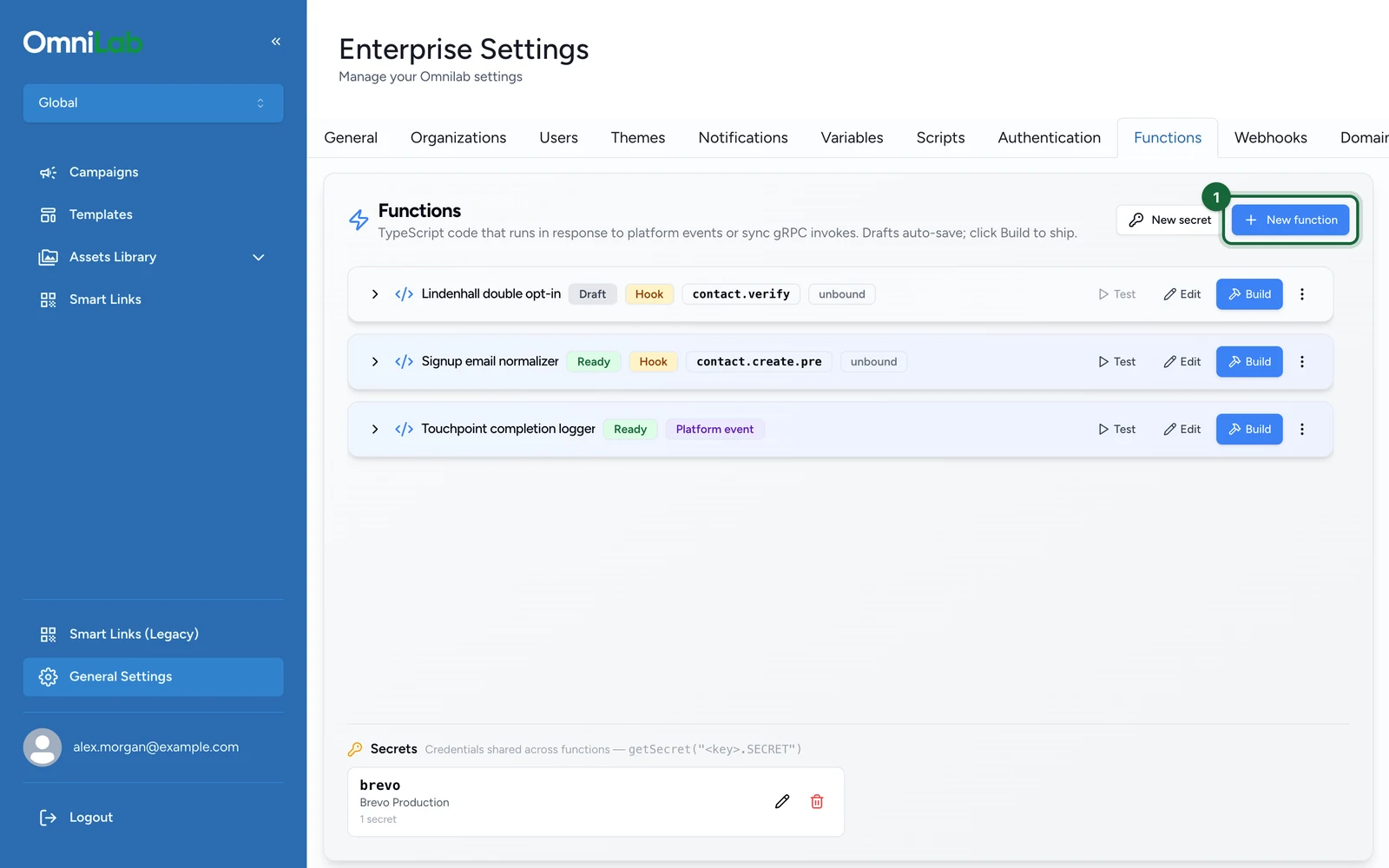
Select New function.
-
Enter the Display name, such as
Loyalty award processor. The identifier is generated for you.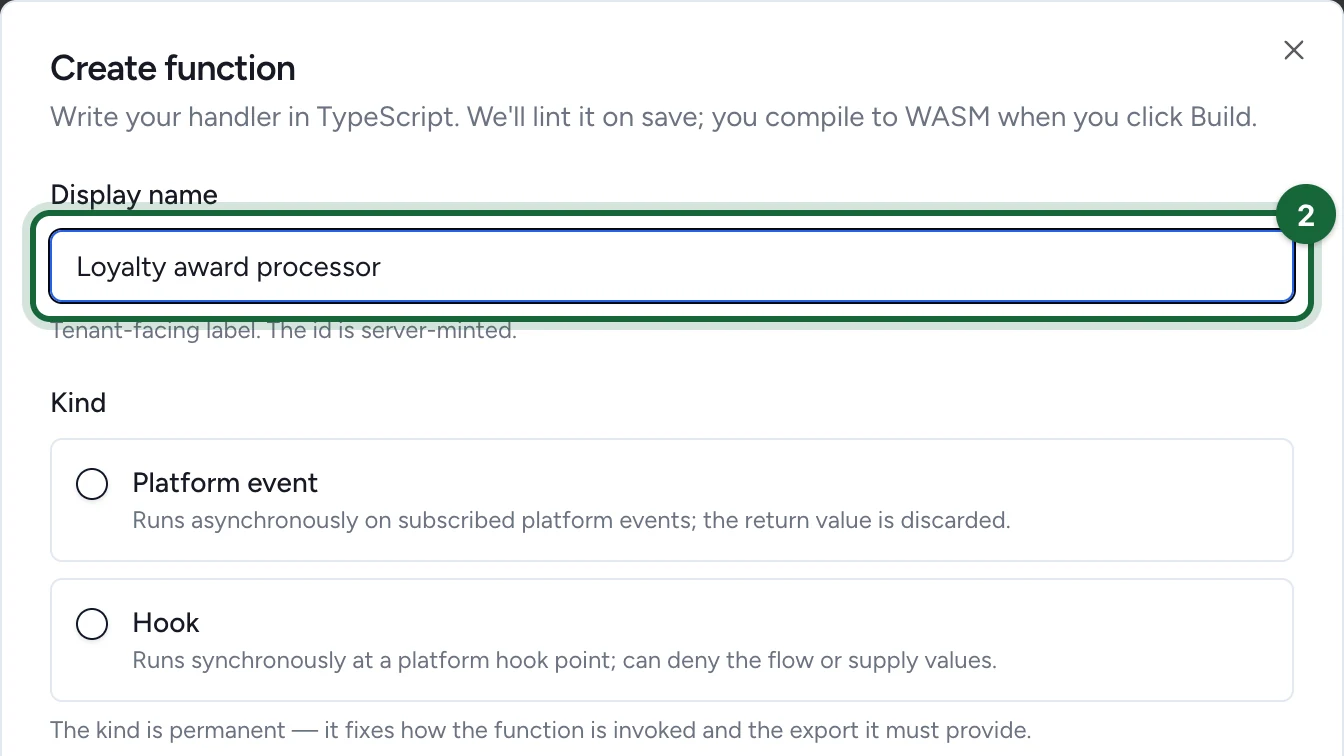
-
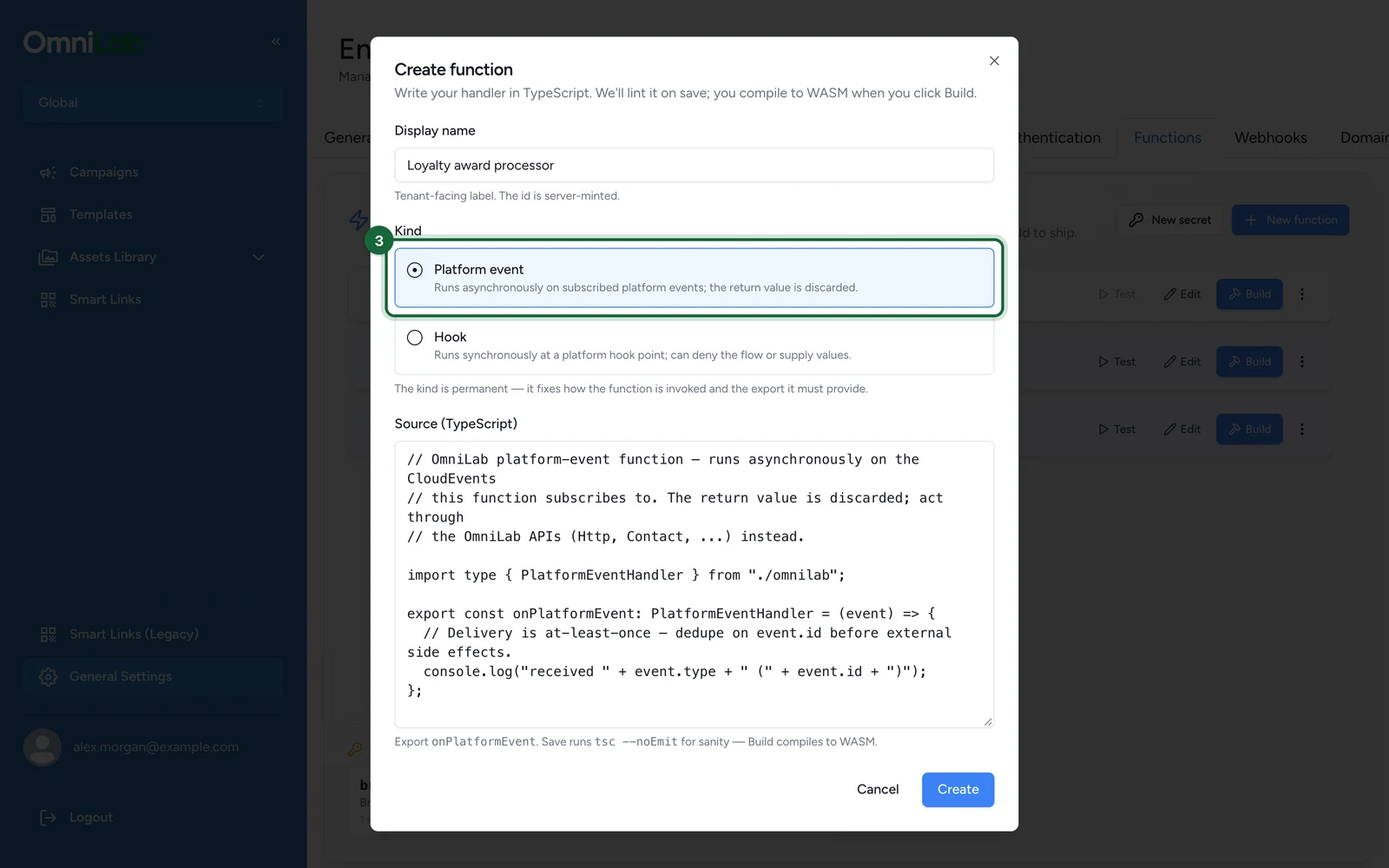
Under Kind, choose Platform event or Hook. This choice is permanent.
-
(Hook only) Under Hook point, choose the hook point, here contact.verify — Contact verification.
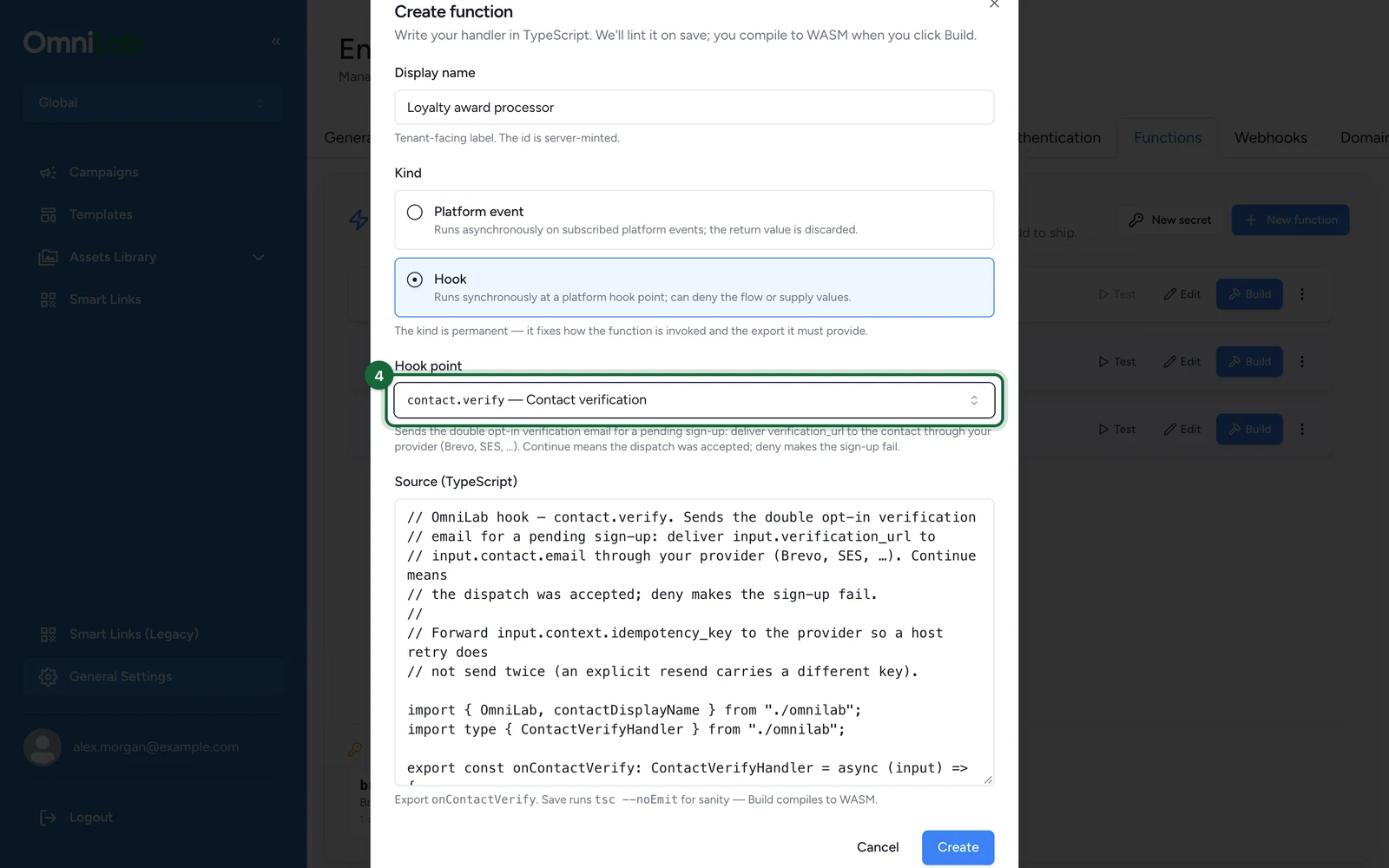
Hook point starts on contact.create.pre — Contact create (pre), and it's permanent too: the function can only ever bind there.
-
Select Create.
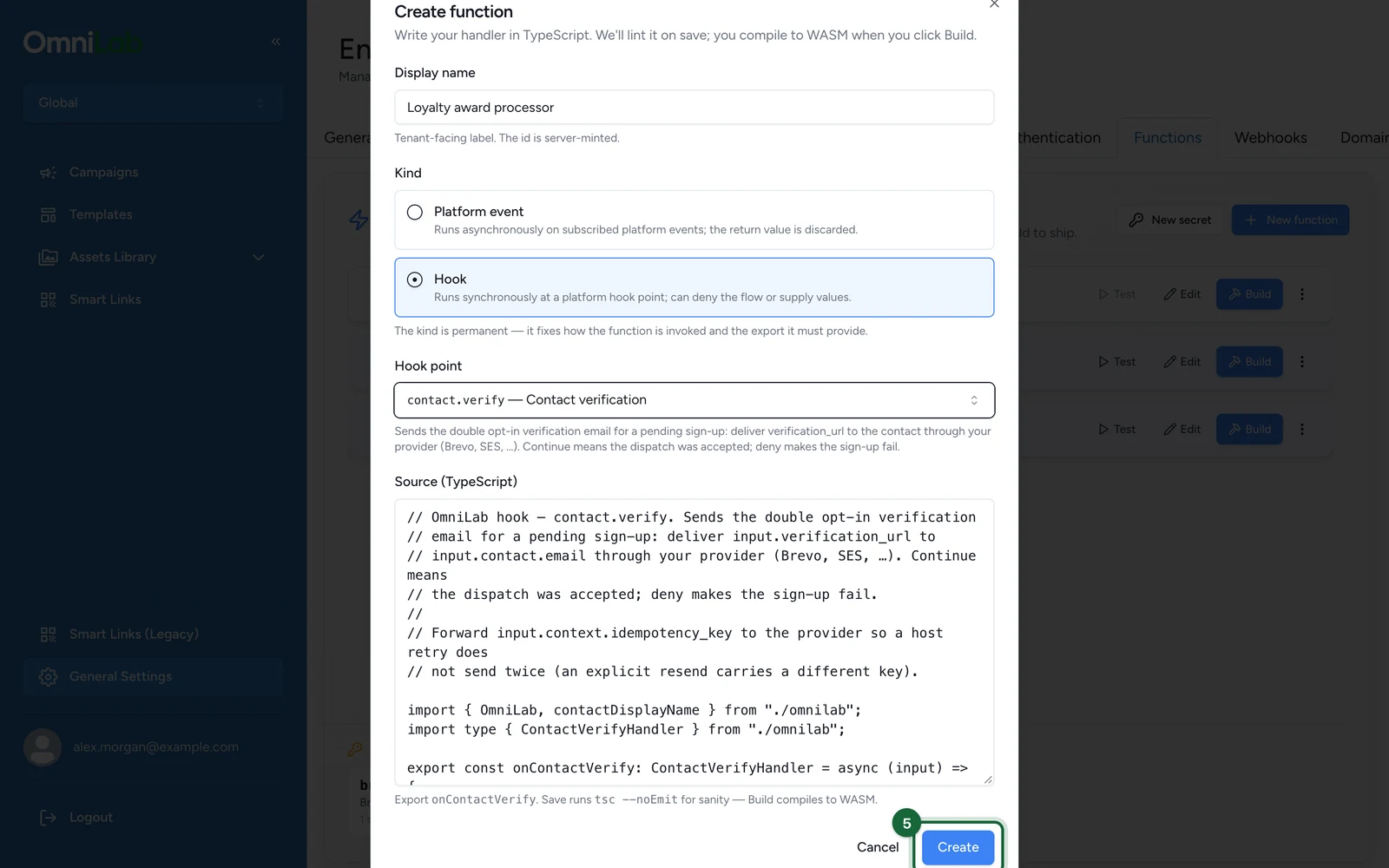
Each kind or hook point you choose drops a working starter handler into Source (TypeScript), until you edit the code yourself. OmniLab type-checks the source and saves the function as Draft.
Write your handler and save the draft
-
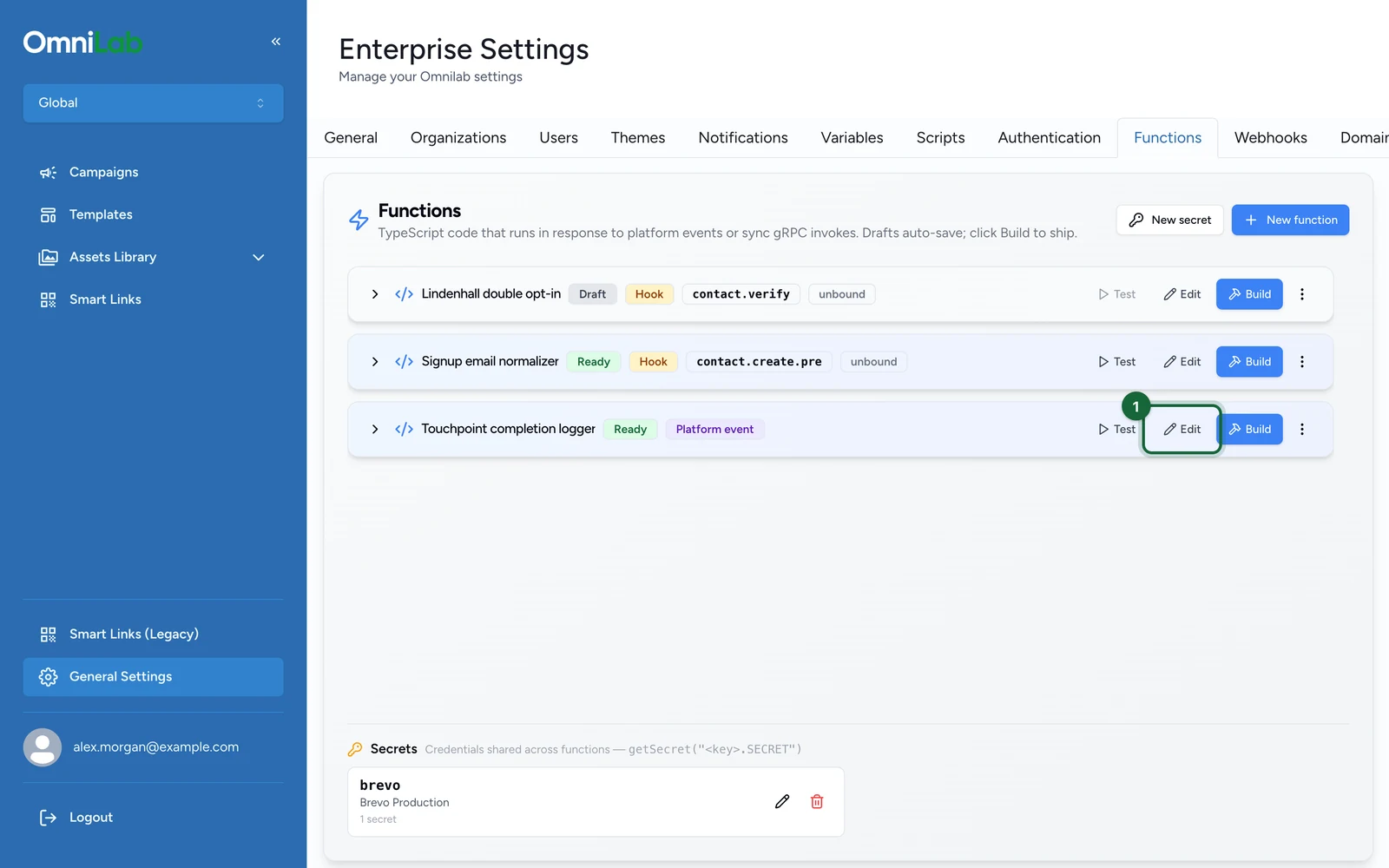
On the function's row, select Edit.
-
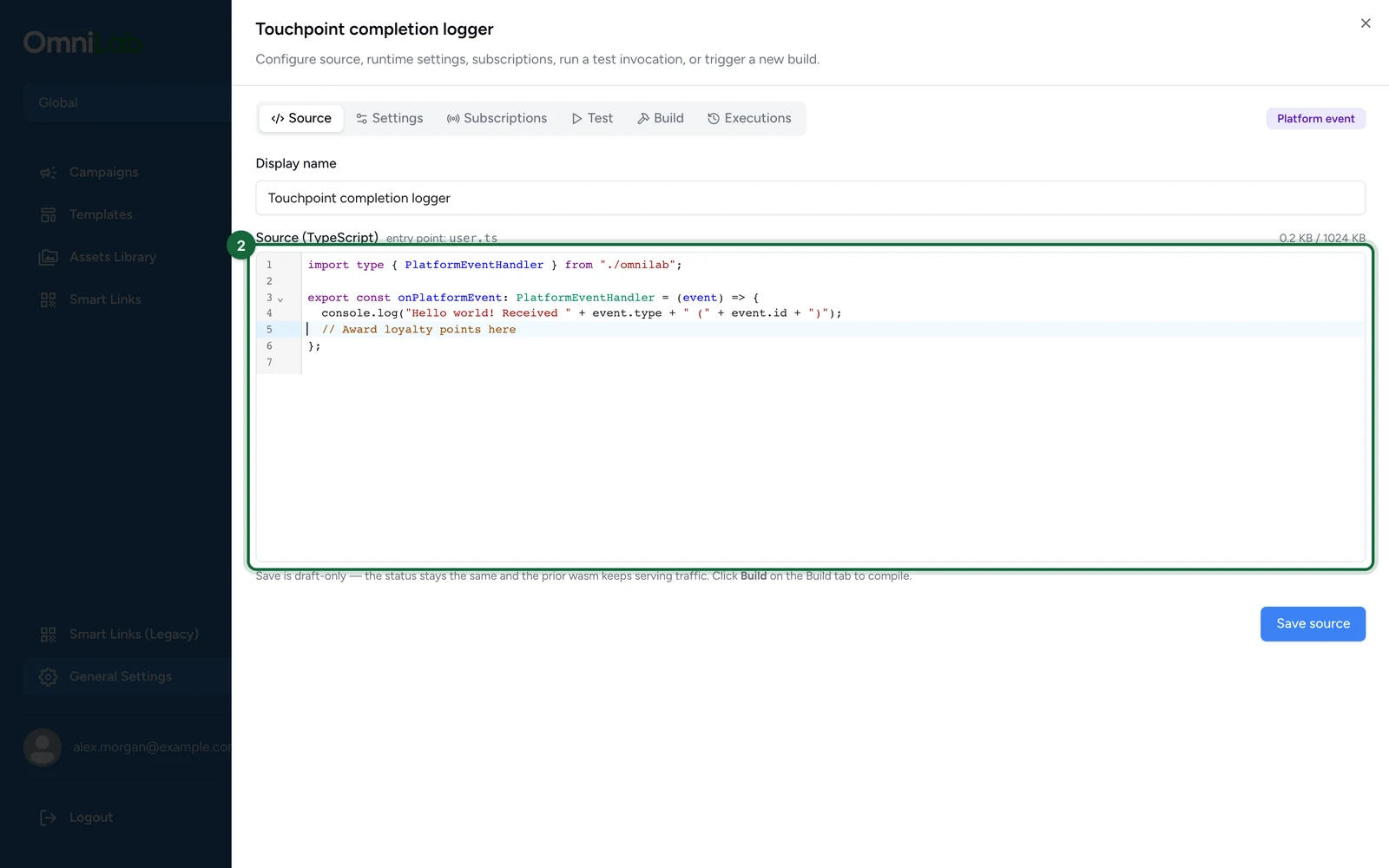
On the Source tab, write your handler.
-
Select Save source.
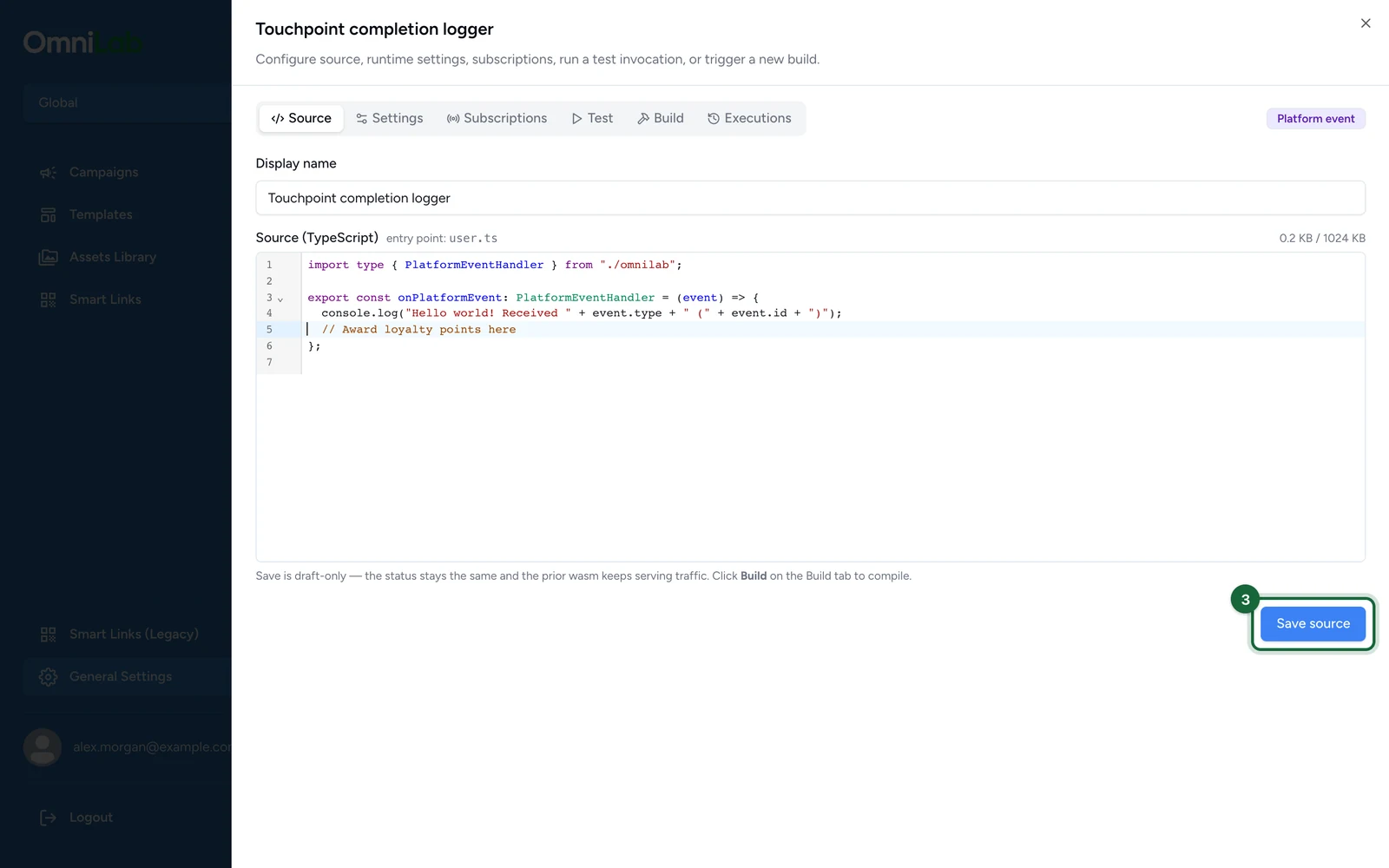
Your file must export the name that matches your kind, or saving fails with a type error. The starter handler already exports the right name and compiles as-is, so you can build it unchanged to check the setup.
The contact.verify starter reads the secret brevo.api_key, in lowercase. Secret keys are case-sensitive, so change it to match the key you create in your bundle, such as brevo.API_KEY.
Working examples for each kind, from a hello world up, are on Platform event functions and Hook functions.
- The editor shows a live size counter against the 1 MB source ceiling. The entry point is
user.ts. - Save source stays greyed out until you change something.
- Saving stores and type-checks your code. It doesn't deploy anything: a live function keeps serving its current version until you build.
- If the type check fails, a Lint failed panel lists each problem with its file, line and column. Select a row to jump to it. Nothing is saved while the check fails.
Build it
In the function's editor:
-
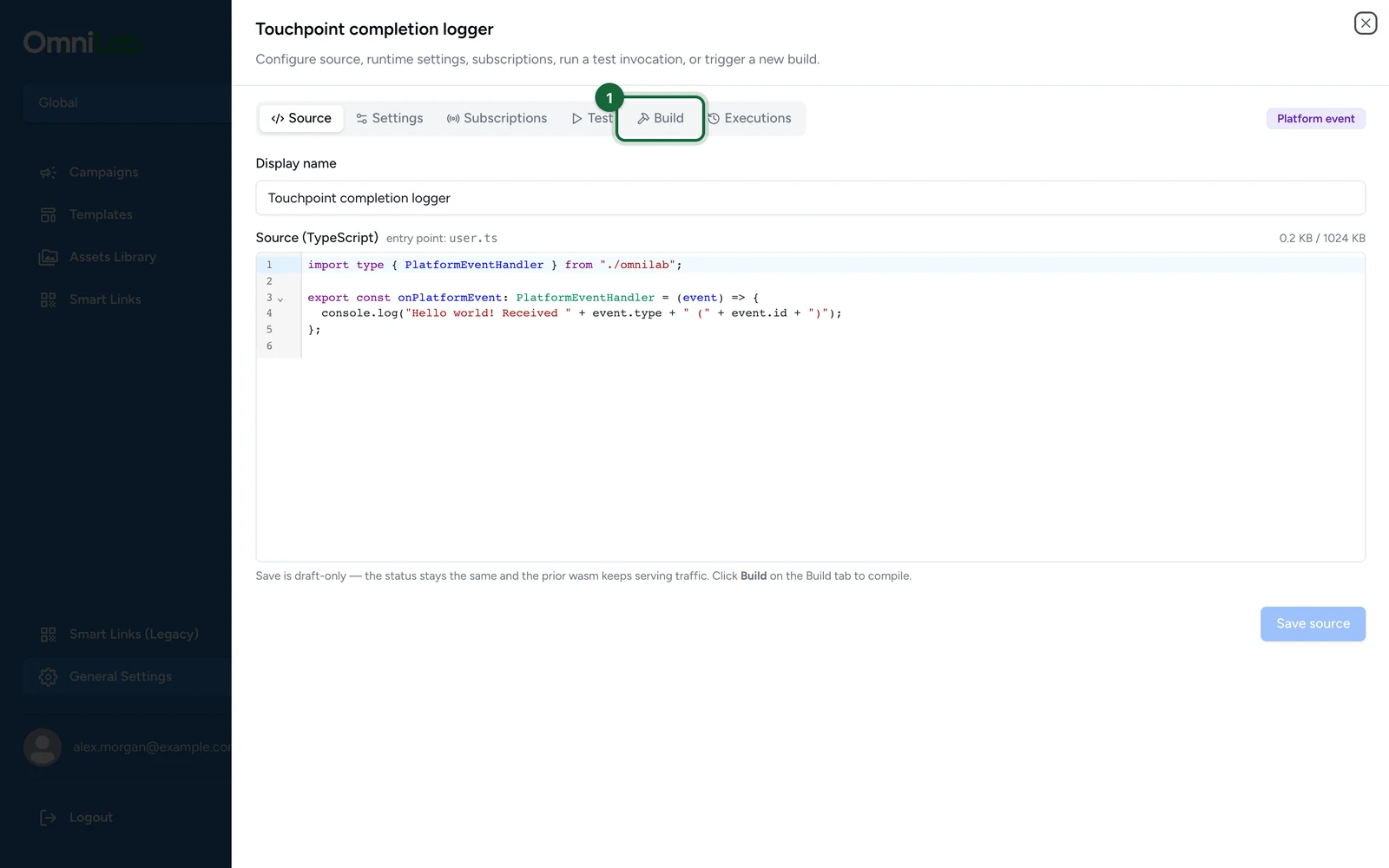
Select the Build tab.
-
Select Build.
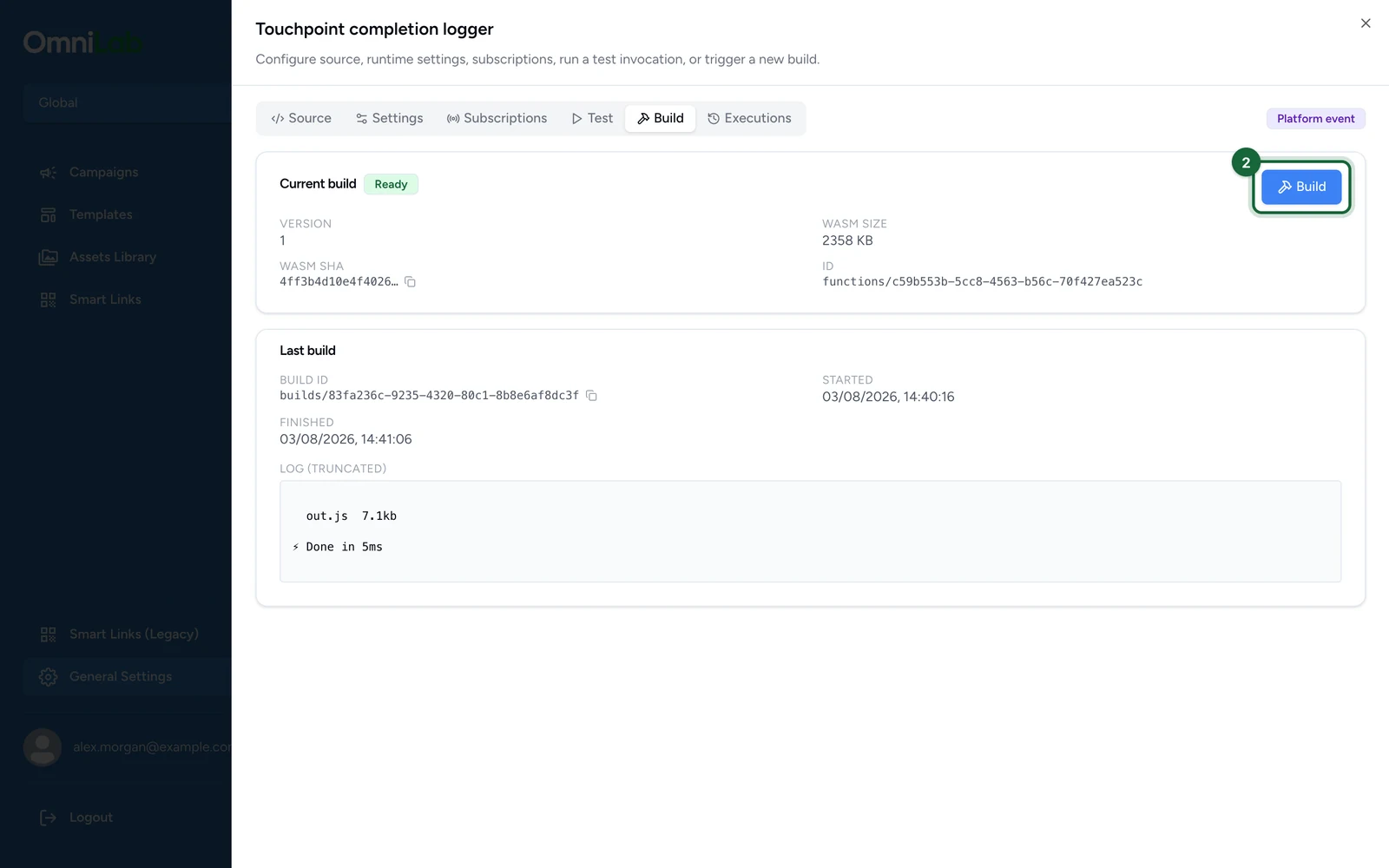
The status changes to Building, then Ready, usually within a minute: the version number goes up, and WASM sha and WASM size fill in. If the build fails, the tab shows the error and a truncated build log. Rebuilding unchanged source returns almost at once.
Confirm it runs
Before you wire it up, run a test invocation from the function's Test tab.
If something's blocked
- The Functions tab is not there: you are either not an Admin, or not in the Global organisation. Switch organisation with the picker at the top of the sidebar.
- Saving reports a type error you don't recognise: the most common cause is the export name. A hook function for
contact.create.premust export exactlyonContactCreatePre; a platform event function must exportonPlatformEvent. The name is derived from the kind and hook point, and a mismatch is reported as a missing or wrongly shaped export. A handler that doesn't match its declared type fails the same way: a wrong parameter, a wrong return value, or the wrong handler type imported for the kind. Compare your handler against the example on your kind's page. - The build has been Building for a long time: a build that stalls is released after about fifteen minutes, and you can then start another. If it happens repeatedly, contact support with the build id from the Build tab.
- Your handler cannot reach an external API: a function with no allowed hosts is refused every outbound request. See Configure runtime and secrets.
- The function is Ready but nothing happens: a built function is not triggered by anything until you add a subscription or a hook binding.