Configure notifications for a receipt game
Decide which emails to send shoppers after they upload a receipt, then set them up in the campaign's notifications.
Receipt games use the campaign's notifications. Uploading a receipt, or getting it approved, sends nothing: emails go out when the shopper claims a prize.
| Notification | Sent when |
|---|---|
| Winner | The shopper claims a prize |
| Touchpoint Unlocked | The shopper claims a prize, if it's turned on too |
| Reward Redeemed | The shopper uses their prize |
Loser isn't sent for receipt games: a receipt that doesn't reach the spend simply counts towards it.
Turn on the Winner email
-
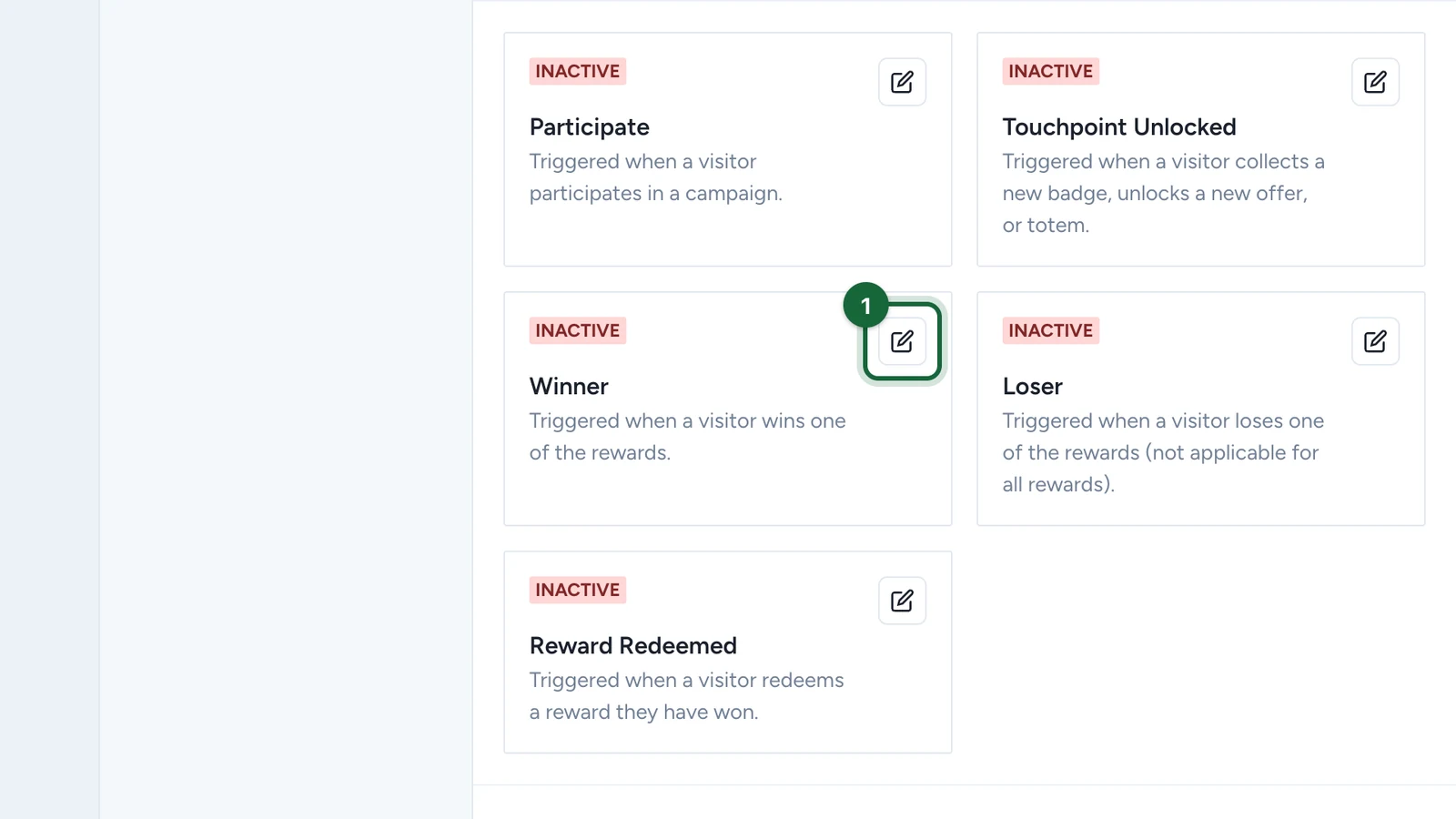
In Build > Notifications, select the edit button on Winner.
-
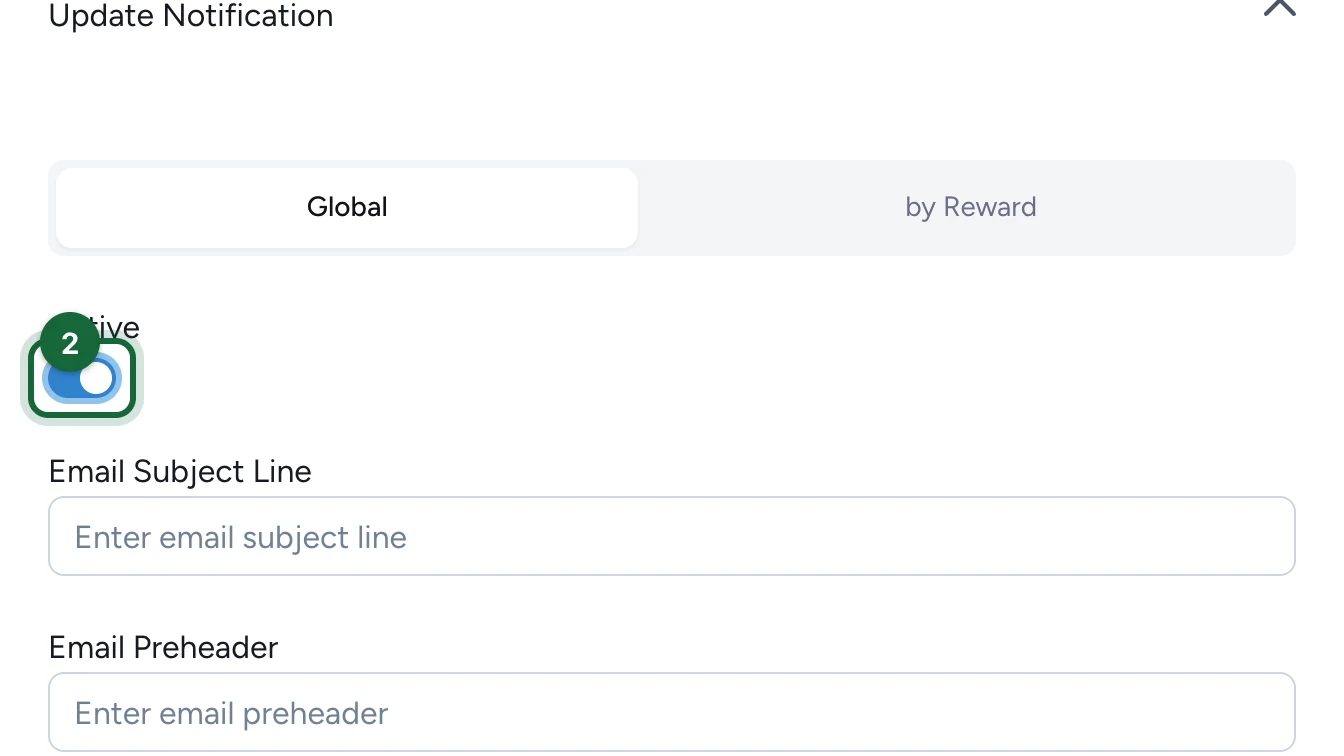
Turn on Active.
-
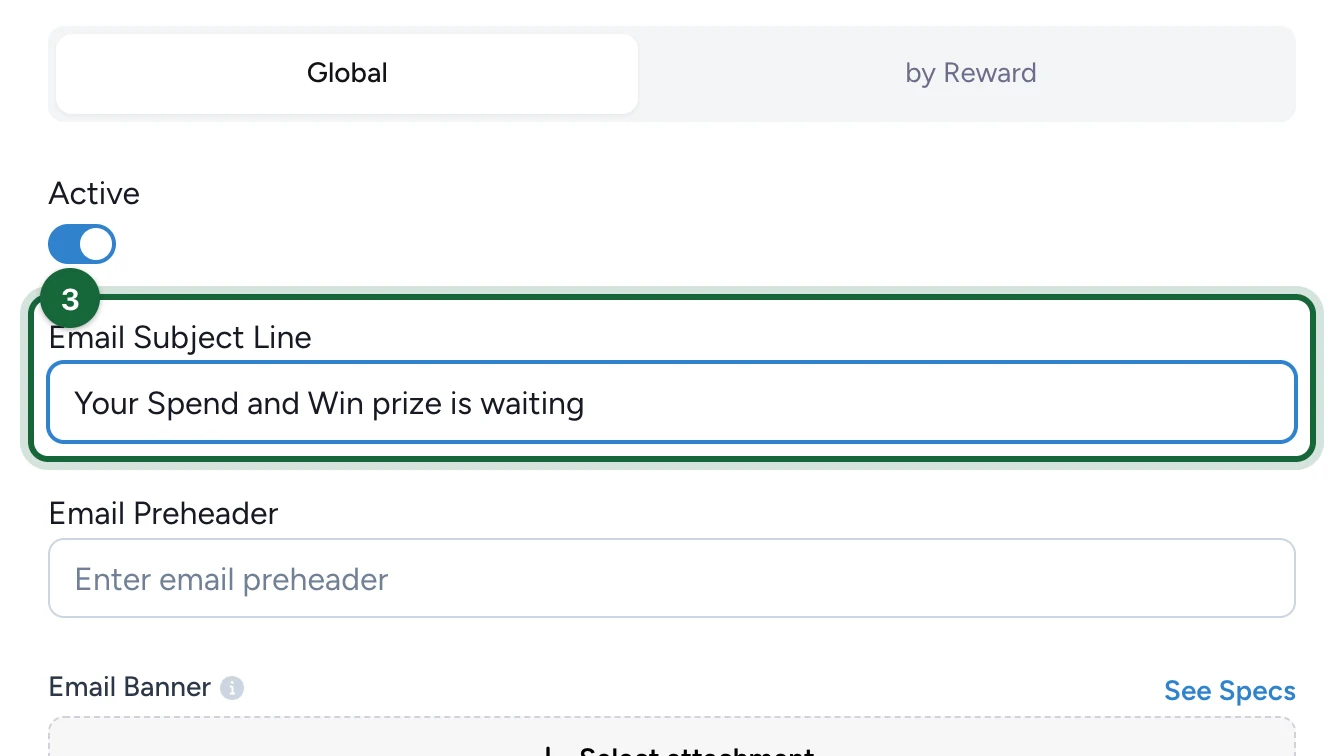
Enter the Email Subject Line.
-
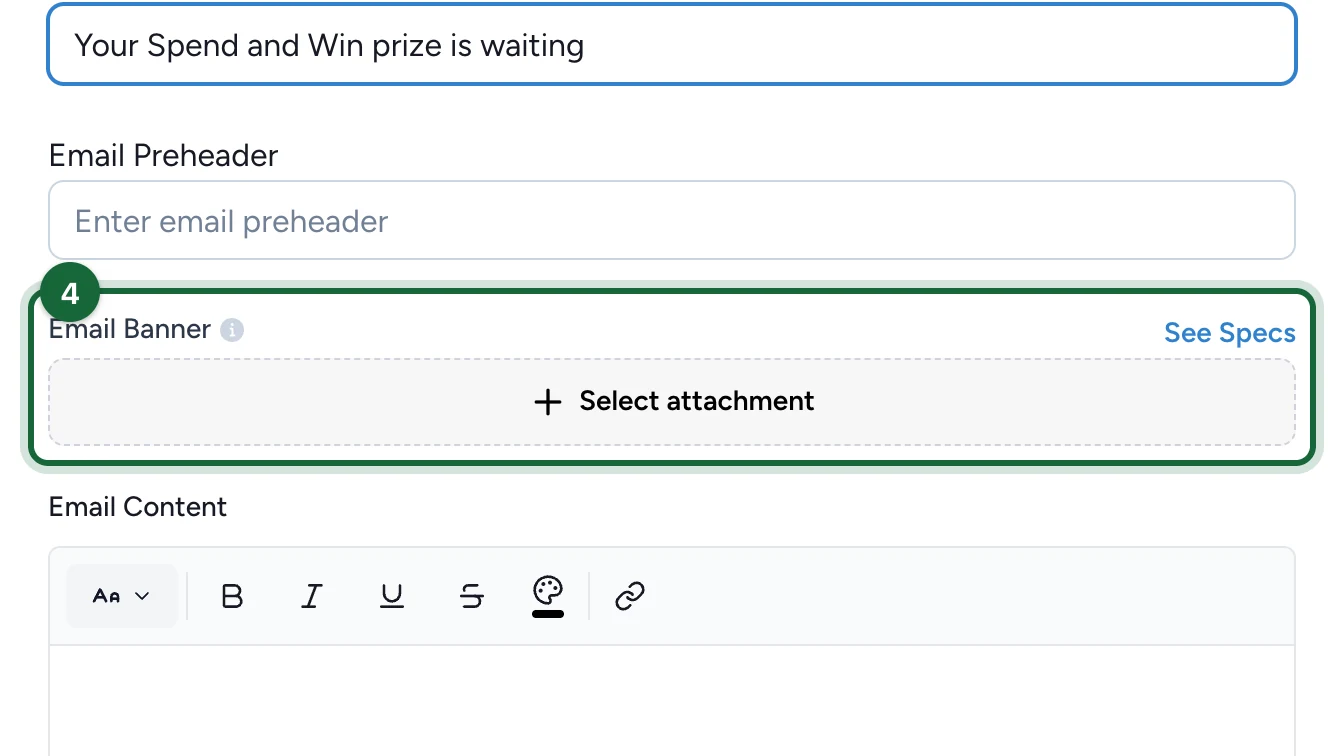
Under Email Banner, choose Select attachment.
-
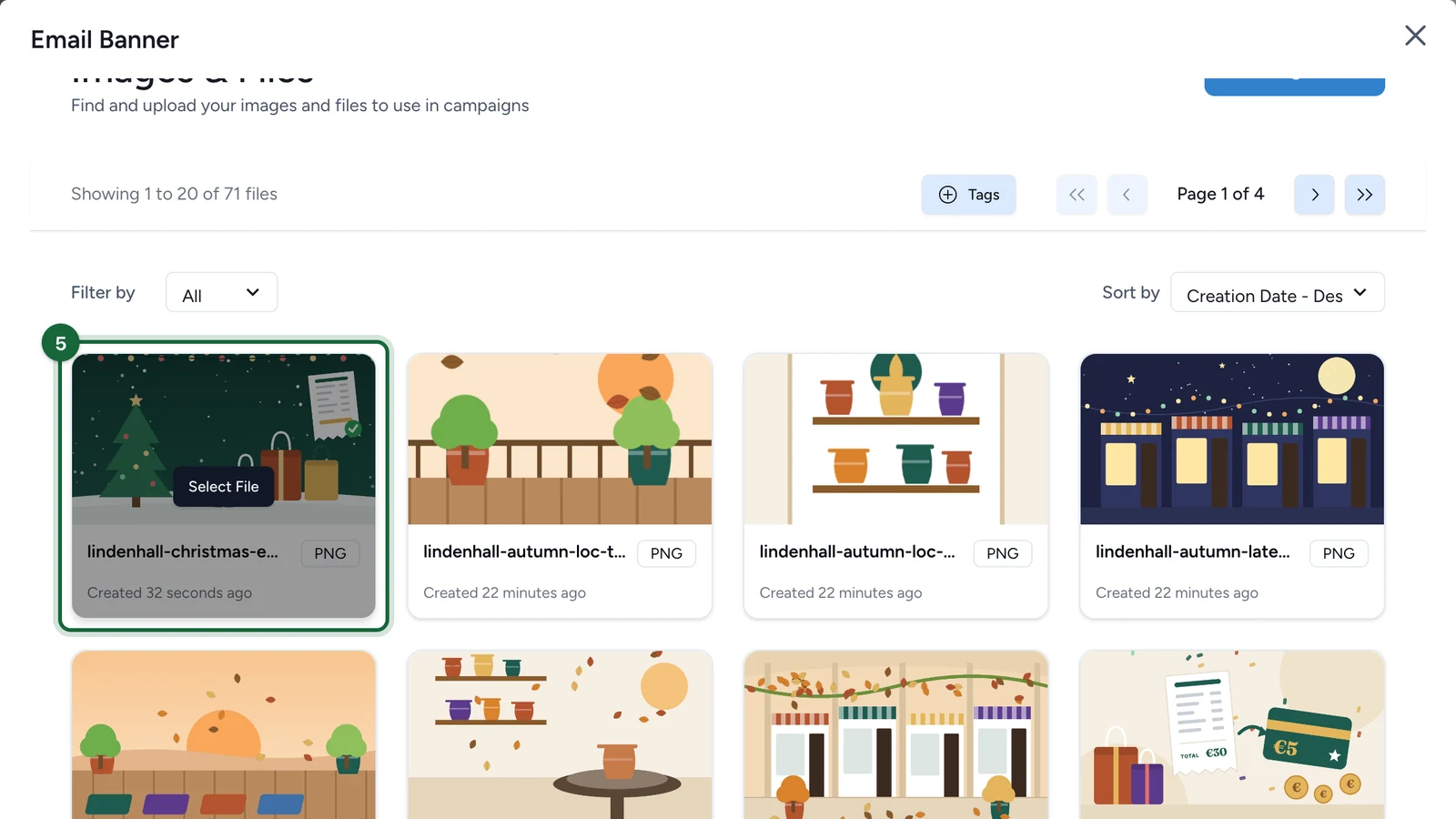
On your banner, choose Select File.
-
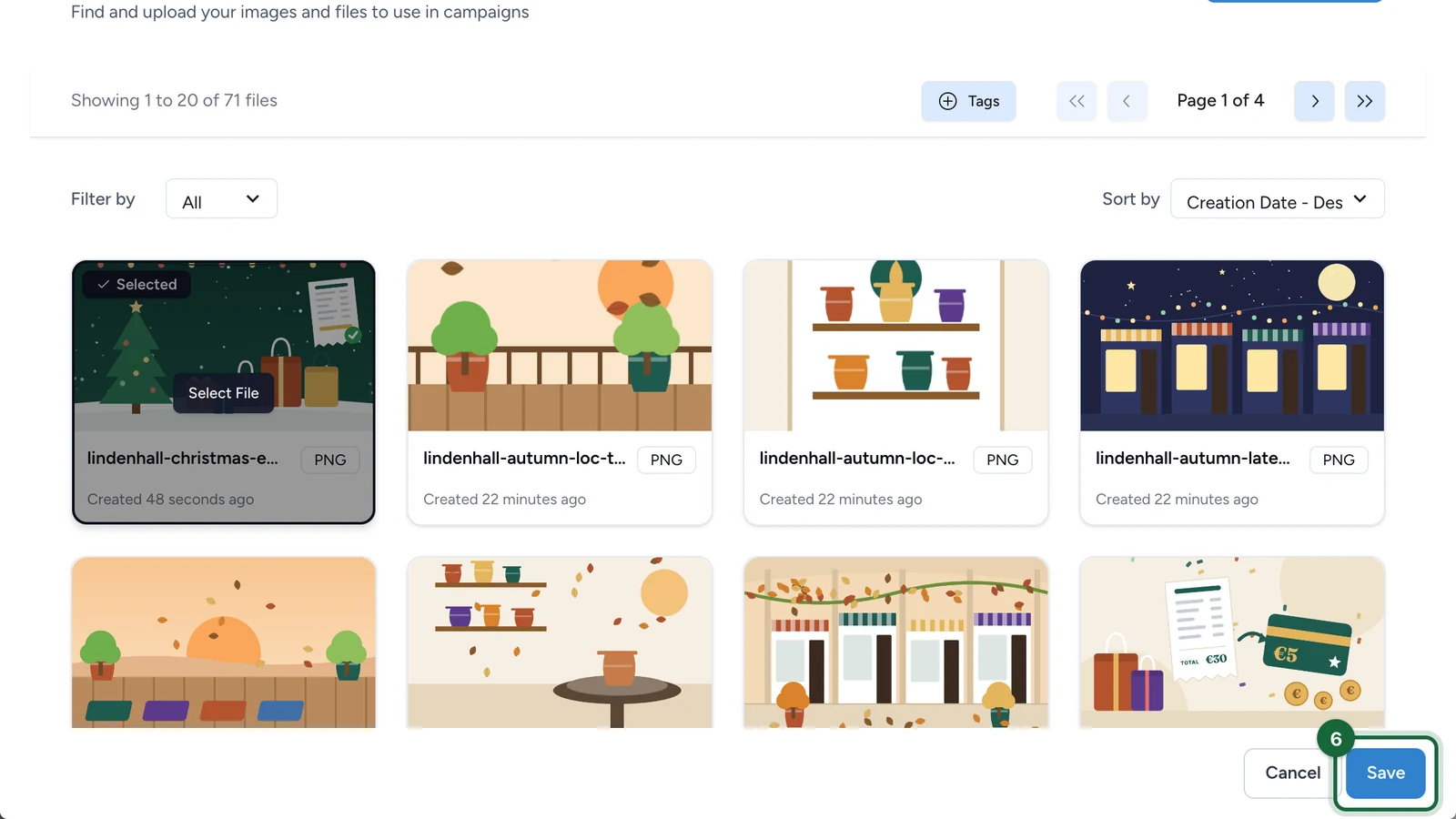
Select Save.
-
In Email Content, write the message.
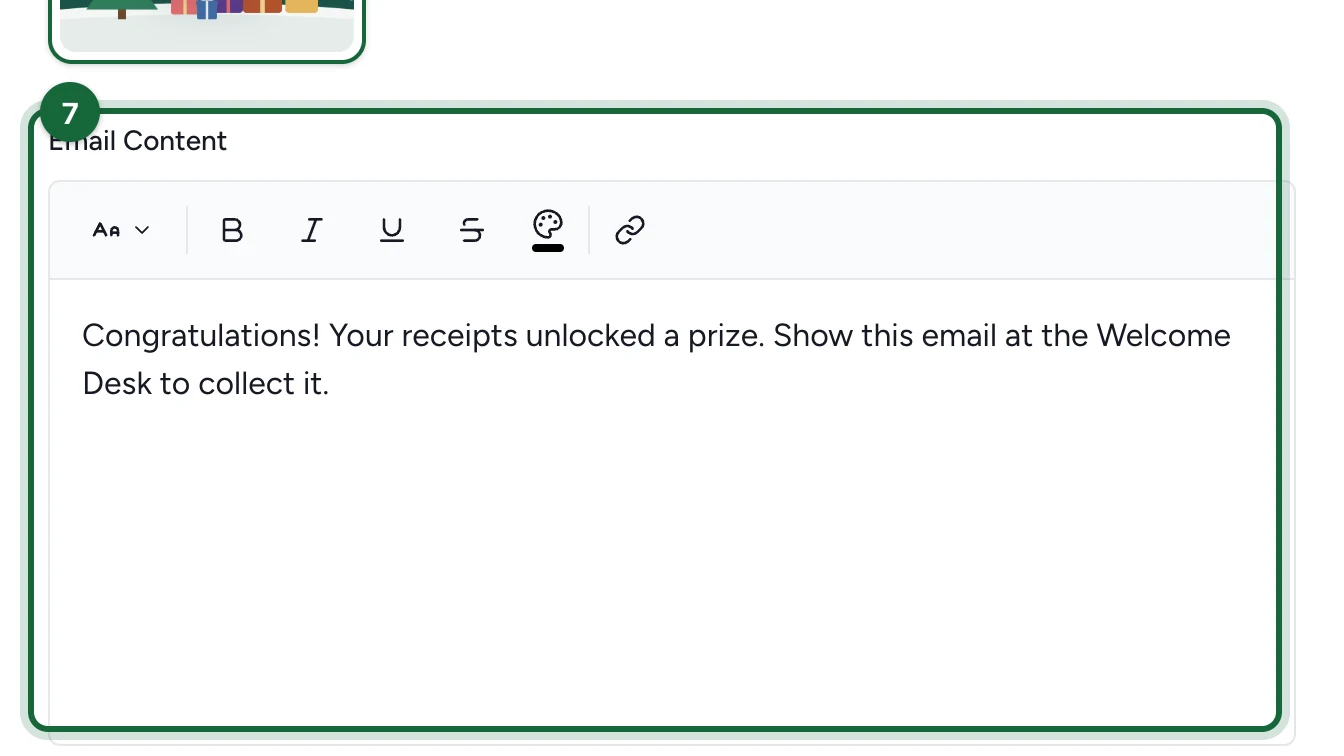
The subject, banner and content are required. The other fields are explained in Configure notifications globally.
-
Select Save.
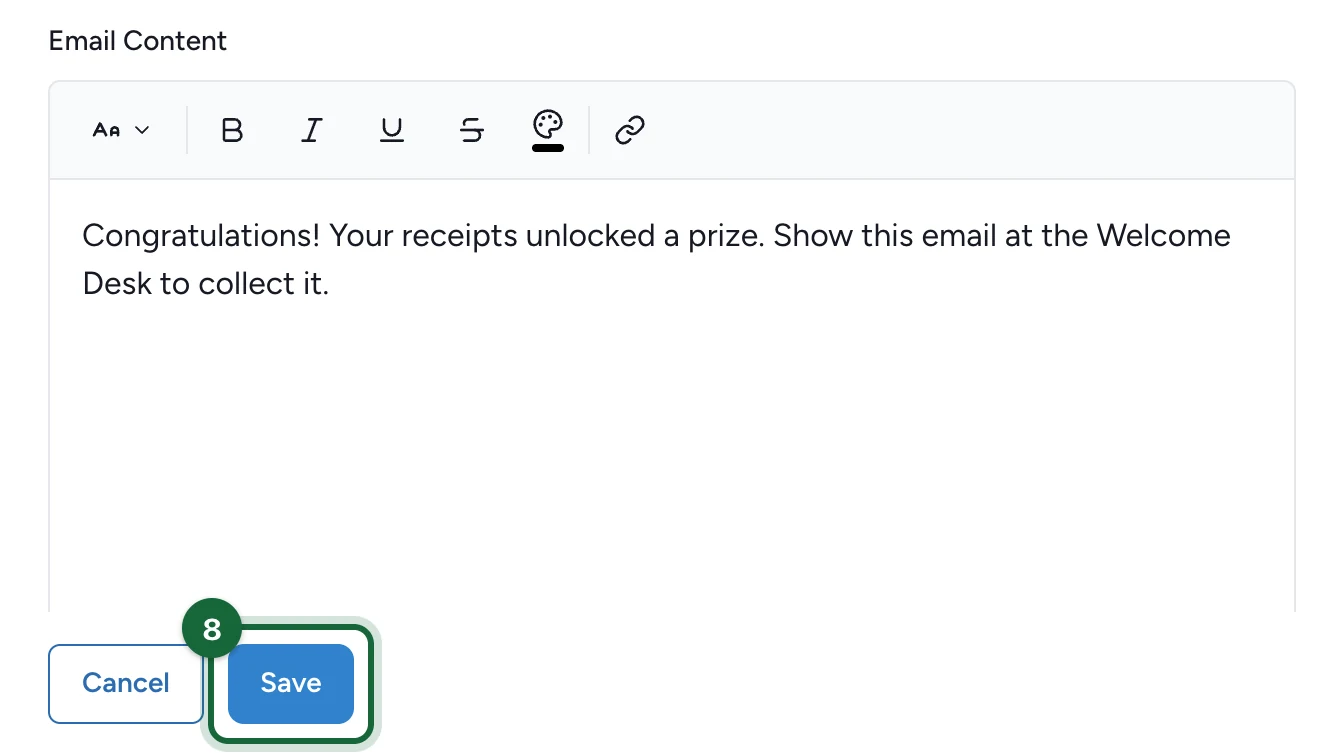
Emails send only when the campaign's email add-on is on.