What is Smart Links
Learn what Smart Links does, how it fits into OmniLab, and when it is the right tool for tracked distribution.
In this article, you'll learn what Smart Links is, why it is managed separately from campaigns, and when to use it for QR-based and link-based distribution.
What Smart Links is
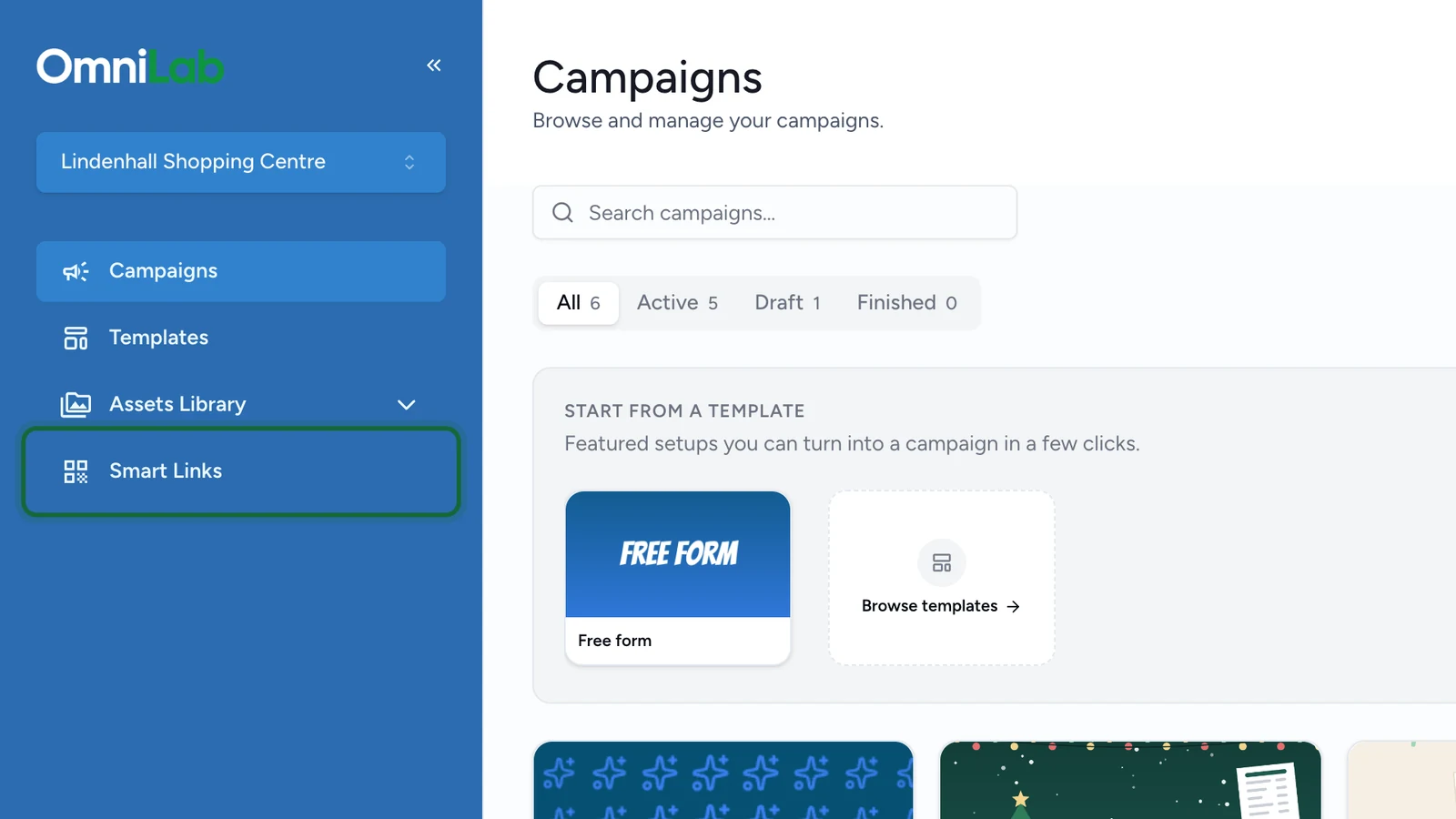
Smart Links is OmniLab's app for creating dynamic, trackable links and QR codes at the organisation level. A Smart Link is not a campaign setting and it is not attached to just one touchpoint. Instead, it is a separate sharing layer that you manage in the dedicated Smart Links app.
That separation matters because sharing often changes faster than campaign build. A campaign might already be published, while the poster placement, QR design, destination URL, UTM setup, or reporting needs are still evolving. Smart Links lets you manage those distribution decisions without rebuilding the campaign itself.
You can point a Smart Link to OmniLab destinations such as a landing page or touchpoint URL, but you can also point it to destinations outside OmniLab such as a retailer website, booking page, app store listing, help article, or PDF.
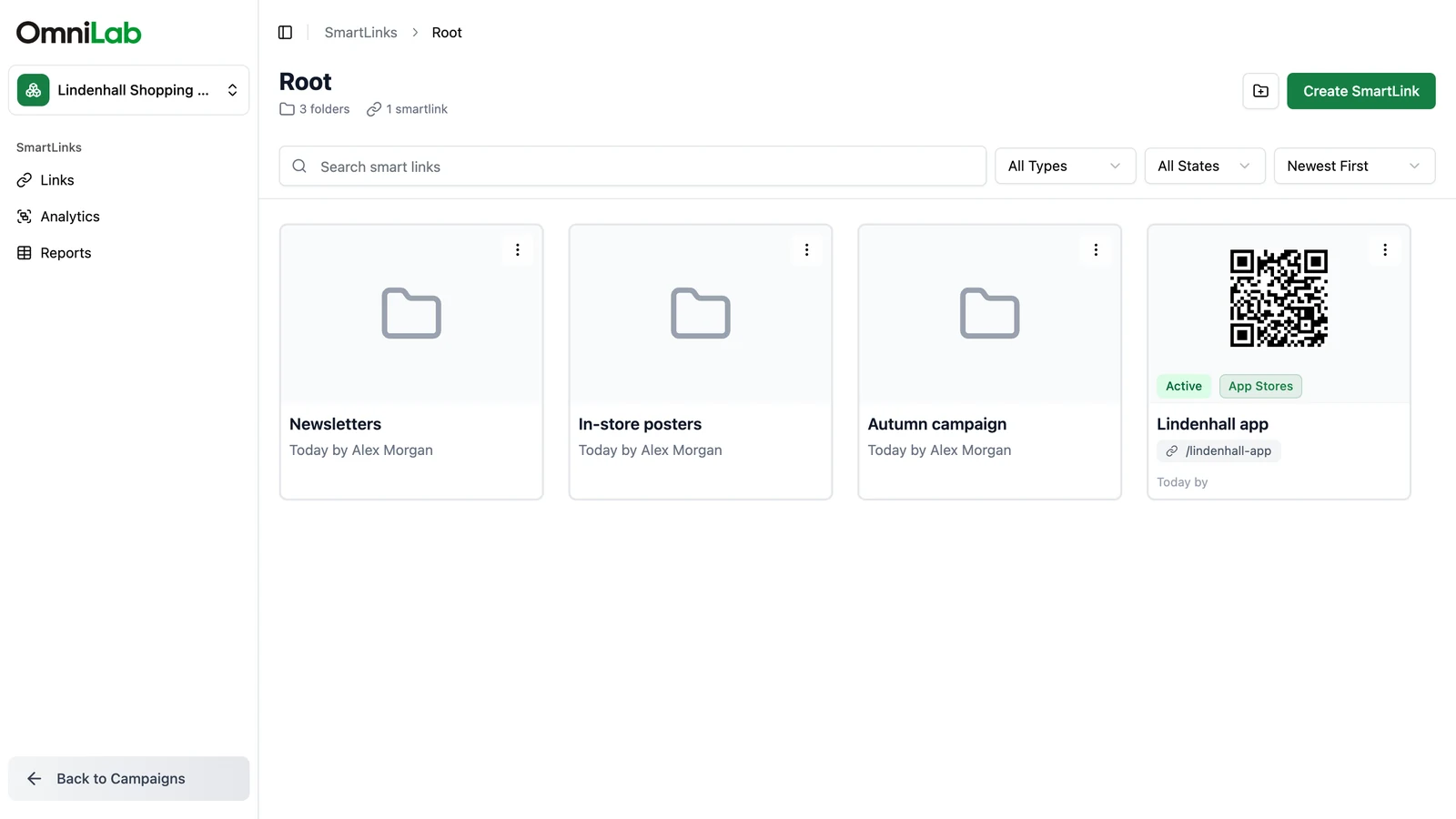
The Smart Links app opens on the Links view, where you browse folders and open any Smart Link.

Why teams use Smart Links
The simplest way to think about Smart Links is this: it decouples campaign creation from sharing and QR printing.
Once that layer exists, you gain a few important advantages:
| Capability | Why it matters |
|---|---|
| Trackable short URL | Easier to share, scan, and report on than a long destination URL. |
| Stable print asset | You can keep one printed QR code live while updating the destination later if the campaign flow changes. |
| Variants | One Smart Link can track multiple placements, formats, or locations separately. |
| QR design tools | You can generate branded QR assets from the link detail page instead of building them elsewhere. |
| Built-in analytics | You can monitor scans, device mix, sources, referrers, and variant performance in the same app. |
When Smart Links adds the most value
Use Smart Links whenever the same destination will be shared across more than one channel, placement, or print asset - especially when you want analytics and the option to change the destination later without reprinting.
The two Smart Link types
The current Smart Links UI exposes two link types:
| Type | Best for | What you configure |
|---|---|---|
Redirection | Campaign landing pages, touchpoints, websites, booking flows, PDFs, or any other web destination | A destination URL, optional expiration date, optional login requirement, optional UTM parameters, and optional variants |
App Stores | One QR code or URL that should route iPhone and Android users to the right app store | Store URLs such as App Store and Google Play, plus fallback and icon options |
For most teams, Redirection is the default choice. It is the fastest way to wrap a published OmniLab campaign or any external destination in one tracked, reusable sharing URL.
What Smart Links can do today
Smart Links is built for day-to-day operator work, not just one-off redirects. In the current app you can:
- organise links into folders
- create and edit Smart Links from dedicated forms
- choose between
RedirectionandApp Stores - define a public slug that becomes the
/l/<slug>URL - add
UTM Parametersfor the base link - add variants with their own IDs, URLs, analytics, and optional tracking values
- enable an expiration date
- require login before a user continues
- open the detail page to review configuration and download QR codes
- run per-link analytics and use the
Reportsview for CSV exports
Practical examples
Here are common Smart Links setups that work well in real operations:
One poster, multiple locations
You publish one campaign landing page for a seasonal activation. Instead of printing different QR codes for every venue, you create one Smart Link and add variants such as north-entrance, food-court, and cinema-bridge. Each location gets its own QR code, while the campaign destination stays consistent.
A campaign URL that may change later
Your campaign is ready, but the final landing page structure or touchpoint entry path may still evolve during launch week. Rather than printing the campaign URL directly, you point a Smart Link at it, print the Smart Link QR code, and update the destination later if needed.
A destination outside OmniLab
You want a QR code on packaging that opens a retailer product page or a booking form hosted outside OmniLab. A Smart Link still gives you a short public URL, QR design controls, variants, and scan analytics even though the destination is not inside OmniLab.
One link for app downloads
If the goal is app installation rather than campaign participation, an App Stores Smart Link can send iPhone users to the Apple App Store and Android users to Google Play from the same shared URL.
Related
Your first Smart Link
Create a first Smart Link end to end and confirm the full workflow in the app.
Create a Redirection Smart Link
Set up the main Smart Link type used for campaigns and external destinations.
Smart Link Analytics
See what happens after launch and how OmniLab reports scans and variant performance.