The customer activation platform.Every interaction becomes a qualified contact. Book a demo

Smart Link Analytics

Run the per-link analytics view, choose a date range, and understand the main Smart Link metrics.

In this article, you'll learn how to run analytics for one Smart Link, what each KPI and chart means, and when to switch from the per-link view to the broader Reports table.

What this analytics view is for

Smart Link analytics is the quickest way to answer questions about one specific public link or QR code:

  • How many times was it scanned?
  • How many unique devices used it?
  • Which variant performed best?
  • Which sources, devices, and referrers appear most often?

This view is link-specific. If you need a CSV across many Smart Links, use the Reports view instead.

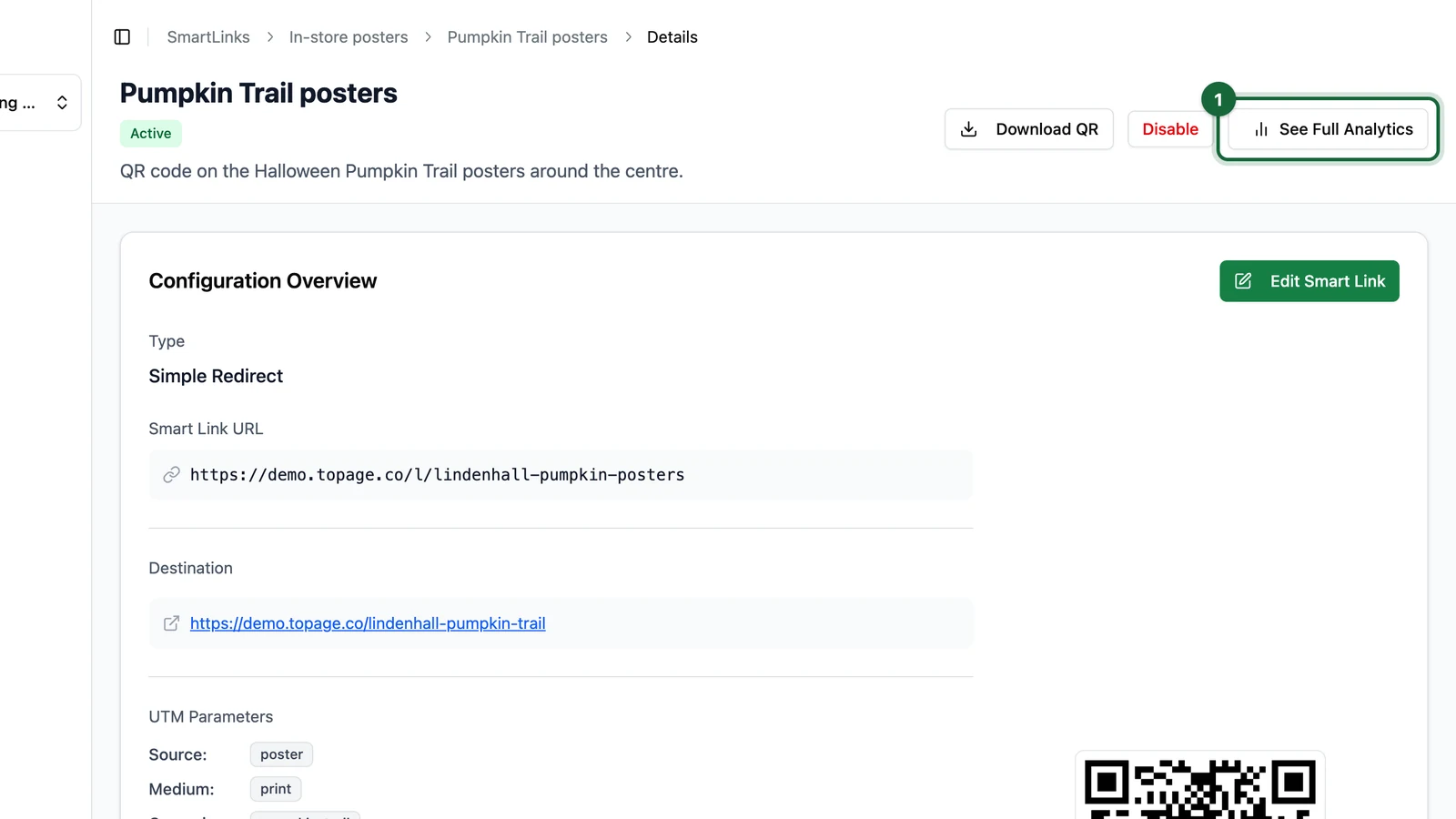
Go to the Smart Link you want to review, then click See Full Analytics.

Set the reporting window

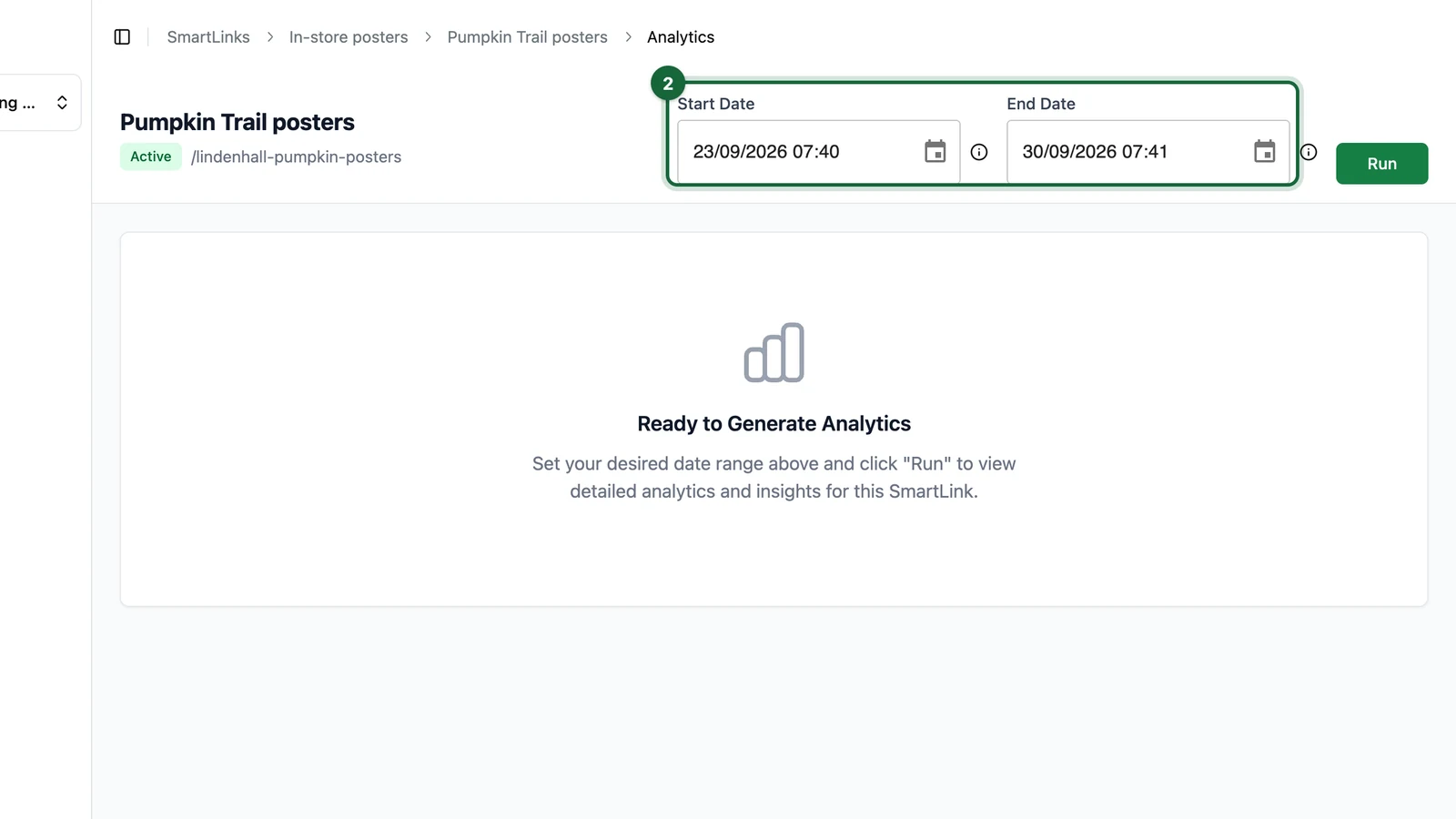
Choose Start Date and End Date for the period you want to analyze.

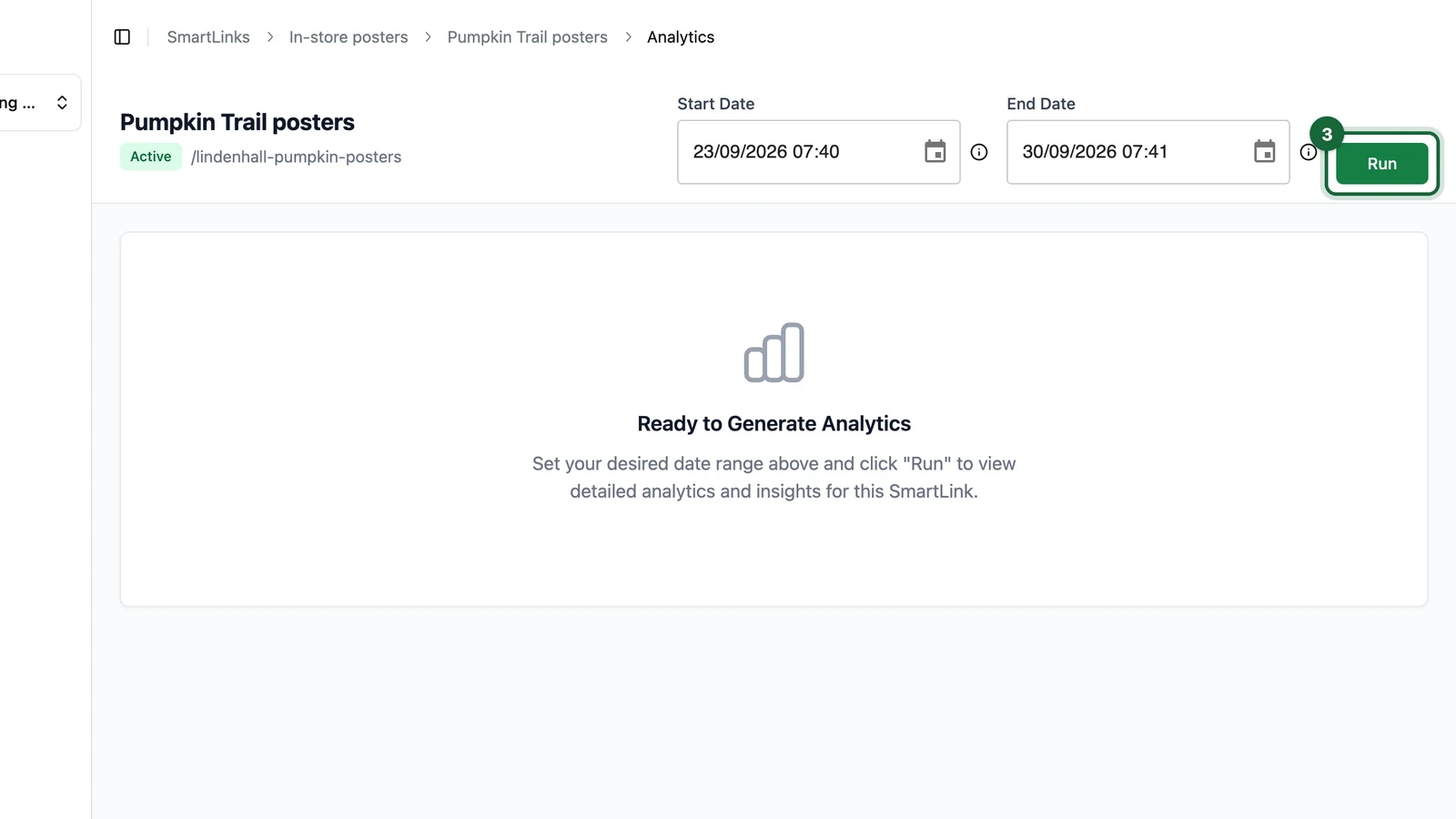
Click Run

Click Run to load the Smart Link metrics and charts for the selected period.

If you are reviewing a newly launched Smart Link, make sure your date range includes the first test scans or the launch date itself.

Per-link Smart Link Analytics with Start Date, End Date, and Run before charts load

The main KPIs

At the top of the page, OmniLab shows three core KPIs:

KPIWhat it tells you
Number of scansTotal Smart Link scan or click volume in the selected period
Unique devicesApproximate number of distinct devices recorded
Avg. scans per deviceRepeat engagement level across the devices that used the Smart Link

After you click Run, the page loads the KPI row and the widgets below for the selected period.

Smart Link Analytics after Run: KPIs and widgets including Scans Over Time, Device Distribution, Scans by Variant, and source or referrer lists

The charts and lists you will see

Below the KPIs, the page breaks the traffic down in several ways:

WidgetWhat to look for
Scans Over TimeTraffic peaks, launch spikes, and drops in momentum
Device DistributionWhether traffic is mainly mobile, desktop, or another device group
Scans by VariantWhich placement, channel, or location performed best
Top UTM SourcesWhich tracked sources appear most often
Top DevicesWhich device or browser families are most common
Top ReferrersWhich websites or referrer sources sent traffic when available

How to use the results

Use this page to make practical launch and distribution decisions:

  • compare one poster location against another with Scans by Variant
  • spot high-traffic periods in Scans Over Time
  • confirm that mobile traffic dominates before optimizing a destination page for smaller screens
  • compare organic and campaign-tagged traffic using Top UTM Sources
  • understand where referrals are coming from when referrer data is available

When to use Reports instead

Use the Smart Links Reports view when you need:

  • a table across many Smart Links
  • CSV export
  • link-level fields such as slug, status, type, scans, unique devices, last activity, expiration date, or UTM values

Per-link analytics and Reports serve different jobs

Use Smart Link Analytics to understand one link deeply. Use Reports when you need a broader operational view or a CSV outside OmniLab.

Was this helpful?

Optional comments help us improve this page for future authors and readers.

On this page