The customer activation platform.Every interaction becomes a qualified contact. Book a demo

Generate Smart Links from existing campaigns

Use Smart Links as the share layer for a published campaign URL without rebuilding the campaign.

In this article, you'll learn the recommended workflow for turning a published campaign URL into a Smart Link that is easier to share, easier to print, and easier to measure.

Campaign build and sharing are different jobs.

The campaign gives you the published destination. Smart Links gives you the share layer that sits in front of it: the /l/<slug> URL, the QR designer, variants, and per-link analytics.

That is why Smart Links is especially useful when:

  • the campaign is already live but the share plan is still evolving
  • you want one durable QR code for printed assets
  • different placements need their own variant analytics
  • the campaign URL should stay hidden behind a shorter public link

There is not a customer-facing shortcut that creates a Smart Link directly from a campaign. The reliable workflow is:

  1. publish the campaign first
  2. confirm or copy the final campaign URL
  3. create a Redirection Smart Link that points to that URL
  4. test the Smart Link
  5. download the Smart Link QR code for distribution

Publish the campaign first

Finish the campaign setup and publish it before you build the Smart Link.

That ensures you are pointing the Smart Link to the final public destination rather than to a draft or changing path.

Copy the campaign URL you want to share

Decide which public campaign URL should sit behind the Smart Link:

  • the campaign landing page URL when users should start on the campaign entry page
  • a direct touchpoint URL when users should jump straight into one experience

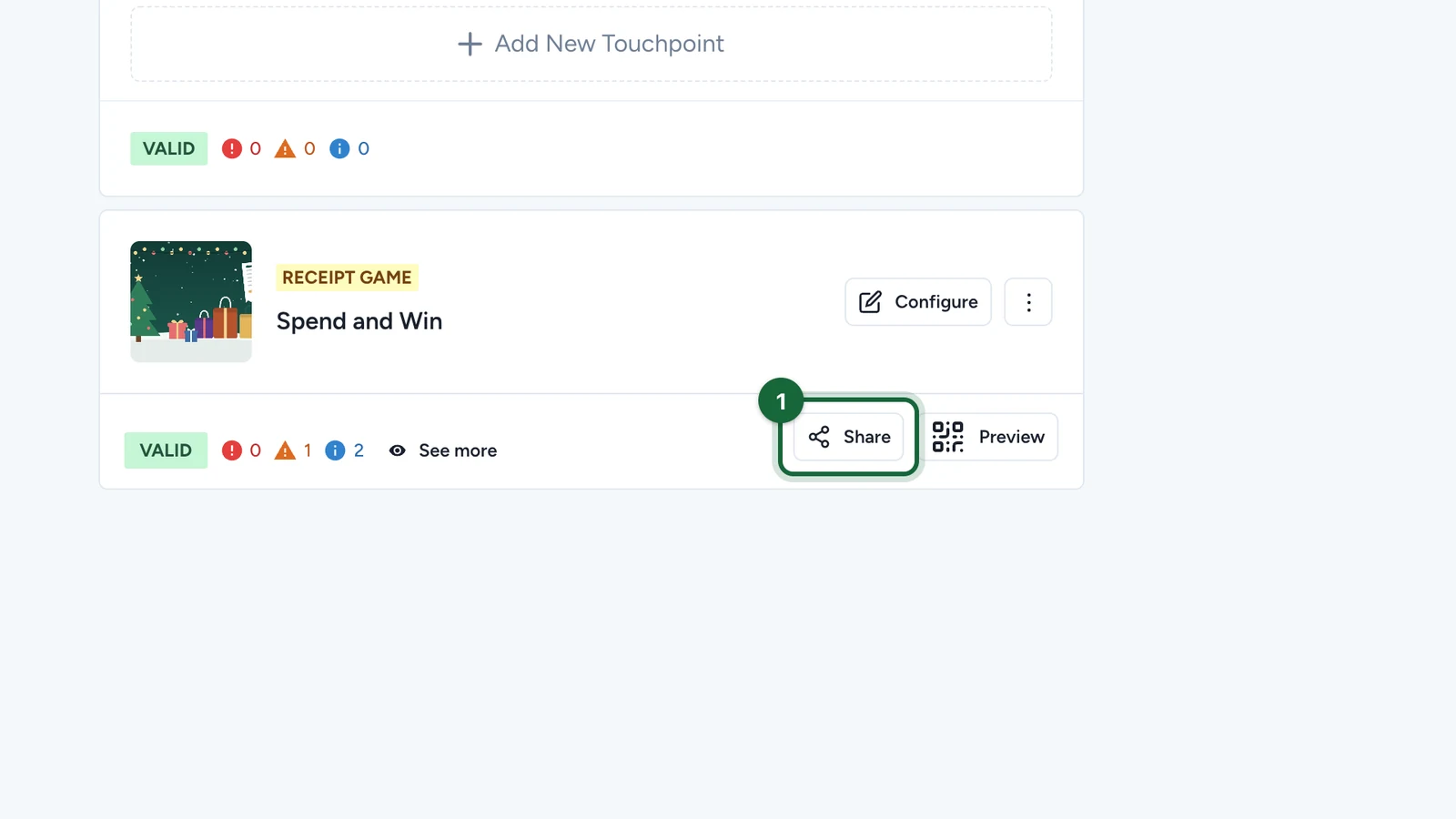
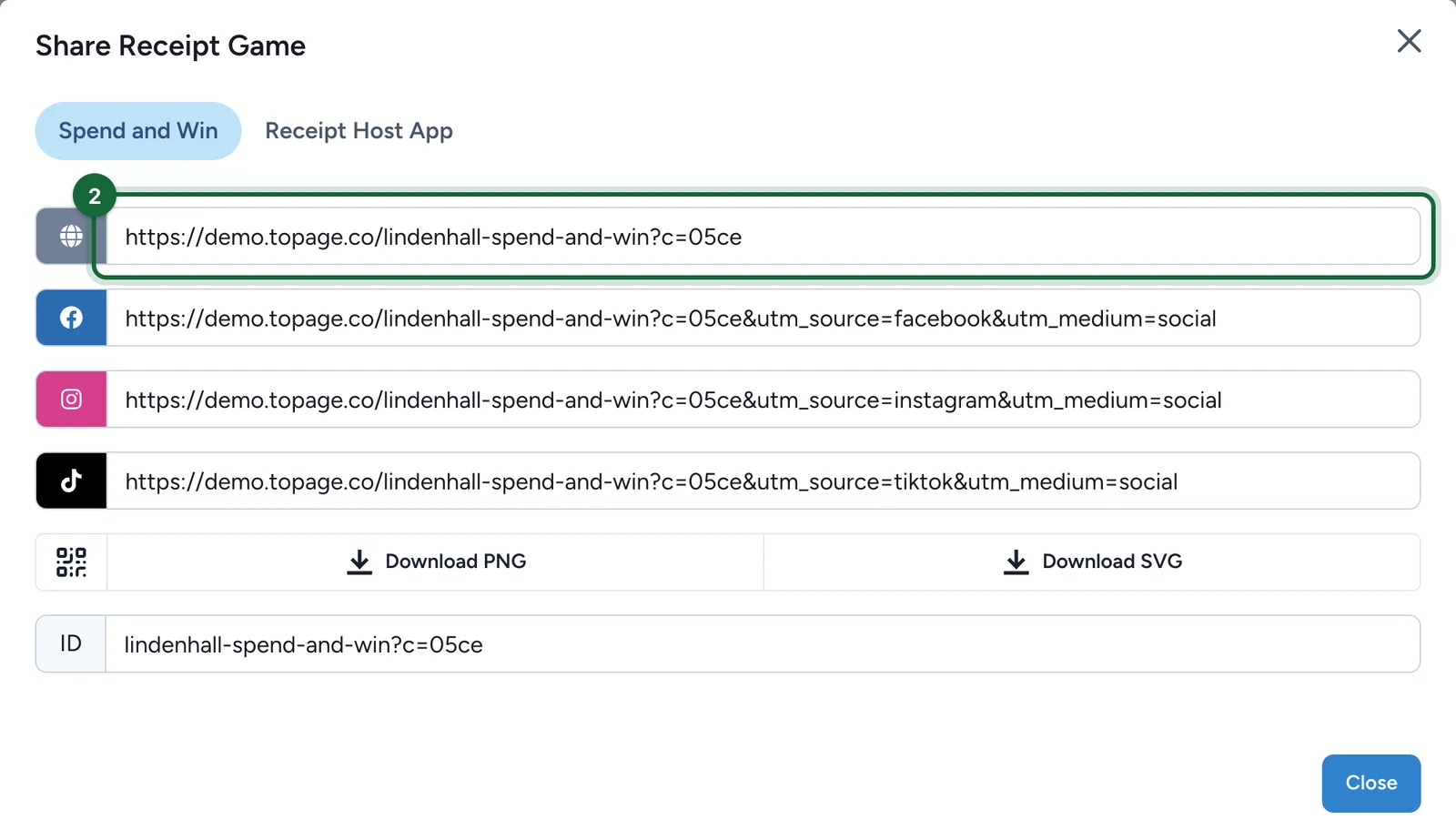
Copy that final URL from the campaign's existing share flow.

Open Smart Links, go to the right folder, and click Create Smart Link.

Choose Redirection, then enter:

  • a clear Title
  • an optional description
  • a short Smart Link Slug
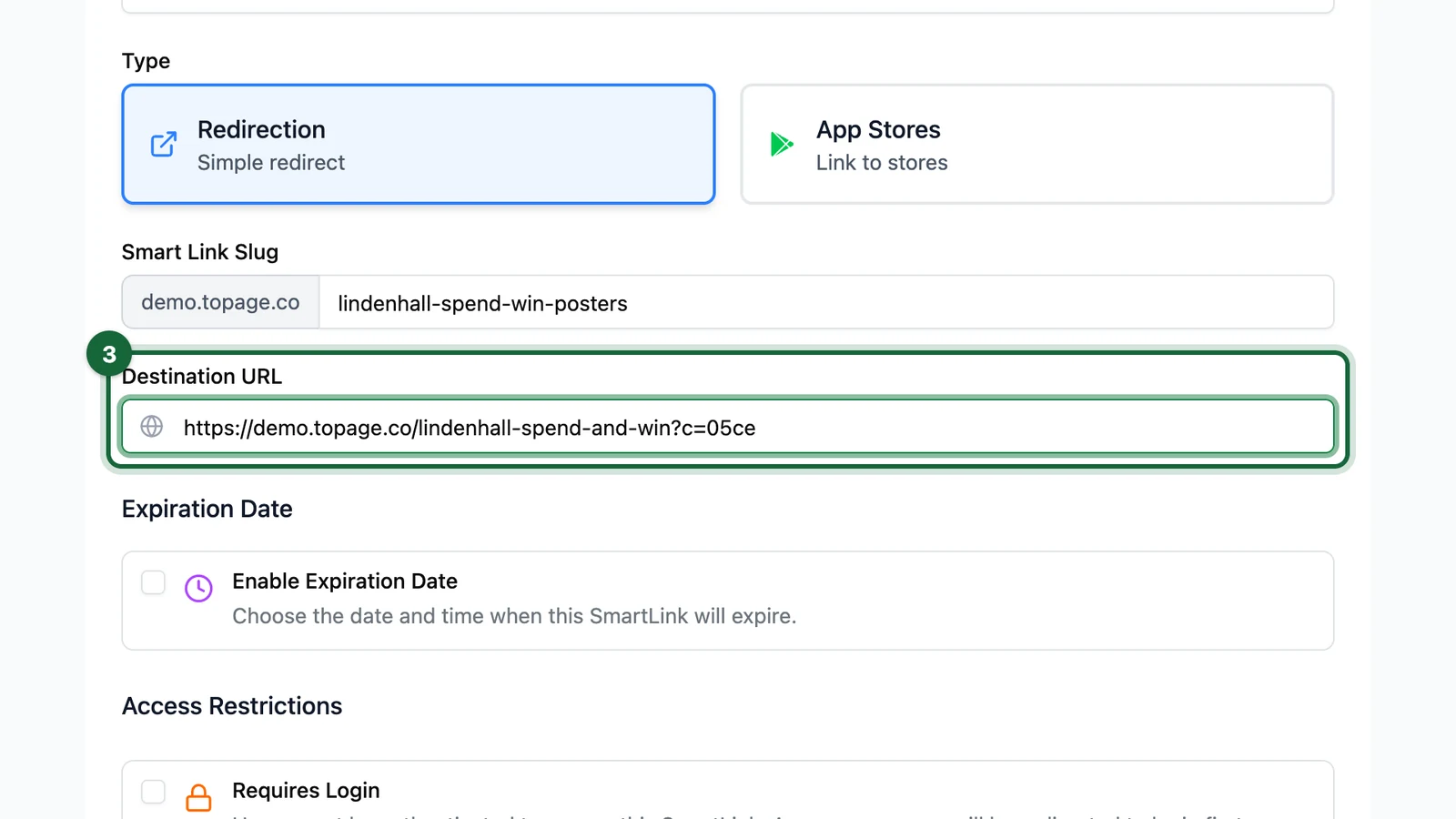
  • the campaign URL you copied as the Destination URL

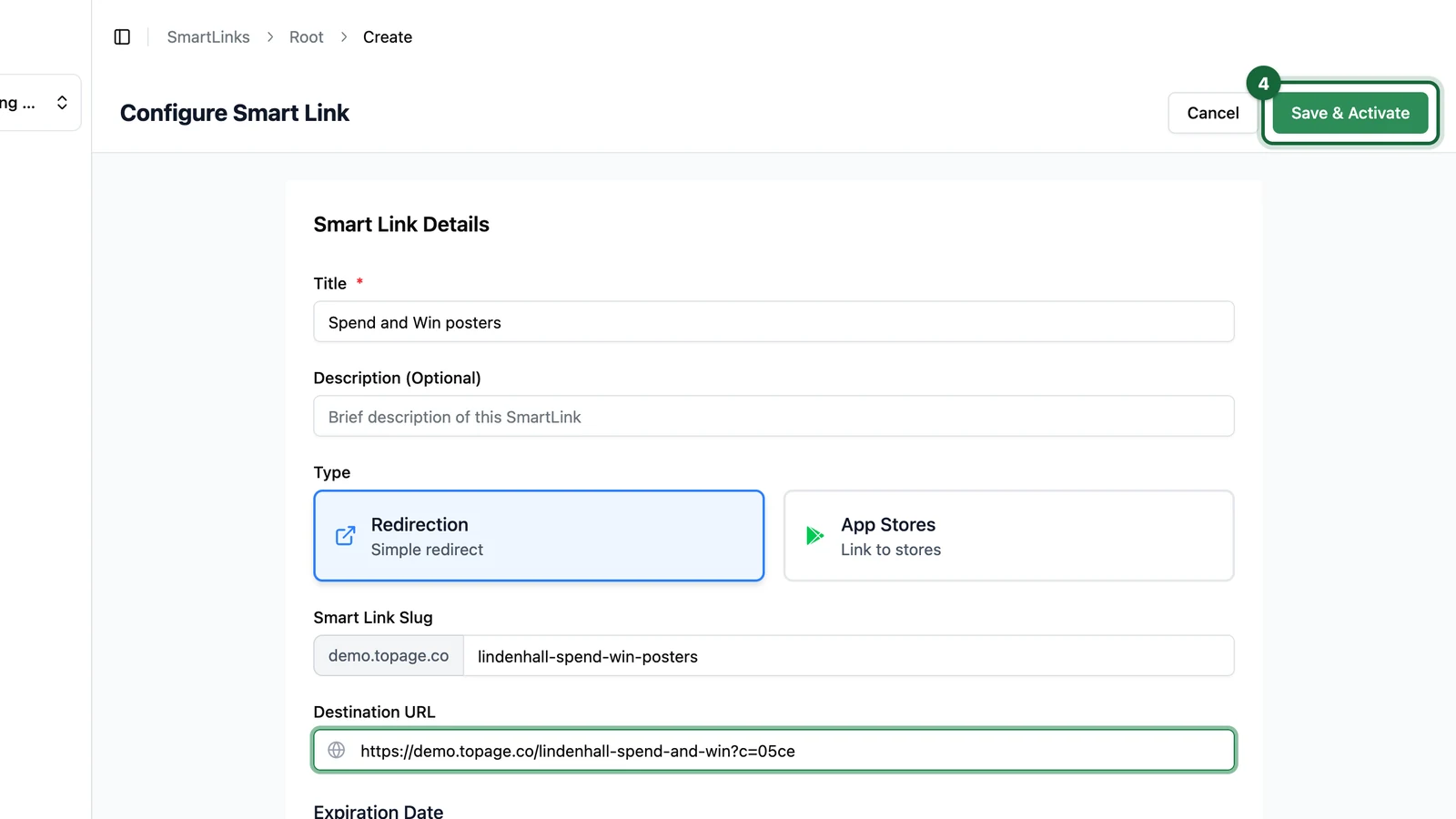
The create form is the same as any other Redirection Smart Link: choose Redirection, set the slug, then paste the published campaign URL into Destination URL.

Configure Smart Link form with Redirection, slug, and destination fields

Add optional launch tracking

If the campaign will be promoted across several placements, add Variants now so each location or channel gets its own measurable URL.

If the whole campaign launch should carry common attribution values, configure UTM Parameters on the main Smart Link as well.

Save the Smart Link, test the redirect in a browser, then scan the final QR code on a real phone.

Only move to print or broad distribution once the Smart Link behaves exactly as expected.

Choose the right campaign destination

Use this campaign URLWhen it is the better choice
landing page URLThe poster, flyer, or email should send users to the campaign entry page
direct touchpoint URLThe user should jump into one specific game, offer, or activity

If you are unsure, start with the campaign landing page. It is usually the most flexible destination for broad distribution.

Example

You publish a back-to-school campaign and want window posters, in-store stickers, and a newsletter CTA to drive traffic into the same experience.

Instead of sharing the campaign URL directly everywhere, you create one Smart Link such as back-to-school-launch, point it to the published landing page, then create variants for window-poster, counter-sticker, and newsletter. The campaign build stays untouched, while sharing, QR design, and reporting are all managed in Smart Links.

Was this helpful?

Optional comments help us improve this page for future authors and readers.

On this page