QR codes (download, design)
Download the QR code of a touchpoint, of every touchpoint at once, or of a space, and know when a Smart Link QR code is the better choice.
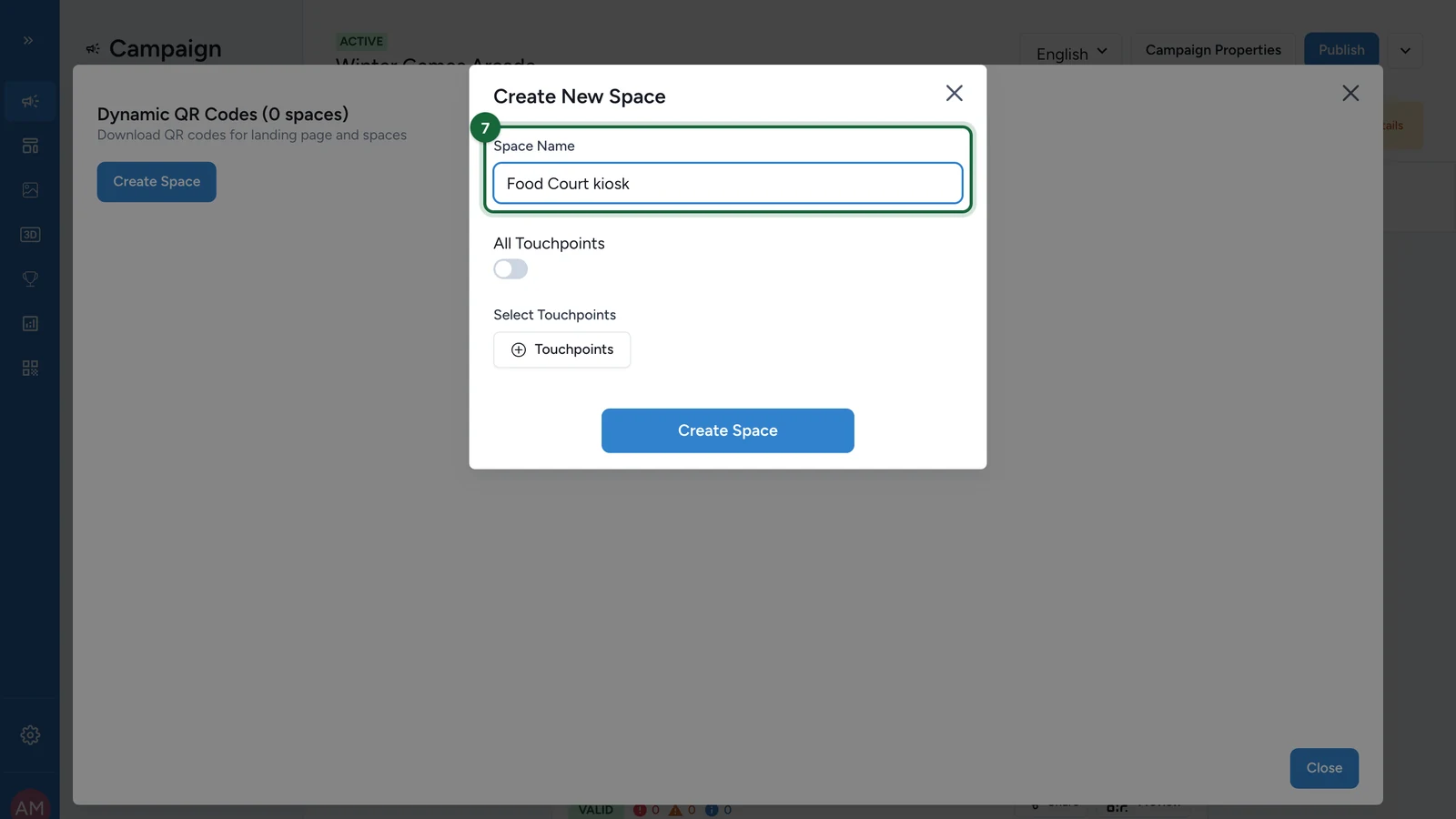
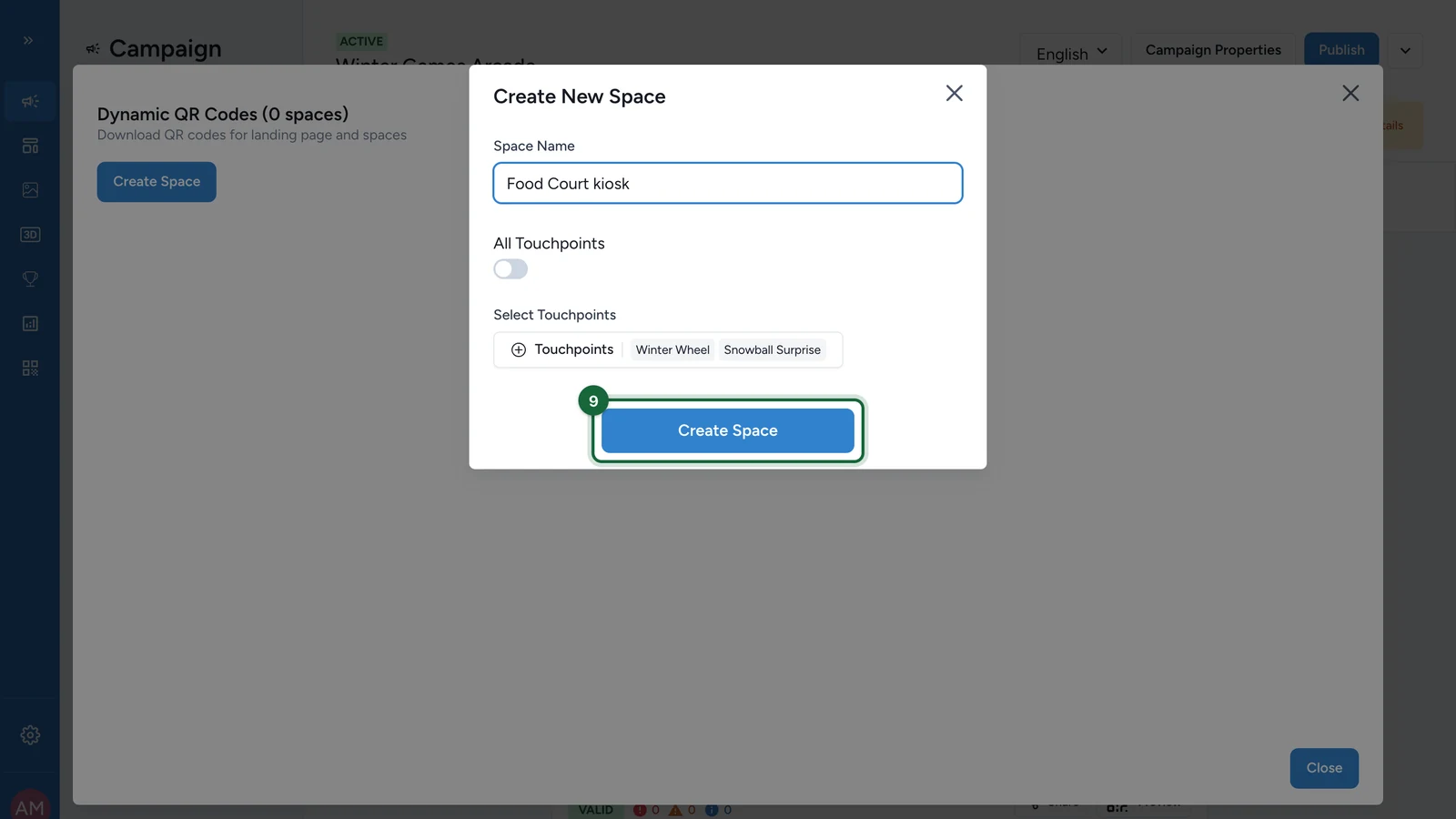
A published campaign gives you a QR code for each touchpoint, and for the landing page if it's on, ready to print or put on a screen. You can also group touchpoints into a space, such as one kiosk, with its own code. Here, Lindenhall prints the Winter Wheel's code and creates a "Food Court kiosk" space.
One touchpoint's QR code
In Build > Touchpoints on a published campaign:
-
On the touchpoint, select Share.
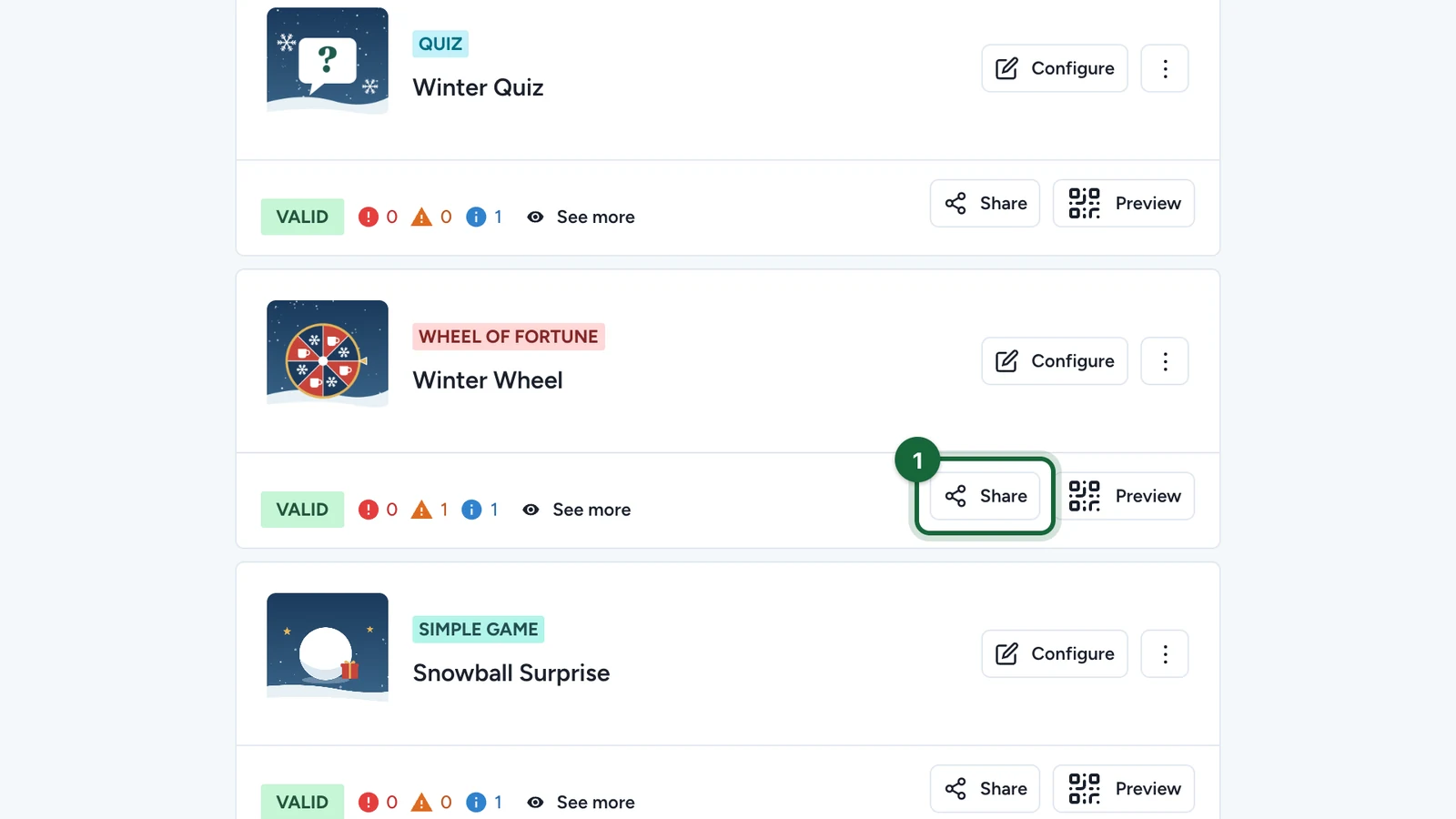
-
Select Download PNG or Download SVG.
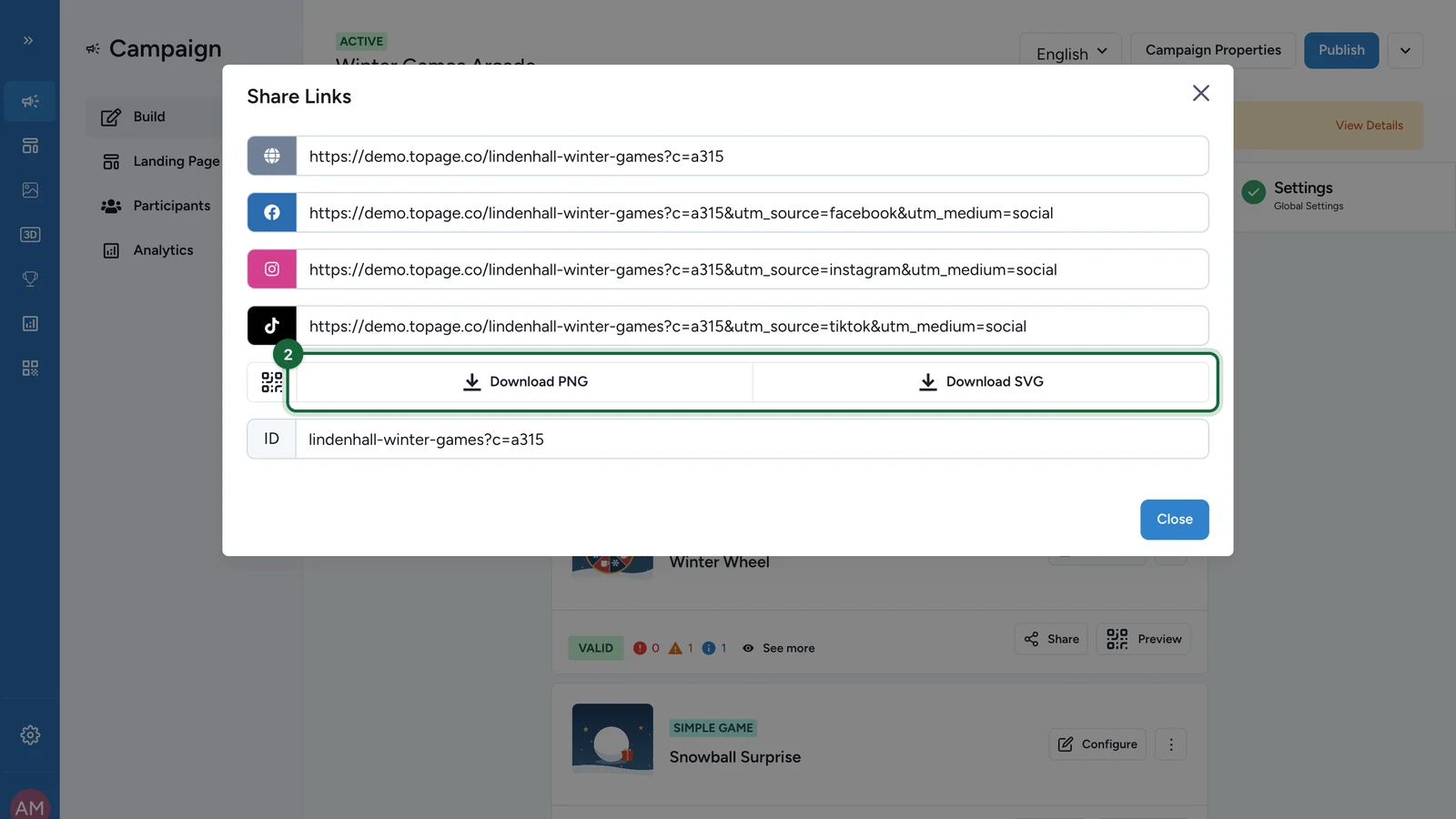
The code opens the touchpoint directly. Choose SVG for large prints.
Every QR code at once
-
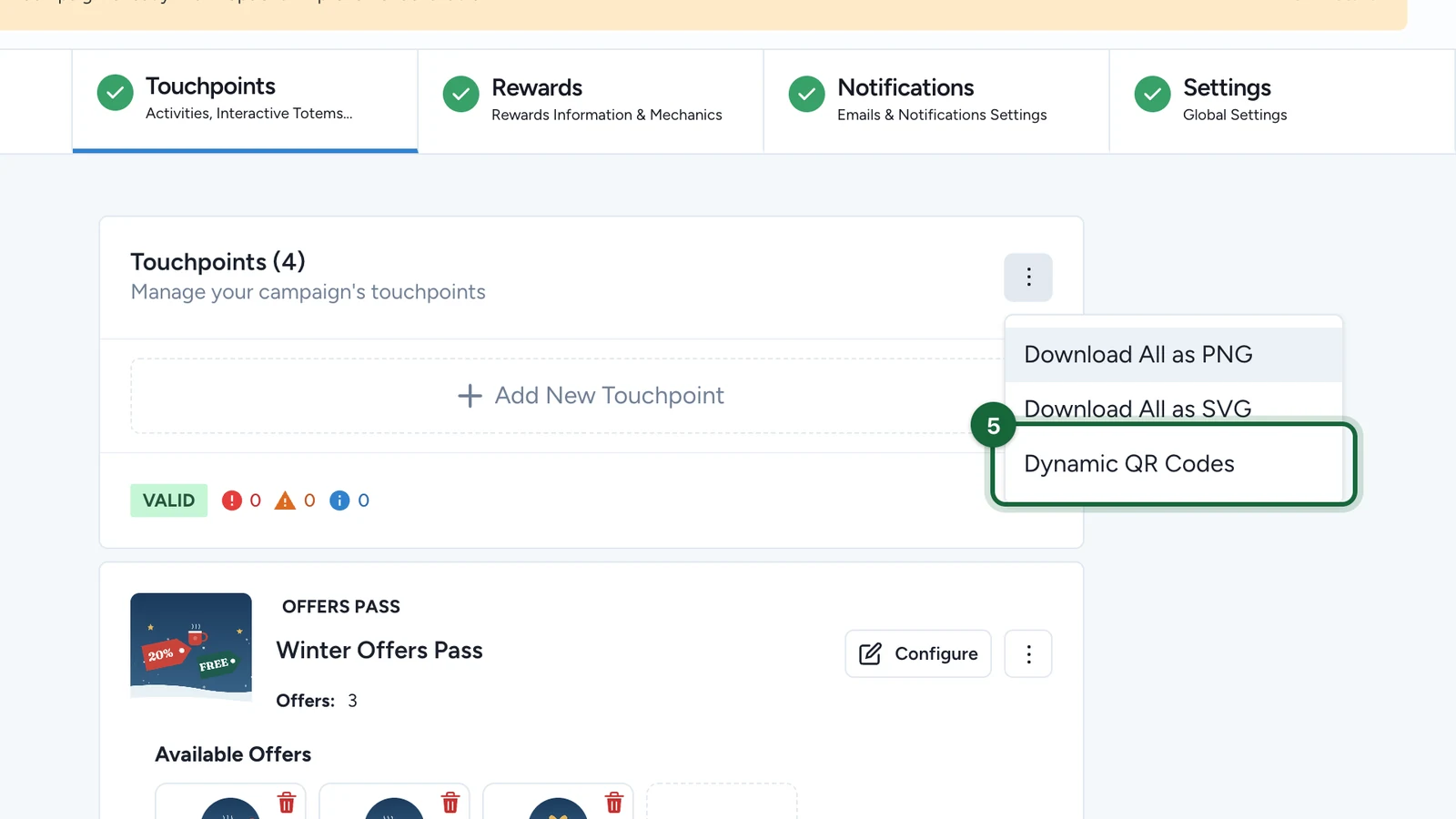
In the Touchpoints header, select the three-dot menu.
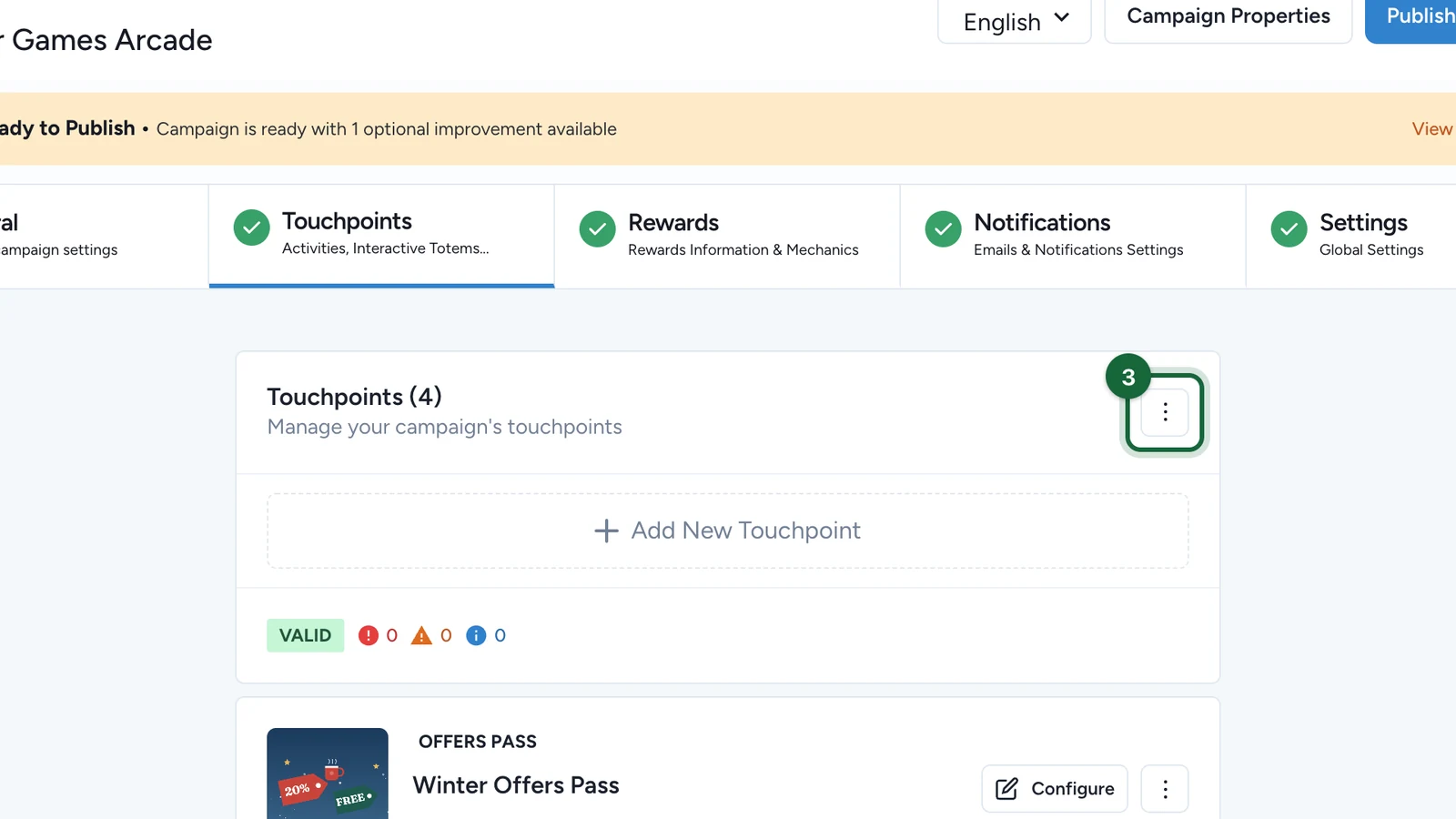
-
Choose Download All as PNG or Download All as SVG.
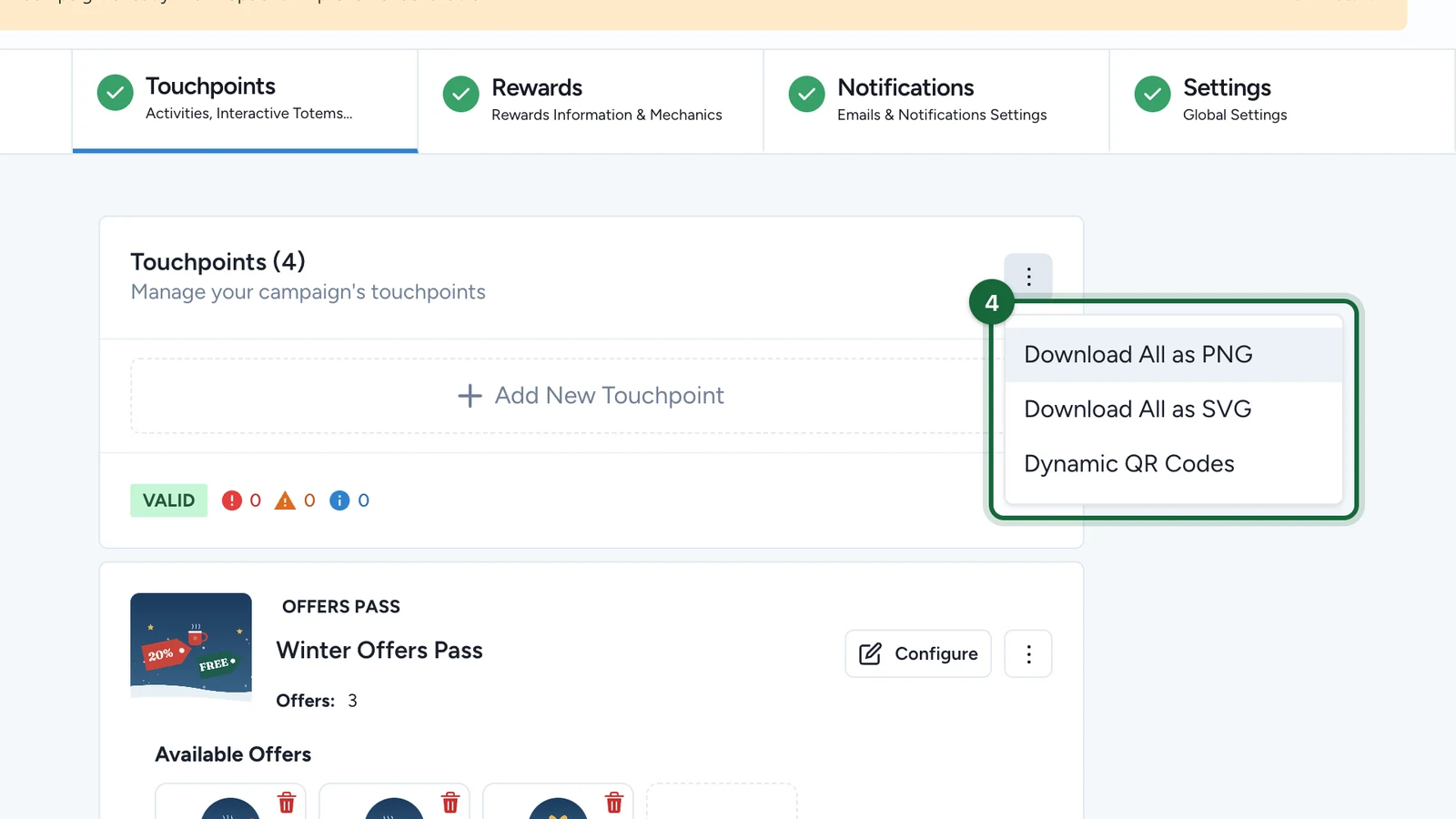
The file holds a code for every touchpoint, disabled ones included, plus each space, and the landing page if it's on. Remove or disable a touchpoint first if you don't want its code.
A space and its QR code
A space is a group of touchpoints with its own link and code, for one place or device. Its page lists only its touchpoints.
-
In the same menu, select Dynamic QR Codes.
-
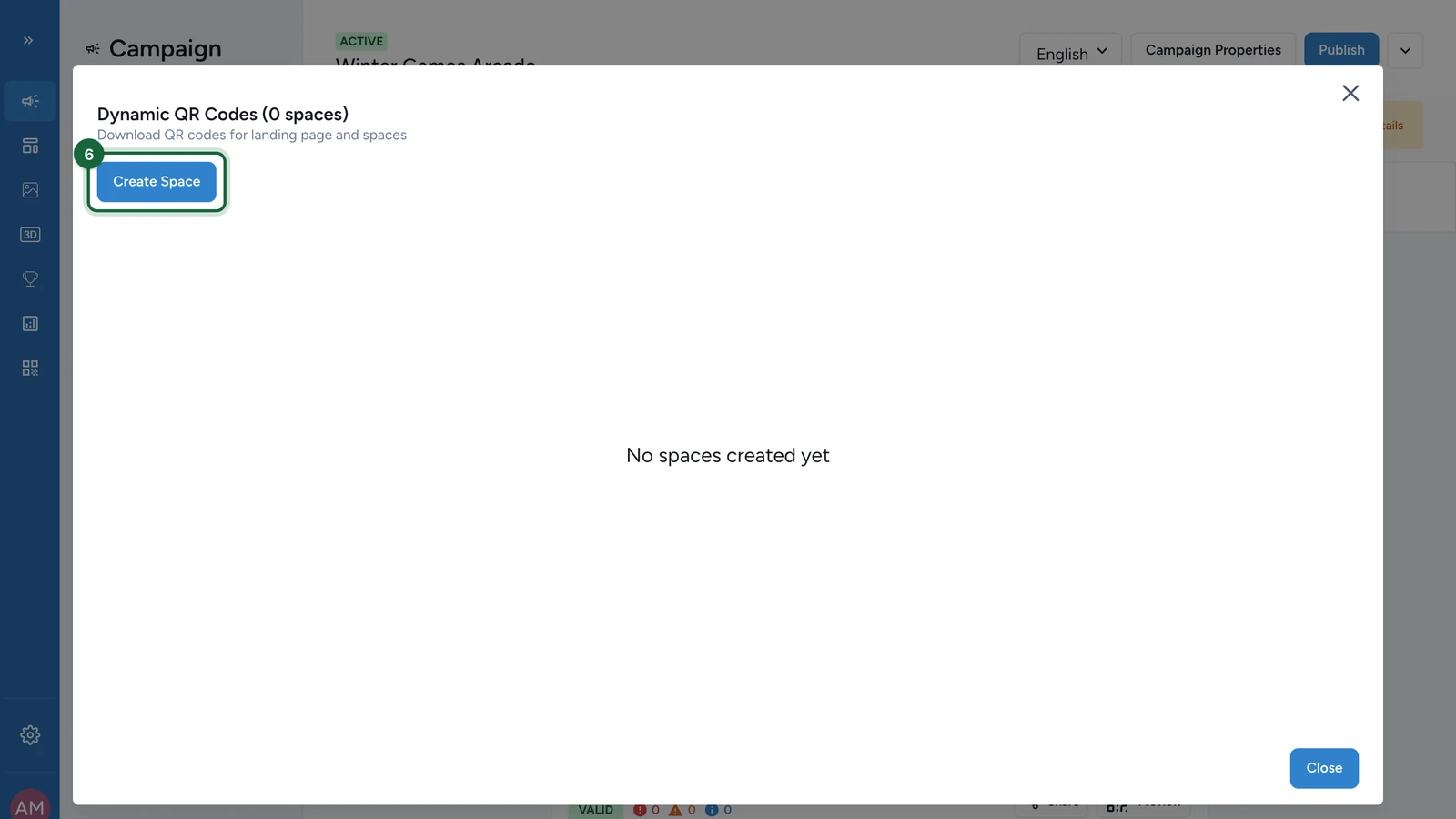
Select Create Space.
-
Enter the Space Name.
-
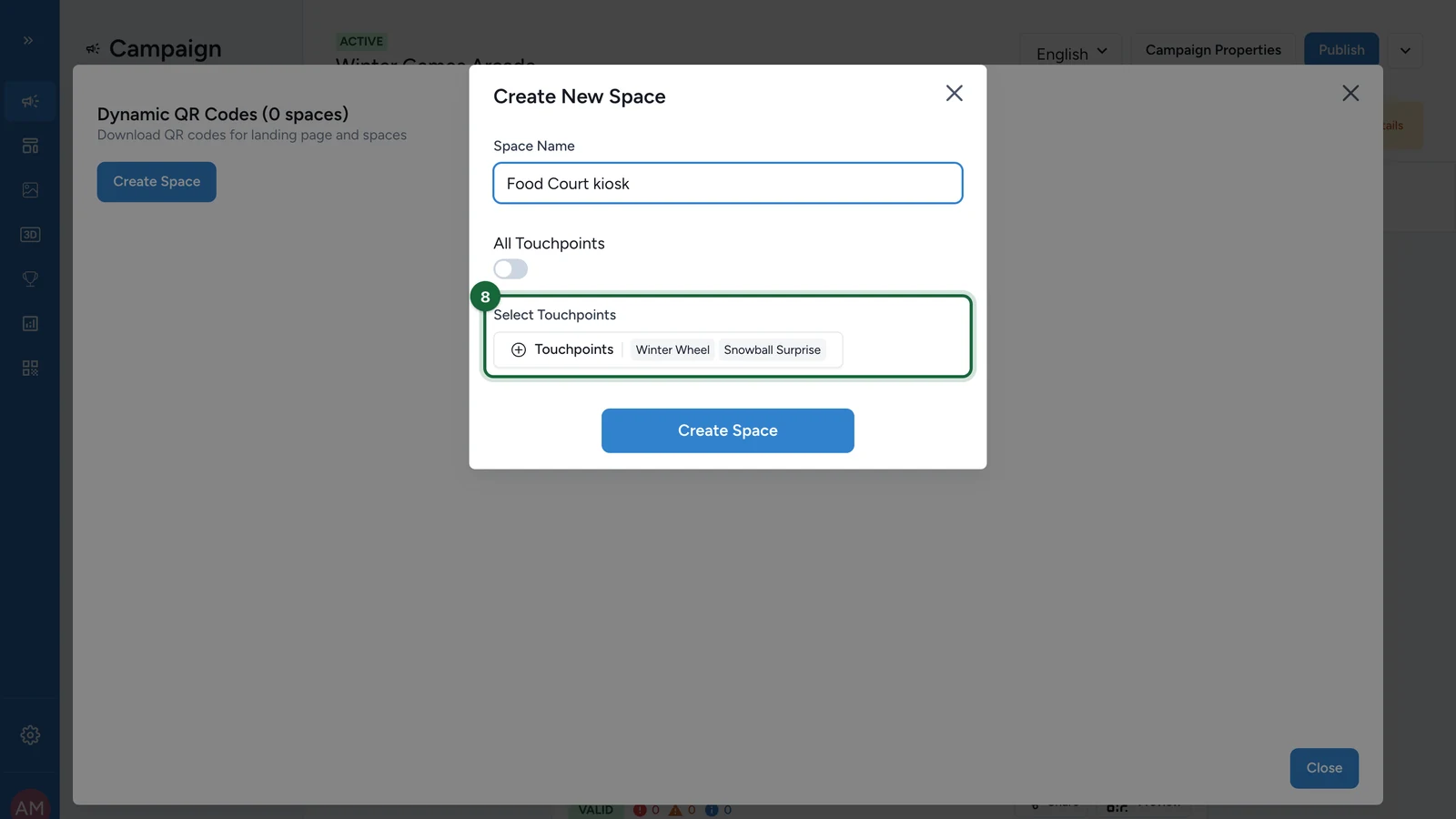
Under Select Touchpoints, choose the touchpoints, or switch on All Touchpoints.
-
Select Create Space.
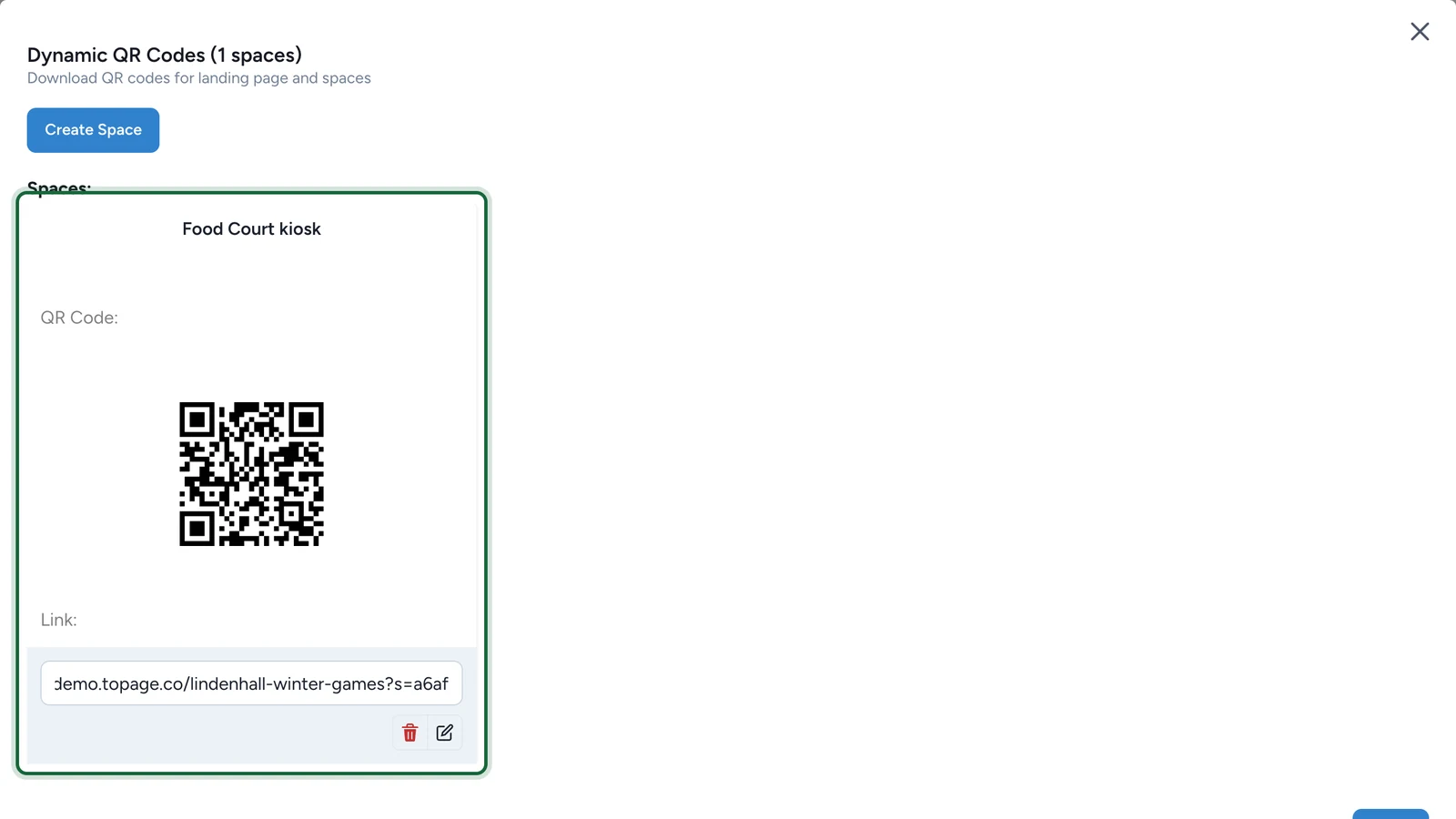
The space appears with its QR code and its link, which ends in ?s= and a code. The bin deletes it, the pencil edits it. Publish the campaign again for the space's link to work.
Design and print
Campaign QR codes are plain black and white. For colours, a logo, a label or several sizes, and for printed codes whose destination might change later, use a [Smart Link] if your plan includes Smart Links,(/docs/smart-links/launch/download-qr-code) and its QR designer.
Before you print:
- Scan the final artwork with an iPhone and an Android phone.
- Keep strong contrast and a clear margin around the code.
- Use SVG for posters and large formats.