The customer activation platform.Every interaction becomes a qualified contact. Book a demo

Folders & organisation

Organise Smart Links with folders so campaigns, locations, and channels stay easy to manage.

In this article, you'll learn how to organise Smart Links with folders, move links between folders, and set up a structure that stays manageable as your library grows.

Prerequisites

  • You can open the Smart Links app from OmniLab.
  • You can create and manage folders in the organisation where your Smart Links live.

Why folders matter

Smart Links is often used across many campaigns, venues, placements, and share channels. A folder structure keeps the app usable once you move beyond a handful of QR codes.

Folders are especially helpful when you need to separate:

  • campaigns or seasons, such as Back to School or Holiday 2026
  • organisations, regions, or venues
  • distribution channels, such as Print, Email, or Retail Partner
  • lifecycle stages, such as Live, Archive, or Testing

A practical folder structure

There is no single required structure, but these patterns work well:

PatternExampleBest for
By campaignSummer Sale 2026 -> Print, DigitalOne team managing one activation with many placements
By locationParis Centre, Lyon Centre, Marseille CentreLocal teams or venue-specific reporting
By channelIn-store, Email, Paid SocialTeams comparing distribution channels across many campaigns
By stageTesting, Live, ArchiveHigh-volume operations with a clear approval or handoff process

Choose one primary rule and stay consistent. Mixing campaign, location, and team logic in the same level usually makes the library harder to scan.

Create and manage folders

Open the folder where the new folder should live

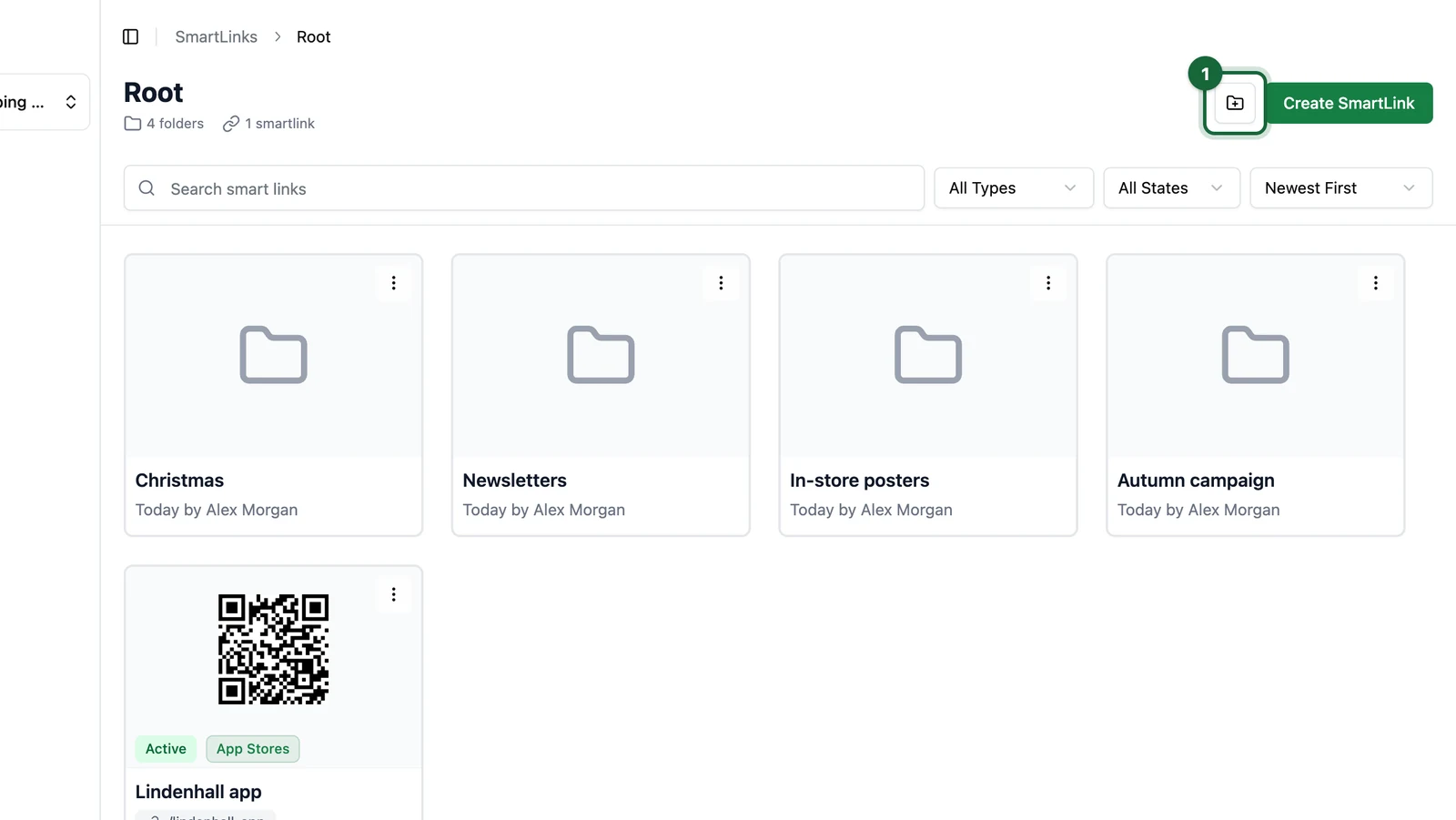
The Links view shows your folder tree, breadcrumbs, and everything inside the current folder. Open the parent folder first so new folders and links are created in the right place.

Smart Links Links view with breadcrumbs, the folder name as the page title, search and filters, and a Smart Link card in the current folder

Create the folder

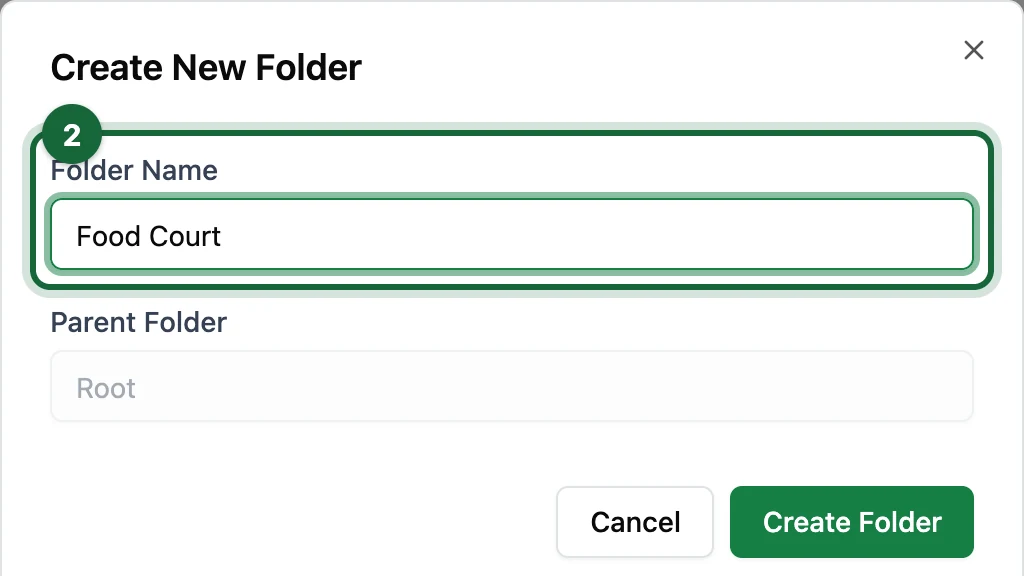
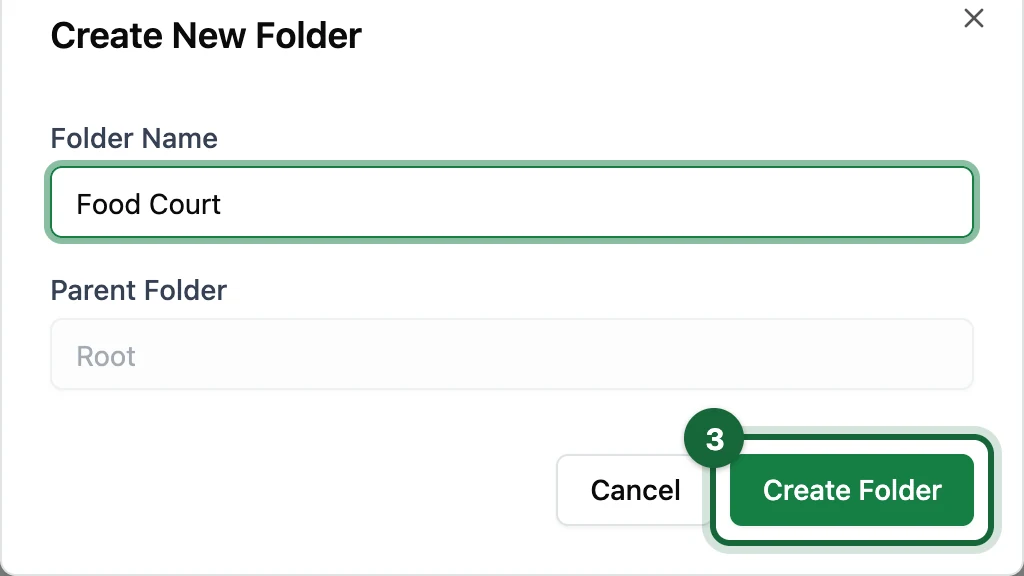
From the current folder, click the new-folder control next to Create SmartLink (tooltip Create New Folder), then complete the form.

Enter a Folder Name that other operators will recognise quickly. Clear names such as Holiday Campaign - Posters are usually better than short internal abbreviations.

Create New Folder dialog with a clear folder name, Parent Folder, and Create Folder action

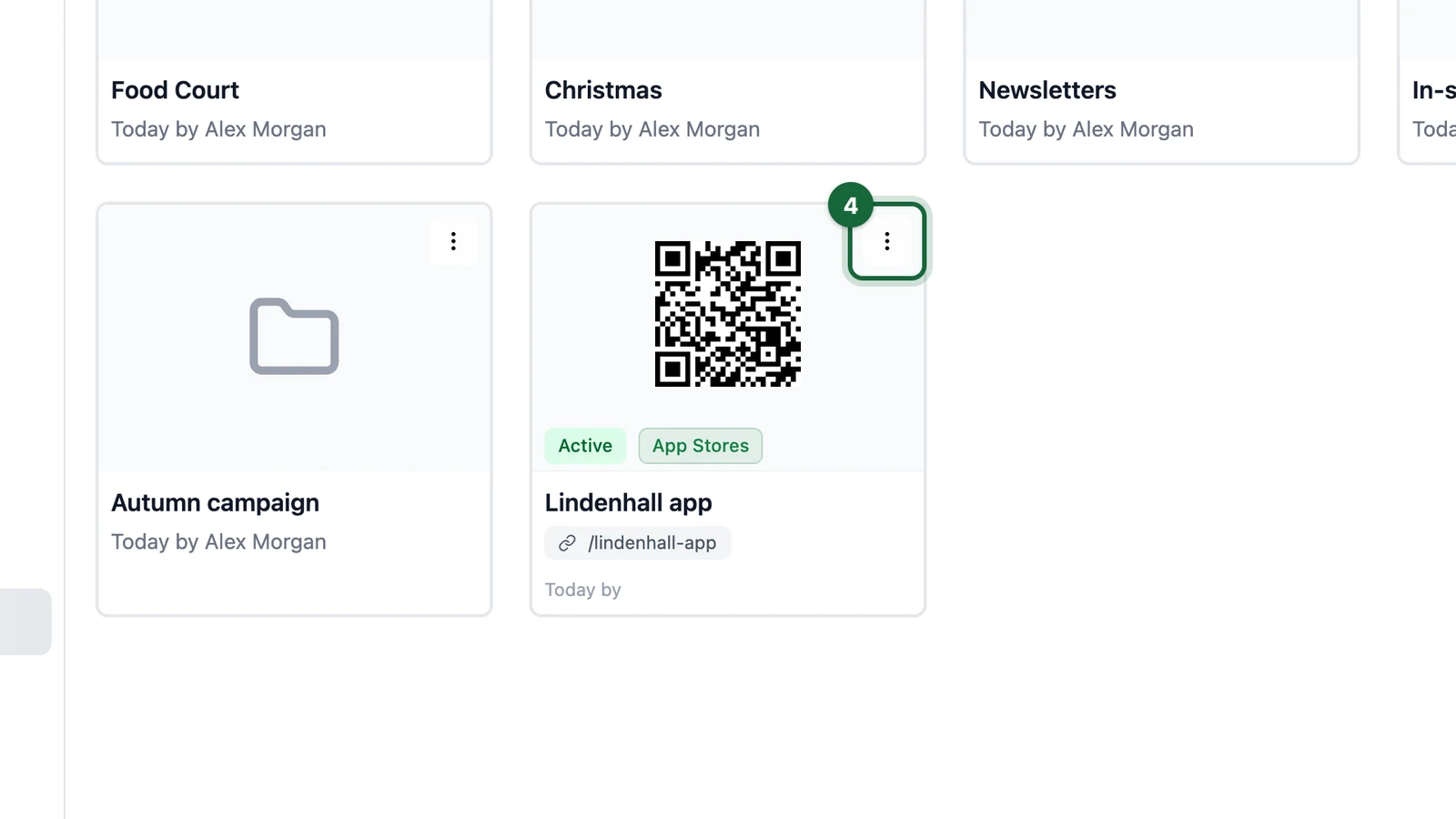
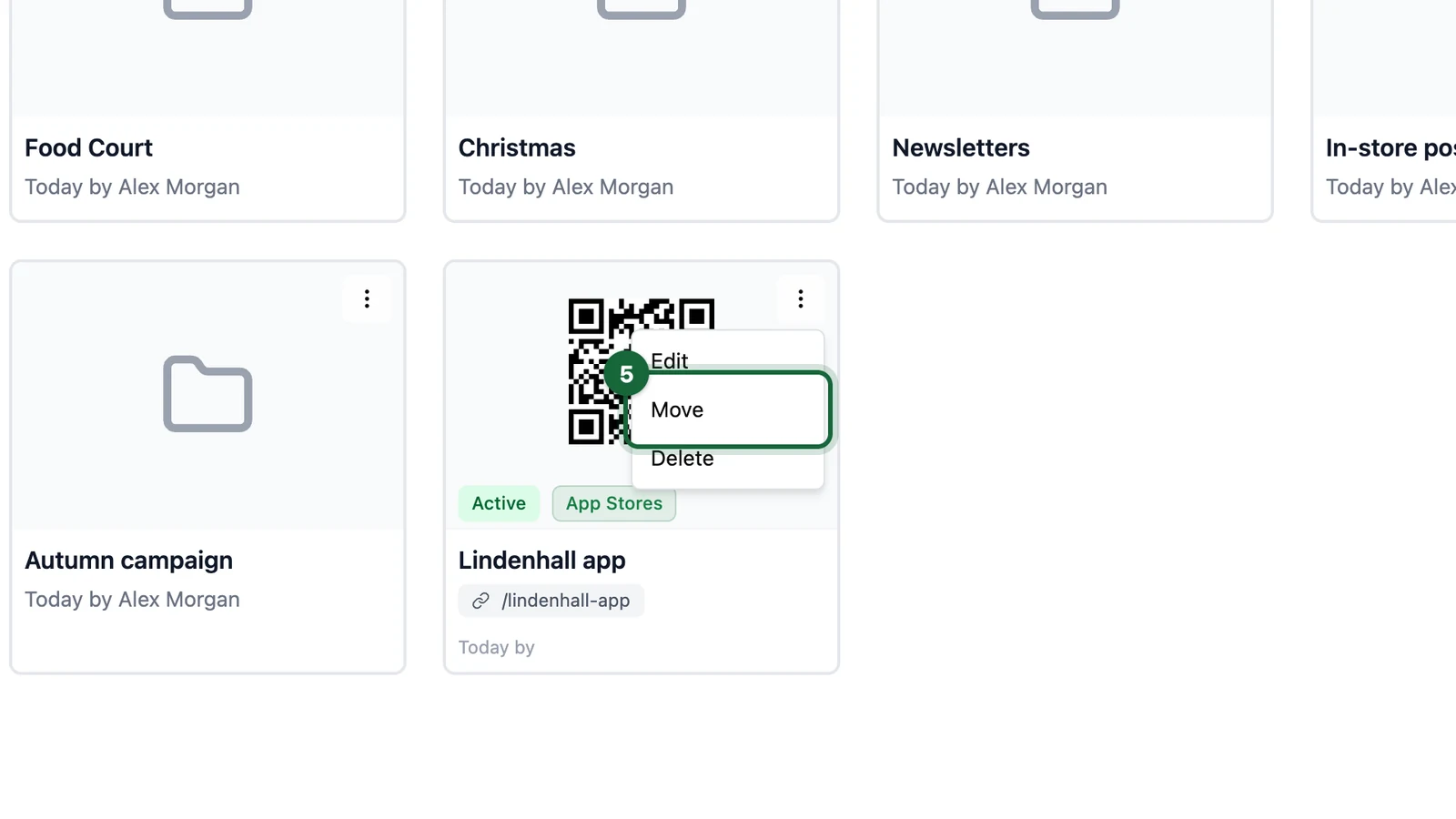
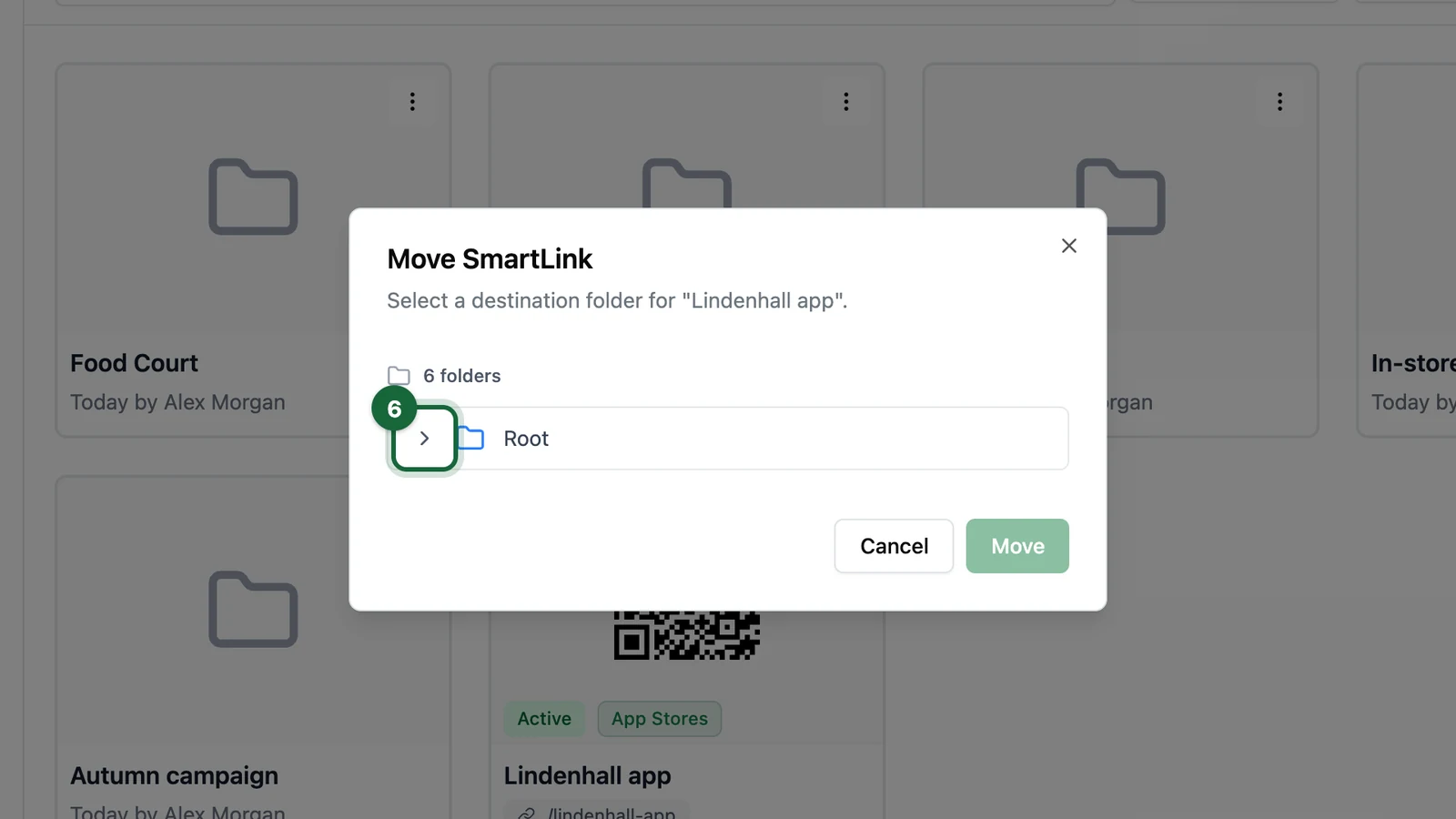
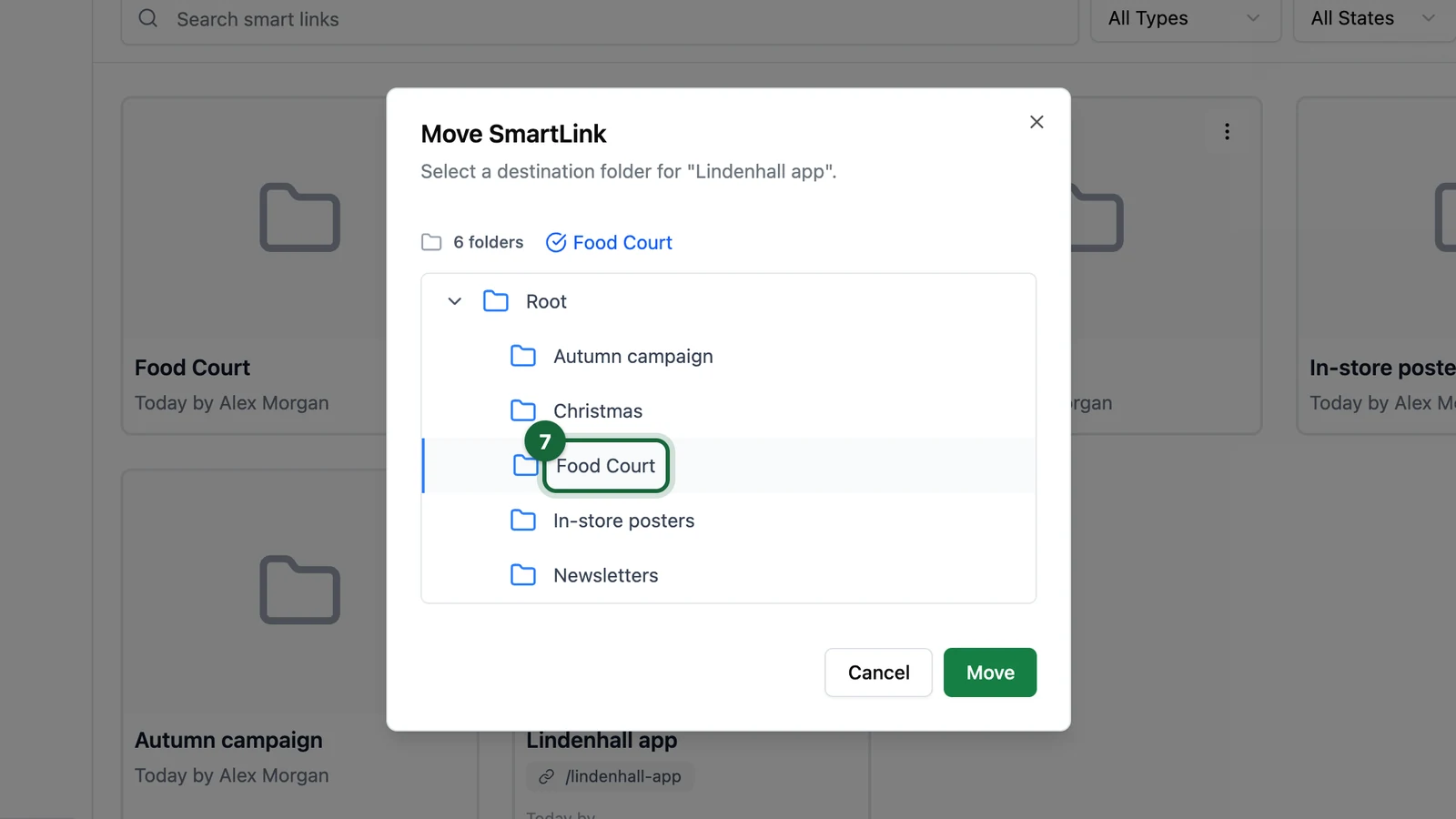
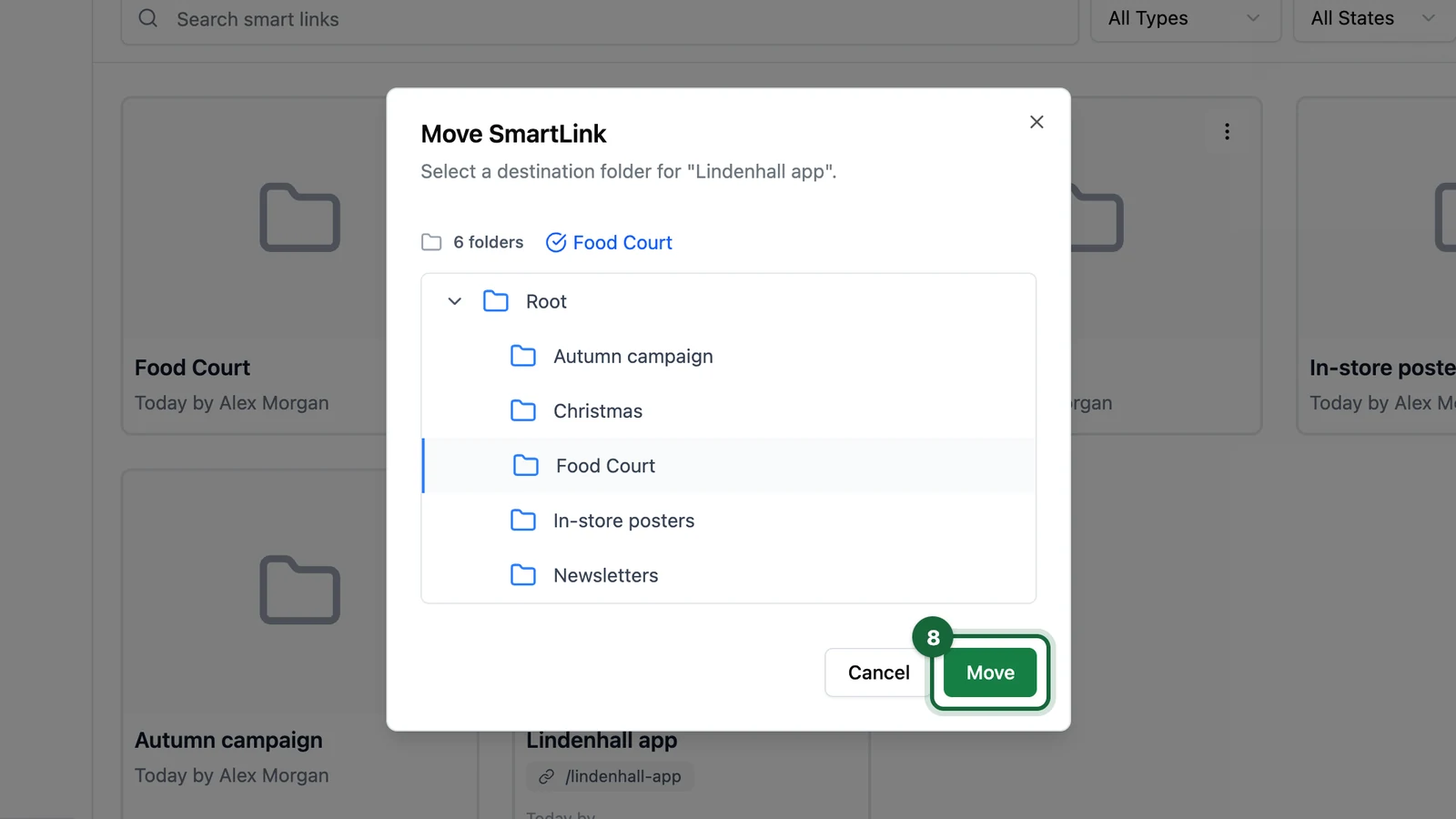
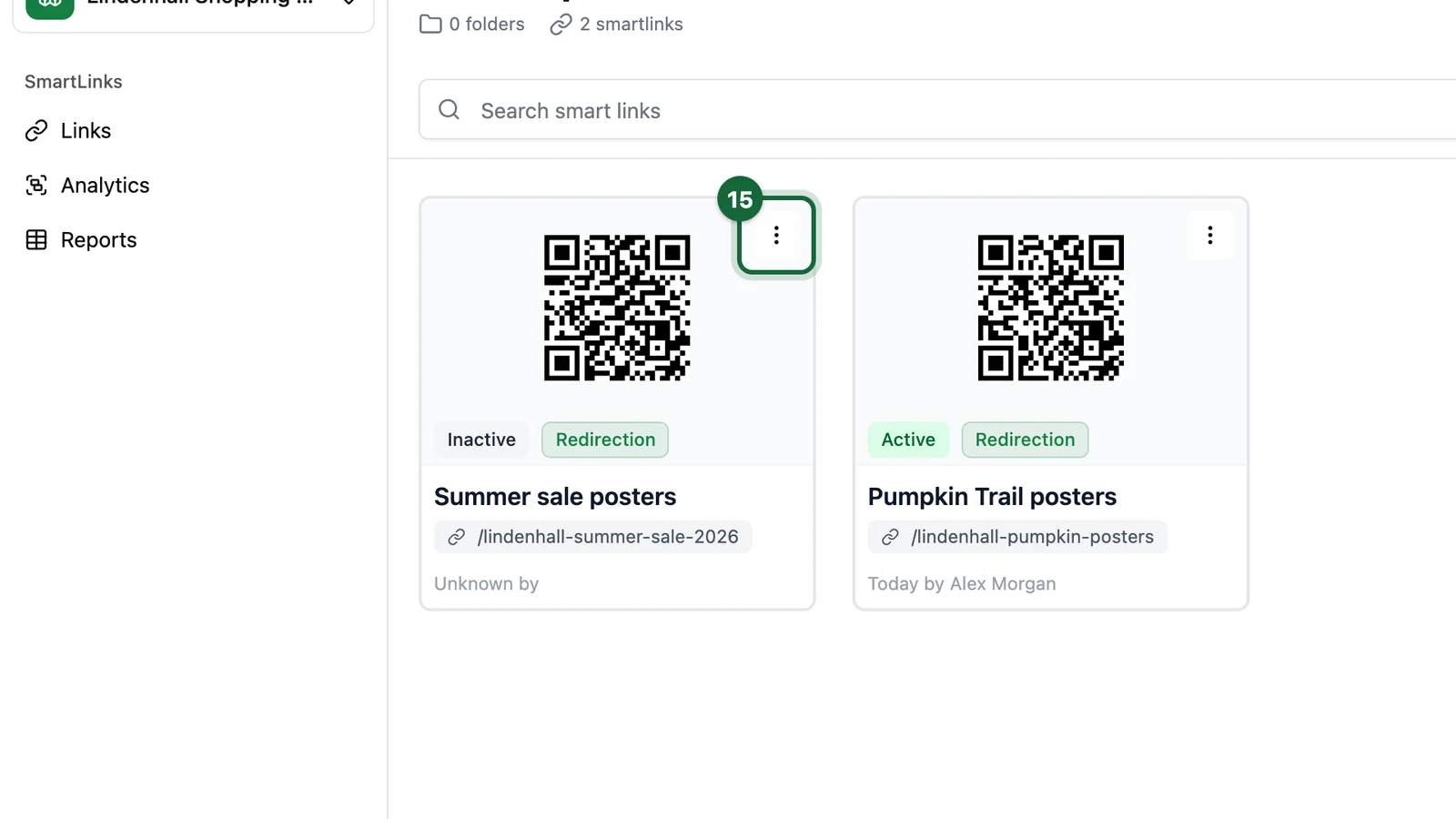
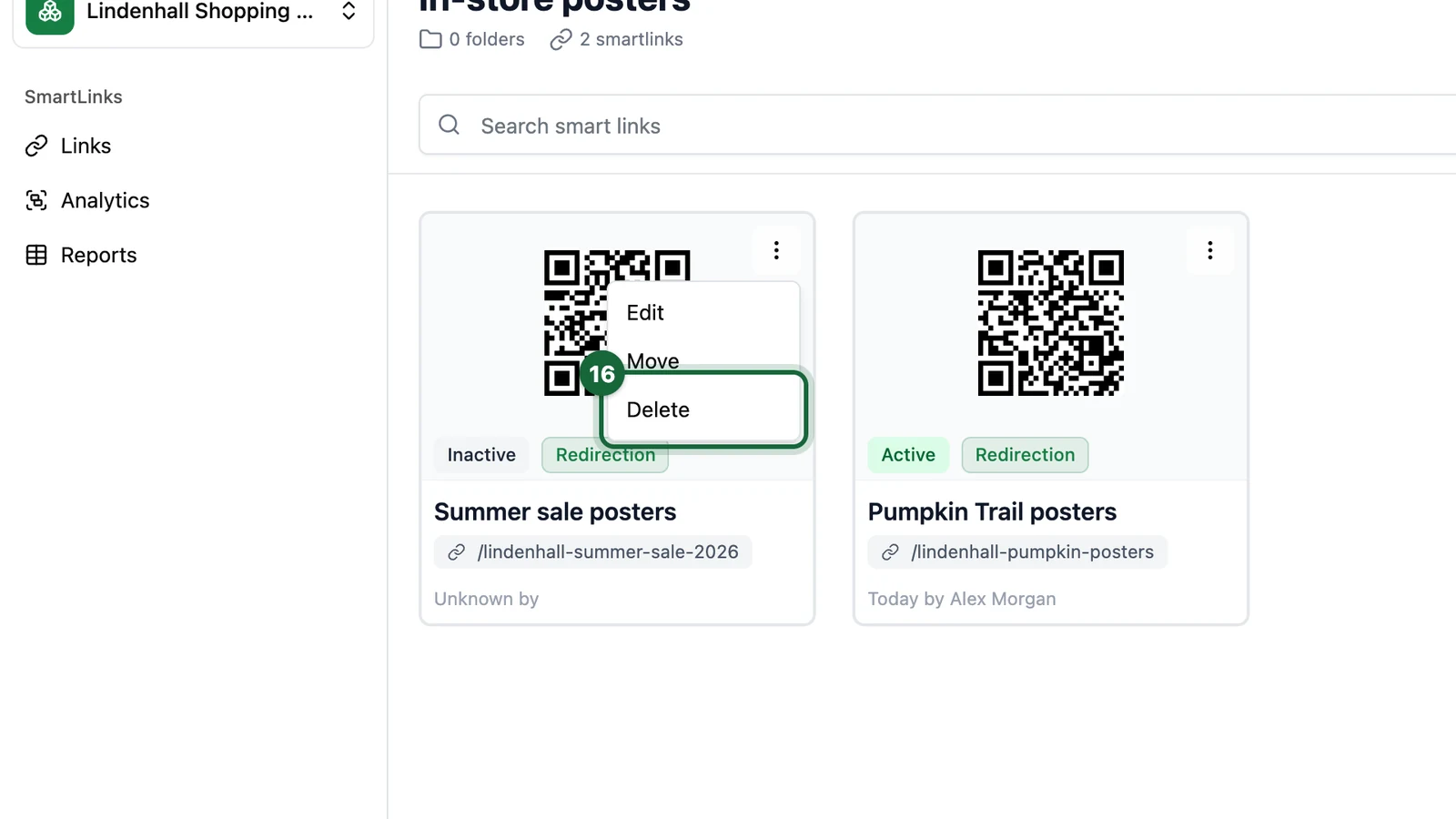
Open the menu on a Smart Link card, then choose Move to place the link in another folder when ownership, campaign scope, or reporting needs change.

This is useful when a link starts as a quick test in one folder and later becomes part of a live campaign library.

Smart Link card with the actions menu open showing Edit, Move, and Delete

Rename, move, or delete folders when the structure changes

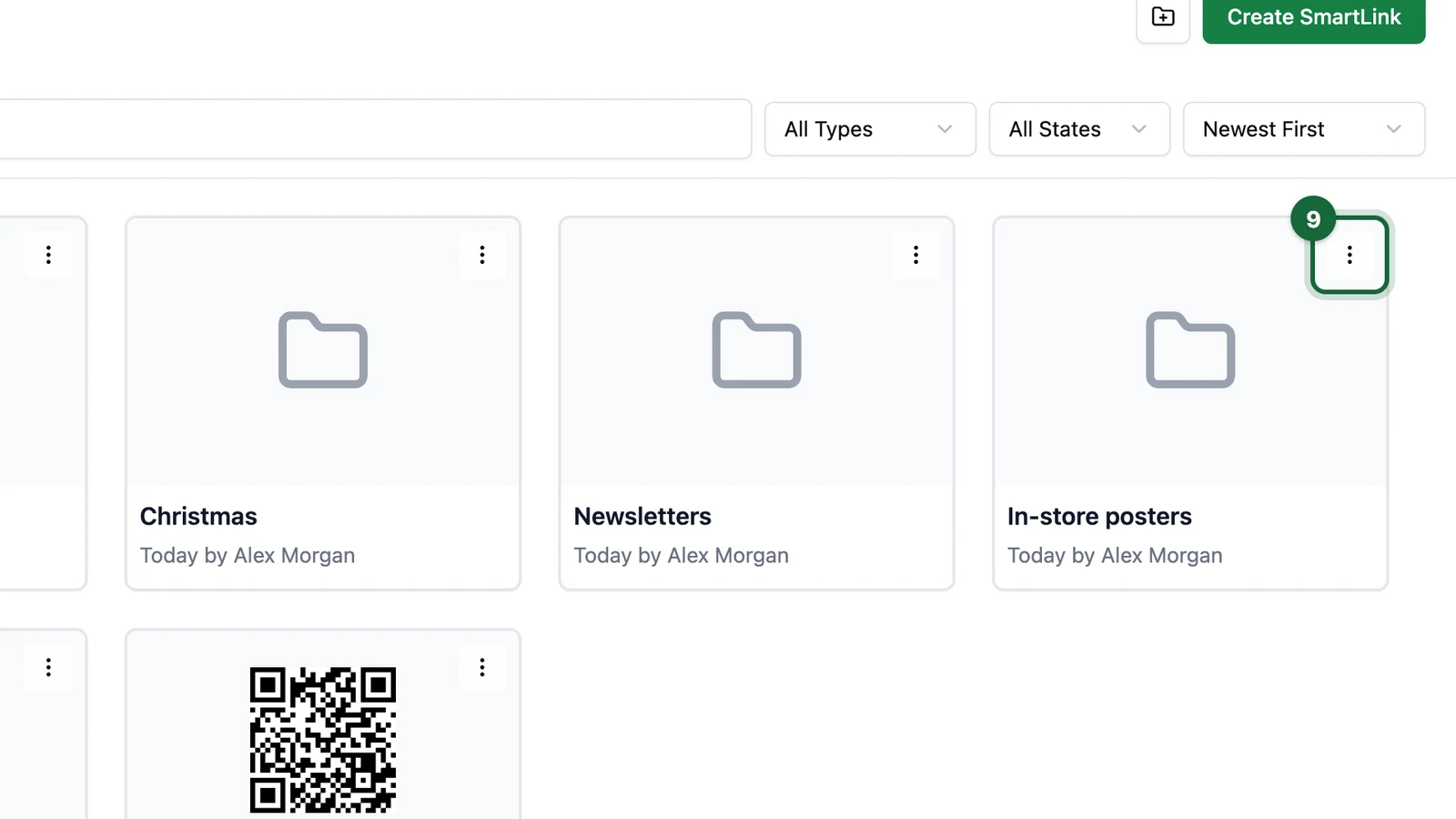
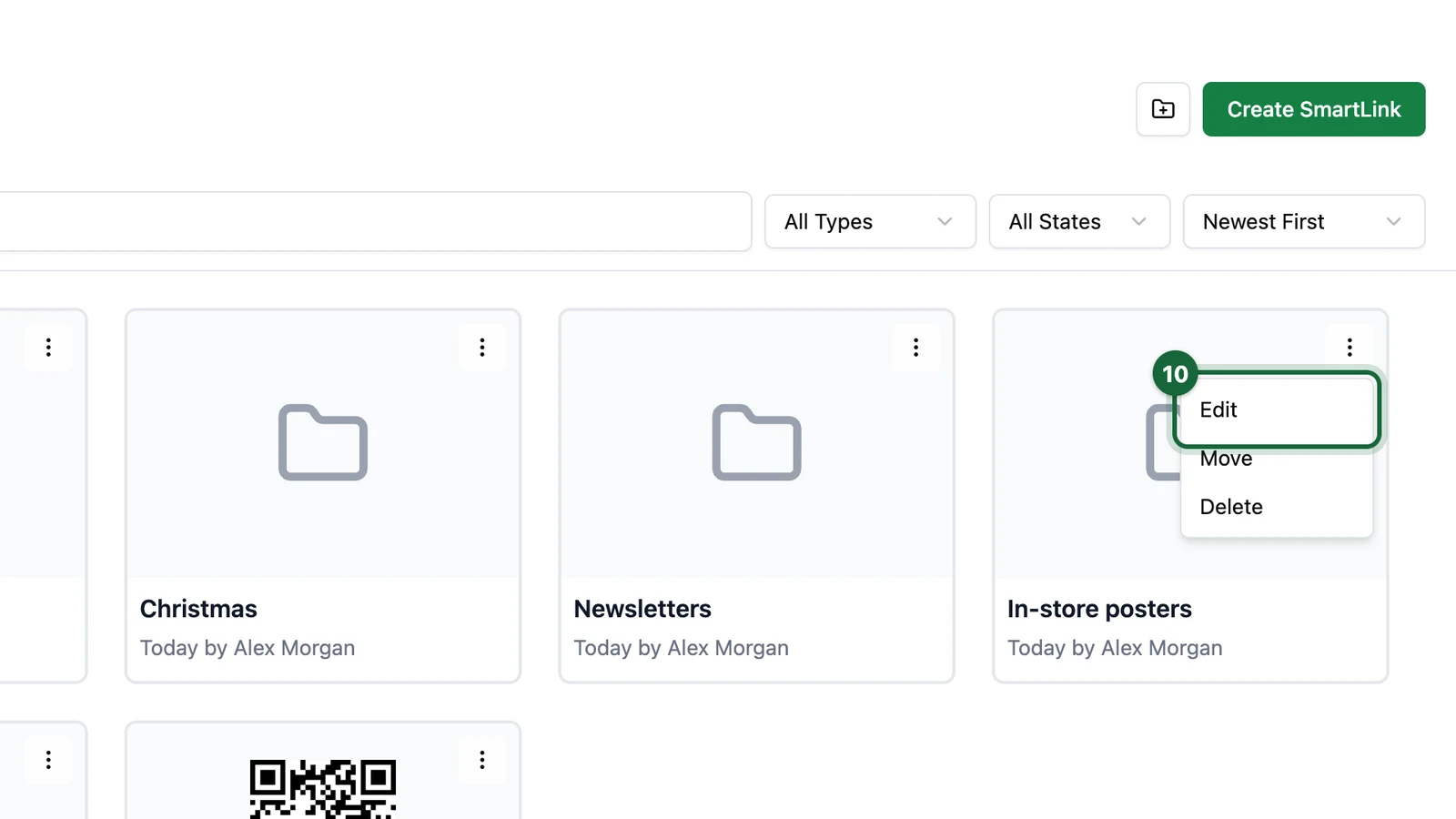
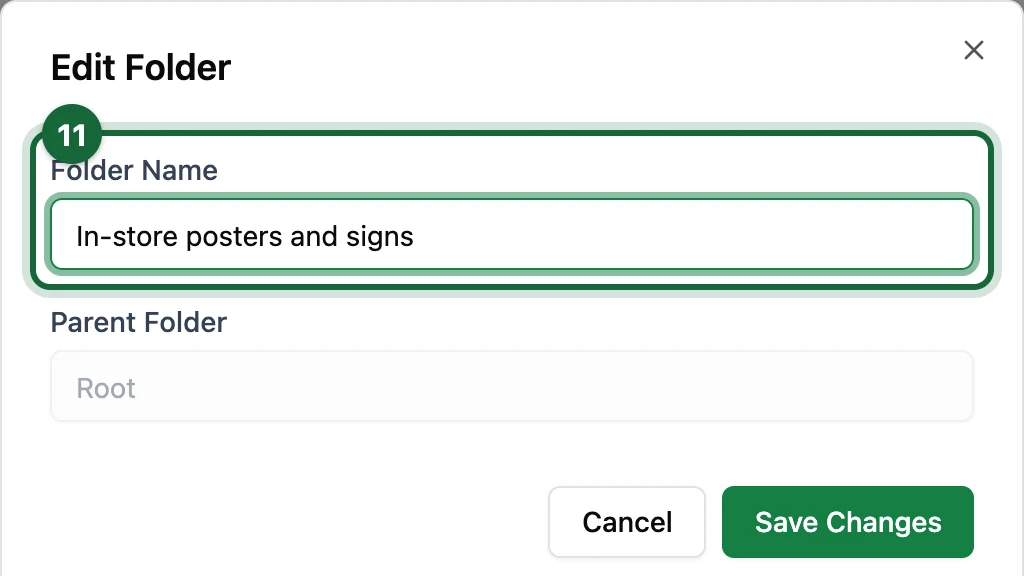
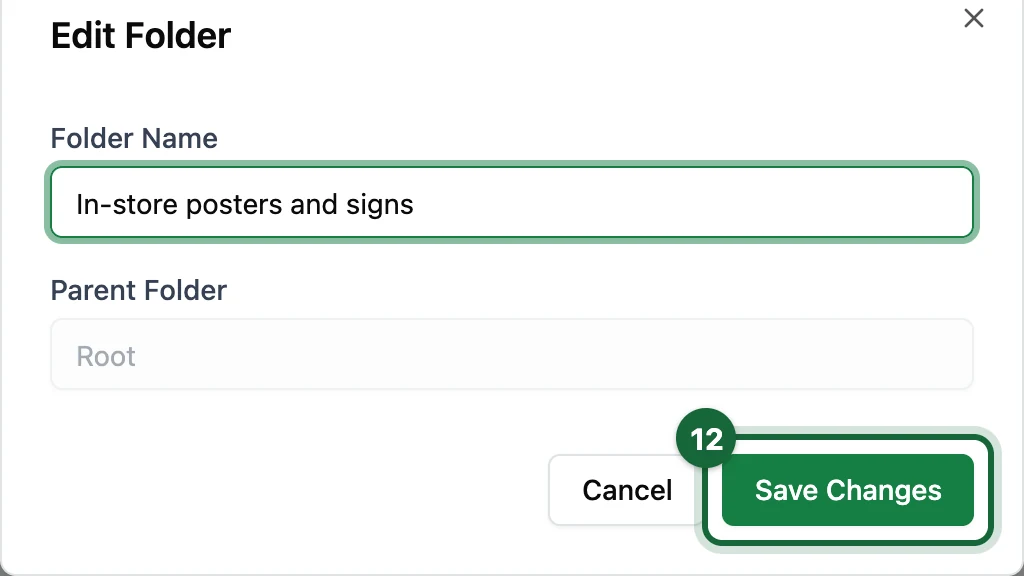
Open the menu on a folder card to Edit or Move, or to Delete when the folder is empty. To rename or reparent a folder, use Edit and update Folder Name and Parent Folder as needed.

If you need to delete a folder, empty it first by moving or deleting the Smart Links inside it and by removing any child folders it contains.

Edit Folder dialog showing Folder Name and Parent Folder for rename or move

  • Keep folder names customer- or campaign-readable, not personal or temporary.
  • Separate Testing links from live distribution links.
  • Decide whether ownership is by campaign, location, or channel before the library grows.
  • Use the same folder naming style across teams so reporting and handoff stays simple.

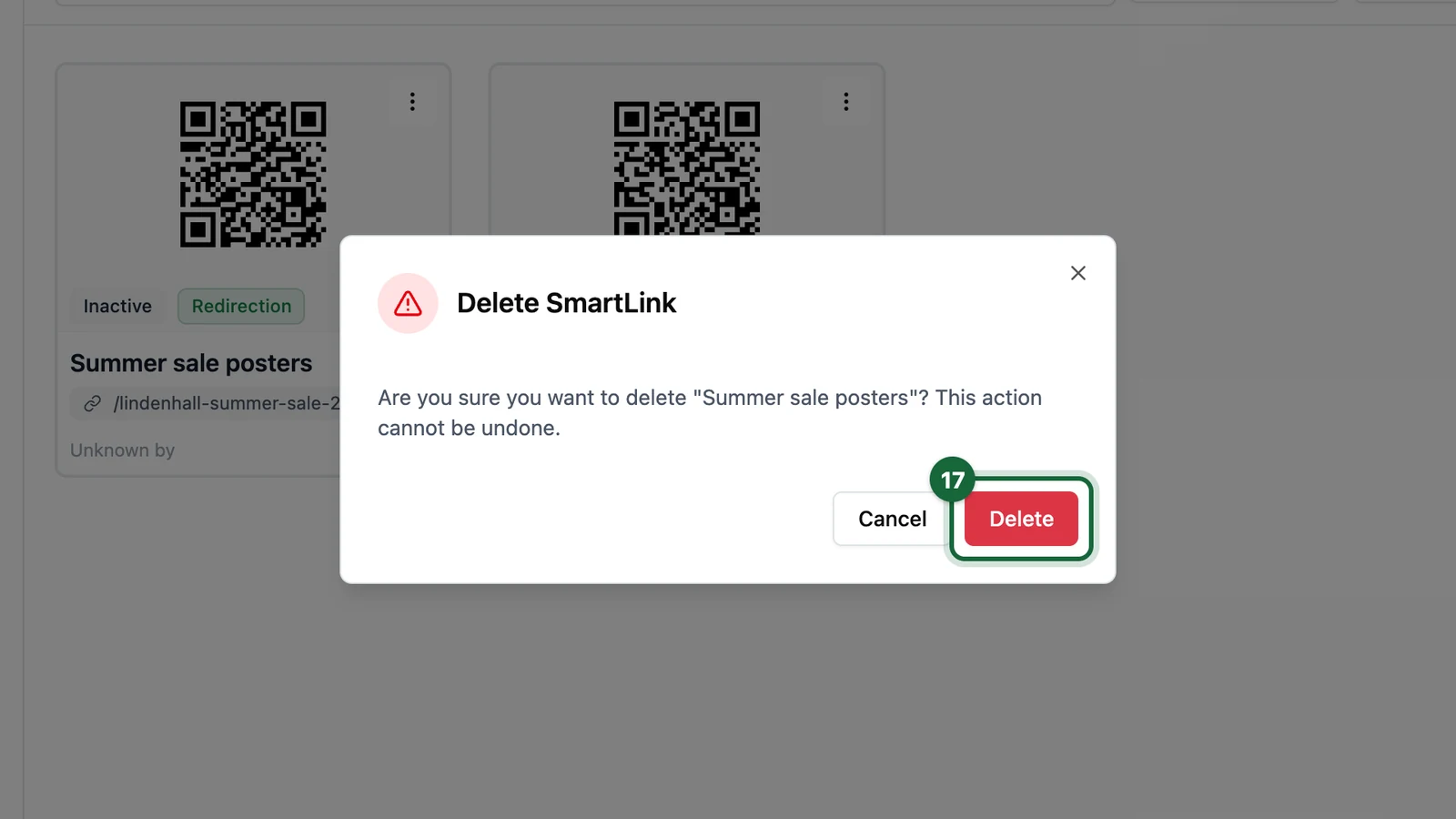
Delete Smart Links safely

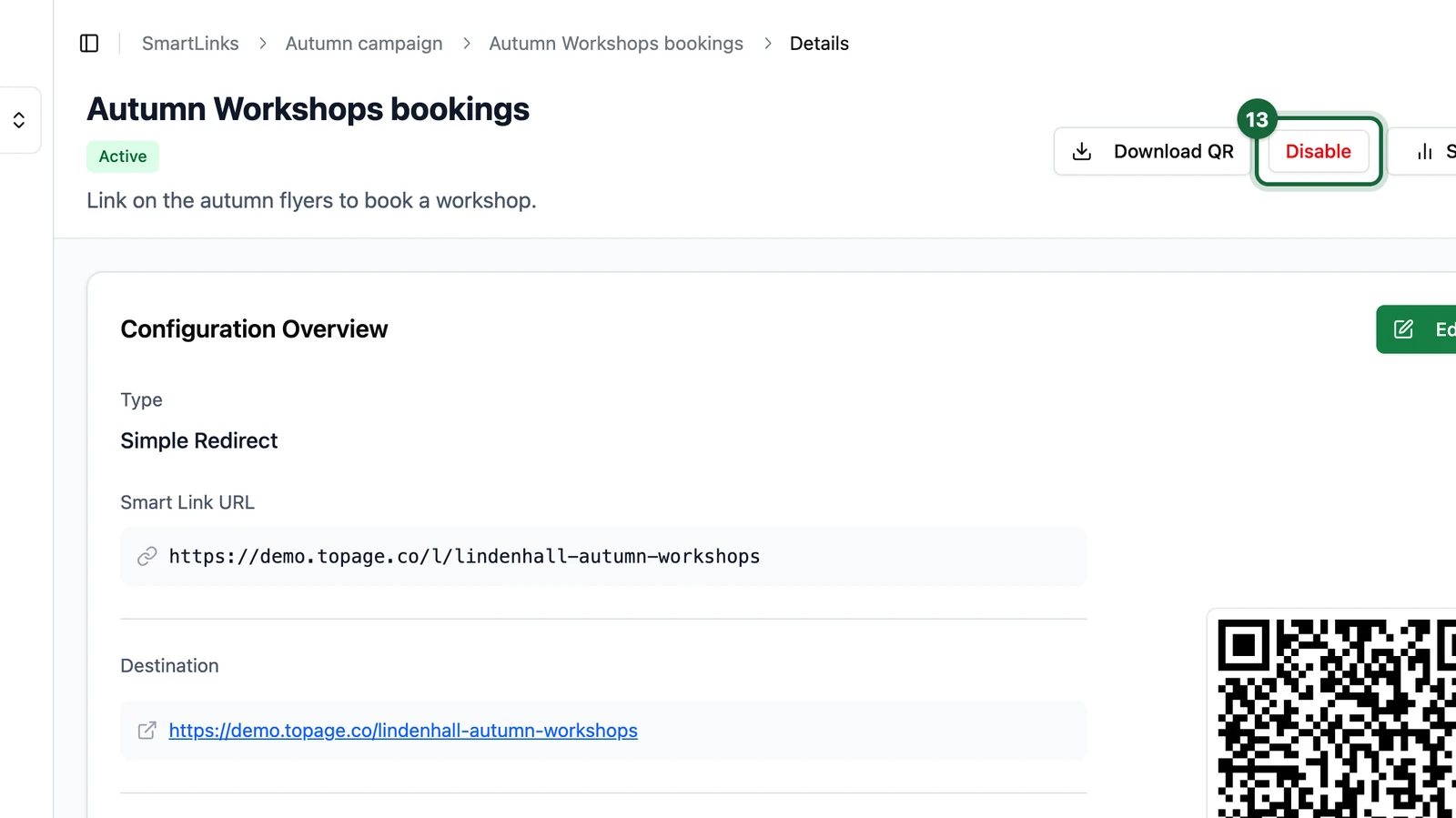
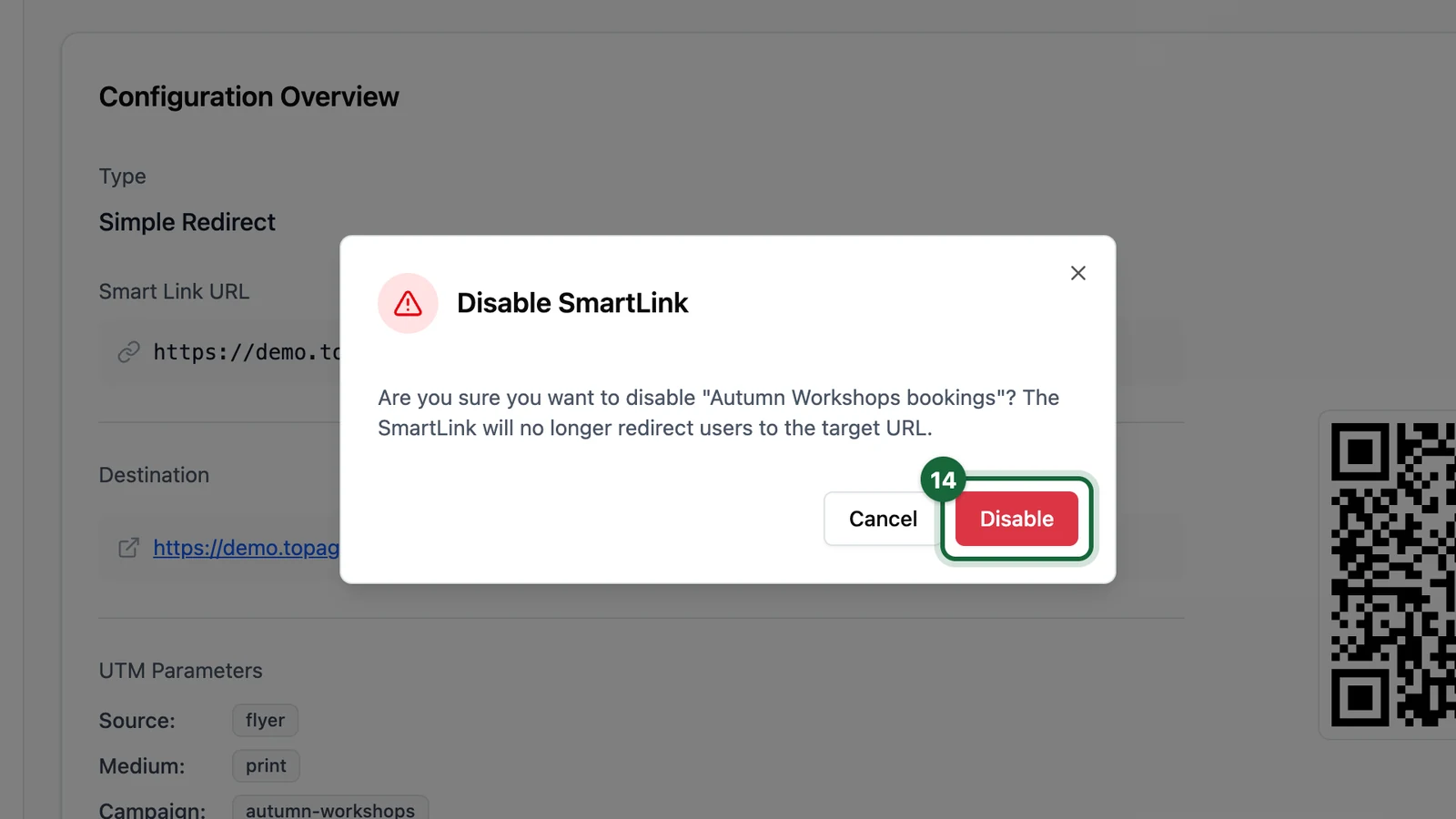
If you no longer need a Smart Link, disable it first, confirm nobody still relies on it, and only then delete it. This is the safest workflow for links that may already appear in print or shared assets.

Example workflow

A retailer launches one campaign across three malls. A clean structure could look like this:

  • Summer Campaign 2026
  • Summer Campaign 2026 / Paris Centre
  • Summer Campaign 2026 / Lyon Centre
  • Summer Campaign 2026 / Marseille Centre

Each location folder can then hold its poster links, event signage, window decals, and partner variants without mixing everything together.

Was this helpful?

Optional comments help us improve this page for future authors and readers.

On this page